コンソールを使用したLoRaWAN IXM用シスコインターフェイスモジュールのアップグレード

ダウンロード オプション
偏向のない言語
この製品のドキュメントセットは、偏向のない言語を使用するように配慮されています。このドキュメントセットでの偏向のない言語とは、年齢、障害、性別、人種的アイデンティティ、民族的アイデンティティ、性的指向、社会経済的地位、およびインターセクショナリティに基づく差別を意味しない言語として定義されています。製品ソフトウェアのユーザインターフェイスにハードコードされている言語、RFP のドキュメントに基づいて使用されている言語、または参照されているサードパーティ製品で使用されている言語によりドキュメントに例外が存在する場合があります。シスコのインクルーシブ ランゲージの取り組みの詳細は、こちらをご覧ください。
翻訳について
シスコは世界中のユーザにそれぞれの言語でサポート コンテンツを提供するために、機械と人による翻訳を組み合わせて、本ドキュメントを翻訳しています。ただし、最高度の機械翻訳であっても、専門家による翻訳のような正確性は確保されません。シスコは、これら翻訳の正確性について法的責任を負いません。原典である英語版(リンクからアクセス可能)もあわせて参照することを推奨します。
内容
概要
このドキュメントでは、コンソールポートとUSBドライブのみを使用して、Cisco Iot Extension Module(IXM)のソフトウェアをアップグレードする手順について説明します。
前提条件
要件
このドキュメントに特有の要件はありません。
使用するコンポーネント
このドキュメントの情報は、次のソフトウェアとハードウェアのバージョンに基づくものです。
- RJ45シリアルケーブル
- USBドライブ(1 GBで十分です)またはローカルネットワークアクセス
- PoEまたはIXM用電源
- ファームウェアイメージ
注:ファームウェアイメージはCCO(https://software.cisco.com/download/release.html?mdfid=286311296&softwareid=286311234&release=2.0&relind=AVAILABLE&rellifecycle=&reltype=latest)からダウンロードできます。
このドキュメントの情報は、特定のラボ環境にあるデバイスに基づいて作成されました。このドキュメントで使用するすべてのデバイスは、初期(デフォルト)設定の状態から起動しています。対象のネットワークが実稼働中である場合には、どのようなコマンドについても、その潜在的な影響について確実に理解しておく必要があります。
背景説明
LoRaWAN向けCisco IXMまたはインターフェイスモジュールは、スタンドアロンまたは仮想の2つのモードで実行できます。IXMが仮想として実行されている場合、IXMに接続されたIR8x9からアップグレードを実行できます。スタンドアロンモードでは、CLIを使用してアップグレードを実行できます。場合によっては、ファームウェアをアップグレードできない(たとえば、IXMが仮想モードに設定され、IR8x9が使用できない)場合や、バージョンの互換性に関してファームウェアの差が大きすぎる場合があります。
設定
ステップ 1:ファームウェアイメージ(およびUSBドライブ)を準備します。
最初の部分は、アップグレードの実行に必要なファームウェアイメージを準備することです。
目標は、これらのファイルをIXMに取得することです。これは、USBドライブまたはローカルネットワーク接続を使用して実行できます。
ファームウェアイメージをCCOからダウンロードすると、gzipped tar ixm_mdm_i_k9-2.0.tar.gzとして提供されます。
.tar.gzを抽出し、recovery.itbおよびrelease.itbファイルを、IXMが到達可能なUSBドライブまたはHTTPサーバにコピーします。
ステップ 2:コンソールアクセスを介してIXMに接続します。
アップグレードを実行するファイルを準備したら、コンソールポートを使用してIXMに接続する必要があります。コンソールポートはIXMの右側にあり、防水ネジで覆われています。
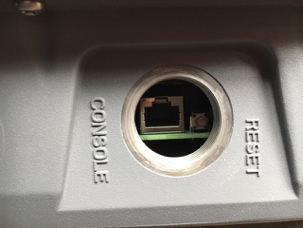
コンソールケーブルをIXMのRJ45とPCのシリアルポートに接続し、次の設定で端末を開きます。8/N/1/115200
すべてが正常に終了した場合は、次のプロンプトが表示されます。
[root@lorawan ~]#
オプションで、IXMはrootアカウントでログインするように要求します。
ステップ 3:ファームウェアファイルをIXMにコピーします。
オプション1: USBドライブの使用
USBドライブを使用する場合は、ドライブをIXMのUSBポート(コンソールポートの下)に接続します。 USBポートへのアクセスは、入り口が非常に狭いため、USB拡張ケーブルがここに役立ちます。
USBドライブを接続すると、画面に次のように表示されます。
root@lorawan ~]# usb 4-1.2: new high-speed USB device number 4 using xhci-hcd
usb 4-1.2: New USB device found, idVendor=058f, idProduct=6387
usb 4-1.2: New USB device strings: Mfr=1, Product=2, SerialNumber=3
usb 4-1.2: Product: USB Flash Drive
usb 4-1.2: SerialNumber: BE087588
usb-storage 4-1.2:1.0: USB Mass Storage device detected
scsi3 : usb-storage 4-1.2:1.0
scsi 3:0:0:0: Direct-Access              USB Flash Drive  8.07 PQ: 0 ANSI: 2
sd 3:0:0:0: [sdb] 15564800 512-byte logical blocks: (7.96 GB/7.42 GiB)
sd 3:0:0:0: [sdb] Write Protect is off
sd 3:0:0:0: [sdb] No Caching mode page found
sd 3:0:0:0: [sdb] Assuming drive cache: write through
sd 3:0:0:0: [sdb] No Caching mode page found
sd 3:0:0:0: [sdb] Assuming drive cache: write through
 sdb: sdb1
sd 3:0:0:0: [sdb] No Caching mode page found
sd 3:0:0:0: [sdb] Assuming drive cache: write through
sd 3:0:0:0: [sdb] Attached SCSI removable disk
ここで、USBドライブをマウントし、recovery.itbおよびrelease.itbファイルをIXMの/tmpにコピーします。
[root@lorawan ~]# mount /dev/sdb1 /mnt/
[root@lorawan ~]# cp /mnt/*.itb /tmp
オプション2:ネットワークを使用してファイルをコピーする
ネットワーク経由でファイルをコピーする場合は、直接またはスイッチ経由でIXMのネットワークポートをコンピュータに接続し、到達可能なネットワークアドレスを設定します。
ファイルをコピーするようにIXMのネットワークアドレスを設定するには、通常のifconfigコマンドを使用します。
[root@lorawan ~]# ifconfig eth0 10.48.43.200
デバイスが到達可能になると、ステップ1で準備したHTTPサーバからファイルをダウンロードできます。
[root@lorawan ~]# cd /tmp
[root@lorawan tmp]# wget http://10.48.43.201:1000/recovery.itb
Connecting to 10.48.43.201:1000 (10.48.43.201:1000)
recovery.itb         100% |*******************************| 23684k  0:00:00 ETA
[root@lorawan tmp]# wget http://10.48.43.201:1000/release.itb
Connecting to 10.48.43.201:1000 (10.48.43.201:1000)
release.itb          100% |*******************************| 44794k  0:00:00 ETA
[root@lorawan tmp]#
ステップ 4:アップグレードを実行します。
broot@lorawan ~]# /opt/script/reimage.sh -n /tmp/release.itb -f /tmp/recovery.it
Calling latest reimage.sh...
Could not find out the version. May be using dev builds. Mode update skipped
Writing factory mode image...
47368+1 records in
47368+1 records out
24252422 bytes (23.1MB) copied, 1.318204 seconds, 17.5MB/s
Writing normal mode image1...
89589+1 records in
89589+1 records out
45869754 bytes (43.7MB) copied, 2.453597 seconds, 17.8MB/s
Writing normal mode image2...
89589+1 records in
89589+1 records out
45869754 bytes (43.7MB) copied, 2.458087 seconds, 17.8MB/s
Updating u-boot boot parameters...
Stop lxc container...
Stopping default lxc container...
umount: /mnt/container/rootfs/run: mountpoint not found
umount: /mnt/container/rootfs/var/run: mountpoint not found
lxcbr0: port 1(vethPFLXN1) entered disabled state
umount: /mnt/container/rootfs: mountpoint not found
device vethPFLXN1 left promiscuous mode
lxcbr0: port 1(vethPFLXN1) entered disabled state
Stop logging service...
Stopping syslog-ng daemon: OK
Stop logging signal received
umount: /var/log/: target is busy
		(In some cases useful info about processes that
		 use the device is found by lsof(8) or fuser(1).)
Try to umount log directory again...
2244
Stop mdev...
umount: /data/uflash: mountpoint not found
Repartion internal SD...

Welcome to fdisk (util-linux 2.26.2).
Changes will remain in memory only, until you decide to write them.
Be careful before using the write command.


Command (m for help): Created a new DOS disklabel with disk identifier 0x676d0d95.

Command (m for help): Partition type
   p   primary (0 primary, 0 extended, 4 free)
   e   extended (container for logical partitions)
Select (default p): Partition number (1-4, default 1): First sector (2048-7618559, default 2048): Last sector, +sectors or +size{K,M,G,T,P} (786432-7618559, default 7618559):
Created a new partition 1 of type 'Linux' and of size 640 MiB.

Command (m for help): Partition type
   p   primary (1 primary, 0 extended, 3 free)
   e   extended (container for logical partitions)
Select (default p): Partition number (2-4, default 2): First sector (2048-7618559, default 2048): Last sector, +sectors or +size{K,M,G,T,P} (2097152-7618559, default 7618559):
Created a new partition 2 of type 'Linux' and of size 2.6 GiB.

Command (m for help): The partition table has been altered.
Calling ioctl() to re-read partition table.
Re-reading the partition table failed.: Device or resource busy

The kernel still uses the old table. The new table will be used at the next reboot or after you run partprobe(8) or kpartx(8).

Recreate filesystem...
Creating filesystem for system data...
/tmp/_reimage.sh: line 322: cryptkey: command not found
/tmp/_reimage.sh: line 323: cryptsetup: command not found
/tmp/_reimage.sh: line 324: cryptsetup: command not found
/tmp/_reimage.sh: line 325: cryptsetup: command not found
mke2fs 1.42.12 (29-Aug-2014)
The file /dev/mapper/cryptroot does not exist and no size was specified.
Creating filesystem for user data...
mke2fs 1.42.12 (29-Aug-2014)
/dev/sda2 contains a ext3 file system labelled 'APP'
	last mounted on Thu Jan  1 00:00:06 1970
/dev/sda2 is mounted; will not make a filesystem here!
Restart mdev...
Starting mdev...
Restart logging service...
Mounting log directory...
Starting syslog-ng daemon: OK
[root@lorawan ~]#
ステップ 5:アップグレード後にIXMを再起動します。
IXMをリブートするだけで、アップグレードが完了します。
[root@lorawan ~]# reboot
[root@lorawan ~]# watchdog watchdog0: watchdog did not stop!
Stopping cron jobs...
Stopping default lxc container...
lab is not running
umount: /tmp/lxc: not mounted
Stopping sshd: OK
Stopping ntpd: OK
Stop lora HAL...
Stopping Network Interface Plugging Daemon: eth0.
Stopping network...ifdown: interface eth0 not configured
Saving random seed... done.
Clear kernel parameters...
Stopping system config...
Stop checking PID...
Save clock...
killall: watchdog: no process killed
Stopping syslog-ng daemon: OK
Stop logging signal received
No handlers could be found for logger "mdm"
The system is going down NOW!
確認
これにより、アップグレードが成功したかどうかを確認できます。
旧バージョンの例:
[root@lorawan ~]# cat /etc/cisco_version
VERSION=1.0.06
BRANCH=warbler_1_0_throttle
VIEW=nburra-warbler_1_0_throttle.warbler_1_0_throttle_nightly_12052016
FREEZE TIME=05-Dec-2016.21:40:46UTC-08:00
アップグレード後の例:
[root@lorawan ~]# cat /etc/cisco_version
VERSION=2.0
BRANCH=corsica_2_0_throttle
VIEW=nburra-corsica_2_0_throttle.corsica_2_0_throttle_NIGHTLY_2.0_05272017_203603
FREEZE TIME=26-May-2017.15:50:34UTC-07:00
トラブルシューティング
現在のところ、この設定に関する特定のトラブルシューティング情報はありません。
シスコ エンジニア提供
- イェンス・デピュイットCisco TACエンジニア
 フィードバック
シスコに問い合わせ
- サポート ケースをオープン

- (シスコ サービス契約が必要です。)