Cisco Virtualization Experience Media Edition

Purpose of this Guide

This guide explains how to

  • Install and configure Cisco Virtualization Experience Media Edition for SUSE Linux (VXME for SUSE Linux).

  • Install and configure Cisco AnyConnect Secure Mobility Client in a VXME for SUSE Linux deployment.

  • Upgrade VXME for SUSE Linux.


Important

In this deployment guide, SUSE Linux refers to SUSE Linux Enterprise Thin Client.


About Cisco Virtualization Experience Media Edition

Cisco Virtualization Experience Media Edition (VXME) extends the Cisco collaboration experience to virtual deployments. With a supported version of Cisco Jabber for Windows, users can send and receive phone calls on their hosted virtual desktops (HVD). The VXME software detects the virtual environment and routes all audio and video streams directly from one endpoint to another, without going through the HVD.

The applications in the Cisco VXME family of products are:

  • Cisco Virtualization Experience Media Edition for SUSE Linux

  • Cisco Virtualization Experience Media Edition for Windows

  • Cisco Virtualization Experience Media Edition for Unicon eLux

  • Cisco Virtualization Experience Media Edition for HP Thin Pro and Ubuntu

For more information about Cisco VXME, visit http://www.cisco.com/e/en/us/products/collaboration-endpoints/virtualization-experience-media-edition/index.html.

Virtual Deployments

With Cisco Virtualization Experience Media Edition (VXME), thin client users can place and receive calls with their Cisco Unified Communications application (Cisco Jabber). Cisco Virtualization Experience Media Edition consists of the Cisco VXME Agent and the Cisco VXME Client. To reduce latency and to enhance media quality, VXME streams media between the endpoints without going through the hosted virtual desktops.

Cisco Virtualization Experience Media Edition also supports some accessories. For a complete listing of supported audio and video accessories, see Unified Communications Endpoint and Client Accessories, at http://www.cisco.com/c/en/us/products/unified-communications/uc_endpoints_accessories.html.

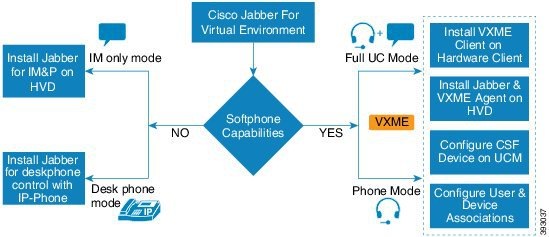
Figure 1. Determine Whether You Need Cisco Virtualization Experience Media Edition for SUSE Linux. Use the following flowchart to determine whether you require VXME for your virtual environment.

A Cisco VXME virtual deployment consists of the following components:

  • Supported SUSE Linux thin clients

    For more information about supported thin clients, see Release Notes for Cisco Virtualization Experience Media Edition for SUSE Linux.

  • Cisco VXME Client installed on the thin client

  • Windows hosted virtual desktops (HVD), in a data center

  • Cisco Jabber installed on the HVD

  • Cisco VXME Agent installed on the HVD

  • Cisco Unified Communications Manager

Differences in the Virtual Environment

The user experience with Cisco Virtualization Experience Media Edition and a supported Cisco Unified Communications client is similar to the experience provided by a standard Cisco Unified Communications client installation. However, in a virtual environment there are some differences:

  • The Cisco Unified Communications client detects the virtual environment at run time and starts in virtualization mode.

  • Users can choose to control their Cisco IP Phones or to use their computers to make and receive calls. The default phone selection is Use my computer for calls. After device selection, the Cisco Virtualization Experience Media Edition application starts the transfer of the phone configuration data for that user. For more information, see Configuration Files.

  • Users can manage their camera and audio devices by using the Device Selector, which is located in the Windows notification area. Users can also use the following tabs to manage their camera and audio devices from within their Cisco Unified Communications client:

    • File > Options > Audio

    • File > Options > Video

  • By default, all calls send and receive video if both parties have video capability. Users can select their preference from the following options:

    • Always start calls with video: Starts all calls as video calls, which send local video

    • Never start calls with video: Starts all calls as audio-only calls

    This setting applies to all calls that the user places and receives. The default setting is Always start calls with video. Users can change this setting in File > Options > Calls.


    Note

    You can disable video globally or on a per-device basis on the Cisco Unified Communications Manager. Navigate to System > Enterprise Phone Configuration and set Video Calling to Disabled.


  • Some menus and options for the supported Cisco Unified Communications clients are different. For example, users cannot start Video Desktop Share (Binary Floor Control Protocol) from the call window. Video Desktop Share is supported only from the IM-chat window (Remote Desktop Protocol).

Filenames

Table 1. Release 11.5(1)

File Type

Filename

Cisco Virtualization Experience Media Edition Client for SUSE Linux SP2 (downloadable .zip file)

Cisco_VXME_Client_SLETC_SP2-11.5.1.zip

SP2 VXME.rpm file (extracted from zip file)

cisco_vxme_client-11.5.1-428.sletc11sp2.rpm

SP2 VXME Prerequisites.rpm file (extracted from zip file)

vxme-pre-reqs-11.5.1-52.sletc11sp2.rpm

Cisco Virtualization Experience Media Edition Client for SUSE Linux SP3 (downloadable .zip file)

Cisco_VXME_Client_SLETC_SP3-11.5.1.zip

SP3 VXME Client.rpm file (extracted from zip file)

cisco_vxme_client-11.5.1-428.sletc11sp3.rpm

SP3 VXME Prerequisites.rpm file (extracted from zip file)

vxme-pre-reqs-11.5.1-52.sletc11sp3.rpm

Cisco Virtualization Experience Media Edition Agent for SUSE Linux Release 11.5(1) (downloadable zip file)

Cisco_VXME_Agent-11.5.1.zip

Cisco VXME Agent installer file (extracted from zip file)

CiscoVXMEAgentSetup.msi

Cisco AnyConnect for SUSE Linux SP2 (downloadable zip file)

Anyconnect_bundle-3.1.08009-71_SP2.zip

SP2 Cisco AnyConnect.rpm file (extracted from zip file)

anyconnect_bundle-3.1.08009-71.sletc11sp2.rpm

Cisco AnyConnect for SUSE Linux SP3 (downloadable zip file)

Anyconnect_bundle-3.1.08009-71_SP3.zip

SP3 Cisco AnyConnect.rpm file (extracted from zip file)

anyconnect_bundle-3.1.08009-71.sletc11sp3.rpm

Table 2. Release 11.5

File Type

Filename

Cisco Virtualization Experience Media Edition Client for SUSE Linux SP2 (downloadable .zip file)

Cisco_VXME_Client_SLETC_SP2-11.5.0.zip

SP2 VXME.rpm file (extracted from zip file)

cisco_vxme_client-11.5.0-418.sletc11sp2.rpm

SP2 VXME Prerequisites.rpm file (extracted from zip file)

vxme-pre-reqs-11.5.0-40.sletc11sp2.rpm

Cisco Virtualization Experience Media Edition Client for SUSE Linux SP3 (downloadable .zip file)

Cisco_VXME_Client_SLETC_SP3-11.5.0.zip

SP3 VXME Client.rpm file (extracted from zip file)

cisco_vxme_client-11.5.0-418.sletc11sp3.rpm

SP3 VXME Prerequisites.rpm file (extracted from zip file)

vxme-pre-reqs-11.5.0-40.sletc11sp3.rpm

Cisco Virtualization Experience Media Edition Agent for SUSE Linux Release 11.5 (downloadable zip file)

Cisco_VXME_Agent-11.5.0.zip

Cisco VXME Agent installer file (extracted from zip file)

CiscoVXMEAgentSetup.msi

Cisco AnyConnect for SUSE Linux SP2 (downloadable zip file)

Anyconnect_bundle-3.1.08009-71_SP2.zip

SP2 Cisco AnyConnect.rpm file (extracted from zip file)

anyconnect_bundle-3.1.08009-71.sletc11sp2.rpm

Cisco AnyConnect for SUSE Linux SP3 (downloadable zip file)

Anyconnect_bundle-3.1.08009-71_SP3.zip

SP3 Cisco AnyConnect.rpm file (extracted from zip file)

anyconnect_bundle-3.1.08009-71.sletc11sp3.rpm

Cisco AnyConnect Feature Support

Cisco Virtualization Experience Media Edition supports Cisco AnyConnect Secure Mobility Client, Release 3.1. The Cisco AnyConnect Secure Mobility client provides remote users with secure VPN connections to the Cisco 5500 Series Adaptive Security Appliance (ASA). Cisco AnyConnect Secure Mobility client supports Cisco ASA version 8.0(4) or later and the Adaptive Security Device Manager (ASDM) 6.4(1) or later.

Cisco AnyConnect is available as a separate add-on that you can push to your devices using the standard add-on procedure.


Note

Application upgrades of Cisco AnyConnect 3.1 from the ASA are not supported.


The following table shows the AnyConnect features supported on the thin clients.

Table 3. AnyConnect Feature Support

Feature

Supported on SUSE Linux-based Thin Clients

Datagram Transport Layer Security (DTLS) with SSL access to VPN Yes
IPSec/IKEv2 support No
Compression -Increases the communications performance between the security appliance and the client Yes
Fallback from DTLS to TLS if DTLS fails Yes
Certificate-only authentication No
Machine certificate authentication for standalone mode No
RSA SecurID integration No
Smartcard support No
Download certificate from ASA with Get Certificate No
Simple Certificate Enrollment Protocol (SCEP) to set up and renew a certificate used for client authentication No
GUI interface Yes, Legacy
Minimize on connect Yes
IPv6 VPN access-Allows access to IPv6 resources over a public IPv4 connection No
Local LAN access No
Local printer access through client firewall rules No
Trusted network detection (TND) No
Captive portal (hotspot) detection No
Start Before Logon (SBL) No
Autoconnect on start Yes
Resume session after loss of connectivity Yes
Auto update AnyConnect

N/A (update using Dell Wyse Device Manager)

Auto update AnyConnect profile Yes
Diagnostic AnyConnect Reporting Tool (DART) N/A
Federal Information Processing Standard (FIPS) security Yes
Browser-based (clientless) VPN access No
Endpoint assessment (Posture) No
Endpoint remediation No
Web security-Enforces acceptable use policies to protect endpoints from websites found to be unsafe No
Network Access Manager (NAM) - L2 No