Deployment Guide for Cisco Voice and Video Firmware 8.7 for Cisco Virtualization Experience Client 6215
Bias-Free Language
The documentation set for this product strives to use bias-free language. For the purposes of this documentation set, bias-free is defined as language that does not imply discrimination based on age, disability, gender, racial identity, ethnic identity, sexual orientation, socioeconomic status, and intersectionality. Exceptions may be present in the documentation due to language that is hardcoded in the user interfaces of the product software, language used based on RFP documentation, or language that is used by a referenced third-party product. Learn more about how Cisco is using Inclusive Language.
- Updated:
- September 5, 2012
Chapter: Cisco Voice and Video Firmware for Cisco Virtualization Experience Client 6215
Cisco Voice and Video Firmware for Cisco Virtualization Experience Client 6215
Cisco Virtualization Experience Client 6215 overview
The Cisco Virtualization Experience Client 6215 thin client (tower form factor) is a multimedia-enabled desktop virtualization platform and a viable desktop replacement for enterprises.
The optional Voice and Video Firmware upgrade, for Cisco Virtualization Experience Client 6215, adds Unified Communications functionality for Cisco UC Integration for Microsoft Lync and Cisco Unified Personal Communicator.
With Cisco Virtualization Experience Client 6215 and the Voice and Video Firmware upgrade, users in a virtual environment can use Cisco UC Integration for Microsoft Lync or Cisco Unified Personal Communicator from their thin clients. The Voice and Video Firmware runs on the thin client, and Cisco UC Integration for Microsoft Lync or Cisco Unified Personal Communicator runs on a Windows hosted virtual desktop (HVD). To reduce latency and to enhance media quality, Cisco Virtualization Experience Client 6215 streams media between the thin clients without going through the hosted virtual desktops.
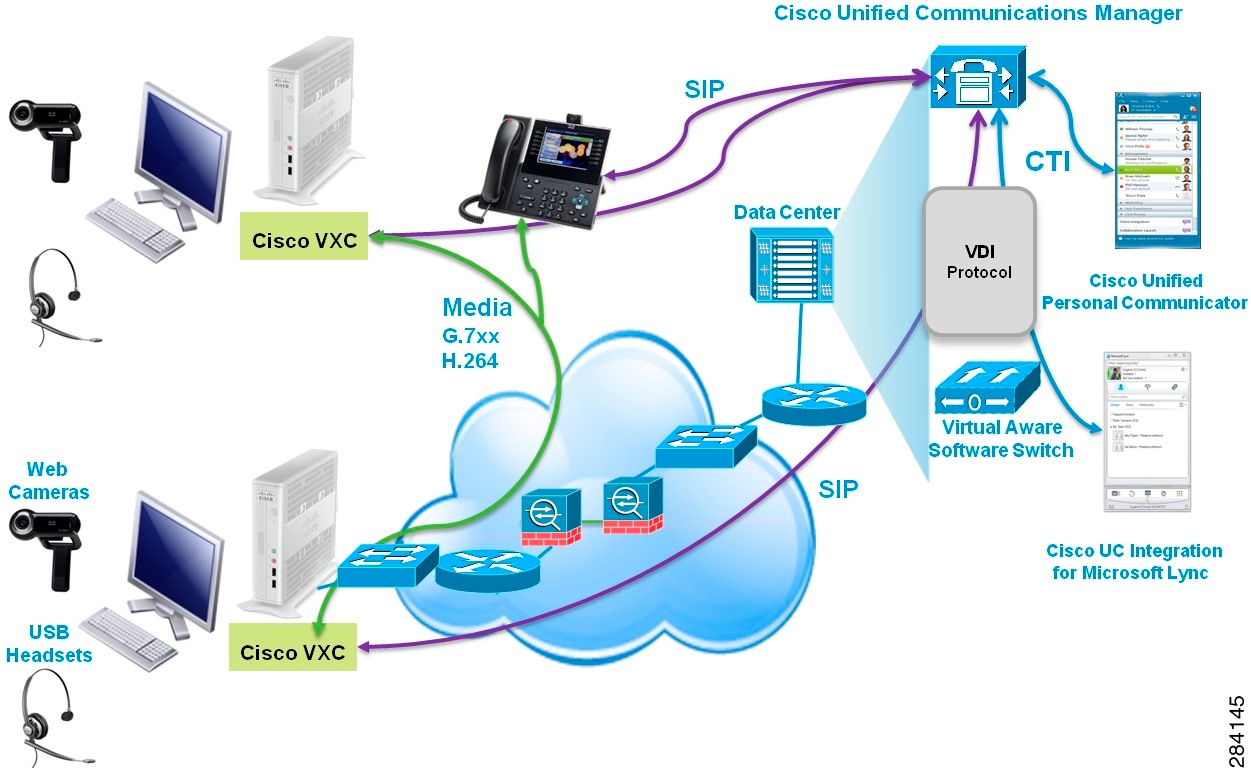
Cisco Virtualization Experience Client 6215 with the Voice and Video Firmware upgrade works only with supported devices. For information about supported devices, see the Release Notes for Cisco Virtualization Experience Client 6215.
 Note |
In this Deployment Guide, the terms thin client and Cisco Virtualization Experience Client refer to Cisco Virtualization Experience Client 6215. |
Differences in the virtual environment
The user experience with Cisco Virtualization Experience Client and Cisco UC Integration for Microsoft Lync or Cisco Unified Personal Communicator, in a virtual environment, is very similar to the experience provided by a standard Cisco UC Integration for Microsoft Lync or Cisco Unified Personal Communicator installation, with some differences:
- Cisco.com hosts the help files. If your site blocks Internet access for users, you can download the help files in PDF format and host them on the LAN. For more information, see Set up the help files for users.
- Registry keys control whether Cisco UC Integration for Microsoft Lync or Cisco Unified Personal Communicator operates in VXC mode. You must set the registry keys for the virtual environment to enable Cisco UC Integration for Microsoft Lync or Cisco Unified Personal Communicator to work with Cisco Virtualization Experience Client 6215. After a user signs in, Cisco UC Integration for Microsoft Lync or Cisco Unified Personal Communicator automatically enters VXC mode and selects the VXC device for the user. Users cannot change the mode. Users also cannot see or choose any other devices from the Device Selection dialog box.
- After device selection, the Cisco Virtualization Experience Client application starts the transfer of the phone configuration data for that user. For more information, see Configuration files.
- The following functions are available on the Call Strip, rather than on the bottom of the Cisco UC Conversation window component of Cisco UC Integration for Microsoft Lync or Cisco Unified Personal Communicator: volume control, toggle audio mute, add video, remove video, and toggle video (stop and start video for a call).
-
If a connection failure between the thin client and HVD occurs
-
during an active call with no held calls, the active call continues and the
 appears on the Call Strip.
 -
during an active call with other calls on hold, the active call continues and the appears on the Call Strip. If the user ends the active call from the Call Strip before reconnecting to the HVD, all held calls end with the active call. If the user signs back into their HVD before they end the active call, they can resume the held calls.
- while the user has all calls on hold, all calls end immediately.
-
during an active call with no held calls, the active call continues and the
-
The video appears in a separate window. The resolution is fixed at 352 x 288 Common International Format (CIF) at 15 frames per second. Users can move the video window, but they cannot resize the window or change the resolution. because the video quality is optimized for use with Cisco Virtualization Experience Client 6215, there are no video settings to configure.
Important: For Video Conference Servers, the highest supported video level is H.264 level 1.2.
-
By default, all calls send and receive video if both parties have video capability. Users can select their preference from the following options:
- Send and receive video: Starts all calls as video calls, which send local video
- Receive video only (Do not send my video): Starts all calls as video calls with the local video paused
- Do not send or receive video (Audio only): Starts all calls as audio-only
- Some menus and options for Cisco UC Integration for Microsoft Lync and Cisco Unified Personal Communicator are different. The Frequently Asked Questions documents include details about the differences.
Considerations for virtual installations
After you set the registry keys for the virtual environment, the Cisco Virtualization Experience Client 6215 (VXC 6215) device is the only device that can function as the work phone. When you add devices for these users to the Cisco Unified Communications Manager, the device type is Cisco Virtualization Experience Client (VXC 6215). For more information, see Device types. Each user should have only one VXC device. You must also enable the computer-telephony integration (CTI) protocol for all Cisco Virtualization Experience Client 6215 users. For more information, see Enable the CTI protocol for each user.
In a virtual environment, you install Cisco Unified Personal Communicator, or Microsoft Office Communicator or Microsoft Lync with Cisco UC Integration for Microsoft Lync, on the HVDs, rather than on client computers (PCs). Otherwise, the installation is the same as the installation of Cisco UC Integration for Microsoft Lync in a nonvirtual environment. To prevent issues caused by multiple registrations for the same user on the Cisco Unified Communications Manager, advise users to sign into only one HVD at a time.
Note |
You can connect the thin client to the network through a Cisco Unified IP Phone. However, you require Cisco UC Integration for Microsoft Lync 8.6(1) or better, or Cisco Unified Personal Communicator 8.6(3) or better, to control the Cisco Unified IP Phone. Cisco Audio Session Tunnel (CAST) connection to the HVD is not supported. |
 Tip |
Before you begin to install Cisco UC Integration for Microsoft Lync or Cisco Unified Personal Communicator on an HVD, see the Release Notes document. |
Installation and deployment
1 |
Add users and devices on the Cisco Unified Communications Manager. |
|||
2 |
Use the Group Policy Management Console to set the registry keys on the HVDs for the virtual environment. |
|||
3 |
Install Cisco UC Integration for Microsoft Lync or Cisco Unified Personal Communicator on the HVDs. |
Cisco UC Integration for Microsoft Lync http://www.cisco.com/en/US/products/ps11390/prod_installation_guides_list.html Cisco Unified Personal Communicator: http://www.cisco.com/en/US/products/ps6837/products_installation_and_configuration_guides_list.html |
||
4 |
If your site does not permit Internet access for users, set up the help files. |
|||
5 |
Set up the Cisco Virtualization Experience Client hardware and configure the device. |
http://www.cisco.com/en/US/products/ps11976/tsd_products_support_general_information.html http://www.cisco.com/en/US/products/ps11976/prod_installation_guides_list.html |
||
6 |
Install the Voice and Video Firmware upgrade on the Cisco Virtualization Experience Client. |
http://www.cisco.com/en/US/products/ps11976/prod_installation_guides_list.html
|
||
7 |
Open the required ports in all firewalls. |
 Feedback