- Preface
- Using the Command-Line Interface
- IP Multicast Routing Technology Overview
- Configuring IGMP
- Configuring CGMP
- Configuring PIM
- Configuring HSRP Aware PIM
- Configuring VRRP Aware PIM
- Configuring Basic IP Multicast Routing
- Configuring SSM
- Configuring IGMP Snooping and Multicast VLAN Registration
- Configuring MSDP
- Index
IP Multicast Routing Configuration Guide, Cisco IOS Release 15.2(2)E (Cisco IE 3010 Switches)
Bias-Free Language
The documentation set for this product strives to use bias-free language. For the purposes of this documentation set, bias-free is defined as language that does not imply discrimination based on age, disability, gender, racial identity, ethnic identity, sexual orientation, socioeconomic status, and intersectionality. Exceptions may be present in the documentation due to language that is hardcoded in the user interfaces of the product software, language used based on RFP documentation, or language that is used by a referenced third-party product. Learn more about how Cisco is using Inclusive Language.
- Updated:
- June 30, 2014
Chapter: Configuring MSDP
- Finding Feature Information
- Information About Multicast Source Discovery Protocol
- How to Configure MSDP
- Configuring a Default MSDP Peer
- Caching Source-Active State
- Requesting Source Information from an MSDP Peer
- Controlling Source Information that Your Switch Originates
- Controlling Source Information that Your Switch Forwards
- Controlling Source Information that Your Switch Receives
- Configuring an MSDP Mesh Group
- Shutting Down an MSDP Peer
- Including a Bordering PIM Dense-Mode Region in MSDP
- Configuring an Originating Address other than the RP Address
- Monitoring and Maintaining MSDP
- Configuration Examples for Configuring MSDP
- Configuring a Default MSDP Peer: Example
- Caching Source-Active State: Example
- Requesting Source Information from an MSDP Peer: Example
- Controlling Source Information that Your Switch Originates: Example
- Controlling Source Information that Your Switch Forwards: Example
- Controlling Source Information that Your Switch Receives: Example
- Example: Configuring MSDP Mesh Groups
- Requesting Source Information from an MSDP Peer: Example
- Additional References
Configuring MSDP
Finding Feature Information
Your software release may not support all the features documented in this module. For the latest caveats and feature information, see Bug Search Tool and the release notes for your platform and software release. To find information about the features documented in this module, and to see a list of the releases in which each feature is supported, see the feature information table at the end of this module.
Use Cisco Feature Navigator to find information about platform support and Cisco software image support. To access Cisco Feature Navigator, go to www.cisco.com/go/cfn. An account on Cisco.com is not required.
Information About Multicast Source Discovery Protocol
MSDP is a mechanism to connect multiple PIM-SM domains. The purpose of MSDP is to discover multicast sources in other PIM domains. The main advantage of MSDP is that it reduces the complexity of interconnecting multiple PIM-SM domains by allowing PIM-SM domains to use an interdomain source tree (rather than a common shared tree). When MSDP is configured in a network, RPs exchange source information with RPs in other domains. An RP can join the interdomain source tree for sources that are sending to groups for which it has receivers. The RP can do that because it is the root of the shared tree within its domain, which has branches to all points in the domain where there are active receivers. When a last-hop device learns of a new source outside the PIM-SM domain (through the arrival of a multicast packet from the source down the shared tree), it then can send a join toward the source and join the interdomain source tree.
 Note | If the RP either has no shared tree for a particular group or a shared tree whose outgoing interface list is null, it does not send a join to the source in another domain. |
When MSDP is enabled, an RP in a PIM-SM domain maintains MSDP peering relationships with MSDP-enabled devices in other domains. This peering relationship occurs over a TCP connection, where primarily a list of sources sending to multicast groups is exchanged. MSDP uses TCP (port 639) for its peering connections. As with BGP, using point-to-point TCP peering means that each peer must be explicitly configured. The TCP connections between RPs, moreover, are achieved by the underlying routing system. The receiving RP uses the source lists to establish a source path. If the multicast sources are of interest to a domain that has receivers, multicast data is delivered over the normal, source-tree building mechanism provided by PIM-SM. MSDP is also used to announce sources sending to a group. These announcements must originate at the RP of the domain.
The figure illustrates MSDP operating between two MSDP peers. PIM uses MSDP as the standard mechanism to register a source with the RP of a domain.
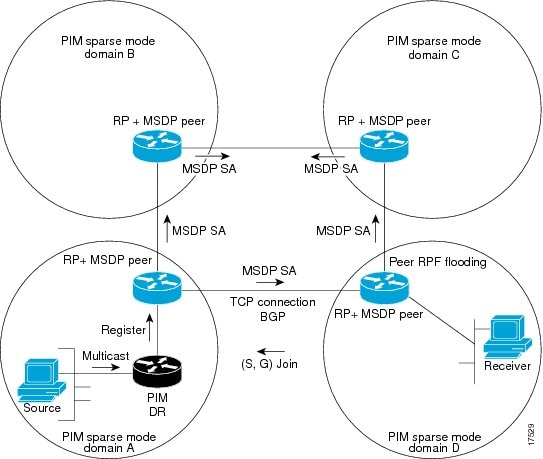
When MSDP is implemented, the following sequence of events occurs:
- When a PIM designated device (DR) registers a source with its RP as illustrated in the figure, the RP sends a Source-Active (SA) message to all of its MSDP peers.
Note | The DR sends the encapsulated data to the RP only once per source (when the source goes active). If the source times out, this process happens again when it goes active again. This situation is different from the periodic SA message that contains all sources that are registered to the originating RP. Those SA messages are MSDP control packets, and, thus, do not contain encapsulated data from active sources. |
- The SA message identifies the source address, the group that the source is sending to, and the address or the originator ID of the RP, if configured.
- Each MSDP peer that receives the SA message floods the SA message to all of its peers downstream from the originator. In some cases (such as the case with the RPs in PIM-SM domains B and C in the figure), an RP may receive a copy of an SA message from more than one MSDP peer. To prevent looping, the RP consults the BGP next-hop database to determine the next hop toward the originator of the SA message. If both MBGP and unicast BGP are configured, MBGP is checked first, and then unicast BGP. That next-hop neighbor is the RPF-peer for the originator. SA messages that are received from the originator on any interface other than the interface to the RPF peer are dropped. The SA message flooding process, therefore, is referred to as peer-RPF flooding. Because of the peer-RPF flooding mechanism, BGP or MBGP must be running in conjunction with MSDP.
- When an RP receives an SA message, it checks to see whether there are any members of the advertised groups in its domain by checking to see whether there are interfaces on the group’s (*, G) outgoing interface list. If there are no group members, the RP does nothing. If there are group members, the RP sends an (S, G) join toward the source. As a result, a branch of the interdomain source tree is constructed across autonomous system boundaries to the RP. As multicast packets arrive at the RP, they are then forwarded down its own shared tree to the group members in the RP’s domain. The members’ DRs then have the option of joining the rendezvous point tree (RPT) to the source using standard PIM-SM procedures.
- The originating RP continues to send periodic SA messages for the (S, G) state every 60 seconds for as long as the source is sending packets to the group. When an RP receives an SA message, it caches the SA message. Suppose, for example, that an RP receives an SA message for (172.16.5.4, 228.1.2.3) from originating RP 10.5.4.3. The RP consults its mroute table and finds that there are no active members for group 228.1.2.3, so it passes the SA message to its peers downstream of 10.5.4.3. If a host in the domain then sends a join to the RP for group 228.1.2.3, the RP adds the interface toward the host to the outgoing interface list of its (*, 224.1.2.3) entry. Because the RP caches SA messages, the device will have an entry for (172.16.5.4, 228.1.2.3) and can join the source tree as soon as a host requests a join.
Note | In all current and supported software releases, caching of MSDP SA messages is mandatory and cannot be manually enabled or disabled. By default, when an MSDP peer is configured, the ip multicast cache-sa-state command will automatically be added to the running configuration. |
MSDP Benefits
MSDP has these benefits:
- It breaks up the shared multicast distribution tree. You can make the shared tree local to your domain. Your local members join the local tree, and join messages for the shared tree never need to leave your domain.
- PIM sparse-mode domains can rely only on their own RPs, decreasing reliance on RPs in another domain. This increases security because you can prevent your sources from being known outside your domain.
- Domains with only receivers can receive data without globally advertising group membership.
- Global source multicast routing table state is not required, saving memory.
Default MSDP Peers
A stub autonomous system also might want to have MSDP peerings with more than one RP for the sake of redundancy. For example, SA messages cannot just be accepted from multiple default peers, because there is no RPF check mechanism. Instead, SA messages are accepted from only one peer. If that peer fails, SA messages are then accepted from the other peer. The underlying assumption here, of course, is that both default peers are sending the same SA messages.
The figure illustrates a scenario where default MSDP peers might be used. In the figure, a customer that owns Device B is connected to the Internet through two Internet service providers (ISPs), one that owns Device A and the other that owns Device C. They are not running BGP or MBGP between them. In order for the customer to learn about sources in the ISP domain or in other domains, Device B identifies Device A as its default MSDP peer. Device B advertises SA messages to both Device A and Device C, but accepts SA messages either from Device A only or Device C only. If Device A is the first default peer in the configuration, it will be used if it is up and running. Only if Device A is not running will Device B accept SA messages from Device C.
The ISP will also likely use a prefix list to define which prefixes it will accept from the customer device. The customer will define multiple default peers, each having one or more prefixes associated with it.
The customer has two ISPs to use. The customer defines both ISPs as default peers. As long as the first default peer identified in the configuration is up and running, it will be the default peer and the customer will accept all SA messages it receives from that peer.
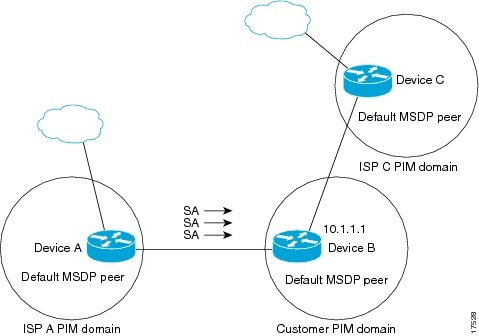
Device B advertises SAs to Device A and Device C, but uses only Device A or Device C to accept SA messages. If Device A is first in the configuration, it will be used if it is up and running. Only when Device A is not running will Device B accept SAs from Device C. This is the behavior without a prefix list.
If you specify a prefix list, the peer will be a default peer only for the prefixes in the list. You can have multiple active default peers when you have a prefix list associated with each. When you do not have any prefix lists, you can configure multiple default peers, but only the first one is the active default peer as long as the device has connectivity to this peer and the peer is alive. If the first configured peer goes down or the connectivity to this peer goes down, the second configured peer becomes the active default, and so on.
MSDP Mesh Groups
An MSDP mesh group is a group of MSDP speakers that have fully meshed MSDP connectivity between one another. In other words, each of the MSDP peers in the group must have an MSDP peering relationship (MSDP connection) to every other MSDP peer in the group. When an MSDP mesh group is configured between a group of MSDP peers, SA message flooding is reduced. Because when an MSDP peer in the group receives an SA message from another MSDP peer in the group, it assumes that this SA message was sent to all the other MSDP peers in the group. As a result, it is not necessary for the receiving MSDP peer to flood the SA message to the other MSDP peers in the group.
Benefits of MSDP Mesh Groups
- Optimizes SA flooding--MSDP mesh groups are particularly useful for optimizing SA flooding when two or more peers are in a group.
- Reduces the amount of SA traffic across the Internet--When MSDP mesh groups are used, SA messages are not flooded to other mesh group peers.
- Eliminates RPF checks on arriving SA messages--When an MSDP mesh group is configured, SA messages are always accepted from mesh group peers.
SA Origination Filters
By default, an RP that is configured to run MSDP will originate SA messages for all local sources for which it is the RP. Local sources that register with an RP, therefore, will be advertised in SA messages, which in some cases is not desirable. For example, if sources inside a PIM-SM domain are using private addresses (for example, network 10.0.0.0/8), you should configure an SA origination filter to restrict those addresses from being advertised to other MSDP peers across the Internet.
To control what sources are advertised in SA messages, you can configure SA origination filters on an RP. By creating SA origination filters, you can control the sources advertised in SA messages as follows:
- You can configure an RP to prevent the device from advertising local sources in SA messages. The device will still forward SA messages from other MSDP peers in the normal fashion; it will just not originate any SA messages for local sources.
- You can configure the device to only originate SA messages for local sources sending to specific groups that match (S, G) pairs defined in the extended access list. All other local sources will not be advertised in SA messages.
- You can configure the device to only originate SA messages for local sources sending to specific groups that the match AS paths defined in an AS-path access list. All other local sources will not be advertised in SA messages.
- You can configure the device to only originate SA messages for local sources that match the criteria defined in the route map. All other local sources will not be advertised in SA messages.
- You configure an SA origination filter that includes an extended access list, an AS-path access list, and route map, or a combination thereof. In this case, all conditions must be true before any local sources are advertised in SA messages.
Use of Outgoing Filter Lists in MSDP
By default, an MSDP-enabled device forwards all SA messages it receives to all of its MSDP peers. However, you can prevent SA messages from being forwarded to MSDP peers by creating outgoing filter lists. Outgoing filter lists apply to all SA messages, whether locally originated or received from another MSDP peer, whereas SA origination filters apply only to locally originated SA messages. For more information about enabling a filter for MSDP SA messages originated by the local device, see the Controlling SA Messages Originated by an RP for Local Sources section.
By creating an outgoing filter list, you can control the SA messages that a device forwards to a peer as follows:
- You can filter all outgoing SA messages forwarded to a specified MSDP peer by configuring the device to stop forwarding its SA messages to the MSDP peer.
- You can filter a subset of outgoing SA messages forwarded to a specified MSDP peer based on (S, G) pairs defined in an extended access list by configuring the device to only forward SA messages to the MSDP peer that match the (S, G) pairs permitted in an extended access list. The forwarding of all other SA messages to the MSDP peer will be stopped.
- You can filter a subset of outgoing SA messages forwarded to a specified MSDP peer based on match criteria defined in a route map by configuring the device to only forward SA messages that match the criteria defined in the route map. The forwarding of all other SA messages to the MSDP peer will be stopped.
- You can filter a subset of outgoing SA messages from a specified peer based on the announcing RP address contained in the SA message by configuring the device to filter outgoing SA messages based on their origin, even after an SA message has been transmitted across one or more MSDP peers. The forwarding of all other SA messages to the MSDP peer will be stopped.
- You can configure an outgoing filter list that includes an extended access list, a route map, and either an RP access list or an RP route map. In this case, all conditions must be true for the MSDP peer to forward the outgoing SA message.
 Caution | Arbitrary filtering of SA messages can result in downstream MSDP peers being starved of SA messages for legitimate active sources. Care, therefore, should be taken when using these sorts of filters. Normally, outgoing filter lists are used only to reject undesirable sources, such as sources using private addresses. |
Use of Incoming Filter Lists in MSDP
By default, an MSDP-enabled device receives all SA messages sent to it from its MSDP peers. However, you can control the source information that a device receives from its MSDP peers by creating incoming filter lists.
By creating incoming filter lists, you can control the incoming SA messages that a device receives from its peers as follows:
- You can filter all incoming SA messages from a specified MSDP peer by configuring the device to ignore all SA messages sent to it from the specified MSDP peer.
- You can filter a subset of incoming SA messages from a specified peer based on (S, G) pairs defined in an extended access list by configuring the device to only receive SA messages from the MSDP peer that match the (S, G) pairs defined in the extended access list. All other incoming SA messages from the MSDP peer will be ignored.
- You can filter a subset of incoming SA request messages from a specified peer based on match criteria defined in a route map by configuring the device to only receive SA messages that match the criteria defined in the route map. All other incoming SA messages from the MSDP peer will be ignored.
- You can filter a subset of incoming SA messages from a specified peer based on both (S, G) pairs defined in an extended access list and on match criteria defined in a route map by configuring the device to only receive incoming SA messages that both match the (S, G) pairs defined in the extended access list and match the criteria defined in the route map. All other incoming SA messages from the MSDP peer will be ignored.
- You can filter a subset of incoming SA messages from a specified peer based on the announcing RP address contained in the SA message by configuring the device to filter incoming SA messages based on their origin, even after the SA message may have already been transmitted across one or more MSDP peers.
- You can configure an incoming filter list that includes an extended access list, a route map, and either an RP access list or an RP route map. In this case, all conditions must be true for the MSDP peer to receive the incoming SA message.
Caution | Arbitrary filtering of SA messages can result in downstream MSDP peers being starved of SA messages for legitimate active sources. Care, therefore, should be taken when using these sorts of filters. Normally, incoming filter lists are used only to reject undesirable sources, such as sources using private addresses. |
TTL Thresholds in MSDP
The time-to-live (TTL) value provides a means to limit the number of hops a packet can take before being dropped. The ip multicast ttl-threshold command is used to specify a TTL for data-encapsulated SA messages sent to specified MSDP peers. By default, multicast data packets in SA messages are sent to an MSDP peer, provided the TTL value of the packet is greater than 0, which is standard TTL behavior.
In general, a TTL-threshold problem can be introduced by the encapsulation of a source’s initial multicast packet in an SA message. Because the multicast packet is encapsulated inside of the unicast SA message (whose TTL is 255), its TTL is not decremented as the SA message travels to the MSDP peer. Furthermore, the total number of hops that the SA message traverses can be drastically different than a normal multicast packet because multicast and unicast traffic may follow completely different paths to the MSDP peer and hence the remote PIM-SM domain. As a result, encapsulated packets can end up violating TTL thresholds. The solution to this problem is to configure a TTL threshold that is associated with any multicast packet that is encapsulated in an SA message sent to a particular MSDP peer using the ip multicast ttl-threshold command. The ip msdp ttl-threshold command prevents any multicast packet whose TTL in the IP header is less than the TTL value specified for the ttl-valueargument from being encapsulated in SA messages sent to that peer.
MSDP Message Types
There are four basic MSDP message types, each encoded in their own Type, Length, and Value (TLV) data format.
SA Messages
SA messages are used to advertise active sources in a domain. In addition, these SA messages may contain the initial multicast data packet that was sent by the source.
SA messages contain the IP address of the originating RP and one or more (S, G) pairs being advertised. In addition, the SA message may contain an encapsulated data packet.
SA Request Messages
SA request messages are used to request a list of active sources for a specific group. These messages are sent to an MSDP SA cache that maintains a list of active (S, G) pairs in its SA cache. Join latency can be reduced by using SA request messages to request the list of active sources for a group instead of having to wait up to 60 seconds for all active sources in the group to be readvertised by originating RPs.
SA Response Messages
SA response messages are sent by the MSDP peer in response to an SA request message. SA response messages contain the IP address of the originating RP and one or more (S, G) pairs of the active sources in the originating RP’s domain that are stored in the cache.
Keepalive Messages
Keepalive messages are sent every 60 seconds in order to keep the MSDP session active. If no keepalive messages or SA messages are received for 75 seconds, the MSDP session is reset.
Default MSDP Configuration
MSDP is not enabled, and no default MSDP peer exists.
How to Configure MSDP
Configuring a Default MSDP Peer
Configure an MSDP peer.
Caching Source-Active State
If you want to sacrifice some memory in exchange for reducing the latency of the source information, you can configure the switch to cache SA messages. Perform the following steps to enable the caching of source/group pairs:
This procedure is optional.
Requesting Source Information from an MSDP Peer
This task is optional.
| Command or Action | Purpose | |
|---|---|---|
| Step 1 | configure
terminal
Example:
Switch# configure terminal
|
Enters global configuration mode. |
| Step 2 | ip msdp sa-request
{ip-address |
name}
Example:
Switch(config)# ip msdp sa-request 171.69.1.1
|
Configure the switch to send SA request messages to the specified MSDP peer. For ip-address | name, enter the IP address or name of the MSDP peer from which the local switch requests SA messages when a new member for a group becomes active. Repeat the command for each MSDP peer that you want to supply with SA messages. |
| Step 3 | end
Example:
Switch(config)# end
|
Returns to privileged EXEC mode. |
| Step 4 | show
running-config
Example:
Switch# show running-config
|
Verifies your entries. |
| Step 5 | copy
running-config
startup-config
Example:
Switch# copy running-config startup-config
|
(Optional) Saves your entries in the configuration file. |
Controlling Source Information that Your Switch Originates
You can control the multicast source information that originates with your switch:
- Sources you advertise (based on your sources)
- Receivers of source information (based on knowing the requestor)
For more information, see the Redistributing Sources and the Filtering Source-Active Request Messages.
Redistributing Sources
SA messages originate on RPs to which sources have registered. By default, any source that registers with an RP is advertised. The A flag is set in the RP when a source is registered, which means the source is advertised in an SA unless it is filtered.
This task is optional.
| Command or Action | Purpose | |
|---|---|---|
| Step 1 | configure
terminal
Example:
Switch# configure terminal
|
Enters global configuration mode. |
| Step 2 | ip msdp redistribute
[list
access-list-name] [asn
aspath-access-list-number] [route-map
map]
Example:
Switch(config)# ip msdp redistribute list 21
|
Configures which (S,G) entries from the multicast routing table are advertised in SA messages. By default, only sources within the local domain are advertised.
The switch advertises (S,G) pairs according to the access list or autonomous system path access list. |
| Step 3 | Use one of the
following:
Example: Switch(config)# access list 21 permit 194.1.22.0
or Switch(config)# access list 21 permit ip 194.1.22.0 1.1.1.1 194.3.44.0 1.1.1.1
|
Creates an IP standard access list, repeating the command as many times as necessary. or Creates an IP extended access list, repeating the command as many times as necessary.
Recall that the access list is always terminated by an implicit deny statement for everything. |
| Step 4 | end
Example:
Switch(config)# end
|
Returns to privileged EXEC mode. |
| Step 5 | show
running-config
Example:
Switch# show running-config
|
Verifies your entries. |
| Step 6 | copy
running-config
startup-config
Example:
Switch# copy running-config startup-config
|
(Optional) Saves your entries in the configuration file. |
Filtering Source-Active Request Messages
By default, only switches that are caching SA information can respond to SA requests. By default, such a switch honors all SA request messages from its MSDP peers and supplies the IP addresses of the active sources.
However, you can configure the switch to ignore all SA requests from an MSDP peer. You can also honor only those SA request messages from a peer for groups described by a standard access list. If the groups in the access list pass, SA request messages are accepted. All other such messages from the peer for other groups are ignored.
This task is optional.
| Command or Action | Purpose | |
|---|---|---|
| Step 1 | configure
terminal
Example:
Switch# configure terminal
|
Enters global configuration mode. |
| Step 2 | Use one of the
following:
Example: Switch(config)# ip msdp filter sa-request 171.69.2.2
|
Filters all SA request messages from the specified MSDP peer. or Filters SA request messages from the specified MSDP peer for groups that pass the standard access list. The access list describes a multicast group address. The range for the access-list-number is 1 to 99. |
| Step 3 | access-list
access-list-number {deny |
permit}
source
[source-wildcard]
Example:
Switch(config)# access-list 1 permit 192.4.22.0 0.0.0.255
|
Creates an IP standard access list, repeating the command as many times as necessary.
Recall that the access list is always terminated by an implicit deny statement for everything. |
| Step 4 | end
Example:
Switch(config)# end
|
Returns to privileged EXEC mode. |
| Step 5 | show
running-config
Example:
Switch# show running-config
|
Verifies your entries. |
| Step 6 | copy
running-config
startup-config
Example:
Switch# copy running-config startup-config
|
(Optional) Saves your entries in the configuration file. |
Controlling Source Information that Your Switch Forwards
By default, the switch forwards all SA messages it receives to all its MSDP peers. However, you can prevent outgoing messages from being forwarded to a peer by using a filter or by setting a time-to-live (TTL) value.
Using a Filter
By creating a filter, you can perform one of these actions:
- Filter all source/group pairs
- Specify an IP extended access list to pass only certain source/group pairs
- Filter based on match criteria in a route map
This task is optional.
| Command or Action | Purpose | |
|---|---|---|
| Step 1 | configure terminal
Example:
Switch# configure terminal
|
Enters global configuration mode. |
| Step 2 | Use one of the
following:
Example: Switch(config)# ip msdp sa-filter out switch.cisco.com
or Switch(config)# ip msdp sa-filter out list 100
or Switch(config)# ip msdp sa-filter out switch.cisco.com route-map 22
|
|
| Step 3 | access-list
access-list-number {deny |
permit}
protocol
source
source-wildcard
destination
destination-wildcard
Example:
Switch(config)# access list 100 permit ip 194.1.22.0 1.1.1.1 194.3.44.0 1.1.1.1
|
(Optional) Creates an IP extended access list, repeating the command as many times as necessary.
Recall that the access list is always terminated by an implicit deny statement for everything. |
| Step 4 | end
Example:
Switch(config)# end
|
Returns to privileged EXEC mode. |
| Step 5 | show
running-config
Example:
Switch# show running-config
|
Verifies your entries. |
| Step 6 | copy
running-config
startup-config
Example:
Switch# copy running-config startup-config
|
(Optional) Saves your entries in the configuration file. |
Using TTL to Limit the Multicast Data Sent in SA Messages
You can use a TTL value to control what data is encapsulated in the first SA message for every source. Only multicast packets with an IP-header TTL greater than or equal to the ttl argument are sent to the specified MSDP peer. For example, you can limit internal traffic to a TTL of 8. If you want other groups to go to external locations, you must send those packets with a TTL greater than 8.
This task is optional.
| Command or Action | Purpose | |
|---|---|---|
| Step 1 | configure
terminal
Example:
Switch# configure terminal
|
Enters global configuration mode. |
| Step 2 | ip msdp ttl-threshold
{ip-address |
name}
ttl
Example:
Switch(config)# ip msdp ttl-threshold switch.cisco.com 0
|
Limits which multicast data is encapsulated in the first SA message to the specified MSDP peer. |
| Step 3 | end
Example:
Switch(config)# end
|
Returns to privileged EXEC mode. |
| Step 4 | show
running-config
Example:
Switch# show running-config
|
Verifies your entries. |
| Step 5 | copy
running-config
startup-config
Example:
Switch# copy running-config startup-config
|
(Optional) Saves your entries in the configuration file. |
Controlling Source Information that Your Switch Receives
By default, the switch receives all SA messages that its MSDP RPF peers send to it. However, you can control the source information that you receive from MSDP peers by filtering incoming SA messages. In other words, you can configure the switch to not accept them.
You can perform one of these actions:
- Filter all incoming SA messages from an MSDP peer
- Specify an IP extended access list to pass certain source/group pairs
- Filter based on match criteria in a route map
This task is optional.
| Command or Action | Purpose | |
|---|---|---|
| Step 1 | configure
terminal
Example:
Switch# configure terminal
|
Enters global configuration mode. |
| Step 2 | Use one of the
following:
Example: Switch(config)# ip msdp sa-filter in switch.cisco.com
or Switch(config)# ip msdp sa-filter in list 100
or Switch(config)# ip msdp sa-filter in switch.cisco.com route-map 22
|
|
| Step 3 | access-list
access-list-number {deny |
permit}
protocol
source
source-wildcard
destination
destination-wildcard
Example:
Switch(config)# access list 100 permit ip 194.1.22.0 1.1.1.1 194.3.44.0 1.1.1.1
|
(Optional) Creates an IP extended access list, repeating the command as many times as necessary.
Recall that the access list is always terminated by an implicit deny statement for everything. |
| Step 4 | end
Example:
Switch(config)# end
|
Returns to privileged EXEC mode. |
| Step 5 | show
running-config
Example:
Switch# show running-config
|
Verifies your entries. |
| Step 6 | copy
running-config
startup-config
Example:
Switch# copy running-config startup-config
|
(Optional) Saves your entries in the configuration file. |
Configuring an MSDP Mesh Group
Perform this optional task to configure an MSDP mesh group.
Note | You can configure multiple mesh groups per device. |
1.
enable
2.
configure
terminal
3.
ip
msdp
mesh-group
mesh-name
{peer-address |
peer-name}
4. Repeat Step 3 to add MSDP peers as members of the mesh group.
5.
exit
7.
copy running-config
startup-config
DETAILED STEPS
| Command or Action | Purpose | |||
|---|---|---|---|---|
| Step 1 |
enable
Example:
Switch> enable
|
Enables privileged EXEC mode. | ||
| Step 2 |
configure
terminal
Example:
Switch# configure terminal
|
Enters global configuration mode. | ||
| Step 3 |
ip
msdp
mesh-group
mesh-name
{peer-address |
peer-name}
Example:
Switch(config)# ip msdp mesh-group peermesh
|
Configures an MSDP mesh group and indicates that an MSDP peer belongs to that mesh group.
| ||
| Step 4 | Repeat Step 3 to add MSDP peers as members of the mesh group. |
-- | ||
| Step 5 |
exit
Example:
Switch(config)# exit
|
Exits global configuration mode and returns to privileged EXEC mode. | ||
| Step 6 | show running-config
Example: Switch# show running-config | |||
| Step 7 | copy running-config
startup-config
Example:
Switch# copy running-config startup-config
|
(Optional) Saves your entries in the configuration file. |
Shutting Down an MSDP Peer
Perform this optional task to shut down an MSDP peer.
If you are configuring several MSDP peers and you do not want any of the peers to go active until you have finished configuring all of them, you can shut down each peer, configure each peer, and later bring each peer up. You might also want to shut down an MSDP session without losing the configuration for that MSDP peer.
Note | When an MSDP peer is shut down, the TCP connection is terminated and not restarted until the peer is brought back up using the no ip msdp shutdown command (for the specified peer). |
MSDP is running and the MSDP peers must be configured.
1.
enable
2.
configure
terminal
3.
ip
msdp
shutdown
{peer-name |
peer-address}
4. Repeat Step 3 to shut down additional MSDP peers.
5.
end
7.
copy running-config
startup-config
DETAILED STEPS
| Command or Action | Purpose | |
|---|---|---|
| Step 1 |
enable
Example:
Switch> enable
|
Enables privileged EXEC mode. |
| Step 2 |
configure
terminal
Example:
Switch# configure terminal
|
Enters global configuration mode. |
| Step 3 |
ip
msdp
shutdown
{peer-name |
peer-address}
Example:
Switch(config)# ip msdp shutdown 192.168.1.3
|
Administratively shuts down the specified MSDP peer. |
| Step 4 | Repeat Step 3 to shut down additional MSDP peers. |
-- |
| Step 5 |
end
Example:
Switch(config)# end
|
Exits global configuration mode and returns to privileged EXEC mode. |
| Step 6 | show running-config
Example: Switch# show running-config | |
| Step 7 | copy running-config
startup-config
Example:
Switch# copy running-config startup-config
|
(Optional) Saves your entries in the configuration file. |
Including a Bordering PIM Dense-Mode Region in MSDP
You can configure MSDP on a switch that borders a PIM sparse-mode region with a dense-mode region. By default, active sources in the dense-mode region do not participate in MSDP.
Note | We do not recommend using the ip msdp border sa-address global configuration command. It is better to configure the border router in the sparse-mode domain to proxy-register sources in the dense-mode domain to the RP of the sparse-mode domain and have the sparse-mode domain use standard MSDP procedures to advertise these sources. |
The ip msdp originator-id global configuration command also identifies an interface to be used as the RP address. If both the ip msdp border sa-address and the ip msdp originator-id global configuration commands are configured, the address derived from the ip msdp originator-id command specifies the RP address.
This task is optional.
| Command or Action | Purpose | |
|---|---|---|
| Step 1 | configure
terminal
Example:
Switch# configure terminal
|
Enters global configuration mode. |
| Step 2 | ip msdp border sa-address
interface-id
Example:
Switch(config)# ip msdp border sa-address 0/1
|
Configures the switch on the border between a dense-mode and sparse-mode region to send SA messages about active sources in the dense-mode region. For interface-id, specifies the interface from which the IP address is derived and used as the RP address in SA messages. The IP address of the interface is used as the Originator-ID, which is the RP field in the SA message. |
| Step 3 | ip msdp redistribute
[list
access-list-name] [asn
aspath-access-list-number] [route-map
map]
Example:
Switch(config)# ip msdp redistribute list 100
|
Configures which (S,G) entries from the multicast routing table are advertised in SA messages. For more information, see the Redistributing Sources. |
| Step 4 | end
Example:
Switch(config)# end
|
Returns to privileged EXEC mode. |
| Step 5 | show
running-config
Example:
Switch# show running-config
|
Verifies your entries. |
| Step 6 | copy
running-config
startup-config
Example:
Switch# copy running-config startup-config
|
(Optional) Saves your entries in the configuration file. |
Configuring an Originating Address other than the RP Address
Perform this optional task to allow an MSDP speaker that originates an SA message to use the IP address of its interface as the RP address in the SA message.
- If you configure multiple devices in an MSDP mesh group for Anycast RP.
- If you have a device that borders a PIM-SM domain and a PIM-DM domain. If a device borders a PIM-SM domain and a PIM-DM domain and you want to advertise active sources within the PIM-DM domain, configure the RP address in SA messages to be the address of the originating device’s interface.
MSDP is enabled and the MSDP peers are configured. For more information about configuring MSDP peers, see the Configuring an MSDP Peer section.
1.
enable
2.
configure
terminal
3.
ip
msdp
originator-id
4.
exit
6.
copy running-config
startup-config
DETAILED STEPS
| Command or Action | Purpose | |
|---|---|---|
| Step 1 |
enable
Example:
Switch> enable
|
Enables privileged EXEC mode. |
| Step 2 |
configure
terminal
Example:
Switch# configure terminal
|
Enters global configuration mode. |
| Step 3 |
ip
msdp
originator-id
Example:
Switch(config)# ip msdp originator-id ethernet 1
|
Configures the RP address in SA messages to be the address of the originating device’s interface. |
| Step 4 |
exit
Example:
Switch(config)# exit
|
Exits global configuration mode and returns to privileged EXEC mode. |
| Step 5 | show running-config
Example: Switch# show running-config | |
| Step 6 | copy running-config
startup-config
Example:
Switch# copy running-config startup-config
|
(Optional) Saves your entries in the configuration file. |
Monitoring and Maintaining MSDP
Monitoring MSDP
Perform this optional task to monitor MSDP SA messages, peers, state, and peer status.
1.
enable
2.
debug
ip
msdp
[peer-address |
peer-name] [detail] [routes]
3.
debug
ip
msdp
resets
4.
show
ip
msdp
count
[as-number]
5.
show
ip
msdp
peer
[peer-address |
peer-name]
6.
show
ip
msdp
sa-cache
[group-address |
source-address |
group-name |
source-name] [as-number]
7.
show
ip
msdp
summary
DETAILED STEPS
| Step 1 |
enable
Example: Device# enable Enables privileged EXEC mode. |
| Step 2 |
debug
ip
msdp
[peer-address |
peer-name] [detail] [routes]
Use this command to debug MSDP activity. Use the optional peer-address or peer-name argument to specify for which peer debug events are logged. The following is sample output from the debug ip msdp command: Example: Device# debug ip msdp MSDP debugging is on Device# MSDP: 224.150.44.254: Received 1388-byte message from peer MSDP: 224.150.44.254: SA TLV, len: 1388, ec: 115, RP: 172.31.3.92 MSDP: 224.150.44.254: Peer RPF check passed for 172.31.3.92, used EMBGP peer MSDP: 224.150.44.250: Forward 1388-byte SA to peer MSDP: 224.150.44.254: Received 1028-byte message from peer MSDP: 224.150.44.254: SA TLV, len: 1028, ec: 85, RP: 172.31.3.92 MSDP: 224.150.44.254: Peer RPF check passed for 172.31.3.92, used EMBGP peer MSDP: 224.150.44.250: Forward 1028-byte SA to peer MSDP: 224.150.44.254: Received 1388-byte message from peer MSDP: 224.150.44.254: SA TLV, len: 1388, ec: 115, RP: 172.31.3.111 MSDP: 224.150.44.254: Peer RPF check passed for 172.31.3.111, used EMBGP peer MSDP: 224.150.44.250: Forward 1388-byte SA to peer MSDP: 224.150.44.250: Received 56-byte message from peer MSDP: 224.150.44.250: SA TLV, len: 56, ec: 4, RP: 192.168.76.241 MSDP: 224.150.44.250: Peer RPF check passed for 192.168.76.241, used EMBGP peer MSDP: 224.150.44.254: Forward 56-byte SA to peer MSDP: 224.150.44.254: Received 116-byte message from peer MSDP: 224.150.44.254: SA TLV, len: 116, ec: 9, RP: 172.31.3.111 MSDP: 224.150.44.254: Peer RPF check passed for 172.31.3.111, used EMBGP peer MSDP: 224.150.44.250: Forward 116-byte SA to peer MSDP: 224.150.44.254: Received 32-byte message from peer MSDP: 224.150.44.254: SA TLV, len: 32, ec: 2, RP: 172.31.3.78 MSDP: 224.150.44.254: Peer RPF check passed for 172.31.3.78, used EMBGP peer MSDP: 224.150.44.250: Forward 32-byte SA to peer |
| Step 3 |
debug
ip
msdp
resets
Use this command to debug MSDP peer reset reasons. Example: Device# debug ip msdp resets |
| Step 4 |
show
ip
msdp
count
[as-number]
Use this command to display the number of sources and groups originated in MSDP SA messages and the number of SA messages from an MSDP peer in the SA cache. The ip msdp cache-sa-state command must be configured for this command to produce any output. The following is sample output from the show ip msdp countcommand: Example:
Device# show ip msdp count
SA State per Peer Counters, <Peer>: <# SA learned>
    192.168.4.4: 8
SA State per ASN Counters, <asn>: <# sources>/<# groups>
    Total entries: 8
    ?: 8/8
|
| Step 5 |
show
ip
msdp
peer
[peer-address |
peer-name]
Use this command to display detailed information about MSDP peers. Use the optional peer-address or peer-name argument to display information about a particular peer. The following is sample output from the show ip msdp peercommand: Example:
Device# show ip msdp peer 192.168.4.4
MSDP Peer 192.168.4.4 (?), AS 64512 (configured AS)
  Connection status:
    State: Up, Resets: 0, Connection source: Loopback0 (2.2.2.2)
    Uptime(Downtime): 00:07:55, Messages sent/received: 8/18
    Output messages discarded: 0
    Connection and counters cleared 00:08:55 ago
  SA Filtering:
    Input (S,G) filter: none, route-map: none
    Input RP filter: none, route-map: none
    Output (S,G) filter: none, route-map: none
    Output RP filter: none, route-map: none
  SA-Requests:
    Input filter: none
  Peer ttl threshold: 0
  SAs learned from this peer: 8
  Input queue size: 0, Output queue size: 0
  MD5 signature protection on MSDP TCP connection: not enabled
|
| Step 6 |
show
ip
msdp
sa-cache
[group-address |
source-address |
group-name |
source-name] [as-number]
Use this command to display the (S, G) state learned from MSDP peers. The following is sample output from the show ip msdp sa-cachecommand: Example: Device# show ip msdp sa-cache MSDP Source-Active Cache - 8 entries (10.44.44.5, 239.232.1.0), RP 192.168.4.4, BGP/AS 64512, 00:01:20/00:05:32, Peer 192.168.4.4 (10.44.44.5, 239.232.1.1), RP 192.168.4.4, BGP/AS 64512, 00:01:20/00:05:32, Peer 192.168.4.4 (10.44.44.5, 239.232.1.2), RP 192.168.4.4, BGP/AS 64512, 00:01:19/00:05:32, Peer 192.168.4.4 (10.44.44.5, 239.232.1.3), RP 192.168.4.4, BGP/AS 64512, 00:01:19/00:05:32, Peer 192.168.4.4 (10.44.44.5, 239.232.1.4), RP 192.168.4.4, BGP/AS 64512, 00:01:19/00:05:32, Peer 192.168.4.4 (10.44.44.5, 239.232.1.5), RP 192.168.4.4, BGP/AS 64512, 00:01:19/00:05:32, Peer 192.168.4.4 (10.44.44.5, 239.232.1.6), RP 192.168.4.4, BGP/AS 64512, 00:01:19/00:05:32, Peer 192.168.4.4 (10.44.44.5, 239.232.1.7), RP 192.168.4.4, BGP/AS 64512, 00:01:19/00:05:32, Peer 192.168.4.4 |
| Step 7 |
show
ip
msdp
summary
Use this command to display MSDP peer status. The following is sample output from the show ip msdp summary command: Example:
Device# show ip msdp summary
MSDP Peer Status Summary
Peer Address     AS    State    Uptime/  Reset SA    Peer Name
                                Downtime Count Count
192.168.4.4      4     Up       00:08:05 0     8     ?
|
Clearing MSDP Connections Statistics and SA Cache Entries
Perform this optional task to clear MSDP connections, statistics, and SA cache entries.
1.
enable
2.
clear
ip
msdp
peer
[peer-address |
peer-name]
3.
clear
ip
msdp
statistics
[peer-address | peer-name]
4.
clear
ip
msdp
sa-cache
[group-address]
DETAILED STEPS
| Command or Action | Purpose | |
|---|---|---|
| Step 1 |
enable
Example: Device> enable |
Enables privileged EXEC mode. |
| Step 2 |
clear
ip
msdp
peer
[peer-address |
peer-name]
Example:
Device# clear ip msdp peer
|
Clears the TCP connection to the specified MSDP peer and resets all MSDP message counters. |
| Step 3 |
clear
ip
msdp
statistics
[peer-address | peer-name]
Example: Device# clear ip msdp statistics |
Clears the statistics counters for the specified MSDP peer and resets all MSDP message counters. |
| Step 4 |
clear
ip
msdp
sa-cache
[group-address]
Example: Device# clear ip msdp sa-cache |
Clears SA cache entries. |
Configuration Examples for Configuring MSDP
- Configuring a Default MSDP Peer: Example
- Caching Source-Active State: Example
- Requesting Source Information from an MSDP Peer: Example
- Controlling Source Information that Your Switch Originates: Example
- Controlling Source Information that Your Switch Forwards: Example
- Controlling Source Information that Your Switch Receives: Example
- Example: Configuring MSDP Mesh Groups
- Requesting Source Information from an MSDP Peer: Example
Configuring a Default MSDP Peer: Example
This example shows a partial configuration of Router A and Router C in . Each of these ISPs have more than one customer (like the customer in ) who use default peering (no BGP or MBGP). In that case, they might have similar configurations. That is, they accept SAs only from a default peer if the SA is permitted by the corresponding prefix list.
Router A
Router(config)# ip msdp default-peer 10.1.1.1
Router(config)# ip msdp default-peer 10.1.1.1 prefix-list site-a
Router(config)# ip prefix-list site-b permit 10.0.0.0/1
Router C
Router(config)# ip msdp default-peer 10.1.1.1 prefix-list site-a
Router(config)# ip prefix-list site-b permit 10.0.0.0/1
Caching Source-Active State: Example
This example shows how to enable the cache state for all sources in 171.69.0.0/16 sending to groups 224.2.0.0/16:
Switch(config)# ip msdp cache-sa-state 100
Switch(config)# access-list 100 permit ip 171.69.0.0 0.0.255.255 224.2.0.0 0.0.255.255
Requesting Source Information from an MSDP Peer: Example
This example shows how to configure the switch to send SA request messages to the MSDP peer at 171.69.1.1:
Switch(config)# ip msdp sa-request 171.69.1.1
Controlling Source Information that Your Switch Originates: Example
This example shows how to configure the switch to filter SA request messages from the MSDP peer at 171.69.2.2. SA request messages from sources on network 192.4.22.0 pass access list 1 and are accepted; all others are ignored.
Switch(config)# ip msdp filter sa-request 171.69.2.2 list 1
Switch(config)# access-list 1 permit 192.4.22.0 0.0.0.255
Controlling Source Information that Your Switch Forwards: Example
This example shows how to allow only (S,G) pairs that pass access list 100 to be forwarded in an SA message to the peer named switch.cisco.com:
Switch(config)# ip msdp peer switch.cisco.com connect-source gigabitethernet1/0/1
Switch(config)# ip msdp sa-filter out switch.cisco.com list 100
Switch(config)# access-list 100 permit ip 171.69.0.0 0.0.255.255 224.20 0 0.0.255.255
Controlling Source Information that Your Switch Receives: Example
This example shows how to filter all SA messages from the peer named switch.cisco.com:
Switch(config)# ip msdp peer switch.cisco.com connect-source gigabitethernet1/0/1
Switch(config)# ip msdp sa-filter in switch.cisco.com
Example: Configuring MSDP Mesh Groups
The following example shows how to configure three devices to be fully meshed members of an MSDP mesh group:
Device A Configuration
ip msdp peer 10.2.2.2
ip msdp peer 10.3.3.3
ip msdp mesh-group test-mesh-group 10.2.2.2
ip msdp mesh-group test-mesh-group 10.3.3.3
Device B Configuration
ip msdp peer 10.1.1.1
ip msdp peer 10.3.3.3
ip msdp mesh-group test-mesh-group 10.1.1.1
ip msdp mesh-group test-mesh-group 10.3.3.3
Device C Configuration
ip msdp peer 10.1.1.1
ip msdp peer 10.2.2.2
ip msdp mesh-group test-mesh-group 10.1.1.1
ip msdp mesh-group test-mesh-group 10.2.2.2
Requesting Source Information from an MSDP Peer: Example
This example shows how to configure the switch to send SA request messages to the MSDP peer at 171.69.1.1:
Switch(config)# ip msdp sa-request 171.69.1.1
Additional References
Related Documents
| Related Topic | Document Title |
|---|---|
|
For complete syntax and usage information for the commands used in this chapter. |
Command Reference, Cisco Release 15.2(2)E (Industrial Ethernet 3010 Switch) |
|
Cisco IOS commands |
|
|
IP multicast commands |
Error Message Decoder
| Description | Link |
|---|---|
|
To help you research and resolve system error messages in this release, use the Error Message Decoder tool. |
https://www.cisco.com/cgi-bin/Support/Errordecoder/index.cgi |
Standards and RFC
|
Standard/RFC |
Title |
|---|---|
|
RFC 3618 |
MIBs
| MIB | MIBs Link |
|---|---|
|
All supported MIBs for this release. |
To locate and download MIBs for selected platforms, Cisco IOS releases, and feature sets, use Cisco MIB Locator found at the following URL: |
Technical Assistance
| Description | Link |
|---|---|
|
The Cisco Support website provides extensive online resources, including documentation and tools for troubleshooting and resolving technical issues with Cisco products and technologies. To receive security and technical information about your products, you can subscribe to various services, such as the Product Alert Tool (accessed from Field Notices), the Cisco Technical Services Newsletter, and Really Simple Syndication (RSS) Feeds. Access to most tools on the Cisco Support website requires a Cisco.com user ID and password. |
 Feedback