Installation

This chapter contains the following sections:

Cisco ACI with OpenStack Using the OpenStack Platform 13 Director

Cisco Application Centric Infrastructure (ACI) is a comprehensive policy-based architecture that provides an intelligent, controller-based network switching fabric. This fabric is designed to be programmatically managed through an API interface that can be directly integrated into multiple orchestration, automation, and management tools, including OpenStack. Integrating Cisco ACI with OpenStack allows dynamic creation of networking constructs to be driven directly from OpenStack requirements, while providing additional visibility within the Cisco Application Policy Infrastructure Controller (APIC) down to the level of the individual virtual machine (VM) instance.

OpenStack defines a flexible software architecture for creating cloud-computing environments. The reference software-based implementation of OpenStack allows for multiple Layer 2 transports including VLAN, GRE, and VXLAN. The Neutron project within OpenStack can also provide software-based Layer 3 forwarding. When utilized with Cisco ACI, the Cisco ACI fabric provides an integrated Layer 2 and Layer 3 VXLAN-based overlay networking capability that can offload network encapsulation processing from the compute nodes onto the top-of-rack or Cisco ACI leaf switches. This architecture provides the flexibility of software overlay networking along with the performance and operational benefits of hardware-based networking.

The Cisco ACI OpenStack plug-in can be used in either ML2 or GBP mode. In Modular Layer 2 (ML2) mode, a standard Neutron API is used to create networks. This is the traditional way of deploying VMs and services in OpenStack. In Group Based Policy (GBP) mode, a new API is provided to describe, create, and deploy applications as policy groups without worrying about network-specific details. Keep in mind that mixing GBP and Neutron APIs in a single OpenStack project is not supported. and For more information, see the OpenStack Group-Based Policy User Guide at:

http://www.cisco.com/c/en/us/td/docs/switches/datacenter/aci/apic/sw/1-x/openstack/b_OpenStack_Group-Based_Policy_User_Guide.html

Requirements and Prerequisites for Cisco ACI with OpenStack Using OSP Director

  • Target audience: You must have working knowledge of Linux, Red Hat OpenStack distribution, the Cisco Application Centric Infrastructure (ACI) policy model and GUI-based Cisco Application Policy Infrastructure Controller (APIC) configuration. You must also be familiar with OpenStack architecture and deployment.

  • Cisco ACI fabric: You must have a Cisco ACI fabric that is installed and initialized with the minimum supported version that is documented in the Cisco ACI Virtualization Compatibility Matrix. For basic guidelines on initializing a new Cisco ACI fabric, see the Cisco ACI Fabric Initialization Example, on page.


    Note

    For communication between multiple leaf pairs, the fabric must have a BGP route reflector that is enabled to use an OpenStack external network.
  • When using bonded fabric interface with a virtual port channel (vPC), adding the ovs_bond for the fabric interface is not supported. That is because it must be added as a single interface to the Open vSwitch (OVS) bridge. You must set the type to linux_bond for aggregating the fabric interfaces. Here is a rough example of how the fabric interface must be created in the nic-config templates:

    type: ovs_bridge
                  name: {get_input: bridge_name}
                  mtu: 1500
                  members:
                    -
                      type: linux_bond
                      name: bond1
                      ovs_options: {get_param: BondInterfaceOvsOptions}
                      mtu: 1600
                      members:
                        -
                          type: interface
                          name: nic1
                          primary: true
                          mtu: 1600
                        -
                          type: interface
                          name: nic2
                          mtu: 1600
  • When using bonding, only 802.3ad is supported.

  • When deploying with UCS-B series, only dual vNICs with bonding is supported for the fabric interface for redundancy.


    Note

    Do not use a single vNIC with hardware failover.
  • In the Cisco APIC GUI, disable the OpFlex authentication in the fabric. Make sure "To enforce Opflex client certificate authentication for GOLF and Linux." is not checked in System > System Settings > Fabric Wide Setting > Fabric Wide Setting Policy pane.

  • When you delete the Overcloud Heat stack, the Overcloud nodes are freed, but the virtual machine manager (VMM) domain remains present in Cisco APIC. The VMM appears in Cisco APIC as a stale VMM domain along with the tenant unless you delete the VMM domain manually.

    Before you delete the VMM domain, verify that the stack has been deleted from the undercloud, and check that any hypervisors appearing under the VMM domain are no longer in the connected state. Once both of these conditions are met, then you can safely delete the VMM domain from Cisco APIC.

Related Documentation

For more information, see the Director Installation and Usage, Red Hat OpenStack Platform 13 documentation on the Red Hat website.

Deploying OpFlex

This section describes how to install and configure the Cisco Application Centric Infrastructure (ACI) OpenStack Plug-in on a Red Hat OpenStack distribution.

These example steps were validated on OpenStack Platform 13 releases of Red Hat OpenStack. OpenStack systems can vary widely in how they are installed. Therefore, the examples provided may be used as a basis to be adapted to the specifics of your installation.

Follow the Red Hat OpenStack Platform Director installation document to prepare the OpenStack Platform Director and create the correct deployment and resource files.

For more information, see the Related Documentation.

Preparing Cisco ACI for OpenStack Installation

Setting Up the Cisco APIC and the Network

This section describes how to set up the Cisco Application Policy Infrastructure Controller (APIC) and the network.

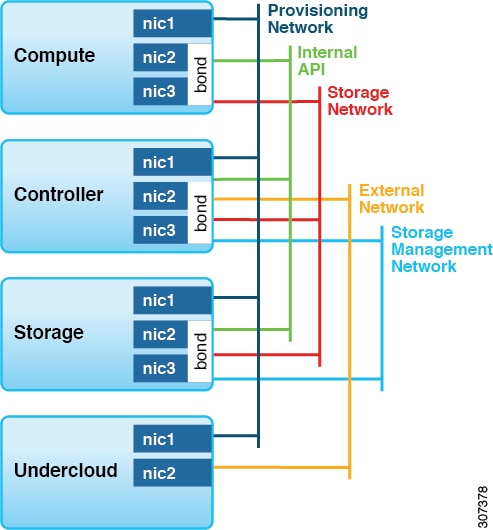
Refer to the Network Planning section of the OpenStack Platform Director documentation for network layout such as the one shown in the figure below.

For more information, see Related Documentation.

Figure 1. Typical OpenStack platform topology
 
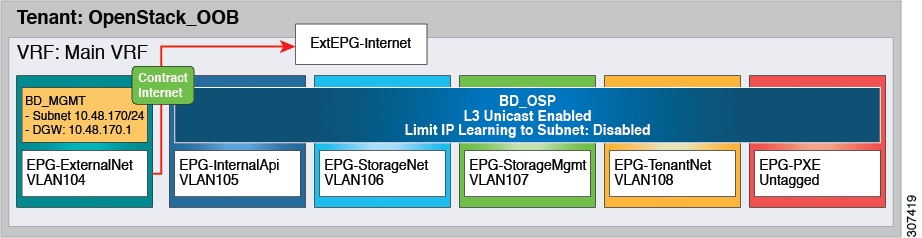
Figure 2. Typical topology for installation of Red Hat OpenStack Platform 13 with the Cisco ACI plug-in
  • The PXE network must use a native VLAN. Because native VLAN typically is defined as a dedicated NIC on the OpenStack nodes, you can connect PXE network interfaces either to the Cisco ACI fabric or to a different switching fabric.

  • All OpenStack Platform (OSP) networks except for PXE are in-band (IB) through Cisco Application Centric Infrastructure (ACI). The following VLANs are examples:

    • API: VLAN 10

    • Storage: VLAN 11

    • StorageMgmt: VLAN 12

    • Tenant: VLAN 13

    • External: VLAN 14

    • Cisco ACI Infra: VLAN 4093

  • ExtEPG-Internet used in this example is the L3Out external EPG that allows connectivity to Internet for the OpenStack External Network. You also may need to provide external connectivity for the Internal API OpenStack network, according to your requirements.

To prepare Cisco ACI for in-band configuration you can use the physical domain and the static binding to the EPGs created for these networks. This involves creating the required physical domain and attachable access entity profile (AEP). Note that the infra VLAN should be enabled for the AEP. For more details, see the knowledge base article Creating Domains, Attach Entity Profiles, and VLANs to Deploy an EPG on a Specific Port.

Procedure


Step 1

Log in to the Cisco APIC GUI and create a VLAN pool for the VLANs required for OpenStack Platform installation.

  1. On the menu bar, choose Fabric > Access Policies > Pools and right-click VLAN to create a VLAN pool.

  2. In the Name field, enter the VLAN range namespace policy name. (For example, OSP13-infra.)

  3. (Optional) In the Description field, enter the description of the VLAN range namespace policy.

  4. In the Encap Blocks section, click on the + icon to enter the encap block range.

  5. Click SUBMIT.

Step 2

Create an attachable entity profile and assign the above PhysDom to it. Also make sure Enable Infra VLAN is selected:

  1. On the menu bar, choose Fabric > Access Policies > Global Policies and right-click Attachable Access Entity Profile to create an attachable access entity profile.

  2. In the Name field, enter the name of the attachable access entity profile. (For example, OSP13-AEP.)

  3. (Optional) In the Description field, enter the description of the attachable access entity profile.

  4. Check the Enable Infrastructure VLAN check box to enable the infrastructure VLAN.

  5. In the Domains (VMM, Physical or External) To Be Associated To Interfaces: section, click on the + icon, from the drop-down list, choose the domain profile and click Update.

  6. Click Next.

  7. Click Finish.

Step 3

Create a Physical Domain (PhysDom) and assign the VLAN pool to it.

  1. On the menu bar, choose Fabric > Access Policies > Physical and External Domains and right-click Physical Domains to create a Physical Domain.

  2. In the Name field, enter the name of the physical domain. (OSP13-phys).

  3. In the Associated Attachable Entity Profile field, choose an associated attachable entity profile.

  4. In the VLAN Pool field, choose a VLAN pool ([OSP13-infra-dynamic]).

    If VLAN is used as the encapsulation method between the OpenStack nodes and the Cisco ACI leaf switches, you need to choose a VLAN pool range according to the pool used from OpenStack Neutron networks.

  5. Click Submit.

Step 4

In a separate tenant, you can also use Common to create an application profile. (For example, OSP-13.) Create the EPGs, bridge domains, and a VRF for the OSP Networks. If the PXE network is also going through Cisco ACI then also create EPG and BD for PXE (This is not shown in this example).

Step 5

Add static bindings (Paths) for the required VLANs. You have to expand the EPG to see the ":Static Binding Paths".

  1. Make sure the physical domain you created is attached to this EPG. You can add the physical domain using Application Profiles > EPG > EPG_name > Domains.

  2. On the menu bar, choose Tenants > Tenant common > Application Profiles > ACI-OSP13 > Application EPGs > EPG API > Static Binding Paths.

Step 6

Make sure the PhysDom is attached to the EPG.

Note 
Cisco ACI needs to be provisioned for networks mentioned above except for Tenant, External and Floating IP network. This involves creating the required phys-doms and attached entity profile. Important thing to note is that Infra VLAN should be enabled for the attached entity profile.
Cisco ACI should now be ready for OpenStack deployment.

Setting Up Overcloud

You must follow the Director Installation and Usage, Red Hat OpenStack Platform 13 document to prepare the OpenStack Platform 13 Director and create the correct deployment and resource files.

For more information, see the document on the Red Hat website. When following Chapter 5—"Configuring a Container Image Source"—note the registry address. You might need to prepare the custom NIC templates as required following the Red Hat documentation.

After you set up the OpenStack Plaform Director, you must install the Cisco Application Centric Infrastructure (ACI) TripleO orchestration before proceeding with deployment.

Preparing for Cisco ACI with OpFlex Agent

The following is a summary of steps required to install and enable Cisco Application Centric Infrastructure (ACI) OpFlex agent on the Overcloud nodes. The following sections explain the steps in detail.

  • Modify the undercloud to include the necessary software packages.

  • Add to the Neutron puppet manifests, which are part of Overcloud image.

  • Add the OpFlex puppet manifests.

  • Modify some files on the undercloud tripleO infrastructure.

  • Create a HEAT environment file to provide Cisco ACI-related parameter values.

  • After making the preceding modifications, you can provision Overcloud using the openstack overcloud deploy command and add the new environment file to the openstack overcloud deploy command.

Preparing Undercloud for Cisco ACI with OpFlex Orchestration

This section describes how to install the integration package for Cisco Application Centric Infrastructure (ACI) with OpFlex Orchestration.


Note

In previous versions, the plug-in consisted of only an RPM file, and installing the RPM file created a yum repository with plug-in packages. Users were required to run /opt/ciscoaci-tripleo-heat-templates/tools/build_openstack_aci_containers.py to build the containers, but did not need to add the option -z.

Procedure


Step 1

Log in to undercloud as user stack.

Step 2

Download the latest Cisco ACI OSP (tripleo-ciscoaci) RPM and the corresponding plug-in tarball (openstack-ciscorpms-repo) from Cisco.com and place them on the OpenStack Platform Director.

Step 3

Install the RPM. This action installs the dependencies. If the RPM is installed using the rpm command, some dependency may need to be manually installed.

Example:

$ sudo yum --nogpgcheck localinstall <rpm file>
Step 4

Create the Cisco ACI containers by running the following command: /opt/ciscoaci-tripleo-heat-templates/tools/build_openstack_aci_containers.py and pointing it to the downloaded plug-in tarball. For example:


/opt/ciscoaci-tripleo-heat-templates/tools/build_openstack_aci_containers.py -z /home/stack/openstack-ciscorpms-repo-13.0-848.tar.gz

The command uses the upstream Docker images as a base to build the required containers and pushes them to the local Docker repository. It creates a /home/stack/templates/ciscoaci_containers.yaml environment file, which you should include as a template during Overcloud deployment. You can use the -o option to override the output filename. You then verify that the output file was created as you specified.

Note 
  • You might need to log out of stack user and log back in because the Docker groups membership for stack user might not have taken effect. To check this, make sure that you can run Docker commands like docker ps as stack user without permission problems.

  • During execution of the container-creation command, you may see an error that is generated by the command /bin/gbp-db-manage. You can safely ignore this error, which should not cause the execution of the script to fail.

Note 

Starting with the 4.2(1) release, OpenStack Director 13 (Queens) deployments support configuration of a Docker registry. Users have the following choices for the registry:

  • Upstream registry (allows for using a local satellite server – currently the Red Hat registry)

  • Downstream registry address/port/URI (currently the underlay controller, 8787, /rhosp13)

This is configured using the build_openstack_aci_containers.py script:

usage: build_openstack_aci_containers.py [-h] [-u UCLOUD_IP] [-o OUTPUT_FILE]
                                         [-c CONTAINERS_TB]
                                         [-s UPSTREAM_REGISTRY]
                                         [-d DESTINATION_REGISTRY]
                                         [-r REGSEPARATOR] [-t TAG] [--force]
                                         (-f FILE | -z FILE)

Build containers for ACI Plugin

optional arguments:
  -h, --help            show this help message and exit
  -u UCLOUD_IP, --ucloud_ip UCLOUD_IP
                        Undercloud ip address
  -o OUTPUT_FILE, --output_file OUTPUT_FILE
                        Environment file to create, default is
                        /home/stack/templates/ciscoaci_containers.yaml
  -c CONTAINERS_TB, --container CONTAINERS_TB
                        Containers to build, comma separated, default is all
  -s UPSTREAM_REGISTRY, --upstream UPSTREAM_REGISTRY
                        Upstream registry to pull base images from, eg.
                        registry.access.redhat.com/rhosp13, defaults to
                        registry.access.redhat.com/rhosp13
  -d DESTINATION_REGISTRY, --destregistry DESTINATION_REGISTRY
                        Destination registry to push to, eg:
                        1.100.1.1:8787/rhosp13
  -r REGSEPARATOR, --regseparator REGSEPARATOR
                        Upstream registry separator for images, eg. '/' for
                        normal upstream registrys (default). Will be added
                        between upstream registry name and container name. Use
                        '_' for satellite based registries.
  -t TAG, --tag TAG     tag for images, defaults to current timestamp
  --force               Override check for md5sum mismatch
  -f FILE, --aci_repo_file FILE
                        Path to yum repoistory file, which describes the
                        repository which provides ACI plugin rpm files. If you
                        want this script to create a repository on undercloud,
                        please use the -z option to provide path to openstack-
                        aci-rpms-repo tar file downloaded from cisco website
  -z FILE, --aci_rpm_repo_tar_file FILE
                        Path to openstack-aci-rpms-repo tar file. This will be
                        use to create a local yum repository on undercloud


Installing Overcloud

This section describes how to install Overcloud.

Procedure


Step 1

Copy the /usr/share/openstack-tripleo-heat-templates/roles_data.yaml file to a private location.

Example:

cp /usr/share/openstack-tripleo-heat-templates/roles_data.yaml /home/stack/templates/aci_roles_data.yaml
Step 2

Edit the local copy of roles_data.yaml(aci_roles_data.yaml) to add CiscoAciAIM and CiscoAciLldp service to controller role and CiscoAciLldp service to compute role.

From Cisco ACI Release 5.2(1), CiscoAciOpflexAgent service is supported. If you are deploying a release prior to 5.2(1), you must remove the CiscoAciOpflexAgent service.

  1. Under the controller role, add the following lines:

    - OS::TripleO::Services::CiscoAciAIM
    - OS::TripleO::Services::CiscoAciLldp
    - OS::TripleO::Services::CiscoAciOpflexAgent 
  2. Under the compute role, add the following line:

    - OS::TripleO::Services::CiscoAciLldp
    - OS::TripleO::Services::CiscoAciOpflexAgent
Step 3

Declare resources for Cisco Application Centric Infrastructure (ACI) enviroment.

You must define Cisco ACI resources in a .yaml template file to include with deployment. For example, /home/stack/templates/aci_cs.yaml. This step describes the resource declaration for an OpFlex agent use case.

The following example shows resources for deploying OSP with OpFlex.

Note 

Example:

(for Cisco ACI releases prior to 5.2(1))
resource_registry:
#controller
  OS::TripleO::ControllerExtraConfigPre: /opt/ciscoaci-tripleo-heat-templates/nodepre.yaml
  OS::TripleO::Services::NeutronL3Agent: OS::Heat::None
  OS::TripleO::Services::NeutronOvsAgent: /opt/ciscoaci-tripleo-heat-templates/docker/services/cisco_opflex.yaml
  OS::TripleO::Docker::NeutronMl2PluginBase: /opt/ciscoaci-tripleo-heat-templates/puppet/services/ciscoaci-ml2.yaml
  OS::TripleO::Services::CiscoAciAIM: /opt/ciscoaci-tripleo-heat-templates/docker/services/cisco_aciaim.yaml

#compute
  OS::TripleO::ComputeExtraConfigPre: /opt/ciscoaci-tripleo-heat-templates/nodepre.yaml
  OS::TripleO::Services::ComputeNeutronOvsAgent: /opt/ciscoaci-tripleo-heat-templates/docker/services/cisco_opflex.yaml
  OS::TripleO::Services::ComputeNeutronCorePlugin: /opt/ciscoaci-tripleo-heat-templates/puppet/services/ciscoaci_compute.yaml
  OS::TripleO::Services::ComputeNeutronMetadataAgent: /opt/ciscoaci-tripleo-heat-templates/docker/services/compute-neutron-metadata.yaml

#if using LLDP to discover switch connections
  OS::TripleO::Services::CiscoAciLldp: /opt/ciscoaci-tripleo-heat-templates/docker/services/cisco_lldp.yaml

#if not using LLDP
  OS::TripleO::Services::CiscoAciLldp: OS::Heat::None

Example:

(for Cisco ACI release 5.2(1))
resource_registry:
#controller
  OS::TripleO::ControllerExtraConfigPre: /opt/ciscoaci-tripleo-heat-templates/nodepre.yaml
  OS::TripleO::Services::NeutronL3Agent: OS::Heat::None
  OS::TripleO::Services::NeutronOvsAgent: /opt/ciscoaci-tripleo-heat-templates/docker/services/cisco_neutron_opflex.yaml
  OS::TripleO::Docker::NeutronMl2PluginBase: /opt/ciscoaci-tripleo-heat-templates/puppet/services/ciscoaci-ml2.yaml
  OS::TripleO::Services::CiscoAciAIM: /opt/ciscoaci-tripleo-heat-templates/docker/services/cisco_aciaim.yaml

#compute
  OS::TripleO::ComputeExtraConfigPre: /opt/ciscoaci-tripleo-heat-templates/nodepre.yaml
  OS::TripleO::Services::ComputeNeutronOvsAgent: /opt/ciscoaci-tripleo-heat-templates/docker/services/cisco_neutron_opflex.yaml
  OS::TripleO::Services::ComputeNeutronCorePlugin: /opt/ciscoaci-tripleo-heat-templates/puppet/services/ciscoaci_compute.yaml
  OS::TripleO::Services::ComputeNeutronMetadataAgent: /opt/ciscoaci-tripleo-heat-templates/docker/services/compute-neutron-metadata.yaml

#if using LLDP to discover switch connections
  OS::TripleO::Services::CiscoAciLldp: /opt/ciscoaci-tripleo-heat-templates/docker/services/cisco_lldp.yaml
  OS::TripleO::Services::CiscoAciOpflexAgent: /opt/ciscoaci-tripleo-heat-templates/docker/services/cisco_opflex.yaml

#if not using LLDP
  OS::TripleO::Services::CiscoAciLldp: OS::Heat::None”
Step 4

In order to use Cisco ACI certificate-based authentication, create a local user with a X.509 certificate and specify the certificate and key in the Cisco ACI resources file using the parameters ACIApicPrivateKey and ACIApicCertName. .

See the .section "Creating a Local User and Adding a User Certificate" in Cisco APIC Security Configuration Guide, Release 4.2(x)

Note 
When you use certificate-based authentication, make sure that you do not specify the parameter ACIApicPassword.
Step 5

Deploy Overcloud.

When deploying Overcloud, include the custom roles data file created using the -r option. Also include the Cisco ACI environment file and Cisco ACI containers YAML file in the environment list in addition to site-specific environment files.

Example:

openstack overcloud deploy --templates /home/stack/tripleo-heat-templates -r /home/stack/templates/aci_roles_data.yaml  -e /home/stack/tripleo-heat-templates/environments/network-isolation.yaml -e /home/stack/templates/overcloud_images.yaml -e /home/stack/templates/network-environment.yaml -e /home/stack/templates/ciscoaci_containers.yaml -e /home/stack/templates/ciscoaci-env.yaml -e /home/stack/templates/rhel-registration-resource-registry.yaml -e /home/stack/templates/environment-rhel-registration.
Note 
The preceding example illustrates the use of Cisco ACI templates and roles. Other templates may differ depending on your installation configuration. Follow the Red Hat guidelines for the creation of custom templates and autogeneration of the network environment template.

Cisco ACI Fabric Initialization Example

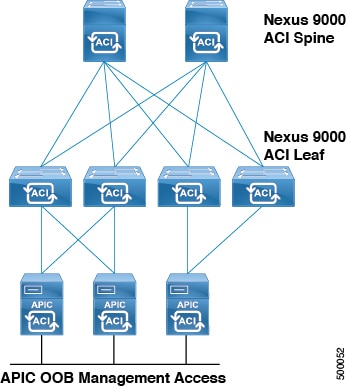
This example solution is based on a basic Spine/Leaf switching fabric, installed with all defaults on the Cisco Application Policy Infrastructure Controller (APIC) configuration other than Fabric Name and controller IP addressing. Three Cisco APICs are used to form a highly available cluster. Each Cisco APIC is connected to one or more of the leaf switches in the fabric. It is best to use diverse leaf switches for connecting multiple Cisco APICs to provide higher availability of the controller services.

The switching system continues to forward traffic regardless of the presence of the Cisco APIC cluster. All configuration of the fabric is driven through the cluster so no configuration could be added, changed, or deleted without Cisco APIC connectivity in place. To ensure that administrative control of the fabric is not dependent on the fabric itself, an Out-Of-Band (OOB) network connection is needed on each of the Cisco APICs as shown in the following figure:

Figure 3. Cisco APIC Cluster Connectivity

Before you begin

It is a good practice to make a note of the serial number of each of the switches in the Cisco Application Centric Infrastructure (ACI) fabric before discovering the fabric. Ideally, the console port of each of the switches is also connected to a terminal server so there is always administrative control regardless of the state of the Cisco ACI fabric.

To recover the serial number when logged into a switch running a Cisco ACI software image, enter the show inventory command at the Cisco ACI switch CLI, noting the primary system serial number. This is the number that displays in the Cisco APIC during fabric discovery, allowing you to assign the correct name and node numbering in your scheme to the devices.

Procedure


Step 1

To allow the Cisco APIC to discover and register the switches in the fabric, log in to the Cisco APIC GUI and then complete the following steps:

  1. On the menu bar, choose Fabric > Inventory.

  2. In the Navigation pane, choose FabricMembership.

  3. In the Work pane, you should see an entry for the first switch discovered by the Cisco APIC.

  4. Verify this is the expected first switch for the first Cisco APIC in the cluster based on serial number.

  5. In the Work pane, choose the switch, right-click and choose Register Switch.

    Note 
    Assign logical numeric node IDs and node names that make sense for future troubleshooting, and Virtual Port Channel (vPC) pairing plans. For example, Node IDs 101/102 for the first two leaf switches, to be named leaf1/leaf2.
Step 2

Once the first leaf is discovered, the system will pass through that leaf to discover the spine switches, and then use the spine switches to discover remaining leaf switches. Register the additional nodes assigning logical node ID numbers and names according to the spine/leaf fabric layout.

Step 3

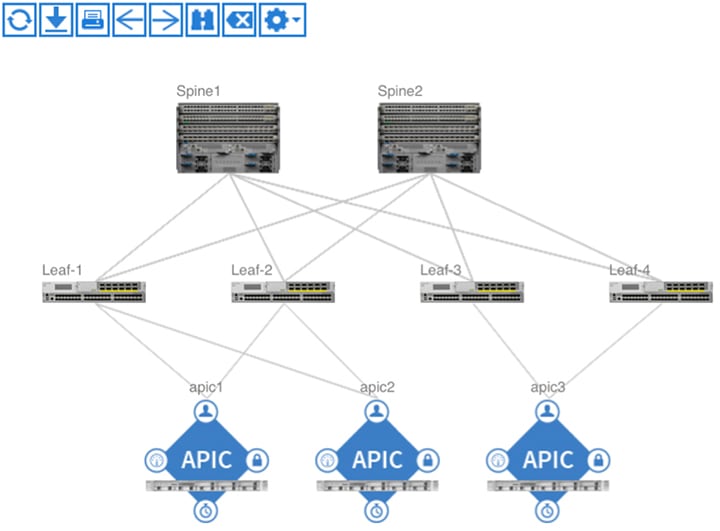
Confirm visually that the topology is discovered and physically connected as expected, perform the following actions:

  1. On the menu bar, choose Fabric > Inventory.

  2. In the Navigation pane, choose Topology.

    Figure 4. Discovered Spine/Leaf Topology
  3. Once the fabric is discovered, choose Admin > Firmware and validate the firmware versions running on all Cisco APICs, and fabric nodes (switches). If needed, upgrade to current or consistent versions before beginning initial configuration.