Run job

This section contains the following topics:

Run Job

This section explains how to run a job (workflow execution) via CWM.

Before you begin

You should have:
  • a workflow definition stored in CWM and listed in the All Workflows tab;

  • uploaded adapter(s) with workers.

Procedure


Step 1

In the CWM, go to Workflows -> All Workflows tab.

  1. Select the workflow you want to execute and click Run under the Actions column.

Figure 1. Run Job button
Run Job button

Step 2

In the Run job modal, insert the initial workflow data input in the Job variables field.

Step 3

By default, your job’s name is the same as your workflow definition, but you can change it in the Job name field.

Step 4

Click Run Job to start the workflow execution.
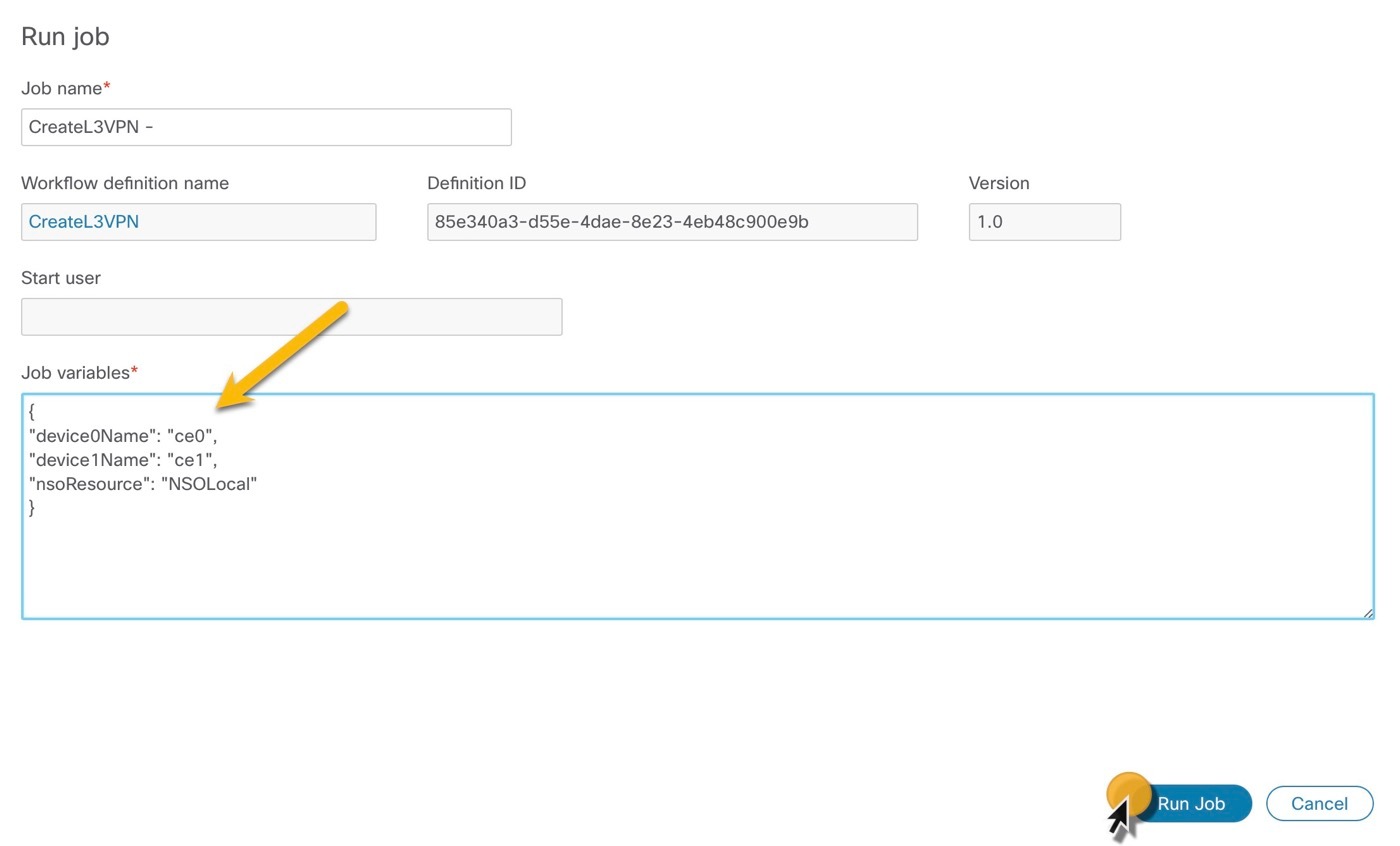
Figure 2. Run Job
Run Job

Check job status

Procedure


Step 1

Go to Job Manager -> All Jobs tab.

Step 2

In the All jobs table, find your job and check the status of the workflow execution in the Status column.

  1. If the workflow was executed correctly, a green round icon with the tick and the status Completed is displayed.

  2. If the workflow execution is still in progress or the workflow engine is retrying an action, a blue round icon with three dots and the status Running is displayed.

  3. If the workflow execution failed, a red round icon with the exclamation mark and the status Failed is displayed.


Check job result

Procedure


Step 1

Click the job name to enter its details.

Step 2

In the Job Event Log table, you can expand every event entry by clicking on the plus icon.

Step 3

To check the result of the execution, expand the WorkflowExecution entry at the bottom of the table. Depending on the result, the Job Event Type may differ, for example: WorkflowExecutionCompleted or WorkflowExecutionFailed.


Rerun job

Procedure


Step 1

Go to Job Manager -> All jobs tab.

Step 2

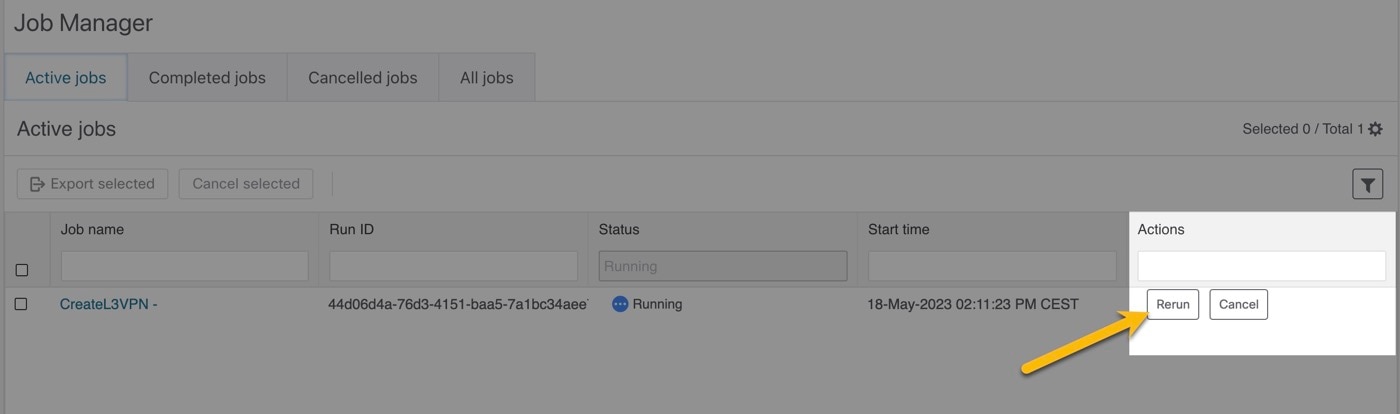
In the All jobs table, find a job that you want to rerun and click the Rerun button in the same row under the Actions column.

Figure 3. Rerun job button

Step 3

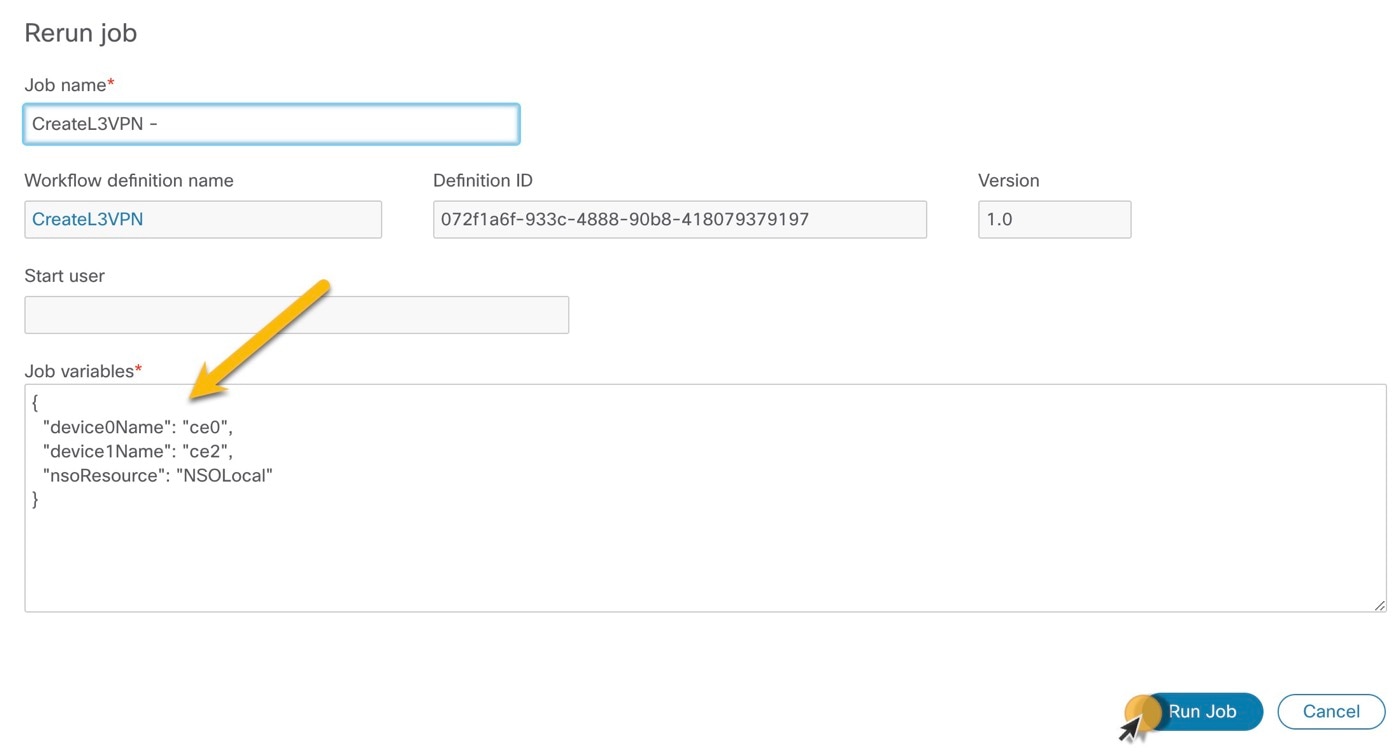
In the Rerun job modal, you can edit the Job name and Job variables (data input) or use the same values from the previous run.

Figure 4. Rerun job

Step 4

Click Run Job.


Cancel job

Procedure


Step 1

Go to Job Manager -> Active jobs tab.

Step 2

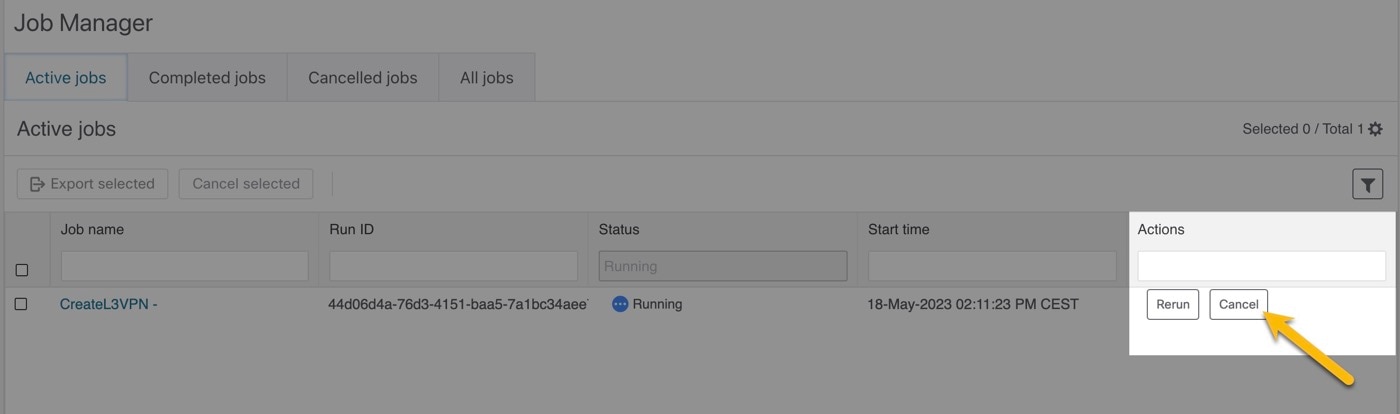
In the Active jobs table, find a job that you want to cancel and click the Cancel button in the same row under the Actions column.

Figure 5. Cancel job button

Step 3

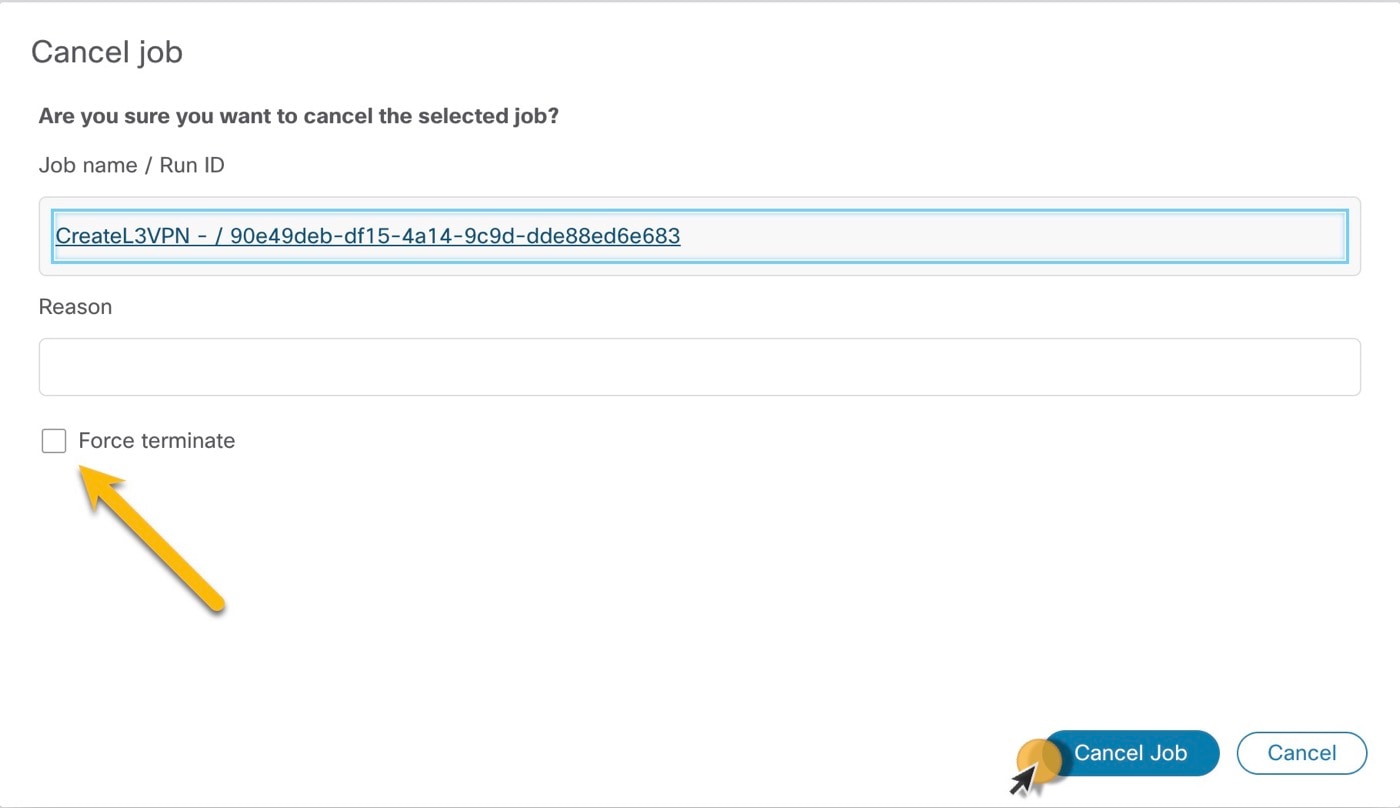
In the Cancel job modal, you can enter an optional Reason for cancelling.

Step 4

Tick Force terminate checkbox if you want to cancel the running job immediately. If you leave this checkbox unticked, the workflow worker will complete the ongoing task execution from the workflow definition and then cancel the job.

Figure 6. Cancel job

Step 5

Click Cancel Job.

You can cancel the job also from the job's Details tab.