- Preface
- Broadband Access Center Overview
- Broadband Access Center Architecture
- Configuration Workflows
- CPE Provisioning Overview
- Configuration Templates Management
- DOCSIS Configuration
- PacketCable Voice Configuration
- CableHome Configuration
- Managing Broadband Access Center
- Monitoring Broadband Access Center
- Understanding the Administrator User Interface
- Using the Administrator User Interface
- Configuring Broadband Access Center
- Support Tools and Advanced Concepts
- Database Management
- Troubleshooting Broadband Access Center
- Alert and Error Messages
- Option Support
- PacketCable DHCP Options to BAC Properties Mapping
- Provisioning API Use Cases
- FAQs on Provisioning Broadband Access Center
- Glossary
- Index
Cisco Broadband Access Center Administrator Guide 4.0
Bias-Free Language
The documentation set for this product strives to use bias-free language. For the purposes of this documentation set, bias-free is defined as language that does not imply discrimination based on age, disability, gender, racial identity, ethnic identity, sexual orientation, socioeconomic status, and intersectionality. Exceptions may be present in the documentation due to language that is hardcoded in the user interfaces of the product software, language used based on RFP documentation, or language that is used by a referenced third-party product. Learn more about how Cisco is using Inclusive Language.
- Updated:
- December 27, 2007
Chapter: DOCSIS Configuration
DOCSIS Configuration
This chapter describes the provisioning flow in a Broadband Access Center (BAC) DOCSIS deployment. It also provides information required before configuration and describes the available tools.
• Using MIBs with Dynamic DOCSIS Templates
•BAC Features for DOCSIS Configurations

Note See DOCSIS Option Support, page B-1, for information on DOCSIS options supported by this BAC release.
This chapter assumes that you are familiar with the contents of these specifications:
•DOCSIS 3.0:
–CM-SP-SECv3.0-I04-070518
–CM-SP-PHY3.0-I04-070518
–CM-SP-MULPIv3.0-I04-070518
–CM-SP-OSSIv3.0-I03-070518
•DOCSIS 2.0:
–CM-SP-RFI2.0-I12-071206
–L2VPN CM-SP-L2VPN-I06-071206
DOCSIS Workflow
This section describes the provisioning workflow contained in the DOCSIS Provisioning Specification for DHCPv4 and DHCPv6.
DOCSIS DHCPv4 Workflow
Figure 6-1 shows the provisioning workflow contained in the DOCSIS Provisioning Specification for DHCPv4. Each step is described subsequently.
Figure 6-1 DOCSIS DHCPv4 Provisioning Flow
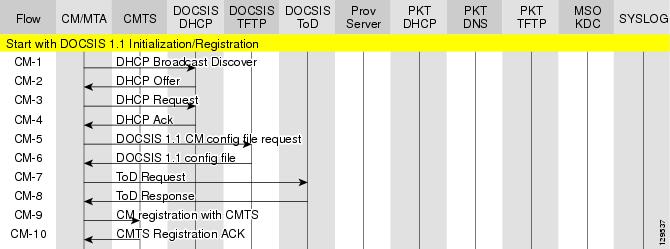
Table 6-1 describes the potential problems that can exist at various DOCSIS provisioning steps illustrated in Figure 6-1.
|
|
|
|
|---|---|---|
CM1 -1 |
DHCP Discover |
• • • • • Cisco Network Registrar DHCP • • BAC Network Registrar Extension • • • • RDU • • • • • • • DPE • • • |
CM-2 |
DHCP Offer |
Routing issues between DHCP and the cable modem termination system (CMTS) |
CM-3 |
DHCP Request |
• • |
CM-4 |
DHCP Ack |
|
CM-5 |
TFTP Request |
• • • • • • • |
CM-6 |
TFTP Response |
Routing issues between DPE and CMTS |
CM-7 |
ToD Request |
init(t) state - No route from time server (DPE) to modem |
CM-8 |
ToD Response |
|
CM-9 |
CM registration with CMTS |
• • |
CM-10 |
CMTS registration Ack |
Acceptable states are: • • • • |
1 CM = cable modem |
DOCSIS DHCPv6 Workflow
Figure 6-2 shows the provisioning workflow contained in the DOCSIS Provisioning Specification for DHCPv6. Each step is described subsequently.
Figure 6-2 DOCSIS DHCPv6 Provisioning Flow
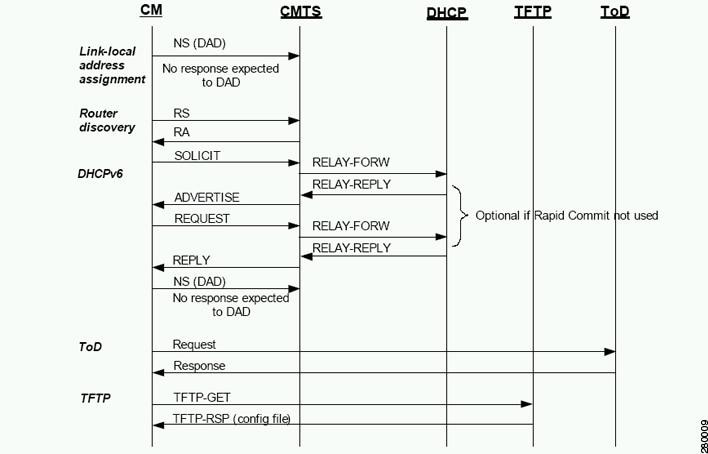
The DOCSIS provisioning workflow for DHCPv6 involves the cable modem establishing IPv6 connectivity, which includes assigning:
•Link-local address
•Default router
•IPv6 management address
•Other IPv6 configuration
Table 6-2 describes the potential problems that can exist at various DOCSIS provisioning steps illustrated in Figure 6-2.
Using MIBs with Dynamic DOCSIS Templates
For a full list of MIBs that BAC ships with, see SNMP VarBind, page 5-6.
Two versions of the DOCSIS MIB are loaded into the RDU:
•DOCS-CABLE-DEVICE-MIB-OBSOLETE (experimental branch)
•DOCS-CABLE-DEVICE-MIB (mib2 branch)
For information on how to use them, see DOCSIS MIBs, page 5-7.
You can add MIBs using an application programming interface (API) call or by modifying rdu.properties. For more details, see Configuring Euro-PacketCable MIBs, page 7-32.
You can add SNMP TLVs to a template:
•When no MIB is available. See Adding SNMP TLVs Without a MIB, page 5-10.
•With vendor-specific MIBs. See Adding SNMP TLVs With Vendor-Specific MIBs, page 5-11.
BAC Features for DOCSIS Configurations
This section describes BAC value-added features as they relate to the DOCSIS technology.
Dynamic Configuration TLVs
The DPE adds the following TLVs when it receives a TFTP request for dynamic DOCSIS configuration:
•TLV 19: TFTP Server Timestamp (optional)—Displays in the Configure DOCSIS Defaults page as the TFTP Time Stamp Option. See Table 13-3 for more information. This TLV requires NTP synchronization on CMTS and DPE.
•TLV 20 and TLV 59: TFTP Server Provisioned Modem Address for IPv4 and IPv6 (optional)—Displays in the Configure DOCSIS Defaults page as the TFTP Modem Address Option. See Table 13-3 for more information.
Note The TFTP IP validation feature on the DPE is incompatible with the Cisco CMTS DSS feature. See DPE TFTP IP Validation. If DSS is set on the Cisco CMTS, you must ensure that the TFTP Server Provisioned Modem Address is disabled.
•TLV 6: CM MIC Configuration Setting (required)
•TLV 7: CMTS MIC Configuration Setting (required)—Displays in the Configure DOCSIS Defaults page as the CMTS Shared Secret. See Table 13-3 for more information.
•TLV 43.6.x: Extended CMTS MIC Configuration Setting (required)—Displays in the Configure DOCSIS Defaults page as the CMTS Shared Secret. See Table 13-3 for more information.
Note When configuring CMTS MIC, note the following CMTS IOS release dependencies:
•DOCSIS 2.0 CMTS MIC requires CMTS IOS 12.3BC when including TLV 39 or TLV 40.
•Certain CMTS IOS commands are assumed to be configured by BAC:
–ip dhcp relay information option
–no ip dhcp relay information check
–cable helper-address x.x.x.x
where x.x.x.x is the IP address of the Network Registrar DHCP server.
In an IPv6 environment, you must use the following command instead of cable helper-address:
ipv6 dhcp relay destination ipv6-address [interface-type interface-number]
–cable dhcp-giaddr primary
DPE TFTP IP Validation
For dynamic configuration files, the DPE TFTP server verifies if the IP address of the TFTP client matches the expected DOCSIS cable modem IP address. If it does not match, the request is dropped. This feature is incompatible with the Cisco CMTS DMIC feature.
Use the no service tftp 1..1 ipv4 | ipv6 verify-ip command to disable the verification of requestor IP addresses on dynamic configuration TFTP requests. For detailed information, refer to the Cisco Broadband Access Center DPE CLI Reference 4.0.
Support for DOCSIS 1.0, 1.1, 2.0, and 3.0
BAC 4.0 supports DOCSIS 1.0, 1.1, 2.0, and 3.0. For information describing the TLVs, see Template Grammar, page 5-2, and for a list of options that this BAC release supports in each DOCSIS version, see DOCSIS Option Support, page B-1.
Dynamic DOCSIS Version Selection
BAC can detect a cable modem's DOCSIS version from an incoming DHCP request. It can also detect the DOCSIS version of the CMTS in one of two ways:
•By using the CMTS as a relay agent that transmits its DOCSIS version, using DHCPv4 Option 82 and DHCPv6 Option 17.
•From a customer-supplied source that provides a mapping of GIADDR to the CMTS DOCSIS version.
Using this DOCSIS version, BAC, if so configured, determines the optimum DOCSIS configuration file for the device. This is the highest common DOCSIS version between the device and the CMTS. For example, if the device supports DOCSIS 2.0 and the CMTS supports DOCSIS 1.1, the DOCSIS 1.1 file is used.
Determining the DOCSIS Version of the Modem
BAC can detect a cable modem's DOCSIS version from an incoming DHCP request, in which a string included in the Vendor Class Identifier field (Option 60) identifies the modem capabilities. For example, as in "docsis1.1:xxxxxx" where xxxxxx is an ASCII representation of the modem capabilities. The service-level selection extension uses the characters between "docsis" and the ":xxxxxxx" hex string as the DOCSIS version for the modem.
Determining the DOCSIS Version of the CMTS
This BAC release enables the CMTS to serve as a relay agent to provide the DOCSIS version of the CMTS. This feature is enabled via:
•DHCPv4 Relay Agent Option 82, which allows the CMTS to transmit (or advertise) specific capabilities of the CMTS. This option is a DOCSIS DHCP vendor-identifying option and carries the DOCSIS version of the CMTS.
•DHCPv6 Vendor-specific Information Option 17, which allows you to specify vendor-specific information. This option is carried in the Relay-forward and Relay-reply messages and transmits information between the DHCPv6 relay agent and the DHCPv6 server.
As in earlier versions, this BAC version also determines the DOCSIS version of the CMTS via the DHCP GIADDR field, which specifies the IP address of the CMTS interface. In this method, the service-level selection extension for DOCSIS modems looks for the /docsis/cmts/version/giaddrToVersionMap property. The value of this property is the name of an external file containing a mapping of the GIADDR to the DOCSIS version.
You must name this mapping file giaddr-docsis-map.txt and add it to the RDU. You can add the giaddr-docsis-map.txt file to the RDU from the:
•API via the Configuration.addFile() call.
•Administrator user interface via Configuration > Files. See Adding Files, page 13-18.
The giaddr-docsis-map.txt file must include the necessary information in the following format:
IPv4_dotted_decimal_address_string,DOCSIS_version_string
•IPv4_dotted_decimal_address_string—Specifies the IP address of the CMTS interface.
•docsis_version_string—Identifies the DOCSIS version that the cable modem supports.
The service-level extension uses the GIADDR address contained in the DHCP packet to look up the DOCSIS version of the CMTS. If the GIADDR is not found in the mapping file, the extension uses the value of the /docsis/cmts/version/default property for the DOCSIS version of the cable modem. The default value of this property is 1.0.
To dynamically update the giaddr-docsis-map.txt file, edit it and replace it in the RDU via the replaceExternalFile API or via the administrator user interface.
Note If the properties for the DOCSIS version selection are not specified on the Class of Service, the original file is used, allowing for systematic upgrades across the network.
Selecting Service Level Based on DOCSIS Version
After the DOCSIS version of the modem and the CMTS are determined, the service-level selection extension determines the minimum DOCSIS version supported and configures the /docsis/version property in the service level. The value of this property is set to the DOCSIS version string, such as 1.1.
Note You can specify the DOCSIS version using the Configuration File Utility. For more information, see Using the Configuration File Utility, page 5-21. This function that the file utility performs is different from RDU verification, during which the RDU DOCSIS Version Selector feature determines the latest DOCSIS version supported by a CMTS.
DOCSIS Configuration File Based on DOCSIS Version
BAC determines the filename of the DOCSIS configuration file that is to be sent to the modem using the DOCSIS version.
The following Class of Service properties are supported by the BAC administrator user interface and the API:
/cos/docsis/file/1.0
/cos/docsis/file/1.1
/cos/docsis/file/2.0
/cos/docsis/file/3.0/IPv4
/cos/docsis/file/3.0/IPv6
Optionally, you can add these properties to a DOCSIS Class of Service to associate a DOCSIS configuration filename with a particular DOCSIS version. Each of these properties, when set, causes the RDU to establish a database relationship between the Class of Service and the file named by the property value, as is done for the existing DOCSIS configuration filename property.
If the DOCSIS version property is present, BAC forms a property name by appending the DOCSIS version string that is given by that property value to the name of the property that provides the DOCSIS configuration filename:
/cos/docsis/file/docsis_version_string
The service-level extension looks for this property name in the property hierarchy for the modem. When the DOCSIS version property is found, it uses the property value as the DOCSIS configuration filename. If the DOCSIS version property is not found, BAC uses the DOCSIS configuration filename property without the DOCSIS version suffix and supplies the filename to specify in the device configuration.
IPv6 Support
This BAC release introduces support for the newest revision of the CableLabs DOCSIS standard: DOCSIS 3.0. The DOCSIS 3.0 standard introduces key new features that build on previous DOCSIS standards. These features include:
•Provisioning of IPv6 devices, which include:
–DOCSIS-compliant cable modems and CMTS
–Computers
–RNG-200 STBs, which is based on the evolving OpenCable Application Platform
–Variants of eSAFE (embedded Service/Application Functional Entities) devices, such as mixed-IP mode PacketCable Multimedia Terminal Adapters (MTAs)
BAC provides services required to provision IPv6 devices, such as IPv6 support for TFTP and ToD services. BAC also processes configuration files for IPv6 devices.
•Expanded addressability
The main benefit of IPv6 is its expanded addressing capability. IPv6 addresses increase the address space from 32 to 128 bits, providing for a virtually unlimited number of networks and systems.
•IPv6 provisioning and management of cable modems. This provisioning flow includes:
–Supported IP modes—BAC provisions DOCSIS cable modems in the IPv4, IPv6, or dual stack mode (comprising IPv4 and IPv6 provisioning modes). For details on the various modes, see Single Stack versus Dual Stack.
Note Cable modems can forward IPv4 and IPv6 traffic regardless of the IP provisioning mode.
–DHCPv6—The DOCSIS provisioning flow specifies the use of DHCP for IPv6, also known as DHCPv6. For details on the DHCPv6 provisioning flow in DOCSIS, see DOCSIS DHCPv6 Workflow.
Before you enable BAC to provision devices in IPv6, ensure that you enable IPv6 on your system. To enable your machine to support IPv6, log in as root, and enter these commands:
# ifconfig intf inet6 plumb up
where intf identifies the interface on which you want to enable IPv6.
Note Ensure that you plumb in the loopback interface in addition to the physical Ethernet interface. For example:# ifconfig bge0 inet6 plumb up
# ifconfig lo0 inet6 plumb up
Then, also run these commands:
# /usr/lib/inet/in.ndpd
# touch /etc/hostname6.intf
where intf identifies the interface on which you want to enable IPv6.
These sections describe concepts related to IPv6 in BAC:
•Single Stack versus Dual Stack
IPv6 Addressing
IPv6 addresses are 128 bits long and are represented as a series of 16-bit hexadecimal fields separated by colons (:). The A, B, C, D, E, and F in hexadecimal are case insensitive. For example:
2031:0000:130f:0000:0000:09c0:876a:130b
A few shortcuts to this addressing are:
•Leading zeros in a field are optional, so that 09c0 can be written 9c0, and 0000 as 0.
•Successive fields of zeros (any number of them) are represented as ::, but only once in an address (because if used more than once, the address parser has no way of identifying the size of each block of zeros). So, the previous address can be written:
2031:0:130f::09c0:876a:130b
The use of the double-colon abbreviation makes many addresses small, for example ff01:0:0:0:0:0:1 becomes ff01::1.
Link-local addresses have a scope limited to the link, and use the prefix fe80::/10. Loopback addresses have the address ::1. Multicast addresses are identified by the prefix ff00::/8 (there are no broadcast addresses in IPv6).
The IPv4-compatible addresses in IPv6 are the IPv4 decimal quad addresses prefixed by ::. For example, an IPv4 address that would be interpreted as ::c0a8:1e01 can be written as ::192.168.30.1.
Single Stack versus Dual Stack
RFC 4213 defines dual stack as a technique to provide complete support for both Internet protocols—IPv4 and IPv6—in hosts and routers. Any network stack that supports both IPv4 and IPv6 is called a dual stack, and a host implementing a dual stack is called a dual-stack host.
BAC provisions cable modems in the following IP modes:
•IPv4 only—In this mode, the cable modem requests a DHCPv4 server for an IPv4 address and related operational parameters.
•IPv6 only—In this mode, the cable modem requests a DHCPv6 server for an IPv6 address and related operational parameters. The modem uses the IPv6 address to obtain the current time-of-day and a configuration file.
•Dual stack—In this mode, the cable modem acquires both IPv6 and IPv4 addresses and parameters through DHCPv6 and DHCPv4 almost simultaneously, prioritizing the use of the IPv6 address to acquire time-of-day and a configuration file.
Note BAC saves discovered data only for the most recent IP mode that a cable modem is provisioned in. So if a device boots in DHCPv4, then in DHCPv6, only DHCPv6 data is discovered and stored.
While provisioning in the IPv4 and IPv6 modes, the cable modem operates with only one IP address type (v4 or v6) at any given time. For this reason, the IPv4 and IPv6 modes of provisioning are called single-stack modes.
In the dual-stack mode, you can manage the cable modem via IPv4 and IPv6 addresses simultaneously. In this mode, the modem acquires a second IP address after it is operational. Using this feature, you can provide streamlined migration from IPv4 to IPv6 in DOCSIS networks.
Note The Cisco BAC does not support CM dual stack mode but the CPE dual stack mode is fully supported. The Customer Premises Equipment (CPE) is the device which is connected to the Cable Modem (CM), which in turn connected to the CMTS through the HFC network.
DHCP Options for IPv6
The DOCSIS 3.0 standard defines several new options for DHCPv4 and DHCPv6. DHCPv6 options do not use any DHCPv4 options; they are unique and separate. For the list of DHCPv6 options that BAC supports, refer to the User Guide for Cisco Network Registrar 7.0.
Attributes versus Options
This section describes attributes and options as used by BAC 4.0 when communicating with Network Registrar.
BAC uses DHCP extensions installed on Network Registrar to manipulate DHCP messages based on the configuration in its database. Using these extensions, BAC gets information from DHCP Requests and sets the values in the DHCP Responses. In this way, it provides customized configurations for the devices that it provisions.
To facilitate this interaction, Network Registrar exposes a set of dictionaries to BAC extensions. The BAC extensions use these dictionaries to interact with Network Registrar.
There are three types of dictionaries: the attribute dictionaries that the request and response dictionaries use, the environment dictionary, and the inform dictionary.
•Environment Dictionary—Represents attributes contained in the dictionary that the DHCP server uses to communicate with extensions.
•Request Dictionary—Represents the DHCP options and attributes for a request packet.
•Response Dictionary—Represents the DHCP options and attributes of a response packet.
•Inform Dictionary—Represents information that is communicated between the BAC extension and the RDU.
The dictionaries represent various DHCP options and settings as configured on BAC and Network Registrar. Options are DHCP configuration parameter and other control information that are stored in the options field of a DHCP message. DHCP clients determine what options are requested and sent in a DHCP packet.
Attributes are name-value pairs and can be:
•DHCPv4 options; for example, relay-agent-info.
•A subset of information that is derived from DHCPv4 options; for example, the relay-agent-remote-id represents DHCPv4 Option 82 suboption 2.
•Fields from DHCPv4 options; for example, "file" is a DHCPv4 header field.
Attributes can also contain settings, such as:
•Those that control Network Registrar behavior. For example, "drop" to indicate that the packet is to be dropped.
•Those that provide information.
BAC 4.0, along with Network Registrar 7.0, supports two API versions, each of which BAC extensions use to enable DHCPv4 or DHCPv6:
•DEX API version 1—This API allows Network Registrar extensions to query for DHCPv4 packet details via attributes.
•DEX API version 2—This API allows Network Registrar extensions to query for DHCPv4 and DHCPv6 options and suboptions directly.
If the BAC extension discovers the API version of the Network Registrar extension to be DEX API version 2, it enables support for DHCPv6.
Properties that Control Data Discovered for DHCPv6
There are three sets of properties that control the data that BAC extensions discover for DHCPv6:
Note From the administrator user interface, you can view the settings for these properties on the Configuration > Defaults > NR Defaults page.
•Properties that control the behavior of Network Registrar extensions in versions earlier than 4.0. See Table 6-3.
•Properties that control the behavior of Network Registrar extensions for DHCPv4 in BAC 4.0. See Table 6-4.
•Properties that control the behavior of Network Registrar extensions for DHCPv6 in BAC 4.0 for the client (cable modem) and the relay agent (CMTS). This distinction occurs because the DHCPv4 standard combines the client and relay message into one message, while the DHCPv6 standard splits them. See Table 6-5.
Table 6-3 describes the properties that influence the behavior of Network Registrar extensions in BAC versions before 4.0.
Table 6-4 describes the properties that control the behavior of Network Registrar extensions for DHCPv4 in BAC 4.0.
Table 6-5 describes the properties that control the behavior of Network Registrar extensions for DHCPv6 in BAC 4.0.
Configuration Workflows for IPv6
Configuring BAC to support IPv6 involves two distinct workflows:
•Configuring the DPEs in the provisioning group. See Table 3-3.
•Configuring the Network Registrar servers in your network. See Table 3-5.
Lease Query
The BAC RDU queries Network Registrar for the IP address of devices using the DHCP lease query protocol. BAC then uses this information for device disruption and for reporting details of both IPv4 and IPv6 devices.
This BAC release supports the following configurations:
•Lease Query Autoconfiguration
•Lease Query Source IP Address
Lease Query Autoconfiguration
The RDU performs name resolution to determine the IP addresses of Network Registrar servers to which it sends lease queries. In case of a DNS failure, lease queries can fail. In this BAC release, you can directly configure the IP addresses of Network Registrar servers in a provisioning group to which the RDU must send lease query requests.
When you enable automatic configuration, the RDU adjusts its lease query configuration to set both IPv4 and IPv6 address lists from the Network Registrar servers in the provisioning group. It performs this task after comparing the current information registered with the server to the information stored in the RDU database. If the BAC Network Registrar extensions have moved from one provisioning group to another, the lease query configuration is changed to delete:
•IP addresses that are present in the lease query configuration on the previous provisioning group object.
•IP addresses that are no longer present in the IP address list.
The RDU searches the lease query configuration to verify if the provisioning group is configured to use the specified extension. If the provisioning group is not configured to use the extension, the RDU selects an address from the addresses being registered with the Network Registrar server and adds to the provisioning group's lease query configuration.
If you disable this autoconfiguration, the RDU does not change its lease query configuration upon registering with the Network Registrar server. This feature is, by default, enabled.
To enable or disable autoconfiguration of lease query addresses in a provisioning group, you can set the LeaseQuery AutoConfig option from the administrator user interface. See Viewing Provisioning Groups, page 12-27.
Lease Query Source IP Address
In earlier BAC versions, the lease query feature relied on the operating system to select the source interface and the source port for sending lease query requests. While this is the default behavior in this release, you can also configure the RDU to send lease query requests using a specific interface.
Configuring Lease Query
BAC, by default, binds to the IP addresses and ports that are described in Table 6-6.
|
|
|
|
|---|---|---|
IPv4 |
Wildcard1 |
67 |
IPv6 |
Wildcard |
547 |
1 The wildcard is a special local IP address. It usually means "any" and can only be used for bind operations. |
If port 547 and port 67 are available on the RDU, you need not perform any special configuration to send lease query requests. If while installing the RDU, the installation program detects that either of these ports is being used by another process, it recommends that you use the dynamic ports that the operating system selects.
For example:
DHCPv4/DHCPv6 lease query port(s) (Udp/67 and Udp/547) is in use.
Configuring the RDU to use a dynamic port for DHCPv4/DHCPv6 lease query.
The installation program automatically enables selection of dynamic ports by setting zero values to the following properties in the BPR_HOME/rdu/conf/rdu.properties file:
/cnrQuery/clientSocketAddress=0.0.0.0:0
/cnrQuery/ipv6/clientSocketAddress=[::]:0
You can also configure the IP address and port of your choice for lease query communication using the same properties. For example:
/cnrQuery/clientSocketAddress=10.1.2.3:166
/cnrQuery/ipv6/clientSocketAddress=[2001:0DB8:0:0:203:baff:fe12:d5ea]:1547
Using these properties, the RDU binds to the IP address and the port that you specify.
Note When you manually change properties in the rdu.properties file, remember to restart the RDU. Use the /etc/init.d/bprAgent restart rdu command.
Configuring BAC as Relay Agent for Lease Query
You can configure BAC to act as a relay agent. The relay agent option is:
•Enabled by default for IPv4
•Disabled by default for IPv6
For IPv4 Lease Query
For BAC to act as a relay agent for an IPv4 lease query, BAC provides the GIADDR (the IP address to which the DHCP server should reply) in the Lease Query Request packet. The RDU, by default, uses the primary IP address on the machine for this purpose.
Note Ensure that all DHCP servers in your deployment can reach this IP address. Also, the IP address that you use in this property must exist on the machine on which you have installed the RDU.
To change the IP address used in the GIADDR field, you must change the value of the /cnrQuery/giaddr property in the rdu.properties file. For example, if you wanted to change the GIADDR to 10.10.10.1, you would add:
/cnrQuery/giaddr=10.10.10.1
When you manually change properties in the rdu.properties file, remember to restart the RDU using the /etc/init.d/bprAgent restart rdu command.
For IPv6 Lease Query
To configure BAC to act as a relay agent for an IPv6 lease query, you must include the following properties in the rdu.properties file.
/cnrQuery/ipv6/linkAddress=IPv6 address
/cnrQuery/ipv6/peerAddress=IPv6 address
For example:
/cnrQuery/ipv6/linkAddress=2001:0DB8:0:0:203:baff:fe12:d5ea
/cnrQuery/ipv6/peerAddress=2001:0DB8:0:0:203:baff:fe12:d5ea
Note The values that you enter for link address and peer address depend on the network configuration in which BAC and Network Registrar are operating. In simple cases, you must set the link address and peer address to an IPv6 address of the RDU host. This IPv6 address must be routable to Network Registrar.
Restart the RDU using the /etc/init.d/bprAgent restart rdu command.
Examples
This example features output for an IPv6 lease query request with the relay agent option enabled:
rdu.example.com: 2007 10 18 19:40:30 EDT: %BAC-RDU-7-DEBUG_DHCP_IF_IPV6:
PACE-2:ServerBatch[Batch:rdu.example.com/10.10.10.1:1b994de:115b52abeb4:80000278]:
Peer[rdu.example.com:33743]: Querying single prov group for DUID
[00:03:00:01:23:45:67:89:98:56] via DHCPv6 LEASEQUERY packet [version V6, message-type 12,
hop-count 0, link-address 2001:0DB8:0:0:203:baff:fe12:d5ea, peer-address
2001:0DB8:0:0:203:baff:fe12:d5ea, (relay_msg (9) option (52 bytes) version V6,
message-type 14, transaction-id 13401290, (client-identifier (1) option (9 bytes)
00:11:22:33:44:55:66:77:88), (lq-query (44) option (31 bytes) query-type 2, link-address
0:0:0:0:0:0:0:0, (client-identifier (1) option (10 bytes)
00:03:00:01:23:45:67:89:98:56)))]
Enabling AIC Echo
Using the AIC Echo option, you can configure Network Registrar to send its reply to the source port of the client from which the request was made, instead of the standard port.
For example, if a client whose IP address is 10.1.1.1 forwards a request using port 1456 and AIC Echo is disabled on the server, then the server returns the reply to the standard client port. Depending on the protocol stack, the standard client port is:
•67 for IPv4
•546 for IPv6
If AIC Echo is enabled, the reply is forwarded to port 1456.
If you are requesting IPv4 lease queries, AIC Echo is disabled by default. This option is used only if the default IPv4 binding port is changed.
If you are requesting IPv6 lease queries, then AIC ECHO is enabled by default. However, because IPv6 lease query messages are not relayed by default, this option is used to get lease query responses back to port 547 instead of to standard client port 546.
Debugging Lease Query
Using the Info-level logging (6-Information) at the RDU, you can view important details related to lease-query processing. (To set the log level at the RDU, see Using the RDU Log Level Tool, page 10-4.)
For debugging the lease query feature, you can use these properties:
•dhcpleasequeryv4—Debugs IPv4 lease queries
•dhcpleasequeryv6—Debugs IPv6 lease queries
IPv6 Lease Query Use Cases
This section describes the following IPv6 lease query use cases:
•One lease per client across all (two) Network Registrar servers in a provisioning group
•Multiple leases per client across all (two) Network Registrar servers in a provisioning group
•Multiple leases per client on a single Network Registrar server
•Leases for devices with delegated prefix
One lease per client across all (two) Network Registrar servers in a provisioning group
With no failover protocol defined for IPv6 yet, typically, only one Network Registrar server in a provisioning group has lease information for a client. In this case, where there are two Network Registrar servers in a provisioning group, the RDU sends lease query requests to both the servers, but receives a response only from one. The IP address provided in that response will be used.
You can view this IP address from the:
•Administrator user interface, on the Devices > Device Details page.
•API, using the client-ipaddress attribute in the lease query map.
Multiple leases per client across all (two) Network Registrar servers in a provisioning group
In rare instances, when both Network Registrar servers in a provisioning group have the lease for the same client, both servers respond with a lease query reply. In this case, as per the DHCPv6 Leasequery draft, the response with the most recent OPTION_CLT_TIME (client-last-transaction-time) is used.
Multiple leases per client on a single Network Registrar server
If a client has leases on two different links on the same server, Network Registrar includes all the link addresses in the OPTION_LQ_CLIENT_LINK option while replying. BAC then queries Network Registrar for each individual link and gets all the IP addresses. With this list, BAC uses the first IP address that is not a loopback or multicast address for device disruption.
From the administrator user interface, you can view the list of IP addresses obtained in this process on the Devices > Device Details page.
Leases for devices with delegated prefix
You can send lease query requests for devices with assigned IP addresses, or a delegated prefix, or both.
From the administrator user interface, you can view the IP addresses and prefixes on the Devices > Device Details page. To get this IP address via the API, use the iaprefix attribute in the lease query map.
 Feedback