Integration von ISE 3.3 mit JAMF als MDM-Server
Inhalt
Einleitung
In diesem Dokument werden die erforderlichen Verfahren zur Implementierung der Identity Services Engine v3.3 mit der JAMF PRO-Instanz 10.48.X beschrieben.
Voraussetzungen
Anforderungen
Cisco empfiehlt Fachwissen in folgenden Bereichen:
- Identity Services Engine (ISE)
- JAMF als MDM-Lösung
Verwendete Komponenten
Die Informationen in diesem Dokument basieren auf der folgenden Software und Versionen:
- Cisco Identity Services Engine (ISE) v3.3
- JAMF PRO v10.48.1-t1689600654
Die Informationen in diesem Dokument beziehen sich auf Geräte in einer speziell eingerichteten Testumgebung. Alle Geräte, die in diesem Dokument benutzt wurden, begannen mit einer gelöschten (Nichterfüllungs) Konfiguration. Wenn Ihr Netzwerk in Betrieb ist, stellen Sie sicher, dass Sie die möglichen Auswirkungen aller Befehle kennen.
Hintergrundinformationen
Die Cisco ISE unterstützt JAMF als MDM-Server zur Verwaltung von Windows-Computern. Wenn diese Computer (verwaltet durch JAMF) verbunden und authentifiziert sind, ruft die ISE Compliance-Informationen von JAMF-Servern ab, um weitere Informationen über den Sicherheitsstatus dieser Geräte abzurufen.
Diese Informationen dienen dazu, eine sichere Zugriffssicherheit durchzusetzen, indem sie diese Computer je nach den in der ISE konfigurierten Kriterien und Bedingungen zulassen/verweigern. Daher hilft diese Implementierung, potenzielle Schwachstellen und Sicherheitslücken zu identifizieren, die von Angreifern ausgenutzt werden könnten.
Konfigurieren
Vorbereiten von JAMF PRO für die MDM-Verbindung
Schritt 1. Melden Sie sich mit dem Konto für Admin-Berechtigungen in Ihrer JAMF-Cloud an unter: https://YOUR_ACCOUNT.jamfcloud.com/index.html
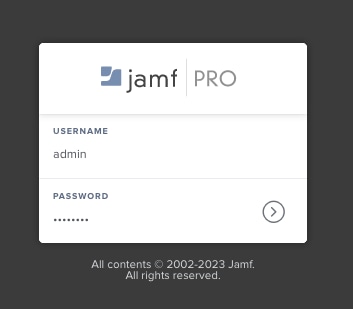 JAMF PRO-Anmeldeseite
Schritt 2. Wählen Sie aus dem Hauptmenü das Zahnrad-Symbol.
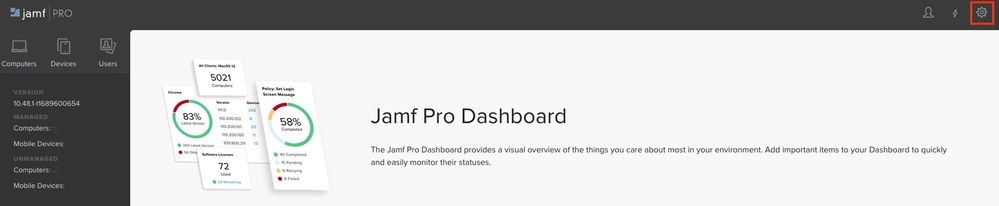 JAMF PRO-Dashboard
Schritt 3. Wählen Sie im Hauptmenü System > Benutzerkonten und Gruppen.
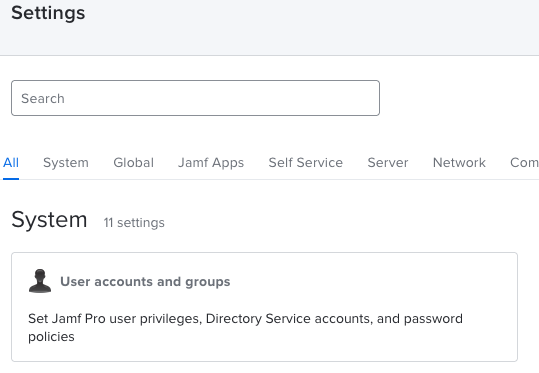 JAMF PRO-Systemeinstellungen
Schritt 4. Wählen Sie die Option Kennwortrichtlinie.
 JAMF PRO Benutzerkonten und Gruppen
Schritt 5. Bestätigen Sie in diesem Abschnitt, dass Sie zusätzlich zur Träger-Token-Authentifizierung die Option Standardauthentifizierung zulassen haben.

Anmerkung: Ab JAMF PRO v10.35 ist die Standardauthentifizierung für die API nicht standardmäßig aktiviert. Daher müssen Sie diese Funktionen aktivieren, um sicherzustellen, dass die MDM-Integration funktioniert.
Weitere Informationen finden Sie unter Änderungen bei der klassischen API-Authentifizierung.
Schritt 6. Sobald Sie die letzte Funktion aktiviert haben, gehen Sie zu den in Schritt 3 beschriebenen Menüeinstellungen, suchen Sie dann nach dem Netzwerk-Integrationsmenü, und wählen Sie es aus.
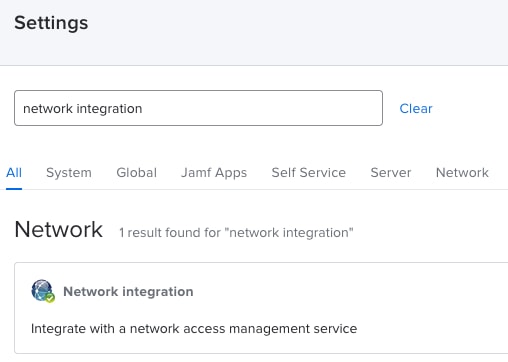 JAMF PRO Netzwerkintegration
Schritt 7. Fahren Sie mit + Neu fort, um eine neue Instanz für ISE 3.3 hinzuzufügen.
 JAMF PRO-Netzwerkintegrationseinstellungen
Schritt 8. Lassen Sie im Dropdown-Menü unter Network Access Management Service die Option als Cisco ISE markiert.
- Geben Sie als Nächstes im Menü Anzeigename einen Namen ein, wie in diesem Beispiel gezeigt.
- Für die Grundeinstellungen und die ISE-Verbindung können diese Standardkonfigurationen beibehalten werden.
- Fahren Sie mit dem Speichern der Konfiguration fort.
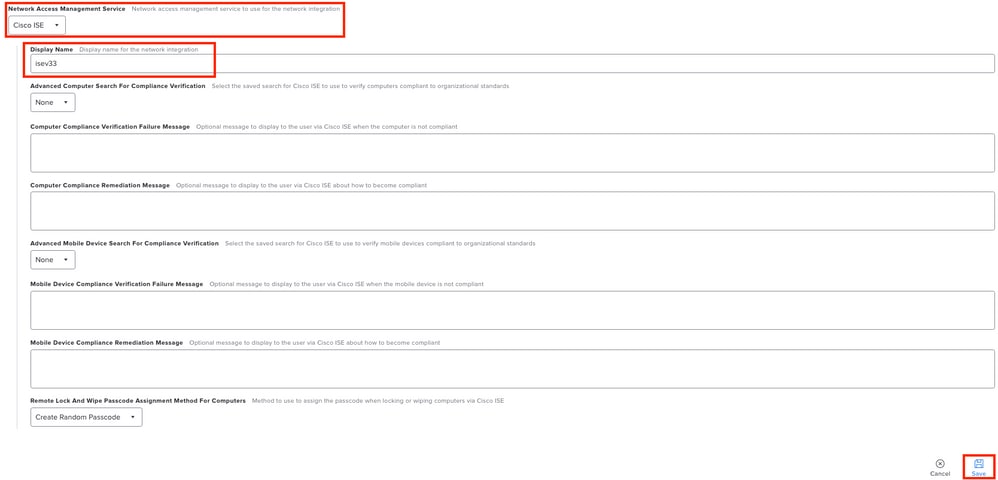 Konfigurationsbeispiel Netzwerkintegration mit der ISE
Schritt 9. Die Integration generiert eine Netzwerkintegrations-URL mit folgendem Format: https://YOUR_ACCOUNT.jamfcloud.com/networkIntegrationEndpoint/ID. Speichern Sie diese URL, da Sie sie später verwenden müssen, um eine Verbindung zur ISE herzustellen.
Vorbereitung der ISE für die MDM-Verbindung
Schritt 1: Wählen Sie Menü > Verwaltung > Netzwerkressourcen > Externes MDM aus, und klicken Sie dann auf Hinzufügen.
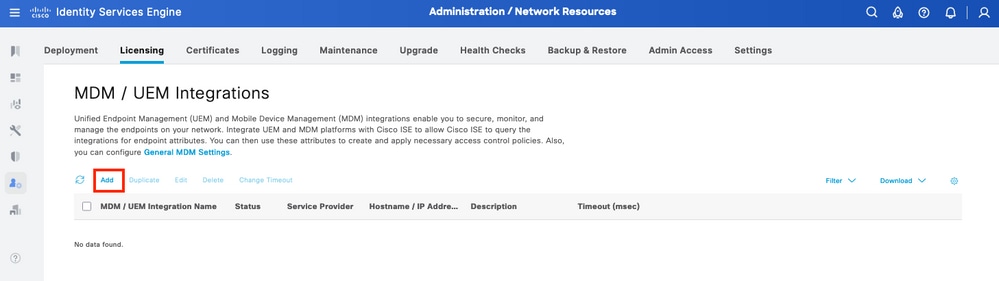 ISE MDM-Integrationsmenü
Schritt 2. Benennen Sie die Installation im MDM-/UEM-Integrationsnamen-Segment.
- Wählen Sie im Abschnitt Hostname / IP-Adresse die Option YOUR_ACCOUNT.jamfcloud.com aus der URL aus, die Sie in den vorherigen Schritten generiert haben.
- Wählen Sie unter Port die 443 für die HTTPS-Verbindung mit Ihrer JAMF PRO-Instanz aus.
- Fahren Sie im Abschnitt Instanzname mit der Eingabe der Werte fort, bei denen der Abschnitt in der erstellten URL fehlt (in diesem Fall: /networkIntegrationEndpoint/ID).
- Geben Sie einen Benutzernamen mit vollständigem Zugriff auf die JAMF PRO-Instanz und das entsprechende Kennwort ein.
- Ändern Sie den Status des MDM-Servers in Enabled (Aktiviert).
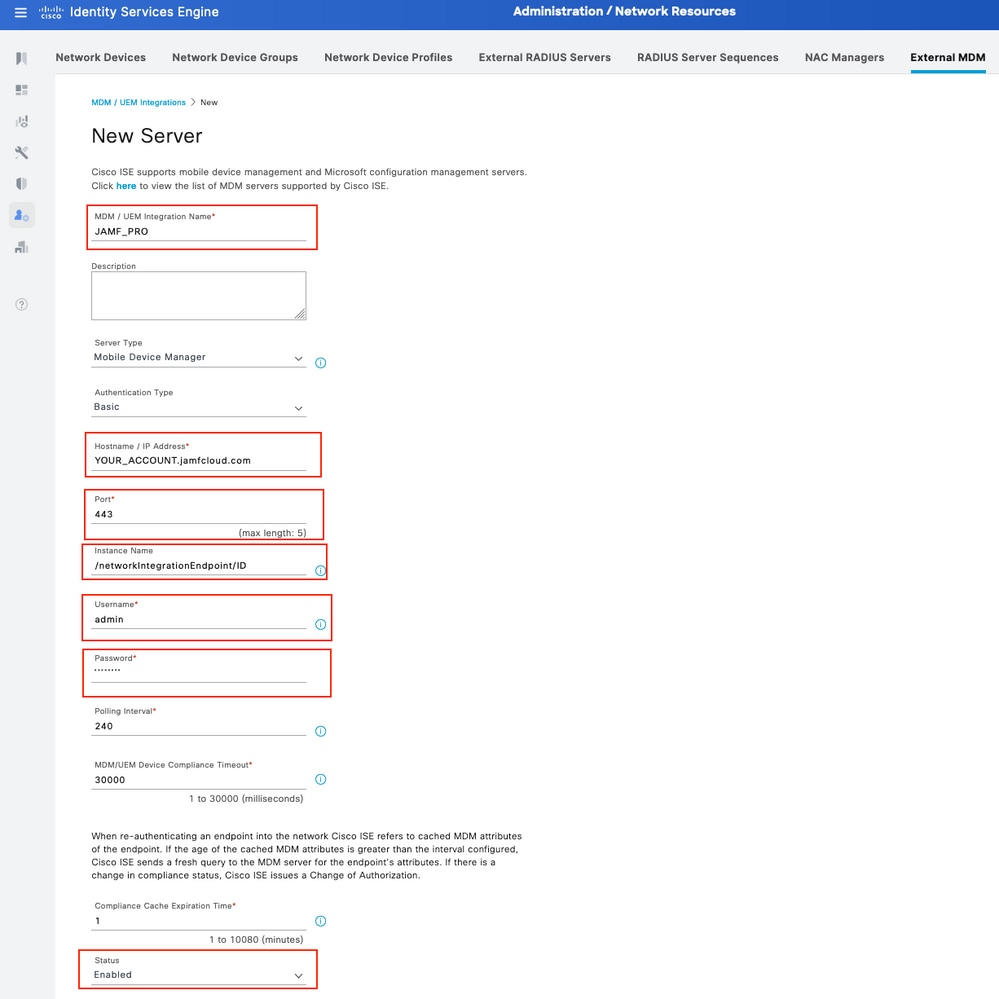 ISE MDM JAMF PRO - Konfigurationsbeispiel
Schritt 3. Blättern Sie nach unten, und fahren Sie mit "Verbindung testen" fort. Wenn die Verbindung erfolgreich hergestellt wurde, wird dieses Bild angezeigt. Wenn Sie nicht die gleiche Ausgabe erhalten, lesen Sie den Abschnitt Fehlerbehebung in diesem Dokument.
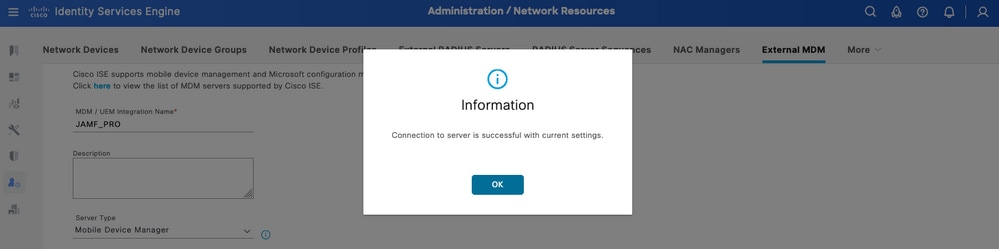 Verbindung mit dem MDM JAMF-Konto erfolgreich hergestellt
Schritt 4. Wählen Sie OK in der Option zuvor. Suchen Sie unten auf der Seite den Geräte-Identifikator, zu dem die ISE die Sitzung des Endpunkts zuordnet.
- Je nach Szenario können Sie die MAC-Adresse des Geräts oder die Attribute des Zertifikats auswählen.
- Nachdem Sie diesen Abschnitt angepasst haben, speichern Sie die Konfiguration.
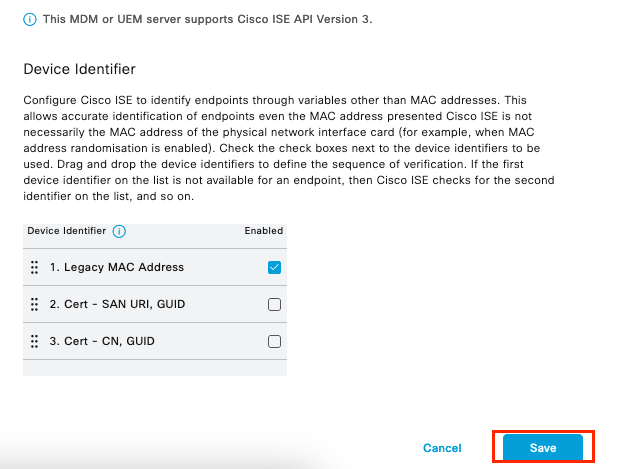 Zusätzliche Konfiguration für MDM-Server
Überprüfen Sie die erste Konnektivität der Integration mit der JAMF PRO-Instanz.
Paketerfassung: Bei einer erfolgreichen Verbindung können Sie den HTTPS-Datenverkehr anzeigen, der vom ISE PAN-Server an die JAMF PRO-Instanz gesendet wird:
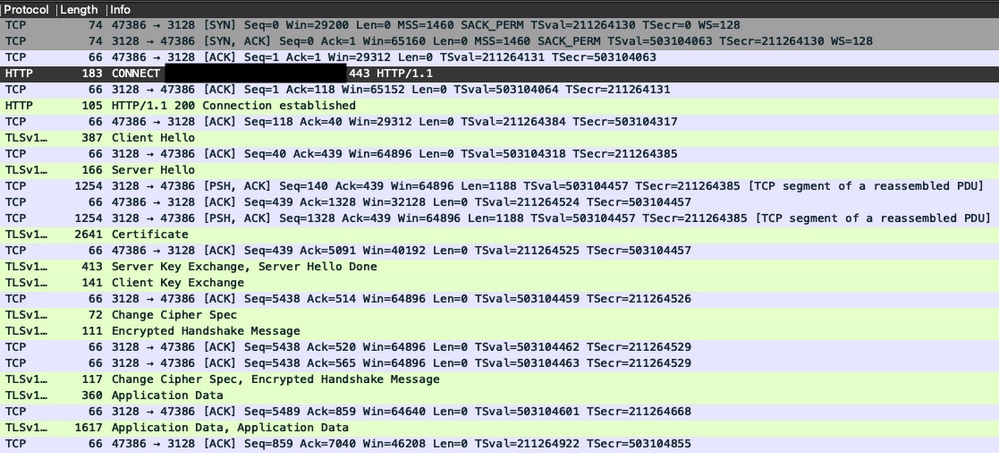 Beispiel für die Paketerfassung einer Verbindung mit einer JAMF-Instanz
Anmeldungen an der ISE: Die ISE verarbeitet und analysiert die Daten entsprechend, wie im ise-psc.log:
DEBUG [admin-http-pool16][[]] cisco.cpm.mdm.api.MdmServerInfoApi -:::::- inside the method : callMdmServerInfoApiOnMdmServer()
TRACE [admin-http-pool16][[]] cisco.cpm.mdm.apiimpl.MDMVerifyServer -:::::- Inside MDMVerifyServer.verify, connectToServer is called
DEBUG [admin-http-pool16][[]] cisco.cpm.mdm.apiimpl.MDMVerifyServer -:::::- apiVersionSb : 3, mdmApiVersionSb : , tryWithV3 : false
DEBUG [admin-http-pool16][[]] cisco.cpm.mdm.apiimpl.MDMVerifyServer -:::::- MDM Rest API Server Query String -> /ciscoise/mdminfo/?ise_api_version=3
DEBUG [admin-http-pool16][[]] cisco.cpm.mdm.apiimpl.MDMVerifyServer -:::::- MDM Rest API Server Query PATH String -> /ciscoise/mdminfo/?ise_api_version=3
DEBUG [admin-http-pool16][[]] cisco.cpm.mdm.apiimpl.MDMVerifyServer -:::::- 1. Connecting to the MDM server host YOUR_ACCOUNTusing apiVersion 3
DEBUG [admin-http-pool16][[]] cisco.cpm.mdm.util.MdmRESTClient -:::::- sendGETRequestDom: start  HTTP request - connectionsUsed: 1, connectionsAvailable: 199
DEBUG [admin-http-pool16][[]] cisco.cpm.mdm.util.MdmRESTClient -:::::- sendGETRequestDomNonComp: start  HTTP request - connectionsUsed: 0, connectionsAvailable: 200
DEBUG [admin-http-pool16][[]] cisco.cpm.mdm.util.MdmRESTClient -:::::- ===mdmFlowInfo===null,=====serverType=====MobileDeviceManager,===serverAuthType===Basic
DEBUG [admin-http-pool16][[]] cisco.cpm.mdm.util.MdmRESTClient -:::::- QueryType is heartbeatQuery
DEBUG [admin-http-pool16][[]] cisco.cpm.mdm.util.MdmRESTClient -:::::- using httpClient for http query - [parameters={http.route.default-proxy=http://PROXY_IP:PORT, http.socket.timeout=30000, http.connection.timeout=5000}]
INFO  [admin-http-pool16][[]] cisco.cpm.mdm.util.MdmRESTClient -:::::- GET: MDM Server URL: https://YOUR_ACCOUNT:443//networkIntegrationEndpoint/ID/ciscoise/mdminfo/?ise_api_version=3
DEBUG [admin-http-pool16][[]] cisco.cpm.mdm.util.MdmRESTClient -:::::- Proxy Config in request  = [,PROXY_IP,PORT,nullnull2fpwHJhtoIMf+jKzFKazgg==%/ZFdElAGn4odZaRIZxeiZQ==]
.
.
INFO  [admin-http-pool16][[]] cisco.cpm.mdm.util.MdmRESTClient -:::::- MDM Server Response Code: 200
TRACE [admin-http-pool16][[]] cisco.cpm.mdm.util.MdmRESTClient -:::::-
Response data received from the MDM server : <?xml version="1.0" encoding="UTF-8"?><ise_api><name>mdminfo</name><api_version>3</api_version><api_path>/networkIntegrationEndpoint/ID/ciscoise/v3</api_path><redirect_url>https://YOUR_ACCOUNT.jamfcloud.com/enroll</redirect_url><query_max_size>1000</query_max_size><messaging_support>true</messaging_support><vendor>JAMF Software</vendor><product_name>JSS</product_name><product_version>10.48.1-t1689600654</product_version></ise_api>
DEBUG [admin-http-pool16][[]] cisco.cpm.mdm.util.MdmRESTClient -:::::- sendGETRequestDom: end  HTTP request - connectionsUsed: 1, connectionsAvailable: 199
DEBUG [admin-http-pool16][[]] cisco.cpm.mdm.util.MdmRESTClient -:::::- sendGETRequestDomNonComp: end  HTTP request - connectionsUsed: 0, connectionsAvailable: 200
TRACE [admin-http-pool16][[]] cisco.cpm.mdm.apiimpl.MDMVerifyServer -:::::- isMdmSettingsIdNotNull flag Value : false,tryWithV3 : false, isMdmSettingsUpdateRequired : false
DEBUG [admin-http-pool16][[]] cisco.cpm.mdm.api.MdmServerInfoApi -:::::- returning from the method : callMdmServerInfoApiOnMdmServer() -> com.cisco.cpm.mdm.api.MdmServerInfoData Object {
  apiPath: /ID/ciscoise/v3
  redirectUrl: https://YOUR_ACCOUNT.jamfcloud.com/enroll
  queryMaxSize: 1000
  apiVersion: 3
  vendor: JAMF Software
  productName: JSS
  productVersion: 10.48.1-t1689600654
  COMMA: ,
  errorMsg: null
  errorOccurred: false
}
Fehlerbehebung: MDM-Server nicht erreichbar
Die Basis dieser Integration besteht aus Abfragen, die die ISE regelmäßig an die JAMF-PRO-Instanz durchführt. Der Bezugspunkt, an dem die Fehlerbehebung durchgeführt wird (in diesem Fall), ist der primäre Administrationsknoten (PAN). Im PAN-Knoten wird die Verbindungsmethode konfiguriert, um den MDM-Server zu erreichen. Dieselbe Methode wird in allen Knoten für die Implementierung repliziert.
Die nächsten Schritte können zur Fehlerbehebung bei Problemen mit der Erreichbarkeit angewendet werden.
Schritt 1: Aktivieren Sie die Komponente external-mdm auf der TRACE-Ebene auf dem PAN-Knoten.
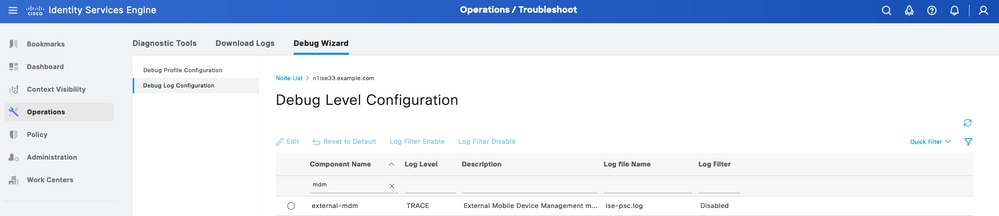 Externe MDM-Komponente auf TRACE-Ebene zur Fehlerbehebung
Schritt 2: Richten Sie eine Erfassung über den PAN-Knoten ein, und speichern Sie Ihre Konfiguration.
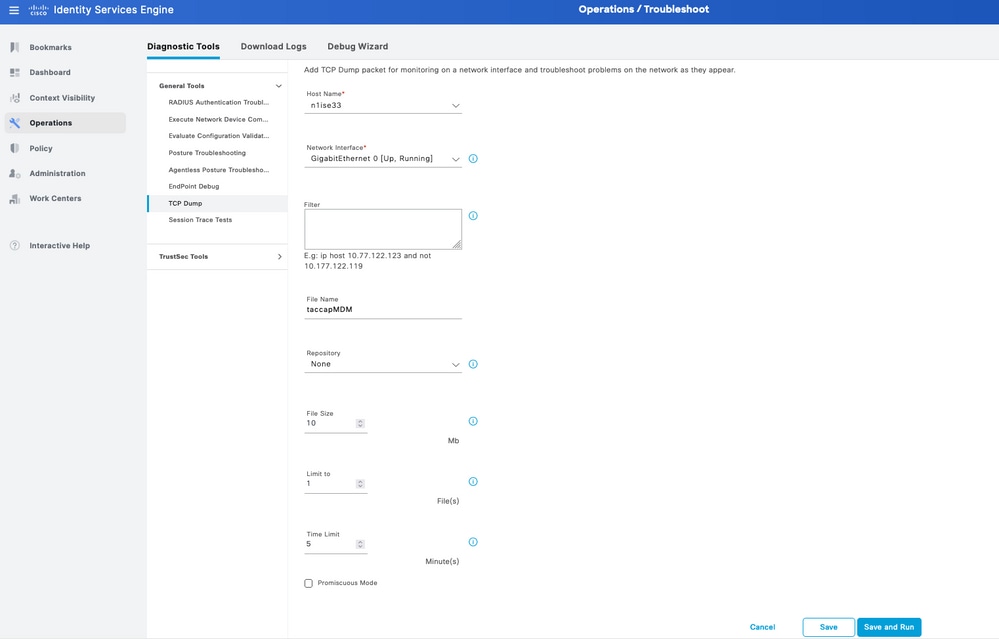 Beispiel zur Paketerfassung zur Erfassung von MDM-Verbindungsinformationen
Schritt 3. Navigieren Sie durch das externe MDM-Menü. Führen Sie die Erfassung aus Schritt 2 aus, und wählen Sie die Schaltfläche Verbindung testen. Warten Sie, bis der Fehler angezeigt wird.
Schritt 4: Beenden Sie die Erfassung in Schritt 2. Überprüfen Sie die Protokolle von ise-psc.log, um das Verhalten zu analysieren.
Szenario 1. Es ist ein Verbindungstimeout aufgetreten.
Im Szenario führen Sie beim Testen der Verbindung mit JAMF folgende Schritte durch, wenn Sie diesen Fehler in der ISE erhalten:
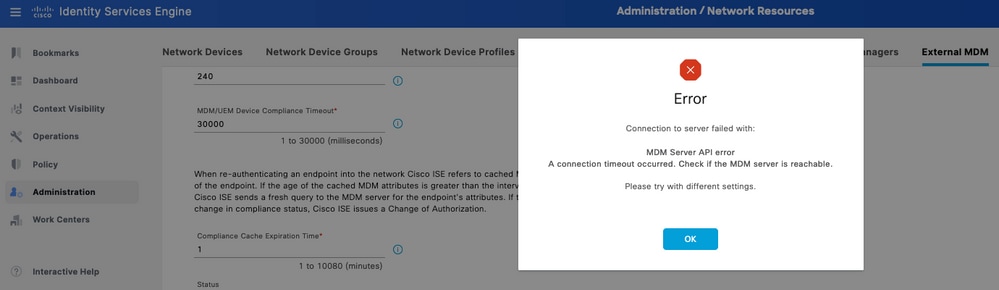 MDM-Fehlerverbindungs-Timeout
Die Protokolle für das externe MDM enthalten folgende Informationen:
TRACE [admin-http-pool26][[]] cisco.cpm.mdm.apiimpl.MDMVerifyServer -:::::- Inside MDMVerifyServer.verify, connectToServer is called
DEBUG [admin-http-pool26][[]] cisco.cpm.mdm.apiimpl.MDMVerifyServer -:::::- API version retrieved from MDM server : 3
DEBUG [admin-http-pool26][[]] cisco.cpm.mdm.apiimpl.MDMVerifyServer -:::::- apiVersionSb : 3, mdmApiVersionSb : 3, tryWithV3 : false
DEBUG [admin-http-pool26][[]] cisco.cpm.mdm.apiimpl.MDMVerifyServer -:::::- MDM Rest API Server Query String -> /ciscoise/mdminfo/?ise_api_version=3
DEBUG [admin-http-pool26][[]] cisco.cpm.mdm.apiimpl.MDMVerifyServer -:::::- MDM Rest API Server Query PATH String -> /ciscoise/mdminfo/?ise_api_version=3
DEBUG [admin-http-pool26][[]] cisco.cpm.mdm.apiimpl.MDMVerifyServer -:::::- 1. Connecting to the MDM server host YOUR_ACCOUNT.jamfcloud.com using apiVersion 3
DEBUG [admin-http-pool26][[]] cisco.cpm.mdm.util.MdmRESTClient -:::::- sendGETRequestDom: start  HTTP request - connectionsUsed: 0, connectionsAvailable: 200
DEBUG [admin-http-pool26][[]] cisco.cpm.mdm.util.MdmRESTClient -:::::- sendGETRequestDomNonComp: start  HTTP request - connectionsUsed: 0, connectionsAvailable: 200
DEBUG [admin-http-pool26][[]] cisco.cpm.mdm.util.MdmRESTClient -:::::- ===mdmFlowInfo===null,=====serverType=====MobileDeviceManager,===serverAuthType===Basic
DEBUG [admin-http-pool26][[]] cisco.cpm.mdm.util.MdmRESTClient -:::::- QueryType is heartbeatQuery
DEBUG [admin-http-pool26][[]] cisco.cpm.mdm.util.MdmRESTClient -:::::- using httpClient for http query - [parameters={http.socket.timeout=30000, http.connection.timeout=5000}]
INFO  [admin-http-pool26][[]] cisco.cpm.mdm.util.MdmRESTClient -:::::- GET: MDM Server URL: https://YOUR_ACCOUNT:443//networkIntegrationEndpoint/ID/ciscoise/mdminfo/?ise_api_version=3
INFO  [Timer-12][[]] cisco.mnt.common.utility.AlarmMessageDiskQueue -:::::- Inside dequeue
INFO  [Timer-12][[]] cisco.mnt.common.utility.AlarmMessageDiskQueue -:::::- root exists
INFO  [Timer-12][[]] cisco.mnt.common.utility.AlarmMessageDiskQueue -:::::- alarm.1692086243915 deleted true
INFO  [admin-http-pool26][[]] cisco.cpm.mdm.util.MdmServersCache -:::::- MDM server - Status : Active, mdm server id : ID and mdm server name : JAMF_PRO
ERROR [admin-http-pool26][[]] cisco.cpm.mdm.util.MdmRESTClient -:::::- Error message while connecting to MDM server :
Connection Failed to the MDM server host – YOUR_ACCOUNT.jamfcloud.com, and port - 443 : Connection timeout occurred. Check if the MDM server is reachable : SocketTimeoutException message = connect timed out
DEBUG [admin-http-pool26][[]] cisco.cpm.mdm.util.MdmRESTClient -:::::- sendGETRequestDom: end  HTTP request - connectionsUsed: 0, connectionsAvailable: 200
DEBUG [admin-http-pool26][[]] cisco.cpm.mdm.util.MdmRESTClient -:::::- sendGETRequestDomNonComp: end  HTTP request - connectionsUsed: 0, connectionsAvailable: 200
ERROR [admin-http-pool26][[]] cisco.cpm.mdm.apiimpl.MDMVerifyServer -:::::- Exception occurred while connecting to the MDM server A connection timeout occurred. Check if the MDM server is reachable.
ERROR [admin-http-pool26][[]] cisco.cpm.mdm.api.MdmClient -:::::- A connection timeout occurred. Check if the MDM server is reachable.
DEBUG [admin-http-pool26][[]] cisco.cpm.mdm.api.MdmServerInfoApi -:::::- returning from the method : callMdmServerInfoApiOnMdmServer() -> com.cisco.cpm.mdm.api.MdmServerInfoData Object {
  apiPath: null
  redirectUrl: null
  queryMaxSize: null
  apiVersion: null
  vendor: null
  productName: null
  productVersion: null
  COMMA: ,
  errorMsg: null
  errorOccurred: true
}
Überprüfen Sie in der Paketerfassung die folgenden Informationen:
DNS-Datenverkehr - Die ISE führt eine Abfrage in Bezug auf Ihre JAMF-bezogene Instanz durch, wenn Sie den Hostnamen im Setup-Teil der Integration eingeben. Wenn die Auflösung des Hostnamens nicht angezeigt wird, versuchen Sie, die IP-Adresse zu verwenden. Diese Option kann anstelle des Hostnamens konfiguriert werden.
 DNS-Verkehr in einem MDM-Fluss
Erneute Übertragungen im MDM-Verbindungsport - Wenn Sie die IP-Adresse direkt abfragen (entweder in der DNS-Abfrage oder im MDM-Setup angegeben), werden Ihnen möglicherweise die wiederholten SYN-Pakete angezeigt. Dies weist nicht auf eine direkte Route zur JAMF-Instanz oder zu einem externen Gerät hin, das die Kommunikation am 443-Port stört.
 Verbindung mit MDM-Timeout - Beispiel
Szenario 2. Verbindung fehlgeschlagen: 404
Dieses Ereignis zeigt an, dass Sie eine Verbindung zu Ihrem JAMF-Konto haben, das Sie beim Einrichten des MDM-Servers konfiguriert haben. Die Instanz, die Sie für die Verbindung angegeben haben, ist jedoch nicht vorhanden oder enthält einen Fehler, da sie nicht gefunden wurde.
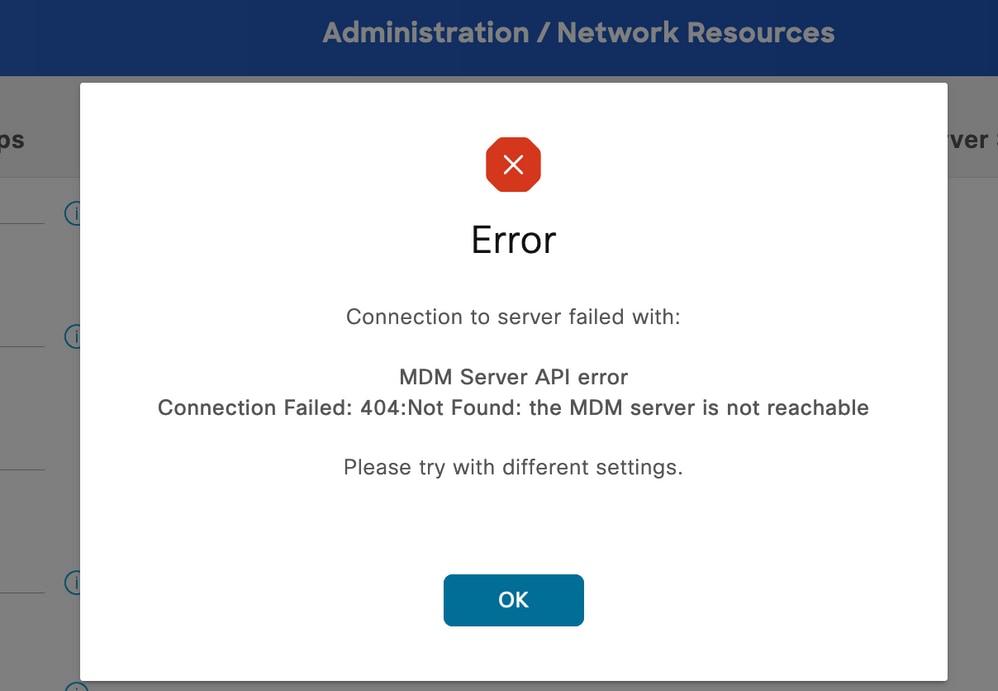 MDM-Fehler 404 Beispiel
Die Protokolle für dieses Ereignis werden angezeigt:
DEBUG [admin-http-pool32][[]] cisco.cpm.mdm.api.MdmServerInfoApi -:::::- inside the method : callMdmServerInfoApiOnMdmServer()
TRACE [admin-http-pool32][[]] cisco.cpm.mdm.apiimpl.MDMVerifyServer -:::::- Inside MDMVerifyServer.verify, connectToServer is called
DEBUG [admin-http-pool32][[]] cisco.cpm.mdm.apiimpl.MDMVerifyServer -:::::- API version retrieved from MDM server : 3
DEBUG [admin-http-pool32][[]] cisco.cpm.mdm.apiimpl.MDMVerifyServer -:::::- apiVersionSb : 3, mdmApiVersionSb : 3, tryWithV3 : false
DEBUG [admin-http-pool32][[]] cisco.cpm.mdm.apiimpl.MDMVerifyServer -:::::- MDM Rest API Server Query String -> /ciscoise/mdminfo/?ise_api_version=3
DEBUG [admin-http-pool32][[]] cisco.cpm.mdm.apiimpl.MDMVerifyServer -:::::- MDM Rest API Server Query PATH String -> /ciscoise/mdminfo/?ise_api_version=3
DEBUG [admin-http-pool32][[]] cisco.cpm.mdm.apiimpl.MDMVerifyServer -:::::- 1. Connecting to the MDM server host YOUR_ACCOUNT.jamfcloud.com using apiVersion 3
DEBUG [admin-http-pool32][[]] cisco.cpm.mdm.util.MdmRESTClient -:::::- sendGETRequestDom: start  HTTP request - connectionsUsed: 1, connectionsAvailable: 199
DEBUG [admin-http-pool32][[]] cisco.cpm.mdm.util.MdmRESTClient -:::::- sendGETRequestDomNonComp: start  HTTP request - connectionsUsed: 0, connectionsAvailable: 200
DEBUG [admin-http-pool32][[]] cisco.cpm.mdm.util.MdmRESTClient -:::::- ===mdmFlowInfo===null,=====serverType=====MobileDeviceManager,===serverAuthType===Basic
DEBUG [admin-http-pool32][[]] cisco.cpm.mdm.util.MdmRESTClient -:::::- QueryType is heartbeatQuery
DEBUG [admin-http-pool32][[]] cisco.cpm.mdm.util.MdmRESTClient -:::::- using httpClient for http query - [parameters={http.route.default-proxy=http://PROXY_IP:PROXY_PORT, http.socket.timeout=30000, http.connection.timeout=5000}]
INFO  [admin-http-pool32][[]] cisco.cpm.mdm.util.MdmRESTClient -:::::- GET: MDM Server URL: https://YOUR_ACCOUNT.jamfcloud.com:443//networkIntegrationEndpoint/1/ewe/ciscoise/mdminfo/?ise_api_version=3
DEBUG [admin-http-pool32][[]] cisco.cpm.mdm.util.MdmRESTClient -:::::- Proxy Config in request  = [,PROXY_IP,PROXY_PORT,nullnullglhhcSIWnCC7y8FvGQvm/Q==%fZ4PXgBMdoIDfbwdgIhSeA==]
INFO  [admin-http-pool37][[]] cpm.admin.infra.spring.ISEAdminControllerUtils -::admin:::- mapping path found in global-forwards, forwarding to: /pages/jsonResponse.jsp
INFO  [admin-http-pool37][[]] cpm.admin.infra.spring.ISEAdminControllerUtils -::admin:::- mapping path found in global-forwards, forwarding to: /pages/jsonResponse.jsp
INFO  [admin-http-pool32][[]] cisco.cpm.mdm.util.MdmServersCache -:::::- MDM server - Status : Active, mdm server id : ID and mdm server name : JAMF_PRO
ERROR [admin-http-pool32][[]] cisco.cpm.mdm.util.MdmRESTClient -:::::- Error message while connecting to MDM server : Failed to connect to MDM Server JAMF_PRO : 404
DEBUG [admin-http-pool32][[]] cisco.cpm.mdm.util.MdmRESTClient -:::::- sendGETRequestDom: end  HTTP request - connectionsUsed: 1, connectionsAvailable: 199
DEBUG [admin-http-pool32][[]] cisco.cpm.mdm.util.MdmRESTClient -:::::- sendGETRequestDomNonComp: end  HTTP request - connectionsUsed: 0, connectionsAvailable: 200
ERROR [admin-http-pool32][[]] cisco.cpm.mdm.apiimpl.MDMVerifyServer -:::::- Exception occurred while connecting to the MDM server Connection Failed: 404:: the MDM server is not reachable
ERROR [admin-http-pool32][[]] cisco.cpm.mdm.api.MdmClient -:::::- Connection Failed: 404:: the MDM server is not reachable
DEBUG [admin-http-pool32][[]] cisco.cpm.mdm.api.MdmServerInfoApi -:::::- returning from the method : callMdmServerInfoApiOnMdmServer() -> com.cisco.cpm.mdm.api.MdmServerInfoData Object {
  apiPath: null
  redirectUrl: null
  queryMaxSize: null
  apiVersion: null
  vendor: null
  productName: null
  productVersion: null
  COMMA: ,
  errorMsg: null
  errorOccurred: true
}
DEBUG [admin-http-pool32][[]] cisco.cpm.mdm.util.MdmServersCache -:::::- mdm Guid: GUID is found in cache and status is: false
Die Paketerfassung stellt zu diesem Zeitpunkt eine HTTPS-Verbindung bereit, die Anwendungsdaten enthält, die zwischen dem JAMF-Standort und dem ISE-Server übertragen werden.
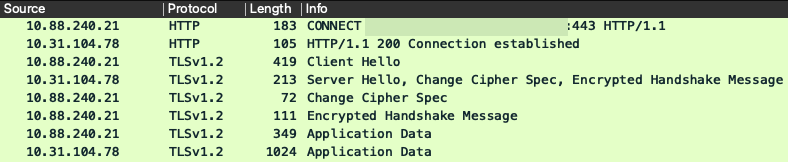 Fehlerhafte Pakete 404 MDM
Szenario 3. Verbindungsfehler: 401
Dieser Fehler bei der Verbindung deutet auf ein Problem mit dem Benutzer hin, den Sie im MDM-Setup für die Integration bereitstellen.
Überprüfen Sie, ob der Benutzer:
- Ist im JAMF-Konto vorhanden.
- Verfügt über die entsprechenden Berechtigungen, um die Integration mit der ISE abzuschließen.
- und kann zur API-Authentifizierung verwendet werden (wie weiter oben in diesem Leitfaden beschrieben).
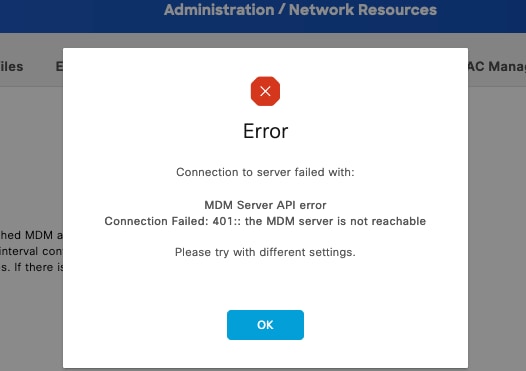 MDM-Verbindungsfehlercode 401
Die Protokolle der ISE zeigen dieses Verhalten an:
INFO  [admin-http-pool8][[]] cisco.cpm.mdm.util.MdmRESTClient -:::::- GET: MDM Server URL: https://YOUR_ACCOUNT.jamfcloud.com:443/networkIntegrationEndpoint/1/79fu/ciscoise/mdminfo/?ise_api_version=3
DEBUG [admin-http-pool8][[]] cisco.cpm.mdm.util.MdmRESTClient -:::::- Proxy Config in request  = [,PROXY_PORT,PROXY_PORT,nullnull2fpwHJhtoIMf+jKzFKazgg==%/ZFdElAGn4odZaRIZxeiZQ==]
ERROR [admin-http-pool8][[]] cisco.cpm.mdm.util.MdmRESTClient -:::::- Error message while connecting to MDM server : Failed to connect to MDM Server YOUR_ACCOUNT.jamfcloud.com : 401
DEBUG [admin-http-pool8][[]] cisco.cpm.mdm.util.MdmRESTClient -:::::- sendGETRequestDom: end  HTTP request - connectionsUsed: 4, connectionsAvailable: 196
DEBUG [admin-http-pool8][[]] cisco.cpm.mdm.util.MdmRESTClient -:::::- sendGETRequestDomNonComp: end  HTTP request - connectionsUsed: 0, connectionsAvailable: 200
DEBUG [admin-http-pool8][[]] cisco.cpm.mdm.apiimpl.MDMVerifyServer -:::::- retry connecting using api v2 after 5 seconds.
DEBUG [admin-http-pool8][[]] cisco.cpm.mdm.apiimpl.MDMVerifyServer -:::::- MDM Rest API Server Query String -> /ciscoise/mdminfo/?ise_api_version=2
DEBUG [admin-http-pool8][[]] cisco.cpm.mdm.apiimpl.MDMVerifyServer -:::::- MDM Rest API Server Query PATH String -> /ciscoise/mdminfo/?ise_api_version=2
DEBUG [admin-http-pool8][[]] cisco.cpm.mdm.apiimpl.MDMVerifyServer -:::::- 2. On Error : re-connecting to the MDM server host YOUR_ACCOUNT.jamfcloud.com using api version-2
DEBUG [admin-http-pool8][[]] cisco.cpm.mdm.util.MdmRESTClient -:::::- sendGETRequestDom: start  HTTP request - connectionsUsed: 4, connectionsAvailable: 196
DEBUG [admin-http-pool8][[]] cisco.cpm.mdm.util.MdmRESTClient -:::::- sendGETRequestDomNonComp: start  HTTP request - connectionsUsed: 0, connectionsAvailable: 200
DEBUG [admin-http-pool8][[]] cisco.cpm.mdm.util.MdmRESTClient -:::::- ===mdmFlowInfo===null,=====serverType=====MobileDeviceManager,===serverAuthType===Basic
DEBUG [admin-http-pool8][[]] cisco.cpm.mdm.util.MdmRESTClient -:::::- QueryType is heartbeatQuery
DEBUG [admin-http-pool8][[]] cisco.cpm.mdm.util.MdmRESTClient -:::::- using httpClient for http query - [parameters={http.route.default-proxy=http://PROXY_IP:PROXY_PORT, http.socket.timeout=30000, http.connection.timeout=5000}]
INFO  [admin-http-pool8][[]] cisco.cpm.mdm.util.MdmRESTClient -:::::- GET: MDM Server URL: https://YOUR_ACCOUNT.jamfcloud.com:443/networkIntegrationEndpoint/1/79fu/ciscoise/mdminfo/?ise_api_version=2
DEBUG [admin-http-pool8][[]] cisco.cpm.mdm.util.MdmRESTClient -:::::- Proxy Config in request  = [,PROXY_IP,PROXY_PORT,nullnull2fpwHJhtoIMf+jKzFKazgg==%/ZFdElAGn4odZaRIZxeiZQ==]
ERROR [admin-http-pool8][[]] cisco.cpm.mdm.util.MdmRESTClient -:::::- Error message while connecting to MDM server : Failed to connect to MDM Server YOUR_ACCOUNT.jamfcloud.com : 401
DEBUG [admin-http-pool8][[]] cisco.cpm.mdm.util.MdmRESTClient -:::::- sendGETRequestDom: end  HTTP request - connectionsUsed: 4, connectionsAvailable: 196
DEBUG [admin-http-pool8][[]] cisco.cpm.mdm.util.MdmRESTClient -:::::- sendGETRequestDomNonComp: end  HTTP request - connectionsUsed: 0, connectionsAvailable: 200
DEBUG [admin-http-pool8][[]] cisco.cpm.mdm.apiimpl.MDMVerifyServer -:::::- retry connecting using api v1 after 5 seconds.
Die Paketerfassung zeigt ein ähnliches Verhalten wie in diesem Bild:
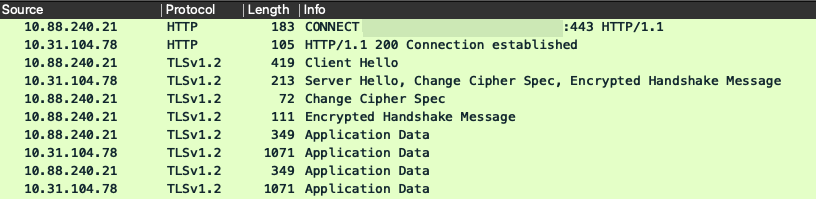 Fehler 401 bei MDM-Paketen
Zugehörige Informationen
- JAMF-Integration mit ISE 2.X als MDM
- Fehlerbehebung und Aktivieren von Debuggen auf der ISE
- Aktivieren von Debuggen für ISE 3.x-Versionen.
Revisionsverlauf
| Überarbeitung | Veröffentlichungsdatum | Kommentare |
|---|---|---|
2.0 |
16-Jun-2026
|
Aktualisierte Rechtschreibung, Abstände, Grammatik, Satzstruktur, Einführung, Alternativtext, aktualisierte URLs, Titel usw. |
1.0 |
18-Aug-2023
|
Erstveröffentlichung |

 Feedback
Cisco kontaktieren
- Eine Supportanfrage öffnen

- (Erfordert einen Cisco Servicevertrag)