Upgrade der Nexus 3524- und 3548-NX-OS-Software
Inhalt
Einleitung
Dieses Dokument beschreibt die Disruptive NX-OS Software-Upgrade-Prozesse für Cisco Nexus Switches der Serien 3524 und 3548 zwischen den wichtigsten Softwareversionen.
Voraussetzungen
Anforderungen
Cisco empfiehlt, dass Sie mit den Grundlagen des Kopierens von Dateien in Cisco NX-OS vertraut sind. Weitere Informationen zu dieser Funktion finden Sie in einem der folgenden Dokumente:
- Cisco Nexus 3548-Switch NX-OS - Grundlagen der Konfiguration, Version 9.3 (x)
- Cisco Nexus 3548-Switch NX-OS - Grundlagen der Konfiguration, Version 9.2(x)
- Cisco Nexus 3548-Switch NX-OS - Grundlagen der Konfiguration, Version 7.x
- Cisco Nexus 3548-Switch NX-OS - Grundlagen der Konfiguration, Version 6.x
Cisco empfiehlt, dass Sie mit den Grundlagen des Upgrades der NX-OS Software auf Cisco Nexus Switches der Serien 3524 und 3548 vertraut sind. Weitere Informationen zu diesem Verfahren finden Sie in einem der folgenden Dokumente:
- Cisco Nexus Serie 3500 NX-OS Software-Upgrade- und Downgrade-Leitfaden, Version 9.3(x)
- Cisco Nexus Serie 3500 NX-OS Software-Upgrade- und Downgrade-Leitfaden, Version 9.2(x)
- Cisco Nexus Serie 3500 NX-OS Software-Upgrade- und Downgrade-Leitfaden, Version 7.x
- Cisco Nexus Serie 3500 NX-OS Software-Upgrade- und Downgrade-Leitfaden, Version 6.x
Verwendete Komponenten
Die Informationen in diesem Dokument basieren auf den Cisco Nexus Switches der Serien 3524 und 3548, die im Abschnitt "Anwendbare Hardware" dieses Dokuments aufgeführt sind. Die Geräteausgabe in diesem Dokument stammt von einem Nexus 3548 (Modellnummer N3K-C3548-10G), auf dem verschiedene NX-OS-Softwareversionen ausgeführt werden.
Die Informationen in diesem Dokument beziehen sich auf Geräte in einer speziell eingerichteten Testumgebung. Alle Geräte, die in diesem Dokument benutzt wurden, begannen mit einer gelöschten (Nichterfüllungs) Konfiguration. Wenn Ihr Netzwerk in Betrieb ist, stellen Sie sicher, dass Sie die möglichen Auswirkungen aller Befehle kennen.
Hintergrundinformationen
In diesem Dokument werden die Schritte beschrieben, die für das Upgrade der Cisco NX-OS-Software auf Cisco Nexus Switches der Serien 3524 und 3548 von und auf eine Reihe von NX-OS-Softwareversionen unter Verwendung unterstützter Disruptive Upgrade-Pfade durchgeführt werden. Dieses Dokument enthält schrittweise Anleitungen für die Durchführung unterstützter NX-OS Software-Upgrades zwischen gängigen kleineren und größeren NX-OS Softwareversionen.
In diesem Dokument werden nicht die Schritte beschrieben, die für die Durchführung unterbrechungsfreier Upgrades auf Cisco NX-OS-Software auf Cisco Nexus Switches der Serien 3524 und 3548 erforderlich sind. ISSU-Software-Upgrades werden in diesem Dokument nicht behandelt.
Taxonomie der Softwareversion von NX-OS
Die Namen der Cisco NX-OS-Softwareversionen enthalten eine Reihe von Komponenten, auf die in diesem Dokument regelmäßig Bezug genommen wird. Die Namen dieser Komponenten sind im Abschnitt Benennung der Cisco NX-OS Software-Versionen des Cisco IOS® and Cisco NX-OS Software Release Reference Guide definiert. Achten Sie insbesondere auf folgende Begriffe:
- Hauptversionsnummer
- Nummer der Nebenversion
- Wartungsversionsnummer
- Plattformbezeichner
- Nebenversionsnummer der Plattform
- Versionsnummer der Plattformwartung
- Kennung für Plattformumbau
Die NX-OS Softwareversion 7.0(3)I7(5a) umfasst folgende Komponenten:
| Komponentenname | Komponentenwert |
|---|---|
| Hauptversionsnummer | 7 |
| Nummer der Nebenversion | 0 |
| Wartungsversionsnummer | 3 |
| Plattformbezeichner | I |
| Nebenversionsnummer der Plattform | 7 |
| Versionsnummer der Plattformwartung | 5 |
| Kennung für Plattformumbau | a |
Ein weiteres Beispiel für NX-OS-Software, Version 9.3(5), umfasst folgende Komponenten:
| Komponentenname | Komponentenwert |
|---|---|
| Hauptversionsnummer | 9 |
| Nummer der Nebenversion | 3 |
| Wartungsversionsnummer | 5 |
Cisco Nexus Konfigurationsleitfäden sind in der Regel nach NX-OS-Hauptversionsnummern gruppiert. Im Titel dieser Konfigurationsleitfäden werden die NX-OS-Hauptversionsnummern in der Regel nach der Hauptversionsnummer angezeigt. Es wird eine Variable x angehängt, die sich auf die Nebenversion bezieht (z. B. 6.x, 7.x usw.). Der Cisco Nexus Serie 9000 NX-OS Fundamentals Configuration Guide, Release 7.x, kann beispielsweise auf alle wichtigen NX-OS 7-Versionen angewendet werden (obwohl spezifische Vorbehalte, Einschränkungen und Konfigurationsbeispiele auf bestimmte Versionsnummern von Unter- oder Wartungsversionen zutreffen können).
Eine Ausnahme von dieser Regel ist die Hauptversion von NX-OS 9. Für die Hauptversion von NX-OS 9 sind die Cisco Nexus Konfigurationsleitfäden nach den Unter- und Hauptversionsnummern von NX-OS gruppiert, wobei eine Variable x für die Wartungsversion angehängt wird (z. B. 9.2(x) und 9.3(x)).
In diesem Dokument wird die Formatierung anhand der Titel der Cisco Nexus Konfigurationsanleitungen (6.x, 7.x, 9.2(x), 9.3(x) usw.) verwendet, um störende NX-OS Software-Upgrades zwischen zwei NX-OS-Softwareversionen zu beschreiben.
Terminologie für NX-OS Software-Upgrades
Quellversionen, Zielversionen und Zwischenversionen
NX-OS-Software-Upgrades werden in der Regel zwischen zwei Versionen durchgeführt: einer Quellversion (die NX-OS-Softwareversion, von der Sie das Upgrade durchführen) und einer Zielversion (die NX-OS-Softwareversion, auf die Sie das Upgrade durchführen). Wenn Sie beispielsweise einen Nexus 3548-Switch von einer NX-OS-Softwareversion 7.0(3)I7(8) auf die NX-OS-Softwareversion 9.3(5) aktualisieren, ist 7.0(3)I7(8) die Quellversion, während 9.3(5) die Zielversion ist.
Um ein Upgrade von einer bestimmten Quellversion auf eine bestimmte Zielversion durchzuführen, kann für den Upgrade-Pfad ein Upgrade auf eine oder mehrere Zwischenversionen erforderlich sein. Wenn Sie beispielsweise einen Nexus 3548-Switch von der NX-OS-Softwareversion 7.0(3)I7(5a) auf die NX-OS-Softwareversion 9.3(5) aktualisieren, müssen Sie auf eine Zwischenversion 7.0(3)I7(8) oder 9.2(4) aktualisieren, bevor Sie ein Upgrade auf die NX-OS-Softwareversion 9.3(5) durchführen können.
Arten von NX-OS Software-Upgrades
NX-OS Software-Upgrades können in zwei Kategorien unterteilt werden:
- Disruptive Upgrades - Ein Disruptive Upgrade zwischen einer Quell- und einer Zielversion, bei dem der Nexus Switch am Ende des Upgradeprozesses neu geladen wird. Durch das Neuladen werden die Datenebene, die Kontroll- und die Verwaltungsebene des Nexus-Switches in kurzer Zeit offline geschaltet.
- In-Service Software Upgrade (ISSU) - Ein unterbrechungsfreies Upgrade zwischen einer Quell- und einer Zielversion, bei dem die Datenebene des Nexus-Switches online bleibt und Datenverkehr als Folge von Non-Stopp Forwarding (NSF) weiterleitet.
Das Verfahren für unterbrechungsfreie ISSU NX-OS Software-Upgrades wird in diesem Dokument nicht behandelt. In diesem Dokument werden nur die standardmäßigen NX-OS Software-Upgrades mit Unterbrechungen behandelt.
Relevante Hardware
Die in diesem Dokument beschriebenen Verfahren gelten für die Hardware in der folgenden Liste:
- N3K-C3524P-10G
- N3K-C3524P-10GX
- N3K-C3524P-XL
- N3K-C3548P-10G
- N3K-C3548P-10GX
- N3K-C3548P-XL
NX-OS Software-Upgrade-Verfahren
In diesem Abschnitt wird beschrieben, wie Sie NX-OS-Software-Upgrades mit Standardunterbrechungen von einer Vielzahl von Quellversionen auf eine Vielzahl von Zielversionen durchführen.
Upgrade von NX-OS 6.x auf NX-OS 6.x
In diesem Abschnitt wird beschrieben, wie Sie ein standardmäßiges, unterbrechungsfreies NX-OS Software-Upgrade von einer Quellversion der Hauptversion NX-OS 6.x auf eine Zielversion der Hauptversion NX-OS 6.x durchführen.
Ein Beispiel für ein standardmäßiges NX-OS Software-Upgrade mit Betriebsunterbrechung wird auf einem Cisco Nexus 3548-Switch von der Quellversion 6.0(2)A4(5) auf die Zielversion 6.0(2)A8(11b) durchgeführt:
N3K-C3548# show module
Mod Ports Module-Type                         Model                  Status
--- ----- ----------------------------------- ---------------------- ------------
1   48    48x10GE Supervisor                  N3K-C3548P-10G-SUP     active *

Mod  Sw              Hw      World-Wide-Name(s) (WWN)
---  --------------  ------  ----------------------------------------------------
1    6.0(2)A4(5)     1.0     --
Zusammenfassung des Upgrade-Pfads
Eine Zusammenfassung des Upgrade-Pfads von einer Quellversion der Hauptversion von NX-OS 6.x auf eine Zielversion der Hauptversion von NX-OS 6.x:
6.x -> 6.x
Schritt 1: Zielversion von Cisco Software herunterladen
Für die NX-OS 6.x-Software sind insgesamt zwei NX-OS-Binär-Image-Dateien erforderlich: ein System- und ein Kickstart-Image. Sie müssen diese Images von der Cisco Software Download-Website auf Ihren lokalen Computer herunterladen. Die spezifischen Schritte, die Sie unternehmen müssen, um Software von der Cisco Software Download-Website herunterzuladen, sind nicht Gegenstand dieses Dokuments.
Schritt 2: Kopieren der Zielversion auf den Cisco Nexus Switch
Kopieren Sie die NX-OS 6.x-Kickstart- und System-Binär-Image-Dateien auf den Nexus Switch der Serie 3524 oder 3548, auf den Sie ein unterbrechungsfreies Upgrade mit dem von Ihnen gewählten Dateiübertragungsprotokoll durchführen möchten. In diesem Beispiel wird veranschaulicht, wie die Kickstart- und die System-Binär-Image-Dateien für die Softwareversion NX-OS 6.0(2)A8(11b) über das File Transfer Protocol (FTP) vom FTP-Server 192.0.2.100 kopiert werden, der über die Management-VRF-Instanz erreichbar ist.
N3K-C3548# dir | include bin
   36742656    Nov 19 14:24:14 2020  n3500-uk9-kickstart.6.0.2.A4.5.bin
  166878338    Nov 19 14:22:40 2020  n3500-uk9.6.0.2.A4.5.bin
N3K-C3548# copy ftp://username@192.0.2.100/n3500-uk9-kickstart.6.0.2.A8.11b.bin bootflash: vrf management
Password:
Copy complete, now saving to disk (wait)...
Copy complete.
N3K-C3548# copy ftp://username@192.0.2.100/n3500-uk9.6.0.2.A8.11b.bin bootflash: vrf management
Password:
Copy complete, now saving to disk (wait)...
Copy complete.
N3K-C3548# dir | include bin
   36742656    Nov 19 14:24:14 2020  n3500-uk9-kickstart.6.0.2.A4.5.bin
   37739008    Nov 19 18:13:12 2020  n3500-uk9-kickstart.6.0.2.A8.11b.bin
  166878338    Nov 19 14:22:40 2020  n3500-uk9.6.0.2.A4.5.bin
  197055713    Nov 19 18:14:46 2020  n3500-uk9.6.0.2.A8.11b.bin
Schritt 3: Überprüfen der MD5- oder SHA512-Prüfsumme der Zielversion
Nachdem die Kickstart- und System-Binär-Image-Dateien von NX-OS 6.x auf den Nexus Switch der Serie 3524 oder 3548 kopiert wurden, sollten Sie ein unterbrechungsfreies Upgrade mithilfe des gewählten Dateiübertragungsprotokolls durchführen. Stellen Sie sicher, dass die MD5- oder SHA512-Prüfsummen mit den Angaben auf der Cisco Software-Download-Website übereinstimmen.
Sie können die MD5- und SHA512-Prüfsumme von NX-OS-Binär-Image-Dateien über die Cisco Software Download-Website identifizieren, indem Sie den Mauszeiger über das Image auf der Website bewegen. Sehen Sie sich das Beispiel an:
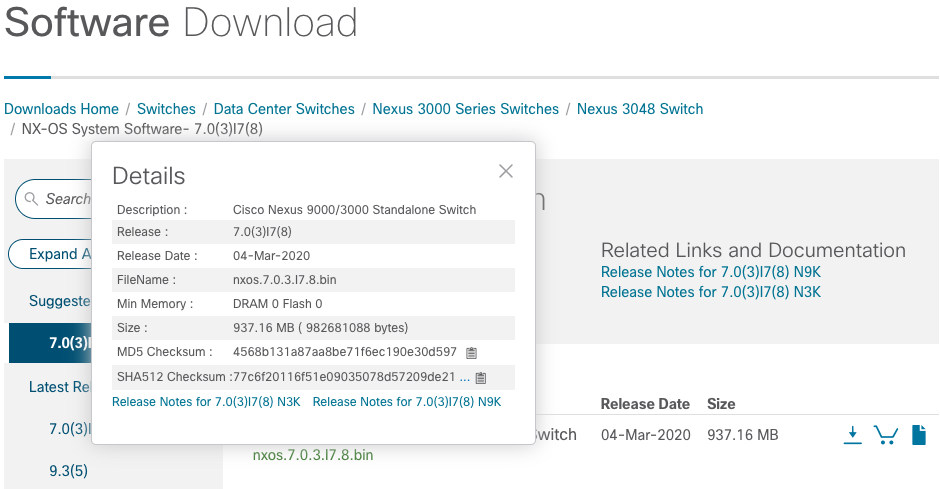
In diesem Beispiel wird veranschaulicht, wie die MD5-Prüfsumme der Kickstart- und System-Binär-Image-Dateien für die Softwareversion NX-OS 6.0(2)A8(11b) mithilfe des Befehls show file bootflash:{filename} md5sum überprüft wird. Die erwartete MD5-Prüfsumme für die binäre Image-Datei NX-OS6.0(2)A8(11b) kickstart beträgt 1b025734ed34aeb7a0ea48f55897b09a, während die erwartete MD5-Prüfsumme für die binäre Image-Datei des NX-OS 6.0(2)A8(11b)-Systems ist 1f8bfb0b3d59049d5bf385ed7866ee25.
N3K-C3548# show file bootflash:n3500-uk9-kickstart.6.0.2.A8.11b.bin md5sum
1b025734ed34aeb7a0ea48f55897b09a
N3K-C3548# show file bootflash:n3500-uk9.6.0.2.A8.11b.bin md5sum
1f8bfb0b3d59049d5bf385ed7866ee25
Schritt 4: Upgrade der NX-OS-Software über den Befehl "Install All" (Alle installieren)
Beginnen Sie mit einem standardmäßigen, unterbrechungsfreien NX-OS Software-Upgrade über den Befehl install all. Für diesen Befehl müssen sowohl die Kickstart- als auch die Systemparameter mit dem absoluten Dateipfad der NX-OS-Kickstart- und System-Binär-Image-Dateien übergeben werden, die der Zielversion entsprechen.
Dieses Beispiel zeigt den Befehl install all, bei dem der Parameter kickstart auf den absoluten Dateipfad der binären Image-Datei von NX-OS Kickstart (bootflash:n3500-uk9-kickstart.6.0.2.A8.11b.bin) und der Systemparameter auf den absoluten Dateipfad des Binärabbilds des NX-OS-Systems verweist. Datei (bootflash:n3500-uk9.6.0.2.A8.11b.bin).
N3K-C3548# install all kickstart bootflash:n3500-uk9-kickstart.6.0.2.A8.11b.bin system bootflash:n3500-uk9.6.0.2.A8.11b.bin
Installer is forced disruptive

Verifying image bootflash:/n3500-uk9-kickstart.6.0.2.A8.11b.bin for boot variable "kickstart".
[########################################] 100% -- SUCCESS

Verifying image bootflash:/n3500-uk9.6.0.2.A8.11b.bin for boot variable "system".
[########################################] 100% -- SUCCESS

Verifying image type.
[########################################] 100% -- SUCCESS

Extracting "system" version from image bootflash:/n3500-uk9.6.0.2.A8.11b.bin.
[########################################] 100% -- SUCCESS

Extracting "kickstart" version from image bootflash:/n3500-uk9-kickstart.6.0.2.A8.11b.bin.
[########################################] 100% -- SUCCESS

Extracting "bios" version from image bootflash:/n3500-uk9.6.0.2.A8.11b.bin.
[########################################] 100% -- SUCCESS

Performing module support checks.
[########################################] 100% -- SUCCESS

Notifying services about system upgrade.
[########################################] 100% -- SUCCESS


Compatibility check is done:
Module  bootable          Impact  Install-type  Reason
------  --------  --------------  ------------  ------
     1       yes      disruptive         reset  Forced by the user


Images will be upgraded according to this table:
Module             Image         Running-Version             New-Version  Upg-Required
------  ----------------  ----------------------  ----------------------  ------------
     1            system             6.0(2)A4(5)           6.0(2)A8(11b)           yes
     1         kickstart             6.0(2)A4(5)           6.0(2)A8(11b)           yes
     1              bios      v1.9.0(10/13/2012)      v1.9.0(10/13/2012)            no
     1         power-seq                    v2.1                    v2.1            no


Switch will be reloaded for disruptive upgrade.
Do you want to continue with the installation (y/n)?  [n] y
Time Stamp: Thu Nov 19 18:32:15 2020


Install is in progress, please wait.

Performing runtime checks.
[########################################] 100% -- SUCCESS

Setting boot variables.
[########################################] 100% -- SUCCESS

Performing configuration copy.
[########################################] 100% -- SUCCESS
Time Stamp: Thu Nov 19 18:32:39 2020


Finishing the upgrade, switch will reboot in 10 seconds.
Schritt 5: Überprüfung eines erfolgreichen NX-OS Software-Upgrades
Nachdem der Nexus 3524 oder 3548 Switch neu geladen wurde, überprüfen Sie mithilfe des Befehls show module, ob das Upgrade erfolgreich war. Die Ausgabe dieses Befehls zeigt die gewünschte Zielversion an. In diesem Beispiel wurde der Switch erfolgreich auf die NX-OS Softwareversion 6.0(2)A8(11b) aktualisiert.
N3K-C3548# show module
Mod Ports Module-Type                         Model                  Status
--- ----- ----------------------------------- ---------------------- ------------
1   48    48x10GE Supervisor                  N3K-C3548P-10G-SUP     active *

Mod  Sw              Hw      World-Wide-Name(s) (WWN)
---  --------------  ------  ----------------------------------------------------
1    6.0(2)A8(11b)   1.0     --
Schritt 6: Löschen Sie Binärbilddateien der Quellversion vom Cisco Nexus Switch.
Nachdem Sie überprüft haben, ob das NX-OS Software-Upgrade von der Quell- auf die Zielversion erfolgreich war, bewahren Sie freien Speicherplatz auf dem Bootflash-Switch, indem Sie die Kickstart- und die System-Binär-Image-Dateien der Quell-Version aus dem Bootflash des Geräts löschen. Dies kann mit dem Befehl delete bootflash:{filename} abgeschlossen werden.
In diesem Beispiel werden die Kickstart- und System-Binär-Image-Dateien von NX-OS 6.0(2)A4(5) vom Bootflash-Switch gelöscht.
N3K-C3548# dir | include bin
   36742656    Nov 19 14:24:14 2020  n3500-uk9-kickstart.6.0.2.A4.5.bin
   37739008    Nov 19 18:13:12 2020  n3500-uk9-kickstart.6.0.2.A8.11b.bin
  166878338    Nov 19 14:22:40 2020  n3500-uk9.6.0.2.A4.5.bin
  197055713    Nov 19 18:14:46 2020  n3500-uk9.6.0.2.A8.11b.bin
N3K-C3548# delete bootflash:n3500-uk9-kickstart.6.0.2.A4.5.bin
N3K-C3548# delete bootflash:n3500-uk9.6.0.2.A4.5.bin
N3K-C3548# dir | include bin
   37739008    Nov 19 18:13:12 2020  n3500-uk9-kickstart.6.0.2.A8.11b.bin
  197055713    Nov 19 18:14:46 2020  n3500-uk9.6.0.2.A8.11b.bin
Schritt 7: Skript für die Ersteinrichtung ausführen, um CoPP-Richtlinien erneut anzuwenden
Führen Sie das erste Setup-Skript mit dem Setup-Befehl aus. Geben Sie yes ein, um in das Dialogfeld für die Basiskonfiguration einzugeben. Akzeptieren Sie dann alle Standardoptionen, indem Sie wiederholt die Eingabetaste drücken, bis die NX-OS-CLI-Eingabeaufforderung angezeigt wird.
Sehen Sie sich dieses Beispiel an:
N3K-C3548# setup


         ---- Basic System Configuration Dialog ----

This setup utility will guide you through the basic configuration of
the system. Setup configures only enough connectivity for management
of the system.

*Note: setup is mainly used for configuring the system initially,
when no configuration is present. So setup always assumes system
defaults and not the current system configuration values.

Press Enter at anytime to skip a dialog. Use ctrl-c at anytime
to skip the remaining dialogs.

Would you like to enter the basic configuration dialog (yes/no): yes


  Create another login account (yes/no) [n]:

  Configure read-only SNMP community string (yes/no) [n]:

  Configure read-write SNMP community string (yes/no) [n]:

  Enter the switch name :

  Continue with Out-of-band (mgmt0) management configuration? (yes/no) [y]:

    Mgmt0 IPv4 address :

  Configure the default gateway? (yes/no) [y]:

    IPv4 address of the default gateway :

  Enable the telnet service? (yes/no) [n]:

  Enable the ssh service? (yes/no) [y]:

    Type of ssh key you would like to generate (dsa/rsa) :

  Configure the ntp server? (yes/no) [n]:

  Configure default interface layer (L3/L2) [L2]:

  Configure default switchport interface state (shut/noshut) [noshut]:

  Configure CoPP System Policy Profile ( default / l2 / l3 ) [default]:

This configuration will be applied:
  no telnet server enable
  system default switchport
  no system default switchport shutdown
  policy-map type control-plane copp-system-policy ( default )

Would you like to edit the configuration? (yes/no) [n]:

Use this configuration and save it? (yes/no) [y]:

[########################################] 100%
Copy complete, now saving to disk (wait)...
Copy complete.
Upgrade von NX-OS 6.x auf NX-OS 7.x
In diesem Abschnitt wird beschrieben, wie Sie ein standardmäßiges, unterbrechungsfreies NX-OS Software-Upgrade von einer Quellversion der Hauptversion NX-OS 6.x auf eine Zielversion der Hauptversion NX-OS 7.x durchführen.
Ein Beispiel für ein standardmäßiges NX-OS Software-Upgrade mit Betriebsunterbrechung wird auf einem Cisco Nexus 3548-Switch von der Quellversion 6.0(2)A4(5) auf die Zielversion 7.0(3)I7(9) durchgeführt:
N3K-C3548# show module
Mod Ports Module-Type                         Model                  Status
--- ----- ----------------------------------- ---------------------- ------------
1   48    48x10GE Supervisor                  N3K-C3548P-10G-SUP     active *

Mod  Sw              Hw      World-Wide-Name(s) (WWN)
---  --------------  ------  ----------------------------------------------------
1    6.0(2)A4(5)     1.0     --
Zusammenfassung des Upgrade-Pfads
Eine Zusammenfassung des Upgrade-Pfads von einer Quellversion in der Hauptversion von NX-OS 6.x zu einer Zielversion in der Hauptversion von NX-OS 7.x durch eine Zwischenversion von 6.0(2)A8(11b):
6.x -> 6.0(2)A8(11b) -> 7.x
Schritt 1: Upgrade von NX-OS 6.x auf NX-OS 6.0(2)A8(11b)
Im Abschnitt Upgrade von NX-OS 6.x auf NX-OS 6.x dieses Dokuments können Sie ein standardmäßiges NX-OS Software-Upgrade von der ursprünglichen Version auf eine Zwischenversion der NX-OS Software 6.0(2)A8(11b) durchführen. Dies ist erforderlich, damit ein Upgrade auf eine Zielversion der Hauptversion NX-OS 7.x erfolgreich durchgeführt werden kann.
Schritt 2: Zielversion von Cisco Software herunterladen
Die NX-OS 7.x-Software verwendet eine einzelne NX-OS-Binär-Image-Datei (auch als einheitliche Image-Datei bezeichnet). Sie müssen dieses Image von der Cisco Software Download-Website auf Ihren lokalen Computer herunterladen. Die spezifischen Schritte, die Sie unternehmen müssen, um Software von der Cisco Software Download-Website herunterzuladen, sind nicht Gegenstand dieses Dokuments.
Schritt 3: Kopieren der Zielversion auf den Cisco Nexus-Switch mithilfe des Compact-Image-Verfahrens über SCP
Kopieren Sie die Unified Binary-Image-Datei der Zielversion auf den Nexus Switch der Serie 3524 oder 3548, für den Sie ein unterbrechungsfreies Upgrade durchführen möchten. Führen Sie dazu das NX-OS Compact Image Procedure (NX-OS Compact Image-Verfahren) über SCP aus.
Weitere Informationen zu diesem Verfahren finden Sie im Dokument zum Nexus 3000, 3100 und 3500 NX-OS Compact Image-Verfahren.
In diesem Beispiel wird veranschaulicht, wie die einheitliche binäre Image-Datei der Softwareversion NX-OS 7.0(3)I7(9) mithilfe des Compact-Image-Verfahrens (durch das Schlüsselwort compact gekennzeichnet) über SCP vom SCP-Server 192.0.2.100 kopiert wird, der über die Management-VRF-Instanz erreichbar ist.
N3K-C3548# dir | include bin
   37739008    Nov 19 18:13:12 2020  n3500-uk9-kickstart.6.0.2.A8.11b.bin
  197055713    Nov 19 18:14:46 2020  n3500-uk9.6.0.2.A8.11b.bin
N3K-C3548# copy scp://username@192.0.2.100/nxos.7.0.3.I7.9.bin bootflash: compact vrf management
The authenticity of host '192.0.2.100 (192.0.2.100)' can't be established.
ECDSA key fingerprint is SHA1:00:11:06:bf:16:10:7b:e4:95:41:f3:75:4d:cb:41:d7:c7:8a:63:d1.
Are you sure you want to continue connecting (yes/no)? yes
Warning: Permanently added '192.0.2.100' (ECDSA) to the list of known hosts.
username@192.0.2.100's password:
nxos.7.0.3.I7.9.bin                                100%  937MB   2.6MB/s   06:06
Copy complete, now saving to disk (wait)...
Copy complete.
N3K-C3548# dir | include bin
   37739008    Nov 19 18:13:12 2020  n3500-uk9-kickstart.6.0.2.A8.11b.bin
  197055713    Nov 19 18:14:46 2020  n3500-uk9.6.0.2.A8.11b.bin
  459209441    Nov 19 20:28:50 2020  nxos.7.0.3.I7.9.bin
Schritt 3a: Überprüfung der Kompatibilität der Zielversion (optional)
Überprüfen Sie bei der Durchführung eines Upgrades, welche Auswirkungen die Ausführung dieses Befehls hat:
nexus-3500# show install all impact kickstart bootflash:system bootflash:
Dieser Befehl gilt nicht für die Unified Images im Release Train 7.x, da nur eine Datei vorhanden ist. Wenn Sie versuchen, den vorherigen Befehl so zu ändern, dass er nur das Systemabbild enthält, schlägt er möglicherweise mit folgender Meldung fehl:
nexus-3500# show install all impact system bootflash:nxos.7.0.3.I7.8.bin
Installer is forced disruptive

Verifying image bootflash:/n3500-uk9-kickstart.6.0.2.A8.11b.bin for boot variable "kickstart".
[########################################] 100% -- SUCCESS

Verifying image bootflash:/nxos.7.0.3.I7.8.bin for boot variable "system".
[########################################] 100% -- SUCCESS

Verifying image type.
[########################################] 100% -- SUCCESS

Extracting "system" version from image bootflash:/nxos.7.0.3.I7.8.bin.
[# ] 0% -- FAIL. Return code 0x404F0003 (SRG file not present/cannot be opened).
Pre-upgrade check failed. Return code 0x40930012 (SRG extraction failed).
Um die Kompatibilitätsprüfung für Upgrades auf einem Nexus 3500-Switch erfolgreich durchzuführen, müssen Sie den Befehl nur mit dem Kickstart-Teil des Befehls und dem Compact Image ausführen. Wenn Sie das Compact Image nicht während der Ausführung der Kickstart-Version des Befehls verwenden, kann dies ebenfalls einen Fehler verursachen:
nexus-3500# show install all impact kickstart bootflash:nxos.7.0.3.I7.8.bin
Verifying image bootflash:/nxos.7.0.3.I7.8.bin for boot variable "kickstart".
[# ] 2% -- FAIL. Return code 0x40930084 (Upgrade cannot be continued with non-compact image!. Please use scp compacting for a compact image and retry ISSU.).
Pre-upgrade check failed. Return code 0x40930011 (Image verification failed).

nexus-3500#
nexus-3500# show install all impact kickstart bootflash:n3500-compact.7.0.3.I7.8.bin
Installer is forced disruptive

Verifying image bootflash:/nxos.7.0.3.I7.8.bin for boot variable "kickstart".
[########################################] 100% -- SUCCESS

Verifying image bootflash:/n3500-uk9-kickstart.6.0.2.A8.11b.bin for boot variable "system".
[########################################] 100% -- SUCCESS

Verifying image type.
[########################################] 100% -- SUCCESS

Extracting "system" version from image bootflash:/n3500-uk9-kickstart.6.0.2.A8.11b.bin
[########################################] 100% -- SUCCESS

Extracting "kickstart" version from image bootflash:/nxos.7.0.3.I7.8.bin.
[########################################] 100% -- SUCCESS

Extracting "bios" version from image bootflash:/n3500-uk9-kickstart.6.0.2.A8.11b.bin
[########################################] 100% -- SUCCESS

Collecting "running" plugin(s) information.
[########################################] 100% -- SUCCESS

Collecting plugin(s) information from "new" image.
[########################################] 100% -- SUCCESS

Performing runtime checks.
[########################################] 100% -- SUCCESS

Performing module support checks.
[########################################] 100% -- SUCCESS

Notifying services about system upgrade.
[########################################] 100% -- SUCCESS


Compatibility check is done:
Module bootable Impact Install-type Reason
------ -------- -------------- ------------ ------
1 no n/a n/a Wrong image


Module Image Running-Version New-Version Upg-Required
------ ---------------- ---------------------- ---------------------- ------------
1 system 6.0(2)A8(11b) 6.0(2)A8(11b) no
1 kickstart 6.0(2)A8(11b) 7.0(3)I5(2) no
1 bios v4.0.0(12/05/2016) v2.8.0(12/22/2015) no
1 SFP-uC v2.12 v2.12 no


Additional info for this installation:
--------------------------------------

Service "stp" : Port: Ethernet1/1 in VLAN0001 is Designated. Topology change could occur during upgrade.
Upgrade will be disruptive!!!
Schritt 4: Upgrade der NX-OS-Software über den Befehl "Install All" (Alle installieren)
Beginnen Sie mit einem standardmäßigen, unterbrechungsfreien NX-OS Software-Upgrade über den Befehl install all. Für diesen Befehl muss der Parameter "nxos" mit dem absoluten Dateipfad der vereinheitlichten Binär-Image-Datei von NX-OS übergeben werden, der der Zielversion entspricht.
Dieses Beispiel zeigt den Befehl install all, bei dem der Parameter nxos auf den absoluten Dateipfad der einheitlichen Binärabbilddatei NX-OS 7.0(3)I7(9) verweist (bootflash:nxos.7.0.3.I7.9.bin).
N3K-C3548# install all nxos bootflash:nxos.7.0.3.I7.9.bin
Installer is forced disruptive

Verifying image bootflash:/nxos.7.0.3.I7.9.bin for boot variable "nxos".
[########################################] 100% -- SUCCESS

Verifying image type.
[########################################] 100% -- SUCCESS

Extracting "nxos" version from image bootflash:/nxos.7.0.3.I7.9.bin.
[########################################] 100% -- SUCCESS

Extracting "bios" version from image bootflash:/nxos.7.0.3.I7.9.bin.
[########################################] 100% -- SUCCESS

Performing runtime checks.
[########################################] 100% -- SUCCESS

Performing module support checks.
[########################################] 100% -- SUCCESS

Notifying services about system upgrade.
[########################################] 100% -- SUCCESS


Compatibility check is done:
Module  bootable          Impact  Install-type  Reason
------  --------  --------------  ------------  ------
     1       yes      disruptive         reset  Unsupported in new image, module needs to be powered off


Images will be upgraded according to this table:
Module             Image         Running-Version             New-Version  Upg-Required
------  ----------------  ----------------------  ----------------------  ------------
     1         kickstart           6.0(2)A8(11b)             7.0(3)I7(9)           yes
     1              bios      v1.9.0(10/13/2012)      v5.4.0(10/23/2019)           yes
     1         power-seq                    v2.1                    v2.1            no


Switch will be reloaded for disruptive upgrade.
Do you want to continue with the installation (y/n)?  [n] y

Time Stamp: Thu Nov 19 21:41:54 2020


Install is in progress, please wait.

Performing runtime checks.
[########################################] 100% -- SUCCESS

Setting boot variables.
[########################################] 100% -- SUCCESS

Performing configuration copy.
[########################################] 100% -- SUCCESS

Module 1: Refreshing compact flash and upgrading bios/loader/bootrom/power-seq.
Warning: please do not remove or power off the module at this time.
Note: Power-seq upgrade needs a power-cycle to take into effect.
On success of power-seq upgrade, SWITCH OFF THE POWER to the system and then, power it up.
[#                                       ]   0%
Time Stamp: Thu Nov 19 21:46:02 2020


Finishing the upgrade, switch will reboot in 10 seconds.
Schritt 5: Überprüfung eines erfolgreichen NX-OS Software-Upgrades
Nachdem der Nexus 3524 oder 3548 Switch neu geladen wurde, überprüfen Sie mithilfe des Befehls show module, ob das Upgrade erfolgreich war. Die Ausgabe dieses Befehls zeigt die gewünschte Zielversion an. Sehen Sie sich dieses Beispiel an, in dem der Switch erfolgreich auf die NX-OS Softwareversion 7.0(3)I7(9) aktualisiert wurde.
N3K-C3548# show module
Mod Ports             Module-Type                       Model          Status
--- ----- ------------------------------------- --------------------- ---------
1    48   48x10GE Supervisor                    N3K-C3548P-10G        active *

Mod  Sw                Hw     Slot
---  ----------------  ------ ----
1    7.0(3)I7(9)       1.0    NA
Schritt 6: Löschen Sie Binärbilddateien für die Zwischenversion vom Cisco Nexus Switch.
Nachdem Sie überprüft haben, ob das NX-OS Software-Upgrade von der Zwischenversion auf die Zielversion erfolgreich war, bewahren Sie freien Speicherplatz auf dem Bootflash-Switch, indem Sie die Kickstart- und die System-Binär-Image-Dateien der Zwischenversion aus dem Bootflash des Geräts löschen. Dies kann mit dem Befehl delete bootflash:{filename} erfolgen.
In diesem Beispiel werden die Kickstart- und System-Binär-Image-Dateien von NX-OS 6.0(2)A8(11b) vom Bootflash-Switch gelöscht.
N3K-C3548# dir | include bin
   37739008    Nov 19 18:13:12 2020  n3500-uk9-kickstart.6.0.2.A8.11b.bin
  197055713    Nov 19 18:14:46 2020  n3500-uk9.6.0.2.A8.11b.bin
  459209441    Nov 19 20:28:50 2020  nxos.7.0.3.I7.9.bin
N3K-C3548# delete bootflash:n3500-uk9-kickstart.6.0.2.A8.11b.bin
Do you want to delete "/n3500-uk9-kickstart.6.0.2.A8.11b.bin" ? (yes/no/abort)   [y]
N3K-C3548# delete bootflash:n3500-uk9.6.0.2.A8.11b.bin
Do you want to delete "/n3500-uk9.6.0.2.A8.11b.bin" ? (yes/no/abort)   [y]
N3K-C3548# dir | include bin
  459209441    Nov 19 20:28:50 2020  nxos.7.0.3.I7.9.bin
Schritt 7: Skript für die Ersteinrichtung ausführen, um CoPP-Richtlinien erneut anzuwenden
Führen Sie das erste Setup-Skript mit dem Setup-Befehl aus. Geben Sie yes ein, um in das Dialogfeld für die Basiskonfiguration einzugeben. Akzeptieren Sie dann alle Standardoptionen, indem Sie wiederholt die Eingabetaste drücken, bis die NX-OS-CLI-Eingabeaufforderung angezeigt wird.
Sehen Sie sich dieses Beispiel an:
N3K-C3548# setup


         ---- Basic System Configuration Dialog ----

This setup utility will guide you through the basic configuration of
the system. Setup configures only enough connectivity for management
of the system.

*Note: setup is mainly used for configuring the system initially,
when no configuration is present. So setup always assumes system
defaults and not the current system configuration values.

Press Enter at anytime to skip a dialog. Use ctrl-c at anytime
to skip the remaining dialogs.

Would you like to enter the basic configuration dialog (yes/no): yes


  Create another login account (yes/no) [n]:

  Configure read-only SNMP community string (yes/no) [n]:

  Configure read-write SNMP community string (yes/no) [n]:

  Enter the switch name :

  Continue with Out-of-band (mgmt0) management configuration? (yes/no) [y]:

    Mgmt0 IPv4 address :

  Configure the default gateway? (yes/no) [y]:

    IPv4 address of the default gateway :

  Enable the telnet service? (yes/no) [n]:


  Enable the ssh service? (yes/no) [y]:


    Type of ssh key you would like to generate (dsa/rsa) :

  Configure the ntp server? (yes/no) [n]:

  Configure default interface layer (L3/L2) [L2]:


  Configure default switchport interface state (shut/noshut) [noshut]:

  Configure CoPP System Policy Profile ( default / l2 / l3 ) [default]:

This configuration will be applied:
  no telnet server enable
  system default switchport
  no system default switchport shutdown
  policy-map type control-plane copp-system-policy ( default )

Would you like to edit the configuration? (yes/no) [n]:


Use this configuration and save it? (yes/no) [y]:

MTC:Executing copp config


[########################################] 100%
Copy complete, now saving to disk (wait)...
Copy complete.
Upgrade von NX-OS 6.x auf NX-OS 9.2(x)
In diesem Abschnitt wird beschrieben, wie Sie ein standardmäßiges NX-OS Software-Upgrade mit Unterbrechungen von einer Quellversion der Hauptversion NX-OS 6.x auf eine Zielversion der Nebenversion NX-OS 9.2(x) durchführen.
Ein Beispiel für ein standardmäßiges NX-OS-Software-Upgrade wird auf einem Cisco Nexus 3548-Switch von der Quellversion 6.0(2)A4(5) auf die Zielversion 9.2(4) durchgeführt:
N3K-C3548# show module
Mod Ports Module-Type                         Model                  Status
--- ----- ----------------------------------- ---------------------- ------------
1   48    48x10GE Supervisor                  N3K-C3548P-10G-SUP     active *

Mod  Sw              Hw      World-Wide-Name(s) (WWN)
---  --------------  ------  ----------------------------------------------------
1    6.0(2)A4(5)     1.0     --
Zusammenfassung des Upgrade-Pfads
Eine Zusammenfassung des Upgrade-Pfads von einer Quellversion der Hauptversion von NX-OS 6.x zu einer Zielversion der Nebenversion von NX-OS 9.2(x) bis zu einer Zwischenversion von 6.0(2)A8(11b):
6.x -> 6.0(2)A8(11b) -> 9.2(x)
Schritt 1: Upgrade von NX-OS 6.x auf NX-OS 6.0(2)A8(11b)
Im Abschnitt Upgrade von NX-OS 6.x auf NX-OS 6.x dieses Dokuments können Sie ein standardmäßiges NX-OS Software-Upgrade von der ursprünglichen Version auf eine Zwischenversion der NX-OS Software 6.0(2)A8(11b) durchführen. Dies ist erforderlich, damit ein Upgrade auf eine Zielversion der Nebenversion NX-OS 9.2(x) erfolgreich durchgeführt werden kann.
Schritt 2: Zielversion von Cisco Software herunterladen
Die NX-OS 9.2(x)-Software verwendet eine einzelne NX-OS-Binär-Image-Datei (auch als einheitliche Image-Datei bezeichnet). Sie müssen dieses Image von der Cisco Software Download-Website auf Ihren lokalen Computer herunterladen. Die spezifischen Schritte, die Sie unternehmen müssen, um Software von der Cisco Software Download-Website herunterzuladen, sind nicht Gegenstand dieses Dokuments.
Schritt 3: Kopieren der Zielversion auf den Cisco Nexus-Switch mithilfe des Compact-Image-Verfahrens über SCP
Kopieren Sie die Unified Binary-Image-Datei der Zielversion auf den Nexus Switch der Serie 3524 oder 3548, für den Sie ein unterbrechungsfreies Upgrade durchführen möchten. Führen Sie dazu das NX-OS Compact Image Procedure (NX-OS Compact Image-Verfahren) über SCP aus.
Weitere Informationen zu diesem Verfahren finden Sie im Dokument zum Nexus 3000, 3100 und 3500 NX-OS Compact Image Procedure
In diesem Beispiel wird veranschaulicht, wie die Unified Binary-Image-Datei der NX-OS 9.2(4)-Softwareversion mithilfe des Compact Image Procedure (bezeichnet als Compact-Schlüsselwort) über SCP vom SCP-Server 192.0.2.100 kopiert wird, der über die Management-VRF-Instanz erreichbar ist.
N3K-C3548# dir | include bin
   37739008    Nov 19 22:06:28 2020  n3500-uk9-kickstart.6.0.2.A8.11b.bin
  197055713    Nov 19 22:15:20 2020  n3500-uk9.6.0.2.A8.11b.bin
N3K-C3548# copy scp://username@192.0.2.100/nxos.9.2.4.bin bootflash: compact vrf management
The authenticity of host '192.0.2.100 (192.0.2.100)' can't be established.
ECDSA key fingerprint is SHA1:00:11:06:bf:16:10:7b:e4:95:41:f3:75:4d:cb:41:d7:c7:8a:63:d1.
Are you sure you want to continue connecting (yes/no)? yes
Warning: Permanently added '192.0.2.100' (ECDSA) to the list of known hosts.
username@192.0.2.100's password:
nxos.9.2.4.bin                                100% 1278MB   2.4MB/s   08:45
Copy complete, now saving to disk (wait)...
Copy complete.
N3K-C3548# dir | include bin
   37739008    Nov 19 22:06:28 2020  n3500-uk9-kickstart.6.0.2.A8.11b.bin
  197055713    Nov 19 22:15:20 2020  n3500-uk9.6.0.2.A8.11b.bin
  530509806    Nov 19 22:41:28 2020  nxos.9.2.4.bin
Schritt 4: Upgrade der NX-OS-Software über den Befehl "Install All" (Alle installieren)
Beginnen Sie mit einem standardmäßigen, unterbrechungsfreien NX-OS Software-Upgrade über den Befehl install all. Für diesen Befehl muss der Parameter "nxos" mit dem absoluten Dateipfad der vereinheitlichten Binär-Image-Datei von NX-OS übergeben werden, der der Zielversion entspricht.
Dieses Beispiel zeigt den Befehl install all, bei dem der Parameter nxos auf den absoluten Dateipfad der Unified Binary Image-Datei von NX-OS 9.2(4) verweist (bootflash:nxos.9.2.4.bin).
N3K-C3548# install all nxos bootflash:nxos.9.2.4.bin
Installer is forced disruptive

Verifying image bootflash:/nxos.9.2.4.bin for boot variable "nxos".
[########################################] 100% -- SUCCESS

Verifying image type.
[########################################] 100% -- SUCCESS

Extracting "nxos" version from image bootflash:/nxos.9.2.4.bin.
[########################################] 100% -- SUCCESS

Extracting "bios" version from image bootflash:/nxos.9.2.4.bin.
[########################################] 100% -- SUCCESS

Performing runtime checks.
[########################################] 100% -- SUCCESS

Performing module support checks.
[########################################] 100% -- SUCCESS

Notifying services about system upgrade.
[########################################] 100% -- SUCCESS


Compatibility check is done:
Module  bootable          Impact  Install-type  Reason
------  --------  --------------  ------------  ------
     1       yes      disruptive         reset  Unsupported in new image, module needs to be powered off


Images will be upgraded according to this table:
Module             Image         Running-Version             New-Version  Upg-Required
------  ----------------  ----------------------  ----------------------  ------------
     1         kickstart           6.0(2)A8(11b)             9.2(4)I9(1)           yes
     1              bios      v1.9.0(10/13/2012)      v5.3.0(06/08/2019)           yes
     1         power-seq                    v2.1                    v2.1            no


Switch will be reloaded for disruptive upgrade.
Do you want to continue with the installation (y/n)?  [n] y

Time Stamp: Thu Nov 19 22:56:09 2020


Install is in progress, please wait.

Performing runtime checks.
[########################################] 100% -- SUCCESS

Setting boot variables.
[########################################] 100% -- SUCCESS

Performing configuration copy.
[########################################] 100% -- SUCCESS

Module 1: Refreshing compact flash and upgrading bios/loader/bootrom/power-seq.
Warning: please do not remove or power off the module at this time.
Note: Power-seq upgrade needs a power-cycle to take into effect.
On success of power-seq upgrade, SWITCH OFF THE POWER to the system and then, power it up.
[#                                       ]   0%
Time Stamp: Thu Nov 19 23:00:22 2020


Finishing the upgrade, switch will reboot in 10 seconds.
Schritt 5: Überprüfung eines erfolgreichen NX-OS Software-Upgrades
Nachdem der Nexus 3524 oder 3548 Switch neu geladen wurde, überprüfen Sie mithilfe des Befehls show module, ob das Upgrade erfolgreich war. Die Ausgabe dieses Befehls zeigt die gewünschte Zielversion an. In diesem Beispiel wurde der Switch erfolgreich auf die NX-OS Softwareversion 9.2(4) aktualisiert.
N3K-C3548# show module
Mod Ports             Module-Type                       Model          Status
--- ----- ------------------------------------- --------------------- ---------
1    48   48x10GE Supervisor                    N3K-C3548P-10G        active *

Mod  Sw                       Hw    Slot
---  ----------------------- ------ ----
1    9.2(4)                   1.0    NA
Schritt 6: Löschen Sie Binärbilddateien für die Zwischenversion vom Cisco Nexus Switch.
Nachdem Sie überprüft haben, ob das NX-OS Software-Upgrade von der Zwischenversion auf die Zielversion erfolgreich war, bewahren Sie freien Speicherplatz auf dem Bootflash-Switch, indem Sie die Kickstart- und die System-Binär-Image-Dateien der Zwischenversion aus dem Bootflash des Geräts löschen. Dies kann mit dem Befehl delete bootflash:{filename} erfolgen. In diesem Beispiel werden die Kickstart- und System-Binär-Image-Dateien von NX-OS 6.0(2)A8(11b) vom Bootflash-Switch gelöscht.
N3K-C3548# dir | include bin
   37739008    Nov 19 22:06:28 2020  n3500-uk9-kickstart.6.0.2.A8.11b.bin
  197055713    Nov 19 22:15:20 2020  n3500-uk9.6.0.2.A8.11b.bin
  530509806    Nov 19 22:41:28 2020  nxos.9.2.4.bin
N3K-C3548# delete bootflash:n3500-uk9-kickstart.6.0.2.A8.11b.bin
Do you want to delete "/n3500-uk9-kickstart.6.0.2.A8.11b.bin" ? (yes/no/abort)   [y]
N3K-C3548# delete bootflash:n3500-uk9.6.0.2.A8.11b.bin
Do you want to delete "/n3500-uk9.6.0.2.A8.11b.bin" ? (yes/no/abort)   [y]
N3K-C3548# dir | include bin
  530509806    Nov 19 22:41:28 2020  nxos.9.2.4.bin
Schritt 7: Skript für die Ersteinrichtung ausführen, um CoPP-Richtlinien erneut anzuwenden
Führen Sie das erste Setup-Skript mit dem Setup-Befehl aus. Geben Sie yes ein, um in das Dialogfeld für die Basiskonfiguration einzugeben. Akzeptieren Sie dann alle Standardoptionen, indem Sie wiederholt die Eingabetaste drücken, bis die NX-OS-CLI-Eingabeaufforderung angezeigt wird.
Sehen Sie sich dieses Beispiel an:
N3K-C3548# setup


         ---- Basic System Configuration Dialog ----

This setup utility will guide you through the basic configuration of
the system. Setup configures only enough connectivity for management
of the system.

*Note: setup is mainly used for configuring the system initially,
when no configuration is present. So setup always assumes system
defaults and not the current system configuration values.

Press Enter at anytime to skip a dialog. Use ctrl-c at anytime
to skip the remaining dialogs.

Would you like to enter the basic configuration dialog (yes/no): yes


  Create another login account (yes/no) [n]:

  Configure read-only SNMP community string (yes/no) [n]:

  Configure read-write SNMP community string (yes/no) [n]:

  Enter the switch name :

  Continue with Out-of-band (mgmt0) management configuration? (yes/no) [y]:

    Mgmt0 IPv4 address :

  Configure the default gateway? (yes/no) [y]:

    IPv4 address of the default gateway :

  Enable the telnet service? (yes/no) [n]:

  Enable the ssh service? (yes/no) [y]:

    Type of ssh key you would like to generate (dsa/rsa) :

  Configure the ntp server? (yes/no) [n]:

  Configure default interface layer (L3/L2) [L2]:

  Configure default switchport interface state (shut/noshut) [noshut]:

  Configure CoPP System Policy Profile ( default / l2 / l3 ) [default]:

This configuration will be applied:
  no telnet server enable
  system default switchport
  no system default switchport shutdown
  policy-map type control-plane copp-system-policy ( default )

Would you like to edit the configuration? (yes/no) [n]:

Use this configuration and save it? (yes/no) [y]:
MTC:Executing copp config

[########################################] 100%
Copy complete, now saving to disk (wait)...
Copy complete.
Upgrade von NX-OS 6.x auf NX-OS 9.3(x)
In diesem Abschnitt wird beschrieben, wie Sie ein standardmäßiges NX-OS Software-Upgrade mit Unterbrechungen von einer Quellversion der Hauptversion NX-OS 6.x auf eine Zielversion der Nebenversion NX-OS 9.3(x) durchführen.
Ein Beispiel für ein NX-OS Software-Upgrade mit standardmäßiger Unterbrechung wird auf einem Cisco Nexus 3548-Switch von der Quellversion 6.0(2)A4(5) auf die Zielversion 9.3(6) durchgeführt:
N3K-C3548# show module
Mod Ports Module-Type                         Model                  Status
--- ----- ----------------------------------- ---------------------- ------------
1   48    48x10GE Supervisor                  N3K-C3548P-10G-SUP     active *

Mod  Sw              Hw      World-Wide-Name(s) (WWN)
---  --------------  ------  ----------------------------------------------------
1    6.0(2)A4(5)     1.0     --
Zusammenfassung des Upgrade-Pfads
Eine Zusammenfassung des Upgrade-Pfads von einer Quellversion der Hauptversion von NX-OS 6.x zu einer Zielversion der Nebenversion von NX-OS 9.3(x) bis zu Zwischenversionen von 6.0(2)A8(11b) und 7.0(3)I7(9):
6.x -> 6.0(2)A8(11b) -> 7.0(3)I7(9) -> 9.3(x)
Schritt 1: Upgrade von NX-OS 6.x auf NX-OS 6.0(2)A8(11b)
Im Abschnitt Upgrade von NX-OS 6.x auf NX-OS 6.x dieses Dokuments können Sie ein standardmäßiges NX-OS Software-Upgrade von der ursprünglichen Version auf eine Zwischenversion der NX-OS Software 6.0(2)A8(11b) durchführen. Dies ist für ein erfolgreiches Upgrade auf eine Zwischenversion von 7.0(3)I7(9) erforderlich.
Schritt 2: Upgrade von NX-OS 6.0(2)A8(11b) auf NX-OS 7.0(3)I7(9)
Im Abschnitt Upgrade von NX-OS 6.x auf NX-OS 7.x dieses Dokuments können Sie ein standardmäßiges NX-OS Software-Upgrade von einer Zwischenversion von 6.0(2)A8(11b) auf eine Zwischenversion von 7.0(3)I7(9) durchführen. Dies ist erforderlich, damit ein Upgrade auf eine Zielversion der Nebenversion NX-OS 9.2(x) erfolgreich durchgeführt werden kann.
Schritt 3: Upgrade von NX-OS 7.0(3)I7(9) auf NX-OS 9.3(x)
Verwenden Sie den Abschnitt Upgrade von NX-OS 7.x auf NX-OS 9.3(x) dieses Dokuments, um ein standardmäßiges, unterbrechungsfreies NX-OS Software-Upgrade von einer Zwischenversion von 7.0(3)I7(9) auf die gewünschte Zielversion der Nebenversion von NX-OS 9.3(x) durchzuführen.
Upgrade von NX-OS 7.x auf NX-OS 7.x
In diesem Abschnitt des Dokuments wird beschrieben, wie Sie ein standardmäßiges, unterbrechungsfreies NX-OS Software-Upgrade von einer Quellversion der Hauptversion NX-OS 7.x auf eine Zielversion der Hauptversion NX-OS 7.x durchführen.
Ein Beispiel für ein standardmäßiges NX-OS-Software-Upgrade wird auf einem Cisco Nexus 3548-Switch von der Quellversion 7.0(3)I7(2) auf die Zielversion 7.0(3)I7(9) durchgeführt:
N3K-C3548# show module
Mod Ports             Module-Type                       Model          Status
--- ----- ------------------------------------- --------------------- ---------
1    48   48x10GE Supervisor                    N3K-C3548P-10G        active *

Mod  Sw                Hw     Slot
---  ----------------  ------ ----
1    7.0(3)I7(2)       1.0    NA
Zusammenfassung des Upgrade-Pfads
Eine Zusammenfassung des Upgrade-Pfads von einer Quellversion der Hauptversion von NX-OS 7.x auf eine Zielversion der Hauptversion von NX-OS 7.x:
7.x -> 7.x
Schritt 1: Zielversion von Cisco Software herunterladen
Die NX-OS 7.x-Software verwendet eine einzelne NX-OS-Binär-Image-Datei (auch als einheitliche Image-Datei bezeichnet). Sie müssen dieses Image von der Cisco Software Download-Website auf Ihren lokalen Computer herunterladen. Die spezifischen Schritte, die Sie unternehmen müssen, um Software von der Cisco Software Download-Website herunterzuladen, sind nicht Gegenstand dieses Dokuments.
Schritt 2: Kopieren der Zielversion auf den Cisco Nexus-Switch mithilfe des Compact-Image-Verfahrens über SCP
Kopieren Sie die Unified Binary-Image-Datei der Zielversion auf den Nexus Switch der Serie 3524 oder 3548, für den Sie ein unterbrechungsfreies Upgrade durchführen möchten. Führen Sie dazu das NX-OS Compact Image Procedure (NX-OS Compact Image-Verfahren) über SCP aus.
Weitere Informationen zu diesem Verfahren finden Sie im Dokument zum Nexus 3000, 3100 und 3500 NX-OS Compact Image Procedure
In diesem Beispiel wird veranschaulicht, wie die einheitliche binäre Image-Datei der Softwareversion NX-OS 7.0(3)I7(9) mithilfe des Compact-Image-Verfahrens (durch das Schlüsselwort compact gekennzeichnet) über SCP vom SCP-Server 192.0.2.100 kopiert wird, der über die Management-VRF-Instanz erreichbar ist.
N3K-C3548# dir | include bin
  416939523    Nov 20 03:26:37 2020  nxos.7.0.3.I7.2.bin
N3K-C3548# copy scp://username@192.0.2.100/nxos.7.0.3.I7.9.bin bootflash: compact vrf management
The authenticity of host '192.0.2.100 (192.0.2.100)' can't be established.
ECDSA key fingerprint is SHA256:TwkQiylhtFDFPPwqh3U2Oq9ugrDuTQ50bB3boV5DkXM.
Are you sure you want to continue connecting (yes/no)? yes
Warning: Permanently added '192.0.2.100' (ECDSA) to the list of known hosts.
username@192.0.2.100's password:
nxos.7.0.3.I7.9.bin                                100%  937MB   3.6MB/s   04:24
Copy complete, now saving to disk (wait)...
Copy complete.
N3K-C3548# dir | include bin
  416939523    Nov 20 03:26:37 2020  nxos.7.0.3.I7.2.bin
  459209441    Nov 20 03:43:38 2020  nxos.7.0.3.I7.9.bin
Schritt 3: Upgrade der NX-OS-Software über den Befehl "Install All" (Alle installieren)
Beginnen Sie mit einem standardmäßigen, unterbrechungsfreien NX-OS Software-Upgrade über den Befehl install all. Für diesen Befehl muss der Parameter "nxos" mit dem absoluten Dateipfad der vereinheitlichten Binär-Image-Datei von NX-OS übergeben werden, der der Zielversion entspricht.
Dieses Beispiel zeigt den Befehl install all, bei dem der Parameter nxos auf den absoluten Dateipfad der einheitlichen Binärabbilddatei NX-OS 7.0(3)I7(9) verweist (bootflash:nxos.7.0.3.I7.9.bin).
N3K-C3548# install all nxos bootflash:nxos.7.0.3.I7.9.bin
Installer will perform compatibility check first. Please wait.
Installer is forced disruptive

Verifying image bootflash:/nxos.7.0.3.I7.9.bin for boot variable "nxos".
[####################] 100% -- SUCCESS

Verifying image type.
[####################] 100% -- SUCCESS

Preparing "nxos" version info using image bootflash:/nxos.7.0.3.I7.9.bin.
[####################] 100% -- SUCCESS

Preparing "bios" version info using image bootflash:/nxos.7.0.3.I7.9.bin.
[####################] 100% -- SUCCESS

Collecting "running" plugin(s) information.
[####################] 100% -- SUCCESS

Collecting plugin(s) information from "new" image.
[####################] 100% -- SUCCESS
[####################] 100% -- SUCCESS

Performing module support checks.
[####################] 100% -- SUCCESS

Notifying services about system upgrade.
[####################] 100% -- SUCCESS


Compatibility check is done:
Module  bootable          Impact  Install-type  Reason
------  --------  --------------  ------------  ------
     1       yes      disruptive         reset  default upgrade is not hitless


Images will be upgraded according to this table:
Module       Image                  Running-Version(pri:alt)           New-Version  Upg-Required
------  ----------  ----------------------------------------  --------------------  ------------
     1        nxos                               7.0(3)I7(2)           7.0(3)I7(9)           yes
     1        bios                        v5.4.0(10/23/2019)    v5.4.0(10/23/2019)            no


Switch will be reloaded for disruptive upgrade.
Do you want to continue with the installation (y/n)?  [n] y


Install is in progress, please wait.

Performing runtime checks.
[####################] 100% -- SUCCESS

Setting boot variables.
[####################] 100% -- SUCCESS

Performing configuration copy.
[####################] 100% -- SUCCESS

Module 1: Refreshing compact flash and upgrading bios/loader/bootrom.
Warning: please do not remove or power off the module at this time.
[####################] 100% -- SUCCESS


Finishing the upgrade, switch will reboot in 10 seconds.
Schritt 4: Überprüfung eines erfolgreichen NX-OS Software-Upgrades
Nachdem der Nexus 3524 oder 3548 Switch neu geladen wurde, überprüfen Sie mithilfe des Befehls show module, ob das Upgrade erfolgreich war. Die Ausgabe dieses Befehls zeigt die gewünschte Zielversion an. Sehen Sie sich dieses Beispiel an, in dem der Switch erfolgreich auf die NX-OS Softwareversion 7.0(3)I7(9) aktualisiert wurde.
N3K-C3548# show module
Mod Ports             Module-Type                       Model          Status
--- ----- ------------------------------------- --------------------- ---------
1    48   48x10GE Supervisor                    N3K-C3548P-10G        active *

Mod  Sw                Hw     Slot
---  ----------------  ------ ----
1    7.0(3)I7(9)       1.0    NA
Schritt 5: Löschen Sie Binärbilddateien der Quellversion vom Cisco Nexus Switch.
Nachdem Sie überprüft haben, ob das NX-OS Software-Upgrade von der Quell- auf die Zielversion erfolgreich war, bewahren Sie freien Speicherplatz auf dem Bootflash-Switch, indem Sie die Unified Binary Image-Datei der Quell-Version aus dem Bootflash des Geräts löschen. Dies kann mit dem Befehl delete bootflash:{filename} erfolgen. In diesem Beispiel wird die einheitliche binäre Image-Datei von NX-OS 7.0(3)I7(2) vom Bootflash-Switch gelöscht.
N3K-C3548# dir | include bin
  416939523    Nov 20 03:26:37 2020  nxos.7.0.3.I7.2.bin
  459209441    Nov 20 03:43:38 2020  nxos.7.0.3.I7.9.bin
N3K-C3548# delete bootflash:nxos.7.0.3.I7.2.bin
Do you want to delete "/nxos.7.0.3.I7.2.bin" ? (yes/no/abort)   [y]
N3K-C3548# dir | include bin
  459209441    Nov 20 03:43:38 2020  nxos.7.0.3.I7.9.bin
Schritt 6: Skript für die Ersteinrichtung ausführen, um CoPP-Richtlinien erneut anzuwenden
Führen Sie das erste Setup-Skript mit dem Setup-Befehl aus. Geben Sie yes ein, um in das Dialogfeld für die Basiskonfiguration einzugeben. Akzeptieren Sie dann alle Standardoptionen, indem Sie wiederholt die Eingabetaste drücken, bis die NX-OS-CLI-Eingabeaufforderung angezeigt wird.
Sehen Sie sich dieses Beispiel an:
N3K-C3548# setup


         ---- Basic System Configuration Dialog ----

This setup utility will guide you through the basic configuration of
the system. Setup configures only enough connectivity for management
of the system.

*Note: setup is mainly used for configuring the system initially,
when no configuration is present. So setup always assumes system
defaults and not the current system configuration values.

Press Enter at anytime to skip a dialog. Use ctrl-c at anytime
to skip the remaining dialogs.

Would you like to enter the basic configuration dialog (yes/no): yes


  Create another login account (yes/no) [n]:

  Configure read-only SNMP community string (yes/no) [n]:

  Configure read-write SNMP community string (yes/no) [n]:

  Enter the switch name :

  Continue with Out-of-band (mgmt0) management configuration? (yes/no) [y]:

    Mgmt0 IPv4 address :

  Configure the default gateway? (yes/no) [y]:

    IPv4 address of the default gateway :

  Enable the telnet service? (yes/no) [n]:

  Enable the ssh service? (yes/no) [y]:

    Type of ssh key you would like to generate (dsa/rsa) :

  Configure the ntp server? (yes/no) [n]:

  Configure default interface layer (L3/L2) [L2]:

  Configure default switchport interface state (shut/noshut) [noshut]:

  Configure CoPP System Policy Profile ( default / l2 / l3 ) [default]:

This configuration will be applied:
  no telnet server enable
  system default switchport
  no system default switchport shutdown
  policy-map type control-plane copp-system-policy ( default )

Would you like to edit the configuration? (yes/no) [n]:

Use this configuration and save it? (yes/no) [y]:
MTC:Executing copp config

[########################################] 100%
Copy complete, now saving to disk (please wait)...
Copy complete.
Upgrade von NX-OS 7.x auf NX-OS 9.2(x)
In diesem Abschnitt des Dokuments wird beschrieben, wie Sie ein standardmäßiges, unterbrechungsfreies NX-OS Software-Upgrade von einer Quellversion der Hauptversion NX-OS 7.x auf eine Zielversion der Nebenversion NX-OS 9.2(x) durchführen.
Ein Beispiel für ein standardmäßiges NX-OS Software-Upgrade wird auf einem Cisco Nexus 3548-Switch von der Quellversion 7.0(3)I7(2) auf die Zielversion 9.2(4) durchgeführt:
N3K-C3548# show module
Mod Ports             Module-Type                       Model          Status
--- ----- ------------------------------------- --------------------- ---------
1    48   48x10GE Supervisor                    N3K-C3548P-10G        active *

Mod  Sw                Hw     Slot
---  ----------------  ------ ----
1    7.0(3)I7(2)       1.0    NA
Zusammenfassung des Upgrade-Pfads
Hier finden Sie eine Zusammenfassung des Upgrade-Pfads von einer Quellversion der Hauptversion NX-OS 7.x zu einer Zielversion der Nebenversion NX-OS 9.2(x) bis zu einer Zwischenversion von 7.0(3)I7(9):
7.x -> 7.0(3)I7(9) -> 9.2(x)
Schritt 1: Upgrade von NX-OS 7.x auf NX-OS 7.0(3)I7(9)
Im Abschnitt Upgrade von NX-OS 7.x auf NX-OS 7.x dieses Dokuments können Sie ein standardmäßiges, unterbrechungsfreies NX-OS Software-Upgrade von der Quellversion auf eine Zwischenversion der NX-OS Software 7.0(3)I7(9) durchführen. Dies ist erforderlich, damit ein Upgrade auf eine Zielversion der Nebenversion NX-OS 9.2(x) erfolgreich durchgeführt werden kann.
Schritt 2: Zielversion von Cisco Software herunterladen
Die NX-OS 9.2(x)-Software verwendet eine einzelne NX-OS-Binär-Image-Datei (auch als einheitliche Image-Datei bezeichnet). Sie müssen dieses Image von der Cisco Software Download-Website auf Ihren lokalen Computer herunterladen. Die spezifischen Schritte, die Sie unternehmen müssen, um Software von der Cisco Software Download-Website herunterzuladen, sind nicht Gegenstand dieses Dokuments.
Schritt 3: Kopieren der Zielversion auf den Cisco Nexus-Switch mithilfe des Compact-Image-Verfahrens über SCP
Kopieren Sie die Unified Binary-Image-Datei der Zielversion auf den Nexus Switch der Serie 3524 oder 3548, für den Sie ein unterbrechungsfreies Upgrade durchführen möchten. Führen Sie dazu das NX-OS Compact Image Procedure (NX-OS Compact Image-Verfahren) über SCP aus.
Weitere Informationen zu diesem Verfahren finden Sie im Dokument zum Nexus 3000, 3100 und 3500 NX-OS Compact Image Procedure
In diesem Beispiel wird veranschaulicht, wie die Unified Binary-Image-Datei der NX-OS 9.2(4)-Softwareversion mithilfe des Compact Image Procedure (bezeichnet als Compact-Schlüsselwort) über SCP vom SCP-Server 192.0.2.100 kopiert wird, der über die Management-VRF-Instanz erreichbar ist.
N3K-C3548# dir | include bin
  459209441    Nov 20 03:43:38 2020  nxos.7.0.3.I7.9.bin
N3K-C3548# copy scp://username@192.0.2.100/nxos.9.2.4.bin bootflash: compact vrf management
The authenticity of host '192.0.2.100 (192.0.2.100)' can't be established.
ECDSA key fingerprint is SHA256:TwkQiylhtFDFPPwqh3U2Oq9ugrDuTQ50bB3boV5DkXM.
Are you sure you want to continue connecting (yes/no)? yes
Warning: Permanently added '192.0.2.100' (ECDSA) to the list of known hosts.
username@192.0.2.100's password:
nxos.9.2.4.bin                                100% 1278MB   3.0MB/s   07:09
Copy complete, now saving to disk (please wait)...
Copy complete.
N3K-C3548# dir | include bin
  459209441    Nov 20 03:43:38 2020  nxos.7.0.3.I7.9.bin
  530509806    Nov 20 04:30:47 2020  nxos.9.2.4.bin
Schritt 4: Upgrade der NX-OS-Software über den Befehl "Install All" (Alle installieren)
Beginnen Sie mit einem standardmäßigen, unterbrechungsfreien NX-OS Software-Upgrade über den Befehl install all. Für diesen Befehl muss der Parameter "nxos" mit dem absoluten Dateipfad der vereinheitlichten Binär-Image-Datei von NX-OS übergeben werden, der der Zielversion entspricht.
Dieses Beispiel zeigt den Befehl install all, bei dem der Parameter nxos auf den absoluten Dateipfad der Unified Binary Image-Datei von NX-OS 9.2(4) verweist (bootflash:nxos.9.2.4.bin).
N3K-C3548# install all nxos bootflash:nxos.9.2.4.bin
Installer will perform compatibility check first. Please wait.
Installer is forced disruptive

Verifying image bootflash:/nxos.9.2.4.bin for boot variable "nxos".
[####################] 100% -- SUCCESS

Verifying image type.
[####################] 100% -- SUCCESS
[##                  ]   5% -- SUCCESS

Preparing "nxos" version info using image bootflash:/nxos.9.2.4.bin.
[####################] 100% -- SUCCESS

Preparing "bios" version info using image bootflash:/nxos.9.2.4.bin.
[####################] 100% -- SUCCESS

Collecting "running" plugin(s) information.
[####################] 100% -- SUCCESS

Collecting plugin(s) information from "new" image.
[####################] 100% -- SUCCESS
[####################] 100% -- SUCCESS

Performing module support checks.
[####################] 100% -- SUCCESS

Notifying services about system upgrade.
[####################] 100% -- SUCCESS


Compatibility check is done:
Module  bootable          Impact  Install-type  Reason
------  --------  --------------  ------------  ------
     1       yes      disruptive         reset  default upgrade is not hitless


Images will be upgraded according to this table:
Module       Image                  Running-Version(pri:alt)           New-Version  Upg-Required
------  ----------  ----------------------------------------  --------------------  ------------
     1        nxos                               7.0(3)I7(9)                9.2(4)           yes
     1        bios                        v5.4.0(10/23/2019)    v5.3.0(06/08/2019)            no


Switch will be reloaded for disruptive upgrade.
Do you want to continue with the installation (y/n)?  [n] y


Install is in progress, please wait.

Performing runtime checks.
[####################] 100% -- SUCCESS

Setting boot variables.
[####################] 100% -- SUCCESS

Performing configuration copy.
[####################] 100% -- SUCCESS

Module 1: Refreshing compact flash and upgrading bios/loader/bootrom.
Warning: please do not remove or power off the module at this time.
[####################] 100% -- SUCCESS


Finishing the upgrade, switch will reboot in 10 seconds.
Schritt 5: Überprüfung eines erfolgreichen NX-OS Software-Upgrades
Nachdem der Nexus 3524 oder 3548 Switch neu geladen wurde, überprüfen Sie mithilfe des Befehls show module, ob das Upgrade erfolgreich war. Die Ausgabe dieses Befehls zeigt die gewünschte Zielversion an. In diesem Beispiel wurde der Switch erfolgreich auf die NX-OS Softwareversion 9.2(4) aktualisiert.
N3K-C3548# show module
Mod Ports             Module-Type                       Model          Status
--- ----- ------------------------------------- --------------------- ---------
1    48   48x10GE Supervisor                    N3K-C3548P-10G        active *

Mod  Sw                       Hw    Slot
---  ----------------------- ------ ----
1    9.2(4)                   1.0    NA
Schritt 6: Löschen Sie Binärbilddateien für die Zwischenversion vom Cisco Nexus Switch.
Nachdem Sie überprüft haben, ob das NX-OS Software-Upgrade von der Zwischenversion auf die Zielversion erfolgreich war, bewahren Sie freien Speicherplatz auf dem Bootflash-Switch, indem Sie die vereinheitlichte Image-Datei der Zwischenversion aus dem Bootflash des Geräts löschen. Dies kann mit dem Befehl delete bootflash:{filename} erfolgen. In diesem Beispiel wird die einheitliche binäre Image-Datei von NX-OS 7.0(3)I7(9) vom Bootflash-Switch gelöscht.
N3K-C3548# dir | include bin
  459209441    Nov 20 03:43:38 2020  nxos.7.0.3.I7.9.bin
  530509806    Nov 20 04:30:47 2020  nxos.9.2.4.bin
N3K-C3548# delete bootflash:nxos.7.0.3.I7.9.bin
Do you want to delete "/nxos.7.0.3.I7.9.bin" ? (yes/no/abort)   [y]
N3K-C3548# dir | include bin
  530509806    Nov 20 04:30:47 2020  nxos.9.2.4.bin
Schritt 7: Skript für die Ersteinrichtung ausführen, um CoPP-Richtlinien erneut anzuwenden
Führen Sie das erste Setup-Skript mit dem Setup-Befehl aus. Geben Sie yes ein, um in das Dialogfeld für die Basiskonfiguration einzugeben. Akzeptieren Sie dann alle Standardoptionen, indem Sie wiederholt die Eingabetaste drücken, bis die NX-OS-CLI-Eingabeaufforderung angezeigt wird.
Sehen Sie sich dieses Beispiel an:
N3K-C3548# setup


         ---- Basic System Configuration Dialog ----

This setup utility will guide you through the basic configuration of
the system. Setup configures only enough connectivity for management
of the system.

*Note: setup is mainly used for configuring the system initially,
when no configuration is present. So setup always assumes system
defaults and not the current system configuration values.

Press Enter at anytime to skip a dialog. Use ctrl-c at anytime
to skip the remaining dialogs.

Would you like to enter the basic configuration dialog (yes/no): yes


  Create another login account (yes/no) [n]:

  Configure read-only SNMP community string (yes/no) [n]:

  Configure read-write SNMP community string (yes/no) [n]:

  Enter the switch name :

  Continue with Out-of-band (mgmt0) management configuration? (yes/no) [y]:

    Mgmt0 IPv4 address :

  Configure the default gateway? (yes/no) [y]:

    IPv4 address of the default gateway :

  Enable the telnet service? (yes/no) [n]:

  Enable the ssh service? (yes/no) [y]:

    Type of ssh key you would like to generate (dsa/rsa) :

  Configure the ntp server? (yes/no) [n]:

  Configure default interface layer (L3/L2) [L2]:

  Configure default switchport interface state (shut/noshut) [noshut]:

  Configure CoPP System Policy Profile ( default / l2 / l3 ) [default]:

This configuration will be applied:
  no telnet server enable
  system default switchport
  no system default switchport shutdown
  policy-map type control-plane copp-system-policy ( default )

Would you like to edit the configuration? (yes/no) [n]:

Use this configuration and save it? (yes/no) [y]:
MTC:Executing copp config

[########################################] 100%
Copy complete, now saving to disk (wait)...
Copy complete.
Upgrade von NX-OS 7.x auf NX-OS 9.3(x)
In diesem Abschnitt wird beschrieben, wie Sie ein standardmäßiges NX-OS Software-Upgrade mit Unterbrechungen von einer Quellversion der Hauptversion NX-OS 7.x auf eine Zielversion der Nebenversion NX-OS 9.3(x) durchführen.
Ein Beispiel für ein standardmäßiges NX-OS Software-Upgrade wird auf einem Cisco Nexus 3548-Switch von der Quellversion 7.0(3)I7(2) auf die Zielversion 9.3(6) durchgeführt:
N3K-C3548# show module
Mod Ports             Module-Type                       Model          Status
--- ----- ------------------------------------- --------------------- ---------
1    48   48x10GE Supervisor                    N3K-C3548P-10G        active *

Mod  Sw                Hw     Slot
---  ----------------  ------ ----
1    7.0(3)I7(2)       1.0    NA
Zusammenfassung des Upgrade-Pfads
Eine Zusammenfassung des Upgrade-Pfads von einer Quellversion der Hauptversion von NX-OS 7.x zu einer Zielversion der Nebenversion von NX-OS 9.3(x) bis zu einer Zwischenversion von 7.0(3)I7(9):
7.x -> 7.0(3)I7(9) -> 9.3(x)
Schritt 1: Upgrade von NX-OS 7.x auf NX-OS 7.0(3)I7(9)
Im Abschnitt Upgrade von NX-OS 7.x auf NX-OS 7.x dieses Dokuments können Sie ein standardmäßiges, unterbrechungsfreies NX-OS Software-Upgrade von der Quellversion auf eine Zwischenversion der NX-OS Software 7.0(3)I7(9) durchführen. Dies ist erforderlich, damit ein Upgrade auf eine Zielversion der Nebenversion NX-OS 9.3(x) erfolgreich durchgeführt werden kann.
Schritt 2: Zielversion von Cisco Software herunterladen
Die NX-OS 9.3(x)-Software verwendet eine einzelne NX-OS-Binär-Image-Datei (auch als einheitliche Image-Datei bezeichnet). Sie müssen dieses Image von der Cisco Software Download-Website auf Ihren lokalen Computer herunterladen. Die spezifischen Schritte, die Sie unternehmen müssen, um Software von der Cisco Software Download-Website herunterzuladen, sind nicht Gegenstand dieses Dokuments.
Schritt 3: Kopieren der Zielversion auf den Cisco Nexus-Switch mithilfe des Compact-Image-Verfahrens über SCP
Kopieren Sie die Unified Binary-Image-Datei der Zielversion auf den Nexus Switch der Serie 3524 oder 3548, für den Sie ein unterbrechungsfreies Upgrade durchführen möchten. Führen Sie dazu das NX-OS Compact Image Procedure (NX-OS Compact Image-Verfahren) über SCP aus.
Weitere Informationen zu diesem Verfahren finden Sie im Dokument zum Nexus 3000, 3100 und 3500 NX-OS Compact Image Procedure
In diesem Beispiel wird veranschaulicht, wie die Unified Binary-Image-Datei der NX-OS 9.3(6)-Softwareversion mithilfe des Compact Image Procedure (bezeichnet als Compact-Schlüsselwort) über SCP vom SCP-Server 192.0.2.100 kopiert wird, der über die Management-VRF-Instanz erreichbar ist.
N3K-C3548# dir | include bin
  459209441    Nov 19 23:44:19 2020  nxos.7.0.3.I7.9.bin
N3K-C3548# copy scp://username@192.0.2.100/nxos.9.3.6.bin bootflash: compact vrf management
The authenticity of host '192.0.2.100 (192.0.2.100)' can't be established.
ECDSA key fingerprint is SHA256:TwkQiylhtFDFPPwqh3U2Oq9ugrDuTQ50bB3boV5DkXM.
Are you sure you want to continue connecting (yes/no)? yes
Warning: Permanently added '192.0.2.100' (ECDSA) to the list of known hosts.
username@192.0.2.100's password:
nxos.9.3.6.bin                                100% 1882MB   3.1MB/s   10:09
Copy complete, now saving to disk (wait)...
Copy complete.
N3K-C3548# dir | include bin
  459209441    Nov 19 23:44:19 2020  nxos.7.0.3.I7.9.bin
  671643688    Nov 20 00:47:00 2020  nxos.9.3.6.bin
Schritt 4: Upgrade der NX-OS-Software über den Befehl "Install All" (Alle installieren)
Beginnen Sie mit einem standardmäßigen, unterbrechungsfreien NX-OS Software-Upgrade über den Befehl install all. Für diesen Befehl muss der Parameter "nxos" mit dem absoluten Dateipfad der vereinheitlichten Binär-Image-Datei von NX-OS übergeben werden, der der Zielversion entspricht.
Dieses Beispiel zeigt den Befehl install all, bei dem der Parameter nxos auf den absoluten Dateipfad der vereinheitlichten binären Image-Datei von NX-OS 9.3(6) verweist (bootflash:nxos.9.3.6.bin).
N3K-C3548# install all nxos bootflash:nxos.9.3.6.bin
Installer will perform compatibility check first. Please wait.
Installer is forced disruptive

Verifying image bootflash:/nxos.9.3.6.bin for boot variable "nxos".
[####################] 100% -- SUCCESS

Verifying image type.
[####################] 100% -- SUCCESS

Preparing "nxos" version info using image bootflash:/nxos.9.3.6.bin.
[####################] 100% -- SUCCESS

Preparing "bios" version info using image bootflash:/nxos.9.3.6.bin.
[####################] 100% -- SUCCESS

Collecting "running" plugin(s) information.
[####################] 100% -- SUCCESS

Collecting plugin(s) information from "new" image.
[####################] 100% -- SUCCESS

Performing module support checks.
[####################] 100% -- SUCCESS

Notifying services about system upgrade.
[####################] 100% -- SUCCESS


Compatibility check is done:
Module  bootable          Impact  Install-type  Reason
------  --------  --------------  ------------  ------
     1       yes      disruptive         reset  default upgrade is not hitless


Images will be upgraded according to this table:
Module       Image                  Running-Version(pri:alt)           New-Version  Upg-Required
------  ----------  ----------------------------------------  --------------------  ------------
     1        nxos                               7.0(3)I7(9)                9.3(6)           yes
     1        bios                        v5.4.0(10/23/2019)    v5.4.0(10/23/2019)            no


Switch will be reloaded for disruptive upgrade.
Do you want to continue with the installation (y/n)?  [n] y


Install is in progress, please wait.

Performing runtime checks.
[####################] 100% -- SUCCESS

Setting boot variables.
[####################] 100% -- SUCCESS

Performing configuration copy.
[####################] 100% -- SUCCESS

Module 1: Refreshing compact flash and upgrading bios/loader/bootrom.
Warning: please do not remove or power off the module at this time.
[####################] 100% -- SUCCESS


Finishing the upgrade, switch will reboot in 10 seconds.
Schritt 5: Überprüfung eines erfolgreichen NX-OS Software-Upgrades
Nachdem der Nexus 3524 oder 3548 Switch neu geladen wurde, überprüfen Sie mithilfe des Befehls show module, ob das Upgrade erfolgreich war. Die Ausgabe dieses Befehls zeigt die gewünschte Zielversion an. In diesem Beispiel wurde der Switch erfolgreich auf die NX-OS Softwareversion 9.3(6) aktualisiert.
N3K-C3548# show module
Mod Ports             Module-Type                      Model           Status
--- ----- ------------------------------------- --------------------- ---------
1    48   48x10GE Supervisor                    N3K-C3548P-10G        active *

Mod  Sw                       Hw    Slot
---  ----------------------- ------ ----
1    9.3(6)                   1.0    NA
Schritt 6: Löschen Sie Binärbilddateien für die Zwischenversion vom Cisco Nexus Switch.
Nachdem Sie überprüft haben, ob das NX-OS Software-Upgrade von der Zwischenversion auf die Zielversion erfolgreich war, bewahren Sie freien Speicherplatz auf dem Bootflash-Switch, indem Sie die vereinheitlichte binäre Image-Datei der Zwischenversion aus dem Bootflash des Geräts löschen. Dies kann mit dem Befehl delete bootflash:{filename} erfolgen. In diesem Beispiel wird die einheitliche binäre Image-Datei von NX-OS 7.0(3)I7(9) vom Bootflash-Switch gelöscht.
N3K-C3548# dir | include bin
  459209441    Nov 19 23:44:19 2020  nxos.7.0.3.I7.9.bin
  671643688    Nov 20 00:47:00 2020  nxos.9.3.6.bin
N3K-C3548# delete bootflash:nxos.7.0.3.I7.9.bin
Do you want to delete "/nxos.7.0.3.I7.9.bin" ? (yes/no/abort)   [y]
N3K-C3548# dir | include bin
  671643688    Nov 20 00:47:00 2020  nxos.9.3.6.bin
Schritt 7: Skript für die Ersteinrichtung ausführen, um CoPP-Richtlinien erneut anzuwenden
Führen Sie das erste Setup-Skript mit dem Setup-Befehl aus. Geben Sie yes ein, um in das Dialogfeld für die Basiskonfiguration einzugeben. Akzeptieren Sie dann alle Standardoptionen, indem Sie wiederholt die Eingabetaste drücken, bis die NX-OS-CLI-Eingabeaufforderung angezeigt wird.
Sehen Sie sich dieses Beispiel an:
N3K-C3548# setup


         ---- Basic System Configuration Dialog ----

This setup utility will guide you through the basic configuration of
the system. Setup configures only enough connectivity for management
of the system.

*Note: setup is mainly used for configuring the system initially,
when no configuration is present. So setup always assumes system
defaults and not the current system configuration values.

Press Enter at anytime to skip a dialog. Use ctrl-c at anytime
to skip the remaining dialogs.

Would you like to enter the basic configuration dialog (yes/no): yes


  Create another login account (yes/no) [n]:

  Configure read-only SNMP community string (yes/no) [n]:

  Configure read-write SNMP community string (yes/no) [n]:

  Enter the switch name :

  Continue with Out-of-band (mgmt0) management configuration? (yes/no) [y]:

    Mgmt0 IPv4 address :

  Configure the default gateway? (yes/no) [y]:

    IPv4 address of the default gateway :

  Enable the telnet service? (yes/no) [n]:

  Enable the ssh service? (yes/no) [y]:

    Type of ssh key you would like to generate (dsa/rsa) :

  Configure the ntp server? (yes/no) [n]:

  Configure default interface layer (L3/L2) [L2]:

  Configure default switchport interface state (shut/noshut) [noshut]:

  Configure CoPP System Policy Profile ( default / l2 / l3 ) [default]:

This configuration will be applied:
  no telnet server enable
  system default switchport
  no system default switchport shutdown
  policy-map type control-plane copp-system-policy ( default )

Would you like to edit the configuration? (yes/no) [n]:

Use this configuration and save it? (yes/no) [y]:
MTC:Executing copp config

[########################################] 100%
Copy complete, now saving to disk (please wait)...
Copy complete.
Upgrade von NX-OS 9.2(x) auf NX-OS 9.2(x)
In diesem Abschnitt wird beschrieben, wie Sie ein standardmäßiges NX-OS Software-Upgrade von einer Quellversion der Nebenversion NX-OS 9.2(x) auf eine Zielversion der Nebenversion NX-OS 9.2(x) durchführen.
Ein Beispiel für ein standardmäßiges NX-OS Software-Upgrade wird auf einem Cisco Nexus 3548-Switch von der Quellversion 9.2(1) auf die Zielversion 9.2(4) durchgeführt:
N3K-C3548# show module
Mod Ports             Module-Type                       Model          Status
--- ----- ------------------------------------- --------------------- ---------
1    48   48x10GE Supervisor                    N3K-C3548P-10G        active *

Mod  Sw                       Hw    Slot
---  ----------------------- ------ ----
1    9.2(1)                   1.0    NA
Zusammenfassung des Upgrade-Pfads
Eine Zusammenfassung des Upgrade-Pfads von einer Quellversion der Nebenversion von NX-OS 9.2(x) auf eine Zielversion von NX-OS 9.2(x):
9.2(x) -> 9.2(x)
Schritt 1: Zielversion von Cisco Software herunterladen
Die NX-OS 9.2(x)-Software verwendet eine einzelne NX-OS-Binär-Image-Datei (auch als einheitliche Image-Datei bezeichnet). Sie müssen dieses Image von der Cisco Software Download-Website auf Ihren lokalen Computer herunterladen. Die spezifischen Schritte, die Sie unternehmen müssen, um Software von der Cisco Software Download-Website herunterzuladen, sind nicht Gegenstand dieses Dokuments.
Schritt 2: Kopieren der Zielversion auf den Cisco Nexus-Switch mithilfe des Compact-Image-Verfahrens über SCP
Kopieren Sie die Unified Binary-Image-Datei der Zielversion auf den Nexus Switch der Serie 3524 oder 3548, für den Sie ein unterbrechungsfreies Upgrade durchführen möchten. Führen Sie dazu das NX-OS Compact Image Procedure (NX-OS Compact Image-Verfahren) über SCP aus.
Weitere Informationen zu diesem Verfahren finden Sie im Dokument zum Nexus 3000, 3100 und 3500 NX-OS Compact Image Procedure
In diesem Beispiel wird veranschaulicht, wie die Unified Binary-Image-Datei der NX-OS 9.2(4)-Softwareversion mithilfe des Compact Image Procedure (bezeichnet als Compact-Schlüsselwort) über SCP (Secure Copy Protocol) vom SCP-Server 192.0.2.100 kopiert wird, der über die Management-VRF-Instanz erreichbar ist.
N3K-C3548# dir | include bin
  512339094    Nov 20 16:58:21 2020  nxos.9.2.1.bin
N3K-C3548# copy scp://username@192.0.2.100/nxos.9.2.4.bin bootflash: compact vrf management
The authenticity of host '192.0.2.100 (192.0.2.100)' can't be established.
ECDSA key fingerprint is SHA256:TwkQiylhtFDFPPwqh3U2Oq9ugrDuTQ50bB3boV5DkXM.
Are you sure you want to continue connecting (yes/no)? yes
Warning: Permanently added '192.0.2.100' (ECDSA) to the list of known hosts.
username@192.0.2.100's password:
nxos.9.2.4.bin                                100% 1278MB   3.9MB/s   05:31
Copy complete, now saving to disk (please wait)...
Copy complete.
N3K-C3548# dir | include bin
  512339094    Nov 20 16:58:21 2020  nxos.9.2.1.bin
  530509806    Nov 23 18:58:45 2020  nxos.9.2.4.bin
Schritt 3: Upgrade der NX-OS-Software über den Befehl "Install All" (Alle installieren)
Beginnen Sie mit einem standardmäßigen, unterbrechungsfreien NX-OS Software-Upgrade über den Befehl install all. Für diesen Befehl muss der Parameter "nxos" mit dem absoluten Dateipfad der vereinheitlichten Binär-Image-Datei von NX-OS übergeben werden, der der Zielversion entspricht.
Dieses Beispiel zeigt den Befehl install all, bei dem der Parameter nxos auf den absoluten Dateipfad der Unified Binary Image-Datei von NX-OS 9.2(4) verweist (bootflash:nxos.9.2.4.bin).
N3K-C3548# install all nxos bootflash:nxos.9.2.4.bin
Installer will perform compatibility check first. Please wait.
Installer is forced disruptive

Verifying image bootflash:/nxos.9.2.4.bin for boot variable "nxos".
[####################] 100% -- SUCCESS

Verifying image type.
[####################] 100% -- SUCCESS

Preparing "nxos" version info using image bootflash:/nxos.9.2.4.bin.
[####################] 100% -- SUCCESS

Preparing "bios" version info using image bootflash:/nxos.9.2.4.bin.
[####################] 100% -- SUCCESS

Collecting "running" plugin(s) information.
[####################] 100% -- SUCCESS

Collecting plugin(s) information from "new" image.
[####################] 100% -- SUCCESS
[####################] 100% -- SUCCESS

Performing module support checks.
[####################] 100% -- SUCCESS

Notifying services about system upgrade.
[####################] 100% -- SUCCESS


Compatibility check is done:
Module  bootable          Impact  Install-type  Reason
------  --------  --------------  ------------  ------
     1       yes      disruptive         reset  default upgrade is not hitless


Images will be upgraded according to this table:
Module       Image                  Running-Version(pri:alt)           New-Version  Upg-Required
------  ----------  ----------------------------------------  --------------------  ------------
     1        nxos                                    9.2(1)                9.2(4)           yes
     1        bios                        v5.4.0(10/23/2019)    v5.3.0(06/08/2019)            no


Switch will be reloaded for disruptive upgrade.
Do you want to continue with the installation (y/n)?  [n] y


Install is in progress, please wait.

Performing runtime checks.
[####################] 100% -- SUCCESS

Setting boot variables.
[####################] 100% -- SUCCESS

Performing configuration copy.
[####################] 100% -- SUCCESS

Module 1: Refreshing compact flash and upgrading bios/loader/bootrom.
Warning: please do not remove or power off the module at this time.
[####################] 100% -- SUCCESS


Finishing the upgrade, switch will reboot in 10 seconds.
Schritt 4: Überprüfung eines erfolgreichen NX-OS Software-Upgrades
Nachdem der Nexus 3524 oder 3548 Switch neu geladen wurde, überprüfen Sie mithilfe des Befehls show module, ob das Upgrade erfolgreich war. Die Ausgabe dieses Befehls zeigt die gewünschte Zielversion an. In diesem Beispiel wurde der Switch erfolgreich auf die NX-OS Softwareversion 9.2(4) aktualisiert.
N3K-C3548# show module
Mod Ports             Module-Type                       Model          Status
--- ----- ------------------------------------- --------------------- ---------
1    48   48x10GE Supervisor                    N3K-C3548P-10G        active *

Mod  Sw                       Hw    Slot
---  ----------------------- ------ ----
1    9.2(4)                   1.0    NA
Schritt 5: Löschen Sie Binärbilddateien der Quellversion vom Cisco Nexus Switch.
Nachdem Sie überprüft haben, ob das NX-OS Software-Upgrade von der Quell- auf die Zielversion erfolgreich war, bewahren Sie freien Speicherplatz auf dem Bootflash-Switch, indem Sie die Unified Binary Image-Datei der Quell-Version aus dem Bootflash des Geräts löschen. Dies kann mit dem Befehl delete bootflash:{filename} erfolgen. In diesem Beispiel wird die einheitliche Binär-Image-Datei von NX-OS 9.2(1) vom Bootflash-Switch gelöscht.
N3K-C3548# dir | include bin
  512339094    Nov 20 16:58:21 2020  nxos.9.2.1.bin
  530509806    Nov 23 18:58:45 2020  nxos.9.2.4.bin
N3K-C3548# delete bootflash:nxos.9.2.1.bin
Do you want to delete "/nxos.9.2.1.bin" ? (yes/no/abort)   [y]
N3K-C3548# dir | include bin
  530509806    Nov 23 18:58:45 2020  nxos.9.2.4.bin
Schritt 6: Skript für die Ersteinrichtung ausführen, um CoPP-Richtlinien erneut anzuwenden
Führen Sie das erste Setup-Skript mit dem Setup-Befehl aus. Geben Sie yes ein, um in das Dialogfeld für die Basiskonfiguration einzugeben. Akzeptieren Sie dann alle Standardoptionen, indem Sie wiederholt die Eingabetaste drücken, bis die NX-OS-CLI-Eingabeaufforderung angezeigt wird.
Sehen Sie sich dieses Beispiel an:
N3K-C3548# setup


         ---- Basic System Configuration Dialog ----

This setup utility will guide you through the basic configuration of
the system. Setup configures only enough connectivity for management
of the system.

*Note: setup is mainly used for configuring the system initially,
when no configuration is present. So setup always assumes system
defaults and not the current system configuration values.

Press Enter at anytime to skip a dialog. Use ctrl-c at anytime
to skip the remaining dialogs.

Would you like to enter the basic configuration dialog (yes/no): yes


  Create another login account (yes/no) [n]:

  Configure read-only SNMP community string (yes/no) [n]:

  Configure read-write SNMP community string (yes/no) [n]:

  Enter the switch name :

  Continue with Out-of-band (mgmt0) management configuration? (yes/no) [y]:

    Mgmt0 IPv4 address :

  Configure the default gateway? (yes/no) [y]:

    IPv4 address of the default gateway :

  Enable the telnet service? (yes/no) [n]:

  Enable the ssh service? (yes/no) [y]:

    Type of ssh key you would like to generate (dsa/rsa) :

  Configure the ntp server? (yes/no) [n]:

  Configure default interface layer (L3/L2) [L2]:

  Configure default switchport interface state (shut/noshut) [noshut]:

  Configure CoPP System Policy Profile ( default / l2 / l3 ) [default]:

This configuration will be applied:
  no telnet server enable
  system default switchport
  no system default switchport shutdown
  policy-map type control-plane copp-system-policy ( default )

Would you like to edit the configuration? (yes/no) [n]:

Use this configuration and save it? (yes/no) [y]:
MTC:Executing copp config

[########################################] 100%
Copy complete, now saving to disk (please wait)...
Copy complete.
Upgrade von NX-OS 9.2(x) auf NX-OS 9.3(x)
In diesem Abschnitt wird beschrieben, wie Sie ein standardmäßiges NX-OS Software-Upgrade von einer Quellversion der Nebenversion NX-OS 9.2(x) auf eine Zielversion der Nebenversion NX-OS 9.3(x) durchführen.
Ein Beispiel für ein standardmäßiges NX-OS Software-Upgrade wird auf einem Cisco Nexus 3548-Switch von der Quellversion 9.2(1) auf die Zielversion 9.3(6) durchgeführt:
N3K-C3548# show module
Mod Ports             Module-Type                       Model          Status
--- ----- ------------------------------------- --------------------- ---------
1    48   48x10GE Supervisor                    N3K-C3548P-10G        active *

Mod  Sw                       Hw    Slot
---  ----------------------- ------ ----
1    9.2(1)                   1.0    NA
Zusammenfassung des Upgrade-Pfads
Eine Zusammenfassung des Upgrade-Pfads von einer Quellversion der Nebenversion von NX-OS 9.2(x) auf eine Zielversion der Nebenversion von NX-OS 9.3(x):
9.2(x) -> 9.2(4) -> 9.3(x)
Schritt 1: Upgrade von NX-OS 9.2(x) auf NX-OS 9.2(4)
Im Abschnitt Upgrade von NX-OS 9.2(x) auf NX-OS 9.2(x) dieses Dokuments können Sie ein standardmäßiges, unterbrechungsfreies NX-OS Software-Upgrade von der Quellversion auf eine Zwischenversion der NX-OS Softwareversion 9.2(4) durchführen. Dies ist erforderlich, damit ein Upgrade auf eine Zielversion der Nebenversion NX-OS 9.3(x) erfolgreich durchgeführt werden kann.
Schritt 2: Zielversion von Cisco Software herunterladen
Die NX-OS 9.3(x)-Software verwendet eine einzelne NX-OS-Binär-Image-Datei (auch als einheitliche Image-Datei bezeichnet). Sie müssen dieses Image von der Cisco Software Download-Website auf Ihren lokalen Computer herunterladen. Die spezifischen Schritte, die Sie unternehmen müssen, um Software von der Cisco Software Download-Website herunterzuladen, sind nicht Gegenstand dieses Dokuments.
Schritt 3: Kopieren der Zielversion auf den Cisco Nexus-Switch mithilfe des Compact-Image-Verfahrens über SCP
Kopieren Sie die Unified Binary-Image-Datei der Zielversion auf den Nexus Switch der Serie 3524 oder 3548, für den Sie ein unterbrechungsfreies Upgrade durchführen möchten. Führen Sie dazu das NX-OS Compact Image Procedure (NX-OS Compact Image-Verfahren) über SCP aus.
Weitere Informationen zu diesem Verfahren finden Sie im Dokument zum Nexus 3000, 3100 und 3500 NX-OS Compact Image Procedure
In diesem Beispiel wird veranschaulicht, wie die Unified Binary-Image-Datei der NX-OS 9.3(6)-Softwareversion mithilfe des Compact Image Procedure (bezeichnet als Compact-Schlüsselwort) über SCP vom SCP-Server 192.0.2.100 kopiert wird, der über die Management-VRF-Instanz erreichbar ist.
N3K-C3548# dir | include bin
  530509806    Nov 23 18:58:45 2020  nxos.9.2.4.bin
N3K-C3548# copy scp://username@192.0.2.100/nxos.9.3.6.bin bootflash: compact vrf management
The authenticity of host '192.0.2.100 (192.0.2.100)' can't be established.
ECDSA key fingerprint is SHA256:TwkQiylhtFDFPPwqh3U2Oq9ugrDuTQ50bB3boV5DkXM.
Are you sure you want to continue connecting (yes/no)? yes
Warning: Permanently added '192.0.2.100' (ECDSA) to the list of known hosts.
username@192.0.2.100's password:
nxos.9.3.6.bin                                100% 1882MB   3.9MB/s   08:09
Copy complete, now saving to disk (please wait)...
Copy complete.
N3K-C3548# dir | include bin
  530509806    Nov 23 18:58:45 2020  nxos.9.2.4.bin
  671643688    Nov 23 19:51:21 2020  nxos.9.3.6.bin
Schritt 4: Aktualisieren Sie die NX-OS-Software über den Befehl "Install All" (Alle installieren).
Beginnen Sie mit einem standardmäßigen, unterbrechungsfreien NX-OS Software-Upgrade über den Befehl install all. Für diesen Befehl muss der Parameter "nxos" mit dem absoluten Dateipfad der vereinheitlichten Binär-Image-Datei von NX-OS übergeben werden, der der Zielversion entspricht.
Dieses Beispiel zeigt den Befehl install all, bei dem der Parameter nxos auf den absoluten Dateipfad der vereinheitlichten binären Image-Datei von NX-OS 9.3(6) verweist (bootflash:nxos.9.3.6.bin).
N3K-C3548# install all nxos bootflash:nxos.9.3.6.bin
Installer will perform compatibility check first. Please wait.
Installer is forced disruptive

Verifying image bootflash:/nxos.9.3.6.bin for boot variable "nxos".
[####################] 100% -- SUCCESS

Verifying image type.
[####################] 100% -- SUCCESS
[##                  ]   5% -- SUCCESS

Preparing "nxos" version info using image bootflash:/nxos.9.3.6.bin.
[####################] 100% -- SUCCESS

Preparing "bios" version info using image bootflash:/nxos.9.3.6.bin.
[####################] 100% -- SUCCESS

Collecting "running" plugin(s) information.
[####################] 100% -- SUCCESS

Collecting plugin(s) information from "new" image.
[####################] 100% -- SUCCESS
[####################] 100% -- SUCCESS

Performing module support checks.
[####################] 100% -- SUCCESS

Notifying services about system upgrade.
[####################] 100% -- SUCCESS


Compatibility check is done:
Module  bootable          Impact  Install-type  Reason
------  --------  --------------  ------------  ------
     1       yes      disruptive         reset  default upgrade is not hitless


Images will be upgraded according to this table:
Module       Image                  Running-Version(pri:alt)           New-Version  Upg-Required
------  ----------  ----------------------------------------  --------------------  ------------
     1        nxos                                    9.2(4)                9.3(6)           yes
     1        bios                        v5.4.0(10/23/2019)    v5.4.0(10/23/2019)            no


Switch will be reloaded for disruptive upgrade.
Do you want to continue with the installation (y/n)?  [n] y


Install is in progress, please wait.

Performing runtime checks.
[####################] 100% -- SUCCESS

Setting boot variables.
[####################] 100% -- SUCCESS

Performing configuration copy.
[####################] 100% -- SUCCESS

Module 1: Refreshing compact flash and upgrading bios/loader/bootrom.
Warning: please do not remove or power off the module at this time.
[####################] 100% -- SUCCESS


Finishing the upgrade, switch will reboot in 10 seconds.
Schritt 5: Überprüfung eines erfolgreichen NX-OS Software-Upgrades
Nachdem der Nexus 3524 oder 3548 Switch neu geladen wurde, überprüfen Sie mithilfe des Befehls show module, ob das Upgrade erfolgreich war. Die Ausgabe dieses Befehls zeigt die gewünschte Zielversion an. In diesem Beispiel wurde der Switch erfolgreich auf die NX-OS Softwareversion 9.3(6) aktualisiert.
N3K-C3548# show module
Mod Ports             Module-Type                      Model           Status
--- ----- ------------------------------------- --------------------- ---------
1    48   48x10GE Supervisor                    N3K-C3548P-10G        active *

Mod  Sw                       Hw    Slot
---  ----------------------- ------ ----
1    9.3(6)                   1.0    NA
Schritt 6: Löschen Sie Binärbilddateien für die Zwischenversion vom Cisco Nexus Switch.
Nachdem Sie überprüft haben, ob das NX-OS Software-Upgrade von der Quell- auf die Zielversion erfolgreich war, bewahren Sie freien Speicherplatz auf dem Bootflash-Switch, indem Sie die Unified Binary Image-Datei der Quell-Version aus dem Bootflash des Geräts löschen. Dies kann mit dem Befehl delete bootflash:{filename} erfolgen. In diesem Beispiel wird die einheitliche Binär-Image-Datei von NX-OS 9.2(4) vom Bootflash-Switch gelöscht.
N3K-C3548# dir | include bin
  530509806    Nov 23 18:58:45 2020  nxos.9.2.4.bin
  671643688    Nov 23 19:51:21 2020  nxos.9.3.6.bin
N3K-C3548# delete bootflash:nxos.9.2.4.bin
Do you want to delete "/nxos.9.2.4.bin" ? (yes/no/abort)   [y]
N3K-C3548# dir | include bin
  671643688    Nov 23 19:51:21 2020  nxos.9.3.6.bin
Schritt 7: Skript für die Ersteinrichtung ausführen, um CoPP-Richtlinien erneut anzuwenden
Führen Sie das erste Setup-Skript mit dem Setup-Befehl aus. Geben Sie yes ein, um in das Dialogfeld für die Basiskonfiguration einzugeben. Akzeptieren Sie dann alle Standardoptionen, indem Sie wiederholt die Eingabetaste drücken, bis die NX-OS-CLI-Eingabeaufforderung angezeigt wird.
Sehen Sie sich dieses Beispiel an:
N3K-C3548# setup


         ---- Basic System Configuration Dialog ----

This setup utility will guide you through the basic configuration of
the system. Setup configures only enough connectivity for management
of the system.

*Note: setup is mainly used for configuring the system initially,
when no configuration is present. So setup always assumes system
defaults and not the current system configuration values.

Press Enter at anytime to skip a dialog. Use ctrl-c at anytime
to skip the remaining dialogs.

Would you like to enter the basic configuration dialog (yes/no): yes


  Create another login account (yes/no) [n]:

  Configure read-only SNMP community string (yes/no) [n]:

  Configure read-write SNMP community string (yes/no) [n]:

  Enter the switch name :

  Continue with Out-of-band (mgmt0) management configuration? (yes/no) [y]:

    Mgmt0 IPv4 address :

  Configure the default gateway? (yes/no) [y]:

    IPv4 address of the default gateway :

  Enable the telnet service? (yes/no) [n]:

  Enable the ssh service? (yes/no) [y]:


    Type of ssh key you would like to generate (dsa/rsa) :

  Configure the ntp server? (yes/no) [n]:

  Configure default interface layer (L3/L2) [L2]:

  Configure default switchport interface state (shut/noshut) [noshut]:

  Configure CoPP System Policy Profile ( default / l2 / l3 ) [default]:

This configuration will be applied:
  no telnet server enable
  system default switchport
  no system default switchport shutdown
  policy-map type control-plane copp-system-policy ( default )

Would you like to edit the configuration? (yes/no) [n]:

Use this configuration and save it? (yes/no) [y]:
MTC:Executing copp config

[########################################] 100%
Copy complete, now saving to disk (please wait)...
Copy complete.
Upgrade von NX-OS 9.3(x) auf NX-OS 9.3(x)
In diesem Abschnitt wird beschrieben, wie Sie ein standardmäßiges NX-OS Software-Upgrade von einer Quellversion der Nebenversion von NX-OS 9.3(x) auf eine Zielversion der Nebenversion von NX-OS 9.3(x) durchführen.
Ein Beispiel für ein standardmäßiges NX-OS Software-Upgrade wird auf einem Cisco Nexus 3548-Switch von der Quellversion 9.3(1) auf die Zielversion 9.3(6) durchgeführt:
N3K-C3548# show module
Mod Ports             Module-Type                       Model          Status
--- ----- ------------------------------------- --------------------- ---------
1    48   48x10GE Supervisor                    N3K-C3548P-10G        active *

Mod  Sw                       Hw    Slot
---  ----------------------- ------ ----
1    9.3(1)                   1.0    NA
Zusammenfassung des Upgrade-Pfads
Eine Zusammenfassung des Upgrade-Pfads von einer Quellversion der Nebenversion von NX-OS 9.3(x) auf eine Zielversion der Nebenversion von NX-OS 9.3(x):
9.3(x) -> 9.3(x)
Schritt 1: Zielversion von Cisco Software herunterladen
Die NX-OS 9.3(x)-Software verwendet eine einzelne NX-OS-Binär-Image-Datei (auch als einheitliche Image-Datei bezeichnet). Sie müssen dieses Image von der Cisco Software Download-Website auf Ihren lokalen Computer herunterladen. Die spezifischen Schritte, die Sie unternehmen müssen, um Software von der Cisco Software Download-Website herunterzuladen, sind nicht Gegenstand dieses Dokuments.
Schritt 2: Kopieren der Zielversion auf den Cisco Nexus-Switch mithilfe des Compact-Image-Verfahrens über SCP
Kopieren Sie die Unified Binary-Image-Datei der Zielversion auf den Nexus Switch der Serie 3524 oder 3548, für den Sie ein unterbrechungsfreies Upgrade durchführen möchten. Führen Sie dazu das NX-OS Compact Image Procedure (NX-OS Compact Image-Verfahren) über SCP aus.
Weitere Informationen zu diesem Verfahren finden Sie im Dokument zum Nexus 3000, 3100 und 3500 NX-OS Compact Image Procedure (NX-OS Compact Image-Verfahren).
In diesem Beispiel wird veranschaulicht, wie die Unified Binary-Image-Datei der NX-OS 9.3(6)-Softwareversion mithilfe des Compact Image Procedure (bezeichnet als Compact-Schlüsselwort) über SCP vom SCP-Server 192.0.2.100 kopiert wird, der über die Management-VRF-Instanz erreichbar ist.
N3K-C3548# dir | include bin
  511694599    Nov 23 20:34:22 2020  nxos.9.3.1.bin
N3K-C3548# copy scp://username@192.0.2.100/nxos.9.3.6.bin bootflash: compact vrf management
The authenticity of host '192.0.2.100 (192.0.2.100)' can't be established.
ECDSA key fingerprint is SHA256:TwkQiylhtFDFPPwqh3U2Oq9ugrDuTQ50bB3boV5DkXM.
Are you sure you want to continue connecting (yes/no)? yes
Warning: Permanently added '192.0.2.100' (ECDSA) to the list of known hosts.
username@192.0.2.100's password:
nxos.9.3.6.bin                                100% 1882MB   4.4MB/s   07:09
Copy complete, now saving to disk (please wait)...
Copy complete.
N3K-C3548# dir | include bin
  511694599    Nov 23 20:34:22 2020  nxos.9.3.1.bin
  671643688    Nov 23 20:52:16 2020  nxos.9.3.6.bin
Schritt 3: Upgrade der NX-OS-Software über den Befehl "Install All" (Alle installieren)
Beginnen Sie mit einem standardmäßigen, unterbrechungsfreien NX-OS Software-Upgrade über den Befehl install all. Für diesen Befehl muss der Parameter "nxos" mit dem absoluten Dateipfad der vereinheitlichten Binär-Image-Datei von NX-OS übergeben werden, der der Zielversion entspricht.
Dieses Beispiel zeigt den Befehl install all, bei dem der Parameter nxos auf den absoluten Dateipfad der vereinheitlichten binären Image-Datei von NX-OS 9.3(6) verweist (bootflash:nxos.9.3.6.bin).
N3K-C3548# install all nxos bootflash:nxos.9.3.6.bin
Installer will perform compatibility check first. Please wait.
Installer is forced disruptive

Verifying image bootflash:/nxos.9.3.6.bin for boot variable "nxos".
[####################] 100% -- SUCCESS

Verifying image type.
[####################] 100% -- SUCCESS

Preparing "nxos" version info using image bootflash:/nxos.9.3.6.bin.
[####################] 100% -- SUCCESS

Preparing "bios" version info using image bootflash:/nxos.9.3.6.bin.
[####################] 100% -- SUCCESS

Collecting "running" plugin(s) information.
[####################] 100% -- SUCCESS

Collecting plugin(s) information from "new" image.
[####################] 100% -- SUCCESS
[####################] 100% -- SUCCESS

Performing module support checks.
[####################] 100% -- SUCCESS

Notifying services about system upgrade.
[####################] 100% -- SUCCESS


Compatibility check is done:
Module  bootable          Impact  Install-type  Reason
------  --------  --------------  ------------  ------
     1       yes      disruptive         reset  default upgrade is not hitless


Images will be upgraded according to this table:
Module       Image                  Running-Version(pri:alt)           New-Version  Upg-Required
------  ----------  ----------------------------------------  --------------------  ------------
     1        nxos                                    9.3(1)                9.3(6)           yes
     1        bios                        v5.4.0(10/23/2019)    v5.4.0(10/23/2019)            no


Switch will be reloaded for disruptive upgrade.
Do you want to continue with the installation (y/n)?  [n] y


Install is in progress, please wait.

Performing runtime checks.
[####################] 100% -- SUCCESS

Setting boot variables.
[####################] 100% -- SUCCESS

Performing configuration copy.
[####################] 100% -- SUCCESS

Module 1: Refreshing compact flash and upgrading bios/loader/bootrom.
Warning: please do not remove or power off the module at this time.
[####################] 100% -- SUCCESS


Finishing the upgrade, switch will reboot in 10 seconds.
Schritt 4: Überprüfung eines erfolgreichen NX-OS Software-Upgrades
Nachdem der Nexus 3524 oder 3548 Switch neu geladen wurde, überprüfen Sie mithilfe des Befehls show module, ob das Upgrade erfolgreich war. Die Ausgabe dieses Befehls zeigt die gewünschte Zielversion an. In diesem Beispiel wurde der Switch erfolgreich auf die NX-OS Softwareversion 9.3(6) aktualisiert.
N3K-C3548# show module
Mod Ports             Module-Type                      Model           Status
--- ----- ------------------------------------- --------------------- ---------
1    48   48x10GE Supervisor                    N3K-C3548P-10G        active *

Mod  Sw                       Hw    Slot
---  ----------------------- ------ ----
1    9.3(6)                   1.0    NA
Schritt 5: Löschen Sie Binärbilddateien der Quellversion vom Cisco Nexus Switch.
Nachdem Sie überprüft haben, ob das NX-OS Software-Upgrade von der Quell- auf die Zielversion erfolgreich war, bewahren Sie freien Speicherplatz auf dem Bootflash-Switch, indem Sie die Unified Binary Image-Datei der Quell-Version aus dem Bootflash des Geräts löschen. Dies kann mit dem Befehl delete bootflash:{filename} erfolgen. In diesem Beispiel wird die einheitliche Binär-Image-Datei von NX-OS 9.3(1) vom Bootflash-Switch gelöscht.
N3K-C3548# dir | include bin
  511694599    Nov 23 20:34:22 2020  nxos.9.3.1.bin
  671643688    Nov 23 20:52:16 2020  nxos.9.3.6.bin
N3K-C3548# delete bootflash:nxos.9.3.1.bin
Do you want to delete "/nxos.9.3.1.bin" ? (yes/no/abort)   [y]
N3K-C3548# dir | include bin
  671643688    Nov 23 20:52:16 2020  nxos.9.3.6.bin
Schritt 6: Skript für die Ersteinrichtung ausführen, um CoPP-Richtlinien erneut anzuwenden
Führen Sie das erste Setup-Skript mit dem Setup-Befehl aus. Geben Sie yes ein, um in das Dialogfeld für die Basiskonfiguration einzugeben. Akzeptieren Sie dann alle Standardoptionen, indem Sie wiederholt die Eingabetaste drücken, bis die NX-OS-CLI-Eingabeaufforderung angezeigt wird.
Sehen Sie sich dieses Beispiel an:
N3K-C3548# setup


         ---- Basic System Configuration Dialog ----

This setup utility will guide you through the basic configuration of
the system. Setup configures only enough connectivity for management
of the system.

*Note: setup is mainly used for configuring the system initially,
when no configuration is present. So setup always assumes system
defaults and not the current system configuration values.

Press Enter at anytime to skip a dialog. Use ctrl-c at anytime
to skip the remaining dialogs.

Would you like to enter the basic configuration dialog (yes/no): yes


  Create another login account (yes/no) [n]:

  Configure read-only SNMP community string (yes/no) [n]:

  Configure read-write SNMP community string (yes/no) [n]:

  Enter the switch name :

  Continue with Out-of-band (mgmt0) management configuration? (yes/no) [y]:

    Mgmt0 IPv4 address :

  Configure the default gateway? (yes/no) [y]:

    IPv4 address of the default gateway :

  Enable the telnet service? (yes/no) [n]:

  Enable the ssh service? (yes/no) [y]:

    Type of ssh key you would like to generate (dsa/rsa) :

  Configure the ntp server? (yes/no) [n]:

  Configure default interface layer (L3/L2) [L2]:

  Configure default switchport interface state (shut/noshut) [noshut]:

  Configure CoPP System Policy Profile ( default / l2 / l3 ) [default]:

This configuration will be applied:
  no telnet server enable
  system default switchport
  no system default switchport shutdown
  policy-map type control-plane copp-system-policy ( default )

Would you like to edit the configuration? (yes/no) [n]:

Use this configuration and save it? (yes/no) [y]:
MTC:Executing copp config

[########################################] 100%
Copy complete, now saving to disk (please wait)...
Copy complete.
Zugehörige Informationen
- Vor einem NX-OS Software-Upgrade zu überprüfende Dokumentation
- NX-OS Software-Upgrade von NX-OS 7.x auf NX-OS 7.x - Beispiel
- NX-OS Software-Upgrade von NX-OS 6.x auf NX-OS 7.x - Beispiel
- Installations- und Upgradeleitfäden für Cisco Nexus Switches der Serie 3000
- Cisco Nexus Serie 3500 NX-OS Software-Upgrade- und Downgrade-Leitfaden, Version 9.3(x)
- Cisco Nexus Serie 3500 NX-OS Software-Upgrade- und Downgrade-Leitfaden, Version 9.2(x)
- Cisco Nexus Serie 3500 NX-OS Software-Upgrade- und Downgrade-Leitfaden, Version 7.x
- Cisco Nexus Serie 3500 NX-OS Software-Upgrade- und Downgrade-Leitfaden, Version 6.x
- Cisco Nexus Switches der Serie 3000 - Versionshinweise
- Nexus 3000, 3100 und 3500 NX-OS - Verfahren für kompakte Images
- Technischer Support und Dokumentation für Cisco Systeme
Revisionsverlauf
| Überarbeitung | Veröffentlichungsdatum | Kommentare |
|---|---|---|
4.0 |
12-Jun-2026
|
Rechtschreibung, Abstände, Grammatik, Satzstruktur und alle CCW-Empfehlungen aktualisiert. |
3.0 |
06-Jan-2025
|
Änderungen bei Formatierung, Stil und maschineller Übersetzung. |
2.0 |
25-Jul-2023
|
Technische Updates.
Aktualisierte PII, Branding Anforderungen, maschinelle Übersetzung, Stilanforderungen, Grammatik und Formatierung. |
1.0 |
26-Nov-2020
|
Erstveröffentlichung |

 Feedback
Cisco kontaktieren
- Eine Supportanfrage öffnen

- (Erfordert einen Cisco Servicevertrag)