- Introduction
- Installing Required Software
- Configuring Cisco Business Communications Solution Verified Designs
- Continuing Cisco BCS Verified Designs Configuration Using CLI
- Configuring Security on the Voice Network
- Appendix A: Cisco CallManager Express Bundles
- Appendix B: QCT Utilities
- Appendix C: Cisco BCS Verified Designs Configuration Example
Introduction
This guide describes installing Cisco Business Communications Solution Verified Designs
(BCS Verified Designs) using Cisco IP Communications (IPC) Express Quick Configuration Tool (QCT).
QCT is a GUI application provided for Cisco partners and resellers. You can use QCT to configure all Cisco CallManager Express (CME) supported platforms to enable the simple configuration of a basic telephony system that is typically less than 50 IP phones. In addition, QCT recognizes any Advanced Integrated Module (AIM) or network modules with Cisco Unity Express (CUE), thus providing voice-mail and Auto Attendant (AA) capability to the Cisco CME system.
QCT generates a complete telephony configuration file, which can be automatically downloaded to the Cisco router that support Cisco CME and Cisco CUE.
This guide also includes procedures for continuing the installation of Cisco BCS Verified Designs using the Cisco command-line interface (CLI).
Finally, this guide includes a procedure for adding security to the voice network using Cisco Security Device Manager.
Contents
This chapter contains the following sections:
• Required Steps to Install Cisco BCS Verified Designs
Documentation Organization
This document includes the following sections:
|
|
|
|---|---|
High-level description of Cisco BCS Verified Designs procedures and concepts. Includes hardware and software prerequisites as well as download prerequisites. |
|
Basic steps to download and install the software required to install Cisco BCS Verified Designs. |
|
Configuring Cisco Business Communications Solution Verified Designs |
Step-by-step procedures for using Cisco IPC Express QCT to configure Cisco BCS Verified Designs. |
Continuing the Cisco BCS Verified Designs Configuration Using CLI |
Step-by-step procedures for using the Command Line Interface (CLI) to create subinterfaces for voice and data, configure DHCP IP addressing pool for the data network, and configure separate VLANs for data and voice. |
Step-by-step procedures for using Cisco Security Device Manager to configure security on the voice network. |
|
Special configurations for Cisco BCS Verified Designs. |
|
Features that allow the uploading of previously saved configuration files; an installation and debug log; and serial port communications selection. |
|
Appendix C: Cisco BCS Verified Designs Configuration Example |
A sample Cisco BCS Verified Designs configuration. |
Required Steps to Install Cisco BCS Verified Designs
Follow these required steps to install Cisco BCS Verified Designs.
Step 1 Use Cisco IPC Express QCT to enter the system and phone parameter information listed on the Cisco BCS Planning Worksheet. (Refer to Configuring Cisco Business Communications Solution Verified Designs, page 17.)
Step 2 Continue the Cisco BCS Verified Designs installation by creating subinterfaces for VLANs, a DHCP IP addressing pool for the data network, and separate data and voice VLANs using CLI. (Refer to Continuing the Cisco BCS Verified Designs Configuration Using CLI, page 57.)
Step 3 Add security to the voice network using Cisco Security Device Manager. (Refer to Configuring Security on the Voice Network, page 71.)
Prerequisites
This section describes prerequisites for using QCT with Cisco BCS Verified Designs.
Required PC Setup
On some PCs, it might be necessary to change Internet options that prevent the appearance of pop-ups and change a security setting to allow active content to run files on the PC.
If necessary, choose Internet Options under the Tools menu on your browser. Under Privacy, remove any check in the Block Pop-ups check box. Under Advanced/Security, choose Allow Active Content to Run Files on My Computer.
Cisco Business Communications Solution Verified Designs Planning Worksheet
Use the Cisco Business Communications Solution Verified Designs Planning Worksheet to collect the necessary information from network administrators before installing Cisco BCS Verified Designs.
Hardware Requirements
Cisco BCS Verified Designs deploy based on Cisco ISR platforms, which include both the Cisco 2800 and the Cisco 3800 product families.
Cisco routers are normally shipped with Cisco voice services hardware and other optional equipment that you ordered already installed. To install any Cisco router or optional voice services hardware, see "Related Documents" section.
Console Port Connection
Cisco IPC Express QCT requires the use of a console cable to connect the serial port on your PC to the router's console port. If you need assistance in connecting your PC to your router's console port, see your router's installation and upgrade guide.
Hardware Configuration
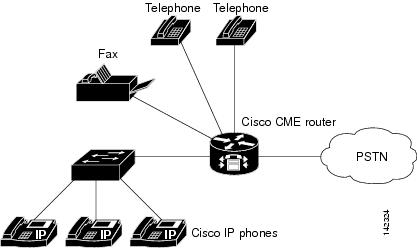
Figure 1 shows a typical deployment of a Cisco BCS Verified Designs system with several Cisco IP phones connected to it. The Cisco CME router is connected to the PSTN.
Figure 1 Cisco BCS Verified Designs System
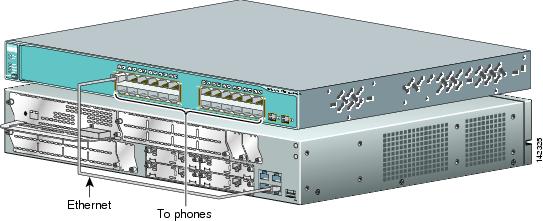
This guide assumes the Cisco BCS Verified Designs IP network is installed and operational. Figure 2 shows a typical Cisco BCS Verified Designs hardware connection for the router and switch.
Figure 2 Cisco BCS Verified Designs Hardware Configuration (Typical)
Software Requirements
The Cisco router should be preloaded with the latest Cisco IOS, Cisco CME basic, and Cisco CME GUI software versions. In the event that the appropriate software versions are not installed, you will be required to download and extract the required software images and files.
Software Version
Cisco BCS Verified Designs was tested and installed using Cisco IOS Version 12.3(11)T6.
Cisco IPC Express Quick Configuration Tool
Download Cisco IPC Express QCT to your PC before installing Cisco BCS Verified Designs (refer to Installing Cisco IPC Express QCT, page 7).
Cisco Security Device Manager
Download Cisco Security Device Manager (Cisco SDM) to your PC before installing Cisco BCS Verified Designs (see Installing Cisco Security Device Manager, page 12). You must also download the Advanced IP Services software for firewall configuration. Table 2 lists the required Advanced IP Services software package for Cisco ISR router types.
Related Documents
Table 3 provides useful links to help ensure that your routers, switches, network module and AIM cards, IP phones, and cables are properly installed.
Table 3 Related Documents
|
|
|
|---|---|
Planning worksheet |
Cisco Business Communications Solution Verified Designs Planning Worksheet |
Installing AIM Voice or CUE modules |
|
Installing AIM |
|
Installing internal modules |
Installing and Upgrading Internal Modules in Cisco 2800 Series Routers |
Cisco CME and Cisco CUE |
Cisco Unified Communications Manager Express System Administrator Guide |
What to Do Next
You are now ready to download the required software to install Cisco BCS Verified Designs (see the "Installing Required Software" chapter).
 Feedback