Introduction
This document provides installation information for the Cisco UCS E-Series Servers (E-Series Servers) and the Cisco UCS E-Series Network Compute Engine (NCE). It includes the following sections:
New and Changed Information
|
Feature |
Description |
Changed in Software Release |
Updated Sections |
|---|---|---|---|
|
Double-Wide E-Series Server refresh |
Support added to install the UCS-E1120D-M3/K9 and UCS-E180D-M3/K9 into the Cisco ISR 4000 series. |
3.2.1 |
“Hardware Requirements” “Hardware Information for the M3 E-Series Servers” |
|
Feature |
Description |
Changed in Software Release |
Updated Sections |
|---|---|---|---|
|
Single-Wide E-Series Server refresh |
Support added to install the UCS-E160S-M3/K9 into the Cisco ISR 4000 series. |
3.1.1 |
“Hardware Requirements” “Hardware Information for the M3 E-Series Servers” “Single-Wide E-Series Servers and the SM E-Series NCE—Front Panel and Components” |
|
Feature |
Description |
Changed in Software Release |
Updated Sections |
|---|---|---|---|
|
NIM E-Series Network Compute Engine |
Support added to install the NIM E-Series Network Compute Engine (NIM E-Series NCE) into the Cisco ISR 4000 series. |
3.0.1 |
“Hardware Information for the NIM E-Series NCE” “NIM E-Series NCE” |
|
Feature |
Description |
Changed in Software Release |
Updated Sections |
|---|---|---|---|
|
EHWIC E-Series Network Compute Engine |
Support added to install the EHWIC E-Series Network Compute Engine (EHWIC E-Series NCE) into the Generation 2 Cisco Integrated Services Routers (Cisco ISR G2). |
2.4.1 |
“Hardware Information for the EHWIC E-Series NCE” “EHWIC E-Series NCE” |
|
Cisco ISR 4000 Series |
Support added to install E-Series Servers in all Cisco ISR 4000 series. |
2.4.1 |
“Overview” |
|
Feature |
Description |
Changed in Software Release |
Updated Section |
|---|---|---|---|
|
Double-Wide E-Series Server refresh |
Intel Ivy Bridge 2418L v2 and 2428L v2 support added on the UCS-E160D-M2 and UCS-E180D-M2 double-wide E-Series Servers. |
2.3.1 |
“Hardware Information for the M2 E-Series Servers” |
|
Feature |
Description |
Changed in Software Release |
Updated Sections |
|---|---|---|---|
|
SM E-Series Network Compute Engine |
Support added to install the SM E-Series Network Compute Engine (SM E-Series NCE) into the Generation 2 Cisco Integrated Services Routers (Cisco ISR G2) and the Cisco ISR 4451-X Integrated Services Router (Cisco ISR 4451-X). |
2.2.1 |
“Hardware Information for the M2 E-Series Servers” |
|
Single-wide E-Series Server refresh |
Intel Ivy Bridge E3-1105C V2 support added on the UCS-E140S-M2 single-side E-Series Server. |
2.2.1 |
“Hardware Information for the M2 E-Series Servers” |
|
Feature |
Description |
Changed in Software Release |
Updated Sections |
|---|---|---|---|
|
New Platform Support |
Support for installing the E-Series Server into the Cisco ISR 4451-X. |
1.0(2) |
“Overview” “Hardware Requirements” |
|
Verifying E-Series Server Installation |
Command to verify that the router recognizes the E-Series Server. |
1.0(2) |
“Verifying E-Series Server or SM E-Series NCE Installation” |
|
Migrating the E-Series Server from an Cisco ISR G2 into a Cisco ISR 4000 series |
Special instructions for migrating the E-Series Server from a Cisco ISR G2 into a Cisco ISR 4000 series. |
1.0(2) |
“Migrating the E-Series Server from a Cisco ISR G2 into a Cisco ISR 4000 Series” |
|
New Online Insertion and Removal (OIR) command |
New OIR command for E-Series Server installed in a Cisco ISR 4000 series. |
1.0(2) |
“Removing the E-Series Server from a Cisco ISR 4000 Series” |
Overview
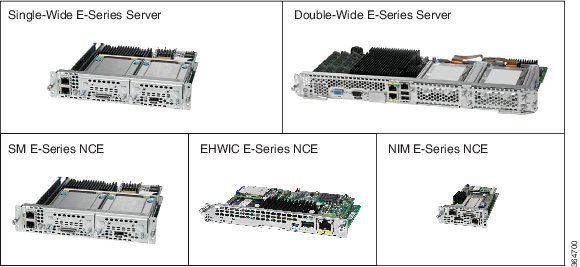
The Cisco UCS E-Series Servers (E-Series Servers) and the Cisco UCS E-Series Network Compute Engine (NCE) are a family of size-, weight-, and power-efficient blade servers that are housed within the Generation 2 Cisco Integrated Services Routers (Cisco ISR G2) and the Cisco ISR 4000 series. These servers provide a general-purpose compute platform for branch-office applications deployed either as bare-metal on operating systems, such as Microsoft Windows or Linux, or as virtual machines on hypervisors, such as VMware vSphere Hypervisor, Microsoft Hyper-V, or Citrix XenServer.
The E-Series Servers are purpose-built with powerful Intel Xeon processors for general-purpose compute. They come in the following form factors: single-wide and double-wide. The single-wide E-Series Server fits into one server module (SM) slot, and the double-wide E-Series Server fits into two SM slots.
The NCEs are price-to-power optimized modules that are built to host Cisco network applications and other lightweight general-purpose applications. They come in three form factors: SM, EHWIC, and NIM. The SM E-Series NCE fits into one SM slot, the NIM E-Series NCE fits into one NIM slot, and the EHWIC E-Series NCE fits into two EHWIC slots.
 Note |
EHWIC E-Series NCE can be installed in the Cisco ISR G2 only. |
- NIM E-Series NCE can be installed in the Cisco ISR 4000 series only.
- M3 E-Series servers can be installed in the Cisco ISR 4000 series only.
- The Cisco ISR 4331 has one SM slot. The Cisco ISR 4321 and the Cisco ISR 4431 have no SM slots.
- Citrix XenServer is supported on the E-Series Servers only.
Hardware Requirements
Note |
E-Series Servers and the SM E-Series NCE can be installed in the Cisco ISR G2 and the Cisco ISR 4000 series. |
- The EHWIC E-Series NCE can be installed in the Cisco ISR G2 only.
- The NIM E-Series NCE can be installed in the Cisco ISR 4000 series only.
- The M3 E-Series servers can be installed in the Cisco ISR 4000 series only.
The following M1 E-Series Servers are supported:
- UCS-E140S-M1—Single-wide E-Series Server, 4-cores CPU, 1.0-GHz clock speed
- UCS-E140D-M1—Double-wide E-Series Server, 4-cores CPU, 2.0-GHz clock speed
- UCS-E160D-M1—Double-wide E-Series Server, 6-cores CPU, 1.8-GHz clock speed
- UCS-E140DP-M1—Double-wide E-Series Server, 4-cores CPU, with PCIe, 2.0-GHz clock speed
- UCS-E160DP-M1—Double-wide E-Series Server, 6-cores CPU, with PCIe, 1.8-GHz clock speed
The following M2 E-Series Servers and SM E-Series NCE are supported:
- UCS-EN120S-M2—SM E-Series NCE, 2-cores CPU, 2.0-GHz clock speed
- UCS-E140S-M2—Single-wide E-Series Server, 4-cores CPU, 1.8-GHz clock speed
- UCS-E160D-M2—Double-wide E-Series Server, 6-cores CPU, 2.0-GHz clock speed
- UCS-E180D-M2—Double-wide E-Series Server, 8-cores CPU, 1.8-GHz clock speed
The following M3 E-Series Servers are supported:
- UCS-E160S-M3—Single-wide E-Series Server, 6-cores CPU, 2.0-GHz clock speed
-
UCS-E180D-M3—Double-wide E-Series Server, 8-cores CPU, 1.5-GHz clock speed
-
UCS-E1120D-M3—Double-wide E-Series Server, 12-cores CPU, 1.6-GHz clock speed
Note |
The M1, M2, and M3 E-Series Servers naming terminology indicates different generations of Intel processors within the respective servers. |
The following EHWIC E-Series NCE is supported:
- UCS-EN120E—EHWIC E-Series NCE, 2-cores CPU, 1.7-GHz clock speed
The following NIM E-Series NCE is supported:
- UCS-EN140N-M2—NIM E-Series NCE, 4-cores CPU, 1.7-GHz clock speed
Hardware Information for the M1 E-Series Servers
|
Feature |
UCS-E140S-M1 Single-Wide E-Series Server |
UCS-E140D-M1 and UCS-E160D-M1 Double-Wide E-Series Servers |
UCS-E140DP-M1 and UCS-E160DP-M1Double-Wide E-Series Servers with PCIe |
||||
|---|---|---|---|---|---|---|---|
|
Form Factor |
Single-wide SM |
Double-wide SM |
Double-wide SM |
||||
|
CPU |
Intel Xeon E3-1105C |
Intel Xeon E5-2418L and E5-2428L |
Intel Xeon E5-2418L and E5-2428L |
||||
|
CPU Cores and CPU Clock Speed |
4-Cores with 1.0-GHz Clock Speed |
4-Cores with 2.0-GHz Clock Speed 6-Cores with 1.8-GHz Clock Speed |
4-Cores with 2.0-GHz Clock Speed 6-Cores with 1.8-GHz Clock Speed |
||||
|
Memory DIMM Slots |
2 Slots |
3 Slots |
3 Slots |
||||
|
RAM |
8 to 16 GB Supports DDR3 1333-MHz VLP UDIMM 1.5 V, 4 GB, and 8 GB |
8 to 48 GB Supports DDR3 1333-MHz RDIMM 1.35 V, 4 GB, 8 GB, and 16 GB |
8 to 48 GB Supports DDR3 1333-MHz RDIMM 1.35 V, 4-GB, 8-GB, and 16-GB |
||||
|
RAID |
RAID 0 and RAID 1 |
RAID 0, RAID 1, and RAID 5 |
RAID 0 and RAID 1 |
||||
|
Storage Type |
SATA, SAS, SSD, SED, and External USB |
SATA, SAS, SSD, SED, and External USB |
SATA, SAS, SSD, SED, and External USB |
||||
|
HDD |
SAS 10K RPM, SATA 7200 RPM, and SAS SSD Drives1 Supports 2 Drives |
SAS 10K RPM, SATA 7200 RPM, and SAS SSD Drives 1 Supports 3 Drives |
SAS 10K RPM, SATA 7200 RPM, and SAS SSD Drives 1 Supports 2 Drives |
||||
|
Storage Capacity2 |
200 GB to 2 TB |
200 GB to 3 TB |
200 GB to 2 TB |
||||
|
Internal Network Interface |
2 Gigabit Ethernet Interfaces |
2 Gigabit Ethernet Interfaces |
2 Gigabit Ethernet Interfaces |
||||
|
External Interfaces |
1 USB Connector 1 RJ-45 Gigabit Ethernet Connector 1 Management Port 1 KVM Port (Supports VGA,1 USB, 1 Serial DB9) |
2 USB Connectors 2 RJ-45 Gigabit Ethernet Connectors 1 Management Port 1 VGA Port 1 Serial DB9 |
2 USB Connectors 2 RJ-45 Gigabit Ethernet Connectors 1 Management Port 1 VGA Port 1 Serial DB9 |
||||
|
Router Platforms |
2911, 2921, 2951, 3925, 3925e, 3945, 3945e, 4331, 4351, 4451-X |
2921, 2951, 3925, 3925e, 3945, 3945e, 4351, 4451-X |
2921, 2951, 3925, 3925e, 3945, 3945e, 4351, 4451-X |
||||
|
Maximum Number of E-Series Servers per Router |
2911 ISR G2—1 E-Series Server 2921 ISR G2—1 E-Series Server 2951 ISR G2—2 E-Series Servers 3925 ISR G2—3 E-Series Servers 3925e ISR G2—3 E-Series Servers 3945 ISR G2—4 E-Series Servers 3945e ISR G2—4 E-Series Servers ISR 4321—None ISR 4331—1 E-Series Server ISR 4351—2 E-Series Servers ISR 4431—None ISR 4451-X—2 E-Series Servers |
2911 ISR G2—None 2921 ISR G2—1 E-Series Server 2951 ISR G2—1 E-Series Server
3925 ISR G2—1 E-Series Server 3925e ISR G2—1 E-Series Server 3945 ISR G2—1 E-Series Server 3945e ISR G2—1 E-Series Server ISR 4321—None ISR 4331—None ISR 4351—1 E-Series Server ISR 4431—None ISR 4451-X—1 E-Series Server |
2911 ISR G2—None 2921 ISR G2—1 E-Series Server 2951 ISR G2—1 E-Series Server
3925 ISR G2—1 E-Series Servers 3925e ISR G2—1 E-Series Server 3945 ISR G2—1 E-Series Server 3945e ISR G2—1 E-Series Server ISR 4321—None ISR 4331—None ISR 4351—1 E-Series Server ISR 4431—None ISR 4451-X—1 E-Series Server |
Hardware Information for the M2 E-Series Servers
|
Feature |
UCS-EN120S-M2 SM E-Series NCE |
UCS-E140S M2 Single-Wide E-Series Server |
UCS-E160D-M2 and UCS-E180D-M2Double-Wide E-Series Servers |
||
|---|---|---|---|---|---|
|
Form Factor |
Single-wide SM |
Single-wide SM |
Double-wide SM |
||
|
CPU |
Pentium B925C |
Intel Xeon E3-1105C V2 |
Intel Xeon 2418L v2 for 6-Cores 2428L v2 for 8-Cores |
||
|
CPU Cores and CPU Clock Speed |
2-Cores with 2.0-GHz Clock Speed |
4-Cores with 1.8-GHz Clock Speed |
6-Cores with 2.0-GHz Clock Speed 8-Cores with 1.8-GHz Clock Speed |
||
|
RAM |
4 to16 GB Supports DDR3 1333-MHz VLP UDIMM 1.5 V, 4 GB, and 8 GB |
8 to16 GB Supports DDR3 1333-MHz VLP UDIMM 1.5 V, 4 GB, and 8 GB |
8 to 48 GB Supports DDR3 1333-MHz RDIMM 1.35 V, 4 GB, 8 GB, and 16 GB |
||
|
RAID |
RAID 0 and RAID 1 |
RAID 0 and RAID 1 |
RAID 0, RAID 1, and RAID 5 |
||
|
Storage Type |
SATA, SAS, and External USB |
SATA, SAS, SSD, SED, and External USB |
SATA, SAS, SSD, SED, and External USB |
||
|
HDD |
SAS 10K RPM, SATA 7200 RPM Supports 2 Drives |
SAS 10K RPM, SATA 7200 RPM, and SAS SSD Drives3 Supports 2 Drives |
SAS 10K RPM, SATA 7200 RPM, and SAS SSD Drives 1 Supports 3 Drives |
||
|
Storage Capacity4 |
500 GB to 2 TB |
200 GB to 2 TB |
200 GB to 3 TB |
||
|
Internal Network Interface |
2 Gigabit Ethernet Interfaces |
2 Gigabit Ethernet Interfaces |
2 Gigabit Ethernet Interfaces |
||
|
External Interfaces |
1 USB Connector 1 RJ-45 Gigabit Ethernet Connector 1 Management Port 1 KVM Port (Supports VGA,1 USB, 1 Serial DB9) |
1 USB Connector 1 RJ-45 Gigabit Ethernet Connector 1 Management Port 1 KVM Port (Supports VGA,1 USB, 1 Serial DB9) |
2 USB Connectors 2 RJ-45 Gigabit Ethernet Connectors 1 Management Port 1 VGA Port 1 Serial DB9 |
||
|
Router Platforms |
2911, 2921, 2951, 3925, 3925e, 3945, 3945e, 4331, 4351, 4451-X |
2911, 2921, 2951, 3925, 3925e, 3945, 3945e, 4331, 4351, 4451-X |
2921, 2951, 3925, 3925e, 3945, 3945e, 4351, 4451-X |
||
|
Maximum Number of E-Series Servers or NCE per Router |
2911 ISR G2—1 NCE 2921 ISR G2—1 NCE 2951 ISR G2—2 NCEs 3925 ISR G2—2 NCEs 3925e ISR G2—2 NCEs 3945 ISR G2—4 NCEs 3945e ISR G2—4 NCEs ISR 4321—None ISR 4331—1 NCE ISR 4351—2 NCEs ISR 4431—None ISR 4451-X—2 NCEs |
2911 ISR G2—1 E-Series Server 2921 ISR G2—1 E-Series Server 2951 ISR G2—2 E-Series Servers 3925 ISR G2—2 E-Series Servers 3925e ISR G2—2 E-Series Servers 3945 ISR G2—4 E-Series Servers 3945e ISR G2—4 E-Series Servers ISR 4321—None ISR 4331—1 E-Series Server ISR 4351—2 E-Series Servers ISR 4431—None ISR 4451-X—2 E-Series Servers |
2911 ISR G2—None 2921 ISR G2—1 E-Series Server 2951 ISR G2—1 E-Series Server
3925 ISR G2—1 E-Series Servers 3925e ISR G2—1 E-Series Server 3945 ISR G2—1 E-Series Server 3945e ISR G2—1 E-Series Server ISR 4321—None ISR 4331—None ISR 4351—1 E-Series Server ISR 4431—None ISR 4451-X—1 E-Series Server |
Hardware Information for the M3 E-Series Servers
Cisco UCS E Series M3 servers have a dedicated SSD flash disk based on eMMC technology. This eMMC storage is not a user replaceable component. This replaces the SD card functionality that was used on M2.The eMMC storage is used for hosting CIMC and is also available as a USB device to the x86 host side. On Cisco UCS-E160S-M3 server, the size of the CIMC partition is 8 GB, and the size of the host partition is 8 GB.
|
Feature |
UCS-E160S-M3 Single-Wide E-Series Servers |
UCS-E180D-M3 Double-Wide E-Series Servers |
UCS-E1120D-M3 Double-Wide E-Series Servers |
||||||
|---|---|---|---|---|---|---|---|---|---|
|
Form Factor |
Single-wide SM |
Double-wide SM |
Double-wide SM |
||||||
|
CPU |
Intel Xeon Broadwell DE processor D-1528 (9-MB cache, 1.90 GHz, and 6 cores) |
Intel Broadwell, 2.0 GHz |
Intel Broadwell, 1.5 GHz |
||||||
|
CPU Cores and CPU Clock Speed |
6-Cores with 1.90-GHz Clock Speed |
8-Cores with 2.0-GHz Clock Speed |
12-Cores with 1.5-GHz Clock Speed |
||||||
|
RAM |
8 - 64 GB 2 DIMM slots, each with 8 GB, 16 GB or 32 GB VLP DDR4 RAM |
16 - 128 GB 4 DIMM slots, each with 8 GB, 16 GB or 32 GB VLP DDR4 RAM |
16 - 128 GB 4 DIMM slots, each with 8 GB, 16 GB or 32 GB VLP DDR4 RAM |
||||||
|
RAID |
Hardware RAID 0 and 1 LSI MegaRAID SAS 3108 controller |
RAID 0, RAID 1, RAID 5, and RAID 10 |
RAID 0, RAID 1, RAID 5, and RAID 10 |
||||||
|
Storage Type |
SATA, SAS, SSD, and External USB |
SATA, SAS, SSD, and External USB |
SATA, SAS, SSD, and External USB |
||||||
|
HDD |
2 SFF slots; Up to 2 TB each; refer to the compatibility and ordering guide for more information.5 Supports 2 Drives |
SAS 10K RPM, SATA 7200 RPM, and SAS SSD Supports 4 Drives |
SAS 10K RPM, SATA 7200 RPM, and SAS SSD Supports 4 Drives |
||||||
|
Storage Capacity |
Refer to the Cisco UCS E-Series Compatibility and Ordering Guide for more information. | Refer to the Cisco UCS E-Series Compatibility and Ordering Guide for more information. | Refer to the Cisco UCS E-Series Compatibility and Ordering Guide for more information. | ||||||
|
Internal Network Interface |
2 internal Gigabit Ethernet ports (Broadcom 5719) |
2 x 1GBps (Internal) |
2 x 1GBps (Internal) |
||||||
|
External Interfaces |
1 USB connector 2 RJ-45 10 Gigabit Ethernett Interfaces (TE2 and TE3) 1 KVM port (supports VGA, 1 USB, 1 serial DB9)
|
2 USB connector 2 RJ-45 10 Gigabit Ethernett Interfaces (TE2 and TE3) 1 KVM port (supports VGA, 1 USB, 1 serial DB9) 1 Management Port
|
2 USB connector 2 RJ-45 10 Gigabit Ethernett Interfaces (TE2 and TE3) 1 KVM port (supports VGA, 1 USB, 1 serial DB9) 1 Management Port
|
||||||
|
Router Platforms |
4331,4351,4451 |
4351,4451 |
4351,4451 |
||||||
|
Maximum Number of E-Series Servers |
ISR 4331—1 E-Series Server ISR 4351—2 E-Series Server ISR 4451-X—2 E-Series Server |
ISR 4351—1 E-Series Server ISR 4451-X—1 E-Series Server |
ISR 4351—1 E-Series Server ISR 4451-X—1 E-Series Server |
Hardware Information for the EHWIC E-Series NCE
|
Feature |
UCS-EN120EEHWIC E-Series NCE |
|---|---|
|
Form Factor |
Double-wide EHWIC |
|
CPU |
Intel Atom Processor C2338 |
|
CPU Cores and CPU Clock Speed |
2-Cores with 1.7-GHz Clock Speed |
|
RAM |
4 GB to 8 GB |
|
RAID |
— |
|
Storage Type |
mSATA |
|
HDD |
mSATA Flash Drive |
|
Storage Capacity |
50 to 400 GB Formatted |
|
Internal Network Interface |
2 Gigabit Ethernet Interfaces |
|
External Interfaces |
1 Standard USB Connector 1 Mini-USB Connector 1 RJ-45 Gigabit Ethernet Connector 1 Console Port |
|
Router Platforms |
1921, 1941, 2901, 2911, 2921, 2951, 3925, 3925e, 3945, 3945e |
|
Maximum Number of NCEs per Router |
1921 ISR G2—1 NCE 1941 ISR G2—1 NCE 2901 ISR G2—2 NCEs 2911 ISR G2—2 NCEs 2921 ISR G2—2 NCEs 2951 ISR G2—2 NCEs 3925 ISR G2—2 NCEs 3925e ISR G2—1 NCE 3945 ISR G2—2 NCEs 3945e ISR G2—1 NCE |
Hardware Information for the NIM E-Series NCE
|
Feature |
UCS-EN140N-M2NIM E-Series NCE |
|---|---|
|
Form Factor |
NIM |
|
CPU |
Intel Atom Processor C2358 |
|
CPU Cores and CPU Clock Speed |
4-Cores with 1.7-GHz Clock Speed |
|
RAM |
8 GB |
|
RAID |
— |
|
Storage Type |
mSATA |
|
HDD |
mSATA Flash Drive |
|
Storage Capacity |
32 to 200 GB Formatted |
|
Internal Network Interface |
2 Gigabit Ethernet Interfaces |
|
External Interfaces |
1 USB Connector 1 RJ-45 Gigabit Ethernet Connector 1 Management Port 1 KVM Port (Supports VGA,1 USB, 1 Serial DB9) |
|
Router Platforms |
4321, 4331, 4351, 4431, 4451-X |
|
Maximum Number of NCEs per Router |
ISR 4321—2 NCEs ISR 4331—2 NCEs ISR 4351—3 NCEs ISR 4431—3 NCEs ISR 4451-X—3 NCEs |
Supported Cisco EtherSwitch EHWIC and Cisco EtherSwitch Service Modules
The following table shows the Cisco EtherSwitch Enhanced High-Speed WAN Interface Cards (EHWICs) and Cisco EtherSwitch Service Modules that are supported on the E-Series Server.
|
Cisco EtherSwitch EHWIC |
Cisco EtherSwitch Service Module |
|---|---|
|
|
Supported Transceivers
|
SFP |
Description |
|---|---|
|
SFP-H10GB-CU1M |
SFP+ 10GBASE-CU 1-meter cable, passive |
|
SFP-H10GB-CU3M |
SFP+ 10GBASE-CU 3-meter cable, passive |
|
SFP-H10GB-CU5M |
SFP+ 10GBASE-CU 5-meter cable, passive |
|
SFP-H10GB-ACU7M |
SFP+ 10GBASE-CU 7-meter cable, active |
|
SFP-H10GB-ACU10M |
SFP+ 10GBASE-CU 10-meter cable, active |
|
JDSU (PLRXPL-SC-S43-22-N) SFP+ |
SFP+ (Optical) |
|
SFP-10G-SR |
SFP+ 10GBase-SR (Optical) |
Recommended Safety Practices
This section describes recommended practices for safe and effective installation of the hardware, and includes the following topics:
Safety Recommendations
To prevent hazardous conditions, follow these safety recommendations while working with this equipment:
- Keep tools away from walk areas where you or others could fall over them.
- Do not wear loose clothing around the router. Fasten your tie or scarf and roll up your sleeves to prevent clothing from being caught in the chassis.
- Wear safety glasses when working under any conditions that might be hazardous to your eyes.
- Locate the emergency power-off switch in the room before you start working. If an electrical accident occurs, shut the power off.
- Before working on the router, turn off the power and unplug the power cord.
-
Disconnect all power sources before doing the following:
- Installing or removing a router chassis
- Working near power supplies
- Do not work alone if potentially hazardous conditions exist.
- Always check that power is disconnected from a circuit.
- Remove possible hazards from your work area, such as damp floors, ungrounded power extension cables, or missing safety grounds.
-
If an electrical accident occurs, proceed as follows:
- Use caution; do not become a victim yourself.
- Turn off power to the room using the emergency power-off switch.
- If possible, send another person to get medical aid. Otherwise, determine the condition of the victim and then call for help.
- Determine if the person needs rescue breathing or external cardiac compressions; then take appropriate action.
Preventing Electrostatic Discharge Damage
Electrostatic discharge can damage equipment and impair electrical circuitry. Electrostatic discharge occurs when electronic printed circuit cards, such as those used in Cisco service modules and network modules, are improperly handled and can result in complete or intermittent equipment failure. Always observe the following electrostatic discharge damage (ESD) prevention procedures when installing, removing, and replacing the E-Series Servers or the NCEs:
- Make sure that the router chassis is electrically connected to earth ground.
- Wear an ESD-preventive wrist strap, and make sure that it makes good contact with your skin.
- Connect the wrist strap clip to an unpainted portion of the chassis frame to channel unwanted ESD voltages to ground.
- If no wrist strap is available, ground yourself by touching the metal part of the router chassis.
 Caution |
The wrist strap and clip must be used correctly to ensure proper ESD protection. Periodically confirm that the resistance value of the ESD-preventive wrist strap is between 1 and 10 megohms (Mohm). |
General Guidelines for Installing the E-Series Servers or the NCE on a Rack
Excessive vibration can result in the loss of data and disk drive failure. The E-Series Server or NCE with hard disk drives should not be installed in a rack cabinet where it might be exposed to excessive high vibration. Before you install the router and E-Series Server or NCE in the rack cabinet, review the following recommendations:
Note |
The E-Series Server or NCE with solid state drives can withstand higher vibration levels. |
- Install the server away from heating, ventilation, and air-conditioning (HVAC) system, and other large building air movers.
- Install the rack away from areas that might be affected by external vibrations, such as a garage that might have moving vehicles, or a factory with heavy machinary.
- Do not install the server with rotating hard drives in a rack that will be placed in a moving vehicle.
Maintenance Guidelines
The following maintenance guidelines apply to E-Series Servers and NCEs:
- Keep the router chassis area clear and dust-free during and after installation.
- If you remove the chassis cover for any reason, store it in a safe place.
- Do not perform any action that creates a hazard to people or makes equipment unsafe.
- Keep walk areas clear to prevent falls or damage to equipment.
- Follow installation and maintenance procedures as documented by Cisco Systems, Inc.
Safety Warnings
The following safety warning statements apply to all hardware procedures involving E-Series Servers and NCEs. Translations of these warnings are available in the Cisco Network Modules and Interface Cards Regulatory Compliance and Safety Information document at:
http://www.cisco.com/en/US/docs/routers/access/interfaces/rcsi/IOHrcsi.html
DANGER |
IMPORTANT SAFETY INSTRUCTIONSThis warning symbol means danger. You are in a situation that could cause bodily injury. Before you work on any equipment, be aware of the hazards involved with electrical circuitry and be familiar with standard practices for preventing accidents. Use the statement number provided at the end of each warning to locate its translation in the translated safety warnings that accompanied this device. Statement 1071 SAVE THESE INSTRUCTIONS |
DANGER |
Only trained and qualified personnel should be allowed to install or replace this equipment. Statement 1030 |
DANGER |
No user-serviceable parts inside. Do not open. Statement 1073 |
DANGER |
Ultimate disposal of this product should be handled according to all national laws and regulations. Statement 1040 |
DANGER |
Read the installation instructions before connecting the system to the power source. Statement 1004 |
DANGER |
Installation of the equipment must comply with local and national electrical codes. Statement 1074 |
DANGER |
This unit might have more than one power supply connection. All connections must be removed to de-energize the unit. Statement 1028 |
DANGER |
This equipment must be grounded. Never defeat the ground conductor or operate the equipment in the absence of a suitably installed ground conductor. Contact the appropriate electrical inspection authority or an electrician if you are uncertain that suitable grounding is available. Statement 1024 |
DANGER |
When installing or replacing the unit, the ground connection must always be made first and disconnected last. Statement 1046 |
DANGER |
Do not use this product near water; for example, near a bath tub, wash bowl, kitchen sink or laundry tub, in a wet basement, or near a swimming pool. Statement 1035 |
DANGER |
Never install telephone jacks in wet locations unless the jack is specifically designed for wet locations. Statement 1036 |
DANGER |
Never touch uninsulated telephone wires or terminals unless the telephone line has been disconnected at the network interface. Statement 1037 |
DANGER |
Avoid using a telephone (other than a cordless type) during an electrical storm. There may be a remote risk of electric shock from lightning. Statement 1038 |
DANGER |
To report a gas leak, do not use a telephone in the vicinity of the leak. Statement 1039 |
DANGER |
Class 1 laser product. Statement 1008 |
DANGER |
Invisible laser radiation may be emitted from the end of the unterminated fiber cable or connector. Do not view directly with optical instruments. Viewing the laser output with certain optical instruments (for example, eye loupes, magnifiers, and microscopes) within a distance of 100 mm may pose an eye hazard. Statement 1056 |
The following warnings apply in Australia:
DANGER |
Do not touch the power supply when the power cord is connected. For systems with a power switch, line voltages are present within the power supply even when the power switch is OFF and the power cord is connected. For systems without a power switch, line voltages are present within the power supply when the power cord is connected. Statement 4 |
DANGER |
This equipment will be inoperable when mains power fails. Statement 198 |
DANGER |
To avoid electric shock, do not connect safety extra-low voltage (SELV) circuits to telephone-network voltage (TNV) circuits. LAN ports contain SELV circuits, and WAN ports contain TNV circuits. Both LAN and WAN ports may use RJ-45 connectors. Use caution when connecting cables. Statement 1021 |
DANGER |
Hazardous network voltages are present in WAN ports regardless of whether power to the router is OFF or ON. To avoid electric shock, use caution when working near WAN ports. When detaching cables, detach the end away from the router first. Statement 1026 |
DANGER |
Before opening the chassis, disconnect the telephone-network cables to avoid contact with telephone-network voltages. Statement 1041 |
DANGER |
This equipment must be installed and maintained by service personnel as defined by AS/NZS 3260. Incorrectly connecting this equipment to a general-purpose outlet could be hazardous. The telecommunications lines must be disconnected 1) before unplugging the main power connector or 2) while the housing is open, or both. Statement 1043 |
Types of E-Series Servers and NCEs
-
Single-wide E-Series Servers
-
Double-wide E-Series Servers
-
SM E-Series NCE
-
EHWIC E-Series NCE
-
NIM E-Series NCE
E-Series Servers
Single-Wide E-Series Servers and the SM E-Series NCE--Front Panel and Components
The single-wide E-Series Server and the SM E-Series NCE are quite similar. The following figure shows the front panel of the single-wide E-Series Server and the single-wide SM E-Series NCE.
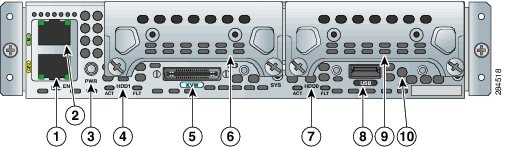
|
1 |
Gigabit Ethernet port |
2 |
Management port |
|
3 |
Power switch |
4 |
LEDs for HDD1 |
|
5 |
Keyboard, Video, Mouse (KVM) port. Refer Figure 3. |
6 |
Hard disk drive 1 |
|
7 |
LEDs for HDD0 |
8 |
USB |
|
9 |
Hard disk drive 2 |
10 |
Reset switch |
The following figure shows the front panel of the single-wide E-Series Server UCS-E160S-M3.
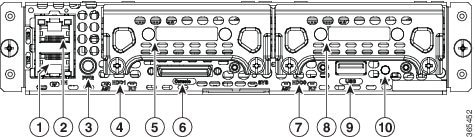
|
1 |
TE2 port |
2 |
TE3 port |
|
3 |
Power switch |
4 |
LEDs for HDD1 |
|
5 |
Hard disk drive 1 |
6 |
Keyboard, Video, Mouse (KVM) port |
|
7 |
LEDs for HDD0 |
8 |
Hard disk drive 2 |
|
9 |
USB |
10 |
Reset switch |
The following figure shows the KVM connector.
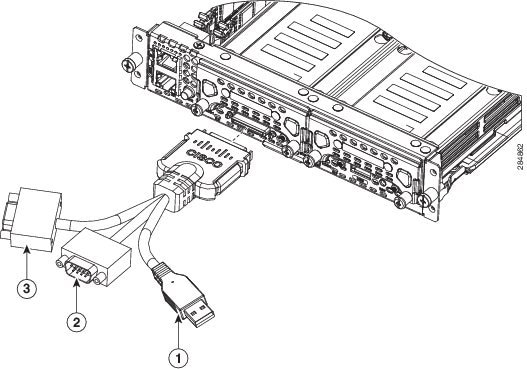
|
1 |
USB connector |
2 |
DB15 connector—video port |
|
3 |
DB9 connector—serial port |
The following figure shows the internal components of the single-wide E-Series Server.
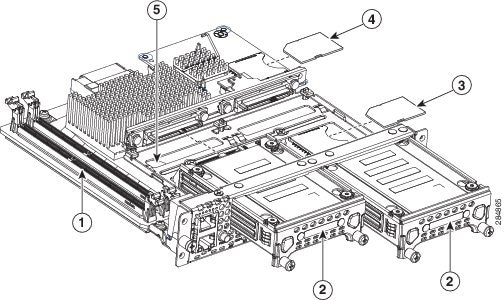
|
1 |
Memory DIMM slots |
2 |
HDD |
||||||
|
3 |
SD0
|
4 |
SD1
|
||||||
|
5 |
CMOS battery (located under the hard drive tray) |
Single-Wide E-Series Server and the SM E-Series NCE LEDs
The following table lists the single-wide E-Series Server and the SM E-Series NCE LEDs and describes the LED colors and states.
|
LED |
Color |
State |
||
|---|---|---|---|---|
|
HDD 0 ACT |
Green |
Status of the hard drive activity:
|
||
|
HDD0 FLT |
Amber |
The CPU is in use. Fault is detected on the hard drive.
|
||
|
HDD1 ACT |
Green |
Status of the hard drive activity:
|
||
|
HDD1 FLT |
Amber |
The CPU is in use. Fault is detected on the hard drive.
|
||
|
SYS |
Green |
Status can be one of the following:
|
||
|
Amber |
Fault is detected on the processor. |
|||
|
Power |
Green |
Status can be one of the following:
|
||
|
Amber |
Status can be one of the following:
|
|||
|
GE Port LEDs |
Green |
Left LED shows the speed of the Ethernet cable:
|
||
|
Green |
Right LED shows whether the link is established:
|
Double-Wide E-Series Server—Front Panel and Components
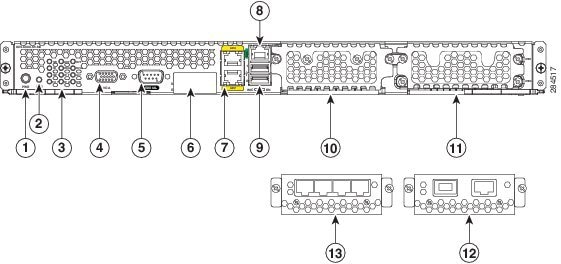
|
1 |
Power switch |
2 |
Reset switch
|
||||||||
|
3 |
LEDs |
4 |
VGA port |
||||||||
|
5 |
Serial port |
6 |
Dual SD card slots and cover
|
||||||||
|
7 |
Gigabit Ethernet ports (GE2 and GE3) |
8 |
Management port |
||||||||
|
9 |
USB ports Each port provides up to 500 mA of current. Devices that require higher power, such as CD/DVD ROM, need their own external power. |
10 |
(Optional) HDD2, PCIe assembly or blank slot |
||||||||
|
11 |
Hard disk drives (HDD0 and HDD1) |
12 |
(Optional) Alternate PCIe assembly with FCoE port
|
||||||||
|
13 |
(Optional) Alternate PCIe assembly with 4 Gigabit Ethernet ports
|
The following figure shows the Front Panel of the Double-Wide E-Series Servers UCS-E180D-M3 and UCS-E1120D-M3.
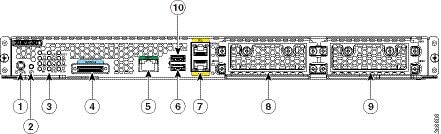
|
1 |
Power switch |
2 |
Reset switch
|
||
|
3 |
LEDs |
4 |
Console port |
||
|
5 |
Management Port |
6 |
USB port 0 Each port provides up to 500 mA of current. Devices that require higher power, such as CD/DVD ROM, need their own external power. |
||
|
7 |
Gigabit Ethernet ports (TE2 and TE3) |
8 |
Hard disk drives (HDD3 and HDD2) |
||
|
9 |
Hard disk drives (HDD0 and HDD1) |
10 |
USB port 1 Each port provides up to 500 mA of current. Devices that require higher power, such as CD/DVD ROM, need their own external power. |
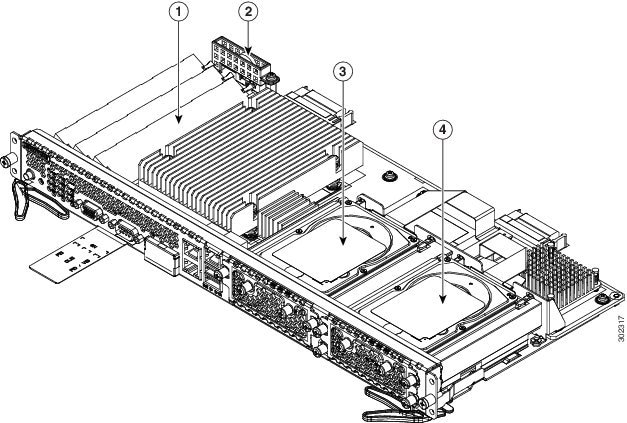
|
1 |
Memory DIMM slots |
2 |
CMOS battery (resides inside the battery protector) |
|
3 |
(Optional) PCIe assembly Available for HDD2, FCoE port, or 4 Gigabit Ethernet ports. |
4 |
Hard disk drives (HDD0 and HDD1) |
Double-Wide E-Series Server LEDs
The following table lists the double-wide E-Series Server LEDs and describes the LED colors and states.
|
LED |
Color |
State |
|---|---|---|
|
M0 6 |
Off |
No memory is installed in this socket. |
|
Green |
Memory M0 is installed. |
|
|
Amber |
Memory M0 is installed, but fault is detected. |
|
|
M1 7 |
Off |
No memory installed in this socket. |
|
Green |
Memory M1 is installed. |
|
|
Amber |
Memory M1 is installed, but fault is detected. |
|
|
M2 8 |
Off |
No memory is installed in this socket. |
|
Green |
Memory M2 is installed. |
|
|
Amber |
Memory M2 is installed, but fault is detected. |
|
|
HOT |
Green |
Temperature is in range. |
|
Amber |
High temperature is detected on the CPU, power supply, or other internal sensors. |
|
|
D0A |
Green |
Status of the hard drive activity: • Steady—Hard drive is present. • Blinking—Activity. • Off—Inactive or there is no power supplied to the CPU. |
|
D0F |
Amber |
Fault is detected on the hard drive. |
|
D1A |
Green |
Status of the hard drive activity: • Steady—Hard drive is present. • Blinking—Active. • Off—Inactive or there is no power supplied to the CPU. |
|
D1F |
Amber |
Fault is detected on the hard drive. |
|
D2A |
Green |
If an optional hard drive is present, the status of the hard drive activity can be one of the following:
If there is a PCIe card installed, the LED is steady green. |
|
D2F |
Amber |
Fault is detected on the hard drive. |
|
ACT |
Green |
Blinks when the processor is active. |
|
STS |
Green |
Operation is normal. |
|
Amber |
Fault is detected on the processor. |
|
|
IMC |
Green |
Blinks when the CIMC is operating normally. |
|
Power |
Green |
|
|
Amber |
|
|
|
GE Port LEDs |
Green |
Left LED shows the speed of the Ethernet cable:
|
|
Green |
Right LED shows whether the link is established.
|
Basic Workflow for Installing the E-Series Server or the SM E-Series NCE in the SM Slot
SUMMARY STEPS
- Reference Topic
- Gather the required tools and equipment.
- Remove the blank faceplates from the SM slots that you want to use.
- Depending on the type of server that you want to install either remove or install the slot divider.
- Install the E-Series Server or SM E-Series NCE into the router.
- Verify the E-Series Server or SM E-Series NCE installation.
DETAILED STEPS
| Command or Action | Purpose | |
|---|---|---|
| Step 1 |
Action |
|
| Step 2 |
Reference Topic |
|
| Step 3 |
Gather the required tools and equipment. |
|
| Step 4 |
Remove the blank faceplates from the SM slots that you want to use. |
|
| Step 5 |
Depending on the type of server that you want to install either remove or install the slot divider. |
|
| Step 6 |
Install the E-Series Server or SM E-Series NCE into the router. |
|
| Step 7 |
Verify the E-Series Server or SM E-Series NCE installation. |
Tools and Equipment Required for Installation
- Number-1 Phillips screwdriver or a small flat-blade screwdriver
- ESD-preventive wrist strap
- Tape to secure DC circuit breaker handle—Applicable for routers that use DC power
Removing the Blank Faceplate from the Router’s SM Slot
DANGER |
Blank faceplates and cover panels serve three important functions: they prevent exposure to hazardous voltages and currents inside the chassis; they contain electromagnetic interference (EMI) that might disrupt other equipment; and they direct the flow of cooling air through the chassis. Do not operate the system unless all cards, faceplates, front covers, and rear covers are in place. Statement 1029 |
Before You Begin
Make sure that you connect the wrist-strap clip to an unpainted portion of the chassis frame to channel unwanted ESD voltages to ground.
Procedure
SUMMARY STEPS
- Using either a number-1 Phillips screwdriver or a small flat-blade screwdriver, unscrew the captive screws and remove the blank faceplate from the chassis slot.
- Save the blank faceplates for future use.
DETAILED STEPS
| Step 1 |
Using either a number-1 Phillips screwdriver or a small flat-blade screwdriver, unscrew the captive screws and remove the blank faceplate from the chassis slot. 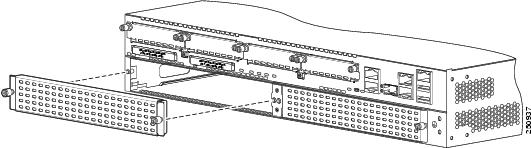 |
| Step 2 |
Save the blank faceplates for future use. |
What to do next
What to Do Next
Prepare the router slot for E-Series Server or SM E-Series NCE installation. See the “Preparing the Router’s SM Slot for E-Series Server or SM E-Series NCE Installation”.
Preparing the Router’s SM Slot for E-Series Server or SM E-Series NCE Installation
Several Cisco routers have flexible SM slots to support various Cisco server modules. Before installing the E-Series Server or SM E-Series NCE into the router, prepare the router’s SM slot for the server’s particular form factor.
Slot dividers are used on the following routers:
- Cisco 2921, and 2951 series ISR G2
- Cisco 3925, 3925e, 3945, and 3945e ISR G2
By default, the slot dividers are preinstalled in the router. Depending on the type of server that you want to install, you must either install or remove the slot divider from the router.
Note |
To replace a double-wide E-Series Server with a single-wide E-Series Server or SM E-Series NCE, you must install a slot divider. |
- To install the double-wide E-Series Server, you must remove the slot divider.
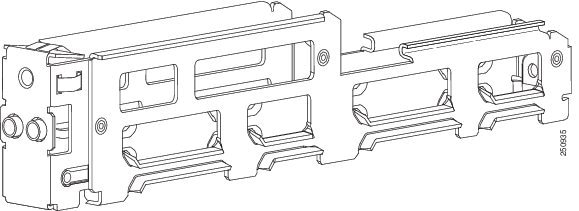
-
“Installing a Slot Divider for Single-Wide E-Series Servers or SM E-Series NCE Installation”
-
“Removing the Slot Divider for Double-Wide E-Series Server Installation”
Installing a Slot Divider for Single-Wide E-Series Servers or SM E-Series NCE Installation
By default, the slot dividers are preinstalled in the router. To replace a double-wide E-Series Server with a single-wide E-Series Server or SM E-Series NCE, you must install a slot divider. Use this procedure to install a slot divider for a single-wide E-Series Server or a SM E-Series NCE.
Before You Begin
Make sure that you connect the wrist-strap clip to an unpainted portion of the chassis frame to channel unwanted ESD voltages to ground.
Procedure
SUMMARY STEPS
- Remove any installed modules, blank faceplates, and slot adapters from the router slot that you want to use.
- Insert the top rails of the slot divider between the two guide rails in the top of the module slot.
- Push the slot divider in until it is fully seated. Slot dividers have a long retention screw that slides into the divider. See the figure above.
- Tighten the retention screw on the front of the slot divider with a number-1 Phillips screw driver so that the front surface of the slot divider is flush with the router panel.
DETAILED STEPS
| Step 1 |
Remove any installed modules, blank faceplates, and slot adapters from the router slot that you want to use. |
| Step 2 |
Insert the top rails of the slot divider between the two guide rails in the top of the module slot. 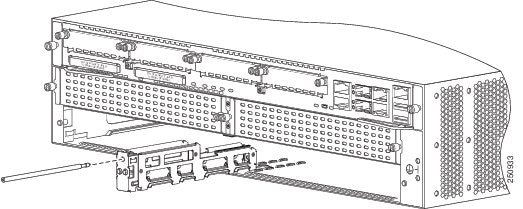 |
| Step 3 |
Push the slot divider in until it is fully seated. Slot dividers have a long retention screw that slides into the divider. See the figure above. |
| Step 4 |
Tighten the retention screw on the front of the slot divider with a number-1 Phillips screw driver so that the front surface of the slot divider is flush with the router panel. 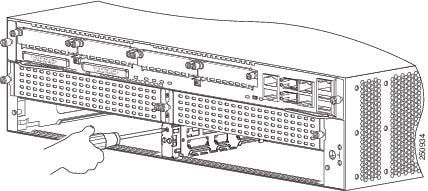 |
What to do next
What to Do Next
Install the E-Series Server or SM E-Series NCE into the router. See the “Installing the E-Series Server or the SM E-Series NCE into the Router".
Removing the Slot Divider for Double-Wide E-Series Server Installation
To install a double-wide E-Series Server in the SM slot, you must remove the slot divider. Use this procedure to remove the slot dividers from the SM slot.
Before You Begin
Make sure that you connect the wrist-strap clip to an unpainted portion of the chassis frame to channel unwanted ESD voltages to ground.
Procedure
SUMMARY STEPS
- Remove any installed service modules, blank faceplates, and slot adapters from the router slot that you plan to use.
- Loosen the retention screw on the front of the slot divider.
- Pull the slot divider straight out of the module slot.
DETAILED STEPS
| Step 1 |
Remove any installed service modules, blank faceplates, and slot adapters from the router slot that you plan to use. |
| Step 2 |
Loosen the retention screw on the front of the slot divider. |
| Step 3 |
Pull the slot divider straight out of the module slot. |
What to do next
What to Do Next
Install the E-Series Server into the router. See the “Installing the E-Series Server or the SM E-Series NCE into the Router”.
Installing the E-Series Server or the SM E-Series NCE into the Router
E-Series Servers or the SM E-Series NCE can be installed either before or after mounting the router, whichever is more convenient.
DANGER |
Only trained and qualified personnel should be allowed to install, replace, or service this equipment. Statement 1030 |
DANGER |
To avoid electric shock, do not connect safety extra-low voltage (SELV) circuits to telephone-network voltage (TNV) circuits. LAN ports contain SELV circuits, and WAN ports contain TNV circuits. Some LAN and WAN ports both use RJ-45 connectors. Use caution when connecting cables. Statement 1021 |
DANGER |
Hazardous network voltages are present in WAN ports regardless of whether power to the unit is OFF or ON. To avoid electric shock, use caution when working near WAN ports. When detaching cables, detach the end away from the unit first. Statement 1026 |
Caution |
To prevent damage to the server, handle the server by the chassis or frame. |
Before You Begin
Verify that you have done the following:
- Removed the blank faceplates from the slots that you intend to use. See the “Removing the Blank Faceplate from the Router’s SM Slot”.
- Saved the blank faceplates for future use.
- Prepared the slot for the module form factor that you are installing. See the “Preparing the Router’s SM Slot for E-Series Server or SM E-Series NCE Installation” .
- Connected a wrist-strap clip to an unpainted portion of the chassis frame to channel unwanted ESD voltages to ground.
For the Cisco 3900 ISR G2—If you are using PoE, and you want to install one double-wide E-Series Server and any number of server modules in a Cisco 3900 ISR G2, you must use a second AC and PoE supply to support this configuration.
For example, if you have a Cisco 3900 ISR G2 that has a PoE-capable switch providing power to phones, and you want to install a double-wide E-Series Server in one slot and one or two single-wide servers in the other slots, then you must use a second AC and PoE supply to support this configuration.
Procedure
SUMMARY STEPS
- Turn off the electrical power to the router. Leave the power cable plugged in to the channel ESD voltages to ground.
- Align the module with the guides in the chassis walls or slot divider and slide the module gently into the slot. See the following figures:
- Push the module into place until you feel the module seat securely into the connector on the router backplane. The module faceplate should contact the chassis rear panel.
- Using a number-1 Phillips or flat-blade screwdriver, tighten the captive mounting screws on the module faceplate.
DETAILED STEPS
| Step 1 |
Turn off the electrical power to the router. Leave the power cable plugged in to the channel ESD voltages to ground.
|
||||||||||||||
| Step 2 |
Align the module with the guides in the chassis walls or slot divider and slide the module gently into the slot. See the following figures: 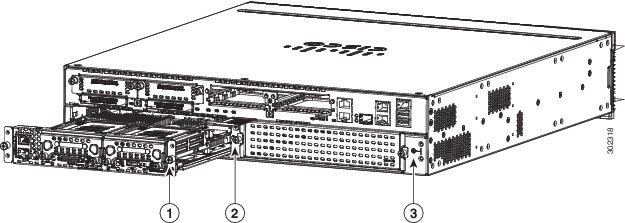

|
||||||||||||||
| Step 3 |
Push the module into place until you feel the module seat securely into the connector on the router backplane. The module faceplate should contact the chassis rear panel.
|
||||||||||||||
| Step 4 |
Using a number-1 Phillips or flat-blade screwdriver, tighten the captive mounting screws on the module faceplate. |
What to do next
What to Do Next
- Load a compatible Cisco IOS image. See the “Cisco ISR G2, E-Series Server, NCE, and Cisco IOS Software Release Compatibility” section in the Release Notes for Cisco UCS E-Series Servers and the Cisco UCS E-Series Network Compute Engine, Release 3.x.
- Connect the E-Series Server or SM E-Series NCE to the network and then power up the router and the server.
- Install blank faceplates to cover any open slots. See the “Installing the Blank Faceplate”.
- Verify that the router recognizes the E-Series Server or SM E-Series NCE. See the “Verifying E-Series Server or SM E-Series NCE Installation”.
Installing the Blank Faceplate
All empty chassis slots on the router must be covered with blank faceplates to ensure proper cooling and airflow and to prevent electromagnetic interference. Use this procedure to install a blank faceplate on the router’s SM slot.
Before You Begin
Make sure that you connect the wrist-strap clip to an unpainted portion of the chassis frame to channel unwanted ESD voltages to ground.
Procedure
SUMMARY STEPS
- Install the blank faceplate as shown in the figure below.
DETAILED STEPS
|
Install the blank faceplate as shown in the figure below.
|
Verifying E-Series Server or SM E-Series NCE Installation
Before You Begin
- Install the E-Series Server or SM E-Series NCE into the router.
- Load a compatible Cisco IOS image.
- Power on the server.
Procedure
To verify the E-Series Server or SM E-Series NCE installation, use one of the following commands:
- To display a high-level overview of the entire physical system, use the show platform command:
Router# show
 platform
Chassis type: ISR4451/K9
Slot Type State Insert time (ago)
--------- ------------------- ---------------------
0 ISR4451/K9 ok 1d01h
0/0 ISR4400-4X1GE ok 1d01h
1 ISR4451/K9 ok 1d01h
1/0 UCS-E160DP-M1/K9 ok 1d01h
2 ISR4451/K9 ok 1d01h
R0 ISR4451/K9 ok, active 1d01h
F0 ISR4451/K9 ok, active 1d01h
P0 XXX-XXXX-XX ok 1d01h
P1 Unknown ps, 1d01h
P2 ACS-4450-FANASSY ok 1d01h
Slot CPLD Version Firmware Version
--------- ------------------- ---------------------
0 12090323 12.2(20120829:165313)
1 12090323 12.2(20120829:165313)
2 12090323 12.2(20120829:165313)
R0 12090323 12.2(20120829:165313)
F0 12090323 12.2(20120829:165313)
- To verify that the router recognizes the server, use the show hw-module subslot all oir command:
Router# show hw-module subslot all oir
Module Model Operational Status
------------- -------------------- ------------------------
subslot 0/0 ISR4451-X-4X1GE ok
subslot 1/0 UCS-E140S-M1/K9 ok
subslot 2/0 UCS-E140S-M1/K9 ok
Migrating the E-Series Server from a Cisco ISR G2 into a Cisco ISR 4000 Series
If you are migrating the E-Series Server from a Cisco ISR G2 into a Cisco ISR 4000 series, you must first upgrade the CIMC and the BIOS firmware image to the latest version—while the E-Series Server is still installed in the Cisco ISR G2—and then migrate it into the Cisco ISR 4000 series. We strongly recommend that you upgrade both the CIMC and the BIOS firmware images.
You can use either the Cisco Host Upgrade Utility (HUU) to upgrade the firmware components or you can upgrade the firmware components manually. For firmware upgrade information, see the “Upgrading Firmware” chapter in the Getting Started Guide for Cisco UCS E-Series Server Modules and the Cisco UCS E-Series Network Compute Engine Integrated Management Controller on Cisco.com.
If you migrate the E-Series Server into the Cisco ISR 4000 series without first updating the CIMC firmware, the E-Series Server might continuously reset. To stop the reset and install the firmware, see the “Stopping the E-Series Server from Resetting and Updating the CIMC Firmware”.
Stopping the E-Series Server from Resetting and Updating the CIMC Firmware
If you migrate the E-Series Server into the Cisco ISR 4000 series without first updating the CIMC firmware, the E-Series Server might continuously reset. Use this procedure to stop the reset and install the firmware.
Note |
Some of the steps in this procedure are performed from the router, and other steps are performed from the E-Series Server. |
SUMMARY STEPS
- Router# hw-module subslot slot / subslot maintenance enable
- Router# hw-module subslot slot / subslot session imc
- Server# scope cimc
- Server/cimc# scope firmware
- Server/cimc/firmware# update tftp-ip-address path-and-filename
- Server/cimc/firmware# show [detail]
- Server/cimc/firmware# activate [1 | 2]
- Click Ctrl a Ctrl q .
- Router# hw-module subslot slot / subslot maintenance disable
- Router# hw-module subslot slot / subslot reload
DETAILED STEPS
| Command or Action | Purpose | |||
|---|---|---|---|---|
| Step 1 |
Router# hw-module subslot slot / subslot maintenance enable |
Disables error recovery, which stops the E-Series Server from being reset.
|
||
| Step 2 |
Router# hw-module subslot slot / subslot session imc |
Starts a CIMC session. |
||
| Step 3 |
Server# scope cimc |
From the CIMC CLI, enters the CIMC command mode.
|
||
| Step 4 |
Server/cimc# scope firmware |
Enters the CIMC firmware command mode. |
||
| Step 5 |
Server/cimc/firmware# update tftp-ip-address path-and-filename |
Starts the CIMC firmware update. The server will obtain the update firmware at the specified path and file-name from the TFTP server at the specified IP address. |
||
| Step 6 |
Server/cimc/firmware# show [detail] |
Displays the available firmware and status.
|
||
| Step 7 |
Server/cimc/firmware# activate [1 | 2] |
Activates the selected image. If no image number is specified, the server activates the currently inactive image. |
||
| Step 8 |
Click Ctrl a Ctrl q . |
Exits the CIMC session. |
||
| Step 9 |
Router# hw-module subslot slot / subslot maintenance disable |
Enables error recovery.
|
||
| Step 10 |
Router# hw-module subslot slot / subslot reload |
Reloads the E-Series Server.
|
Online Insertion and Removal—E-Series Servers
Online insertion and removal (OIR) provides uninterrupted network operation, maintains routing information, and ensures session preservation on the Cisco 3900 series ISR G2 and the Cisco ISR 4000 series. You can use online insertion and removal to install or replace hardware without affecting system operations.
Note |
OIR is not supported on the EHWIC E-Series NCE. |
Note |
The Cisco 2900 series ISR G2 does not support OIR of the E-Series Servers.To avoid damaging the router, turn off the electrical power on the router and disconnect network cables before inserting or removing the E-Series Server from the Cisco 2900 ISR G2. |
The OIR commands for the Cisco 3900 series ISR G2 and the Cisco ISR 4000 series are different. See the following topics for more information:
Removing the E-Series Server from a Cisco 3900 Series ISR G2
Shutting Down the E-Series Server Installed in a Cisco 3900 Series ISR G2
SUMMARY STEPS
- enable
- ucse slot shutdown
- hw-module sm slot oir-stop
DETAILED STEPS
| Command or Action | Purpose | |||
|---|---|---|---|---|
| Step 1 |
enable Example: |
Enables privileged EXEC mode. Enter your password if prompted. |
||
| Step 2 |
ucse slot shutdown Example:Example:Example: |
Shuts down the E-Series Server gracefully.
|
||
| Step 3 |
hw-module sm slot oir-stop Example:Example:Example: |
Shuts down power to the specified E-Series Server to prepare it for removal. When it is safe to remove the E-Series Server, a message is displayed as shown in the example.
|
Restarting the E-Series Server Installed in a Cisco 3900 Series ISR G2
If the oir-stop command is issued and the E-Series Server is not physically removed from the slot, you can restart the E-Series Server with the oir-start command. From a console terminal, issue the hw-module sm slot oir-start command. The console displays the module’s changing state.
Router# hw-module sm 2 oir-start
Router#
*Mar  8 05:40:19.195: %LINK-3-UPDOWN: Interface ucse2/0, changed state to up
*Mar  8 05:40:20.195: %LINEPROTO-5-UPDOWN: Line protocol on Interface ucse2/0, changed
state to up
Inserting the E-Series Server in a Cisco 3900 Series ISR G2
The Cisco 3900 ISR G2 that is up and running can detect when an E-Series Server is inserted in the SM slot and will automatically provide power to the server.
Removing the E-Series Server from a Cisco ISR 4000 Series
Shutting Down the E-Series Server Installed in a Cisco ISR 4000 Series
SUMMARY STEPS
- enable
- ucse subslot slot /0 shutdown
- hw-module subslot slot /0 stop
DETAILED STEPS
| Command or Action | Purpose | |||
|---|---|---|---|---|
| Step 1 |
enable Example: |
Enables privileged EXEC mode. Enter your password if prompted. |
||
| Step 2 |
ucse subslot slot /0 shutdown Example: |
Shuts down the E-Series Server gracefully.
|
||
| Step 3 |
hw-module subslot slot /0 stop Example:Example: |
Shuts down power to the specified E-Series Server to prepare it for removal. When it is safe to remove the E-Series Server, a message is displayed as shown in the example.
|
Restarting the E-Series Server Installed in a Cisco ISR 4000 Series
If the oir-stop command is issued and the E-Series Server is not physically removed from the slot, you can restart the E-Series Server with the start command. From a console terminal, issue the hw-module subslot slot/0 start command. The console displays the module’s changing state.
Router# hw-module subslot 1/0 start
Inserting the E-Series Server in a Cisco ISR 4000 Series
A Cisco ISR 4000 series that is up and running can detect when an E-Series Server is inserted in the SM slot. After the router detects the E-Series Server, the router software enables power to the server.
Installing or Replacing Hard Disk Drives on the E-Series Servers
The double-wide E-Series Servers can be ordered with two or three hard disk drives (HDD) or solid-state drives (SSD) preinstalled. The double-wide E-Series Servers support the following Redundant Array of Independent Disks (RAID) configuration:
- RAID 0 (data striping)—Data is stored evenly in stripe blocks across all disks in the array, providing fast throughput. There is no data redundancy, and all data is lost if any disk fails.
- RAID 1 (disk mirroring)—Data is written to two disks, w here the data in both disk drives is identical. This p rovides complete data redundancy if one disk fails.
- RAID 5 (disk striping with distributed parity)—Data and parity information is striped and distributed across all disks in the array with distributed parity information. RAID 5 requires three hard disks and provides limited fault tolerance.
The double-wide E-Series Servers support adding a hot spare drive under RAID 1. If one of the disk drives under RAID 1 fails and there is a hot spare drive installed, the system automatically rebuilds the disk image onto the hot spare drive. The hot spare drive replaces the failed drive as the mirrored drive under RAID 1. To maintain fault tolerance, you must install another hard disk drive.
The single-wide E-Series Servers and the SM E-Series NCE come with two HDDs or SSDs preinstalled. The single-wide E-Series Servers and the SM E-Series NCE support RAID 0 and RAID 1.
The EHWIC E-Series NCE comes with one SSD preinstalled. The EHWIC E-Series NCE does not support RAID.
DANGER |
Only trained and qualified personnel should be allowed to install or replace this equipment. Statement 1030 |
DANGER |
Ultimate disposal of this product should be handled according to all national laws and regulations. Statement 1040 |
DANGER |
No user-serviceable parts inside. Do not open. Statement 1073 |
DANGER |
This unit might have more than one power supply connection. All connections must be removed to de-energize the unit. Statement 1028 |
DANGER |
Blank faceplates and cover panels serve three important functions: they prevent exposure to hazardous voltages and currents inside the chassis; they contain electromagnetic interference (EMI) that might disrupt other equipment; and they direct the flow of cooling air through the chassis. Do not operate the system unless all cards, faceplates, front covers, and rear covers are in place. Statement 1029 |
The hard disk drives must be installed in the following order:
- HDD0
- HDD1
- HDD2
Before You Begin
Make sure that you connect the wrist-strap clip to an unpainted portion of the chassis frame to channel unwanted ESD voltages to ground.
Procedure
Use this procedure to install or replace a hard disk drive on the E-Series Servers.
Note |
The procedure to install or replace the Hard Disk drives on an E-Series Server is the same for M1, M2, and M3 servers. |
SUMMARY STEPS
- Turn off power to the router.
- Using either a number-1 Phillips screwdriver or a small flat-blade screwdriver, unscrew the captive screws on the faceplate and remove the cover faceplate. See the following figures.
- (Optional) If the slot is empty, use the screwdriver to loosen the screws on the bracket, and then remove the bracket (see the following figure).
- (Optional) If there is a hard disk drive, use the screwdriver to loosen the captive screws on the hard disk drive assembly.
- (Optional) To remove the faulty hard disk, pull the handle of the hard disk drive assembly and slide out the hard disk drive.
- Slide the new hard disk drive into the E-Series Server until it clicks into place.
- Tighten the captive screws on the new hard disk drive assembly. Make sure that the HDDs are firmly secure to the carrier to avoid rattling during operation.
- Replace the faceplate.
- Restart the E-Series Server.
- Configure the new HDD as the new hotspare disk drive. For the configuration procedure, see the GUI Configuration Guide for UCS E-Series Servers and the Cisco UCS E-Series Network Compute Engine Integrated Management Controller.
DETAILED STEPS
| Step 1 |
Turn off power to the router.
|
||||||||||||
| Step 2 |
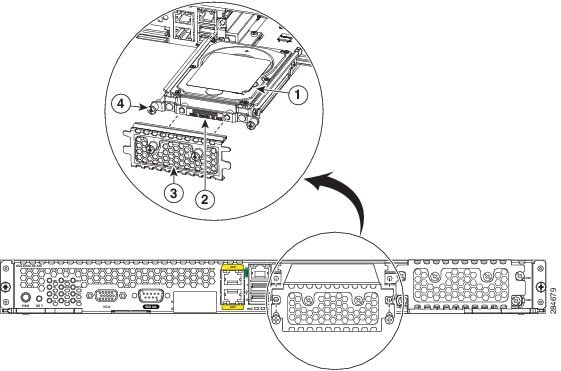
Using either a number-1 Phillips screwdriver or a small flat-blade screwdriver, unscrew the captive screws on the faceplate and remove the cover faceplate. See the following figures. 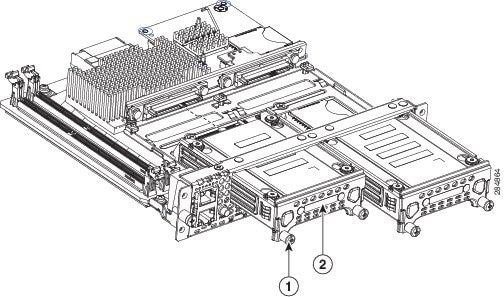
|
||||||||||||
| Step 3 |
(Optional) If the slot is empty, use the screwdriver to loosen the screws on the bracket, and then remove the bracket (see the following figure). 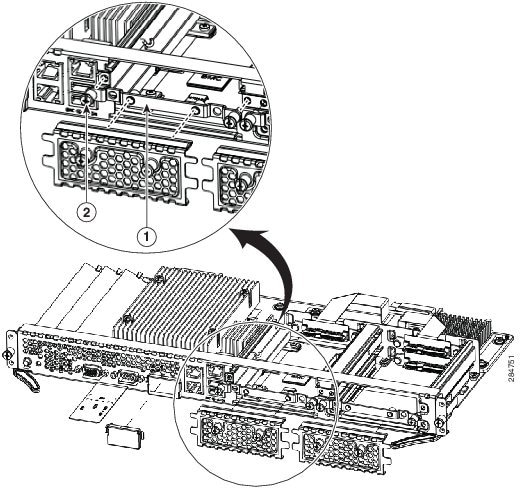
|
||||||||||||
| Step 4 |
(Optional) If there is a hard disk drive, use the screwdriver to loosen the captive screws on the hard disk drive assembly. |
||||||||||||
| Step 5 |
(Optional) To remove the faulty hard disk, pull the handle of the hard disk drive assembly and slide out the hard disk drive. |
||||||||||||
| Step 6 |
Slide the new hard disk drive into the E-Series Server until it clicks into place. |
||||||||||||
| Step 7 |
Tighten the captive screws on the new hard disk drive assembly. Make sure that the HDDs are firmly secure to the carrier to avoid rattling during operation. |
||||||||||||
| Step 8 |
Replace the faceplate. |
||||||||||||
| Step 9 |
Restart the E-Series Server. |
||||||||||||
| Step 10 |
Configure the new HDD as the new hotspare disk drive. For the configuration procedure, see the GUI Configuration Guide for UCS E-Series Servers and the Cisco UCS E-Series Network Compute Engine Integrated Management Controller. |
Installing and Replacing the Memory DIMMS in the E-Series Servers
Note |
You cannot replace the memory DIMM in an EHWIC E-Series NCE. If you encounter a problem with the memory DIMM, you must replace the entire EHWIC E-Series NCE. |
Caution |
Always wear an ESD-preventive wrist strap and ensure that it makes good contact with your skin when you remove or install DIMMs. Connect the equipment end of the wrist strap to the metal part of the chassis. |
Caution |
Handle the DIMMs by the edges only. DIMMs are ESD-sensitive components and can be damaged by mishandling. |
DANGER |
Only trained and qualified personnel should be allowed to install or replace this equipment. Statement 1030 |
DANGER |
Ultimate disposal of this product should be handled according to all national laws and regulations. Statement 1040 |
DANGER |
No user-serviceable parts inside. Do not open. Statement 1073 |
DANGER |
This unit might have more than one power supply connection. All connections must be removed to de-energize the unit. Statement 1028 |
DANGER |
Blank faceplates and cover panels serve three important functions: they prevent exposure to hazardous voltages and currents inside the chassis; they contain electromagnetic interference (EMI) that might disrupt other equipment; and they direct the flow of cooling air through the chassis. Do not operate the system unless all cards, faceplates, front covers, and rear covers are in place. Statement 1029 |
This section includes the following topics:
Memory DIMM Location
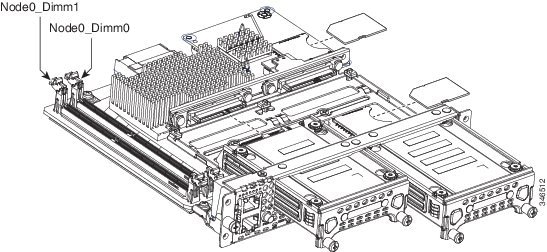
The following figure shows the location of the memory DIMMs in a single-wide E-Series Server.
Note |
The single-wide E-Series Servers support up to 16 GB of DDR3 memory DIMMs. |
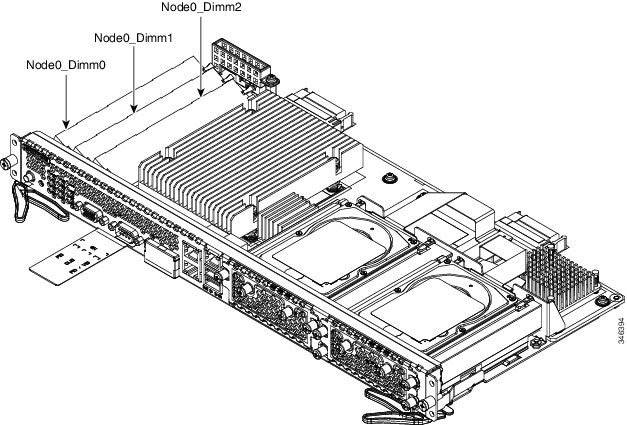
The following figure shows the location of the memory DIMMs in a double-wide E-Series Server.
Note |
The double-wide E-Series Servers support up to 48 GB of DDR3 memory DIMMs. |
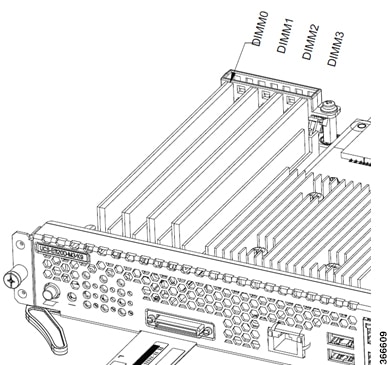
The following figure shows the location of the memory DIMMs in the double-wide E-Series Servers UCS-E180D-M3 and UCS-E1120D-M3.
Removing the Memory DIMM
Before You Begin
Make sure that you connect the wrist-strap clip to an unpainted portion of the chassis frame to channel unwanted ESD voltages to ground.
Procedure
SUMMARY STEPS
- Turn off power to the router.
- Locate the DIMM on the E-Series Server. See the Memory DIMM Location.
- Pull the latches away from the DIMM at both ends to lift the DIMM slightly.
- Pull the DIMM out of the socket as shown in the following figure.
- Place the DIMM in an antistatic bag to protect it from ESD damage.
DETAILED STEPS
| Step 1 |
Turn off power to the router.
|
||
| Step 2 |
Locate the DIMM on the E-Series Server. See the Memory DIMM Location. |
||
| Step 3 |
Pull the latches away from the DIMM at both ends to lift the DIMM slightly.
|
||
| Step 4 |
Pull the DIMM out of the socket as shown in the following figure. 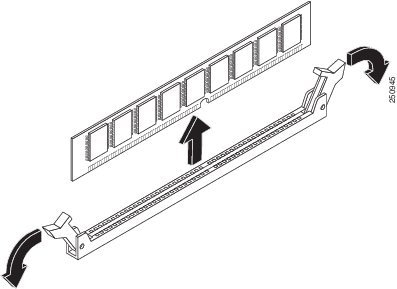 |
||
| Step 5 |
Place the DIMM in an antistatic bag to protect it from ESD damage. |
Installing the Memory DIMM
For information about the memory on the router, see the appropriate router documentation. For information about the memory on the E-Series Server, see the requirements of the installed operating system.
The single-wide E-Series Servers support up to 16 GB of DDR3 memory DIMMs.
The double-wide E-Series Servers support up to 48 GB of DDR3 memory DIMMs.
Performance degradation can occur if you use the following memory configuration:
- Mix DIMM sizes and densities within a channel.
- Partially populate a channel.
- Unevenly populate the DIMMs between CPUs.
DIMMs must be installed in the following order in the double-wide E-Series Servers:
- DIMM 1 (center DIMM)
- DIMM 2 (closest to the CPU)
- DIMM 0 (outboard DIMM)
DIMMs must be installed in the following order in the single-wide E-Series Servers:
- DIMM 0 (closest to the CPU)
- DIMM 1 (outboard DIMM)
Before You Begin
Make sure that you connect the wrist-strap clip to an unpainted portion of the chassis frame to channel unwanted ESD voltages to ground.
Procedure
SUMMARY STEPS
- Turn off power to the router.
- Locate the DIMM connector. See the Memory DIMM Location.
- Make sure that both latches on the DIMM connector are in the open position.
- Orient the DIMM so that the polarization notch on the DIMM lines up with the notch on the connector.
- Insert the DIMM into the connector.
- Carefully and firmly press the DIMM into the connector until the latches close onto the DIMM. Make sure that both latches snap to the closed position against the DIMM.
- Replace the E-Series Server.
DETAILED STEPS
| Step 1 |
Turn off power to the router.
|
||||
| Step 2 |
Locate the DIMM connector. See the Memory DIMM Location.
|
||||
| Step 3 |
Make sure that both latches on the DIMM connector are in the open position. |
||||
| Step 4 |
Orient the DIMM so that the polarization notch on the DIMM lines up with the notch on the connector. 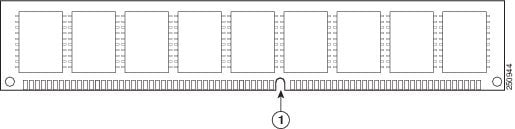
|
||||
| Step 5 |
Insert the DIMM into the connector. |
||||
| Step 6 |
Carefully and firmly press the DIMM into the connector until the latches close onto the DIMM. Make sure that both latches snap to the closed position against the DIMM. 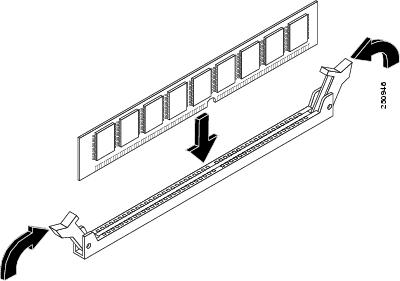 |
||||
| Step 7 |
Replace the E-Series Server. |
EHWIC E-Series NCE
See the following sections for more information about EHWIC E-Series NCE:
EHWIC E-Series NCE—Front Panel and Components
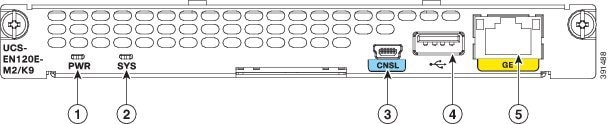
|
1 |
LED for power |
2 |
LED for the system |
|
3 |
Console port |
4 |
VGA port |
|
5 |
Gigabit Ethernet port (GE2) |
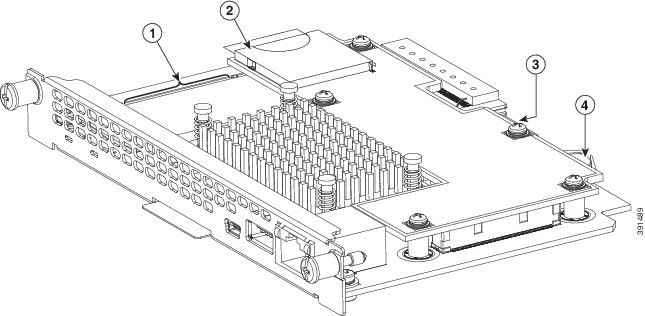
|
1 |
Memory DIMM slot |
2 |
SD0
|
||
|
3 |
Hard disk drive (located under the daughter card) |
4 |
CMOS battery (located under the daughter card) |
EHWIC E-Series NCE LEDs
The following table lists the EHWIC E-Series NCE LEDs and describes the LED colors and states.
|
LED |
Color |
State |
||||
|---|---|---|---|---|---|---|
|
Power |
Green |
|
||||
|
Amber |
|
|||||
|
SYS |
Green |
|
||||
|
Amber |
Fault is detected on the processor. |
|||||
|
GE Port LEDs |
Green |
Left LED shows the condition of the traffic:
|
||||
|
Green |
Right LED shows whether the link is established:
|
Basic Workflow for Installing the EHWIC E-Series NCE in the EHWIC Slot
SUMMARY STEPS
- Reference Topic
- Gather the required tools and equipment.
- Remove the blank faceplate from the EHWIC slots that you want to use.
- Remove the slot divider from the EHWIC slot for EHWIC E-Series NCE installation.
- Install the EHWIC E-Series NCE into the router.
- Verify the EHWIC E-Series NCE installation.
DETAILED STEPS
| Command or Action | Purpose | |
|---|---|---|
| Step 1 |
Action |
|
| Step 2 |
Reference Topic |
|
| Step 3 |
Gather the required tools and equipment. |
|
| Step 4 |
Remove the blank faceplate from the EHWIC slots that you want to use. |
|
| Step 5 |
Remove the slot divider from the EHWIC slot for EHWIC E-Series NCE installation. |
|
| Step 6 |
Install the EHWIC E-Series NCE into the router. |
|
| Step 7 |
Verify the EHWIC E-Series NCE installation. |
Removing Blank Faceplates from the EHWIC Slots
Before You Begin
Make sure that you connect the wrist-strap clip to an unpainted portion of the chassis frame to channel unwanted ESD voltages to ground.
Procedure
SUMMARY STEPS
- Using either a number-1 Phillips screwdriver or a small flat-blade screwdriver, unscrew the captive screws and remove the blank faceplate from the chassis slot you plan to use. See Figure 24 and 25.
- Save the blank faceplates for future use.
DETAILED STEPS
| Step 1 |
Using either a number-1 Phillips screwdriver or a small flat-blade screwdriver, unscrew the captive screws and remove the blank faceplate from the chassis slot you plan to use. See Figure 24 and 25. 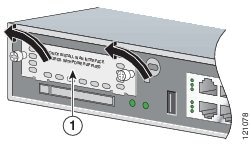
|
||
| Step 2 |
Save the blank faceplates for future use. |
What to do next
What to Do Next
Remove the slot dividers from the EHWIC slot. See the Removing Slot Dividers from EHWIC Slots.
Removing Slot Dividers from EHWIC Slots
Slot dividers are removed to permit use of double-wide EHWIC E-Series NCE in the router slots.
Note |
The EHWIC slots on both sides of a slot divider must be empty before you remove the slot divider. |
Before You Begin
Make sure that you connect the wrist-strap clip to an unpainted portion of the chassis frame to channel unwanted ESD voltages to ground.
Procedure
SUMMARY STEPS
- Remove any installed interface cards and blank faceplates from the router slot you plan to use.
- Loosen the retention screw on the slot divider. See Figure 1.
- Pull the slot divider straight out of the EHWIC slot.
DETAILED STEPS
| Step 1 |
Remove any installed interface cards and blank faceplates from the router slot you plan to use. |
||
| Step 2 |
Loosen the retention screw on the slot divider. See Figure 1. 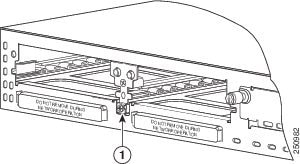
|
||
| Step 3 |
Pull the slot divider straight out of the EHWIC slot. |
What to do next
What to Do Next
Install the EHWIC E-Series NCE into the router. See the Installing the EHWIC E-Series NCE into the Router.
Installing the EHWIC E-Series NCE into the Router
The EHWIC E-Series NCE can be installed either before or after mounting the router, whichever is convenient.
DANGER |
Only trained and qualified personnel should be allowed to install, replace, or service this equipment. Statement 1030 |
DANGER |
To avoid electric shock, do not connect safety extra-low voltage (SELV) circuits to telephone-network voltage (TNV) circuits. LAN ports contain SELV circuits, and WAN ports contain TNV circuits. Some LAN and WAN ports both use RJ-45 connectors. Use caution when connecting cables. Statement 1021 |
DANGER |
Hazardous network voltages are present in WAN ports regardless of whether power to the unit is OFF or ON. To avoid electric shock, use caution when working near WAN ports. When detaching cables, detach the end away from the unit first. Statement 1026 |
Caution |
To prevent damage to the server, handle the server by the chassis or frame. |
Before You Begin
Verify that you have done the following:
- Removed the blank faceplate from the EHWIC slots that you want to use. See the Removing Blank Faceplates from the EHWIC Slots.
- Saved the blank faceplates for future use.
- Removed the slot divider from the EHWIC slot for EHWIC E-Series NCE installation. See the Removing Slot Dividers from EHWIC Slots .
- Connected a wrist-strap clip to an unpainted portion of the chassis frame to channel unwanted ESD voltages to ground.
Procedure
SUMMARY STEPS
- Turn off electrical power to the router. Leave the power cable plugged in to channel ESD voltages to ground.
- Remove all network cables, including telephone cables, from the router.
- Align the EHWIC E-Series NCE with the guides in the chassis walls or slot divider, and slide it gently into the slot. (See Figure 1.)
- Using the faceplate, push the EHWIC E-Series NCE into place until you feel the EHWIC seat securely into the connector on the router backplane. The interface card faceplate should contact the chassis rear panel.
- Using a number-1 Phillips or flat-blade screwdriver, tighten the captive mounting screws on the EHWIC E-Series NCE faceplate.
DETAILED STEPS
| Step 1 |
Turn off electrical power to the router. Leave the power cable plugged in to channel ESD voltages to ground. |
||||||
| Step 2 |
Remove all network cables, including telephone cables, from the router.
|
||||||
| Step 3 |
Align the EHWIC E-Series NCE with the guides in the chassis walls or slot divider, and slide it gently into the slot. (See Figure 1.) 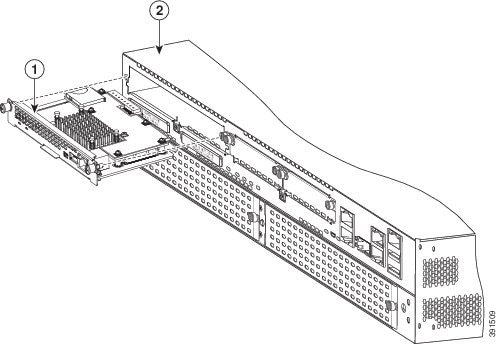
|
||||||
| Step 4 |
Using the faceplate, push the EHWIC E-Series NCE into place until you feel the EHWIC seat securely into the connector on the router backplane. The interface card faceplate should contact the chassis rear panel.
|
||||||
| Step 5 |
Using a number-1 Phillips or flat-blade screwdriver, tighten the captive mounting screws on the EHWIC E-Series NCE faceplate. |
What to do next
What to Do Next
- Load a compatible Cisco IOS image.
- Connect the EHWIC E-Series NCE to the network and then power up the router and the NCE.
- Verify that the router recognizes the EHWIC E-Series NCE. See the Verifying EHWIC E-Series NCE Installation.
Verifying EHWIC E-Series NCE Installation
Before You Begin
- Install the EHWIC E-Series NCE into the router.
- Load a compatible Cisco IOS image. See the “Cisco ISR G2, E-Series Server, NCE, and Cisco IOS Software Release Compatibility” section in the Release Notes for Cisco UCS E-Series Servers and the Cisco UCS E-Series Network Compute Engine, Release 3.x.
- Power on the EHWIC E-Series NCE.
Procedure
To verify that the router detects the presence of the newly installed EHWIC E-Series NCE, use the show inventory command.
Router> show inventory
NAME: “CISCO3945-CHASSIS”, DESCR: “CISCO3945-CHASSIS”
PID: CISCO3945-CHASSIS, VID: V02, SN: FGL1539100Q
NAME: “Cisco Services Performance Engine 150 for Cisco 3900 ISR on Slot 0", DESCR: “Cisco
Services Performance Engine 150 for Cisco 3900 ISR”
PID: C3900-SPE150/K9, VID: V05, SN: FOC15367HAZ
NAME: “Enhanced WAN Interface Card UCS Server on Slot 0 SubSlot 3", DESCR: “Enhanced WAN
Interface Card UCS Server”
PID: UCS-EN120E-M2/K9, VID: V01, SN: FOC17462K2A
NAME: “C3900 AC Power Supply 1", DESCR: “C3900 AC Power Supply 1"
PID: PWR-3900-AC, VID: V03, SN: SNI1511C8SM
Online Insertion and Removal—EHWIC E-Series NCE
Note |
OIR is not supported on the EHWIC E-Series NCE. |
Installing the Field Programmable Gate Array Image in the EHWIC E-Series NCE
Caution |
The Field Programmable Gate Array (FPGA) comes preinstalled when you purchase the EHWIC E-Series NCE. Use this procedure only if Cisco Systems requires you to install a new FPGA image. |
Procedure
SUMMARY STEPS
- Download the fpga-name .rbf image file from the assigned tftp server onto the Flash drive.
- Use the following command to install the FPGA image:
- After the installation completes, power cycle the router for the new FPGA image to take effect.
DETAILED STEPS
| Step 1 |
Download the fpga-name .rbf image file from the assigned tftp server onto the Flash drive. |
||
| Step 2 |
Use the following command to install the FPGA image: Example:
|
||
| Step 3 |
After the installation completes, power cycle the router for the new FPGA image to take effect.
|
NIM E-Series NCE
See the following sections for more information about NIM E-Series NCE:
NIM E-Series NCE—Front Panel and Components
The following figure shows the front panel of the NIM E-Series NCE.
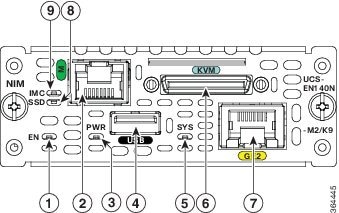
|
1 |
EN LED |
2 |
Management port |
|
3 |
Power LED |
4 |
USB |
|
5 |
LED for the system |
6 |
KVM port used for keyboard, video, and mouse (KVM) connector. Refer Figure 2. |
|
7 |
GE Port |
8 |
LED for the SSD drive |
|
9 |
LED for the CIMC |
The following figure shows the KVM connector.
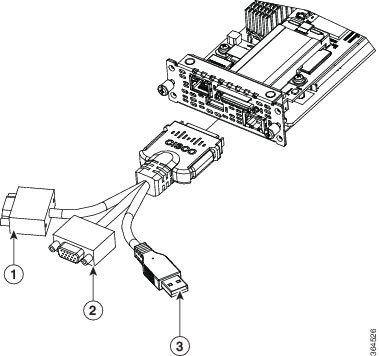
|
1 |
DB15 connector—video port |
2 |
USB connector |
|
3 |
DB9 connector—serial port |
The following figure shows the internal components of the NIM E-Series NCE.
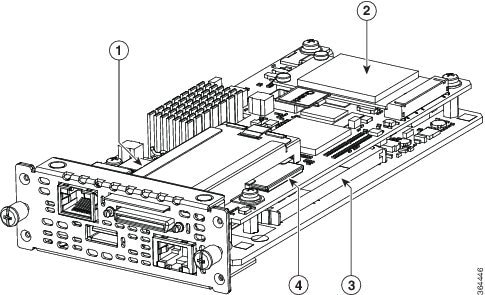
|
1 |
CMOS battery (located under the daughter card) |
2 |
HDD |
||
|
3 |
Memory DIMM slots (located under the daughter card) |
4 |
SD0
|
NIM E-Series NCE LEDs
The following table lists the NIM E-Series NCE LEDs and describes the LED colors and states.
|
LED |
Color |
State |
||||
|---|---|---|---|---|---|---|
|
Power |
Green |
|
||||
|
Amber |
|
|||||
|
SYS |
Green |
|
||||
|
Amber |
Fault is detected on the processor. |
|||||
|
IMC |
Green |
Blinks when the CIMC is operating normally. |
||||
|
SSD |
Green |
Blinks when the SSD is operating normally. |
||||
|
GE Port LEDs |
Green |
Left LED shows the condition of the traffic:
|
||||
|
Green |
Right LED shows whether the link is established:
|
Basic Workflow for Installing the NIM E-Series NCE in the NIM Slot
SUMMARY STEPS
- Reference Topic
- Gather the required tools and equipment.
- Remove the blank faceplates from the NIM slot that you want to use.
- Install the NIM E-Series NCE into the router.
- Verify the NIM E-Series NCE installation.
DETAILED STEPS
| Command or Action | Purpose | |
|---|---|---|
| Step 1 |
Action |
|
| Step 2 |
Reference Topic |
|
| Step 3 |
Gather the required tools and equipment. |
|
| Step 4 |
Remove the blank faceplates from the NIM slot that you want to use. |
— |
| Step 5 |
Install the NIM E-Series NCE into the router. |
|
| Step 6 |
Verify the NIM E-Series NCE installation. |
Installing the NIM E-Series NCE into the Router
The NIM E-Series NCE can be installed either before or after mounting the router, whichever is convenient.
DANGER |
Only trained and qualified personnel should be allowed to install, replace, or service this equipment. Statement 1030 |
DANGER |
To avoid electric shock, do not connect safety extra-low voltage (SELV) circuits to telephone-network voltage (TNV) circuits. LAN ports contain SELV circuits, and WAN ports contain TNV circuits. Some LAN and WAN ports both use RJ-45 connectors. Use caution when connecting cables. Statement 1021 |
DANGER |
Hazardous network voltages are present in WAN ports regardless of whether power to the unit is OFF or ON. To avoid electric shock, use caution when working near WAN ports. When detaching cables, detach the end away from the unit first. Statement 1026 |
Caution |
To prevent damage to the server, handle the server by the chassis or frame. |
Before You Begin
Do the following:
- Using either a number-1 Phillips screwdriver or a small flat-blade screwdriver, unscrew the captive screws and remove the blank faceplate from the chassis NIM slot that you want to use.
- Save the blank faceplates for future use.
- Connect a wrist-strap clip to an unpainted portion of the chassis frame to channel unwanted ESD voltages to ground.
Procedure
SUMMARY STEPS
- Turn off electrical power to the router. Leave the power cable plugged in to channel ESD voltages to ground.
- Remove all network cables, including telephone cables, from the rear panel of the router.
- Align the NIM E-Series NCE with the guides in the chassis walls or slot divider, and slide it gently into the NIM slot. (See Figure 1.)
- Using the faceplate, push the NIM E-Series NCE into place until you feel the NIM seat securely into the connector on the router backplane. The NIM faceplate should contact the chassis rear panel.
- Using a number-1 Phillips or flat-blade screwdriver, tighten the captive mounting screws on the NIM faceplate.
DETAILED STEPS
| Step 1 |
Turn off electrical power to the router. Leave the power cable plugged in to channel ESD voltages to ground. |
||||||
| Step 2 |
Remove all network cables, including telephone cables, from the rear panel of the router. |
||||||
| Step 3 |
Align the NIM E-Series NCE with the guides in the chassis walls or slot divider, and slide it gently into the NIM slot. (See Figure 1.) 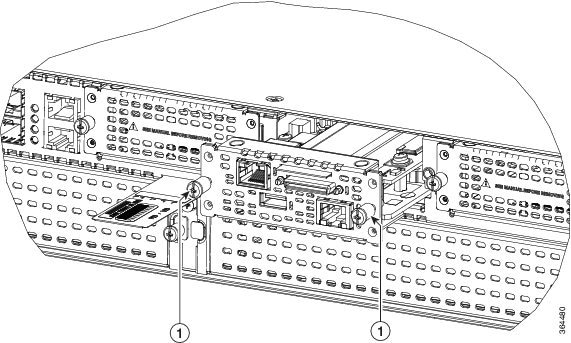
|
||||||
| Step 4 |
Using the faceplate, push the NIM E-Series NCE into place until you feel the NIM seat securely into the connector on the router backplane. The NIM faceplate should contact the chassis rear panel.
|
||||||
| Step 5 |
Using a number-1 Phillips or flat-blade screwdriver, tighten the captive mounting screws on the NIM faceplate. |
What to do next
What to Do Next
- Load a compatible Cisco IOS image. See the “Cisco ISR 4000, E-Series Server, NCE, CIMC and Cisco IOS Software Release Compatibility” section in the Release Notes for Cisco UCS E-Series Servers and the Cisco UCS E-Series Network Compute Engine, Release 3.x.
- Connect the NIM E-Series NCE to the network and then power up the router and the NIM.
- Verify that the router recognizes the NIM E-Series NCE. See the Verifying NIM E-Series NCE Installation.
Verifying NIM E-Series NCE Installation
Before You Begin
- Install the NIM E-Series NCE into the router.
- Load a compatible Cisco IOS image. See the “Cisco ISR 4000, E-Series Server, NCE, CIMC and Cisco IOS Software Release Compatibility” section in the Release Notes for Cisco UCS E-Series Servers and the Cisco UCS E-Series Network Compute Engine, Release 3.x.
- Power on the NIM E-Series NCE.
Procedure
To verify the NIM E-Series NCE installation, use one of the following commands:
- To display a high-level overview of the entire physical system, use the show platform command:
Router# show
 platform
Chassis type: ISR4351/K9
0/1       UCS-EN140N-M2/K9    ok                    3w5d
1/0       UCS-E140DP-M1/K9    ok                    4w6d
2         ISR4351/K9          ok                    5w2d
R0        ISR4351/K9          ok, active            5w2d
F0        ISR4351/K9          ok, active            5w2d
P0        PWR-4450-AC         ok                    5w2d
P2        ACS-4450-FANASSY    ok                    5w2d
Slot      CPLD Version        Firmware Version
--------- ------------------- ---------------------------------------
0         14080523            15.4(3r)S1
1         14080523            15.4(3r)S1
2         14080523            15.4(3r)S1
R0        14080523            15.4(3r)S1
F0        14080523            15.4(3r)S1
- To verify that the router recognizes the server, use the show hw-module subslot all oir command:
Router# show hw-module subslot all oir
Module        Model                Operational Status
------------- -------------------- ------------------------
subslot 0/0   ISR4351-3x1GE        ok
subslot 0/1   UCS-EN140N-M2/K9     ok
subslot 1/0   UCS-E140DP-M1/K9     ok
Online Insertion and Removal—NIM E-Series NCE
Online insertion and removal (OIR) provides uninterrupted network operation, maintains routing information, and ensures session preservation on the Cisco ISR 4000 series. You can use online insertion and removal to install or replace hardware without affecting system operations.
Removing the NIM E-Series NCE from a Cisco ISR 4000 Series
Shutting Down the NIM E-Series NCE Installed in a Cisco ISR 4000 Series
SUMMARY STEPS
- enable
- hw-module subslot 0/ NIM slot-number stop
DETAILED STEPS
| Command or Action | Purpose | |||
|---|---|---|---|---|
| Step 1 |
enable Example: |
Enables privileged EXEC mode. Enter your password if prompted. |
||
| Step 2 |
hw-module subslot 0/ NIM slot-number stop Example: |
Shuts down power to the specified NIM E-Series NCE to prepare it for removal. The NIM slot number can be 1, 2, or 3.
|
Restarting the NIM E-Series NCE Installed in a Cisco ISR 4000 Series
If the stop command is issued and the NIM E-Series NCE is not physically removed from the slot, you can restart the NIM E-Series NCE with the start command. From a console terminal, issue the hw-module subslot 0 / NIM-slot-number start command. The console displays the module’s changing state.
Router# hw-module subslot 0/1 start
Inserting the NIM E-Series NCE in a Cisco ISR 4000 Series
A Cisco ISR 4000 series that is up and running can detect when an NIM E-Series NCE is inserted in the NIM slot. After the router detects the NIM E-Series NCE, the router software enables power to the server.
Removing the COA
Note |
The procedure to remove the COA is the same for M1, M2, and M3 servers. |
In the event that you need to return the E-Series Server, make sure that you retain the original Certificate of Authenticity (COA) label. The COA is the label from Microsoft with the code that enables their windows software. After you return the server, Cisco Systems cannot retrieve the COA label from the returned server.
The COA label is attached to the inside half of a plastic pull out label tray. To remove the COA label, cut away the half of the label that contains the COA label and save it. Return the unit with the other half of the label tray, which contains the units CLEI code, serial number, and other important unit labels, to Cisco Systems or your licensed reseller.
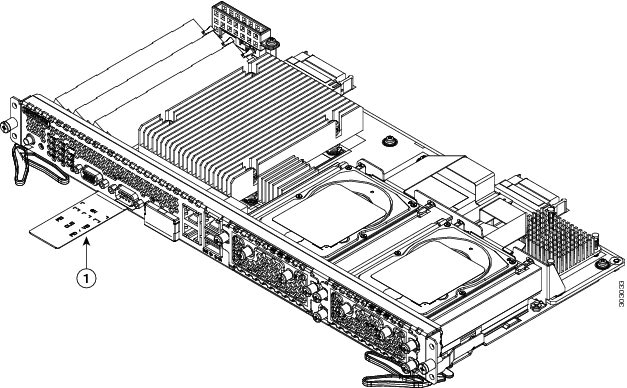
|
1 |
Plastic pull label tray |
Note |
The COA label from Microsoft is single layer and not foldable. |
Cisco Integrated Management Controller
Cisco Integrated Management Controller (CIMC) is a separate management module built into the motherboard. CIMC is the management service for the E-Series Servers. You can use a web-based GUI or SSH-based CLI to access, configure, administer, and monitor the server. For more information on CIMC, see the GUI Configuration Guide for Cisco UCS E-Series Server and the Cisco UCS E-Series Network Compute Engine.
Related Documentation
For more information about Cisco UCS E-Series Servers and the Cisco UCS E-Series Network Compute Engine, see the following related documentation:
-
For links to the following
http://www.cisco.com/en/US/docs/unified_computing/ucs/e/1.0/roadmap/e_series_road_map.html
Cisco UCS E-Series Servers and the Cisco UCS Network Compute Engine documents, see the
Documentation Guide for Cisco UCS E-Series Servers
- Release Notes for Cisco UCS E-Series Servers and the Cisco UCS E-Series Network Compute Engine
- Getting Started Guide for Cisco UCS E-Series Servers and the Cisco UCS E-Series Network Compute Engine
- Hardware Installation Guide for Cisco UCS E-Series Servers and the Cisco UCS E-Series Network Compute Engine (this document)
- Cisco Network Modules, Server Modules, and Interface Cards Regulatory Compliance and Safety Information
- Host Upgrade Utility Guide for Cisco UCS E-Series Servers and the Cisco UCS E-Series Network Compute Engine
- GUI Configuration Guide for Cisco UCS E-Series Servers and the Cisco UCS E-Series Network Compute Engine Integrated Management Controller
- CLI Configuration Guide for Cisco UCS E-Series Servers and the Cisco UCS E-Series Network Compute Engine Integrated Management Controller
- CIMC XML API Programmer’s Guide for Cisco UCS E-Series Servers and the Cisco UCS E-Series Network Compute Engine
- Troubleshooting Guide for Cisco UCS E-Series Servers and the Cisco UCS E-Series Network Compute Engine
- Open Source Used in Cisco UCS E-Series Servers
- Documentation Guides for Third Party Plug-in Tools
- For information about installing and connecting the Cisco 2900 series and Cisco 3900 ISRs, see the Cisco 3900 Series and Cisco 2900 Series Hardware Installation Guide .
- For information about installing and connecting the Cisco ISR 4000 Series, see the Hardware Installation Guide for the Cisco 4400 and Cisco ISR 4300 Series Integrated Services Router .
- For regulatory compliance and safety information, see the Cisco Network Modules and Interface Cards Regulatory Compliance and Safety Information document.
 Feedback