Release Notes for Cisco TelePresence System Software Release TX 6.x
Available Languages
Table of Contents
Release Notes for Cisco TelePresence System Software Release TX 6.x
New Behavior for Touch 12 Device When Joining Meetings
Changes to the Appearance of the Presentation on the Main Screen When Using Layout Control
CLI Commands to Enable or Disable the Automatic Sharing of Presentations
TelePresence Management Suite (TMS) Integration
Audio and Camera Switching Tests
Video Bandwidth Allocation Weighting
Important Notes for TX6 Releases
Supported TX Auxiliary Devices
Using Non-Qualified Displays With your CiscoTelePresence System
Software Agreements and Licensing
Exceptions with Other Cisco Devices
Exceptions with Third-Party Endpoints
CiscoTelePresence Software Compatibility and Device Interoperability
Caveats in Cisco TelePresence System Release TX 6.1.13
Unresolved Caveats in Release 6.1.13
Resolved Caveats in Release 6.1.13
Caveats in Cisco TelePresence System Release TX 6.1.12
Unresolved Caveats in Release 6.1.12
Resolved Caveats in Release 6.1.12
Caveats in Cisco TelePresence System Release TX 6.1.11.1
Unresolved Caveats in Release 6.1.11.1
Resolved Caveats in Release 6.1.11.1
Caveats in Cisco TelePresence System Release TX 6.1.11
Unresolved Caveats in Release 6.1.11
Resolved Caveats in Release 6.1.11
Caveats in CiscoTelePresence System Release TX 6.1.10
Unresolved Caveats in Release 6.1.10
Resolved Caveats in Release 6.1.10
Caveats in CiscoTelePresence System Release TX 6.1.9
Unresolved Caveats in Release 6.1.9
Resolved Caveats in Release 6.1.9
Caveats in CiscoTelePresence System Release TX 6.1.8.2
Unresolved Caveats in Release TX 6.1.8.2
Resolved Caveats in Release TX 6.1.8.2
Caveats in CiscoTelePresence System Release TX 6.1.8.1
Unresolved Caveats in Release TX 6.1.8.1
Resolved Caveats in Release TX 6.1.8.1
Caveats in CiscoTelePresence System Release TX 6.1.8
Unresolved Caveats in Release TX 6.1.8
Resolved Caveats in Release TX 6.1.8
Caveats in CiscoTelePresence System Release TX 6.1.7
Caveats in CiscoTelePresence System Release TX 6.1.6
Unresolved Caveats in Release TX 6.1.6
Resolved Caveats in Release TX 6.1.6
Caveats in CiscoTelePresence System Release TX6.1.5
Unresolved Caveats in Release TX 6.1.5
Resolved Caveats in Release TX 6.1.5
Caveats in CiscoTelePresence System Release TX6.1.4
Unresolved Caveats in Release TX 6.1.4
Resolved Caveats in Release TX 6.1.4
Caveats in CiscoTelePresence System Release TX6.1.3
Unresolved Caveats in Release TX 6.1.3
Resolved Caveats in Release TX 6.1.3
Caveats in CiscoTelePresence System Release TX6.1.2.1
Unresolved Caveats in Release TX 6.1.2.1
Resolved Caveats in Release TX 6.1.2.1
Caveats in CiscoTelePresence System Release TX6.1.2
Unresolved Caveats in Release TX 6.1.2
Resolved Caveats in Release TX 6.1.2
Caveats in CiscoTelePresence System Release TX6.1.1
Unresolved Caveats in Release TX6.1.1
Resolved Caveats in Release TX6.1.1
Caveats in CiscoTelePresence System Release TX6.1.0
Unresolved Caveats in Release TX6.1.0
Resolved Caveats in Release TX6.1.0
Caveats in CiscoTelePresence System Release TX6.0.5
Unresolved Caveats in Release TX6.0.5
Resolved Caveats in Release TX6.0.5
Caveats in CiscoTelePresence System Release TX6.0.4
Unresolved Caveats in Release TX6.0.4
Resolved Caveats in Release TX6.0.4
Caveats in CiscoTelePresence System Release TX6.0.3
Unresolved Caveats in Release TX6.0.3
Resolved Caveats in Release TX6.0.3
Caveats in CiscoTelePresence System Release TX6.0.2
Unresolved Caveats in Release TX6.0.2
Resolved Caveats in Release TX6.0.2
Caveats in CiscoTelePresence System Release TX6.0.1
Unresolved Caveats in Release TX6.0.1
Resolved Caveats in Release TX6.0.1
Caveats in CiscoTelePresence System Release TX6.0.0
Unresolved Caveats in Release TX6.0.0
Obtaining Documentation and Submitting a Service Request
Contents
These release notes describe new features and open and closed hardware and software caveats for the Cisco TelePresence System software release TX 6.x.

Note A copy of source code used in this product that is licensed under the General Public License Version 2.0 can be obtained by e-mailing a request to cts-gpl@cisco.com.
- What’s New
- Important Notes for TX 6 Releases
- Supported TX Auxiliary Devices
- Software Agreements and Licensing
- Exceptions with Other Cisco Devices
- Exceptions with Third-Party Endpoints
- Cisco TelePresence Software Compatibility and Device Interoperability
- Caveats in Release TX 6
- Caveats in Prior TX Releases
- Related Documents
- Obtaining Documentation and Submitting a Service Request
Note Cisco TelePresence software release TX 6.x is only compatible with the following TelePresence systems: CTS 500-32, TX1300-47, TX1310-65, TX9000 and TX9200. TX 6.x is only compatible with the Touch 12 call control device, not the IP Phone.
What’s New
The following sections contain new features in the TX 6 releases:
- New in TX Release 6.1.13
- New in TX Release 6.1.12
- New in TX Release 6.1.11.1
- New in TX Release 6.1.11
- New in TX Release 6.1.10
- New in TX Release 6.1.9
- New in TX Release 6.1.8.2
- New in TX Release 6.1.8.1
- New in TX Release 6.1.8
- New in TX Release 6.1.7
- New in TX Release 6.1.6
- New in TX Release 6.1.5.1
- New in TX Release 6.1.5
- New in TX Release 6.1.4
- New in TX Release 6.1.3
- New in TX Release 6.1.2.1
- New in TX Release 6.1.2
- New in TX Release 6.1.1
- New in TX Release 6.1.0
- New in Release TX 6.0.5
- New in Release TX 6.0.4
- New in Release TX 6.0.3
- New in Release TX 6.0.2
- New in Release TX 6.0.1
- New in Release TX 6.0.0.1
- New in Release TX 6.0.0
New in TX Release 6.1.13
TX release 6.1.13 provides various OpenSSL bug fixes for the vulnerabilities reported in CSCuz52531 . The TLS protocol version1.2 is enabled in this release. By default, the TLS secure communication starts with TLSv1.2 and is downscaled to TLSv1.1 and then to TLSv1.0 based on the remote endpoint or node’s supported TLS protocol version. For more information, see the “Caveats in Cisco TelePresence System Release TX 6.1.13” section.
To avoid backward compatibility issues, Immersive Endpoint software should be upgraded to the latest release:
Cisco has performed regression testing to test the OpenSSL vulnerability for TelePresence calls to and from endpoints running the different software versions. Table 1 shows the software versions in which the calls between selected endpoints were verified as secure with the updated releases.
New in TX Release 6.1.12
TX release 6.1.12 resolves two separate OpenSSL and NTP vulnerabilities when placing calls from the TX system to other immersive TelePresence systems. These vulnerabilities are being tracked by the Cisco Defects & Enhancements Tracking System (CDETS) numbers CSCuy54628 and CSCuz44368. For more information, see the “Caveats in Cisco TelePresence System Release TX 6.1.12” section.
These vulnerabilities affect TelePresence administration software for CTS 1.10, and TX 6.1. x . The TelePresence administration software must be upgraded to the following releases to address this vulnerability:
Note These vulnerabilities are not fixed in CTS 1.9.11. However, the CTS 1.9 system must be upgraded to release 1.9.11 for compatibility with the updated TX 6.1.12 and CTS 1.10.15 releases.
Cisco has performed regression testing to test the OpenSSL vulnerability for TelePresence calls to and from endpoints running the different software versions. Table 2 shows the software versions in which the calls between selected endpoints were verified as secure with the updated releases.
Table 2 TelePresence Software Support for Secure Calls with OpenSSL Fixes
Secure1
Note Beginning with TX 6.1.12, secure calls using Cisco TelePresence Multipoint Switch (CTMS) are not supported.
New in TX Release 6.1.11.1
This release resolves system issues and enhances the user experience. There are no new features associated with this release.
See the “Caveats in Cisco TelePresence System Release TX 6.1.11.1” section for a complete list of caveats.
New in TX Release 6.1.11
This release resolves system issues and enhances the user experience. There are no new features associated with this release.
See the “Caveats in Cisco TelePresence System Release TX 6.1.11” section for a complete list of caveats.
New in TX Release 6.1.10
This release resolves system issues and enhances the user experience. There are no new features associated with this release.
See the “Caveats in Cisco TelePresence System Release TX 6.1.10” section for a complete list of caveats.
New in TX Release 6.1.9
This release resolves system issues and enhances the user experience. There are no new features associated with this release.
See the “Caveats in Cisco TelePresence System Release TX 6.1.9” section for a complete list of caveats.
New in TX Release 6.1.8.2
This release enhances video quality in a point-to-point or Cisco TelePresence Multipoint Switch (CTMS) call by fixing issues related to buffer overflow. This condition is tracked by CDETS CSCuu49617.
See the “Caveats in Cisco TelePresence System Release TX 6.1.8.2” section for a complete list of caveats.
New in TX Release 6.1.8.1
This release fixes a problem with sending DTMF tones in a WebEx meeting. This condition is tracked using CDETS CSCuu25109.
See the “Caveats in Cisco TelePresence System Release TX 6.1.8.1” section for a complete list of caveats.
New in TX Release 6.1.8
This release resolves system issues and enhances the user experience; there are no new features. See the “Caveats in Cisco TelePresence System Release TX 6.1.8” section for more information.
New Behavior for Touch 12 Device When Joining Meetings
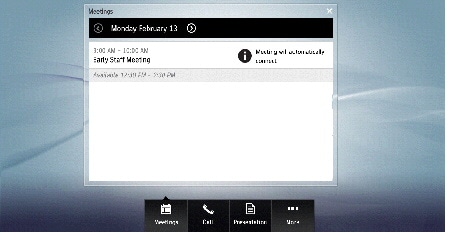
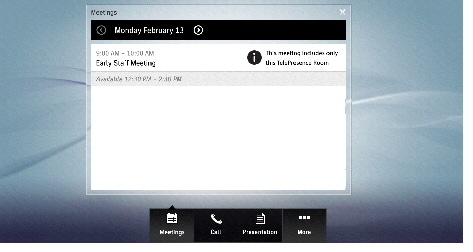
If your network uses Cisco TelePresence Manager (CTS-Manager) for meeting scheduling, some meeting screens have changed.
Note You will not see these screens if your network uses the Cisco TelePresence Management Suite (TMS) for meeting scheduling.
- If you are in a call, and wish to join a scheduled conference, the choice to Join has been replaced with Join & End Current Call.
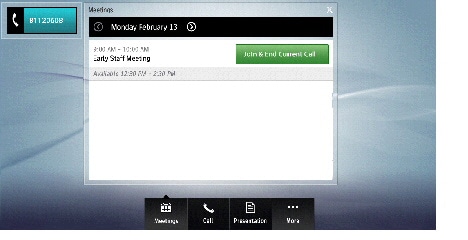
- In an AutoConnect meeting, the choice to join the meeting is disabled, and is replaced by text saying that the meeting will automatically connect.
- If a meeting includes only one TelePresence room, and no WebEx OneTouch (also known as one-button-to-push) number has been defined, the text in the meeting informs you that the meeting only includes the TelePresence room.
New in TX Release 6.1.6
This release resolves issues and enhances the user experience, and provides security fixes for security issues related to CVE-2013-6438 (Apache HTTP server) and CVE-2013-6420 (OpenSSL).
See the “Caveats in Cisco TelePresence System Release TX 6.1.6” section for a complete list of caveats.
New in TX Release 6.1.5.1
This release fixes the GNU Bash Environment Variable Command Injection Vulnerability (Shellshock). This vulnerability is being tracked by the Cisco Defects & Enhancements Tracking System (CDETS) number CSCur05163 .
New in TX Release 6.1.5
This release resolves system issues and enhances the user experience; there are no new features. See the “Caveats in Cisco TelePresence System Release TX 6.1.5” section for more information.
New in TX Release 6.1.4
This release fixes various OpenSSL issues and upgrades the version of the Apache HTTP server. For additional information, see the “Caveats in Cisco TelePresence System Release TX 6.1.4” section.
New in TX Release 6.1.3
This release adds a command-line interface (CLI) command to disable or enable 802.1x authentication. For more information, see the documentation for the set dot1x command in the Cisco TelePresence System Command-Line Interface Reference Guide .
For additional caveats that were fixed in TX release 6.1.3, see the “Caveats in Cisco TelePresence System Release TX 6.1.3” section.
New in TX Release 6.1.2.1
This release fixes the OpenSSL Heartbleed Vulnerability. This vulnerability is being tracked by the Cisco Defects & Enhancements Tracking System (CDETS) number CSCuo20210.
In addition, an enhancement (CSCuo30624) has been added to allow a Locally Significant Certificate (LSC) to be installed and used by the Key Exchange process to establish Datagram Transport Layer Security (DTLS) sessions between endpoints. See the “Caveats in Cisco TelePresence System Release TX 6.1.2.1” section for more information.
New in TX Release 6.1.2
This release resolves system issues and enhances the user experience; there are no new features. See the “Caveats in Cisco TelePresence System Release TX 6.1.2” section for more information.
New in TX Release 6.1.1
The following features are new for Release 6.1.1. See the “Caveats in Cisco TelePresence System Release TX 6.1.1” section for a complete list of caveats.
Changes to the Appearance of the Presentation on the Main Screen When Using Layout Control
When you use the Layout Control feature to move presentation to the main screen, previous releases of TX software cut the presentation off below the camera. TX Release 6.1.1 allows the presentation to be shown full-screen at some presentation resolutions (for example, 1080p and 720p).
Note Some presentation resolutions do not take up the full space of the main display; for this reason, a black bar or border appears on the screen
New in TX Release 6.1.0
The following features are new for Release 6.1.0. See the “Caveats in Cisco TelePresence System Release TX 6.1.0” section for a complete list of caveats.
Layout Control
This feature allows you to move the presentation content from the presentation display up to the main screen. You can also split the content on the main screen between conference participants and presentation content.
For more information, refer to the “Understanding Layout Control (Moving Presentation Content Onto the Main Display Screen—Cisco TelePresence TX1310 65, TX9000, and TX9200 Systems Only)” and “Using the Layout Control Feature” sections in the Cisco TelePresence System User Guide, Software Release TX 6 .
CLI Commands to Enable or Disable the Automatic Sharing of Presentations
By default, systems running TX software automatically share a presentation when you connect your presentation source (for example, a PC) to the TX system. This behavior is known as “auto-share”.
If you are sharing a presentation on a TX system outside of a call, and you receive a call, you cannot disable auto-sharing. In this case, you receive the prompt to share, even if auto-sharing is turned on.
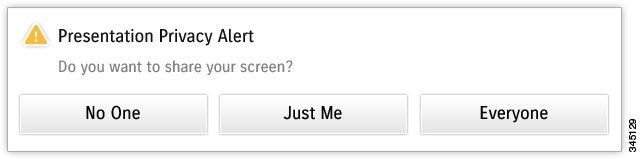
In other cases, to disable auto-sharing, enter the set presentation auto-share disable command. After auto-sharing is disabled, each time a user plugs in the presentation, the Touch device displays a Presentation Privacy Alert message such as the one shown in Figure 1. You then tap the Touch screen to select whether to share the presentation or not.
Figure 1 Presentation Privacy Message
For more information about these commands, see the documentation for the set presentation auto-share and show presentation auto-share commands in the Cisco TelePresence System Command-Line Interface Reference Guide .
New in Release TX 6.0.5
TX release 6.0.5 resolves system issues and ensures compatibility with TelePresence Server software release 3.1(1.95).
Note You must upgrade your system to a minimum of TX release 6.0.5 if your TelePresence Server is running software release 3.1(1.95) or later; otherwise, you might see colored lines or bars on the screen during a conference. See CSCui78297 for more information.
See the “Caveats in Cisco TelePresence System Release TX 6.0.5” section for a complete list of caveats.
New in Release TX 6.0.4
TX release 6.0.4 resolves system issues and enhances the user experience; there are no new features. See the “Caveats in Cisco TelePresence System Release TX 6.0.4” section for more information.
New in Release TX 6.0.3
This software release supports the new release of TelePresence Server 3.1. Additionally, the following feature is new in this release:
TelePresence Management Suite (TMS) Integration
Note This feature requires TMS version 14.3 or later.
This software release enhances the use of TMS as a call scheduling and management platform. If your system uses TMS, some new messages appear on your Touch 12 device. For example, if you are the video conference master (VC master) of your meeting, a prompt appears a few minutes before your meeting ends that gives you the option to extend your meeting. See Figure 2 for an example of this prompt.
Figure 2 TMS Meeting Extension Prompt to Administrator
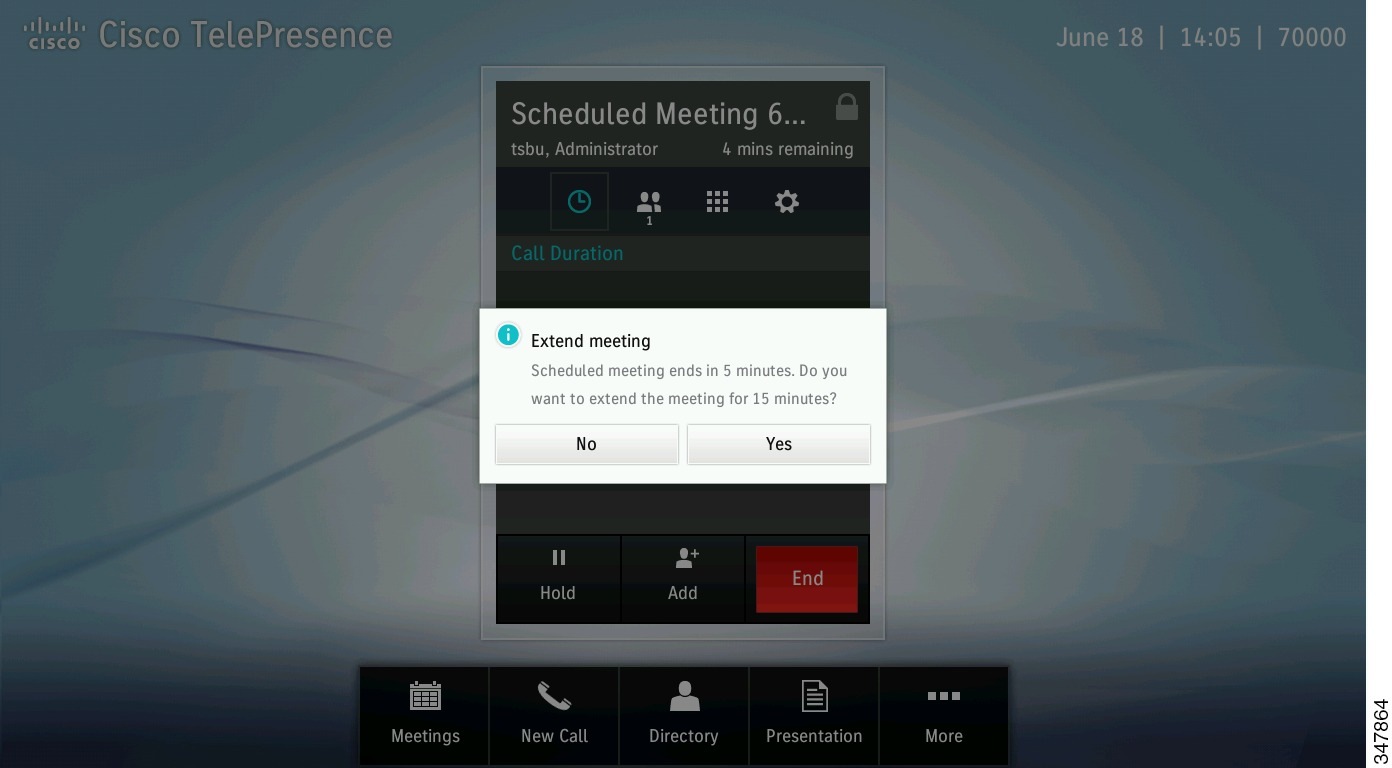
If you tap Yes , your meeting length extends, and all call participants see an alert like the one shown in Figure 3.
Figure 3 TMS Meeting Extended Alert
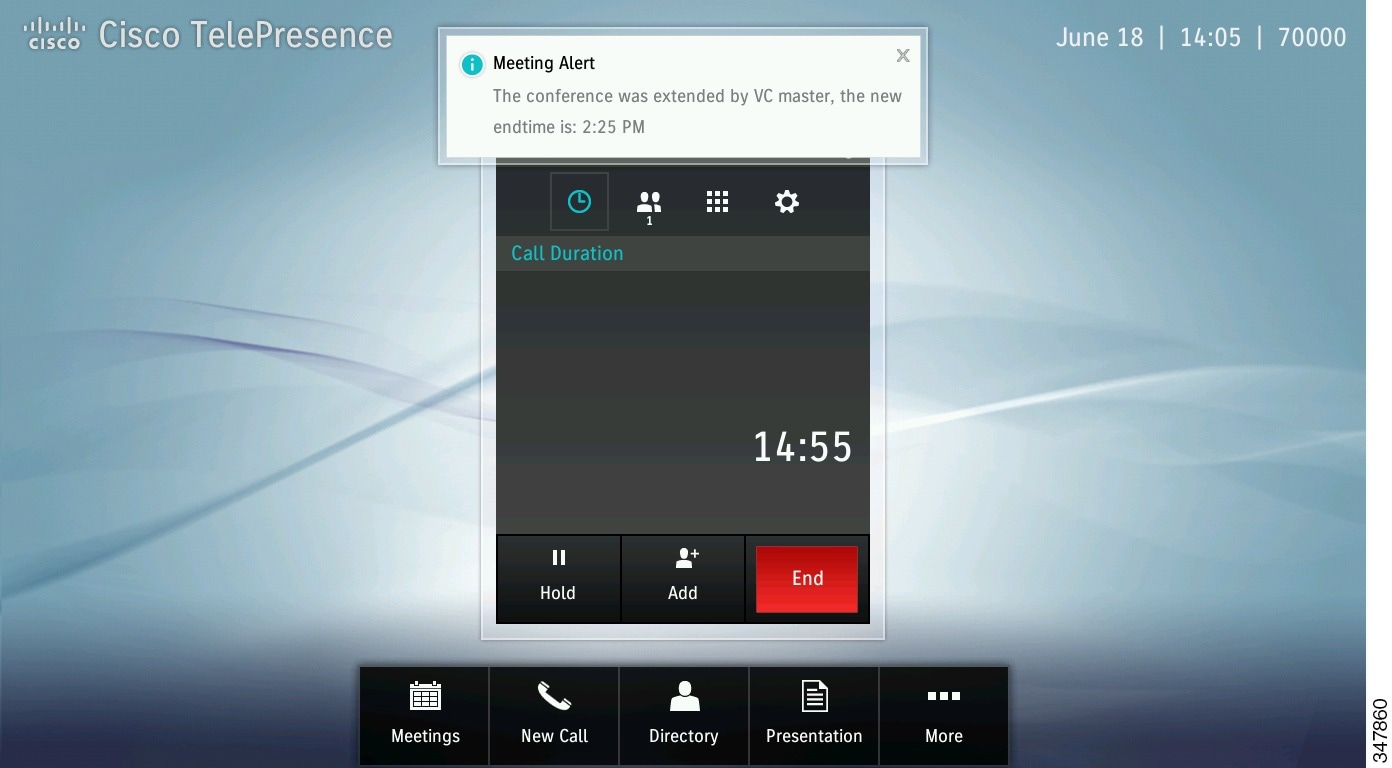
For more information about the messages that appear on the Touch 12, refer to the System Alerts and Meeting Messages chapter of the Cisco TelePresence System User Guide, Software Release TX 6 . For more information about TMS, refer to the Cisco TMS support documentation .
Audio and Camera Switching Tests
Note This feature is only present in TX 1300 47 and TX 1310 65 systems.
This software release includes a troubleshooting test in the CTS administration GUI that allows you to ensure that the cameras switch correctly to the active participant. Although there are three cameras in these systems, there is only one outgoing audio and video stream. When a participant in the room begins speaking, the system switches the camera to the segment with the active participant.
To test your system’s camera switching feature and microphone array, follow the steps listed in your system assembly guide:
- TX1300 47: “Testing the Camera Switching” and “Setting Up the Microphones”
- TX1310 65: “Testing the Camera Switching” and “Setting Up the Microphones”
New in Release TX 6.0.1
TX 6.0.1 software also resolves the camera brightness issue that was fixed in software release TX 6.0.0.1. See the “Caveats in Cisco TelePresence System Release TX 6.0.1” section for more information.
New in Release TX 6.0.0.1
Software release TX 6.0.0.1 resolves a camera brightness issue found in systems that upgrade to TX 6.0 from CTS software release 1.9 or earlier. If your system uses TX release 6.0.0, upgrading to TX 6.0.0.1 will not affect your system.
Some systems running TX release 6.0.0 may require an adjustment of the camera’s white balance. For more information, refer to the “Adjusting the White Balance for Your System” section of the Administration Guide for Cisco TelePresence Software Release TX 6 . If you encounter issues with this procedure, contact your Cisco technical support representative.
Note If you are installing a new TelePresence system, and plan to upgrade to TX 6 software after installation, Cisco strongly recommends that you complete your camera hardware setup after upgrading rather than before.
60 fps Main Video
The 60 fps main video feature enables Cisco TelePresence endpoints running TX 6 to send main video at a frame rate of 60 fps with 1080p quality (1080p 60). It provides improved clarity, sharper images, and an increased number of pixels, simulating a higher resolution. It also offers smoother motion handling, less blurriness, and reduced motion streaks.
60 fps is supported on the following Cisco TelePresence endpoints:
The following Cisco TelePresence endpoints can send main video at 60 fps with 720p quality (720p 60):
- All versions of the Cisco TelePresence C90, C60, C40, and C20
- Cisco TelePresence EX90, EX60
- 720p 60 is supported during point-to-point calls and multipoint calls supported by the Cisco TelePresence Server version 2.3.
For more information, refer to the “60 fps Main Video” section of the Administration Guide for Cisco TelePresence Software Release TX 6 .
802.1X Authentication
This software release supports the use of 802.1X authentication for port-based access control. For more information and instructions about configuring this feature, refer to the “802.1X Authentication” section of the Administration Guide for Cisco TelePresence Software Release TX 6 .
Annotation
You can now take a snapshot of the presentation that is being shared during a conference, and make annotations to that snapshot. For more information, refer to the “Annotating Presentations” section of the Cisco TelePresence System User Guide .
Dialing a URI String
This software release supports using a URI string (for example, user@cisco.com) to place a call. For more information, refer to the “Dialing a URI String Using the Keyboard” section of the Cisco TelePresence System User Guide .
Note The URI Dialing feature for endpoints running TX 6 software is supported in Cisco Unified CM 9 or later.
High-Definition Presentation
Some Cisco TelePresence endpoints support sending and receiving High Definition (HD)-quality video of the presentation that is being shared.
The following Cisco TelePresence endpoints running TX 6 software support high-definition (HD) presentation:
- Cisco TelePresence System 500-32
- Cisco TelePresence System TX1300 47
- Cisco TelePresence System TX1310 65
- Cisco TelePresence System TX9000
- Cisco TelePresence System TX9200
For more information about the HD video feature, refer to the “High-Definition Presentation” section of the Administration Guide for Cisco TelePresence Software Release TX 6 .
Language Versions
This software release supports additional languages. These languages change the text that is shown on the Cisco TelePresence Touch 12 device and also affect some on-screen messages.
Cisco provides a locale pack file bundle on cisco.com that supports several languages other than English. For more information, refer to the “Installing Language Versions” section of the Cisco Unified Communications Manager Configuration Guide for the Cisco TelePresence System .
Screen Dimming
To save power and extend the life span of the Cisco TelePresence Touch 12 device, the Touch 12 dims during non-business hours, as defined in Unified CM. When dimming is active, the screen is dimmed and the home button is glowing. The system becomes active when the screen or a hard button is touched, and stays on until the system has been idle for one hour.
For more information, refer to the “Screen Dimming” section of the Cisco Unified Communications Manager Configuration Guide for the Cisco TelePresence System .
TIP Support
Cisco TelePresence endpoints are designed to work with any device that implements the TelePresence Interoperability Protocol (TIP) and adheres to the interoperability requirements described in Cisco's published TIP Implementation Profiles.
Starting with TX 6, TIP version 8 is supported. TIP version 8 includes support for the following features:
Cisco tests interoperability with TIP devices based on market priority. The Cisco Technical Assistance Center (TAC) accepts calls related to interoperability with third-party endpoints and devices to troubleshoot and identify the root cause of issues. These calls must come from customers with a valid support agreement.
Video Bandwidth Allocation Weighting
The Video Bandwidth Allocation Weights parameter allows you to balance the bandwidth ratio for main video and presentation video during a conference. Use this feature when the amount of session bandwidth that is used by a Cisco TelePresence endpoint to send audio, main video, and presentation video media streams exceeds the amount of available session bandwidth.
For more information about configuring the weighting feature, refer to the “Video Bandwidth Allocation Weights” section of the Administration Guide for Cisco TelePresence Software Release TX 6 .
This feature is supported on the following Cisco TelePresence endpoints:
The following systems support the bandwidth allocation feature:
Important Notes for TX 6 Releases
Motion handling defines the degree of compression within the encoding algorithm to either enhance or suppress the clarity of the video when motion occurs within the image. High motion handling results in a smooth, clear image even when a lot of motion occurs within the video (people waving their hands, for example). Low motion handling results in a noticeable choppy, blurry, grainy, or pixelated image when people or objects move.
Cisco TelePresence provides you with a way to customize the motion handling. Although the Cisco TelePresence cameras can operate at a resolution of up to 1080p with a maximum frame rate of 60 frames per second (1080p 60), the codec can encode and compress the video into either 1080p or 720p resolutions at three different motion-handling levels per resolution providing you with the flexibility of deciding how much bandwidth is available in your network.
Instead of a sliding scale, Cisco uses the terms Good, Better, and Best. Best motion handling provides the clearest image and uses the most bandwidth. Good motion provides the least-clear image and uses the least bandwidth. For more information, refer to the “Understanding How Endpoints Determine fps and Video Quality” section of the “TX Software Features” chapter of the Administration Guide for Cisco TelePresence Software Release TX 6.
Low motion handling (for example, a hand wave leaving streaks or tracks for a few seconds on the screen) has also been seen under the following circumstances:
Note While you can improve the streaking issue by mitigating the following causes, in some cases this problem cannot be entirely eliminated.
– Under certain lighting conditions (for example, the light from an upper fixture leaving a shadow on a participant). Some lighting conditions cause low motion handling when the codec applies auto-correction to the broadcast image.
– Using lighting that is in the lower range of recommended lux (closer to 200 in the 200-400 lux range). For more information, see the lighting recommendations section in the “Room Requirements for the Cisco TelePresence System TX9000 and TX9200” chapter of the Cisco TelePresence System TX9000 and TX9200 Assembly, First-Time Setup, and Field-Replaceable Unit Guide .
– Using certain wall colors (tan or light brown)
– Networks with high latency; any latency in your networks can lower the motion handling
– Networks with a lot of jitter or dropped packets
Immersive Cisco TelePresence systems use an Acoustic Echo Canceler (AEC) to make human speech sound as clear as possible for the best possible collaboration experience.
Any sound that is continuously played (such as music) as the audio portion of a presentation can sound choppy or distorted during a Cisco TelePresence conference. To remove echo, AEC changes the loudness of the audio coming from the system loudspeaker when it detects sound locally (on the near end). When the loudspeakers are playing presentation audio, this change in loudness may lead to noticeable choppiness or distortion.
Muting the system microphones on both the near and far end can reduce the AEC effects when you share presentation audio; however, any endpoint that is not muted will still experience the same choppiness and distortion.
Anything that degrades network performance can affect Cisco TelePresence voice and video quality and, in some cases, can cause a call to drop. Sources of network degradation can include, but are not limited to, the following activities:
– Administrative tasks such as an internal port scan or security scan
– Attacks that occur on your network, such as a denial-of-service attack
To reduce or eliminate any adverse effects to a TelePresence conference, schedule any administrative network tasks during a time when the Cisco TelePresence system is not being used, or exclude TelePresence systems from the testing.
If your system is integrated with TMS, see the following notes:
– Some TMS features (such as the setup buffer or meeting extension alert) are disabled by default. These features must be enabled on the TMS administrative interface before they will work with the Cisco TelePresence system. After you configure the features in the TMS administrative interface, TMS updates itself automatically according to the interval specified in the field System Force Refresh Interval (in hours) . Alternately, you can apply your settings immediately by navigating to Administrative Tools > Configuration > Network Settings and scrolling down to the TMS Services area. In the field Enforce Management Settings on Systems , click Enforce Now . If this field is set to Yes, TMS updates your system automatically when you configure features. For more about TMS features, refer to the “New Conference” section of the latest Cisco TelePresence Management Suite Administrator Guide .
– When you configure the setup buffer feature, then schedule a meeting, the meeting start and end times will appear incorrect in TMS or Outlook.
– Some TMS meeting alerts and prompts may appear even when your system is not in a call. (CSCug52535)
– When the administrator uses the TMS administrative interface to delete an active meeting, the TelePresence system exits the meeting but still shows the scheduled meeting and the Join button on the Touch 12. (CSCug32505)
Be sure that you connect your TelePresence system to a switch; this device cannot be directly connected to a router.
All Cisco TelePresence TX9000 series endpoints must be upgraded to software release 1.9.3 or later before they can be upgraded to release TX 6.
Cisco TelePresence software release TX 6 is only compatible with the Touch 12, not the IP Phone.
After upgrading your system software and rebooting your endpoint, the Touch 12 device Directory button might not appear immediately. Wait 10 to 25 minutes for the button to appear.
The High Definition (HD) Presentation feature works with both VGA and custom digital cables.
The Cisco TelePresence System Administration interface is supported on Internet Explorer (IE) versions 6, 7, 8 and 9, as well as Firefox version 3.6, 5 and 9.
Headsets are supported on the CTS 500 Series only.
Whenever possible register your device to the Unified CM to configure the correct device type before calibrating the camera. To perform camera calibration if your system is not registered to the Unified CM, use the set ctstype command.
The VGA cable interface requires a 60 hertz refresh rate, but some laptops receive 60hz but do not send 60hz. For best results when viewing presentation displays on your laptop, try to disable and re-enable sending presentation video. On your PC, press Fn+F7 to disable the presentation first and then use Fn+F7 to enable the presentation again. This function is not necessary on Mac systems.
Avoid using the following commands to collect call status logs while in an active call:
Using these commands during an active CTS call can cause high CPU usage and may bring calls down.
Some telepresence endpoints do not support the ability to share or receive presentations. If you encounter an endpoint that does not support presentations, the CTS displays the following notification on the main screen:
“Remote participant cannot receive presentation”
For information about MXP support for Cisco TelePresence, refer to the document Cisco TelePresence TX System Software Version Compatibility and Interoperability with Other Devices .
Customers who are deploying their B2B infrastructure with secure trunks to ASR/SBC secured by using TLS/Encryption, may experience call drops unless specific scripts are installed and configured on the ASR/SBC devices. Once the scripts and configuration are in place, certain SDP attributes are manipulated to enable SBC to unblock the SIP messages to and from Unified CM.
The following is an overview of the configuration steps:
1. Upload attached srtp.lua script to your ASR1k.
2. Define two SDP editors, for example to_rtp_avp and to_rtp_savp.
3. Configure a script set, as shown in the following example:
4. Use the SDP editor on both the inbound and outbound adjacencies:
– Ask SBC to modify the SDP calling to_rtp_avp before-receive
– And calling to_rtp_savp after-send
5. Create three editor headers:
The first two are used in the inbound side, which will detect if any X-cisco-srtp-fallback tag gets into the supported header and then adds an srtp-fb header that includes the X-cisco-srtp-fallback tag (if present). The third one changes the internal srtp-fb header to the supported header prior to sending on the wire. The following is an example configuration:
See the following documents for support:
– Cisco ASR 1000 Series Aggregation Services Routers home page
– Business-to-Business Telepresence Configuration Profile Example
Supported TX Auxiliary Devices
This section contains auxiliary devices that can be used with the TX systems:
Note Using External Devices with Your Cisco TelePresence System—Cisco cannot guarantee the performance of any external device, so Cisco recommends that you choose good quality external devices to optimize the performance of your TelePresence system.
The Cisco TelePresence system works best when suitable devices are attached using good quality cables and connectors. Cisco does not supply the cable that connects auxiliary devices to the codec.
Displays
This section describes the display choices you have with your Cisco TelePresence System and includes the following topics:
Qualified Cisco Displays
The following display is qualified for use with Cisco TelePresence System running CTS or TX software:
55-inch display, part number CTS-MON-55-WW.
Before use, turn off all on-screen display (OSD) capability for the displays. This prevents the display from showing messages after you stop sharing a presentation.
To turn off OSD, complete the following steps.

Tip Perform these steps using the remote control that comes with the system, or use the joystick control on the back of the display.
Step 2 Press MENU on the remote, or press the center of the joystick and move the joystick to select the menu option (the choice on the left), to bring up the menu for the display.
Step 3 Using the up and down arrows, navigate to System in the menu panel.
Step 4 Press Enter if using a remote, or press the center of the joystick if using the joystick on the display, to select the System choice.
Step 5 Using the up and down arrows, navigate to General and press either Enter on the remote, or the center of the joystick on the display.
Note This choice does not appear initially. Scroll down to see it.
Step 6 Navigate to OSD Display and press Enter or the center of the joystick.
Step 7 Set all three OSD choices (Source OSD, No Signal OSD, and MDC OSD) to Off (the default is On) to disable OSD messages.
Step 8 Press EXIT on the remote, or move the joystick to the previous menu choices, until the menu no longer displays.
Using Non-Qualified Displays With your Cisco TelePresence System
If you decide to use another auxiliary display, Cisco TelePresence systems are designed to work with any Full HD monitor that connects to the system using a standard HDMI or DVI interface. Note that the connector on the TelePresence side is an HDMI connector, so either an HDMI-to-HDMI cable or an HDMI-to-DVI cable is required.
Cisco highly recommends the use of commercial or professional-grade displays with your Immersive TelePresence system. Off-the-shelf consumer displays or TV monitors are not recommended, as they typically have shorter life spans and require a remote control to operate.
When qualifying a display for use with your TelePresence system, consider the following:
- The display should offer native support for 1080p60 over an HDMI or DVI interface.
- The display should become active when a video signal is presented, and should go to sleep when no video signal is presented.
- The display should not require any user interaction (such as a remote control or button press) to become active from standby, sleep or deep sleep modes.
- The ability to switch off On-Screen Display (OSD) messages is highly desirable. No error messages, status messages or splash screens should be visible on the screen when a presentation image is shared or unshared.
- If the display supports multiple inputs, the ability to lock the display to a given input is highly desirable. Otherwise, the time required to show presentation content can be unpredictable. If automatic scanning of ports is supported, the feature should be disabled.
- The Video Electronics Standards Association (VESA) Display Power Management Signaling (DPMS) should be present. Some consumer-grade displays, especially those designed to be used as television displays, do not use DPMS.
Software Agreements and Licensing
For complete software licensing information, access the Cisco TelePresence Administration Software Licensing Information page on Cisco.com at the following link:
http://www.cisco.com/en/US/products/ps8332/products_licensing_information_listing.html
Exceptions with Other Cisco Devices
During a secure SIP call between a TX9x00 system and an MXP1700 system, when the TX9x00 shares a presentation, the call becomes audio-only and the MXP1700 sees a frozen video screen. (CSCub99572)
During a point-to-point call, no video appears on remote H.323 EX60 endpoint after TX9x00 system performs a hold-and-resume or adds an audio participant to the call. (CSCub97552)
During a H.323 call between a CTS 500-32 system and a C40 system, if the CTS shares a presentation and then changes the presentation resolution to 640x480, the local presentation disappears. The remote C40 system can still see the presentation. (CSCue31615)
During a call between a TX9000 and an SX20, when the SX20 performs a hold-and-resume, the SX20 loses incoming video. (CSCuf75845)
Slight image distortion may occur during a call between a mobile device using Jabber and one of the following systems: CTS 500-32, CTS 13x0 or TX9x00. (CSCuh52517)
During an MCU conference between two TX endpoints an a C20 endpoint, when TX shares a presentation and then performs a hold-and-resume, the presentation appears green. (CSCui02876)
Some TMS alerts and prompts appear even while the system is not in a call. (CSCug52535)
Exceptions with Third-Party Endpoints
A CTS or TX endpoint is in a call with a LifeSize endpoint. The CTS/TX endpoint is registered to Cisco Unified CM, and the LifeSize endpoint is registered to VCS. After the CTS/TX goes on hold and then resumes the call, the Unified CM sends a 500 Internal server error message. The call is dropped. (CSCtz05200)
Secure SIP calls between CTS/TX and LifeSize endpoints cannot be established. (CSCtz27432)
A TX9x00 is in a call with a Polycom HDX 4000 endpoint. The Polycom endpoint shares a presentation. The presentation is shown on the TX9x00 for only 3–4 seconds. (CSCua40108)
Cisco TelePresence Software Compatibility and Device Interoperability
For complete Cisco TelePresence software compatibility and device interoperability information, go to this page:
http://www.cisco.com/en/US/products/ps8332/products_device_support_tables_list.html
Caveats in Release TX 6
This section contains the following caveat information:
- Caveats in Cisco TelePresence System Release TX 6.1.13
- Caveats in Cisco TelePresence System Release TX 6.1.12
- Caveats in Cisco TelePresence System Release TX 6.1.11.1
- Caveats in Cisco TelePresence System Release TX 6.1.11
- Caveats in Cisco TelePresence System Release TX 6.1.10
- Caveats in Cisco TelePresence System Release TX 6.1.9
- Caveats in Cisco TelePresence System Release TX 6.1.8.2
- Caveats in Cisco TelePresence System Release TX 6.1.8.1
- Caveats in Cisco TelePresence System Release TX 6.1.8
- Caveats in Cisco TelePresence System Release TX 6.1.7
- Caveats in Cisco TelePresence System Release TX 6.1.6
- Caveats in Cisco TelePresence System Release TX 6.1.5
- Caveats in Cisco TelePresence System Release TX 6.1.4
- Caveats in Cisco TelePresence System Release TX 6.1.3
- Caveats in Cisco TelePresence System Release TX 6.1.2.1
- Caveats in Cisco TelePresence System Release TX 6.1.2
- Caveats in Cisco TelePresence System Release TX 6.1.1
- Caveats in Cisco TelePresence System Release TX 6.1.0
- Caveats in Cisco TelePresence System Release TX 6.0.5
- Caveats in Cisco TelePresence System Release TX 6.0.4
- Caveats in Cisco TelePresence System Release TX 6.0.3
- Caveats in Cisco TelePresence System Release TX 6.0.2
- Caveats in Cisco TelePresence System Release TX 6.0.1
- Caveats in Cisco TelePresence System Release TX 6.0.0
Caveats in Cisco TelePresence System Release TX 6.1.13
The following sections show the resolved caveats for this software release:
Resolved Caveats in Release 6.1.13
Symptom Cisco TelePresence 1310 ; Cisco TelePresence System 1000 ; Cisco TelePresence System 1100 ; Cisco TelePresence System 1300 ; Cisco TelePresence System 3000 Series ; Cisco TelePresence System 500-32 ; Cisco TelePresence System 500-37 ; Cisco TelePresence TX 9000 Series includes a version of OpenSSL that is affected by the vulnerability identified by one or more of the following Common Vulnerability and Exposures (CVE) IDs:
And disclosed in https://tools.cisco.com/security/center/content/CiscoSecurityAdvisory/cisco-sa-20160504-openssl
This bug has been opened to address the potential impact on this product.
Cisco has analyzed the vulnerabilities and concluded that this product may be affected by the following vulnerabilities:
- Memory corruption in the ASN.1 encoder CVE-2016-2108
- Padding oracle in AES-NI CBC MAC check CVE-2016-2107
- EVP_EncodeUpdate overflow CVE-2016-2105
- EVP_EncryptUpdate overflow CVE-2016-2106
- ASN.1 BIO excessive memory allocation CVE-2016-2109
This product is not affected by the following vulnerability:
Conditions Exposure is not configuration dependent.
Additional details about those vulnerabilities can be found at http://cve.mitre.org/cve/cve.html
The Cisco PSIRT has assigned this bug the following CVSS version 2 score. The Base CVSS score as of the time of evaluation is: 5.1
https://tools.cisco.com/security/center/cvssCalculator.x?version=2&vector=AV:N/AC:H/Au:N/C:P/I:P/A:P/E:ND/RL:ND/RC:ND
The Cisco PSIRT has assigned this score based on information obtained from multiple sources. This includes the CVSS score assigned by the third-party vendor when available. The CVSS score assigned may not reflect the actual impact on the Cisco Product. The score reflects the maximum score for all the vulnerabilities mentioned in this bug information
Additional information on Cisco's security vulnerability policy can be found at the following URL:
http://www.cisco.com/web/about/security/psirt/security_vulnerability_policy.html
Symptom CTS 1300 and a 7945 phone are configured with the same device pool that has the America/Santiago# time zone selected in the date and time group. The phone shows the correct local time in Chile (GMT-3) but the CODEC shows the wrong time (GMT -4) when checking from the CLI. UCM is on 10.5.2.12011-1 and the codec is on 1.10.8.1
Conditions When meetings are scheduled, the phone displays a different start time. There is an offset of 1 hour in the start time and the meeting actually starts an hour early.
Workaround A different time zone in GMT -3 is used for the Date/time group.
Symptom The Camera loses calibration after the reboot in TX9200.
Conditions TX9200 calibrated with MainDispalyFrameRate=30fps on CUCM, the Camera loose calibration after the Reboot causing darker image on remote Endpoints. The issue is not reproducible if TX calibrated with MainDisplayFrameRate=60fps on CUCM.
Workaround Camera calibration needs to be performed again after system reboot.
Symptom Current TLS version in use on TX is TLSv1.0. It is strongly encouraged to migrate to TLSv1.2 to pick the fixes for various vulnerabilities.
Conditions Device configured with default configuration.
Workaround Not applicable or available.
Symptom Installing new language pack would not have any effect and only English language will be accessible in CUCM 11.5.
Conditions Installing a non-English locale.
Caveats in Cisco TelePresence System Release TX 6.1.12
The following sections show the resolved caveats for this software release:
Resolved Caveats in Release 6.1.12
Symptom Cisco TelePresence 1310, Cisco TelePresence System 1000, Cisco TelePresence System 1100, Cisco TelePresence System 1300, Cisco TelePresence System 3000 Series, Cisco TelePresence System 500-32, Cisco TelePresence System 500-37, and Cisco TelePresence TX 9000 Series includes a version of OpenSSL that is affected by the vulnerability identified by one or more of the following Common Vulnerability and Exposures (CVE) IDs:
CVE-2016-0800 CVE-2016-0705 CVE-2016-0798 CVE-2016-0797 CVE-2016-0799 CVE-2016-0702 CVE-2016-0703 CVE-2016-0704
And disclosed in https://tools.cisco.com/security/center/content/CiscoSecurityAdvisory/cisco-sa-20160302-openssl
This bug has been opened to address the potential impact on this product.
Conditions Exposure is not configuration dependent.
Cisco TelePresence System Software Release 1.10.12 and later releases and Cisco TelePresence System Software TX Release 6.1.9 and later releases are affected by the following Common Vulnerability and Exposures (CVE) IDs:
- CVE-2016-0797 - BN_hex2bn/BN_dec2bn NULL pointer deref/heap corruption
- CVE-2016-0799 - Fix memory issues in BIO_*printf functions
This product is not affected by the following Common Vulnerability and Exposures (CVE) IDs:
- CVE-2016-0705 - Double-free in DSA code CVE-2016-0798 - Memory leak in SRP database lookups
- CVE-2016-0702 - Side channel attack on modular exponentiation
All earlier releases of Cisco TelePresence System Software and Cisco TelePresence System Software TX are affected by the following Common Vulnerability and Exposures (CVE) IDs:
- CVE-2016-0800 - Cross-protocol attack on TLS using SSLv2 (DROWN)
- CVE-2016-0703 - Divide-and-conquer session key recovery in SSLv2 CVE-2016-0704 - Bleichenbacher oracle in SSLv2
- CVE-2016-0797 - BN_hex2bn/BN_dec2bn NULL pointer deref/heap corruption
- CVE-2016-0799 - Fix memory issues in BIO_*printf functions
This product is not affected by the following Common Vulnerability and Exposures (CVE) IDs:
- CVE-2016-0705 - Double-free in DSA code CVE-2016-0798 - Memory leak in SRP database lookups
- CVE-2016-0702 - Side channel attack on modular exponentiation
Additional details about those vulnerabilities can be found at http://cve.mitre.org/cve/cve.html
The Cisco PSIRT has assigned this bug the following CVSS version 2 score. The Base CVSS score as of the time of evaluation is: 4.3
https://tools.cisco.com/security/center/cvssCalculator.x?version=2&vector=AV:N/AC:M/Au:N/C:P/I:N/A:N/E:ND/RL:ND/RC:ND
The Cisco PSIRT has assigned this score based on information obtained from multiple sources. This includes the CVSS score assigned by the third-party vendor when available. The CVSS score assigned may not reflect the actual impact on the Cisco Product. Additional information on Cisco's security vulnerability policy can be found at the following URL:
http://www.cisco.com/web/about/security/psirt/security_vulnerability_policy.html
Symptom Cisco TelePresence 1310 ; Cisco TelePresence System 1000 ; Cisco TelePresence System 1100 ; Cisco TelePresence System 1300 ; Cisco TelePresence System 3000 Series ; Cisco TelePresence System 500-32 ; Cisco TelePresence System 500-37 ; Cisco TelePresence TX 9000 Series includes a version of ntpd that is affected by the vulnerabilities identified by the Common Vulnerability and Exposures (CVE) IDs:
CVE-2016-1551, CVE-2016-2516, CVE-2016-2517, CVE-2016-2518, CVE-2016-2519, CVE-2015-8138, CVE-2016-1550, CVE-2015-7704, CVE-2016-1547, CVE-2016-1548, CVE-2016-1549
And disclosed in http://tools.cisco.com/security/center/content/CiscoSecurityAdvisory/cisco-sa-20160428-ntpd
This product is affected by one or more of the listed CVE ids.
Conditions Device configured with NTP.
Cisco has reviewed and concluded that this product is affected by the following Common Vulnerability and Exposures (CVE) IDs:
- CVE-2016-2518 - Network Time Protocol Crafted addpeer With hmode > 7 Causes Array Wraparound With MATCH_ASSOC
- CVE-2015-8138 - Network Time Protocol Zero Origin Timestamp Bypass
- CVE-2016-1550 - Network Time Protocol Improve NTP Security Against Buffer Comparison Timing Attacks
- CVE-2015-7704 - Network Time Protocol Original Fix For NTP Bug 2901 Broke Peer Associations
- CVE-2016-1548 - Network Time Protocol Interleave-pivot Denial Of Service Vulnerability
- CVE-2016-1549 - Network Time Protocol Sybil Vulnerability: Ephemeral Association Attack
- CVE-2016-1551: Network Time Protocol Refclock Impersonation Vulnerability
- CVE-2016-2516: Network Time Protocol Duplicate IPs On Unconfig Directives Will Cause An Assertion Botch In ntpd
- CVE-2016-2519 - Network Time Protocol Remote ctl_getitem() Return Value Not Always Checked
- CVE-2016-2517: Network Time Protocol Remote Configuration Trustedkey/Requestkey/Controlkey Values Are Not Properly Validated
- CVE-2016-1547 - Network Time Protocol CRYPTO-NAK Denial Of Service Vulnerability
Additional details about those vulnerabilities can be found at http://cve.mitre.org/cve/cve.html
The Cisco PSIRT has assigned this bug the following CVSS version 2 score. The Base and Temporal CVSS scores as of the time of evaluation are: 6.4/5.3.
http://tools.cisco.com/security/center/cvssCalculator.x?version=2&vector=AV:N/AC:L/Au:N/C:N/I:P/A:P/E:F/RL:OF/RC:C/CDP:N/TD:N/CR:L/IR:L/AR:
The Cisco PSIRT has assigned this score based on information obtained from multiple sources. This includes the CVSS score assigned by the third-party vendor when available. The CVSS score assigned may not reflect the actual impact on the Cisco Product.
Additional information on Cisco's security vulnerability policy can be found at the following URL:
http://www.cisco.com/web/about/security/psirt/security_vulnerability_policy.html
Caveats in Cisco TelePresence System Release TX 6.1.11.1
The following sections show the resolved caveats for this software release:
Resolved Caveats in Release 6.1.11.1
Symptom RTP is no longer encrypted after upgrading the TX9000 to TX.6-1-11-7R-K9.P2 in calls between the TX and another TX or CTS. Signaling remains encrypted.
Conditions TX9000 running TX.6-1-11-7R-K9.P2 and using secure phone profile. Secure profile security mode is set to "Encrypted".
Workaround Downgrade the TX9000 to the previous release.
Symptom Call fails due to an encryption mismatch.
Conditions Final DTLS packet is lost when dialling from CTS to the TelePresence Server (or another endpoint).
Symptom Call becomes non-secure. The TX9000 and IX5000 doesn't have this issue, but it impacts the CTS 3000 endpoint.
Conditions Secure CTS 3000, Secure CUCM 10.5.2 and secure CTMS 1.9.7, CTS3000 endpoint becomes non-secure.
Workaround CTS 3000 1.10.5 works fine.
Caveats in Cisco TelePresence System Release TX 6.1.11
The following sections show the resolved and unresolved caveats for this software release.
Resolved Caveats in Release 6.1.11
Symptom DTMF reception problems noted on Cisco immersive endpoints with some third party systems
Conditions Some third party audio or video bridges dropping or not interpreting DTMF digits correctly from CTS release 1.10.13, TX release 6.1.10, and IX release 8.0.6 endpoints
Symptom Cisco TelePresence Administration Software includes a version of the Hypertext Preprocessor (PHP) software that is affected by the vulnerabilities identified by the following Common Vulnerability and Exposures (CVE) IDs: CVE-2015-6831, CVE-2015-6832 and CVE-2015-6833
Conditions Device with default configuration.
Workaround Not currently available.
Symptom No media on calls into a Cisco TelePresence Server conference that are intercepted by an SBC's (Session Border Controller) IVR (interactive voice response) system until a hold/resume is performed.
Conditions Calls through an SBC/IVR into a TelePresence Server conference while running CTS releases earlier than 1.10.14 and TX releases earlier than 6.1.11
Workaround After connecting to the TelePresence Server conference, perform a hold/resume to re-establish an audio/video connection.
Symptom Scrolling through the directory on the Touch12 panel does not display more than 55 entries.
Conditions A TX endpoint running releases after TX 6.1.7 (16). More than 55 users contained in the directory. Note that this caveat does not apply to the CTS system as it only applies to the TX.
Workaround While searching through the Directory on the Touch 12, narrow search scope to end up with a subset of entries so they are less than 55
Symptom This product includes a version of OpenSSL that is affected by the vulnerability identified by the Common Vulnerability and Exposures (CVE) IDs: CVE-2015-4000, CVE-2015-1788, CVE-2015-1789, CVE-2015-1790, CVE-2015-1792, CVE-2015-1791, CVE-2014-8176
Conditions Exposure is not configuration dependent. The following product lines are affected: CTS500-32, CTS1100, CTS1300, CTS3200, and TX9200. Currently latest code runs OpenSSL 1.0.1m. An update to the OpenSSL code is required.
Caveats in Cisco TelePresence System Release TX 6.1.10
The following sections show the resolved and unresolved caveats for this software release.
Resolved Caveats in Release 6.1.10
Symptom Localization: Add 'Join & End Current Call'
Phrases were missing in Japanese.
Conditions Phrases in Japanese were incorrect.
Workaround There is no workaround.
Symptom With IX5000 to IX5000 P2P call, when local has audio add-in, remote can't share multi-content.
Conditions Only when local has audio add-in involved.
Workaround There is no workaround.
Symptom TX9000 and IX5000 need ability to disable CDP.
This is a feature request to add the ability to disable CDP on TX9000 and IX5000 endpoints.
Conditions This feature eliminates unnecessary CDP traffic handling in third-party switch environments.
Workaround None, but CDP traffic is not an issue with Cisco switches in place.
Symptom TX requests .sgn config when CTL file is empty in non-secure UCM cluster.
When an unsecured CUCM cluster sends an empty CTL file to TelePresence Immersive endpoints (CTS, TX, and IX), the endpoint attempts to download a signed config file from the TFTP server. Since the CUCM cluster is nonsecure, only unsigned files are available. This causes the endpoint to not receive any config updates, possibly leading to it not registering with CUCM, in which case calls are not possible.
Conditions When nonsecure CUCM that was previously secure is sending an empty CTL file to the endpoint.
Workaround Delete CTL from CUCM and clear security credentials on the endpoint.
Symptom DTMF events have inconsistent event timestamps.
Conditions Each DTMF event should have the same timestamp. When the same event does not, a remote system receives incorrect digits.
Workaround There is no workaround.
Caveats in Cisco TelePresence System Release TX 6.1.9
The following sections show the resolved and unresolved caveats for this software release.
Resolved Caveats in Release 6.1.9
Symptom This product includes a version of OpenSSL that is affected by the vulnerability identified by the Common Vulnerability and Exposures (CVE) IDs:
CVE-2015-0286, CVE-2015-0287, CVE-2015-0289, CVE-2015-0292, CVE-2015-0293, CVE-2015-0209, CVE-2015-0288
This bug has been opened to address the potential impact on this product.
Conditions Exposure is not configuration dependent.
Symptom SNMP crashes are experienced on TX endpoints when in a call with an MX800. Note that the SNMP server crash is not experienced between an MX800 with SpeakerTrack and TX systems.
The behavior is independent of software versions.
MX800 -> TX1310 - SNMP server crashes on the TX.
MX800 -> TX9000 - SNMP server crashes on the TX.
MX800 SpeakerTrack -> TX1310 - SNMP server does not crash on the TX.
MX800 SpeakerTrack -> TX9000 - SNMP server does not crash on the TX.
Conditions The issue can occur if the remote URI is greater than or equal to 32 characters.
Workaround Use URIs that are 32 characters or less.
Symptom Directory entries are not appearing on the Touch 12 device.
Conditions This condition is seen when the “Alternate CUCM for Directory Lookup” field is specified in Unified CM. This field is not being applied correctly.
Workaround There is no workaround.
Symptom Intermittent video quality issues are seen in a point-to-point or CTMS call with an IX5000.
Conditions This condition is caused by a buffer overflow.
Workaround There is no workaround.
Symptom A switch from a right or left segment to a center segment can cause video quality issues.
Conditions This issue is seen with three-screen immersive Cisco TelePresence systems (CTS, TX, or IX series systems).
Workaround There is no workaround.
Caveats in Cisco TelePresence System Release TX 6.1.8.2
The following sections show the resolved and unresolved caveats for this software release.
Resolved Caveats in Release TX 6.1.8.2
Symptom Intermittent video quality issues are seen in a point-to-point or CTMS call with an IX5000.
Conditions This condition is caused by a buffer overflow.
Workaround There is no workaround.
Caveats in Cisco TelePresence System Release TX 6.1.8.1
The following sections show the resolved and unresolved caveats for this software release.
Resolved Caveats in Release TX 6.1.8.1
Symptom Duplicate DTMF tones are sent during a Cisco WebEx call.
Conditions This caveat is seen under the following conditions:
1. Using a TelePresence endpoint, dial a Cisco WebEx dial-in number.
2. When prompted, enter any digit and do not press the pound sign.
In these conditions, duplicate numbers are sent. For example, pressing the number '1' sends '11111'.
Workaround There is no workaround.
Caveats in Cisco TelePresence System Release TX 6.1.8
The following sections show the resolved and unresolved caveats for TX software release 6.1.8.
Resolved Caveats in Release TX 6.1.8
Symptom When Address Resolution Protocol (ARP) requests are sent to Cisco TelePresence immersive systems, the system’s internal address (i.e. 192.168.x.1) is being returned, rather than the system’s actual network address.
Conditions This is seen only when 802.1x is enabled.
Workaround One likely cause of the problem is an external device on the network segment that is pinging, or sending ARP requests to the 192.168.x.1 address. So, a workaround would be to remove that device.
Symptom RTP Control Protocol (RTCP) encryption was disabled for presentation sharing.
Conditions This condition was noted when using the Binary Floor Control Protocol (BFCP) for presentation sharing.
Workaround There is no workaround.
Symptom Conference IDs are not included in the Cisco TelePresence Call MIB. In addition, scheduled calls cannot be exported via SNMP.
Conditions These conditions are noted when using SNMP to include call information
Workaround This CDETS incorporates the following OID in the CISCO-TELEPRESENCE-CALL-MIB.my:
1.3.6.1.4.1.9.9.644.1.4.8.1.18
The object name in the CISCO-TELEPRESENCE-CALL-MIB is
Symptom Audio reverberation is heard during a meeting.
Conditions This condition can be seen in multipoint meetings using TelePresence server when a user sends DTMF tones by pressing the keypad on the Touch device.
Workaround There is no workaround.
Symptom This product includes a version of ntpd that is affected by the vulnerability identified by the Common Vulnerability and Exposures (CVE) IDs:
CVE-2015-1798 and CVE-2015-1799
This bug has been opened to update the version of ntpd used within this product.
Conditions Whilst this product contains a vulnerable version of ntpd it has been concluded that these vulnerabilities are not exploitable on this product.
Symptom The Touch 12 cannot control the document camera.
Conditions This behavior is seen when trying to control the document camera via the Touch device.
Workaround You can control the document camera using the remote control that shipped with it.
Caveats in Cisco TelePresence System Release TX 6.1.7
There are no unresolved or resolved caveats associated with this release.
Caveats in Cisco TelePresence System Release TX 6.1.6
The following sections show the resolved and unresolved caveats for TX software release 6.1.6.
Resolved Caveats in Release TX 6.1.6
Symptom Choppy welcome audio is heard at the beginning of a call.
Conditions This condition is observed on systems running TX or Cisco TelePresence System (CTS) software systems when dialing into a multipoint call using an MCU 5320.
Workaround There is no workaround.
Symptom SNMP failures occurred for the system when collecting temperature for the camera, display and system.
Conditions This condition is encountered on systems running Cisco TelePresence System TX9000 software 6.1.2.
Workaround There is no workaround.
Symptom TX and IX Series endpoints drop presentations when a remote participant shares the presentation.
Conditions The presentation drops when a message related to the SIP Session Refresh timer displays.
Workaround Unshare, then re-share, the presentation when the SIP Session Refresh timer appears.
Caveats in Cisco TelePresence System Release TX 6.1.5
The following sections show the resolved and unresolved caveats for TX software release 6.1.5.
Resolved Caveats in Release TX 6.1.5
Symptom The Ignore button does not ignore or cancel a call to the endpoint when it is already in a call. The screen “Incoming call...” screen is displayed, “Ignore” is pressed but the far side endpoint will continue to ring the endpoint and The Incoming call...” screen will continue to be displayed.
Conditions When a CTS or TX endpoint with Touch Panel is already in a call and receives another call.
Workaround There is no workaround.
Symptom A secure call cannot see the presentation for a multipoint call when dialed into an MCU.
Conditions This condition occurs when there is a mix of secure and non-secure endpoints in a multipoint call.
Workaround There is no workaround.
Symptom A “Touch backlight turned on” message occurs repeatedly in the sysop log.
Conditions This message occurs on systems that use the Touch 10 device for call control.
Workaround There is no workaround.
Symptom CTX Endpoint: When a putty cli session is created and the putty window is maximized, a core is generated and cli session terminates
Conditions When putty window is maximized or altered.
Workaround This issue was not found on systems running 6.0.4.
Symptom TX9x00 systems intermittently experience call drops or out-of-call DSP resets on the TS4 codec, which results in the media services restarting.
Conditions This condition occurs with LG55WS10-BAA auxiliary displays that have older firmware.
Workaround Unplug the LG displays from the audio/video extension unit (also known as LAEB), or use displays that have the latest firmware.
Symptom CTS-Touch 12 is stuck at checkbox #5 and the message “Unable to load boot image”.
Conditions The path MTU between the Unified CM TFTP node and the codec is less than 1500 bytes.
Workaround Lower the MTU on the Unified CM to match the path MTU.
Symptom No main video is seen during a Cisco TelePresence call.
Conditions This condition occurs during a call between a TX1300-65 or TX9xxx system and a Cisco TelePresence system with a C40 codec.
Workaround There is no workaround.
Symptom CTS core unreregisters when change the bandwidth is changed from Auto to 250KB on DX devices.
Conditions Make a video call from DX device to CTS device. Change video bandwidth from Auto to 250KBPS. CTS device Unregistered from CUCM.
Workaround There is no workaround.
Symptom While dialing Live Desk, the system omits the last digit from the URI.
Conditions User dialing Live Desk support from Touch omits the last character.
Workaround Dial the number manually, or remove one character from the URI.
Caveats in Cisco TelePresence System Release TX 6.1.4
The following sections show the resolved and unresolved caveats for TX software release 6.1.4.
Resolved Caveats in Release TX 6.1.4
Symptom CTS point to point calls fail to establish Intermittently, and a “Call ended due to unsupported protocol configuration” error message is seen in the sysop logs.
Conditions In all occurrences, the CTS system involved has been using a 7975 IP Phone as the call control device.
Symptom The system becomes unstable due to a memory leak which may result in essential processes being killed.
Conditions This condition is seem with TX systems that have a document camera connected.
Workaround Disable the document camera from the UCM Device Configuration page.
Symptom Earlier versions of OpenSSL have vulnerabilities that are being tracked by the Cisco Product Security Incident Response Team (PSIRT). For more information, refer to the PSIRT notice at http://tools.cisco.com/security/center/content/CiscoSecurityAdvisory/cisco-sa-20140605-openssl (Cisco login required).
Conditions The vulnerable releases by product are:
- TX9000, TX9200, TX1310-65 and CTS500-32: 1.9.x, 6.0.x, 6.1.0, 6.1.2, and 6.1.3
- CTS3000, CTS3010, CTS3200, CTS3210, CTS1000, CTS1100, CTS1300 and CTS500-37: 1.8.x, 1.9.x, 1.10.0, 1.10.1, 1.10.2, 1.10.3, 1.10.4, 1.10.5, and 1.10.6
Workaround There is no workaround.
Symptom The Cisco TelePresence Administration software uses an Apache server version of 2.2.24, which contains the CVE-2013-1862 vulnerability.
Conditions This condition occurs with Apache server versions earlier than version 2.2.25.
Workaround There is no workaround.
Caveats in Cisco TelePresence System Release TX 6.1.3
The following sections show the resolved and unresolved caveats for TX software release 6.1.3.
Resolved Caveats in Release TX 6.1.3
Symptom During an MCU call, when sharing presentation with 1440x900 or 1280x800 resolutions, the remote endpoints cannot see the presentation.
Conditions This condition only occurs when the resolution is at 1440x900 and 1280x800 pixels.
Workaround Use another resolution to share the presentation.
Symptom When upgrading to 1.10.4, 802.1X authentication fails in a 802.1X MAC Authentication Bypass (MAB) network configuration and there isn't a way to disable it on the codec.
Conditions The codec is plugged into a port with 802.1X authentication enabled.
Workaround Disable 802.1X on the network port.
Symptom This caveat removes the requirement that the TFTP server have a certificate entry in the Certificate Trust List (CTL) of the codec. However, the signer of the configuration file that is downloaded from the TFTP server must still appear in the CTL of the codec, or the file fails validation.
Conditions This condition affects all systems running software versions earlier than TX 6.1.3 or CTS 1.10.6.
Workaround There is no workaround.
Symptom 2-3 times every minute, the TelePresence immersive system sysop logs report the following error:
user 5 root: getServicesUrl exits with 3.Conditions The following conditions must be present: 1. the system has a Touch Panel connected. 2. The system has a Cisco Unified IP Phone with MIDlets that do not function.
Workaround There is no workaround.
Caveats in Cisco TelePresence System Release TX 6.1.2.1
The following sections show the resolved and unresolved caveats for TX software release 6.1.2.1.
Resolved Caveats in Release TX 6.1.2.1
Symptom The following Cisco TelePresence Systems include a version of OpenSSL that is affected by the vulnerability identified by the Common Vulnerability and Exposures (CVE) ID CVE-2014-0160.
- Cisco TelePresence System 500-32
- Cisco TelePresence System 500-37
- Cisco TelePresence System 1000
- Cisco TelePresence System 1100
- Cisco TelePresence System 1300
- Cisco TelePresence 1310
- Cisco TelePresence System 3000 Series
- Cisco TelePresence TX 9000 Series
This CDETS has been opened to address the potential impact on this product.
Conditions The vulnerable releases by product, are:
- TX9000, TX9200, TX1310-65 and CTS500-32: 6.0. x , 6.1.0, 6.1.1, and 6.1.2
- CTS3000, CTS3010, CTS3200, CTS3210, CTS1000, CTS1100, CTS1300 and CTS500-37: 1.10.0, 1.10.1, 1.10.2, 1.10.3, 1.10.4 and 1.10.5
Workaround There is no workaround.
Symptom A manufacturer-installed certificate (MIC) can only be generated only during manufacturing. Because of OpenSSL Heartbeat Extension Vulnerability, if a MIC has been exposed, the system is susceptible to attacks even after applying the Heartbleed patch. This caveat adds an enhancement to allow a locally significant certificate (LSC) to be used by the Key Exchange process to establish Datagram Transport Layer Security (DTLS) sessions between endpoints.
Conditions This condition might arise for any TelePresence systems that are affected by the Heartbleed vulnerability. See CSCuo20210 for a list of the systems and software. There is also a Cisco security advisory at http://tools.cisco.com/security/center/content/CiscoSecurityAdvisory/cisco-sa-20140122-cts .
Workaround There is no workaround.
Caveats in Cisco TelePresence System Release TX 6.1.2
The following sections show the resolved and unresolved caveats for TX software release 6.1.2.
Resolved Caveats in Release TX 6.1.2
Symptom Missing or partially-incomplete translations appear on the Touch 12 when a User Locale other than English is specified.
Conditions On new TelePresence system installations, if the unit is upgraded to 6.1.1 before the user locale is specified, the translations will not display on the Touch 12 device.
Workaround After you configure the user locale, downgrade to TX software release 6.1.0 and then back to release 6.1.1, or upgrade to TX software release 6.1.2.
Symptom When a Cisco Desktop Collaboration Experience DX650 receives a packet loss notification, it sends an Instantaneous Decoder Refresh (IDR) request to a Cisco TelePresence System 500-32, 500-37, or 1000, using a Real-Time Transport Control Protocol (RTCP) Full Intra Request (FIR). However, the Cisco TelePresence System does not send any IDR response to the DX650.
Conditions This condition has been seen in a point-to-point call between a DX650 and CTS-500, or between a DX650 and a CTS-1000. The Cisco Unified Communications Manager version was 10.0.
Workaround There is no workaround.
Symptom Temperature monitoring from SNMP can fail to work after the system has been monitored for a long period of time (one week or more).
Conditions The left or right displays of multi-display systems can show invalid temperature information after a week of monitoring using SNMP.
Workaround There is no workaround.
Symptom An SNMP walk procedure reports that the right and/or left codecs are in an error condition.
Conditions This condition occurs during normal SNMP monitoring.
Workaround Ignore the error. The system functions normally and there is no impact or error on the system.
Symptom Cisco TelePresence System (CTS) and TX Series endpoints will experience media service restarts on all three codecs if the legacy encoder bit rate is mistakenly set to anything lower than 704kbps during a call.
Conditions This issue can occur in multipoint calls hosted on Cisco TelePresence Multipoint Switch (CTMS).
Workaround There is no workaround.
Symptom When a Cisco Jabber endpoint using Cisco Collaboration Edge calls a Cisco TelePresence System (CTS) 500-37, the video on the CTS freezes after the Jabber endpoint shares a presentation.
Conditions This condition only when the Jabber endpoint is connected using Cisco Collaboration Edge architecture.
Workaround There is no workaround.
Caveats in Cisco TelePresence System Release TX 6.1.1
The following sections show the resolved and unresolved caveats for TX software release 6.1.1.
Resolved Caveats in Release TX 6.1.1
Symptom Occasionally, an incorrect error message such as “ERROR Auxiliary Control Unit status is Not Ready(Check Device).” periodically appears in the sysop log.
Conditions This condition occurs on Cisco TelePresence running 1.10.x releases.
Workaround There is no workaround.
Symptom Incorrect call detail record (CDR) statistics are seen in some Cisco TelePresence endpoints running Cisco TelePresence Software running release 1.9.5.
Conditions This condition is intermittent. The endpoints will record high values for audio add-in calls that never occurred.
Workaround The condition corrects itself.
Symptom The display and the Cisco Touch device do not complete the bootup procedure after a peripheral upgrade.
Conditions During the peripheral firmware update for the display, the display and Touch device do not boot successfully.
Workaround Reboot the system manually.
Symptom A CTS or TX system running TX software contains both users that are synchronized using the Lightweight Directory Access Protocol (LDAP) and users that are manually entered using Unified CM (Favorites). For manually-entered users (users not added using LDAP), the Touch device displays does not correctly display URIs. If there is a URI rather than a telephone Number entered in Unified CM for the user, the Touch device displays the entry, but instead of the green button, a grey box is shown with “no information available” displayed.
Conditions This condition arises when Favorites using URIs are configured for your CTS or TX system.
Workaround There is no workaround.
Symptom A Cisco TelePresence System (CTS) 500-32 or CTS 500-37 that uses a Cisco Unified IP Phone for call control receives a call, and the call is muted. If a second call is received and answered by the CTS, and first call is unmuted.
Conditions This condition arises when a CTS 500-32 or CTS 500-37 is muted and receives another incoming call.
Workaround Mute the CTS again.
Symptom After upgrading to TX release 6.1, a Cisco TelePresence System TX9000 or TX9200 shows purple video on all three displays.
Conditions This condition occurs on the TX9000 or TX9200 during a system upgrade.
Workaround Adjust the camera by completing the following steps:
Step 1 Assemble the camera target and attach the target to the center segment of the table.
For more information, see the “Setting Up the Cameras” section of the “First-Time Setup” chapters in the Cisco TelePresence System TX9000 and TX9200 Assembly, First-Time Setup, and Field-Replaceable Unit Guide .
Step 2 In the Cisco TelePresence Administration GUI, navigate to Hardware Setup > Troubleshooting > Cameras .
Step 4 Click Setup , then click Auto Adjust to automatically adjust the white balance settings for the center segment.
Step 5 Perform Step 1 through Step 4 for the left and right segments.
Symptom SNMP environmental status for secondary cameras cannot be retrieved on TX9000 systems.
Conditions This condition is encountered on systems running Cisco TelePresence System TX software 6.1.0 and earlier.
Workaround There is no workaround.
Symptom A Cisco TelePresence System 3000, 3010, 3200, 3101, or TX9000 system intermittently shows as an audio conference, and a blank display is seen on one or two of the three screens.
Conditions This condition is seen when a call is going through an MCU with a Cisco TelePresence System 3000, TX1310-65, and TX9000.
Workaround There is no workaround.
Symptom A Cisco TelePresence Systems (CTS) in a secure call will not hear audio participants after the SIP Session Refresh timer.
Conditions This issue is present in the following circumstances:
- Secured CTS audio only call to an IP Phone.
- Secured CTS to CTS call with an audio add-in participant.
Workaround Complete the following steps:
1. Issue a hold/resume sequence on the CTS endpoint.
2. Set the call to non-secure.
Symptom Video corruption is seen between a Cisco TelePresence System TX9000 and a Lync 2013 client.
Conditions This condition is seen when in a call between a Cisco TelePresence CTS or TX system and a Lync client.
Workaround There is no workaround.
Symptom When you specify the SNMP trap receiver information in Unified CM, that information is not shown in the Configuration > SNMP Settings area of the Cisco TelePresence Administration GUI.
Conditions This condition occurs when you specify an SNMP v3 trap receiver username of ‘admin’ in Unified CM.
Workaround Do not use 'admin' as the SNMP v3 trap receiver username.
Symptom Directories do not appear on the Touch device of your TelePresence system.
Conditions This condition occurs only with Cisco Unified Communications Manager (Unified CM) 10.0, and only after an upgrade to TX 6.1.0 or CTS 1.10.3.
Workaround There is no workaround.
Symptom Other rooms are not able to hear audio from a Cisco TelePresence System TX9000 running TX software release 6.1 when dialed to a Cisco TelePresence Multipoint Switch (CTMS) secure static bridge.
Conditions This condition is seen only when an endpoint running TX software release 6.1 joins the call.
Workaround There is no workaround. In some cases, performing a Hold, then a Resume on the endpoint fixes the audio problem.
Symptom The power button for the document camera is grayed out.
Conditions This condition is seen after you manually power off the camera.
Workaround Power cycle the document camera.
Caveats in Cisco TelePresence System Release TX 6.1.0
The following sections show the resolved and unresolved caveats for TX software release 6.1.0.
Unresolved Caveats in Release TX 6.1.0
Symptom When performing microphone configuration in the Hardware Setup > Troubleshooting > Microphones area of the Cisco TelePresence Administration GUI, the icons for the microphones that appear on the main display do not match the icons that appear in the GUI. The GUI shows three dots below the microphones, whereas the display does not show the dots.
Conditions This condition occurs during microphone troubleshooting and does not affect system troubleshooting or the functioning of the microphone, only the appearance of the icons.
Workaround There is no workaround.
Symptom After upgrading your system, the Cisco TelePresence System 500-32 changes from Headset to Speaker mode. No audio can be heard during a video conference.
Conditions This condition occurs after an upgrade from 6.0.0 to 6.0.1.
Workaround In the Cisco Touch console for the system, navigate to More > Settings > Meeting Volume , and move the slider button for Audio Mode from Speaker to Headset .
Symptom During a point-to-point call between a CTS500-32 and a C40, the user shares a presentation, then changes the resolution of the display. After the resolution change, the presentation could not be seen on the far side.
Conditions This problem occurred under the following test conditions:
1. The CTS 500-32 called a system using a Cisco TelePresence Codec C40.
2. The CTS 500-32 shared a presentation at a resolution of 1680x1050
3. The CTS 500-32 performed a hold and resume operation
4. The CTS 500-32 added an audio-only endpoint
5. The CTS 500-32 changes the resolution of the presentation to 640x480
After these steps were performed, the presentation was not seen by the C40.
Workaround There is no workaround.
Symptom When a directory with a large number of entries (128,000) is searched on the Cisco Touch device, the search results are not consistent. For example, a “no results found” is returned, even when the user is in the directory.
Conditions This condition occurs when there are a large number of entries in the directory.
Workaround There is no workaround.
Symptom One-way video is seen at the start of a call between a Jabber client that has been configured to never start calls with video and a CTS or TX system.
Conditions One-way video is seen under the following conditions:
- Enable option in Jabber for Windows to never start calls with video.
- Place a call from Jabber to CTS endpoint
- See one way video (CTS to Jabber).
- Jabber starts video
- See 2-way video, as expected
- Jabber stops video
- No video either direction
Workaround There is no workaround.
CSCuj08081 (Now resolved in 6.1.1)
CSCul48364 (Now resolved in 6.1.1)
Resolved Caveats in Release TX 6.1.0
Symptom When using a Cisco TelePresence System 500-32, the Presentation-in-Picture (PiP) does not display.
Conditions This condition occurs with a Cisco TelePresence System 500-32 that uses a Cisco Unified IP phone for call control.
Workaround There is no workaround.
Symptom Slight image distortion may occur during a call between a mobile device using Jabber and one of the following systems: CTS 500-32, CTS 1300, CTS TX 1310, TX9000 or TX9200.
Conditions This condition may occur during a call between Jabber and some Cisco TelePresence systems.
Workaround There is no workaround.
Symptom During a multipoint call, a multi-screen immersive system can be appear as a single-screen endpoint because of insufficient system resources (insufficient ports). In this case, the screen will not switch to the active speaker and remains on the center segment, even if no participants are in that segment.
Conditions This condition occurs during a multi-point call using a TelePresence Server, and not enough ports were available for all three segments of an immersive system.
Workaround Make sure that you allow the correct amount of resources during a multipoint call.
Caveats in Cisco TelePresence System Release TX 6.0.5
The following sections show the resolved and unresolved caveats for TX software release 6.0.5.
Resolved Caveats in Release TX 6.0.5
Symptom You experience one-way audio during a conference.
Symptom You experience one-way audio during a conference.
Conditions The following conditions cause the issue:
1. You place a call from a TX system to another system that is not a CTS (CTS 1000, 1100, 1300-65, 3000, 3010, 3200, or 3210) or TX (TX1310-65, TX9000, or TX9200) system. This type of call is known as an interop call.
2. You add another CTS or TX system to the call.
Workaround Hold, and then resume, the conference.
You can prevent this issue by calling the CTS or TX system first, then placing the interop call.
Symptom Video flashes or blinks on and off during a conference.
Conditions Users dialing in to a conference using the TelePresence server with a minimum release of 3.1(1.95) can see colored lines or bars during a conference.
Workaround If your TelePresence server is running release 3.1(1.95) software or later, make sure that you are running a minimum of TX release 6.0.5 software on all your TX systems.
Caveats in Cisco TelePresence System Release TX 6.0.4
The following sections show the resolved and unresolved caveats for TX software release 6.0.4.
Unresolved Caveats in Release TX 6.0.4
Symptom During an MCU conference between two TX endpoints an a C20 endpoint, when TX shares a presentation and then performs a hold-and-resume, the presentation appears green.
Conditions Issue occurs during an MCU conference.
Workaround There is no workaround.
Resolved Caveats in Release TX 6.0.4
Symptom During a TelePresence conference that includes multiple endpoints, an audio-only IP Phone transfers the call to an EX endpoint. When the EX endpoint presses hold and resume, BFCP fails.
Conditions Issue occurs during a call with multiple endpoints, including one IP Phone and one EX endpoint.
Workaround There is no workaround.
Symptom After 15 to 30 minutes of presentation sharing from CTS to LifeSize, the LifeSize image begins to flicker intermittently between the incoming CTS video and presentation.
Conditions CTS and LifeSize remain in a non-secure SIP call for 15 to 30 minutes.
Workaround Unshare the presentation on CTS, then share again.
Symptom SNMP logs do not include the IP address(es) of the server(s) performing the queries.
Conditions Issue occurs when collecting SNMP logs.
Workaround Change the SNMP logging level using CLI commands.
Symptom When a TX or CTS system joins an MCU call as the first participant, the audio prompt that plays is corrupted slightly.
Conditions Issue occurs when CTS/TX enters an MCU call as the first participant.
Workaround There is no workaround.
Symptom Video corruption occurs during a call from CTS to MCU.
Conditions Issue occurs after a CTS running 1.10.1-43 and above calls an MCU.
Workaround There is no workaround.
Symptom During a point-to-point call between a TelePresence endpoint and an interop endpoint, a third endpoint calls the interop endpoint, and the three endpoints enter a conference (either an MCU or TelePresence conference). If it is an MCU conference: after entering the conference, the TelePresence endpoint does not see any incoming video, and the shared presentation appears on the center screen. If it is a TelePresence conference: only XGA resolution is supported and all other resolutions are disabled.
Conditions A conflict in BFCP server mode occurs between the TelePresence endpoint and the server (whether MCU or TelePresence server). The conflict disables BFCP server mode.
Workaround Press hold and resume on the TelePresence endpoint.
Caveats in Cisco TelePresence System Release TX 6.0.3
The following sections show the resolved and unresolved caveats for TX software release 6.0.3.
Unresolved Caveats in Release TX 6.0.3
Symptom When the administrator uses the TMS administrative interface to delete an active meeting, the TelePresence system exits the meeting but still shows the scheduled meeting and the Join button on the Touch 12.
Conditions Issue occurs when an active meeting is canceled by the administrator using the TMS administrative interface.
Workaround Wait for a few seconds until the meeting information and Join button disappear.
Symptom Some TMS alerts and prompts appear even while the system is not in a call.
Conditions The TelePresence system is managed by TMS but is not in a call.
Workaround There is no workaround.
Symptom Occasionally, the call duration timer on the Touch 12 device does not update immediately when a call starts.
Conditions Issue occurs after a call starts between a TX9000 and a CTS 500-32.
Workaround There is no workaround.
Symptom Slight image distortion may occur during a call between a mobile device using Jabber and one of the following systems: CTS 500-32, CTS 13x0 or TX9x00.
Conditions Issue may occur during a call between Jabber and some Cisco TelePresence systems.
Workaround There is no workaround.
Resolved Caveats in Release TX 6.0.3
Symptom The presentation freezes at the remote sites when content is being sent after 2-3 hours on a call using the TelePresence Server. The presentation was frozen on all 1.9.5 endpoints, including CTS 1300, 500-32, 500-37, TX1310, CTS1100, CTS1300, and not frozen on endpoints running 1.9.2. CTS3000 running 1.9.5 is presenting in this case. This condition appears whether the presentation display is a monitor or a projector, or is using an external presentation display.
The same condition is seen on systems using CTMS without the TelePresence Server; however this condition is seen after a longer time (more than 13 hours).
Conditions This condition is seen on CTS endpoints running 1.9.5 and connected to CTMS (1.9.3) and TPS 2.3 (1.57).
Workaround Press Hold and Resume to resolve this problem.
Symptom Systems running CTS or TX software are dropped during a conference using the Cisco TelePresence Server.
Conditions This condition occurs during an ad-hoc, secure conference using a Cisco TelePresence Server running TS 3.1 with a system running CTS software release 1.10.1 or earlier, or TX software release 6.0.2 or earlier.
Workaround If your Cisco TelePresence server is running release 3.1 or later, upgrade your CTS systems to CTS release 1.10.2 or later, and upgrade your TX systems to TX release 6.0.3 or later.
Symptom Security icon on CTS shows non-secure when in a secure conference
Conditions The conference is running on Telepresence Server 3.1 or above and at some point in the past a non-secure call was part of this conference.
Workaround There is no workaround.
Symptom During a multipoint call where one participant is a Cisco Unified IP Phone connected via audio add-in, an endpoint shares a presentation. When the IP Phone goes on hold, the presentation (on the endpoint that performed the audio add-in) appears green or disappears. Other endpoints can still see the presentation.
Conditions One participant on an IP Phone is connected by way of an audio add-in; then, another endpoint shares a presentation. The IP Phone goes on hold.
Workaround Perform one of the following actions:
1. Unshare, then share the presentation by tapping the UnShare option on the Touch Panel, then tapping Share .
2. Issue a Hold/Resume sequence from the endpoint that added the audio participant into the call.
3. Disconnect and reconnect the presentation source by unplugging the presentation cable, then plugging it back in.
If you perform this action before the hold/resume action completes, perform it again after the endpoint resumes the call.
4. Have a non-host site that is not sharing the presentation add the audio-only participant into the call.
Symptom During a point-to-point call between a TX9x00 system and a TX1310 65 system, a shared presentation may appear pixelated intermittently on the remote endpoint.
Conditions This issue occurs during a point-to-point call between a TX9x00 system and a TX1310 65 system, where one system shares a presentation.
Workaround There is no workaround.
Symptom For systems configured for TMS integration, the Join button appears on the Touch 12 ten minutes before the meeting start time, even if no setup buffer was configured. The button does not work until the meeting start time.
Conditions Issue occurs on a TX endpoint integrated with TMS after scheduling a one-button-to-push meeting using the TMS administration interface.
Workaround Configure a 10-minute setup buffer using the TMS administration interface, which will allow the button to work.
Symptom The Live Desk button on the Touch 12 device does not work when used with TX9x00 systems. An error message appears: “There is no Live Desk number configured.”
Conditions The Live Desk number is configured properly in Unified CM.
Workaround There is no workaround. Upon reboot, the button functions correctly for 15 minutes before failing to work again.
Caveats in Cisco TelePresence System Release TX 6.0.2
The following sections show the resolved and unresolved caveats for TX software release 6.0.2.
Unresolved Caveats in Release TX 6.0.2
Symptom During a H.323 call between a CTS 500-32 system and a C40 system, if the CTS shares a presentation and then changes the presentation resolution to 640x480, the local presentation disappears. The remote C40 system can still see the presentation.
Conditions Issue occurs during an H.323 call between a CTS 500-32 and a C40, where a presentation is shared.
Workaround Change the presentation resolution to a higher resolution.
Symptom When a TX9000 user annotates a presentation shared from another endpoint, taps Done , and then performs a hold-and-resume, the annotations still appear on the TX9000 Touch 12 device upon resume. The other endpoint cannot see the presentation and does not regain control, despite the TX9000 completing the annotation.
Conditions Issue occurs during a TelePresence Server call between TX9000 and another endpoint that shares a presentation.
Workaround There is no workaround.
Symptom Self view may take 1-2 seconds to turn on.
Conditions Occurs when using the self view feature on a TX9x00 system.
Workaround There is no workaround.
Symptom When a user shares a presentation during a call and uses the PiP feature, the presentation flashes, disappears and then reappears if the presenter activates the Self View feature. Self View then appears in the background with the presentation in front.
Conditions This issue occurs when a user shares a presentation and uses the PiP feature during a call, then activates the Self View feature.
Workaround Disconnect and reconnect the presentation cable.
Resolved Caveats in Release TX 6.0.2
Symptom After rebooting, the Touch 12 device displays the wrong day and time.
Conditions Issue occurs after rebooting the Touch 12 device.
Workaround Wait 3 minutes until the device displays the correct day and time.
Symptom After an EX60 system transfers a Cisco Unified Communication Integration Lync (CUCI Lync) call to a TX system, the TX does not send video to CUCI Lync.
Conditions Issue occurs during a call between CUCI Lync and a TX system.
Workaround There is no workaround.
Symptom A TX system controlled by Cisco TelePresence Management Suite (TMS) appears unresponsive and/or drops an active call.
Conditions The TX system runs out of memory.
Workaround Manually reboot the system.
Symptom After joining a call between two CTS or TX endpoints (with higher bandwidth), Jabber (lower bandwidth) does not see video.
Conditions Issue occurs when the Jabber client has lower bandwidth settings.
Workaround There is no workaround.
Caveats in Cisco TelePresence System Release TX 6.0.1
The following sections show the resolved and unresolved caveats for TX software release 6.0.1.
Unresolved Caveats in Release TX 6.0.1
Symptom When sharing a presentation using the presentation cable with the VGA connector and using an adapter, and then disconnecting the presentation source, the system does not unshare the presentation automatically. The system still recognizes the adapter (which is still attached to the presentation cable with VGA connector) as the presentation source. Then the system shows an error message.
Conditions The presentation source (computer) uses a VGA-to-DisplayPort adapter with the presentation cable to share a presentation.
Workaround Disconnect the adapter from the presentation cable after presentation sharing is finished.
Symptom The CLI command set security authstring does not work.
Conditions This occurs when the user attempts to secure the CTS endpoint using an authentication string on the CLI.
Workaround Enter the command using the CTS web GUI by navigating to Device Information > Unified CM Settings > CAPF Authentication String .
Symptom The CLI command utils network capture does not work.
Conditions Issue occurs on software releases CTS 1.9 or higher and TX 6.0.
Workaround Complete this function using the local switch port.
Resolved Caveats in Release TX 6.0.1
Symptom The Touch 12 device requires the user to enter a full e-mail address (rather than just a user ID) in order to share CTRS videos. Entering a partial e-mail address makes an error message appear.
Conditions Issue occurs on the Touch 12 device.
Workaround Enter a full e-mail address, including an at (@) sign, in order to share CTRS videos on the Touch 12.
Symptom After unplugging the ethernet cable from a CTS 500-32 system with a document camera connected, the web GUI no longer recognizes all peripheral devices. The web GUI shows a red “X” in place of “V” status for all of these devices for more than five minutes after disconnecting the ethernet cable.
Conditions Issue occurs on a CTS 500-32 system with a document camera connected.
Workaround There is no workaround.
Symptom When calling a CTS endpoint, the Cisco TelePresence SX20 system and the C-series codecs experience jitter.
Conditions Issue occurs during a point-to-point call between a CTS endpoint and a Cisco TelePresence SX20 system or a system using a C-series codec.
Workaround There is no workaround.
Symptom When a CTS 1300 or CTS 500 system shows a presentation and enters Self View mode, then dismisses or times out of Self View, the Self View image continues to display as a background image behind the presentation. In the CTS 1300, the Self View image does not disappear until the system enters a call. In the CTS 500, the Self View image tears down after 4 to 5 seconds.
Conditions Issue occurs when a CTS 1300 or CTS 500 system enters and exits Self View mode while showing a presentation.
Workaround There is no workaround.
Symptom After completing password recovery on a TelePresence system and clicking Save and Apply Config in Unified CM, the media service on the TelePresence system keeps restarting in an endless loop.
Conditions Issue occurs after completing password recovery on the TelePresence system Administration GUI and then clicking Save and Apply Config in Unified CM.
Workaround Click Reset in Unified CM (rather than clicking Save and Apply Config) to reset the system.
Symptom A Cisco TelePresence TC endpoint makes a secure point-to-point call to a CTS or TX endpoint, and the center CTS or TX screen is displayed on the TC. If the TC user attempts to switch the screen in view by tapping on the corresponding microphone, the TC screen sometimes goes blank.
Conditions Issue occurs sometimes, after more than 15 minutes have elapsed in the call.
Workaround Perform a hold-and-resume on the TC endpoint.
Caveats in Cisco TelePresence System Release TX 6.0.0
The following sections show the resolved and unresolved caveats for TX software release 6.0.0.
Unresolved Caveats in Release TX 6.0.0
Symptom After pressing Presentation > Annotate > Cancel on the Touch 12 device several times in a row, a screenshot of the presentation displays on the Touch 12 screen, despite the request to cancel the action.
Conditions Issue occurs both inside and outside a TelePresence call.
Workaround Press Done to exit the annotation screen.
Symptom During a point-to-point call, no video appears on remote H.323 EX60 endpoint after TX9x00 system performs a hold-and-resume or adds an audio participant to the call.
Conditions Issue occurs during a point-to-point call between a TX9x00 system and a remote H.323 EX60 endpoint, either when TX9x00 resumes a call after holding or when TX9x00 adds an audio participant.
Workaround Log in to VCS via ssh as admin, run the command xconf zones, and find the zone that points towards your CUCM. It will have a unique number, in this case 4: *c xConfiguration Zones Zone 4 Name: “CUCM 101". Then run the command xConfiguration Zones Zone 4 Neighbor Interworking SIP Encryption EncryptSRTCP: Yes, replacing “4” with your zone profile number.
Symptom During a SIP call between a TX9x00 system and an MXP1700 system, when the TX9x00 shares a presentation, the call becomes audio-only and the MXP1700 sees a frozen video screen.
Conditions Systems are in a SIP call, and TX9x00 system shares a presentation with the MXP1700.
Workaround There is no workaround.
Symptom After replacing the document camera on a TX9000 system, the document camera power button on the Touch 12 device screen does not work.
Conditions The issue occurs when the document camera is replaced while the system is on. Power cycling the document camera does not work. An error also occurs when the admin tries to ping the document camera.
Workaround Reset the TelePresence system in Unified CM.
Symptom Two endpoints, one configured for 720p resolution and the other for 1080p, stream different video resolution to each other instead of automatically shifting to the lower bandwidth.
Conditions An endpoint with TX 6.0 software and 720p/60fps resolution calls a second endpoint with older CTS software and 1080p resolution that is not configured for 60fps. During the call, the TX transmits 720p video while the other CTS transmits 1080p video, when they should both shift to 720p video automatically.
Workaround Configure the second endpoint (with older CTS software) for 1080p.
Symptom After booting up, an endpoint may fail to register to Cisco Unified CM or fail to restore network connectivity.
Conditions Issue may occur under certain conditions: when endpoint is configured to use a static IP address, a VLAN is configured on the same switch port as the endpoint, the endpoint finishes booting up before the switch is online, or the endpoint reboots after a power outage.
Workaround Configure the VLAN for the CTS using the administrative interface. Navigate to Configuration > Network Settings > Administrative VLAN ID. If the issue occurs due to a power outage, power cycle the endpoint.
Symptom In a point-to-point call between a TX9x00 system and a CTS 3000 system, the negotiated bandwidth does not match.
Conditions Issue occurs during a call between a TX9x00 system running software release 6.0.0 and a CTS 3000 system running a software release greater than 1.9.3.
Caveats in Prior TX Releases
See the Cisco TelePresence Administration Software Release Notes home page on Cisco.com for information about prior CTS releases:
http://www.cisco.com/en/US/products/ps8332/prod_release_notes_list.html
Related Documents
How to configure, troubleshoot, and maintain the CTS using the administration Web interface.
- Cisco TelePresence System Administration Guide home page on Cisco.com.
Cisco command-line interface (CLI) information for configuring the Cisco TelePresence System.
Cisco TelePresence Administration Software Compatibility Information.
Unified CM configuration with the Cisco TelePresence System.
How to use the Cisco TelePresence System, including the CTS Cisco Unified IP Phone.
Cisco TelePresence System (CTS) hardware and software documentation, including information about CTS devices.
- Cisco.com
Products > TelePresence > Cisco TelePresence Endpoints > Your TelePresence SystemCisco TelePresence Administration Software documentation and software download page.
Roadmap of Cisco TelePresence System (CTS) hardware and software installation and configuration documents, including guides to install and operate optional software applications.
How to locate software features for your Cisco TelePresence System device and supporting peripherals.
Cisco Validated Design Program. Systems and solutions designed, tested, and documented to facilitate faster, more reliable, and more predictable customer deployments.
Cisco TelePresence Video Communication Server (VCS) home page.
Obtaining Documentation and Submitting a Service Request
For information on obtaining documentation, submitting a service request, and gathering additional information, see the monthly What’s New in Cisco Product Documentation , which also lists all new and revised Cisco technical documentation, at:
http://www.cisco.com/en/US/docs/general/whatsnew/whatsnew.html
Subscribe to the What’s New in Cisco Product Documentation as a Really Simple Syndication (RSS) feed and set content to be delivered directly to your desktop using a reader application. The RSS feeds are a free service and Cisco currently supports RSS Version 2.0.
THE SPECIFICATIONS AND INFORMATION REGARDING THE PRODUCTS IN THIS MANUAL ARE SUBJECT TO CHANGE WITHOUT NOTICE. ALL STATEMENTS, INFORMATION, AND RECOMMENDATIONS IN THIS MANUAL ARE BELIEVED TO BE ACCURATE BUT ARE PRESENTED WITHOUT WARRANTY OF ANY KIND, EXPRESS OR IMPLIED. USERS MUST TAKE FULL RESPONSIBILITY FOR THEIR APPLICATION OF ANY PRODUCTS.
THE SOFTWARE LICENSE AND LIMITED WARRANTY FOR THE ACCOMPANYING PRODUCT ARE SET FORTH IN THE INFORMATION PACKET THAT SHIPPED WITH THE PRODUCT AND ARE INCORPORATED HEREIN BY THIS REFERENCE. IF YOU ARE UNABLE TO LOCATE THE SOFTWARE LICENSE OR LIMITED WARRANTY, CONTACT YOUR CISCO REPRESENTATIVE FOR A COPY.
The Cisco implementation of TCP header compression is an adaptation of a program developed by the University of California, Berkeley (UCB) as part of UCB’s public domain version of the UNIX operating system. All rights reserved. Copyright © 1981, Regents of the University of California.
NOTWITHSTANDING ANY OTHER WARRANTY HEREIN, ALL DOCUMENT FILES AND SOFTWARE OF THESE SUPPLIERS ARE PROVIDED “AS IS” WITH ALL FAULTS. CISCO AND THE ABOVE-NAMED SUPPLIERS DISCLAIM ALL WARRANTIES, EXPRESSED OR IMPLIED, INCLUDING, WITHOUT LIMITATION, THOSE OF MERCHANTABILITY, FITNESS FOR A PARTICULAR PURPOSE AND NONINFRINGEMENT OR ARISING FROM A COURSE OF DEALING, USAGE, OR TRADE PRACTICE.
IN NO EVENT SHALL CISCO OR ITS SUPPLIERS BE LIABLE FOR ANY INDIRECT, SPECIAL, CONSEQUENTIAL, OR INCIDENTAL DAMAGES, INCLUDING, WITHOUT LIMITATION, LOST PROFITS OR LOSS OR DAMAGE TO DATA ARISING OUT OF THE USE OR INABILITY TO USE THIS MANUAL, EVEN IF CISCO OR ITS SUPPLIERS HAVE BEEN ADVISED OF THE POSSIBILITY OF SUCH DAMAGES.
Cisco and the Cisco logo are trademarks or registered trademarks of Cisco and/or its affiliates in the U.S. and other countries. To view a list of Cisco trademarks, go to this URL: www.cisco.com/go/trademarks . Third-party trademarks mentioned are the property of their respective owners. The use of the word partner does not imply a partnership relationship between Cisco and any other company. (1110R)
Any Internet Protocol (IP) addresses and phone numbers used in this document are not intended to be actual addresses and phone numbers. Any examples, command display output, network topology diagrams, and other figures included in the document are shown for illustrative purposes only. Any use of actual IP addresses or phone numbers in illustrative content is unintentional and coincidental.
 Feedback
Contact Cisco
- Open a Support Case

- (Requires a Cisco Service Contract)