Configuring WRA
Customize WRA to do these things:
- Help users find their computers if they are not sure of the computer name, such as allowing wildcard searches.
- Configure parameters to comply with organizational IT policies, such as disabling browser cookies.
- Specify how many computers are returned in the search results.
- Modify the browser pages that users see to:
– Match your organizational branding.
– Modify the help tips to reflect application customizations you make or add other tips that would help your users.
Customizing Application Parameters
- Home Page Customizations
- Search Results Customizations
- How to Customize Application Settings in IIS Manager
- Application Settings and Descriptions
Home Page Customizations
When users go to the WRA home page, they can enter search criteria to find the computer that they want to wake.
Figure 2-1 Search Form on the WRA Home Page
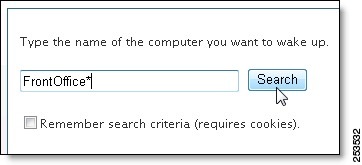
By default, these search features are enabled:

Note By default, users must enter at least three characters in the search form. If they try to use a single asterisk to return all clients, they get a message to try again.
I To disable either of these options or to change the minimum number of required characters and other parameters, see the “How to Customize Application Settings in IIS Manager” section.
Search Results Customizations
When users include wildcard characters in their searches, the first five matching computers are returned. If a computer is not listed, users can add more characters (not wildcards) and search again.
You can use the IIS Manager to change the maximum number of computers that are returned in search results. For information about customizing information returned with the results, see “Customizing the WRA Browser Pages” section.
Note Search results return only computers on which a Orchestrator client agent is installed and licensed.
How to Customize Application Settings in IIS Manager
How you access application settings depends on which version of IIS you use.
Note For a description of each setting, see “Application Settings and Descriptions” section.
To Customize Search Options in IIS 6 Manager
On the IIS server, open the IIS Manager from the Windows Start menu.
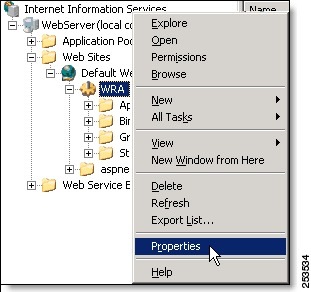
Step 2 Right-click WRA, and choose
Properties
.
Figure 2-2 Displaying the Properties of the WRA Site
Step 3 In the Properties dialog box, click the
ASP.NET
tab, and click
Edit
Configuration
.
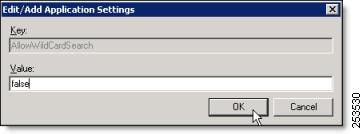
Step 4 Customize the settings. See “Application Settings and Descriptions” section.
Figure 2-3 Editing a WRA Application Setting
Application Settings and Descriptions
Allows the * and _ wildcards in searches. The default is true . If set to false , users must enter the computer name. If you disable wildcards, edit the Tips content in the Default.aspx page so that it does not describe how to include wildcards in searches. For information, see the “Customizing the WRA Browser Pages” section. |
|
Verifies that the computer is awake before sending the awake request. The default is true . For more information, see “Timeouts during the wake process” in the “Connection Issues” section. |
|
Maximum number of results displayed by the search. The default is 5. |
|
Minimum number of characters to enter in the Search form. The default is 3 (including wildcards). |
|
Number of seconds to wait before refreshing the status on the wake results page. The default is 2. This setting excludes the page-loading time, so the actual refresh time can be longer than the specified time. |
|
Text string showing the power-management server for WRA communication. |
|
Specifies whether to allow users to save their search criteria. Set to true by default. If you set this to false, the check box and label do not appear on the home page. |
|
Default message: “If you continue to receive this error, please contact your support department.” Note This message can be changed by the IIS manager. This message appears on the search results page if the WRA service has a problem communicating with the power management server when a user searches for a computer. This can occur, for example, if the server is offline, or the server name setting is not correct in the IIS Manager. |
|
Number of seconds to wait before determining that the computer is not reachable. The default is 9300. If you want to change this, we recommend using 1.5 times the Device check-in interval set on the Server settings page of the Orchestrator Administrator console (default is 10 minutes). |
Customizing the WRA Browser Pages
WRA includes three pages that users can see on their browsers. If you have experience with XHTML and CSS, you can customize these pages. For example:
- Disable wildcard characters in searches and remove the Tips text that describes how to use them.
- Create pages that better reflect your company branding.
- Adjust information that appears in search results.
This section includes these topics:
- Browser Page Location
- Editing Tip Text
- Editing Information Returned with Search Results
- Changing the Header and Logo
Browser Page Location
The web pages are in the root of the WRA site: Inetpub\wwwroot\wra .
Each page has XHTML code that contains the Tip text and other page elements, including code that inserts the WRA application.
The header logo and title bar text for the browser window are specified in the MasterPage.master file.
The .css style sheet defines the header background image and other style and layout attributes.

Editing Tip Text
Step 1 On the IIS server, go to
Inetpub\wwwroot\wra
, and open Default.aspx in a code or text editor.
Step 2 Search for the text that you want to edit, and change it to reflect what you want your users to know, incorporating any XHTML code for the desired display.
You can do the same to edit the Tip text on any of the pages that users see.
Editing Information Returned with Search Results
Search results include each computer name and IP and MAC addresses. The page also includes the option to wake or ping any listed computer.
If you want to restrict information that appears in search results, you need to edit the XHTML code that displays the information. For example, you can remove the Ping button or the IP or MAC address.
To remove information from the search results tables:
Step 1 After you have created your backup copies of the .aspx files, on the IIS server, go to Inetpub\wwwroot\wra, and open SearchResults.aspx in a code or text editor.
Step 2 Under <ItemTemplate>, look for the table row with the information that you want to remove, and delete that row.
For example, to remove the IP address, remove this code block:
Step 3 Save and close the file, and then test the page to make sure your changes give the expected results.
 Feedback