Catalyst 6500 Series Switch Supervisor Engine Guide
Bias-Free Language
The documentation set for this product strives to use bias-free language. For the purposes of this documentation set, bias-free is defined as language that does not imply discrimination based on age, disability, gender, racial identity, ethnic identity, sexual orientation, socioeconomic status, and intersectionality. Exceptions may be present in the documentation due to language that is hardcoded in the user interfaces of the product software, language used based on RFP documentation, or language that is used by a referenced third-party product. Learn more about how Cisco is using Inclusive Language.
- Updated:
- September 12, 2012
Chapter: Chapter 3 --- Installing Supervisor Engines
- Safety
- Required Tools
- Installing a Supervisor Engine
- Removing a Supervisor Engine
- USB Console Port Driver Installation
Installing Supervisor Engines
This chapter describes how to safely install and remove supervisor engines modules in the Catalyst 6500 series switches, and it contains these sections:
• Installing a Supervisor Engine
•Installing Pluggable Transceivers
•Attaching the Network Interface Cables

Tip For additional information about Cisco Catalyst 6500 Series Switches (including configuration examples and troubleshooting information), see the documents listed on this page:
http://www.cisco.com/en/US/products/hw/switches/ps708/tsd_products_support_series_home.html
Safety
Safety warnings appear throughout this publication in procedures that may harm you if performed incorrectly. A warning symbol precedes each warning statement. The warnings below are general warnings that are applicable to the entire publication.
 |
Warning Only trained and qualified personnel should be allowed to install, replace, or service this equipment. Statement 1030
|
|
Warning Before opening the unit, disconnect the telephone-network cables to avoid contact with telephone-network voltages. Statement 1041
|
|
Warning Invisible laser radiation may be emitted from disconnected fibers or connectors. Do not stare into beams or view directly with optical instruments. Statement 1051
|
Required Tools
These tools are required to install a supervisor engine in the chassis:
•Small flat-blade screwdriver
•No. 2 Phillips screwdriver
•Antistatic mat to support an unpackaged supervisor engine
•Your own ESD-prevention equipment or the disposable grounding wrist strap included with the module
Installing a Supervisor Engine
This section describes how to safely install a supervisor engine.
 To prevent ESD damage, handle the supervisor engine by the carrier edges only.
To install a supervisor engine in the chassis, follow these steps:
Step 1 Attach an ESD grounding strap to your wrist and to the ESD ground connector on the chassis or to a properly grounded bare metal surface.

Note If you are unsure about the correct way to attach an ESD grounding strap, see the "Attaching Your ESD Grounding Strap" section for instructions.
Step 2 Determine the correct slot for the supervisor engine. The supervisor engines must be installed in these slots:
•Supervisor Engine 2
–Slots 1 and 2 for all chassis
•Supervisor Engine 32
–Slots 1 and 2 for 3- and 4-slot chassis
–Slots 5 and 6 for 6- and 9-slot chassis
–Slots 7 and 8 for 13-slot chassis
•Supervisor Engine 32 PISA
–Slots 1 and 2 for 3- and 4-slot chassis
–Slots 5 and 6 for 6- and 9-slot chassis
–Slots 7 and 8 for 13-slot chassis
•Supervisor Engine 720
–Slots 1 and 2 for 3- and 4-slot chassis
–Slots 5 and 6 for 6- and 9-slot chassis
–Slots 7 and 8 for 13-slot chassis
•Supervisor Engine 720-10GE
–Slots 1 and 2 for 3- and 4- slot chassis
–Slots 5 and 6 for 6- and 9-slot chassis
–Slots 7 and 8 for 13-slot chassis
•Supervisor Engine 2T
–Slots 1 and 2 for 3- and 4- slot chassis
–Slots 5 and 6 for 6- and 9-slot chassis
–Slots 7 and 8 for 13-slot chassis
Note If you are installing a Supervisor Engine 2T in your chassis, the slots directly adjacent (above and below in horizontal chassis or to the left and to the right in vertical chassis) to the supervisor engine must contain either a redundant Supervisor Engine 2T, line cards or switching-module filler plates (Cisco part numbers WS-X6K-SLOT-CVR-E or SLOTBLANK-09). If either slot is going to remain unused and currently has a blank slot cover (Cisco part number WS-X6K-SLOT-CVR) installed, you must remove the blank slot cover and replace it with a switching-module filler plate for NEBS compliance.
Note The primary supervisor engine in a redundant supervisor engine configuration, or a single supervisor engine configuration can be installed in either of the two slots.
Step 3 Visually verify that there is enough clearance to accommodate any interface equipment, such as pluggable transceivers, that you will install directly to the supervisor engine uplink ports.
Step 4 If you are installing a Supervisor Engine 2T, verify that the two slots adjacent to the slot you are going to install the supervisor engine contain either another Supervisor Engine 2T, a module, or, if the slot is unused, a switching-module filler plate (Cisco part numbers WS-X6K-SLOT-CVR-E or SLOTBLANK-09).
Step 5 Verify that the captive installation screws are tightened on all modules installed in the chassis.
Note This action assures that the EMI gaskets on all of the modules are fully compressed in order to maximize the opening space for the new or replacement supervisor engine. If the captive installation screws are loose, the EMI gaskets on the installed modules expand pushing adjacent modules toward the empty slot, reducing the opening size and making it difficult to install the supervisor engine.
Step 6 If necessary, remove the blank slot cover or the switching-module filler plate covering the selected slot by removing the two Phillips pan-head screws. Set them aside for future use.
Note If you must remove an existing supervisor engine, refer to "Removing a Supervisor Engine" section.
Step 7 Remove the new supervisor engine from its shipping packaging and from the antistatic shipping bag.
To prevent ESD damage, handle supervisor engines by the carrier edges or the bottom only. Do not touch the circuitry.
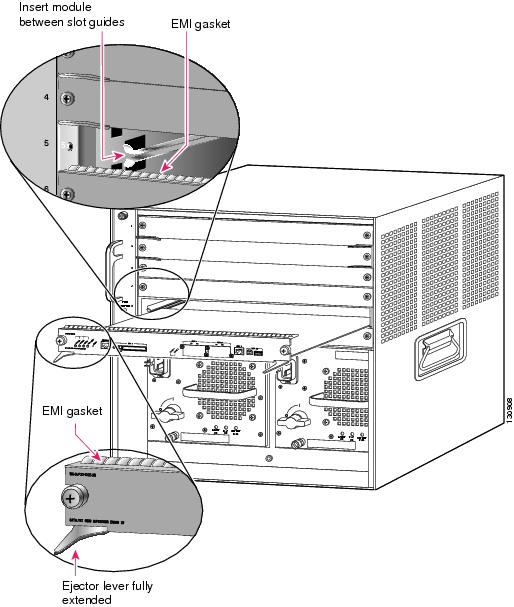
Step 8 Fully open both ejector levers on the new supervisor engine. (See Figure 3-1.)
Step 9 Depending on the orientation of the slots in the chassis (horizontal or vertical), perform one of the following two sets of steps:
Chassis with horizontal slots
a. Position the new supervisor engine in the slot. Make sure that you align the sides of the supervisor engine carrier with the slot guides on each side of the chassis slot. (See Figure 3-1.)
b. Carefully slide the supervisor engine into the slot until the EMI gasket along the top edge of the supervisor engine makes contact with the module or cover plate in the slot above it and the supervisor engine ejector levers have both closed to approximately 45 degrees with respect to the supervisor engine faceplate.
Figure 3-1 Positioning the Supervisor Engine in a Horizontal Slot Chassis
c. Using the thumb and forefinger of each hand, grasp the two ejector levers and gently press down to create a small 0.040 inch (1 mm) gap between the supervisor engine's EMI gasket and the module or cover plate above it. (See Figure 3-2.)
Note Do not press down too forcefully on the levers because they will bend and get damaged.
Figure 3-2 Clearing the EMI Gasket in a Horizontal Slot Chassis
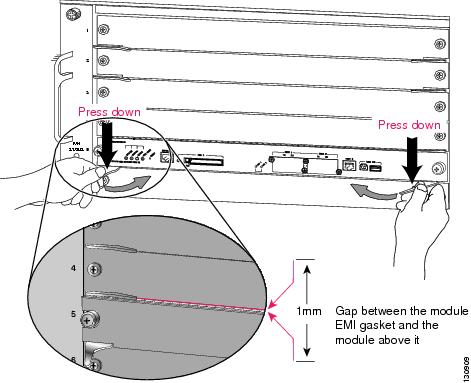
d. While gently pressing down, simultaneously close the left and right ejector levers to fully seat the supervisor engine in the backplane connector. The ejector levers are fully closed when they are flush with the supervisor engine faceplate.
Note Failure to fully seat the supervisor engine in the backplane connector can result in error messages.
e. Tighten the two captive installation screws on the supervisor engine.
Note Make sure the ejector levers are fully closed before tightening the captive installation screws.
f. Verify that the supervisor engine STATUS LED is lit.
g. Periodically check the STATUS LED.
•If the STATUS LED changes from orange to green, the supervisor engine has successfully completed the boot process and is now online.
•If the STATUS LED remains orange or turns red, the supervisor engine has not successfully completed the boot process and may have encountered an error.
Chassis with vertical slots
a. Position the supervisor engine in the slot. (See Figure 3-3.) Make sure that you align the sides of the supervisor engine carrier with the slot guides on the top and bottom of the chassis slot.
b. Carefully slide the supervisor engine into the slot until the EMI gasket along the right edge of the module makes contact with the module or cover plate in the slot adjacent to it and the module ejector levers have both closed to approximately 45 degrees with respect to the module faceplate. (See Figure 3-4.)
Figure 3-3 Positioning the Module in a Vertical Slot Chassis
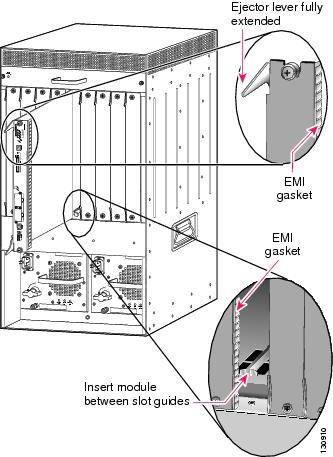
Figure 3-4 Clearing the EMI Gasket in a Vertical Slot Chassis
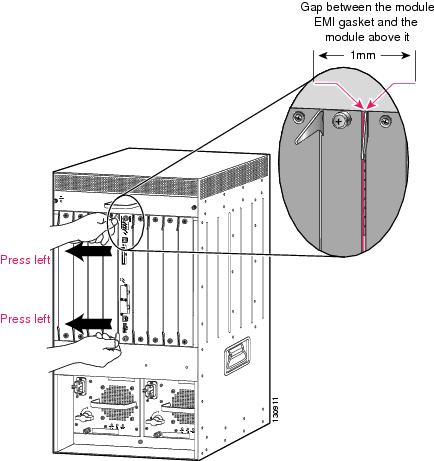
c. Using the thumb and forefinger of each hand, grasp the two ejector levers and exert a slight pressure to the left, deflecting the supervisor engine approximately 0.040 inches (1 mm) creating a small gap between the supervisor engine's EMI gasket and the module or cover plate adjacent to it. (See Figure 3-4.)
Note Do not exert too much pressure on the ejector levers because they will bend and get damaged.
d. While gently pressing to the left on the ejector levers, simultaneously close both levers to fully seat the supervisor engine in the backplane connector. The ejector levers are fully closed when they are flush with the supervisor engine faceplate.
e. Tighten the two captive installation screws on the supervisor engine.
Note Make sure that the ejector levers are fully closed before tightening the captive installation screws.
f. Verify that the supervisor engine STATUS LED is lit.
g. Periodically check the STATUS LED:
•If the STATUS LED changes from orange to green, the supervisor engine has successfully completed the boot process and is now online.
•If the STATUS LED remains orange or turns red, the supervisor engine has not successfully completed the boot process and may have encountered an error.
Removing a Supervisor Engine
This section describes how to remove a supervisor engine from the Catalyst 6500 series switch chassis.
During this procedure, wear grounding wrist straps to avoid ESD damage to the module.
|
Warning Invisible laser radiation may be emitted from disconnected fibers or connectors. Do not stare into beams or view directly with optical instruments. Statement 1051
|
Before you remove a supervisor engine, you should first upload the current configuration to a server. This step saves time when bringing the module back online. You can recover the configuration by downloading it from the server to the nonvolatile memory of the supervisor engine. For more information, refer to Chapter 27, "Working with Configuration Files," in the Catalyst 6500 Series Switch Software Configuration Guide or in Chapter 4, Chapter 5, and Chapter 6 in the Catalyst 6500 Series Cisco IOS Software Configuration Guide.
To remove a module from the chassis, follow these steps:
Step 1 Attach an ESD grounding strap to your wrist and to the ESD ground connector on the chassis or to a properly grounded bare metal surface.
Note If you are unsure about the correct way to attach an ESD grounding strap, see the "Attaching Your ESD Grounding Strap" section for instructions.
Step 2 Disconnect any network interface cables attached to the module.
Step 3 Verify that the captive installation screws on all of the modules in the chassis are tight.
Note This step ensures that the space created by the removed module is maintained. If the captive installation screws are loose, the EMI gaskets on the installed modules will push the modules toward the open slot, reducing the opening size and making it difficult to remove the module.
Step 4 Loosen the two captive screws on the module. Make sure that the two captive screws are completely unscrewed from the chassis.
Step 5 Depending on the orientation of the slots in the chassis (horizontal or vertical), perform one of the following two sets of steps:
Horizontal slots
a. Place your thumbs on the left and right ejector levers and simultaneously rotate the levers outward to unseat the module from the backplane connector. (See Figure 3-5.)
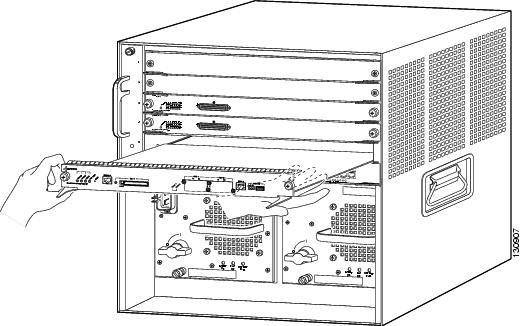
b. Grasp the front edge of the module and slide the module part of the way out of the slot. Place your other hand under the module to support the weight of the module. Do not touch the module circuitry. (See Figure 3-6.)
Vertical slots
a. Place your thumbs on the ejector levers located at the top and bottom of the module, and simultaneously rotate the levers outward to unseat the module from the backplane connector.
b. Grasp the edges of the module, and slide the module straight out of the slot. Do not touch the module circuitry.
Figure 3-5 Opening the Ejector Levers (Horizontal Slot Chassis Shown)
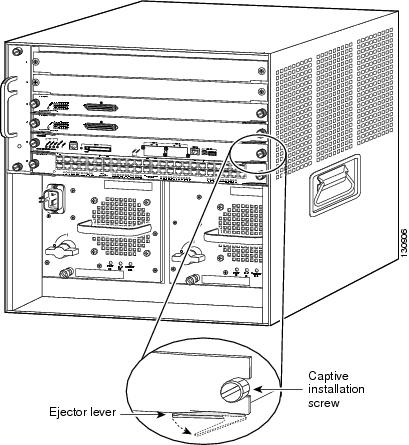
Figure 3-6 Removing the Supervisor Engine (Horizontal Slot Chassis Shown)
Step 6 Place the removed module on an antistatic mat or in an antistatic bag, or immediately reinstall it in another slot.
Step 7 If the slot is to remain empty, install a module filler plate to keep dust out of the chassis and to maintain proper airflow through the chassis. If a Supervisor Engine 2T or a WS-X6908-10G module is installed, the slots adjacent to either the supervisor engine or the module must have switching-module filler plates installed (Cisco part numbers WS-X6K-SLOT-CVR-E or SLOTBLANK-09). Do not install blank slot covers (WS-X6K-SLOT-CVR).
|
Warning Invisible laser radiation may be emitted from disconnected fibers or connectors. Do not stare into beams or view directly with optical instruments. Statement 1051
|
USB Console Port Driver Installation
The USB port is on the front panel of the supervisor engine. To utilize the supervisor engine USB port, follow these steps:
Step 1 If you are connecting the switch USB console port to a Windows-based PC for the first time, install the USB driver.
•"Installing the Cisco Microsoft Windows XP USB Driver" section
•"Installing the Cisco Microsoft Windows 2000 USB Driver" section
•"Installing the Cisco Microsoft Windows Vista and Windows 7 USB Driver" section
Step 2 Connect a USB cable to the PC USB port. Connect the other end of the cable to the switch mini-B (5-pin-connector) USB console port.
Step 3 Start the terminal-emulation program on the PC or the terminal. The program, frequently a PC application such as HyperTerminal or ProcommPlus, makes communication between the switch and your PC or terminal possible.
Step 4 Configure the baud rate and character format of the PC or terminal to match the console port default characteristics:
•9600 baud
•8 data bits
•1 stop bit
•No parity
•None (flow control)
Step 5 The PC or terminal displays the bootloader sequence. Press Enter to display the setup prompt. For configuration information, refer to the software configuration guide at the following URL:
Installing the Cisco Microsoft Windows USB Device Driver
A USB device driver must be installed the first time a Microsoft Windows-based PC is connected to the USB console port on the switch.
•Installing the Cisco Microsoft Windows XP USB Driver
•Installing the Cisco Microsoft Windows 2000 USB Driver
•Installing the Cisco Microsoft Windows Vista and Windows 7 USB Driver
Installing the Cisco Microsoft Windows XP USB Driver
To install the Cisco Microsoft Windows XP USB driver, follow these steps:
Step 1 Obtain the Cisco USB console driver file from the Cisco.com web site and unzip it.
Note You can download the driver file from the Cisco.com site for downloading the switch software.
Step 2 If using 32-bit Windows XP, double-click the setup.exe file in the Windows_32 folder. If using 64-bit Windows XP, double-click the setup(x64).exe file in the Windows_64 folder.
Step 3 The Cisco Virtual Com InstallShield Wizard begins.
Step 4 The Ready to Install the Program window appears. Click Install.
Step 5 The InstallShield Wizard Completed window appears. Click Finish.
Step 6 Connect the USB cable to the PC and the switch console port. The USB console port LED turns green, and the Found New Hardware Wizard appears. Follow the instructions to complete the driver installation.
Installing the Cisco Microsoft Windows 2000 USB Driver
To install the Cisco Microsoft Windows 2000 USB driver, follow these steps:
Step 1 Obtain the Cisco USB console driver file from the Cisco.com web site and unzip it.
Note You can download the driver file from the Cisco.com site for downloading the switch software.
Step 2 Double-click the setup.exe file.
Step 3 The Cisco Virtual Com InstallShield Wizard begins. Click Next.
Step 4 The Ready to Install the Program window appears. Click Install.
Step 5 The InstallShield Wizard Completed window appears. Click Finish.
Step 6 Connect the USB cable to the PC and the switch console port. The USB console port LED turns green, and the Found New Hardware Wizard appears. Follow the instructions to complete the driver installation.
Installing the Cisco Microsoft Windows Vista and Windows 7 USB Driver
To install the Cisco Microsoft Windows Vista and Windows 7 USB driver, follow these steps:
Step 1 Obtain the Cisco USB console driver file from the Cisco.com web site and unzip it.
Note You can download the driver file from the Cisco.com site for downloading the switch software.
Step 2 If using 32-bit Windows Vista or Windows 7, double-click the setup.exe file in the Windows_32 folder. if using 64-bit Windows Vista or Windows 7, double-click the setup(x64).exe file in the Windows_64 folder.
Step 3 The Cisco Virtual Com InstallShield Wizard begins. Click Next.
Step 4 The Ready to Install the Program window appears, Click Install.
Note If a User Account Control warning appears, click Allow - I trust this program to proceed.
Step 5 The InstallShield Wizard Completed window appears. Click Finish.
Step 6 Connect the USB cable to the PC and the switch console port. The USB console port LED turns green, and the Found New Hardware Wizard appears. Follow the instructions to complete the driver installation.
Uninstalling the Cisco Microsoft Windows USB Driver
To uninstall the USB driver, select the procedure appropriate for your version of Microsoft Windows.
•Uninstalling the Cisco Microsoft Windows XP and 2000 USB Driver
•Uninstalling the Cisco Microsoft Windows Vista and Windows 7 USB Driver
Uninstalling the Cisco Microsoft Windows XP and 2000 USB Driver
Use the Windows Add or Remove Programs utility or the setup.exe file to uninstall the Cisco Microsoft Windows XP and 2000 USB Driver.
Using the Add or Remove Programs utility
Note Disconnect the switch console terminal before uninstalling the driver.
Step 1 Click Start > Control Panel > Add or Remove Programs.
Step 2 Scroll to Cisco Virtual Com and click Remove.
Step 3 When the Program Maintenance window appears, select the Remove radio button. Click Next.
Using the Setup.exe program
Note Disconnect the switch console terminal before uninstalling the driver.
Step 1 Run setup.exe for Windows 32-bit or setup(x64).exe for Windows-64bit. Click Next.
Step 2 The InstallShield Wizard for Cisco Virtual Com appears. Click Next.
Step 3 When the Program Maintenance window appears, select the Remove radio button. Click Next.
Step 4 When the Remove the Program window appears, click Remove.
Step 5 When the InstallShield Wizard Completed window appears click Finish.
Uninstalling the Cisco Microsoft Windows Vista and Windows 7 USB Driver
To uninstall the Cisco Microsoft Vista or Windows 7 USB driver, follow these steps:
Note Disconnect the switch console terminal before uninstalling the driver.
Step 1 Run setup.exe for Windows 32-bit or setup(x64).exe for Windows-64bit. Click Next.
Step 2 The InstallShield Wizard for Cisco Virtual Com appears. Click Next.
Step 3 When the Program Maintenance window appears, select the Remove radio button. Click Next.
Step 4 When the Remove the Program window appears, click Remove.
Note If a User Account Control warning appears, click Allow - I trust this program to proceed.
Step 5 When the InstallShield Wizard Completed window appears click Finish.
Installing Pluggable Transceivers
Supervisor engine uplink ports require that pluggable transceivers be installed in the uplink port sockets. These transceivers are normally shipped separately from the supervisor engine and must be installed after the supervisor engine is installed in the chassis. Table 3-1 lists the types of transceivers used in the supervisor engine uplink ports and the location on cisco.com of the specific installation instructions for the transceiver.
|
|
|
|---|---|
GBIC |
|
SFP |
|
XENPAK |
|
X2 |
We strongly recommend that you do not install or remove any of the transceiver with a fiber-optic cable attached to it because of the potential damage to the cable, the cable connector, or the optical interfaces in the transceiver. Disconnect the network interface cable before removing or installing any transceiver.
|
Warning Invisible laser radiation may be emitted from disconnected fibers or connectors. Do not stare into beams or view directly with optical instruments. Statement 1051
|
Note For information on inspecting and cleaning fiber-optic interfaces, see the document at this URL:
http://www.cisco.com/en/US/tech/tk482/tk876/technologies_white_paper09186a0080254eba.shtml
Attaching the Network Interface Cables
This section describes how to attach network interface cables (optical and copper) to the supervisor engine uplink ports and contains the following topics:
•Attaching Optical Network Interface Cables
•Connecting Transceivers to a Copper Network
Attaching Optical Network Interface Cables
Before you remove the dust plugs from the connector optical bores and make any connections, observe the following guidelines:
•Always keep the protective dust plugs on the unplugged fiber-optic cable connectors and the transceiver optical bores until you are ready to make a connection.
Do not remove the plugs from the transceiver optical bores or the fiber-optic cable until you are ready to connect the cable. The plugs protect the transceiver optical bores and cable from contamination.
•Always inspect and clean the SC or the LC connector end-faces just before making any connections. Refer to the Tip on inspecting and cleaning fiber-optic connections for the location of a document that describes the fiber-optic inspection and cleaning process.
•Always grasp the SC or the LC connector housing instead of the fiber-optic cable to plug or unplug the fiber-optic cable.
To install the optical interface cables, follow these steps:
Step 1 Remove the dust plugs from the network interface cable optical connectors. Save the dust plugs for future use.
Step 2 Immediately inspect and clean the optical connector's fiber-optic end faces.
Tip For complete information on inspecting and cleaning fiber-optic connections, see the document at this URL:
http://www.cisco.com/en/US/tech/tk482/tk876/technologies_white_paper09186a0080254eba.shtml
Mode-Conditioning Patch Cord
A mode-conditioning patch cord is recommended for use with an LX/LH GBIC transceiver or an LX/LH SFP transceiver and multimode fiber (MMF) to allow reliable laser transmission. Table 3-2lists the three types of mode-conditioning patch cords available from Cisco:
Table 3-3 lists the optical transceivers that require a mode-conditioning patch cord.
When an unconditioned laser source designed for operation on single-mode optical fiber is directly coupled to a multimode optical fiber cable, an effect known as differential mode delay (DMD) might result in a degradation of the modal bandwidth of the optical fiber cable.
This degradation results in a decrease in the link span (the distance between a transmitter and a receiver) that can be supported reliably. The effect of DMD can be overcome by conditioning the launch characteristics of a laser source. A practical means of performing this conditioning is to use a device called a mode-conditioning patch cord.
A mode-conditioning patch cord is an optical fiber cable assembly that consists of a pair of optical fibers terminated with connector hardware. Specifically, the mode-conditioning patch cord is composed of a single-mode optical fiber permanently coupled off-center (see Offset in Figure 3-7 and Figure 3-8) to a graded-index multimode optical fiber. Figure 3-7 and Figure 3-8 show a diagram of the mode-conditioning patch cord assembly.
Figure 3-7 Mode Conditioning Patch Cord with SC (GBIC Transceiver) Connector
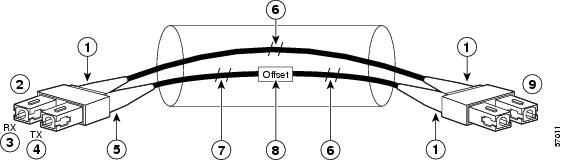
Figure 3-8 Mode Conditioning Patch Cord with LC (SFP Transceiver) Connector
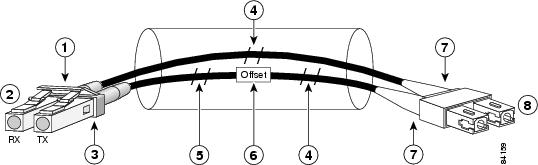
The mode-conditioning patch cord assembly is composed of duplex optical fibers, including a single-mode-to-multimode offset launch fiber connected to the transmitter, and a second conventional graded-index multimode optical fiber connected to the receiver. The use of a plug-to-plug patch cord maximizes the power budget of multimode 1000BASE-LX/LH links.
Note The mode-conditioning patch cord is required to comply with IEEE standards. The IEEE found that link distances could not be met with certain types of fiber-optic cable cores. The solution is to launch light from the laser at a precise offset from the center, which is accomplished by using the mode-conditioning patch cord. At the output end of the patch cord, the GBIC-LX/LH is compliant with the IEEE 802.3z standard for 1000BASE-LX.
Connecting Transceivers to a Copper Network
To comply with GR-1089 intrabuilding lightning immunity requirements, you must use grounded, shielded, twisted-pair Category 5 cabling.
To connect transceivers to a copper network, follow these steps:
Step 1 Insert the network cable RJ-45 connector into the RJ-45 connector on the transceiver.
Note When connecting to a 1000BASE-T-compatible switch or repeater, use four-twisted-pair, crossover Category 5 cabling.
Step 2 Insert the other end of the network cable into an RJ-45 connector on a 1000BASE-T-compatible target device.
Where to Go Next
For complete information on verifying the installation of the supervisor engine configuration information, see the Catalyst 6500 Series Switch Software Configuration Guide or the Catalyst 6500 Series Switch Cisco IOS Software Configuration Guide. For information on all Catalyst 6500 series switch commands, see the Catalyst 6500 Series Switch Command Reference or the Catalyst 6500 Series Switch Cisco IOS Command Reference publications.
 Feedback