- Index
- Preface
- Configuring CDP
- Administering the Switch
- Using the Command-Line Interface
- Configuring IEEE 802.1x Port-Based Authentication
- Configuring Switch-Based Authentication
- Configuring Network Security with ACLs
- Configuring DHCP Features
- Configuring Flex Links and the MAC Address-Table Move Update Feature
- Working with the Cisco IOS File System, Configuration Files, and Software Images
- Configuring IGMP Snooping and MVR
- Configuring LLDP and LLDP-MED
- Configuring EtherChannels and Link-State Tracking
- Configuring System Message Logging
- Configuring Smartports Macros
- Supported MIBs
- Configuring Interface Characteristics
- Assigning the Switch IP Address and Default Gateway
- Configuring RMON
- Configuring SDM Templates
- Configuring SNMP
- Configuring MSTP
- Configuring SPAN and RSPAN
- Configuring Port-Based Traffic Control
- Troubleshooting
- Configuring UDLD
- Unsupported Commands in Cisco IOS Release 12.2(37)SE
- Recommendations for Upgrading a Catalyst 2950 Switch to a Catalyst 2960 Switch
- Configuring Optional Spanning-Tree Features
- Configuring QoS
- Configuring Voice VLAN
- Configuring VTP
- Configuring VLANs
- Configuring Cisco IOS CNS Agents
- Clustering Switches
- Configuring STP
- Overview
- Preventing Unauthorized Access to Your Switch
- Protecting Access to Privileged EXEC Commands
- Default Password and Privilege Level Configuration
- Setting or Changing a Static Enable Password
- Protecting Enable and Enable Secret Passwords with Encryption
- Disabling Password Recovery
- Setting a Telnet Password for a Terminal Line
- Configuring Username and Password Pairs
- Configuring Multiple Privilege Levels
- Understanding RADIUS
- RADIUS Operation
- Configuring RADIUS
- Default RADIUS Configuration
- Identifying the RADIUS Server Host
- Configuring RADIUS Login Authentication
- Defining AAA Server Groups
- Configuring RADIUS Authorization for User Privileged Access and Network Services
- Starting RADIUS Accounting
- Configuring Settings for All RADIUS Servers
- Configuring the Switch to Use Vendor-Specific RADIUS Attributes
- Configuring the Switch for Vendor-Proprietary RADIUS Server Communication
- Displaying the RADIUS Configuration
Configuring Switch-Based Authentication
This chapter describes how to configure switch-based authentication on the Catalyst 2960 switch. It consists of these sections:
• Preventing Unauthorized Access to Your Switch
•Protecting Access to Privileged EXEC Commands
•Controlling Switch Access with TACACS+
•Controlling Switch Access with RADIUS
•Configuring the Switch for Local Authentication and Authorization
•Configuring the Switch for Secure Shell
•Configuring the Switch for Secure Socket Layer HTTP
•Configuring the Switch for Secure Copy Protocol
Preventing Unauthorized Access to Your Switch
You can prevent unauthorized users from reconfiguring your switch and viewing configuration information. Typically, you want network administrators to have access to your switch while you restrict access to users who dial from outside the network through an asynchronous port, connect from outside the network through a serial port, or connect through a terminal or workstation from within the local network.
To prevent unauthorized access into your switch, you should configure one or more of these security features:
•At a minimum, you should configure passwords and privileges at each switch port. These passwords are locally stored on the switch. When users attempt to access the switch through a port or line, they must enter the password specified for the port or line before they can access the switch. For more information, see the "Protecting Access to Privileged EXEC Commands" section.
•For an additional layer of security, you can also configure username and password pairs, which are locally stored on the switch. These pairs are assigned to lines or ports and authenticate each user before that user can access the switch. If you have defined privilege levels, you can also assign a specific privilege level (with associated rights and privileges) to each username and password pair. For more information, see the "Configuring Username and Password Pairs" section.
•If you want to use username and password pairs, but you want to store them centrally on a server instead of locally, you can store them in a database on a security server. Multiple networking devices can then use the same database to obtain user authentication (and, if necessary, authorization) information. For more information, see the "Controlling Switch Access with TACACS+" section.
Protecting Access to Privileged EXEC Commands
A simple way of providing terminal access control in your network is to use passwords and assign privilege levels. Password protection restricts access to a network or network device. Privilege levels define what commands users can enter after they have logged into a network device.

Note For complete syntax and usage information for the commands used in this section, see the Cisco IOS Security Command Reference, Release 12.2.
These sections contain this configuration information:
•Default Password and Privilege Level Configuration
•Setting or Changing a Static Enable Password
•Protecting Enable and Enable Secret Passwords with Encryption
•Setting a Telnet Password for a Terminal Line
•Configuring Username and Password Pairs
•Configuring Multiple Privilege Levels
Default Password and Privilege Level Configuration
Table 8-1 shows the default password and privilege level configuration.
Setting or Changing a Static Enable Password
The enable password controls access to the privileged EXEC mode. Beginning in privileged EXEC mode, follow these steps to set or change a static enable password:
To remove the password, use the no enable password global configuration command.
This example shows how to change the enable password to l1u2c3k4y5. The password is not encrypted and provides access to level 15 (traditional privileged EXEC mode access):
Switch(config)# enable password l1u2c3k4y5
Protecting Enable and Enable Secret Passwords with Encryption
To provide an additional layer of security, particularly for passwords that cross the network or that are stored on a Trivial File Transfer Protocol (TFTP) server, you can use either the enable password or enable secret global configuration commands. Both commands accomplish the same thing; that is, you can establish an encrypted password that users must enter to access privileged EXEC mode (the default) or any privilege level you specify.
We recommend that you use the enable secret command because it uses an improved encryption algorithm.
If you configure the enable secret command, it takes precedence over the enable password command; the two commands cannot be in effect simultaneously.
Beginning in privileged EXEC mode, follow these steps to configure encryption for enable and enable secret passwords:
If both the enable and enable secret passwords are defined, users must enter the enable secret password.
Use the level keyword to define a password for a specific privilege level. After you specify the level and set a password, give the password only to users who need to have access at this level. Use the privilege level global configuration command to specify commands accessible at various levels. For more information, see the "Configuring Multiple Privilege Levels" section.
If you enable password encryption, it applies to all passwords including username passwords, authentication key passwords, the privileged command password, and console and virtual terminal line passwords.
To remove a password and level, use the no enable password [level level] or no enable secret [level level] global configuration command. To disable password encryption, use the no service password-encryption global configuration command.
This example shows how to configure the encrypted password $1$FaD0$Xyti5Rkls3LoyxzS8 for privilege level 2:
Switch(config)# enable secret level 2 5 $1$FaD0$Xyti5Rkls3LoyxzS8
Disabling Password Recovery
By default, any end user with physical access to the switch can recover from a lost password by interrupting the boot process while the switch is powering on and then by entering a new password.
The password-recovery disable feature protects access to the switch password by disabling part of this functionality. When this feature is enabled, the end user can interrupt the boot process only by agreeing to set the system back to the default configuration. With password recovery disabled, you can still interrupt the boot process and change the password, but the configuration file (config.text) and the VLAN database file (vlan.dat) are deleted.
Note If you disable password recovery, we recommend that you keep a backup copy of the configuration file on a secure server in case the end user interrupts the boot process and sets the system back to default values. Do not keep a backup copy of the configuration file on the switch. If the switch is operating in VTP transparent mode, we recommend that you also keep a backup copy of the VLAN database file on a secure server. When the switch is returned to the default system configuration, you can download the saved files to the switch by using the Xmodem protocol. For more information, see the "Recovering from a Lost or Forgotten Password" section on page 32-3.
Beginning in privileged EXEC mode, follow these steps to disable password recovery:
To re-enable password recovery, use the service password-recovery global configuration command.
Note Disabling password recovery will not work if you have set the switch to boot up manually by using the boot manual global configuration command. This command produces the boot loader prompt (switch:) after the switch is power cycled.
Setting a Telnet Password for a Terminal Line
When you power-up your switch for the first time, an automatic setup program runs to assign IP information and to create a default configuration for continued use. The setup program also prompts you to configure your switch for Telnet access through a password. If you did not configure this password during the setup program, you can configure it now through the command-line interface (CLI).
Beginning in privileged EXEC mode, follow these steps to configure your switch for Telnet access:
To remove the password, use the no password global configuration command.
This example shows how to set the Telnet password to let45me67in89:
Switch(config)# line vty 10
Switch(config-line)# password let45me67in89
Configuring Username and Password Pairs
You can configure username and password pairs, which are locally stored on the switch. These pairs are assigned to lines or ports and authenticate each user before that user can access the switch. If you have defined privilege levels, you can also assign a specific privilege level (with associated rights and privileges) to each username and password pair.
Beginning in privileged EXEC mode, follow these steps to establish a username-based authentication system that requests a login username and a password:
To disable username authentication for a specific user, use the no username name global configuration command. To disable password checking and allow connections without a password, use the no login line configuration command.
Configuring Multiple Privilege Levels
By default, the Cisco IOS software has two modes of password security: user EXEC and privileged EXEC. You can configure up to 16 hierarchical levels of commands for each mode. By configuring multiple passwords, you can allow different sets of users to have access to specified commands.
For example, if you want many users to have access to the clear line command, you can assign it level 2 security and distribute the level 2 password fairly widely. But if you want more restricted access to the configure command, you can assign it level 3 security and distribute that password to a more restricted group of users.
These sections contain this configuration information:
•Setting the Privilege Level for a Command
•Changing the Default Privilege Level for Lines
•Logging into and Exiting a Privilege Level
Setting the Privilege Level for a Command
Beginning in privileged EXEC mode, follow these steps to set the privilege level for a command mode:
When you set a command to a privilege level, all commands whose syntax is a subset of that command are also set to that level. For example, if you set the show ip traffic command to level 15, the show commands and show ip commands are automatically set to privilege level 15 unless you set them individually to different levels.
To return to the default privilege for a given command, use the no privilege mode level level command global configuration command.
This example shows how to set the configure command to privilege level 14 and define SecretPswd14 as the password users must enter to use level 14 commands:
Switch(config)# privilege exec level 14 configure
Switch(config)# enable password level 14 SecretPswd14
Changing the Default Privilege Level for Lines
Beginning in privileged EXEC mode, follow these steps to change the default privilege level for a line:
Users can override the privilege level you set using the privilege level line configuration command by logging in to the line and enabling a different privilege level. They can lower the privilege level by using the disable command. If users know the password to a higher privilege level, they can use that password to enable the higher privilege level. You might specify a high level or privilege level for your console line to restrict line usage.
To return to the default line privilege level, use the no privilege level line configuration command.
Logging into and Exiting a Privilege Level
Beginning in privileged EXEC mode, follow these steps to log in to a specified privilege level and to exit to a specified privilege level:
|
|
|
|
|---|---|---|
Step 1 |
enable level |
Log in to a specified privilege level. For level, the range is 0 to 15. |
Step 2 |
disable level |
Exit to a specified privilege level. For level, the range is 0 to 15. |
Controlling Switch Access with TACACS+
This section describes how to enable and configure Terminal Access Controller Access Control System Plus (TACACS+), which provides detailed accounting information and flexible administrative control over authentication and authorization processes. TACACS+ is facilitated through authentication, authorization, accounting (AAA) and can be enabled only through AAA commands.
Note For complete syntax and usage information for the commands used in this section, see the Cisco IOS Security Command Reference, Release 12.2.
These sections contain this configuration information:
•Displaying the TACACS+ Configuration
Understanding TACACS+
TACACS+ is a security application that provides centralized validation of users attempting to gain access to your switch. TACACS+ services are maintained in a database on a TACACS+ daemon typically running on a UNIX or Windows NT workstation. You should have access to and should configure a TACACS+ server before the configuring TACACS+ features on your switch.
TACACS+ provides for separate and modular authentication, authorization, and accounting facilities. TACACS+ allows for a single access control server (the TACACS+ daemon) to provide each service—authentication, authorization, and accounting—independently. Each service can be tied into its own database to take advantage of other services available on that server or on the network, depending on the capabilities of the daemon.
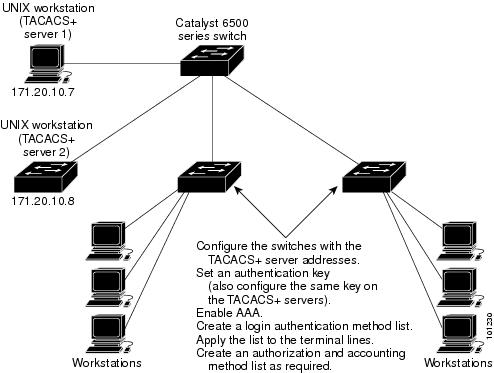
The goal of TACACS+ is to provide a method for managing multiple network access points from a single management service. Your switch can be a network access server along with other Cisco routers and access servers. A network access server provides connections to a single user, to a network or subnetwork, and to interconnected networks as shown in Figure 8-1.
Figure 8-1 Typical TACACS+ Network Configuration
TACACS+, administered through the AAA security services, can provide these services:
•Authentication—Provides complete control of authentication through login and password dialog, challenge and response, and messaging support.
The authentication facility can conduct a dialog with the user (for example, after a username and password are provided, to challenge a user with several questions, such as home address, mother's maiden name, service type, and social security number). The TACACS+ authentication service can also send messages to user screens. For example, a message could notify users that their passwords must be changed because of the company's password aging policy.
•Authorization—Provides fine-grained control over user capabilities for the duration of the user's session, including but not limited to setting autocommands, access control, session duration, or protocol support. You can also enforce restrictions on what commands a user can execute with the TACACS+ authorization feature.
•Accounting—Collects and sends information used for billing, auditing, and reporting to the TACACS+ daemon. Network managers can use the accounting facility to track user activity for a security audit or to provide information for user billing. Accounting records include user identities, start and stop times, executed commands (such as PPP), number of packets, and number of bytes.
The TACACS+ protocol provides authentication between the switch and the TACACS+ daemon, and it ensures confidentiality because all protocol exchanges between the switch and the TACACS+ daemon are encrypted.
You need a system running the TACACS+ daemon software to use TACACS+ on your switch.
TACACS+ Operation
When a user attempts a simple ASCII login by authenticating to a switch using TACACS+, this process occurs:
1. When the connection is established, the switch contacts the TACACS+ daemon to obtain a username prompt to show to the user. The user enters a username, and the switch then contacts the TACACS+ daemon to obtain a password prompt. The switch displays the password prompt to the user, the user enters a password, and the password is then sent to the TACACS+ daemon.
TACACS+ allows a dialog between the daemon and the user until the daemon receives enough information to authenticate the user. The daemon prompts for a username and password combination, but can include other items, such as the user's mother's maiden name.
2. The switch eventually receives one of these responses from the TACACS+ daemon:
•ACCEPT—The user is authenticated and service can begin. If the switch is configured to require authorization, authorization begins at this time.
•REJECT—The user is not authenticated. The user can be denied access or is prompted to retry the login sequence, depending on the TACACS+ daemon.
•ERROR—An error occurred at some time during authentication with the daemon or in the network connection between the daemon and the switch. If an ERROR response is received, the switch typically tries to use an alternative method for authenticating the user.
•CONTINUE—The user is prompted for additional authentication information.
After authentication, the user undergoes an additional authorization phase if authorization has been enabled on the switch. Users must first successfully complete TACACS+ authentication before proceeding to TACACS+ authorization.
3. If TACACS+ authorization is required, the TACACS+ daemon is again contacted, and it returns an ACCEPT or REJECT authorization response. If an ACCEPT response is returned, the response contains data in the form of attributes that direct the EXEC or NETWORK session for that user and the services that the user can access:
•Telnet, Secure Shell (SSH), rlogin, or privileged EXEC services
•Connection parameters, including the host or client IP address, access list, and user timeouts
Configuring TACACS+
This section describes how to configure your switch to support TACACS+. At a minimum, you must identify the host or hosts maintaining the TACACS+ daemon and define the method lists for TACACS+ authentication. You can optionally define method lists for TACACS+ authorization and accounting. A method list defines the sequence and methods to be used to authenticate, to authorize, or to keep accounts on a user. You can use method lists to designate one or more security protocols to be used, thus ensuring a backup system if the initial method fails. The software uses the first method listed to authenticate, to authorize, or to keep accounts on users; if that method does not respond, the software selects the next method in the list. This process continues until there is successful communication with a listed method or the method list is exhausted.
These sections contain this configuration information:
•Default TACACS+ Configuration
•Identifying the TACACS+ Server Host and Setting the Authentication Key
•Configuring TACACS+ Login Authentication
•Configuring TACACS+ Authorization for Privileged EXEC Access and Network Services
Default TACACS+ Configuration
TACACS+ and AAA are disabled by default.
To prevent a lapse in security, you cannot configure TACACS+ through a network management application. When enabled, TACACS+ can authenticate users accessing the switch through the CLI.
Note Although TACACS+ configuration is performed through the CLI, the TACACS+ server authenticates HTTP connections that have been configured with a privilege level of 15.
Identifying the TACACS+ Server Host and Setting the Authentication Key
You can configure the switch to use a single server or AAA server groups to group existing server hosts for authentication. You can group servers to select a subset of the configured server hosts and use them for a particular service. The server group is used with a global server-host list and contains the list of IP addresses of the selected server hosts.
Beginning in privileged EXEC mode, follow these steps to identify the IP host or host maintaining TACACS+ server and optionally set the encryption key:
To remove the specified TACACS+ server name or address, use the no tacacs-server host hostname global configuration command. To remove a server group from the configuration list, use the no aaa group server tacacs+ group-name global configuration command. To remove the IP address of a TACACS+ server, use the no server ip-address server group subconfiguration command.
Configuring TACACS+ Login Authentication
To configure AAA authentication, you define a named list of authentication methods and then apply that list to various ports. The method list defines the types of authentication to be performed and the sequence in which they are performed; it must be applied to a specific port before any of the defined authentication methods are performed. The only exception is the default method list (which, by coincidence, is named default). The default method list is automatically applied to all ports except those that have a named method list explicitly defined. A defined method list overrides the default method list.
A method list describes the sequence and authentication methods to be queried to authenticate a user. You can designate one or more security protocols to be used for authentication, thus ensuring a backup system for authentication in case the initial method fails. The software uses the first method listed to authenticate users; if that method fails to respond, the software selects the next authentication method in the method list. This process continues until there is successful communication with a listed authentication method or until all defined methods are exhausted. If authentication fails at any point in this cycle—meaning that the security server or local username database responds by denying the user access—the authentication process stops, and no other authentication methods are attempted.
Beginning in privileged EXEC mode, follow these steps to configure login authentication:
|
|
|
|
|---|---|---|
Step 1 |
configure terminal |
Enter global configuration mode. |
Step 2 |
aaa new-model |
Enable AAA. |
Step 3 |
aaa authentication login {default | list-name} method1 [method2...] |
Create a login authentication method list. • • • Select one of these methods: • • • • • • |
Step 4 |
line [console | tty | vty] line-number [ending-line-number] |
Enter line configuration mode, and configure the lines to which you want to apply the authentication list. |
Step 5 |
login authentication {default | list-name} |
Apply the authentication list to a line or set of lines. • • |
Step 6 |
end |
Return to privileged EXEC mode. |
Step 7 |
show running-config |
Verify your entries. |
Step 8 |
copy running-config startup-config |
(Optional) Save your entries in the configuration file. |
To disable AAA, use the no aaa new-model global configuration command. To disable AAA authentication, use the no aaa authentication login {default | list-name} method1 [method2...] global configuration command. To either disable TACACS+ authentication for logins or to return to the default value, use the no login authentication {default | list-name} line configuration command.
Note To secure the switch for HTTP access by using AAA methods, you must configure the switch with the ip http authentication aaa global configuration command. Configuring AAA authentication does not secure the switch for HTTP access by using AAA methods.
For more information about the ip http authentication command, see the Cisco IOS Security Command Reference, Release 12.2.
Configuring TACACS+ Authorization for Privileged EXEC Access and Network Services
AAA authorization limits the services available to a user. When AAA authorization is enabled, the switch uses information retrieved from the user's profile, which is located either in the local user database or on the security server, to configure the user's session. The user is granted access to a requested service only if the information in the user profile allows it.
You can use the aaa authorization global configuration command with the tacacs+ keyword to set parameters that restrict a user's network access to privileged EXEC mode.
The aaa authorization exec tacacs+ local command sets these authorization parameters:
•Use TACACS+ for privileged EXEC access authorization if authentication was performed by using TACACS+.
•Use the local database if authentication was not performed by using TACACS+.
Note Authorization is bypassed for authenticated users who log in through the CLI even if authorization has been configured.
Beginning in privileged EXEC mode, follow these steps to specify TACACS+ authorization for privileged EXEC access and network services:
To disable authorization, use the no aaa authorization {network | exec} method1 global configuration command.
Starting TACACS+ Accounting
The AAA accounting feature tracks the services that users are accessing and the amount of network resources that they are consuming. When AAA accounting is enabled, the switch reports user activity to the TACACS+ security server in the form of accounting records. Each accounting record contains accounting attribute-value (AV) pairs and is stored on the security server. This data can then be analyzed for network management, client billing, or auditing.
Beginning in privileged EXEC mode, follow these steps to enable TACACS+ accounting for each Cisco IOS privilege level and for network services:
To disable accounting, use the no aaa accounting {network | exec} {start-stop} method1... global configuration command.
Displaying the TACACS+ Configuration
To display TACACS+ server statistics, use the show tacacs privileged EXEC command.
Controlling Switch Access with RADIUS
This section describes how to enable and configure the RADIUS, which provides detailed accounting information and flexible administrative control over authentication and authorization processes. RADIUS is facilitated through AAA and can be enabled only through AAA commands.
Note For complete syntax and usage information for the commands used in this section, see the Cisco IOS Security Command Reference, Release 12.2.
These sections contain this configuration information:
•Displaying the RADIUS Configuration
Understanding RADIUS
RADIUS is a distributed client/server system that secures networks against unauthorized access. RADIUS clients run on supported Cisco routers and switches. Clients send authentication requests to a central RADIUS server, which contains all user authentication and network service access information. The RADIUS host is normally a multiuser system running RADIUS server software from Cisco (Cisco Secure Access Control Server Version 3.0), Livingston, Merit, Microsoft, or another software provider. For more information, see the RADIUS server documentation.
Use RADIUS in these network environments that require access security:
•Networks with multiple-vendor access servers, each supporting RADIUS. For example, access servers from several vendors use a single RADIUS server-based security database. In an IP-based network with multiple vendors' access servers, dial-in users are authenticated through a RADIUS server that has been customized to work with the Kerberos security system.
•Turnkey network security environments in which applications support the RADIUS protocol, such as in an access environment that uses a smart card access control system. In one case, RADIUS has been used with Enigma's security cards to validates users and to grant access to network resources.
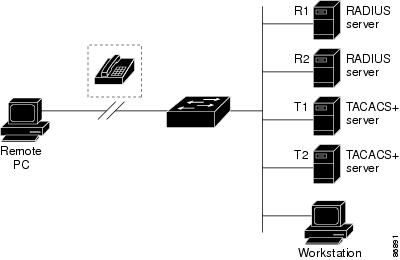
•Networks already using RADIUS. You can add a Cisco switch containing a RADIUS client to the network. This might be the first step when you make a transition to a TACACS+ server. See Figure 8-2.
•Network in which the user must only access a single service. Using RADIUS, you can control user access to a single host, to a single utility such as Telnet, or to the network through a protocol such as IEEE 802.1x. For more information about this protocol, see Chapter 9, "Configuring IEEE 802.1x Port-Based Authentication."
•Networks that require resource accounting. You can use RADIUS accounting independently of RADIUS authentication or authorization. The RADIUS accounting functions allow data to be sent at the start and end of services, showing the amount of resources (such as time, packets, bytes, and so forth) used during the session. An Internet service provider might use a freeware-based version of RADIUS access control and accounting software to meet special security and billing needs.
RADIUS is not suitable in these network security situations:
•Multiprotocol access environments. RADIUS does not support AppleTalk Remote Access (ARA), NetBIOS Frame Control Protocol (NBFCP), NetWare Asynchronous Services Interface (NASI), or X.25 PAD connections.
•Switch-to-switch or router-to-router situations. RADIUS does not provide two-way authentication. RADIUS can be used to authenticate from one device to a non-Cisco device if the non-Cisco device requires authentication.
•Networks using a variety of services. RADIUS generally binds a user to one service model.
Figure 8-2 Transitioning from RADIUS to TACACS+ Services
RADIUS Operation
When a user attempts to log in and authenticate to a switch that is access controlled by a RADIUS server, these events occur:
1. The user is prompted to enter a username and password.
2. The username and encrypted password are sent over the network to the RADIUS server.
3. The user receives one of these responses from the RADIUS server:
a. ACCEPT—The user is authenticated.
b. REJECT—The user is either not authenticated and is prompted to re-enter the username and password, or access is denied.
c. CHALLENGE—A challenge requires additional data from the user.
d. CHALLENGE PASSWORD—A response requests the user to select a new password.
The ACCEPT or REJECT response is bundled with additional data that is used for privileged EXEC or network authorization. Users must first successfully complete RADIUS authentication before proceeding to RADIUS authorization, if it is enabled. The additional data included with the ACCEPT or REJECT packets includes these items:
•Telnet, SSH, rlogin, or privileged EXEC services
•Connection parameters, including the host or client IP address, access list, and user timeouts
Configuring RADIUS
This section describes how to configure your switch to support RADIUS. At a minimum, you must identify the host or hosts that run the RADIUS server software and define the method lists for RADIUS authentication. You can optionally define method lists for RADIUS authorization and accounting.
A method list defines the sequence and methods to be used to authenticate, to authorize, or to keep accounts on a user. You can use method lists to designate one or more security protocols to be used (such as TACACS+ or local username lookup), thus ensuring a backup system if the initial method fails. The software uses the first method listed to authenticate, to authorize, or to keep accounts on users; if that method does not respond, the software selects the next method in the list. This process continues until there is successful communication with a listed method or the method list is exhausted.
You should have access to and should configure a RADIUS server before configuring RADIUS features on your switch.
These sections contain this configuration information:
•Identifying the RADIUS Server Host (required)
•Configuring RADIUS Login Authentication (required)
•Defining AAA Server Groups (optional)
•Configuring RADIUS Authorization for User Privileged Access and Network Services (optional)
•Starting RADIUS Accounting (optional)
•Configuring Settings for All RADIUS Servers (optional)
•Configuring the Switch to Use Vendor-Specific RADIUS Attributes (optional)
•Configuring the Switch for Vendor-Proprietary RADIUS Server Communication (optional)
Default RADIUS Configuration
RADIUS and AAA are disabled by default.
To prevent a lapse in security, you cannot configure RADIUS through a network management application. When enabled, RADIUS can authenticate users accessing the switch through the CLI.
Identifying the RADIUS Server Host
Switch-to-RADIUS-server communication involves several components:
•Hostname or IP address
•Authentication destination port
•Accounting destination port
•Key string
•Timeout period
•Retransmission value
You identify RADIUS security servers by their hostname or IP address, hostname and specific UDP port numbers, or their IP address and specific UDP port numbers. The combination of the IP address and the UDP port number creates a unique identifier, allowing different ports to be individually defined as RADIUS hosts providing a specific AAA service. This unique identifier enables RADIUS requests to be sent to multiple UDP ports on a server at the same IP address.
If two different host entries on the same RADIUS server are configured for the same service—for example, accounting—the second host entry configured acts as a fail-over backup to the first one. Using this example, if the first host entry fails to provide accounting services, the %RADIUS-4-RADIUS_DEAD message appears, and then the switch tries the second host entry configured on the same device for accounting services. (The RADIUS host entries are tried in the order that they are configured.)
A RADIUS server and the switch use a shared secret text string to encrypt passwords and exchange responses. To configure RADIUS to use the AAA security commands, you must specify the host running the RADIUS server daemon and a secret text (key) string that it shares with the switch.
The timeout, retransmission, and encryption key values can be configured globally for all RADIUS servers, on a per-server basis, or in some combination of global and per-server settings. To apply these settings globally to all RADIUS servers communicating with the switch, use the three unique global configuration commands: radius-server timeout, radius-server retransmit, and radius-server key. To apply these values on a specific RADIUS server, use the radius-server host global configuration command.
Note If you configure both global and per-server functions (timeout, retransmission, and key commands) on the switch, the per-server timer, retransmission, and key value commands override global timer, retransmission, and key value commands. For information on configuring these settings on all RADIUS servers, see the "Configuring Settings for All RADIUS Servers" section.
You can configure the switch to use AAA server groups to group existing server hosts for authentication. For more information, see the "Defining AAA Server Groups" section.
Beginning in privileged EXEC mode, follow these steps to configure per-server RADIUS server communication. This procedure is required.
To remove the specified RADIUS server, use the no radius-server host hostname | ip-address global configuration command.
This example shows how to configure one RADIUS server to be used for authentication and another to be used for accounting:
Switch(config)# radius-server host 172.29.36.49 auth-port 1612 key rad1
Switch(config)# radius-server host 172.20.36.50 acct-port 1618 key rad2
This example shows how to configure host1 as the RADIUS server and to use the default ports for both authentication and accounting:
Switch(config)# radius-server host host1
Note You also need to configure some settings on the RADIUS server. These settings include the IP address of the switch and the key string to be shared by both the server and the switch. For more information, see the RADIUS server documentation.
Configuring RADIUS Login Authentication
To configure AAA authentication, you define a named list of authentication methods and then apply that list to various ports. The method list defines the types of authentication to be performed and the sequence in which they are performed; it must be applied to a specific port before any of the defined authentication methods are performed. The only exception is the default method list (which, by coincidence, is named default). The default method list is automatically applied to all ports except those that have a named method list explicitly defined.
A method list describes the sequence and authentication methods to be queried to authenticate a user. You can designate one or more security protocols to be used for authentication, thus ensuring a backup system for authentication in case the initial method fails. The software uses the first method listed to authenticate users; if that method fails to respond, the software selects the next authentication method in the method list. This process continues until there is successful communication with a listed authentication method or until all defined methods are exhausted. If authentication fails at any point in this cycle—meaning that the security server or local username database responds by denying the user access—the authentication process stops, and no other authentication methods are attempted.
Beginning in privileged EXEC mode, follow these steps to configure login authentication. This procedure is required.
|
|
|
|
|---|---|---|
Step 1 |
configure terminal |
Enter global configuration mode. |
Step 2 |
aaa new-model |
Enable AAA. |
Step 3 |
aaa authentication login {default | list-name} method1 [method2...] |
Create a login authentication method list. • • • Select one of these methods: – – – – – – |
Step 4 |
line [console | tty | vty] line-number [ending-line-number] |
Enter line configuration mode, and configure the lines to which you want to apply the authentication list. |
Step 5 |
login authentication {default | list-name} |
Apply the authentication list to a line or set of lines. • • |
Step 6 |
end |
Return to privileged EXEC mode. |
Step 7 |
show running-config |
Verify your entries. |
Step 8 |
copy running-config startup-config |
(Optional) Save your entries in the configuration file. |
To disable AAA, use the no aaa new-model global configuration command. To disable AAA authentication, use the no aaa authentication login {default | list-name} method1 [method2...] global configuration command. To either disable RADIUS authentication for logins or to return to the default value, use the no login authentication {default | list-name} line configuration command.
Note To secure the switch for HTTP access by using AAA methods, you must configure the switch with the ip http authentication aaa global configuration command. Configuring AAA authentication does not secure the switch for HTTP access by using AAA methods.
For more information about the ip http authentication command, see the Cisco IOS Security Command Reference, Release 12.2.
Defining AAA Server Groups
You can configure the switch to use AAA server groups to group existing server hosts for authentication. You select a subset of the configured server hosts and use them for a particular service. The server group is used with a global server-host list, which lists the IP addresses of the selected server hosts.
Server groups also can include multiple host entries for the same server if each entry has a unique identifier (the combination of the IP address and UDP port number), allowing different ports to be individually defined as RADIUS hosts providing a specific AAA service. If you configure two different host entries on the same RADIUS server for the same service, (for example, accounting), the second configured host entry acts as a fail-over backup to the first one.
You use the server group server configuration command to associate a particular server with a defined group server. You can either identify the server by its IP address or identify multiple host instances or entries by using the optional auth-port and acct-port keywords.
Beginning in privileged EXEC mode, follow these steps to define the AAA server group and associate a particular RADIUS server with it:
|
|
|
|
|---|---|---|
Step 1 |
configure terminal |
Enter global configuration mode. |
Step 2 |
radius-server host {hostname | ip-address} [auth-port port-number] [acct-port port-number] [timeout seconds] [retransmit retries] [key string] |
Specify the IP address or hostname of the remote RADIUS server host. • • • • • Note To configure the switch to recognize more than one host entry associated with a single IP address, enter this command as many times as necessary, making sure that each UDP port number is different. The switch software searches for hosts in the order in which you specify them. Set the timeout, retransmit, and encryption key values to use with the specific RADIUS host. |
Step 3 |
aaa new-model |
Enable AAA. |
Step 4 |
aaa group server radius group-name |
Define the AAA server-group with a group name. This command puts the switch in a server group configuration mode. |
Step 5 |
server ip-address |
Associate a particular RADIUS server with the defined server group. Repeat this step for each RADIUS server in the AAA server group. Each server in the group must be previously defined in Step 2. |
Step 6 |
end |
Return to privileged EXEC mode. |
Step 7 |
show running-config |
Verify your entries. |
Step 8 |
copy running-config startup-config |
(Optional) Save your entries in the configuration file. |
Step 9 |
Enable RADIUS login authentication. See the "Configuring RADIUS Login Authentication" section. |
To remove the specified RADIUS server, use the no radius-server host hostname | ip-address global configuration command. To remove a server group from the configuration list, use the no aaa group server radius group-name global configuration command. To remove the IP address of a RADIUS server, use the no server ip-address server group configuration command.
In this example, the switch is configured to recognize two different RADIUS group servers (group1 and group2). Group1 has two different host entries on the same RADIUS server configured for the same services. The second host entry acts as a fail-over backup to the first entry.
Switch(config)# radius-server host 172.20.0.1 auth-port 1000 acct-port 1001
Switch(config)# radius-server host 172.10.0.1 auth-port 1645 acct-port 1646
Switch(config)# aaa new-model
Switch(config)# aaa group server radius group1
Switch(config-sg-radius)# server 172.20.0.1 auth-port 1000 acct-port 1001
Switch(config-sg-radius)# exit
Switch(config)# aaa group server radius group2
Switch(config-sg-radius)# server 172.20.0.1 auth-port 2000 acct-port 2001
Switch(config-sg-radius)# exit
Configuring RADIUS Authorization for User Privileged Access and Network Services
AAA authorization limits the services available to a user. When AAA authorization is enabled, the switch uses information retrieved from the user's profile, which is in the local user database or on the security server, to configure the user's session. The user is granted access to a requested service only if the information in the user profile allows it.
You can use the aaa authorization global configuration command with the radius keyword to set parameters that restrict a user's network access to privileged EXEC mode.
The aaa authorization exec radius local command sets these authorization parameters:
•Use RADIUS for privileged EXEC access authorization if authentication was performed by using RADIUS.
•Use the local database if authentication was not performed by using RADIUS.
Note Authorization is bypassed for authenticated users who log in through the CLI even if authorization has been configured.
Beginning in privileged EXEC mode, follow these steps to specify RADIUS authorization for privileged EXEC access and network services:
To disable authorization, use the no aaa authorization {network | exec} method1 global configuration command.
Starting RADIUS Accounting
The AAA accounting feature tracks the services that users are accessing and the amount of network resources that they are consuming. When AAA accounting is enabled, the switch reports user activity to the RADIUS security server in the form of accounting records. Each accounting record contains accounting attribute-value (AV) pairs and is stored on the security server. This data can then be analyzed for network management, client billing, or auditing.
Beginning in privileged EXEC mode, follow these steps to enable RADIUS accounting for each Cisco IOS privilege level and for network services:
To disable accounting, use the no aaa accounting {network | exec} {start-stop} method1... global configuration command.
Configuring Settings for All RADIUS Servers
Beginning in privileged EXEC mode, follow these steps to configure global communication settings between the switch and all RADIUS servers:
To return to the default setting for the retransmit, timeout, and deadtime, use the no forms of these commands.
Configuring the Switch to Use Vendor-Specific RADIUS Attributes
The Internet Engineering Task Force (IETF) draft standard specifies a method for communicating vendor-specific information between the switch and the RADIUS server by using the vendor-specific attribute (attribute 26). Vendor-specific attributes (VSAs) allow vendors to support their own extended attributes not suitable for general use. The Cisco RADIUS implementation supports one vendor-specific option by using the format recommended in the specification. Cisco's vendor-ID is 9, and the supported option has vendor-type 1, which is named cisco-avpair. The value is a string with this format:
protocol : attribute sep value *
Protocol is a value of the Cisco protocol attribute for a particular type of authorization. Attribute and value are an appropriate attribute-value (AV) pair defined in the Cisco TACACS+ specification, and sep is = for mandatory attributes and is * for optional attributes. The full set of features available for TACACS+ authorization can then be used for RADIUS.
For example, this AV pair activates Cisco's multiple named ip address pools feature during IP authorization (during PPP IPCP address assignment):
cisco-avpair= "ip:addr-pool=first"
This example shows how to provide a user logging in from a switch with immediate access to privileged EXEC commands:
cisco-avpair= "shell:priv-lvl=15"
This example shows how to specify an authorized VLAN in the RADIUS server database:
cisco-avpair= "tunnel-type(#64)=VLAN(13)"
cisco-avpair= "tunnel-medium-type(#65)=802 media(6)"
cisco-avpair= "tunnel-private-group-ID(#81)=vlanid"
This example shows how to apply an input ACL in ASCII format to an interface for the duration of this connection:
cisco-avpair= "ip:inacl#1=deny ip 10.10.10.10 0.0.255.255 20.20.20.20 255.255.0.0"
cisco-avpair= "ip:inacl#2=deny ip 10.10.10.10 0.0.255.255 any"
cisco-avpair= "mac:inacl#3=deny any any decnet-iv"
This example shows how to apply an output ACL in ASCII format to an interface for the duration of this connection:
cisco-avpair= "ip:outacl#2=deny ip 10.10.10.10 0.0.255.255 any"
Other vendors have their own unique vendor-IDs, options, and associated VSAs. For more information about vendor-IDs and VSAs, see RFC 2138, "Remote Authentication Dial-In User Service (RADIUS)."
Beginning in privileged EXEC mode, follow these steps to configure the switch to recognize and use VSAs:
For a complete list of RADIUS attributes or more information about vendor-specific attribute 26, see the "RADIUS Attributes" appendix in the Cisco IOS Security Configuration Guide, Release 12.2.
Configuring the Switch for Vendor-Proprietary RADIUS Server Communication
Although an IETF draft standard for RADIUS specifies a method for communicating vendor-proprietary information between the switch and the RADIUS server, some vendors have extended the RADIUS attribute set in a unique way. Cisco IOS software supports a subset of vendor-proprietary RADIUS attributes.
As mentioned earlier, to configure RADIUS (whether vendor-proprietary or IETF draft-compliant), you must specify the host running the RADIUS server daemon and the secret text string it shares with the switch. You specify the RADIUS host and secret text string by using the radius-server global configuration commands.
Beginning in privileged EXEC mode, follow these steps to specify a vendor-proprietary RADIUS server host and a shared secret text string:
To delete the vendor-proprietary RADIUS host, use the no radius-server host {hostname | ip-address} non-standard global configuration command. To disable the key, use the no radius-server key global configuration command.
This example shows how to specify a vendor-proprietary RADIUS host and to use a secret key of rad124 between the switch and the server:
Switch(config)# radius-server host 172.20.30.15 nonstandard
Switch(config)# radius-server key rad124
Displaying the RADIUS Configuration
To display the RADIUS configuration, use the show running-config privileged EXEC command.
Configuring the Switch for Local Authentication and Authorization
You can configure AAA to operate without a server by setting the switch to implement AAA in local mode. The switch then handles authentication and authorization. No accounting is available in this configuration.
Beginning in privileged EXEC mode, follow these steps to configure the switch for local AAA:
To disable AAA, use the no aaa new-model global configuration command. To disable authorization, use the no aaa authorization {network | exec} method1 global configuration command.
Note To secure the switch for HTTP access by using AAA methods, you must configure the switch with the ip http authentication aaa global configuration command. Configuring AAA authentication does not secure the switch for HTTP access by using AAA methods.
For more information about the ip http authentication command, see the Cisco IOS Security Command Reference, Release 12.2.
Configuring the Switch for Secure Shell
This section describes how to configure the Secure Shell (SSH) feature. To use this feature, you must install the cryptographic (encrypted) software image on your switch. You must obtain authorization to use this feature and to download the cryptographic software files from Cisco.com. For more information, see the release notes for this release.
These sections contain this information:
•Displaying the SSH Configuration and Status
For SSH configuration examples, see the "SSH Configuration Examples" section in the "Configuring Secure Shell" chapter of the Cisco IOS Security Configuration Guide, Cisco IOS Release 12.2, at this URL:
Note For complete syntax and usage information for the commands used in this section, see the command reference for this release and the command reference for Cisco IOS Release 12.2 at this URL:
http://www.cisco.com/en/US/products/sw/iosswrel/ps1835/products_command_reference_book09186a0080087e33.html
Understanding SSH
SSH is a protocol that provides a secure, remote connection to a device. SSH provides more security for remote connections than Telnet does by providing strong encryption when a device is authenticated. This software release supports SSH Version 1 (SSHv1) and SSH Version 2 (SSHv2).
This section consists of these topics:
•SSH Servers, Integrated Clients, and Supported Versions
SSH Servers, Integrated Clients, and Supported Versions
The SSH feature has an SSH server and an SSH integrated client, which are applications that run on the switch. You can use an SSH client to connect to a switch running the SSH server. The SSH server works with the SSH client supported in this release and with non-Cisco SSH clients. The SSH client also works with the SSH server supported in this release and with non-Cisco SSH servers.
The switch supports an SSHv1 or an SSHv2 server.
The switch supports an SSHv1 client.
SSH supports the Data Encryption Standard (DES) encryption algorithm, the Triple DES (3DES) encryption algorithm, and password-based user authentication.
SSH also supports these user authentication methods:
•TACACS+ (for more information, see the "Controlling Switch Access with TACACS+" section)
•RADIUS (for more information, see the "Controlling Switch Access with RADIUS" section)
•Local authentication and authorization (for more information, see the "Configuring the Switch for Local Authentication and Authorization" section)
Note This software release does not support IP Security (IPSec).
Limitations
These limitations apply to SSH:
•The switch supports Rivest, Shamir, and Adelman (RSA) authentication.
•SSH supports only the execution-shell application.
•The SSH server and the SSH client are supported only on DES (56-bit) and 3DES (168-bit) data encryption software.
•The switch does not support the Advanced Encryption Standard (AES) symmetric encryption algorithm.
Configuring SSH
This section has this configuration information:
•Setting Up the Switch to Run SSH (required)
•Configuring the SSH Server (required only if you are configuring the switch as an SSH server)
Configuration Guidelines
Follow these guidelines when configuring the switch as an SSH server or SSH client:
•An RSA key pair generated by a SSHv1 server can be used by an SSHv2 server, and the reverse.
•If you get CLI error messages after entering the crypto key generate rsa global configuration command, an RSA key pair has not been generated. Reconfigure the hostname and domain, and then enter the crypto key generate rsa command. For more information, see the "Setting Up the Switch to Run SSH" section.
•When generating the RSA key pair, the message No host name specified might appear. If it does, you must configure a hostname by using the hostname global configuration command.
•When generating the RSA key pair, the message No domain specified might appear. If it does, you must configure an IP domain name by using the ip domain-name global configuration command.
•When configuring the local authentication and authorization authentication method, make sure that AAA is disabled on the console.
Setting Up the Switch to Run SSH
Follow these steps to set up your switch to run SSH:
1. Download the cryptographic software image from Cisco.com. This step is required. For more information, see the release notes for this release.
2. Configure a hostname and IP domain name for the switch. Follow this procedure only if you are configuring the switch as an SSH server.
3. Generate an RSA key pair for the switch, which automatically enables SSH. Follow this procedure only if you are configuring the switch as an SSH server.
4. Configure user authentication for local or remote access. This step is required. For more information, see the "Configuring the Switch for Local Authentication and Authorization" section.
Beginning in privileged EXEC mode, follow these steps to configure a hostname and an IP domain name and to generate an RSA key pair. This procedure is required if you are configuring the switch as an SSH server.
To delete the RSA key pair, use the crypto key zeroize rsa global configuration command. After the RSA key pair is deleted, the SSH server is automatically disabled.
Configuring the SSH Server
Beginning in privileged EXEC mode, follow these steps to configure the SSH server:
To return to the default SSH control parameters, use the no ip ssh {timeout | authentication-retries} global configuration command.
Displaying the SSH Configuration and Status
To display the SSH server configuration and status, use one or more of the privileged EXEC commands in Table 8-2:
For more information about these commands, see the "Secure Shell Commands" section in the "Other Security Features" chapter of the Cisco IOS Security Command Reference, Cisco IOS Release 12.2, at this URL:
Configuring the Switch for Secure Socket Layer HTTP
This section describes how to configure Secure Socket Layer (SSL) version 3.0 support for the HTTP 1.1 server and client. SSL provides server authentication, encryption, and message integrity, as well as HTTP client authentication, to allow secure HTTP communications.To use this feature, the cryptographic (encrypted) software image must be installed on your switch. You must obtain authorization to use this feature and to download the cryptographic software files from Cisco.com. For more information about the crypto image, see the release notes for this release.
These sections contain this information:
•Understanding Secure HTTP Servers and Clients
•Configuring Secure HTTP Servers and Clients
•Displaying Secure HTTP Server and Client Status
For configuration examples and complete syntax and usage information for the commands used in this section, see the "HTTPS - HTTP Server and Client with SSL 3.0" feature description for Cisco IOS Release 12.2(15)T at this URL:
http://www.cisco.com/en/US/products/sw/iosswrel/ps1839/products_feature_guide09186a008015a4c6.html
Understanding Secure HTTP Servers and Clients
On a secure HTTP connection, data to and from an HTTP server is encrypted before being sent over the Internet. HTTP with SSL encryption provides a secure connection to allow such functions as configuring a switch from a Web browser. Cisco's implementation of the secure HTTP server and secure HTTP client uses an implementation of SSL Version 3.0 with application-layer encryption. HTTP over SSL is abbreviated as HTTPS; the URL of a secure connection begins with https:// instead of http://.
The primary role of the HTTP secure server (the switch) is to listen for HTTPS requests on a designated port (the default HTTPS port is 443) and pass the request to the HTTP 1.1 Web server. The HTTP 1.1 server processes requests and passes responses (pages) back to the HTTP secure server, which, in turn, responds to the original request.
The primary role of the HTTP secure client (the web browser) is to respond to Cisco IOS application requests for HTTPS User Agent services, perform HTTPS User Agent services for the application, and pass the response back to the application.
Certificate Authority Trustpoints
Certificate authorities (CAs) manage certificate requests and issue certificates to participating network devices. These services provide centralized security key and certificate management for the participating devices. Specific CA servers are referred to as trustpoints.
When a connection attempt is made, the HTTPS server provides a secure connection by issuing a certified X.509v3 certificate, obtained from a specified CA trustpoint, to the client. The client (usually a Web browser), in turn, has a public key that allows it to authenticate the certificate.
For secure HTTP connections, we highly recommend that you configure a CA trustpoint. If a CA trustpoint is not configured for the device running the HTTPS server, the server certifies itself and generates the needed RSA key pair. Because a self-certified (self-signed) certificate does not provide adequate security, the connecting client generates a notification that the certificate is self-certified, and the user has the opportunity to accept or reject the connection. This option is useful for internal network topologies (such as testing).
If you do not configure a CA trustpoint, when you enable a secure HTTP connection, either a temporary or a persistent self-signed certificate for the secure HTTP server (or client) is automatically generated.
•If the switch is not configured with a hostname and a domain name, a temporary self-signed certificate is generated. If the switch reboots, any temporary self-signed certificate is lost, and a new temporary new self-signed certificate is assigned.
•If the switch has been configured with a host and domain name, a persistent self-signed certificate is generated. This certificate remains active if you reboot the switch or if you disable the secure HTTP server so that it will be there the next time you re-enable a secure HTTP connection.
If a self-signed certificate has been generated, this information is included in the output of the show running-config privileged EXEC command. This is a partial sample output from that command displaying a self-signed certificate.
Switch# show running-config
Building configuration...
<output truncated>
crypto pki trustpoint TP-self-signed-3080755072
enrollment selfsigned
subject-name cn=IOS-Self-Signed-Certificate-3080755072
revocation-check none
rsakeypair TP-self-signed-3080755072
!
!
crypto ca certificate chain TP-self-signed-3080755072
certificate self-signed 01
3082029F 30820208 A0030201 02020101 300D0609 2A864886 F70D0101 04050030
59312F30 2D060355 04031326 494F532D 53656C66 2D536967 6E65642D 43657274
69666963 6174652D 33303830 37353530 37323126 30240609 2A864886 F70D0109
02161743 45322D33 3535302D 31332E73 756D6D30 342D3335 3530301E 170D3933
30333031 30303030 35395A17 0D323030 31303130 30303030 305A3059 312F302D
<output truncated>
You can remove this self-signed certificate by disabling the secure HTTP server and entering the no crypto pki trustpoint TP-self-signed-30890755072 global configuration command. If you later re-enable a secure HTTP server, a new self-signed certificate is generated.
Note The values that follow TP self-signed depend on the serial number of the device.
You can use an optional command (ip http secure-client-auth) to allow the HTTPS server to request an X.509v3 certificate from the client. Authenticating the client provides more security than server authentication by itself.
For additional information on Certificate Authorities, see the "Configuring Certification Authority Interoperability" chapter in the Cisco IOS Security Configuration Guide, Release 12.2.
CipherSuites
A CipherSuite specifies the encryption algorithm and the digest algorithm to use on a SSL connection. When connecting to the HTTPS server, the client Web browser offers a list of supported CipherSuites, and the client and server negotiate the best encryption algorithm to use from those on the list that are supported by both. For example, Netscape Communicator 4.76 supports U.S. security with RSA Public Key Cryptography, MD2, MD5, RC2-CBC, RC4, DES-CBC, and DES-EDE3-CBC.
For the best possible encryption, you should use a client browser that supports 128-bit encryption, such as Microsoft Internet Explorer Version 5.5 (or later) or Netscape Communicator Version 4.76 (or later). The SSL_RSA_WITH_DES_CBC_SHA CipherSuite provides less security than the other CipherSuites, as it does not offer 128-bit encryption.
The more secure and more complex CipherSuites require slightly more processing time. This list defines the CipherSuites supported by the switch and ranks them from fastest to slowest in terms of router processing load (speed):
1. SSL_RSA_WITH_DES_CBC_SHA—RSA key exchange (RSA Public Key Cryptography) with DES-CBC for message encryption and SHA for message digest
2. SSL_RSA_WITH_RC4_128_MD5—RSA key exchange with RC4 128-bit encryption and MD5 for message digest
3. SSL_RSA_WITH_RC4_128_SHA—RSA key exchange with RC4 128-bit encryption and SHA for message digest
4. SSL_RSA_WITH_3DES_EDE_CBC_SHA—RSA key exchange with 3DES and DES-EDE3-CBC for message encryption and SHA for message digest
RSA (in conjunction with the specified encryption and digest algorithm combinations) is used for both key generation and authentication on SSL connections. This usage is independent of whether or not a CA trustpoint is configured.
Configuring Secure HTTP Servers and Clients
These sections contain this configuration information:
•Configuring the Secure HTTP Server
•Configuring the Secure HTTP Client
Default SSL Configuration
The standard HTTP server is enabled.
SSL is enabled.
No CA trustpoints are configured.
No self-signed certificates are generated.
SSL Configuration Guidelines
When SSL is used in a switch cluster, the SSL session terminates at the cluster commander. Cluster member switches must run standard HTTP.
Before you configure a CA trustpoint, you should ensure that the system clock is set. If the clock is not set, the certificate is rejected due to an incorrect date.
Configuring a CA Trustpoint
For secure HTTP connections, we recommend that you configure an official CA trustpoint. A CA trustpoint is more secure than a self-signed certificate.
Beginning in privileged EXEC mode, follow these steps to configure a CA trustpoint:
Use the no crypto ca trustpoint name global configuration command to delete all identity information and certificates associated with the CA.
Configuring the Secure HTTP Server
If you are using a certificate authority for certification, you should use the previous procedure to configure the CA trustpoint on the switch before enabling the HTTP server. If you have not configured a CA trustpoint, a self-signed certificate is generated the first time that you enable the secure HTTP server. After you have configured the server, you can configure options (path, access list to apply, maximum number of connections, or timeout policy) that apply to both standard and secure HTTP servers.
Beginning in privileged EXEC mode, follow these steps to configure a secure HTTP server:
Use the no ip http server global configuration command to disable the standard HTTP server. Use the no ip http secure-server global configuration command to disable the secure HTTP server. Use the no ip http secure-port and the no ip http secure-ciphersuite global configuration commands to return to the default settings. Use the no ip http secure-client-auth global configuration command to remove the requirement for client authentication.
To verify the secure HTTP connection by using a Web browser, enter https://URL, where the URL is the IP address or hostname of the server switch. If you configure a port other than the default port, you must also specify the port number after the URL. For example:
https://209.165.129:1026
or
https://host.domain.com:1026
Configuring the Secure HTTP Client
The standard HTTP client and secure HTTP client are always enabled. A certificate authority is required for secure HTTP client certification. This procedure assumes that you have previously configured a CA trustpoint on the switch. If a CA trustpoint is not configured and the remote HTTPS server requires client authentication, connections to the secure HTTP client fail.
Beginning in privileged EXEC mode, follow these steps to configure a secure HTTP client:
Use the no ip http client secure-trustpoint name to remove a client trustpoint configuration. Use the no ip http client secure-ciphersuite to remove a previously configured CipherSuite specification for the client.
Displaying Secure HTTP Server and Client Status
To display the SSL secure server and client status, use the privileged EXEC commands in Table 8-3:
Configuring the Switch for Secure Copy Protocol
The Secure Copy Protocol (SCP) feature provides a secure and authenticated method for copying switch configurations or switch image files. SCP relies on Secure Shell (SSH), an application and a protocol that provides a secure replacement for the Berkeley r-tools.
For SSH to work, the switch needs an RSA public/private key pair. This is the same with SCP, which relies on SSH for its secure transport.
Because SSH also relies on AAA authentication, and SCP relies further on AAA authorization, correct configuration is necessary.
•Before enabling SCP, you must correctly configure SSH, authentication, and authorization on the switch.
•Because SCP relies on SSH for its secure transport, the router must have an Rivest, Shamir, and Adelman (RSA) key pair.
Note When using SCP, you cannot enter the password into the copy command. You must enter the password when prompted.
Information About Secure Copy
To configure Secure Copy feature, you should understand these concepts.
The behavior of SCP is similar to that of remote copy (rcp), which comes from the Berkeley r-tools suite, except that SCP relies on SSH for security. SCP also requires that authentication, authorization, and accounting (AAA) authorization be configured so the router can determine whether the user has the correct privilege level.
A user who has appropriate authorization can use SCP to copy any file in the Cisco IOS File System (IFS) to and from a switch by using the copy command. An authorized administrator can also do this from a workstation.
For more information on how to configure and verify SCP, see the "Secure Copy Protocol" chapter of the Cisco IOS New Features, Cisco IOS Release 12.2, at this URL:
http://www.cisco.com/en/US/products/sw/iosswrel/ps1839/products_feature_guide09186a0080087b18.html
 Feedback