- Index
- Preface
- Overview
- Configuring AAA
- Configuring RADIUS
- Configuring TACACS+
- Configuring User Accounts and RBAC
- Configuring 802.1X
- Configuring IP ACLs
- Configuring MAC ACLs
- Configuring VLAN ACLs
- Configuring Port Security
- Configuring DHCP Snooping
- Configuring Dynamic ARP Inspection
- Configuring IP Source Guard
- Configuring Keychain Management
- Configuring Traffic Storm Control
Configuring MAC ACLs
This chapter describes how to configure MAC access lists (ACLs) on NX-OS devices.
This chapter includes the following sections:
• Licensing Requirements for MAC ACLs
•Displaying MAC ACL Statistics
•Field Descriptions for MAC ACLs
Information About MAC ACLs
MAC ACLs are ACLs that filter traffic using information in the Layer 2 header of each packet. MAC ACLs share many fundamental concepts with IP ACLs, including support for virtualization. For information about these shared concepts, see the "Information About ACLs" section on page 7-1.
Licensing Requirements for MAC ACLs
The following table shows the licensing requirements for this feature:
Prerequisites for MAC ACLs
MAC ACLs have the following prerequisites:
•You must be familiar with MAC addressing and non-IP protocols to configure MAC ACLs.
•You must be familiar with the concepts in the "Information About ACLs" section on page 7-1.
Guidelines and Limitations
MAC ACLs have the following configuration guidelines and limitations:
•MAC ACLs apply to ingress traffic only.
•ACL statistics are not supported if the DHCP snooping feature is enabled.
Configuring MAC ACLs
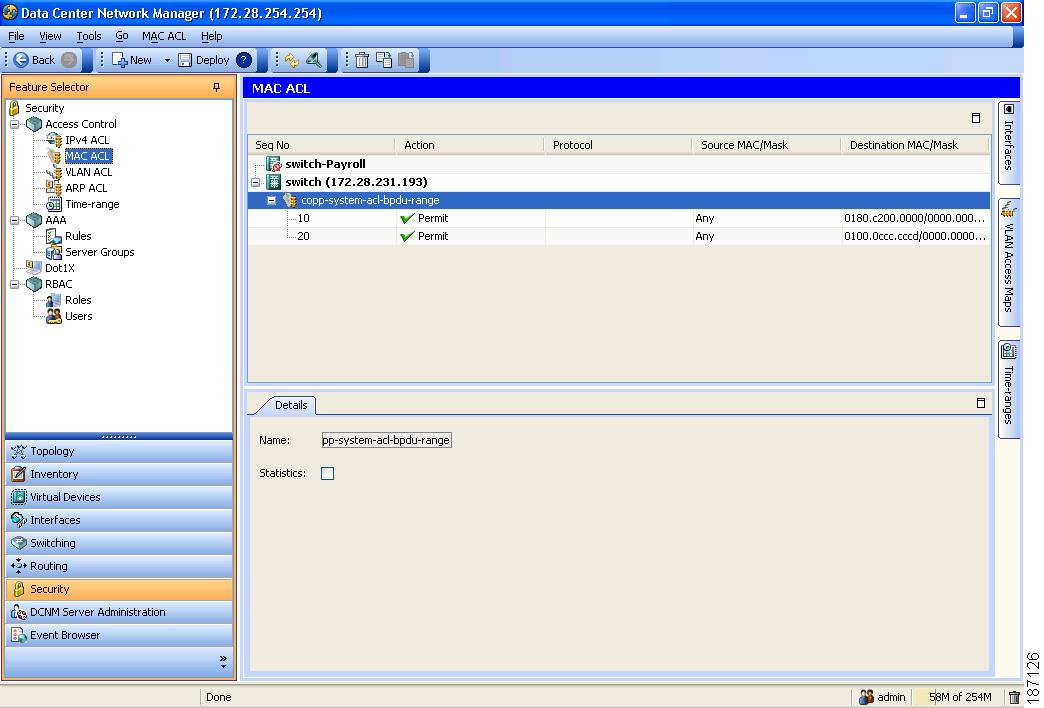
Figure 8-1 shows the MAC ACL content pane.
Figure 8-1 MAC ACL Content Pane
This section includes the following topics:
•Applying a MAC ACL to a Physical Port
Creating a MAC ACL
You can create a MAC ACL and add rules to it.
DETAILED STEPS
To create a MAC ACL on the device, follow these steps:
Step 1 From the Feature Selector pane, choose Security > Access Control > MAC ACL.
The Summary pane displays available devices.
Step 2 From the Summary pane, double-click the device to which you want to add an ACL.
Step 3 From the menu bar, choose File > New > MAC ACL.
A new row appears in the Summary pane and the ACL Details tab appears in the Details pane.
Step 4 On the ACL Details tab, in the Name field, type a name for the ACL.
Step 5 (Optional) If you want the device to maintain global statistics for rules in this MAC ACL, check Statistics.
Step 6 For each rule that you want to add to the ACL, from the menu bar, choose File > New and choose the type of rule. On the Details tab, configure fields as needed.
Step 7 From the menu bar, choose File > Deploy to apply your changes to the device.
Changing a MAC ACL
In an existing MAC ACL, you can change, reorder, add, and remove rules.
DETAILED STEPS
To change a MAC ACL, follow these steps:
Step 1 From the Feature Selector pane, choose Security > Access Control > MAC ACL.
The Summary pane displays available devices.
Step 2 From the Summary pane, double-click the device that has the ACL you want to change and then double-click the ACL.
The ACLs on the device and the rules of the ACL that you double-clicked appear in the Summary pane.
Step 3 (Optional) If you change whether the device maintains global statistics for rules in this MAC ACL, click the ACL in the Summary pane. On the ACL Details tab, check or uncheck Statistics as needed.
Step 4 (Optional) If you want to change the details of a rule, click the rule in the Summary pane. On the Details tab, configure fields as needed.
Step 5 (Optional) If you want to move a rule to a different position in the ACL, click the rule and then from the menu bar, choose MAC ACL > Move Up or MAC ACL > Move Down.
The rule moves up or down, as you chose. The sequence number of the rules adjust accordingly.
Step 6 (Optional) If you want to add a rule, click the ACL in the Summary pane and then from the menu bar, choose File > New and choose the type of rule. On the Details tab, configure fields as needed.
Step 7 (Optional) If you want to remove a rule, click the rule and then from the menu bar, choose MAC ACL > Delete.
Step 8 From the menu bar, choose File > Deploy to apply your changes to the device.
Removing a MAC ACL
You can remove a MAC ACL from the device.
BEFORE YOU BEGIN
Ensure that you know whether the ACL is applied to an interface. The device allows you to remove ACLs that are currently applied. Removing an ACL does not affect the configuration of interfaces where you have applied the ACL. Instead, the device considers the removed ACL to be empty.
DETAILED STEPS
To remove a MAC ACL, follow these steps:
Step 1 From the Feature Selector pane, choose Security > Access Control > MAC ACL.
The Summary pane displays available devices.
Step 2 From the Summary pane, double-click the device from which you want to remove an ACL.
The Summary pane displays the ACLs currently on the device.
Step 3 Click the ACL that you want to remove, and then from the menu bar, choose MAC ACL > Delete.
Cisco DCNM removes the ACL from the Summary pane.
Step 4 From the menu bar, choose File > Deploy to apply your changes to the device.
Applying a MAC ACL to a Physical Port
You can apply a MAC ACL to incoming traffic on a physical Ethernet port, regardless of the port mode.
BEFORE YOU BEGIN
Ensure that the ACL that you want to apply exists and that it is configured to filter traffic in the manner that you need for this application. For more information, see the "Creating a MAC ACL" section or the "Changing a MAC ACL" section.
DETAILED STEPS
To apply a MAC ACL to incoming traffic on a physical Ethernet port, follow these steps:
Step 1 From the Feature Selector pane, choose Ports > Physical > Ethernet.
The Summary pane displays available devices.
Step 2 From the Summary pane, double-click the applicable device and then double-click the slot containing the port.
The Summary pane displays the ports in the slot that you double-clicked.
Step 3 Click the port to which you want to apply a MAC ACL.
Step 4 From the Details pane, click the Details tab and expand the Advanced Settings section, if necessary.
In the Advanced Settings section, the MAC ACL area contains an Incoming Traffic drop-down list.
Step 5 In the MAC ACL area, from the Incoming Traffic drop-down list, choose the MAC ACL that you want to apply.
Step 6 From the menu bar, choose File > Deploy to apply your changes to the device.
Applying a MAC ACL as a VACL
You can apply a MAC ACL as a VACL. For information about how to create a VACL using a MAC ACL, see the "Creating or Changing a VACL" section on page 9-3.
Displaying MAC ACL Statistics
The following window appears in the Statistics tab:
•Access Rule Statistics Chart—Information about the number of packets that match the selected MAC ACL rule.
See the Cisco DCNM Fundamentals Configuration Guide, Release 4.0 for more information on collecting statistics for this feature.
Field Descriptions for MAC ACLs
The section includes the following topics:
•MAC Access Rule: Details: General Section
•MAC Access Rule: Details: Source and Destination Section
•MAC ACL Remark: Remark Details Tab
MAC ACL: ACL Details Tab
MAC Access Rule: Details: General Section
MAC Access Rule: Details: Source and Destination Section
MAC ACL Remark: Remark Details Tab
Additional References
For additional information related to implementing MAC ACLs, see the following sections:
Related Documents
|
|
|
|---|---|
Concepts about ACLs |
Standards
|
|
|
|---|---|
No new or modified standards are supported by this feature, and support for existing standards has not been modified by this feature. |
— |
 Feedback