Feedback
|
Table Of Contents
Obtaining Documentation and Submitting a Service Request
Site Preparation and Unpacking
Prepare for Rack-Mount Installation
Attach the Rack-Mount Brackets—Chassis Front-Mounted
Attach the Rack-Mount Brackets—Chassis Rear Rack-Mounted
Attach the Cable-Management Bracket
Chassis Ground Connection Installation
Recommended Tools and Supplies
Connect the Router to the Network
Console and Auxiliary Port Cable Connections
Management Ethernet Port Cable Connection
Connect the Shared Port Adapter Cables
Using the Cable-Management Brackets
Connecting AC-Input Power to the Cisco ASR 1013 Router
Connect DC Power to the Cisco ASR 1013 Router
Installing the Cisco ASR 1013 Router DC Power Supply and Ground Lug
Verifying Power Supply Operation
Configure Global Parameters Using the Setup Facility
Check the Running Configuration Settings
Save the Running Configuration to NVRAM
Perform Other Configuration Tasks
Powering Off the Cisco ASR 1013 Router Safely
Replace a Power Supply in a Cisco ASR 1013 Router
Remove and Then Replace an AC Power Supply
Install and Remove the Shared Port Adapter
Quick Start Guide
Cisco ASR 1013 Router
Documentation for the Cisco ASR 1000 Series Aggregation Services Routers documentation is online with the exception of the regulatory compliance and safety documentation and the Cisco ASR 1000 Series Aggregation Services Routers documentation flyer. Refer to the following documentation for installation and replacement of parts (including shared port adapters) and regulatory compliance information.
•
Shared port adapter documentation—See Cisco ASR 1000 Series Aggregation Services Routers SIP and SPA Hardware Installation Guide
•
Hardware installation documentation—See Cisco ASR 1000 Series Aggregation Services Routers Hardware Installation Guide
Document Revision History
The Document Revision History table below records technical changes to this document.
Obtaining Documentation and Submitting a Service Request
For information on obtaining documentation, submitting a service request, and gathering additional information, see the monthly What's New in Cisco Product Documentation, which also lists all new and revised Cisco technical documentation, at:
http://www.cisco.com/en/US/docs/general/whatsnew/whatsnew.html
Subscribe to the What's New in Cisco Product Documentation as a Really Simple Syndication (RSS) feed and set content to be delivered directly to your desktop using a reader application. The RSS feeds are a free service and Cisco currently supports RSS version 2.0.
1 Prepare for Installation
This section contains information about tools and parts, warnings, site preparation information, and information for rack-mount installation and equipment shelf or tabletop installation.
WarningOnly trained and qualified personnel should install, replace, or service this equipment. Statement 1030
Before beginning this router installation, read the Regulatory Compliance and Safety Information for the Cisco ASR 1000 Series Aggregation Services Routers document.
Site Preparation and Unpacking
•
Lift the router safely out of the packing container.
•
Ensure the power service at the site is suitable for the router you are installing.
•
Check the packing slip to ensure that all the proper components are present.
•
Locate and have accessible the Site Log for recording information about this installation.
Tools and Parts
Use the following list of tools and parts as a checklist for preparing to install the Cisco ASR 1000 Series Aggregation Services Router:
•
Disposable ESD-preventative wrist strap
•
AC power cord
•
Appropriate cables to connect the router to the network and to the console terminal
•
Optional tape measure and level
•
Screwdrivers: Number 2 Phillips screwdriver and 3/16-inch flat-blade screwdriver
•
Grounding lug and wires
•
The rack-mount and cable-management kit:
–
Four 19-inch rack-mount brackets (front and rear rails) and two cable-management brackets
–
Three sets of screws: one set for front rack-mount brackets (black screws), another set for rear rack-mount brackets, and a set for the cable-management brackets (package with four screws)
Prepare for Equipment Shelf
For a equipment shelf installation, verify the following before installing the router:
•
The router is off the floor and has adequate ventilation.
•
An adequate chassis ground (earth) connection exists for the router.
•
The router needs at last 3 inches (7.62 cm) of clearance at the inlet and exhaust vents (sides of router).
•
The router needs 19 inches (48.26 cm) of clearance at the front and rear to allow for field-replaceable unit replacement or installation, or to access cables or equipment.
•
The shared port adapters are installed. If shared port adapters are not installed, then the slots must not be empty. Use filler panels for an empty slot.
2 Prepare for Rack-Mount Installation
Before you begin the rack-mounting tasks:
•
Decide whether or not you want to front rack-mount or rear rack-mount the chassis
•
Decide whether or not you want to attach cable-management brackets to your chassis.
Note
If you install cable-management brackets, make certain that the chassis is installed in the equipment rack first.
•
Decide if a two-post or four-post rack-mount will be used.
3 Rack-Mount the Router
This section provides information for rack-mounting the router.
Note
Your Cisco ASR 1013 Router comes with the front rack-mount brackets installed. But there is also an extra set of front rack-mount brackets in the accessory kit that is shipped with the chassis.
Attach the Rack-Mount Brackets—Chassis Front-Mounted
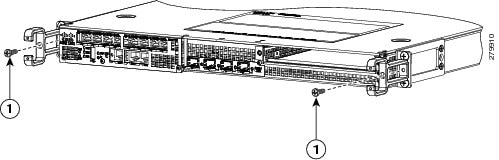
This section describes how to attache the front rack-mount brackets if necessary, otherwise skip this section. Figure 1 shows the front rack-mount brackets (callout 2) and the rear rack-mount brackets (callout 4) on the Cisco ASR 1013 Router.
To install the Cisco ASR 1013 Router for a front rack-mount configuration, follow these steps:
Step 1
Locate the threaded holes in the front sides of the chassis. Make certain that you hold the front rack-mount bracket with the ear and holes facing outward and towards the front of the chassis.
Step 2
Align the rack-mount bracket to the side of the router. Depending on which set of rack-mount bracket holes you choose to use to attach the rack-mount bracket to the router, the chassis will either be recessed in the rack or protrude from the rack.
Step 3
Position the front rack-mount bracket top hole with the chassis first top hole behind the side vent holes.
Step 4
Repeat Step 1 through Step 3 on the other side of the chassis. Use all the screws to secure the rack-mount brackets to the chassis.
Step 5
Tighten the screws on both side.
Step 6
To install the Cisco ASR 1013 Router in the equipment rack, see "Four-Post Rack Installation" section or "Two-Post Rack Installation" section.
Figure 1 Cisco ASR 1013 Router Showing Front and Rear Rack-Mount Bracket Locations
1Cable management brackets
6AC power supply in slot 2 (power supply zone 1)
2Front rack-mount ears are shipped installed
7AC power supply in slot 1 (power supply zone 0)
3Chassis handle
8AC power supply in slot 0 (power supply zone 0)
4Rear rack-mount brackets
9Chassis earth ground stud
5AC power supply in slot 3 (power supply zone 1)1
1 The two zones are split up with the numbering scheme: Zone 0 = PS0 and PS1 and for Zone 1 = PS2 and PS3.
Attach the Rack-Mount Brackets—Chassis Rear Rack-Mounted
To install the rack-mount on a Cisco ASR 1013 Router for a rear rack-mount configuration, follow these steps:
Step 1
Locate the threaded holes in the rear sides of the chassis.
Step 2
Position the rear rack-mount bracket top hole with the chassis second top hole in from the back (See Figure 1). Make certain that you hold the rear rack-mount bracket with the earholes facing outward and towards the rear of the chassis. Align the rack-mount bracket to the side of the router.Attaching the Rear Rack-Mount Brackets to the Cisco ASR 1013 Router.
Step 3
Insert and tighten the five screws. After the bracket is secured to the side of the chassis, slide the two remaining components (callout 4, Figure 1) into the side rack-mount bracket.
Step 4
Repeat Step 1 through Step 3 on the other side of the chassis. Use five screws on each side to secure the rear rack-mount brackets to the chassis.
This completes the procedure for attaching rear rack-mount brackets to the chassis. Continue on to Four-Post Rack Installation or Two-Post Rack Installation.
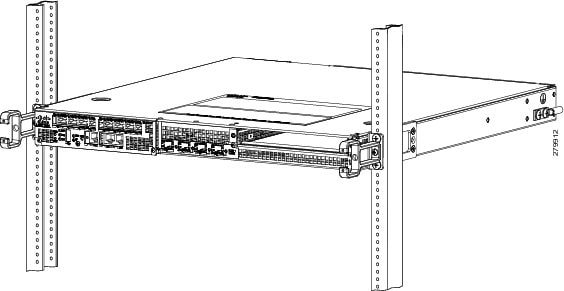
Four-Post Rack Installation
This section describes the types of racks used for rack-mounting the chassis.
Note
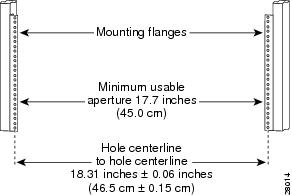
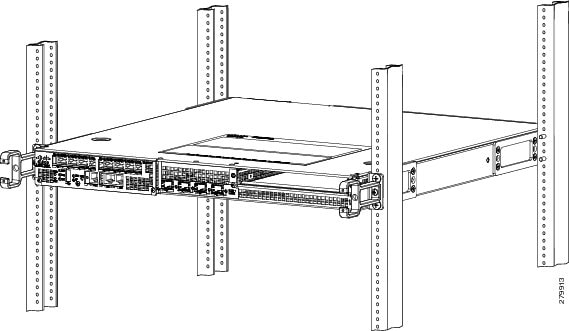
Inner clearance (the width between the inner sides of the two posts or rails) must be at least 19 inches (48.26 cm). The Cisco ASR1013 chassis requires a minimum of 7 rack units (22.3 inches or 56.6 cm) of vertical rack space. Airflow through the chassis is from front to back.
Figure 2 Installing the Cisco ASR 1013 Router in a Four-Post Rack
1Rear four-post equipment rack
3Ear holes for the chassis front rack-mount bracket
2Ear holes for the chassis rear rack-mount bracket
4Front of four-post equipment rack
Note
Because the rack-mount brackets support the weight of the entire chassis, be sure to use all screws to fasten the two rack-mount brackets on the chassis to the rack posts.
Note
We recommend that you allow at least 1 or 2 inches (2.54 or 5.08 cm) of vertical clearance between the router and any equipment directly above and below it.
To install the chassis in a four-post rack, complete the following steps:
Step 1
Make sure the rack brakes are locked or the rack is stabilized.
Step 2
Mount the chassis by securing the rack-mount brackets to two posts or mounting strips in the rack using the screws provided.
Step 3
On the chassis, ensure that all screw fasteners on the installed components are securely tightened.
Step 4
Make sure that your path to the rack is unobstructed.
Step 5
(Optional) Install a shelf in the rack to support the Cisco ASR 1013 Router.
Step 6
Lift the chassis into position between the rack posts (requires two people).
Step 7
Align the mounting bracket holes with the rack post holes and attach the chassis to the rack. At this point, if there is a third person, then that person can insert the screws while the other two people hold that chassis in place, unless the chassis is resting on a shelf).
Step 8
Position the chassis until the rack-mounting ears are flush against the mounting rails on the rack.
Step 9
Hold the chassis in position against the mounting rails and follow these steps:
a.
Insert the bottom screw into the third hole up from the bottom of the rack mount ear and use a hand-held screwdriver to tighten the screw to the rack rail.
b.
Insert the top screw into the third hole down from the top of the rack-mount bracket ear and tighten the screw to the rack rail.
c.
Insert a screw in the middle of the rack-mount bracket on both sides of the chassis. See Figure 2. Repeat these steps for the other side of the chassis.
Note
As a result of using the specified rack-mount bracket ear holes, the cable-management bracket can be easily attached to the rack-mount bracket when the chassis is in the rack.
This completes the procedure for installing the chassis in the four-post rack. Proceed to the "Attach the Cable-Management Bracket" section to continue the installation.
Two-Post Rack Installation
Note
TInner clearance (the width between the inner sides of the two posts or rails) must be at least 19 inches (48.26 cm). The height of the chassis is 1.73 inches (4.39 cm). Airflow through the chassis is from front to back.
Figure 3 Installing the Cisco ASR 1013 Router in a Two-Post Rack
CautionIf you are using a two-post rack, secure the rack to the floor surface to prevent tipping and avoid bodily injury and component damage.
Step 1
Position the chassis so the front is closest to you and lift it carefully into the rack. To prevent injury, avoid any sudden twists or moves.
Step 2
Slide the chassis into the rack, pushing it back until the rack-mount brackets meet the mounting strips or posts on both sides of the rack.
Step 3
Position the chassis until the rack-mounting ears are flush against the mounting rails on the rack.
Note
To allow space to attach the cable-management brackets to the chassis in the rack easily, make certain that you use the rack-mount bracket ear holes specified in Step 4.
Step 4
Hold the chassis in position against the mounting rails and follow these steps:
a.
Insert the bottom screw into the third hole up from the bottom of the rack mount ear and use a hand-held screwdriver to tighten the screw to the rack rail.
b.
Insert the top screw into the third hole down from the top of the rack-mount bracket ear and tighten the screw to the rack rail.
c.
Insert a screw in the middle of the rack-mount bracket on both sides of the chassis. See Figure 2.
Step 5
Repeat these steps for the other side of the chassis.
Note
As a result of using the specified rack-mount bracket ear holes, the cable-management bracket can be easily attached to the rack-mount bracket when the chassis is in the rack.
This completes the procedure for installing the chassis in a two-post rack. Proceed to the "Attach the Cable-Management Bracket" section to continue the installation.
Attach the Cable-Management Bracket
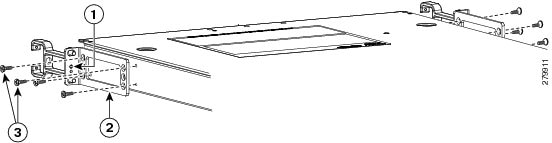
The cable-management brackets mount to each rack-mount bracket on both sides of the chassis to provide cable-management to both sides of the chassis (parallel with card orientation). These brackets are screw mounted to the rack-mount brackets to allow easy installation and removal of cables.
The cable-management brackets for the Cisco ASR 1013 are used in four places on the chassis. Each section contain four independent cable-management "U" type feature hooks with two screws each. For Cisco ASR 1000-SIPs, these brackets work in tandem with shared port adapter product feature cable-management device to allow installation and removal of adjacent cards without the need to remove cables.
Note
Make certain that the cable-management bracket "U" type feature is facing upwards when you attach it to the chassis as shown in Figure 4.
Follow these steps to attach the cable-management brackets to both sides of the Cisco ASR 1013 Router in the rack:
Step 1
Align the cable-management bracket to the rack-mount bracket on one side of the Cisco ASR 1013 Router. The cable-management bracket aligns to the top hole of the chassis rack-mount bracket.
Step 2
Using a Phillips screwdriver, insert one screw through cable-management bracket and into the chassis rack-mount and tighten the screw.
Note
Use the package of screws that came with your chassis (two screws for each cable-management bracket).
Figure 4 Four Cable-Management Brackets on the Cisco ASR 1013 Router
1Cable-management brackets; two brackets for each side
2Chassis front rack-mount bracket and ear holes
Step 3
Using the top and bottom rack-mount ear hole, insert the screw through cable-management bracket and into the chassis rack-mount bracket.
Step 4
Using a Phillips screwdriver and the cable-management screw, thread and tighten the screw to the cable-management bracket.
Step 5
Repeat Step 1through Step 4 for the other side of the Cisco ASR 1013 Router.
This completes the procedure for installing the cable-management bracket on a Cisco ASR 1013 Router for a rack-mount configuration.
Chassis Ground Connection Installation
Connecting the Cisco ASR 1013 Router chassis to earth ground is required for all DC powered installations and any AC powered installation where compliance with Telcordia grounding requirements is necessary.
CautionThe dual-lug chassis stud must be installed, the SIP and SPA must be fully inserted and screwed in and earthed to prevent a potential hazard in a telecom line.
Have the recommended tools and supplies available before you begin this procedure.
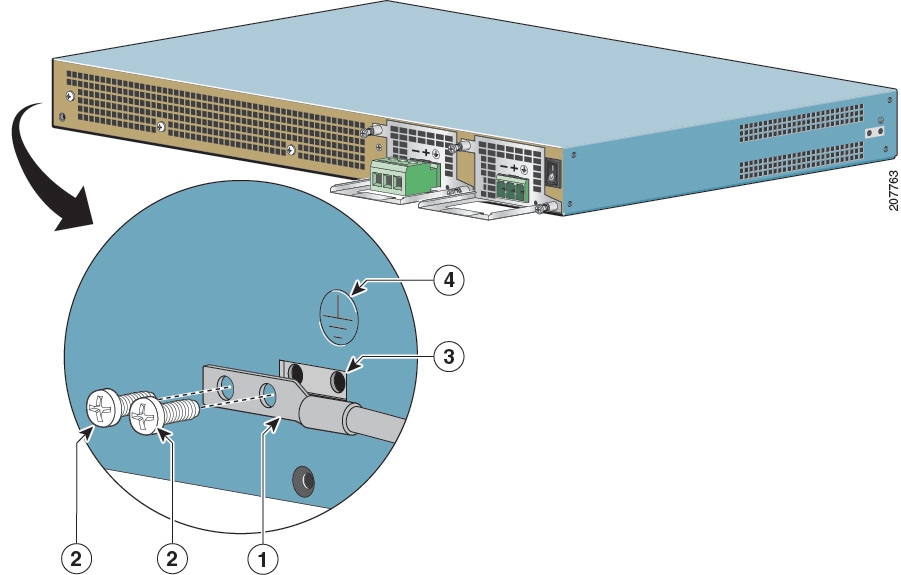
Before you connect power or turn on power to your chassis, you must provide an adequate chassis ground (earth) connection for the chassis. A chassis ground connector is provided on each Cisco ASR 1013 Router. There is a ground stud on the rear bottom of the chassis as shown in Figure 5.
Recommended Tools and Supplies
The following tools, equipment, and supplies necessary to connect the system ground to the chassis:
•
Phillips screwdriver
•
Dual-lug chassis ground component
•
Grounding wire
Attach the Chassis Earth Ground
Use the following procedure to attach the grounding lug to the chassis ground connector on your chassis:
Step 1
Use the wire stripper to strip one end of the AWG #6 wire approximately 0.75 inches (19.05 mm).
Step 2
Insert the AWG #6 wire into the wire receptacle on the grounding lug.
Step 3
Use the crimping tool to carefully crimp the wire receptacle around the wire; this step is required to ensure a proper mechanical connection.
Step 4
Attach the grounding lug with the wire so that the grounding wire does not overlap the power supply.
Step 5
Locate the chassis ground connector on the bottom rear of the Cisco ASR 1013 chassis.
Figure 5 shows how to attach the earth ground lug on the Cisco ASR 1013 Router.
Figure 5 Attaching the Cisco ASR 1013 Router Ground Connection
1Chassis earth ground studs and lead wire
3Chassis front rack-mount bracket and ear holes
2Grounding screws
Earth ground symbol
Step 6
Insert the two screws through the holes in the grounding lug as shown in Figure 5.
Step 7
Use the Number 2 Phillips screwdriver to carefully tighten the screws until the grounding lug is held firmly to the chassis. Do not overtighten the screws.
Step 8
Connect the opposite end of the grounding wire to the appropriate grounding point at your site to ensure an adequate chassis ground.
This completes the procedure for attaching a chassis ground connection. Go to the "Connect the Router to the Network" section for information on attaching cables.
4 Connect the Router to the Network
This section provides information about cables and ports and attaching the router to the network.
•
Console and Auxiliary Port Cable Connections
•
Management Ethernet Port Cable Connection
•
Connect the Shared Port Adapter Cables
•
Using the Cable-Management Brackets
Console and Auxiliary Port Cable Connections
This section describes how to attach a cable to the console or auxiliary ports on the Cisco ASR 1013 Router. The Cisco ASR 1013 Router uses RJ-45 ports for both the auxiliary port and console port to attach a modem or console terminal.
The console DCE-mode port connects a console terminal and a DTE-mode auxiliary port connects a modem or other DCE device to your router.
Note
Both the console and the auxiliary ports are asynchronous serial ports; any devices connected to these ports must be capable of asynchronous transmission. (Asynchronous is the most common type of serial device; for example, most modems are asynchronous devices.)
Step 1
Before connecting a terminal to the console port, configure the terminal to match the router console port as follows: 9600 baud, 8 data bits, no parity, 1 stop bits. See Figure 6 for console and auxiliary port connector location.
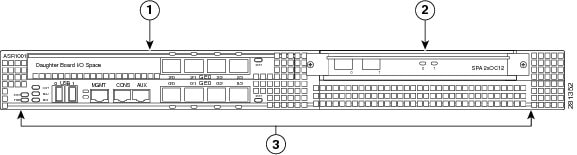
Figure 6 Cisco ASR1000-RP2 Console and Auxiliary Port Location
Step 2
After you establish normal router operation, you can disconnect the terminal.
Note
For console and auxiliary port pinouts, see Appendix A, Cisco ASR 1000 Series Routers Specifications, in Cisco ASR 1000 Series Aggregation Services Routers Hardware Installation Guide.
Management Ethernet Port Cable Connection
Before you can use the console interface on the router using a terminal or PC, you must perform the following steps:
Step 1
Configure your terminal emulation software with the following settings: 9600 bits per second (bps), 8 data bits, No parity, one stop bit, No flow control.
Note
For information about how to change the default settings to meet the requirements of your terminal or host, refer to the Cisco IOS Terminal Services Configuration Guide.
Step 2
Connect a terminal or PC to the console port using the cable and adapters provided in the accessory kit that shipped with your Cisco ASR 1013 Router:
–
Place the console port mode switch in the in position (factory default).
–
Connect to the port using the RJ-45-to-RJ-45 cable and RJ-45-to-DB-25 DTE adapter or using the RJ-45-to-DB-9 DTE adapter.
Step 3
Insert an Ethernet RJ-45 cable into the MGMT ETHERNET port.
Step 4
Insert the other end of the RJ-45 cable to your management device or network.
Step 5
Configure to a fixed speed through the command line interface (CLI) commands.
Connect the Shared Port Adapter Cables
The instructions for connecting the cables for the shared port adapter installed in the Cisco ASR 1013 Router are contained in the Cisco ASR 1000 Series Aggregation Services Routers SIP and SPA Hardware Installation Guide.
Using the Cable-Management Brackets
The cable-management brackets mount to each rack-mount bracket on the chassis to provide cable-management to both sides of the chassis (parallel with card orientation). These brackets are screw mounted to the rack-mount brackets to allow easy installation and removal of cables.
The cable-management brackets for the Cisco ASR 1013 are used in four places on the chassis. Each section contain four independent cable-management "U" type feature hooks with two screws each. For Cisco ASR 1000 SIPs, these brackets work in tandem with shared port adapter product feature cable-management device to allow installation and removal of adjacent cards without the need to remove cables.
Note
Make certain that the cable-management bracket "U" type feature is facing upwards when you attach it to the chassis.
5 Start the System
Before you start the system, you must connect power to it.
Connecting AC-Input Power to the Cisco ASR 1013 Router
Follow these steps to connect an AC-input power supply to the Cisco 1013 chassis:
Step 1
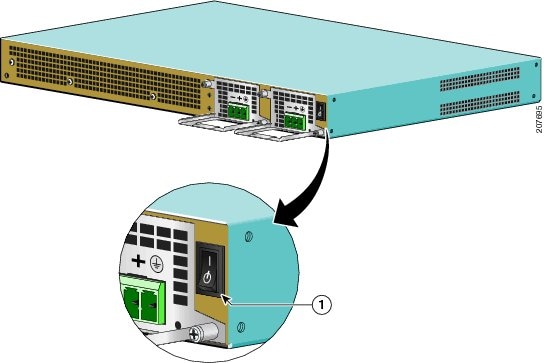
At the rear of the chassis, check that the power switch on the power supply is in the Standby position.
Step 2
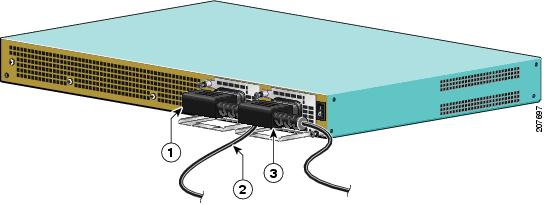
Plug the power cable into the inlet.
Note
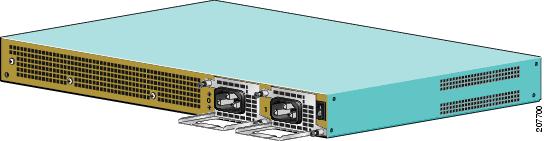
For additional AC power cable strain relief, secure the cable to the power supply handle by inserting a nylon cable tie through the hole in the handle and around the cable.
Figure 7 Cisco ASR 1013 Router AC Power Supply Power
Note
Shielded cables must be used to connect to the DB-25 alarm connector on both the AC and DC power supplies in order to comply with FCC/EN55022/CISPR22 Class A emissions requirements. See How Cisco ASR1000-RP Alarm Monitoring Works.
Step 3
Plug the AC power supply cable into the AC power source.
This completes the procedure for connecting AC-input power.
Connect DC Power to the Cisco ASR 1013 Router
This section provides instructions for installing the DC power supply into the Cisco ASR 1013 Router. Read the safety warnings before you begin.
WarningInstallation of the equipment must comply with local and national electrical codes. Statement 1074
WarningNever install an AC power module and a DC power module in the same chassis. Statement 1050
WarningWhen installing or replacing the unit, the ground connection must always be made first and disconnected last. Statement 1046
WarningThis unit might have more than one power supply connection. All connections must be removed to de-energize the unit. Statement 1028
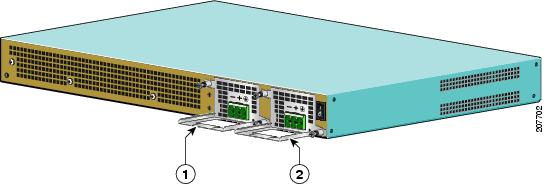
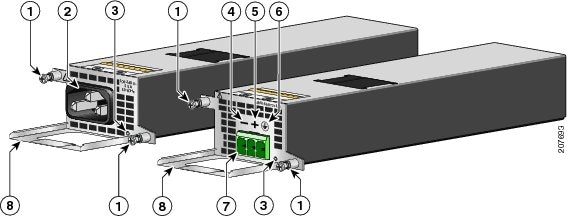
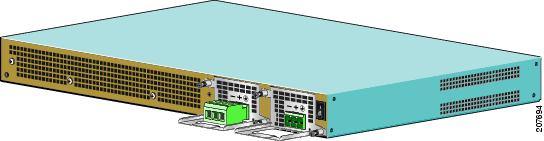
Figure 8 shows the Cisco ASR 1013 Router DC power supply and labels.
Figure 8 Cisco ASR 1013 Router DC Power Supply
Before you install the DC-input power supply in the Cisco ASR1013 router, read these important notices:
•
The color coding of the DC-input power supply leads depends on the color coding of the DC power source at your site. Typically, green or green/yellow is used for ground (GND), black is used for -48V on negative (-) terminal and red is used for RTN on the positive (+) terminal. Make certain the lead color coding you choose for the DC-input power supply matches lead color coding used at the DC power source.
•
Shielded cables must be used to connect to the DB-25 alarm connector on both the AC and DC power supplies, in order to comply with FCC/EN55022/CISPR22 Class A emissions requirements.
•
For DC input power cables, select the appropriate wire gauge based on the National Electrical Code (NEC) and local codes for 40-amp service at nominal DC input voltage (-48/-60 VDC). Three pairs of cable leads, source DC (-) and source DC return (+), are required for each power distribution unit (PDU). These cables are available from any commercial cable vendor. All input power cables for the chassis should have the same wire gauge and cable lengths should match within 10 percent of deviation. Each DC input power cable is terminated at the PDU by a cable lug. The cable lugs must be dual-hole, and have a straight tongue. They must be able to fit over 1/4-inch terminal studs at 0.625-inch (15.88-mm) centers.
Note
DC input power cables must be connected to the PDU terminal studs in the proper positive (+) and negative (-) polarity. In some cases, the DC cable leads are labeled, which is a relatively safe indication of the polarity. However, you must verify the polarity by measuring the voltage between the DC cable leads. When making the measurement, the positive (+) lead and the negative (-) lead must always match the (+) and (-) labels on the power distribution unit.
•
An earth ground cable is required for each DC PDU. We recommend that you use at least 6-AWG multistrand copper wire. This wire is not available from Cisco Systems; it is available from any commercial cable vendor. The ground wire cable lug should be dual-hole and able to fit over M6 terminal studs at 0.625 inch (15.88mm) centers. Recommended lug terminal wire size Panduit part number:
–
LCD8-14A-L for 8AWG wire size
–
LCD6-14A-L for 6AWG wire size
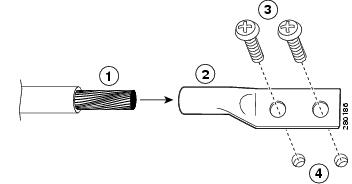
Figure 9 Cisco ASR 1013 Router DC Input Power Cable Lug
Note
To avoid hazardous conditions, all components in the area where DC input power is accessible must be properly insulated. Therefore, before installing the DC cable lugs, be sure to insulate the lugs according to the manufacturer's instructions.
WarningWhen you install the unit, the ground connection must always be made first and disconnected last. Statement 1046
Installing the Cisco ASR 1013 Router DC Power Supply and Ground Lug
To install the grounding lugs on the DC power supply, follow these instructions. Figure 10 shows the location of the DC power supply grounding stud.
Step 1
Make certain that the chassis ground is connected before you begin installing the DC power supply.
Step 2
Locate the stud on the DC power supply for the GND connection which must be connected first and follow these steps:
a.
Using the grounding lug, replace the washers and Kepnut screw in the following order.
- Flat washer
- Grounding cable lug
- Kepnut screw
b.
Tighten the Kepnut screws on the power supply studs.
Step 3
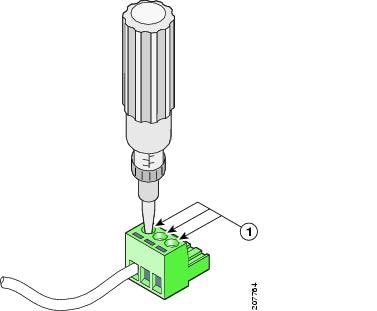
Tighten the Kepnut screw (use the screwdriver to tighten the ground screw in the terminal block to a torque of 20+/-2 in-lbs / 2 per.) to complete the installation.
Figure 10 Cisco ASR 1013 Router DC Power Supply Ground Stud and Cable Installation
1DC power supply grounding stud with wire
4Flat washer
2Grounding screws
5Kepnut screw
3DC Power supply earth ground symbol
Note
Shielded cables must be used to connect to the DB-25 alarm connector on both the AC and DC power supplies in order to comply with FCC/EN55022/CISPR22 Class A emissions requirements.
Step 4
Attach the other end of the cable to the site's ground connection.
Step 5
Remove the plastic cover from the terminal block.
CautionBefore you continue to install the terminal block ground wires, stop and perform Step 6. To prevent any contact with metal lead on the ground wire and the plastic cover.
Step 6
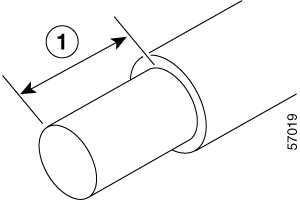
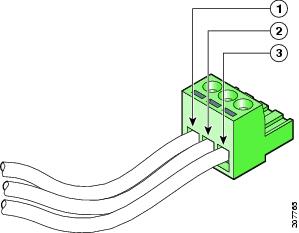
You must wrap the positive and negative lead cables with sleeving. Take each lead wire and cover the area from the lug to the wire with heavy shrink sleeving (see Figure 11, callout #3). Ground the other end of the grounding wires to an appropriate grounding point at your site.
Figure 11 Cisco ASR 1013 Router DC Power Supply Ground Stud and Cable
Step 7
Repeat these steps on the second DC power supply.
Step 8
For easier cable-management, insert the negative lead cable first. Replace the ground lug with cable in the following order:
a.
Flat Washer
b.
Ground lug with negative wire
c.
Kepnut screw
Step 9
Tighten the Kepnut screw to recommended torque of 18 in-lbs minimum to 22 in-lbs maximum for the positive stud and wire.
Note
Secure the wires coming in from the terminal block so that they cannot be disturbed by casual contact.
Step 10
Use tie wraps to secure the wires, so that the wires are not pulled from the terminal block by casual contact. Ti-wrap studs are located below the power supply terminal block (see Figure 11).
Step 11
Replace the terminal block plastic cover and tighten the screw. The plastic cover is slotted and keyed to fit correctly over the terminal block.
Step 12
Remove the tape from the circuit-breaker switch handle and move the circuit-breaker handle to the on position.
Note
The requirement for maximum torque applied to the power or ground Kepnuts must be 8 in-lb when the power or ground lug is not present.
This completes the procedure for connecting DC-input power. Your installation is complete. Proceed to the "Verifying Power Supply Operation" section to start the router.
Verifying Power Supply Operation
Follow this procedure to verify power supply is operating correctly in your Cisco ASR 1013 router.
Step 1
Check that the power supply LEDs are:
•
INPUT OK is green
•
FAN OK is green
•
OUTPUT FAILED is not illuminated
Step 2
To ensure that the power supply state is OK, type the show platform command. This output is only a sample from one of the Cisco ASR 1000 routers.
MCP_SCAL_R1#sho platChassis type: ASR1006The following output displays:
Slot CPLD Version Firmware Version 1 07091401 12.2(33r)XN2 2 07091401 12.2(33r)XN2 R0 08060301 12.2(0:0) F0 08041102 12.2(33r)XN2
MCP_SCAL_R1#If the LEDs indicate a power problem or the power supply state is ps, fail, then contact a customer service representatives for assistance or additional instructions.
Start the System
After installing your Cisco ASR 1013 Router and connecting cables, start the router as follows.
Step 1
Check for the following:
•
Make certain that each shared port adapter is firmly seated in its subslot and its captive screws are securely tightened.
•
The Cisco ASR1000-ESP40 embedded services processors in the Cisco ASR 1013 router are inserted in slot F0 and F1, is firmly seated in its slot, and its captive screws are securely tightened.
•
All network interface cables are connected.
•
The console terminal is turned on.
Step 2
Turn on power. The green OK LED on the power supply turns on.
Note
The Cisco ASR 1013 Router has four power supplies and two power supply zones. There are two power supplies for power zone 0 and two power supplies for power zone 1 (Do not mix AC and DC power supplies). The two zones are split up with the numbering scheme Zone 0 = PS0 and PS1 and for Zone 1 = PS2 and PS3. You must have one power supply running at all times from each power supply zone and two power supplies from each power supply zone to support redundancy. Four power supplies, either AC power supplies or DC power supplies, are accessed from the rear of the router. In the Cisco ASR 1013 Router, at least one PEM in each 1+1 redundant power supply zone must be functioning to power the zone and both zones be functional. In the event of a single fan failure, the remaining fans are sufficient to cool the entire chassis although fan speed may have to be increased. For detailed information regarding power supply zones, refer to the Cisco ASR 1000 Series Hardware Installation Guide.
Step 3
Listen for the fans; you should immediately hear them operating.
Step 4
During the boot process, observe the power LEDs. The power LED should be green on all boards. The Status LED lights yellow to indicate booting and then green when IOS is running.
Table 1 provides information about the LEDs as the system starts.
Table 1 Cisco ASR 1013 Router LED Activity
During the boot process, observe the system LEDs. The STAT LED comes on immediately as yellow, then turns to green when the Cisco IOS is booted. The shared port adapter LEDs go on and off irregularly.
Note
The system boots differently depending on the configuration that ships with your system. This output is only an example of some output that can display.
Step 5
Observe the initialization process. When the system boot is complete (a few seconds), the Cisco ASR 1000 Series route processor begins to initialize. The console screen displays a script and system banner similar to the following:
rommon 1 >rommon 1 > bootLocated rp_super.ppc.nader.5g.evfc.binImage size 211681484 inode num 12, bks cnt 51681 blk size 8*512######################################################################################################### #############################################################Boot image size = 211681484 (0xc9e00cc) bytesUsing midplane macaddrPackage header rev 0 structure detectedCalculating SHA-1 hash...donevalidate_package: SHA-1 hash:calculated 479a7d62:6c128ba8:3616b8da:93cb3224:5c1aeb34expected 479a7d62:6c128ba8:3616b8da:93cb3224:5c1aeb34Image validatedPPC/IOS XE loader version: 0.0.3loaded at: 00800000 0D1E2004zimage at: 00807673 009B8C69initrd at: 009B9000 01013219isord at: 01007000 0D1DF800avail ram: 00400000 00800000Kernel load:Uncompressing image... dst: 00000000 lim: 00400000 start: 00807673 size: 001B15F6...done.Now booting the IOS XE kernelRestricted Rights LegendUse, duplication, or disclosure by the Government issubject to restrictions as set forth in subparagraph(c) of the Commercial Computer Software - RestrictedRights clause at FAR sec. 52.227-19 and subparagraph(c) (1) (ii) of the Rights in Technical Data and ComputerSoftware clause at DFARS sec. 252.227-7013.cisco Systems, Inc.170 West Tasman DriveSan Jose, California 95134-1706Cisco IOS Software, IOS-XE Software (PPC_LINUX_IOSD-ADVENTERPRISEK9-M), Version xxxxxxx, RELEASE SOFTWARETechnical Support: http://www.cisco.com/techsupportCopyright (c) 1986-2008 by Cisco Systems, Inc.Compiled Thu 01-May-08 00:29 by mcpreCisco IOS-XE software, Copyright (c) 1986-2008 by Cisco Systems, Inc.All rights reserved. Certain components of Cisco IOS-XE software arelicensed under the GNU General Public License ("GPL") Version 2.0. Thesoftware code licensed under GPL Version 2.0 is free software that comeswith ABSOLUTELY NO WARRANTY. You can redistribute and/or modify suchGPL code under the terms of GPL Version 2.0. For more details, see thedocumentation or "License Notice" file accompanying the IOS-XE software,or the applicable URL provided on the flyer accompanying the IOS-XEsoftware.A summary of U.S. laws governing Cisco cryptographic products may be found at:http://www.cisco.com/wwl/export/crypto/tool/stqrg.htmlIf you require further assistance please contact us by sending email toexport@cisco.com.cisco ASR1013 (RP2) processor with 541737K/6147K bytes of memory.4 Gigabit Ethernet interfaces32768K bytes of non-volatile configuration memory.1869396K bytes of physical memory.7798783K bytes of eUSB flash at bootflash:.--- System Configuration Dialog ---Would you like to enter the initial configuration dialog? [yes/no]: noPress RETURN to get started!Router>During the boot process, observe the system LEDs. The LEDs on the shared port adapter go on and off in irregular sequence. They may go on, go out, and go on again for a short time. On the router, the green STATUS LED comes on and stays on. For software configuration information, see the Cisco ASR 1000 Series Aggregation Services Software Configuration Guide.
6 Configure the Router
Note
For detailed information on configuring the ASR 1000 routers, see the Cisco ASR 1000 Series Aggregation Services Routers Software Configuration Guide. This document provides an overview of software functionality that is specific to the Cisco ASR 1000 Series Aggregation Services Routers.
Using the Console Interface
To access the command-line interface using the console, follow these steps:
Step 1
Once the terminal console port is connected, configure your terminal emulation software with valid settings. Start at the following prompt:
Press Return for Console prompt
Step 2
Press Return to enter user EXEC configuration mode. The following prompt appears:
Router>
Step 3
From user EXEC configuration mode, enter the enable command as shown in the following example:
Router> enable
Step 4
At the password prompt, enter your system's password. If an enable password has not been set on your system, this step may be skipped. The following example shows entry of the password called enablepass:
Password: enablepass
Step 5
When your enable password is accepted, the privileged EXEC configuration mode prompt appears:
Router#
Step 6
You now have access to the CLI in privileged EXEC configuration mode and you can enter the necessary commands to complete your desired tasks.
Step 7
To exit the console session, enter the quit command as shown in the following example:
Router# quit
Configure Global Parameters Using the Setup Facility
When you first start the setup program, you must configure the global parameters. These parameters are used for controlling system-wide settings. Complete the following steps to enter the global parameters:
Step 1
Connect a console terminal to the console port and then boot the router. The system boots from flash memory. The following information appears after about 30 seconds. This is only an example of the output display; prompts may vary.
Step 2
The first sections of the configuration script appear only at an initial system startup. On subsequent uses of the setup facility, the script begins with a System Configuration Dialog as shown below: When asked if you would like to enter the initial configuration dialog, enter yes.
Would you like to enter the initial configuration dialog? [yes/no] yesAt any point you may enter a question mark '?' for help.Use ctrl-c to abort configuration dialog at any prompt.Default settings are in square brackets '[]'.Basic management setup configures only enough connectivity for management of the system, extended setup will ask you to configure each interface on the system.--- System Configuration Dialog ---Would you like to enter the initial configuration dialog? [yes/no]: yAt any point you may enter a question mark '?' for help.Use ctrl-c to abort configuration dialog at any prompt.Default settings are in square brackets '[]'.Basic management setup configures only enough connectivityfor management of the system, extended setup will ask youto configure each interface on the systemWould you like to enter basic management setup? [yes/no]: nFirst, would you like to see the current interface summary? [yes]: yAny interface listed with OK? value "NO" does not have a valid configurationInterface IP-Address OK? Method Status ProtocolGigabitEthernet0/0/0 unassigned NO unset down downGigabitEthernet0/0/1 unassigned NO unset down downGigabitEthernet0/0/2 unassigned NO unset down downGigabitEthernet0/0/3 unassigned NO unset down downGigabitEthernet0 unassigned YES unset administratively down downConfiguring global parameters:Enter host name [Router]:The enable secret is a password used to protect access toprivileged EXEC and configuration modes. This password, afterentered, becomes encrypted in the configuration.Enter enable secret: testThe enable password is used when you do not specify anenable secret password, with some older software versions, andsome boot images.Enter enable password: testsThe virtual terminal password is used to protectaccess to the router over a network interface.Enter virtual terminal password: testConfigure SNMP Network Management? [yes]: nConfigure IP? [yes]: yConfigure RIP routing? [no]:Configure bridging? [no]:Configure CLNS? [no]:Configuring interface parameters:Do you want to configure GigabitEthernet0/0/0 interface? [yes]: nDo you want to configure GigabitEthernet0/0/1 interface? [yes]: nDo you want to configure GigabitEthernet0/0/2 interface? [yes]: nDo you want to configure GigabitEthernet0/0/3 interface? [yes]: nDo you want to configure GigabitEthernet0 interface? [no]: nThe following configuration command script was created:hostname Routerenable secret 5 $1$6r./$U5wHcV3uRWkKWK/fap474.enable password testsline vty 0 4password testno snmp-server!ip routingno bridge 1no clnt!end[0] Go to the IOS command prompt without saving this config.[1] Return back to the setup without saving this config.[2] Save this configuration to nvram and exit.Enter your selection [2]:Router#reloadProceed with reload? [confirm]*Jan 11 06:59:29.476: %SYS-5-RELOAD: Reload requested by console. Reload Reason: Reload command.System Bootstrap, Version 12.2(20071105:235056) [gschnorr-mcp_rommon_rel_1_25 101], DEVELOPMENT SOFTWARECopyright (c) 1994-2007 by cisco Systems, Inc.Compiled Mon 05-Nov-07 16:50 by gschnorr-mcp_rommon_rel_1_25Current image running: Boot ROM1Last reset cause: LocalSoftSATA drive PCI config errorASR1013-RP2 platform with 2097152 Kbytes of main memoryrommon 1 > b tftp:images/packages_crypto/asr1000rp2-advipservicesk9.mcp_dev_20080109_101550.binIP_ADDRESS: 2.1.6.5IP_SUBNET_MASK: 255.255.0.0DEFAULT_GATEWAY: 2.1.0.1TFTP_SERVER: 2.0.0.2TFTP_FILE: images/packages_crypto/asr1000rp2-advipservicesk9.mcp_dev_20080109_101550.binUsing midplane macaddrTFTP_MACADDR: 00:14:a8:ff:42:ffTFTP_VERBOSE: ProgressTFTP_RETRY_COUNT: 18TFTP_TIMEOUT: 7200TFTP_CHECKSUM: YesETHER_PORT: 3ETHER_SPEED_MODE: Auto Detectlink up 1000Mbps/FD.......Receiving images/packages_crypto/asr1000rp2-advipservicesk9.mcp_dev_20080109_101550.bin from 2.0.0.2 !!!!!!!!!!!!!!!!!!!!!!!!!!!!!!!!!!!!!!!!!!!!!!!!!!!!!!!!!!!!!!!!!!!!!!!!!!!!!!!!!!!!!!!!!!!!!!!!!!!!!!!!! !!!!!!!!!!!!!!!!!!!!!!!!!!!!!!!!!!!!!!!!!!!!!!!!!!!!!!!!!!!!!!!!!!!!!!!!!!!!!!!!!!!!!!!!!!!!!!!!!!!!!!!!! !!!!!!!!!!!!!!!!!!!!!!!!!!File reception completed.Boot image size = 206741708 (0xc52a0cc) bytesUsing midplane macaddrPackage header rev 0 structure detectedCalculating SHA-1 hash...donevalidate_package: SHA-1 hash:calculated a8301e1e:17821e94:07654c49:4ca6fe49:518af2c2expected a8301e1e:17821e94:07654c49:4ca6fe49:518af2c2Image validatedPPC/IOS XE loader version: 0.0.3loaded at: 00800000 0CD2C004zimage at: 00807673 009B8E53initrd at: 009B9000 01013E53isord at: 01007000 0CD2A000avail ram: 00400000 00800000Kernel load:Uncompressing image... dst: 00000000 lim: 00400000 start: 00807673 size: 001B17E0...done.Now booting the IOS XE kernel%IOSXEBOOT-4-BOOT_PARAMETER: (rp/0): Booting with custom BOOT_PARAM setting%IOSXEBOOT-4-DEBUG_CONF: (rp/0): File /misc/scratch/debug.conf is absent, ignoringRestricted Rights LegendUse, duplication, or disclosure by the Government issubject to restrictions as set forth in subparagraph(c) of the Commercial Computer Software - RestrictedRights clause at FAR sec. 52.227-19 and subparagraph(c) (1) (ii) of the Rights in Technical Data and ComputerSoftware clause at DFARS sec. 252.227-7013.cisco Systems, Inc.170 West Tasman DriveSan Jose, California 95134-1706Cisco IOS Software, IOS-XE Software (PPC_LINUX_IOSD-ADVENTERPRISEK9-M), Version 12.2(33)XNA, RELEASE SOFTWARETechnical Support: http://www.cisco.com/techsupportCopyright (c) 1986-2008 by Cisco Systems, Inc.Compiled Thu 01-May-08 00:29 by mcpreImage text-base: 0x10132810, data-base: 0x132AED48This product contains cryptographic features and is subject to UnitedStates and local country laws governing import, export, transfer anduse. Delivery of Cisco cryptographic products does not implythird-party authority to import, export, distribute or use encryption.Importers, exporters, distributors and users are responsible forcompliance with U.S. and local country laws. By using this product youagree to comply with applicable laws and regulations. If you are unableto comply with U.S. and local laws, return this product immediately.A summary of U.S. laws governing Cisco cryptographic products may be found at:http://www.cisco.com/wwl/export/crypto/tool/stqrg.htmlIf you require further assistance please contact us by sending email toexport@cisco.com.cisco ASR1013 (RP2) processor with 548011K/6147K bytes of memory.8 FastEthernet interfaces6 Gigabit Ethernet interfaces32768K bytes of non-volatile configuration memory.2097152K bytes of physical memory.947711K bytes of eUSB flash at bootflash:.253407K bytes of USB flash at usb0:.--- System Configuration Dialog ---Would you like to enter the initial configuration dialog? [yes/no]: n
Note
Basic management setup configures enough connectivity for managing the system; extended setup will ask you to configure each interface on the system. For detailed information about setting global parameters, refer to the Cisco ASR 1000_Series Aggregation Services Routers Software Configuration Guide.
Check the Running Configuration Settings
To check the value of the settings you have entered, enter the show running-config command at the Router# prompt:
Router# show running-configTo review changes you make to the configuration, use the EXEC mode show startup-config command to see the changes in NVRAM.
Save the Running Configuration to NVRAM
To store the configuration or changes to your startup configuration in NVRAM, use the copy running-config startup-config command to save your configuration changes to the startup configuration so that the changes will not be lost if the software reloads or a power outage occurs. For example:
Router# copy running-config startup-config
Building configuration...
It might take a minute or two to save the configuration. After the configuration has been saved, the following output appears:
[OK]Router#On most platforms, this task saves the configuration to NVRAM. On the Class A Flash file system platforms, this task saves the configuration to the location specified by the CONFIG_FILE environment variable. The CONFIG_FILE variable defaults to NVRAM.
To review changes you make to the configuration, use the EXEC mode show startup-config command to see the changes.
Note
Using the copy running-config startup-config command saves the configuration settings that you created in the router using configuration mode and the setup facility. If you fail to do this, your configuration will be lost the next time you reload the router.
Perform Other Configuration Tasks
To make advanced configuration changes after you establish the basic startup configuration for your router, refer to the Cisco ASR 1000 Series Aggregation Services Routers Software Configuration Guide and modular configuration and modular command reference publications in the Cisco IOS software configuration documentation set that corresponds to the software release installed on your Cisco hardware. These publications contain additional information on using the configure command. The configuration publications also provide information about the following tasks:
•
Understanding Diagnostic Mode feature
•
Understanding Command Modes
•
Booting and rebooting the router
•
Understanding software packages for the Cisco ASR 1000 Series Aggregation Services Routers
•
Software Upgrades
7 After Installation
Follow the instructions in this section to replace field replaceable units (FRUs) after installation. The Cisco ASR 1013 Router supports the following components as FRUs:
•
Cisco ASR1000-ESP40 embedded services processors
•
Shared port adapters
•
Power supplies
Note
For a complete list of Cisco ASR 1000 Series Routers field replaceable units, go to Cisco ASR 1000 Series Aggregation Services Routers Hardware Installation Guide.
The following topics are covered in this section:
•
Powering Off the Cisco ASR 1013 Router Safely
•
Replace a Power Supply in a Cisco ASR 1013 Router
•
Install and Remove the Shared Port Adapter
WarningOnly trained and qualified personnel should be allowed to install, replace, or service this equipment.
Statement 1030Powering Off the Cisco ASR 1013 Router Safely
This section explains how to shut down the Cisco ASR 1013 Router. It is recommended that before turning off all power to the chassis, you issue the reload command. This insures that the operating system cleans up all the file systems. Once the reload operation is complete, then the Cisco ASR 1013 Router can be powered off safely.
To remove power from a Cisco ASR 1013 Router safely, follow this procedure and see the examples:
Step 1
Slip on the ESD-preventative wrist strap that was included in the accessory kit.
Step 2
Enter the reload command.
Step 3
Confirm the reload command:
Rmcp-13ru-1#reloadProceed with reload? [confirm]Aug 17 00:06:47.051 R0/0: %PMAN-5-EXITACTION: Process manager is exiting: prs exit with reload chassis codeStep 4
After confirming the reload command, wait until the system bootstrap message displays before powering off the system.
System Bootstrap, Version 12.2(33r)XN2, RELEASE SOFTWARE (fc1)Technical Support: tap://www.cisco.com/techsupportCopyright (c) 2010 by cisco Systems, Inc.Current image running: Boot ROM0Last reset cause: LocalSoftASR1000-RP2 platform with 4194303 Kbytes of main memorymcp-13ru-1-rp0-rommon 1>Step 5
Remove any power cables from the Cisco ASR 1013 Router.
a.
For power supplies with a circuit breaker switch, position the switch to the Off (O) position.
b.
For power supplies with a Standby switch, place the Standby switch in the Standby position.
Note
After powering off the router, wait a minimum of 30 seconds before powering it on again.
Replace a Power Supply in a Cisco ASR 1013 Router
This section provides instructions for removing and replacing the AC power supply and the DC power supply in a Cisco ASR 1013 Router. Before you begin, make certain the chassis is grounded.
Remove and Then Replace an AC Power Supply
To remove a live Cisco ASR 1013 Router AC power supply that is not operating normally (and then replace the AC power supply within five minutes), follow this procedure:
Step 1
Slip on the ESD-preventative wrist strap that was included in the accessory kit.
Step 2
Before you turn off a power supply, make certain the chassis is grounded.
Step 3
Turn the power supply Standby switch to the Standby position.of the power supply.
Step 4
Unplug the power cable from the AC inlet on the back of the power supply and the power source.
Step 5
Unscrew the power supply captive screws.
Note
Four power supplies must be installed in the chassis at all times, with a minimum of two power supplies (one per zone) connected to the mains in order to power on the system and ensure sufficient cooling. The system fans are inside the power supply units and must spin for cooling. Because all the system fans can be powered by one power supply, the second power supply unit does not have to be powered on, but must be connected.
CautionIf you remove a power supply from a system that has four power supplies that are connected and powered on, the system can run only for a maximum of five minutes before shutting down. However, because the fans and power elements are independent within the power supply, the replacement power supply does not have to be energized within five minutes. The only requirement is that the power supply be installed in the chassis in order to energize the fans and maintain proper system cooling.
Step 6
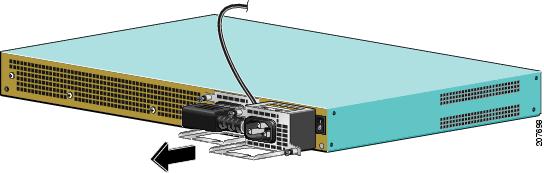
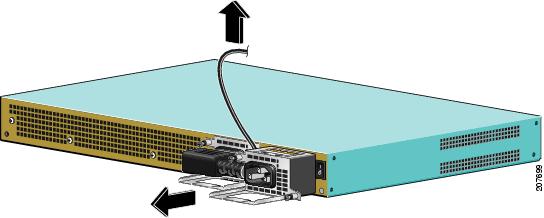
Grasping the power supply handles, pull the power supply from the chassis. When you remove the AC power supply, you will see the following type of messages in the log report:
13ru_perf2#show logSyslog logging: enabled (0 messages dropped, 6 messages rate-limited, 0 flushes, 0 overruns, xml disabled, filtering disabled)No Active Message Discriminator.No Inactive Message Discriminator.Console logging: disabledMonitor logging: level debugging, 0 messages logged, xml disabled,filtering disabledBuffer logging: level debugging, 81 messages logged, xml disabled,filtering disabledException Logging: size (4096 bytes)Count and timestamp logging messages: disabledPersistent logging: disabledNo active filter modules.Trap logging: level informational, 78 message lines loggedLog Buffer (10000000 bytes):*Jan 10 06:08:14.713: %CMRP-3-PEM_REMOVE_SHUT: R0/0: cmand: The system will shut down in 5 minutes*Jan 10 06:08:14.718: %ASR1000_PEM-6-REMPEM_FM: PEM/FM slot P1 removed*Jan 10 06:08:28.966: %ASR1000_PEM-6-INSPEM_FM: PEM/FM slot P1 insertedThe second is after enabling console logging. Output is at the console (and in the log).13ru_perf2#conf Configuring from terminal, memory, or network [terminal]?Enter configuration commands, one per line. End with CNTL/Z.13ru_perf2(config)#log con% Ambiguous command: "log con"13ru_perf2(config)#logg con13ru_perf2(config)#^Z13ru_perf2#*Jan 10 06:08:54.643: %SYS-5-CONFIG_I: Configured from console by console13ru_perf2#13ru_perf2# *Jan 10 06:09:05.023: %CMRP-3-PEM_REMOVE_SHUT: R0/0: cmand: The system will shut down in 5 minutes*Jan 10 06:09:05.026: %ASR1000_PEM-6-REMPEM_FM: PEM/FM slot P0 removed*Jan 10 06:09:10.500: %ASR1000_PEM-6-INSPEM_FM: PEM/FM slot P0 inserted13ru_perf2#Step 7
Replace the AC power supply within five minutes or the system will shutdown.
You have removed an AC power supply from the Cisco ASR 1013 Router and now must replace the AC power supply within five minutes.
Step 1
Insert another AC power supply in power supply Slot 0 or power supply Slot 1 until it is full seated.
Step 2
Tighten the captive screws. Insert the AC power cable.
Step 3
Plug the power supply cable into the power source.
Step 4
Place the power supply Standby switch in the On (I) position.
Step 5
The power supply LEDs light when power is supplied to the router.
You have completed a live change-out procedure (that is, removing and replacing an AC power supply) for an AC power supply not operating properly in the Cisco ASR 1013 Router within five minutes.
Remove the DC Power Supply
Before you can remove a DC power supply from the Cisco ASR 1013 Router, you must remove power from the power supply. The Cisco ASR 1013 Router has four power supplies and two power supply zones. There are two power supplies for power zone 0 and two power supplies for power zone 1 (Do not mix AC and DC power supplies). The two zones are split up with the numbering scheme: Zone 0 = PS0 and PS1 and for Zone 1 = PS2 and PS3.
CautionYou must have one power supply running at all times from each power supply zone and two power supplies from each power supply zone to support redundancy. For setailed power sypply information about the Cisco ASR 1013 Router, see the Cisco ASR 1000 Series Aggregation Services Routers Hardware Installation Guide.
CautionMake certain that the chassis ground is connected before you begin removing and installing the power supply.
Follow these steps to remove power and the DC power supply from the chassis.
Step 1
Before servicing the power supply, switch the circuit breaker Off in your equipment area. As an additional precaution, tape the circuit breaker switch in the Off position.
Step 2
Slip on the ESD-preventative wrist strap that was included in the accessory kit.
Step 3
Switch the power supply circuit breaker switch to Off (O).
Step 4
Locate the terminal block on the rear of the chassis on the power supply.
Figure 12 shows the DC power supply terminal block.
Figure 12 DC Power Supply Terminal Block
1Negative terminal
4Plastic cover slotted area
2Positive terminal
5Terminal block plastic cover single screw
3Terminal block plastic cover
Step 5
Remove the slotted plastic cover from the terminal block (Figure 12). Loosen and remove the single screw on the plastic cover. The plastic cover has slots that help to slide it out diagonally from the terminal block.
Step 6
Using a nut driver (7/16 size), unsrew the positive kepnut, positive cable (Figure 13, callout 2) and the flat washer, in that order. The terminal block houses two double-hole barrel lugs.
Figure 13 Cisco ASR 1013 Router DC Power Supply Terminal Block Cable Connections
1Negative lead
3Protective sleeving around the stud and cable
2Positive lead
4Earth ground stud and cable
Step 7
Follow the same procedure from step 6 and remove the negative cable (Figure 12, callout 1) in the same order.
Step 8
Repeat the following step for the ground cable.
WarningWhen removing the unit, the ground connection must always be made first and disconnected last.
Step 9
Loosen the four captive screws on the DC power supply.
Note
Four power supplies must be installed in the chassis at all times, with a minimum of two power supplies (one per zone) connected to the mains in order to power on the system and ensure sufficient cooling. The system fans are inside the power supply units and must spin for cooling. Because all the system fans can be powered by one power supply, the second power supply unit does not have to be powered on, but must be connected.
CautionIf you remove a power supply from a system that has four power supplies that are connected and powered on, the system can run only for a maximum of five minutes before shutting down. However, because the fans and power elements are independent within the power supply, the replacement power supply does not have to be energized within five minutes. The only requirement is that the power supply be installed in the chassis in order to energize the fans and maintain proper system cooling.
Step 10
Grasping the power supply handles, pull the power supply from the chassis.
Step 11
Replace the DC power supply within five minutes.
This completes the procedure of removing a DC power supply from the Cisco ASR 1013 Router.
Replace the DC Power Supply
For instructions to replace the DC power supply in the Cisco ASR 1013 Router, go to Connect DC Power to the Cisco ASR 1013 Router.
Install and Remove the Shared Port Adapter
This section provides instructions for installing and removing a shared port adapter in a SIP Each SPA circuit board is mounted to a metal carrier and is sensitive to electrostatic discharge (ESD) damage.
CautionAlways handle the SPA by the carrier edges and handle; never touch the SPA components or connector pins. (See Figure 14.)
When a subslot is not in use, a SPA blank filler plate must fill the empty subslot to allow the router or switch to conform to electromagnetic interference (EMI) emissions requirements and to allow proper airflow across the SPAs. If you plan to install a SPA in a subslot that is not in use, you must first remove the SPA blank filler plate.
Figure 14 Handling a SPA
To install a shared port adapter into a SPA interface processor (SIP), follow these steps:
Step 1
Before you begin, make certain the chassis is grounded.
Step 2
To insert the SPA in the SIP, locate the guide rails inside the SIP that hold the SPA in place. They are at the top left and top right of the SPA slot and are recessed about an inch.
Step 3
Carefully slide the SPA all the way in the SIP until the SPA is firmly seated in the SPA interface connector. When fully seated, the SPA might be slightly behind the SIP faceplate. See Figure 15.
Figure 15 Installing and Removing a SPA Into and From a SIP
Step 4
After the SPA is properly seated, fasten the SPA in place with the captive installation screws on either side of the SPA.
Note
The shared port adapter ships installed. These instructions are provided for future use. Cabling information is included with the specific shared port adapter documentation.
Step 1
Attach an ESD wrist strap between you and an unpainted chassis surface.
Step 2
If attached, remove any cables from the SPA.
Step 3
Before removing any shared port adapter, shut down the interface so that there is no traffic running through the shared port adapter when it is removed.
Note
Removing a shared port adapter while traffic is flowing through the ports can cause system disruption.
Step 4
Remove the shared port adapter from the chassis slot. Unfasten the captive installation screws on either side of the SPA.
Step 5
Grasp the handle and pull the shared port adapter or blank shared port adapter from the router.
Step 6
Locate the shared port adapter slot guides inside the Cisco ASR 1013 Router. They are near the top, and are recessed about one-half inch.
CautionThe shared port adapter must slide into the slot guides under the chassis lid. Do not allow the shared port adapter components to come in contact with the system board or the shared port adapter could be damaged.
Step 7
Carefully slide the shared port adapter into the shared port adapter slot and seat it. When installed, the shared port adapter input/output panel should be flush with the face of the router.
Step 8
Reconnect any cables, including the shared port adapter and power cables, and place the cables through any cable-management bracket.
Note
If the shared port adapter fails to come up, reseat or reinsert the shared port adapter: do not use excessive force.
Step 9
Power on the router by turning the power switch to the On(|) position.
Note
For detailed Cisco SPA and SIP information, see Cisco ASR 1000 Series Aggregation Services Routers SIP and SPA Hardware Installation Guide.
Feedback