Using Link Layer Discovery Protocol in Multivendor Networks
Available Languages
Table Of Contents
Using Link Layer Discovery Protocol in Multivendor Networks
Prerequisites for Using Link Layer Discovery Protocol in Multivendor Networks
Restrictions for Using Link Layer Discovery Protocol in Multivendor Networks
Information About Using Link Layer Discovery Protocol in Multivendor Networks
How to Configure Link Layer Discovery Protocol in Multivendor Networks
Enabling and Disabling LLDP Globally
Disabling and Enabling LLDP on a Supported Interface
Disabling LLDP on a Supported Interface
Enabling LLDP on a Supported Interface
Monitoring and Maintaining LLDP in Multivendor Networks
Enabling and Disabling LLDP TLVs
Enabling and Disabling LLDP-MED TLVs
Configuration Examples for Link Layer Discovery Protocol in Multivendor Networks
Example: Configuring LLDP on Two Routers
Feature Information for Link Layer Discovery Protocol in Multivendor Networks
Using Link Layer Discovery Protocol in Multivendor Networks
First Published: August 21, 2007Last Updated: February 7, 2011Link Layer Discovery Protocol (LLDP), standardized by the IEEE as part of 802.1ab, enables standardized discovery of nodes, which in turn facilitates future applications of standard management tools such as Simple Network Management Protocol (SNMP) in multivendor networks. Using standard management tools makes physical topology information available and helps network administrators detect and correct network malfunctions and inconsistencies in configuration.
Media Endpoint Discovery (MED) is an LLDP enhancement that was formalized by the Telecommunications Industry Association (TIA) for voice over IP (VoIP) applications.
The Cisco implementation of LLDP is based on the IEEE 802.1ab standard. This document describes LLDP and LLDP-MED and how they are supported in Cisco IOS software.
Finding Feature Information
Your software release may not support all the features documented in this module. For the latest feature information and caveats, see the release notes for your platform and software release. To find information about the features documented in this module, and to see a list of the releases in which each feature is supported, see the "Feature Information for Link Layer Discovery Protocol in Multivendor Networks" section.
Use Cisco Feature Navigator to find information about platform support and Cisco software image support. To access Cisco Feature Navigator, go to http://www.cisco.com/go/cfn. An account on Cisco.com is not required.
Contents
•
Prerequisites for Using Link Layer Discovery Protocol in Multivendor Networks
•
•
•
•
•
Prerequisites for Using Link Layer Discovery Protocol in Multivendor Networks
•
•
–
–
–
–
–
–
Restrictions for Using Link Layer Discovery Protocol in Multivendor Networks
•
•
Information About Using Link Layer Discovery Protocol in Multivendor Networks
IEEE 802.1ab LLDP
IEEE 802.1ab LLDP is an optional link layer protocol for network topology discovery in multivendor networks. Discovery information includes device identifiers, port identifiers, versions, and other details. As a protocol that aids network management, LLDP provides accurate network mapping, inventory data, and network troubleshooting information.
LLDP is unidirectional, operating only in an advertising mode. LLDP does not solicit information or monitor state changes between LLDP nodes. LLDP periodically sends advertisements to a constrained multicast address. Devices supporting LLDP can send information about themselves while they receive and record information about their neighbors. Additionally, devices can choose to turn off the send or receive functions independently. Advertisements are sent out and received on every active and enabled interface, allowing any device in a network to learn about all devices to which it is connected. Applications that use this information include network topology discovery, inventory management, emergency services, VLAN assignment, and inline power supply.

Note
Figure 1 shows a high-level view of LLDP operating in a network node.
Figure 1
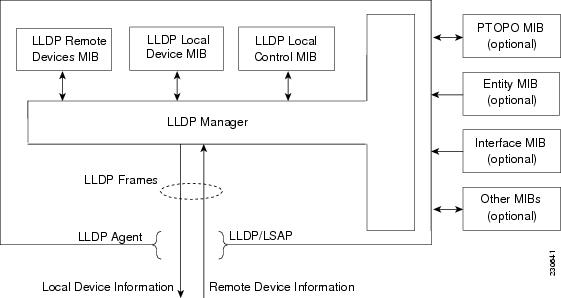
LLDP Operating in a Network Node
When you configure LLDP or CDP location information on a per-port basis, remote devices can send Cisco medianet location information to the switch. For more information, refer to the Using Cisco Discovery Protocol module.
CDP allows only one wired switch to report the location information. CDP identifies and indicates the location of neighbor ports and ensures not to report the duplicate location information of the same device.
LLDP-MED
LLDP-MED operates between several classes of network equipment such as IP phones, conference bridges, and network connectivity devices such as routers and switches. By default, a network connectivity device sends out only LLDP packets until it receives LLDP-MED packets from an endpoint device. The network device then sends out LLDP-MED packets until the remote device to which it is connected ceases to be LLDP-MED capable.
To use LLDP-MED, you should understand the following concepts:
Classes of Endpoints
LLDP-MED network connectivity devices provide IEEE 802 network access to LLDP-MED endpoints. LLDP-MED supports the following three classes of endpoints:
•
•
•
Figure 2 shows an LLDP-MED-enabled LAN.
Figure 2
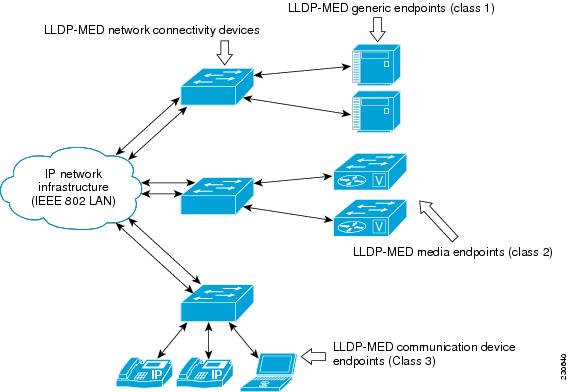
LLDP-MED Enabled LAN
Types of Discovery Supported
LLDP-MED provides support to discover the following types of information, which are crucial to efficient operation and management of endpoint devices and the network devices supporting them:
•
•
•
•
•
•
Benefits of LLDP-MED
•
•
•
•
•
•
•
•
TLV Elements
LLDP and LLDP-MED use TLVs to exchange information between network and endpoint devices. TLV elements are embedded in communications protocol advertisements and used for encoding optional information. The size of the type and length fields is fixed at 2 bytes. The size of the value field is variable. The type is a numeric code that indicates the type of field that this part of the message represents, and the length is the size of the value field, in bytes. The value field contains the data for this part of the message.
LLDP-MED supports the following TLVs:
•
•
By defining a network-policy profile TLV, you can create a profile for voice and voice signalling by specifying the values for VLAN, class of service (CoS), differentiated services code point (DSCP), and tagging mode. These profile attributes are then maintained centrally on the switch and propagated to the phone.
•
When LLDP is enabled and power is applied to a port, the power TLV determines the actual power requirement of the endpoint device so that the system power budget can be adjusted accordingly. The switch processes the requests and either grants or denies power based on the current power budget. If the request is granted, the switch updates the power budget. If the request is denied, the switch turns off power to the port, generates a syslog message, and updates the power budget. If LLDP-MED is disabled or if the endpoint does not support the LLDP-MED power TLV, the initial allocation value is used throughout the duration of the connection.
Note
•
•
–
–
Benefits of LLDP
•
•
•
•
How to Configure Link Layer Discovery Protocol in Multivendor Networks
•
•
•
•
•
•
•
Enabling and Disabling LLDP Globally
LLDP is disabled globally by default. This section describes the tasks for enabling and disabling LLDP globally.
Enabling LLDP Globally
Perform this task to enable LLDP globally.
SUMMARY STEPS
1.
2.
3.
4.
DETAILED STEPS
Disabling LLDP Globally
Perform this task to disable LLDP globally.
SUMMARY STEPS
1.
2.
3.
4.
DETAILED STEPS
Disabling and Enabling LLDP on a Supported Interface
LLDP is enabled by default on all supported interfaces. This section describes the tasks for disabling and enabling LLDP on a supported interface.
Disabling LLDP on a Supported Interface
Perform this task to disable LLDP on a supported interface.
SUMMARY STEPS
1.
2.
3.
4.
5.
DETAILED STEPS
Enabling LLDP on a Supported Interface
LLDP information can be transmitted and received only on an interface where LLDP is configured and enabled. Perform this task to enable LLDP.
SUMMARY STEPS
1.
2.
3.
4.
5.
DETAILED STEPS
Setting LLDP Packet Hold Time
Hold time is the duration that a receiving device should maintain LLDP neighbor information before aging it. Perform this task to define a hold time for an LLDP-enabled device.
SUMMARY STEPS
1.
2.
3.
4.
DETAILED STEPS
Setting LLDP Packet Frequency
Perform this task to specify an interval at which the Cisco IOS software sends LLDP updates to neighboring devices.
SUMMARY STEPS
1.
2.
3.
4.
DETAILED STEPS
Monitoring and Maintaining LLDP in Multivendor Networks
Perform this task to monitor and maintain LLDP in multivendor networks. This task is optional, and Steps 2 and 3 can be performed in any sequence.
SUMMARY STEPS
1.
2.
3.
4.
DETAILED STEPS
Enabling and Disabling LLDP TLVs
LLDP TLV support is enabled by default if LLDP is enabled globally and locally on a supported interface. Specific TLVs, however, can be enabled and suppressed.
Enabling LLDP TLVs
Perform this task to enable an LLDP TLV on a supported interface.
SUMMARY STEPS
1.
2.
3.
4.
5.
DETAILED STEPS
Disabling LLDP TLVs
Perform this task to disable an LLDP TLV on a supported interface.
SUMMARY STEPS
1.
2.
3.
4.
5.
DETAILED STEPS
Enabling and Disabling LLDP-MED TLVs
LLDP-MED TLV support is enabled by default if LLDP is enabled globally and locally on a supported interface. Specific TLVs, however, can be enabled and suppressed.
Enabling LLDP-MED TLVs
Perform this task to enable a specific LLDP-MED TLV on a supported interface.
SUMMARY STEPS
1.
2.
3.
4.
5.
DETAILED STEPS
Disabling LLDP-MED TLVs
Perform this task to disable a specific LLDP-MED TLV from a supported interface.
SUMMARY STEPS
1.
2.
3.
4.
5.
DETAILED STEPS
Configuring Location TLV
Perform this task to enable the location TLV on a Cisco device.
Note
SUMMARY STEPS
1.
2.
3.
4.
5.
6.
7.
DETAILED STEPS
Configuration Examples for Link Layer Discovery Protocol in Multivendor Networks
•
Example: Configuring LLDP on Two Routers
The following example shows LLDP configurations for two routers in a network. Hold time, a timer value, and TLVs are configured for each router. In each case an assumption is made that the Ethernet interfaces being configured are in the UP state.
! Configure LLDP on Router 1 with hold time, timer, and TLV options.Router1> enableRouter1# configure terminalEnter configuration commands, one per line. End with CNTL/Z.Router1(config)# lldp runRouter1(config)# lldp holdtime 150Router1(config)# lldp timer 15Router1(config)# lldp tlv-select port-vlanRouter1(config)# lldp tlv-select mac-phy-cfgRouter1(config)# interface ethernet 0/0Router1(config-if)# end00:08:32: %SYS-5-CONFIG_I: Configured from console by console! Show the updated running configuration. LLDP is enabled with hold time, timer, and TLV options configured.Router1# show running-configBuilding configuration...Current configuration : 1397 bytes!version 12.2service timestamps debug uptimeservice timestamps log uptimeno service password-encryption!hostname Router1!boot-start-markerboot-end-marker!!no aaa new-modelclock timezone PST -8ip subnet-zero!!lldp timer 15lldp holdtime 150!!!interface Loopback0ip address 127.0.0.1 255.255.255.255!interface Ethernet0/0no ip addressshutdown!interface Ethernet0/1no ip addressshutdown!interface Ethernet0/2no ip addressshutdown!interface Ethernet0/3no ip addressshutdown!interface Ethernet1/0no ip addressshutdown!interface Ethernet1/1no ip addressshutdown!interface Ethernet1/2no ip addressshutdown!interface Ethernet1/3no ip addressshutdown!interface Serial2/0no ip addressserial restart-delay 0!interface Serial2/1no ip addressshutdownserial restart-delay 0!interface Serial2/2no ip addressshutdownserial restart-delay 0!interface Serial2/3no ip addressshutdownserial restart-delay 0!interface Serial3/0no ip addressshutdownserial restart-delay 0!interface Serial3/1no ip addressshutdownserial restart-delay 0!interface Serial3/2no ip addressshutdownserial restart-delay 0!interface Serial3/3no ip addressshutdownserial restart-delay 0!ip classless!no ip http server!!!!!control-plane!!line con 0logging synchronousline aux 0line vty 0 4login!end! Configure LLDP on Router 2 with hold time, timer, and TLV options.Router2> enableRouter2# configure terminalEnter configuration commands, one per line. End with CNTL/Z.Router2(config)# lldp runRouter2(config)# lldp holdtime 150Router2(config)# lldp timer 15Router2(config)# lldp tlv-select port-vlanRouter2(config)# lldp tlv-select mac-phy-cfgRouter2(config)# interface ethernet 0/0Router2(config-if)# end00:08:32: %SYS-5-CONFIG_I: Configured from console by console! Show the updated running configuration on Router 2. LLDP is enabled with hold time, timer, and TLV options configured.Router2# show running-configBuilding configuration...Current configuration : 1412 bytes!version 12.2service timestamps debug uptimeservice timestamps log uptimeno service password-encryption!hostname R2!boot-start-markerboot-end-marker!!no aaa new-modelclock timezone PST -8ip subnet-zero!!lldp timer 15lldp holdtime 150!!!interface Loopback0ip address 127.0.0.1 255.255.255.255!interface Ethernet0/0no ip addressshutdown!interface Ethernet0/1no ip addressshutdown!interface Ethernet0/2no ip addressshutdown!interface Ethernet0/3no ip addressshutdown!interface Ethernet1/0no ip addressshutdown!interface Ethernet1/1no ip addressshutdown!interface Ethernet1/2no ip addressshutdown!interface Ethernet1/3no ip addressshutdown!interface Serial2/0no ip addressno fair-queueserial restart-delay 0!interface Serial2/1no ip addressshutdownserial restart-delay 0!interface Serial2/2no ip addressshutdownserial restart-delay 0!interface Serial2/3no ip addressshutdownserial restart-delay 0!interface Serial3/0no ip addressshutdownserial restart-delay 0!interface Serial3/1no ip addressshutdownserial restart-delay 0!interface Serial3/2no ip addressshutdownserial restart-delay 0!interface Serial3/3no ip addressshutdownserial restart-delay 0!ip classless!no ip http server!!!!!control-plane!!line con 0logging synchronousline aux 0line vty 0 4login!end! After both routers are configured for LLDP, issue the show command from each router to view traffic and device information.Router1# show lldp trafficLLDP traffic statistics:Total frames out: 20Total entries aged: 0Total frames in: 15Total frames received in error: 0Total frames discarded: 0Total TLVs unrecognized: 0Router1# show lldp neighborsCapability codes:(R) Router, (B) Bridge, (T) Telephone, (C) DOCSIS Cable Device(W) WLAN Access Point, (P) Repeater, (S) Station, (O) OtherDevice ID Local Intf Hold-time Capability Port IDRouter2 Et0/0 150 R Et0/0Total entries displayed: 1Router2# show lldp trafficLLDP traffic statistics:Total frames out: 15Total entries aged: 0Total frames in: 17Total frames received in error: 0Total frames discarded: 2Total TLVs unrecognized: 0Router2# show lldp neighborsCapability codes:(R) Router, (B) Bridge, (T) Telephone, (C) DOCSIS Cable Device(W) WLAN Access Point, (P) Repeater, (S) Station, (O) OtherDevice ID Local Intf Hold-time Capability Port IDRouter1 Et0/0 150 R Et0/0Total entries displayed: 1Additional References
Related Documents
Standards
MIBs
PTOPO MIB
To locate and download MIBs for selected platforms, Cisco software releases, and feature sets, use Cisco MIB Locator found at the following URL:
RFCs
Technical Assistance
Feature Information for Link Layer Discovery Protocol in Multivendor Networks
Table 1 lists the features in this module and provides links to specific configuration information.
Use Cisco Feature Navigator to find information about platform support and software image support. Cisco Feature Navigator enables you to determine which software images support a specific software release, feature set, or platform. To access Cisco Feature Navigator, go to http://www.cisco.com/go/cfn. An account on Cisco.com is not required.
Note
Cisco and the Cisco Logo are trademarks of Cisco Systems, Inc. and/or its affiliates in the U.S. and other countries. A listing of Cisco's trademarks can be found at www.cisco.com/go/trademarks. Third party trademarks mentioned are the property of their respective owners. The use of the word partner does not imply a partnership relationship between Cisco and any other company. (1005R)
Any Internet Protocol (IP) addresses and phone numbers used in this document are not intended to be actual addresses and phone numbers. Any examples, command display output, network topology diagrams, and other figures included in the document are shown for illustrative purposes only. Any use of actual IP addresses or phone numbers in illustrative content is unintentional and coincidental.
© 2007-2011 Cisco Systems, Inc. All rights reserved.
 Feedback