Cisco Easy VPN Remote Phase II
Available Languages
Table Of Contents
Cisco Easy VPN Remote Phase II
Enhancements Specific to Phase II
Multiple Inside Interface Enhancements
Multiple Outside Interfaces Support
Local Address Support for Easy VPN Remote
Simultaneous Easy VPN Client and Server Support
Cisco Easy VPN Remote Web Manager
Differences Between Cisco Easy VPN Remote Phase II and Phase I
Platform-Specific Documentation
Supported Standards, MIBs, and RFCs
Configuring Manual Tunnel Control
Configuring Multiple Inside Interfaces
Configuring Multiple Outside Interfaces
Verifying Outside Interface Configuration
Configuring Easy VPN Remote Using Cable DHCP Proxy
Configuring Easy VPN Remote with a Static IP Address
Configuring Proxy DNS Server Support
Verifying Proxy DNS Server Support
Configuring and Using the Cisco Easy VPN Remote Web Manager
Configuring the DHCP Server Pool
Verifying the DHCP Server Pool
Configuring and Assigning the Cisco Easy VPN Remote Configuration
Verifying the Cisco Easy VPN Configuration
Configuring the Cisco VPN 3000 Series Concentrator
Cable DHCP Proxy Enhancement Configuration Examples
Local Address Support for Easy VPN Remote Example
PIX Interoperability Support Example
Client Mode Configuration Examples
Cisco Easy VPN Client in Client Mode (Cisco uBR905 and Cisco uBR925) Example
Cisco Easy VPN Client in Client Mode (Cisco 806) Example
Cisco Easy VPN Client in Client Mode (Cisco 827) Example
Cisco Easy VPN Client in Client Mode (Cisco 1700 Series) Example
Network Extension Mode Configuration Examples
Cisco Easy VPN Client in Network-Extension Mode (Cisco uBR905 and Cisco uBR925) Example
Cisco Easy VPN Client in Network-Extension Mode (Cisco 806) Example
Cisco Easy VPN Client in Network-Extension Mode (Cisco 827) Example
Cisco Easy VPN Client in Network-Extension Mode (Cisco 1700 Series) Example
VPN Remote Access Server Configuration Examples
VPN Remote Access Server Without Split Tunneling Example
VPN Remote Access Server Configuration With Split Tunneling Example
VPN Remote Access Server Configuration With XAUTH Example
clear crypto ipsec client ezvpn
crypto ipsec client ezvpn xauth
crypto ipsec client ezvpn (global configuration)
crypto ipsec client ezvpn (interface configuration)
crypto ipsec client ezvpn connect
show crypto ipsec client ezvpn
debug crypto ipsec client ezvpn
Cisco Easy VPN Remote Phase II
Feature History
This document describes the Cisco Easy VPN Remote Phase II feature for Cisco 806, Cisco 826, Cisco 827, and Cisco 828 routers; Cisco 1700 series routers; and Cisco uBR905 and Cisco uBR925 cable access routers in Cisco IOS Release 12.2(8)YJ. This document provides information on configuring and monitoring the Cisco Easy VPN Remote Phase II feature to create IPSec Virtual Private Network (VPN) tunnels between a supported router and another Cisco router that supports this form of IPSec encryption and decryption.
This document includes the following sections:
•
Supported Standards, MIBs, and RFCs
Feature Overview
Cable modems, xDSL routers, and other forms of broadband access provide high-performance connections to the Internet, but many applications also require the security of VPN connections that perform a high level of authentication and that encrypt the data between two particular endpoints. However, establishing a VPN connection between two routers can be complicated, and typically requires tedious coordination between network administrators to configure the two routers' VPN parameters.
The Cisco Easy VPN Remote Phase II feature eliminates much of this tedious work by implementing Cisco Unity Client Protocol, which allows most VPN parameters to be defined at a VPN remote access server. This server can be a dedicated VPN device such as a Cisco VPN 3000 concentrator or a Cisco PIX Firewall, or a Cisco IOS router that supports the Cisco Unity Client Protocol.
After the VPN remote access server has been configured, a VPN connection can be created with minimal configuration on an IPSec client, such as a Cisco uBR905 or Cisco uBR925 cable access router, as well as on the Cisco 806/826/827/828 and Cisco 1700 series routers. When the IPSec client then initiates the VPN tunnel connection, the VPN remote access server pushes the IPSec policies to the IPSec client and creates the corresponding VPN tunnel connection.
The Cisco Easy VPN Remote Phase II feature provides for automatic management of the following details:
•
•
•
•
•
•
Modes of Operation
The Cisco Easy VPN Remote Phase II feature supports two modes of operation:
•
In client mode, the Cisco Easy VPN Remote Phase II feature automatically configures the NAT/PAT translation and access lists that are needed to implement the VPN tunnel. These configurations are automatically created when the IPSec VPN connection is initiated. When the tunnel is torn down, the NAT/PAT and access list configurations are automatically deleted.
The NAT/PAT configuration is created with the following assumptions:
–
–

Tip
•
Both modes of operation also optionally support split tunneling, which allows secure access to corporate resources through the VPN tunnel while also allowing Internet access through a connection to an Internet Service Provider (ISP) or other service—thereby eliminating the corporate network from the path for web access.
Authentication can also be done using Extended Authentication (XAUTH). In this situation, when the VPN remote access server requests XAUTH authentication, the following messages are displayed on the router's console:
EZVPN: Pending XAuth Request, Please enter the following command:EZVPN: crypto ipsec client ezvpn xauthThe user can then provide the necessary user ID, password, and other information by entering the crypto ipsec client ezvpn xauth command and responding to the prompts that follow.

Note
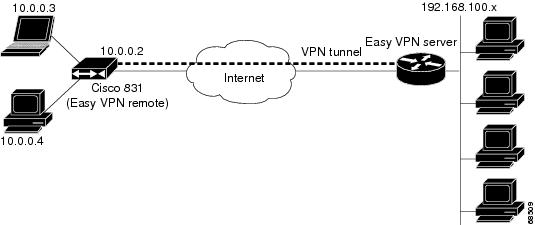
Figure 1 illustrates the client mode of operation. In this example, the Cisco uBR905 cable access router provides access to two PCs, which have IP addresses in the 10.0.0.0 private network space. These PCs connect to the Ethernet interface on the Cisco uBR905 router, which also has an IP address in the 10.0.0.0 private network space. The Cisco uBR905 router performs NAT/PAT translation over the VPN tunnel so that the PCs can access the destination network.
Figure 1 Cisco Easy VPN Client Connection
Note
Figure 2 also illustrates the client mode of operation, in which a VPN concentrator provides destination endpoints to multiple xDSL clients. In this example, Cisco 800 series routers provide access to multiple small business clients, each of which uses IP addresses in the 10.0.0.0 private network space. The Cisco 800 series routers perform NAT/PAT translation over the VPN tunnel, so that the PCs can access the destination network.
Figure 2 Cisco Easy VPN Client Connection (using VPN concentrator)
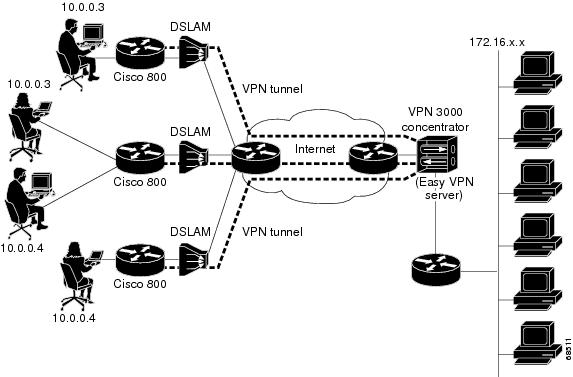
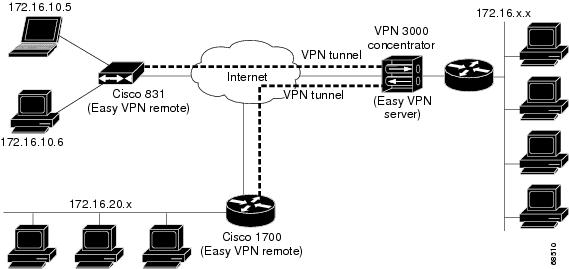
Figure 3 illustrates the network extension mode of operation. In this example, the Cisco uBR905 cable access router and Cisco 1700 series router both act as Cisco Easy VPN Clients, connecting to a Cisco VPN 3000 concentrator.
The client hosts are given IP addresses that are fully routable by the destination network over the tunnel. These IP addresses could be either in the same subnet space as the destination network, or they could also be in separate subnets, as long as the destination routers are configured to properly route those IP addresses over the tunnel.
In this example, the PCs and hosts attached to the two routers have IP addresses that are in the same address space as the destination enterprise network. The PCs connect to the Cisco uBR905 router's Ethernet interface, which also has an IP address in the enterprise address space. This provides a seamless extension of the remote network.
Figure 3 Cisco Easy VPN Network Extension Connection
Note
Enhancements Specific to Phase II
The Phase II implementation of the Cisco Easy VPN Remote feature provides enhancements and additional capabilities to Phase I features. In Phase II, the Cisco Easy VPN Remote feature provides the following enhancements:
•
•
•
•
•
•
•
•
•
•
•
•
In addition, as part of configuring the Cisco VPN 3000 series concentrator—for the Cisco Easy VPN Remote Phase II image—you do not need to create a new IPSec Security Association. Use the default Internet Key Exchange (IKE) and IPSec client lifetime configured on the Cisco VPN 3000 series concentrator.
Manual Tunnel Control
The IPSec Virtual Private Network (VPN) tunnel is automatically connected when the Cisco Easy VPN Remote feature is configured on an interface. If the tunnel times out or fails, the tunnel automatically reconnects and retries indefinitely. Cisco Easy VPN Remote Phase II implements manual control of IPSec VPN tunnels so that you can establish and terminate the IPSec VPN tunnel on demand.
The Easy VPN Remote configuration command, crypto ipsec client ezvpn name, is enhanced with a new subcommand, connect [auto | manual], to allow you to specify manual tunnel control.
Automatic is the default setting because it was the initial Phase I functionality. If automatic is the configuration, then you do not need to use the subcommand.
The manual setting means that the Cisco Easy VPN Client will wait for a command before attempting to establish the Cisco Easy VPN Remote connection. When the tunnel times out or fails, then subsequent connections will have to wait for the command also.
If the configuration is manual, then the tunnel is connected only after you issue the new command, crypto ipsec client ezvpn connect name.
The clear command, clear crypto ipsec client ezvpn [name], is enhanced to disconnect a given tunnel.
See "Configuring Manual Tunnel Control" section for information on how to configure manual control of a tunnel.
Multiple Inside Interface Enhancements
The Cisco Easy VPN Client Phase I feature supported only one inside interface, which by default was the Fastethernet interface on the Cisco 1700 series and the ethernet interface on the Cisco 800 series and Cisco uBR900 series.
The inside interface support is enhanced in Cisco Easy VPN Remote Phase II to support multiple inside interfaces for all platforms. Inside interfaces can be manually configured with the enhanced command and subcommand:
interface interface-namecrypto ipsec client ezvpn name [outside | inside]If you want to disable the default inside interface and configure another inside interface on the Cisco uBR905, Cisco uBR925, and on a Cisco 800 series router, you must configure the other inside interface first and then disable the default inside interface. You can use the following command to disable the default inside interface:
no crypto ipsec client ezvpn <name> insideIf you did not configure the other inside interface first before disabling the default inside interface, you receive a message such as the following:
ezvpn_client_37(config)#int e0ezvpn_client_37(config-if)#no crypto ipsec client ezvpn hw-client insideCannot remove the single inside interface unlessone other inside interface is configuredSee "Configuring Multiple Inside Interfaces" section for information on how to configure more than one inside interface.
The multiple inside interface enhancements support the following capabilities:
•
•
•
•
Configuration information for the default inside interface is shown with the show crypto ipsec client ezvpn command. All inside interfaces, whether they belong to a tunnel, are listed in interface configuration mode as an inside interface, along with the tunnel name.
Multiple Outside Interfaces Support
The Cisco Easy VPN Client Phase I feature supported the configuration of only one tunnel for a single outside interface. The Phase II enhancement adds support for configuration of multiple tunnels for outside interfaces, by establishing one tunnel per outside interface. This functionality is applicable to multiple outside interface platforms such as the Cisco 1700 series routers. The Cisco 800 series router, and uBR905 and uBR925 cable access routers are not affected, because these routers support only one outside interface.
You can configure a maximum of four tunnels. This is done by the enhanced command, crypto ipsec client ezvpn name outside.
Note
To disconnect or clear a specific tunnel, the enhanced command, clear crypto ipsec ezvpn <name>, specifies the IPSec VPN tunnel name. If there is no tunnel name specified, then all existing tunnels are cleared.
See "Configuring Multiple Outside Interfaces" section for more information on configuring more than one outside interface.
NAT Interoperability Support
Cisco Easy VPN Remote Phase II supports interoperability with Network Address Translation (NAT). You can have a NAT configuration and a Cisco Easy VPN Remote Phase II configuration coexist. When an IPSec VPN tunnel is down, the NAT configuration works.
The Cisco Easy VPN Remote Phase II feature automatically creates a NAT configuration, with the corresponding access lists, to implement client mode and split tunneling. In the initial release of the Cisco Easy VPN Client feature, this automatic NAT and access list configuration overrode any previous NAT and access list configuration. When a tunnel timed out or disconnected—due to manual tunnel control, for example—the automatic NAT and access configuration was automatically removed, which prevented any Internet access even to non-tunnel destinations.
In Phase II of the Cisco Easy VPN Remote feature, the router automatically restores the previous NAT configuration when the IPSec VPN tunnel is torn down. The user-defined access lists are not disturbed. Users can continue to access non-tunnel areas of the Internet when the tunnel times out or disconnects.
Local Address Support for Easy VPN Remote
The Cisco Easy VPN Remote Phase II feature is enhanced to support an additional local-address attribute that specifies which interface is used to determine the IP address used to source the Easy VPN Remote tunnel traffic. After specifying the interface with the local-address subcommand, you can manually assign a static IP address to the interface or use the cable-modem dhcp-proxy interface command to automatically configure the specified interface with a public IP address. See Configuring Easy VPN Remote with a Static IP Address and Configuring Easy VPN Remote Using Cable DHCP Proxy for configuration information. See "Cable DHCP Proxy Enhancement" section for more information on the cable-modem dhcp-proxy interface command.
The local-address support is available for all platforms, but it is more applicable to the Cisco uBR905 and Cisco uBR925 cable access routers in conjunction with the cable-modem dhcp-proxy interface command. Typically, the loopback interface is the interface used to source tunnel traffic for the Cisco uBR905 and Cisco uBR925 cable access routers.
Cable DHCP Proxy Enhancement
In a typical DOCSIS network, the Cisco uBR905 and Cisco uBR925 cable access routers are normally configured with a private IP address on the cable-modem interface. In Cisco Easy VPN Client Phase I, a public IP address was required on the cable-modem interface to support the Easy VPN Client.
In Phase II, cable providers can use the Cable DHCP Proxy feature to obtain a public IP address and assign it to the cable modem interface, which is usually the loopback interface.
To support the Cisco Easy VPN Remote Phase II feature on the uBR905 and uBR925 cable access routers, the existing cable-modem dhcp-proxy interface configuration command is enhanced to support the loopback interface. The router automatically configures the loopback interface with the public IP address obtained from the DHCP server. You must create the loopback interface, which is a virtual interface, first before issuing the cable-modem dhcp-proxy interface command.
See "Configuring Easy VPN Remote Using Cable DHCP Proxy" section for information on how to configure the Cable DHCP Proxy feature.
For more information on the cable-modem dhcp-proxy interface command, refer to the "Cable CPE Commands" chapter at http://www.cisco.com/univercd/cc/td/doc/product/cable/bbccmref/bbcmcpe.htm in the Cisco Broadband Cable Command Reference Guide at http://www.cisco.com/univercd/cc/td/doc/product/cable/bbccmref/index.htm.
Note
Peer Hostname Enhancement
The peer in a Cisco Easy VPN Remote Phase II feature configuration can be defined as an IP address or a hostname. Typically when a peer is defined as a hostname, a Domain Name System (DNS) lookup is done immediately to get an IP address. In the Cisco Easy VPN Remote Phase II feature, the peer hostname operation is enhanced to support DNS entry changes. The text string of the hostname is stored so that the DNS lookup is done at the time of the tunnel connection, not when the peer is defined as a hostname.
See "Configuring and Assigning the Cisco Easy VPN Remote Configuration" section for information on enabling the peer hostname functionality.
Proxy DNS Server Support
When the WAN connection is down—that is, the IPSec VPN tunnel is down—the Domain Name System (DNS) addresses of the ISP or cable provider should be used to resolve DNS requests. When the WAN connection is up, the enterprise's DNS addresses should be used.
As a way of implementing use of the cable provider's DNS addresses when the WAN connection is down, the router in a Cisco Easy VPN Remote Phase II configuration can be configured to act as a proxy DNS server. The router, acting as a proxy DNS server for LAN connected users, receives DNS queries from local users on behalf of the real DNS server. The DHCP server then is able to send out the router's LAN address as the DNS server's IP address. Then after the WAN connection comes up, the router forwards the DNS queries to the real DNS server and caches the DNS query records.
See "Configuring Proxy DNS Server Support" section for information on enabling the proxy DNS server functionality.
PIX Interoperability Support
The Cisco Easy VPN Remote Phase II feature supports Cisco PIX Firewall Version 6.2.
See "PIX Interoperability Support Example" section for an example output.
You can refer to Cisco PIX Firewall and VPN Configuration Guide Version 6.2 documentation on Cisco.com at the following URL:
http://www.cisco.com/univercd/cc/td/doc/product/iaabu/pix/pix_62/config/index.htm
Cisco IOS Firewall Support
The Cisco Easy VPN Remote Phase II feature works in conjunction with Cisco IOS Firewall configurations on all platforms.
Simultaneous Easy VPN Client and Server Support
You can configure simultaneous Cisco Easy VPN Client and Cisco Easy VPN Server support on the same Cisco 1700 series routers. You can configure one outside interface as a Cisco Easy VPN Server and another outside interface on the same router as a Cisco Easy VPN Client. This support is applicable for multiple outside interface platforms, such as the Cisco 1700 series routers.
Cisco Easy VPN Remote Web Manager
The Cisco Easy VPN Remote Web Manager is a web interface used to manage the Cisco Easy VPN Remote Phase II feature for Cisco uBR905 and Cisco uBR925 cable access routers. Users do not need access to the command-line interface (CLI) to manage the Cisco Easy VPN Remote Phase II connection. The web interface allows the user to:
•
•
•
•
See Configuring and Using the Cisco Easy VPN Remote Web Manager for more information.
Differences Between Cisco Easy VPN Remote Phase II and Phase I
Table 1 summarizes the major differences between the Cisco Easy VPN Remote Phase II feature and the Cisco Easy VPN Client Phase I feature.
Benefits
•
•
•
•
•
•
•
•
Restrictions
Sub-interfaces Not Supported
Establishing Cisco Easy VPN Remote Phase II tunnels over sub-interfaces is not supported in Cisco IOS Release 12.2(8)YJ.
Cisco Easy VPN Remote Web Manager Does Not Support Cable-Monitor Web Interface
The Cisco Easy VPN Remote Web Manager does not work with the cable -monitor web interface in Cisco IOS 12.2(8)YJ Release. To access the cable-monitor web interface, you must first disable the Cisco Easy VPN Remote web interface with the no ip http ezvpn command, and then enable the Cable Monitor with the ip http cable-monitor command.
Only One Destination Peer Supported
The Cisco Easy VPN Remote Phase II feature supports the configuration of only one destination peer and tunnel connection. If your application requires the creation of multiple VPN tunnels, you must manually configure the IPSec VPN and NAT/PAT parameters on both the client and the server.
Required Destination Servers
The Cisco Easy VPN Remote Phase II feature requires that the destination peer be a VPN remote access server or VPN concentrator that supports the Cisco Easy VPN Server feature. At the time of publication, this includes the following platforms when running the indicated software releases:
•
•
•
•
•
•
•
•
•
•
•
•
Digital Certificates Not Supported
In Cisco IOS Release 12.2(8)YJ, the Cisco Easy VPN Remote Phase II feature does not support authentication using digital certificates. Authentication is supported using preshared keys and Extended Authentication (XAUTH).
Only ISAKMP Policy Group 2 Supported on IPSec Servers
The Unity Protocol supports only ISAKMP policies that use group 2 (1024-bit Diffie-Hellman) IKE negotiation, so the IPSec server being used with the Cisco Easy VPN Remote Phase II feature must be configured for a group 2 ISAKMP policy. The IPSec server cannot be configured for ISAKMP group 1 or group 5 when being used with a Cisco Easy VPN Client.
Perfect Forward Secrecy Not Supported
The Cisco Easy VPN Remote Phase II feature does not support the Perfect Forward Secrecy (PFS) feature that is available on the Cisco VPN 3000 concentrator.
Transform Sets Supported
To ensure a secure tunnel connection, the Cisco Easy VPN Remote Phase II feature does not support transform sets that provide encryption without authentication (ESP-DES and ESP-3DES) or transform sets that provide authentication without encryption (ESP-NULL ESP-SHA-HMAC and ESP-NULL ESP-MD5-HMAC).
Changing the IP Address on the LAN Interface on Cisco 800 Series Routers
The Ethernet 0 LAN interface on the Cisco 800 series routers defaults to a primary IP address in the private network of 10.10.10.0. You can change this IP address to match the local network's configuration by using either the ip address CLI command or the Cisco Router Web Setup (CRWS) web interface.
These two techniques differ slightly in how the new IP address is assigned. When the CLI command is used, the new IP address is assigned as the primary address for the interface. When the CRWS interface is used, the new IP address is assigned as the secondary address and the existing IP address is preserved as the primary address for the interface. This allows the CRWS interface to maintain the existing connection between the PC web browser and the Cisco 800 series router.
Because of this behavior, the Cisco Easy VPN Remote Phase II feature assumes that if a secondary IP address exists on the Ethernet 0 interface, the secondary address should be used as the IP address for the inside interface for the NAT/PAT configuration. If no secondary address exists, the primary IP address is used for the inside interface address, as is normally done on other platforms. If this behavior is not desired, use the ip address CLI command to change the interface's address, instead of using the CRWS web interface.
VPN 3000 Configuration
The configuration of the Cisco VPN 3000 concentrator has some restrictions when used with the Cisco Easy VPN Remote Phase II feature. See the "Configuring the Cisco VPN 3000 Series Concentrator" section for more details.
See the "PIX Interoperability Support" section for information on Cisco PIX Firewall Version 6.2 support.
Related Documents
This section lists other documentation related to the configuration and maintenance of the Cisco Easy VPN Remote Phase II feature and the supported routers.
Platform-Specific Documentation
Cisco 800 Series Routers
•
•
•
•
•
•
•
•
•
•
Cisco uBR905 and Cisco uBR925 Cable Access Routers
•
•
•
•
•
•
Cisco 1700 Series Routers
•
•
•
•
•
•
•
•
•
Also see the Cisco IOS release notes for Cisco IOS Release 12.2(4)YA:
•
•
•
IPsec and VPN Documentation
For information on the VPN Remote Access Enhancements feature, which provides Cisco Unity client support for the Cisco Easy VPN Remote Phase II feature, see the VPN Remote Access Enhancements feature module for Cisco IOS Release 12.2(8)T.
For general information on IPSec and VPN subjects, see the following information in the product literature and IP technical tips sections on Cisco.com:
•
•
•
The following technical documents, available on Cisco.com and the Documentation CD-ROM, also provide more in-depth configuration information:
•
•
•
Note
Supported Platforms
•
•
•
Determining Platform Support Through Feature Navigator
Cisco IOS software is packaged in feature sets that support specific platforms. To get updated information regarding platform support for this feature, access Feature Navigator. Feature Navigator dynamically updates the list of supported platforms as new platform support is added for the feature.
Feature Navigator is a web-based tool that enables you to quickly determine which Cisco IOS software images support a specific set of features and which features are supported in a specific Cisco IOS image.
To access Feature Navigator, you must have an account on Cisco.com. If you have forgotten or lost your account information, send a blank e-mail to cco-locksmith@cisco.com. An automatic check will verify that your e-mail address is registered with Cisco.com. If the check is successful, account details with a new random password will be e-mailed to you. Qualified users can establish an account on Cisco.com by following the directions at http://www.cisco.com/register.
Feature Navigator is updated regularly when major Cisco IOS software releases and technology releases occur. For the most current information, go to the Feature Navigator home page at the following URL:
Supported Standards, MIBs, and RFCs
Standards
No new or modified standards are supported by this feature.
MIBs
The following new or modified MIBs are supported by this feature:
•
•
•
To obtain lists of supported MIBs by platform and Cisco IOS release, and to download MIB modules, go to the Cisco MIB website on Cisco.com at the following URL:
http://www.cisco.com/public/sw-center/netmgmt/cmtk/mibs.shtml
RFCs
No new or modified RFCs are supported by this feature.
Prerequisites
The following requirements are necessary to use the Cisco Easy VPN Remote Phase II feature:
•
•
Configuration Tasks
See the following sections for configuration tasks for the Cisco Easy VPN Remote Phase II feature. Each task in the list is identified as either required or optional.
•
•
•
•
•
•
•
•
•
•
•
Configuring Manual Tunnel Control
To configure control of IPSec VPN tunnels manually so that you can establish and terminate the IPSec VPN tunnels on demand, use the following procedure beginning in global configuration mode:
Configuring Multiple Inside Interfaces
You can configure up to three inside interfaces for all platforms. You need to manually configure each inside interface with the following procedure:
Configuring Multiple Outside Interfaces
You can configure multiple tunnels for outside interfaces, setting up a tunnel for each outside interface. You can configure a maximum of four tunnels using the following procedure for each outside interface:
Verifying Outside Interface Configuration
The following is a partial example show run output on a Cisco 1760 router that shows an outside interface configured on hw1:
1760#sh runnBuilding configuration...Current configuration : 1246 bytes!version 12.2service timestamps debug uptimeservice timestamps log uptimeno service password-encryption!hostname 1760!aaa new-model!!aaa session-id common!ip subnet-zero!!!!!!!!!interface Serial1/0ip address 6.6.6.2 255.255.255.0clockrate 4000000no cdp enablecrypto ipsec client ezvpn hw1 outside!ip classlessno ip http serverip pim bidir-enable!!!radius-server retransmit 3radius-server authorization permit missing Service-Type!line con 0line aux 0line vty 0 4!no scheduler allocateendConfiguring Easy VPN Remote Using Cable DHCP Proxy
You can configure the Cisco Easy VPN Remote feature to automatically obtain a public IP address, which is required to support a tunnel interface for the Cisco uBR905 and Cisco uBR925 cable access routers, and assign it to the router's loopback interface. Use the following steps:
1.
2.
Configuring Easy VPN Remote with a Static IP Address
You can configure the Cisco Easy VPN Remote feature with a manually assigned public IP address, which is required to support a tunnel interface for the Cisco uBR905 and Cisco uBR925 cable access routers, and assign it to the router's loopback interface. Use the following steps:
1.
2.
Configuring Proxy DNS Server Support
As a way of implementing the use of the cable provider's DNS addresses when the WAN connection is down, the router in a Cisco Easy VPN Remote configuration can be configured to act as a proxy DNS server. To enable the proxy DNS server functionality with the ip dns server command in global configuration mode, use the following commands beginning in global configuration mode.
After configuring the router, you configure the VPN remote access server as follows:
•
dns A.B.C.D A1.B1.C1.D1
These DNS server addresses should be pushed from the server to the Cisco Easy VPN Client, and be dynamically added to or deleted from the router's running configuration.
Verifying Proxy DNS Server Support
When the tunnel is connected (up), you can see the following entries in the running configuration:
ip name-server A.B.C.Dip name-server A1.B1.C1.D1When the tunnel is disconnected (down), you can see the following entries are deleted from the running configuration:
ip name-server A.B.C.Dip name-server A1.B1.C1.D1Configuring and Using the Cisco Easy VPN Remote Web Manager
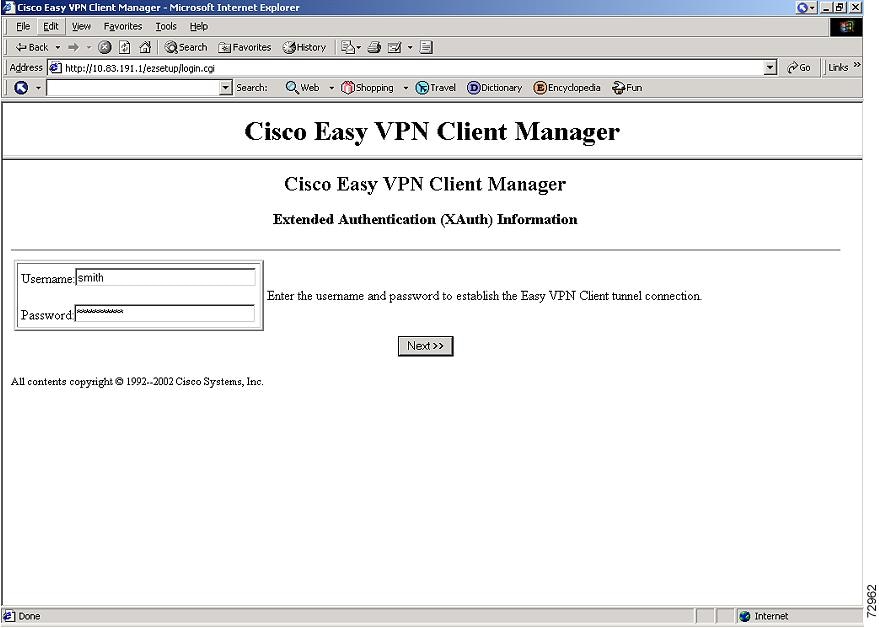
To configure and use the Cisco Easy VPN Remote Web Manager for the Cisco uBR905 and Cisco uBR925 cable access routers, follow these steps:
1.
Note
2.
In your web browser's location window, type in the IP address of the Ethernet interface, for example, http://10.83.191.1. Check with the network administrator, who configured your cable access router, for the correct IP address.

•
username: adminpassword: adminThe login information is not configurable in Cisco IOS 12.2(8)YJ Release.
•
3.
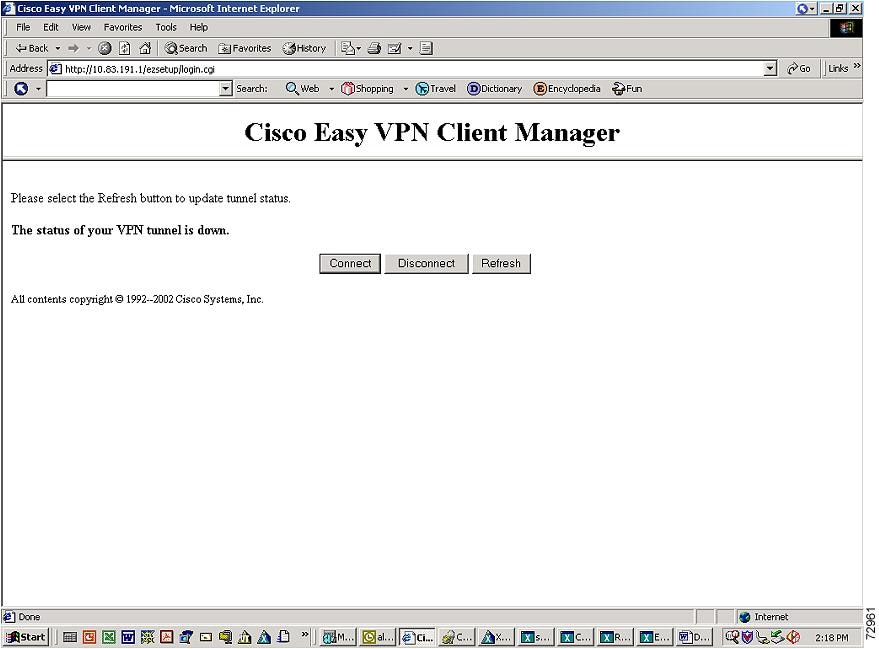
•
If you have configured automatic tunnel control, the Connect button has no effect.
•
•
4.
•
•
Configuring the DHCP Server Pool
The local router uses Dynamic Host Configuration Protocol (DHCP) to assign IP addresses to the PCs that are connected to the router's LAN interface. This requires creating a pool of IP addresses for the router's onboard DHCP server. The DHCP server then assigns an IP address from this pool to each PC when it connects to the router.
In a typical VPN connection, the PCs connected to the router's LAN interface are assigned an IP address in a private address space. The router then uses NAT/PAT to translate those IP addresses into a single IP address that is transmitted across the VPN tunnel connection.
Tip
To configure the DHCP server pool on the Cisco uBR905 and Cisco uBR925 cable access routers and the Cisco 1700 series routers, use the following commands beginning in global configuration mode:
Note
Verifying the DHCP Server Pool
To verify that the DHCP server pool has been correctly configured, use the following commands:
Step 1
Router# show ip dhcp poolPool localpool :Current index : 192.168.100.1Address range : 192.168.100.1 - 192.168.100.254Router#Step 2
Router# show ip dhcp importAddress Pool Name: localpoolDomain Name Server(s): 192.168.20.5NetBIOS Name Server(s): 192.168.20.6Domain Name Option: cisco.comRouter#Step 3
Router# show ip dhcp bindingIP address Hardware address Lease expiration Type192.168.100.3 00c0.abcd.32de Nov 01 2001 12:00 AM Automatic192.168.100.5 00c0.abcd.331a Nov 01 2001 12:00 AM AutomaticRouter#
Troubleshooting Tips
If PCs connected to the router's LAN interface cannot obtain an IP address using DHCP, check the following:
•
Router# show running-config | include dhcpno service dhcpip dhcp pool localpoolRouter#If the output from the show running-config command does not include the no service dhcp command, the DHCP server is enabled.
•
•
C:\> ipconfig /allWindows 2000 IP ConfigurationHost Name . . . . . . . . . . . . : MYPC-W2K1Primary DNS Suffix . . . . . . . : cisco.comNode Type . . . . . . . . . . . . : HybridIP Routing Enabled. . . . . . . . : NoWINS Proxy Enabled. . . . . . . . : NoDNS Suffix Search List. . . . . . : cisco.comEthernet adapter Local Area Connection:Connection-specific DNS Suffix . : cisco.comDescription . . . . . . . . . . . : 3Com 3C920 Integrated Fast EthernetController (3C905C-TX Compatible)Physical Address. . . . . . . . . : 01-23-45-67-89-ABDHCP Enabled. . . . . . . . . . . : YesAutoconfiguration Enabled . . . . : YesIP Address. . . . . . . . . . . . : 192.168.100.94Subnet Mask . . . . . . . . . . . : 255.255.254.0Default Gateway . . . . . . . . . : 192.168.100.1DHCP Server . . . . . . . . . . . : 172.16.156.54DNS Servers . . . . . . . . . . . : 172.16.168.183172.16.226.120Primary WINS Server . . . . . . . : 172.16.235.228Secondary WINS Server . . . . . . : 172.16.2.87Lease Obtained. . . . . . . . . . : Monday, October 22, 2001 11:15:32 ALease Expires . . . . . . . . . . : Thursday, October 25, 2001 11:15:32 AMConfiguring and Assigning the Cisco Easy VPN Remote Configuration
The router acting as the IPSec client must create a Cisco Easy VPN Remote Phase II configuration and assign it to the outgoing interface. To do so, use the following commands beginning in global configuration mode.
Verifying the Cisco Easy VPN Configuration
To verify that the Cisco Easy VPN Remote Phase II configuration has been correctly configured, that the configuration has been assigned to an interface, and that the IPSec VPN tunnel has been established, use the following commands:
Step 1
Router# show crypto ipsec client ezvpnTunnel name : hw1Inside interface list: FastEthernet0/0, Serial0/0,Outside interface: Serial1/0Current State: IPSEC_ACTIVELast Event: SOCKET_UPAddress: 8.0.0.5Mask: 255.255.255.255Default Domain: cisco.comTunnel name : hw2Inside interface list: Serial0/1,Outside interface: Serial1/1Current State: IPSEC_ACTIVELast Event: SOCKET_UPDefault Domain: cisco.comThe following is typical output for a router using network-extension mode:
Router# show crypto ipsec client ezvpnCurrent State: IPSEC_ACTIVELast Event: SOCKET_UPAddress: 30.0.0.53Mask: 255.255.255.255Split Tunnel List: 1Address : 30.100.0.0Mask : 255.255.255.128Protocol : 0x0Source Port: 0Dest Port : 0Router#Step 2
Router# show ip nat statisticsTotal active translations: 0 (0 static, 0 dynamic; 0 extended)Outside interfaces:cable-modem0Inside interfaces:Ethernet0Hits: 1489 Misses: 1Expired translations: 1Dynamic mappings:-- Inside Sourceaccess-list 198 pool enterprise refcount 0pool enterprise: netmask 255.255.255.0start 198.1.1.90 end 198.1.1.90type generic, total addresses 1, allocated 0 (0%), misses 0\Router#Step 3
Router# show access-listExtended IP access list 198permit ip 192.1.1.0 0.0.0.255 anyRouter#
Note
The following is a typical display for a Cisco uBR905 or a Cisco uBR925 cable access router configured for client mode with split tunneling:
Router# show access-listExtended IP access list 197deny ip 192.168.100.0 0.0.0.255 172.168.0.128 0.0.0.127deny ip 192.168.100.0 0.0.0.255 172.168.1.128 0.0.0.127permit ip 192.168.100.0 0.0.0.255 anyExtended IP access list 198permit ip 192.168.100.0 0.0.0.255 172.168.0.128 0.0.0.127permit ip 192.168.100.0 0.0.0.255 172.168.1.128 0.0.0.127Router#
Tip
The following is a typical display for a Cisco 827 router configured for client mode with split tunneling:
c827# show access-listExtended IP access list 197deny ip 70.0.0.0 0.255.255.255 30.100.0.0 0.0.0.127 (5 matches)permit ip 70.0.0.0 0.255.255.255 anyExtended IP access list 198permit ip 70.0.0.0 0.255.255.255 30.100.0.0 0.0.0.127 (5 matches)c827#Step 4
Router# show crypto isakmp keyHostname/Address Preshared Key193.1.1.1 hw-client-passwordRouter#
Configuring the Cisco VPN 3000 Series Concentrator
This section describes the guidelines required to configure the Cisco VPN 3000 series concentrator for use with the Cisco Easy VPN Remote Phase II feature. As a general rule, you can use the default configuration except for IP addresses, server addresses, and routing configurations, and for the following parameters and options:
Note
•
•
•
•
•
•
•
•
•
This proposal is active by default, but verify that it is still an active proposal using the Configuration | System | Tunneling Protocols | IPSec | IKE Proposals screen.
Note
•
–
–
–
–
–
The Cisco VPN 3000 Series Concentrator is preconfigured with several default security associations but they do not meet the IKE Proposal requirements. To use an IKE Proposal of CiscoVPNClient-3DES-MD5, copy the ESP/IKE-3DES-MD5 security association and modify it to use CiscoVPNClient-3DES-MD5 as its IKE proposal. This is configured on the VPN 3000 series concentrator using the Configuration | Policy Management | Traffic Management | Security Associations screen.
Troubleshooting Tips
To troubleshoot a VPN connection created using the Cisco Easy VPN Remote Phase II feature, use the following suggested techniques.
•
•
•
•
•
Configuration Examples
This section provides the following configuration examples:
•
•
•
•
•
•
Cable DHCP Proxy Enhancement Configuration Examples
Note
The following example shows a loopback interface created first and then the loopback interface being specified so the router automatically assigns it with the public IP address:
router# config trouter(config)# interface loopback 0router(config)# interface cable-modem 0router(config-if)# cable-modem dhcp-proxy interface loopback0router(config-if)#The following example shows an Easy VPN Remote configuration which has an IP address on the loopback interface automatically configured using the Cable DHCP Proxy feature:
Router# show runBuilding configuration...Current configuration : 1214 bytes!! Last configuration change at 02:25:45 - Sat Jun 1 2002! NVRAM config last updated at 20:09:42 - Wed May 29 2002!version 12.2no parser cacheno service padservice timestamps debug uptimeservice timestamps log uptimeno service password-encryption!hostname Router!!!!clock timezone - 0 6ip subnet-zeroip tftp source-interface cable-modem0!ip audit notify logip audit po max-events 100!!!!!crypto ipsec client ezvpn hw-clientconnect autogroup hw-client-groupname key hw-client-passwordlocal-address Loopback0mode clientpeer 188.185.0.13!!!!!interface Loopback0ip address 24.100.1.1 255.255.0.0!interface Ethernet0ip address 192.168.100.1 255.255.255.0no cdp enablecrypto ipsec client ezvpn hw-client inside!interface cable-modem0no cable-modem compliant bridgecable-modem dhcp-proxy interface Loopback0crypto ipsec client ezvpn hw-client!ip classlessno ip http serverno ip http cable-monitorip pim bidir-enable!!snmp-server manager!line con 0exec-timeout 0 0line vty 0 4login!scheduler max-task-time 5000endThe following example shows how to statically assign an IP address to the loopback interface:
Router# show runBuilding configuration...Current configuration : 1214 bytes!! Last configuration change at 02:25:45 - Sat Jun 1 2002! NVRAM config last updated at 20:09:42 - Wed May 29 2002!version 12.2no parser cacheno service padservice timestamps debug uptimeservice timestamps log uptimeno service password-encryption!hostname Router!!!!clock timezone - 0 6ip subnet-zeroip tftp source-interface cable-modem0!ip audit notify logip audit po max-events 100!!!!!crypto ipsec client ezvpn hw-clientconnect autogroup hw-client-groupname key hw-client-passwordlocal-address Loopback0mode clientpeer 188.185.0.13!!!!!interface Loopback0ip address 24.100.1.1 255.255.0.0!interface Ethernet0ip address 192.168.100.1 255.255.255.0no cdp enablecrypto ipsec client ezvpn hw-client inside!interface cable-modem0no cable-modem compliant bridgecrypto ipsec client ezvpn hw-client!ip classlessno ip http serverno ip http cable-monitorip pim bidir-enable!!snmp-server manager!line con 0exec-timeout 0 0line vty 0 4login!scheduler max-task-time 5000endLocal Address Support for Easy VPN Remote Example
The following example shows the local-address subcommand used to specify the loopback0 interface for sourcing tunnel traffic:
router# config trouter(config)# crypto ipsec client ezvpn telecommuter-clientrouter(config-crypto-ezvpn)# local-address loopback0router(config-crypto-ezvpn)#PIX Interoperability Support Example
The following example configuration allows split-tunneling to be used for remote access clients such the Cisco EasyVPN Client:
nameif ethernet0 outside security0nameif ethernet1 inside security100nameif ethernet2 intf2 security10enable password 8Ry2YjIyt7RRXU24 encryptedpasswd 2KFQnbNIdI.2KYOU encryptedhostname pixfirewalldomain-name cisco.comfixup protocol ftp 21fixup protocol http 80fixup protocol h323 h225 1720fixup protocol h323 ras 1718-1719fixup protocol ils 389fixup protocol rsh 514fixup protocol rtsp 554fixup protocol smtp 25fixup protocol sqlnet 1521fixup protocol sip 5060fixup protocol skinny 2000namesaccess-list 102 permit ip host 10.132.20.65 192.168.20.0 255.255.255.0access-list 102 permit ip host 10.132.20.65 3.3.20.0 255.255.255.0pager lines 24logging onlogging buffered debugginginterface ethernet0 autointerface ethernet1 autointerface ethernet2 auto shutdownmtu outside 1500mtu inside 1500mtu intf2 1500ip address outside 10.130.21.7 255.255.255.0ip address inside 10.132.20.7 255.255.255.0ip address intf2 127.0.0.1 255.255.255.255ip audit info action alarmip audit attack action alarmip local pool unity-pool 3.3.20.100-3.3.20.120no failoverfailover timeout 0:00:00failover poll 15failover ip address outside 0.0.0.0failover ip address inside 0.0.0.0failover ip address intf2 0.0.0.0pdm history enablearp timeout 14400nat (inside) 0 access-list 102route outside 0.0.0.0 0.0.0.0 10.130.21.7 1timeout xlate 3:00:00timeout conn 1:00:00 half-closed 0:10:00 udp 0:02:00 rpc 0:10:00 h323 0:05:00 sip 0:30:00 sip_media 0:02:00timeout uauth 1:00:00 absoluteaaa-server TACACS+ protocol tacacs+aaa-server RADIUS protocol radiusaaa-server LOCAL protocol localno snmp-server locationsnmp-server community publicno snmp-server enable trapsno floodguard enablesysopt connection permit-ipsecno sysopt route dnatcrypto ipsec transform-set unity-set esp-3des esp-sha-hmaccrypto dynamic-map dyna 15 set transform-set unity-setcrypto map static 10 ipsec-isakmp dynamic dynacrypto map static interface outsideisakmp enable outsideisakmp identity addressisakmp policy 5 authentication pre-shareisakmp policy 5 encryption desisakmp policy 5 hash shaisakmp policy 5 group 2isakmp policy 5 lifetime 86400vpngroup mygroup address-pool unity-poolvpngroup mygroup dns-server 10.129.0.30vpngroup mygroup wins-server 10.129.0.14vpngroup mygroup default-domain cisco.comvpngroup mygroup split-tunnel 102vpngroup mygroup idle-time 1800vpngroup mygroup password ********telnet timeout 5ssh timeout 5terminal width 80
Note
Client Mode Configuration Examples
This section shows the following examples that demonstrate configurations for the Cisco Easy VPN Remote Phase II feature in client mode. Also shown are the VPN remote access server configurations that correspond to these client configurations.
•
•
•
•
Note
Cisco Easy VPN Client in Client Mode (Cisco uBR905 and Cisco uBR925) Example
The following example configures a Cisco uBR905 cable access router as an IPSec client, using the Cisco Easy VPN Remote Phase II feature in client mode. This example shows the following components of the Cisco Easy VPN Remote Phase II configuration:
•
•
•
Note
•
version 12.2no service padservice timestamps debug uptimeservice timestamps log uptimeno service password-encryptionservice internal!hostname uBR905Client!!!!clock timezone - 0 6ip subnet-zeroip tftp source-interface cable-modem0ip dhcp excluded-address 172.168.1.1!ip dhcp pool localpoolimport allnetwork 172.168.1.0 255.255.255.248default-router 172.168.1.1lease 1 0 0!!ip ssh time-out 120ip ssh authentication-retries 3!!!!crypto ipsec client ezvpn hw-clientpeer 188.185.0.5group hw-client-groupname key hw-client-passwordmode network-extension!!!!!interface Ethernet0ip address 172.168.1.1 255.255.255.248!interface cable-modem0no cable-modem compliant bridgecrypto ipsec client ezvpn hw-client!ip classlessip route 0.0.0.0 0.0.0.0 cable-modem0no ip http serverno ip http cable-monitor!snmp-server packetsize 4096snmp-server chassis-idsnmp-server manager!line con 0exec-timeout 0 0line vty 0 4login!scheduler max-task-time 5000endCisco Easy VPN Client in Client Mode (Cisco 806) Example
The following example configures a Cisco 806 router as an IPSec client using the Cisco Easy VPN Remote Phase II feature in client mode. This example shows the following components of the Cisco Easy VPN Remote Phase II configuration:
•
•
Note
•
! Cisco Router Web Setup Template!no service padno service tcp-small-serversno service udp-small-serversservice timestamps debug uptimeservice timestamps log uptimeservice password-encryption!hostname 806Router!!ip subnet-zeroip domain-lookupip dhcp excluded-address 10.10.10.1!ip dhcp pool CLIENTimport allnetwork 10.10.10.0 255.255.255.0default-router 10.10.10.1lease 1 0 0!!!crypto ipsec client ezvpn hw-clientpeer 188.185.0.5group hw-client-groupname key hw-client-passwordmode client!!interface Ethernet0ip address 10.10.10.1 255.255.255.0no cdp enablehold-queue 32 in!interface Ethernet1ip address dhcpno cdp enablecrypto ipsec client ezvpn hw-client!ip classlessip http server!!ip route 0.0.0.0 0.0.0.0 Ethernet1!line con 0exec-timeout 120 0stopbits 1line vty 0 4exec-timeout 0 0login local!endCisco Easy VPN Client in Client Mode (Cisco 827) Example
The following example configures a Cisco 827 router as an IPSec client using the Cisco Easy VPN Remote Phase II feature in the client mode of operation. This example shows the following components of the Cisco Easy VPN Remote Phase II configuration:
•
•
Note
•
version 12.2no service padservice timestamps debug uptimeservice timestamps log uptimeno service password-encryption!hostname c827!!mmi polling-interval 60no mmi auto-configureno mmi pvcmmi snmp-timeout 180ip subnet-zero!ip ssh time-out 120ip ssh authentication-retries 3vpdn enable!vpdn-group pppoerequest-dialinprotocol pppoeip mtu adjust!!!!!!crypto ipsec client ezvpn hw-clientgroup hw-client-groupname key hw-client-passwordmode clientpeer 20.0.0.5!!!!!interface Ethernet0ip address 70.0.0.117 255.0.0.0hold-queue 100 out!interface ATM0no ip addressno atm ilmi-keepalivepvc 1/40pppoe-client dial-pool-number 1!dsl operating-mode auto!interface Dialer1ip address 12.0.0.3 255.0.0.0ip mtu 1492encapsulation pppdialer pool 1crypto ipsec client ezvpn hw-client!ip classlessip route 0.0.0.0 0.0.0.0 ATM0ip route 0.0.0.0 0.0.0.0 Dialer1 permanentip route 20.0.0.0 255.0.0.0 12.0.0.13ip http serverip pim bidir-enable!line con 0stopbits 1line vty 0 4login!scheduler max-task-time 5000endCisco Easy VPN Client in Client Mode (Cisco 1700 Series) Example
The following example configures a Cisco 1753 router as an IPSec client using the Cisco Easy VPN Remote Phase II feature in the client mode of operation. This example shows a running configuration of a Cisco 1753 that has two inside interfaces and one outside interface on one tunnel. The connect auto subcommand manually establishes the IPSec VPN tunnel.
!mma-1753# sh runnBuilding configuration...Current configuration : 881 bytes!version 12.2service timestamps debug uptimeservice timestamps log uptimeno service password-encryption!hostname mma-1753!!memory-size iomem 15ip subnet-zero!!!ip ssh time-out 120ip ssh authentication-retries 3!!!!!crypto ipsec client ezvpn hw2connect autogroup ezvpn key ezvpnmode network-extensionpeer 6.6.6.1crypto ipsec client ezvpn hw1connect autogroup ezvpn key ezvpnmode clientpeer 6.6.6.1!!!!!interface FastEthernet0/0ip address 4.4.4.2 255.255.255.0speed autocrypto ipsec client ezvpn hw1 inside!interface Serial0/0ip address 6.6.6.2 255.255.255.0no fair-queuecrypto ipsec client ezvpn hw1!interface Serial1/0ip address 5.5.5.2 255.255.255.0clock rate 4000000crypto ipsec client ezvpn hw1 inside!ip classlessno ip http serverip pim bidir-enable!!!!line con 0line aux 0line vty 0 4login!endThe following example shows a running configuration of a Cisco 1760 router that has two active, automatically connected tunnels, hw1 and hw2. Tunnel hw1 has two configured inside interfaces and one configured outside interface. Tunnel hw2 has one configured inside interface and one configured outside interface. The example also shows the output for the show crypto ipsect client ezvpn command that lists the tunnel names, outside and inside interfaces.
1760# sh runnBuilding configuration...Current configuration : 1246 bytes!version 12.2service timestamps debug uptimeservice timestamps log uptimeno service password-encryption!hostname 1760!aaa new-model!!aaa session-id common!ip subnet-zero!!!!!!!!!crypto ipsec client ezvpn hw2connect autogroup ez key ezmode network-extensionpeer 7.7.7.1crypto ipsec client ezvpn hw1connect autogroup ezvpn key ezvpnmode clientpeer 6.6.6.1!!!!!interface FastEthernet0/0ip address 5.5.5.2 255.255.255.0speed autono cdp enablecrypto ipsec client ezvpn hw1 inside!interface Serial0/0ip address 4.4.4.2 255.255.255.0no ip route-cacheno ip mroute-cacheno fair-queueno cdp enablecrypto ipsec client ezvpn hw1 inside!interface Serial0/1ip address 3.3.3.2 255.255.255.0no cdp enablecrypto ipsec client ezvpn hw2 inside!interface Serial1/0ip address 6.6.6.2 255.255.255.0clockrate 4000000no cdp enablecrypto ipsec client ezvpn hw1!interface Serial1/1ip address 7.7.7.2 255.255.255.0no keepaliveno cdp enablecrypto ipsec client ezvpn hw2!ip classlessno ip http serverip pim bidir-enable!!!radius-server retransmit 3radius-server authorization permit missing Service-Type!line con 0line aux 0line vty 0 4!no scheduler allocateend1760#sh cry ip cl ezvpnTunnel name : hw1Inside interface list: FastEthernet0/0, Serial0/0,Outside interface: Serial1/0Current State: IPSEC_ACTIVELast Event: SOCKET_UPAddress: 8.0.0.5Mask: 255.255.255.255Default Domain: cisco.comTunnel name : hw2Inside interface list: Serial0/1,Outside interface: Serial1/1Current State: IPSEC_ACTIVELast Event: SOCKET_UPDefault Domain: cisco.comNetwork Extension Mode Configuration Examples
This section shows the following examples that demonstrate how to configure the Cisco Easy VPN Remote Phase II feature in the network extension mode of operation. Also shown are the VPN remote access server configurations that correspond to these client configurations.
•
•
•
•
Cisco Easy VPN Client in Network-Extension Mode (Cisco uBR905 and Cisco uBR925) Example
The following example configures a Cisco uBR905 cable access router as an IPSec client, using the Cisco Easy VPN Remote Phase II feature in the network extension mode of operation. This example shows the following components of the Cisco Easy VPN Remote Phase II configuration:
•
•
•
Note
•
version 12.2no service padservice timestamps debug uptimeservice timestamps log uptimeno service password-encryptionservice internal!hostname uBR905Client!!!!clock timezone - 0 6ip subnet-zeroip tftp source-interface cable-modem0ip dhcp excluded-address 172.168.1.1!ip dhcp pool localpoolimport allnetwork 172.168.1.0 255.255.255.248default-router 172.168.1.1lease 1 0 0!!ip ssh time-out 120ip ssh authentication-retries 3!!!!crypto ipsec client ezvpn hw-clientpeer 188.185.0.5group hw-client-groupname key hw-client-passwordmode network-extension!!!!!interface Ethernet0ip address 172.168.1.1 255.255.255.248!interface cable-modem0no cable-modem compliant bridgecrypto ipsec client ezvpn hw-client!ip classlessip route 0.0.0.0 0.0.0.0 cable-modem0no ip http serverno ip http cable-monitor!snmp-server packetsize 4096snmp-server chassis-idsnmp-server manager!line con 0exec-timeout 0 0line vty 0 4login!scheduler max-task-time 5000endCisco Easy VPN Client in Network-Extension Mode (Cisco 806) Example
The following example configures a Cisco 806 router as an IPSec client using the Cisco Easy VPN Remote Phase II feature. This example shows the following components of the Cisco Easy VPN Remote Phase II configuration:
•
•
Note
•
! Cisco Router Web Setup Template!no service padno service tcp-small-serversno service udp-small-serversservice timestamps debug uptimeservice timestamps log uptimeservice password-encryption!hostname Router!!ip subnet-zeroip domain-lookup!!ip dhcp excluded-address 172.168.1.1!ip dhcp pool localpoolimport allnetwork 172.168.1.0 255.255.255.248default-router 172.168.1.1lease 1 0 0!!crypto ipsec client ezvpn hw-clientpeer 188.185.0.5group hw-client-groupname key hw-client-passwordmode network-extension!!interface Ethernet0ip address 172.168.1.1 255.255.255.192no cdp enablehold-queue 32 in!interface Ethernet1ip address dhcpno cdp enablecrypto ipsec client ezvpn hw-client!ip classlessip route 172.168.0.0 255.255.255.128 Ethernet1ip http server!!!line con 0exec-timeout 120 0stopbits 1line vty 0 4exec-timeout 0 0login local!endCisco Easy VPN Client in Network-Extension Mode (Cisco 827) Example
The following example configures a Cisco 827 router as an IPSec client using the Cisco Easy VPN Remote Phase II feature in client mode. This example shows the following components of the Cisco Easy VPN Remote Phase II configuration:
•
•
•
Note
•
version 12.2no service padservice timestamps debug uptimeservice timestamps log uptimeno service password-encryption!hostname c827!!mmi polling-interval 60no mmi auto-configureno mmi pvcmmi snmp-timeout 180ip subnet-zero!ip ssh time-out 120ip ssh authentication-retries 3vpdn enable!vpdn-group pppoerequest-dialinprotocol pppoeip mtu adjust!!!!!!crypto ipsec client ezvpn hw-clientgroup hw-client-groupname key hw-client-passwordmode network-extensionpeer 20.0.0.5!!!!!interface Ethernet0ip address 172.168.0.30 255.255.255.192hold-queue 100 out!interface ATM0no ip addressno atm ilmi-keepalivepvc 1/40pppoe-client dial-pool-number 1!dsl operating-mode auto!interface Dialer1ip address 12.0.0.3 255.0.0.0ip mtu 1492encapsulation pppdialer pool 1crypto ipsec client ezvpn hw-client!ip classlessip route 172.168.0.0 255.255.255.128 Dialer1ip route 0.0.0.0 0.0.0.0 ATM0ip route 0.0.0.0 0.0.0.0 Dialer1 permanentip route 20.0.0.0 255.0.0.0 12.0.0.13ip http serverip pim bidir-enable!line con 0stopbits 1line vty 0 4login!scheduler max-task-time 5000endCisco Easy VPN Client in Network-Extension Mode (Cisco 1700 Series) Example
The following example configures a Cisco 1700 series router as an IPSec client using the Cisco Easy VPN Remote Phase II feature in the network-extension mode of operation. This example shows the following components of the Cisco Easy VPN Remote Phase II configuration:
•
Note
•
!version 12.2service timestamps debug uptimeservice timestamps log uptimeno service password-encryption!hostname 1710!!mmi polling-interval 60no mmi auto-configureno mmi pvcmmi snmp-timeout 180ip subnet-zero!!!ip ssh time-out 120ip ssh authentication-retries 3!!ip dhcp excluded-address 70.0.0.10!ip dhcp pool localpoolimport allnetwork 70.0.0.0 255.255.255.248default-router 70.0.0.10lease 1 0 0!!!crypto ipsec client ezvpn hw-clientgroup hw-client-groupname key hw-client-passwordmode network-extensionpeer 30.0.0.2!!!!!interface Ethernet0ip address 50.0.0.10 255.0.0.0half-duplexcrypto ipsec client ezvpn hw-client!interface FastEthernet0ip address 70.0.0.10 255.0.0.0speed auto!ip classlessip route 20.0.0.0 255.0.0.0 Ethernet0ip route 30.0.0.0 255.0.0.0 Ethernet0no ip http serverip pim bidir-enable!!!!line con 0exec-timeout 0 0line aux 0line vty 0 4login!endVPN Remote Access Server Configuration Examples
This configuration describes basic VPN Remote Access Server configurations that support the Cisco Easy VPN Remote Phase II configurations given in the previous sections. For complete information on configuring these servers, see the VPN Remote Access Enhancements feature module for Cisco IOS Release 12.2(8)T, available on Cisco.com and the Customer Documentation CD-ROM.
•
•
•
VPN Remote Access Server Without Split Tunneling Example
The following example shows the VPN remote access server that is the destination peer router for the Cisco Easy VPN Client network-extension mode configurations shown earlier in this section. In addition to the other IPSec configuration commands, the crypto isakmp client configuration group hw-client-groupname command defines the attributes for the VPN group that was assigned to the IPSec client router. This includes a matching key value (hw-client-password), and the appropriate routing parameters, such as DNS server, for the IPSec clients.
To support the network extension mode of operation, the ip route command instructs that incoming packets for the 172.168.0.0 network be directed out the cable-modem interface to the Cisco Easy VPN Client. Other ip route commands might be needed, depending on your network's topology.
Note
version 12.2no service padservice timestamps debug uptimeservice timestamps log uptimeno service password-encryptionservice internal!hostname uBR925Server!aaa new-model!!aaa authorization network hw-client-groupname localaaa session-id common!!!clock timezone - 0 6ip subnet-zero!ip ssh time-out 120ip ssh authentication-retries 3!crypto isakmp policy 1authentication pre-sharegroup 2crypto isakmp client configuration address-pool local dynpool!crypto isakmp client configuration group hw-client-groupnamekey hw-client-passworddns 172.168.0.250 172.168.0.251wins 172.168.0.252 172.168.0.253domain cisco.compool dynpool!!crypto ipsec transform-set transform-1 esp-des esp-sha-hmac!crypto dynamic-map dynmap 1set transform-set transform-1reverse-route!!crypto map dynmap isakmp authorization list hw-client-groupnamecrypto map dynmap client configuration address respondcrypto map dynmap 1 ipsec-isakmp dynamic dynmap!!!!interface Ethernet0ip address 172.168.0.129 255.255.255.128!interface cable-modem0no cable-modem compliant bridgecrypto map dynmap!interface usb0no ip addressarp timeout 0!ip local pool dynpool 172.168.0.65 172.168.0.127ip classless! Add the appropriate ip route commands for network-extension modeip route 172.168.1.0 255.255.255.248 cable-modem0no ip http serverno ip http cable-monitor!snmp-server manager!line con 0exec-timeout 0 0line vty 0 4!scheduler max-task-time 5000end
Note
VPN Remote Access Server Configuration With Split Tunneling Example
The following example shows an VPN remote access server configured for a split tunneling configuration with a Cisco Easy VPN Client. This example is identical to that shown in the "VPN Remote Access Server Without Split Tunneling Example" section, except for access list 150, which is assigned as part of the crypto isakmp client configuration group hw-client-groupname command. This access list allows the Cisco Easy VPN Client to use the server to access one additional subnet that is not part of the VPN tunnel, without compromising the security of the IPSec connection.
To support network-extension mode, the ip route command instructs that incoming packets for the 172.168.0.0 network be directed out the cable-modem interface to the Cisco Easy VPN Client. Other ip route commands might be needed, depending on your network's topology.
Note
version 12.2no service padservice timestamps debug uptimeservice timestamps log uptimeno service password-encryptionservice internal!hostname uBR925Server!aaa new-model!!aaa authorization network hw-client-groupname localaaa session-id common!!!clock timezone - 0 6ip subnet-zero!ip ssh time-out 120ip ssh authentication-retries 3!crypto isakmp policy 1authentication pre-sharegroup 2crypto isakmp client configuration address-pool local dynpool!crypto isakmp client configuration group hw-client-groupnamekey hw-client-passworddns 172.168.0.250 172.168.0.251wins 172.168.0.252 172.168.0.253domain cisco.compool dynpoolacl 150!!crypto ipsec transform-set transform-1 esp-des esp-sha-hmac!crypto dynamic-map dynmap 1set transform-set transform-1reverse-route!!crypto map dynmap isakmp authorization list hw-client-groupnamecrypto map dynmap client configuration address respondcrypto map dynmap 1 ipsec-isakmp dynamic dynmap!!!!interface Ethernet0ip address 172.168.0.129 255.255.255.128!interface cable-modem0no cable-modem compliant bridgecrypto map dynmap!interface usb0no ip addressarp timeout 0!ip local pool dynpool 172.168.0.65 172.168.0.127ip classless! Add the appropriate ip route commands for network-extension modeip route 172.168.1.0 255.255.255.248 cable-modem0no ip http serverno ip http cable-monitor!access-list 150 permit ip 172.168.0.128 0.0.0.127 anysnmp-server manager!line con 0exec-timeout 0 0line vty 0 4!scheduler max-task-time 5000end
Note
VPN Remote Access Server Configuration With XAUTH Example
The following example shows a VPN remote access server configured to support XAUTH authentication with the Cisco Easy VPN Remote Phase II feature. This example is identical to that shown in the "VPN Remote Access Server Configuration With Split Tunneling Example" section, except for the following commands that enable and configure XAUTH authentication:
•
•
•
•
The following commands, which are also present in the non-XAUTH configurations, are also required for XAUTH use:
•
•
•
•
•
•
Tip
Note
version 12.2no service padservice timestamps debug uptimeservice timestamps log uptimeno service password-encryptionservice internal!hostname uBR925Server!aaa new-model!!aaa authentication login userlist localaaa authorization network hw-client-groupname localaaa session-id common!username cisco password 7 cisco!!clock timezone - 0 6ip subnet-zero!ip ssh time-out 120ip ssh authentication-retries 3!crypto isakmp policy 1authentication pre-sharegroup 2crypto isakmp client configuration address-pool local dynpoolcrypto isakmp xauth timeout 60!crypto isakmp client configuration group hw-client-groupnamekey hw-client-passworddns 172.168.0.250 172.168.0.251wins 172.168.0.252 172.168.0.253domain cisco.compool dynpoolacl 150!!crypto ipsec transform-set transform-1 esp-des esp-sha-hmac!crypto dynamic-map dynmap 1set transform-set transform-1reverse-route!!crypto map dynmap client authentication list userlistcrypto map dynmap isakmp authorization list hw-client-groupnamecrypto map dynmap client configuration address respondcrypto map dynmap 1 ipsec-isakmp dynamic dynmap!!!!interface Ethernet0ip address 172.168.0.129 255.255.255.128!interface cable-modem0no cable-modem compliant bridgecrypto map dynmap!interface usb0no ip addressarp timeout 0!ip local pool dynpool 172.168.0.65 172.168.0.127ip classlessip route 172.168.1.0 255.255.255.248 cable-modem0no ip http serverno ip http cable-monitor!access-list 150 permit ip 172.168.0.128 0.0.0.127 anysnmp-server manager!line con 0exec-timeout 0 0line vty 0 4!scheduler max-task-time 5000end
Note
Command Reference
This section documents new or modified commands to support the Cisco Easy VPN Remote Phase II feature. All other commands used with this feature are documented in the Cisco IOS Release 12.2 command reference publications.
•
•
•
•
•
•
•
cable-modem dhcp-proxy
To specify that a Dynamic Host Configuration Protocol (DHCP) server should provide an IP address for the router's Ethernet interface, for the loopback interface, or for the router's Network Address Translation (NAT) address pool, use the cable-modem dhcp-proxy command in cable interface configuration mode. To disable this feature so that you can then manually assign an IP address to the Ethernet interface or NAT address pool, use the no form of this command.
Cisco uBR905, Cisco uBR924, Cisco uBR925 Cable Access Routers, and Cisco CVA122 Cable Voice Adapter
cable-modem dhcp-proxy {interface ethernet number | interface loopback number | nat pool-name}
no cable-modem dhcp-proxy {interface ethernet number | interface loopback number | nat pool-name}
Note
Syntax Description
Defaults
No default behavior or values
Command Modes
Interface configuration (cable interface only)
Command History
Usage Guidelines
This command is useful in three situations:
•
•
When using this option, you must also use the following NAT configuration commands:
–
–
–
•
After configuring the router with the cable-modem dhcp-proxy command, reboot the router. During the DOCSIS provisioning process, the router sends a DHCP client request to obtain an IP address for the cable interface.
The router then sends a proxy DHCP request to the DHCP server using the Ethernet interface's MAC address. The DHCP server replies with a second IP address that the router assigns to either the Ethernet or loopback interface, or to the NAT pool, depending on which option was used in the cable-modem dhcp-proxy command.
Note
Examples
The following example shows how to configure the router so that it makes a proxy DHCP request to obtain an IP address for its Ethernet interface:
Router(config)# interface c0Router(config-if)# cable-modem dhcp-proxy interface ethernet 0The following example creates a NAT address pool with the IP address assigned by the DHCP server; this IP address must be in the network attached to the Ethernet address (which in this case is 192.168.100.0).
Router(config)# ip nat inside source list 1 pool net-208 overloadRouter(config)# interface cable0Router(config-if)# ip nat outsideRouter(config-if)# no cable compliant bridgeRouter(config-if)# cable-modem dhcp-proxy nat net-208Router(config-if)# exitRouter(config)# interface ethernet0Router(config-if)# ip address 192.168.100.94 255.255.255.0Router(config-if)# ip nat insideRouter(config-if)# exitRouter(config)# access-list 1 permit 192.168.100.0 0.0.0.255Router(config)#Related Commands
cable-modem compliant bridge
Enables DOCSIS-compliant transparent bridging for the cable interface at startup.
clear crypto ipsec client ezvpn
To reset the Cisco Easy VPN Remote state machine and bring down the Cisco Easy VPN Remote Phase II connection on all interfaces or on a given interface (tunnel), use the clear crypto ipsec client ezvpn command in privileged EXEC mode. If a tunnel name is specified, only the specified tunnel is cleared.
clear crypto ipsec client ezvpn [name]
Syntax Description
name
(Optional) Identifies the IPSec VPN tunnel that is to be disconnected or cleared with a unique, arbitrary name. If no name is specified, then all existing tunnels are disconnected or cleared.
Defaults
If no tunnel name is specified, all active tunnels on the machine are cleared.
Command Modes
Privileged EXEC
Command History
Usage Guidelines
The clear crypto ipsec client ezvpn command resets the Cisco Easy VPN Remote state machine, bringing down the current Cisco Easy VPN Remote Phase II connection and bringing it back up on the interface. If you specify a tunnel name, then only that tunnel is cleared. If no tunnel name is specified, all active tunnels on the machine are cleared.
If the Cisco Easy VPN Remote Phase II connection for a particular interface is configured for autoconnect, this command also initiates a new Cisco Easy VPN Remote Phase II connection.
Examples
The following example shows the Cisco Easy VPN Remote state machine being reset:
Router# clear crypto ipsec client ezvpnRouter#Related Commands
crypto ipsec client ezvpn xauth
To respond to a pending VPN authorization request, use the crypto ipsec client ezvpn xauth command in privileged EXEC mode.
crypto ipsec client ezvpn xauth name
Syntax Description
Defaults
No default behavior or values
Command Modes
Privileged EXEC
Command History
Usage Guidelines
If the tunnel name is not specified, the authorization request is made on the active tunnel. If there is more than one active tunnel, the command fails with an error requesting that you specify the tunnel name.
When making a VPN connection, individual users might also be required to provide authorization information, such as a username or password. When the remote end requires this information, the router displays a message on the router's console instructing the user to enter the crypto ipsec client ezvpn xauth command. The user then uses the CLI to give this command and reply to the following prompts to provide the required information.
Note
Examples
The following example shows the user being prompted to enter the crypto ipsec client ezvpn xauth command. The user then enters the requested information and continues.
Router#20:27:39: EZVPN: Pending XAuth Request, Please enter the following command:20:27:39: EZVPN: crypto ipsec client ezvpn xauthRouter# crypto ipsec client ezvpn xauthEnter Username and Password: useridPassword: ************Router#Related Commands
crypto ipsec client ezvpn
(Interface configuration mode) Assigns a Cisco Easy VPN Remote Phase II configuration to an interface.
crypto ipsec client ezvpn (global configuration)
To create a Cisco Easy VPN Remote Phase II configuration and enter the Cisco Easy VPN Remote configuration mode, use the crypto ipsec client ezvpn command in global configuration mode. To delete the Cisco Easy VPN Remote Phase II configuration, use the no form of this command.
crypto ipsec client ezvpn name
no crypto ipsec client ezvpn name
Note
Syntax Description
Defaults
Newly created Cisco Easy VPN Remote Phase II configurations default to client mode.
Command Modes
Global configuration
Command History
Usage Guidelines
The crypto ipsec client ezvpn command creates a Cisco Easy VPN Remote Phase II configuration and then enters the Cisco Easy VPN Remote configuration mode, at which point you can enter the following subcommands:
•
–
–
•
•
•
•
–
After specifying the local address used to source tunnel traffic, the IP address can be obtained in two ways:
–
–
•
–
–
•
•
Note
After configuring the Cisco Easy VPN Remote Phase II configuration, use the exit command to exit the Cisco Easy VPN Remote configuration mode and return to global configuration mode.
Note
Examples
The following example shows a Cisco Easy VPN Remote Phase II configuration named telecommuter-client being created on a Cisco uBR905 or Cisco uBR925 cable access router and being assigned to cable interface 0:
Router# config tRouter(config)# crypto ipsec client ezvpn telecommuter-clientRouter(config-crypto-ezvpn)# group telecommute-group key secret-telecommute-keyRouter(config-crypto-ezvpn)# peer telecommuter-serverRouter(config-crypto-ezvpn)# mode clientRouter(config-crypto-ezvpn)# exitRouter(config)# interface c0Router(config-if)# crypto ezvpn telecommuter-clientRouter(config-if)# exitRouter(config)#
Note
The following example shows the Cisco Easy VPN Remote Phase II configuration named telecommuter-client being removed from the interface and then deleted:
Router# config tRouter(config)# int e1Router(config-if)# no crypto ipsec client ezvpn telecommuter-clientRouter(config-if)# exitRouter(config)# no crypto ipsec client ezvpn telecommuter-clientRouter(config)#Related Commands
crypto ipsec client ezvpn
(Interface configuration mode) Assigns a Cisco Easy VPN Remote Phase II configuration to an interface.
crypto ipsec client ezvpn (interface configuration)
To assign a Cisco Easy VPN Remote Phase II configuration to an interface, specify whether that interface is outside or inside, and configure multiple outside and inside interfaces, use the crypto ipsec client ezvpn command in interface configuration mode. To remove the Cisco Easy VPN Remote Phase II configuration from the interface, use the no form of this command.
crypto ipsec client ezvpn name [outside | inside]
no crypto ipsec client ezvpn name [outside | inside]
Note
Syntax Description
Defaults
The default inside interface is the Ethernet interface on Cisco 800 series routers and Cisco uBR905 and Cisco uBR925 cable access routers.
Command Modes
Interface configuration
Command History
Usage Guidelines
The crypto ipsec client ezvpn command assigns a Cisco Easy VPN Remote Phase II configuration to an interface, enabling the creation of a virtual private network (VPN) connection over that interface to the specified VPN peer. If the Cisco Easy VPN Remote Phase II configuration is configured for the client mode of operation, this also automatically configures the router for network address translation (NAT)/port address translation (PAT) and an associated access list.
In Cisco IOS Release 12.2(8)YJ, Cisco Easy VPN Client Phase II enhanced the command to allow you to configure multiple outside and inside interfaces. To configure multiple outside and inside interfaces, you must use the interface interface-name command to first define type of interface on the IPSec client router.
•
•
•
The following Cisco IOS Release 12.2(4)YA restrictions apply to the crypto ipsec client ezvpn command:
•
•
For example, on Cisco uBR905 and Cisco uBR925 cable access routers, the outside interface is always the cable interface. On Cisco 1700 series routers, the FastEthernet interface defaults to being the inside interface, so attempting to use the crypto ipsec client ezvpn command on the FastEthernet interface displays an error message.
Note
Examples
The following example shows a Cisco Easy VPN Remote Phase II configuration named telecommuter-client being assigned to the cable interface on a Cisco uBR905/uBR925 cable access router:
Router# config tRouter(config)# interface c0Router(config-if)# crypto ipsec client ezvpn telecommuter-clientRouter(config-if)# exitRouter(config)#The following example first shows an attempt to delete the Cisco Easy VPN Remote Phase II configuration named telecommuter-client, but the configuration cannot be deleted because it is still assigned to an interface. The configuration is then removed from the interface and then deleted:
Router# config tRouter(config)# no crypto ipsec client ezvpn telecommuter-clientError: crypto map in use by interface; cannot deleteRouter(config)# int e1Router(config-if)# no crypto ipsec client ezvpn telecommuter-clientRouter(config-if)# exitRouter(config)# no crypto ipsec client ezvpn telecommuter-clientRouter(config)#Related Commands
crypto ipsec client ezvpn
(Global configuration mode) Creates and modifies a Cisco Easy VPN Remote Phase II configuration.
crypto ipsec client ezvpn connect
To connect to a specified IPSec VPN tunnel in a manual configuration, use the crypto ipsec client ezvpn connect command in privileged EXEC mode. To <<disable>>, use the no form of this command.
crypto ipsec client ezvpn connect name
no crypto ipsec client ezvpn connect name
Syntax Description
Defaults
No default behavior or values
Command Modes
Privileged EXEC
Command History
Usage Guidelines
This command is used with the connect [auto | manual] subcommand. After the manual setting is designated, the Cisco Easy VPN Client waits for a command or API call before attempting to establish the Cisco Easy VPN Remote Phase II connection.
If the configuration is manual, then the tunnel is connected only after the crypto ipsec client ezvpn connect name command is entered in privileged EXEC mode, and after the connect [auto] | manual subcommand is entered.
Examples
The following example shows how to connect an IPSec VPN tunnel named ISP-tunnel on a Cisco uBR905/uBR925 cable access router:
Router# crypto ipsec client ezvpn connect ISP-tunnelRelated Commands
crypto ipsec client ezvpn
(Global configuration mode) Creates and modifies a Cisco Easy VPN Remote Phase II configuration.
ip http ezvpn
To enable the Cisco Easy VPN Remote web server interface, use the ip http ezvpn command in global configuration mode. To disable the Cisco Easy VPN Remote web interface, use the no form of this command.
Cisco uBR905 and BR925 cable access routers
ip http ezvpn
no ip http ezvpn
Syntax Description
This command has no keywords or arguments.
Defaults
The Cisco Easy VPN Remote web interface is disabled by default.
Command Modes
Global configuration
Command History
12.2(8)YJ
This command was introduced for the Cisco uBR905 and Cisco uBR925 cable access routers.
Usage Guidelines
This command enables the Cisco Easy VPN Remote web server, an onboard web server that allows users to connect an IPSec Easy VPN tunnel and to provide the required authentication information. This allows the user to perform these functions without having to use the Cisco command-line interface.
Before using this command, you must first enable the Cisco web server that is onboard the cable access router by entering the ip http server command. Then use the ip http ezvpn command to enable the Cisco Easy VPN Remote web server. You can then access the web server by entering the IP address for the router's Ethernet interface in your web browser.
Note
Examples
The following example shows how to enable the Cisco Easy VPN Remote web server interface:
Router# configure terminalRouter(config)# ip http serverRouter(config)# ip http ezvpnRouter(config)# exitRouter# copy running-config startup-configRelated Commands
show crypto ipsec client ezvpn
To display the Cisco Easy VPN Remote Phase II configuration, use the show crypto ipsec client ezvpn command in privileged EXEC mode.
show crypto ipsec client ezvpn
Syntax Description
This command has no arguments or keywords.
Command Modes
Privileged EXEC
Command History
Examples
The following example shows a typical display from the show crypto ipsec client ezvpn command for an active virtual private network (VPN) connection when the router is in client mode:
Router# show crypto ipsec client ezvpnTunnel name: hw1Inside interface list: FastEthernet0/0, Serial1/0,Outside interface: Serial0/0Current State: IPSEC_ACTIVELast Event: SOCKET_UPAddress: 198.1.1.89Mask: 255.255.255.0DNS Primary: 198.1.1.250DNS Secondary: 198.1.1.251NBMS/WINS Primary: 198.1.1.252NBMS/WINS Secondary: 198.1.1.253Default Domain: cisco.comRouter#The following example shows a typical display from the show crypto ipsec client ezvpn command for an active VPN connection when the router is in network-extension mode:
Router# show crypto ipsec client ezvpnTunnel name: hw1Inside interface list: FastEthernet0/0, Serial1/0,Outside interface: Serial0/0Current State: IPSEC_ACTIVELast Event: SOCKET_UPAddress: 30.0.0.53Mask: 255.255.255.255Default Domain: cisco.comSplit Tunnel List: 1Address : 30.100.0.0Mask : 255.255.255.128Protocol : 0x0Source Port: 0Dest Port : 0Router#The following example shows a typical display from the show crypto ipsec client ezvpn command for an inactive VPN connection:
Router# show crypto ipsec client ezvpnCurrent State: IDLELast Event: REMOVE INTERFACE CFGRouter#Table 2 describes the fields shown by the show crypto ipsec client ezvpn command:
Related Commands
show crypto ipsec transform
Displays the specific configuration for one or all transformation sets.
show tech-support
To display general information about the router when reporting a problem to Cisco technical support, use the show tech-support command in privileged EXEC mode.
show tech-support [page] [password] [ipmulticast | rsvp]
Syntax Description
Defaults
Does not display passwords and does not page the output.
Command Modes
Privileged EXEC
Command History
Usage Guidelines
The show tech-support command displays a large amount of configuration, run-time status, and other information about the router for troubleshooting problems. The output of this command can be provided to technical support representatives when reporting a problem.
The show tech-support command automatically displays the output of a number of different show commands. The exact output depends on the platform, configuration, and type of protocols being used. Typically, the output includes the output from the following commands, depending on the platform:
Configuration Information
•
•
Run-Time State Information
•
•
•
•
•
•
•
Voice Port Information
•
•
•
•
•
Memory Information
•
•
Cisco Easy VPN Configuration Information
•
•
•
•
•
•
•
•
•
•
Tip
Examples
The following example shows how to give the show tech-support command:
Router# show tech-supportRelated Commands
debug crypto ipsec client ezvpn
To display information showing the configuration and implementation of the Cisco Easy VPN Remote Phase II feature, use the debug crypto ipsec client ezvpn command in privileged EXEC mode. To turn off debugging of the Cisco Easy VPN Remote Phase II feature, use the no form of this command.
debug crypto ipsec client ezvpn
no debug crypto ipsec client ezvpn
Syntax Description
This command has no arguments or keywords.
Command Modes
Privileged EXEC
Command History
Usage Guidelines
To force the Cisco Easy VPN Remote Phase II feature to reestablish the virtual private network (VPN) connections, use the clear crypto sa and clear crypto isakmp commands to delete the IPSec security associations and Internet Key Exchange (IKE) connections, respectively.
Examples
The following example shows debugging of the Cisco Easy VPN Remote Phase II feature being turned on, as well as typical debugging messages that appear when the VPN tunnel is created:
Router# debug crypto ipsec client ezvpnEzVPN debugging is onrouter#00:02:28: EZVPN(hw1): Current State: IPSEC_ACTIVE00:02:28: EZVPN(hw1): Event: RESET00:02:28: EZVPN(hw1): ezvpn_close00:02:28: EZVPN(hw1): New State: CONNECT_REQUIRED00:02:28: EZVPN(hw1): Current State: CONNECT_REQUIRED00:02:28: EZVPN(hw1): Event: CONNECT00:02:28: EZVPN(hw1): ezvpn_connect_request00:02:28: EZVPN(hw1): New State: READY00:02:29: EZVPN(hw1): Current State: READY00:02:29: EZVPN(hw1): Event: MODE_CONFIG_REPLY00:02:29: EZVPN(hw1): ezvpn_mode_config00:02:29: EZVPN(hw1): ezvpn_parse_mode_config_msg00:02:29: EZVPN: Attributes sent in message:00:02:29: Address: 8.0.0.500:02:29: Default Domain: cisco.com00:02:29: EZVPN(hw1): ezvpn_nat_config00:02:29: EZVPN(hw1): New State: SS_OPEN00:02:29: EZVPN(hw1): Current State: SS_OPEN00:02:29: EZVPN(hw1): Event: SOCKET_READY00:02:29: EZVPN(hw1): No state change00:02:30: EZVPN(hw1): Current State: SS_OPEN00:02:30: EZVPN(hw1): Event: MTU_CHANGED00:02:30: EZVPN(hw1): No state change00:02:30: EZVPN(hw1): Current State: SS_OPEN00:02:30: EZVPN(hw1): Event: SOCKET_UP00:02:30: ezvpn_socket_up00:02:30: EZVPN(hw1): New State: IPSEC_ACTIVEThe following example shows the typical display for a VPN tunnel that is reset with the clear crypto ipsec client ezvpn command:
3d17h: EZVPN: Current State: READY3d17h: EZVPN: Event: RESET3d17h: ezvpn_reconnect_request3d17h: ezvpn_close3d17h: ezvpn_connect_request3d17h: EZVPN: New State: READY3d17h: EZVPN: Current State: READY3d17h: EZVPN: Event: MODE_CONFIG_REPLY3d17h: ezvpn_mode_config3d17h: ezvpn_parse_mode_config_msg3d17h: EZVPN: Attributes sent in message:3d17h: DNS Primary: 172.168.0.2503d17h: DNS Secondary: 172.168.0.2513d17h: NBMS/WINS Primary: 172.168.0.2523d17h: NBMS/WINS Secondary: 172.168.0.2533d17h: Split Tunnel List: 13d17h: Address : 172.168.0.1283d17h: Mask : 255.255.255.1283d17h: Protocol : 0x03d17h: Source Port: 03d17h: Dest Port : 03d17h: Split Tunnel List: 23d17h: Address : 172.168.1.1283d17h: Mask : 255.255.255.1283d17h: Protocol : 0x03d17h: Source Port: 03d17h: Dest Port : 03d17h: Default Domain: cisco.com3d17h: ezvpn_nat_config3d17h: EZVPN: New State: SS_OPEN3d17h: EZVPN: Current State: SS_OPEN3d17h: EZVPN: Event: SOCKET_READY3d17h: EZVPN: No state change3d17h: EZVPN: Current State: SS_OPEN3d17h: EZVPN: Event: SOCKET_READY3d17h: EZVPN: No state change3d17h: EZVPN: Current State: SS_OPEN3d17h: EZVPN: Event: MTU_CHANGED3d17h: EZVPN: No state change3d17h: EZVPN: Current State: SS_OPEN3d17h: EZVPN: Event: SOCKET_UP3d17h: EZVPN: New State: IPSEC_ACTIVE3d17h: EZVPN: Current State: IPSEC_ACTIVE3d17h: EZVPN: Event: MTU_CHANGED3d17h: EZVPN: No state change3d17h: EZVPN: Current State: IPSEC_ACTIVE3d17h: EZVPN: Event: SOCKET_UPThe following example shows the typical display for a VPN tunnel that is removed from the interface with the no crypto ipsec client ezvpn command:
4d16h: EZVPN: Current State: IPSEC ACTIVE4d16h: EZVPN: Event: REMOVE INTERFACE CFG4d16h: ezvpn_close_and_remove4d16h: ezvpn_close4d16h: ezvpn_remove4d16h: EZVPN: New State: IDLERelated Commands
debug crypto ipsec
Displays debugging messages for generic IPSec events.
debug crypto isakmp
Displays debugging messages for IKE events.
Glossary
AAA—authentication, authorization, and accounting. A framework of security services that provide the method for identifying users (authentication); for remote access control (authorization); and for collecting and sending security server information used for billing, auditing, and reporting (accounting).
aggressive mode—This mode eliminates several steps during IKE authentication negotiation (Phase 1) between two or more IPSec peers. Aggressive mode is faster than main mode, but is not as secure.authentication, authorization, and accounting—See AAA.
authorization—The method for remote access control, including one-time authorization or authorization for each service; per-user account list and profile; user group support; and support of IP, IPX, ARA, and Telnet. AAA authorization works by assembling a set of attributes that describe what the user is authorized to perform. These attributes are compared to the information contained in a database for a given user and the result is returned to AAA to determine the user's actual capabilities and restrictions. The database can be located locally on the access server or router, or it can be hosted remotely on a RADIUS or TACACS+ security server. Remote security servers, such as RADIUS and TACACS+, authorize users for specific rights by associating attribute-value (AV) pairs, which define those rights, with the appropriate user. All authorization methods must be defined through AAA.
IKE—A key management protocol standard that is used in conjunction with the IPSec standard. IPSec is an IP security feature that provides robust authentication and encryption of IP packets. IPSec can be configured without IKE, but IKE enhances IPSec by providing additional features, flexibility, and ease of configuration for the IPSec standard. IKE is a hybrid protocol that implements the Oakley key exchange and Skeme key exchange inside the Internet Security Association and Key Management Protocol (ISAKMP) framework. ISAKMP, Oakley, and Skeme are security protocols implemented by IKE.
CA—certificate authority. A certificate authority (CA) is an entity in a network that issues and manages security credentials and public keys (in the form of X509v3 certificates) for message encryption. As part of a public key infrastructure (PKI), a CA checks with a registration authority (RA) to verify information provided by the requestor of a digital certificate. If the RA verifies the requestor's information, the CA can then issue a certificate. Certificates generally include the owner's public key, the expiration date of the certificate, the owner's name, and other information about the public key owner.
certification authority—See CA.
Internet Key Exchange—See IKE.
IP Security Protocol—See IPSec.
IPSec—IP Security Protocol. A framework of open standards that provides data confidentiality, data integrity, and data authentication between participating peers. IPSec provides these security services at the IP layer. IPSec uses IKE to handle negotiation of protocols and algorithms based on local policy and to generate the encryption and authentication keys to be used by IPSec. IPSec can be used to protect one or more data flows between a pair of hosts, between a pair of security gateways, or between a security gateway and a host.
main mode—This mode ensures the highest level of security when two or more IPSec peers are negotiating IKE authentication (Phase 1). It requires more processing time than aggressive mode.Management Information Base—See MIB.MIB—Management Information Base. Database of network management information that is used and maintained by a network management protocol such as Simple Network Management Protocol (SNMP) or Common Management Information Protocol (CMIP). The value of a MIB object can be changed or retrieved using SNMP or CMIP commands, usually through a graphical user interface (GUI) network management system (NMS). MIB objects are organized in a tree structure that includes public (standard) and private (proprietary) branches.peer—A router or device that participates as an endpoint in IPSec and IKE.pre-shared key—A pre-shared key is a shared, secret key that uses IKE for authentication.
QoS—quality of service. QoS refers to the capability of a network to provide better service to selected network traffic over various technologies, including Frame Relay; Asynchronous Transfer Mode (ATM); Ethernet; and 802.1 networks, SONET, and IP-routed networks that may use any or all of these underlying technologies.
RADIUS—Remote Authentication Dial-In User Service. A distributed client/server system that secures networks against unauthorized access. RADIUS clients run on Cisco routers and send authentication requests to a central RADIUS server that contains all user authentication and network service access information.
Remote Authentication Dial-In User Service—See RADIUS.
SA—security association. An instance of security policy and keying material applied to a data flow. Both IKE and IPSec use SAs, although SAs are independent of one another. IPSec SAs are unidirectional, and they are unique in each security protocol. An IKE SA is used by IKE only, and unlike the IPSec SA, it is bi-directional. IKE negotiates and establishes SAs on behalf of IPSec. A user can also establish IPSec SAs manually.
A set of SAs are needed for a protected data pipe, one per direction per protocol. For example, if you have a pipe that supports encapsulating security payload (ESP) between peers, one ESP SA is required for each direction. SAs are uniquely identified by destination (IPSec endpoint) address, security protocol (AH or ESP), and security parameter index (SPI).
security association—See SA.
Simple Network Management Protocol—See SNMP.
SNMP—Simple Network Management Protocol. An application-layer protocol that provides a message format for communication between SNMP managers and agents.
trap—Message sent by an SNMP agent to a network management system, console, or terminal to indicate the occurrence of a significant event, such as a specifically defined condition or a threshold that was reached.
Virtual Private Network—See VPN.
VPN—virtual private network. Enables IP traffic to travel securely over a public TCP/IP network by encrypting all traffic from one network to another. A VPN uses tunnels to encrypt all information at the IP level.
 Feedback