- action (policy-react and policy-inline-react)
- alarm severity (policy-react and policy-inline-react)
- alarm type (policy-react and policy-inline-react)
- cache entries
- cache timeout
- cache type
- class-map
- clear fm performance-monitor counters
- clock-rate (policy RTP)
- collect application description
- collect application http
- collect application media
- collect application name
- collect application nntp
- collect application pop3
- collect application rtsp
- collect application sip
- collect application smtp
- collect application vendor
- collect application version
- collect connection
- collect connection client
- collect connection delay application
- collect connection delay network
- collect connection delay response
- collect connection performance application-delay
- collect connection performance initiator
- collect connection performance network-delay
- collect connection performance new-transaction
- collect connection performance responder
- collect connection performance total-delay
- collect connection performance total-transaction-time
- collect connection server
- collect connection transaction
- collect counter
- collect datalink destination-vlan-id
- collect datalink mac
- collect datalink source-vlan-id
- collect datalink vlan
- collect flow
- collect interface
- collect ipv4
- collect ipv4 destination
- collect ipv4 fragmentation
- collect ipv4 initiator
- collect ipv4 responder
- collect ipv4 section
- collect ipv4 source
- collect ipv4 total-length
- collect ipv4 ttl
- collect ipv6
- collect ipv6 destination
- collect ipv6 extension map
- collect ipv6 fragmentation
- collect ipv6 hop-limit
- collect ipv6 initiator
- collect ipv6 length
- collect ipv6 responder
- collect ipv6 section
- collect ipv6 source
- collect metadata
- collect monitor event
- collect policy performance-monitor
- collect routing
- collect routing is-multicast
- collect routing multicast replication-factor
- collect services waas
- collect timestamp absolute
- collect timestamp interval
- collect timestamp sys-uptime
- collect transport
- collect transport event packet-loss counter
- collect transport icmp ipv4
- collect transport icmp ipv6
- collect transport initiator port
- collect transport packets
- collect transport responder port
- collect transport rtp jitter
- collect transport tcp
- collect transport udp
- debug fm performance-monitor
- debug performance monitor
- description (Performance Monitor)
- destination
- dscp (Flexible NetFlow)
- export-protocol
- exporter
- flow monitor type performance-monitor
- flow record type performance-monitor
- flows
- history (monitor parameters)
- interval duration
- match access-group
- match any
- match application name
- match application vendor
- match application version
- match connection client
- match connection server
- match cos
- match connection transaction-id
- match datalink destination-vlan-id
- match datalink mac
- match datalink source-vlan-id
- match datalink vlan
- match destination-address mac
- match discard-class
- match dscp
- match flow
- match fr-de
- match fr-dlci
- match input-interface
- match interface (Flexible NetFlow)
- match ip dscp
- match ip precedence
- match ip rtp
- match ipv4
- match ipv4 destination
- match ipv4 fragmentation
- match ipv4 initiator
- match ipv4 responder
- match ipv4 section
- match ipv4 source
- match ipv4 total-length
- match ipv4 ttl
- match ipv6
- match ipv6 destination
- match ipv6 extension map
- match ipv6 fragmentation
- match ipv6 hop-limit
- match ipv6 initiator
- match ipv6 length
- match ipv6 responder
- match ipv6 section
- match ipv6 source
- match metadata
- match mpls experimental topmost
- match not
- match packet length (class-map)
- match policy performance-monitor
- match precedence
- match protocol
- match qos-group
- match routing
- match routing is-multicast
- match routing multicast replication-factor
- match source-address mac
- match services waas
- match transport
- match transport destination-port
- match transport icmp ipv4
- match transport icmp ipv6
- match transport initiator
- match transport responder
- match transport rtp ssrc
- match transport source-port
- match transport tcp
- match transport udp
- match vlan
- max-dropout (policy RTP)
- max-reorder (policy RTP)
- min-sequential (policy RTP)
- monitor metric ip-cbr
- monitor metric rtp
- monitor parameters
- option (Flexible NetFlow)
- output-features
- platform performance-monitor rate-limit
- policy-map type performance-monitor
- rate layer3
- react (policy)
- record (Performance Monitor)
- rename (policy)
- service-policy type performance-monitor
- show flow record type
- show performance monitor aggregated
- show performance monitor cache
- show performance monitor clock rate
- show performance monitor clients
- show performance monitor history
- show performance monitor status
- show platform hardware acl entry interface
- show platform software ccm
- show platform software feature-manager performance-monitor
- show platform software feature-manager tcam
- show policy-map type performance-monitor
- source (Flexible NetFlow)
- ssrc maximum
- template data timeout
- theshold value (policy-react and policy-inline-react)
- timeout (monitor parameters)
- transport (Flexible NetFlow)
- ttl (Flexible NetFlow)
Cisco Performance Monitor
action (policy-react and policy-inline-react)
To configure which applications which will receive an alarm or notification, use the actioncommand in policy react configuration mode and policy inline react configuration mode. To disable the sending alarms or notifications, use the no form of this command.
Syntax Description
| syslog |
Sends an alarm or notification to the syslog. |
| snmp |
Sends an alarm or notification to the SNMP MIB variables. |
| eem |
Sends an alarm or notification to Cisco Embedded Event Manager. |
Command Default
Information is saved to syslog.
Command Modes
Policy react configuration (config-pmap-c-react)
Policy inline react configuration (config-spolicy-inline-react)
Command History
| Release |
Modification |
|---|---|
| 15.1(3)T |
This command was introduced. |
| 12.2(58)SE |
This command was integrated into Cisco IOS Release 12.2(58)SE. |
Usage Guidelines
You can configure multiple action commands to allow more than one recipients to receive an alarm or notification.
Examples
The following example shows how to specify that SNMP MIB variables will receive an alarm or notification, while configuring a policy-map:
Router(config)# policy-map type performance-monitor policy-4
Router(config-pmap)# class PM-CLASS-4
Router(config-pmap-c)# react 2000 rtp-jitter-average
Router(config-pmap-c-react)# action snmp
The following example shows how to specify that SNMP MIB variables will receive an alarm or notification, while associating a service-policy with an interface:
Router(config)# interface ethernet 0/0
Router(config-if)# service-policy type performance-monitor inline input
Router(config-if-spolicy-inline)# react 2000 rtp-jitter-average
Router(config-spolicy-inline-react)# action snmp
Related Commands
| Command |
Description |
|---|---|
| policy-map type performance-monitor |
Creates a policy for Performance Monitor. |
| service-policy type performance-monitor |
Associates a policy with an interface. |
alarm severity (policy-react and policy-inline-react)
To configure the severity of alarms sent for a Performance Monitor policy, use the alarm severitycommand in policy react configuration mode and policy inline react configuration mode. To return to the default and send all alarms, use the no form of this command.
Syntax Description
| alert |
Sends only alerts. |
| critical |
Sends only critical alarms. |
| emergency |
Sends only emergency alarms. |
| error |
Sends only errors. |
| info |
Sends only informational messages. |
Command Default
All alarm severities are sent.
Command Modes
Policy react configuration (config-pmap-c-react)
Policy inline react configuration (config-spolicy-inline-react)
Command History
| Release |
Modification |
|---|---|
| 15.1(3)T |
This command was introduced. |
| 12.2(58)SE |
This command was integrated into Cisco IOS Release 12.2(58)SE. |
Usage Guidelines
The definition of the alarms types are listed below in order of severity:
- Emergency--System unusable
- Alert--Immediate action needed
- Critical--Critical condition
- Error--Error condition
Examples
The following example shows how to specify that only emergency alarms will be sent, while configuring a policy-map:
Router(config)# policy-map type performance-monitor policy-4
Router(config-pmap)# class PM-CLASS-4
Router(config-pmap-c)# react 2000 rtp-jitter-average
Router(config-pmap-c-react)# alarm severity emergency
The following example shows how to specify that only emergency alarms will be sent, while associating a service-policy with an interface:
Router(config)# interface ethernet 0/0
Router(config-if)# service-policy type performance-monitor inline input
Router(config-if-spolicy-inline)# react 2000 rtp-jitter-average
Router(config-spolicy-inline-react)# alarm severity emergency
Related Commands
| Command |
Description |
|---|---|
| policy-map type performance-monitor |
Creates a policy for Performance Monitor. |
| service-policy type performance-monitor |
Associates a policy with an interface. |
alarm type (policy-react and policy-inline-react)
To configure the types of alarms sent for a Performance Monitor policy, use the alarm typecommand in policy react configuration mode and policy inline react configuration mode. To return to the default and send all alarms, use the no form of this command.
Syntax Description
| discrete |
Sends only individual alarms. |
| grouped |
Sends only grouped alarms. |
| count number |
Send alarms only when the count of the monitored event is above the specified number |
| percent number |
Send alarms only when percentage of the monitored event is above the specified number. |
Command Default
Alarm type is set to discrete.
Command Modes
Policy react configuration (config-pmap-c-react)
Policy inline react configuration (config-spolicy-inline-react)
Command History
| Release |
Modification |
|---|---|
| 15.1(3)T |
This command was introduced. |
| 12.2(58)SE |
This command was integrated into Cisco IOS Release 12.2(58)SE. |
Usage Guidelines
The monitored event is specified by the react command. You can group alarms by whether they exceed a specified percentage or count.
Examples
The following example shows how to specify that only percentage type alarms will be sent, while configuring a policy-map:
Router(config)# policy-map type performance-monitor policy-4
Router(config-pmap)# class PM-CLASS-4
Router(config-pmap-c)# react 2000 rtp-jitter-average
Router(config-pmap-c-react)# alarm type percent 80
The following example shows how to specify that only percentage type alarms will be sent, while associating a service-policy with an interface:
Router(config)# interface ethernet 0/0
Router(config-if)# service-policy type performance-monitor inline input
Router(config-if-spolicy-inline)# react 2000 rtp-jitter-average
Router(config-spolicy-inline-react)# alarm type percent 80
Related Commands
| Command |
Description |
|---|---|
| policy-map type performance-monitor |
Creates a policy for Performance Monitor. |
| service-policy type performance-monitor |
Associates a policy with an interface. |
cache entries
To configure the number cache entries for a Performance Monitor flow monitor, use the cache entriescommand in flow monitor configuration mode. To remove the configuration, use the no form of this command.
Syntax Description
| number |
Specifies the number of entries. |
Command Default
No cache entries are configured.
Command Modes
Flow monitor configuration (config-flow-monitor)Command History
| Release |
Modification |
|---|---|
| Cisco IOS XE Release 3.8S |
This command was introduced. |
Examples
The following example shows how to set the number cache entries to 200, while configuring a flow monitor for Performance Monitor:
Router(config)# flow monitor type performance-monitor monitor-4
Router(config-flow-monitor)# cache entries 200
Router(config-flow-monitor)# record r2
Router(config-flow-monitor)# exporter e2
Related Commands
| Command |
Description |
|---|---|
| flow monitor type performance-monitor |
Creates a flow monitor for Performance Monitor. |
cache timeout
To configure the cache timeout for a Performance Monitor flow monitor, use the cache timeoutcommand in flow monitor configuration mode. To remove the configuration, use the no form of this command.
Syntax Description
| active |
Specifies an active timeout. |
| inactive |
Specifies an inactive timeout. |
| synchronized |
Specifies a synchronized timeout. |
| timeout |
Specifies that the duration of the second. |
| event transaction end |
Specifies that the timeout occurs when the transaction ends. |
Command Default
No timeout is configured.
Command Modes
Flow monitor configuration (config-flow-monitor)Command History
| Release |
Modification |
|---|---|
| Cisco IOS XE Release 3.8S |
This command was introduced. |
Examples
The following example shows how to set an active cache timeout of 20 seconds, while configuring a flow monitor for Performance Monitor:
Router(config)# flow monitor type performance-monitor monitor-4
Router(config-flow-monitor)# cache timeout active 20
Router(config-flow-monitor)# record r2
Router(config-flow-monitor)# exporter e2
Related Commands
| Command |
Description |
|---|---|
| flow monitor type performance-monitor |
Creates a flow monitor for Performance Monitor. |
cache type
To configure the cache type for a Performance Monitor flow monitor, use the cache typecommand in flow monitor configuration mode. To remove the configuration, use the no form of this command.
Syntax Description
| permanent |
Specifies a permanent cache. |
| normal |
Specifies a normal cache. |
| synchronized |
Specifies a synchronized cache. |
Command Default
No cache type is configured.
Command Modes
Flow monitor configuration (config-flow-monitor)Command History
| Release |
Modification |
|---|---|
| Cisco IOS XE Release 3.8S |
This command was introduced. |
Examples
The following example shows how to configure a normal cache, while configuring a flow monitor for Performance Monitor:
Router(config)# flow monitor type performance-monitor monitor-4
Router(config-flow-monitor)# cache type normal
Router(config-flow-monitor)# record r2
Router(config-flow-monitor)# exporter e2
Related Commands
| Command |
Description |
|---|---|
| flow monitor type performance-monitor |
Creates a flow monitor for Performance Monitor. |
class-map
To create a class map to be used for matching packets to a specified class and to enter QoS class-map configuration mode, use the class-map command in global configuration mode. To remove an existing class map from a device, use the no form of this command.
Cisco 2600, 3660, 3845, 6500, 7200, 7401, and 7500 Series Routers
Cisco 7600 Series Routers
Cisco Performance Monitor in Cisco IOS Release 15.1(3)T and 12.2(58)SE
Syntax Description
Command Default
A class map is not configured.
Command Modes
Global configuration (config)
Command History
| Release |
Modification |
|---|---|
| 12.0(5)T |
This command was introduced. |
| 12.0(5)XE |
This command was integrated into Cisco IOS Release 12.0(5)XE. |
| 12.0(7)S |
This command was integrated into Cisco IOS Release 12.0(7)S. |
| 12.1(1)E |
This command was integrated into Cisco IOS Release 12.1(1)E. |
| 12.2(14)SX |
This command was integrated into Cisco IOS Release 12.2(14)SX and implemented on Cisco 7600 series routers. |
| 12.2(17d)SXB |
This command was integrated into Cisco IOS Release 12.2(17d)SXB and implemented on Cisco 7600 series routers. |
| 12.2(33)SRA |
This command was integrated into Cisco IOS Release 12.2(33)SRA. |
| 12.4(4)T |
This command was modified. The stack and access-control keywords were added to support FPM. The port-filter and queue-threshold keywords were added to support control-plane protection. |
| 12.4(6)T |
This command was modified. The logging log-class keyword and argument pair was added to support control-plane packet logging. |
| 12.2(18)ZY |
This command was modified. The stack and access-control keywords were integrated into Cisco IOS Release 12.2(18)ZY on Catalyst 6500 series switches equipped with the programmable intelligent services accelerator (PISA). |
| Cisco IOS XE Release 2.1 |
This command was integrated into Cisco IOS XE Release 2.1 and implemented on Cisco ASR 1000 Series Aggregation Services Routers. |
| 15.1(3)T |
This command was integrated into Cisco IOS Release 15.1(3)T for Cisco Performance Monitor with the class-map-name argument as the only syntax element available. |
| 12.2(58)SE |
This command was integrated into Cisco IOS Release 12.2(58)SE for Cisco Performance Monitor with the class-map-name argument. |
| 12.2(33)SCF |
This command was integrated into Cisco IOS Release 12.2(33)SCF. |
| 15.2(3)T |
This command was modified. The software does not accept spaces in a class map name entered without quotation marks. |
| 15.1(2)SNG |
This command was integrated into Cisco ASR 901 Series Aggregation Services Routers. |
Usage Guidelines
Cisco Performance Monitor in Cisco IOS Release 15.1(3)T and 12.2(58)SE
Only the class-map-name argument is available.
Cisco 2600, 3660, 3845, 6500, 7200, 7401, 7500, and ASR 1000 Series Routers
Use the class-map command to specify the class that you will create or modify to meet the class-map match criteria. This command enters QoS class-map configuration mode in which you can enter one or more match commands to configure the match criteria for this class. Packets that arrive at either the input interface or the output interface (determined by how the service-policy command is configured) are checked against the match criteria that are configured for a class map to determine if packets belong to that class.
When configuring a class map, you can use one or more match commands to specify the match criteria. For example, you can use the match access-group command, the match protocol command, or the match input-interface command. The match commands vary according to the Cisco software release. For more information about match criteria and match commands, see the "Modular Quality of Service Command-Line Interface (CLI) (MQC)" chapter of the Cisco IOS Quality of Service Solutions Configuration Guide.
Cisco 7600 Series Routers
Apply the class-map command and commands available in QoS class-map configuration mode on a per-interface basis to define packet classification, marking, aggregating, and flow policing as part of a globally named service policy.
You can attach a service policy to an EtherChannel. Do not attach a service policy to a port that is a member of an EtherChannel.
When a device is in QoS class-map configuration mode, the following configuration commands are available:
- description--Specifies the description for a class-map configuration.
- exit--Exits from QoS class-map configuration mode.
- match--Configures classification criteria.
- no--Removes a match statement from a class map.
The following commands appear in the CLI help but are not supported on LAN interfaces or WAN interfaces on Optical Service Modules (OSMs):
- destination-address mac mac-address
- input-interface {interface-type interface-number | null number | vlan vlan-id}
- protocol link-type
- source-address mac mac-address
OSMs are not supported on Cisco 7600 series routers that are configured with a Supervisor Engine 32.
Policy Feature Card (PFC) QoS does not support the following commands:
- destination-address mac mac-address
- input-interface {interface-type interface-number | null number | vlan vlan-id}
- protocol link-type
- qos-group group-value
- source-address mac mac-address
If you enter these commands, PFC QoS does not detect unsupported keywords until you attach a policy map to an interface. When you try to attach the policy map to an interface, an error message is generated. For additional information, see the Cisco 7600 Series Router Cisco IOS Software Configuration Guide and Cisco IOS command references.
After configuring the class-map name and the device you can enter the match access-group and match ip dscp commands in QoS class-map configuration mode. The syntax for these commands is as follows:
match [access-group {acl-index | acl-name} | ip dscp | precedence} value]
See the table below for a description of match command keywords.
| Table 1 | match command Syntax Description |
| Optional command |
Description |
|---|---|
| access-group acl-index | acl-name |
(Optional) Specifies the access list index or access list names. Valid access list index values are from 1 to 2699. |
| access-group acl-name |
(Optional) Specifies the named access list. |
| ip dscp value1 value2 ... value8 |
(Optional) Specifies IP differentiated services code point (DSCP) values to match. Valid values are from 0 to 63. You can enter up to eight DSCP values separated by spaces. |
| ip precedence value1 value2 ... value8 |
(Optional) Specifies the IP precedence values to match. Valid values are from 0 to 7. You can enter up to eight precedence values separated by spaces. |
Examples
The following example shows how to specify class101 as the name of a class and define a class map for this class. The class named class101 specifies policy for the traffic that matches ACL 101.
Device(config)# class-map class101
Device(config-cmap)# match access-group 101
Device(config-cmap)# end
The following example shows how to define FPM traffic classes for slammer and UDP packets. The match criteria defined within class maps are for slammer and UDP packets with an IP length that does not exceed 404 (0x194) bytes, UDP port 1434 (0x59A), and pattern 0x4011010 at 224 bytes from the start of the IP header.
Device(config)# load protocol disk2:ip.phdf
Device(config)# load protocol disk2:udp.phdf
Device(config)# class-map type stack match-all ip-udp
Device(config-cmap)# description "match UDP over IP packets"
Device(config-cmap)# match field ip protocol eq 0x11 next udp
Device(config-cmap)#exit
Device(config)# class-map type access-control match-all slammer
Device(config-cmap)# description "match on slammer packets"
Device(config-cmap)# match field udp dest-port eq 0x59A
Device(config-cmap)# match field ip length eq 0x194
Device(config-cmap)# match start 13-start offset 224 size 4 eq 0x 4011010
Device(config-cmap)# end
The following example shows how to configure a port-filter policy to drop all traffic that is destined to closed or "nonlistened" ports except Simple Network Management Protocol (SNMP):
Device(config)# class-map type port-filter pf-class
Device(config-cmap)# match not port udp 123
Device(config-cmap)# match closed-ports
Device(config-cmap)# exit
Device(config)# policy-map type port-filter pf-policy
Device(config-pmap)# class pf-class
Device(config-pmap-c)# drop
Device(config-pmap-c)# end
The following example shows how to configure a class map named ipp5 and enter a match statement for IP precedence 5:
Device(config)# class-map ipp5
Device(config-cmap)# match ip precedence 5
Setting Up a Class Map Inside an 802.1p Domain
The following example shows how to set up a class map and match traffic classes for the 802.1p domain with packet class of service (CoS) values:
Device> enable
Device# configure terminal
Device(config)# class-map cos1
Device(config-cmap)# match cos 0
Device(config-pmap-c)# end
Setting Up a Class Map Inside an MPLS Domain
The following example shows how to set up a class map and match traffic classes for the Multiprotocol Label Switching (MPLS) domain with packet experimental (EXP) values:
Device> enable
Device# configure terminal
Device(config)# class-map exp7
Device(config-cmap)# match mpls experimental topmost 2
Device(config-pmap-c)# end
Related Commands
| Command |
Description |
|---|---|
| description | Specifies the description for a class map or policy map configuration. |
| drop | Configures the traffic class to discard packets belonging to a specific class map. |
| class (policy-map) |
Specifies the name of the class whose policy you want to create or change, and the default class before you configure its policy. |
| load protocol |
Loads a PHDF onto a router. |
| match (class-map) |
Configures the match criteria for a class map on the basis of port filter or protocol queue policies. |
| match access-group |
Configures the match criteria for a class map on the basis of the specified ACL. |
| match input-interface |
Configures a class map to use the specified input interface as a match criterion. |
| match ip dscp |
Identifies one or more DSCP, AF, and CS value as a match criterion. |
| match mpls experimental |
Configures a class map to use the specified EXP field value as a match criterion. |
| match protocol |
Configures the match criteria for a class map on the basis of the specified protocol. |
| policy-map |
Creates or modifies a policy map that can be attached to one or more interfaces to specify a service policy. |
| protocol | Configures a timer and authentication method for a control interface. |
| qos-group | Associates a QoS group value for a class map. |
| service-policy |
Attaches a policy map to an input interface or VC or to an output interface or VC to be used as the service policy for that interface or VC. |
| show class-map |
Displays class map information. |
| show policy-map interface |
Displays statistics and configurations of input and output policies that are attached to an interface. |
| source-address |
Configures the source-address control on a port. |
clear fm performance-monitor counters
To clear counters for the Performance Monitor component of Feature Monitor, use the clear fm performance-monitor counterscommand in privileged EXEC mode.
Syntax Description
This command has no arguments or keywords.
Command Default
Counters for the Performance Monitor are not cleared.
Command Modes
Privileged EXEC (#)
Command History
| Release |
Modification |
|---|---|
| 15.0(1)SY |
This command was introduced on the Catalyst 6500 platform. |
Usage Guidelines
This command is available only on the Catalyst 6500 platform.
Examples
The following example shows the how to clear counters for the Performance Monitor component of Feature Monitor:
Router# clear fm performance-monitor counters
Related Commands
| Command |
Description |
|---|---|
| show platform hardware acl entry interface |
Displays information about inbound and outbound access control list (ACL) ternary content addressable memory (TCAM) interface entries. |
| show platform software ccm |
Displays information about ternary content addressable memory (TCAM) Cisco CallManager (CCM) entries. |
| show platform software feature-manager performance-monitor |
Displays information about the Performance Monitor component of Feature Manager. |
| show platform software feature-manager tcam |
Displays information about dynamic ternary content addressable memory (TCAM) entries for the Performance Monitor component of Feature Manager. |
clock-rate (policy RTP)
To configure the rate for the RTP packet time-stamp clock, use the clock-ratecommand in policy RTP configuration mode. To remove the configuration, use the no form of this command.
Syntax Description
| type-number |
An integer between 0 and 34. This value is compared with the payload type field in the RTP header. Values between 0 and 23 are reserved for audio streams, and values between 24 and 34 are reserved for video streams. |
| type-name |
The name of the payload type field in the RTP header. |
| rate |
Clock rate in Hz. The range is from 9600 to 124000. |
Command Default
Clock rate is 90000.
Command Modes
policy RTP configuration (config-pmap-c-mrtp)
policy inline RTP configuration (config-spolicy-inline-mrtp)
Command History
| Release |
Modification |
|---|---|
| 15.1(3)T |
This command was introduced. |
| 12.2(58)SE |
This command was integrated into Cisco IOS Release 12.2(58)SE. |
Usage Guidelines
For more information about how the clock rate for RTP packet time-stamp clock is used to calculate the packet arrival latency, see RFC 3550, RTP, A Transport Protocol for Real-Time Applications . The clock rate has to be synchronized with the routers along the path of the flow. Because the clock rate can vary depending on the payload codec type, a keyword is provided to set the expected clock rate.
The available values for type-name and type-numberare celb (25), cn (13), dvi4 (5) (8000 Hz as described in RFC 3551, RTP Profile for Audio and Video Conferences with Minimal Control ), dvi4-2 (6) (8000 Hz as described in RFC 3551), dvi4-3 (16) (DVI4 Dipol 11025 Hz), dvi4-4 (17) DVI4 Dipol 22050 Hz), g722 (9), g723 (4), g728 (15), g729 (18), gsm (3), h261 (31), h263 (34), jpeg (26), l16 (11) (L16 channel 1), l16-2 (10) (L16 channel 2), lpc (7), mp2t (33), mpa (14), mpv (32), nv (28), pcma (8), pcmu (0), qcelp (12).
Examples
The following example shows how to set the rate for the RTP packet time-stamp clock,while configuring a policy-map:
Router(config)# policy-map type performance-monitor policy-4
Router(config-pmap)# class PM-CLASS-4
Router(config-pmap-c)# monitor metric rtp
Router(config-pmap-c-mrtp)# clock-rate 8 9600
The following example shows how to set the rate for the RTP packet time-stamp clock, while associating a service-policy with an interface:
Router(config)# interface ethernet 0/0
Router(config-if)# service-policy type performance-monitor inline input
Router(config-if-spolicy-inline)# monitor metric rtp
Router(config-spolicy-inline-mrtp)# clock-rate 8 9600
Related Commands
| Command |
Description |
|---|---|
| policy-map type performance-monitor |
Creates a policy for Performance Monitor. |
| service-policy type performance-monitor |
Associates a policy with an interface. |
collect application description
To configure one or more of the application description field as a nonkey field for a flow record, use the collect application description command in flow record configuration mode. To disable the use the application fields as a key field for a flow record, use the no form of this command.
Syntax Description
This command has no arguments or keywords.
Command Default
The application description field is not configured as a nonkey field.
Command Modes
Flow record configuration (config-flow-record)Command History
| Release |
Modification |
|---|---|
| 15.2(3)T |
This command was introduced. |
| Cisco IOS XE Release 3.6S. |
This command was integrated into Cisco IOS XE Release 3.6S. |
Usage Guidelines
The collect commands are used to configure nonkey fields for the flow monitor record and to enable capturing the values in the fields for the flow created with the record. The values in nonkey fields are added to flows to provide additional information about the traffic in the flows. A change in the value of a nonkey field does not create a new flow. In most cases the values for nonkey fields are taken from only the first packet in the flow.
Examples
The following example configures the application description as a nonkey field for Performance Monitor:
Router(config)# flow record type performance-monitor RECORD-1
Router(config-flow-record)# collect application description
Related Commands
| Command |
Description |
|---|---|
| flow record |
Creates a flow record, and enters Flexible NetFlow flow record configuration mode. |
| flow record type performance-monitor |
Creates a flow record, and enters Performance Monitor flow record configuration mode. |
collect application http
To configure one of the HTTP application fields as a nonkey field for a flow record, use the collect application http host command in flow record configuration mode. To disable the use the HTTP application fields as a key field for a flow record, use the no form of this command.
Syntax Description
This command has no arguments or keywords.
Command Default
The HTTP application fields are not configured as a nonkey field.
Command Modes
Flow record configuration (config-flow-record)Command History
| Release |
Modification |
|---|---|
| 15.2(4)S |
This command was introduced. |
| Cisco IOS XE Release 3.7S |
This command was integrated into Cisco IOS XE Release 3.7S. |
| 15.2(4)M2 |
This command was integrated into Cisco IOS Release 15.2(4)M2 for MACE. |
| 15.3(1)T |
This command was integrated into Cisco IOS Release 15.3(1)T for MACE. |
Usage Guidelines
This command can be used with Flexible NetFlow, MACE (Measurement, Aggregation, and Correlation Engine), and Performance Monitor. These products use different commands to enter the configuration mode in which you issue this command, however the mode prompt is the same for both products. For Performance Monitor, you must first enter the flow record type performance-monitor command before you can use this command.
Because the mode prompt is the same for all three products, here we refer to the command mode for these products as flow record configuration mode. However, for Flexible NetFlow, the mode is also known as Flexible NetFlow flow record configuration mode; and for Performance Monitor, the mode is also known as Performance Monitor flow record configuration mode.
The collect commands are used to configure nonkey fields for the flow monitor record and to enable capturing the values in the fields for the flow created with the record. The values in nonkey fields are added to flows to provide additional information about the traffic in the flows. A change in the value of a nonkey field does not create a new flow. In most cases the values for nonkey fields are taken from only the first packet in the flow.
Examples
The following example configures the HTTP application host as a nonkey field for Flexible Netflow:
Router(config)# flow record RECORD-1
Router(config-flow-record)# collect application http host
Cisco Performance Monitor in Cisco IOS Release 15.2(4)S and Cisco IOS XE Release 3.7S
The following example configures the HTTP application host as a nonkey field for Performance Monitor:
Router(config)# flow record type performance-monitor RECORD-1
Router(config-flow-record)# collect application http host
The following example configures the HTTP application URI statistics as a nonkey field for Performance Monitor:
Router(config)# flow record type mace RECORD-1
Router(config-flow-record)# collect application http uri statistics
Related Commands
| Command |
Description |
|---|---|
| flow record |
Creates a flow record, and enters Flexible NetFlow flow record configuration mode. |
| flow record type performance-monitor |
Creates a flow record, and enters Performance Monitor flow record configuration mode. |
| flow record type mace |
Creates a flow record, and enters MACE flow record configuration mode. |
collect application media
To configure one of the application media fields as a nonkey field for a flow record, use the collect application media command in flow record configuration mode. To disable the use of one of the application media field as a nonkey field for a flow record, use the no form of this command.
Syntax Description
| bytes rate |
Configures the field that counts the rate of bytes collected, in Bps, for all flows, as a nonkey field. |
| bytes counter |
Configures the field that counts the total number of bytes collected, as a nonkey field. |
| long |
Configures the field for the long count (byte or packet) as a nonkey field. |
| packets rate |
Configures the field that counts the total number of application media packets collected, per second, for all flows, as a nonkey field. |
| variation |
Configures the field for the variation in the rate application media packets collected, for all flows, as a nonkey field. |
| packets counter |
Configures the filed that counts the total number of application media packets collected, for all flows, as a nonkey field. |
| events |
Configures the field that indicates whether one of the media application thresholds configured for the flow was crossed at least once in the monitoring interval, field as a nonkey field. |
Command Default
The application media field is not configured as a nonkey field for a user-defined flow record.
Command Modes
flow record configuration (config-flow-record)
Command History
| Release |
Modification |
|---|---|
| 15.1(3)T |
This command was introduced. |
| 12.2(58)SE |
This command was integrated into Cisco IOS Release 12.2(58)SE. |
Usage Guidelines
The collect commands are used to configure nonkey fields for the flow monitor record and to enable capturing the values in the fields for the flow created with the record. The values in nonkey fields are added to flows to provide additional information about the traffic in the flows. A change in the value of a nonkey field does not create a new flow. In most cases the values for nonkey fields are taken from only the first packet in the flow.
Examples
The following example configures application media packet field as a nonkey field:
Router(config)# flow record type performance-monitor PM-RECORD-4
Router(config-flow-record)# collect application media packets
Related Commands
| Command |
Description |
|---|---|
| flow record type performance-monitor |
Creates a flow record for Performance Monitor. |
collect application name
To configure the use of the application name as a nonkey field for a flow record, use the collect application name command in flow record configuration mode. To disable the use of the application name as a nonkey field for a flow record, use the no form of this command.
Syntax Description
This command has no arguments or keywords.
Command Default
The application name is not configured as a non-key field.
Command Modes
Flow record configuration (config-flow-record)
Command History
| Release |
Modification |
|---|---|
| 15.0(1)M |
This command was introduced. |
| 15.2(2)T |
This command was integrated into Cisco IOS Release 15.2(2)T for Cisco Performance Monitor. |
| Cisco IOS XE Release 3.5S |
This command was integrated into Cisco IOS XE Release 3.5S for Cisco Performance Monitor. |
| 15.2(3)T |
This command was integrated into Cisco IOS Release 15.2(3)T for Cisco Performance Monitor. |
Usage Guidelines
This command can be used with both Flexible NetFlow and Performance Monitor. These products use different commands to enter the configuration mode in which you issue this command, however the mode prompt is the same for both products. For Performance Monitor, you must first enter the flow record type performance-monitor command before you can use this command.
Because the mode prompt is the same for both products, here we refer to the command mode for both products as flow record configuration mode. However, for Flexible NetFlow, the mode is also known as Flexible NetFlow flow record configuration mode; and for Performance Monitor, the mode is also known as Performance Monitor flow record configuration mode.
A flow record requires at least one key field before it can be used in a flow monitor. The key fields differentiate flows, with each flow having a unique set of values for the key fields. The key fields are defined using the match command.
Examples
The following example configures the application name as a nonkey field:
Router(config)# flow record FLOW-RECORD-1
Router(config-flow-record)# collect application name
Cisco Performance Monitor in Cisco IOS Release 15.2(2)T and XE 3.5S
The following example configures the application name as a nonkey field:
Router(config)# flow record type performance-monitor RECORD-1
Router(config-flow-record)# collect application name
Related Commands
| Command |
Description |
|---|---|
| flow record |
Creates a flow record, and enters Flexible NetFlow flow record configuration mode. |
| flow record type performance-monitor |
Creates a flow record, and enters Performance Monitor flow record configuration mode. |
| match application name |
Configures the use of application name as a key field for a Flexible NetFlow flow record. |
collect application nntp
To configure the NNTP application group name field as a nonkey field for a flow record, use the collect application nntp group-name command in flow record configuration mode. To disable the use the application fields as a key field for a flow record, use the no form of this command.
Syntax Description
This command has no arguments or keywords.
Command Default
The application version field is not configured as a nonkey field.
Command Modes
Flow record configuration (config-flow-record)Command History
| Release |
Modification |
|---|---|
| 15.2(4)S |
This command was introduced. |
| Cisco IOS XE Release 3.7S |
This command was integrated into Cisco IOS XE Release 3.7S. |
Usage Guidelines
This command can be used with both Flexible NetFlow and Performance Monitor. These products use different commands to enter the configuration mode in which you issue this command, however the mode prompt is the same for both products. For Performance Monitor, you must first enter the flow record type performance-monitor command before you can use this command.
Because the mode prompt is the same for both products, here we refer to the command mode for both products as flow record configuration mode. However, for Flexible NetFlow, the mode is also known as Flexible NetFlow flow record configuration mode; and for Performance Monitor, the mode is also known as Performance Monitor flow record configuration mode.
The Flexible NetFlow collect commands are used to configure nonkey fields for the flow monitor record and to enable capturing the values in the fields for the flow created with the record. The values in nonkey fields are added to flows to provide additional information about the traffic in the flows. A change in the value of a nonkey field does not create a new flow. In most cases the values for nonkey fields are taken from only the first packet in the flow.
Examples
The following example configures the NNTP application group name as a nonkey field for Flexible Netflow:
Router(config)# flow record RECORD-1
Router(config-flow-record)# collect application nntp group-name
Cisco Performance Monitor in Cisco IOS Release 15.2(4)S and Cisco IOS XE Release 3.7S
The following example configures the NNTP application group name as a nonkey field for Performance Monitor:
Router(config)# flow record type performance-monitor RECORD-1
Router(config-flow-record)# collect application nntp group-name
Related Commands
| Command |
Description |
|---|---|
| flow record |
Creates a flow record, and enters Flexible NetFlow flow record configuration mode. |
| flow record type performance-monitor |
Creates a flow record, and enters Performance Monitor flow record configuration mode. |
collect application pop3
To configure the POP3 application server field as a nonkey field for a flow record, use the collect application pop3 server command in flow record configuration mode. To disable the use the application fields as a key field for a flow record, use the no form of this command.
Syntax Description
This command has no arguments or keywords.
Command Default
The application version field is not configured as a nonkey field.
Command Modes
Flow record configuration (config-flow-record)Command History
| Release |
Modification |
|---|---|
| Cisco IOS XE Release 3.7S |
This command was introduced. |
Usage Guidelines
The fields collected by this command can only extracted using the IPFIX export protocol.
This command can be used with both Flexible NetFlow and Performance Monitor. These products use different commands to enter the configuration mode in which you issue this command, however the mode prompt is the same for both products. For Performance Monitor, you must first enter the flow record type performance-monitor command before you can use this command.
Because the mode prompt is the same for both products, here we refer to the command mode for both products as flow record configuration mode. However, for Flexible NetFlow, the mode is also known as Flexible NetFlow flow record configuration mode; and for Performance Monitor, the mode is also known as Performance Monitor flow record configuration mode.
The Flexible NetFlow collect commands are used to configure nonkey fields for the flow monitor record and to enable capturing the values in the fields for the flow created with the record. The values in nonkey fields are added to flows to provide additional information about the traffic in the flows. A change in the value of a nonkey field does not create a new flow. In most cases the values for nonkey fields are taken from only the first packet in the flow.
Examples
The following example configures the POP3 application server as a nonkey field for Flexible Netflow:
Router(config)# flow record RECORD-1
Router(config-flow-record)# collect application pop3 server
Cisco Performance Monitor in Cisco IOS Release 15.2(4)S and Cisco IOS XE Release 3.7S
The following example configures the POP3 application server as a nonkey field for Performance Monitor:
Router(config)# flow record type performance-monitor RECORD-1
Router(config-flow-record)# collect application pop3 server
Related Commands
| Command |
Description |
|---|---|
| flow record |
Creates a flow record, and enters Flexible NetFlow flow record configuration mode. |
| flow record type performance-monitor |
Creates a flow record, and enters Performance Monitor flow record configuration mode. |
collect application rtsp
To configure the RTSP application hostname field as a nonkey field for a flow record, use the collect application rtsp host-name command in flow record configuration mode. To disable the use the application fields as a key field for a flow record, use the no form of this command.
Syntax Description
This command has no arguments or keywords.
Command Default
The application version field is not configured as a nonkey field.
Command Modes
Flow record configuration (config-flow-record)Command History
| Release |
Modification |
|---|---|
| Cisco IOS XE Release 3.7S |
This command was introduced. |
Usage Guidelines
The fields collected by this command can only extracted using the IPFIX export protocol.
This command can be used with both Flexible NetFlow and Performance Monitor. These products use different commands to enter the configuration mode in which you issue this command, however the mode prompt is the same for both products. For Performance Monitor, you must first enter the flow record type performance-monitor command before you can use this command.
Because the mode prompt is the same for both products, here we refer to the command mode for both products as flow record configuration mode. However, for Flexible NetFlow, the mode is also known as Flexible NetFlow flow record configuration mode; and for Performance Monitor, the mode is also known as Performance Monitor flow record configuration mode.
The Flexible NetFlow collect commands are used to configure nonkey fields for the flow monitor record and to enable capturing the values in the fields for the flow created with the record. The values in nonkey fields are added to flows to provide additional information about the traffic in the flows. A change in the value of a nonkey field does not create a new flow. In most cases the values for nonkey fields are taken from only the first packet in the flow.
Examples
The following example configures the RTSP application hostname as a nonkey field for Flexible Netflow:
Router(config)# flow record RECORD-1
Router(config-flow-record)# collect application rtsp host-name
Cisco Performance Monitor in Cisco IOS Release 15.2(4)S and Cisco IOS XE Release 3.7S
The following example configures the RTSP application hostname as a nonkey field for Performance Monitor:
Router(config)# flow record type performance-monitor RECORD-1
Router(config-flow-record)# collect application rtsp host-name
Related Commands
| Command |
Description |
|---|---|
| flow record |
Creates a flow record, and enters Flexible NetFlow flow record configuration mode. |
| flow record type performance-monitor |
Creates a flow record, and enters Performance Monitor flow record configuration mode. |
collect application sip
To configure the SIP application destination or source field as a nonkey field for a flow record, use the collect application sip command in flow record configuration mode. To disable the use the application fields as a key field for a flow record, use the no form of this command.
Syntax Description
This command has no arguments or keywords.
Command Default
The application version field is not configured as a nonkey field.
Command Modes
Flow record configuration (config-flow-record)Command History
| Release |
Modification |
|---|---|
| Cisco IOS XE Release 3.7S |
This command was introduced. |
Usage Guidelines
The fields collected by this command can only extracted using the IPFIX export protocol.
This command can be used with both Flexible NetFlow and Performance Monitor. These products use different commands to enter the configuration mode in which you issue this command, however the mode prompt is the same for both products. For Performance Monitor, you must first enter the flow record type performance-monitor command before you can use this command.
Because the mode prompt is the same for both products, here we refer to the command mode for both products as flow record configuration mode. However, for Flexible NetFlow, the mode is also known as Flexible NetFlow flow record configuration mode; and for Performance Monitor, the mode is also known as Performance Monitor flow record configuration mode.
The Flexible NetFlow collect commands are used to configure nonkey fields for the flow monitor record and to enable capturing the values in the fields for the flow created with the record. The values in nonkey fields are added to flows to provide additional information about the traffic in the flows. A change in the value of a nonkey field does not create a new flow. In most cases the values for nonkey fields are taken from only the first packet in the flow.
Examples
The following example configures the SIP application source as a nonkey field for Flexible Netflow:
Router(config)# flow record RECORD-1
Router(config-flow-record)# collect application sip source
Cisco Performance Monitor in Cisco IOS Release 15.2(4)S and Cisco IOS XE Release 3.7S
The following example configures the application SMTP hostname as a nonkey field for Performance Monitor:
Router(config)# flow record type performance-monitor RECORD-1
Router(config-flow-record)# collect application sip source
Related Commands
| Command |
Description |
|---|---|
| flow record |
Creates a flow record, and enters Flexible NetFlow flow record configuration mode. |
| flow record type performance-monitor |
Creates a flow record, and enters Performance Monitor flow record configuration mode. |
collect application smtp
To configure the SMTP application server or sender field as a nonkey field for a flow record, use the collect application smtp command in flow record configuration mode. To disable the use the application fields as a key field for a flow record, use the no form of this command.
Syntax Description
This command has no arguments or keywords.
Command Default
The application version field is not configured as a nonkey field.
Command Modes
Flow record configuration (config-flow-record)Command History
| Release |
Modification |
|---|---|
| Cisco IOS XE Release 3.7S |
This command was introduced. |
Usage Guidelines
The fields collected by this command can only extracted using the IPFIX export protocol.
This command can be used with both Flexible NetFlow and Performance Monitor. These products use different commands to enter the configuration mode in which you issue this command, however the mode prompt is the same for both products. For Performance Monitor, you must first enter the flow record type performance-monitor command before you can use this command.
Because the mode prompt is the same for both products, here we refer to the command mode for both products as flow record configuration mode. However, for Flexible NetFlow, the mode is also known as Flexible NetFlow flow record configuration mode; and for Performance Monitor, the mode is also known as Performance Monitor flow record configuration mode.
The Flexible NetFlow collect commands are used to configure nonkey fields for the flow monitor record and to enable capturing the values in the fields for the flow created with the record. The values in nonkey fields are added to flows to provide additional information about the traffic in the flows. A change in the value of a nonkey field does not create a new flow. In most cases the values for nonkey fields are taken from only the first packet in the flow.
Examples
The following example configures the SMTP application server as a nonkey field for Flexible Netflow:
Router(config)# flow record RECORD-1
Router(config-flow-record)# collect application smtp server
Cisco Performance Monitor in Cisco IOS Release 15.2(4)S and Cisco IOS XE Release 3.7S
The following example configures the SMTP application server as a nonkey field for Performance Monitor:
Router(config)# flow record type performance-monitor RECORD-1
Router(config-flow-record)# collect application smtp server
Related Commands
| Command |
Description |
|---|---|
| flow record |
Creates a flow record, and enters Flexible NetFlow flow record configuration mode. |
| flow record type performance-monitor |
Creates a flow record, and enters Performance Monitor flow record configuration mode. |
collect application vendor
To configure one or more of the application vendor field as a nonkey field for a flow record, use the collect application vendor command in flow record configuration mode. To disable the use the application fields as a key field for a flow record, use the no form of this command.
Syntax Description
This command has no arguments or keywords.
Command Default
The application vendor field is not configured as a nonkey field.
Command Modes
Flow record configuration (config-flow-record)Command History
| Release |
Modification |
|---|---|
| 15.2(3)T |
This command was introduced. |
| Cisco IOS XE Release 3.6S. |
This command was integrated into Cisco IOS XE Release 3.6S. |
Usage Guidelines
The collect commands are used to configure nonkey fields for the flow monitor record and to enable capturing the values in the fields for the flow created with the record. The values in nonkey fields are added to flows to provide additional information about the traffic in the flows. A change in the value of a nonkey field does not create a new flow. In most cases the values for nonkey fields are taken from only the first packet in the flow.
Examples
The following example configures the application vendor as a nonkey field for Performance Monitor:
Router(config)# flow record type performance-monitor RECORD-1
Router(config-flow-record)# collect application vendor
Related Commands
| Command |
Description |
|---|---|
| flow record |
Creates a flow record, and enters Flexible NetFlow flow record configuration mode. |
| flow record type performance-monitor |
Creates a flow record, and enters Performance Monitor flow record configuration mode. |
collect application version
To configure one or more of the application version field as a nonkey field for a flow record, use the collect application version command in flow record configuration mode. To disable the use the application fields as a key field for a flow record, use the no form of this command.
Syntax Description
This command has no arguments or keywords.
Command Default
The application version field is not configured as a nonkey field.
Command Modes
Flow record configuration (config-flow-record)Command History
| Release |
Modification |
|---|---|
| 15.2(3)T |
This command was introduced. |
| Cisco IOS XE Release 3.6S. |
This command was integrated into Cisco IOS XE Release 3.6S. |
Usage Guidelines
The Flexible NetFlow collect commands are used to configure nonkey fields for the flow monitor record and to enable capturing the values in the fields for the flow created with the record. The values in nonkey fields are added to flows to provide additional information about the traffic in the flows. A change in the value of a nonkey field does not create a new flow. In most cases the values for nonkey fields are taken from only the first packet in the flow.
Examples
The following example configures the application version as a nonkey field for Performance Monitor:
Router(config)# flow record type performance-monitor RECORD-1
Router(config-flow-record)# collect application version
Related Commands
| Command |
Description |
|---|---|
| flow record |
Creates a flow record, and enters Flexible NetFlow flow record configuration mode. |
| flow record type performance-monitor |
Creates a flow record, and enters Performance Monitor flow record configuration mode. |
collect connection
To configure various connection information fields as a nonkey field for a flow record, use the collect connection command in flow record configuration mode. To disable the use of the connection information fields as a nonkey field for a flow record, use the no form of this command.
Syntax Description
| initiator |
Configures information about the direction of the flow as a nonkey field. |
| new-translations |
Configures the number of TCP or UDP connections which were opened during an observation period as a nonkey field. |
| sum-duration |
Configures the total time in seconds for all of the TCP or UDP connections which were in use during an observation period as a nonkey field. |
Command Default
Connection information fields are not configured as a nonkey field.
Command Modes
Flow record configuration (config-flow-record)
Command History
| Release |
Modification |
|---|---|
| Cisco IOS XE 3.4S |
This command was introduced. |
| 15.2(2)T |
This command was integrated into Cisco IOS Release 15.2(2)T for Cisco Performance Monitor. |
| Cisco IOS XE Release 3.5S |
This command was integrated into Cisco IOS XE Release 3.5S for Cisco Performance Monitor. |
Usage Guidelines
This command can be used with both Flexible NetFlow and Performance Monitor. These products use different commands to enter the configuration mode in which you issue this command, however the mode prompt is the same for both products. For Performance Monitor, you must first enter the flow record type performance-monitor command before you can use this command.
Because the mode prompt is the same for both products, here we refer to the command mode for both products as flow record configuration mode. However, for Flexible NetFlow, the mode is also known as Flexible NetFlow flow record configuration mode; and for Performance Monitor, the mode is also known as Performance Monitor flow record configuration mode.
The initiator keyword provides the following information about the direction of the flow.
- 0x00=undefined
- 0x01=initiator - the flow source is initiator of the connection.
- 0x02=reverseInitiator - the flow destination is the initiator of the connection.
For the new-translations and sum-duration keywords, the observation period can be specified by the start and end timestamps for the flow.
The Flexible NetFlow collect commands are used to configure nonkey fields for the flow monitor record and to enable capturing the values in the fields for the flow created with the record. The values in nonkey fields are added to flows to provide additional information about the traffic in the flows. A change in the value of a nonkey field does not create a new flow. In most cases the values for nonkey fields are taken from only the first packet in the flow.
Examples
The following example configures information about the direction of the flow as a nonkey field:
Router(config)# flow record FLOW-RECORD-1
Router(config-flow-record)# collect connections initiator
Cisco Performance Monitor in Cisco IOS Release 15.2(2)T and XE 3.5S
The following example configures information about the direction of the flow as a nonkey field:
Router(config)# flow record type performance-monitor RECORD-1
Router(config-flow-record)# collect connections initiator
Related Commands
| Command |
Description |
|---|---|
| flow record |
Creates a flow record, and enters Flexible NetFlow flow record configuration mode. |
| flow record type performance-monitor |
Creates a flow record, and enters Performance Monitor flow record configuration mode. |
collect connection client
To configure one of the connection client fields as a nonkey field for a flow record, use the collect connection client command in flow record configuration mode. To disable the use of one of the connection client fields as a nonkey field for a flow record, use the no form of this command.
Syntax Description
| counter |
Configures one of client connection counter fields, as a nonkey field. |
| bytes long |
Configures the client connection bytes long counter field, as a nonkey field. |
| packets long |
Configures the client connection packets long counter field, as a nonkey field. |
| packets retransmitted |
Configures the client connection packets retransmitted field, as a nonkey field. |
| ipv4 address |
Configures the client connection ipv4 address field, as a nonkey field. |
| ipv6 address |
Configures the client connection ipv6 address field, as a nonkey field. |
| transport port |
Configures the client connection transport port field, as a nonkey field. |
Command Default
The connection client fields are not configured as a nonkey field for a user-defined flow record.
Command Modes
flow record configuration (config-flow-record)
Command History
| Release |
Modification |
|---|---|
| Cisco IOS XE Release 3.8S |
This command was introduced. |
Usage Guidelines
The collect commands are used to configure nonkey fields for the flow monitor record and to enable capturing the values in the fields for the flow created with the record. The values in nonkey fields are added to flows to provide additional information about the traffic in the flows. A change in the value of a nonkey field does not create a new flow. In most cases the values for nonkey fields are taken from only the first packet in the flow.
Examples
The following example configures the field for the connection client IPv6 address, as a nonkey field:
Router(config)# flow record type performance-monitor PM-RECORD-4
Router(config-flow-record)# collect connection client ipv6 address
Related Commands
| Command |
Description |
|---|---|
| flow record type performance-monitor |
Creates a flow record for Performance Monitor. |
collect connection delay application
To configure one of the connection application delay fields as a nonkey field for a flow record, use the collect connection delay application command in flow record configuration mode. To disable the use of one of the connection application delay field as a nonkey field for a flow record, use the no form of this command.
Syntax Description
| application |
Configures the field for the application delay, as a nonkey field. |
| max |
Configures the field for the maximum amount of network delay, as a nonkey field. |
| min |
Configures the field for the minimum amount of network delay, as a nonkey field. |
| sum |
Configures the field for the total amount of network delay, as a nonkey field. |
Command Default
The connection application delay fields are not configured as a nonkey field for a user-defined flow record.
Command Modes
flow record configuration (config-flow-record)
Command History
| Release |
Modification |
|---|---|
| Cisco IOS XE Release 3.8S |
This command was introduced. |
Usage Guidelines
The collect commands are used to configure nonkey fields for the flow monitor record and to enable capturing the values in the fields for the flow created with the record. The values in nonkey fields are added to flows to provide additional information about the traffic in the flows. A change in the value of a nonkey field does not create a new flow. In most cases the values for nonkey fields are taken from only the first packet in the flow.
Examples
The following example configures the field that counts the total amount of application delay, as a nonkey field:
Router(config)# flow record type performance-monitor PM-RECORD-4
Router(config-flow-record)# collect connection delay application sum
Related Commands
| Command |
Description |
|---|---|
| flow record type performance-monitor |
Creates a flow record for Performance Monitor. |
collect connection delay network
To configure one of the connection network delay fields as a nonkey field for a flow record, use the collect connection delay network command in flow record configuration mode. To disable the use of one of the connection network delay field as a nonkey field for a flow record, use the no form of this command.
Syntax Description
| client-to-server |
Configures the field for the client-to-server network delay, as a nonkey field. |
| to-client |
Configures the field for the to-client network delay, from the responder, as a nonkey field. |
| to-server |
Configures the field for the to-server network delay, as a nonkey field. |
| max |
Configures the field for the maximum amount of network delay, as a nonkey field. |
| min |
Configures the field for the minimum amount of network delay, as a nonkey field. |
| sum |
Configures the field for the total amount of network delay, as a nonkey field. |
Command Default
The connection network delay fields are not configured as a nonkey field for a user-defined flow record.
Command Modes
flow record configuration (config-flow-record)
Command History
| Release |
Modification |
|---|---|
| Cisco IOS XE Release 3.8S |
This command was introduced. |
Usage Guidelines
The collect commands are used to configure nonkey fields for the flow monitor record and to enable capturing the values in the fields for the flow created with the record. The values in nonkey fields are added to flows to provide additional information about the traffic in the flows. A change in the value of a nonkey field does not create a new flow. In most cases the values for nonkey fields are taken from only the first packet in the flow.
Examples
The following example configures the field that counts the total amount of client-to-server network delay, as a nonkey field:
Router(config)# flow record type performance-monitor PM-RECORD-4
Router(config-flow-record)# collect connection delay network client-to-server sum
Related Commands
| Command |
Description |
|---|---|
| flow record type performance-monitor |
Creates a flow record for Performance Monitor. |
collect connection delay response
To configure one of the connection response delay fields as a nonkey field for a flow record, use the collect connection delay response command in flow record configuration mode. To disable the use of one of the connection response delay fields as a nonkey field for a flow record, use the no form of this command.
Syntax Description
| client-to-server |
Configures the field for the client-to-server response delay, as a nonkey field. |
| to-server |
Configures the field for the to-server response delay, from the responder, as a nonkey field. |
| histogram |
Configures the field for the to-server response delay histogram, as a nonkey field. |
| max |
Configures the field for the maximum amount of response delay, as a nonkey field. |
| min |
Configures the field for the minimum amount of response delay, as a nonkey field. |
| sum |
Configures the field for the total amount of response delay, as a nonkey field. |
| late |
Configures the field for the late to-server response delay histogram, as a nonkey field. |
Command Default
The connection response delay fields are not configured as a nonkey field for a user-defined flow record.
Command Modes
flow record configuration (config-flow-record)
Command History
| Release |
Modification |
|---|---|
| Cisco IOS XE Release 3.8S |
This command was introduced. |
Usage Guidelines
The collect commands are used to configure nonkey fields for the flow monitor record and to enable capturing the values in the fields for the flow created with the record. The values in nonkey fields are added to flows to provide additional information about the traffic in the flows. A change in the value of a nonkey field does not create a new flow. In most cases the values for nonkey fields are taken from only the first packet in the flow.
Examples
The following example configures the field that counts the total amount of client-to-server response delay, as a nonkey field:
Router(config)# flow record type performance-monitor PM-RECORD-4
Router(config-flow-record)# collect connection delay response client-to-server sum
Related Commands
| Command |
Description |
|---|---|
| flow record type performance-monitor |
Creates a flow record for Performance Monitor. |
collect connection performance application-delay
To configure one of the connection performance application-delay fields as a nonkey field for a flow record, use the collect connection performance application-delay command in flow record configuration mode. To disable the use of one of the application-delay fields as a nonkey field for a flow record, use the no form of this command.
Syntax Description
| max |
Configures the field for the maximum amount of network delay, as a nonkey field. |
| min |
Configures the field for the minimum amount of network delay, as a nonkey field. |
| sum |
Configures the field for the total amount of network delay, as a nonkey field. |
Command Default
The connection performance application-delay field is not configured as a nonkey field for a user-defined flow record.
Command Modes
flow record configuration (config-flow-record)
Command History
| Release |
Modification |
|---|---|
| Cisco IOS XE Release 3.8S |
This command was introduced. |
Usage Guidelines
The collect commands are used to configure nonkey fields for the flow monitor record and to enable capturing the values in the fields for the flow created with the record. The values in nonkey fields are added to flows to provide additional information about the traffic in the flows. A change in the value of a nonkey field does not create a new flow. In most cases the values for nonkey fields are taken from only the first packet in the flow.
Examples
The following example configures the field that counts the total amount of application-delay, as a nonkey field:
Router(config)# flow record type performance-monitor PM-RECORD-4
Router(config-flow-record)# collect connection performance responder application-delay sum
Related Commands
| Command |
Description |
|---|---|
| flow record type performance-monitor |
Creates a flow record for Performance Monitor. |
collect connection performance initiator
To configure one of the connection performance initiator fields as a nonkey field for a flow record, use the collect connection performance initiator command in flow record configuration mode. To disable the use of one of the application media field as a nonkey field for a flow record, use the no form of this command.
Syntax Description
| bytes long |
Configures the field for the total number of layer 4 payload bytes in a flow from the initiator, as a nonkey field. |
| count late-responses |
Configures the field that counts the total number of late responses collected from the initiator, as a nonkey field. |
| network-delay max |
Configures the field for the maximum amount of network delay from a initiator, as a nonkey field. |
| network-delay min |
Configures the field for the minimum amount of network delay from a initiator, as a nonkey field. |
| network-delay sum |
Configures the field for the total amount of network delay from a initiator, as a nonkey field. |
| packets long |
Configures the field for the long packet count in a flow from the initiator, as a nonkey field. |
Command Default
The connection performance initiator field is not configured as a nonkey field for a user-defined flow record.
Command Modes
flow record configuration (config-flow-record)
Command History
| Release |
Modification |
|---|---|
| Cisco IOS XE Release 3.8S |
This command was introduced. |
Usage Guidelines
The collect commands are used to configure nonkey fields for the flow monitor record and to enable capturing the values in the fields for the flow created with the record. The values in nonkey fields are added to flows to provide additional information about the traffic in the flows. A change in the value of a nonkey field does not create a new flow. In most cases the values for nonkey fields are taken from only the first packet in the flow.
Examples
The following example configures the field that counts the total number of late responses collected from the initiator, as a nonkey field:
Router(config)# flow record type performance-monitor PM-RECORD-4
Router(config-flow-record)# collect connection performance initiator count late-responses
Related Commands
| Command |
Description |
|---|---|
| flow record type performance-monitor |
Creates a flow record for Performance Monitor. |
collect connection performance network-delay
To configure one of the connection performance network-delay fields as a nonkey field for a flow record, use the collect connection performance network-delay command in flow record configuration mode. To disable the use of one of the performance network-delay fields as a nonkey field for a flow record, use the no form of this command.
Syntax Description
| max |
Configures the field for the maximum amount of network delay, as a nonkey field. |
| min |
Configures the field for the minimum amount of network delay, as a nonkey field. |
| sum |
Configures the field for the total amount of network delay, as a nonkey field. |
Command Default
The connection performance network-delay field is not configured as a nonkey field for a user-defined flow record.
Command Modes
flow record configuration (config-flow-record)
Command History
| Release |
Modification |
|---|---|
| Cisco IOS XE Release 3.8S |
This command was introduced. |
Usage Guidelines
The collect commands are used to configure nonkey fields for the flow monitor record and to enable capturing the values in the fields for the flow created with the record. The values in nonkey fields are added to flows to provide additional information about the traffic in the flows. A change in the value of a nonkey field does not create a new flow. In most cases the values for nonkey fields are taken from only the first packet in the flow.
Examples
The following example configures the field that counts the total amount of network-delay, as a nonkey field:
Router(config)# flow record type performance-monitor PM-RECORD-4
Router(config-flow-record)# collect connection performance responder network-delay sum
Related Commands
| Command |
Description |
|---|---|
| flow record type performance-monitor |
Creates a flow record for Performance Monitor. |
collect connection performance new-transaction
To configure one of the connection performance new-transaction fields as a nonkey field for a flow record, use the collect connection performance new-transaction command in flow record configuration mode. To disable the use of one of the performance new-transaction fields as a nonkey field for a flow record, use the no form of this command.
Syntax Description
This command has no arguments or keywords.
Command Default
The connection performance new-transaction field is not configured as a nonkey field for a user-defined flow record.
Command Modes
flow record configuration (config-flow-record)
Command History
| Release |
Modification |
|---|---|
| Cisco IOS XE Release 3.8S |
This command was introduced. |
Usage Guidelines
The collect commands are used to configure nonkey fields for the flow monitor record and to enable capturing the values in the fields for the flow created with the record. The values in nonkey fields are added to flows to provide additional information about the traffic in the flows. A change in the value of a nonkey field does not create a new flow. In most cases the values for nonkey fields are taken from only the first packet in the flow.
Examples
The following example configures the field that counts the total amount of new-transaction, as a nonkey field:
Router(config)# flow record type performance-monitor PM-RECORD-4
Router(config-flow-record)# collect connection performance responder new-transaction
Related Commands
| Command |
Description |
|---|---|
| flow record type performance-monitor |
Creates a flow record for Performance Monitor. |
collect connection performance responder
To configure one of the connection performance responder fields as a nonkey field for a flow record, use the collect connection performance responder command in flow record configuration mode. To disable the use of one of the application media field as a nonkey field for a flow record, use the no form of this command.
Syntax Description
| bytes long |
Configures the field for the total number of layer 4 payload bytes in a flow from the responder, as a nonkey field. |
| count histogram bucket # |
Configures the field that counts the total number of histograms collected , in the specified bucket number, from the responder, as a nonkey field. |
| count late-responses |
Configures the field that counts the total number of late responses collected from the responder, as a nonkey field. |
| count responses |
Configures the field that counts the total number of responses collected from the responder, as a nonkey field. |
| network-delay max |
Configures the field for the maximum amount of network delay from a responder, as a nonkey field. |
| network-delay min |
Configures the field for the minimum amount of network delay from a responder, as a nonkey field. |
| network-delay sum |
Configures the field for the total amount of network delay from a responder, as a nonkey field. |
| packets long |
Configures the field for the long packet count in a flow from the responder, as a nonkey field. |
| response-time max |
Configures the field for the maximum amount of response time from a responder, field as a nonkey field. |
| response-time min |
Configures the field for the minimum amount of response time from a responder, field as a nonkey field. |
| response-time sum |
Configures the field for the total amount of response time from a responder, field as a nonkey field. |
Command Default
The connection performance responder field is not configured as a nonkey field for a user-defined flow record.
Command Modes
flow record configuration (config-flow-record)
Command History
| Release |
Modification |
|---|---|
| Cisco IOS XE Release 3.8S |
This command was introduced. |
Usage Guidelines
The collect commands are used to configure nonkey fields for the flow monitor record and to enable capturing the values in the fields for the flow created with the record. The values in nonkey fields are added to flows to provide additional information about the traffic in the flows. A change in the value of a nonkey field does not create a new flow. In most cases the values for nonkey fields are taken from only the first packet in the flow.
Examples
The following example configures the field that counts the total number of late responses collected from the responder, as a nonkey field:
Router(config)# flow record type performance-monitor PM-RECORD-4
Router(config-flow-record)# collect connection performance responder count late-responses
Related Commands
| Command |
Description |
|---|---|
| flow record type performance-monitor |
Creates a flow record for Performance Monitor. |
collect connection performance total-delay
To configure one of the connection performance total-delay fields as a nonkey field for a flow record, use the collect connection performance total-delay command in flow record configuration mode. To disable the use of one of the performance total-delay fields as a nonkey field for a flow record, use the no form of this command.
Syntax Description
| max |
Configures the field for the maximum amount of network delay, as a nonkey field. |
| min |
Configures the field for the minimum amount of network delay, as a nonkey field. |
| sum |
Configures the field for the total amount of network delay, as a nonkey field. |
Command Default
The connection performance total-delay field is not configured as a nonkey field for a user-defined flow record.
Command Modes
flow record configuration (config-flow-record)
Command History
| Release |
Modification |
|---|---|
| Cisco IOS XE Release 3.8S |
This command was introduced. |
Usage Guidelines
The collect commands are used to configure nonkey fields for the flow monitor record and to enable capturing the values in the fields for the flow created with the record. The values in nonkey fields are added to flows to provide additional information about the traffic in the flows. A change in the value of a nonkey field does not create a new flow. In most cases the values for nonkey fields are taken from only the first packet in the flow.
Examples
The following example configures the field that counts the total amount of total-delay, as a nonkey field:
Router(config)# flow record type performance-monitor PM-RECORD-4
Router(config-flow-record)# collect connection performance responder total-delay sum
Related Commands
| Command |
Description |
|---|---|
| flow record type performance-monitor |
Creates a flow record for Performance Monitor. |
collect connection performance total-transaction-time
To configure one of the connection performance total-transaction-time fields as a nonkey field for a flow record, use the collect connection performance total-transaction-time command in flow record configuration mode. To disable the use of one of the performance total-transaction-time fields as a nonkey field for a flow record, use the no form of this command.
Syntax Description
| max |
Configures the field for the maximum amount of network delay, as a nonkey field. |
| min |
Configures the field for the minimum amount of network delay, as a nonkey field. |
| sum |
Configures the field for the total amount of network delay, as a nonkey field. |
Command Default
The connection performance total-transaction-time field is not configured as a nonkey field for a user-defined flow record.
Command Modes
flow record configuration (config-flow-record)
Command History
| Release |
Modification |
|---|---|
| Cisco IOS XE Release 3.8S |
This command was introduced. |
Usage Guidelines
The collect commands are used to configure nonkey fields for the flow monitor record and to enable capturing the values in the fields for the flow created with the record. The values in nonkey fields are added to flows to provide additional information about the traffic in the flows. A change in the value of a nonkey field does not create a new flow. In most cases the values for nonkey fields are taken from only the first packet in the flow.
Examples
The following example configures the field that counts the total amount of total-transaction-time, as a nonkey field:
Router(config)# flow record type performance-monitor PM-RECORD-4
Router(config-flow-record)# collect connection performance responder total-transaction-time sum
Related Commands
| Command |
Description |
|---|---|
| flow record type performance-monitor |
Creates a flow record for Performance Monitor. |
collect connection server
To configure one of the connection server fields as a nonkey field for a flow record, use the collect connection server command in flow record configuration mode. To disable the use of one of the connection server fields as a nonkey field for a flow record, use the no form of this command.
Syntax Description
| counter |
Configures one of server connection counter fields, as a nonkey field. |
| bytes long |
Configures the server connection bytes long counter field, as a nonkey field. |
| packets long |
Configures the server connection packets long counter field, as a nonkey field. |
| packets retransmitted |
Configures the server connection packets retransmitted field, as a nonkey field. |
| ipv4 address |
Configures the server connection ipv4 address field, as a nonkey field. |
| ipv6 address |
Configures the server connection ipv6 address field, as a nonkey field. |
| transport port |
Configures the server connection transport port field, as a nonkey field. |
Command Default
The connection server fields are not configured as a nonkey field for a user-defined flow record.
Command Modes
flow record configuration (config-flow-record)
Command History
| Release |
Modification |
|---|---|
| Cisco IOS XE Release 3.8S |
This command was introduced. |
Usage Guidelines
The collect commands are used to configure nonkey fields for the flow monitor record and to enable capturing the values in the fields for the flow created with the record. The values in nonkey fields are added to flows to provide additional information about the traffic in the flows. A change in the value of a nonkey field does not create a new flow. In most cases the values for nonkey fields are taken from only the first packet in the flow.
Examples
The following example configures the field for the connection server IPv6 address, as a nonkey field:
Router(config)# flow record type performance-monitor PM-RECORD-4
Router(config-flow-record)# collect connection server ipv6 address
Related Commands
| Command |
Description |
|---|---|
| flow record type performance-monitor |
Creates a flow record for Performance Monitor. |
collect connection transaction
To configure one of the connection transaction fields as a nonkey field for a flow record, use the collect connection delay application command in flow record configuration mode. To disable the use of one of the connection transaction fields as a nonkey field for a flow record, use the no form of this command.
Syntax Description
| counter complete |
Configures the field for the connection complete-transaction counter, as a nonkey field. |
| duration |
Configures the field for the transaction duration, as a nonkey field. |
| max |
Configures the field for the maximum amount of transaction duration, as a nonkey field. |
| min |
Configures the field for the minimum amount of transaction duration, as a nonkey field. |
| sum |
Configures the field for the total amount of transaction duration, as a nonkey field. |
Command Default
The connection transaction duration fields are not configured as a nonkey field for a user-defined flow record.
Command Modes
flow record configuration (config-flow-record)
Command History
| Release |
Modification |
|---|---|
| Cisco IOS XE Release 3.8S |
This command was introduced. |
Usage Guidelines
The collect commands are used to configure nonkey fields for the flow monitor record and to enable capturing the values in the fields for the flow created with the record. The values in nonkey fields are added to flows to provide additional information about the traffic in the flows. A change in the value of a nonkey field does not create a new flow. In most cases the values for nonkey fields are taken from only the first packet in the flow.
Examples
The following example configures the field for the total transaction duration, as a nonkey field:
Router(config)# flow record type performance-monitor PM-RECORD-4
Router(config-flow-record)# collect connection transaction duration sum
Related Commands
| Command |
Description |
|---|---|
| flow record type performance-monitor |
Creates a flow record for Performance Monitor. |
collect counter
To configure the number of bytes or packets in a flow as a nonkey field for a Flexible NetFlow flow record, use the collect counter command in Flexible NetFlow flow record configuration mode. To disable the use of the number of bytes or packets in a flow (counters) as a nonkey field for a Flexible NetFlow flow record, use the no form of this command.
Cisco Performance Monitor in Cisco IOS Release 15.1(3)T and 12.2(58)SE
Syntax Description
| bytes |
Configures the number of bytes seen in a flow as a nonkey field and enables collecting the total number of bytes from the flow. |
| long |
(Optional) Enables collecting the total number of bytes or packets from the flow using a 64-bit counter rather than a 32-bit counter. |
| replicated |
Total number of replicated (multicast) IPv4 packets. |
| squared long |
(Optional) Enables collecting the total of the square of the number of bytes from the flow. |
| packets |
Configures the number of packets seen in a flow as a nonkey field and enables collecting the total number of packets from the flow. |
| rate |
Configures the byte rate counter as a nonkey field. |
| dropped |
Configures the dropped packet counter as a nonkey field. |
Command Default
The number of bytes or packets in a flow is not configured as a nonkey field.
Command Modes
Flexible NetFlow flow record configuration (config-flow-record)
Command History
| Release |
Modification |
|---|---|
| 12.4(9)T |
This command was introduced. |
| 12.2(31)SB2 |
This command was integrated into Cisco IOS Release 12.2(31)SB2. |
| 12.0(33)S |
This command was implemented on the Cisco 12000 series routers. |
| 12.2(33)SRC |
Support for this command was added for Cisco 7200 series routers in Cisco IOS Release 12.2(33)SRC. |
| 12.4(22)T |
The replicated keyword was added. |
| 12.2(33)SRE |
This command was integrated into Cisco IOS Release 12.2(33)SRE for the Cisco 7300 Network Processing Engine (NPE) series routers. |
| 15.1(3)T |
This command was integrated into Cisco IOS Release 15.1(3)T for Cisco Performance Monitor without the replicated and squared longkeywords and with the addition of the rate and droppedkeywords. |
| 12.2(58)SE |
This command was integrated into Cisco IOS Release 12.2(58)SE for Cisco Performance Monitor without the replicated and squared longkeywords and with the addition of the rate and droppedkeywords. |
Usage Guidelines
This command can be used with both Flexible NetFlow and Performance Monitor. These products use different commands to enter the configuration mode in which you issue this command, however the mode prompt is the same for both products. For Flexible NetFlow, the mode is also known as Flexible NetFlow flow record configuration mode. For Performance Monitor, the mode is also known as Performance Monitor flow record configuration mode. Here we refer to them both as flow record configuration mode.
The Flexible NetFlow and Performance Monitor collect commands are used to configure nonkey fields for the flow monitor record and to enable capturing the values in the fields for the flow created with the record. The values in nonkey fields are added to flows to provide additional information about the traffic in the flows. A change in the value of a nonkey field does not create a new flow. In most cases the values for nonkey fields are taken from only the first packet in the flow.
Cisco Performance Monitor in Cisco IOS Release 15.1(3)T and 12.2(58)SE
The rate and droppedkeywords were added and the replicated and squared longkeywords are not available. You must first enter the flow record type performance-monitor command.
collect counter bytes
This command configures a 32-bit counter for the number of bytes seen in a flow.
collect counter packets
This command configures a 32-bit counter that is incremented for each packet seen in the flow. For extremely long flows it is possible for this counter to restart at 0 (wrap) when it reaches the limit of approximately 4 billion packets. On detection of a situation that would cause this counter to restart at 0, a flow monitor with a normal cache type exports the flow and starts a new flow.
collect counter packets long
This command configures a 64-bit counter that will be incremented for each packet seen in the flow. It is unlikely that a 64-bit counter will ever restart at 0.
collect counter bytes squared long
This counter can be used in conjunction with the byte and packet counters in order to calculate the variance of the packet sizes. Its value is derived from squaring each of the packet sizes in the flow and adding the results. This value can be used as part of a standard variance function.
The variance and standard deviation of the packet sizes for the flow can be calculated with the following formulas:
cbs: value from the counter bytes squared field
pkts: value from the counter packets field
bytes: value from the counter bytes field
Variance = (cbs/pkts) - (bytes/pkts)2
Standard deviation = square root of Variance
Example 1:
Packet sizes of the flow: 100, 100, 100, 100
Counter packets: 4
Counter bytes: 400, mean packet size = 100
Counter bytes squared: 40,000
Variance = (40,000/4) - (400/4)2 = 0
Standard Deviation = 0
Size = 100 +/- 0
Example 2:
Packet sizes of the flow: 50, 150, 50, 150
Counter packets: 4
Counter bytes: 400, mean packet size = 100
Counter bytes squared: 50,000
Variance = (50,000/4) - (400/4)2 = 2500
Standard deviation = 50
Size = 100 +/- 50
Examples
The following example configures the total number of bytes in the flows as a nonkey field:
Router(config)# flow record FLOW-RECORD-1
Router(config-flow-record)# collect counter bytes
The following example configures the total number of bytes in the flows as a nonkey field using a 64-bit counter:
Router(config)# flow record FLOW-RECORD-1
Router(config-flow-record)# collect counter bytes long
The following example configures the sum of the number of bytes of each packet in the flow squared as a nonkey field:
Router(config)# flow record FLOW-RECORD-1
Router(config-flow-record)# collect counter bytes squared long
The following example configures the total number of packets from the flows as a nonkey field:
Router(config)# flow record FLOW-RECORD-1
Router(config-flow-record)# collect counter packets
The following example configures the total number of packets from the flows as a nonkey field using a 64-bit counter:
Router(config)# flow record FLOW-RECORD-1
Router(config-flow-record)# collect counter packets long
Cisco Performance Monitor in Cisco IOS Release 15.1(3)T and 12.2(58)SE
The following example configuresthe total number of packets from the flows as a nonkey field using a 64-bit counter:
Router(config)# flow record type performance-monitor RECORD-1
Router(config-flow-record)# collect counter packets long
Related Commands
| Command |
Description |
|---|---|
| flow record |
Creates a flow record for Flexible NetFlow. |
| flow record type performance-monitor |
Creates a flow record for Performance Monitor. |
collect datalink destination-vlan-id
To configure the use of destination VLAN ID as a nonkey field for a flow record, use the collectdatalinkdestination-vlan-id command in flow record configuration mode. To disable the use of destination VLAN ID as a nonkey field for a flow record, use the no form of this command.
Syntax Description
This command has no arguments or keywords.
Command Default
Destination VLAN ID addresses are not configured as a nonkey field.
Command Modes
Flow record configuration (config-flow-record)
Command History
| Release |
Modification |
|---|---|
| Cisco IOS XE Release 3.8S |
This command was introduced. |
Usage Guidelines
You must first enter the flow record type performance-monitorcommand before you can use this command. This command cannot be used with Flexible NetFlow.
The collectcommands are used to configure nonkey fields for the flow monitor record and to enable capturing the values in the fields for the flow created with the record. The values in nonkey fields are added to flows to provide additional information about the traffic in the flows. A change in the value of a nonkey field does not create a new flow. In most cases the values for nonkey fields are taken from only the first packet in the flow.
Examples
The following example configures the use of the destination VLAN ID as a nonkey field for a Performance Monitor flow record:
Router(config)# flow record type performance-monitor RECORD-1
Router(config-flow-record)# collect datalink destination-vlan-id output
Related Commands
| Command |
Description |
|---|---|
| flow record type performance-monitor |
Creates a flow record, and enters Performance Monitor flow record configuration mode. |
collect datalink mac
To configure the use of MAC addresses as a nonkey field for a Flexible NetFlow flow record, use the collectdatalinkmac command in Flexible NetFlow flow record configuration mode. To disable the use of Layer 2 MAC addresses as a non-key field for a Flexible NetFlow flow record, use the no form of this command.
Syntax Description
| destination address |
Configures the use of the destination MAC address as a non-key field. |
| source address |
Configures the use of the source MAC address as a non-key field. |
| input |
Packets received by the router. |
| output |
Packets transmitted by the router. |
Command Default
MAC addresses are not configured as a nonkey field.
Command Modes
Flexible NetFlow flow record configuration (config-flow-record)
Command History
| Release |
Modification |
|---|---|
| 12.4(22)T |
This command was introduced. |
| 12.2(33)SRE |
This command was integrated into Cisco IOS Release 12.2(33)SRE for the Cisco 7200 and Cisco 7300 Network Processing Engine (NPE) series routers. |
| 15.2(2)T |
This command was integrated into 15.2(2)T without the destination keyword for Cisco Performance Monitor. |
Usage Guidelines
This command can be used with both Flexible NetFlow and Performance Monitor. These products use different commands to enter the configuration mode in which you issue this command, however the mode prompt is the same for both products. For Performance Monitor, you must first enter the flow record type performance-monitorcommand before you can use this command.
Because the mode prompt is the same for both products, here we refer to the command mode for both products as flow record configuration mode. However, for Flexible NetFlow, the mode is also known as Flexible NetFlow flow record configuration mode; and for Performance Monitor, the mode is also known as Performance Monitor flow record configuration mode.
The collect commands are used to configure nonkey fields for the flow monitor record and to enable capturing the values in the fields for the flow created with the record. The values in nonkey fields are added to flows to provide additional information about the traffic in the flows. A change in the value of a nonkey field does not create a new flow. In most cases the values for nonkey fields are taken from only the first packet in the flow.
The input and output keywords of the collectdatalinkmac command are used to specify the observation point that is used by the collectdatalinkmac command to capture the MAC addressees from network traffic. For example, when you configure a flow record with the collectdatalinkmacdestinationaddressinputcommand to monitor the simulated denial of service (DoS) attack in the figure below and apply the flow monitor to which the flow record is assigned in either input (ingress) mode on interface Ethernet 0/0.1 on R3 or output (egress) mode on interface Ethernet 1/0.1 on R3, the observation point is always Ethernet 0/0.1 on R3. The destination MAC address that is collected is aaaa.bbbb.cc04.
| Figure 5 | Simulated DoS Attack (b) |
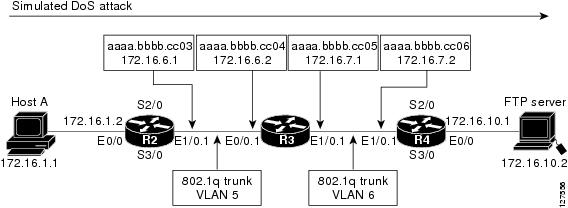
When the destination output mac address is configured, the value is the destination mac address of the output packet, even if the monitor the flow record is applied to is input only.
When the destination input mac address is configured, the value is the destination mac address of the input packet, even if the monitor the flow record is applied to is output only.
When the source output mac address is configured, the value is the source mac address of the output packet, even if the monitor the flow record is applied to is input only.
When the source input mac address is configured, the value is the source mac address of the input packet, even if the monitor the flow record is applied to is output only.
Examples
The following example configures the use of the destination MAC address of packets that are received by the router as a nonkey field for a Flexible NetFlow flow record:
Router(config)# flow record FLOW-RECORD-1
Router(config-flow-record)# collect datalink mac destination address input
The following example configures the use of the source MAC addresses of packets that are transmitted by the router as a nonkey field for a Flexible NetFlow flow record:
Router(config)# flow record FLOW-RECORD-1
Router(config-flow-record)# collect datalink mac source address output
Cisco Performance Monitor in Cisco IOS Release 15.2(2)T
The following example configures the use of the source MAC addresses of packets that are transmitted by the router as a nonkey field for a Performance Monitor flow record: :
Router(config)# flow record type performance-monitor RECORD-1
Router(config-flow-record)# collect datalink mac source address output
Related Commands
| Command |
Description |
|---|---|
| flow record |
Creates a flow record, and enters Flexible NetFlow flow record configuration mode. |
| flow record type performance-monitor |
Creates a flow record, and enters Performance Monitor flow record configuration mode. |
collect datalink source-vlan-id
To configure the use of source VLAN ID as a nonkey field for a flow record, use the collectdatalinksource-vlan-id command in flow record configuration mode. To disable the use of source VLAN ID as a nonkey field for a flow record, use the no form of this command.
Syntax Description
This command has no arguments or keywords.
Command Default
Source VLAN ID addresses are not configured as a nonkey field.
Command Modes
Flow record configuration (config-flow-record)
Command History
| Release |
Modification |
|---|---|
| Cisco IOS XE Release 3.8S |
This command was introduced. |
Usage Guidelines
You must first enter the flow record type performance-monitorcommand before you can use this command. This command cannot be used with Flexible NetFlow.
The collectcommands are used to configure nonkey fields for the flow monitor record and to enable capturing the values in the fields for the flow created with the record. The values in nonkey fields are added to flows to provide additional information about the traffic in the flows. A change in the value of a nonkey field does not create a new flow. In most cases the values for nonkey fields are taken from only the first packet in the flow.
Examples
The following example configures the use of the source VLAN ID as a nonkey field for a Performance Monitor flow record: :
Router(config)# flow record type performance-monitor RECORD-1
Router(config-flow-record)# collect datalink source-vlan-id output
Related Commands
| Command |
Description |
|---|---|
| flow record type performance-monitor |
Creates a flow record, and enters Performance Monitor flow record configuration mode. |
collect datalink vlan
To configure the use of VLAN as a nonkey field for a flow record, use the collectdatalinkvlan command in flow record configuration mode. To disable the use of VLAN as a nonkey field for a flow record, use the no form of this command.
Syntax Description
| input |
Packets received by the router. |
| output |
Packets transmitted by the router. |
Command Default
VLAN addresses are not configured as a nonkey field.
Command Modes
Flow record configuration (config-flow-record)
Command History
| Release |
Modification |
|---|---|
| 12.4(22)T |
This command was introduced. |
| 12.2(33)SRE |
This command was integrated into Cisco IOS Release 12.2(33)SRE for the Cisco 7200 and Cisco 7300 Network Processing Engine (NPE) series routers. |
| 15.2(2)T |
This command was integrated into 15.2(2)T without the destination keyword for Cisco Performance Monitor. |
Usage Guidelines
You must first enter the flow record type performance-monitorcommand before you can use this command. This command cannot be used with Flexible NetFlow.
The collect commands are used to configure nonkey fields for the flow monitor record and to enable capturing the values in the fields for the flow created with the record. The values in nonkey fields are added to flows to provide additional information about the traffic in the flows. A change in the value of a nonkey field does not create a new flow. In most cases the values for nonkey fields are taken from only the first packet in the flow.
The input and output keywords are used to specify the observation point that is used by the collectdatalinkvlan command to capture the VLAN from network traffic.
Examples
The following example configures the use of the VLAN as a nonkey field for a Performance Monitor flow record: :
Router(config)# flow record type performance-monitor RECORD-1
Router(config-flow-record)# collect datalink vlan output
Related Commands
| Command |
Description |
|---|---|
| flow record type performance-monitor |
Creates a flow record, and enters Performance Monitor flow record configuration mode. |
collect flow
To configure the flow direction, the flow sampler ID number, or reason why the flow ended as a nonkey field for a flow record, use the collect flow command in flow record configuration mode. To disable the use of the flow direction and the flow sampler ID number as a nonkey field for a flow record, use the no form of this command.
Cisco IOS Release 15.1(4)M1
Syntax Description
| direction |
Configures the flow direction as a nonkey field and enables the collection of the direction in which the flow was monitored. |
| sampler |
Configures the flow sampler ID as a nonkey field and enables the collection of the ID of the sampler that is assigned to the flow monitor. |
| class |
Configures the flow class as a nonkey field and enables the collection of the ID of the sampler that is assigned to the flow monitor. |
| qos-class |
Configures the flow QoS class as a nonkey field and enables the collection of the ID of the sampler that is assigned to the flow monitor. |
Command Default
The flow direction and the flow sampler ID number are not configured as nonkey fields.
Command Modes
flow record configuration (config-flow-record)
Command History
| Release |
Modification |
|---|---|
| 12.4(9)T |
This command was introduced. |
| 12.2(31)SB2 |
This command was integrated into Cisco IOS Release 12.2(31)SB2. |
| 12.0(33)S |
This command was implemented on the Cisco 12000 series routers. |
| 12.2(33)SRC |
Support for this command was added for Cisco 7200 series routers in Cisco IOS Release 12.2(33)SRC. |
| 12.2(33)SRE |
This command was integrated into Cisco IOS Release 12.2(33)SRE for the Cisco 7300 Network Processing Engine (NPE) series routers. |
| 15.1(4)M1 |
This command was integrated into Cisco IOS Release 15.1(4)M1 with only the direction keyword. |
| Cisco IOS XE Release 3.8S |
This command was modified. The qos-class and class keywords were added in Cisco IOS XE Release 3.8S. |
Usage Guidelines
This command can be used with both Flexible NetFlow and Performance Monitor. These products use different commands to enter the configuration mode in which you issue this command, however the mode prompt is the same for both products. For Flexible NetFlow, the mode is also known as Flexible NetFlow flow record configuration mode. For Performance Monitor, the mode is also known as Performance Monitor flow record configuration mode. Here we refer to them both as flow record configuration mode.
The Flexible NetFlow and Performance Monitor collect commands are used to configure nonkey fields for the flow monitor record and to enable capturing the values in the fields for the flow created with the record. The values in nonkey fields are added to flows to provide additional information about the traffic in the flows. A change in the value of a nonkey field does not create a new flow. In most cases the values for nonkey fields are taken from only the first packet in the flow.
collect flow direction
This field indicates the direction of the flow. This is of most use when a single flow monitor is configured for input and output flows. It can be used to find and eliminate flows that are being monitored twice, once on input and once on output. This field may also be used to match up pairs of flows in the exported data when the two flows are flowing in opposite directions.
collect flow sampler
This field contains the ID of the flow sampler used to monitor the flow. This is useful when more than one flow sampler is being used with different sampling rates. The flow exporter option sampler-table command exports options records with mappings of the flow sampler ID to sampling rate so the collector can calculate the scaled counters for each flow.
Examples
The following example configures the ID of the flow sampler that is assigned to the flow as a nonkey field:
Router(config)# flow record FLOW-RECORD-1
Router(config-flow-record)# collect flow sampler
Cisco Performance Monitor in Cisco IOS Release 15.1(4)M1
The following example configures the direction in which the flow was monitored as a nonkey field:
Router(config)# flow record type performance-monitor FLOW-RECORD-1
Router(config-flow-record)# collect flow direction
Related Commands
| Command |
Description |
|---|---|
| flow exporter |
Creates a flow exporter |
| flow record |
Creates a flow record for Flexible NetFlow. |
| flow record type performance-monitor |
Creates a flow record for Performance Monitor. |
collect interface
To configure the input and output interface as a nonkey field for a flow record, use the collect interface command in flow record configuration mode. To disable the use of the input and output interface as a nonkey field for a flow record, use the no form of this command.
Syntax Description
| input |
Configures the input interface as a nonkey field and enables collecting the input interface from the flows. |
| output |
Configures the output interface as a nonkey field and enables collecting the output interface from the flows. |
Command Default
The input and output interface is not configured as a nonkey field.
Command Modes
flow record configuration (config-flow-record)
Command History
| Release |
Modification |
|---|---|
| 12.4(9)T |
This command was introduced. |
| 12.2(31)SB2 |
This command was integrated into Cisco IOS Release 12.2(31)SB2. |
| 12.0(33)S |
This command was implemented on the Cisco 12000 series routers. |
| 12.2(33)SRC |
This command was integrated into Cisco IOS Release 12.2(33)SRC and implemented on the Cisco 7200 series routers. |
| 12.2(33)SRE |
This command was integrated into Cisco IOS Release 12.2(33)SRE for the Cisco 7300 Network Processing Engine (NPE) series routers. |
| 15.1(3)T |
This command was integrated into Cisco IOS Release 15.1(3)T for Cisco Performance Monitor. |
| 12.2(58)SE |
This command was integrated into Cisco IOS Release 12.2(58)SE for Cisco Performance Monitor. |
Usage Guidelines
This command can be used with both Flexible NetFlow and Performance Monitor. These products use different commands to enter the configuration mode in which you issue this command, however the mode prompt is the same for both products. For Flexible NetFlow, the mode is also known as Flexible NetFlow flow record configuration mode. For Performance Monitor, the mode is also known as Performance Monitor flow record configuration mode. Here we refer to them both as flow record configuration mode.
The Flexible NetFlow and Performance Monitor collect commands are used to configure nonkey fields for the flow monitor record and to enable capturing the values in the fields for the flow created with the record. The values in nonkey fields are added to flows to provide additional information about the traffic in the flows. A change in the value of a nonkey field does not create a new flow. In most cases the values for nonkey fields are taken from only the first packet in the flow.
Cisco Performance Monitor in Cisco IOS Release 15.1(3)T and 12.2(58)SE
You must first enter the flow record type performance-monitor command.
Examples
The following example configures the input interface as a nonkey field:
Router(config)# flow record FLOW-RECORD-1
Router(config-flow-record)# collect interface input
The following example configures the output interface as a nonkey field:
Router(config)# flow record FLOW-RECORD-1
Router(config-flow-record)# collect interface output
Cisco Performance Monitor in Cisco IOS Release 15.1(3)T and 12.2(58)SE
The following example configures the input interface as a nonkey field:
Router(config)# flow record type performance-monitor RECORD-1
Router(config-flow-record)# collect interface input
Related Commands
| Command |
Description |
|---|---|
| flow record |
Creates a flow record for Flexible NetFlow. |
| flow record type performance-monitor |
Creates a flow record for Performance Monitor. |
collect ipv4
To configure one or more of the IPv4 fields as a nonkey field for a flow record, use the collect ipv4 command in flow record configuration mode. To disable the use of one or more of the IPv4 fields as a nonkey field for a flow record, use the no form of this command.
Cisco Performance Monitor in Cisco IOS Release 15.1(3)T and 12.2(58)SE
Syntax Description
| dscp |
Configures the differentiated services code point (DCSP) field as a nonkey field and enables collecting the value in the IPv4 DSCP type of service (ToS) fields from the flows. |
| header-length |
Configures the IPv4 header length flag as a nonkey field and enables collecting the value in the IPv4 header length (in 32-bit words) field from the flows. |
| id |
Configures the IPv4 ID flag as a nonkey field and enables collecting the value in the IPv4 ID field from the flows. |
| option map |
Configures the IPv4 options flag as a nonkey field and enables collecting the value in the bitmap representing which IPv4 options have been seen in the options field from the flows. |
| precedence |
Configures the IPv4 precedence flag as a nonkey field and enables collecting the value in the IPv4 precedence (part of ToS) field from the flows. |
| protocol |
Configures the IPv4 payload protocol field as a nonkey field and enables collecting the IPv4 value of the payload protocol field for the payload in the flows |
| tos |
Configures the ToS field as a nonkey field and enables collecting the value in the IPv4 ToS field from the flows. |
| version |
Configures the version field as a nonkey field and enables collecting the value in the IPv4 version field from the flows. |
Command Default
The IPv4 fields are not configured as a nonkey field.
Command Modes
flow record configuration (config-flow-record)
Command History
| Release |
Modification |
|---|---|
| 12.4(9)T |
This command was introduced. |
| 12.2(31)SB2 |
This command was integrated into Cisco IOS Release 12.2(31)SB2. |
| 12.0(33)S |
This command was implemented on the Cisco 12000 series routers. |
| 12.2(33)SRC |
This command was integrated into Cisco IOS Release 12.2(33)SRC and implemented on the Cisco 7200 series routers. |
| 12.2(33)SRE |
This command was integrated into Cisco IOS Release 12.2(33)SRE for the Cisco 7300 Network Processing Engine (NPE) series routers. |
| 15.1(3)T |
This command was integrated into Cisco IOS Release 15.1(3)T for Cisco Performance Monitor with only the dscp keyword. |
| 12.2(58)SE |
This command was integrated into Cisco IOS Release 12.2(58)SE for Cisco Performance Monitor with only the dscp keyword. |
Usage Guidelines
This command can be used with both Flexible NetFlow and Performance Monitor. These products use different commands to enter the configuration mode in which you issue this command, however the mode prompt is the same for both products. For Flexible NetFlow, the mode is also known as Flexible NetFlow flow record configuration mode. For Performance Monitor, the mode is also known as Performance Monitor flow record configuration mode. Here we refer to them both as flow record configuration mode.
The Flexible NetFlow and Performance Monitor collect commands are used to configure nonkey fields for the flow monitor record and to enable capturing the values in the fields for the flow created with the record. The values in nonkey fields are added to flows to provide additional information about the traffic in the flows. A change in the value of a nonkey field does not create a new flow. In most cases the values for nonkey fields are taken from only the first packet in the flow.
 Note |
Some of the keywords of the collect ipv4 command are documented as separate commands. All of the keywords for the collect ipv4 command that are documented separately start with collect ipv4. For example, for information about configuring the IPv4 time-to-live (TTL) field as a nonkey field and collecting its value for a flow record, refer to the collect ipv4 ttl command. |
Cisco Performance Monitor in Cisco IOS Release 15.1(3)T and 12.2(58)SE
Only the the dscp keyword is available. You must first enter the flow record type performance-monitor command.
Examples
The following example configures the DSCP field as a nonkey field:
Router(config)# flow record FLOW-RECORD-1
Router(config-flow-record)# collect ipv4 dscp
Cisco Performance Monitor in Cisco IOS Release 15.1(3)T and 12.2(58)SE
The following example configures the DSCP field as a nonkey field:
Router(config)# flow record type performance-monitor RECORD-1
Router(config-flow-record)# collect ipv4 dscp
Related Commands
| Command |
Description |
|---|---|
| flow record |
Creates a flow record for Flexible NetFlow. |
| flow record type performance-monitor |
Creates a flow record for Performance Monitor. |
collect ipv4 destination
To configure the IPv4 destination address as a nonkey field for a flow record, use the collect ipv4 destination command in flow record configuration mode. To disable the use of an IPv4 destination address field as a nonkey field for a flow record, use the no form of this command.
Cisco Performance Monitor in Cisco IOS Release 15.1(3)T and 12.2(58)SE
Syntax Description
| address |
Configures the IPv4 destination address as a nonkey field and enables collecting the value of the IPv4 destination address from the flows. |
| mask |
Configures the IPv4 destination address mask as a nonkey field and enables collecting the value of the IPv4 destination address mask from the flows. |
| prefix |
Configures the prefix for the IPv4 destination address as a nonkey field and enables collecting the value of the IPv4 destination address prefix from the flows. |
| minimum-mask mask |
(Optional) Specifies the size, in bits, of the minimum mask. Range: 1 to 32. |
Command Default
The IPv4 destination address is not configured as a nonkey field.
Command Modes
flow record configuration (config-flow-record)
Command History
| Release |
Modification |
|---|---|
| 12.4(9)T |
This command was introduced. |
| 12.2(31)SB2 |
This command was integrated into Cisco IOS Release 12.2(31)SB2. |
| 12.0(33)S |
This command was implemented on the Cisco 12000 series routers. |
| 12.2(33)SRC |
This command was integrated into Cisco IOS Release 12.2(33)SRC and implemented on the Cisco 7200 series routers. |
| 12.2(33)SRE |
This command was integrated into Cisco IOS Release 12.2(33)SRE for the Cisco 7300 Network Processing Engine (NPE) series routers. |
| 15.1(3)T |
This command was integrated into Cisco IOS Release 15.1(3)T for Cisco Performance Monitor with only the maskand minimum-maskkeywords. |
| 12.2(58)SE |
This command was integrated into Cisco IOS Release 12.2(58)SE for Cisco Performance Monitor with only the maskand minimum-maskkeywords. |
Usage Guidelines
This command can be used with both Flexible NetFlow and Performance Monitor. These products use different commands to enter the configuration mode in which you issue this command, however the mode prompt is the same for both products. For Flexible NetFlow, the mode is also known as Flexible NetFlow flow record configuration mode. For Performance Monitor, the mode is also known as Performance Monitor flow record configuration mode. Here we refer to them both as flow record configuration mode.
The Flexible NetFlow and Performance Monitor collect commands are used to configure nonkey fields for the flow monitor record and to enable capturing the values in the fields for the flow created with the record. The values in nonkey fields are added to flows to provide additional information about the traffic in the flows. A change in the value of a nonkey field does not create a new flow. In most cases the values for nonkey fields are taken from only the first packet in the flow.
Cisco Performance Monitor in Cisco IOS Release 15.1(3)T and 12.2(58)SE
Only the maskand minimum-maskkeywords are available. You must first enter the flow record type performance-monitor command.
Examples
The following example configures the IPv4 destination address prefix from the flows that have a prefix of 16 bits as a nonkey field:
Router(config)# flow record FLOW-RECORD-1
Router(config-flow-record)# collect ipv4 destination prefix minimum-mask 16
Cisco Performance Monitor in Cisco IOS Release 15.1(3)T and 12.2(58)SE
The following example configures the IPv4 destination address prefix from the flows that have a prefix of 16 bits as a nonkey field:
Router(config)# flow record type performance-monitor RECORD-1
Router(config-flow-record)# collect ipv4 destination prefix minimum-mask 16
Related Commands
| Command |
Description |
|---|---|
| flow record |
Creates a flow record for Flexible NetFlow. |
| flow record type performance-monitor |
Creates a flow record for Performance Monitor. |
collect ipv4 fragmentation
To configure the IPv4 fragmentation flags and the IPv4 fragmentation offset as a nonkey field for a flow record, use the collect ipv4 fragmentation command in flow record configuration mode. To disable the use of the IPv4 fragmentation flags and the IPv4 fragmentation offset as a nonkey field for a flow record, use the no form of this command.
Syntax Description
| flags |
Configures the IPv4 fragmentation flags as a nonkey field and enables collecting the value in the IPv4 fragmentation flag fields from the flows. |
| offset |
Configures the IPv4 fragmentation offset value as a nonkey field and enables collecting the value in the IPv4 fragmentation offset field from the flows. |
Command Default
The IPv4 fragmentation flags and the IPv4 fragmentation offset are not configured as nonkey fields.
Command Modes
Flow record configuration (config-flow-record)
Command History
| Release |
Modification |
|---|---|
| 12.4(9)T |
This command was introduced. |
| 12.2(31)SB2 |
This command was integrated into Cisco IOS Release 12.2(31)SB2. |
| 12.0(33)S |
This command was implemented on the Cisco 12000 series routers. |
| 12.2(33)SRC |
Support for this command was added for Cisco 7200 series routers in Cisco IOS Release 12.2(33)SRC. |
| 12.2(33)SRE |
This command was integrated into Cisco IOS Release 12.2(33)SRE for the Cisco 7300 Network Processing Engine (NPE) series routers. |
Usage Guidelines
The Flexible NetFlow collect commands are used to configure nonkey fields for the flow monitor record and to enable capturing the values in the fields for the flow created with the record. The values in nonkey fields are added to flows to provide additional information about the traffic in the flows. A change in the value of a nonkey field does not create a new flow. In most cases the values for nonkey fields are taken from only the first packet in the flow.
collect ipv4 fragmentation flags
This field collects the "don't fragment" and "more fragments" flags.
Bit 0: reserved, must be zero.
Bit 1: (DF) 0 = May Fragment, 1 = Don't Fragment
Bit 2: (MF) 0 = Last Fragment, 1 = More Fragments
Bits 3-7: (DC) Don't Care, value is irrelevant
        0   1   2   3   4   5   6   7
      +---+---+---+---+---+---+---+---+
      |   | D | M | D | D | D | D | D |
      | 0 | F | F | C | C | C | C | C |
      +---+---+---+---+---+---+---+---+
For more information on IPv4 fragmentation flags, see RFC 791 Internet Protocol at the following URL: http://www.ietf.org/rfc/rfc791.txt .
Examples
The following example configures the IPv4 fragmentation flags as a nonkey field:
Router(config)# flow record FLOW-RECORD-1
Router(config-flow-record)# collect ipv4 fragmentation flags
Cisco Performance Monitor in Cisco IOS Release 15.1(3)T and 12.2(58)SE
The following example configures the IPv4 fragmentation flags as a nonkey field:
Router(config)# flow record type performance-monitor RECORD-1
Router(config-flow-record)# collect ipv4 fragmentation flags
Related Commands
| Command |
Description |
|---|---|
| flow record |
Creates a flow record, and enters Flexible NetFlow flow record configuration mode. |
| flow record type performance-monitor |
Creates a flow record, and enters Performance Monitor flow record configuration mode. |
collect ipv4 initiator
To configure one or more of the IPv4 initiator address field as a nonkey field for a flow record, use the collect ipv4 initiator command in flow record configuration mode. To disable the use of one or more of the IPv4 initiator address field as a nonkey field for a flow record, use the no form of this command.
Syntax Description
This command has no arguments or keywords.
Command Default
The IPv4 initiator address field is not configured as a nonkey field.
Command Modes
Flow record configuration (config-flow-record)
Command History
| Release |
Modification |
|---|---|
| Cisco IOS XE Release 3.8S |
This command was introduced. |
Usage Guidelines
You must first enter the flow record type performance-monitorcommand before you can use this command. This command cannot be used with Flexible NetFlow.
The collect commands are used to configure nonkey fields for the flow monitor record and to enable capturing the values in the fields for the flow created with the record. The values in nonkey fields are added to flows to provide additional information about the traffic in the flows. A change in the value of a nonkey field does not create a new flow. In most cases the values for nonkey fields are taken from only the first packet in the flow.
Examples
The following example configures the IPv4 initiator address field as a nonkey field:
Router(config)# flow record type performance-monitor RECORD-1
Router(config-flow-record)# collect ipv4 initiator address
Related Commands
| Command |
Description |
|---|---|
| flow record type performance-monitor |
Creates a flow record, and enters Performance Monitor flow record configuration mode. |
collect ipv4 responder
To configure one or more of the IPv4 responder address field as a nonkey field for a flow record, use the collect ipv4 responder command in flow record configuration mode. To disable the use of one or more of the IPv4 responder address field as a nonkey field for a flow record, use the no form of this command.
Syntax Description
This command has no arguments or keywords.
Command Default
The IPv4 responder address field is not configured as a nonkey field.
Command Modes
Flow record configuration (config-flow-record)
Command History
| Release |
Modification |
|---|---|
| Cisco IOS XE Release 3.8S |
This command was introduced. |
Usage Guidelines
You must first enter the flow record type performance-monitorcommand before you can use this command. This command cannot be used with Flexible NetFlow.
The collect commands are used to configure nonkey fields for the flow monitor record and to enable capturing the values in the fields for the flow created with the record. The values in nonkey fields are added to flows to provide additional information about the traffic in the flows. A change in the value of a nonkey field does not create a new flow. In most cases the values for nonkey fields are taken from only the first packet in the flow.
Examples
The following example configures the IPv4 initiator address field as a nonkey field:
Router(config)# flow record type performance-monitor RECORD-1
Router(config-flow-record)# collect ipv4 responder address
Related Commands
| Command |
Description |
|---|---|
| flow record type performance-monitor |
Creates a flow record, and enters Performance Monitor flow record configuration mode. |
collect ipv4 section
To configure a section of an IPv4 packet as a nonkey field for a flow record, use the collect ipv4 section command in flow record configuration mode. To disable the use of a section of an IPv4 packet as a nonkey field for a flow record, use the no form of this command.
Syntax Description
| header size header-size |
Configures the number of bytes of raw data starting at the IPv4 header to use as a nonkey field, and enables collecting the value in the raw data from the flows. Range: 1 to 1200. |
| payload size payload-size |
Configures the number of bytes of raw data starting at the IPv4 payload to use as a nonkey field, and enables collecting the value in the raw data from the flows. Range: 1 to 1200. |
Command Default
A section of an IPv4 packet is not configured as a nonkey field.
Command Modes
Flow record configuration (config-flow-record)
Command History
| Release |
Modification |
|---|---|
| 12.4(9)T |
This command was introduced. |
| 12.2(31)SB2 |
This command was integrated into Cisco IOS Release 12.2(31)SB2. |
| 12.0(33)S |
This command was implemented on the Cisco 12000 series routers. |
| 12.2(33)SRC |
Support for this command was added for Cisco 7200 series routers in Cisco IOS Release 12.2(33)SRC. |
| 12.2(33)SRE |
This command was integrated into Cisco IOS Release 12.2(33)SRE for the Cisco 7300 Network Processing Engine (NPE) series routers. |
Usage Guidelines
The Flexible NetFlow collect commands are used to configure nonkey fields for the flow monitor record and to enable capturing the values in the fields for the flow created with the record. The values in nonkey fields are added to flows to provide additional information about the traffic in the flows. A change in the value of a nonkey field does not create a new flow. In most cases the values for nonkey fields are taken from only the first packet in the flow.
It is recommended that you configure both header size and payload size so that you know how much data is going to be captured.
collect ipv4 section header
This command causes the first IPv4 header to be copied into the flow record for this flow. Only the configured size in bytes will be copied and part of the payload will also be captured if the configured size is larger than the size of the header.
Note |
This command can result in large records which use a lot of router memory and export bandwidth. |
collect ipv4 section payload
This command results in a copy of the first IPv4 payload being put into the flow record for this flow. Only the configured size in bytes will be copied and may end in a series of 0's if the configured size is greater than the size of the payload.
Note |
This command can result in large records which use a lot of router memory and export bandwidth. |
Examples
The following example configures the first eight bytes from the IP header of the packets in the flows as a non-key field:
Router(config)# flow record FLOW-RECORD-1
Router(config-flow-record)# collect ipv4 section header size 8
The following example configures the first 16 bytes from the payload of the packets in the flows as a non-key field:
Router(config)# flow record FLOW-RECORD-1
Router(config-flow-record)# collect ipv4 section payload size 16
Cisco Performance Monitor in Cisco IOS Release 15.2(2)T and XE 3.5S
The following example configures the first 16 bytes from the payload of the packets in the flows as a nonkey field:
Router(config)# flow record type performance-monitor RECORD-1
Router(config-flow-record)# collect ipv4 section payload size 16
Related Commands
| Command |
Description |
|---|---|
| flow record |
Creates a flow record, and enters Flexible NetFlow flow record configuration mode. |
| flow record type performance-monitor |
Creates a flow record, and enters Performance Monitor flow record configuration mode. |
collect ipv4 source
To configure the IPv4 source address as a nonkey field for a flow record, use the collect ipv4 source command in flow record configuration mode. To disable the use of the IPv4 source address field as a nonkey field for a flow record, use the no form of this command.
Cisco Performance Monitor in Cisco IOS Release 15.1(3)T and 12.2(58)SE
Syntax Description
| address |
Configures the IPv4 source address as a nonkey field and enables collecting the value of the IPv4 source address from the flows. |
| mask |
Configures the IPv4 source address mask as a nonkey field and enables collecting the value of the IPv4 source address mask from the flows. |
| prefix |
Configures the prefix for the IPv4 source address as a nonkey field and enables collecting the value of the IPv4 source address prefix from the flows. |
| minimum-mask mask |
(Optional) Specifies the size, in bits, of the minimum mask. Range: 1 to 32. |
Command Default
The IPv4 source address is not configured as a nonkey field.
Command Modes
flow record configuration (config-flow-record)
Command History
| Release |
Modification |
|---|---|
| 12.4(9)T |
This command was introduced. |
| 12.2(31)SB2 |
This command was integrated into Cisco IOS Release 12.2(31)SB2. |
| 12.0(33)S |
This command was implemented on the Cisco 12000 series routers. |
| 12.2(33)SRC |
This command was integrated into Cisco IOS Release 12.2(33)SRC and implemented on the Cisco 7200 series routers. |
| 12.2(33)SRE |
This command was integrated into Cisco IOS Release 12.2(33)SRE for the Cisco 7300 Network Processing Engine (NPE) series routers. |
| 15.1(3)T |
This command was integrated into Cisco IOS Release 15.1(3)T for Cisco Performance Monitor with only the maskand minimum-maskkeywords. |
| 12.2(58)SE |
This command was integrated into Cisco IOS Release 12.2(58)SE for Cisco Performance Monitor with only the maskand minimum-maskkeywords. |
Usage Guidelines
This command can be used with both Flexible NetFlow and Performance Monitor. These products use different commands to enter the configuration mode in which you issue this command, however the mode prompt is the same for both products. For Flexible NetFlow, the mode is also known as Flexible NetFlow flow record configuration mode. For Performance Monitor, the mode is also known as Performance Monitor flow record configuration mode. Here we refer to them both as flow record configuration mode.
The Flexible NetFlow and Performance Monitor collect commands are used to configure nonkey fields for the flow monitor record and to enable capturing the values in the fields for the flow created with the record. The values in nonkey fields are added to flows to provide additional information about the traffic in the flows. A change in the value of a nonkey field does not create a new flow. In most cases the values for nonkey fields are taken from only the first packet in the flow.
Cisco Performance Monitor in Cisco IOS Release 15.1(3)T and 12.2(58)SE
Only the maskand minimum-maskkeywords are available. You must first enter the flow record type performance-monitor command.
collect ipv4 source prefix minimum-mask
The source address prefix is the network part of an IPv4 source address. The optional minimum mask allows more information to be gathered about large networks.
collect ipv4 source mask minimum-mask
The source address mask is the number of bits that make up the network part of the source address. The optional minimum mask allows a minimum value to be configured. This command is useful when there is a minimum mask configured for the source prefix field and the mask is to be used with the prefix. In this case, the values configured for the minimum mask should be the same for the prefix and mask fields.
Alternatively, if the collector is aware of the minimum mask configuration of the prefix field, the mask field can be configured without a minimum mask so that the true mask and prefix can be calculated.
Examples
The following example configures the IPv4 source address prefix from the flows that have a prefix of 16 bits as a nonkey field:
Router(config)# flow record FLOW-RECORD-1
Router(config-flow-record)# collect ipv4 source prefix minimum-mask 16
Cisco Performance Monitor in Cisco IOS Release 15.1(3)T and 12.2(58)SE
The following example configures the IPv4 source address prefix from the flows that have a prefix of 16 bits as a nonkey field:
Router(config)# flow record type performance-monitor RECORD-1
Router(config-flow-record)# collect ipv4 source prefix minimum-mask 16
Related Commands
| Command |
Description |
|---|---|
| flow record |
Creates a flow record for Flexible NetFlow. |
| flow record type performance-monitor |
Creates a flow record for Performance Monitor. |
collect ipv4 total-length
To configure the IPv4 total-length field as a nonkey field for a flow record, use the collect ipv4 total-length command in flow record configuration mode. To disable the use of the IPv4 total-length field as a nonkey field for a flow record, use the no form of this command.
Syntax Description
| maximum |
(Optional) Configures the maximum value of the total length field as a nonkey field and enables collecting the maximum value of the total length field from the flows. |
| minimum |
(Optional) Configures the minimum value of the total length field as a nonkey field and enables collecting the minimum value of the total length field from the flows. |
Command Default
The IPv4 total-length field is not configured as a nonkey field.
Command Modes
Flow record configuration (config-flow-record)
Command History
| Release |
Modification |
|---|---|
| 12.4(9)T |
This command was introduced. |
| 12.2(31)SB2 |
This command was integrated into Cisco IOS Release 12.2(31)SB2. |
| 12.0(33)S |
This command was implemented on the Cisco 12000 series routers. |
| 12.2(33)SRC |
Support for this command was added for Cisco 7200 series routers in Cisco IOS Release 12.2(33)SRC. |
| 12.2(33)SRE |
This command was integrated into Cisco IOS Release 12.2(33)SRE for the Cisco 7300 Network Processing Engine (NPE) series routers. |
Usage Guidelines
The Flexible NetFlow collect commands are used to configure nonkey fields for the flow monitor record and to enable capturing the values in the fields for the flow created with the record. The values in nonkey fields are added to flows to provide additional information about the traffic in the flows. A change in the value of a nonkey field does not create a new flow. In most cases the values for nonkey fields are taken from only the first packet in the flow.
collect ipv4 total-length [minimum | maximum]
This command is used to collect the lowest and highest IPv4 total length values seen in the lifetime of the flow. Configuring this command results in more processing than is needed to simply collect the first total length value seen using the collect ipv4 total-length command.
Examples
The following example configures total-length value as a nonkey field:
Router(config)# flow record FLOW-RECORD-1
Router(config-flow-record)# collect ipv4 total-length
The following example configures minimum total-length value seen in the flows as a nonkey field:
Router(config)# flow record FLOW-RECORD-1
Router(config-flow-record)# collect ipv4 total-length minimum
Cisco Performance Monitor in Cisco IOS Release 15.1(3)T and 12.2(58)SE
The following example configures the minimum total-length value seen in the flows as a nonkey field:
Router(config)# flow record type performance-monitor RECORD-1
Router(config-flow-record)# collect ipv4 total-length minimum
Related Commands
| Command |
Description |
|---|---|
| flow record |
Creates a flow record, and enters Flexible NetFlow flow record configuration mode. |
| flow record type performance-monitor |
Creates a flow record, and enters Performance Monitor flow record configuration mode. |
collect ipv4 ttl
To configure the IPv4 time-to-live (TTL) field as a nonkey field for a flow record, use the collect ipv4 ttl command in flow record configuration mode. To disable the use of the IPv4 TTL field as a nonkey field for a flow record, use the no form of this command.
Syntax Description
| maximum |
(Optional) Configures the maximum value of the TTL field as a nonkey field and enables collecting the maximum value of the TTL field from the flows. |
| minimum |
(Optional) Configures the minimum value of the TTL field as a nonkey field and enables collecting the minimum value of the TTL field from the flows. |
Command Default
The IPv4 time-to-live (TTL) field is not configured as a nonkey field.
Command Modes
flow record configuration (config-flow-record)
Command History
| Release |
Modification |
|---|---|
| 12.4(9)T |
This command was introduced. |
| 12.2(31)SB2 |
This command was integrated into Cisco IOS Release 12.2(31)SB2. |
| 12.0(33)S |
This command was implemented on the Cisco 12000 series routers. |
| 12.2(33)SRC |
This command was integrated into Cisco IOS Release 12.2(33)SRC and implemented on the Cisco 7200 series routers. |
| 12.2(33)SRE |
This command was integrated into Cisco IOS Release 12.2(33)SRE for the Cisco 7300 Network Processing Engine (NPE) series routers. |
| 15.1(3)T |
This command was integrated into Cisco IOS Release 15.1(3)T for Cisco Performance Monitor. |
| 12.2(58)SE |
This command was integrated into Cisco IOS Release 12.2(58)SE for Cisco Performance Monitor. |
Usage Guidelines
This command can be used with both Flexible NetFlow and Performance Monitor. These products use different commands to enter the configuration mode in which you issue this command, however the mode prompt is the same for both products. For Flexible NetFlow, the mode is also known as Flexible NetFlow flow record configuration mode. For Performance Monitor, the mode is also known as Performance Monitor flow record configuration mode. Here we refer to them both as flow record configuration mode.
The Flexible NetFlow and Performance Monitor collect commands are used to configure nonkey fields for the flow monitor record and to enable capturing the values in the fields for the flow created with the record. The values in nonkey fields are added to flows to provide additional information about the traffic in the flows. A change in the value of a nonkey field does not create a new flow. In most cases the values for nonkey fields are taken from only the first packet in the flow.
Cisco Performance Monitor in Cisco IOS Release 15.1(3)T and 12.2(58)SE
You must first enter the flow record type performance-monitor command.
collect ipv4 ttl [minimum | maximum]
This command is used to collect the lowest and highest IPv4 TTL values seen in the lifetime of the flow. Configuring this command results in more processing than is needed to simply collect the first TTL value seen using the collect ipv4 ttl command.
Examples
The following example configures the largest value for IPv4 TTL seen in the flows as a nonkey field:
Router(config)# flow record FLOW-RECORD-1
Router(config-flow-record)# collect ipv4 ttl maximum
The following example configures the smallest value for IPv4 TTL seen in the flows as a nonkey field
Router(config)# flow record FLOW-RECORD-1
Router(config-flow-record)# collect ipv4 ttl minimum
Cisco Performance Monitor in Cisco IOS Release 15.1(3)T and 12.2(58)SE
The following example configures the smallest value for IPv4 TTL seen in the flows as a nonkey field
Router(config)# flow record type performance-monitor RECORD-1
Router(config-flow-record)# collect ipv4 ttl minimum
Related Commands
| Command |
Description |
|---|---|
| flow record |
Creates a flow record for Flexible NetFlow. |
| flow record type performance-monitor |
Creates a flow record for Performance Monitor. |
collect ipv6
To configure one or more of the IPv6 fields as a nonkey field for a flow record, use the collect ipv6 command in flow record configuration mode. To disable the use of one or more of the IPv6 fields as a nonkey field for a flow record, use the no form of this command.
Syntax Description
| dscp |
Configures the differentiated services code point (DCSP) field as a nonkey field and enables collecting the value in the IPv6 DSCP type of service (ToS) fields from the flows. |
| flow-label |
Configures the IPv6 flow label as a nonkey field and enables collecting the value in the IPv6 flow label from the flows. |
| next-header |
Configures the next-header field as a nonkey field and enables collecting the value of the next-header field in the IPv6 header from the flows. |
| payload-length |
Configures the length of the IPv6 payload as a nonkey field and enables collecting the number of bytes used for the payload in the flows. |
| precedence |
Configures the IPv6 precedence flag as a nonkey field and enables collecting the value in the IPv6 precedence (part of ToS) field from the flows. |
| protocol |
Configures the IPv6 payload protocol field as a nonkey field and enables collecting the IPv6 value of the payload protocol field for the payload in the flows. |
| traffic-class |
Configures the IPv6 traffic-class field as a nonkey field and enables collecting the value in the IPv6 protocol field from the flows. |
| version |
Configures the IPv6 version field as a nonkey field and enables collecting the value in the IPv6 version field from the flows. |
Command Default
The IPv6 fields are not configured as a nonkey field.
Command Modes
Flow record configuration (config-flow-record)
Command History
| Release |
Modification |
|---|---|
| 12.4(20)T |
This command was introduced. |
| 12.2(33)SRE |
This command was integrated into Cisco IOS Release 12.2(33)SRE for the Cisco 7200 and Cisco 7300 Network Processing Engine (NPE) series routers. |
| 15.2(2)T |
This command was integrated into Cisco IOS Release 15.2(2)T for Cisco Performance Monitor. |
| Cisco IOS XE Release 3.5S |
This command was integrated into Cisco IOS XE Release 3.5S for Cisco Performance Monitor. |
Usage Guidelines
This command can be used with both Flexible NetFlow and Performance Monitor. These products use different commands to enter the configuration mode in which you issue this command, however the mode prompt is the same for both products. For Performance Monitor, you must first enter the flow record type performance-monitor command before you can use this command.
Because the mode prompt is the same for both products, here we refer to the command mode for both products as flow record configuration mode. However, for Flexible NetFlow, the mode is also known as Flexible NetFlow flow record configuration mode; and for Performance Monitor, the mode is also known as Performance Monitor flow record configuration mode.
The Flexible NetFlow collect commands are used to configure nonkey fields for the flow monitor record and to enable capturing the values in the fields for the flow created with the record. The values in nonkey fields are added to flows to provide additional information about the traffic in the flows. A change in the value of a nonkey field does not create a new flow. In most cases the values for nonkey fields are taken from only the first packet in the flow.
Note |
Some of the keywords for the collect ipv6 command are documented as separate commands. All of the keywords for the collect ipv6 command that are documented separately start with collect ipv6. For example, for information about configuring the IPv6 hop limit field as a nonkey field and collecting its value for a flow record, refer to the collect ipv6 hop-limit command. |
Examples
The following example configures the IPv6 DSCP field as a nonkey field:
Router(config)# flow record FLOW-RECORD-1
Router(config-flow-record)# collect ipv6 dscp
Cisco Performance Monitor in Cisco IOS Release 15.2(2)T and XE 3.5S
The following example configures the IPv6 DSCP field as a nonkey field:
Router(config)# flow record type performance-monitor RECORD-1
Router(config-flow-record)# collect ipv6 dscp
Related Commands
| Command |
Description |
|---|---|
| flow record |
Creates a flow record, and enters Flexible NetFlow flow record configuration mode. |
| flow record type performance-monitor |
Creates a flow record, and enters Performance Monitor flow record configuration mode. |
collect ipv6 destination
To configure the IPv6 destination address as a nonkey field for a flow record, use the collect ipv6 destination command in flow record configuration mode. To disable the use of an IPv6 destination address field as a nonkey field for a flow record, use the no form of this command.
Command Syntax on Cisco Catalyst 6500 Switches running Cisco IOS Release 12.2(50)SY
Syntax Description
| address |
Configures the IPv6 destination address as a nonkey field and enables collecting the value of the IPv6 destination address from the flows. |
| mask |
Configures the IPv6 destination address mask as a nonkey field and enables collecting the value of the IPv6 destination address mask from the flows. |
| prefix |
Configures the prefix for the IPv6 destination address as a nonkey field and enables collecting the value of the IPv6 destination address prefix from the flows. |
| minimum-mask mask |
(Optional) Specifies the size, in bits, of the minimum mask. Range: 1 to 128. |
Command Default
TheIPv6 destination address is not configured as a nonkey field.
Command Modes
Flow record configuration (config-flow-record)
Command History
| Release |
Modification |
|---|---|
| 12.4(20)T |
This command was introduced. |
| 12.2(33)SRE |
This command was integrated into Cisco IOS Release 12.2(33)SRE for the Cisco 7200 and Cisco 7300 Network Processing Engine (NPE) series routers. |
| 12.2(50)SY |
This command was modified. The addressand minimum-mask keywords were not supported in Cisco IOS Release 12.2(50)SY. |
| 15.2(2)T |
This command was integrated into Cisco IOS Release 15.2(2)T for Cisco Performance Monitor. |
| Cisco IOS XE Release 3.5S |
This command was integrated into Cisco IOS XE Release 3.5S for Cisco Performance Monitor. |
Usage Guidelines
This command can be used with both Flexible NetFlow and Performance Monitor. These products use different commands to enter the configuration mode in which you issue this command, however the mode prompt is the same for both products. For Performance Monitor, you must first enter the flow record type performance-monitor command before you can use this command.
Because the mode prompt is the same for both products, here we refer to the command mode for both products as flow record configuration mode. However, for Flexible NetFlow, the mode is also known as Flexible NetFlow flow record configuration mode; and for Performance Monitor, the mode is also known as Performance Monitor flow record configuration mode.
The Flexible NetFlow collect commands are used to configure nonkey fields for the flow monitor record and to enable capturing the values in the fields for the flow created with the record. The values in nonkey fields are added to flows to provide additional information about the traffic in the flows. A change in the value of a nonkey field does not create a new flow. In most cases the values for nonkey fields are taken from only the first packet in the flow.
Examples
The following example configures the IPv6 destination address prefix from the flows that have a prefix of 16 bits as a nonkey field:
Router(config)# flow record FLOW-RECORD-1
Router(config-flow-record)# collect ipv6 destination prefix minimum-mask 16
Cisco Performance Monitor in Cisco IOS Release 15.2(2)T and XE 3.5S
The following example configures the IPv6 destination address prefix from the flows that have a prefix of 16 bits as a nonkey field:
Router(config)# flow record type performance-monitor RECORD-1
Router(config-flow-record)# collect ipv6 destination prefix minimum-mask 16
Related Commands
| Command |
Description |
|---|---|
| flow record |
Creates a flow record, and enters Flexible NetFlow flow record configuration mode. |
| flow record type performance-monitor |
Creates a flow record, and enters Performance Monitor flow record configuration mode. |
collect ipv6 extension map
To configure the bitmap of the IPv6 extension header map as a nonkey field for a flow record, use the collect ipv6 extension map command in flow record configuration mode. To disable the use of the IPv6 bitmap of IPv6 extension header map as a nonkey field for a flow record, use the no form of this command.
Syntax Description
This command has no arguments or keywords.
Command Default
The use of the bitmap of the IPv6 extension header map is not configured as a nonkey field.
Command Modes
Flow record configuration (config-flow-record)
Command History
| Release |
Modification |
|---|---|
| 12.4(20)T |
This command was introduced. |
| 12.2(33)SRE |
This command was integrated into Cisco IOS Release 12.2(33)SRE for the Cisco 7200 and Cisco 7300 Network Processing Engine (NPE) series routers. |
| 15.2(2)T |
This command was integrated into Cisco IOS Release 15.2(2)T for Cisco Performance Monitor. |
| Cisco IOS XE Release 3.5S |
This command was integrated into Cisco IOS XE Release 3.5S for Cisco Performance Monitor. |
Usage Guidelines
This command can be used with both Flexible NetFlow and Performance Monitor. These products use different commands to enter the configuration mode in which you issue this command, however the mode prompt is the same for both products. For Performance Monitor, you must first enter the flow record type performance-monitor command before you can use this command.
Because the mode prompt is the same for both products, here we refer to the command mode for both products as flow record configuration mode. However, for Flexible NetFlow, the mode is also known as Flexible NetFlow flow record configuration mode; and for Performance Monitor, the mode is also known as Performance Monitor flow record configuration mode.
The Flexible NetFlow collect commands are used to configure nonkey fields for the flow monitor record and to enable capturing the values in the fields for the flow created with the record. The values in nonkey fields are added to flows to provide additional information about the traffic in the flows. A change in the value of a nonkey field does not create a new flow. In most cases the values for nonkey fields are taken from only the first packet in the flow.
Bitmap of the IPv6 Extension Header Map
The bitmap of IPv6 extension header map is made up of 32 bits.
    0     1     2     3     4     5     6     7
+-----+-----+-----+-----+-----+-----+-----+-----+
| Res | FRA1| RH  | FRA0| UNK | Res | HOP | DST |
+-----+-----+-----+-----+-----+-----+-----+-----+
    8     9    10    11    12    13    14    15
+-----+-----+-----+-----+-----+-----+-----+-----+
| PAY | AH  | ESP |         Reserved            |
+-----+-----+-----+-----+-----+-----+-----+-----+
   16    17    18    19    20    21    22    23
+-----+-----+-----+-----+-----+-----+-----+-----+
|                  Reserved                     |
+-----+-----+-----+-----+-----+-----+-----+-----+
   24    25    26    27    28    29    30    31
+-----+-----+-----+-----+-----+-----+-----+-----+
|                  Reserved                     |
+-----+-----+-----+-----+-----+-----+-----+-----+
0  Res  Reserved
1  FRA1 Fragmentation header - not first fragment
2  RH   Routing header
3  FRA0 Fragment header - first fragment
4  UNK  Unknown Layer 4 header
        (compressed, encrypted, not supported)
5  Res  Reserved
6  HOP  Hop-by-hop option header
7  DST  Destination option header
8  PAY Payload compression header
9  AH  Authentication Header
10 ESP Encrypted security payload
11 to 31 Reserved
For more information on IPv6 headers, refer to RFC 2460 Internet Protocol, Version 6 (IPv6) at the following URL: http://www.ietf.org/rfc/rfc2460.txt .
Examples
The following example configures the bitmap of IPv6 extension header map as a nonkey field:
Router(config)# flow record FLOW-RECORD-1
Router(config-flow-record)# collect ipv6 extension map
Cisco Performance Monitor in Cisco IOS Release 15.2(2)T and XE 3.5S
The following example configures the bitmap of IPv6 extension header map as a nonkey field:
Router(config)# flow record type performance-monitor RECORD-1
Router(config-flow-record)# collect ipv6 extension map
Related Commands
| Command |
Description |
|---|---|
| flow record |
Creates a flow record, and enters Flexible NetFlow flow record configuration mode. |
| flow record type performance-monitor |
Creates a flow record, and enters Performance Monitor flow record configuration mode. |
collect ipv6 fragmentation
To configure one or more of the IPv6 fragmentation fields as a nonkey field for a flow record, use the collect ipv6 fragmentation command in flow record configuration mode. To disable the use one or more of the IPv6 fragmentation fields as a nonkey field for a flow record, use the no form of this command.
Syntax Description
| flags |
Configures the IPv6 fragmentation flags as a non-key field and enables collecting the value in the IPv6 fragmentation flag fields from the flows. |
| id |
Configures the IPv6 fragmentation ID as a non-key field and enables collecting the value in the IPv6 fragmentation id fields from the flows |
| offset |
Configures the IPv6 fragmentation offset as a non-key field and enables collecting the value in the IPv6 fragmentation offset field from the flows. |
Command Default
The use of one or more of the IPv6 fragmentation fields is not configured as a nonkey field.
Command Modes
Flow record configuration (config-flow-record)
Command History
| Release |
Modification |
|---|---|
| 12.4(20)T |
This command was introduced. |
| 12.2(33)SRE |
This command was integrated into Cisco IOS Release 12.2(33)SRE for the Cisco 7200 and Cisco 7300 Network Processing Engine (NPE) series routers. |
| 15.2(2)T |
This command was integrated into Cisco IOS Release 15.2(2)T for Cisco Performance Monitor. |
| Cisco IOS XE Release 3.5S |
This command was integrated into Cisco IOS XE Release 3.5S for Cisco Performance Monitor. |
Usage Guidelines
This command can be used with both Flexible NetFlow and Performance Monitor. These products use different commands to enter the configuration mode in which you issue this command, however the mode prompt is the same for both products. For Performance Monitor, you must first enter the flow record type performance-monitor command before you can use this command.
Because the mode prompt is the same for both products, here we refer to the command mode for both products as flow record configuration mode. However, for Flexible NetFlow, the mode is also known as Flexible NetFlow flow record configuration mode; and for Performance Monitor, the mode is also known as Performance Monitor flow record configuration mode.
The Flexible NetFlow collect commands are used to configure nonkey fields for the flow monitor record and to enable capturing the values in the fields for the flow created with the record. The values in nonkey fields are added to flows to provide additional information about the traffic in the flows. A change in the value of a nonkey field does not create a new flow. In most cases the values for nonkey fields are taken from only the first packet in the flow.
Examples
The following example configures the IPv6 fragmentation flags field as a nonkey field:
Router(config)# flow record FLOW-RECORD-1
Router(config-flow-record)# collect ipv6 fragmentation flags
Cisco Performance Monitor in Cisco IOS Release 15.2(2)T and XE 3.5S
The following example configures the IPv6 fragmentation flags field as a nonkey field:
Router(config)# flow record type performance-monitor RECORD-1
Router(config-flow-record)# collect ipv6 fragmentation flags
Related Commands
| Command |
Description |
|---|---|
| flow record |
Creates a flow record, and enters Flexible NetFlow flow record configuration mode. |
| flow record type performance-monitor |
Creates a flow record, and enters Performance Monitor flow record configuration mode. |
collect ipv6 hop-limit
To configure the IPv6 hop limit as a nonkey field for a flow record, use the collect ipv6 hop-limit command in flow record configuration mode. To disable the use of the IPv6 hop limit field as a nonkey field for a flow record, use the no form of this command.
Syntax Description
| maximum |
(Optional) Configures the IPv6 maximum hop limit as a nonkey field and enables collecting the value of the IPv6 maximum hop limit from the flows. |
| minimum |
(Optional) Configures the IPv6 minimum hop limit as a nonkey field and enables collecting the value of the IPv6 minimum hop limit from the flows. |
Command Default
The IPv6 hop limit is not configured as a nonkey field.
Command Modes
Flow record configuration (config-flow-record)
Command History
| Release |
Modification |
|---|---|
| 12.4(20)T |
This command was introduced. |
| 12.2(33)SRE |
This command was integrated into Cisco IOS Release 12.2(33)SRE for the Cisco 7200 and Cisco 7300 Network Processing Engine (NPE) series routers. |
| 15.2(2)T |
This command was integrated into Cisco IOS Release 15.2(2)T for Cisco Performance Monitor. |
| Cisco IOS XE Release 3.5S |
This command was integrated into Cisco IOS XE Release 3.5S for Cisco Performance Monitor. |
Usage Guidelines
collect ipv6 hop-limit [minimum | maximum]
This command can be used with both Flexible NetFlow and Performance Monitor. These products use different commands to enter the configuration mode in which you issue this command, however the mode prompt is the same for both products. For Performance Monitor, you must first enter the flow record type performance-monitor command before you can use this command.
Because the mode prompt is the same for both products, here we refer to the command mode for both products as flow record configuration mode. However, for Flexible NetFlow, the mode is also known as Flexible NetFlow flow record configuration mode; and for Performance Monitor, the mode is also known as Performance Monitor flow record configuration mode.
This command is used to collect the lowest and highest IPv6 hop limit values seen in the lifetime of the flow. Configuring this command results in more processing than is needed to simply collect the first hop limit value seen using the collect ipv6 hop-limit command.
Examples
The following example configures the IPv6 maximum hop limit from the flows as a nonkey field:
Router(config)# flow record FLOW-RECORD-1
Router(config-flow-record)# collect ipv6 hop-limit maximum
Cisco Performance Monitor in Cisco IOS Release 15.2(2)T and XE 3.5S
The following example configures the IPv6 maximum hop limit from the flows as a nonkey field:
Router(config)# flow record type performance-monitor RECORD-1
Router(config-flow-record)# collect ipv6 hop-limit maximum
Related Commands
| Command |
Description |
|---|---|
| flow record |
Creates a flow record, and enters Flexible NetFlow flow record configuration mode. |
| flow record type performance-monitor |
Creates a flow record, and enters Performance Monitor flow record configuration mode. |
collect ipv6 initiator
To configure one or more of the IPv6 initiator address field as a nonkey field for a flow record, use the collect ipv6 initiator command in flow record configuration mode. To disable the use of one or more of the IPv6 initiator address field as a nonkey field for a flow record, use the no form of this command.
Syntax Description
This command has no arguments or keywords.
Command Default
The IPv6 fields are not configured as a nonkey field.
Command Modes
Flow record configuration (config-flow-record)
Command History
| Release |
Modification |
|---|---|
| Cisco IOS XE Release 3.8S |
This command was introduced. |
Usage Guidelines
The collect commands are used to configure nonkey fields for the flow monitor record and to enable capturing the values in the fields for the flow created with the record. The values in nonkey fields are added to flows to provide additional information about the traffic in the flows. A change in the value of a nonkey field does not create a new flow. In most cases the values for nonkey fields are taken from only the first packet in the flow.
Examples
The following example configures the IPv6 initiator address field as a nonkey field:
Router(config)# flow record FLOW-RECORD-1
Router(config-flow-record)# collect ipv6 initiator address
The following example configures the IPv6 initiator address field as a nonkey field:
Router(config)# flow record type performance-monitor RECORD-1
Router(config-flow-record)# collect ipv6 initiator address
Related Commands
| Command |
Description |
|---|---|
| flow record |
Creates a flow record, and enters Flexible NetFlow flow record configuration mode. |
| flow record type performance-monitor |
Creates a flow record, and enters Performance Monitor flow record configuration mode. |
collect ipv6 length
To configure one or more of the IPv6 length fields as a nonkey field for a flow record, use the collect ipv6 lengthcommand in flow record configuration mode. To disable the use of one or more of the IPv6 length fields as a nonkey field for a flow record, use the no form of this command.
Syntax Description
| header |
Configures the length in bytes of the IPv6 header, not including any extension headers, as a nonkey field and collects the value of it for a flow record. |
| payload |
Configures the length in bytes of the IPv6 payload, including any extension headers, as a nonkey field and collects the value of it for a flow record. |
| total |
Configures the total length in bytes of the IPv6 header and payload as a nonkey field and collects the value of it for a flow record. |
| maximum |
(Optional) Configures the maximum total length in bytes of the IPv6 header and payload as a nonkey field and collects the value of it for a flow record. |
| minimum |
(Optional) Configures the minimum total length in bytes of the IPv6 header and payload as a nonkey field and collects the value of it for a flow record. |
Command Default
The IPv6 length fields are not configured as a nonkey field.
Command Modes
Flow record configuration (config-flow-record)
Command History
| Release |
Modification |
|---|---|
| 12.4(20)T |
This command was introduced. |
| 12.2(33)SRE |
This command was integrated into Cisco IOS Release 12.2(33)SRE for the Cisco 7200 and Cisco 7300 Network Processing Engine (NPE) series routers. |
| 15.2(2)T |
This command was integrated into Cisco IOS Release 15.2(2)T for Cisco Performance Monitor. |
| Cisco IOS XE Release 3.5S |
This command was integrated into Cisco IOS XE Release 3.5S for Cisco Performance Monitor. |
Usage Guidelines
collect ipv6 length [minimum | maximum]
This command can be used with both Flexible NetFlow and Performance Monitor. These products use different commands to enter the configuration mode in which you issue this command, however the mode prompt is the same for both products. For Performance Monitor, you must first enter the flow record type performance-monitor command before you can use this command.
Because the mode prompt is the same for both products, here we refer to the command mode for both products as flow record configuration mode. However, for Flexible NetFlow, the mode is also known as Flexible NetFlow flow record configuration mode; and for Performance Monitor, the mode is also known as Performance Monitor flow record configuration mode.
This command is used to collect the lowest and highest IPv6 length values seen in the lifetime of the flow. Configuring this command results in more processing than is needed to simply collect the length value seen using the collect ipv6 length command.
Examples
The following example configures the length of the IPv6 header, not including any extension headers, in bytes as a nonkey field:
Router(config)# flow record FLOW-RECORD-1
Router(config-flow-record)# collect ipv6 length header
Cisco Performance Monitor in Cisco IOS Release 15.2(2)T and XE 3.5S
The following example configures the length of the IPv6 header, not including any extension headers, in bytes as a nonkey field:
Router(config)# flow record type performance-monitor RECORD-1
Router(config-flow-record)# collect ipv6 length header
Related Commands
| Command |
Description |
|---|---|
| flow record |
Creates a flow record, and enters Flexible NetFlow flow record configuration mode. |
| flow record type performance-monitor |
Creates a flow record, and enters Performance Monitor flow record configuration mode. |
collect ipv6 responder
To configure one or more of the IPv6 responder address field as a nonkey field for a flow record, use the collect ipv6 responder command in flow record configuration mode. To disable the use of one or more of the IPv6 responder address field as a nonkey field for a flow record, use the no form of this command.
Syntax Description
This command has no arguments or keywords.
Command Default
The IPv6 fields are not configured as a nonkey field.
Command Modes
Flow record configuration (config-flow-record)
Command History
| Release |
Modification |
|---|---|
| Cisco IOS XE Release 3.8S |
This command was introduced. |
Usage Guidelines
The collect commands are used to configure nonkey fields for the flow monitor record and to enable capturing the values in the fields for the flow created with the record. The values in nonkey fields are added to flows to provide additional information about the traffic in the flows. A change in the value of a nonkey field does not create a new flow. In most cases the values for nonkey fields are taken from only the first packet in the flow.
Examples
The following example configures the IPv6 responder address field as a nonkey field:
Router(config)# flow record type performance-monitor RECORD-1
Router(config-flow-record)# collect ipv6 responder address
Related Commands
| Command |
Description |
|---|---|
| flow record |
Creates a flow record, and enters Flexible NetFlow flow record configuration mode. |
| flow record type performance-monitor |
Creates a flow record, and enters Performance Monitor flow record configuration mode. |
collect ipv6 section
To configure a section of an IPv6 packet as a nonkey field for a flow record, use the collect ipv6 section command in flow record configuration mode. To disable the use of a section of an IPv6 packet as a nonkey field for a flow record, use the no form of this command.
Syntax Description
| header size header-size |
Configures the number of bytes of raw data, starting at the IPv6 header, to use as a nonkey field, and enables collecting the value in the raw data from the flows. Range: 1 to 1200. |
| payload size payload-size |
Configures the number of bytes of raw data, starting at the IPv6 payload, to use as a nonkey field, and enables collecting the value in the raw data from the flows. Range: 1 to 1200. |
Command Default
A section of an IPv6 packet is not configured as a non-key field.
Command Modes
Flow record configuration (config-flow-record)
Command History
| Release |
Modification |
|---|---|
| 12.4(20)T |
This command was introduced. |
| 12.2(33)SRE |
This command was integrated into Cisco IOS Release 12.2(33)SRE for the Cisco 7200 and Cisco 7300 Network Processing Engine (NPE) series routers. |
| 15.2(2)T |
This command was integrated into Cisco IOS Release 15.2(2)T for Cisco Performance Monitor. |
| Cisco IOS XE Release 3.5S |
This command was integrated into Cisco IOS XE Release 3.5S for Cisco Performance Monitor. |
Usage Guidelines
This command can be used with both Flexible NetFlow and Performance Monitor. These products use different commands to enter the configuration mode in which you issue this command, however the mode prompt is the same for both products. For Performance Monitor, you must first enter the flow record type performance-monitor command before you can use this command.
Because the mode prompt is the same for both products, here we refer to the command mode for both products as flow record configuration mode. However, for Flexible NetFlow, the mode is also known as Flexible NetFlow flow record configuration mode; and for Performance Monitor, the mode is also known as Performance Monitor flow record configuration mode.
The Flexible NetFlow collect commands are used to configure nonkey fields for the flow monitor record and to enable capturing the values in the fields for the flow created with the record. The values in nonkey fields are added to flows to provide additional information about the traffic in the flows. A change in the value of a nonkey field does not create a new flow. In most cases the values for nonkey fields are taken from only the first packet in the flow.
It is recommended that you configure both header size and payload size so that you know how much data is going to be captured.
Note |
The IPv6 payload data is captured only if the first packet in the flow is an IPv6 packet. If the first packet in the flow is not an IPv6 packet, information from other packets in the flow such as packet and byte counters, is still captured. |
collect ipv6 section header
This command causes a copy of the first IPv6 header to be put into the flow record for this flow. Only the configured size in bytes will be copied, and part of the payload will also be captured if the configured size is larger than the size of the header.
Note |
Configuring this command can result in large records that use a lot of router memory and export bandwidth. |
collect ipv6 section payload
This command causes a copy of the first IPv6 payload to be put into the flow record for this flow. Only the configured size in bytes will be copied, and it may end in a series of zeros if the configured size is smaller than the size of the payload.
Note |
Configuring this command can result in large records that use a lot of router memory and export bandwidth. |
Examples
The following example configures the first eight bytes from the IPv6 header of the packets in the flows as a nonkey field:
Router(config)# flow record FLOW-RECORD-1
Router(config-flow-record)# collect ipv6 section header size 8
The following example configures the first 16 bytes from the payload of the IPv6 packets in the flows as a nonkey field:
Router(config)# flow record FLOW-RECORD-1
Router(config-flow-record)# collect ipv6 section payload size 16
Cisco Performance Monitor in Cisco IOS Release 15.2(2)T and XE 3.5S
The following example configures the first 16 bytes from the payload of the IPv6 packets in the flows as a nonkey field:
Router(config)# flow record type performance-monitor RECORD-1
Router(config-flow-record)# collect ipv6 section payload size 16
Related Commands
| Command |
Description |
|---|---|
| flow record |
Creates a flow record, and enters Flexible NetFlow flow record configuration mode. |
| flow record type performance-monitor |
Creates a flow record, and enters Performance Monitor flow record configuration mode. |
collect ipv6 source
To configure the IPv6 source address as a nonkey field for a flow record, use the collect ipv6 source command in flow record configuration mode. To disable the use of the IPv6 source address field as a nonkey field for a flow record, use the no form of this command.
Cisco Catalyst 6500 Switches in Cisco IOS Release 12.2(50)SY
Syntax Description
| address |
Configures the IPv6 source address as a nonkey field and enables collecting the value of the IPv6 source address from the flows. |
| mask |
Configures the IPv6 source address mask as a nonkey field and enables collecting the value of the IPv6 source address mask from the flows. |
| prefix |
Configures the prefix for the IPv6 source address as a nonkey field and enables collecting the value of the IPv6 source address prefix from the flows. |
| minimum-mask mask |
(Optional) Specifies the size, in bits, of the minimum mask. Range: 1 to 128. |
Command Default
The IPv6 source address is not configured as a nonkey field.
Command Modes
Flow record configuration (config-flow-record)
Command History
| Release |
Modification |
|---|---|
| 12.4(20)T |
This command was introduced. |
| 12.2(33)SRE |
This command was integrated into Cisco IOS Release 12.2(33)SRE for the Cisco 7200 and Cisco 7300 Network Processing Engine (NPE) series routers. |
| 12.2(50)SY |
This command was modified. The addressand minimum-mask keywords were not supported in Cisco IOS Release 12.2(50)SY. |
| 15.2(2)T |
This command was integrated into Cisco IOS Release 15.2(2)T for Cisco Performance Monitor. |
| Cisco IOS XE Release 3.5S |
This command was integrated into Cisco IOS XE Release 3.5S for Cisco Performance Monitor. |
Usage Guidelines
This command can be used with both Flexible NetFlow and Performance Monitor. These products use different commands to enter the configuration mode in which you issue this command, however the mode prompt is the same for both products. For Performance Monitor, you must first enter the flow record type performance-monitor command before you can use this command.
Because the mode prompt is the same for both products, here we refer to the command mode for both products as flow record configuration mode. However, for Flexible NetFlow, the mode is also known as Flexible NetFlow flow record configuration mode; and for Performance Monitor, the mode is also known as Performance Monitor flow record configuration mode.
The Flexible NetFlow collect commands are used to configure nonkey fields for the flow monitor record and to enable capturing the values in the fields for the flow created with the record. The values in nonkey fields are added to flows to provide additional information about the traffic in the flows. A change in the value of a nonkey field does not create a new flow. In most cases the values for nonkey fields are taken from only the first packet in the flow.
collect IPv6 source prefix minimum mask
The source address prefix field is the network part of the source address. The optional minimum mask allows more information to be gathered about large networks.
collect IPv6 source mask minimum mask
The source address mask is the number of bits that make up the network part of the source address. The optional minimum mask allows a minimum value to be configured. This command is useful when there is a minimum mask configured for the source prefix field and the mask is to be used with the prefix. In this case, the values configured for the minimum mask should be the same for the prefix and mask fields.
Alternatively, if the collector is aware of the minimum mask configuration of the prefix field, the mask field can be configured without a minimum mask so that the true mask and prefix can be calculated.
Examples
The following example configures the IPv6 source address prefix from the flows that have a prefix of 16 bits as a nonkey field:
Router(config)# flow record FLOW-RECORD-1
Router(config-flow-record)# collect ipv6 source prefix minimum-mask 16
Cisco Performance Monitor in Cisco IOS Release 15.2(2)T and XE 3.5S
The following example configures the IPv6 source address prefix from the flows that have a prefix of 16 bits as a nonkey field:
Router(config)# flow record type performance-monitor RECORD-1
Router(config-flow-record)# collect ipv6 source prefix minimum-mask 16
Related Commands
| Command |
Description |
|---|---|
| flow record |
Creates a flow record, and enters Flexible NetFlow flow record configuration mode. |
| flow record type performance-monitor |
Creates a flow record, and enters Performance Monitor flow record configuration mode. |
collect metadata
To configure one or more of the metadata fields as a nonkey field for a flow record, use the collect metadata command in flow record configuration mode. To disable the use the metadata fields as a key field for a flow record, use the no form of this command.
Syntax Description
| global-session-id |
Configured the name used by the media monitoring system to maintain tracking of a flow end to end as a nonkey filed and enables collecting the value in the global session ID field from the flows. |
| multi-party-session-id |
Configured the name used by the media monitoring system to track related flows of a media session end to end as a nonkey field and enables collecting the value in the multiparty session field from the flows. |
Command Default
The metadata fields are not configured as nonkey fields.
Command Modes
Flow record configuration (config-flow-record)Command History
| Release |
Modification |
|---|---|
| 15.2(2)S |
This command was introduced. |
| 15.2(3)T |
This command was integrated into Cisco IOS Release 15.2(3)T. |
Usage Guidelines
This command can be used with both Flexible NetFlow and Performance Monitor. These products use different commands to enter the configuration mode in which you issue this command, however the mode prompt is the same for both products. For Performance Monitor, you must first enter the flow record type performance-monitor command before you can use this command.
Because the mode prompt is the same for both products, here we refer to the command mode for both products as flow record configuration mode. However, for Flexible NetFlow, the mode is also known as Flexible NetFlow flow record configuration mode; and for Performance Monitor, the mode is also known as Performance Monitor flow record configuration mode.
The Flexible NetFlow collect commands are used to configure nonkey fields for the flow monitor record and to enable capturing the values in the fields for the flow created with the record. The values in nonkey fields are added to flows to provide additional information about the traffic in the flows. A change in the value of a nonkey field does not create a new flow. In most cases the values for nonkey fields are taken from only the first packet in the flow.
Examples
The following example configures the global session ID of an end-to-end flow as a nonkey field for Flexible Netflow:
Router(config)# flow record RECORD-1
Router(config-flow-record)# collect metadata global-session-id
Cisco Performance Monitor in Cisco IOS Release 15.2(2)S and 15.2(3)T
The following example configures the global session ID of an end-to-end flow as a nonkey field for Performance Monitor:
Router(config)# flow record type performance-monitor RECORD-1
Router(config-flow-record)# collect metadata global-session-id
Related Commands
| Command |
Description |
|---|---|
| flow record |
Creates a flow record, and enters Flexible NetFlow flow record configuration mode. |
| flow record type performance-monitor |
Creates a flow record, and enters Performance Monitor flow record configuration mode. |
collect monitor event
To configure the monitor event field as a nonkey field for a flow record, use the collect monitor event command in flow record configuration mode. To disable the use of a monitor event field as a nonkey field for a flow record, use the no form of this command.
Syntax Description
This command has no arguments or keywords.
Command Default
The monitor event field is not configured as a nonkey field for a user-defined flow record.
Command Modes
flow record configuration (config-flow-record)
Command History
| Release |
Modification |
|---|---|
| 15.1(3)T |
This command was introduced. |
| 12.2(58)SE |
This command was integrated into Cisco IOS Release 12.2(58)SE. |
Usage Guidelines
Monitor events are recorded using two bits. Bit 1 is not used. Bit 2 indicates that no media application packets were seen, in other words, a Media Stop Event occured.
The collect commands are used to configure nonkey fields for the flow monitor record and to enable capturing the values in the fields for the flow created with the record. The values in nonkey fields are added to flows to provide additional information about the traffic in the flows. A change in the value of a nonkey field does not create a new flow. In most cases the values for nonkey fields are taken from only the first packet in the flow.
Examples
The following example configures the monitor event field as a nonkey field:
Router(config)# flow record type performance-monitor PM-RECORD-4
Router(config-flow-record)# collect monitor event
Related Commands
| Command |
Description |
|---|---|
| flow record type performance-monitor |
Creates a flow record for Performance Monitor. |
collect policy performance-monitor
To configure the classification hierarchy of the performance monitor policy as a nonkey field for a flow record, use the collect policy performance-monitorcommand in flow record configuration mode. To disable the use of this nonkey field for a flow record, use the no form of this command.
Syntax Description
This command has no arguments or keywords.
Command Default
Classification hierarchy of the performance monitor policy is not configured as a nonkey field.
Command Modes
Flow record configuration (config-flow-record)
Command History
| Release |
Modification |
|---|---|
| Cisco IOS XE Release XE 3.8S |
This command was introduced. |
Usage Guidelines
You must first enter the flow record type performance-monitorcommand before you can use this command. This command cannot be used with Flexible NetFlow.
Because the mode prompt is the same for Flexible NetFlow and Performance Monitor, the command mode for both products is referred to as flow record configuration mode. However, for Flexible NetFlow, the mode is also known as Flexible NetFlow flow record configuration mode; and for Performance Monitor, the mode is also known as Performance Monitor flow record configuration mode.
The collect commands are used to configure nonkey fields for the flow monitor record and to enable capturing the values in the fields for the flow created with the record. The values in nonkey fields are added to flows to provide additional information about the traffic in the flows. A change in the value of a nonkey field does not create a new flow. In most cases the values for nonkey fields are taken from only the first packet in the flow.
Examples
The following example configures the use of the classification hierarchy of the performance monitor policy as a nonkey field for a Flexible NetFlow flow record:
Router(config)# flow record type performance-monitor RECORD-1
Router(config-flow-record)# collect policy performance-monitor classification hierarchy
Related Commands
| Command |
Description |
|---|---|
| flow record type performance-monitor |
Creates a flow record, and enters Performance Monitor flow record configuration mode. |
collect routing
To configure one or more of the routing attributes as a nonkey field for a flow record, use the collect routing command in flow record configuration mode. To disable the use of one or more of the routing attributes as a nonkey field for a flow record, use the no form of this command.
Cisco Performance Monitor in Cisco IOS Release 15.1(3)T and 12.2(58)SE
Syntax Description
| destination |
Configures one or more of the destination routing attributes fields as a nonkey field and enables collecting the values from the flows. |
| source |
Configures one or more of the source routing attributes fields as a nonkey field and enables collecting the values from the flows. |
| as |
Configures the autonomous system field as a nonkey field and enables collecting the value in the autonomous system field from the flows. |
| 4-octet |
(Optional) Configures the 32-bit autonomous system number as a nonkey field. |
| peer |
(Optional) Configures the autonomous system number of the peer network as a nonkey field and enables collecting the value of the autonomous system number of the peer network from the flows. |
| traffic-index |
Configures the Border Gateway Protocol (BGP) source or destination traffic index as a nonkey field and enables collecting the value of the BGP destination traffic index from the flows. |
| forwarding-status |
Configures the forwarding status as a nonkey field and enables collecting the value of the forwarding status of the packet from the flows. |
| next-hop address |
Configures the next-hop address value as a nonkey field and enables collecting information regarding the next hop from the flows. The type of address (IPv4 or IPv6) is determined by the next keyword entered. |
| ipv4 |
Specifies that the next-hop address value is an IPv4 address. |
| ipv6 |
Specifies that the next-hop address value is an IPv6 address. |
| bgp |
(Optional) Configures the IP address of the next hop BGP network as a nonkey field and enables collecting the value of the IP address of the BGP next hop network from the flows. |
| vrf input |
Configures the Virtual Routing and Forwarding (VRF) ID for incoming packets as a nonkey field. |
| reason |
Configures the reason for the forwarding status as a nonkey field. |
| vrf output |
Configures the Virtual Routing and Forwarding (VRF) ID for outgoing packets as a nonkey field. |
Command Default
The routing attributes are not configured as a nonkey field.
Command Modes
flow record configuration (config-flow-record)
Command History
| Release |
Modification |
|---|---|
| 12.4(9)T |
This command was introduced. |
| 12.2(31)SB2 |
This command was integrated into Cisco IOS Release 12.2(31)SB2. |
| 12.0(33)S |
This command was implemented on the Cisco 12000 series routers. |
| 12.2(33)SRC |
This command was integrated into Cisco IOS Release 12.2(33)SRC and implemented on the Cisco 7200 series routers. |
| 12.4(20)T |
This command was modified. The ipv6 keyword was added. |
| 15.0(1)M |
This command was modified. The vrf inputkeywords were added. |
| 12.2(33)SRE |
This command was integrated into Cisco IOS Release 12.2(33)SRE for the Cisco 7300 Network Processing Engine (NPE) series routers. |
| Cisco IOS XE Release 3.2S |
This command was modified. The 4-octet keyword was added. |
| 15.1(3)T |
This command was integrated into Cisco IOS Release 15.1(3)T for Cisco Performance Monitor with only the forwarding-statuskeyword and the addition of the reason keyword. |
| 12.2(58)SE |
This command was integrated into Cisco IOS Release 12.2(58)SE for Cisco Performance Monitor with only the forwarding-statuskeyword and the addition of the reason keyword. |
| Cisco IOS XE Release 3.8S |
This command was modified. The vrf output keyword was added for Performance Monitor. |
Usage Guidelines
This command can be used with both Flexible NetFlow and Performance Monitor. These products use different commands to enter the configuration mode in which you issue this command, however the mode prompt is the same for both products. For Flexible NetFlow, the mode is also known as Flexible NetFlow flow record configuration mode. For Performance Monitor, the mode is also known as Performance Monitor flow record configuration mode. Here we refer to them both as flow record configuration mode.
The Flexible NetFlow and Performance Monitor collect commands are used to configure nonkey fields for the flow monitor record and to enable capturing the values in the fields for the flow created with the record. The values in nonkey fields are added to flows to provide additional information about the traffic in the flows. A change in the value of a nonkey field does not create a new flow. In most cases the values for nonkey fields are taken from only the first packet in the flow.
Cisco Performance Monitor in Cisco IOS Release 15.1(3)T and 12.2(58)SE
The reason keywordwas added and only the forwarding-statu s keyword is available. You must first enter the flow record type performance-monitor command.
collect routing source as [peer]
This command collects the 16-bit autonomous system number based on a lookup of the router's routing table using the source IP address. The optional peer keyword provides the expected next network, as opposed to the originating network.
collect routing source as 4-octet [peer 4-octet]
This command collects the 32-bit autonomous system number based on a lookup of the router's routing table using the source IP address. The optional peer keyword provides the expected next network, as opposed to the originating network.
collect routing destination as [peer]
This command collects the 16-bit autonomous system number based on a lookup of the router's routing table using the destination IP address. The optional peer keyword provides the expected next network as opposed to the destination network.
collect routing destination as 4-octet [peer 4-octet]
This command collects the 32-bit autonomous system number based on a lookup of the router's routing table using the destination IP address. The peer keyword will provide the expected next network as opposed to the destination network.
collect routing destination traffic-index
This command collects the traffic-index field based on the destination autonomous system for this flow. The traffic-index field is a value propagated through BGP.
This command is not supported for IPv6.
collect routing source traffic-index
This command collects the traffic-index field based on the source autonomous system for this flow. The traffic-index field is a value propagated through BGP.
This command is not supported for IPv6.
collect routing forwarding-status
This command collects a field to indicate if the packets were successfully forwarded. The field is in two parts and may be up to 4 bytes in length. For the releases specified in the Command History table, only the status field is used:
    +-+-+-+-+-+-+-+-+
    | S | Reason    |
    | t | codes     |
    | a | or        |
    | t | flags     |
    | u |           |
    | s |           |
    +-+-+-+-+-+-+-+-+
     0 1 2 3 4 5 6 7
  Status:
  00b=Unknown, 01b = Forwarded, 10b = Dropped, 11b = Consumed
collect routing vrf input
This command collects the VRF ID from incoming packets on a router. In the case where VRFs are associated with an interface via methods such as VRF Selection Using Policy Based Routing/Source IP Address, a VRF ID of 0 will be recorded. If a packet arrives on an interface that does not belong to a VRF, a VRF ID of 0 is recorded.
Examples
The following example configures the 16-bit autonomous system number based on a lookup of the router's routing table using the source IP address as a nonkey field:
Router(config)# flow record FLOW-RECORD-1
Router(config-flow-record)# collect routing source as
The following example configures the 16-bit autonomous system number based on a lookup of the router's routing table using the destination IP address as a nonkey field:
Router(config)# flow record FLOW-RECORD-1
Router(config-flow-record)# collect routing destination as
The following example configures the value in the traffic-index field based on the source autonomous system for a flow as a nonkey field:
Router(config)# flow record FLOW-RECORD-1
Router(config-flow-record)# collect routing source traffic-index
The following example configures the forwarding status as a nonkey field:
Router(config)# flow record FLOW-RECORD-1
Router(config-flow-record)# collect routing forwarding-status
The following example configures the VRF ID for incoming packets as a nonkey field for a Flexible NetFlow flow record:
Router(config)# flow record FLOW-RECORD-1
Router(config-flow-record)# collect routing vrf input
Cisco Performance Monitor in Cisco IOS Release 15.1(3)T and 12.2(58)SE
The following example configures the forwarding status as a nonkey field for a Performance Monitor flow record:
Router(config)# flow record type performance-monitor RECORD-1
Router(config-flow-record)# collect routing forwarding-status reason
Related Commands
| Command |
Description |
|---|---|
| flow record |
Creates a flow record, and enters Flexible NetFlow flow record configuration mode. |
| flow record type performance-monitor |
Creates a flow record for Performance Monitor. |
collect routing is-multicast
To configure the use of the is-multicast field (indicating that the IPv4 traffic is multicast traffic) as a nonkey field, use the collect routing is-multicastcommand in flow record configuration mode. To disable the use of the is-multicast field as a nonkey field for a flow record, use the no form of this command.
Syntax Description
This command has no arguments or keywords
Command Default
The is-multicast field is not configured as a nonkey field.
Command Modes
Flow record configuration (config-flow-record)
Command History
| Release |
Modification |
|---|---|
| 12.4(22)T |
This command was introduced. |
| 12.2(33)SRE |
This command was integrated into Cisco IOS Release 12.2(33)SRE for the Cisco 7200 and Cisco 7300 Network Processing Engine (NPE) series routers. |
| 15.2(2)T |
This command was integrated into Cisco IOS Release 15.2(2)T for Cisco Performance Monitor. |
| Cisco IOS XE Release 3.5S |
This command was integrated into Cisco IOS XE Release 3.5S for Cisco Performance Monitor. |
Usage Guidelines
This command can be used with both Flexible NetFlow and Performance Monitor. These products use different commands to enter the configuration mode in which you issue this command, however the mode prompt is the same for both products. For Performance Monitor, you must first enter the flow record type performance-monitor command before you can use this command.
Because the mode prompt is the same for both products, here we refer to the command mode for both products as flow record configuration mode. However, for Flexible NetFlow, the mode is also known as Flexible NetFlow flow record configuration mode; and for Performance Monitor, the mode is also known as Performance Monitor flow record configuration mode.
The Flexible NetFlow collect commands are used to configure nonkey fields for the flow monitor record and to enable capturing the values in the fields for the flow created with the record. The values in nonkey fields are added to flows to provide additional information about the traffic in the flows. A change in the value of a nonkey field does not create a new flow. In most cases the values for nonkey fields are taken from only the first packet in the flow.
Examples
The following example configures the is-multicast field as a nonkey field:
Router(config)# flow record FLOW-RECORD-1
Router(config-flow-record)# collect routing is-multicast
Cisco Performance Monitor in Cisco IOS Release 15.2(2)T and XE 3.5S
The following example configures the is-multicast field as a nonkey field:
Router(config)# flow record type performance-monitor RECORD-1
Router(config-flow-record)# collect routing is-multicast
Related Commands
| Command |
Description |
|---|---|
| flow record |
Creates a flow record, and enters Flexible NetFlow flow record configuration mode. |
| flow record type performance-monitor |
Creates a flow record, and enters Performance Monitor flow record configuration mode. |
collect routing multicast replication-factor
To configure the multicast replication factor value for IPv4 traffic as a nonkey field for a flow record, use the collect routing multicast replication-factorcommand in flow record configuration mode. To disable the use of the multicast replication factor value as a nonkey field for a flow record, use the no form of this command.
Syntax Description
This command has no arguments or keywords.
Command Default
The multicast replication factor value is not configured as a nonkey field.
Command Modes
Fow record configuration (config-flow-record)
Command History
| Release |
Modification |
|---|---|
| 12.4(22)T |
This command was introduced. |
| 12.2(33)SRE |
This command was integrated into Cisco IOS Release 12.2(33)SRE for the Cisco 7200 and Cisco 7300 Network Processing Engine (NPE) series routers. |
| 15.2(2)T |
This command was integrated into Cisco IOS Release 15.2(2)T for Cisco Performance Monitor. |
| Cisco IOS XE Release 3.5S |
This command was integrated into Cisco IOS XE Release 3.5S for Cisco Performance Monitor. |
Usage Guidelines
This command can be used with both Flexible NetFlow and Performance Monitor. These products use different commands to enter the configuration mode in which you issue this command, however the mode prompt is the same for both products. For Performance Monitor, you must first enter the flow record type performance-monitor command before you can use this command.
Because the mode prompt is the same for both products, here we refer to the command mode for both products as flow record configuration mode. However, for Flexible NetFlow, the mode is also known as Flexible NetFlow flow record configuration mode; and for Performance Monitor, the mode is also known as Performance Monitor flow record configuration mode.
The Flexible NetFlow collect commands are used to configure nonkey fields for the flow monitor record and to enable capturing the values in the fields for the flow created with the record. The values in nonkey fields are added to flows to provide additional information about the traffic in the flows. A change in the value of a nonkey field does not create a new flow. In most cases the values for nonkey fields are taken from only the first packet in the flow.
When the replication-factor field is used in a flow record, it will only have a non-zero value in the cache for ingress multicast traffic that is forwarded by the router. If the flow record is used with a flow monitor in output (egress) mode or to monitor unicast traffic or both, the cache data for the replication factor field is set to 0.
Examples
The following example configures the multicast replication factor value as a nonkey field:
Router(config)# flow record FLOW-RECORD-1
Router(config-flow-record)# collect routing multicast replication-factor
Cisco Performance Monitor in Cisco IOS Release 15.2(2)T and XE 3.5S
The following example configures the multicast replication factor value as a nonkey field:
Router(config)# flow record type performance-monitor RECORD-1
Router(config-flow-record)# collect routing multicast replication-factor
Related Commands
| Command |
Description |
|---|---|
| flow record |
Creates a flow record, and enters Flexible NetFlow flow record configuration mode. |
| flow record type performance-monitor |
Creates a flow record, and enters Performance Monitor flow record configuration mode. |
collect services waas
To configure one of the WAAS services fields as a nonkey field for a flow record, use the collect services wascommand in flow record configuration mode. To disable the use of this nonkey field for a flow record, use the no form of this command.
Syntax Description
| segment |
Configures the field for the WAAS services segment, as a nonkey field. |
| passthrough-reason |
Configures the field for the WAAS services passthrough reason, as a nonkey field. |
Command Default
WAAS services fields are not configured as a nonkey field.
Command Modes
Flow record configuration (config-flow-record)
Command History
| Release |
Modification |
|---|---|
| Cisco IOS XE Release XE 3.8S |
This command was introduced. |
Usage Guidelines
You must first enter the flow record type performance-monitorcommand before you can use this command. This command cannot be used with Flexible NetFlow.
Because the mode prompt is the same for Flexible NetFlow and Performance Monitor, the command mode for both products is referred to as flow record configuration mode. However, for Flexible NetFlow, the mode is also known as Flexible NetFlow flow record configuration mode; and for Performance Monitor, the mode is also known as Performance Monitor flow record configuration mode.
The collect commands are used to configure nonkey fields for the flow monitor record and to enable capturing the values in the fields for the flow created with the record. The values in nonkey fields are added to flows to provide additional information about the traffic in the flows. A change in the value of a nonkey field does not create a new flow. In most cases the values for nonkey fields are taken from only the first packet in the flow.
Examples
The following example configures the use of the WAAS services passthrough-reason as a nonkey field for a performance monitor flow record:
Router(config)# flow record type performance-monitor RECORD-1
Router(config-flow-record)# collect services waas passthrough-reason
Related Commands
| Command |
Description |
|---|---|
| flow record type performance-monitor |
Creates a flow record, and enters Performance Monitor flow record configuration mode. |
collect timestamp absolute
To configure one of the absolute timestamp fields as a nonkey field for a flow record, use the collect timestamp absolute command in flow record configuration mode. To disable the use of one of the absolute timestamp fields as a nonkey field for a flow record, use the no form of this command.
Syntax Description
| first |
Configures the field for the first absolute timestamp, as a nonkey field. |
| last |
Configures the field for the last absolute timestamp, as a nonkey field. |
Command Default
The absolute timestamp fields are not configured as a nonkey field for a user-defined flow record.
Command Modes
flow record configuration (config-flow-record)
Command History
| Release |
Modification |
|---|---|
| Cisco IOS XE Release 3.8S |
This command was introduced. |
Usage Guidelines
The collect commands are used to configure nonkey fields for the flow monitor record and to enable capturing the values in the fields for the flow created with the record. The values in nonkey fields are added to flows to provide additional information about the traffic in the flows. A change in the value of a nonkey field does not create a new flow. In most cases the values for nonkey fields are taken from only the first packet in the flow.
Examples
The following example configures the field for the first absolute timestamp, as a nonkey field:
Router(config)# flow record type performance-monitor PM-RECORD-4
Router(config-flow-record)# collect absolute timestamp first
Related Commands
| Command |
Description |
|---|---|
| flow record type performance-monitor |
Creates a flow record for Performance Monitor. |
collect timestamp interval
To configure the start time of the monitoring interval as a nonkey field for a flow record, use the collect timestamp interval command in flow record configuration mode. To disable the use of the start time of the monitoring interval as a nonkey field for a flow record, use the no form of this command.
Syntax Description
This command has no arguments or keywords.
Command Default
The start time of the monitoring interval is not configured as a nonkey field.
Command Modes
flow record configuration (config-flow-record)
Command History
| Release |
Modification |
|---|---|
| 15.1(3)T |
This command was introduced. |
| 12.2(58)SE |
This command was integrated into Cisco IOS Release 12.2(58)SE. |
Usage Guidelines
The collect commands are used to configure nonkey fields for the flow monitor record and to enable capturing the values in the fields for the flow created with the record. The values in nonkey fields are added to flows to provide additional information about the traffic in the flows. A change in the value of a nonkey field does not create a new flow. In most cases the values for nonkey fields are taken from only the first packet in the flow.
Examples
The following example configures the start time of the monitoring interval as a nonkey field:
Router(config)# flow record type performance-monitor PM-RECORD-4
Router(config-flow-record)# collect timestamp interval
Related Commands
| Command |
Description |
|---|---|
| flow record type performance-monitor |
Creates a flow record for Performance Monitor. |
collect timestamp sys-uptime
To configure the system uptime of the first seen or last seen packet in a flow as a nonkey field for a flow record, use the collect timestamp sys-uptime command in flow record configuration mode. To disable the use of the first seen or last seen packet in a flow as a nonkey field for a flow record, use the no form of this command.
Syntax Description
| first |
Configures the system uptime for the time the first packet was seen from the flows as a nonkey field and enables collecting time stamps based on the system uptime for the time the first packet was seen from the flows. |
| last |
Configures the system uptime for the time the last packet was seen from the flows as a nonkey field and enables collecting time stamps based on the system uptime for the time the most recent packet was seen from the flows. |
Command Default
The system uptime field is not configured as a nonkey field.
Command Modes
Flow record configuration (config-flow-record)
Command History
| Release |
Modification |
|---|---|
| 12.4(9)T |
This command was introduced. |
| 12.2(31)SB2 |
This command was integrated into Cisco IOS Release 12.2(31)SB2. |
| 12.0(33)S |
This command was implemented on the Cisco 12000 series routers. |
| 12.2(33)SRC |
Support for this command was added for Cisco 7200 series routers in Cisco IOS Release 12.2(33)SRC. |
| 12.2(33)SRE |
This command was integrated into Cisco IOS Release 12.2(33)SRE for the Cisco 7300 Network Processing Engine (NPE) series routers. |
| 12.2(50)SY |
This command was integrated into Cisco IOS Release 12.2(50)SY. |
| 15.2(2)T |
This command was integrated into Cisco IOS Release 15.2(2)T for Cisco Performance Monitor. |
| Cisco IOS XE Release 3.5S |
This command was integrated into Cisco IOS XE Release 3.5S for Cisco Performance Monitor. |
Usage Guidelines
This command can be used with both Flexible NetFlow and Performance Monitor. These products use different commands to enter the configuration mode in which you issue this command, however the mode prompt is the same for both products. For Performance Monitor, you must first enter the flow record type performance-monitor command before you can use this command.
Because the mode prompt is the same for both products, here we refer to the command mode for both products as flow record configuration mode. However, for Flexible NetFlow, the mode is also known as Flexible NetFlow flow record configuration mode; and for Performance Monitor, the mode is also known as Performance Monitor flow record configuration mode.
The Flexible NetFlow collect commands are used to configure nonkey fields for the flow monitor record and to enable capturing the values in the fields for the flow created with the record. The values in nonkey fields are added to flows to provide additional information about the traffic in the flows. A change in the value of a nonkey field does not create a new flow. In most cases the values for nonkey fields are taken from only the first packet in the flow.
Examples
The following example configures time stamps based on the system uptime for the time the first packet was seen from the flows as a nonkey field:
Router(config)# flow record FLOW-RECORD-1
Router(config-flow-record)# collect timestamp sys-uptime first
The following example configures the time stamps based on the system uptime for the time the most recent packet was seen from the flows as a nonkey field:
Router(config)# flow record FLOW-RECORD-1
Router(config-flow-record)# collect timestamp sys-uptime last
Cisco Performance Monitor in Cisco IOS Release 15.2(2)T and XE 3.5S
The following example configures the time stamps based on the system uptime for the time the most recent packet was seen from the flows as a nonkey field:
Router(config)# flow record type performance-monitor RECORD-1
Router(config-flow-record)# collect timestamp sys-uptime last
Related Commands
| Command |
Description |
|---|---|
| flow record |
Creates a flow record, and enters Flexible NetFlow flow record configuration mode. |
| flow record type performance-monitor |
Creates a flow record, and enters Performance Monitor flow record configuration mode. |
collect transport
To configure one or more of the transport layer fields as a nonkey field for a flow record, use the collect transport command in flow record configuration mode. To disable the use of one or more of the transport layer fields as a nonkey field for a flow record, use the no form of this command.
Syntax Description
| destination-port |
Configures the destination port as a nonkey field and enables collecting the value of the destination port from the flows. |
| igmp type |
Configures the Internet Group Management Protocol (IGMP) type as a nonkey field and enables collecting the value of the IGMP type from the flows. |
| source-port |
Configures the source port as a nonkey field and enables collecting the value of the source port from the flows. |
Command Default
The transport layer fields are not configured as a nonkey field.
Command Modes
Flow record configuration (config-flow-record)
Command History
| Release |
Modification |
|---|---|
| 12.4(9)T |
This command was introduced. |
| 12.2(31)SB2 |
This command was integrated into Cisco IOS Release 12.2(31)SB2. |
| 12.0(33)S |
This command was implemented on the Cisco 12000 series routers. |
| 12.2(33)SRC |
Support for this command was added for Cisco 7200 series routers in Cisco IOS Release 12.2(33)SRC. |
| 12.2(33)SRE |
This command was integrated into Cisco IOS Release 12.2(33)SRE for the Cisco 7300 Network Processing Engine (NPE) series routers. |
| 15.2(2)T |
This command was integrated into Cisco IOS Release 15.2(2)T for Cisco Performance Monitor. |
| Cisco IOS XE Release 3.5S |
This command was integrated into Cisco IOS XE Release 3.5S for Cisco Performance Monitor. |
Usage Guidelines
This command can be used with both Flexible NetFlow and Performance Monitor. These products use different commands to enter the configuration mode in which you issue this command, however the mode prompt is the same for both products. For Performance Monitor, you must first enter the flow record type performance-monitor command before you can use this command.
Because the mode prompt is the same for both products, here we refer to the command mode for both products as flow record configuration mode. However, for Flexible NetFlow, the mode is also known as Flexible NetFlow flow record configuration mode; and for Performance Monitor, the mode is also known as Performance Monitor flow record configuration mode.
The Flexible NetFlow collect commands are used to configure nonkey fields for the flow monitor record and to enable capturing the values in the fields for the flow created with the record. The values in nonkey fields are added to flows to provide additional information about the traffic in the flows. A change in the value of a nonkey field does not create a new flow. In most cases the values for nonkey fields are taken from only the first packet in the flow.
Examples
The following example configures the transport destination port as a nonkey field:
Router(config)# flow record FLOW-RECORD-1
Router(config-flow-record)# collect transport destination-port
The following example configures the transport source port as a nonkey field:
Router(config)# flow record FLOW-RECORD-1
Router(config-flow-record)# collect transport source-port
Cisco Performance Monitor in Cisco IOS Release 15.2(2)T and XE 3.5S
The following example configures the transport source port as a nonkey field:
Router(config)# flow record type performance-monitor RECORD-1
Router(config-flow-record)# collect transport source-port
Related Commands
| Command |
Description |
|---|---|
| flow record |
Creates a flow record, and enters Flexible NetFlow flow record configuration mode. |
| flow record type performance-monitor |
Creates a flow record, and enters Performance Monitor flow record configuration mode. |
collect transport event packet-loss counter
To configure the event packet-loss counter field as a nonkey field for a flow record, use the collect transport event packet-loss countercommand in flow record configuration mode. To disable the use of the event packet-loss counter field as a nonkey field for a flow record, use the no form of this command.
Syntax Description
This command has no arguments or keywords.
Command Default
The event packet-loss counter field is not configured as a nonkey field for a user-defined flow record.
Command Modes
flow record configuration (config-flow-record)
Command History
| Release |
Modification |
|---|---|
| 15.1(3)T |
This command was introduced. |
| 12.2(58)SE |
This command was integrated into Cisco IOS Release 12.2(58)SE. |
Usage Guidelines
The event packet-loss counter is incremented when a lost RTP packet is detected. However, the counter is also incremented when a reorder occurs, in other words, when packets are received out of order.
The collect commands are used to configure nonkey fields for the flow monitor record and to enable capturing the values in the fields for the flow created with the record. The values in nonkey fields are added to flows to provide additional information about the traffic in the flows. A change in the value of a nonkey field does not create a new flow. In most cases the values for nonkey fields are taken from only the first packet in the flow.
Examples
The following example configures event packet-loss counter field as a nonkey field:
Router(config)# flow record type performance-monitor PM-RECORD-4
Router(config-flow-record)# collect transport event packet-loss counter
Related Commands
| Command |
Description |
|---|---|
| flow record type performance-monitor |
Creates a flow record for Performance Monitor. |
collect transport icmp ipv4
To configure the internet control message protocol (ICMP) IPv4 type field and the code field as nonkey fields for a flow record, use the collect transport icmp ipv4 command in flow record configuration mode. To disable the use of the ICMP IPv4 type field and code field as nonkey fields for a flow record, use the no form of this command.
Syntax Description
| code |
Configures the ICMP code as a nonkey field and enables collecting the value of the ICMP code from the flow. |
| type |
Configures the ICMP type as a nonkey field and enables collecting the value of the ICMP type from the flow. |
Command Default
The ICMP IPv4 type field and the code field are not configured as nonkey fields.
Command Modes
Flow record configuration (config-flow-record)
Command History
| Release |
Modification |
|---|---|
| 12.4(9)T |
This command was introduced. |
| 12.2(31)SB2 |
This command was integrated into Cisco IOS Release 12.2(31)SB2. |
| 12.0(33)S |
This command was implemented on the Cisco 12000 series routers. |
| 12.2(33)SRC |
Support for this command was added for Cisco 7200 series routers in Cisco IOS Release 12.2(33)SRC. |
| 12.2(33)SRE |
This command was integrated into Cisco IOS Release 12.2(33)SRE for the Cisco 7300 Network Processing Engine (NPE) series routers. |
| 15.2(2)T |
This command was integrated into Cisco IOS Release 15.2(2)T for Cisco Performance Monitor. |
| Cisco IOS XE Release 3.5S |
This command was integrated into Cisco IOS XE Release 3.5S for Cisco Performance Monitor. |
Usage Guidelines
This command can be used with both Flexible NetFlow and Performance Monitor. These products use different commands to enter the configuration mode in which you issue this command, however the mode prompt is the same for both products. For Performance Monitor, you must first enter the flow record type performance-monitor command before you can use this command.
Because the mode prompt is the same for both products, here we refer to the command mode for both products as flow record configuration mode. However, for Flexible NetFlow, the mode is also known as Flexible NetFlow flow record configuration mode; and for Performance Monitor, the mode is also known as Performance Monitor flow record configuration mode.
The Flexible NetFlow collect commands are used to configure nonkey fields for the flow monitor record and to enable capturing the values in the fields for the flow created with the record. The values in nonkey fields are added to flows to provide additional information about the traffic in the flows. A change in the value of a nonkey field does not create a new flow. In most cases the values for nonkey fields are taken from only the first packet in the flow.
Examples
The following example configures the ICMP IPv4 code field as a nonkey field:
Router(config)# flow record FLOW-RECORD-1
Router(config-flow-record)# collect transport icmp ipv4 code
The following example configures the ICMP IPv4 type field as a nonkey field:
Router(config)# flow record FLOW-RECORD-1
Router(config-flow-record)# collect transport icmp ipv4 type
Cisco Performance Monitor in Cisco IOS Release 15.2(2)T and XE 3.5S
The following example configures the ICMP IPv4 type field as a nonkey field:
Router(config)# flow record type performance-monitor RECORD-1
Router(config-flow-record)# collect transport icmp ipv4 type
Related Commands
| Command |
Description |
|---|---|
| flow record |
Creates a flow record, and enters Flexible NetFlow flow record configuration mode. |
| flow record type performance-monitor |
Creates a flow record, and enters Performance Monitor flow record configuration mode. |
collect transport icmp ipv6
To configure the Internet Control Message Protocol (ICMP) IPv6 type field and code field as nonkey fields for a flow record, use the collect transport icmp ipv6 command in flow record configuration mode. To disable the use of the ICMP IPv6 type field and code field as nonkey fields for a flow record, use the no form of this command.
Syntax Description
| code |
Configures the ICMP code as a nonkey field and enables collecting the value of the ICMP code from the flow. |
| type |
Configures the ICMP type as a nonkey field and enables collecting the value of the ICMP type from the flow. |
Command Default
The ICMP IPv6 type field and code field are not configured as nonkey fields.
Command Modes
Flow record configuration (config-flow-record)
Command History
| Release |
Modification |
|---|---|
| 12.4(20)T |
This command was introduced. |
| 12.2(33)SRE |
This command was integrated into Cisco IOS Release 12.2(33)SRE for the Cisco 7200 and Cisco 7300 Network Processing Engine (NPE) series routers. |
| 15.2(2)T |
This command was integrated into Cisco IOS Release 15.2(2)T for Cisco Performance Monitor. |
| Cisco IOS XE Release 3.5S |
This command was integrated into Cisco IOS XE Release 3.5S for Cisco Performance Monitor. |
Usage Guidelines
This command can be used with both Flexible NetFlow and Performance Monitor. These products use different commands to enter the configuration mode in which you issue this command, however the mode prompt is the same for both products. For Performance Monitor, you must first enter the flow record type performance-monitor command before you can use this command.
Because the mode prompt is the same for both products, here we refer to the command mode for both products as flow record configuration mode. However, for Flexible NetFlow, the mode is also known as Flexible NetFlow flow record configuration mode; and for Performance Monitor, the mode is also known as Performance Monitor flow record configuration mode.
The Flexible NetFlow collect commands are used to configure nonkey fields for the flow monitor record and to enable capturing the values in the fields for the flow created with the record. The values in nonkey fields are added to flows to provide additional information about the traffic in the flows. A change in the value of a nonkey field does not create a new flow. In most cases the values for nonkey fields are taken from only the first packet in the flow.
Examples
The following example configures the ICMP IPv6 code field as a nonkey field:
Router(config)# flow record FLOW-RECORD-1
Router(config-flow-record)# collect transport icmp ipv6 code
The following example configures the ICMP IPv6 type field as a nonkey field:
Router(config)# flow record FLOW-RECORD-1
Router(config-flow-record)# collect transport icmp ipv6 type
Cisco Performance Monitor in Cisco IOS Release 15.2(2)T and XE 3.5S
The following example configures the ICMP IPv6 type field as a nonkey field:
Router(config)# flow record type performance-monitor RECORD-1
Router(config-flow-record)# collect transport icmp ipv6 type
Related Commands
| Command |
Description |
|---|---|
| flow record |
Creates a flow record, and enters Flexible NetFlow flow record configuration mode. |
| flow record type performance-monitor |
Creates a flow record, and enters Performance Monitor flow record configuration mode. |
collect transport initiator port
To configure one or more of the transport initiator port field as a nonkey field for a flow record, use the collect transport initiator port command in flow record configuration mode. To disable the use of one or more of the transport initiator port field as a nonkey field for a flow record, use the no form of this command.
Syntax Description
This command has no arguments or keywords.
Command Default
The transport initiator port field is not configured as a nonkey field.
Command Modes
Flow record configuration (config-flow-record)
Command History
| Release |
Modification |
|---|---|
| Cisco IOS XE Release 3.8S |
This command was introduced. |
Usage Guidelines
The collect commands are used to configure nonkey fields for the flow monitor record and to enable capturing the values in the fields for the flow created with the record. The values in nonkey fields are added to flows to provide additional information about the traffic in the flows. A change in the value of a nonkey field does not create a new flow. In most cases the values for nonkey fields are taken from only the first packet in the flow.
Examples
The following example configures the transport initiator port field as a nonkey field:
Router(config)# flow record type performance-monitor RECORD-1
Router(config-flow-record)# collect transport initiator port
Related Commands
| Command |
Description |
|---|---|
| flow record type performance-monitor |
Creates a flow record, and enters Performance Monitor flow record configuration mode. |
collect transport packets
To configure various packet fields as a nonkey field for a flow record, use the collect transport packetscommand in flow record configuration mode. To disable the use of a packet field as a nonkey field for a flow record, use the no form of this command.
Syntax Description
| lost counter |
Configures the field that counts the number of lost packets as a nonkey field. |
| lost rate |
Configures the field that counts the rate of lost packets as a nonkey field. |
| expected counter |
Configures the field that counts the number of expected packets as a nonkey field. |
| out-of-order |
Configures the number of out-of-order packets as a nonkey field and enables collecting the values from the flow. |
| round-trip-time |
Configures the field for the packet round-trip-time as a nonkey field. |
Command Default
The packet fields are not configured as a nonkey field for a user-defined flow record.
Command Modes
flow record configuration (config-flow-record)
Command History
| Release |
Modification |
|---|---|
| 15.1(3)T |
This command was introduced. |
| 12.2(58)SE |
This command was integrated into Cisco IOS Release 12.2(58)SE. |
| Cisco IOS XE Release 3.6S |
This command was modified. The out-of-order keyword was added into Cisco IOS XE Release 3.6S for Cisco Performance Monitor. |
Usage Guidelines
You can retrieve different transport packet counters for RTP and TCP. The following transport packet counters as available:
- rtp lost counter
- rtp lost rate
- rtp expected counter
- tcp transport round-trip-time
- number of out-of-order packets
The collect commands are used to configure nonkey fields for the flow monitor record and to enable capturing the values in the fields for the flow created with the record. The values in nonkey fields are added to flows to provide additional information about the traffic in the flows. A change in the value of a nonkey field does not create a new flow. In most cases the values for nonkey fields are taken from only the first packet in the flow.
Examples
The following example configures the field that counts the number of lost packets as a nonkey field:
Router(config)# flow record type performance-monitor PM-RECORD-4
Router(config-flow-record)# collect transport packets lost counter
Related Commands
| Command |
Description |
|---|---|
| flow record type performance-monitor |
Creates a flow record for Performance Monitor. |
collect transport responder port
To configure the transport responder port field as a nonkey field for a flow record, use the collect transport responder port command in flow record configuration mode. To disable the use of the transport responder port field as a nonkey field for a flow record, use the no form of this command.
Syntax Description
This command has no arguments or keywords.
Command Default
The transport responder port field is not configured as a nonkey field.
Command Modes
Flow record configuration (config-flow-record)
Command History
| Release |
Modification |
|---|---|
| Cisco IOS XE Release 3.8S |
This command was introduced. |
Usage Guidelines
The collect commands are used to configure nonkey fields for the flow monitor record and to enable capturing the values in the fields for the flow created with the record. The values in nonkey fields are added to flows to provide additional information about the traffic in the flows. A change in the value of a nonkey field does not create a new flow. In most cases the values for nonkey fields are taken from only the first packet in the flow.
Examples
The following example configures the transport responder port field as a nonkey field:
Router(config)# flow record type performance-monitor RECORD-1
Router(config-flow-record)# collect transport responder port
Related Commands
| Command |
Description |
|---|---|
| flow record type performance-monitor |
Creates a flow record, and enters Performance Monitor flow record configuration mode. |
collect transport rtp jitter
To configure one of the RTP jitter fields as a nonkey field for a flow record, use the collect transport rtp jittercommand in flow record configuration mode. To disable the use of a jitter field as a nonkey field for a flow record, use the no form of this command.
Syntax Description
| jitter |
Configures the RTP jitter field as a nonkey field. |
| mean |
Configures the mean value of the RTP jitter field as a nonkey field. |
| maximum |
Configures the maximun value of the RTP jitter field as a nonkey field. |
| minimum |
Configures the minumum value of the RTP jitter field as a nonkey field. |
Command Default
The RTP jitter field is not configured as a nonkey field for a user-defined flow record.
Command Modes
flow record configuration (config-flow-record)
Command History
| Release |
Modification |
|---|---|
| 15.1(3)T |
This command was introduced. |
| 12.2(58)SE |
This command was integrated into Cisco IOS Release 12.2(58)SE. |
Usage Guidelines
The collect commands are used to configure nonkey fields for the flow monitor record and to enable capturing the values in the fields for the flow created with the record. The values in nonkey fields are added to flows to provide additional information about the traffic in the flows. A change in the value of a nonkey field does not create a new flow. In most cases the values for nonkey fields are taken from only the first packet in the flow.
Examples
The following example configures the RTP jitter field as a nonkey field:
Router(config)# flow record type performance-monitor PM-RECORD-4
Router(config-flow-record)# collect transport rtp jitter
Related Commands
| Command |
Description |
|---|---|
| flow record type performance-monitor |
Creates a flow record for Performance Monitor. |
collect transport tcp
To configure one or more of the TCP fields as a nonkey field for a flow record, use the collect transport tcp command in flow record configuration mode. To disable the use of one or more of the TCP fields as a nonkey field for a flow record, use the no form of this command.
Cisco Catalyst 6500 Switches in Cisco IOS Release 12.2(50)SY
Syntax Description
| acknowledgement- number |
Configures the TCP acknowledgement number as a nonkey field and enables collecting the value of the TCP acknowledgment number from the flow. |
| destination-port |
Configures the TCP destination port as a nonkey field and enables collecting the value of the TCP destination port from the flow. |
| flags |
Configures one or more of the TCP flags as a nonkey field and enables collecting the values from the flow. |
| ack |
(Optional) Configures the TCP acknowledgment flag as a nonkey field. |
| cwr |
(Optional) Configures the TCP congestion window reduced flag as a nonkey field. |
| ece |
(Optional) Configures the TCP Explicit Congestion Notification echo (ECE) flag as a nonkey field. |
| fin |
(Optional) Configures the TCP finish flag as a nonkey field. |
| psh |
(Optional) Configures the TCP push flag as a nonkey field. |
| rst |
(Optional) Configures the TCP reset flag as a nonkey field. |
| syn |
(Optional) Configures the TCP synchronize flag as a nonkey field. |
| urg |
(Optional) Configures the TCP urgent flag as a nonkey field. |
| header-length |
Configures the TCP header length (in 32-bit words) as a nonkey field and enables collecting the value of the TCP header length from the flow. |
| maximum-segment-size |
Configures the maximum segment size as a nonkey field and enables collecting the values from the flow. |
| sequence-number |
Configures the TCP sequence number as a nonkey field and enables collecting the value of the TCP sequence number from the flow. |
| source-port |
Configures the TCP source port as a nonkey field and enables collecting the value of the TCP source port from the flow. |
| urgent-pointer |
Configures the TCP urgent pointer as a nonkey field and enables collecting the value of the TCP urgent pointer from the flow. |
| window-size |
Configures the TCP window size as a nonkey field and enables collecting the value of the TCP window size from the flow. |
| window-size-average |
Configures the average window size as a nonkey field and enables collecting the values from the flow. |
| window-size-maximum |
Configures the maximum window size as a nonkey field and enables collecting the values from the flow. |
| window-size-minimum |
Configures the minimum window size as a nonkey field and enables collecting the values from the flow. |
Command Default
The TCP fields are not configured as a nonkey field.
Command Modes
Flow record configuration (config-flow-record)
Command History
| Release |
Modification |
|---|---|
| 12.4(9)T |
This command was introduced. |
| 12.2(31)SB2 |
This command was integrated into Cisco IOS Release 12.2(31)SB2. |
| 12.0(33)S |
This command was implemented on the Cisco 12000 series routers. |
| 12.2(33)SRC |
Support for this command was added for Cisco 7200 series routers in Cisco IOS Release 12.2(33)SRC. |
| 12.2(33)SRE |
This command was integrated into Cisco IOS Release 12.2(33)SRE for the Cisco 7300 Network Processing Engine (NPE) series routers. |
| 12.2(50)SY |
This command was modified. The acknowledgement-number, destination-port, header-length, sequence-number,source-port, urgent-pointer,and window-sizekeywords were not supported in Cisco IOS Release 12.2(50)SY. |
| 15.2(2)T |
This command was integrated into Cisco IOS Release 15.2(2)T for Cisco Performance Monitor. |
| Cisco IOS XE Release 3.5S |
This command was integrated into Cisco IOS XE Release 3.5S for Cisco Performance Monitor. |
| Cisco IOS XE Release 3.6S |
This command was modified. The maximum-segment-size, window-size-average, window-size-maximum, and window-size-minimum keywords were added into Cisco IOS XE Release 3.6S for Cisco Performance Monitor. |
Usage Guidelines
This command can be used with both Flexible NetFlow and Performance Monitor. These products use different commands to enter the configuration mode in which you issue this command, however the mode prompt is the same for both products. For Performance Monitor, you must first enter the flow record type performance-monitor command before you can use this command.
Because the mode prompt is the same for both products, here we refer to the command mode for both products as flow record configuration mode. However, for Flexible NetFlow, the mode is also known as Flexible NetFlow flow record configuration mode; and for Performance Monitor, the mode is also known as Performance Monitor flow record configuration mode.
The collect commands are used to configure nonkey fields for the flow monitor record and to enable capturing the values in the fields for the flow created with the record. The values in nonkey fields are added to flows to provide additional information about the traffic in the flows. A change in the value of a nonkey field does not create a new flow. In most cases the values for nonkey fields are taken from only the first packet in the flow.
collect transport tcp flags ece
For more information about ECN echo, refer to RFC 3168 The Addition of Explicit Congestion Notification (ECN) to IP , at the following URL: http://www.ietf.org/rfc/rfc3168.txt .
Examples
The following example configures the TCP acknowledgment number as a nonkey field:
Router(config)# flow record FLOW-RECORD-1
Router(config-flow-record)# collect transport tcp acknowledgement-number
The following example configures the TCP source port as a nonkey field:
Router(config)# flow record FLOW-RECORD-1
Router(config-flow-record)# collect transport tcp source-port
The following example configures the TCP acknowledgment flag as a nonkey field:
Router(config)# flow record FLOW-RECORD-1
Router(config-flow-record)# collect transport tcp flags ack
The following example configures the TCP finish flag as a nonkey field:
Router(config)# flow record FLOW-RECORD-1
Router(config-flow-record)# collect transport tcp flags fin
The following example configures the TCP reset flag as a nonkey field:
Router(config)# flow record FLOW-RECORD-1
Router(config-flow-record)# collect transport tcp flags rst
Cisco Performance Monitor in Cisco IOS Release 15.2(2)T and XE 3.5S
The following example configures the TCP reset flag as a nonkey field:
Router(config)# flow record type performance-monitor RECORD-1
Router(config-flow-record)# collect transport tcp flags rst
Related Commands
| Command |
Description |
|---|---|
| flow record |
Creates a flow record, and enters Flexible NetFlow flow record configuration mode. |
| flow record type performance-monitor |
Creates a flow record, and enters Performance Monitor flow record configuration mode. |
collect transport udp
To configure one or more of the user datagram protocol UDP fields as a nonkey field for a flow record, use the collect transport udp command in flow record configuration mode. To disable the use of one or more of the UDP fields as a nonkey field for a flow record, use the no form of this command.
Syntax Description
| destination-port |
Configures the UDP destination port as a nonkey field and enables collecting the value of the UDP destination port fields from the flow. |
| message-length |
Configures the UDP message length as a nonkey field and enables collecting the value of the UDP message length fields from the flow. |
| source-port |
Configures the UDP source port as a nonkey field and enables collecting the value of the UDP source port fields from the flow. |
Command Default
The UDP fields are not configured as nonkey fields.
Command Modes
Flow record configuration (config-flow-record)
Command History
| Release |
Modification |
|---|---|
| 12.4(9)T |
This command was introduced. |
| 12.2(31)SB2 |
This command was integrated into Cisco IOS Release 12.2(31)SB2. |
| 12.0(33)S |
This command was implemented on the Cisco 12000 series routers. |
| 12.2(33)SRC |
Support for this command was added for Cisco 7200 series routers in Cisco IOS Release 12.2(33)SRC. |
| 12.2(33)SRE |
This command was integrated into Cisco IOS Release 12.2(33)SRE for the Cisco 7300 Network Processing Engine (NPE) series routers. |
| 15.2(2)T |
This command was integrated into Cisco IOS Release 15.2(2)T for Cisco Performance Monitor. |
| Cisco IOS XE Release 3.5S |
This command was integrated into Cisco IOS XE Release 3.5S for Cisco Performance Monitor. |
Usage Guidelines
This command can be used with both Flexible NetFlow and Performance Monitor. These products use different commands to enter the configuration mode in which you issue this command, however the mode prompt is the same for both products. For Performance Monitor, you must first enter the flow record type performance-monitor command before you can use this command.
Because the mode prompt is the same for both products, here we refer to the command mode for both products as flow record configuration mode. However, for Flexible NetFlow, the mode is also known as Flexible NetFlow flow record configuration mode; and for Performance Monitor, the mode is also known as Performance Monitor flow record configuration mode.
The Flexible NetFlow collect commands are used to configure nonkey fields for the flow monitor record and to enable capturing the values in the fields for the flow created with the record. The values in nonkey fields are added to flows to provide additional information about the traffic in the flows. A change in the value of a nonkey field does not create a new flow. In most cases the values for nonkey fields are taken from only the first packet in the flow.
Examples
The following example configures the UDP destination port as a nonkey field:
Router(config)# flow record FLOW-RECORD-1
Router(config-flow-record)# collect transport udp destination-port
The following example configures the UDP message length as a nonkey field:
Router(config)# flow record FLOW-RECORD-1
Router(config-flow-record)# collect transport udp message-length
The following example configures the UDP source port as a non-key field:
Router(config)# flow record FLOW-RECORD-1
Router(config-flow-record)# collect transport udp source-port
Cisco Performance Monitor in Cisco IOS Release 15.2(2)T and XE 3.5S
The following example configures the UDP source port as a nonkey field:
Router(config)# flow record type performance-monitor RECORD-1
Router(config-flow-record)# collect transport udp source-port
Related Commands
| Command |
Description |
|---|---|
| flow record |
Creates a flow record, and enters Flexible NetFlow flow record configuration mode. |
| flow record type performance-monitor |
Creates a flow record, and enters Performance Monitor flow record configuration mode. |
debug fm performance-monitor
To enable the display of debugging information for the Performance Monitor component of Feature Manager, use the debug fm performance-monitorcommand in privileged EXEC mode. To disable debugging output, use the no form of this command.
Syntax Description
| all |
Displays information about adjacency messages on an ANCP server. |
| dynamic |
Displays detailed static configuration information relating to ANCP and dynamic line conditions. |
| event |
Displays information about ANCP protocol events. |
| unusual |
Displays information about ANCP neighbors. |
| verbose |
Displays information about ANCP control packets. |
| vmr |
(Optional) Displays static configuration information for ANCP control packets. |
Command Modes
Privileged EXEC (#)
Command History
| Release |
Modification |
|---|---|
| 15.0(1)SY |
This command was introduced on the Catalyst 6500 platform. |
Usage Guidelines
This command is available only on the Catalyst 6500 platform.
Command Default
Debugging for the Performance Monitor component of Feature Manager is disabled.
Examples
The following example shows how to enable debugging for dynamic policy configuration.
Router# debug fm performance dynamic
Related Commands
| Command |
Description |
|---|---|
| show platform hardware acl entry interface |
Displays information about inbound and outbound access control list (ACL) ternary content addressable memory (TCAM) interface entries. |
| show platform software ccm |
Displays information about ternary content addressable memory (TCAM) Cisco CallManager (CCM) entries. |
| show platform software feature-manager performance-monitor |
Displays information about the Performance Monitor component of Feature Manager. |
| show platform software feature-manager tcam |
Displays information about dynamic ternary content addressable memory (TCAM) entries for the Performance Monitor component of Feature Manager. |
debug performance monitor
To enable debugging for performance monitor, use the debug performance monitorcommand in privileged EXEC mode. To disable debugging, use the no form of this command.
Syntax Description
| database |
Enables debugging for the flow database. |
| dynamic |
Enables debugging for dynamic monitoring. |
| event |
Enables debugging for performance events. |
| export |
Enables debugging for exporting. |
| flow-monitor |
Enables debugging for flow monitors. |
| metering |
Enables debugging for the metering layer. |
| provision |
Enables debugging for provisioning. |
| sibling |
Enables debugging for sibling management. |
| snmp |
Enables debugging for SNMP. |
| tca |
Enables debugging for Threshold Crossing Alarms (TCA). |
| timer |
Enables debugging for timers. |
Command Default
Debugging for performance monitor is disabled.
Command Modes
Privileged EXEC
Command History
| Release |
Modification |
|---|---|
| 15.1(3)T |
This command was introduced. |
| 12.2(58)SE |
This command was integrated into Cisco IOS Release 12.2(58)SE. |
Examples
The following example shows how to enable debugging for dynamic monitoring:
Router# debug performance monitor dynamic
Related Commands
| Command |
Description |
|---|---|
| flow exporter |
Creates a flow exporter. |
| flow monitor type performance-monitor |
Creates a flow monitor. |
description (Performance Monitor)
To configure a description for a flow exporter, flow record, flow monitor, or policy map use the descriptioncommand in the appropriate configuration mode. To remove the description, use the no form of this command.
Syntax Description
| description |
Text string that describes the flow exporter, flow record, flow monitor, or policy map. |
Command Default
No description is configured.
Command Modes
Flow exporter configuration (config-flow-exporter)
Flow record configuration (config-flow-record)
Flow monitor configuration (config-flow-monitor)
Policy configuration (config-pmap)
Command History
| Release |
Modification |
|---|---|
| 15.1(3)T |
This command was introduced. |
| 12.2(58)SE |
This command was integrated into Cisco IOS Release 12.2(58)SE. |
Usage Guidelines
The description command is meant solely as a comment to be put in the configuration to help you remember information about the flow exporter, flow record, flow monitor, or policy map, such as which packets are included within the policy map.
Examples
The following example shows how to configuration a description for a flow record:
Router(config)# flow record type performance-monitor
Router(config-flow-record)# description collect the number of IPV4 packet dropped
Router(config-flow-record)# match ipv4
 protocol

Router(config-flow-record)# collect counter
 packets
 dropped
Related Commands
| Command |
Description |
|---|---|
| flow exporter |
Creates a flow exporter. |
| flow record type performance-monitor |
Creates a flow record for Performance Monitor. |
| flow monitor type performance-monitor |
Creates a flow monitor. |
| policy-map type performance-monitor |
Creates a policy map. |
destination
To configure an export destination for a flow exporter, use the destination command in flow exporter configuration mode. To remove an export destination for a flow exporter, use the no form of this command.
Syntax Description
| ip-address |
IPv4 or IPv6 address of the workstation to which you want to send the NetFlow information. |
| hostname |
Hostname of the device to which you want to send the NetFlow information. |
| vrf vrf-name |
Specifies that the export data packets are to be sent to the named Virtual Private Network (VPN) routing and forwarding (VRF) instance for routing to the destination, instead of to the global routing table. |
Command Default
An export destination is not configured.
Command Modes
flow exporter configuration (config-flow-exporter)
Command History
| Release |
Modification |
|---|---|
| 12.4(9)T |
This command was introduced. |
| 12.2(31)SB2 |
This command was integrated into Cisco IOS Release 12.2(31)SB2. |
| 12.0(33)S |
This command was implemented on the Cisco 12000 series routers. |
| 12.2(33)SRC |
This command was integrated into Cisco IOS Release 12.2(33)SRC and implemented on the Cisco 7200 series routers. |
| 12.2(33)SRE |
This command was integrated into Cisco IOS Release 12.2(33)SRE for the Cisco 7300 Network Processing Engine (NPE) series routers. |
| Cisco IOS XE Release 3.1S |
This command was integrated into Cisco IOS XE Release 3.1S. |
| 15.1(3)T |
This command was integrated into Cisco IOS Release 15.1(3)T for Cisco Performance Monitor. |
| 12.2(58)SE |
This command was integrated into Cisco IOS Release 12.2(58)SE for Cisco Performance Monitor. |
| 15.2(2)T |
This command was integrated into Cisco IOS Release 15.2(2)T for Flexible Netflow and Cisco Performance Monitor. |
Usage Guidelines
This command can be used with both Flexible NetFlow and Performance Monitor.
Each flow exporter can have only one destination address or hostname. With Flexible Netflow, you can export to a either an IPv4 or IPv6 address.
When you configure a hostname instead of the IP address for the device, the hostname is resolved immediately and the IP address is stored in the running configuration. If the hostname-to-IP-address mapping that was used for the original domain name system (DNS) name resolution changes dynamically on the DNS server, the router does not detect this, and the exported data continues to be sent to the original IP address, resulting in a loss of data. Resolving the hostname immediately is a prerequisite of the export protocol, to ensure that the templates and options arrive before the data
Examples
The following example shows how to configure the networking device to export the Flexible NetFlow or Performance Monitorcache entry to a destination system using an IPv4 address:
Router(config)# flow exporter FLOW-EXPORTER-1
Router(config-flow-exporter)# destination 10.0.0.4
The following example shows how to configure the networking device to export the Flexible NetFlow cache entry to a destination system using an IPv6 address:
Router(config)# flow exporter FLOW-EXPORTER-1
Router(config-flow-exporter)# destination 10:0:0:4:4
The following example shows how to configure the networking device to export the Flexible NetFlow or Performance Monitor cache entry to a destination system using a VRF named VRF-1:
Router(config)# flow exporter FLOW-EXPORTER-1
Router(config-flow-exporter)# destination 172.16.10.2 vrf
VRF-1
Related Commands
| Command |
Description |
|---|---|
| flow exporter |
Creates a flow exporter. |
dscp (Flexible NetFlow)
To configure a differentiated services code point (DSCP) value for flow exporter datagrams, use the dscp command in flow exporter configuration mode. To remove a DSCP value for flow exporter datagrams, use the no form of this command.
Syntax Description
| dscp |
The DSCP to be used in the DSCP field in exported datagrams. Range: 0 to 63. Default 0. |
Command Default
The differentiated services code point (DSCP) value is 0.
Command Modes
flow exporter configuration (config-flow-exporter)
Command History
| Release |
Modification |
|---|---|
| 12.4(9)T |
This command was introduced. |
| 12.2(31)SB2 |
This command was integrated into Cisco IOS Release 12.2(31)SB2. |
| 12.0(33)S |
This command was implemented on the Cisco 12000 series routers. |
| 12.2(33)SRC |
This command was integrated into Cisco IOS Release 12.2(33)SRC and implemented on the Cisco 7200 series routers. |
| 12.2(33)SRE |
This command was integrated into Cisco IOS Release 12.2(33)SRE for the Cisco 7300 Network Processing Engine (NPE) series routers. |
| 15.1(3)T |
This command was integrated into Cisco IOS Release 15.1(3)T for Cisco Performance Monitor. |
| 12.2(58)SE |
This command was integrated into Cisco IOS Release 12.2(58)SE for Cisco Performance Monitor. |
Examples
The following example sets 22as the value of the DSCP field in exported datagrams:
Router(config)# flow exporter FLOW-EXPORTER-1
Router(config-flow-exporter)# dscp
22
Related Commands
| Command |
Description |
|---|---|
| flow exporter |
Creates a flow exporter. |
export-protocol
To configure the export protocol for a Flexible NetFlow exporter, use the export-protocol command in Flexible NetFlow flow exporter configuration mode. To restore the use of the default export protocol for a Flexible NetFlow exporter, use the no form of this command.
Syntax Description
| netflow-v5 |
Configures Netflow Version 5 export as the export protocol. |
| netflow-v9 |
Configures Netflow Version 9 export as the export protocol. |
| ipfix |
Configures IPFIX as the export protocol. The export of extracted fields from NBAR is supported only over IPFIX. |
Command Default
Netflow Version 9 export is used as the export protocol for a Flexible NetFlow exporter.
Command Modes
Flexible NetFlow flow exporter configuration (config-flow-exporter)
Command History
| Release |
Modification |
|---|---|
| 12.4(22)T |
This command was introduced. |
| 12.2(33)SRE |
This command was integrated into Cisco IOS Release 12.2(33)SRE for the Cisco 7200 and Cisco 7300 Network Processing Engine (NPE) series routers. |
| Cisco IOS XE Release 3.1S |
This command was integrated into Cisco IOS XE Release 3.1S. |
| 15.1(3)T |
This command was integrated into Cisco IOS Release 15.1(3)T for Cisco Performance Monitor. |
| 12.2(58)SE |
This command was integrated into Cisco IOS Release 12.2(58)SE for Cisco Performance Monitor. |
| 15.2(4)M |
This command was modified. The ipfix keyword was added in Cisco IOS Release 15.2(4)M. |
| Cisco IOS XE Release 3.8S |
This command was integrated into Cisco IOS XE Release 3.8S. |
Usage Guidelines
The NetFlow Version 5 export protocol is supported only for flow monitors that use the Flexible NetFlow predefined records.
The export of extracted fields from NBAR is supported only over IPFIX.
Examples
The following example configures Netflow Version 5 export as the export protocol for a Flexible NetFlow exporter:
Router(config)# flow exporter FLOW-EXPORTER-1
Router(config-flow-exporter)# export-protocol netflow-v5
Related Commands
| Command |
Description |
|---|---|
| flow exporter |
Creates a flow exporter |
exporter
To configure a flow exporter for a flow monitor, use the exporter command in the appropriate configuration mode. To remove a flow exporter for a flow monitor, use the no form of this command.
Syntax Description
| exporter-name |
Name of a flow exporter that was previously configured. |
Command Default
An exporter is not configured.
Command Modes
flow monitor configuration (config-flow-monitor)
Policy configuration (config-pmap-c)
Policy monitor configuration (config-pmap-c-flowmon)
Command History
| Release |
Modification |
|---|---|
| 12.4(9)T |
This command was introduced. |
| 12.2(31)SB2 |
This command was integrated into Cisco IOS Release 12.2(31)SB2. |
| 12.0(33)S |
This command was implemented on the Cisco 12000 series routers. |
| 12.2(33)SRC |
This command was integrated into Cisco IOS Release 12.2(33)SRC and implemented on the Cisco 7200 series routers. |
| 12.2(33)SRE |
This command was integrated into Cisco IOS Release 12.2(33)SRE for the Cisco 7300 Network Processing Engine (NPE) series routers. |
| Cisco IOS XE Release 3.1S |
This command was integrated into Cisco IOS XE Release 3.1S. |
| 15.1(3)T |
This command was integrated into Cisco IOS Release 15.1(3)T for Cisco Performance Monitor. Support was added for policy configuration mode and policy monitor configuration configuration mode. |
| 12.2(58)SE |
This command was integrated into Cisco IOS Release 12.2(58)SE for Cisco Performance Monitor. |
Usage Guidelines
You must have already created a flow exporter by using the flow exporter command before you can apply the flow exporter to a flow monitor with the exporter command.
For Performance Monitor, you can associate a flow exporter with a flow monitor while configuring either a flow monitor, policy map, or service policy.
Examples
The following example configures an exporter for a flow monitor:
Router(config)# flow monitor FLOW-MONITOR-1
Router(config-flow-monitor)# exporter
EXPORTER-1
The following example shows one of the ways to configure a flow exporter for Performance Monitor:
Router(config)# policy-map type performance-monitor policy-4
Router(config-pmap)# class class-4
Router(config-pmap-c)# flow monitor monitor-4
Router(config-pmap-c-flowmon)# exporter exporter-4
Related Commands
| Command |
Description |
|---|---|
| flow exporter |
Creates a flow exporter. |
| flow monitor |
Creates a flow monitor. |
| flow monitor type performance-monitor |
Creates a flow monitor for Performance Monitor. |
| policy-map type performance-monitor |
Creates a policy map for Performance Monitor |
| service-policy type performance-monitor |
Associates policy map with an interface for Performance Monitor. |
flow monitor type performance-monitor
To configure a flow monitor for Performance Monitor, use the flow monitor type performance-monitorcommand in global configuration mode. To remove flow monitor, use the no form of this command.
Syntax Description
| monitor-name |
Specifies which flow monitor is being configured. |
Command Modes
Global configuration (config)
Command History
| Release |
Modification |
|---|---|
| 15.1(3)T |
This command was introduced. |
| 12.2(58)SE |
This command was integrated into Cisco IOS Release 12.2(58)SE. |
Usage Guidelines
.Before you configure flow monitor, you should first configure a flow record and an optional flow exporter.
Examples
The following example shows how to configure a flow monitor:
Router(config)# flow monitor type performance-monitor PM-MONITOR-4
Related Commands
| Command |
Description |
|---|---|
| flow record type performance-monitor |
Creates a flow record for Performance Monitor. |
flow record type performance-monitor
To configure a flow record for Performance Monitor, use the flow record type performance-monitorcommand in global configuration mode. To remove the flow record, use the no form of this command.
Syntax Description
| record-name |
Specifies which flow record is being configured. |
Command Modes
Global configuration (config)
Command History
| Release |
Modification |
|---|---|
| 15.1(3)T |
This command was introduced. |
| 12.2(58)SE |
This command was integrated into Cisco IOS Release 12.2(58)SE. |
Usage Guidelines
A flow record requires at least one key field before it can be used in a flow monitor. The key fields differentiate flows, with each flow having a unique set of values for the key fields. The key fields are defined using the collect command.
Examples
The following example shows how to configure a flow record:
Router(config)# flow record type performance-monitor PM-RECORD-4
Related Commands
| Command |
Description |
|---|---|
| flow monitor type performance-monitor |
Creates a flow monitor. |
flows
To configure the maximum number of flows for each Performance Monitor cache, use the flowscommand in monitor parameters configuration mode. To remove the configuration, use the no form of this command.
Syntax Description
| number |
Specifies the number of flows to collect for the policy. |
Command Default
Number of flows to collect is 8000.
Command Modes
Monitor parameters configuration (config-pmap-c-mparam)
Command History
| Release |
Modification |
|---|---|
| 15.1(3)T |
This command was introduced. |
| 12.2(58)SE |
This command was integrated into Cisco IOS Release 12.2(58)SE. |
Examples
The following example shows how to set the number of flows to collect for a Performance Monitor policy to four:
Router(config)# policy-map type performance-monitor PM-POLICY-4
Router(config-pamp)# class class-6
Router(config-pmap-c)# monitor parameters
Router(config-pmap-c-mparam)# flows 4
Related Commands
| Command |
Description |
|---|---|
| policy-map type performance-monitor |
Creates a policy for Performance Monitor. |
history (monitor parameters)
To configure the number of historical collections to keep for a Performance Monitor policy, use the historycommand in monitor parameters configuration mode. To remove the configuration, use the no form of this command.
Syntax Description
| number |
Specifies the number of historical collections to keep for the policy. |
Command Default
Number of historical collections to keep is 10.
Command Modes
Monitor parameters configuration (config-pmap-c-mparam)
Command History
| Release |
Modification |
|---|---|
| 15.1(3)T |
This command was introduced. |
| 12.2(58)SE |
This command was integrated into Cisco IOS Release 12.2(58)SE. |
Examples
The following example shows how to set the number of historical collections to keep for a Performance Monitor policy to four:
Router(config)# policy-map type performance-monitor PM-POLICY-4
Router(config-pamp)# class class-6
Router(config-pmap-c)# monitor parameters
Router(config-pmap-c-mparam)# history 4
Related Commands
| Command |
Description |
|---|---|
| policy-map type performance-monitor |
Creates a policy for Performance Monitor. |
interval duration
To configure the duration of the collection interval for a Performance Monitor policy, use the interval durationcommand in monitor parameters configuration mode. To remove the configuration, use the no form of this command.
Syntax Description
| duration |
Specifies the duration of the collection interval for the policy. The range is from one to 120 seconds. |
Command Default
Duration of the collection interval is 30 seconds.
Command Modes
Monitor parameters configuration (config-pmap-c-mparam)
Command History
| Release |
Modification |
|---|---|
| 15.1(3)T |
This command was introduced. |
| 12.2(58)SE |
This command was integrated into Cisco IOS Release 12.2(58)SE. |
| 15.2(2)T |
This command was integrated into Cisco IOS Release 15.2(2)T and the interval increment was changed from five seconds to one second. |
Usage Guidelines
You can configure the collection interval in a range of one to 120 seconds, in increments of one second.
Examples
The following example shows how to set the collection interval for a Performance Monitor policy to twenty:
Router(config)# policy-map type performance-monitor PM-POLICY-4
Router(config-pamp)# class class-6
Router(config-pmap-c)# monitor parameters
Router(config-pmap-c-mparam)# interval duration 20
Related Commands
| Command |
Description |
|---|---|
| policy-map type performance-monitor |
Creates a policy for Performance Monitor. |
match access-group
To configure the match criteria for a class map on the basis of the specified access control list (ACL), use the match access-group command in QoS class-map configuration or policy inline configuration mode. To remove the ACL match criteria from a class map, use the no form of this command.
Syntax Description
| access-group |
A numbered ACL whose contents are used as the match criteria against which packets are checked to determine if they belong to the same class. The range is from 1 to 2699. |
| name access-group-name |
Specifies a named ACL whose contents are used as the match criteria against which packets are checked to determine if they belong to the same class. The name can be up to 40 alphanumeric characters. |
Command Default
No match criteria are configured.
Command Modes
QoS class-map configuration (config-cmap)
Policy inline configuration (config-if-spolicy-inline)
Command History
| Release |
Modification |
|---|---|
| 12.0(5)T |
This command was introduced. |
| 12.0(5)XE |
This command was integrated into Cisco IOS Release 12.0(5)XE. |
| 12.0(7)S |
This command was integrated into Cisco IOS Release 12.0(7)S. |
| 12.0(17)SL |
This command was modified. This command was enhanced to include matching of access lists on the Cisco 10000 series routers. |
| 12.1(1)E |
This command was integrated into Cisco IOS Release 12.1(1)E. |
| 12.4(6)T |
This command was modified. This command was enhanced to support the zone-based policy firewall. |
| 12.2(33)SRA |
This command was integrated into Cisco IOS Release 12.2(33)SRA. |
| 12.2(31)SB |
This command was integrated into Cisco IOS Release 12.2(31)SB. |
| 12.2SX |
This command was integrated into the Cisco IOS Release 12.2SX train. Support in a specific 12.2SX release of this train depends on your feature set, platform, and platform hardware. |
| 15.1(3)T |
This command was integrated into Cisco IOS Release 15.1(3)T for Cisco Performance Monitor. Support was added for policy inline configuration mode. |
| 12.2(58)SE |
This command was integrated into Cisco IOS Release 12.2(58)SE for Cisco Performance Monitor. |
Usage Guidelines
The match access-group command specifies a numbered or named ACL whose contents are used as the match criteria against which packets are checked to determine if they belong to the class specified by the class map.
A traffic rate is generated for packets that match an access group. In zone-based policy firewalls, only the first packet that creates a session matches the configured policy. Subsequent packets in the flow do not match the filters in the configured policy, but instead match the session directly. The statistics related to subsequent packets are shown as part of the inspect action.
Zone-based policy firewalls support only the match access-group, match class-map, and match protocol commands. If you specify more than one match command in a class map, only the last command that you specified will be applied to the class map. The last match command overrides the previously entered match commands.
The match access-group command specifies the numbered access list against whose contents packets are checked to determine if they match the criteria specified in the class map. Access lists configured with the log keyword of the access-list command are not supported when you configure the match criteria. For more information about the access-list command, refer to the Cisco IOS IP Application Services Command Reference.
When this command is configured in Cisco IOS Release 15.0(1)M and later releases, the firewall inspects only Layer 4 policy maps. In releases prior to Cisco IOS Release 15.0(1)M, the firewall inspects both Layer 4 and Layer 7 policy maps.
For class-based weighted fair queueing (CBWFQ), you can define traffic classes based on the match criteria that include ACLs, experimental (EXP) field values, input interfaces, protocols, and quality of service (QoS) labels. Packets that satisfy the match criteria for a class constitute the traffic for that class.
Note |
In zone-based policy firewalls, this command is not applicable for CBWFQ. |
This command can be used with both Flexible NetFlow and Performance Monitor. These products use different commands to enter the configuration modes in which you can issue this command.
Cisco Performance Monitor in Cisco IOS Release 15.1(3)T and 12.2(58)SE
To use the match access-group command, you must configure the service-policy type performance-monitor inline command.
Supported Platforms Other than Cisco 10000 Series Routers
To use the match access-group command, you must configure the class-map command to specify the name of the class whose match criteria you want to establish. After you identify the class, you can use one of the following commands to configure its match criteria:
Cisco 10000 Series Routers
To use the match access-group command, you must first enter the class-map command to specify the name of the class whose match criteria you want to establish.
Note |
The match access-group command specifies the numbered access list against whose contents packets are checked to determine if they match the criteria specified in the class map. Access lists configured with the log keyword of the access-list command are not supported when you configure the match criteria. |
Cisco ASR 1000 Series Aggregation Services Routers
Cisco ASR 1000 Series Routers do not support more than 16 match statements per class map. An interface with more than 16 match statements rejects the service policy.
Examples
The following example shows how to specify a class map named acl144 and to configure the ACL numbered 144 to be used as the match criterion for that class:
Device(config)# class-map acl144
Device(config-cmap)# match access-group 144
Device(config)# class-map type inspect match-all c1
Device(config-cmap)# match access-group 144
Cisco Performance Monitor in Cisco IOS Release 15.1(3)T and 12.2(58)SE
The following example shows how to configure a service policy for the Performance Monitor in policy inline configuration mode. The policy specifies that packets traversing Ethernet interface 0/0 must match ACL144.
Device(config)# interface ethernet 0/0
Device(config-if)# service-policy type performance-monitor inline input
Device(config-if-spolicy-inline)# match access-group name ACL144
Device(config-if-spolicy-inline)# exit
Related Commands
| Command |
Description |
|---|---|
| access-list (IP extended) |
Defines an extended IP access list. |
| access-list (IP standard) |
Defines a standard IP access list. |
| class-map |
Creates a class map to be used for matching packets to a specified class. |
| match access-group |
Configures the match criteria for a class map on the basis of the specified ACL. |
| match class-map |
Uses a traffic class as a classification policy. |
| match input-interface |
Configures a class map to use the specified input interface as a match criterion. |
| match mpls experimental |
Configures a class map to use the specified EXP field value as a match criterion. |
| match protocol |
Configures the match criteria for a class map on the basis of the specified protocol. |
| service-policy type performance-monitor |
Associates a Performance Monitor policy with an interface. |
match any
To configure the match criteria for a class map to be successful match criteria for all packets, use the matchany command in class-map configuration or policy inline configuration mode. To remove all criteria as successful match criteria, use the no form of this command.
Syntax Description
This command has no arguments or keywords.
Command Default
No match criteria are specified.
Command Modes
Class-map configuration (config-cmap)
Policy inline configuration (config-if-spolicy-inline)
Command History
| Release |
Modification |
|---|---|
| 12.0(5)XE |
This command was introduced. |
| 12.0(5)T |
This command was integrated into Cisco IOS Release 12.0(5)T. |
| 12.1(1)E |
This command was integrated into Cisco IOS Release 12.1(1)E. |
| 12.2(33)SRA |
This command was integrated into Cisco IOS Release 12.2(33)SRA. |
| 12.2(31)SB |
This command was integrated into Cisco IOS Release 12.2(31)SB and implemented on the Cisco 10000 series routers. |
| 12.2SX |
This command is supported in the Cisco IOS Release 12.2SX train. Support in a specific 12.2SX release of this train depends on your feature set, platform, and platform hardware. |
| 15.1(3)T |
This command was integrated into Cisco IOS Release 15.1(3)T for Cisco Performance Monitor. Support was added for policy inline configuration mode. |
| 12.2(58)SE |
This command was integrated into Cisco IOS Release 12.2(58)SE for Cisco Performance Monitor. |
| 15.1(2)SNG |
This command was integrated into Cisco IOS Release 15.1(2)SNG for Cisco ASR 901 Routers. |
Usage Guidelines
This command can be used with both Flexible NetFlow and Performance Monitor. These products use different commands to enter the configuration mode in which you issue this command.
Cisco Performance Monitor in Cisco IOS Release 15.1(3)T and 12.2(58)SE
You must first enter the service-policytypeperformance-monitorinlinecommand.
Examples
In the following configuration, all packets traversing Ethernet interface 1/1 will be policed based on the parameters specified in policy-map class configuration mode:
Router(config)# class-map matchany
Router(config-cmap)# match any
Router(config-cmap)# exit
Router(config)# policy-map policy1
Router(config-pmap)# class class4
Router(config-pmap-c)# police 8100 1500 2504 conform-action transmit exceed-action set-qos-transmit 4
Router(config-pmap-c)# exit
Router(config)# interface ethernet1/1
Router(config-if)# service-policy output policy1
Cisco Performance Monitor in Cisco IOS Release 15.1(3)T and 12.2(58)SE
The following example shows how to use the policy inline configuration mode to configure a service policy for Performance Monitor. The policy specifies that all packets traversing Ethernet interface 0/0 will be matched and monitored based on the parameters specified in the flow monitor configuration namedfm-2:
Router(config)# interface ethernet 0/0
Router(config-if)# service-policy type performance-monitor inline input
Router(config-if-spolicy-inline)# match any
Router(config-if-spolicy-inline)# flow monitor fm-2
Router(config-if-spolicy-inline)# exit
Related Commands
| Command |
Description |
|---|---|
| class-map |
Creates a class map to be used for matching packets to a specified class. |
| service-policy type performance-monitor |
Associates a Performance Monitor policy with an interface. |
| match input-interface |
Configures a class map to use the specified input interface as a match criterion. |
| match protocol |
Configures the match criteria for a class map on the basis of the specified protocol. |
match application name
To configure the use of the application name as a key field for a flow record, use the match application name command in flow record configuration mode. To disable the use of the application name as a key field for a flow record, use the no form of this command.
Syntax Description
This command has no arguments or keywords.
Command Default
The application name is not configured as a key field.
Command Modes
Flow record configuration (config-flow-record)
Command History
| Release |
Modification |
|---|---|
| 15.0(1)M |
This command was introduced. |
| 15.2(2)T |
This command was integrated into Cisco IOS Release 15.2(2)T for Cisco Performance Monitor. |
| Cisco IOS XE Release 3.5S |
This command was integrated into Cisco IOS XE Release 3.5S for Cisco Performance Monitor. |
Usage Guidelines
This command can be used with both Flexible NetFlow and Performance Monitor. These products use different commands to enter the configuration mode in which you issue this command, however the mode prompt is the same for both products. For Performance Monitor, you must first enter the flow record type performance-monitor command before you can use this command.
Because the mode prompt is the same for both products, here we refer to the command mode for both products as flow record configuration mode. However, for Flexible NetFlow, the mode is also known as Flexible NetFlow flow record configuration mode; and for Performance Monitor, the mode is also known as Performance Monitor flow record configuration mode.
A flow record requires at least one key field before it can be used in a flow monitor. The key fields differentiate flows, with each flow having a unique set of values for the key fields. The key fields are defined using the match command.
Examples
The following example configures the application name as a key field:
Router(config)# flow record FLOW-RECORD-1
Router(config-flow-record)# match application name
Cisco Performance Monitor in Cisco IOS Release 15.2(2)T and XE 3.5S
The following example configures the application name as a key field:
Router(config)# flow record type performance-monitor RECORD-1
Router(config-flow-record)# match application name
Related Commands
| Command |
Description |
|---|---|
| collect application name |
Configures the use of application name as a nonkey field for a Flexible NetFlow flow record. |
| flow record |
Creates a flow record, and enters Flexible NetFlow flow record configuration mode. |
| flow record type performance-monitor |
Creates a flow record, and enters Performance Monitor flow record configuration mode. |
match application vendor
To configure the application vendor field as a key field for a flow record, use the match application vendor command in flow record configuration mode. To disable the use the application fields as a key field for a flow record, use the no form of this command.
Syntax Description
This command has no arguments or keywords.
Command Default
No match criteria are configured.
Command Modes
Flow record configuration (config-flow-record)Command History
| Release |
Modification |
|---|---|
| 15.2(3)T |
This command was introduced. |
| Cisco IOS XE Release 3.6S |
This command was integrated into Cisco IOS XE Release 3.6S. |
Usage Guidelines
This command can be used with both Flexible NetFlow and Performance Monitor. These products use different commands to enter the configuration mode in which you issue this command, however the mode prompt is the same for both products. For Performance Monitor, you must first enter the flow record type performance-monitor command before you can use this command.
Because the mode prompt is the same for both products, here we refer to the command mode for both products as flow record configuration mode. However, for Flexible NetFlow, the mode is also known as Flexible NetFlow flow record configuration mode; and for Performance Monitor, the mode is also known as Performance Monitor flow record configuration mode.
A flow record requires at least one key field before it can be used in a flow monitor. The key fields differentiate flows, with each flow having a unique set of values for the key fields. The key fields are defined using the match command.
Examples
The following example configures the application ID (name) as a key field for Flexible Netflow:
Router(config)# flow record RECORD-1
Router(config-flow-record)# match application name
Cisco Performance Monitor in Cisco IOS Release 15.2(2)S and 15.2(3)T
The following example configures the application ID (name) as a key field for Performance Monitor:
Router(config)# flow record type performance-monitor RECORD-1
Router(config-flow-record)# match application name
Related Commands
| Command |
Description |
|---|---|
| flow record |
Creates a flow record, and enters Flexible NetFlow flow record configuration mode. |
| flow record type performance-monitor |
Creates a flow record, and enters Performance Monitor flow record configuration mode. |
match application version
To configure the application version field as a key field for a flow record, use the match application version command in flow record configuration mode. To disable the use the application fields as a key field for a flow record, use the no form of this command.
Syntax Description
This command has no arguments or keywords.
Command Default
No match criteria are configured.
Command Modes
Flow record configuration (config-flow-record)Command History
| Release |
Modification |
|---|---|
| 15.2(3)T |
This command was introduced. |
| Cisco IOS XE Release 3.6S |
This command was integrated into Cisco IOS XE Release 3.6S. |
Usage Guidelines
This command can be used with both Flexible NetFlow and Performance Monitor. These products use different commands to enter the configuration mode in which you issue this command, however the mode prompt is the same for both products. For Performance Monitor, you must first enter the flow record type performance-monitor command before you can use this command.
Because the mode prompt is the same for both products, here we refer to the command mode for both products as flow record configuration mode. However, for Flexible NetFlow, the mode is also known as Flexible NetFlow flow record configuration mode; and for Performance Monitor, the mode is also known as Performance Monitor flow record configuration mode.
A flow record requires at least one key field before it can be used in a flow monitor. The key fields differentiate flows, with each flow having a unique set of values for the key fields. The key fields are defined using the match command.
Examples
The following example configures the application ID (name) as a key field for Flexible Netflow:
Router(config)# flow record RECORD-1
Router(config-flow-record)# match application name
Cisco Performance Monitor in Cisco IOS Release 15.2(2)S and 15.2(3)T
The following example configures the application ID (name) as a key field for Performance Monitor:
Router(config)# flow record type performance-monitor RECORD-1
Router(config-flow-record)# match application name
Related Commands
| Command |
Description |
|---|---|
| flow record |
Creates a flow record, and enters Flexible NetFlow flow record configuration mode. |
| flow record type performance-monitor |
Creates a flow record, and enters Performance Monitor flow record configuration mode. |
match connection client
To configure one of the connection client fields as a key field for a flow record, use the match connection client command in flow record configuration mode. To disable the use of one of the connection client fields as a nonkey field for a flow record, use the no form of this command.
Syntax Description
| ipv4 address |
Configures the client connection ipv4 address field, as a nonkey field. |
| ipv6 address |
Configures the client connection ipv6 address field, as a nonkey field. |
| transport port |
Configures the client connection transport port field, as a nonkey field. |
Command Default
The connection client fields are not configured as a key field for a user-defined flow record.
Command Modes
flow record configuration (config-flow-record)
Command History
| Release |
Modification |
|---|---|
| Cisco IOS XE Release 3.8S |
This command was introduced. |
Usage Guidelines
A flow record requires at least one key field before it can be used in a flow monitor. The key fields differentiate flows, with each flow having a unique set of values for the key fields. The key fields are defined using the match command.
Examples
The following example configures the field for the connection client IPv6 address, as a key field:
Router(config)# flow record type performance-monitor PM-RECORD-4
Router(config-flow-record)# match connection client ipv6 address
Related Commands
| Command |
Description |
|---|---|
| flow record type performance-monitor |
Creates a flow record for Performance Monitor. |
match connection server
To configure one of the connection server fields as a key field for a flow record, use the match connection server command in flow record configuration mode. To disable the use of one of the connection server fields as a nonkey field for a flow record, use the no form of this command.
Syntax Description
| ipv4 address |
Configures the server connection ipv4 address field, as a nonkey field. |
| ipv6 address |
Configures the server connection ipv6 address field, as a nonkey field. |
| transport port |
Configures the server connection transport port field, as a nonkey field. |
Command Default
The connection server fields are not configured as a key field for a user-defined flow record.
Command Modes
flow record configuration (config-flow-record)
Command History
| Release |
Modification |
|---|---|
| Cisco IOS XE Release 3.8S |
This command was introduced. |
Usage Guidelines
A flow record requires at least one key field before it can be used in a flow monitor. The key fields differentiate flows, with each flow having a unique set of values for the key fields. The key fields are defined using the match command.
Examples
The following example configures the field for the connection server IPv6 address, as a key field:
Router(config)# flow record type performance-monitor PM-RECORD-4
Router(config-flow-record)# match connection server ipv6 address
Related Commands
| Command |
Description |
|---|---|
| flow record type performance-monitor |
Creates a flow record for Performance Monitor. |
match cos
To match a packet on the basis of a Layer 2 class of service (CoS)/Inter-Switch Link (ISL) marking, use the matchcos command in class-map configuration or policy inline configuration mode. To remove a specific Layer 2 CoS/ISL marking as a match criterion, use the no form of this command.
Syntax Description
| Supported Platforms Other Than the Cisco 10000 Series Routers |
|
|---|---|
| cos-value |
Specific IEEE 802.1Q/ISL CoS value. The cos-value is from 0 to 7; up to four CoS values, separated by a space, can be specified in one matchcos statement. |
| Cisco 10000 Series Routers |
|
| cos-value |
Specific packet CoS bit value. Specifies that the packet CoS bit value must match the specified CoS value. The cos-value is from 0 to 7; up to four CoS values, separated by a space, can be specified in one matchcos statement. |
Command Default
Packets are not matched on the basis of a Layer 2 CoS/ISL marking.
Command Modes
Class-map configuration (config-cmap)
Policy inline configuration (config-if-spolicy-inline)
Command History
| Release |
Modification |
|---|---|
| 12.1(5)T |
This command was introduced. |
| 12.0(25)S |
This command was integrated into Cisco IOS Release 12.0(25)S. |
| 12.2(28)SB |
This command was integrated into Cisco IOS Release 12.2(28)SB. |
| 12.2(33)SRA |
This command was integrated into Cisco IOS Release 12.2(33)SRA. |
| 12.2(31)SB |
This command was integrated into Cisco IOS Release 12.2(31)SB and implemented on the Cisco 10000 series routers. |
| 12.2SX |
This command is supported in the Cisco IOS Release 12.2SX train. Support in a specific 12.2SX release of this train depends on your feature set, platform, and platform hardware. |
| 12.2(33)SRC |
This command was integrated into Cisco IOS Release 12.2(33)SRC and support for the Cisco 7600 series routers was added. |
| 12.4(15)T2 |
This command was integrated into Cisco IOS Release 12.4(15)T2. |
| 12.2(33)SB |
This command was integrated into Cisco IOS Release 12.2(33)SB and support for the Cisco 7300 series router was added. |
| 15.1(3)T |
This command was integrated into Cisco IOS Release 15.1(3)T for Cisco Performance Monitor. Support was added for policy inline configuration mode. |
| 12.2(58)SE |
This command was integrated into Cisco IOS Release 12.2(58)SE for Cisco Performance Monitor. |
| 12.2(33)SCF |
This command was integrated into Cisco IOS Release 12.2(33)SCF. |
| 15.1(2)SNG |
This command was integrated into Cisco IOS Release 15.1(2)SNG for Cisco ASR 901 Routers. |
Usage Guidelines
This command can be used with both Flexible NetFlow and Performance Monitor. These products use different commands to enter the configuration mode in which you issue this command.
Cisco Performance Monitor in Cisco IOS Release 15.1(3)T and 12.2(58)SE
You must first enter the service-policytypeperformance-monitorinlinecommand.
Examples
In the following example, the CoS values of 1, 2, and 3 are successful match criteria for the interface that contains the classification policy named cos:
Router(config)# class-map cos
Router(config-cmap)# match cos 1 2 3
In the following example, classes named voice and video-n-data are created to classify traffic based on the CoS values. QoS treatment is then given to the appropriate packets in the CoS-based-treatment policy map (in this case, the QoS treatment is priority 64 and bandwidth 512). The service policy configured in this example is attached to all packets leaving Fast Ethernet interface 0/0.1. The service policy can be attached to any interface that supports service policies.
Router(config)# class-map voice
Router(config-cmap)# match cos 7
Router(config)# class-map video-n-data
Router(config-cmap)# match cos 5
Router(config)# policy-map cos-based-treatment
Router(config-pmap)# class voice
Router(config-pmap-c)# priority 64
Router(config-pmap-c)# exit
Router(config-pmap)# class video-n-data
Router(config-pmap-c)# bandwidth 512
Router(config-pmap-c)# exit
Router(config-pmap)# exit
Router(config)# interface fastethernet0/0.1
Router(config-if)# service-policy output cos-based-treatment
Cisco Performance Monitor in Cisco IOS Release 15.1(3)T and 12.2(58)SE
The following example shows how to use the policy inline configuration mode to configure a service policy for Performance Monitor. The policy specifies that packets traversing Ethernet interface 0/0 that match the criteria of a CoS value of 2 will be monitored based on the parameters specified in the flow monitor configuration namedfm-2:
Router(config)# interface ethernet 0/0
Router(config-if)# service-policy type performance-monitor inline input
Router(config-if-spolicy-inline)# match cos 2
Router(config-if-spolicy-inline)# flow monitor fm-2
Router(config-if-spolicy-inline)# exit
Example of the match cos Command for Matching Traffic Classes Inside a 802.1p Domain by CoS values in Cisco IOS Release 12.2(33)SCF
The following example shows how to match traffic classes for the 802.1p domain with packet CoS values:
Router> enable
Router# config terminal
Router(config)# class-map cos7
Router(config-cmap)# match cos 2
Router(config-cmap)# exit
Related Commands
| Command |
Description |
|---|---|
| class-map |
Creates a class map to be used for matching packets to a specified class. |
| service-policy type performance-monitor |
Associates a Performance Monitor policy with an interface. |
| policy-map |
Creates or modifies a policy map that can be attached to one or more interfaces to specify a service policy. |
| service-policy |
Attaches a policy map to an input interface or VC, or an output interface or VC, to be used as the service policy for that interface or VC. |
| set cos |
Sets the Layer 2 CoS value of an outgoing packet. |
| show class-map |
Displays all class maps and their matching criteria. |
match connection transaction-id
To configure the transaction ID as a key field for a flow record, use the match transaction-id command in flow record configuration mode. To disable the use of a transaction ID field as a key field for a flow record, use the no form of this command.
Syntax Description
This command has no arguments or keywords.
Command Default
The use of the transaction ID as a key field for a user-defined flow record is not enabled.
Command Modes
flow record configuration (config-flow-record)
Command History
| Release |
Modification |
|---|---|
| Cisco IOS XE 3.4S |
This command was introduced. |
| 15.2(2)T |
This command was integrated into Cisco IOS Release 15.2(2)T for Cisco Performance Monitor. |
| Cisco IOS XE Release 3.5S |
This command was integrated into Cisco IOS XE Release 3.5S for Cisco Performance Monitor. |
Usage Guidelines
This command can be used with both Flexible NetFlow and Performance Monitor. These products use different commands to enter the configuration mode in which you issue this command, however the mode prompt is the same for both products. For Performance Monitor, you must first enter the flow record type performance-monitor command before you can use this command.
Because the mode prompt is the same for both products, here we refer to the command mode for both products as flow record configuration mode. However, for Flexible NetFlow, the mode is also known as Flexible NetFlow flow record configuration mode; and for Performance Monitor, the mode is also known as Performance Monitor flow record configuration mode.
The transaction ID identifies a transaction within a connection. A transaction is a meaningful exchange of application data between two network devices or a client and server. A transaction ID is assigned the first time a flow is reported, so that later reports for the same flow will have the same transaction ID. A different transaction ID is used for each transaction within a TCP or UDP connection. The identifiers are not required to be sequential.
A flow record requires at least one key field before it can be used in a flow monitor. The key fields differentiate flows, with each flow having a unique set of values for the key fields. The key fields are defined using the match command.
The transaction ID field is used to specify the transaction within the connection, for protocols where multiple transactions are used. The field is composed of the CFT-flow ID/pointer (the most significant bit) and the transaction counter within the connection specified by NBAR (least significant bit).
Examples
The following example configures the transaction ID as a key field:
Router(config)# flow record RECORD-4
Router(config-flow-record)# match connection transaction-id
Cisco Performance Monitor in Cisco IOS Release 15.2(2)T and XE 3.5S
The following example configures the transaction ID as a key field:
Router(config)# flow record type performance-monitor RECORD-1
Router(config-flow-record)# match connection transaction-id
Related Commands
| Command |
Description |
|---|---|
| flow record |
Creates a flow record, and enters Flexible NetFlow flow record configuration mode. |
| flow record type performance-monitor |
Creates a flow record, and enters Performance Monitor flow record configuration mode. |
match datalink destination-vlan-id
To configure the use of destination VLAN ID as a key field for a flow record, use the matchdatalinkdestination-vlan-id command in flow record configuration mode. To disable the use of destination VLAN ID as a key field for a flow record, use the no form of this command.
Syntax Description
This command has no arguments or keywords.
Command Default
destination VLAN ID addresses are not configured as a key field.
Command Modes
Flow record configuration (config-flow-record)
Command History
| Release |
Modification |
|---|---|
| Cisco IOS XE Release 3.8S |
This command was introduced. |
Usage Guidelines
You must first enter the flow record type performance-monitorcommand before you can use this command. This command cannot be used with Flexible NetFlow.
A flow record requires at least one key field before it can be used in a flow monitor. The key fields differentiate flows, with each flow having a unique set of values for the key fields. The key fields are defined using the match command.
Examples
The following example configures the use of the destination VLAN ID as a key field for a Performance Monitor flow record: :
Router(config)# flow record type performance-monitor RECORD-1
Router(config-flow-record)# match datalink destination-vlan-id output
Related Commands
| Command |
Description |
|---|---|
| flow record type performance-monitor |
Creates a flow record, and enters Performance Monitor flow record configuration mode. |
match datalink mac
To configure the use of MAC addresses as a key field for a Flexible NetFlow flow record, use the matchdatalinkmac command in Flexible NetFlow flow record configuration mode. To disable the use of MAC addresses as a key field for a Flexible NetFlow flow record, use the no form of this command.
Syntax Description
| destination address |
Configures the use of the destination MAC address as a key field. |
| source address |
Configures the use of the source MAC address as a key field. |
| input |
Packets received by the router. |
| output |
Packets transmitted by the router. |
Command Default
MAC addresses are not configured as a key field.
Command Modes
Flexible NetFlow flow record configuration (config-flow-record)
Command History
| Release |
Modification |
|---|---|
| 12.4(22)T |
This command was introduced. |
| 12.2(33)SRE |
This command was integrated into Cisco IOS Release 12.2(33)SRE for the Cisco 7200 and Cisco 7300 Network Processing Engine (NPE) series routers. |
Usage Guidelines
The input and output keywords of the matchdatalinkmac command are used to specify the observation point that is used by the matchdatalinkmac command to create flows based on the unique MAC addressees in the network traffic. For example, when you configure a flow record with the matchdatalinkmacdestinationaddressinputcommand to monitor the simulated denial of service (DoS) attack in the figure below and apply the flow monitor to which the flow record is assigned in either input (ingress) mode on interface Ethernet 0/0.1 on R3 or output (egress) mode on interface Ethernet 1/0.1 on R3, the observation point is always Ethernet 0/0.1 on R3. The destination MAC address that is used a key field is aaaa.bbbb.cc04.
| Figure 14 | Simulated DoS Attack (d) |
When the destination output mac address is configured, the value is the destination mac address of the output packet, even if the monitor the flow record is applied to is input only.
When the destination input mac address is configured, the value is the destination mac address of the input packet, even if the monitor the flow record is applied to is output only.
When the source output mac address is configured, the value is the source mac address of the output packet, even if the monitor the flow record is applied to is input only.
When the source input mac address is configured, the value is the source mac address of the input packet, even if the monitor the flow record is applied to is output only.
Examples
The following example configures the use of the destination MAC address of packets that are received by the router as a key field for a Flexible NetFlow flow record:
Router(config)# flow record FLOW-RECORD-1
Router(config-flow-record)# match datalink mac destination address input
The following example configures the use of the source MAC addresses of packets that are transmitted by the router as a key field for a Flexible NetFlow flow record:
Router(config)# flow record FLOW-RECORD-1
Router(config-flow-record)# match datalink mac source address output
Related Commands
| Command |
Description |
|---|---|
| flow record |
Creates a flow record. |
match datalink source-vlan-id
To configure the use of source VLAN ID as a key field for a flow record, use the matchdatalinksource-vlan-id command in flow record configuration mode. To disable the use of source VLAN ID as a key field for a flow record, use the no form of this command.
Syntax Description
This command has no arguments or keywords.
Command Default
source VLAN ID addresses are not configured as a key field.
Command Modes
Flow record configuration (config-flow-record)
Command History
| Release |
Modification |
|---|---|
| Cisco IOS XE Release 3.8S |
This command was introduced. |
Usage Guidelines
You must first enter the flow record type performance-monitorcommand before you can use this command. This command cannot be used with Flexible NetFlow.
A flow record requires at least one key field before it can be used in a flow monitor. The key fields differentiate flows, with each flow having a unique set of values for the key fields. The key fields are defined using the match command.
Examples
The following example configures the use of the source VLAN ID as a key field for a Performance Monitor flow record: :
Router(config)# flow record type performance-monitor RECORD-1
Router(config-flow-record)# match datalink source-vlan-id output
Related Commands
| Command |
Description |
|---|---|
| flow record type performance-monitor |
Creates a flow record, and enters Performance Monitor flow record configuration mode. |
match datalink vlan
To configure the use of VLAN as a key field for a flow record, use the matchdatalinkvlan command in flow record configuration mode. To disable the use of VLAN as a key field for a flow record, use the no form of this command.
Syntax Description
| input |
Packets received by the router. |
| output |
Packets transmitted by the router. |
Command Default
VLAN addresses are not configured as a key field.
Command Modes
Flow record configuration (config-flow-record)
Command History
| Release |
Modification |
|---|---|
| Cisco IOS XE Release 3.8S |
This command was introduced. |
Usage Guidelines
You must first enter the flow record type performance-monitorcommand before you can use this command. This command cannot be used with Flexible NetFlow.
A flow record requires at least one key field before it can be used in a flow monitor. The key fields differentiate flows, with each flow having a unique set of values for the key fields. The key fields are defined using the match command.
Examples
The following example configures the use of the VLAN as a key field for a Performance Monitor flow record: :
Router(config)# flow record type performance-monitor RECORD-1
Router(config-flow-record)# match datalink vlan output
Related Commands
| Command |
Description |
|---|---|
| flow record type performance-monitor |
Creates a flow record, and enters Performance Monitor flow record configuration mode. |
match destination-address mac
To use the destination MAC address as a match criterion, use the matchdestination-addressmaccommand in class-map configuration or policy inline configuration mode. To remove a previously specified destination MAC address as a match criterion, use the noform of this command.
Syntax Description
| address |
Destination MAC address to be used as a match criterion. |
Command Default
No destination MAC address is specified.
Command Modes
Class-map configuration (config-cmap)
Policy inline configuration (config-if-spolicy-inline)
Command History
| Release |
Modification |
|---|---|
| 12.0(5)XE |
This command was introduced. |
| 12.1(1)E |
This command was integrated into Cisco IOS Release 12.1(1)E. |
| 12.1(5)T |
This command was integrated into Cisco IOS Release 12.1(5)T. |
| 12.2(33)SRA |
This command was integrated into Cisco IOS Release 12.2(33)SRA. |
| 12.2(31)SB |
This command was integrated into Cisco IOS Release 12.2(31)SB and implemented on the Cisco 10000 series. |
| 12.2SX |
This command is supported in the Cisco IOS Release 12.2SX train. Support in a specific 12.2SX release of this train depends on your feature set, platform, and platform hardware. |
| 15.1(3)T |
This command was integrated into Cisco IOS Release 15.1(3)T for Cisco Performance Monitor. Support was added for policy inline configuration mode. |
| 12.2(58)SE |
This command was integrated into Cisco IOS Release 12.2(58)SE for Cisco Performance Monitor. |
Usage Guidelines
This command can be used with both Flexible NetFlow and Performance Monitor. These products use different commands to enter the configuration mode in which you issue this command.
Cisco Performance Monitor in Cisco IOS Release 15.1(3)T and 12.2(58)SE
You must first enter the service-policytypeperformance-monitorinlinecommand.
Examples
The following example specifies a class map named macaddress and specifies the destination MAC address to be used as the match criterion for this class:
Router(config)# class-map macaddress
Router(config-cmap)# match destination-address mac 00:00:00:00:00:00
Cisco Performance Monitor in Cisco IOS Release 15.1(3)T and 12.2(58)SE
The following example shows how to use the policy inline configuration mode to configure a service policy for Performance Monitor. The policy specifies that packets traversing Ethernet interface 0/0 that match the specified destination MAC address will be monitored based on the parameters specified in the flow monitor configuration namedfm-2:
Router(config)# interface ethernet 0/0
Router(config-if)# service-policy type performance-monitor inline input
Router(config-if-spolicy-inline)# match
destination-address mac 00:00:00:00:00:00
Router(config-if-spolicy-inline)# flow monitor fm-2
Router(config-if-spolicy-inline)# exit
Related Commands
| Command |
Description |
|---|---|
| class-map |
Creates a class map to be used for matching packets to a specified class. |
| service-policy type performance-monitor |
Associates a Performance Monitor policy with an interface. |
match discard-class
To specify a discard class as a match criterion, use the matchdiscard-class command in class-map configuration or policy inline configuration mode. To remove a previously specified discard class as a match criterion, use the no form of this command.
Syntax Description
| class-number |
Number of the discard class being matched. Valid values are 0 to 7. |
Command Default
Packets will not be classified as expected.
Command Modes
Class-map configuration (config-cmap)
Policy inline configuration (config-if-spolicy-inline)
Command History
| Release |
Modification |
|---|---|
| 12.2(13)T |
This command was introduced. |
| 12.2(33)SRA |
This command was integrated into Cisco IOS Release 12.2(33)SRA. |
| 12.2(31)SB |
This command was integrated into Cisco IOS Release 12.2(31)SB and implemented on the Cisco 10000 series routers. |
| 12.2SX |
This command is supported in the Cisco IOS Release 12.2SX train. Support in a specific 12.2SX release of this train depends on your feature set, platform, and platform hardware. |
| 15.1(3)T |
This command was integrated into Cisco IOS Release 15.1(3)T for Cisco Performance Monitor. Support was added for policy inline configuration mode. |
| 12.2(58)SE |
This command was integrated into Cisco IOS Release 12.2(58)SE for Cisco Performance Monitor. |
Usage Guidelines
This command can be used with both Flexible NetFlow and Performance Monitor. These products use different commands to enter the configuration mode in which you issue this command.
A discard-class value has no mathematical significance. For example, the discard-class value 2 is not greater than 1. The value simply indicates that a packet marked with discard-class 2 should be treated differently than a packet marked with discard-class 1.
Packets that match the specified discard-class value are treated differently from packets marked with other discard-class values. The discard-class is a matching criterion only, used in defining per hop behavior (PHB) for dropping traffic.
Cisco Performance Monitor in Cisco IOS Release 15.1(3)T and 12.2(58)SE
You must first enter the service-policytypeperformance-monitorinlinecommand.
Examples
The following example shows that packets in discard class 2 are matched:
Router(config)# class-map d-class-2
Router(config-cmap)# match discard-class 2
Cisco Performance Monitor in Cisco IOS Release 15.1(3)T and 12.2(58)SE
The following example shows how to use the policy inline configuration mode to configure a service policy for Performance Monitor. The policy specifies that packets traversing Ethernet interface 0/0 that match the criteria specified by discard-class 2 will be monitored based on the parameters specified in the flow monitor configuration namedfm-2:
Router(config)# interface ethernet 0/0
Router(config-if)# service-policy type performance-monitor inline input
Router(config-if-spolicy-inline)# match
discard-class 2
Router(config-if-spolicy-inline)# flow monitor fm-2
Router(config-if-spolicy-inline)# exit
Related Commands
| Command |
Description |
|---|---|
| class-map |
Creates a class map to be used for matching packets to a specified class. |
| service-policy type performance-monitor |
Associates a Performance Monitor policy with an interface. |
| set discard-class |
Marks a packet with a discard-class value. |
match dscp
To identify one or more differentiated service code point (DSCP), Assured Forwarding (AF), and Certificate Server (CS) values as a match criterion, use the match dscpcommand in class-map configuration or policy inline configuration mode. To remove a specific DSCP value from a class map, use the no form of this command.
Syntax Description
| ip |
(Optional) Specifies that the match is for IPv4 packets only. If not used, the match is on both IPv4 and IPv6 packets.
|
||
| dscp-value |
The DSCP value used to identify a DSCP value. For valid values, see the "Usage Guidelines." |
Command Default
No match criteria are configured. If you do not enter the ip keyword, matching occurs on both IPv4 and IPv6 packets.
Command Modes
Class-map configuration (config-cmap)
Policy inline configuration (config-if-spolicy-inline)
Command History
| Release |
Modification |
|---|---|
| 12.2(13)T |
This command was introduced. This command replaces the match ip dscp command. |
| 12.0(28)S |
This command was integrated into Cisco IOS Release 12.0(28)S for support in IPv6. |
| 12.0(17)SL |
This command was integrated into Cisco IOS Release 12.0(17)SL and implemented on the Cisco 10000 series routers. |
| 12.2(31)SB |
This command was integrated into Cisco IOS Release 12.2(31)SB. |
| Cisco IOS XE Release 2.1 |
This command was integrated into Cisco IOS XE Release 2.1 and introduced on Cisco ASR 1000 Series Routers. |
| 15.1(3)T |
This command was integrated into Cisco IOS Release 15.1(3)T for Cisco Performance Monitor. Support was added for policy inline configuration mode. |
| 12.2(58)SE |
This command was integrated into Cisco IOS Release 12.2(58)SE for Cisco Performance Monitor. |
| 15.1(2)SNG |
This command was integrated into Cisco IOS Release 15.1(2)SNG for Cisco ASR 901 Routers. |
Usage Guidelines
This command can be used with both Flexible NetFlow and Performance Monitor. These products use different commands to enter the configuration mode in which you issue this command.
Cisco Performance Monitor in Cisco IOS Release 15.1(3)T and 12.2(58)SE
You must first enter the service-policy type performance-monitor inlinecommand.
DSCP Values
You must enter one or more differentiated service code point (DSCP) values. The command may include any combination of the following:
- Numbers (0 to 63) representing differentiated services code point values
- AF numbers (for example, af11) identifying specific AF DSCPs
- CS numbers (for example, cs1) identifying specific CS DSCPs
- default --Matches packets with the default DSCP.
- ef --Matches packets with EF DSCP.
For example, if you wanted the DCSP values of 0, 1, 2, 3, 4, 5, 6, or 7 (note that only one of the IP DSCP values must be a successful match criterion, not all of the specified DSCP values), enter the match dscp 0 1 2 3 4 5 6 7 command.
This command is used by the class map to identify a specific DSCP value marking on a packet. In this context, dscp-value arguments are used as markings only and have no mathematical significance. For instance, the dscp-value of 2 is not greater than 1. The value simply indicates that a packet marked with the dscp-value of 2 is different than a packet marked with the dscp-value of 1. The treatment of these marked packets is defined by the user through the setting of Quality of Service (QoS) policies in policy-map class configuration mode.
Match Packets on DSCP Values
To match DSCP values for IPv6 packets only, the match protocol ipv6 command must also be used. Without that command, the DSCP match defaults to match both IPv4 and IPv6 packets.
To match DSCP values for IPv4 packets only, use the ip keyword. Without the ip keyword the match occurs on both IPv4 and IPv6 packets. Alternatively, the match protocol ip command may be used with match dscp to classify only IPv4 packets.
After the DSCP bit is set, other QoS features can then operate on the bit settings.
The network can give priority (or some type of expedited handling) to marked traffic. Typically, you set the precedence value at the edge of the network (or administrative domain); data is then queued according to the precedence. Weighted fair queueing (WFQ) can speed up handling for high-precedence traffic at congestion points. Weighted Random Early Detection (WRED) can ensure that high-precedence traffic has lower loss rates than other traffic during times of congestion.
Cisco 10000 Series Routers
The Cisco 10000 series routers support DSCP matching of IPv4 packets only. You must include the ip keyword when specifying the DSCP values to use as match criterion.
You cannot use the set ip dscp command with the set ip precedence command to mark the same packet. DSCP and precedence values are mutually exclusive. A packet can have one value or the other, but not both.
Examples
The following example shows how to set multiple match criteria. In this case, two IP DSCP value and one AF value.
Router(config)#
 class-map map1
Router(config-cmap)#
 match dscp 1 2 af11
Cisco Performance Monitor in Cisco IOS Release 15.1(3)T and 12.2(58)SE
The following example shows how to use the policy inline configuration mode to configure a service policy for Performance Monitor. The policy specifies that packets traversing Ethernet interface 0/0 that match the criteria specified by DSCP value 2 will be monitored based on the parameters specified in the flow monitor configuration named fm-2:
Router(config)# interface ethernet 0/0
Router(config-if)# service-policy type performance-monitor inline input
Router(config-if-spolicy-inline)# match
dscp 2
Router(config-if-spolicy-inline)# flow monitor fm-2
Router(config-if-spolicy-inline)# exit
Related Commands
| Command |
Description |
|---|---|
| class-map |
Creates a class map to be used for matching packets to a specified class. |
| service-policy type performance-monitor |
Associates a Performance Monitor policy with an interface. |
| match protocol ip |
Matches DSCP values for packets. |
| match protocol ipv6 |
Matches DSCP values for IPv6 packets. |
| policy-map |
Creates or modifies a policy map that can be attached to one or more interfaces to specify a service policy. |
| service-policy |
Attaches a policy map to an input interface or VC, or an output interface or VC, to be used as the service policy for that interface or VC. |
| set dscp |
Marks the DSCP value for packets within a traffic class. |
| show class-map |
Displays all class maps and their matching criteria. |
match flow
To configure the flow direction and the flow sampler ID number as key fields for a flow record, use the match flow command in flow record configuration or policy inline configuration mode. To disable the use of the flow direction and the flow sampler ID number as key fields for a flow record, use the no form of this command.
Cisco Catalyst 6500 Switches in Cisco IOS Release 12.2(50)SY and 15.1(1)SY
Syntax Description
| direction |
Configures the direction in which the flow was monitored as a key field. |
| sampler |
Configures the flow sampler ID as a key field. |
| cts destination group-tag |
Configures the CTS destination field group as a key field. |
| cts source group-tag |
Configures the CTS source field group as a key field. |
Command Default
The CTS destination or source field group, flow direction and the flow sampler ID are not configured as key fields.
Command Modes
flow record configuration (config-flow-record)
Policy inline configuration (config-if-spolicy-inline)
Command History
| Release |
Modification |
|---|---|
| 12.4(9)T |
This command was introduced. |
| 12.2(31)SB2 |
This command was integrated into Cisco IOS Release 12.2(31)SB2. |
| 12.0(33)S |
This command was implemented on the Cisco 12000 series routers. |
| 12.2(33)SRC |
This command was integrated into Cisco IOS Release 12.2(33)SRC and implemented on the Cisco 7200 series routers. |
| 12.2(33)SRE |
This command was integrated into Cisco IOS Release 12.2(33)SRE for the Cisco 7300 Network Processing Engine (NPE) series routers. |
| 15.1(3)T |
This command was integrated into Cisco IOS Release 15.1(3)T for Cisco Performance Monitor. Support was added for policy inline configuration mode. |
| 12.2(58)SE |
This command was integrated into Cisco IOS Release 12.2(58)SE for Cisco Performance Monitor. |
| 12.2(50)SY |
This command was modified. The ctsdestination group-tag and cts source group-tagkeywords were added in Cisco IOS Release 12.2(50)SY. The samplerkeyword was not supported. |
| 15.1(1)SY |
This command was integrated into Cisco IOS Release 15.1(1)SY for Cisco Performance Monitor. |
Usage Guidelines
This command can be used with both Flexible NetFlow and Performance Monitor. These products use different commands to enter the configuration mode in which you issue this command.
A flow record requires at least one key field before it can be used in a flow monitor. The key fields differentiate flows, with each flow having a unique set of values for the key fields. The key fields are defined using the match command.
Cisco Performance Monitor in Cisco IOS Release 15.1(3)T and 12.2(58)SE
You must first enter the service-policy type performance-monitor inline command.
match flow direction
This field indicates the direction of the flow. This is of most use when a single flow monitor is configured for input and output flows. It can be used to find and eliminate flows that are being monitored twice, once on input and once on output. This field may also be used to match up pairs of flows in the exported data when the two flows are flowing in opposite directions.
match flow sampler
This field contains the ID of the flow sampler used to monitor the flow. This is useful when more than one flow sampler is being used with different sampling rates. The flow exporter option sampler-table command will export options records with mappings of the flow sampler ID to the sampling rate so the collector can calculate the scaled counters for each flow.
Examples
The following example configures the direction the flow was monitored in as a key field:
Router(config)# flow record FLOW-RECORD-1
Router(config-flow-record)# match flow direction
The following example configures the flow sampler ID as a key field:
Router(config)# flow record FLOW-RECORD-1
Router(config-flow-record)# match flow sampler
The following example configures the CTS destination fields group as a key field:
Router(config)# flow record FLOW-RECORD-1
Router(config-flow-record)# match flow cts destination group-tag
The following example configures the CTS source fields group as a key field:
Router(config)# flow record FLOW-RECORD-1
Router(config-flow-record)# match flow cts source group-tag
Cisco Performance Monitor in Cisco IOS Release 15.1(3)T and 12.2(58)SE
The following example shows how to use the policy inline configuration mode to configure a service policy for Performance Monitor. The policy specifies that packets traversing Ethernet interface 0/0 that match the flow sampler ID will be monitored based on the parameters specified in the flow monitor configuration namedfm-2:
Router(config)# interface ethernet 0/0
Router(config-if)# service-policy type performance-monitor inline input
Router(config-if-spolicy-inline)# match
flow sampler
Router(config-if-spolicy-inline)# flow monitor fm-2
Router(config-if-spolicy-inline)# exit
Related Commands
| Command |
Description |
|---|---|
| class-map |
Creates a class map to be used for matching packets to a specified class. |
| service-policy type performance-monitor |
Associates a Performance Monitor policy with an interface. |
| flow exporter |
Creates a flow exporter. |
| flow record |
Creates a flow record. |
match fr-de
To match packets on the basis of the Frame Relay discard eligibility (DE) bit setting, use the match fr-decommand in class-map configuration or policy inline configuration mode. To remove the match criteria, use the no form of this command.
Syntax Description
This command has no arguments or keywords.
Command Default
Packets are not matched on the basis of the Frame Relay DE bit setting.
Command Modes
Class-map configuration (config-cmap)
Policy inline configuration (config-if-spolicy-inline)
Command History
| Release |
Modification |
|---|---|
| 12.0(25)S |
This command was introduced for the Cisco 7500 series router. |
| 12.0(26)S |
This command was integrated into Cisco IOS Release 12.0(26)S and implemented on the Cisco 7200 series router. |
| 12.2(28)SB |
This command was integrated into Cisco IOS Release 12.2(28)SB. |
| 12.2(33)SRC |
This command was integrated into Cisco IOS Release 12.2(33)SRC. |
| 12.4(15)T2 |
This command was integrated into Cisco IOS Release 12.4(15)T2. |
| 12.2(33)SB |
This command was integrated into Cisco IOS Release 12.2(33)SB and implemented on the Cisco 7300 series router. |
| 15.1(3)T |
This command was integrated into Cisco IOS Release 15.1(3)T for Cisco Performance Monitor. Support was added for policy inline configuration mode. |
| 12.2(58)SE |
This command was integrated into Cisco IOS Release 12.2(58)SE for Cisco Performance Monitor. |
Usage Guidelines
This command can be used with both Flexible NetFlow and Performance Monitor. These products use different commands to enter the configuration mode in which you issue this command.
Cisco Performance Monitor in Cisco IOS Release 15.1(3)T and 12.2(58)SE
You must first enter the service-policy type performance-monitor inlinecommand.
Examples
The following example creates a class named match-fr-de and matches packets on the basis of the Frame Relay DE bit setting.
Router(config)# class-map match-fr-de Router(config-cmap)# match fr-de
Cisco Performance Monitor in Cisco IOS Release 15.1(3)T and 12.2(58)SE
The following example shows how to use the policy inline configuration mode to configure a service policy for Performance Monitor. The policy specifies that packets traversing Ethernet interface 0/0 that match the Frame Relay DE bit setting will be monitored based on the parameters specified in the flow monitor configuration named fm-2:
Router(config)# interface ethernet 0/0 Router(config-if)# service-policy type performance-monitor inline input Router(config-if-spolicy-inline)# match fr-de Router(config-if-spolicy-inline)# flow monitor fm-2 Router(config-if-spolicy-inline)# exit
Related Commands
| Command |
Description |
|---|---|
| class-map |
Creates a class map to be used for matching packets to a specified class. |
| service-policy type performance-monitor |
Associates a Performance Monitor policy with an interface. |
| set fr-de |
Changes the DE bit setting in the address field of a Frame Relay frame to 1 for all traffic leaving an interface. |
match fr-dlci
To specify the Frame Relay data-link connection identifier (DLCI) number as a match criterion in a class map, use the matchfr-dlcicommand in class-map configuration or policy inline configuration mode. To remove a previously specified DLCI number as a match criterion, use the no form of this command.
Syntax Description
| dlci-number |
Number of the DLCI associated with the packet. |
Command Default
No DLCI number is specified.
Command Modes
Class-map configuration (config-cmap)
Policy inline configuration (config-if-spolicy-inline)
Command History
| Release |
Modification |
|---|---|
| 12.2(13)T |
This command was introduced. |
| 12.2(28)SB |
This command was integrated into Cisco IOS Release 12.2(28)SB. |
| 15.1(3)T |
This command was integrated into Cisco IOS Release 15.1(3)T for Cisco Performance Monitor. Support was added for policy inline configuration mode. |
| 12.2(58)SE |
This command was integrated into Cisco IOS Release 12.2(58)SE for Cisco Performance Monitor. |
Usage Guidelines
This command can be used with both Flexible NetFlow and Performance Monitor. These products use different commands to enter the configuration mode in which you issue this command.
This match criterion can be used in main interfaces and point-to-multipoint subinterfaces in Frame Relay networks, and it can also be used in hierarchical policy maps.
Cisco Performance Monitor in Cisco IOS Release 15.1(3)T and 12.2(58)SE
You must first enter the service-policytypeperformance-monitorinlinecommand.
Examples
In the following example a class map named "class1" has been created and the Frame Relay DLCI number of 500 has been specified as a match criterion. Packets matching this criterion are placed in class1.
Router(config)# class-map class1 Router(config-cmap)# match fr-dlci 500
Cisco Performance Monitor in Cisco IOS Release 15.1(3)T and 12.2(58)SE
The following example shows how to use the policy inline configuration mode to configure a service policy for Performance Monitor. The policy specifies that packets traversing Ethernet interface 0/0 that match the Frame Relay DLCI number of 500 will be monitored based on the parameters specified in the flow monitor configuration namedfm-2:
Router(config)# interface ethernet 0/0 Router(config-if)# service-policy type performance-monitor inline input Router(config-if-spolicy-inline)# match fr-dlci 500 Router(config-if-spolicy-inline)# flow monitor fm-2 Router(config-if-spolicy-inline)# exit
Related Commands
| Command |
Description |
|---|---|
| class-map |
Creates a class map to be used for matching packets to a specified class. |
| service-policy type performance-monitor |
Associates a Performance Monitor policy with an interface. |
| show class-map |
Displays all class maps and their matching criteria. |
| show policy-map interface |
Displays the packet statistics of all classes that are configured for all service policies either on the specified interface or subinterface or on a specific PVC on the interface. |
match input-interface
To configure a class map to use the specified input interface as a match criterion, use the match input-interface command in class-map configuration or policy inline configuration mode. To remove the input interface match criterion from a class map, use the no form of this command.
Syntax Description
| interface-name |
Name of the input interface to be used as match criteria. |
Command Default
No match criteria are specified.
Command Modes
Class-map configuration (config-cmap)
Policy inline configuration (config-if-spolicy-inline)
Command History
| Release |
Modification |
|---|---|
| 12.0(5)T |
This command was introduced. |
| 12.0(5)XE |
This command was integrated into Cisco IOS Release 12.0(5)XE. |
| 12.0(7)S |
This command was integrated into Cisco IOS Release 12.0(7)S. |
| 12.0(17)SL |
This command was enhanced to include matching on the input interface. |
| 12.1(1)E |
This command was integrated into Cisco IOS Release 12.1(1)E. |
| 12.2(33)SRA |
This command was integrated into Cisco IOS Release 12.2(33)SRA. |
| 12.2(31)SB |
This command was integrated into Cisco IOS Release 12.2(31)SB and implemented on the Cisco 10000 series routers. |
| 12.2SX |
This command is supported in the Cisco IOS Release 12.2SX train. Support in a specific 12.2SX release of this train depends on your feature set, platform, and platform hardware. |
| 15.1(3)T |
This command was integrated into Cisco IOS Release 15.1(3)T for Cisco Performance Monitor. Support was added for policy inline configuration mode. |
| 12.2(58)SE |
This command was integrated into Cisco IOS Release 12.2(58)SE for Cisco Performance Monitor. |
Usage Guidelines
This command can be used with both Flexible NetFlow and Performance Monitor. These products use different commands to enter the configuration mode in which you issue this command.
Note |
With CSCtx62310, the minimum string you must enter to uniquely identify this command is match input-. The device no longer accepts match input as an abbreviated version of this command. |
Cisco Performance Monitor in Cisco IOS Release 15.1(3)T and 12.2(58)SE
To enter policy inline configuration mode, you must first enter the service-policy type performance-monitor inline command.
Supported Platforms Other Than Cisco 10000 Series Routers
For class-based weighted fair queueing (CBWFQ), you define traffic classes based on match criteria including input interfaces, access control lists (ACLs), protocols, quality of service (QoS) labels, and experimental (EXP) field values. Packets satisfying the match criteria for a class constitute the traffic for that class.
The match input-interface command specifies the name of an input interface to be used as the match criterion against which packets are checked to determine if they belong to the class specified by the class map.
To use the match input-interface command, you must first enter the class-map command to specify the name of the class whose match criteria you want to establish. After you identify the class, you can use one of the following commands to configure its match criteria:
If you specify more than one command in a class map, only the last command entered applies. The last command overrides the previously entered commands.
Cisco 10000 Series Routers
For CBWFQ, you define traffic classes based on match criteria including input interfaces, ACLs, protocols, QoS labels, and EXP field values. Packets satisfying the match criteria for a class constitute the traffic for that class.
To use the match input-interface command, you must first enter the class-map command to specify the name of the class whose match criteria you want to establish.
Examples
The following example specifies a class map named ethernet1 and configures the input interface named ethernet1 to be used as the match criterion for this class:
Router(config)# class-map ethernet1 Router(config-cmap)# match input-interface ethernet1
Cisco Performance Monitor in Cisco IOS Release 15.1(3)T and 12.2(58)SE
The following example shows how to use the policy inline configuration mode to configure a service policy for Performance Monitor. The policy specifies that packets traversing Ethernet interface 0/0 that match the criteria of the input interface named ethernet1 will be monitored based on the parameters specified in the flow monitor configuration named fm-2:
Router(config)# interface ethernet 0/0 Router(config-if)# service-policy type performance-monitor inline input Router(config-if-spolicy-inline)# match input-interface ethernet 1 Router(config-if-spolicy-inline)# flow monitor fm-2 Router(config-if-spolicy-inline)# exit
Related Commands
| Command |
Description |
|---|---|
| class-map |
Creates a class map to be used for matching packets to a specified class. |
| match access-group |
Configures the match criteria for a class map based on the specified ACL. |
| match mpls experimental |
Configures a class map to use the specified EXP field value as a match criterion. |
| match protocol |
Configures the match criteria for a class map on the basis of the specified protocol. |
| service-policy type performance-monitor |
Associates a Performance Monitor policy with an interface. |
match interface (Flexible NetFlow)
To configure the input and output interfaces as key fields for a flow record, use the match interface command in flow record configuration mode. To disable the use of the input and output interfaces as key fields for a flow record, use the no form of this command.
Cisco Catalyst 6500 Switches in Cisco IOS Release 12.2(50)SY
Syntax Description
| input |
Configures the input interface as a key field. |
| physical |
(Optional) Configures the physical input interface as a key field and enables collecting the input interface from the flows. |
| snmp |
(Optional) Configures the simple network management protocol (SNMP) index of the input interface as a key field. |
| output |
Configures the output interface as a key field. |
Command Default
The input and output interfaces are not configured as key fields.
Command Modes
Flow record configuration (config-flow-record)
Command History
| Release |
Modification |
|---|---|
| 12.4(9)T |
This command was introduced. |
| 12.2(31)SB2 |
This command was integrated into Cisco IOS Release 12.2(31)SB2. |
| 12.0(33)S |
This command was implemented on the Cisco 12000 series routers. |
| 12.2(33)SRC |
Support for this command was added for Cisco 7200 series routers in Cisco IOS Release 12.2(33)SRC. |
| 12.2(33)SRE |
This command was integrated into Cisco IOS Release 12.2(33)SRE for the Cisco 7300 Network Processing Engine (NPE) series routers. |
| 12.2(50)SY |
This command was modified. The physical and snmpkeywords were added in Cisco IOS Release 12.2(50)SY. |
| 15.2(2)T |
This command was integrated into Cisco IOS Release 15.2(2)T for Cisco Performance Monitor. |
| Cisco IOS XE Release 3.5S |
This command was integrated into Cisco IOS XE Release 3.5S for Cisco Performance Monitor. |
Usage Guidelines
This command can be used with both Flexible NetFlow and Performance Monitor. These products use different commands to enter the configuration mode in which you issue this command, however the mode prompt is the same for both products. For Performance Monitor, you must first enter the flow record type performance-monitor command before you can use this command.
Because the mode prompt is the same for both products, here we refer to the command mode for both products as flow record configuration mode. However, for Flexible NetFlow, the mode is also known as Flexible NetFlow flow record configuration mode; and for Performance Monitor, the mode is also known as Performance Monitor flow record configuration mode.
A flow record requires at least one key field before it can be used in a flow monitor. The key fields differentiate flows, with each flow having a unique set of values for the key fields. The key fields are defined using the match command.
Examples
The following example configures the input interface as a key field:
Router(config)# flow record FLOW-RECORD-1 Router(config-flow-record)# match interface input
The following example configures the output interface as a key field:
Router(config)# flow record FLOW-RECORD-1 Router(config-flow-record)# match interface output
Cisco Performance Monitor in Cisco IOS Release 15.2(2)T and XE 3.5S
The following example configures the output interface as a key field:
Router(config)# flow record type performance-monitor RECORD-1 Router(config-flow-record)# match interface output
Related Commands
| Command |
Description |
|---|---|
| flow record |
Creates a flow record, and enters Flexible NetFlow flow record configuration mode. |
| flow record type performance-monitor |
Creates a flow record, and enters Performance Monitor flow record configuration mode. |
match ip dscp
The matchipdscpcommand is replaced by the match dscpcommand. See the match dscpcommand for more information.
match ip precedence
The matchipprecedencecommand is replaced by the match precedencecommand. See the match precedencecommand for more information.
match ip rtp
To configure a class map to use the Real-Time Protocol (RTP) port as the match criterion, use the matchiprtpcommand in class-map configuration or policy inline configuration mode. To remove the RTP port match criterion, use the no form of this command.
Syntax Description
| starting-port-number |
The starting RTP port number. Values range from 2000 to 65535. |
| port-range |
The RTP port number range. Values range from 0 to 16383. |
Command Default
No match criteria are specified.
Command Modes
Class-map configuration (config-cmap)
Policy inline configuration (config-if-spolicy-inline)
Command History
| Release |
Modification |
|---|---|
| 12.1(2)T |
This command was introduced. |
| 12.2(33)SRA |
This command was integrated into Cisco IOS Release 12.2(33)SRA. |
| 12.2(31)SB |
This command was integrated into Cisco IOS Release 12.2(31)SB and implemented on the Cisco 10000 series routers. |
| 12.2SX |
This command is supported in the Cisco IOS Release 12.2SX train. Support in a specific 12.2SX release of this train depends on your feature set, platform, and platform hardware. |
| 15.1(3)T |
This command was integrated into Cisco IOS Release 15.1(3)T for Cisco Performance Monitor. Support was added for policy inline configuration mode. |
| 12.2(58)SE |
This command was integrated into Cisco IOS Release 12.2(58)SE for Cisco Performance Monitor. |
Usage Guidelines
This command can be used with both Flexible NetFlow and Performance Monitor. These products use different commands to enter the configuration mode in which you issue this command.
This command is used to match IP RTP packets that fall within the specified port range. It matches packets destined to all even User Datagram Port (UDP) port numbers in the range from the starting port number argument to the starting port number plus the port range argument.
Use of an RTP port range as the match criterion is particularly effective for applications that use RTP, such as voice or video.
Cisco Performance Monitor in Cisco IOS Release 15.1(3)T and 12.2(58)SE
You must first enter the service-policytypeperformance-monitorinlinecommand.
Examples
The following example specifies a class map named ethernet1 and configures the RTP port number 2024 and range 1000 to be used as the match criteria for this class:
Router(config)# class-map ethernet1 Router(config-cmap)# match ip rtp 2024 1000
Cisco Performance Monitor in Cisco IOS Release 15.1(3)T and 12.2(58)SE
The following example shows how to use the policy inline configuration mode to configure a service policy for Performance Monitor. The policy specifies that packets traversing Ethernet interface 0/0 that match the criteria of RTP port number 2024 and range 1000 will be monitored based on the parameters specified in the flow monitor configuration namedfm-2:
Router(config)# interface ethernet 0/0 Router(config-if)# service-policy type performance-monitor inline input Router(config-if-spolicy-inline)# match ip rtp 2024 1000 Router(config-if-spolicy-inline)# flow monitor fm-2 Router(config-if-spolicy-inline)# exit
Related Commands
| Command |
Description |
|---|---|
| class-map |
Creates a class map to be used for matching packets to a specified class. |
| service-policy type performance-monitor |
Associates a Performance Monitor policy with an interface. |
| ip rtp priority |
Reserves a strict priority queue for a set of RTP packet flows belonging to a range of UDP destination ports. |
| match access-group |
Configures the match criteria for a class map based on the specified ACL number. |
match ipv4
To configure one or more of the IPv4 fields as a key field for a flow record, use the match ipv4 command in flow record configuration mode. To disable the use of one or more of the IPv4 fields as a key field for a flow record, use the no form of this command.
Cisco Performance Monitor in Cisco IOS Release 15.1(3)T and 12.2(58)SE
Syntax Description
| dscp |
Configures the IPv4 differentiated services code point (DSCP) (part of type of service (ToS)) as a key field. |
| header-length |
Configures the IPv4 header length (in 32-bit words) as a key field. |
| id |
Configures the IPv4 ID as a key field. |
| option map |
Configures the bitmap representing which IPv4 options have been seen as a key field. |
| precedence |
Configures the IPv4 precedence (part of ToS) as a key field. |
| protocol |
Configures the IPv4 protocol as a key field. |
| tos |
Configures the IPv4 ToS as a key field. |
| version |
Configures the IP version from IPv4 header as a key field. |
Command Default
The use of one or more of the IPv4 fields as a key field for a user-defined flow record is not enabled by default.
Command Modes
flow record configuration (config-flow-record)
Command History
| Release |
Modification |
|---|---|
| 12.4(9)T |
This command was introduced. |
| 12.2(31)SB2 |
This command was integrated into Cisco IOS Release 12.2(31)SB2. |
| 12.0(33)S |
This command was implemented on the Cisco 12000 series routers. |
| 12.2(33)SRC |
This command was integrated into Cisco IOS Release 12.2(33)SRC and implemented on the Cisco 7200 series routers. |
| 12.2(33)SRE |
This command was integrated into Cisco IOS Release 12.2(33)SRE for the Cisco 7300 Network Processing Engine (NPE) series routers. |
| 15.1(3)T |
This command was integrated into Cisco IOS Release 15.1(3)T for Cisco Performance Monitor with only the protocol keyword. |
| 12.2(58)SE |
This command was integrated into Cisco IOS Release 12.2(58)SE for Cisco Performance Monitor with only the protocolkeyword. |
Usage Guidelines
This command can be used with both Flexible NetFlow and Performance Monitor. These products use different commands to enter the configuration mode in which you issue this command.
A flow record requires at least one key field before it can be used in a flow monitor. The key fields differentiate flows, with each flow having a unique set of values for the key fields. The key fields are defined using the match command.
Note |
Some of the keywords of the match ipv4 command are documented as separate commands. All of the keywords for the match ipv4 command that are documented separately start with match ipv4. For example, for information about configuring the IPv4 time-to-live (TTL) field as a key field for a flow record, refer to the match ipv4 ttl command. |
Cisco Performance Monitor in Cisco IOS Release 15.1(3)T and 12.2(58)SE
Only the protocolkeyword is available. You must first enter the flow record type performance-monitor command.
Examples
The following example configures the IPv4 DSCP field as a key field:
Router(config)# flow record FLOW-RECORD-1 Router(config-flow-record)# match ipv4 dscp
Cisco Performance Monitor in Cisco IOS Release 15.1(3)T and 12.2(58)SE
The following example configures the IPv4 DSCP field as a key field for Cisco Performance Monitor:
Router(config)# flow recor d type performance-monitor F LOW-RECORD-1 Router(config-flow-record)# match ipv4 dscp
Related Commands
| Command |
Description |
|---|---|
| flow record |
Creates a flow record. |
| flow record type performance-monitor |
Creates a flow record for Cisco Performance Monitor. |
match ipv4 destination
To configure the IPv4 destination address as a key field for a flow record, use the match ipv4 destination command in flow record configuration mode. To disable the IPv4 destination address as a key field for a flow record, use the no form of this command.
Cisco Performance Monitor in Cisco IOS Release 15.1(3)T and 12.2(58)SE
Syntax Description
| address |
Configures the IPv4 destination address as a key field. |
| mask |
Configures the mask for the IPv4 destination address as a key field. |
| prefix |
Configures the prefix for the IPv4 destination address as a key field. |
| minimum-mask mask |
(Optional) Specifies the size, in bits, of the minimum mask. The range is 1 to 32. |
Command Default
The IPv4 destination address is not configured as a key field.
Command Modes
flow record configuration (config-flow-record)
Command History
| Release |
Modification |
|---|---|
| 12.4(9)T |
This command was introduced. |
| 12.2(31)SB2 |
This command was integrated into Cisco IOS Release 12.2(31)SB2. |
| 12.0(33)S |
This command was integrated into Cisco IOS Release 12.0(33)S and implemented on the Gigabit Switch Router (GSR). |
| 12.2(33)SRC |
This command was integrated into Cisco IOS Release 12.2(33)SRC and implemented on the Cisco 7200 series routers. |
| 12.2(33)SRE |
This command was integrated into Cisco IOS Release 12.2(33)SRE for the Cisco 7300 Network Processing Engine (NPE) series routers. |
| 15.1(3)T |
This command was integrated into Cisco IOS Release 15.1(3)T for Cisco Performance Monitor without the mask keyword. |
| 12.2(58)SE |
This command was integrated into Cisco IOS Release 12.2(58)SE for Cisco Performance Monitor without the maskkeyword. |
Usage Guidelines
This command can be used with both Flexible NetFlow and Performance Monitor. These products use different commands to enter the configuration mode in which you issue this command.
A flow record requires at least one key field before it can be used in a flow monitor. The key fields differentiate flows, with each flow having a unique set of values for the key fields. The key fields are defined using the match command.
Cisco Performance Monitor in Cisco IOS Release 15.1(3)T and 12.2(58)SE
The maskkeyword is not available. You must first enter the flow record type performance-monitor command.
Examples
The following example configures a 16-bit IPv4 destination address prefix as a key field:
Router(config)# flow record FLOW-RECORD-1 Router(config-flow-record)# match ipv4 destination prefix minimum-mask 16
The following example specifies a 16-bit IPv4 destination address mask as a key field:
Router(config)# flow recor d F LOW-RECORD-1 Router(config-flow-record)# match ipv4 destination mask minimum-mask 16
Cisco Performance Monitor in Cisco IOS Release 15.1(3)T and 12.2(58)SE
The following example specifies a 16-bit IPv4 destination address mask as a key field for Cisco Performance Monitor:
Router(config)# flow recor d type performance-monitor F LOW-RECORD-1 Router(config-flow-record)# match ipv4 destination mask minimum-mask 16
Related Commands
| Command |
Description |
|---|---|
| flow record |
Creates a flow record. |
| flow record type performance-monitor |
Creates a flow record for Cisco Performance Monitor. |
match ipv4 fragmentation
To configure the IPv4 fragmentation flags and the IPv4 fragmentation offset as key fields for a flow record, use the match ipv4 fragmentation command in flow record configuration mode. To disable the use of the IPv4 fragmentation flags and the IPv4 fragmentation offset as key fields for a flow record, use the no form of this command.
Syntax Description
| flags |
Configures the IPv4 fragmentation flags as a key field. |
| offset |
Configures the IPv4 fragmentation offset as a key field. |
Command Default
The IPv4 fragmentation flags and the IPv4 fragmentation offset arenot configured as key fields.
Command Modes
Flow record configuration (config-flow-record)
Command History
| Release |
Modification |
|---|---|
| 12.4(9)T |
This command was introduced. |
| 12.2(31)SB2 |
This command was integrated into Cisco IOS Release 12.2(31)SB2. |
| 12.0(33)S |
This command was implemented on the Cisco 12000 series routers. |
| 12.2(33)SRC |
Support for this command was added for Cisco 7200 series routers in Cisco IOS Release 12.2(33)SRC. |
| 12.2(33)SRE |
This command was integrated into Cisco IOS Release 12.2(33)SRE for the Cisco 7300 Network Processing Engine (NPE) series routers. |
| 15.2(2)T |
This command was integrated into Cisco IOS Release 15.2(2)T for Cisco Performance Monitor. |
| Cisco IOS XE Release 3.5S |
This command was integrated into Cisco IOS XE Release 3.5S for Cisco Performance Monitor. |
Usage Guidelines
This command can be used with both Flexible NetFlow and Performance Monitor. These products use different commands to enter the configuration mode in which you issue this command, however the mode prompt is the same for both products. For Performance Monitor, you must first enter the flow record type performance-monitor command before you can use this command.
Because the mode prompt is the same for both products, here we refer to the command mode for both products as flow record configuration mode. However, for Flexible NetFlow, the mode is also known as Flexible NetFlow flow record configuration mode; and for Performance Monitor, the mode is also known as Performance Monitor flow record configuration mode.
A flow record requires at least one key field before it can be used in a flow monitor. The key fields differentiate flows, with each flow having a unique set of values for the key fields. The key fields are defined using the match command.
match ipv4 fragmentation flags
This field matches the "don't fragment" and "more fragments" flags.
Bit 0: reserved, must be zero
Bit 1: (DF) 0 = May Fragment, 1 = Don't Fragment
Bit 2: (MF) 0 = Last Fragment,1 = More Fragments
Bits 3-7: (DC) Don't Care, value is irrelevant
0 1 2 3 4 5 6 7
+---+---+---+---+---+---+---+---+
| | D | M | D | D | D | D | D |
| 0 | F | F | C | C | C | C | C |
+---+---+---+---+---+---+---+---+
For more information on IPv4 fragmentation flags, see RFC 791, Internet Protocol at the following URL: http://www.ietf.org/rfc/rfc791.txt .
Examples
The following example configures the IPv4 fragmentation flags as a key field:
Router(config)# flow record FLOW-RECORD-1 Router(config-flow-record)# match ipv4 fragmentation flags
The following example configures the IPv4 offset flag as a key field:
Router(config)# flow record FLOW-RECORD-1 Router(config-flow-record)# match ipv4 fragmentation offset
Cisco Performance Monitor in Cisco IOS Release 15.2(2)T and XE 3.5S
The following example configures the IPv4 offset flag as a key field:
Router(config)# flow record type performance-monitor RECORD-1 Router(config-flow-record)# match ipv4 fragmentation offset
Related Commands
| Command |
Description |
|---|---|
| flow record |
Creates a flow record, and enters Flexible NetFlow flow record configuration mode. |
| flow record type performance-monitor |
Creates a flow record, and enters Performance Monitor flow record configuration mode. |
match ipv4 initiator
To configure one or more of the IPv4 initiator address field as a key field for a flow record, use the match ipv4 initiator command in flow record configuration mode. To disable the use of one or more of the IPv4 initiator address field as a key field for a flow record, use the no form of this command.
Syntax Description
This command has no arguments or keywords.
Command Default
The IPv4 initiator address field is not configured as a key field.
Command Modes
Flow record configuration (config-flow-record)
Command History
| Release |
Modification |
|---|---|
| Cisco IOS XE Release 3.8S |
This command was introduced. |
Usage Guidelines
You must first enter the flow record type performance-monitorcommand before you can use this command. This command cannot be used with Flexible NetFlow.
A flow record requires at least one key field before it can be used in a flow monitor. The key fields differentiate flows, with each flow having a unique set of values for the key fields. The key fields are defined using the match command.
Examples
The following example configures the IPv4 initiator address field as a key field:
Router(config)# flow record type performance-monitor RECORD-1 Router(config-flow-record)# match ipv4 initiator address
Related Commands
| Command |
Description |
|---|---|
| flow record type performance-monitor |
Creates a flow record, and enters Performance Monitor flow record configuration mode. |
match ipv4 responder
To configure one or more of the IPv4 responder address field as a key field for a flow record, use the match ipv4 responder command in flow record configuration mode. To disable the use of one or more of the IPv4 responder address field as a key field for a flow record, use the no form of this command.
Syntax Description
This command has no arguments or keywords.
Command Default
The IPv4 responder address field is not configured as a key field.
Command Modes
Flow record configuration (config-flow-record)
Command History
| Release |
Modification |
|---|---|
| Cisco IOS XE Release 3.8S |
This command was introduced. |
Usage Guidelines
You must first enter the flow record type performance-monitorcommand before you can use this command. This command cannot be used with Flexible NetFlow.
A flow record requires at least one key field before it can be used in a flow monitor. The key fields differentiate flows, with each flow having a unique set of values for the key fields. The key fields are defined using the match command.
Examples
The following example configures the IPv4 responder address field as a key field:
Router(config)# flow record type performance-monitor RECORD-1 Router(config-flow-record)# match ipv4 responder address
Related Commands
| Command |
Description |
|---|---|
| flow record type performance-monitor |
Creates a flow record, and enters Performance Monitor flow record configuration mode. |
match ipv4 section
To configure a section of an IPv4 packet as a key field for a flow record, use the match ipv4 section command in flow record configuration mode. To disable the use of a section of an IPv4 packet as a key field for a flow record, use the no form of this command.
Syntax Description
| header size header-size |
Configures the number of bytes of raw data starting at the IPv4 header, to use as a key field. Range: 1 to 1200 |
| payload size payload-size |
Configures the number of bytes of raw data starting at the IPv4 payload, to use as a key field. Range: 1 to 1200 |
Command Default
A section of an IPv4 packet is not configured as a key field.
Command Modes
Flow record configuration (config-flow-record)
Command History
| Release |
Modification |
|---|---|
| 12.4(9)T |
This command was introduced. |
| 12.2(31)SB2 |
This command was integrated into Cisco IOS Release 12.2(31)SB2. |
| 12.0(33)S |
This command was implemented on the Cisco 12000 series routers. |
| 12.2(33)SRC |
Support for this command was added for Cisco 7200 series routers in Cisco IOS Release 12.2(33)SRC. |
| 12.2(33)SRE |
This command was integrated into Cisco IOS Release 12.2(33)SRE for the Cisco 7300 Network Processing Engine (NPE) series routers. |
| 15.2(2)T |
This command was integrated into Cisco IOS Release 15.2(2)T for Cisco Performance Monitor. |
| Cisco IOS XE Release 3.5S |
This command was integrated into Cisco IOS XE Release 3.5S for Cisco Performance Monitor. |
Usage Guidelines
This command can be used with both Flexible NetFlow and Performance Monitor. These products use different commands to enter the configuration mode in which you issue this command, however the mode prompt is the same for both products. For Performance Monitor, you must first enter the flow record type performance-monitor command before you can use this command.
Because the mode prompt is the same for both products, here we refer to the command mode for both products as flow record configuration mode. However, for Flexible NetFlow, the mode is also known as Flexible NetFlow flow record configuration mode; and for Performance Monitor, the mode is also known as Performance Monitor flow record configuration mode.
A flow record requires at least one key field before it can be used in a flow monitor. The key fields differentiate flows, with each flow having a unique set of values for the key fields. The key fields are defined using the match command.
match ipv4 section header
This command uses the section of the IPv4 header indicated by the header sizeheader-size keyword and argument as a key field. Only the configured size in bytes will be matched, and part of the payload will also be matched if the configured size is larger than the size of the header.
Note |
This command can result in large records that use a large amount of router memory and export bandwidth. |
match ipv4 section payload
This command uses the section of the IPv4 payload indicated by the payload sizepayload-size keyword and argument as a key field.
Note |
This command can result in large records that use a large amount of router memory and export bandwidth. |
Examples
The following example configures the first four bytes (the IPv4 version field) as a key field:
Router(config)# flow record FLOW-RECORD-1 Router(config-flow-record)# match ipv4 section header size 4
The following example configures the first 16 bytes from the payload of the IPv4 packets in the flow as a key field:
Router(config)# flow record FLOW-RECORD-1 Router(config-flow-record)# match ipv4 section payload size 16
Cisco Performance Monitor in Cisco IOS Release 15.2(2)T and XE 3.5S
The following example configures the first 16 bytes from the payload of the IPv4 packets in the flow as a key field:
Router(config)# flow record type performance-monitor RECORD-1 Router(config-flow-record)# match ipv4 section payload size 16
Related Commands
| Command |
Description |
|---|---|
| flow record |
Creates a flow record, and enters Flexible NetFlow flow record configuration mode. |
| flow record type performance-monitor |
Creates a flow record, and enters Performance Monitor flow record configuration mode. |
match ipv4 source
To configure the IPv4 source address as a key field for a flow record, use the match ipv4 sourcecommand in flow record configuration mode. To disable the use of the IPv4 source address as a key field for a flow record, use the no form of this command.
Cisco Performance Monitor in Cisco IOS Release 15.1(3)T and 12.2(58)SE
Syntax Description
| address |
Configures the IPv4 source address as a key field. |
| mask |
Configures the mask for the IPv4 source address as a key field. |
| prefix |
Configures the prefix for the IPv4 source address as a key field. |
| minimum-mask mask |
(Optional) Specifies the size, in bits, of the minimum mask. Range: 1 to 128. |
Command Default
The IPv4 source address is not configured as a key field.
Command Modes
flow record configuration (config-flow-record)
Command History
| Release |
Modification |
|---|---|
| 12.4(9)T |
This command was introduced. |
| 12.2(31)SB2 |
This command was integrated into Cisco IOS Release 12.2(31)SB2. |
| 12.2(33)SRC |
This command was integrated into Cisco IOS Release 12.2(33)SRC and implemented on the Cisco 7200 series routers. |
| 12.2(33)SRE |
This command was integrated into Cisco IOS Release 12.2(33)SRE for the Cisco 7300 Network Processing Engine (NPE) series routers. |
| 15.1(3)T |
This command was integrated into Cisco IOS Release 15.1(3)T for Cisco Performance Monitor without the mask keyword. |
| 12.2(58)SE |
This command was integrated into Cisco IOS Release 12.2(58)SE for Cisco Performance Monitor without the maskkeyword. |
Usage Guidelines
This command can be used with both Flexible NetFlow and Performance Monitor. These products use different commands to enter the configuration mode in which you issue this command.
A flow record requires at least one key field before it can be used in a flow monitor. The key fields differentiate flows, with each flow having a unique set of values for the key fields. The key fields are defined using the match command.
Cisco Performance Monitor in Cisco IOS Release 15.1(3)T and 12.2(58)SE
The maskkeyword is not available. You must first enter the flow record type performance-monitor command.
match ipv4 source prefix minimum-mask
The source address prefix field is the network part of the source address. The optional minimum mask allows a more information to be gathered about large networks.
match ipv4 source mask minimum-mask
The source address mask is the number of bits that make up the network part of the source address. The optional minimum mask allows a minimum value to be configured. This command is useful when there is a minimum mask configured for the source prefix field and the mask is to be used with the prefix. In this case, the values configured for the minimum mask should be the same for the prefix and mask fields.
Alternatively, if the collector knows the minimum mask configuration of the prefix field, the mask field can be configured without a minimum mask so that the true mask and prefix can be calculated.
Examples
The following example configures a 16-bit IPv4 source address prefix as a key field:
Router(config)# flow record FLOW-RECORD-1 Router(config-flow-record)# match ipv4 source prefix minimum-mask 16
The following example specifies a 16-bit IPv4 source address mask as a key field:
Router(config)# flow record FLOW-RECORD-1 Router(config-flow-record)# match ipv4 source mask minimum-mask 16
Cisco Performance Monitor in Cisco IOS Release 15.1(3)T and 12.2(58)SE
The following example specifies a 16-bit IPv4 source address mask as a key field for Cisco Performance Monitor:
Router(config)# flow recor d type performance-monitor F LOW-RECORD-1 Router(config-flow-record)# match ipv4 source mask minimum-mask 16
Related Commands
| Command |
Description |
|---|---|
| flow record |
Creates a flow record. |
| flow record type performance-monitor |
Creates a flow record for Cisco Performance Monitor. |
match ipv4 total-length
To configure the IPv4 total-length field as a key field for a flow record, use the match ipv4 total-length command in flow record configuration mode. To disable the use of the IPv4 total-length field as a key field for a flow record, use the no form of this command.
Syntax Description
This command has no arguments or keywords.
Command Default
The IPv4 total-length field is not configured as a key field.
Command Modes
Flow record configuration (config-flow-record)
Command History
| Release |
Modification |
|---|---|
| 12.4(9)T |
This command was introduced. |
| 12.2(31)SB2 |
This command was integrated into Cisco IOS Release 12.2(31)SB2. |
| 12.0(33)S |
This command was implemented on the Cisco 12000 series routers. |
| 12.2(33)SRC |
Support for this command was added for Cisco 7200 series routers in Cisco IOS Release 12.2(33)SRC. |
| 12.2(33)SRE |
This command was integrated into Cisco IOS Release 12.2(33)SRE for the Cisco 7300 Network Processing Engine (NPE) series routers. |
| 15.2(2)T |
This command was integrated into Cisco IOS Release 15.2(2)T for Cisco Performance Monitor. |
| Cisco IOS XE Release 3.5S |
This command was integrated into Cisco IOS XE Release 3.5S for Cisco Performance Monitor. |
Usage Guidelines
This command can be used with both Flexible NetFlow and Performance Monitor. These products use different commands to enter the configuration mode in which you issue this command, however the mode prompt is the same for both products. For Performance Monitor, you must first enter the flow record type performance-monitor command before you can use this command.
Because the mode prompt is the same for both products, here we refer to the command mode for both products as flow record configuration mode. However, for Flexible NetFlow, the mode is also known as Flexible NetFlow flow record configuration mode; and for Performance Monitor, the mode is also known as Performance Monitor flow record configuration mode.
A flow record requires at least one key field before it can be used in a flow monitor. The key fields differentiate flows, with each flow having a unique set of values for the key fields. The key fields are defined using the match command.
Examples
The following example configures the total-length value as a key field:
Router(config)# flow record FLOW-RECORD-1 Router(config-flow-record)# match ipv4 total-length
Cisco Performance Monitor in Cisco IOS Release 15.2(2)T and XE 3.5S
The following example configures the total-length value as a key field:
Router(config)# flow record type performance-monitor RECORD-1 Router(config-flow-record)# match ipv4 total-length
Related Commands
| Command |
Description |
|---|---|
| flow record |
Creates a flow record, and enters Flexible NetFlow flow record configuration mode. |
| flow record type performance-monitor |
Creates a flow record, and enters Performance Monitor flow record configuration mode. |
match ipv4 ttl
To configure the IPv4 time-to-live (TTL) field as a key field for a flow record, use the match ipv4 ttl command in flow record configuration mode. To disable the use of the IPv4 TTL field as a key field for a flow record, use the no form of this command.
Syntax Description
This command has no arguments or keywords.
Command Default
The IPv4 time-to-live (TTL) field is not configured as a key field.
Command Modes
Flow record configuration (config-flow-record)
Command History
| Release |
Modification |
|---|---|
| 12.4(9)T |
This command was introduced. |
| 12.2(31)SB2 |
This command was integrated into Cisco IOS Release 12.2(31)SB2. |
| 12.0(33)S |
This command was implemented on the Cisco 12000 series routers. |
| 12.2(33)SRC |
Support for this command was added for Cisco 7200 series routers in Cisco IOS Release 12.2(33)SRC. |
| 12.2(33)SRE |
This command was integrated into Cisco IOS Release 12.2(33)SRE for the Cisco 7300 Network Processing Engine (NPE) series routers. |
| 15.2(2)T |
This command was integrated into Cisco IOS Release 15.2(2)T for Cisco Performance Monitor. |
| Cisco IOS XE Release 3.5S |
This command was integrated into Cisco IOS XE Release 3.5S for Cisco Performance Monitor. |
Usage Guidelines
This command can be used with both Flexible NetFlow and Performance Monitor. These products use different commands to enter the configuration mode in which you issue this command, however the mode prompt is the same for both products. For Performance Monitor, you must first enter the flow record type performance-monitor command before you can use this command.
Because the mode prompt is the same for both products, here we refer to the command mode for both products as flow record configuration mode. However, for Flexible NetFlow, the mode is also known as Flexible NetFlow flow record configuration mode; and for Performance Monitor, the mode is also known as Performance Monitor flow record configuration mode.
A flow record requires at least one key field before it can be used in a flow monitor. The key fields differentiate flows, with each flow having a unique set of values for the key fields. The key fields are defined using the match command.
Examples
The following example configures IPv4 TTL as a key field:
Router(config)# flow record FLOW-RECORD-1 Router(config-flow-record)# match ipv4 ttl
Cisco Performance Monitor in Cisco IOS Release 15.2(2)T and XE 3.5S
The following example configures the IPv4 TTL as a key field:
Router(config)# flow record type performance-monitor RECORD-1 Router(config-flow-record)# match ipv4 ttl
Related Commands
| Command |
Description |
|---|---|
| flow record |
Creates a flow record, and enters Flexible NetFlow flow record configuration mode. |
| flow record type performance-monitor |
Creates a flow record, and enters Performance Monitor flow record configuration mode. |
match ipv6
To configure one or more of the IPv6 fields as a key field for a flow record, use the match ipv6 command in flow record configuration mode. To disable the use of one or more of the IPv6 fields as a key field for a flow record, use the no form of this command.
Cisco Catalyst 6500 Switches in Cisco IOS Release 12.2(50)SY
Syntax Description
| dscp |
Configures the IPv6 differentiated services code point DSCP (part of type of service (ToS)) as a key field. |
| flow-label |
Configures the IPv6 flow label as a key field. |
| next-header |
Configures the IPv6 next header as a key field. |
| payload-length |
Configures the IPv6 payload length as a key field. |
| precedence |
Configures the IPv6 precedence (part of ToS) as a key field. |
| protocol |
Configures the IPv6 protocol as a key field. |
| tos |
Configures the IPv6 ToS as a key field. |
| traffic-class |
Configures the IPv6 traffic class as a key field. |
| version |
Configures the IPv6 version from IPv6 header as a key field. |
Command Default
The IPv6 fields are not configured as a key field.
Command Modes
Flow record configuration (config-flow-record)
Command History
| Release |
Modification |
|---|---|
| 12.4(20)T |
This command was introduced. |
| 12.2(33)SRE |
This command was integrated into Cisco IOS Release 12.2(33)SRE for the Cisco 7200 and Cisco 7300 Network Processing Engine (NPE) series routers. |
| 12.2(50)SY |
This command was modified. The flow-label, next-header, payload-length,traffic-class,andversionkeywords were not supported in Cisco IOS Release 12.2(50)SY. |
| 15.2(2)T |
This command was integrated into Cisco IOS Release 15.2(2)T for Cisco Performance Monitor. |
| Cisco IOS XE Release 3.5S |
This command was integrated into Cisco IOS XE Release 3.5S for Cisco Performance Monitor. |
Usage Guidelines
This command can be used with both Flexible NetFlow and Performance Monitor. These products use different commands to enter the configuration mode in which you issue this command, however the mode prompt is the same for both products. For Performance Monitor, you must first enter the flow record type performance-monitor command before you can use this command.
Because the mode prompt is the same for both products, here we refer to the command mode for both products as flow record configuration mode. However, for Flexible NetFlow, the mode is also known as Flexible NetFlow flow record configuration mode; and for Performance Monitor, the mode is also known as Performance Monitor flow record configuration mode.
A flow record requires at least one key field before it can be used in a flow monitor. The key fields differentiate flows, with each flow having a unique set of values for the key fields. The key fields are defined using the match command.
Note |
Some of the keywords of the match ipv6 command are documented as separate commands. All of the keywords for the match ipv6 command that are documented separately start with match ipv6. For example, for information about configuring the IPv6 hop limit as a key field for a flow record, refer to the match ipv6 hop-limitcommand. |
Examples
The following example configures the IPv6 DSCP field as a key field:
Router(config)# flow record FLOW-RECORD-1 Router(config-flow-record)# match ipv6 dscp
Cisco Performance Monitor in Cisco IOS Release 15.2(2)T and XE 3.5S
The following example configures the IPv6 DSCP field as a key field:
Router(config)# flow record type performance-monitor RECORD-1 Router(config-flow-record)# match ipv6 dscp
Related Commands
| Command |
Description |
|---|---|
| flow record |
Creates a flow record, and enters Flexible NetFlow flow record configuration mode. |
| flow record type performance-monitor |
Creates a flow record, and enters Performance Monitor flow record configuration mode. |
match ipv6 destination
To configure the IPv6 destination address as a key field for a flow record, use the match ipv6 destination command in flow record configuration mode. To disable the IPv6 destination address as a key field for a flow record, use the no form of this command.
Cisco Catalyst 6500 Switches in Cisco IOS Release 12.2(50)SY
Syntax Description
| address |
Configures the IPv6 destination address as a key field. |
| mask |
Configures the mask for the IPv6 destination address as a key field. |
| prefix |
Configures the prefix for the IPv6 destination address as a key field. |
| minimum-mask mask |
(Optional) Specifies the size, in bits, of the minimum mask. Range 1 to 128. |
Command Default
The IPv6 destination address is not configured as a key field.
Command Modes
Flow record configuration (config-flow-record)
Command History
| Release |
Modification |
|---|---|
| 12.4(20)T |
This command was introduced. |
| 12.2(33)SRE |
This command was integrated into Cisco IOS Release 12.2(33)SRE for the Cisco 7200 and Cisco 7300 Network Processing Engine (NPE) series routers. |
| 12.2(50)SY |
This command was modified. The mask, prefix, and minimum-maskkeywords were not supported in Cisco IOS Release 12.2(50)SY. |
| 15.2(2)T |
This command was integrated into Cisco IOS Release 15.2(2)T for Cisco Performance Monitor. |
| Cisco IOS XE Release 3.5S |
This command was integrated into Cisco IOS XE Release 3.5S for Cisco Performance Monitor. |
Usage Guidelines
This command can be used with both Flexible NetFlow and Performance Monitor. These products use different commands to enter the configuration mode in which you issue this command, however the mode prompt is the same for both products. For Performance Monitor, you must first enter the flow record type performance-monitor command before you can use this command.
Because the mode prompt is the same for both products, here we refer to the command mode for both products as flow record configuration mode. However, for Flexible NetFlow, the mode is also known as Flexible NetFlow flow record configuration mode; and for Performance Monitor, the mode is also known as Performance Monitor flow record configuration mode.
A flow record requires at least one key field before it can be used in a flow monitor. The key fields differentiate flows, with each flow having a unique set of values for the key fields. The key fields are defined using the match command.
Examples
The following example configures a 16-bit IPv6 destination address prefix as a key field:
Router(config)# flow record FLOW-RECORD-1 Router(config-flow-record)# match ipv6 destination prefix minimum-mask 16
The following example specifies a 16-bit IPv6 destination address mask as a key field:
Router(config)# flow record FLOW-RECORD-1 Router(config-flow-record)# match ipv6 destination mask minimum-mask 16
Cisco Performance Monitor in Cisco IOS Release 15.2(2)T and XE 3.5S
The following example configures a 16-bit IPv6 destination address mask as a key field:
Router(config)# flow record type performance-monitor RECORD-1 Router(config-flow-record)# match ipv6 destination mask minimum-mask 16
Related Commands
| Command |
Description |
|---|---|
| flow record |
Creates a flow record, and enters Flexible NetFlow flow record configuration mode. |
| flow record type performance-monitor |
Creates a flow record, and enters Performance Monitor flow record configuration mode. |
match ipv6 extension map
To configure the bitmap of the IPv6 extension header map as a key field for a flow record, use the match ipv6 extension map command in flow record configuration mode. To disable the use of the IPv6 bitmap of the IPv6 extension header map as a key field for a flow record, use the no form of this command.
Syntax Description
This command has no arguments or keywords.
Command Default
The use of the bitmap of the IPv6 extension header map as a key field for a user-defined flow record is not enabled by default.
Command Modes
Flow record configuration (config-flow-record)
Command History
| Release |
Modification |
|---|---|
| 12.4(20)T |
This command was introduced. |
| 12.2(33)SRE |
This command was integrated into Cisco IOS Release 12.2(33)SRE for the Cisco 7200 and Cisco 7300 Network Processing Engine (NPE) series routers. |
| 15.2(2)T |
This command was integrated into Cisco IOS Release 15.2(2)T for Cisco Performance Monitor. |
| Cisco IOS XE Release 3.5S |
This command was integrated into Cisco IOS XE Release 3.5S for Cisco Performance Monitor. |
Usage Guidelines
This command can be used with both Flexible NetFlow and Performance Monitor. These products use different commands to enter the configuration mode in which you issue this command, however the mode prompt is the same for both products. For Performance Monitor, you must first enter the flow record type performance-monitor command before you can use this command.
Because the mode prompt is the same for both products, here we refer to the command mode for both products as flow record configuration mode. However, for Flexible NetFlow, the mode is also known as Flexible NetFlow flow record configuration mode; and for Performance Monitor, the mode is also known as Performance Monitor flow record configuration mode.
A flow record requires at least one key field before it can be used in a flow monitor. The key fields differentiate flows, with each flow having a unique set of values for the key fields. The key fields are defined using the match command.
Bitmap of the IPv6 Extension Header Map
The bitmap of IPv6 extension header map is made up of 32 bits.
0 1 2 3 4 5 6 7
+-----+-----+-----+-----+-----+-----+-----+-----+
| Res | FRA1| RH | FRA0| UNK | Res | HOP | DST |
+-----+-----+-----+-----+-----+-----+-----+-----+
8 9 10 11 12 13 14 15
+-----+-----+-----+-----+-----+-----+-----+-----+
| PAY | AH | ESP | Reserved |
+-----+-----+-----+-----+-----+-----+-----+-----+
16 17 18 19 20 21 22 23
+-----+-----+-----+-----+-----+-----+-----+-----+
| Reserved |
+-----+-----+-----+-----+-----+-----+-----+-----+
24 25 26 27 28 29 30 31
+-----+-----+-----+-----+-----+-----+-----+-----+
| Reserved |
+-----+-----+-----+-----+-----+-----+-----+-----+
0 Res Reserved
1 FRA1 Fragmentation header - not first fragment
2 RH Routing header
3 FRA0 Fragment header - first fragment
4 UNK Unknown Layer 4 header
(compressed, encrypted, not supported)
5 Res Reserved
6 HOP Hop-by-hop option header
7 DST Destination option header
8 PAY Payload compression header
9 AH Authentication Header
10 ESP Encrypted security payload
11 to 31 Reserved
For more information on IPv6 headers, refer to RFC 2460 Internet Protocol, Version 6 (IPv6) at the following URL: http://www.ietf.org/rfc/rfc2460.txt .
Examples
The following example configures the IPv6 bitmap of the IPv6 extension header map of the packets in the flow as a key field:
Router(config)# flow record FLOW-RECORD-1 Router(config-flow-record)# match ipv6 extension map
Cisco Performance Monitor in Cisco IOS Release 15.2(2)T and XE 3.5S
The following example configures the IPv6 bitmap of the IPv6 extension header map of the packets in the flow as a key field:
Router(config)# flow record type performance-monitor RECORD-1 Router(config-flow-record)# match ipv6 extension map
Related Commands
| Command |
Description |
|---|---|
| flow record |
Creates a flow record, and enters Flexible NetFlow flow record configuration mode. |
| flow record type performance-monitor |
Creates a flow record, and enters Performance Monitor flow record configuration mode. |
match ipv6 fragmentation
To configure one or more of the IPv6 fragmentation fields as a key field for a flow record, use the match ipv6 fragmentation command in flow record configuration mode. To disable the use of the IPv6 fragmentation field as a key field for a flow record, use the no form of this command.
Syntax Description
| flags |
Configures the IPv6 fragmentation flags as a key field. |
| id |
Configures the IPv6 fragmentation ID as a key field. |
| offset |
Configures the IPv6 fragmentation offset value as a key field. |
Command Default
The IPv6 fragmentation field is not configured as a key field.
Command Modes
Flow record configuration (config-flow-record)
Command History
| Release |
Modification |
|---|---|
| 12.4(20)T |
This command was introduced. |
| 12.2(33)SRE |
This command was integrated into Cisco IOS Release 12.2(33)SRE for the Cisco 7200 and Cisco 7300 Network Processing Engine (NPE) series routers. |
| 15.2(2)T |
This command was integrated into Cisco IOS Release 15.2(2)T for Cisco Performance Monitor. |
| Cisco IOS XE Release 3.5S |
This command was integrated into Cisco IOS XE Release 3.5S for Cisco Performance Monitor. |
Usage Guidelines
This command can be used with both Flexible NetFlow and Performance Monitor. These products use different commands to enter the configuration mode in which you issue this command, however the mode prompt is the same for both products. For Performance Monitor, you must first enter the flow record type performance-monitor command before you can use this command.
Because the mode prompt is the same for both products, here we refer to the command mode for both products as flow record configuration mode. However, for Flexible NetFlow, the mode is also known as Flexible NetFlow flow record configuration mode; and for Performance Monitor, the mode is also known as Performance Monitor flow record configuration mode.
A flow record requires at least one key field before it can be used in a flow monitor. The key fields differentiate flows, with each flow having a unique set of values for the key fields. The key fields are defined using the match command.
Examples
The following example configures the IPv6 fragmentation flags a key field:
Router(config)# flow record FLOW-RECORD-1 Router(config-flow-record)# match ipv6 fragmentation flags
The following example configures the IPv6 offset value a key field:
Router(config)# flow record FLOW-RECORD-1 Router(config-flow-record)# match ipv6 fragmentation offset
Cisco Performance Monitor in Cisco IOS Release 15.2(2)T and XE 3.5S
The following example configures the IPv6 offset value as a key field:
Router(config)# flow record type performance-monitor RECORD-1 Router(config-flow-record)# match ipv6 fragmentation offset
Related Commands
| Command |
Description |
|---|---|
| flow record |
Creates a flow record, and enters Flexible NetFlow flow record configuration mode. |
| flow record type performance-monitor |
Creates a flow record, and enters Performance Monitor flow record configuration mode. |
match ipv6 hop-limit
To configure the IPv6 hop limit as a key field for a flow record, use the match ipv6 hop-limit command in flow record configuration mode. To disable the use of a section of an IPv6 packet as a key field for a flow record, use the no form of this command.
Syntax Description
This command has no arguments or keywords.
Command Default
The use of the IPv6 hop limit as a key field for a user-defined flow record is not enabled by default.
Command Modes
Flow record configuration (config-flow-record)
Command History
| Release |
Modification |
|---|---|
| 12.4(20)T |
This command was introduced. |
| 12.2(33)SRE |
This command was integrated into Cisco IOS Release 12.2(33)SRE for the Cisco 7200 and Cisco 7300 Network Processing Engine (NPE) series routers. |
| 15.2(2)T |
This command was integrated into Cisco IOS Release 15.2(2)T for Cisco Performance Monitor. |
| Cisco IOS XE Release 3.5S |
This command was integrated into Cisco IOS XE Release 3.5S for Cisco Performance Monitor. |
Usage Guidelines
This command can be used with both Flexible NetFlow and Performance Monitor. These products use different commands to enter the configuration mode in which you issue this command, however the mode prompt is the same for both products. For Performance Monitor, you must first enter the flow record type performance-monitor command before you can use this command.
Because the mode prompt is the same for both products, here we refer to the command mode for both products as flow record configuration mode. However, for Flexible NetFlow, the mode is also known as Flexible NetFlow flow record configuration mode; and for Performance Monitor, the mode is also known as Performance Monitor flow record configuration mode.
A flow record requires at least one key field before it can be used in a flow monitor. The key fields differentiate flows, with each flow having a unique set of values for the key fields. The key fields are defined using the match command.
Examples
The following example configures the hop limit of the packets in the flow as a key field:
Router(config)# flow record FLOW-RECORD-1 Router(config-flow-record)# match ipv6 hop-limit
Cisco Performance Monitor in Cisco IOS Release 15.2(2)T and XE 3.5S
The following example configures the hop limit of the packets in the flow as a key field:
Router(config)# flow record type performance-monitor RECORD-1 Router(config-flow-record)# match ipv6 hop-limit
Related Commands
| Command |
Description |
|---|---|
| flow record |
Creates a flow record, and enters Flexible NetFlow flow record configuration mode. |
| flow record type performance-monitor |
Creates a flow record, and enters Performance Monitor flow record configuration mode. |
match ipv6 initiator
To configure one or more of the IPv6 initiator address field as a key field for a flow record, use the match ipv6 initiator command in flow record configuration mode. To disable the use of one or more of the IPv6 initiator address field as a key field for a flow record, use the no form of this command.
Syntax Description
This command has no arguments or keywords.
Command Default
The IPv6 initiator address field is not configured as a key field.
Command Modes
Flow record configuration (config-flow-record)
Command History
| Release |
Modification |
|---|---|
| Cisco IOS XE Release 3.8S |
This command was introduced. |
Usage Guidelines
You must first enter the flow record type performance-monitorcommand before you can use this command. This command cannot be used with Flexible NetFlow.
A flow record requires at least one key field before it can be used in a flow monitor. The key fields differentiate flows, with each flow having a unique set of values for the key fields. The key fields are defined using the match command.
Examples
The following example configures the IPv6 initiator address field as a key field:
Router(config)# flow record type performance-monitor RECORD-1 Router(config-flow-record)# match ipv6 initiator address
Related Commands
| Command |
Description |
|---|---|
| flow record type performance-monitor |
Creates a flow record, and enters Performance Monitor flow record configuration mode. |
match ipv6 length
To configure one or more of the IPv6 length fields as a key field for a flow record, use the match ipv6 length command in flow record configuration mode. To disable the use of the IPv6 length field as a key field for a flow record, use the no form of this command.
Syntax Description
| header |
Configures the length in bytes of the IPv6 header, not including any extension headers as a key field. |
| payload |
Configures the length in bytes of the IPv6 payload, including any extension header as a key field. |
| total |
Configures the total length in bytes of the IPv6 header and payload as a key field. |
Command Default
The IPv6 length field is not configured as a key field.
Command Modes
Flow record configuration (config-flow-record)
Command History
| Release |
Modification |
|---|---|
| 12.4(20)T |
This command was introduced. |
| 12.2(33)SRE |
This command was integrated into Cisco IOS Release 12.2(33)SRE for the Cisco 7200 and Cisco 7300 Network Processing Engine (NPE) series routers. |
| 15.2(2)T |
This command was integrated into Cisco IOS Release 15.2(2)T for Cisco Performance Monitor. |
| Cisco IOS XE Release 3.5S |
This command was integrated into Cisco IOS XE Release 3.5S for Cisco Performance Monitor. |
Usage Guidelines
This command can be used with both Flexible NetFlow and Performance Monitor. These products use different commands to enter the configuration mode in which you issue this command, however the mode prompt is the same for both products. For Performance Monitor, you must first enter the flow record type performance-monitor command before you can use this command.
Because the mode prompt is the same for both products, here we refer to the command mode for both products as flow record configuration mode. However, for Flexible NetFlow, the mode is also known as Flexible NetFlow flow record configuration mode; and for Performance Monitor, the mode is also known as Performance Monitor flow record configuration mode.
A flow record requires at least one key field before it can be used in a flow monitor. The key fields differentiate flows, with each flow having a unique set of values for the key fields. The key fields are defined using the match command.
Examples
The following example configures the length of the IPv6 header in bytes, not including any extension headers, as a key field:
Router(config)# flow record FLOW-RECORD-1 Router(config-flow-record)# match ipv6 length header
Cisco Performance Monitor in Cisco IOS Release 15.2(2)T and XE 3.5S
The following example configures the length of the IPv6 header in bytes, not including any extension headers, as a key field:
Router(config)# flow record type performance-monitor RECORD-1 Router(config-flow-record)# match ipv6 length header
Related Commands
| Command |
Description |
|---|---|
| flow record |
Creates a flow record, and enters Flexible NetFlow flow record configuration mode. |
| flow record type performance-monitor |
Creates a flow record, and enters Performance Monitor flow record configuration mode. |
match ipv6 responder
To configure one or more of the IPv6 responder address field as a key field for a flow record, use the match ipv6 responder command in flow record configuration mode. To disable the use of one or more of the IPv6 responder address field as a key field for a flow record, use the no form of this command.
Syntax Description
This command has no arguments or keywords.
Command Default
The IPv6 responder address field is not configured as a key field.
Command Modes
Flow record configuration (config-flow-record)
Command History
| Release |
Modification |
|---|---|
| Cisco IOS XE Release 3.8S |
This command was introduced. |
Usage Guidelines
You must first enter the flow record type performance-monitorcommand before you can use this command. This command cannot be used with Flexible NetFlow.
A flow record requires at least one key field before it can be used in a flow monitor. The key fields differentiate flows, with each flow having a unique set of values for the key fields. The key fields are defined using the match command.
Examples
The following example configures the IPv6 responder address field as a key field:
Router(config)# flow record type performance-monitor RECORD-1 Router(config-flow-record)# match ipv6 responder address
Related Commands
| Command |
Description |
|---|---|
| flow record type performance-monitor |
Creates a flow record, and enters Performance Monitor flow record configuration mode. |
match ipv6 section
To configure a section of an IPv6 packet as a key field for a flow record, use the match ipv6 section command in flow record configuration mode. To disable the use of a section of an IPv6 packet as a key field for a flow record, use the no form of this command.
Syntax Description
| header size header-size |
Configures the number of bytes of raw data starting at the IPv6 header, to use as a key field. Range: 1 to 1200 |
| payload size payload-size |
Configures the number of bytes of raw data starting at the IPv6 payload, to use as a key field. Range: 1 to 1200 |
Command Default
A section of an IPv6 packet is not configured as a key.
Command Modes
Flow record configuration (config-flow-record)
Command History
| Release |
Modification |
|---|---|
| 12.4(20)T |
This command was introduced. |
| 12.2(33)SRE |
This command was integrated into Cisco IOS Release 12.2(33)SRE for the Cisco 7200 and Cisco 7300 Network Processing Engine (NPE) series routers. |
| 15.2(2)T |
This command was integrated into Cisco IOS Release 15.2(2)T for Cisco Performance Monitor. |
| Cisco IOS XE Release 3.5S |
This command was integrated into Cisco IOS XE Release 3.5S for Cisco Performance Monitor. |
Usage Guidelines
This command can be used with both Flexible NetFlow and Performance Monitor. These products use different commands to enter the configuration mode in which you issue this command, however the mode prompt is the same for both products. For Performance Monitor, you must first enter the flow record type performance-monitor command before you can use this command.
Because the mode prompt is the same for both products, here we refer to the command mode for both products as flow record configuration mode. However, for Flexible NetFlow, the mode is also known as Flexible NetFlow flow record configuration mode; and for Performance Monitor, the mode is also known as Performance Monitor flow record configuration mode.
A flow record requires at least one key field before it can be used in a flow monitor. The key fields differentiate flows, with each flow having a unique set of values for the key fields. The key fields are defined using the match command.
match ipv6 section header
This command uses the section of the IPv6 header indicated by the headersizeheader-size keyword and argument as a key field. Only the configured size in bytes will be matched, and part of the payload will also be matched if the configured size is larger than the size of the header.
Note |
This command can result in large records that use a large amount of router memory and export bandwidth. |
match ipv6section payload
This command uses the section of the IPv6 payload indicated by the payloadsizepayload-size keyword and argument as a key field.
Note |
This command can result in large records that use a large amount of router memory and export bandwidth. |
Examples
The following example configures the first four bytes (the IP version field) from the IPv6 header of the packets in the flows as a key field:
Router(config)# flow record FLOW-RECORD-1 Router(config-flow-record)# match ipv6 section header size 4
The following example configures the first 16 bytes from the payload of the IPv6 packets in the flows as a key field:
Router(config)# flow record FLOW-RECORD-1 Router(config-flow-record)# match ipv6 section payload size 16
Cisco Performance Monitor in Cisco IOS Release 15.2(2)T and XE 3.5S
The following example configures the first 16 bytes from the payload of the IPv6 packets in the flows as a key field:
Router(config)# flow record type performance-monitor RECORD-1 Router(config-flow-record)# match ipv6 section payload size 16
Related Commands
| Command |
Description |
|---|---|
| flow record |
Creates a flow record, and enters Flexible NetFlow flow record configuration mode. |
| flow record type performance-monitor |
Creates a flow record, and enters Performance Monitor flow record configuration mode. |
match ipv6 source
To configure the IPv6 source address as a key field for a flow record, use the match ipv6 sourcecommand in flow record configuration mode. To disable the use of the IPv6 source address as a key field for a flow record, use the no form of this command.
Cisco Catalyst 6500 Switches in Cisco IOS Release 12.2(50)SY
Syntax Description
| address |
Configures the IPv6 source address as a key field. |
| mask |
Configures the mask for the IPv6 source address as a key field. |
| prefix |
Configures the prefix for the IPv6 source address as a key field. |
| minimum-mask mask |
(Optional) Specifies the size, in bits, of the minimum mask. Range: 1 to 128. |
Command Default
The IPv6 source address is not configured as a key field.
Command Modes
Flow record configuration (config-flow-record)
Command History
| Release |
Modification |
|---|---|
| 12.4(20)T |
This command was introduced. |
| 12.2(33)SRE |
This command was integrated into Cisco IOS Release 12.2(33)SRE for the Cisco 7200 and Cisco 7300 Network Processing Engine (NPE) series routers. |
| 12.2(50)SY |
This command was modified. The mask, prefix, and minimum-maskkeywords were not supported in Cisco IOS Release 12.2(50)SY. |
| 15.2(2)T |
This command was integrated into Cisco IOS Release 15.2(2)T for Cisco Performance Monitor. |
| Cisco IOS XE Release 3.5S |
This command was integrated into Cisco IOS XE Release 3.5S for Cisco Performance Monitor. |
Usage Guidelines
This command can be used with both Flexible NetFlow and Performance Monitor. These products use different commands to enter the configuration mode in which you issue this command, however the mode prompt is the same for both products. For Performance Monitor, you must first enter the flow record type performance-monitor command before you can use this command.
Because the mode prompt is the same for both products, here we refer to the command mode for both products as flow record configuration mode. However, for Flexible NetFlow, the mode is also known as Flexible NetFlow flow record configuration mode; and for Performance Monitor, the mode is also known as Performance Monitor flow record configuration mode.
A flow record requires at least one key field before it can be used in a flow monitor. The key fields differentiate flows, with each flow having a unique set of values for the key fields. The key fields are defined using the match command.
Examples
The following example configures a 16-bit IPv6 source address prefix as a key field:
Router(config)# flow record FLOW-RECORD-1 Router(config-flow-record)# match ipv6 source prefix minimum-mask 16
The following example specifies a 16-bit IPv6 source address mask as a key field:
Router(config)# flow record FLOW-RECORD-1 Router(config-flow-record)# match ipv6 source mask minimum-mask 16
Cisco Performance Monitor in Cisco IOS Release 15.2(2)T and XE 3.5S
The following example configures the 16-bit IPv6 source address mask as a key field:
Router(config)# flow record type performance-monitor RECORD-1 Router(config-flow-record)# match ipv6 source mask minimum-mask 16
Related Commands
| Command |
Description |
|---|---|
| flow record |
Creates a flow record, and enters Flexible NetFlow flow record configuration mode. |
| flow record type performance-monitor |
Creates a flow record, and enters Performance Monitor flow record configuration mode. |
match metadata
To configure one or more of the metadata fields as a key field for a flow record, use the match metadata command in flow record configuration mode. To disable the use the metadata fields as a key field for a flow record, use the no form of this command.
Syntax Description
| global-session-id |
Name used by the media monitoring system to maintain tracking of a flow end to end. The name can be a maximum of 24 alphanumeric characters. |
| multi-party-session-id |
Name used by the media monitoring system to track related flows of a media session end to end. The name can be a maximum of 16 alphanumeric characters. |
Command Default
No match criteria are configured.
Command Modes
Flow record configuration (config-flow-record)Command History
| Release |
Modification |
|---|---|
| 15.2(2)S |
This command was introduced. |
| 15.2(3)T |
This command was integrated into Cisco IOS Release 15.2(3)T. |
Usage Guidelines
This command can be used with both Flexible NetFlow and Performance Monitor. These products use different commands to enter the configuration mode in which you issue this command, however the mode prompt is the same for both products. For Performance Monitor, you must first enter the flow record type performance-monitor command before you can use this command.
Because the mode prompt is the same for both products, here we refer to the command mode for both products as flow record configuration mode. However, for Flexible NetFlow, the mode is also known as Flexible NetFlow flow record configuration mode; and for Performance Monitor, the mode is also known as Performance Monitor flow record configuration mode.
A flow record requires at least one key field before it can be used in a flow monitor. The key fields differentiate flows, with each flow having a unique set of values for the key fields. The key fields are defined using the match command.
Examples
The following example configures the global session ID of an end-to-end flow as a key field for Flexible Netflow:
Router(config)# flow record RECORD-1 Router(config-flow-record)# match metadata global-session-id
Cisco Performance Monitor in Cisco IOS Release 15.2(2)S and 15.2(3)T
The following example configures the global session ID of an end-to-end flow as a key field for Performance Monitor:
Router(config)# flow record type performance-monitor RECORD-1 Router(config-flow-record)# match metadata global-session-id
Related Commands
| Command |
Description |
|---|---|
| flow record |
Creates a flow record, and enters Flexible NetFlow flow record configuration mode. |
| flow record type performance-monitor |
Creates a flow record, and enters Performance Monitor flow record configuration mode. |
match mpls experimental topmost
To match the experimental (EXP) value in the topmost label header, use the matchmplsexperimentaltopmostcommand in class-map configuration or policy inline configuration mode. To remove the EXP match criterion, use the no form of this command.
Syntax Description
| number |
Multiprotocol Label Switching (MPLS) EXP field in the topmost label header. Valid values are 0 to 7. |
Command Default
No EXP match criterion is configured for the topmost label header.
Command Modes
Class-map configuration (config-cmap)
Policy inline configuration (config-if-spolicy-inline)
Command History
| Release |
Modification |
|---|---|
| 12.2(13)T |
This command was introduced. |
| 12.2(31)SB |
This command was integrated into Cisco IOS Release 12.2(31)SB. |
| Cisco IOS XE Release 2.3 |
This command was integrated into Cisco IOS XE Release 2.3. |
| 15.1(3)T |
This command was integrated into Cisco IOS Release 15.1(3)T for Cisco Performance Monitor. Support was added for policy inline configuration mode. |
| 12.2(58)SE |
This command was integrated into Cisco IOS Release 12.2(58)SE for Cisco Performance Monitor. |
| 12.2(33)SCF |
This command was integrated into Cisco IOS Release 12.2(33)SCF. |
Usage Guidelines
This command can be used with both Flexible NetFlow and Performance Monitor. These products use different commands to enter the configuration mode in which you issue this command.
You can enter this command on the input interfaces and the output interfaces. It will match only on MPLS packets.
Cisco Performance Monitor in Cisco IOS Release 15.1(3)T and 12.2(58)SE
You must first enter the service-policytypeperformance-monitorinlinecommand.
Examples
The following example shows that the EXP value 3 in the topmost label header is matched:
Router(config)# class-map mpls exp Router(config-cmap)# match mpls experimental topmost 3
Cisco Performance Monitor in Cisco IOS Release 15.1(3)T and 12.2(58)SE
The following example shows how to use the policy inline configuration mode to configure a service policy for Performance Monitor. The policy specifies that packets traversing Ethernet interface 0/0 that match the criteria of a EXP value of 3 in the topmost label header will be monitored based on the parameters specified in the flow monitor configuration namedfm-2:
Router(config)# interface ethernet 0/0 Router(config-if)# service-policy type performance-monitor inline input Router(config-if-spolicy-inline)# match mpls experimental topmost 3 Router(config-if-spolicy-inline)# flow monitor fm-2 Router(config-if-spolicy-inline)# exit
Related Commands
| Command |
Description |
|---|---|
| class-map |
Creates a class map to be used for matching packets to a specified class. |
| service-policy type performance-monitor |
Associates a Performance Monitor policy with an interface. |
| set mpls experimental topmost |
Sets the MPLS EXP field value in the topmost MPLS label header at the input or output interfaces. |
match not
To specify the single match criterion value to use as an unsuccessful match criterion, use the matchnotcommand inclass-map configuration or policy inline configuration mode. To remove a previously specified source value to not use as a match criterion, use the noform of this command.
Syntax Description
| match-criterion |
The match criterion value that is an unsuccessful match criterion. All other values of the specified match criterion will be considered successful match criteria. |
Command Default
No unsuccessful match criterion is configured.
Command Modes
Class-map configuration (config-cmap)
Policy inline configuration (config-if-spolicy-inline)
Command History
| Release |
Modification |
|---|---|
| 12.0(5)XE |
This command was introduced. |
| 12.0(5)T |
This command was integrated into Cisco IOS Release 12.0(5)T. |
| 12.1(1)E |
This command was integrated into Cisco IOS Release 12.1(1)E. |
| 12.2(33)SRA |
This command was integrated into Cisco IOS Release 12.2(33)SRA. |
| 12.2(31)SB |
This command was integrated into Cisco IOS Release 12.2(31)SB and implemented on the Cisco 10000 series routers. |
| 12.2SX |
This command is supported in the Cisco IOS Release 12.2SX train. Support in a specific 12.2SX release of this train depends on your feature set, platform, and platform hardware. |
| 15.1(3)T |
This command was integrated into Cisco IOS Release 15.1(3)T for Cisco Performance Monitor. Support was added for policy inline configuration mode. |
| 12.2(58)SE |
This command was integrated into Cisco IOS Release 12.2(58)SE for Cisco Performance Monitor. |
Usage Guidelines
This command can be used with both Flexible NetFlow and Performance Monitor. These products use different commands to enter the configuration mode in which you issue this command.
The matchnotcommand is used to specify a quality of service (QoS) policy value that is not used as a match criterion. When thematchnot command is used, all other values of that QoS policy become successful match criteria.
For instance, if the matchnotqos-group4 command is issued in QoS class-map configuration mode, the specified class will accept all QoS group values except 4 as successful match criteria.
Cisco Performance Monitor in Cisco IOS Release 15.1(3)T and 12.2(58)SE
You must first enter the service-policytypeperformance-monitorinlinecommand.
Examples
In the following traffic class, all protocols except IP are considered successful match criteria:
Router(config)# class-map noip Router(config-cmap)# match not protocol ip
Cisco Performance Monitor in Cisco IOS Release 15.1(3)T and 12.2(58)SE
The following example shows how to use the policy inline configuration mode to configure a service policy for Performance Monitor. The policy specifies that packets traversing Ethernet interface 0/0 for all protocols except IP will be monitored based on the parameters specified in the flow monitor configuration namedfm-2:
Router(config)# interface ethernet 0/0 Router(config-if)# service-policy type performance-monitor inline input Router(config-if-spolicy-inline)# match not protocol ip Router(config-if-spolicy-inline)# flow monitor fm-2 Router(config-if-spolicy-inline)# exit
Related Commands
| Command |
Description |
|---|---|
| class-map |
Creates a class map to be used for matching packets to a specified class. |
| service-policy type performance-monitor |
Associates a Performance Monitor policy with an interface. |
match packet length (class-map)
To specify the Layer 3 packet length in the IP header as a match criterion in a class map, use the matchpacketlength command in class-map configuration or policy inline configuration mode. To remove a previously specified Layer 3 packet length as a match criterion, use the no form of this command.
Syntax Description
| max |
Indicates that a maximum value for the Layer 3 packet length is to be specified. |
| maximum-length-value |
Maximum length value of the Layer 3 packet length, in bytes. The range is from 1 to 2000. |
| min |
Indicates that a minimum value for the Layer 3 packet length is to be specified. |
| minimum-length-value |
Minimum length value of the Layer 3 packet length, in bytes. The range is from 1 to 2000. |
Command Default
The Layer 3 packet length in the IP header is not used as a match criterion.
Command Modes
Class-map configuration (config-cmap)
Policy inline configuration (config-if-spolicy-inline)
Command History
| Release |
Modification |
|---|---|
| 12.2(13)T |
This command was introduced. |
| 12.2(18)SXE |
This command was integrated into Cisco IOS Release 12.2(18)SXE. |
| 12.2(33)SRA |
This command was integrated into Cisco IOS Release 12.2(33)SRA. |
| Cisco IOS XE Release 2.2 |
This command was integrated into Cisco IOS XE Release 2.2 and implemented on the Cisco ASR 1000 Series Routers. |
| 15.1(3)T |
This command was integrated into Cisco IOS Release 15.1(3)T for Cisco Performance Monitor. Support was added for policy inline configuration mode. |
| 12.2(58)SE |
This command was integrated into Cisco IOS Release 12.2(58)SE for Cisco Performance Monitor. |
Usage Guidelines
This command can be used with both Flexible NetFlow and Performance Monitor. These products use different commands to enter the configuration mode in which you issue this command.
This command considers only the Layer 3 packet length in the IP header. It does not consider the Layer 2 packet length in the IP header.
When using this command, you must at least specify the maximum or minimum value. However, you do have the option of entering both values.
If only the minimum value is specified, a packet with a Layer 3 length greater than the minimum is viewed as matching the criterion.
If only the maximum value is specified, a packet with a Layer 3 length less than the maximum is viewed as matching the criterion.
Cisco Performance Monitor in Cisco IOS Release 15.1(3)T and 12.2(58)SE
You must first enter the service-policytypeperformance-monitorinlinecommand.
Examples
In the following example a class map named "class 1" has been created, and the Layer 3 packet length has been specified as a match criterion. In this example, packets with a minimum Layer 3 packet length of 100 bytes and a maximum Layer 3 packet length of 300 bytes are viewed as meeting the match criteria.
Router(config)# class-map match-all class1 Router(config-cmap)# match packet length min 100 max 300
Cisco Performance Monitor in Cisco IOS Release 15.1(3)T and 12.2(58)SE
The following example shows how to use the policy inline configuration mode to configure a service policy for Performance Monitor. The policy specifies that packets traversing Ethernet interface 0/0 that match the criteria of a minimum Layer 3 packet length of 100 bytes and a maximum Layer 3 packet length of 300 bytes will be monitored based on the parameters specified in the flow monitor configuration namedfm-2:
Router(config)# interface ethernet 0/0 Router(config-if)# service-policy type performance-monitor inline input Router(config-if-spolicy-inline)# match packet length min 100 max 300 Router(config-if-spolicy-inline)# flow monitor fm-2 Router(config-if-spolicy-inline)# exit
Related Commands
| Command |
Description |
|---|---|
| class-map |
Creates a class map to be used for matching packets to a specified class. |
| service-policy type performance-monitor |
Associates a Performance Monitor policy with an interface. |
| show class-map |
Displays all class maps and their matching criteria. |
| show policy-map interface |
Displays the packet statistics of all classes that are configured for all service policies either on the specified interface or subinterface or on a specific PVC on the interface. |
match policy performance-monitor
To configure the classification hierarchy of the performance monitor policy as a key field for a flow record, use the match policy performance-monitorcommand in flow record configuration mode. To disable the use of this key field for a flow record, use the no form of this command.
Syntax Description
This command has no arguments or keywords.
Command Default
Classification hierarchy of the performance monitor policy is not configured as a key field.
Command Modes
Flow record configuration (config-flow-record)
Command History
| Release |
Modification |
|---|---|
| Cisco IOS XE Release XE 3.8S |
This command was introduced. |
Usage Guidelines
You must first enter the flow record type performance-monitorcommand before you can use this command. This command cannot be used with Flexible NetFlow.
Because the mode prompt is the same for Flexible NetFlow and Performance Monitor, the command mode for both products is referred to as flow record configuration mode. However, for Flexible NetFlow, the mode is also known as Flexible NetFlow flow record configuration mode; and for Performance Monitor, the mode is also known as Performance Monitor flow record configuration mode.
A flow record requires at least one key field before it can be used in a flow monitor. The key fields differentiate flows, with each flow having a unique set of values for the key fields. The key fields are defined using the match command.
Examples
The following example configures the use of the classification hierarchy of the performance monitor policy as a key field for a flow record:
Router(config)# flow record type performance-monitor RECORD-1 Router(config-flow-record)# match policy performance-monitor classification hierarchy
Related Commands
| Command |
Description |
|---|---|
| flow record type performance-monitor |
Creates a flow record, and enters Performance Monitor flow record configuration mode. |
match precedence
To identify IP precedence values to use as the match criterion, use the matchprecedence command in class-map configuration or policy inline configuration mode. To remove IP precedence values from a class map, use the no form of this command.
Syntax Description
| ip |
(Optional) Specifies that the match is for IPv4 packets only. If not used, the match is on both IPv4 and IPv6 packets.
|
||
| precedence-criteria1 precedence-criteria2 precedence-criteria3 precedence-criteria4 |
Identifies the precedence value. You can enter up to four different values, separated by a space. See the "Usage Guidelines" section for valid values. |
Command Default
No match criterion is configured.
Command Modes
class-map configuration (config-cmap)
policy inline configuration (config-if-spolicy-inline)
Command History
| Release |
Modification |
|---|---|
| 12.2(13)T |
This command was introduced. This command replaces the matchipprecedence command. |
| 12.0(17)SL |
This command was integrated into Cisco IOS Release 12.0(17)SL and implemented on the Cisco 10000 series routers. |
| 12.0(28)S |
This command was integrated into Cisco IOS Release 12.0(28)S for IPv6. |
| 12.2(31)SB |
This command was integrated into Cisco IOS Release 12.2(31)SB. |
| 15.1(3)T |
This command was integrated into Cisco IOS Release 15.1(3)T for Cisco Performance Monitor. Support was added for policy inline configuration mode. |
| 12.2(58)SE |
This command was integrated into Cisco IOS Release 12.2(58)SE for Cisco Performance Monitor. |
| Cisco IOS XE Release 3.6 |
This command was implemented on the Cisco ASR 903 Router. |
| 15.1(2)SNG |
This command was integrated into Cisco IOS Release 15.1(2)SNG for Cisco ASR 901 Routers. |
Usage Guidelines
This command can be used with both Flexible NetFlow and Performance Monitor. These products use different commands to enter the configuration mode in which you issue this command.
You can enter up to four matching criteria, a number abbreviation (0 to 7) or criteria names (critical, flash, and so on), in a single match statement. For example, if you wanted the precedence values of 0, 1, 2, or 3 (note that only one of the precedence values must be a successful match criterion, not all of the specified precedence values), enter the matchipprecedence0123command. The precedence-criteria numbers are not mathematically significant; that is, the precedence-criteria of 2 is not greater than 1. The way that these different packets are treated depends upon quality of service (QoS) policies, set in policy-map configuration mode.
You can configure a QoS policy to include IP precedence marking for packets entering the network. Devices within your network can then use the newly marked IP precedence values to determine how to treat the packets. For example, class-based weighted random early detection (WRED) uses IP precedence values to determine the probability that a packet is dropped. You can also mark voice packets with a particular precedence. You can then configure low-latency queueing (LLQ) to place all packets of that precedence into the priority queue.
Cisco Performance Monitor in Cisco IOS Release 15.1(3)T and 12.2(58)SE
You must first enter the service-policytypeperformance-monitorinline command.
Matching Precedence for IPv6 and IPv4 Packets on the Cisco 7600 and 10000 and Series Routers
On the Cisco 7600 series and 10000 series routers, you set matching criteria based on precedence values for only IPv6 packets using the matchprotocolcommand with the ipv6 keyword. Without that keyword, the precedence match defaults to match both IPv4 and IPv6 packets. You set matching criteria based on precedence values for IPv4 packets only using the ip keyword. Without the ip keyword the match occurs on both IPv4 and IPv6 packets.
Precedence Values and Names
The following table lists all criteria conditions by value, name, binary value, and recommended use. You may enter up to four criteria, each separated by a space. Only one of the precedence values must be a successful match criterion. The table below lists the IP precedence values.
| Table 2 | IP Precedence Values |
| Precedence Value |
Precedence Name |
Binary Value |
Recommended Use |
|---|---|---|---|
| 0 |
routine |
000 |
Default marking value |
| 1 |
priority |
001 |
Data applications |
| 2 |
immediate |
010 |
Data applications |
| 3 |
flash |
011 |
Call signaling |
| 4 |
flash-override |
100 |
Video conferencing and streaming video |
| 5 |
critical |
101 |
Voice |
| 6 |
internet (control) |
110 |
Network control traffic (such as routing, which is typically precedence 6) |
| 7 |
network (control) |
111 |
Do not use IP precedence 6 or 7 to mark packets, unless you are marking control packets.
Examples
IPv4-Specific Traffic Match
The following example shows how to configure the service policy named priority50 and attach service policy priority50 to an interface, matching for IPv4 traffic only. In a network where both IPv4 and IPv6 are running, you might find it necessary to distinguish between the protocols for matching and traffic segregation. In this example, the class map named ipprec5 will evaluate all IPv4 packets entering Fast Ethernet interface 1/0/0 for a precedence value of 5. If the incoming IPv4 packet has been marked with the precedence value of 5, the packet will be treated as priority traffic and will be allocated with bandwidth of 50 kbps.
Router(config)# class-map ipprec5 Router(config-cmap)# match ip precedence 5 Router(config)# exit Router(config)# policy-map priority50 Router(config-pmap)# class ipprec5 Router(config-pmap-c)# priority 50 Router(config-pmap-c)# exit Router(config-pmap)# exit Router(config)# interface fa1/0/0 Router(config-if)# service-policy input priority50
IPv6-Specific Traffic Match
The following example shows the same service policy matching on precedence for IPv6 traffic only. Notice that the match protocol command with the ipv6 keyword precedes the match precedence command. The match protocol command is required to perform matches on IPv6 traffic alone.
Router(config)# class-map ipprec5 Router(config-cmap)# match protocol ipv6 Router(config-cmap)# match precedence 5 Router(config)# exit Router(config)# policy-map priority50 Router(config-pmap)# class ipprec5 Router(config-pmap-c)# priority 50 Router(config-pmap-c)# exit Router(config-pmap)# exit Router(config)# interface fa1/0/0 Router(config-if)# service-policy input priority50
Cisco Performance Monitor in Cisco IOS Release 15.1(3)T and 12.2(58)SE
The following example shows how to use policy inline configuration mode to configure a service policy for Performance Monitor. The policy specifies that packets traversing Ethernet interface 0/0 that match the criterion of a match precedence of 4 will be monitored based on the parameters specified in the flow monitor configuration named fm-2:
Router(config)# interface ethernet 0/0 Router(config-if)# service-policy type performance-monitor inline input Router(config-if-spolicy-inline)# match precedence 4 Router(config-if-spolicy-inline)# flow monitor fm-2 Router(config-if-spolicy-inline)# end
Related Commands
| Command |
Description |
|---|---|
| class-map |
Creates a class map to be used for matching packets to a specified class. |
| match protocol |
Configures the match criteria for a class map on the basis of a specified protocol. |
| policy-map |
Creates or modifies a policy map that can be attached to one or more interfaces to specify a service policy. |
| service-policy |
Attaches a policy map to an input interface or VC, or an output interface or VC, to be used as the service policy for that interface or VC. |
| service-policy type performance-monitor |
Associates a Performance Monitor policy with an interface. |
| set ip precedence |
Sets the precedence value in the IP header. |
| show class-map |
Displays all class maps and their matching criteria, or a specified class map and its matching criteria. |
match protocol
To configure the match criterion for a class map on the basis of a specified protocol, use the matchprotocol command in class-map configuration or policy inline configuration mode. To remove the protocol-based match criterion from the class map, use the no form of this command.
Syntax Description
| protocol-name |
Name of the protocol (for example, bgp) used as a matching criterion. See the "Usage Guidelines" for a list of protocols supported by most routers. |
Command Default
No match criterion is configured.
Command Modes
Class-map configuration (config-cmap)
Policy inline configuration (config-if-spolicy-inline)
Command History
| Release |
Modification |
|---|---|
| 12.0(5)T |
This command was introduced. |
| 12.0(5)XE |
This command was integrated into Cisco IOS Release 12.0(5)XE. |
| 12.0(7)S |
This command was integrated into Cisco IOS Release 12.0(7)S. |
| 12.1(1)E |
This command was integrated into Cisco IOS Release 12.1(1)E. |
| 12.1(13)E |
This command was integrated into Cisco IOS Release 12.1(13)E and implemented on Catalyst 6000 family switches without FlexWAN modules. |
| 12.2(8)T |
This command was integrated into Cisco IOS Release 12.2(8)T. |
| 12.2(13)T |
This command was modified to remove apollo, vines, and xns from the list of protocols used as matching criteria. These protocols were removed because Apollo Domain, Banyan VINES, and Xerox Network Systems (XNS) were removed in this release. The IPv6 protocol was added to support matching on IPv6 packets. |
| 12.0(28)S |
This command was integrated into Cisco IOS Release 12.0(28)S for IPv6. |
| 12.2(14)S |
This command was integrated into Cisco IOS Release 12.2(14)S. |
| 12.2(17a)SX1 |
This command was integrated into Cisco IOS Release 12.2(17a)SX1. |
| 12.2(18)SXE |
This command was integrated into Cisco IOS Release 12.2(18)SXE and implemented on the Supervisor Engine 720. |
| 12.4(6)T |
This command was modified. The Napster protocol was removed because it is no longer supported. |
| 12.2(33)SRA |
This command was integrated into Cisco IOS Release 12.2(33)SRA. |
| 12.2(31)SB2 |
This command was integrated into Cisco IOS Release 12.2(31)SB2 and implemented on the Cisco 10000 series routers. |
| 12.2(18)ZY |
This command was integrated into Cisco IOS Release 12.2(18)ZY. This command was modified to enhance Network-Based Application Recognition (NBAR) functionality on the Catalyst 6500 series switch that is equipped with the Supervisor 32/programmable intelligent services accelerator (PISA) engine. |
| 12.4(15)XZ |
This command was integrated into Cisco IOS Release 12.4(15)XZ. |
| 12.4(20)T |
This command was integrated into Cisco IOS Release 12.4(20)T and implemented on the Cisco 1700, Cisco 1800, Cisco 2600, Cisco 2800, Cisco 3700, Cisco 3800, Cisco 7200, and Cisco 7300 series routers. |
| Cisco IOS XE Release 2.2 |
This command was integrated into Cisco IOS XE Release 2.2 and implemented on the Cisco ASR 1000 Series Routers. |
| Cisco IOS XE Release 3.1S |
This command was modified. Support for more protocols was added. |
| 15.1(3)T |
This command was integrated into Cisco IOS Release 15.1(3)T for Cisco Performance Monitor. Support was added for policy inline configuration mode. |
| 12.2(58)SE |
This command was integrated into Cisco IOS Release 12.2(58)SE for Cisco Performance Monitor. |
Usage Guidelines
This command can be used with both Flexible NetFlow and Performance Monitor. These products use different commands to enter the configuration mode in which you issue this command.
Cisco Performance Monitor in Cisco IOS Release 15.1(3)T and 12.2(58)SE
You must first enter the service-policytypeperformance-monitorinlinecommand.
Supported Platforms Other Than Cisco 7600 Routers and Cisco 10000 Series Routers
For class-based weighted fair queueing (CBWFQ), you define traffic classes based on match criteria protocols, access control lists (ACLs), input interfaces, quality of service (QoS) labels, and Experimental (EXP) field values. Packets satisfying the match criteria for a class constitute the traffic for that class.
The matchprotocol command specifies the name of a protocol to be used as the match criteria against which packets are checked to determine if they belong to the class specified by the class map.
The matchprotocolipx command matches packets in the output direction only.
To use the matchprotocol command, you must first enter the class-map command to specify the name of the class whose match criteria you want to establish. After you identify the class, you can use one of the following commands to configure its match criteria:
If you specify more than one command in a class map, only the last command entered applies. The last command overrides the previously entered commands.
To configure NBAR to match protocol types that are supported by NBAR traffic, use the matchprotocol(NBAR)command.
Cisco 7600 Series Routers
The matchprotocol command in QoS class-map configuration configures NBAR and sends all traffic on the port, both ingress and egress, to be processed in the software on the Multilayer Switch Feature Card 2 (MSFC2).
For CBWFQ, you define traffic classes based on match criteria like protocols, ACLs, input interfaces, QoS labels, and Multiprotocol Label Switching (MPLS) EXP field values. Packets satisfying the match criteria for a class constitute the traffic for that class.
The matchprotocolcommand specifies the name of a protocol to be used as the match criteria against which packets are checked to determine if they belong to the class specified by the class map.
If you want to use the matchprotocolcommand, you must first enter the class-map command to specify the name of the class to which you want to establish the match criteria.
If you specify more than one command in a class map, only the last command entered applies. The last command overrides the previously entered commands.
This command can be used to match protocols that are known to the NBAR feature. For a list of protocols supported by NBAR, see the "Classification" part of the Cisco IOS Quality of Service Solutions Configuration Guide.
Cisco 10000 Series Routers
For CBWFQ, you define traffic classes based on match criteria including protocols, ACLs, input interfaces, QoS labels, and EXP field values. Packets satisfying the match criteria for a class constitute the traffic for that class.
The matchprotocol command specifies the name of a protocol to be used as the match criteria against which packets are checked to determine if they belong to the class specified by the class map.
The matchprotocolipx command matches packets in the output direction only.
To use the matchprotocol command, you must first enter the class-map command to specify the name of the class whose match criteria you want to establish.
If you are matching NBAR protocols, use the matchprotocol(NBAR) command.
Match Protocol Command Restrictions (Catalyst 6500 Series Switches Only)
Policy maps contain traffic classes. Traffic classes contain one or more match commands that can be used to match packets (and organize them into groups) on the basis of a protocol type or application. You can create as many traffic classes as needed.
Cisco IOS Release 12.2(18)ZY includes software intended for use on the Catalyst 6500 series switch that is equipped with a Supervisor 32/PISA engine. For this release and platform, note the following restrictions for using policy maps and matchprotocol commands:
- A single traffic class can be configured to match a maximum of 8 protocols or applications.
- Multiple traffic classes can be configured to match a cumulative maximum of 95 protocols or applications.
Supported Protocols
The table below lists the protocols supported by most routers. Some routers support a few additional protocols. For example, the Cisco 7600 router supports the AARP and DECnet protocols, while the Cisco 7200 router supports the directconnect and PPPOE protocols. For a complete list of supported protocols, see the online help for the matchprotocol command on the router that you are using.
| Table 3 | Supported Protocols |
| Protocol Name |
Description |
|---|---|
| 802-11-iapp |
IEEE 802.11 Wireless Local Area Networks Working Group Internet Access Point Protocol |
| ace-svr |
ACE Server/Propagation |
| aol |
America-Online Instant Messenger |
| appleqtc |
Apple QuickTime |
| arp * |
IP Address Resolution Protocol (ARP) |
| bgp |
Border Gateway Protocol |
| biff |
Biff mail notification |
| bootpc |
Bootstrap Protocol Client |
| bootps |
Bootstrap Protocol Server |
| bridge * |
bridging |
| cddbp |
CD Database Protocol |
| cdp * |
Cisco Discovery Protocol |
| cifs |
CIFS |
| cisco-fna |
Cisco FNATIVE |
| cisco-net-mgmt |
cisco-net-mgmt |
| cisco-svcs |
Cisco license/perf/GDP/X.25/ident svcs |
| cisco-sys |
Cisco SYSMAINT |
| cisco-tdp |
cisco-tdp |
| cisco-tna |
Cisco TNATIVE |
| citrix |
Citrix Systems Metaframe |
| citriximaclient |
Citrix IMA Client |
| clns * |
ISO Connectionless Network Service |
| clns_es * |
ISO CLNS End System |
| clns_is * |
ISO CLNS Intermediate System |
| clp |
Cisco Line Protocol |
| cmns * |
ISO Connection-Mode Network Service |
| cmp |
Cluster Membership Protocol |
| compressedtcp * |
Compressed TCP |
| creativepartnr |
Creative Partner |
| creativeserver |
Creative Server |
| cuseeme |
CU-SeeMe desktop video conference |
| daytime |
Daytime (RFC 867) |
| dbase |
dBASE Unix |
| dbcontrol_agent |
Oracle Database Control Agent |
| ddns-v3 |
Dynamic DNS Version 3 |
| dhcp |
Dynamic Host Configuration |
| dhcp-failover |
DHCP Failover |
| directconnect |
Direct Connect |
| discard |
Discard port |
| dns |
Domain Name Server lookup |
| dnsix |
DNSIX Security Attribute Token Map |
| echo |
Echo port |
| edonkey |
eDonkey |
| egp |
Exterior Gateway Protocol |
| eigrp |
Enhanced Interior Gateway Routing Protocol |
| entrust-svc-handler |
Entrust KM/Admin Service Handler |
| entrust-svcs |
Entrust sps/aaas/aams |
| exec |
Remote Process Execution |
| exchange |
Microsoft RPC for Exchange |
| fasttrack |
FastTrack Traffic (KaZaA, Morpheus, Grokster, and so on) |
| fcip-port |
FCIP |
| finger |
Finger |
| ftp |
File Transfer Protocol |
| ftps |
FTP over TLS/SSL |
| gdoi |
Group Domain of Interpretation |
| giop |
Oracle GIOP/SSL |
| gnutella |
Gnutella Version 2 Traffic (BearShare, Shareeza, Morpheus, and so on) |
| gopher |
Gopher |
| gre |
Generic Routing Encapsulation |
| gtpv0 |
GPRS Tunneling Protocol Version 0 |
| gtpv1 |
GPRS Tunneling Protocol Version 1 |
| h225ras |
H225 RAS over Unicast |
| h323 |
H323 Protocol |
| h323callsigalt |
H323 Call Signal Alternate |
| hp-alarm-mgr |
HP Performance data alarm manager |
| hp-collector |
HP Performance data collector |
| hp-managed-node |
HP Performance data managed node |
| hsrp |
Hot Standby Router Protocol |
| http |
Hypertext Transfer Protocol |
| https |
Secure Hypertext Transfer Protocol |
| ica |
ica (Citrix) |
| icabrowser |
icabrowser (Citrix) |
| icmp |
Internet Control Message Protocol |
| ident |
Authentication Service |
| igmpv3lite |
IGMP over UDP for SSM |
| imap |
Internet Message Access Protocol |
| imap3 |
Interactive Mail Access Protocol 3 |
| imaps |
IMAP over TLS/SSL |
| ip * |
IP (version 4) |
| ipass |
IPASS |
| ipinip |
IP in IP (encapsulation) |
| ipsec |
IP Security Protocol (ESP/AH) |
| ipsec-msft |
Microsoft IPsec NAT-T |
| ipv6 * |
IP (version 6) |
| ipx |
IPX |
| irc |
Internet Relay Chat |
| irc-serv |
IRC-SERV |
| ircs |
IRC over TLS/SSL |
| ircu |
IRCU |
| isakmp |
ISAKMP |
| iscsi |
iSCSI |
| iscsi-target |
iSCSI port |
| kazaa2 |
Kazaa Version 2 |
| kerberos |
Kerberos |
| l2tp |
Layer 2 Tunnel Protocol |
| ldap |
Lightweight Directory Access Protocol |
| ldap-admin |
LDAP admin server port |
| ldaps |
LDAP over TLS/SSL |
| llc2 * |
llc2 |
| login |
Remote login |
| lotusmtap |
Lotus Mail Tracking Agent Protocol |
| lotusnote |
Lotus Notes |
| mgcp |
Media Gateway Control Protocol |
| microsoft-ds |
Microsoft-DS |
| msexch-routing |
Microsoft Exchange Routing |
| msnmsgr |
MSN Instant Messenger |
| msrpc |
Microsoft Remote Procedure Call |
| msrpc-smb-netbios |
MSRPC over TCP port 445 |
| ms-cluster-net |
MS Cluster Net |
| ms-dotnetster |
Microsoft .NETster Port |
| ms-sna |
Microsoft SNA Server/Base |
| ms-sql |
Microsoft SQL |
| ms-sql-m |
Microsoft SQL Monitor |
| mysql |
MySQL |
| n2h2server |
N2H2 Filter Service Port |
| ncp |
NCP (Novell) |
| net8-cman |
Oracle Net8 Cman/Admin |
| netbios |
Network Basic Input/Output System |
| netbios-dgm |
NETBIOS Datagram Service |
| netbios-ns |
NETBIOS Name Service |
| netbios-ssn |
NETBIOS Session Service |
| netshow |
Microsoft Netshow |
| netstat |
Variant of systat |
| nfs |
Network File System |
| nntp |
Network News Transfer Protocol |
| novadigm |
Novadigm Enterprise Desktop Manager (EDM) |
| ntp |
Network Time Protocol |
| oem-agent |
OEM Agent (Oracle) |
| oracle |
Oracle |
| oracle-em-vp |
Oracle EM/VP |
| oraclenames |
Oracle Names |
| orasrv |
Oracle SQL*Net v1/v2 |
| ospf |
Open Shortest Path First |
| pad * |
Packet assembler/disassembler (PAD) links |
| pcanywhere |
Symantec pcANYWHERE |
| pcanywheredata |
pcANYWHEREdata |
| pcanywherestat |
pcANYWHEREstat |
| pop3 |
Post Office Protocol |
| pop3s |
POP3 over TLS/SSL |
| pppoe |
Point-to-Point Protocol over Ethernet |
| pptp |
Point-to-Point Tunneling Protocol |
| printer |
Print spooler/ldp |
| pwdgen |
Password Generator Protocol |
| qmtp |
Quick Mail Transfer Protocol |
| radius |
RADIUS & Accounting |
| rcmd |
Berkeley Software Distribution (BSD) r-commands (rsh, rlogin, rexec) |
| rdb-dbs-disp |
Oracle RDB |
| realmedia |
RealNetwork's Realmedia Protocol |
| realsecure |
ISS Real Secure Console Service Port |
| rip |
Routing Information Protocol |
| router |
Local Routing Process |
| rsrb * |
Remote Source-Route Bridging |
| rsvd |
RSVD |
| rsvp |
Resource Reservation Protocol |
| rsvp-encap |
RSVP ENCAPSULATION-1/2 |
| rsvp_tunnel |
RSVP Tunnel |
| rtc-pm-port |
Oracle RTC-PM port |
| rtelnet |
Remote Telnet Service |
| rtp |
Real-Time Protocol |
| rtsp |
Real-Time Streaming Protocol |
| r-winsock |
remote-winsock |
| secure-ftp |
FTP over Transport Layer Security/Secure Sockets Layer (TLS/SSL) |
| secure-http |
Secured HTTP |
| secure-imap |
Internet Message Access Protocol over TLS/SSL |
| secure-irc |
Internet Relay Chat over TLS/SSL |
| secure-ldap |
Lightweight Directory Access Protocol over TLS/SSL |
| secure-nntp |
Network News Transfer Protocol over TLS/SSL |
| secure-pop3 |
Post Office Protocol over TLS/SSL |
| secure-telnet |
Telnet over TLS/SSL |
| send |
SEND |
| shell |
Remote command |
| sip |
Session Initiation Protocol |
| sip-tls |
Session Initiation Protocol-Transport Layer Security |
| skinny |
Skinny Client Control Protocol |
| sms |
SMS RCINFO/XFER/CHAT |
| smtp |
Simple Mail Transfer Protocol |
| snapshot |
Snapshot routing support |
| snmp |
Simple Network Protocol |
| snmptrap |
SNMP Trap |
| socks |
Sockets network proxy protocol (SOCKS) |
| sqlnet |
Structured Query Language (SQL)*NET for Oracle |
| sqlserv |
SQL Services |
| sqlsrv |
SQL Service |
| sqlserver |
Microsoft SQL Server |
| ssh |
Secure shell |
| sshell |
SSLshell |
| ssp |
State Sync Protocol |
| streamwork |
Xing Technology StreamWorks player |
| stun |
cisco Serial Tunnel |
| sunrpc |
Sun remote-procedure call (RPC) |
| syslog |
System Logging Utility |
| syslog-conn |
Reliable Syslog Service |
| tacacs |
Login Host Protocol (TACACS) |
| tacacs-ds |
TACACS-Database Service |
| tarantella |
Tarantella |
| tcp |
Transport Control Protocol |
| telnet |
Telnet |
| telnets |
Telnet over TLS/SSL |
| tftp |
Trivial File Transfer Protocol |
| time |
Time |
| timed |
Time server |
| tr-rsrb |
cisco RSRB |
| tto |
Oracle TTC/SSL |
| udp |
User Datagram Protocol |
| uucp |
UUCPD/UUCP-RLOGIN |
| vdolive |
VDOLive streaming video |
| vofr * |
Voice over Frame Relay |
| vqp |
VLAN Query Protocol |
| webster |
Network Dictionary |
| who |
Who's service |
| wins |
Microsoft WINS |
| x11 |
X Window System |
| xdmcp |
XDM Control Protocol |
| xwindows * |
X-Windows remote access |
| ymsgr |
Yahoo! Instant Messenger |
* This protocol is not supported on the Catalyst 6500 series switch that is equipped with a Supervisor 32/PISA engine.
Examples
The following example specifies a class map named ftp and configures the FTP protocol as a match criterion:
Router(config)# class-map ftp Router(config-cmap) # match protocol ftp
Cisco Performance Monitor in Cisco IOS Release 15.1(3)T and 12.2(58)SE
The following example shows how to use the policy inline configuration mode to configure a service policy for Performance Monitor. The policy specifies that packets traversing Ethernet interface 0/0 for the IP protocol will be monitored based on the parameters specified in the flow monitor configuration namedfm-2:
Router(config)# interface ethernet 0/0 Router(config-if)# service-policy type performance-monitor inline input Router(config-if-spolicy-inline)# match protocol ip Router(config-if-spolicy-inline)# flow monitor fm-2 Router(config-if-spolicy-inline)# exit
Related Commands
| Command |
Description |
|---|---|
| class-map |
Creates a class map to be used for matching packets to a specified class. |
| service-policy type performance-monitor |
Associates a Performance Monitor policy with an interface. |
| match access-group |
Configures the match criteria for a class map based on the specified ACL. |
| match input-interface |
Configures a class map to use the specified input interface as a match criterion. |
| match mpls experimental |
Configures a class map to use the specified value of the experimental field as a match criterion. |
| match precedence |
Identifies IP precedence values as match criteria. |
| match protocol (NBAR) |
Configures NBAR to match traffic by a protocol type known to NBAR. |
| match qos-group |
Configures a class map to use the specified EXP field value as a match criterion. |
match qos-group
To identify a specific quality of service (QoS) group value as a match criterion, use the matchqos-groupcommand in class-map configuration or policy inline configuration mode. To remove a specific QoS group value from a class map, use the no form of this command.
Syntax Description
| qos-group-value |
The exact value from 0 to 99 used to identify a QoS group value. |
Command Default
No match criterion is specified.
Command Modes
Class-map configuration (config-cmap)
Policy inline configuration (config-if-spolicy-inline)
Command History
| Release |
Modification |
|---|---|
| 11.1CC |
This command was introduced. |
| 12.0(5)XE |
This command was integrated into Cisco IOS Release 12.0(5)XE. |
| 12.2(13)T |
This command was integrated into Cisco IOS Release 12.2(13)T. |
| 12.2(33)SRA |
This command was integrated into Cisco IOS Release 12.2(33)SRA. |
| 12.2(31)SB |
This command was integrated into Cisco IOS Release 12.2(31)SB and implemented on the Cisco 10000 series routers. |
| 12.2SX |
This command is supported in the Cisco IOS Release 12.2SX train. Support in a specific 12.2SX release of this train depends on your feature set, platform, and platform hardware. |
| Cisco IOS XE Release 2.1 |
This command was integrated into Cisco IOS XE Release 2.1 and implemented on Cisco ASR 1000 Series Routers. |
| 15.1(3)T |
This command was integrated into Cisco IOS Release 15.1(3)T for Cisco Performance Monitor. Support was added for policy inline configuration mode. |
| 12.2(58)SE |
This command was integrated into Cisco IOS Release 12.2(58)SE for Cisco Performance Monitor. |
| Release 15.1(2)SNG |
This command was integrated into Cisco IOS Release 15.1(2)SNG for Cisco ASR 901 Routers. |
Usage Guidelines
This command can be used with both Flexible NetFlow and Performance Monitor. These products use different commands to enter the configuration mode in which you issue this command.
The matchqos-group command is used by the class map to identify a specific QoS group value marking on a packet. This command can also be used to convey the received Multiprotocol Label Switching (MPLS) experimental (EXP) field value to the output interface.
The qos-group-value argument is used as a marking only. The QoS group values have no mathematical significance. For instance, the qos-group-value of 2 is not greater than 1. The value simply indicates that a packet marked with the qos-group-value of 2 is different than a packet marked with the qos-group-value of 1. The treatment of these packets is defined by the user through the setting of QoS policies in QoS policy-map class configuration mode.
The QoS group value is local to the router, meaning that the QoS group value that is marked on a packet does not leave the router when the packet leaves the router. If you need a marking that resides in the packet, use IP precedence setting, IP differentiated services code point (DSCP) setting, or another method of packet marking.
This command can be used with the random-detectdiscard-class-basedcommand.
Cisco Performance Monitor in Cisco IOS Release 15.1(3)T and 12.2(58)SE
You must first enter the service-policytypeperformance-monitorinlinecommand.
Examples
The following example shows how to configure the service policy named priority50 and attach service policy priority50 to an interface. In this example, the class map named qosgroup5 will evaluate all packets entering Fast Ethernet interface 1/0/0 for a QoS group value of 5. If the incoming packet has been marked with the QoS group value of 5, the packet will be treated with a priority level of 50.
Router(config)# class-map qosgroup5 Router(config-cmap) # match qos-group 5 Router(config)# exit Router(config)# policy-map priority50 Router(config-pmap)# class qosgroup5 Router(config-pmap-c)# priority 50 Router(config-pmap-c)# exit Router(config-pmap)# exit Router(config)# interface fastethernet1/0/0 Router(config-if)# service-policy output priority50
Cisco Performance Monitor in Cisco IOS Release 15.1(3)T and 12.2(58)SE
The following example shows how to use the policy inline configuration mode to configure a service policy for Performance Monitor. The policy specifies that packets traversing Ethernet interface 0/0 that match the criteria of a QoS value of 4 will be monitored based on the parameters specified in the flow monitor configuration namedfm-2:
Router(config)# interface ethernet 0/0 Router(config-if)# service-policy type performance-monitor inline input Router(config-if-spolicy-inline)# match qosgroup 4 Router(config-if-spolicy-inline)# flow monitor fm-2 Router(config-if-spolicy-inline)# exit
Related Commands
| Command |
Description |
|---|---|
| class-map |
Creates a class map to be used for matching packets to a specified class. |
| service-policy type performance-monitor |
Associates a Performance Monitor policy with an interface. |
| policy-map |
Creates or modifies a policy map that can be attached to one or more interfaces to specify a service policy. |
| random-detect discard-class-based |
Bases WRED on the discard class value of a packet. |
| service-policy |
Attaches a policy map to an input interface or VC, or an output interface or VC, to be used as the service policy for that interface or VC. |
| set precedence |
Specifies an IP precedence value for packets within a traffic class. |
| set qos-group |
Sets a group ID that can be used later to classify packets. |
match routing
To configure one or more of the routing fields as a key field for a flow record, use the match routing command in flow record configuration mode. To disable the use of one or more of the routing fields as a key field for a flow record, use the no form of this command.
Cisco Catalyst 6500 Switches in Cisco IOS Release 12.2(50)SY
Syntax Description
| destination |
Specifies one or more of the destination routing attributes fields as a key field. |
| source |
Specifies one or more of the source routing attributes fields as a key field. |
| as |
Configures the autonomous system field as a key field. |
| 4-octet |
(Optional) Configures the 32-bit autonomous system number as a key field. |
| peer |
(Optional) Configures the autonomous system number of the peer network as a key field. |
| traffic-index |
Configures the Border Gateway Protocol (BGP) destination traffic index as a key field. |
| forwarding-status |
Configures the forwarding status of the packet as a key field. |
| next-hop address |
Configures the next-hop address value as a key field. The type of address (IPv4 or IPv6) is determined by the next keyword entered. |
| ipv4 |
Specifies that the next-hop address value is an IPv4 address. |
| ipv6 |
Specifies that the next-hop address value is an IPv6 address. |
| bgp |
(Optional) Configures the IPv4 address of the BGP next hop as a key field. |
| vrf input |
Configures the virtual routing and forwarding (VRF) ID for incoming packets as a key field. |
| vrf output |
Configures the virtual routing and forwarding (VRF) ID for outgoing packets as a key field. |
Command Default
The use of one or more of the routing fields as a key field for a user-defined flow record is disabled.
Command Modes
Flow record configuration (config-flow-record)
Command History
| Release |
Modification |
|---|---|
| 12.4(9)T |
This command was introduced. |
| 12.2(31)SB2 |
This command was integrated into Cisco IOS Release 12.2(31)SB2. |
| 12.0(33)S |
This command was implemented on the Cisco 12000 series routers. |
| 12.2(33)SRC |
Support for this command was added for Cisco 7200 series routers in Cisco IOS Release 12.2(33)SRC. |
| 12.4(20)T |
ipv6 keyword was added. |
| 15.0(1)M |
This command was modified. The vrf input keywords were added. |
| 12.2(33)SRE |
This command was integrated into Cisco IOS Release 12.2(33)SRE for the Cisco 7300 Network Processing Engine (NPE) series routers. |
| Cisco IOS Release XE 3.2S |
This command was modified. The 4-octet keyword was added. |
| 12.2(50)SY |
This command was modified. The vrf input keywords are the only keywords supported in Cisco IOS Release 12.2(50)SY. |
| 15.2(2)T |
This command was integrated into Cisco IOS Release 15.2(2)T for Cisco Performance Monitor. |
| Cisco IOS XE Release 3.5S |
This command was integrated into Cisco IOS XE Release 3.5S for Cisco Performance Monitor. |
| Cisco IOS XE Release 3.8S |
This command was modified. The vrf output keywords were added. |
Usage Guidelines
This command can be used with both Flexible NetFlow and Performance Monitor. These products use different commands to enter the configuration mode in which you issue this command; however the mode prompt is the same for both products. For Performance Monitor, you must first enter the flow record type performance-monitor command before you can use this command.
Because the mode prompt is the same for both products, here we refer to the command mode for both products as flow record configuration mode. However, for Flexible NetFlow, the mode is also known as Flexible NetFlow flow record configuration mode; and for Performance Monitor, the mode is also known as Performance Monitor flow record configuration mode.
A flow record requires at least one key field before it can be used in a flow monitor. The key fields differentiate flows, with each flow having a unique set of values for the key fields. The key fields are defined using the match command.
match routing source as [peer]
This command matches the 16-bit autonomous system number based on a lookup of the router's routing table using the source IP address. The optional peer keyword provides the expected next network, as opposed to the originating network.
match routing source as 4-octet [4-octet peer]
This command matches the 32-bit autonomous system number based on a lookup of the router's routing table using the source IP address. The optional peer keyword provides the expected next network, as opposed to the originating network.
match routing destination as [peer]
This command matches the 16-bit autonomous system number based on a lookup of the router's routing table using the destination IP address. The peer keyword provides the expected next network, as opposed to the destination network.
match routing destination as 4-octet [4-octet peer]
This command matches the 32-bit autonomous system number based on a lookup of the router's routing table using the destination IP address. The peer keyword provides the expected next network, as opposed to the destination network.
match routing destination traffic-index
This command matches the traffic-index field based on the destination autonomous system for this flow. The traffic-index field is a value propagated through BGP.
This command is not supported for IPv6.
match routing source traffic-index
This command matches the traffic-index field based on the source autonomous system for this flow. The traffic-index field is a value propagated through BGP.
This command is not supported for IPv6.
match routing forwarding-status
This command matches a field to indicate if the packets were successfully forwarded. The field is in two parts and may be up to 4 bytes in length. For the releases specified in the Command History table, only the status field is used:
+-+-+-+-+-+-+-+-+
| S | Reason |
| t | codes |
| a | or |
| t | flags |
| u | |
| s | |
+-+-+-+-+-+-+-+-+
0 1 2 3 4 5 6 7
Status:
00b=Unknown, 01b = Forwarded, 10b = Dropped, 11b = Consumed
match routing vrf input
This command matches the VRF ID from incoming packets on a router. In the case where VRFs are associated with an interface via methods such as VRF Selection Using Policy Based Routing/Source IP Address, a VRF ID of 0 will be recorded. If a packet arrives on an interface that does not belong to a VRF, a VRF ID of 0 is recorded.
match routing vrf output
This command matches the VRF ID from outgoing packets on a router.
Examples
The following example configures the source autonomous system as a key field:
Router(config)# flow record FLOW-RECORD-1 Router(config-flow-record)# match routing source as
The following example configures the destination autonomous system as a key field:
Router(config)# flow record FLOW-RECORD-1 Router(config-flow-record)# match routing destination as
The following example configures the BGP source traffic index as a key field:
Router(config)# flow record FLOW-RECORD-1 Router(config-flow-record)# match routing source traffic-index
The following example configures the forwarding status as a key field:
Router(config)# flow record FLOW-RECORD-1 Router(config-flow-record)# match routing forwarding-status
The following example configures the VRF ID for incoming packets as a key field:
Router(config)# flow record FLOW-RECORD-1 Router(config-flow-record)# match routing vrf input
The following example configures the VRF ID for outgoing packets as a key field:
Router(config)# flow record FLOW-RECORD-1 Router(config-flow-record)# match routing vrf output
Cisco Performance Monitor in Cisco IOS Release 15.2(2)T and XE 3.5S
The following example configures the VRF ID for incoming packets as a key field:
Router(config)# flow record type performance-monitor RECORD-1 Router(config-flow-record)# match routing vrf input
Related Commands
| Command |
Description |
|---|---|
| flow record |
Creates a flow record and enters Flexible NetFlow flow record configuration mode. |
| flow record type performance-monitor |
Creates a flow record and enters Performance Monitor flow record configuration mode. |
match routing is-multicast
To configure the use of the is-multicast field (indicating that the IPv4 traffic is multicast traffic) as a key field for a flow record, use the match routing is-multicast command in flow record configuration mode. To disable the use of the is-multicast field as a key field for a flow record, use the no form of this command.
Syntax Description
This command has no arguments or keywords
Command Default
The is-multicast field is not configured as a key field.
Command Modes
Flow record configuration (config-flow-record)
Command History
| Release |
Modification |
|---|---|
| 12.4(22)T |
This command was introduced. |
| 12.2(33)SRE |
This command was integrated into Cisco IOS Release 12.2(33)SRE for the Cisco 7200 and Cisco 7300 Network Processing Engine (NPE) series routers. |
| 15.2(2)T |
This command was integrated into Cisco IOS Release 15.2(2)T for Cisco Performance Monitor. |
| Cisco IOS XE Release 3.5S |
This command was integrated into Cisco IOS XE Release 3.5S for Cisco Performance Monitor. |
Usage Guidelines
This command can be used with both Flexible NetFlow and Performance Monitor. These products use different commands to enter the configuration mode in which you issue this command, however the mode prompt is the same for both products. For Performance Monitor, you must first enter the flow record type performance-monitor command before you can use this command.
Because the mode prompt is the same for both products, here we refer to the command mode for both products as flow record configuration mode. However, for Flexible NetFlow, the mode is also known as Flexible NetFlow flow record configuration mode; and for Performance Monitor, the mode is also known as Performance Monitor flow record configuration mode.
Examples
The following example configures the is-multicast field as a key field for a flow record:
Router(config)# flow record FLOW-RECORD-1 Router(config-flow-record)# match routing is-multicast
Cisco Performance Monitor in Cisco IOS Release 15.2(2)T and XE 3.5S
The following example configures the is-multicast field as a key field for a Performance Monitor flow record:
Router(config)# flow record type performance-monitor RECORD-1 Router(config-flow-record)# match routing multicast replication-factor
Related Commands
| Command |
Description |
|---|---|
| flow record |
Creates a flow record, and enters Flexible NetFlow flow record configuration mode. |
| flow record type performance-monitor |
Creates a flow record, and enters Performance Monitor flow record configuration mode. |
match routing multicast replication-factor
To configure the multicast replication factor value for IPv4 traffic as a key field for a flow record, use the match multicast replication-factorcommand in flow record configuration mode. To disable the use of the multicast replication factor value as a key field for a flow record, use the no form of this command.
Syntax Description
This command has no arguments or keywords.
Command Default
The multicast replication factor value is not configured as a key field.
Command Modes
Flow record configuration (config-flow-record)
Command History
| Release |
Modification |
|---|---|
| 12.4(22)T |
This command was introduced. |
| 12.2(33)SRE |
This command was integrated into Cisco IOS Release 12.2(33)SRE for the Cisco 7200 and Cisco 7300 Network Processing Engine (NPE) series routers. |
| 15.2(2)T |
This command was integrated into Cisco IOS Release 15.2(2)T for Cisco Performance Monitor. |
| Cisco IOS XE Release 3.5S |
This command was integrated into Cisco IOS XE Release 3.5S for Cisco Performance Monitor. |
Usage Guidelines
This command can be used with both Flexible NetFlow and Performance Monitor. These products use different commands to enter the configuration mode in which you issue this command, however the mode prompt is the same for both products. For Performance Monitor, you must first enter the flow record type performance-monitor command before you can use this command.
Because the mode prompt is the same for both products, here we refer to the command mode for both products as flow record configuration mode. However, for Flexible NetFlow, the mode is also known as Flexible NetFlow flow record configuration mode; and for Performance Monitor, the mode is also known as Performance Monitor flow record configuration mode.
When the replication-factor field is used in a flow record, it will only have a non-zero value in the cache for ingress multicast traffic that is forwarded by the router. If the flow record is used with a flow monitor in output (egress) mode or to monitor unicast traffic or both, the cache data for the replication factor field is set to 0.
Examples
The following example configures the multicast replication factor value as a key field for a flow record:
Router(config)# flow record FLOW-RECORD-1 Router(config-flow-record)# match routing multicast replication-factor
Cisco Performance Monitor in Cisco IOS Release 15.2(2)T and XE 3.5S
The following example configures the multicast replication factor value as a key field:
Router(config)# flow record type performance-monitor RECORD-1 Router(config-flow-record)# match routing multicast replication-factor
Related Commands
| Command |
Description |
|---|---|
| flow record |
Creates a flow record, and enters Flexible NetFlow flow record configuration mode. |
| flow record type performance-monitor |
Creates a flow record, and enters Performance Monitor flow record configuration mode. |
match source-address mac
To use the source MAC address as a match criterion, use the matchsource-addressmaccommand in class-map configuration or policy inline configuration mode. To remove a previously specified source MAC address as a match criterion, use the noform of this command.
Syntax Description
| address-source |
The source source MAC address to be used as a match criterion. |
Command Default
No match criterion is configured.
Command Modes
Class-map configuration (config-cmap)
Policy inline configuration (config-if-spolicy-inline)
Command History
| Release |
Modification |
|---|---|
| 12.0(5)XE |
This command was introduced. |
| 12.1(1)E |
This command was integrated into Cisco IOS Release 12.1(1)E. |
| 12.1(5)T |
This command was integrated into Cisco IOS Release 12.1(5)T. |
| 12.2(33)SRA |
This command was integrated into Cisco IOS Release 12.2(33)SRA. |
| 12.2(31)SB |
This command was integrated into Cisco IOS Release 12.2(31)SB and implemented on the Cisco 10000 series. |
| 12.2SX |
This command is supported in the Cisco IOS Release 12.2SX train. Support in a specific 12.2SX release of this train depends on your feature set, platform, and platform hardware. |
| 15.1(3)T |
This command was integrated into Cisco IOS Release 15.1(3)T for Cisco Performance Monitor. Support was added for policy inline configuration mode. |
| 12.2(58)SE |
This command was integrated into Cisco IOS Release 12.2(58)SE for Cisco Performance Monitor. |
Usage Guidelines
This command can be used with both Flexible NetFlow and Performance Monitor. These products use different commands to enter the configuration mode in which you issue this command.
This command can be used only on an input interface with a MAC address; for example, Fast Ethernet and Ethernet interfaces.
This command cannot be used on output interfaces with no MAC address, such as serial and ATM interfaces.
Cisco Performance Monitor in Cisco IOS Release 15.1(3)T and 12.2(58)SE
You must first enter the service-policytypeperformance-monitorinlinecommand.
Examples
The following example uses the MAC address mac 0.0.0 as a match criterion:
Router(config)# class-map matchsrcmac Router(config-cmap) # match source-address mac 0.0.0
Cisco Performance Monitor in Cisco IOS Release 15.1(3)T and 12.2(58)SE
The following example shows how to use the policy inline configuration mode to configure a service policy for Performance Monitor. The policy specifies that packets traversing Ethernet interface 0/0 that match the specified MAC source address will be monitored based on the parameters specified in the flow monitor configuration namedfm-2:
Router(config)# interface ethernet 0/0 Router(config-if)# service-policy type performance-monitor inline input Router(config-if-spolicy-inline)# match source-address mac 0.0.0 Router(config-if-spolicy-inline)# flow monitor fm-2 Router(config-if-spolicy-inline)# exit
Related Commands
| Command |
Description |
|---|---|
| class-map |
Creates a class map to be used for matching packets to a specified class. |
| service-policy type performance-monitor |
Associates a Performance Monitor policy with an interface. |
match services waas
To configure one of the WAAS services fields as a key field for a flow record, use the match services waascommand in flow record configuration mode. To disable the use of this key field for a flow record, use the no form of this command.
Syntax Description
| segment |
Configures the field for the WAAS services segment, as a key field. |
Command Default
WAAS services fields are not configured as a key field.
Command Modes
Flow record configuration (config-flow-record)
Command History
| Release |
Modification |
|---|---|
| Cisco IOS XE Release XE 3.8S |
This command was introduced. |
Usage Guidelines
You must first enter the flow record type performance-monitorcommand before you can use this command. This command cannot be used with Flexible NetFlow.
A flow record requires at least one key field before it can be used in a flow monitor. The key fields differentiate flows, with each flow having a unique set of values for the key fields. The key fields are defined using the match command.
Examples
The following example configures the use of the WAAS services segment as a key field for a performance monitor flow record:
Router(config)# flow record type performance-monitor RECORD-1 Router(config-flow-record)# collect services waas segment
Related Commands
| Command |
Description |
|---|---|
| flow record type performance-monitor |
Creates a flow record, and enters Performance Monitor flow record configuration mode. |
match transport
To configure one or more of the transport fields as a key field for a flow record, use the match transport command in flow record configuration mode. To disable the use of one or more of the transport fields as a key field for a flow record, use the no form of this command.
Cisco Catalyst 6500 Switches in Cisco IOS Release 12.2(50)SY
Syntax Description
| destination-port |
Configures the transport destination port as a key field. |
| igmp type |
Configures time stamps based on the system uptime as a key field. |
| source-port |
Configures the transport source port as a key field. |
Command Default
The transport fields are not configured as a key field.
Command Modes
Flow record configuration (config-flow-record)
Command History
| Release |
Modification |
|---|---|
| 12.4(9)T |
This command was introduced. |
| 12.2(31)SB2 |
This command was integrated into Cisco IOS Release 12.2(31)SB2. |
| 12.0(33)S |
This command was implemented on the Cisco 12000 series routers. |
| 12.2(33)SRC |
Support for this command was added for Cisco 7200 series routers in Cisco IOS Release 12.2(33)SRC. |
| 12.2(33)SRE |
This command was integrated into Cisco IOS Release 12.2(33)SRE for the Cisco 7300 Network Processing Engine (NPE) series routers. |
| 12.2(50)SY |
This command was modified. The igmptypekeywords were not supported in Cisco IOS Release 12.2(50)SY. |
| 15.2(2)T |
This command was integrated into Cisco IOS Release 15.2(2)T for Cisco Performance Monitor. |
| Cisco IOS XE Release 3.5S |
This command was integrated into Cisco IOS XE Release 3.5S for Cisco Performance Monitor. |
Usage Guidelines
This command can be used with both Flexible NetFlow and Performance Monitor. These products use different commands to enter the configuration mode in which you issue this command, however the mode prompt is the same for both products. For Performance Monitor, you must first enter the flow record type performance-monitor command before you can use this command.
Because the mode prompt is the same for both products, here we refer to the command mode for both products as flow record configuration mode. However, for Flexible NetFlow, the mode is also known as Flexible NetFlow flow record configuration mode; and for Performance Monitor, the mode is also known as Performance Monitor flow record configuration mode.
A flow record requires at least one key field before it can be used in a flow monitor. The key fields differentiate flows, with each flow having a unique set of values for the key fields. The key fields are defined using the match command.
Examples
The following example configures the destination port as a key field:
Router(config)# flow record FLOW-RECORD-1 Router(config-flow-record)# match transport destination-port
The following example configures the source port as a key field:
Router(config)# flow record FLOW-RECORD-1 Router(config-flow-record)# match transport source-port
Cisco Performance Monitor in Cisco IOS Release 15.2(2)T and XE 3.5S
The following example configures the source port as a key field:
Router(config)# flow record type performance-monitor RECORD-1 Router(config-flow-record)# match transport source-port
Related Commands
| Command |
Description |
|---|---|
| flow record |
Creates a flow record, and enters Flexible NetFlow flow record configuration mode. |
| flow record type performance-monitor |
Creates a flow record, and enters Performance Monitor flow record configuration mode. |
match transport destination-port
To configure the destination port as a key field for a flow record, use the match transport destination-portcommand in flow record configuration mode. To disable the use of the destination port as a key field for a flow record, use the no form of this command.
Syntax Description
This command has no arguments or keywords.
Command Default
The use of the destination port as a key field for a user-defined flow record is not enabled by default.
Command Modes
flow record configuration (config-flow-record)
Command History
| Release |
Modification |
|---|---|
| 15.1(3)T |
This command was introduced. |
| 12.2(58)SE |
This command was integrated into Cisco IOS Release 12.2(58)SE. |
Usage Guidelines
A flow record requires at least one key field before it can be used in a flow monitor. The key fields differentiate flows, with each flow having a unique set of values for the key fields. The key fields are defined using the match command.
Examples
The following example configures the destination port as a key field:
Router(config)# flow record type performance-monitor PM-RECORD-4 Router(config-flow-record)# match transport destination-port
Related Commands
| Command |
Description |
|---|---|
| flow record type performance-monitor |
Creates a flow record. |
match transport icmp ipv4
To configure the ICMP IPv4 type field and the code field as key fields for a flow record, use the match transport icmp ipv4 command in flow record configuration mode. To disable the use of the ICMP IPv4 type field and code field as key fields for a flow record, use the no form of this command.
Syntax Description
| code |
Configures the IPv4 ICMP code as a key field. |
| type |
Configures the IPv4 ICMP type as a key field. |
Command Default
The ICMP IPv4 type field and the code field are not configured as key fields.
Command Modes
Flow record configuration
Command History
| Release |
Modification |
|---|---|
| 12.4(9)T |
This command was introduced. |
| 12.2(31)SB2 |
This command was integrated into Cisco IOS Release 12.2(31)SB2 |
| 12.0(33)S |
This command was implemented on the Cisco 12000 series routers. |
| 12.2(33)SRC |
Support for this command was added for Cisco 7200 series routers in Cisco IOS Release 12.2(33)SRC. |
| 12.2(33)SRE |
This command was integrated into Cisco IOS Release 12.2(33)SRE for the Cisco 7300 Network Processing Engine (NPE) series routers. |
| 15.2(2)T |
This command was integrated into Cisco IOS Release 15.2(2)T for Cisco Performance Monitor. |
| Cisco IOS XE Release 3.5S |
This command was integrated into Cisco IOS XE Release 3.5S for Cisco Performance Monitor. |
Usage Guidelines
This command can be used with both Flexible NetFlow and Performance Monitor. These products use different commands to enter the configuration mode in which you issue this command, however the mode prompt is the same for both products. For Performance Monitor, you must first enter the flow record type performance-monitor command before you can use this command.
Because the mode prompt is the same for both products, here we refer to the command mode for both products as flow record configuration mode. However, for Flexible NetFlow, the mode is also known as Flexible NetFlow flow record configuration mode; and for Performance Monitor, the mode is also known as Performance Monitor flow record configuration mode.
A flow record requires at least one key field before it can be used in a flow monitor. The key fields differentiate flows, with each flow having a unique set of values for the key fields. The key fields are defined using the match command.
Examples
The following example configures the IPv4 ICMP code field as a key field:
Router(config)# flow record FLOW-RECORD-1 Router(config-flow-record)# match transport icmp ipv4 code
The following example configures the IPv4 ICMP type field as a key field:
Router(config)# flow record FLOW-RECORD-1 Router(config-flow-record)# match transport icmp ipv4 type
Cisco Performance Monitor in Cisco IOS Release 15.2(2)T and XE 3.5S
The following example configures the IPv4 ICMP type field as a key field:
Router(config)# flow record type performance-monitor RECORD-1 Router(config-flow-record)# match transport icmp ipv4 type
Related Commands
| Command |
Description |
|---|---|
| flow record |
Creates a flow record, and enters Flexible NetFlow flow record configuration mode. |
| flow record type performance-monitor |
Creates a flow record, and enters Performance Monitor flow record configuration mode. |
match transport icmp ipv6
To configure the internet control message protocol ICMP IPv6 type field and the code field as key fields for a flow record, use the match transport icmp ipv6 command in flow record configuration mode. To disable the use of the ICMP IPv6 type field and code field as key fields for a flow record, use the no form of this command.
Syntax Description
| code |
Configures the ICMP code as a key field. |
| type |
Configures the ICMP type as a key field. |
Command Default
The ICMP IPv6 type field and the code field are not configured as key fields.
Command Modes
Flow record configuration (config-flow-record)
Command History
| Release |
Modification |
|---|---|
| 12.4(20)T |
This command was introduced. |
| 12.2(33)SRE |
This command was integrated into Cisco IOS Release 12.2(33)SRE for the Cisco 7200 and Cisco 7300 Network Processing Engine (NPE) series routers. |
| 15.2(2)T |
This command was integrated into Cisco IOS Release 15.2(2)T for Cisco Performance Monitor. |
| Cisco IOS XE Release 3.5S |
This command was integrated into Cisco IOS XE Release 3.5S for Cisco Performance Monitor. |
Usage Guidelines
This command can be used with both Flexible NetFlow and Performance Monitor. These products use different commands to enter the configuration mode in which you issue this command, however the mode prompt is the same for both products. For Performance Monitor, you must first enter the flow record type performance-monitor command before you can use this command.
Because the mode prompt is the same for both products, here we refer to the command mode for both products as flow record configuration mode. However, for Flexible NetFlow, the mode is also known as Flexible NetFlow flow record configuration mode; and for Performance Monitor, the mode is also known as Performance Monitor flow record configuration mode.
A Flow Record requires at least one key field before it can be used in a Flow Monitor. The Key fields differentiate Flows, with each flow having a unique set of values for the key fields. The Key fields are defined using the match command.
Examples
The following example configures the IPv6 ICMP code field as a key field:
Router(config)# flow record FLOW-RECORD-1 Router(config-flow-record)# match transport icmp ipv6 code
The following example configures the IPv6 ICMP type field as a key field:
Router(config)# flow record FLOW-RECORD-1 Router(config-flow-record)# match transport icmp ipv6 type
Cisco Performance Monitor in Cisco IOS Release 15.2(2)T and XE 3.5S
The following example configures the IPv6 ICMP type field as a key field:
Router(config)# flow record type performance-monitor RECORD-1 Router(config-flow-record)# match transport icmp ipv6 type
Related Commands
| Command |
Description |
|---|---|
| flow record |
Creates a flow record, and enters Flexible NetFlow flow record configuration mode. |
| flow record type performance-monitor |
Creates a flow record, and enters Performance Monitor flow record configuration mode. |
match transport initiator
To configure one or more of the transport initiator port field as a key field for a flow record, use the match transport initiator command in flow record configuration mode. To disable the use of one or more of the transport initiator port field as a key field for a flow record, use the no form of this command.
Syntax Description
This command has no arguments or keywords.
Command Default
The transport initiator port field is not configured as a key field.
Command Modes
Flow record configuration (config-flow-record)
Command History
| Release |
Modification |
|---|---|
| Cisco IOS XE Release 3.8S |
This command was introduced. |
Usage Guidelines
You must first enter the flow record type performance-monitorcommand before you can use this command. This command cannot be used with Flexible NetFlow.
A flow record requires at least one key field before it can be used in a flow monitor. The key fields differentiate flows, with each flow having a unique set of values for the key fields. The key fields are defined using the match command.
Examples
The following example configures the transport initiator port field as a key field:
Router(config)# flow record type performance-monitor RECORD-1 Router(config-flow-record)# match transport initiator port
Related Commands
| Command |
Description |
|---|---|
| flow record type performance-monitor |
Creates a flow record, and enters Performance Monitor flow record configuration mode. |
match transport responder
To configure one or more of the transport responder port field as a key field for a flow record, use the match transport responder command in flow record configuration mode. To disable the use of one or more of the transport responder port field as a key field for a flow record, use the no form of this command.
Syntax Description
This command has no arguments or keywords.
Command Default
The transport responder port field is not configured as a key field.
Command Modes
Flow record configuration (config-flow-record)
Command History
| Release |
Modification |
|---|---|
| Cisco IOS XE Release 3.8S |
This command was introduced. |
Usage Guidelines
You must first enter the flow record type performance-monitorcommand before you can use this command. This command cannot be used with Flexible NetFlow.
A flow record requires at least one key field before it can be used in a flow monitor. The key fields differentiate flows, with each flow having a unique set of values for the key fields. The key fields are defined using the match command.
Examples
The following example configures the transport responder port field as a key field:
Router(config)# flow record type performance-monitor RECORD-1 Router(config-flow-record)# match transport responder port
Related Commands
| Command |
Description |
|---|---|
| flow record type performance-monitor |
Creates a flow record, and enters Performance Monitor flow record configuration mode. |
match transport rtp ssrc
To configure the SSRC field in RTP packet header as a key field for a flow record, use the match transport rtp ssrccommand in flow record configuration mode. To disable the use of the SSRC field as a key field for a flow record, use the no form of this command.
Syntax Description
This command has no arguments or keywords.
Command Default
The use of the SSRC field in RTP packet header as a key field for a user-defined flow record is not enabled by default.
Command Modes
flow record configuration (config-flow-record)
Command History
| Release |
Modification |
|---|---|
| 15.1(3)T |
This command was introduced. |
| 12.2(58)SE |
This command was integrated into Cisco IOS Release 12.2(58)SE. |
Usage Guidelines
A flow record requires at least one key field before it can be used in a flow monitor. The key fields differentiate flows, with each flow having a unique set of values for the key fields. The key fields are defined using the match command.
The SSRC field in RTP packet header is used to identify a different stream source which is using the same protocol and source and destination IP address and port.
Examples
The following example configures the SSRC field in RTP packet header as a key field:
Router(config)# flow record type performance-monitor PM-RECORD-4 Router(config-flow-record)# match transport rtp ssrc
Related Commands
| Command |
Description |
|---|---|
| flow record type performance-monitor |
Creates a flow record. |
match transport source-port
To configure the source port as a key field for a flow record, use the match transport source-portcommand in flow record configuration mode. To disable the use of the source port as a key field for a flow record, use the no form of this command.
Syntax Description
This command has no arguments or keywords.
Command Default
The use of the source port as a key field for a user-defined flow record is not enabled by default.
Command Modes
flow record configuration (config-flow-record)
Command History
| Release |
Modification |
|---|---|
| 15.1(3)T |
This command was introduced. |
| 12.2(58)SE |
This command was integrated into Cisco IOS Release 12.2(58)SE. |
Usage Guidelines
A flow record requires at least one key field before it can be used in a flow monitor. The key fields differentiate flows, with each flow having a unique set of values for the key fields. The key fields are defined using the match command.
Examples
The following example configures the source port as a key field:
Router(config)# flow record type performance-monitor PM-RECORD-4 Router(config-flow-record)# match transport source-port
Related Commands
| Command |
Description |
|---|---|
| flow record type performance-monitor |
Creates a flow record. |
match transport tcp
To configure one or more of the TCP fields as a key field for a flow record, use the match transport tcp command in flow record configuration mode. To disable the use of a TCP field as a key field for a flow record, use the no form of this command.
see collect
Syntax Description
| acknowledgement -number |
Configures the TCP acknowledgement number as a key field. |
| bytes out-of-order |
Configures the number of out-of-order bytes as a key field. |
| destination-port |
Configures the TCP destination port as a key field. |
| flags |
Configures one or more of the TCP flags as a key field. If you configure the flags keyword you must also configure at least one of the optional keywords for the flags keyword. |
| ack |
(Optional) Configures the TCP acknowledgement flag as a key field. |
| cwr |
(Optional) Configures the TCP congestion window reduced flag as a key field. |
| ece |
(Optional) Configures the TCP Explicit Notification Congestion echo (ECE) flag as a key field. |
| fin |
(Optional) Configures the TCP finish flag as a key field. |
| psh |
(Optional) Configures the TCP push flag as a key field. |
| rst |
(Optional) Configures the TCP reset flag as a key field. |
| syn |
(Optional) Configures the TCP synchronize flag as a key field. |
| urg |
(Optional) Configures the TCP urgent flag as a key field. |
| header-length |
Configures the TCP header length (in 32-bit words) as a key field. |
| maximum-segment-size |
Configures the maximum segment size as a key field. |
| packets out-of-order |
Configures the number of out-of-order packets as a key field. |
| sequence-number |
Configures the TCP sequence number as a key field. |
| source-port |
Configures the TCP source port as a key field. |
| urgent-pointer |
Configures the TCP urgent pointer as a key field. |
| window-size |
Configures the TCP window size as a key field. |
| window-size-average |
Configures the average window size as a key field. |
| window-size-maximum |
Configures the maximum window size as a key field. |
| window-size-minimum |
Configures the minimum window size as a key field. |
Command Default
The use of one or more of the TCP fields as a key field for a user-defined flow record is not enabled by default.
Command Modes
Flow record configuration (config-flow-record)
Command History
| Release |
Modification |
|---|---|
| 12.4(9)T |
This command was introduced. |
| 12.2(31)SB2 |
This command was integrated into Cisco IOS Release 12.2(31)SB2. |
| 12.0(33)S |
This command was implemented on the Cisco 12000 series routers. |
| 12.2(33)SRC |
Support for this command was added for Cisco 7200 series routers in Cisco IOS Release 12.2(33)SRC. |
| 12.2(33)SRE |
This command was integrated into Cisco IOS Release 12.2(33)SRE for the Cisco 7300 Network Processing Engine (NPE) series routers. |
| 15.2(2)T |
This command was integrated into Cisco IOS Release 15.2(2)T for Cisco Performance Monitor. |
| Cisco IOS XE Release 3.5S |
This command was integrated into Cisco IOS XE Release 3.5S for Cisco Performance Monitor. |
| Cisco IOS XE Release 3.6S |
This command was modified. The bytes out-of-order, packets out-of-order, maximum-segment-size, window-size-average, window-size-maximum, and window-size-minimum keywords were added into Cisco IOS XE Release 3.6S for Cisco Performance Monitor. |
Usage Guidelines
This command can be used with both Flexible NetFlow and Performance Monitor. These products use different commands to enter the configuration mode in which you issue this command, however the mode prompt is the same for both products. For Performance Monitor, you must first enter the flow record type performance-monitor command before you can use this command.
Because the mode prompt is the same for both products, here we refer to the command mode for both products as flow record configuration mode. However, for Flexible NetFlow, the mode is also known as Flexible NetFlow flow record configuration mode; and for Performance Monitor, the mode is also known as Performance Monitor flow record configuration mode.
A flow record requires at least one key field before it can be used in a flow monitor. The key fields differentiate flows, with each flow having a unique set of values for the key fields. The key fields are defined using the match command.
Examples
The following example configures the TCP acknowledgement flag as a key field:
Router(config)# flow record FLOW-RECORD-1 Router(config-flow-record)# match transport tcp flags ack
The following example configures the TCP finish flag as a key field:
Router(config)# flow record FLOW-RECORD-1 Router(config-flow-record)# match transport tcp flags fin
The following example configures the TCP reset flag as a key field:
Router(config)# flow record FLOW-RECORD-1 Router(config-flow-record)# match transport tcp flags rst
The following example configures the transport destination port as a key field:
Router(config)# flow record FLOW-RECORD-1 Router(config-flow-record)# match transport tcp destination-port
The following example configures the transport source port as a key field:
Router(config)# flow record FLOW-RECORD-1 Router(config-flow-record)# match transport tcp source-port
Cisco Performance Monitor in Cisco IOS Release 15.2(2)T and XE 3.5S
The following example configures the IPv4 ICMP type field as a key field:
Router(config)# flow record type performance-monitor RECORD-1 Router(config-flow-record)# match transport tcp source-port
Related Commands
| Command |
Description |
|---|---|
| flow record |
Creates a flow record, and enters Flexible NetFlow flow record configuration mode. |
| flow record type performance-monitor |
Creates a flow record, and enters Performance Monitor flow record configuration mode. |
match transport udp
To configure one or more of the user datagram protocol UDP fields as a key field for a Flexible NetFlow flow record, use the match transport udp command in Flexible NetFlow flow record configuration mode. To disable the use of a UDP field as a key field for a Flexible NetFlow flow record, use the no form of this command.
Syntax Description
| destination-port |
Configures the UDP destination port as a key field. |
| message-length |
Configures the UDP message length as a key field. |
| source-port |
Configures the UDP source port as a key field. |
Command Default
The UDP fields are not configured as a key field.
Command Modes
Flexible NetFlow flow record configuration (config-flow-record)
Command History
| Release |
Modification |
|---|---|
| 12.4(9)T |
This command was introduced. |
| 12.2(31)SB2 |
This command was integrated into Cisco IOS Release 12.2(31)SB2. |
| 12.0(33)S |
This command was implemented on the Cisco 12000 series routers. |
| 12.2(33)SRC |
Support for this command was added for Cisco 7200 series routers in Cisco IOS Release 12.2(33)SRC. |
| 12.2(33)SRE |
This command was integrated into Cisco IOS Release 12.2(33)SRE for the Cisco 7300 Network Processing Engine (NPE) series routers. |
| 15.2(2)T |
This command was integrated into Cisco IOS Release 15.2(2)T for Cisco Performance Monitor. |
| Cisco IOS XE Release 3.5S |
This command was integrated into Cisco IOS XE Release 3.5S for Cisco Performance Monitor. |
Usage Guidelines
This command can be used with both Flexible NetFlow and Performance Monitor. These products use different commands to enter the configuration mode in which you issue this command, however the mode prompt is the same for both products. For Performance Monitor, you must first enter the flow record type performance-monitor command before you can use this command.
Because the mode prompt is the same for both products, here we refer to the command mode for both products as flow record configuration mode. However, for Flexible NetFlow, the mode is also known as Flexible NetFlow flow record configuration mode; and for Performance Monitor, the mode is also known as Performance Monitor flow record configuration mode.
A flow record requires at least one key field before it can be used in a flow monitor. The key fields differentiate flows, with each flow having a unique set of values for the key fields. The key fields are defined using the match command.
Examples
The following example configures the UDP destination port as a key field:
Router(config)# flow record FLOW-RECORD-1 Router(config-flow-record)# match transport udp destination-port
The following example configures the UDP message length as a key field:
Router(config)# flow record FLOW-RECORD-1 Router(config-flow-record)# match transport udp message-length
The following example configures the UDP source port as a key field:
Router(config)# flow record FLOW-RECORD-1 Router(config-flow-record)# match transport udp source-port
Cisco Performance Monitor in Cisco IOS Release 15.2(2)T and XE 3.5S
The following example configures the UDP source port as a key field:
Router(config)# flow record type performance-monitor RECORD-1 Router(config-flow-record)# match transport udp source-port
Related Commands
| Command |
Description |
|---|---|
| flow record |
Creates a flow record. |
match vlan
To define the VLAN match criteria, use the match vlan command in class-map configuration or policy inline configuration mode. To remove the match criteria, use the no form of this command.
Syntax Description
| vlan-id |
The VLAN identification number. Valid range is from 1 to 4094; do not enter leading zeros. |
| vlan-range |
A VLAN range. For example, 1 - 3. |
| vlan-combination |
A combination of VLANs. For example, 1 - 3 5 - 7. |
Command Default
No match criterion is configured.
Command Modes
Class-map configuration (config-cmap)
Policy inline configuration (config-if-spolicy-inline)
Command History
| Release |
Modification |
|---|---|
| 12.2(4)JA |
This command was introduced. |
| 12.4(2)T |
This command was integrated into Cisco IOS Release 12.4(2)T. |
| 15.1(3)T |
This command was integrated into Cisco IOS Release 15.1(3)T for Cisco Performance Monitor. Support was added for policy inline configuration mode. |
| 12.2(58)SE |
This command was integrated into Cisco IOS Release 12.2(58)SE for Cisco Performance Monitor. |
Usage Guidelines
This command can be used with both Flexible NetFlow and Performance Monitor. These products use different commands to enter the configuration mode in which you issue this command.
Use the match vlan command to specify which fields in the incoming packets are examined to classify the packets. Only the IP access group or the MAC access group matching the Ether Type/Len field are supported.
Cisco Performance Monitor in Cisco IOS Release 15.1(3)T and 12.2(58)SE
You must first enter the service-policy type performance-monitor inlinecommand.
Examples
The following example uses the VLAN ID as a match criterion:
Router(config)# class-map matchsrcmac
Router(config-cmap)# match vlan 2
Cisco Performance Monitor in Cisco IOS Release 15.1(3)T and 12.2(58)SE
The following example shows how to use the policy inline configuration mode to configure a service policy for Performance Monitor. The policy specifies that packets traversing Ethernet interface 0/0 that match the criteria of a VLAN ID of 2 will be monitored based on the parameters specified in the flow monitor configuration named fm-2:
Router(config)# interface ethernet 0/0 Router(config-if)# service-policy type performance-monitor inline input Router(config-if-spolicy-inline)# match vlan 2 Router(config-if-spolicy-inline)# flow monitor fm-2 Router(config-if-spolicy-inline)# exit
Related Commands
| Command |
Description |
|---|---|
| class-map |
Creates a class map to be used for matching packets to a specified class. |
| service-policy type performance-monitor |
Associates a Performance Monitor policy with an interface. |
max-dropout (policy RTP)
To configure the maximum dropout metric for a Performance Monitor policy, use the max-dropoutcommand in policy RTP configuration mode. To remove the configuration, use the no form of this command.
Syntax Description
| number |
Specifies the maximum number of packets to ignore ahead of the current packet in terms of sequence number. |
Command Default
Maximum number of dropouts is 5.
Command Modes
policy RTP configuration (config-pmap-c-mrtp)
policy inline RTP configuration (config-spolicy-inline-mrtp)
Command History
| Release |
Modification |
|---|---|
| 15.1(3)T |
This command was introduced. |
| 12.2(58)SE |
This command was integrated into Cisco IOS Release 12.2(58)SE. |
Examples
The following example shows how to set the maximum RTP dropout, while configuring a policy-map:
Router(config)# policy-map type performance-monitor policy-4 Router(config-pmap)# class PM-CLASS-4 Router(config-pmap-c)# monitor metric rtp Router(config-pmap-c-mrtp)# max-dropout 20
The following example shows how to set the maximum RTP dropout, while associating a service-policy with an interface:
Router(config)# interface ethernet 0/0 Router(config-if)# service-policy type performance-monitor inline input Router(config-if-spolicy-inline)# monitor metric rtp Router(config-spolicy-inline-mrtp)# max-dropout 20
Related Commands
| Command |
Description |
|---|---|
| policy-map type performance-monitor |
Creates a policy for Performance Monitor,. |
| service-policy type performance-monitor |
Associates a policy with an interface. |
max-reorder (policy RTP)
To configure the maximum reorder metric for a Performance Monitor policy, use the max-reordercommand in policy RTP configuration mode. To remove the configuration, use the no form of this command.
Syntax Description
| number |
Specifies the maximum number of packets to ignore ahead of the current packet in terms of sequence number. |
Command Default
Maximum number of reorders is 5.
Command Modes
policy RTP configuration (config-pmap-c-mrtp)
policy inline RTP configuration (config-spolicy-inline-mrtp)
Command History
| Release |
Modification |
|---|---|
| 15.1(3)T |
This command was introduced. |
| 12.2(58)SE |
This command was integrated into Cisco IOS Release 12.2(58)SE. |
Examples
The following example shows how to set the maximum RTP reorder, while configuring a policy-map:
Router(config)# policy-map type performance-monitor policy-4 Router(config-pmap)# class PM-CLASS-4 Router(config-pmap-c)# monitor metric rtp Router(config-pmap-c-mrtp)# max-reorder 20
The following example shows how to set the maximum RTP reorder, while associating a service-policy with an interface:
Router(config)# interface ethernet 0/0 Router(config-if)# service-policy type performance-monitor inline input Router(config-if-spolicy-inline)# monitor metric rtp Router(config-spolicy-inline-mrtp)# max-reorder 20
Related Commands
| Command |
Description |
|---|---|
| policy-map type performance-monitor |
Creates a policy for Performance Monitor,. |
| service-policy type performance-monitor |
Associates a policy with an interface. |
min-sequential (policy RTP)
To configure the mimimum number of packets in a sequence used to classify an RTP flow, use the min-sequentialcommand in policy RTP configuration mode. To remove the configuration, use the no form of this command.
Syntax Description
| number |
Specifies the mimimum number of sequental packets required to identify a stream as being an RTP flow. |
Command Default
min-sequential is 5.
Command Modes
policy RTP configuration (config-pmap-c-mrtp)
policy inline RTP configuration (config-spolicy-inline-mrtp)
Command History
| Release |
Modification |
|---|---|
| 15.1(3)T |
This command was introduced. |
| 12.2(58)SE |
This command was integrated into Cisco IOS Release 12.2(58)SE. |
Examples
The following example shows how to set the mimimum number of packets in a sequence used to classify an RTP flow, while configuring a policy-map:
Router(config)# policy-map type performance-monitor policy-4 Router(config-pmap)# class PM-CLASS-4 Router(config-pmap-c)# monitor metric rtp Router(config-pmap-c-mrtp)# min-sequential 20
The following example shows how to set the mimimum number of packets in a sequence used to classify an RTP flow, while associating a service-policy with an interface:
Router(config)# interface ethernet 0/0 Router(config-if)# service-policy type performance-monitor inline input Router(config-if-spolicy-inline)# monitor metric rtp Router(config-spolicy-inline-mrtp)# min-sequential 20
Related Commands
| Command |
Description |
|---|---|
| policy-map type performance-monitor |
Creates a policy for Performance Monitor. |
| service-policy type performance-monitor |
Associates a policy with an interface. |
monitor metric ip-cbr
To configure IP-CBR monitor metrics for a Performance Monitor policy, use the monitor metric ip-cbrcommand in policy configuration mode. To remove the configuration, use the no form of this command.
Syntax Description
This command has no arguments or keywords.
Command Modes
policy RTP configuration (config-pmap-c)
policy inline RTP configuration (config-if-spolicy-inline)
Command History
| Release |
Modification |
|---|---|
| 15.1(3)T |
This command was introduced. |
| 12.2(58)SE |
This command was integrated into Cisco IOS Release 12.2(58)SE. |
Examples
The following example shows how to set the layer 3 transmission rate to 10 gbps, while configuring a policy-map:
Router(config)# policy-map type performance-monitor policy-4 Router(config-pmap)# class PM-CLASS-4 Router(config-pmap-c)# monitor metric ip-cbr Router(config-pmap-c-mipcbr)# rate layer3 10 gbps
The following example shows how to set the layer 3 transmission rate to 10 gbps, while associating a service-policy with an interface:
Router(config)# interface ethernet 0/0 Router(config-if)# service-policy type performance-monitor inline input Router(config-if-spolicy-inline)# monitor metric ip-cbr Router(config-spolicy-inline-mipcbr)# rate layer3 10 gbps
Related Commands
| Command |
Description |
|---|---|
| policy-map type performance-monitor |
Creates a policy for Performance Monitor. |
| service-policy type performance-monitor |
Associates a policy with an interface. |
monitor metric rtp
To configure RTP monitor metrics for a Performance Monitor policy, use the monitor metric rtpcommand in policy configuration mode. To remove the configuration, use the no form of this command.
Syntax Description
This command has no arguments or keywords.
Command Modes
policy configuration (config-pmap-c)
policy inline configuration (config-if-spolicy-inline)
Command History
| Release |
Modification |
|---|---|
| 15.1(3)T |
This command was introduced. |
| 12.2(58)SE |
This command was integrated into Cisco IOS Release 12.2(58)SE. |
Examples
The following example shows how to set the RTP monitor metrics, while configuring a policy-map:
Router(config)# policy-map type performance-monitor policy-4 Router(config-pmap)# class PM-CLASS-4 Router(config-pmap-c)# monitor metric rtp
The following example shows how to set the RTP monitor metrics, while associating a service-policy with an interface:
Router(config)# interface ethernet 0/0 Router(config-if)# service-policy type performance-monitor inline input Router(config-if-spolicy-inline)# monitor metric rtp
Related Commands
| Command |
Description |
|---|---|
| policy-map type performance-monitor |
Creates a policy for Performance Monitor. |
| service-policy type performance-monitor |
Associates a policy with an interface. |
monitor parameters
To configure monitor parameters for a Performance Monitor policy, use the monitor parameterscommand in policy configuration mode. To remove the configuration, use the no form of this command.
Syntax Description
This command has no arguments or keywords.
Command Modes
Policy configuration (config-pmap-c)
Policy inline configuration (config-if-spolicy-inline))
Command History
| Release |
Modification |
|---|---|
| 15.1(3)T |
This command was introduced. |
| 12.2(58)SE |
This command was integrated into Cisco IOS Release 12.2(58)SE. |
Examples
The following example shows how to set the amount of time wait for a response when collecting data to 20 seconds, while configuring a policy-map:
Router(config)# policy-map type performance-monitor policy-4 Router(config-pmap)# class PM-CLASS-4 Router(config-pmap-c)# monitor parameters Router(config-pmap-c-mparam)# timeout 20
The following example shows how to set the amount of time wait for a response when collecting data to 20 seconds, while associating a service-policy with an interface:
Router(config)# interface ethernet 0/0 Router(config-if)# service-policy type performance-monitor inline input Router(config-if-spolicy-inline)# monitor parameters Router(config-spolicy-inline-mparam)# timeout 20
Related Commands
| Command |
Description |
|---|---|
| policy-map type performance-monitor |
Creates a policy for Performance Monitor. |
| service-policy type performance-monitor |
Associates a policy with an interface. |
option (Flexible NetFlow)
To configure options data parameters for a flow exporter for Flexible NetFlow or Performance Monitor, use the option command in flow exporter configuration mode. To remove options for a flow exporter, use the no form of this command.
Syntax Description
| application-table |
Configures the application table option for flow exporters. |
| exporter-stats |
Configures the exporter statistics option for flow exporters. |
| interface-table |
Configures the interface table option for flow exporters. |
| sampler-table |
Configures the export sampler information option for flow exporters. |
| vrf-table |
Configures the virtual routing and forwarding (VRF) ID-to-name table option for flow exporters. |
| timeout seconds |
(Optional) Configures the option resend time in seconds for flow exporters. Range: 1 to 86400. Default 600. |
Command Default
The timeout is 600 seconds. All other options data parameters are not configured.
Command Modes
flow exporter configuration (config-flow-exporter)
Command History
| Release |
Modification |
|---|---|
| 12.4(9)T |
This command was introduced. |
| 12.2(31)SB2 |
This command was integrated into Cisco IOS Release 12.2(31)SB2. |
| 12.0(33)S |
This command was implemented on the Cisco 12000 series routers. |
| 12.2(33)SRC |
Support for this command was added for Cisco 7200 series routers in Cisco IOS Release 12.2(33)SRC. |
| 15.0(1)M |
This command was modified. The application-table and vrf-tablekeywords were added in Cisco IOS Release 15.0(1)M. |
| 12.2(33)SRE |
This command was integrated into Cisco IOS Release 12.2(33)SRE for the Cisco 7300 Network Processing Engine (NPE) series routers. |
| Cisco IOS XE Release 3.1S |
This command was integrated into Cisco IOS XE Release 3.1S. |
| 15.1(3)T |
This command was integrated into Cisco IOS Release 15.1(3)T for Cisco Performance Monitor. |
| 12.2(58)SE |
This command was integrated into Cisco IOS Release 12.2(58)SE for Cisco Performance Monitor. |
Usage Guidelines
This command can be used with both Flexible NetFlow and Performance Monitor.
option application-table
This command causes the periodic sending of an options table, which will allow the collector to map the Network Based Application Recognition (NBAR) application IDs provided in the flow records to application names. The optional timeout can alter the frequency at which the reports are sent.
option exporter-stats
This command causes the periodic sending of the exporter statistics, including the number of records, bytes, and packets sent. This command allows your collector to estimate packet loss for the export records it is receiving. The optional timeout alters the frequency at which the reports are sent.
option interface-table
This command causes the periodic sending of an options table, which will allow the collector to map the interface SNMP indexes provided in the flow records to interface names. The optional timeout can alter the frequency at which the reports are sent.
option sampler-table
This command causes the periodic sending of an options table, which details the configuration of each sampler and allows the collector to map the sampler ID provided in any flow record to a configuration that it can use to scale up the flow statistics. The optional timeout can alter the frequency at which the reports are sent.
option vrf-table
This command causes the periodic sending of an options table, which will allow the collector to map the VRF IDs provided in the flow records to VRF names. The optional timeout can alter the frequency at which the reports are sent.
Examples
The following example causes the periodic sending of the exporter statistics, including the number of records, bytes, and packets sent:
Router(config)# flow exporter FLOW-EXPORTER-1 Router(config-flow-exporter)# option exporter-stats
The following example causes the periodic sending of an options table, which allows the collector to map the interface SNMP indexes provided in the flow records to interface names:
Router(config)# flow exporter FLOW-EXPORTER-1 Router(config-flow-exporter)# option interface-table
The following example causes the periodic sending of an options table, which details the configuration of each sampler and allows the collector to map the sampler ID provided in any flow record to a configuration that it can use to scale up the flow statistics:
Router(config)# flow exporter FLOW-EXPORTER-1 Router(config-flow-exporter)# option sampler-table
The following example causes the periodic sending of an options table, which allows the collector to map the NBAR application IDs provided in the flow records to application names:
Router(config)# flow exporter FLOW-EXPORTER-1 Router(config-flow-exporter)# option application-table
The following example causes the periodic sending of an options table, which allows the collector to map the VRF IDs provided in the flow records to VRF names:
Router(config)# flow exporter FLOW-EXPORTER-1 Router(config-flow-exporter)# option vrf-table
Related Commands
| Command |
Description |
|---|---|
| flow exporter |
Creates a flow exporter. |
output-features
To enable sending export packets for Flexible NetFlow or Performance Monitor using quality of service (QoS) or encryption, use the output-features command in flow exporter configuration mode. To disable sending export packets using QoS or encryption, use the no form of this command.
Syntax Description
This command has no arguments or keywords.
Command Default
If QoS or encryption is configured on the router, neither QoS or encryption is run on Flexible NetFlow or Performance Monitor export packets.
Command Modes
flow exporter configuration (config-flow-exporter)
Command History
| Release |
Modification |
|---|---|
| 12.4(20)T |
This command was introduced. |
| 15.1(3)T |
This command was integrated into Cisco IOS Release 15.1(3)T for Cisco Performance Monitor. |
| 12.2(58)SE |
This command was integrated into Cisco IOS Release 12.2(58)SE for Cisco Performance Monitor. |
Usage Guidelines
This command can be used with both Flexible NetFlow and Performance Monitor.
If the router has the output feature quality of service (QoS) or encryption configured, the output-features command causes the output features to be run on Flexible NetFlow or Performance Monitor export packets.
Examples
The following example configures the use of QoS or encryption on Flexible NetFlow or Performance Monitor export packets:
Router(config)# flow exporter FLOW-EXPORTER-1 Router(config-flow-exporter)# output-features
Related Commands
| Command |
Description |
|---|---|
| flow exporter |
Creates a flow exporter. |
platform performance-monitor rate-limit
To set the rate limit for the Performance Monitor component of Feature Monitor, use the platform performance-monitorrate-limitcommand in global configuration mode. To return to the default value for the rate limit, use the no form of this command.
Syntax Description
| pps number |
Specifies the rate limit in packets per second. |
Command Modes
Global configuration (config)
Command History
| Release |
Modification |
|---|---|
| 15.0(1)SY |
This command was introduced. |
Usage Guidelines
This command is available only on the Catalyst 6500 platform.
Examples
The following example shows the how to set the rate limit for the Performance Monitor component of Feature Monitor.
Router(config)# platform performance-monitor rate-limit pps 2000
Related Commands
| Command |
Description |
|---|---|
| show platform hardware acl entry interface |
Displays information about inbound and outbound access control list (ACL) ternary content addressable memory (TCAM) interface entries. |
| show platform software ccm |
Displays information about ternary content addressable memory (TCAM) Cisco CallManager (CCM) entries. |
| show platform software feature-manager performance-monitor |
Displays information about the Performance Monitor component of Feature Manager. |
| show platform software feature-manager tcam |
Displays information about dynamic ternary content addressable memory (TCAM) entries for the Performance Monitor component of Feature Manager. |
policy-map type performance-monitor
To configure a policy for Performance Monitor, use the policy-map type performance-monitorcommand in global configuration mode. To remove the policy, use the no form of this command.
Syntax Description
| policy-name |
Specifies the name of the Performance Monitor policy to create or edit. |
Command Modes
Global configuration (config)
Command History
| Release |
Modification |
|---|---|
| 15.1(3)T |
This command was introduced. |
| 12.2(58)SE |
This command was integrated into Cisco IOS Release 12.2(58)SE. |
Usage Guidelines
If you do not have an existing flow monitor, you can still configure a flow policy by using the flow monitor inline command to create a new flow monitor.
Examples
The following example shows how to configure a Performance Monitor policy.
Router(config)# policy-map type performance-monitor PM-POLICY-4
Related Commands
| Command |
Description |
|---|---|
| flow monitor type performance-monitor |
Creates a flow monitor. |
| flow record type performance-monitor |
Creates a flow record for Performance Monitor. |
| service-policy type performance-monitor |
Associates a policy with an interface. |
rate layer3
To configure a Layer 3 transmission rate for a Performance Monitor policy, use the rate layer3command in policy IP-CBR configuration mode. To remove the configuration, use the no form of this command.
Syntax Description
| rate-byte |
Rate in Bps, kBps, mBps, or gBps. The range is from 1 to 65535. |
| bps |
Specifies that the rate is in bytes per second. |
| kbps |
Specifies that the rate is in kilobytes per second. |
| mbps |
Specifies that the rate is in megabytes per second. The default is 100. |
| gbps |
Specifies that the rate is in gigabytes per second. |
| packet |
Use the rate specified in the packet. |
Command Default
The Layer 3 transmission rate is 100 mbps.
Command Modes
Policy IP-CBR configuration (config-pmap-c-mipcbr)
Policy inline IP-CBR configuration (config-spolicy-inline-mipcbr)
Command History
| Release |
Modification |
|---|---|
| 15.1(3)T |
This command was introduced. |
| 12.2(58)SE |
This command was integrated into Cisco IOS Release 12.2(58)SE. |
Examples
The following example shows how to set the Layer 3 transmission rate to 10 gbps, while configuring a policy-map:
Router(config)# policy-map type performance-monitor policy-4 Router(config-pmap)# class PM-CLASS-4 Router(config-pmap-c)# monitor metric ip-cbr Router(config-pmap-c-mipcbr)# rate layer3 10 gbps
The following example shows how to set the Layer 3 transmission rate to 10 gbps, while associating a service-policy with an interface:
Router(config)# interface ethernet 0/0 Router(config-if)# service-policy type performance-monitor inline input Router(config-if-spolicy-inline)# monitor metric ip-cbr Router(config-spolicy-inline-mipcbr)# rate layer3 10 gbps
Related Commands
| Command |
Description |
|---|---|
| policy-map type performance-monitor |
Creates a policy for Performance Monitor. |
| service-policy type performance-monitor |
Associates a policy with an interface. |
react (policy)
To configure threshold parameters for a Performance Monitor policy, use the reactcommand in policy configuration mode. To disable all threshold monitoring or to disable individual monitored elements, use the no form of this command.
Syntax Description
| ID |
ID for react configuration. The range is 1 to 65535. |
| media-stop |
A reaction occurs when no traffic is found for the flow. |
| mrv |
A reaction occurs when the MRV value violates the threshold. MRV is a fixed-point percentage, calculated by dividing the difference between the actual rate and the expected rate, by the expected rate. |
| rtp-jitter-average |
A reaction occurs when the average jitter value violates the threshold. |
| transport-packets-lost-rate |
A reaction occurs when the rate at which transport packets are lost violates the threshold. This rate is calculated by dividing the number of lost packets by the expected packet count. |
Command Default
Service policy threshold monitoring is disabled.
Command Modes
policy configuration (config-pmap-c)
policy inline configuration (config-if-spolicy-inline)
Command History
| Release |
Modification |
|---|---|
| 15.1(3)T |
This command was introduced. |
| 12.2(58)SE |
This command was integrated into Cisco IOS Release 12.2(58)SE. |
Usage Guidelines
You can configure multiple react commands for a Performance Monitor policy.
Examples
The following example shows how to specify that SNMP MIB variables will receive an alarm or notification, while configuring a policy-map:
Router(config)# policy-map type performance-monitor policy-4 Router(config-pmap)# class PM-CLASS-4 Router(config-pmap-c)# react 2000 rtp-jitter-average Router(config-pmap-c-react)# action snmp
The following example shows how to specify that SNMP MIB variables will receive an alarm or notification, while associating a service-policy with an interface:
Router(config)# interface ethernet 0/0 Router(config-if)# service-policy type performance-monitor inline input Router(config-if-spolicy-inline)# react 2000 rtp-jitter-average Router(config-spolicy-inline-react)# action snmp
Related Commands
| Command |
Description |
|---|---|
| policy-map type performance-monitor |
Creates a policy for Performance Monitor. |
| service-policy type performance-monitor |
Associates a policy with an interface. |
record (Performance Monitor)
To associate a flow record with a flow monitor for Performance Monitor, use the recordcommand in the appropriate Performance Monitor configuration mode. To remove the association, use the no form of this command.
Syntax Description
| record-name |
Specifies which flow record is being associated. |
| default-rtp |
Specifies that the default RTP flow record is being associated. |
| default-tcp |
Specifies that the default TCP flow record is being associated. |
Command Modes
Flow monitor configuration (config-flow-monitor)
Monitor configuration (config-pmap)
Policy monitor configuration (config-pmap-c-flowmon)
Command History
| Release |
Modification |
|---|---|
| 15.1(3)T |
This command was introduced. |
| 12.2(58)SE |
This command was integrated into Cisco IOS Release 12.2(58)SE. |
Usage Guidelines
You can associate a flow record with a flow monitor for Performance Monitor while configuring either a flow monitor, policy map, or service policy.
Examples
The following example shows how to configure a flow record:
Router(config)# policy-map type performance-monitor policy-4 Router(config-pmap)# class class-4 Router(config-pmap-c)# flow monitor inline Router(config-pmap-c-flowmon)# record record-4
Related Commands
| Command |
Description |
|---|---|
| flow monitor type performance-monitor |
Creates a flow monitor. |
| policy-map type performance-monitor |
Creates a policy map. |
| service-policy type performance-monitor |
Associates policy map with an interface. |
rename (policy)
To rename a policy for Performance Monitor, use the renamecommand in the policy configuration mode.
Syntax Description
| policy-name |
The new name for the policy. |
Command Modes
Policy configuration (config-pmap)
Command History
| Release |
Modification |
|---|---|
| 15.1(3)T |
This command was introduced. |
| 12.2(58)SE |
This command was integrated into Cisco IOS Release 12.2(58)SE. |
Examples
The following example shows how to rename a policy:
Router(config)# policy-map type performance-monitor policy-4 Router(config-pmap)# rename policy-20
Related Commands
| Command |
Description |
|---|---|
| policy-map type performance-monitor |
Creates a policy map. |
service-policy type performance-monitor
To configure the association of a Performance Monitor policy to an interface, use the service-policy type performance-monitorcommand in interface configuration mode. To remove the association, use the no form of this command.
Syntax Description
| input |
Assocate the Performance Monitor policy to the incoming interface. |
| output |
Assocate the Performance Monitor policy to the outgoing interface. |
| policy-name |
Specifies which Performance Monitor policy to assocate to an interface. |
| inline |
Enters inline mode to configure a new flow monitor for the Performance Monitor policy. |
Command Modes
interface configuration (config-if)
Command History
| Release |
Modification |
|---|---|
| 15.1(3)T |
This command was introduced. |
| 12.2(58)SE |
This command was integrated into Cisco IOS Release 12.2(58)SE. |
Usage Guidelines
If you do not have an existing flow policy, you can still association a flow policy to an interface by using the inline option to create a new flow policy.
Examples
The following example shows how to configure an association of a Performance Monitor policy to an interface for the input direction.
Router(config)# interface ethernet 0/0 Router(config-if)# service-policy type performance-monitor input PM-POLICY-4
Related Commands
| Command |
Description |
|---|---|
| flow record type performance-monitor |
Creates a flow record for Performance Monitor. |
show flow record type
To display the configuration for a flow record, use the show flow record type command in privileged EXEC mode.
Syntax Description
| mace |
Displays Measurement, Aggregation, and Correlation Engine (MACE) metrics for the flow record. |
| name |
(Optional) Displays the configuration for a specific MACE flow record if it is used with the mace keyword. Displays the configuration for a specific performance monitor flow record if it is used with the performance-monitor keyword. |
| flow-record-name |
(Optional) Name of the user-defined MACE flow record that was previously configured. |
| performance-monitor |
Displays configuration for the flow record of type performance monitor. |
| default-rtp |
(Optional) Displays the Video Monitoring (VM) default Real-time Transport Protocol (RTP) record. |
| default-tcp |
(Optional) Displays the VM default TCP record. |
| record-name |
(Optional) Name of the user-defined performance monitor that was previously configured. |
Command Modes
Privileged EXEC (#)
Command History
| Release |
Modification |
|---|---|
| 15.1(4)M |
This command was introduced. |
Usage Guidelines
Use the show flow record type command to display the status and statistics for various flow record types. If you chose to use the name keyword in the command, you must use either the default-rtpor default-tcpkeywords, or use the record-nameargument to complete the command.
Note |
You need to configure a flow record of type MACE using the flow record type mace command in order for the output of the show flow record type mace command to display information about the configured flow record. |
Note |
You need to configure a flow record of type performance monitor using the flow record type performance-monitor command in order for the output of the show flow record type performance-monitor command to display information about the configured flow record. |
Examples
The following is sample output from the show flow record type mace command:
Router# show flow record type mace mace1
flow record type mace mace1:
Description: User defined
No. of users: 0
Total field space: 164 bytes
Fields:
collect art all
The following is sample output from the show flow record type performance-monitor command:
Router# show flow record type performance-monitor p1
flow record type performance-monitor p1:
Description: User defined
No. of users: 0
Total field space: 4 bytes
Fields:
collect application media bytes rate
The table below describes the significant fields shown in the above examples.
| Table 4 | show flow record type Field Descriptions |
| Field |
Description |
|---|---|
| Description |
Provides a description for this flow record. |
| No. of users |
Indicates how many times a particular flow record has been used under a flow monitor. |
| Total field space |
Displays the size of the record in bytes. |
| Fields |
Displays the names of the fields that are configured. |
Related Commands
| Command |
Description |
|---|---|
| flow record |
Configures the status and statistics for an Flexible NetFlow flow record. |
| flow record type mace |
Configures a flow record for MACE. |
| flow record type performance monitor |
Configures a flow record for performance monitor. |
show performance monitor aggregated
To display the cumulative statistics collected by Performance Monitor during the specified number of most recent intervals, use the show performance monitor aggregatedcommand in privileged EXEC mode.
Syntax Description
| interface interface name |
Show statistics for the specified interface. If no interface is specified, show statistics for all interfaces associated with a performance-monitor policy-map. |
| policy policy map name |
Show statistics only for the specified policy. |
| class class map name |
Show statistics only for the specified class. |
| ip |
Show statistics for an IP flow. |
| tcp |
Show statistics for a TCP flow. |
| udp |
Show statistics for a UDP flow. |
| source-addr source-prefix |
Show statistics for the specified flow source. |
| any |
Show statistics for any flow source. |
| dst-addr dst-prefix |
Show statistics for the specified flow destination. |
| any |
Show statistics for any flow destination. |
| eq |
Show statistics only for the specified source port number. |
| lt |
Show statistics only for source port numbers less than the specified number. |
| gt |
Show statistics only for source port numbers greater than the specified number. |
| range |
Show statistics only for source port number. within the specified range. |
| min |
Minimum value for the range for which to show statistics. |
| max |
Maximum value for the range for which to show statistics. |
| any |
Show statistics for any destination IP address. |
| ssrc ssrc-number |
Show statistics for the specified Synchronization Source. |
| ssrc any |
Show statistics for all Synchronization Sources (SSRCs). |
| network mask |
Show statistics for the specified network. |
Command Modes
Privileged EXEC (#)
Command History
| Release |
Modification |
|---|---|
| Cisco IOS XE Release 3.8S |
This command was introduced. |
Usage Guidelines
This command displays the cumulative statistics for the specified number of most recent intervals. The number of intervals is configured using the history command. The default settings for this commands is 10 of the most recent collection intervals. The duration of collection intervals is specified by the interval durationcommand.
When you use the interface keyword, the output will usually be empty. This is because flows are not associated with an interface in these releases unless there is a user-defined record that includes the match interface command.
If no flow policy or interface is specified, statistics for all flow policies and interfaces are shown.
In the command syntax, the filter argument = {ip {source-addr source-prefix | any} {dst-addr dst-prefix | any} | {tcp | udp} {source-addr source-prefix | any} {[eq| lt| gt number| range min max| ssrc {ssrc-number | any} | {{dst-addr dst-prefix | any} eq| lt| gt number| range min max| ssrc {ssrc-number | any}}
Examples
The following example shows the output for this command:
Note |
If the same policy is applied on the same input and output interface, the display shows a single flow for the input and output interfaces and the interface name and direction for the flow are not displayed. |
Router # show performance monitor aggregated
Codes: * - field is not configurable under flow record
NA - field is not applicable for configured parameters
Match: ipv4 source address = 21.21.21.1, ipv4 destination address = 1.1.1.1,
transport source-port = 10240, transport destination-port = 80, ip protocol = 6,
Policy: RTP_POL, Class: RTP_CLASS
routing forwarding-status : Unknown
transport packets expected counter : NA
transport packets lost counter : NA
transport round-trip-time (msec) : 4
transport round-trip-time sum (msec) : 8
transport round-trip-time samples : 2
transport event packet-loss counter : 0
interface input : Null
interface output : Null
counter bytes : 8490
counter packets : 180
counter bytes rate : 94
application media bytes counter : 1270
application media bytes rate : 14
application media packets counter : 180
application media event : Stop
monitor event : false
The table below describes the significant fields shown in the display.
| Table 5 | show performance monitor aggregated Field Descriptions |
| Field |
Description |
|---|---|
| history bucket number |
Number of the bucket of historical data collected. |
| routing forwarding-status reason |
Forwarding status is encoded using eight bits with the two most significant bits giving the status and the six remaining bits giving the reason code. Status is either unknown (00), Forwarded (10), Dropped (10) or Consumed (11). The following list shows the forwarding status values for each status category. Unknown Forwarded Dropped
Consumed |
| transport packets expected counter |
Number of packets expected. |
| transport packets lost counter |
Number of packets lost. |
| transport round-trip-time (msec) |
Number of milliseconds required to complete a round trip. |
| transport round-trip-time sum (msec) |
Total number of milliseconds required to complete a round trip for all samples. |
| transport round-trip-time samples |
Total number of samples used to calc ulate a round trip times |
| transport event packet-loss counter |
Number of loss events (number of contiguous sets of lost packets). |
| interface input |
Incoming interface index. |
| interface output |
Outgoing interface index. |
| counter bytes |
Total number of bytes collected for all flows. |
| counter packets |
Total number of IP packets sent for all flows. |
| counter bytes rate |
Average number of packets or bits (as configured) processed by the monitoring system per second during the monitoring interval for all flows. |
| application media bytes counter |
Number of IP bytes from by media applications received for a specific media stream. |
| application media bytes rate |
Average media bit rate (bps) for all flows during the monitoring interval. |
| application media packets counter |
Number of IP packets produced from media applications received for a specific media stream. |
| application media event |
Bit 1 is not used. Bit 2 indicates that no media application packets were seen, in other words, a Media Stop Event occured. |
| monitor event |
Bit 1 indicates that one of the thresholds specified by a react statement for the flow was crossed at least once in the monitoring interval. Bit 2 indicates that there was a loss-of-confidence in measurement. |
Related Commands
| Command |
Description |
|---|---|
| show performance monitor history |
Displays historical sets of statistics collected by Performance Monitor. |
show performance monitor cache
To display the contnet of the cache for Performance Monitor, use the show performance monitor cachecommand in privileged EXEC mode.
Syntax Description
| policy policy map name |
Show statistics only for the specified policy. |
| class class map name |
Show statistics only for the specified class. |
| interface interface name |
Show statistics for the specified interface. |
Command Modes
Privileged EXEC (#)
Command History
| Release |
Modification |
|---|---|
| 15.1(3)T |
This command was introduced. |
| 12.2(58)SE |
This command was integrated into Cisco IOS Release 12.2(58)SE. |
Usage Guidelines
If no flow policy or interface is specified, all for all flow policies and interfaces are shown.
Examples
The following example shows the output for this command:
Router # show performance monitor cache
MMON Metering Layer Stats:
static pkt cnt: 3049
static cce sb cnt: 57
dynamic pkt cnt: 0
Cache type: Permanent
Cache size: 2000
Current entries: 8
High Watermark: 9
Flows added: 9
Updates sent ( 1800 secs) 0
IPV4 SRC ADDR IPV4 DST ADDR IP PROT TRNS SRC PORT TRNS DST PORT
ipv4 ttl ipv4 ttl min ipv4 ttl max ipv4 dscp bytes long perm pktslong perm user space vm
==========================================================================================
10.1.1.1 10.1.2.3 17 4000 1967
0 0 0 0x00 80
1 0x00000000 0x00000000 0x00000000 0x00000000 0x00000000 0x00000000
0x00000000 0x00000000 0x00000000 0x00000000 0x00000000 0x00000000 0x00000000
0x00000000 0x00000000 0x00000000 0x00000000 0x00000000 0x00000000 0x00000000
0x00000000 0x00000000 0x00000000 0x00000000 0x00000000 0x00000000 0x00000000
0x00000000 0x00000000 0x00000000 0x00000000 0x00000000 0x00000000 0x00000000
0x00000000 0x00000000 0x00000000 0x00000000 0x00000000 0x00000000 0x00000000
0x00000000
10.1.1.1 10.1.2.3 17 6000 1967
0 0 0 0x00 80
1 0x00000000 0x00000000 0x00000000 0x00000000 0x00000000 0x00000000
0x00000000 0x00000000 0x00000000 0x00000000 0x00000000 0x00000000 0x00000000
0x00000000 0x00000000 0x00000000 0x00000000 0x00000000 0x00000000 0x00000000
0x00000000 0x00000000 0x00000000 0x00000000 0x00000000 0x00000000 0x00000000
0x00000000 0x00000000 0x00000000 0x00000000 0x00000000 0x00000000 0x00000000
0x00000000 0x00000000 0x00000000 0x00000000 0x00000000 0x00000000 0x00000000
0x00000000
10.1.1.1 10.1.2.3 17 4000 2000
0 0 0 0x00 44
1 0x00000000 0x00000000 0x00000000 0x00000000 0x00000000 0x00000000
0x00000000 0x00000000 0x00000000 0x00000000 0x00000000 0x00000000 0x00000000
0x00000000 0x00000000 0x00000000 0x00000000 0x00000000 0x00000000 0x00000000
0x00000000 0x00000000 0x00000000 0x00000000 0x00000000 0x00000000 0x00000000
0x00000000 0x00000000 0x00000000 0x00000000 0x00000000 0x00000000 0x00000000
0x00000000 0x00000000 0x00000000 0x00000000 0x00000000 0x00000000 0x00000000
0x00000000
10.1.1.1 10.1.2.3 6 6000 3000
0 0 0 0x00 84
2 0x00000000 0x00000000 0x00000000 0x00000000 0x00000000 0x00000000
0x00000000 0x00000000 0x00000000 0x00000000 0x00000000 0x00000000 0x00000000
0x00000000 0x00000000 0x00000000 0x00000000 0x00000000 0x00000000 0x00000000
0x00000000 0x00000000 0x00000000 0x00000000 0x00000000 0x00000000 0x00000000
0x00000000 0x00000000 0x00000000 0x00000000 0x00000000 0x00000000 0x00000000
0x00000000 0x00000000 0x00000000 0x00000000 0x00000000 0x00000000 0x00000000
0x00000000
10.1.1.1 10.1.2.3 17 1967 6001
0 0 0 0x00 36
1 0x00000000 0x00000000 0x00000000 0x00000000 0x00000000 0x00000000
0x00000000 0x00000000 0x00000000 0x00000000 0x00000000 0x00000000 0x00000000
0x00000000 0x00000000 0x00000000 0x00000000 0x00000000 0x00000000 0x00000000
0x00000000 0x00000000 0x00000000 0x00000000 0x00000000 0x00000000 0x00000000
0x00000000 0x00000000 0x00000000 0x00000000 0x00000000 0x00000000 0x00000000
0x00000000 0x00000000 0x00000000 0x00000000 0x00000000 0x00000000 0x00000000
0x00000000
10.1.1.1 10.1.2.3 17 1967 4001
0 0 0 0x00 36
1 0x00000000 0x00000000 0x00000000 0x00000000 0x00000000 0x00000000
0x00000000 0x00000000 0x00000000 0x00000000 0x00000000 0x00000000 0x00000000
0x00000000 0x00000000 0x00000000 0x00000000 0x00000000 0x00000000 0x00000000
0x00000000 0x00000000 0x00000000 0x00000000 0x00000000 0x00000000 0x00000000
0x00000000 0x00000000 0x00000000 0x00000000 0x00000000 0x00000000 0x00000000
0x00000000 0x00000000 0x00000000 0x00000000 0x00000000 0x00000000 0x00000000
0x00000000
10.1.1.1 10.1.2.3 6 3001 6001
0 0 0 0x00 124
3 0x00000000 0x00000000 0x00000000 0x00000000 0x00000000 0x00000000
0x00000000 0x00000000 0x00000000 0x00000000 0x00000000 0x00000000 0x00000000
0x00000000 0x00000000 0x00000000 0x00000000 0x00000000 0x00000000 0x00000000
0x00000000 0x00000000 0x00000000 0x00000000 0x00000000 0x00000000 0x00000000
0x00000000 0x00000000 0x00000000 0x00000000 0x00000000 0x00000000 0x00000000
0x00000000 0x00000000 0x00000000 0x00000000 0x00000000 0x00000000 0x00000000
0x00000000
10.1.1.1 10.1.2.3 17 2001 4001
0 0 0 0x00 44
1 0x00000000 0x00000000 0x00000000 0x00000000 0x00000000 0x00000000
0x00000000 0x00000000 0x00000000 0x00000000 0x00000000 0x00000000 0x00000000
0x00000000 0x00000000 0x00000000 0x00000000 0x00000000 0x00000000 0x00000000
0x00000000 0x00000000 0x00000000 0x00000000 0x00000000 0x00000000 0x00000000
0x00000000 0x00000000 0x00000000 0x00000000 0x00000000 0x00000000 0x00000000
0x00000000 0x00000000 0x00000000 0x00000000 0x00000000 0x00000000 0x00000000
0x00000000
The table below describes the significant fields shown in the display.
| Table 6 | show performance monitor cache Field Descriptions |
| Field |
Description |
|---|---|
| static pkt cnt |
Number static packets collected in this cache. |
| static cce sb cnt |
Number of CCE SBs. |
| dynamic pkt cnt |
Number of dynamic packets in this cache |
| Cache type |
Type fo cache. |
| Cache size |
Maximum number of entries that can be collected in this cache. |
| Current entries |
Current number of entries collected in this cache. |
| High Watermark |
Highest number of entries collected in this cache. |
| Flows added |
Number of flows added for this cache. |
| Updates sent |
Number of updates sent for this cahe. |
| IPV4 SRC ADDR |
IP address of the source of the flow. |
| IPV4 DST ADDR |
IP addres of the destiation of the flow. |
| IP PROT |
IP protocil used by the flow. |
| TRNS SRC PORT |
Port number used by the source of the flow. |
| TRNS DST PORT |
Port number used by the destiantion of flow. |
| ipv4 ttl |
IPv4 time-to-live (TTL). |
| ipv4 ttl min |
Miniumum IPv4 time-to-live (TTL). |
| ipv4 ttl max |
Maximum IPv4 time-to-live (TTL). |
| ipv4 dscp |
IPv4 differentiated services code point (DCSP). |
| bytes long perm |
Number of long perm bytes. |
| pkts long perm |
Number of long perm packets. |
| user space vm |
User space VM. |
Related Commands
| Command |
Description |
|---|---|
| show performance monitor historical |
Displays historical sets of statistics collected by Performance Monitor. |
show performance monitor clock rate
To display information about clock rates for performance monitor classes, use the show performance monitor clock ratecommand in privileged EXEC mode.
Syntax Description
| policy policy map name |
Show statistics only for the specified policy. |
| class class map name |
Show statistics only for the specified class. |
Command Modes
privileged EXEC
Command History
| Release |
Modification |
|---|---|
| 15.1(3)T |
This command was introduced. |
| 12.2(58)SE |
This command was integrated into Cisco IOS Release 12.2(58)SE. |
Usage Guidelines
You must have at least one active session before clock information can be displayed.
Examples
The following example displays performance monitor clock rate information:
Router# show performance monitor clock rate
Load for five secs: 6%/2%; one minute: 5%; five minutes: 5% Time source is NTP, 17:41:35.508 EST Wed Feb 16 2011
RTP clock rate for Policy: all-apps-w-mask, Class: IPTV
Payload type Clock rate(Hz)
pcmu (0 ) 8000
gsm (3 ) 8000
g723 (4 ) 8000
dvi4 (5 ) 8000
dvi4-2 (6 ) 16000
lpc (7 ) 8000
pcma (8 ) 8000
g722 (9 ) 8000
l16-2 (10 ) 44100
l16 (11 ) 44100
qcelp (12 ) 8000
cn (13 ) 8000
mpa (14 ) 90000
g728 (15 ) 8000
dvi4-3 (16 ) 11025
dvi4-4 (17 ) 22050
g729 (18 ) 8000
celb (25 ) 90000
jpeg (26 ) 90000
nv (28 ) 90000
h261 (31 ) 90000
mpv (32 ) 90000
mp2t (33 ) 90000
h263 (34 ) 90000
default 90000
RTP clock rate for Policy: all-apps, Class: telepresence-CS4
Payload type Clock rate(Hz)
pcmu (0 ) 8000
gsm (3 ) 8000
g723 (4 ) 8000
dvi4 (5 ) 8000
dvi4-2 (6 ) 16000
lpc (7 ) 8000
pcma (8 ) 8000
g722 (9 ) 8000
l16-2 (10 ) 44100
l16 (11 ) 44100
qcelp (12 ) 8000
cn (13 ) 8000
mpa (14 ) 90000
g728 (15 ) 8000
dvi4-3 (16 ) 11025
dvi4-4 (17 ) 22050
g729 (18 ) 8000
celb (25 ) 90000
jpeg (26 ) 90000
nv (28 ) 90000
h261 (31 ) 90000
mpv (32 ) 90000
mp2t (33 ) 90000
h263 (34 ) 90000
(96 ) 48000
(112) 90000
default 90000
RTP clock rate for Policy: all-apps, Class: IPVS-traffic-rtp
Payload type Clock rate(Hz)
pcmu (0 ) 8000
gsm (3 ) 8000
g723 (4 ) 8000
dvi4 (5 ) 8000
dvi4-2 (6 ) 16000
lpc (7 ) 8000
pcma (8 ) 8000
g722 (9 ) 8000
l16-2 (10 ) 44100
l16 (11 ) 44100
qcelp (12 ) 8000
cn (13 ) 8000
mpa (14 ) 90000
g728 (15 ) 8000
dvi4-3 (16 ) 11025
dvi4-4 (17 ) 22050
g729 (18 ) 8000
celb (25 ) 90000
jpeg (26 ) 90000
nv (28 ) 90000
h261 (31 ) 90000
mpv (32 ) 90000
mp2t (33 ) 90000
h263 (34 ) 90000
(96 ) 30000
default 90000
The table below describes the significant fields shown in the display.
| Table 7 | show performance monitor clock Field Descriptions |
| Field |
Description |
|---|---|
| Payload type |
The values for the payload type and their associated type numbers are celb (25), cn (13), dvi4 (5) (8000 Hz as described in RFC 3551, RTP Profile for Audio and Video Conferences with Minimal Control ), dvi4-2 (6) (8000 Hz as described in RFC 3551), dvi4-3 (16) (DVI4 Dipol 11025 Hz), dvi4-4 (17) DVI4 Dipol 22050 Hz), g722 (9), g723 (4), g728 (15), g729 (18), gsm (3), h261 (31), h263 (34), jpeg (26), l16 (11) (L16 channel 1), l16-2 (10) (L16 channel 2), lpc (7), mp2t (33), mpa (14), mpv (32), nv (28), pcma (8), pcmu (0), qcelp (12). |
| Clock rate(Hz) |
Clock rate in cycles per sec (Hz). |
Related Commands
| Command |
Description |
|---|---|
| clock-rate |
Configure the rate for the RTP packet time-stamp clock. |
show performance monitor clients
To display information about clients for performance monitor, use the show performance monitor clientscommand in privileged EXEC mode.
Syntax Description
| detail client-ID |
Show detailed information for the specified clients. |
| detail all |
Show detailed information for all clients. |
| list |
Show a list of clients. |
Command Modes
privileged EXEC
Command History
| Release |
Modification |
|---|---|
| 15.1(3)T |
This command was introduced. |
| 12.2(58)SE |
This command was integrated into Cisco IOS Release 12.2(58)SE. |
Usage Guidelines
You must have Cisco Mediatrace configured and at least one active session before client information can be displayed.
Examples
The following example displays a list of performance monitor clients:
Router# show performance monitor clients list
Dynamic Video Monitor Client database list:
Total number of active clients: 1
ID name age(secs) flow(src,dst,src-port, dst-port)
1 Mediatrace-158244661 7498 10.10.10.1 1000 10.10.12.2 2000 17
The tables below describes the significant fields shown in the display.
The following example displays details for all performance monitor clients:
Router# show performance monitor clients detail all
Client name for ID 1 : Mediatrace-131419052
Type: Mediatrace
Age: 443 seconds
Monitor Object: _MMON_DYN_-class-map-69
Flow spec: (dvmc-acl#47) 10.10.130.2 1000 10.10.132.2 2000 17
monitor parameters
interval duration 60
timeout 2
history 1
flows 100
monitor metric rtp
min-sequential 10
max-dropout 5
max-reorder 5
clock-rate 112 90000
clock-rate default 90000
ssrc maximum 20
monitor metric ip-cbr
rate layer3 packet 20
Flow record: dvmc_fnf_fdef_47
Key fields:
ipv4 source address
ipv4 destination address
transport source-port
transport destination-port
ip protocol
Non-key fields:
monitor event
application media event
routing forwarding-status
ip dscp
ip ttl
counter bytes rate
application media bytes rate
transport rtp jitter mean
transport packets lost counter
transport packets expected counter
transport event packet-loss counter
transport packets lost rate
timestamp interval
counter packets dropped
counter bytes
counter packets
application media bytes counter
application media packets counter
Monitor point: _MMON_DYN_-policy-map-70 GigabitEthernet0/3 output
Classification Statistic:
matched packet: 545790
matched byte: 64403220
The tables below describes the significant fields shown in the display.
| Table 8 | show performance monitor clients list Field Descriptions |
| Field |
Description |
|---|---|
| Total number of active clients |
Number of active clients. |
| ID |
ID of the client. |
| Name |
Name of the client. |
| Age(secs) |
Number seconds the client has been active. |
| Flow (src) |
IP address of the source of the flow. |
| Flow(dst) |
IP address of the destination of the flow. |
| Flow(src-port) |
Port number of the source of the flow. |
| Flow(dst-port) |
Port number of the destination of the flow. |
| Table 9 | show performance monitor clients detail all Field Descriptions |
| Field |
Description |
|---|---|
| Client name for ID number |
Name and ID of the client. |
| Type |
Type of client |
| Age |
Number seconds the client has been active. |
| Monitor Object: _MMON_DYN_-class-map-69 |
Name of flow monitor and class map used by this client. |
| Flow spec: (dvmc-acl#47) 10.10.130.2 1000 10.10.132.2 2000 17 |
Source and destination IP addresses and ports of the flow and the code for flow protocol. |
| monitor parameters |
Settings for the monitor parameters. |
| monitor metric rtp |
Settings for the monitor metric RTP parameters. |
| monitor metric ip-cbr |
Settings for the monitor metric IP-CBR parameters. |
| Flow record: dvmc_fnf_fdef_47 |
Name of the flow used by the client. |
| Key fields: |
Key fields defined for the flow used by the client. |
| Non-key fields: |
Non-key fields defined for the flow used by the client. |
| Monitor point: _MMON_DYN_-policy-map-70 GigabitEthernet0/3 output |
Name of the policy map and interface used by this client.
|
| Matched packet: |
Number of packets matched to criteria defined by the flow record for the client. |
| Matched byte: |
Number of bytes matched to criteria defined by the flow record for the client. |
Related Commands
| Command |
Description |
|---|---|
| show performance monitor historical |
Displays historical sets of statistics collected by Performance Monitor. |
show performance monitor history
To display historical sets of statistics collected by Performance Monitor, use the flow performance monitor historycommand in privileged EXEC mode.
Syntax Description
| intervals |
Show statistics only for the specified intervals. |
| all |
Show statistics for all intervals. |
| num |
Show statistics only for the specified number of intervals. |
| policy policy map name |
Show statistics only for the specified policy. |
| class class map name |
Show statistics only for the specified class. |
| interface intf |
Show statistics for the specified interface. |
| any |
Show statistics for any network. |
| network mask |
Show statistics for the specified network. |
| eq |
Show statistics only for values equal to the specified number. |
| lt |
Show statistics only for values less than the specified number. |
| gt |
Show statistics only for values greater than the specified number. |
| range |
Show statistics only for the specified range. |
| min |
Show statistics only for the specified class. |
| max |
Show input statistics for the interface. |
Command Modes
Privileged EXEC (#)
Command History
| Release |
Modification |
|---|---|
| 15.1(3)T |
This command was introduced. |
| 15.2(2)T |
This command was integrated into Cisco IOS Release 15.2(2)T with a change to the behavior of the interface keyword. |
| Cisco IOS XE Release 3.5S |
This command was integrated into Cisco IOS XE Release 3.5S with a change to the behavior of the interface keyword. |
Usage Guidelines
If no flow policy or interface is specified, statistics for all flow policies and interfaces are shown.
For the Cisco IOS Release 15.2(2)T and Cisco IOS XE Release 3.5S, when you use the interface keyword, the output will usually be empty. This is because flows are not associated with an interface in these releases unless there is a user-defined record that includes the match interface command.
The filter argument in the syntax = {[{any| network mask}][{eq| lt| gt number| range min max}][{any| network mask}][{eq| lt| gt number| range min max}] }
Examples
The following example shows the output for this command:
Note |
If the same policy is applied on the same input and output interface, the display shows a single flow for the input and output interfaces and the interface name and direction for the flow are not displayed. |
Router # show performance monitor history
Codes: * - field is not configurable under flow record
NA - field is not applicable for configured parameters
Match: ipv4 source address = 21.21.21.1, ipv4 destination address = 1.1.1.1,
transport source-port = 10240, transport destination-port = 80, ip protocol = 6,
Policy: RTP_POL, Class: RTP_CLASS
start time 14:57:34
============
*history bucket number : 1
routing forwarding-status : Unknown
transport packets expected counter : NA
transport packets lost counter : NA
transport round-trip-time (msec) : 4
transport round-trip-time sum (msec) : 8
transport round-trip-time samples : 2
transport event packet-loss counter : 0
interface input : Null
interface output : Null
counter bytes : 8490
counter packets : 180
counter bytes rate : 94 counter client bytes : 80
counter server bytes : 200
counter client packets : 6
counter server packets : 6
transport tcp window-size minimum : 1000
transport tcp window-size maximum : 2000
transport tcp window-size average : 1500
transport tcp maximum-segment-size : 0
application media bytes counter : 1270
application media bytes rate : 14
application media packets counter : 180
application media event : Stop
monitor event : false
[data set,id=257] Global session ID|Multi-party session ID|
[data] 11 |22
The table below describes the significant fields shown in the display.
| Table 10 | show performance monitor history Field Descriptions |
| Field |
Description |
|---|---|
| history bucket number |
Number of the bucket of historical data collected. |
| routing forwarding-status reason |
Forwarding status is encoded using eight bits with the two most significant bits giving the status and the six remaining bits giving the reason code. Status is either unknown (00), Forwarded (10), Dropped (10) or Consumed (11). The following list shows the forwarding status values for each status category. Unknown Forwarded Dropped
Consumed |
| transport packets expected counter |
Number of packets expected. |
| transport packets lost counter |
Number of packets lost. |
| transport round-trip-time (msec) |
Number of milliseconds required to complete a round trip. |
| transport round-trip-time sum (msec) |
Total number of milliseconds required to complete a round trip for all samples. |
| transport round-trip-time samples |
Total number of samples used to calc ulate a round trip times |
| transport event packet-loss counter |
Number of loss events (number of contiguous sets of lost packets). |
| interface input |
Incoming interface index. |
| interface output |
Outgoing interface index. |
| counter bytes |
Total number of bytes collected for all flows. |
| counter packets |
Total number of IP packets sent for all flows. |
| counter bytes rate |
Average number of packets or bits (as configured) processed by the monitoring system per second during the monitoring interval for all flows. |
| counter client bytes |
Number of bytes sent by the client. |
| counter server bytes |
Number of bytes sent by the server. |
| counter client packets |
Number of packets sent by the client. |
| counter servers packets |
Number of packets sent by the server. |
| transport tcp window-size-maximum |
Maximum size of the TCP window. |
| transport tcp window-size-minimum |
Minimum size of the TCP window. |
| transport tcp window-size-average |
Average size of the TCP window. |
| transport tcp maximum-segment-size |
Maximum TCP segment size. |
| application media bytes counter |
Number of IP bytes from by media applications received for a specific media stream. |
| application media bytes rate |
Average media bit rate (bps) for all flows during the monitoring interval. |
| application media packets counter |
Number of IP packets produced from media applications received for a specific media stream. |
| application media event |
Bit 1 is not used. Bit 2 indicates that no media application packets were seen, in other words, a Media Stop Event occured. |
| monitor event |
Bit 1 indicates that one of the thresholds specified by a react statement for the flow was crossed at least once in the monitoring interval. Bit 2 indicates that there was a loss-of-confidence in measurement. |
Related Commands
| Command |
Description |
|---|---|
| show performance monitor status |
Displays statistics collected by Performance Monitor. |
show performance monitor status
To display the cumulative statistics collected by Performance Monitor during the specified number of most recent intervals, use the show performance monitor statuscommand in privileged EXEC mode.
Syntax Description
| interface interface name |
Show statistics for the specified interface. If no interface is specified, show statistics for all interfaces associated with a performance-monitor policy-map. |
| policy policy map name |
Show statistics only for the specified policy. |
| class class map name |
Show statistics only for the specified class. |
| ip |
Show statistics for an IP flow. |
| tcp |
Show statistics for a TCP flow. |
| udp |
Show statistics for a UDP flow. |
| source-addr source-prefix |
Show statistics for the specified flow source. |
| any |
Show statistics for any flow source. |
| dst-addr dst-prefix |
Show statistics for the specified flow destination. |
| any |
Show statistics for any flow destination. |
| eq |
Show statistics only for the specified source port number. |
| lt |
Show statistics only for source port numbers less than the specified number. |
| gt |
Show statistics only for source port numbers greater than the specified number. |
| range |
Show statistics only for source port number. within the specified range. |
| min |
Minimum value for the range for which to show statistics. |
| max |
Maximum value for the range for which to show statistics. |
| any |
Show statistics for any destination IP address. |
| ssrc ssrc-number |
Show statistics for the specified Synchronization Source. |
| ssrc any |
Show statistics for all Synchronization Sources (SSRCs). |
| network mask |
Show statistics for the specified network. |
Command Modes
Privileged EXEC (#)
Command History
| Release |
Modification |
|---|---|
| 15.1(3)T |
This command was introduced. |
| 12.2(58)SE |
This command was integrated into Cisco IOS Release 12.2(58)SE. |
| 15.2(2)T |
This command was integrated into Cisco IOS Release 15.2(2)T with a change to the behavior of the interface keyword. |
| Cisco IOS XE Release 3.5S |
This command was integrated into Cisco IOS XE Release 3.5S with a change to the behavior of the interface keyword. |
Usage Guidelines
This command displays the cumulative statistics for the specified number of most recent intervals. The number of intervals is configured using the history command. The default settings for this commands is 10 of the most recent collection intervals. The duration of collection intervals is specified by the interval durationcommand.
For the Cisco IOS Release 15.2(2)T and Cisco IOS XE Release 3.5S, when you use the interface keyword, the output will usually be empty. This is because flows are not associated with an interface in these releases unless there is a user-defined record that includes the match interface command.
If no flow policy or interface is specified, statistics for all flow policies and interfaces are shown.
In the command syntax, the filter argument = {ip {source-addr source-prefix | any} {dst-addr dst-prefix | any} | {tcp | udp} {source-addr source-prefix | any} {[eq| lt| gt number| range min max| ssrc {ssrc-number | any} | {{dst-addr dst-prefix | any} eq| lt| gt number| range min max| ssrc {ssrc-number | any}}
Examples
The following example shows the output for this command:
Note |
If the same policy is applied on the same input and output interface, the display shows a single flow for the input and output interfaces and the interface name and direction for the flow are not displayed. |
Router # show performance monitor status
Codes: * - field is not configurable under flow record
NA - field is not applicable for configured parameters
Match: ipv4 source address = 21.21.21.1, ipv4 destination address = 1.1.1.1,
transport source-port = 10240, transport destination-port = 80, ip protocol = 6,
Policy: RTP_POL, Class: RTP_CLASS
routing forwarding-status : Unknown
transport packets expected counter : NA
transport packets lost counter : NA
transport round-trip-time (msec) : 4
transport round-trip-time sum (msec) : 8
transport round-trip-time samples : 2
transport event packet-loss counter : 0
interface input : Null
interface output : Null
counter bytes : 8490
counter packets : 180
counter bytes rate : 94
application media bytes counter : 1270
application media bytes rate : 14
application media packets counter : 180
application media event : Stop
monitor event : false
The table below describes the significant fields shown in the display.
| Table 11 | show performance monitor status Field Descriptions |
| Field |
Description |
|---|---|
| history bucket number |
Number of the bucket of historical data collected. |
| routing forwarding-status reason |
Forwarding status is encoded using eight bits with the two most significant bits giving the status and the six remaining bits giving the reason code. Status is either unknown (00), Forwarded (10), Dropped (10) or Consumed (11). The following list shows the forwarding status values for each status category. Unknown Forwarded Dropped
Consumed |
| transport packets expected counter |
Number of packets expected. |
| transport packets lost counter |
Number of packets lost. |
| transport round-trip-time (msec) |
Number of milliseconds required to complete a round trip. |
| transport round-trip-time sum (msec) |
Total number of milliseconds required to complete a round trip for all samples. |
| transport round-trip-time samples |
Total number of samples used to calc ulate a round trip times |
| transport event packet-loss counter |
Number of loss events (number of contiguous sets of lost packets). |
| interface input |
Incoming interface index. |
| interface output |
Outgoing interface index. |
| counter bytes |
Total number of bytes collected for all flows. |
| counter packets |
Total number of IP packets sent for all flows. |
| counter bytes rate |
Average number of packets or bits (as configured) processed by the monitoring system per second during the monitoring interval for all flows. |
| application media bytes counter |
Number of IP bytes from by media applications received for a specific media stream. |
| application media bytes rate |
Average media bit rate (bps) for all flows during the monitoring interval. |
| application media packets counter |
Number of IP packets produced from media applications received for a specific media stream. |
| application media event |
Bit 1 is not used. Bit 2 indicates that no media application packets were seen, in other words, a Media Stop Event occured. |
| monitor event |
Bit 1 indicates that one of the thresholds specified by a react statement for the flow was crossed at least once in the monitoring interval. Bit 2 indicates that there was a loss-of-confidence in measurement. |
Related Commands
| Command |
Description |
|---|---|
| show performance monitor history |
Displays historical sets of statistics collected by Performance Monitor. |
show platform hardware acl entry interface
To display information about inbound and outbound access control list (ACL) ternary content addressable memory (TCAM) interface entries, use the show platform hardware acl entry interface command in privileged EXEC mode.
Syntax Description
| interface-type interface-name |
Show information about access control list (ACL) ternary content addressable memory (TCAM) interface entries for the specified interface. |
| security |
Display security information. |
| in |
Display entries for the inbound interface. |
| out |
Display entries for the outbound interface. |
| ip |
Show statistics for an IP flow. |
| ipv6 |
Show statistics for an IP v6 flow. |
| detail |
Display detailed information about the entries. |
Command Modes
Privileged EXEC (#)
Command History
| Release |
Modification |
|---|---|
| 15.0(10SY |
This command was introduced. |
Usage Guidelines
This command is available only on the Catalyst 6500 platform.
This command is used primarily for troubleshooting purposes. It displays information about inbound and outbound access control list (ACL) ternary content addressable memory (TCAM) interface entries. If no interface is specified, information for all and interfaces are shown.
Cisco IOS-based switches support the wire-rate ACL with use of the TCAM. Enabling ACLs and policies does not decrease the switching or routing performance of the switch as long as the ACLs are fully loaded in the TCAM.
To implement the various types of ACLs in hardware, the Cisco IOS-based switches use hardware lookup tables (TCAM) and various hardware registers in the Supervisor Engine. When a packet arrives, the switch performs a hardware table lookup (TCAM lookup) and decides to either permit or deny the packet.
Examples
The following example shows detailed IP information for the specified interface:
Router # show platform hardware acl entry interface FastEthernet 1/1 security in ip detail
mls_if_index:2000400A dir:0 feature:0 proto:0
pass#0 features
UAPRSF: U-urg, A-ack, P-psh, R-rst, S-syn, F-fin
MLGFI: M-mpls_plus_ip_pkt, L-L4_hdr_vld, G-gpid_present,F-global_fmt_match, I-ife/ofe
's' means set; 'u' means unset; '-' means don't care
------------------------------------------------------------------------------------------------------------------------------------------------------------------------------------
I INDEX LABEL FS ACOS AS IP_SA SRC_PORT IP_DA DST_PORT F FF L4PROT TCP-F:UAPRSF MLGFI OtherL4OPs RSLT CNT
-----------------------------------------------------------------------------------------------------------------------------------------------------------------------------------
fno:0
tcam:B, bank:0, prot:0 Aces
I V 16375 2049 0 0 0 0.0.0.0 - 0.0.0.0 - 0 0 0 - ----- - 0x0000000800000038 10331192<-
I M 16375 0x1FFF 0 0x00 0x000 0.0.0.0 - 0.0.0.0 - 0 0 0x0
The table below describes the significant fields shown in the display.
| Table 12 | show platform hardware acl entry interface Field Descriptions |
| Field |
Description |
|---|---|
| I |
Type, which is either V(Value), M(Mask), and R(Result). |
| Index |
Number of the flow monitored on the interface. |
| Label |
Label for the flow. |
| FS |
FS |
| ACOS |
ACOS |
| AS |
AS |
| IP_SA |
IP address of the flow's source. |
| SRC_Port |
Port number of the flow's source. |
| IP_DA |
IP address of the flow's destination. |
| DST_Port |
Port number of the flow's destination. |
| F |
F |
| FF |
FF |
| L4Prot |
Protocol used by the flow. |
| TCP-F |
TCP-F |
| UAPRSF |
U-urg A-ack P-psh R-rst S-syn F-fin |
| MLGFI |
M-mpls_plus_ip_pkt L-L4_hdr_vld G-gpid_present F-global_fmt_match I-ife/ofe |
| OtherL4Ops |
Other level 4 operations. |
| RSLT |
Result. |
| CNT |
Count. |
Related Commands
| Command |
Description |
|---|---|
| show platform software ccm |
Displays information about ternary content addressable memory (TCAM) Cisco CallManager (CCM) entries. |
| show platform software feature-manager performance-monitor |
Displays information about the Performance Monitor component of Feature Manager. |
| show platform software feature-manager tcam |
Displays information about dynamic ternary content addressable memory (TCAM) entries for the Performance Monitor component of Feature Manager. |
show platform software ccm
To display information about ternary content addressable memory (TCAM) Cisco CallManager (CCM) entries, use the show platform software ccm command in privileged EXEC mode.
Syntax Description
| class-group class-group-ID |
Show information about Cisco CallManager entries for the specified class group. |
| interface interface-type interface-name |
Show information about Cisco CallManager entries for the specified interface. |
Command Modes
Privileged EXEC (#)
Command History
| Release |
Modification |
|---|---|
| 15.0(1)SY |
This command was introduced on the Catalyst 6500 platform. |
Usage Guidelines
This command is available only on the Catalyst 6500 platform.
This command is used primarily for troubleshooting purposes. It displays information about dynamic and static policies for one or all interfaces. If no interface is specified, information for all and interfaces are shown.
Examples
This command displays information about Cisco CallManager entries on inbound and outbound traffic on an interface:
Router # show platform software ccm interface FastEthernet 2/3 in Target-Class : id 0xA0000000, dir CCM_INPUT, if_type 1, if_info 0x14823998 Class-Group List: 0xA0000001 b1-cs217#sh platform software ccm interface fastEthernet 2/3 out Target-Class : id 0xA0000002, dir CCM_OUTPUT, if_type 1, if_info 0x14823998 Class-Group List: 0xA0000001
The table below describes the significant fields shown in the display.
| Table 13 | show platform software ccm interface Field Descriptions |
| Field |
Description |
|---|---|
| Target-Class |
Class being monitored. |
| dir |
Direction of traffic being monitored. |
| if_type |
Type of interface being monitored. |
| if_info |
ID information about the interface. |
| Class-Group List |
ID nummber of the class group list. |
This command displays information about Cisco CallManager entries on inbound and outbound traffic for a class group:
Router # show platform software ccm class-group A0000001
Class-group : video-flow-test, id 0xA0000001
Target input : 0xA0000000
Target Output : 0xA0000002
Class : video-flow, id 0xA98681, type 1
Filter : type MATCH_NUMBERED_ACCESS_GROUP, id 0xF0000002
Filter params : ACL Index: 101 Linktype: 7
Feature : PERFORMANCE_MONITOR
Params :
Feature Object : 0x54224218
Name :
Meter context : 0x54264440
Sibling : 0x0
Dynamic : FALSE
Feature Object : 0x54221170
Name :
Meter context : 0x54263858
Sibling : 0x0
Dynamic : FALSE
Intf List : 0xA0000000 0xA0000002
Class : class-default, id 0xADA3F1, type 39
Filter : type MATCH_ANY, id 0xF0000003
Filter params : any
Feature : FEATURE_EMPTY
Params :
Feature Object : 0x1741629C
Name :
Meter context : 0x0
Sibling : 0x0
Dynamic : FALSE
Intf List : 0xA0000000 0xA0000002
The table below describes the significant fields shown in the display.
| Table 14 | show platform software ccm class-group Field Descriptions |
| Field |
Description |
|---|---|
| Class-Group |
Name and ID of the class group being monitored. |
| Target Input |
ID of the target input . |
| Target Output |
ID of the target output . |
| Class |
Name, ID, and type of one of the classes being monitored. |
| Filter |
Type and ID of the filter for one of the classes being monitored. |
| Filter params |
Filter parameters for one of the classes being monitored. |
| Feature |
Name of the feature being monitored for one of the classes. |
| Params |
Parameters for various feature objects being monitored for one of the classes. |
Related Commands
| Command |
Description |
|---|---|
| show performance monitor history |
Displays historical sets of statistics collected by Performance Monitor. |
| show performance monitor status |
Displays recent statistics collected by Performance Monitor. |
show platform software feature-manager performance-monitor
To display the cumulative statistics collected by Performance Monitor during the specified number of most recent intervals, use the show platform software feature-managerperformance-monitor command in privileged EXEC mode.
Syntax Description
| all |
Show information about dynamic and static policies for all interfaces. |
| counters |
Show information about counters. |
| interfaceinterface-type interface-name |
Show information about dynamic and static policies for the specified interface. |
| rdt-indices |
Show information about mappings of the egress interface to RDT. |
Command Modes
Privileged EXEC (#)
Command History
| Release |
Modification |
|---|---|
| 15.0(1)SY |
This command was introduced. |
Usage Guidelines
This command is available only on the Catalyst 6500 platform.
This command is used primarily for troubleshooting purposes. It displays information about dynamic and static policies for one or all interfaces. If no interface is specified, information for all and interfaces are shown.
Examples
The following example shows the output for this command for a specific interface. It is similar to the output for the show platform software feature-manager performance-monitor all command:
Router # show platform software feature-manager performance-monitor interface FastEthernet 2/3
Interface: FastEthernet2/3
Policy: video-flow-test Group ID: A0000001
-----------------------------------------------------------------------------
Feature: VM Ingress L3
=============================================================================
DPort - Destination Port SPort - Source Port Pro - Protocol
RFTCM - R-Recirc. Flag MRLCS - M-Multicast Flag Res - VMR Result
- F-Fragment flag - R-Reflexive flag Prec - Drop Precedence
- T-Trailing Fragments - L-Layer 3 only GrpId - Qos Group Id
- C-From CPU - C-Capture Flag Adj. - Adj. Index
- M-L2 Lookup Miss - S-RPF suppress Pid - NF Profile Index
+-----+-+---------------+---------------+-----+-----+---+-----+----+-----+---+-+
| Indx|T| Dest Ip Addr | Source Ip Addr|DPort|SPort|Pro|RFTCM|Prec|MRLCS|Pid|
| |Stats Id|
+-----+-+---------------+---------------+-----+-----+---+-----+----+-----+---+-+
1 V 224.0.0.0 0.0.0.0 0 0 0 ----- 0 -----
M 240.0.0.0 0.0.0.0 0 0 0 00000 0 0
PERMIT_RESULT
2 V 0.0.0.0 0.0.0.0 0 0 0 ----- 0 -----
M 0.0.0.0 0.0.0.0 0 0 0 00000 0 0
L3_DENY_RESULT
+-----+-+---------------+---------------+-----+-----+---+-----+----+-----+---+-+
| Indx|T| Dest Ip Addr | Source Ip Addr|DPort|SPort|Pro|RFTCM|Prec|MRLCS|Pid|
| |Stats Id|
+-----+-+---------------+---------------+-----+-----+---+-----+----+-----+---+-+
1 V 0.0.0.0 10.10.10.0 0 0 17 ----- 0 ---C-
M 0.0.0.0 255.255.255.0 0 0 255 00000 0 0
PERMIT_RESULT
2 V 0.0.0.0 10.10.20.0 0 0 17 ----- 0 ---C-
M 0.0.0.0 255.255.255.0 0 0 255 00000 0 0
PERMIT_RESULT
3 V 0.0.0.0 0.0.0.0 0 0 0 ----- 0 -----
M 0.0.0.0 0.0.0.0 0 0 0 00000 0 0
L3_DENY_RESULT
+-----+-+---------------+---------------+-----+-----+---+-----+----+-----+---+-+
| Indx|T| Dest Ip Addr | Source Ip Addr|DPort|SPort|Pro|RFTCM|Prec|MRLCS|Pid|
| |Stats Id|
+-----+-+---------------+---------------+-----+-----+---+-----+----+-----+---+-+
1 V 0.0.0.0 0.0.0.0 0 0 0 ----- 0 -----
M 0.0.0.0 0.0.0.0 0 0 0 00000 0 0
PERMIT_RESULT
Interface: FastEthernet2/3
Policy: video-flow-test Group ID: A0000001
-----------------------------------------------------------------------------
Feature: VM Egress L3
=============================================================================
+-----+-+---------------+---------------+-----+-----+---+-----+----+-----+---+-+
| Indx|T| Dest Ip Addr | Source Ip Addr|DPort|SPort|Pro|RFTCM|Prec|MRLCS|Pid|
| |Stats Id|
+-----+-+---------------+---------------+-----+-----+---+-----+----+-----+---+-+
1 V 224.0.0.0 0.0.0.0 0 0 0 ----- 0 -----
M 240.0.0.0 0.0.0.0 0 0 0 00000 0 0
PERMIT_RESULT
2 V 0.0.0.0 0.0.0.0 0 0 0 ----- 0 -----
M 0.0.0.0 0.0.0.0 0 0 0 00000 0 0
L3_DENY_RESULT
+-----+-+---------------+---------------+-----+-----+---+-----+----+-----+---+-+
| Indx|T| Dest Ip Addr | Source Ip Addr|DPort|SPort|Pro|RFTCM|Prec|MRLCS|Pid|
| |Stats Id|
+-----+-+---------------+---------------+-----+-----+---+-----+----+-----+---+-+
1 V 0.0.0.0 10.10.10.0 0 0 17 ----- 0 -----
M 0.0.0.0 255.255.255.0 0 0 255 00000 0 0
PERMIT_RESULT Adjacency: 0x5512D8F4
2 V 0.0.0.0 10.10.20.0 0 0 17 ----- 0 -----
M 0.0.0.0 255.255.255.0 0 0 255 00000 0 0
PERMIT_RESULT Adjacency: 0x5512D8F4
3 V 0.0.0.0 0.0.0.0 0 0 0 ----- 0 -----
M 0.0.0.0 0.0.0.0 0 0 0 00000 0 0
L3_DENY_RESULT
+-----+-+---------------+---------------+-----+-----+---+-----+----+-----+---+-+
| Indx|T| Dest Ip Addr | Source Ip Addr|DPort|SPort|Pro|RFTCM|Prec|MRLCS|Pid|
| |Stats Id|
+-----+-+---------------+---------------+-----+-----+---+-----+----+-----+---+-+
1 V 0.0.0.0 0.0.0.0 0 0 0 ----- 0 -----
M 0.0.0.0 0.0.0.0 0 0 0 00000 0 0
PERMIT_RESULT Adjacency: 0x5512D8F4
Adjacency: 0x5512D8F4
FeatureId: 0x84 AdjId: 0xFFFFFFFF Flags: RecirculationAdj|
Cause: 0x0 Priority: 0xC
The table below describes the significant fields shown in the display.
| Table 15 | show platform software feature-manager performance-monitor Field Descriptions |
| Field |
Description |
|---|---|
| Interface |
Interface being monitored. |
| Policy |
Policy being monitored. |
| Group ID |
ID of the access control list. |
| Feature |
Name of the feature used on the specified interface. |
| Index |
Number of the flow monitored on the interface. |
| T |
Type, which is either V(Value), M(Mask), and R(Result). |
| Dest IP Addr |
IP address of the flow's destination. |
| Source IP Addr |
IP address of the flow's source. |
| DPort |
Port number of the flow's destination. |
| SPort |
Port number of the flow's source. |
| Pro |
Protocol used by the flow. |
| RFTCM |
R-- Recirculation flag F -- Fragment flag T -- Trailing Fragments C -- From CPU M -- Level 2 lookup miss |
| Prec | Drop Precedence. |
| MRLCS |
M -- Multicast flag R -- Reflexive flag L -- Layer 3 only C -- Capture flag S -- RPF suppress |
| Pid |
NF Profile Index. |
| Stats Id |
Type of status. |
The following example shows the output for this command for counters:
Router # show platform software feature-manager performance-monitor counters
General Counters
------------------------------------------------------------+-----------------+
Number of times video monitoring enabled : 2
Number of times ingress handler registered : 1
Number of times egress handler registered : 1
Ingress Packet Counters
------------------------------------------------------------+-----------------+
Packets dropped in handler due to NULL block/packet/dbus : 0
Packets seen by vm interrupt handler : 165246090
Packets ingress interface locate failure : 0
Packets accepted by vm interrupt handler : 165246090
Packets consumed by clone path : 165246090
Packets hits on static policy on Routed port/L2 Vlan : 165246090
Packets hits on static policy on switched port : 0
Packets hits on static policy on L3 Vlan : 0
Packets hits on dynamic policy on Routed port/L2 Vlan : 0
Packets hits on dynamic policy on switched port : 0
Packets hits on dynamic policy on L3 Vlan : 0
Packets rate-limited at interrupt handler : 0
Packets TTL decrements at ingress handler : 5121
Egress Packet Counters
------------------------------------------------------------+-----------------+
Packets dropped in handler due to NULL block/packet/dbus : 0
Packets seen by vm interrupt handler : 3288018307
Packets egress interface locate failure : 0
Packets accepted by vm interrupt handler : 3288018307
Packets consumed by clone path : 3288018307
Packets hits on static policy : 3288018307
Packets hits on static policy on L2 Vlan interface : 0
Packets hits on dynamic policy on L2 Vlan interface : 0
Packets hits on dynamic policy : 0
Packets rate-limited at interrupt handler : 0
Packets TTL decrements at egress handler : 3288018307
CEF Path Counters
------------------------------------------------------------+-----------------+
Number of failures due to null packet : 0
Number of failures due to null ingress interface : 0
Number of failures due to null egress interface : 0
Number of packets seen in ingress cef path : 0
Number of packets seen in egress cef path : 0
Number of null feature objects in ingress cef path : 0
Number of null feature objects in egress cef path : 0
Other Features Check
------------------------------------------------------------+-----------------+
Router Index Counter : 0
Bridge Index Counter : 0
CPU region LTL counter : 0
The following example shows the output for this command for RDT indices:
Router # show platform software feature-manager performance-monitor rdt-indices
Flags: D - Dynamic, S - Static
+-------+-----------+-------+------+-----------+-------+----------+
| Index | RDT FID |RDT IDX| Vlan | L3 IDB | Flags | Next Ptr |
+-------+-----------+-------+------+-----------+-------+----------+
14 0x000F0001 0x090E 0 0x52CA34F4 S 0x00000000
The table below describes the significant fields shown in the display.
| Table 16 | show platform software feature-manager performance-monitor rdt-indices Field Descriptions |
| Field |
Description |
|---|---|
| Index |
Number of the flow monitored on the interface. |
| RDT FID |
RDT Feature ID. |
| RDT IDX |
RDT index. |
| Vlan |
Number of the virtual LAN |
| L3 IDB |
Level 3 IDB. |
| Flags |
Flags. |
| Next Ptr |
Next Ptr. |
Related Commands
| Command |
Description |
|---|---|
| show platform hardware acl entry interface |
Displays information about inbound and outbound access control list (ACL) ternary content addressable memory (TCAM) interface entries. |
| show platform software ccm |
Displays information about ternary content addressable memory (TCAM) Cisco CallManager (CCM) entries. |
| show platform software feature-manager tcam |
Displays information about dynamic ternary content addressable memory (TCAM) entries for the Performance Monitor component of Feature Manager. |
show platform software feature-manager tcam
To display information about dynamic ternary content addressable memory (TCAM) entries for the Performance Monitor component of Feature Manager, use the show platform software feature-manager tcam command in privileged EXEC mode.
Syntax Description
| handle ip ip-address |
Displays host-specific dynamic TCAM entries in the Feature Manager database. |
| interface interface-type interface-name |
Displays interface-specific dynamic TCAM entries in the Feature Manager database. |
Command Modes
Privileged EXEC (#)
Command History
| Release |
Modification |
|---|---|
| 15.0(10SY |
This command was introduced. |
Usage Guidelines
This command is available only on the Catalyst 6500 platform.
This command is used primarily for troubleshooting purposes. It displays information about dynamic TCAM entries for the Performance Monitor component of Feature Manager for one or all interfaces or hosts. If no interface or host is specified, information for all and interfaces are shown.
Examples
The following example shows dynamic TCAM entries for the specified host:
Router # show platform software feature-manager tcam dynamic performance-monitor handle ip 10.1.1.0
-----------------------------------------------------------------------------
HANDLE Feature ID No of entries MD5
-----------------------------------------------------------------------------
10.1.1.0 VM Ingress L3 2
The table below describes the significant fields shown in the display.
| Table 17 | show platform software feature-manager tcam dynamic performance-monitor handle ip Field Descriptions |
| Field |
Description |
|---|---|
| Handle |
IP address of the flow's source. |
| Feature ID |
Name of the feature used on the specified host. |
| No of entries |
Number of dynamic TCAM entries for the Performance Monitor component of Feature Manager |
| MD5 |
MD5 checksum. |
The following example shows dynamic TCAM entries for the specified interface:
Router # show platform software feature-manager tcam dynamic performance-monitor interface FastEthernet 2/26
No Dynamic entries found on interface FastEthernet2/26 in ingress direction
-----------------------------------------------------------------------------
Dynamic feature ID :VM EGRESS L3 Direction : Egress
Interface : Fa2/26
=============================================================================
HANDLE 160.0.0.4 No of entries 2 Protocol IP
+-----+-+---------------+---------------+-----+-----+---+-----+----+-----+---+-+
| Indx|T| Dest Ip Addr | Source Ip Addr|DPort|SPort|Pro|RFTCM|Prec|MRLCS|Pid|
| |Stats Id|
+-----+-+---------------+---------------+-----+-----+---+-----+----+-----+---+-+
1 V 10.10.20.2 10.10.10.2 0 0 17 --T-- 0 ---C-
M 255.255.255.255 255.255.255.255 0 0 255 00100 0 0
PERMIT_RESULT
2 V 10.10.20.2 10.10.10.2 10000 1000 17 ----- 0 ---C-
M 255.255.255.255 255.255.255.255 65535 65535 255 00000 0 0
PERMIT_RESULT
| Table 18 | show platform software feature-manager tcam dynamic performance-monitor interface Field Descriptions |
| Field |
Description |
|---|---|
| Dynamic feature ID |
Name of the feature used on the specified host. |
| Direction |
Direction of the flows being monitored. |
| Interface |
Direction of the flows being monitored. |
| Handle |
IP address of the flow's source. |
| No of entries |
Number of dynamic TCAM entries for the Performance Monitor component of Feature Manager |
| Protocol |
Protocol used by the interface. |
| Index |
Number of the flow monitored on the interface. |
| T |
Type, which is either V(Value), M(Mask), and R(Result). |
| Dest IP Addr |
IP address of the flow's destination. |
| Source IP Addr |
IP address of the flow's source. |
| DPort |
Port number of the flow's destination. |
| SPort |
Port number of the flow's source. |
| Pro |
Protocol used by the flow. |
| RFTCM |
R-- Recirculation flag F -- Fragment flag T -- Trailing Fragments C -- From CPU M -- Level 2 lookup miss |
| Prec | Drop Precedence. |
| MRLCS |
M -- Multicast flag R -- Reflexive flag L -- Layer 3 only C -- Capture flag S -- RPF suppress |
| Pid |
NF Profile Index. |
| Stats Id |
Type of status. |
Related Commands
| Command |
Description |
|---|---|
| show platform hardware acl entry interface |
Displays information about inbound and outbound access control list (ACL) ternary content addressable memory (TCAM) interface entries. |
| show platform software ccm |
Displays information about ternary content addressable memory (TCAM) Cisco CallManager (CCM) entries. |
| show platform software feature-manager performance-monitor |
Displays information about the Performance Monitor component of Feature Manager. |
show policy-map type performance-monitor
To display policy-map statistics for Performance Monitor, use the show policy-map type performance-monitorcommand in privileged EXEC mode.
Syntax Description
| interface interface-name |
Show statistics for the specified interface. If no interface is specified, show statistics for all interface associated with a performance-monitor policy-map. |
| class class-name |
Show statistics only for the specified class. |
| input |
Show input statistics for the interface. |
| output |
Show output statistics for the interface. |
Command Modes
Privileged EXEC (#)
Command History
| Release |
Modification |
|---|---|
| 15.1(3)T |
This command was introduced. |
| 12.2(58)SE |
This command was integrated into Cisco IOS Release 12.2(58)SE. |
Usage Guidelines
If no interface or class is specified, statistics for all interfaces and classes associated with a performance-monitor policy-map are shown.
Examples
The following example shows the output for this command for one Flow Policy::
Router # show policy-map type performance-monitor
Policy Map type performance-monitor PM-POLICY-4
Class PM-CLASS-4
flow monitor PM-MONITOR-4
record PM-RECORD-4
exporter PM-EXPORTER-4
monitor parameters
interval duration 30
timeout 10
history 10
flows 8000
monitor metric rtp
min-sequential 5
max-dropout 5
max-reorder 5
clock-rate default 90000
ssrc maximum 5
The table below describes the significant fields shown in the display.
| Table 19 | show policy-map type performance-monitor Field Descriptions |
| Field |
Description |
|---|---|
| Policy Map type performance-monitor |
Name of the Performance Monitor Flow Policy. |
| flow monitor |
Name of the Performance Monitor Flow Monitor. |
| record |
Name of the Performance Monitor Flow Record. |
| exporter |
Name of the Performance Monitor Flow Exporter. |
| monitor parameter |
Parameters for the Flow Policy. |
| interval duration |
The configured duration of the collection interval for the policy. |
| timeout |
The configured amount of time wait for a response when collecting data for the policy. |
| history |
The configured number of historical collections to keep for the policy. |
| flows |
The configured number of flows to collect for the policy. |
| monitor metric rtp |
RTP metrics for the Flow Policy. |
| min-sequential |
The configured mimimum number of packets in a sequence used to classify an RTP flow. |
| max-dropout |
The configured maximum number of packets to ignore ahead of the current packet in terms of sequence number. |
| max-reorder |
The configured maximum number of packets to ignore behind the current packet in terms of sequence number. |
| clock-rate default |
The configured clock rate for the RTP packet timestamp clock that is used to calculate the packet arrival latency. |
| ssrc maximum |
The configured maximum number of SSRCs that can be monitored within same flow (as defined by the protocol, source/destination address, source/destination port). The range is from 1 to 50. |
Related Commands
| Command |
Description |
|---|---|
| policy-map type performance-monitor |
Creates a policy for Performance Monitor. |
source (Flexible NetFlow)
To configure the source IP address interface for all of the packets sent by a flow exporter for Flexible NetFlow or Performance Monitor, use the source command in flow exporter configuration mode. To remove the source IP address interface for all of the packets sent by a flow exporter, use the no form of this command.
Syntax Description
| interface-type |
Type of interface whose IP address you want to use for the source IP address of the packets sent by a flow exporter. |
| interface-number |
Interface number whose IP address you want to use for the source IP address of the packets sent by a flow exporter. |
Command Default
The IP address of the interface over which the Flexible NetFlow or Performance Monitor datagram is transmitted is used as the source IP address.
Command Modes
flow exporter configuration (config-flow-exporter)
Command History
| Release |
Modification |
|---|---|
| 12.4(9)T |
This command was introduced. |
| 12.2(31)SB2 |
This command was integrated into Cisco IOS Release 12.2(31)SB2. |
| 12.0(33)S |
This command was implemented on the Cisco 12000 series routers. |
| 12.2(33)SRC |
This command was integrated into Cisco IOS Release 12.2(33)SRC and implemented on the Cisco 7200 series routers. |
| 12.2(33)SRE |
This command was integrated into Cisco IOS Release 12.2(33)SRE for the Cisco 7300 Network Processing Engine (NPE) series routers. |
| Cisco IOS XE Release 3.1S |
This command was integrated into Cisco IOS XE Release 3.1S. |
| 15.1(3)T |
This command was integrated into Cisco IOS Release 15.1(3)T for Cisco Performance Monitor. |
| 12.2(58)SE |
This command was integrated into Cisco IOS Release 12.2(58)SE for Cisco Performance Monitor. |
Usage Guidelines
This command can be used with both Flexible NetFlow and Performance Monitor.
The benefits of using a consistent IP source address for the datagrams that NetFlow sends include the following:
- The source IP address of the datagrams exported by Flexible NetFlow or Performance Monitor is used by the destination system to determine from which router the Flexible NetFlow or Performance Monitor data is arriving. If your network has two or more paths that can be used to send Flexible NetFlow or Performance Monitor datagrams from the router to the destination system and you do not specify the source interface from which the source IP address is to be obtained, the router uses the IP address of the interface over which the datagram is transmitted as the source IP address of the datagram. In this situation the destination system might receive Flexible NetFlow or Performance Monitor datagrams from the same router, but with different source IP addresses. When the destination system receives Flexible NetFlow or Performance Monitor datagrams from the same router with different source IP addresses, the destination system treats the datagrams as if they were being sent from different routers. To avoid having the destination system treat the datagrams as if they were being sent from different routers, you must configure the destination system to aggregate the datagrams it receives from all of the possible source IP addresses in the router into a single flow.
- If your router has multiple interfaces that can be used to transmit datagrams to the destination system, and you do not configure the source command, you will have to add an entry for the IP address of each interface into any access lists that you create for permitting Flexible NetFlow or Performance Monitor traffic. Creating and maintaining access lists for permitting Flexible NetFlow traffic from known sources and blocking it from unknown sources is easier when you limit the source IP address for Flexible NetFlow datagrams to a single IP address for each router that is exporting traffic.
 Caution |
The interface that you configure as the source interface must have an IP address configured, and it must be up. |
 Tip |
When a transient outage occurs on the interface that you configured with the source command, the Flexible NetFlow or Performance Monitor exporter reverts to the default behavior of using the IP address of the interface over which the datagrams are being transmitted as the source IP address for the datagrams. To avoid this problem, use a loopback interface as the source interface because loopback interfaces are not subject to the transient outages that can occur on physical interfaces. |
Examples
The following example shows how to configure Flexible NetFlow or Performance Monitor to use a loopback interface as the source interface for NetFlow traffic:
Router(config)# flow exporter FLOW-EXPORTER-1 Router(config-flow-exporter)# source loopback 0
Related Commands
| Command |
Description |
|---|---|
| flow exporter |
Creates a flow exporter. |
ssrc maximum
To configure the SSRC maximum metrics for a Performance Monitor policy, use the ssrc maximumcommand in policy RTP configuration mode. To remove the configuration, use the no form of this command.
Syntax Description
| number |
Specifies the maximum number of SSRCs that can be monitored within same flow (as defined by the protocol, source/destination address, source/destination port). The range is from 1 to 50. |
Command Default
Maximum number of SSRC sessions is 10.
Command Modes
Policy RTP configuration (config-pmap-c-mrtp)
Policy inline RTP configuration (config-spolicy-inline-mrtp)
Command History
| Release |
Modification |
|---|---|
| 15.1(3)T |
This command was introduced. |
| 12.2(58)SE |
This command was integrated into Cisco IOS Release 12.2(58)SE. |
Usage Guidelines
It is not recommended that you limit the maximum number of SSRCs that can be monitored within same flow by using the ssrc maximumkeyword.The flow engine will not learn new SSRC sessions once the maximum number is meet until a discovered flow is removed. Setting the value high will help to avoid the unexpected denial-of-service attacks.
Examples
The following example shows how to set the SSRC maximum, while configuring a policy-map:
Router(config)# policy-map type performance-monitor policy-4 Router(config-pmap)# class PM-CLASS-4 Router(config-pmap-c)# monitor metric rtp Router(config-pmap-c-mrtp)# ssrc maximum 40
The following example shows how to set the SSRC maximum, while associating a service-policy with an interface:
Router(config)# interface ethernet 0/0 Router(config-if)# service-policy type performance-monitor inline input Router(config-if-spolicy-inline)# monitor metric rtp Router(config-spolicy-inline-mrtp)# ssrc maximum 40
Related Commands
| Command |
Description |
|---|---|
| policy-map type performance-monitor |
Creates a policy for Performance Monitor. |
| service-policy type performance-monitor |
Associates a policy with an interface. |
template data timeout
To configure the template resend timeout for a flow exporter, use the template data timeout command in flow exporter configuration mode. To remove the template resend timeout for a flow exporter, use the no form of this command.
Syntax Description
| seconds |
Configures resending of templates based on the timeout value in seconds, that you enter. Range: 1 to 86400. Default 600. |
Command Default
The default template resend timeout for a flow exporter is 600 seconds.
Command Modes
flow exporter configuration (config-flow-exporter)
Command History
| Release |
Modification |
|---|---|
| 12.4(9)T |
This command was introduced. |
| 12.2(31)SB2 |
This command was integrated into Cisco IOS Release 12.2(31)SB2. |
| 12.0(33)S |
This command was implemented on the Cisco 12000 series routers. |
| 12.2(33)SRC |
Support for this command was added for Cisco 7200 series routers in Cisco IOS Release 12.2(33)SRC. |
| 12.2(33)SRE |
This command was integrated into Cisco IOS Release 12.2(33)SRE for the Cisco 7300 Network Processing Engine (NPE) series routers. |
| Cisco IOS XE Release 3.1S |
This command was integrated into Cisco IOS XE Release 3.1S. |
| 15.1(3)T |
This command was integrated into Cisco IOS Release 15.1(3)T for Cisco Performance Monitor. |
| 12.2(58)SE |
This command was integrated into Cisco IOS Release 12.2(58)SE. |
Usage Guidelines
This command can be used with both Flexible NetFlow and Performance Monitor.
Examples
The following example configures resending templates based on a timeout of 1000 seconds:
Router(config)# flow exporter FLOW-EXPORTER-1 Router(config-flow-exporter)# template data timeout 1000
Related Commands
| Command |
Description |
|---|---|
| flow exporter |
Creates a flow exporter. |
theshold value (policy-react and policy-inline-react)
To configure the threshold that determines whether alarms are sent for a Performance Monitor policy, use the threshold valuecommand in policy configuration mode and policy inline react configuration mode. To remove the threshold setting, use the no form of this command.
Syntax Description
| ge number |
Send alarms if the value is greater than or equal to threshold. |
| gt number |
Send alarms if the value is greater than threshold. |
| le number |
Send alarms if the value is less than or equal to threshold. |
| lt number |
Send alarms if the value is less than threshold. |
| range rng-start rng-end |
Send alarms if the value is within the specified range of the threshold. |
Command Default
no thresholds are set.
Command Modes
Policy react configuration (config-pmap-c-react)
Policy inline react configuration (config-spolicy-inline-react)
Command History
| Release |
Modification |
|---|---|
| 15.1(3)T |
This command was introduced. |
| 12.2(58)SE |
This command was integrated into Cisco IOS Release 12.2(58)SE. |
Examples
The following example shows how to specify that alarms are sent if a value exceeds a threshold of 20, while configuring a policy-map:
Router(config)# policy-map type performance-monitor policy-4 Router(config-pmap)# class PM-CLASS-4 Router(config-pmap-c)# react 2000 rtp-jitter-average Router(config-pmap-c-react)# threshold gt 20
The following example shows how to specify that alarms are sent if a value exceeds a threshold of 20, while associating a service-policy with an interface:
Router(config)# interface ethernet 0/0 Router(config-if)# service-policy type performance-monitor inline input Router(config-if-spolicy-inline)# react 2000 rtp-jitter-average Router(config-spolicy-inline-react)# threshold gt 20
Related Commands
| Command |
Description |
|---|---|
| policy-map type performance-monitor |
Creates a policy for Performance Monitor. |
| service-policy type performance-monitor |
Associates a policy with an interface. |
timeout (monitor parameters)
To configure the amount of time to wait before a stopped flow is removed from the Performance Monitor database, use the monitor parameterscommand in monitor parameters configuration mode. To remove the configuration, use the no form of this command.
Syntax Description
| timeout number |
Specifies the number of intervals before a stopped flow is removed from the database. |
Command Default
Timeout is 10 intervals.
Command Modes
Monitor parameters configuration (config-pmap-c-mparam)
Inline monitor parameters configuration (config-spolicy-inline-mparam)
Command History
| Release |
Modification |
|---|---|
| 15.1(3)T |
This command was introduced. |
| 12.2(58)SE |
This command was integrated into Cisco IOS Release 12.2(58)SE. |
Examples
The following example shows how to set the amount of time wait for a response when collecting data to 20 intervals, while configuring a policy-map:
Router(config)# policy-map type performance-monitor policy-4 Router(config-pmap)# class PM-CLASS-4 Router(config-pmap-c)# monitor parameters Router(config-pmap-c-mparam)# timeout 20
The following example shows how to set the amount of time wait for a response when collecting data to 20 intervals, while associating a service-policy with an interface:
Router(config)# interface ethernet 0/0 Router(config-if)# service-policy type performance-monitor inline input Router(config-if-spolicy-inline)# monitor parameters Router(config-spolicy-inline-mparam)# timeout 20
Related Commands
| Command |
Description |
|---|---|
| policy-map type performance-monitor |
Creates a policy for Performance Monitor. |
| policy-map type performance-monitor |
Creates a policy for Performance Monitor. |
transport (Flexible NetFlow)
To configure the transport protocol for a flow exporter for Flexible NetFlow or Performance Monitor, use the transport command in flow exporter configuration mode. To remove the transport protocol for a flow exporter, use the no form of this command.
Syntax Description
| udp udp-port |
Specifies User Datagram Protocol (UDP) as the transport protocol and the UDP port number. |
Command Default
Flow exporters use UDP on port 9995.
Command Modes
flow exporter configuration (config-flow-exporter)
Command History
| Release |
Modification |
|---|---|
| 12.4(9)T |
This command was introduced. |
| 12.2(31)SB2 |
This command was integrated into Cisco IOS Release 12.2(31)SB2. |
| 12.0(33)S |
This command was implemented on the Cisco 12000 series routers. |
| 12.2(33)SRC |
This command was integrated into Cisco IOS Release 12.2(33)SRC and implemented on the Cisco 7200 series routers. |
| 12.2(33)SRE |
This command was integrated into Cisco IOS Release 12.2(33)SRE for the Cisco 7300 Network Processing Engine (NPE) series routers. |
| Cisco IOS XE Release 3.1S |
This command was integrated into Cisco IOS XE Release 3.1S. |
| 15.1(3)T |
This command was integrated into Cisco IOS Release 15.1(3)T for Cisco Performance Monitor. |
| 12.2(58)SE |
This command was integrated into Cisco IOS Release 12.2(58)SE for Cisco Performance Monitor. |
Usage Guidelines
This command can be used with both Flexible NetFlow and Performance Monitor.
Examples
The following example configures UDP as the transport protocol and a UDP port number of 250:
Router(config)# flow exporter FLOW-EXPORTER-1 Router(config-flow-exporter)# transport udp 250
Related Commands
| Command |
Description |
|---|---|
| flow exporter |
Creates a flow exporter. |
ttl (Flexible NetFlow)
To configure the time-to-live (TTL) value for a flow exporter for Flexible NetFlow or Performance Monitor, use the ttl command in flow exporter configuration mode. To remove the TTL value for a flow exporter, use the no form of this command.
Syntax Description
| ttl |
Time-to-live (TTL) value for exported datagrams. Range: 1 to 255. Default 255. |
Command Default
Flow exporters use a TTL of 255.
Command Modes
flow exporter configuration (config-flow-exporter)
Command History
| Release |
Modification |
|---|---|
| 12.4(9)T |
This command was introduced. |
| 12.2(31)SB2 |
This command was integrated into Cisco IOS Release 12.2(31)SB2. |
| 12.0(33)S |
This command was implemented on the Cisco 12000 series routers. |
| 12.2(33)SRC |
This command was integrated into Cisco IOS Release 12.2(33)SRC and implemented on the Cisco 7200 series routers. |
| 12.2(33)SRE |
This command was integrated into Cisco IOS Release 12.2(33)SRE for the Cisco 7300 Network Processing Engine (NPE) series routers. |
| Cisco IOS XE Release 3.1S |
This command was integrated into Cisco IOS XE Release 3.1S. |
| 15.1(3)T |
This command was integrated into Cisco IOS Release 15.1(3)T for Cisco Performance Monitor. |
| 12.2(58)SE |
This command was integrated into Cisco IOS Release 12.2(58)SE for Cisco Performance Monitor. |
Usage Guidelines
This command can be used with both Flexible NetFlow and Performance Monitor.
Examples
The following example specifies a TTL of 15:
Router(config)# flow exporter FLOW-EXPORTER-1 Router(config-flow-exporter)# ttl 15
Related Commands
| Command |
Description |
|---|---|
| flow exporter |
Creates a flow exporter. |
 Feedback