IP Application Services Configuration Guide, Cisco IOS XE Release 3S
Configuring IP Services

Configuring IP Services

Last Updated: June 12, 2012

This module describes how to configure optional IP services. For a complete description of the IP services commands in this chapter, refer to the Cisco IOS IP Application Services Command Reference. To locate documentation of other commands that appear in this module, use the master command list, or search online.

Finding Feature Information

Your software release may not support all the features documented in this module. For the latest caveats and feature information, see Bug Search Tool and the release notes for your platform and software release. To find information about the features documented in this module, and to see a list of the releases in which each feature is supported, see the feature information table at the end of this module.

Use Cisco Feature Navigator to find information about platform support and Cisco software image support. To access Cisco Feature Navigator, go to www.cisco.com/go/cfn. An account on Cisco.com is not required.

Information About IP Services

IP Source Routing

The Cisco IOS XE software examines IP header options on every packet. It supports the IP header options Strict Source Route, Loose Source Route, Record Route, and Time Stamp, which are defined in RFC 791. If the software finds a packet with one of these options enabled, it performs the appropriate action. If it finds a packet with an invalid option, it sends an Internet Control Message Protocol (ICMP) parameter problem message to the source of the packet and discards the packet.

IP provides a provision known as source routing that allows the source IP host to specify a route through the IP network. Source routing is specified as an option in the IP header. If source routing is specified, the software forwards the packet according to the specified source route. IP source routing is employed when you want to force a packet to take a certain route through the network. The default is to perform source routing. IP source routing is rarely used for legitimate purposes in networks. Some older IP implementations do not process source-routed packets properly, and it may be possible to crash devices running these implementations by sending them datagrams with source routing options. Disable IP source routing whenever possible. Disabling IP source routing will cause a Cisco router to never forward an IP packet that carries a source routing option.

ICMP Overview

Originally created for the TCP/IP suite in RFC 792, the Internet Control Message Protocol (ICMP) was designed to report a small set of error conditions. ICMP can also report a wide variety of error conditions and provide feedback and testing capabilities. Each message uses a common format and is sent and received by using the same protocol rules.

ICMP enables IP to perform addressing, datagram packaging, and routing by allowing encapsulated messages to be sent and received between IP devices. These messages are encapsulated in IP datagrams just like any other IP message. When the message is generated, the original IP header is encapsulated in the ICMP message and these two pieces are encapsulated within a new IP header to be returned as an error report to the sending device.

ICMP messages are sent in several situations: when a datagram cannot reach its destination, when the gateway does not have the buffering capacity to forward a datagram, and when the gateway can direct the host to send traffic on a shorter route. To avoid the infinite regress of messages about messages, no ICMP messages are sent about ICMP messages.

ICMP does not make IP reliable or ensure the delivery of datagrams or the return of a control message. Some datagrams may be dropped without any report of their loss. The higher-level protocols that use IP must implement their own reliability procedures if reliable communication is required.

ICMP Unreachable Error Messages

Type 3 error messages are sent when a message cannot be delivered completely to the application at a destination host. Six codes contained in the ICMP header describe the unreachable condition as follows:

  • 0--Network unreachable
  • 1--Host unreachable
  • 2--Protocol unreachable
  • 3--Port unreachable
  • 4--Fragmentation needed and the "don't fragment" (DF) bit is set
  • 5--Source route failed

Cisco IOS XE software can suppress the generation of ICMP unreachable destination error messages, which is called rate-limiting. The default is no unreachable messages more often than once every half second. Separate intervals can be configured for code 4 and all other unreachable destination error messages. However, there is no method of displaying how many ICMP messages have not been sent.

The ICMP Unreachable Destination Counters feature provides a method to count and display the unsent Type 3 messages. This feature also provides console logging with error messages when there are periods of excessive rate limiting that would indicate a Denial of Service (DoS) attack against the router.

If the Cisco IOS XE software receives a nonbroadcast packet destined for itself that uses an unknown protocol, it sends an ICMP protocol unreachable message back to the source. Similarly, if the software receives a packet that it is unable to deliver to the final destination because it knows of no route to the destination address, it sends an ICMP host unreachable message to the source. This functionality is enabled by default.

Disable ICMP host unreachable messages whenever possible. ICMP supports IP traffic by relaying information about paths, routes, and network conditions. These messages can be used by an attacker to gain network mapping information.

Because the null interface is a packet sink, packets forwarded there will always be discarded and, unless disabled, will generate host unreachable messages. In that case, if the null interface is being used to block a Denial-of-Service attack, these messages flood the local network with these messages. Disabling these messages prevents this situation. In addition, because all blocked packets are forwarded to the null interface, an attacker receiving host unreachable messages could use those messages to determine Access Control List (ACL) configuration. If the "null 0" interface is configured on your router, disable ICMP host unreachable messages for discarded packets or packets routed to the null interface.

ICMP Mask Reply Messages

Occasionally, network devices must know the subnet mask for a particular subnetwork in the internetwork. To obtain this information, such devices can send ICMP mask request messages. ICMP mask reply messages are sent in reply from devices that have the requested information. The Cisco IOS XE software can respond to ICMP mask request messages if this function is enabled.

These messages can be used by an attacker to gain network mapping information.

ICMP Redirect Messages

Routes are sometimes less than optimal. For example, it is possible for the router to be forced to resend a packet through the same interface on which it was received. If the router resends a packet through the same interface on which it was received, the Cisco IOS XE software sends an ICMP redirect message to the originator of the packet telling the originator that the router is on a subnet directly connected to the receiving device, and that it must forward the packet to another system on the same subnet. The software sends an ICMP redirect message to the originator of the packet because the originating host presumably could have sent that packet to the next hop without involving this device at all. The redirect message instructs the sender to remove the receiving device from the route and substitute a specified device representing a more direct path. This functionality is enabled by default.

In a properly functioning IP network, a router will send redirects only to hosts on its own local subnets, no end node will ever send a redirect, and no redirect will ever be traversed more than one network hop. However, an attacker may violate these rules; some attacks are based on this. Disabling ICMP redirects will cause no operational impact to the network, and it eliminates this possible method of attack.

Denial of Service Attack

Denial of service has become a growing concern, especially when considering the associated costs of such an attack. DoS attacks can decrease the performance of networked devices, disconnect the devices from the network, and cause system crashes. When network services are unavailable, enterprises and service providers suffer the loss of productivity and sales.

The objective of a DoS attack is to deprive a user or organization access to services or resources. If a Website is compromised by a DoS attack, millions of users could be denied access to the site. DoS attacks do not typically result in intrusion or the illegal theft of information. Instead of providing access to unauthorized users, DoS attacks can cause much aggravation and cost to the target customer by preventing authorized access. Distributed DoS (DDoS) attacks amplify DoS attacks in that a multitude of compromised systems coordinate to flood targets with attack packets, thereby causing denial of service for users of the targeted systems.

A DoS attack occurs when a stream of ICMP echo requests (pings) are broadcast to a destination subnet. The source addresses of these requests are falsified to be the source address of the target. For each request sent by the attacker, many hosts on the subnet will respond flooding the target and wasting bandwidth. The most common DoS attack is called a "smurf" attack, named after an executable program and is in the category of network-level attacks against hosts. DoS attacks can be easily detected when error-message logging of the ICMP Unreachable Destination Counters feature is enabled.

Path MTU Discovery

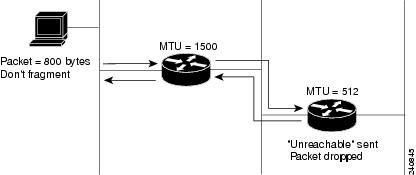
The Cisco IOS XE software supports the IP Path MTU Discovery mechanism, as defined in RFC 1191. IP Path MTU Discovery allows a host to dynamically discover and cope with differences in the maximum allowable maximum transmission unit (MTU) size of the various links along the path. Sometimes a router is unable to forward a datagram because it requires fragmentation (the packet is larger than the MTU you set for the interface with the ip mtu interface configuration command), but the "don't fragment" (DF) bit is set. The Cisco IOS XE software sends a message to the sending host, alerting it to the problem. The host will need to fragment packets for the destination so that they fit the smallest packet size of all the links along the path. This technique is shown in the figure below.

Figure 1IP Path MTU Discovery


IP Path MTU Discovery is useful when a link in a network goes down, forcing the use of another, different MTU-sized link (and different routers). As shown in the figure above, suppose a router is sending IP packets over a network where the MTU in the first router is set to 1500 bytes, but the second router is set to 512 bytes. If the "don't fragment" bit of the datagram is set, the datagram would be dropped because the 512-byte router is unable to forward it. All packets larger than 512 bytes are dropped in this case. The second router returns an ICMP destination unreachable message to the source of the datagram with its Code field indicating "Fragmentation needed and DF set." To support IP Path MTU Discovery, it would also include the MTU of the next hop network link in the low-order bits of an unused header field.

IP Path MTU Discovery is also useful when a connection is being established and the sender has no information at all about the intervening links. It is always advisable to use the largest MTU that the links will bear; the larger the MTU, the fewer packets the host must send.


Note


IP Path MTU Discovery is a process initiated by end hosts. If an end host does not support IP Path MTU Discovery, the receiving device will have no mechanism to avoid fragmenting datagrams generated by the end host.

If a router that is configured with a small MTU on an outbound interface receives packets from a host that is configured with a large MTU (for example, receiving packets from a Token Ring interface and forwarding them to an outbound Ethernet interface), the router fragments received packets that are larger than the MTU of the outbound interface. Fragmenting packets slows the performance of the router. To keep routers in your network from fragmenting received packets, run IP Path MTU Discovery on all hosts and routers in your network, and always configure the largest possible MTU for each router interface type.

IP MAC Accounting


Note


IP accounting is not supported.

The MAC address accounting functionality provides accounting information for IP traffic based on the source and destination MAC addresses on LAN interfaces. MAC accounting calculates the total packet and byte counts for a LAN interface that receives or sends IP packets to or from a unique MAC address. It also records a time stamp for the last packet received or sent. For example, with IP MAC accounting, you can determine how much traffic is being sent to or received from various peers at Network Access Profiles (NAPS)/peering points. IP MAC accounting is supported on Ethernet, Fast Ethernet, and FDDI interfaces and supports Cisco Express Forwarding, distributed Cisco Express Forwarding, flow, and optimum switching.

How to Configure IP Services

Protecting Your Network from DOS Attacks

ICMP supports IP traffic by relaying information about paths, routes, and network conditions. ICMP messages can be used by an attacker to gain network mapping information. IP source routing allows the source IP host to specify a route through the IP network and is rarely used for legitimate purposes in networks. Some older IP implementations do not process source-routed packets properly, and it may be possible to crash devices running these implementations by sending them datagrams with source routing options.

Whenever possible, ICMP messages and IP source routing should be disabled.

SUMMARY STEPS

1.    enable

2.    configure terminal

3.    no ip source-route

4.    interface type/number/slot

5.    no ip unreachables

6.    no ip redirects

7.    no ip mask-reply


DETAILED STEPS
 Command or ActionPurpose
Step 1
enable


Example:

Device> enable


Enables privileged EXEC mode.

  • Enter your password if prompted.
 
Step 2
configure terminal


Example:

Device# configure terminal


Enters global configuration mode.

 
Step 3
no ip source-route


Example:

Device(config)# no ip source-route


Disables IP source routing.

 
Step 4
interface type/number/slot


Example:

Device(config)# interface GigabitEthernet 0/0/0


Specifies the interface to configure and enters interface configuration mode.

 
Step 5
no ip unreachables


Example:

Device(config-if)# no ip unreachables


Disables the sending of ICMP protocol unreachable and host unreachable messages. This command is enabled by default.

Note    Disabling the unreachable messages also disables IP Path MTU Discovery because path discovery works by having the Cisco IOS XE software send unreachable messages.
 
Step 6
no ip redirects


Example:

Device(config-if)# no ip redirects


Disables the sending of ICMP redirect messages to learn routes. This command is enabled by default.

 
Step 7
no ip mask-reply


Example:

Device(config-if)# no ip mask-reply


Disables the sending of ICMP mask reply messages.


Setting the MTU Packet Size

All interfaces have a default MTU packet size. You can adjust the IP MTU size so that the Cisco IOS XE software will fragment any IP packet that exceeds the MTU set for an interface.

Changing the MTU value (with the mtu interface configuration command) can affect the IP MTU value. If the current IP MTU value is the same as the MTU value and you change the MTU value, the IP MTU value will be modified automatically to match the new MTU. However, the reverse is not true; changing the IP MTU value has no effect on the value for the mtu interface configuration command.

All devices on a physical medium must have the same protocol MTU in order to operate.

Perform this task to set the MTU packet size for a specified interface.

SUMMARY STEPS

1.    enable

2.    configure terminal

3.    interface type/number/slot

4.    ip mtu bytes

5.    end


DETAILED STEPS
 Command or ActionPurpose
Step 1
enable


Example:

Device> enable


Enables privileged EXEC mode.

  • Enter your password if prompted.
 
Step 2
configure terminal


Example:

Device# configure terminal


Enters global configuration mode.

 
Step 3
interface type/number/slot


Example:

Device(config)# interface GigabitEthernet 0/0/0


Specifies the interface to configure and enters interface configuration mode.

 
Step 4
ip mtu bytes


Example:

Device(config-if)# ip mtu 300


Sets the IP MTU packet size for an interface.

 
Step 5
end


Example:

Device(config-if)# end


Returns to privileged EXEC mode.


Managing IP Accounting

IP accounting collects the number of bytes and packets processed by network elements on source and destination IP addresses or on the basis of IP precedence. This information can be used to identify specific users for network usage billing, monitoring, and troubleshooting. The Cisco ASR 1000 Series Aggregation Services Routers do not support IP accounting; instead, we recommend that you use Flexible NetFlow to collect network information, as described in this section. See the "Cisco IOS XE Flexible NetFlow Overview" section of the Flexible NetFlow Configuration Guide for more information.

In the following procedure, Steps 1 through 6 describe how to configure a flow monitor for IP accounting, Step 7 describes how to clear the cache, and Step 8 describes how to export the flow cache to an external location in comma-separated values (CSV) format.

SUMMARY STEPS

1.   Create a flow record based on IP addresses, and define the counters to be collected.

2.    Create a flow record based on IP precedence, and define the counters to be collected.

3.    Create a flow monitor, define the monitor parameters, and link the monitor with the IP-address-based flow record.

4.    Create a flow monitor, define the monitor parameters, and link the monitor with the IP-precedence-based flow record.

5.    Attach the two flow monitors (IP-address-based and IP-precedence-based) to the interface where you want to monitor the traffic.

6.    Monitor the flow cache and flow statistics.

7.   Clear the flow cache or flow statistics.

8.   Export the flow cache to an existing file.


DETAILED STEPS
Step 1   Create a flow record based on IP addresses, and define the counters to be collected.
  1. flow record record-name


    Example:
    Device(config)# flow record IP-ADDR-ACCT
              

    Creates a Flexible NetFlow flow record and enters flow record configuration mode.

  2. match ipv4 source {address}

    Example:
    Device(config-flow-record)# match ipv4 source address

    Configures the IPv4 source address as a key field for a flow record.

  3. match ipv4 destination {address}

    Example:
    Device(config-flow-record)# match ipv4 destination address

    Configures the IPv4 destination address as a key field for a flow record.

  4. collect counter {packets [long ]}


    Example:
    Device(config-flow-record)# collect counter packets long

    Configures the number of packets seen in a flow as a nonkey field and enables collecting the total number of packets from the flow.

    • Specifying the long keyword enables collecting the total number of packets from the flow using a 64-bit counter rather than a 32-bit counter.
Step 2   Create a flow record based on IP precedence, and define the counters to be collected.
  1. flow record record-name


    Example:
    Device(config)# flow record PREC-ACCT
              

    Creates a Flexible NetFlow flow record and enters flow record configuration mode.

  2. match ipv4 source {address}

    Example:
    Device(config-flow-record)# match ipv4 source address

    Configures the IPv4 source address as a key field for a flow record.

  3. match ipv4 destination {address}

    Example:
    Device(config-flow-record)# match ipv4 destination address

    Configures the IPv4 destination address as a key field for a flow record.

  4. collect counter {packets [long ]}


    Example:
    Device(config-flow-record)# collect counter packets long

    Configures the number of packets seen in a flow as a nonkey field and enables collecting the total number of packets from the flow.

    • Specifying the long keyword enables collecting the total number of packets from the flow using a 64-bit counter rather than a 32-bit counter.
  5. exit


    Example:
    Device(config-flow-record)# exit

    Exits flow record configuration mode and returns to global configuration mode.

Step 3   Create a flow monitor, define the monitor parameters, and link the monitor with the IP-address-based flow record.
  1. flow monitor monitor-name


    Example:
    Device(config)# flow monitor IP-ADDR-ACCT

    Creates a flow monitor and enters Flexible NetFlow flow monitor configuration mode.

    • This command also allows you to modify an existing flow monitor.
  2. record record-name


    Example:
    Device(config-flow-monitor)# record IP-ADDR-ACCT

    Configures a flow record for a Flexible NetFlow flow monitor.

  3. cache {timeout {active seconds}}

    Example:
    Device(config-flow-monitor)# cache timeout active 604800

    Configures the active flow timeout, in seconds.

    • You cannot configure a permanent cache; you can specify the active cache timeout, up to 604800 seconds, that is, 7 days.
  4. cache {entries number}

    Example:
    Device(config-flow-monitor)# cache entries 200000

    Configures the maximum number of entries in the flow monitor cache.

  5. exit


    Example:
    Device(config-flow-monitor)# exit

    Exits flow monitor configuration mode and returns to global configuration mode.

Step 4   Create a flow monitor, define the monitor parameters, and link the monitor with the IP-precedence-based flow record.
  1. flow monitor monitor-name


    Example:
    Device(config)# flow monitor PREC-ACCT

    Creates a flow monitor and enters Flexible NetFlow flow monitor configuration mode.

    • This command also allows you to modify an existing flow monitor.
  2. record record-name


    Example:
    Device(config-flow-monitor)# record PREC-ACCT

    Configures a flow record for a Flexible NetFlow flow monitor.

  3. cache {timeout {active seconds}}

    Example:
    Device(config-flow-monitor)# cache timeout active 604800

    Configures the active flow timeout in seconds.

    • You cannot configure a permanent cache; you can specify the cache timeout active up to 604800 seconds, that is, 7 days.
  4. cache {entries number}

    Example:
    Device(config-flow-monitor)# cache entries 200000

    Configures the maximum number of entries in the flow monitor cache.

  5. exit


    Example:
    Device(config-flow-monitor)# exit

    Exits flow monitor configuration mode and returns to global configuration mode.

Step 5   Attach the two flow monitors (IP-address-based and IP-precedence-based) to the interface where you want to monitor the traffic.
  1. interface type/number/slot


    Example:
    Device(config)# interface GigabitEthernet0/0/4

    Configures an interface type and enters interface configuration mode.

  2. ip flow monitor monitor-name {input}


    Example:
    Device(config-if)# ip flow monitor IP-ADDR-ACCT input

    Enables a Flexible NetFlow flow monitor for IPv4-address-based traffic that the device receives on the interface.

  3. ip flow monitor monitor-name {input}


    Example:
    Device(config-if)# ip flow monitor PREC-ACCT input

    Enables a Flexible NetFlow flow monitor for IPv4-precedence-based traffic that the device receives on the interface.

  4. end


    Example:
    Device(config-if)# end

    Exits interface configuration mode and returns to privileged EXEC mode.

Step 6   Monitor the flow cache and flow statistics.
  1. show flow monitor [name monitor-name] [cache [format {csv | record | table}]] [statistics]


    Example:
    Device# show flow monitor name IP-ADDR-ACCT cache

    Displays the contents of the cache of the Flexible NetFlow flow monitor for IPv4 traffic that the device is receiving on the interface.

  2. show flow monitor [name monitor-name] [cache [format {csv | record | table}]] [statistics]


    Example:
    Device# show flow monitor name PREC-ACCT cache

    Displays the contents of the cache of the Flexible NetFlow flow monitor for IPv4 traffic that the device is receiving on the interface.

Step 7   Clear the flow cache or flow statistics.
  1. clear flow monitor name monitor-name [cache [force-export] | force-export | statistics]


    Example:
    Device# clear flow monitor name IP-ADDR-ACCT cache

    Clears a Flexible NetFlow flow monitor, a flow monitor cache, or flow monitor statistics and forces the export of the data in the flow monitor cache.

  2. clear flow monitor name monitor-name [cache [force-export] | force-export | statistics]


    Example:
    Device# clear flow monitor name IP-ADDR-ACCT statistics

    Clears a Flexible NetFlow flow monitor, a flow monitor cache, or flow monitor statistics and forces the export of the data in the flow monitor cache.

Step 8   Export the flow cache to an existing file.
  1. show command | append destination


    Example:
    Device# show flow monitor IP-ADDR-ACCT cache format csv | append bootflash:IP-ADDR-ACCT 

    Redirects and adds the output of the show command to an existing file.

    • In this case, the output of the Flexible NetFlow flow monitor cache is exported to an existing file in CSV format.

Example: Monitor Output

The following shows the output for a show flow monitor command:

Device# show flow monitor PREC-ACCT cache
  Cache type:                               Normal (Platform cache)
  Cache size:                               200000
  Current entries:                               3

  Flows added:                                   3
  Flows aged:                                    0

IP PREC             pkts long
=======  ====================
      0               8117679
      1               8118233
      2               8118761

Device# show flow monitor IP-ADDR-ACCT cache  
  Cache type:                               Normal (Platform cache)
  Cache size:                               200000
  Current entries:                              10

  Flows added:                                  10
  Flows aged:                                    0

IPV4 SRC ADDR    IPV4 DST ADDR               pkts long
===============  ===============  ====================
10.6.1.2        10.1.4.2                     5987314
10.6.1.2        10.1.3.2                     5987314
10.6.1.2        10.1.10.2                    5987354
10.6.1.2        10.1.1.2                     5987363
10.6.1.2        10.1.8.2                     5987384
10.6.1.2        10.1.7.2                     5987387
10.6.1.2        10.1.6.2                     5987420
10.6.1.2        10.1.9.2                     5987606
10.6.1.2        10.1.5.2                     5987645
10.6.1.2        10.1.2.2                     5987659
What to Do Next

You can use the clear flow monitor command to clear or export the flow monitor cache information or statistics.

Configuration Examples for IP Services

Example: Protecting Your Network from DOS Attacks

The following example shows how to change some of the ICMP defaults for Gigabit Ethernet interface 0/0/0 to prevent ICMP from relaying information about paths, routes, and network conditions, which can be used by an attacker to gain network mapping information.

Disabling the unreachable messages will have a secondary effect: it will also disable IP Path MTU Discovery, because path discovery works by having the Cisco IOS XE software send Unreachable messages. If you have a network segment with a small number of devices and an absolutely reliable traffic pattern--which could easily happen on a segment with a small number of rarely used user devices--you would be disabling options that your device would be unlikely to use anyway.

Device(config)# no ip source-route
Device(config)# interface GigabitEthernet 0/0/0
Device(config-if)# no ip unreachables
Device(config-if)# no ip redirects
Device(config-if)# no ip mask-reply

Example: Setting the MTU Packet Size

The following example shows how to change the default MTU packet size for Gigabit Ethernet interface 0/0/0:

Device(config)# interface GigabitEthernet 0/0/0
Device(config-if)# ip mtu 300

Additional References

Related Documents

Related Topic

Document Title

Cisco IOS commands

Cisco IOS Master Command List, All Releases

IP addressing services configuration tasks

IP Addressing Services Configuration Guide

IP application services configuration tasks

IP Application Services Configuration Guide

IP application services commands: complete command syntax, command mode, command history, defaults, usage guidelines, and examples

Cisco IOS IP Application Services Command Reference

IP accounting

Cisco IOS XE Flexible NetFlow Configuration Guide

Standards

Standard

Title

No new or modified standards are supported by this feature, and support for existing standards has not been modified by this feature.

--

RFCs

RFC

Title

RFC 791

Internet Protocol

RFC 792

Internet Control Message Protocol

RFC 1191

Path MTU Discovery

Technical Assistance

Description

Link

The Cisco Support and Documentation website provides online resources to download documentation, software, and tools. Use these resources to install and configure the software and to troubleshoot and resolve technical issues with Cisco products and technologies. Access to most tools on the Cisco Support and Documentation website requires a Cisco.com user ID and password.

http://www.cisco.com/cisco/web/support/index.html

Feature Information for IP Services

The following table provides release information about the feature or features described in this module. This table lists only the software release that introduced support for a given feature in a given software release train. Unless noted otherwise, subsequent releases of that software release train also support that feature.

Use Cisco Feature Navigator to find information about platform support and Cisco software image support. To access Cisco Feature Navigator, go to www.cisco.com/go/cfn. An account on Cisco.com is not required.

Table 1Feature Information for IP Services

Feature Name

Releases

Feature Information

Clear IP Traffic CLI

Cisco IOS XE Release 2.1

The Clear IP Traffic CLI feature introduces the clear ip traffic command to clear all IP traffic statistics on a device instead of reloading the device. For added safety, the user will see a confirmation prompt when entering this command.

The following command was introduced by this feature: clear ip traffic.

Cisco and the Cisco logo are trademarks or registered trademarks of Cisco and/or its affiliates in the U.S. and other countries. To view a list of Cisco trademarks, go to this URL: www.cisco.com/go/trademarks. Third-party trademarks mentioned are the property of their respective owners. The use of the word partner does not imply a partnership relationship between Cisco and any other company. (1110R)

Any Internet Protocol (IP) addresses and phone numbers used in this document are not intended to be actual addresses and phone numbers. Any examples, command display output, network topology diagrams, and other figures included in the document are shown for illustrative purposes only. Any use of actual IP addresses or phone numbers in illustrative content is unintentional and coincidental.

© 2006-2012 Cisco Systems, Inc. All rights reserved.