Feedback
|
Table Of Contents
Installing the Cisco CVA122/CVA122E Cable Voice Adapter
Cisco CVA122/CVA122E Cable Voice Adapter Installation Checklist
Placing the Cisco CVA122/CVA122E Cable Voice Adapter on a Desktop
Side Mounting the Cisco CVA122/CVA122E Cable Voice Adapter
Wall Mounting the Cisco CVA122/CVA122E Cable Voice Adapter
Connecting to the Cable System
Connecting to Telephones or Fax Devices
Connecting to the Computer (Ethernet)
Connecting to the Computer (USB)
Power-On and Initialization Sequence
Installing the Cisco CVA122/CVA122E Cable Voice Adapter
This chapter contains the following sections that provide instructions on installing the Cisco CVA122/CVA122E Cable Voice Adapter, initial power-on, and verifying the installation:
•
Cisco CVA122/CVA122E Cable Voice Adapter Installation Checklist
•
Connecting to the Cable System
•
Connecting to Telephones or Fax Devices
•
Connecting to the Computer (Ethernet)
•
Connecting to the Computer (USB)
•
Power-On and Initialization Sequence
CautionBefore proceeding with the installation, verify that you have fulfilled all of the requirements listed in "Preparing for Installation." Also read and follow the safety guidelines in the "Safety" section, as well as those contained in this chapter.
Cisco CVA122/CVA122E Cable Voice Adapter Installation Checklist
Table 3-1 presents a checklist, identifying the installation tasks to complete at each subscriber site. Use this table as a guide while installing the cable voice adapter.
Physical Placement
The Cisco CVA122/CVA122E Cable Voice Adapter can be placed flat on a desktop, placed on its side using the supplied support stand, or mounted on a wall. See the following sections for more information.
Placing the Cisco CVA122/CVA122E Cable Voice Adapter on a Desktop
The Cisco CVA122/CVA122E Cable Voice Adapter can be placed flat on a hard, stable surface such as a desktop or table top. When doing so, use the following guidelines:
•
Place the cable voice adapter close to the cable TV drop connection and all devices to be connected at the subscriber site.
•
Install the cable voice adapter in compliance with all national and local electrical codes such as:
–
US NFPA 70
–
Canadian Electrical Code, part I, CC22.1
–
IEC 364, part 1 through part 7
•
The bottom and sides of the cable voice adapter must remain unobstructed to ensure adequate airflow and to prevent the unit from overheating.
•
The cable voice adapter should have at least 3 inches of clearance at the rear to allow sufficient space for the connected cables without crimping.
CautionDo not install the cable voice adapter on the floor or an uneven or soft surface.
Side Mounting the Cisco CVA122/CVA122E Cable Voice Adapter
The Cisco CVA122/CVA122E Cable Voice Adapter can be placed on its side on a desktop or other stable, flat surface, using the support stand that is shipped with the unit. To mount the cable voice adapter on its side, use the following procedure:
Step 1
Decide which side should be placed on the stand. The cable voice adapter can be mounted on either side, according to whichever position is most convenient for cabling.
Note
Although the cable voice adapter can be mounted on either side, Cisco recommends that it be placed with its coaxial cable connector on the bottom. This provides the most stable placement when the coaxial cable (and other cables) are connected to the unit.
Step 2
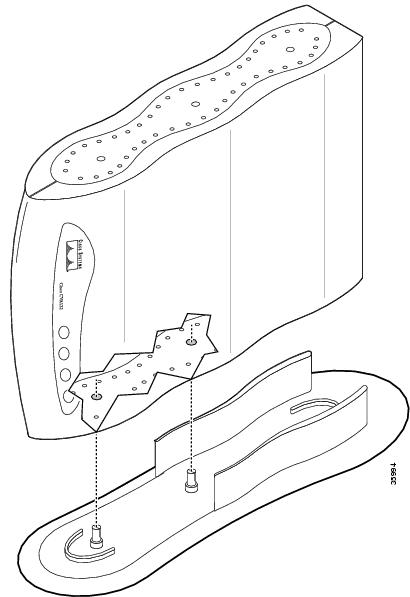
Position the cable voice adapter over the support stand, aligning the two pegs on the stand with the large holes in the front and middle of the cable voice adapter's side panel. The side rails on the support stand must be supporting the rear half of the cable voice adapter. See Figure 3-1:
Figure 3-1 Side Mounting the Cisco CVA122/CVA122E Cable Voice Adapter
Note
For stability, Cisco recommends that the Cisco CVA122/CVA122E Cable Voice Adapter be placed as shown in Figure 3-1, so that the coaxial cable connector and its attached cable are at the bottom.
Step 3
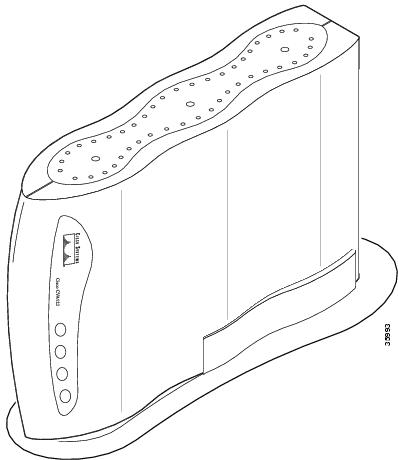
Press the cable voice adapter into the stand until each peg snaps securely in place. See Figure 3-2:
Figure 3-2 Cisco CVA122/CVA122E Cable Voice Adapter (Side Mounted)
Step 4
Place the cable voice adapter and stand on any stable, hard surface, using the following guidelines:
•
Close to the cable TV drop connection and all devices to be connected at the subscriber site.
•
Install the cable voice adapter in compliance with all national and local electrical codes such as:
–
US NFPA 70
–
Canadian Electrical Code, part I, CC22.1
–
IEC 364, part 1 through part 7
•
The top and sides of the cable voice adapter must remain unobstructed to ensure adequate airflow and to prevent the unit from overheating.
•
The cable voice adapter should have at least 3 inches of clearance at the rear to allow sufficient space for the connected cables without crimping.
Wall Mounting the Cisco CVA122/CVA122E Cable Voice Adapter
To mount the Cisco CVA122/CVA122E Cable Voice Adapter on a cement, wood, or drywall, do the following:
Step 1
Choose a location on a suitable wall (wood, cement, or drywall) that is close to the cable TV drop connection and all devices to be connected at the subscriber site.
Step 2
If also mounting the Uninterruptible Power Supply (UPS) for the Cisco CVA122/CVA122E Cable Voice Adapter, mount it first, using the instructions that accompany the UPS, to ensure that the wall and location are suitable for both the UPS and Cisco CVA122/CVA122E Cable Voice Adapter.
Step 3
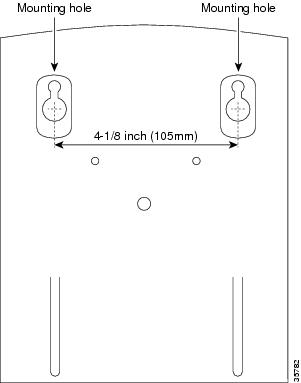
Drill two holes 4-1/8 inch (105 mm) apart, using Figure 3-3 as a guideline.
Figure 3-3 Wall Mounting the Cisco CVA122/CVA122E Cable Voice Adapter (not to scale)
Step 4
Install two 1/4 inch (6 mm) anchors or mounting screws in the holes, extending about 1/4 inch (6mm) from the wall. (The anchors or mounting screws should be appropriate for the type of wall being used.)
Step 5
Hang the Cisco CVA122/CVA122E Cable Voice Adapter on the two screws, with the rear panel facing down toward the ground. (See Figure 3-4.)
Figure 3-4 Wall Mounting the Cisco CVA122/CVA122E Cable Voice Adapter
Verifying Power Requirements
The cable voice adapter uses one external AC-input power supply. The Cable Status LED on the front of the unit indicates that the power supply is supplying power to the unit when it is connected and operational.
The AC-input power supply uses a power factor corrector that allows the Cisco CVA122/CVA122E Cable Voice Adapter to operate in any country where the input voltage is between 100 and 240 VAC, and 50 or 60 Hz. Different power cords are available to suit the country of operation.
Note
For information on the Cisco CVA120 Series Universal Power Supply (UPS), see the instructions that accompany the UPS.
See Table A-1 for AC-input power supply specifications, including input voltage and operating frequency ranges. Cisco recommends that you follow these precautions:
•
Check the power at the subscriber site before and after installation to ensure that you are receiving clean power. Install a power conditioner if necessary.
•
If plugging the cable voice adapter into any Uninterruptible Power Supply (UPS) other than the CVA120 Series UPS, verify that the total power and current requirements used by all devices plugged into the UPS are within the maximum limits of the UPS.
•
Do not work on the system or connect or disconnect any cables (Ethernet, USB, cable, or power) during periods of lightning activity—the possibility of serious physical injury exists if lightning should strike and travel through those cables. In addition, the equipment could be damaged by the higher levels of static electricity present in the atmosphere.
Note
Adhere to the safety guidelines presented in the "Safety" section before following procedures in the remainder of this chapter. Be sure all equipment to be connected to the cable voice adapter is powered off.
Connecting Power
This section describes how to connect the Cisco CVA122/CVA122E Cable Voice Adapter to power using the AC-input power supply. For information about using the CVA120 Series UPS, see the documentation that accompanies the UPS.
Step 1
See "Verifying Power Requirements" section to verify that the external power source is adequate for the cable voice adapter.
Step 2
Turn on power to all other devices that will be connected to the Cisco CVA122/CVA122E Cable Voice Adapter (such as a PC, Ethernet hub, or USB hub).
Step 3
Plug the 8-pin end of the power supply output cord into the power connector at the rear of the cable voice adapter. Push the plug into the connector until it locks. (See Figure 3-5.)
Figure 3-5 Connecting the Power
Step 4
If not already done, plug the two-plug end of the power cord into the receptacle on the power supply.
Step 5
Plug the prong end of the power cord into a standard electrical power outlet at the site. Power is immediately supplied to the cable voice adapter. The cable voice adapter is meant to be left on at all times, and therefore, has no power switch.
Step 6
Continue with the following sections to connect the remaining cables to the Cisco CVA122/CVA122E Cable Voice Adapter.
CautionTo turn off the cable voice adapter, disconnect the power cord from the wall outlet.
Connecting to the Cable System
To connect the Cisco CVA122/CVA122E Cable Voice Adapter to the cable TV (CATV) system:
Step 1
Locate the CATV wall outlet to be used for the Cisco CVA122/CVA122E Cable Voice Adapter.
Step 2
If you want to use the same CATV wall outlet for both the Cisco CVA122/CVA122E Cable Voice Adapter and cable TV, contact your service provider for instructions on installing a cable splitter/directional coupler to the cable outlet. Also, if required by the service provider, install a high-pass filter between the TV and the Cisco CVA122/CVA122E Cable Voice Adapter to prevent interference between the TV and networking signals.
Step 3
Connect one end of the coaxial cable to the CATV wall outlet (or to the cable splitter). Hand-tighten the connector so that it is finger tight; then give it a 1/6 turn with a wrench.
Step 4
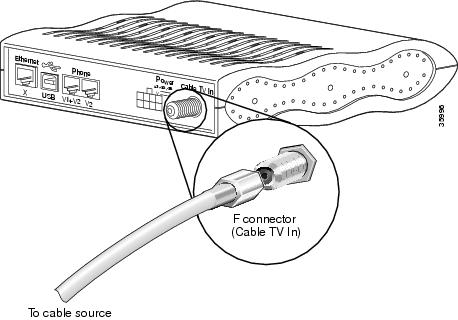
Connect the coaxial cable to the cable voice adapter's F-connector. Hand-tighten the connector so that it is finger tight; then give it a 1/6 turn with a wrench. (See Figure 3-6.)
Figure 3-6 Connecting the CATV Coaxial Cable to the Cisco CVA122/CVA122E Cable Voice Adapter
CautionDo not overtighten because this can break off the connector. Using a torque wrench is not recommended because of the danger of tightening the connector more than the recommended 1/6 turn after it is finger tight.
Step 5
Make sure all other coaxial cable connectors—all intermediate splitters, couplers, or ground blocks—are securely tightened from the distribution tap to the Cisco CVA122/CVA122E Cable Voice Adapter.
Note
Loose connectors inside the residence can cause intermittent network operation.
CautionTo ensure compliance with FCC limits, connection to the cable system must be made with a high-quality, shielded cable. If the quality or general condition of the coaxial cable at the subscriber site is in question, Cisco recommends that you replace the coaxial cable. For more information on the effects of substandard cabling on the cable voice adapter installation, see the "Cabling" section.
Connecting to Telephones or Fax Devices
If you have purchased voice services from your service provider, use the following procedure to connect the Cisco CVA122/CVA122E Cable Voice Adapter to telephone, modem, or FAX devices at the site.
Step 1
Obtain the telephone number assignments for each voice port from your service provider, and label each telephone, modem, or FAX device with its assigned number.
Step 2
Obtain a proper cable for each device to be connected. This cable should be either a two-wire or a four-wire cable wired straight-through, with an RJ-11 connector on at least one end; the other end typically has an RJ-11 connector as well, but this depends on the type of device being connected.
Note
When connecting a single-line telephone, you can use either a two-wire or a four-wire cable. When connecting a dual-line telephone to the "V1+V2" voice port, you must use a four-wire cable.
Step 3
Connect the RJ-11 end of this cable to the appropriate voice port (labeled "V1+V2" or "V2") on the rear panel of the Cisco CVA122/CVA122E Cable Voice Adapter. Press the cable firmly into the receptacle.
Step 4
Connect the other end of the cable to the telephone, modem, or FAX device that has been given the number assigned for that voice port. Press the cable firmly into the receptacle.
CautionDo not connect the voice ports to telephone wires that exit the building under any circumstances—this is a safety hazard. The Cisco CVA122/CVA122E Cable Voice Adapter is not designed to connect to the Public Telephone Switched Network (PTSN).
See Figure 3-7 illustrates a possible configuration. The exact configuration depends on the phone numbers that are assigned by the service provider.
Figure 3-7 Connecting the Voice Ports
Note
The "V1+V2" connector supports either a single-line analog telephone or a two-line analog telephone. When using a two-line telephone, line 2 of the telephone behaves as if a single-line telephone is plugged into the V2 voice port. In this configuration, a device plugged into the V2 port act as extensions to the line 2 telephone.
Step 5
Repeat steps 3 and 4 to connect another telephone, modem, or FAX device to the other voice port.
CautionWhen connecting multiple telephones or fax devices to a telephone line, be sure the sum of the RENs of all devices on any one line does not exceed the ratings given in "Technical Specifications."
Warning
This equipment contains a ring signal generator (ringer), which is a source of hazardous voltage. Do not touch the RJ-11 (phone) port wires (conductors), the conductors of a cable connected to the RJ-11 port, or the associated circuit board when the ringer is active. The ringer is activated by an incoming call.
Connecting to the Computer (Ethernet)
This section describes how to connect Cisco CVA122/CVA122E Cable Voice Adapter to a computer using the Ethernet interface. If supported by the service provider, you can also connect an Ethernet hub to the cable voice adapter, and then connect multiple computers to the Ethernet hub.
If you are not using the Ethernet interface, proceed to "Connecting to the Computer (USB)" section.
Note
If supported by your service provider, you can connect two separate computers using both the Ethernet and USB interfaces.
Step 1
Obtain the required Ethernet cables:
•
Use a straight-through Ethernet cable (10Base T with RJ-45 connectors) to directly connect a computer to the Cisco CVA122/CVA122E Cable Voice Adapter's Ethernet port (one cable is supplied with the cable voice adapter).
•
Use a crossover Ethernet cable (10Base T with RJ-45 connectors) to connect the Cisco CVA122/CVA122E Cable Voice Adapter to an Ethernet hub. (If your hub has an uplink port, you might be able to use a straight-through cable to connect the hub to the Cisco CVA122/CVA122E Cable Voice Adapter.)
•
Connect additional Ethernet devices to the hub using straight-through Ethernet cables.
Step 2
Connect one end of the Ethernet cable to the cable voice adapter's Ethernet port at the rear of the unit. Press the cable firmly into the receptacle. (See Figure 3-8.)
Figure 3-8 Connecting the Ethernet Cable to the Cisco CVA122/CVA122E Cable Voice Adapter
Step 3
Connect the other end of the cable to the Ethernet port on the PC or hub. Press the cable firmly into the receptacle.
Step 4
Verify that the Ethernet LED on the front panel of the Cisco CVA122/CVA122E Cable Voice Adapter turns on. If this LED does not light, check that the Ethernet cable is plugged in to the correct RJ-45 connector on your computer and that the computer is turned on. Also verify that the other end of the cable is completely plugged into the Ethernet port on the cable voice adapter.
Connecting to the Computer (USB)
This section describes how to connect Cisco CVA122/CVA122E Cable Voice Adapter to a computer using the Universal Serial Bus (USB) interface. (If you are not using the USB interface, complete the "Connecting to the Computer (Ethernet)" section before proceeding.)
Step 1
Verify that your computer is turned on and meets the requirements in Table 2-1. In particular, your computer must be running Windows 98, Windows 98 Second Edition, Windows 2000, or Windows Millennium.
Note
Computers running Windows 95 or Windows NT do not support USB networking connectivity.
Step 2
If using a USB hub, verify that it is already installed and working before connecting the Cisco CVA122/CVA122E Cable Voice Adapter.
Step 3
Plug the broad, flat plug (the type "A" or host end) of the USB cable into the USB port on your computer (or USB hub).
Step 4
Plug the other rectangular box plug (the type "B" or device end) of the USB cable into the USB port on the rear panel of the Cisco CVA122/CVA122E Cable Voice Adapter. (See Figure 3-9.)
Figure 3-9 Connecting the USB Cable to the Cisco CVA122/CVA122E Cable Voice Adapter
Step 5
Verify that the USB LED on the front panel of the Cisco CVA122/CVA122E Cable Voice Adapter turns on. If this LED does not light, check that each connector on the USB cable is fully inserted into the USB port on the computer (or the hub) and the USB port on the cable voice adapter. If using a hub, try disconnecting it from the computer and connecting the Cisco CVA122/CVA122E Cable Voice Adapter directly to the computer; if the USB LED then turns on, check that the USB hub is properly installed and powered.
Step 6
Install the required USB driver software—the Windows software will detect the installation of a new USB device and automatically begin the software installation procedure. For information on installing the software device drivers required for USB connectivity, see the instructions that accompany the USB driver software CD that is shipped with the cable voice adapter.
Power-On and Initialization Sequence
When the Cisco CVA122/CVA122E Cable Voice Adapter is connected and powered on, it executes automatic self-diagnostic and installation procedures. The following procedure describes what you should see during this process.
Step 1
Watch the LEDs on the front of the Cisco CVA122/CVA122E Cable Voice Adapter. When the unit first powers on, the LEDs briefly light and then turn off. As self-test is executed, various LEDs light to reveal the progress of the unit's self-tests.
Step 2
The Message LED then blinks as the cable voice adapter completes its self-tests and boots a Cisco IOS image.
Note
The LEDs on the front panel display the power-on self-test progress and status. Should the self-test fail, these LEDs display error codes. See the "Initialization and Self-Test Problems" section for a description of self-test LED error patterns.
Step 3
During the cable voice adapter's initialization and download, the Message LED blinks. After completing the download procedure (which could take up to 10 minutes if downloading a new Cisco IOS image as well as a configuration file), the Message LED turns off and the Cable Status LED turns on solid.
Step 4
Check the LEDs for proper operation:
•
The Cable Activity LED blinks to indicate activity on the cable interface and remains on otherwise.
•
The Ethernet LED goes on solid when the Ethernet interface is properly connected to an Ethernet network interface card on a PC. The Ethernet LED also blinks to indicate activity on the Ethernet interface.
•
The USB LED goes on solid when the USB port is properly connected to a USB port on a PC. The USB LED also blinks to indicate activity on the USB interface.
•
The service provider controls the Message LED, which can be used to notify the user of special events, such as waiting voicemail or email. Contact your service provider for details on this LED.
Step 5
If all LEDs appear normal, proceed to the "Verifying Installation" section to test the cable voice adapter and its connection to each part of the network. If any problems occur, proceed to "Troubleshooting," to troubleshoot and solve the problem.
Step 6
After verifying operations, acquaint the subscriber with the cable voice adapter recommended ambient temperature requirement of 23° to 113°F (-5° to 45°C). Remind the subscriber to keep the area around the cable voice adapter as free from dust as is practical and review general safety standards.
Step 7
Give the subscriber the Cisco-provided subscriber publications, along with any literature your company provides, including instructions on how to contact your customer service department.
Verifying Installation
Use the following procedures to verify the cable voice adapter's installation and operation; see "Troubleshooting," if any problems occur.
Internet Connection
Use the following procedure to verify Internet connectivity between the PC connected to the cable voice adapter's Ethernet or USB port and the service provider's network.
Step 1
From a computer connected to the Cisco CVA122/CVA122E Cable Voice Adapter, start an Internet browser such as Microsoft Internet Explorer or Netscape Communicator.
Step 2
Enter a URL of your choice in your web browser. If a URL is not known, use http://www.cisco.com to connect to the Cisco Connection Online (CCO) web site.
Step 3
Watch the Ethernet or USB LED on the front of the cable voice adapter blink as data is transmitted on the link. If the Internet browser displays the selected web page, the network connection is successfully established.
Step 4
If using both Ethernet and USB connectivity, repeat steps 1 through 3 for each computer connected to the Cisco CVA122/CVA122E Cable Voice Adapter.
Step 5
Disconnect the cable system input by unscrewing the cable F-connector at the back of the cable voice adapter.
Step 6
Using an in-line attenuator, add 3 to 6 dB of attenuation between the cable voice adapter and the CATV cable input.
Note
The addition of 3 to 6 dB of attenuation simulates the variation found in a cable network over time and in relation to temperature. If you install a cable voice adapter at a time of year when the temperature is cooler, this step might not be necessary.
If you install a cable voice adapter at a time of year when the temperature is warmer, this step might assist you in determining how the cable voice adapter will function over time. If the cable voice adapter does not function properly with the addition of attenuation, you should replace and reconfigure the coaxial cables at the subscriber site.Step 7
Reconnect the cable system to the cable voice adapter and recheck the network connection at one of the PCs. Reload the previous web page or another URL to verify that you can still access the Internet.
Step 8
Disconnect the cable system again by unscrewing the cable connector at the back of the cable voice adapter.
Step 9
Remove the in-line attenuator from the back of the cable voice adapter.
Step 10
Reconnect the cable system to the cable voice adapter and recheck the network connection at the PC as in step 7.
VoIP Telephone Connection
If the subscriber has purchased Voice over IP (VoIP) services, use the following procedure to test the VoIP network by making a telephone call over the cable and IP network:
Step 1
Pick up a telephone connected to one of the cable voice adapter's voice ports. This signals an off-hook condition. In response, the cable voice adapter's voice software issues a dial tone and waits for a telephone number to be dialed.
If you do not hear a dial tone, the cable voice adapter's voice ports may be not enabled. Contact your service provider for assistance.
Step 2
Dial a number for another telephone. This telephone could be one of the other telephones plugged in to the cable voice adapter, or it could be a telephone on the public telephone switched network (PTSN). The cable voice adapter turns on the codecs and protocols required to transmit packetized voice and the call proceeds.
Any call-progress indications and other signals that can be carried in-band (for example, remote phone ringing) are cut through the voice path as soon as an end-to-end audio channel is up. You either hear the far end telephone ringing until the caller picks up or you hear a busy signal if the far end telephone is already in use.
Step 3
When either end hangs up, the call is torn down. The session ends, with each end going idle, waiting for another off-hook condition.
Feedback