- Getting Started With Firepower
-
- An Overview of Intrusion Detection and Prevention
- Layers in Intrusion and Network Analysis Policies
- Getting Started with Intrusion Policies
- Tuning Intrusion Policies Using Rules
- Tailoring Intrusion Protection to Your Network Assets
- Sensitive Data Detection
- Globally Limiting Intrusion Event Logging
- The Intrusion Rules Editor
- Intrusion Prevention Performance Tuning
- Security, Internet Access, and Communication Ports
- Command Line Reference
Access Control Using Intelligent Application Bypass
The following topics describe how to configure access control policies to use Intelligent Application Bypass:
- Introducing Intelligent Application Bypass
- IAB Configuration Options
- Bypassable Applications
- Configuring IAB Thresholds
- IAB Traffic Analysis
Introducing Intelligent Application Bypass
Intelligent Application Bypass (IAB) identifies applications that you trust to traverse your network without further inspection if any combination of performance and flow thresholds that you configure are exceeded.
To configure IAB:
-
Configure one or more performance thresholds.
-
Configure one or more flow thresholds.
-
Enable IAB in test or bypass mode.
Test mode allows you to determine whether thresholds are exceeded and, if so, to identify the application flows that would have been bypassed if you had enabled IAB in bypass mode.
IAB forces an end of connection event that logs bypassed flows and flows that would have been bypassed, regardless of whether you have enabled connection logging. Custom dashboard widgets and reports based on connection events can display long-term statistics for bypassed and would-have-bypassed flows.
Although you can specify a combination of up to 50 applications and application sets (filters) to bypass, you should exercise caution when using IAB. Not all deployments require this feature, and those that do might configure only a single bypassable application. For example, if a nightly backup significantly impacts system performance, you can configure thresholds that, if exceeded, allow traffic generated by your backup application to traverse your network without further inspection. You could then run your configuration in test mode to assess its affect on your network. Before running IAB in bypass mode, you would want to be sure that allowing the specified traffic to pass would not expose your network to risk from malicious content.
IAB functionality is independent of other access control policy features, including any access control rules, the default action of an access control rule, and the default action of the access control policy. When the necessary criteria are met, IAB is implemented near the end of the access control process immediately after determining if there is any traffic to allow subject to further inspection.
The following graphic illustrates the IAB decision-making process:
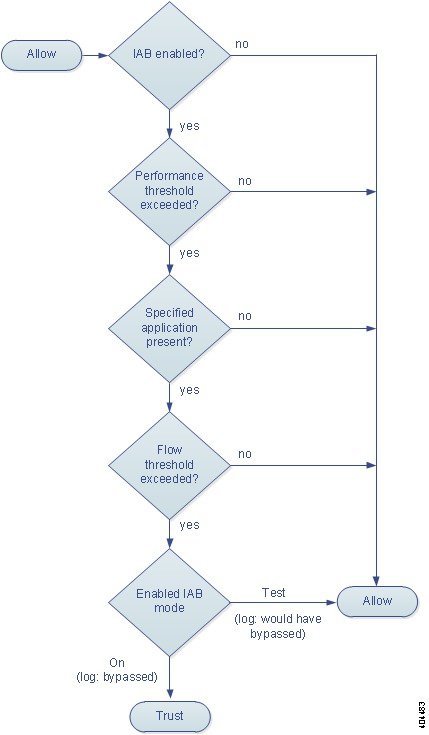
Note the following:
-
For IAB to detect applications, you must deploy a network discovery policy that is configured to detect applications.
-
Hardware-based fast-path rules, Security Intelligence-based traffic filtering, SSL inspection, user identification, and some decoding and preprocessing occur before access control rules evaluate network traffic.
IAB Configuration Options
- State
-
Enables or disables IAB.
- Off
-
Disables IAB.
- Performance Sample Interval
-
Specifies the time in seconds between IAB performance sampling scans, during which the system collects system performance metrics for comparison to IAB performance thresholds. A value of 0 disables IAB.
- Bypassable Applications and Filters
-
Provides an editor where you can specify bypassable applications and sets of applications (filters). See Bypassable Applications.
- Inspection Performance Thresholds
-
Inspection performance thresholds provide intrusion inspection performance limits that, if exceeded, trigger inspection of flow thresholds. IAB does not use inspection performance thresholds set to 0. 
Note
If you enable more than one performance or flow threshold, at least one of each type must be exceeded for IAB to consider whether to trust traffic.
- Drop Percentage
-
Average packets dropped as a percentage of total packets, when packets are dropped because of performance overloads caused by expensive intrusion rules, file policies, decompression, and so on. This does not refer to packets dropped by normal configurations such as intrusion rules. Note that specifying an integer greater than 1 activates IAB when the specified percentage of packets is dropped. When you specify 1, any percentage from 0 through 1 activates IAB. This allows a small number of packets to activate IAB.
- Processor Utilization Percentage
-
Average percentage of processor resources used.
- Package Latency
-
Average packet latency in microseconds.
- Flow Rate
-
The number of flows per second.
- Flow Bypass Thresholds
-
Flow bypass thresholds provide flow limits that, if exceeded, trigger IAB to trust bypassable application traffic in bypass mode or allow application traffic subject to further inspection in test mode. IAB does not use flow bypass thresholds set to 0.
Note
If you enable more than one performance or flow threshold, at least one of each type must be exceeded for IAB to consider whether to trust traffic.
- Bytes per Flow
-
The maximum number of kilobytes a flow can include.
- Packets per Flow
-
The maximum number of packets a flow can include.
- Flow Duration
-
The maximum number of seconds a flow can remain open.
- Flow Velocity
-
The maximum transfer rate in kilobytes per second.
Bypassable Applications
 Caution | The following sections describe how the system handles applications and how you can interact with the user interface. Do not interpret these descriptions as a recommendation of particular applications or filters to bypass. |
When the Firepower System analyzes IP traffic, it can identify and classify the commonly used applications on your network. The system uses this discovery-based application awareness feature to allow you to control application traffic on your network.
Bypassable Applications and Application Filters
Two lists, Available Filters and Available Applications, allow you to specify bypassable traffic in the following ways:
-
You can select individual applications, including custom applications.
-
You can use application filters, which are named sets of applications. System-provided filters are organized according to the applications’ basic characteristics: type, risk, business relevance, categories, and tags. You can also create and use custom application filters, which group applications (including custom applications) in any way you choose.
For example, you could select the filters for all very low risk, very low business relevance applications. If an IAB inspection performance/flow bypass threshold combination is exceeded and IAB is enabled in bypass mode, all matching applications are trusted to pass through the network without further inspection.
In addition, Cisco frequently updates and adds additional detectors via system and vulnerability database (VDB) updates. You can also create your own detectors and assign characteristics (risk, relevance, and so on) to the applications they detect. By using filters based on application characteristics, you can ensure that the system uses the most up-to-date detectors to monitor application traffic.
- Bypassable Application Notes
- Bypassable Application Filters and Matching Traffic
- Individual Application Detection
- Limitations of Application Bypass
- Configuring Bypassable Applications
Bypassable Application Notes
For traffic to be bypassable, the traffic must match one of the filters or applications that you add to the Selected Applications and Filters list.
You can add a maximum of 50 items to the Selected Applications and Filters list. Each of the following counts as an item:
-
One or more filters from the Application Filters list, individually or in custom combination. This item represents a set of applications, grouped by characteristic.
-
A filter created by saving an application search in the Available Applications list. This item represents a set of applications, grouped by substring match.
-
An individual application from the Available Applications list.
In the web interface, filters you add to the Selected Applications and Filters list are listed above and separately from individually added applications.
Bypassable Application Filters and Matching Traffic
Use the Application Filters list to specify a set of applications, grouped by characteristic, whose traffic you want to match.
For your convenience, the system characterizes each application that it detects by criteria such as type, risk, and business relevance; you can use these criteria as filters or create custom combinations of filters.
Note that the mechanism for filtering bypassable applications is the same as that for creating reusable, custom application filters using the object manager.
Understanding How Filters Are Combined
When you select filters, singly or in combination, the Available Applications list updates to display only the applications that meet your criteria. You can select system-provided filters in combination, but not custom filters.
The system links multiple filters of the same filter type with an OR operation. For example, if you select the Low and Very Low filters under the Risks type, the resulting filter is:
Risk: Low OR Very Low
If the Low filter contains 110 applications and the Very Low filter contains 82 applications, the system displays all 192 applications in the Available Applications list.
The system links different types of filters with an AND operation. For example, if you select the Low and Very Low filters under the Risks type, and the Low and Very Low filters under the Business Relevance type, the resulting filter is:
Risk: Low OR Very Low AND Business Relevance: Low OR Very Low
In this case, the system displays only those applications that are included in both the Low or Very Low Risk type AND the Low or Very Low Business Relevance type.
Finding and Selecting Filters
To select filters, click the arrow next to a filter type to expand it, then select or clear the check box next to each filter whose applications you want to display or hide. You can also right-click a system-provided filter type (Risks, Business Relevance, Types, Categories, or Tags) and select Check All or Uncheck All.
To search for filters, click the Search by name prompt above the Available Filters list, then type a name. The list updates as you type to display matching filters.
After you are done selecting filters, use the Available Applications list to add those filters to the Selected Applications and Filters list.
Individual Application Detection
For traffic to match a bypassable application or filter configuration, the traffic must match one of the filters or applications that you add to the Selected Applications and Filters list.
Browsing the List of Applications
When you first start to specify applications the list is unconstrained, and displays every application the system detects, 100 at a time:
 )
next to an application.
)
next to an application.
Finding Applications to Match
To help you find the applications you want to match, you can constrain the Available Applications list in the following ways:
-
To search for applications, click the Search by name prompt above the list, then type a name. The list updates as you type to display matching applications.
-
To constrain the applications by applying a filter, use the Application Filters list. The Available Applications list updates as you apply filters. For your convenience, the system uses an unlock icon (
 )
to mark applications that the system can identify only in decrypted traffic—not
encrypted or unencrypted.
)
to mark applications that the system can identify only in decrypted traffic—not
encrypted or unencrypted.
Once constrained, an All apps matching the filter option appears at the top of the Available Applications list.
Selecting Single Applications
After you find an application you want to match, click to select it. Right-click and select Select All to select all applications in the current constrained view.
You can match a maximum of 50 applications by selecting them individually, and filters you add are listed above and separately from individually added applications. To add more than 50 you must use filters to group applications.
When selecting applications, warning icons indicate invalid configurations. For details, hover your pointer over the icon.
Selecting All Applications Matching a Filter
Once constrained by either searching or using the filters in the Application Filters list, the All apps matching the filter option appears at the top of the Available Applications list.
This option allows you to add the entire set of applications in the constrained Available Applications list to the Selected Applications and Filters list, at once. In contrast to adding applications individually, adding this set of applications counts as only one item against the maximum of 50, regardless of the number of individual applications that comprise it.
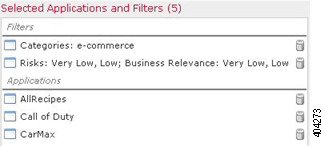
When you specify applications this way, the name of the filter you add to the Selected Applications and Filters list is a concatenation of the filter types represented in the filter. For example, the following filter name includes two filters under the Risks type and three under Business Relevance:
Risks: Very Low, Low Business Relevance: Very Low, Low, Medium
Filter types that are not represented in a filter you add with All apps matching the filter are not included in the name of the filter you add. The instructional text that is displayed when you hover your pointer over the filter name in the Selected Applications and Filters list indicates that these filter types are set to any; that is, these filter types do not constrain the filter, so any value is allowed for these.
You can add multiple instances of All apps matching the filter, with each instance counting as a separate item in the Selected Applications and Filters list. For example, you could add all very low risk applications as one item, clear your selections, then add all very low business relevance applications as another item. This configuration matches applications that are very low risk OR have very low business relevance.
Limitations of Application Bypass
Speed of Application Identification
The system cannot bypass an application before:
This identification should occur within 3 to 5 packets, or after the server certificate exchange in the SSL handshake if the traffic is encrypted. If one of these first packets appears before application identification is complete, the access control policy allows the packet to pass without identifying the application but subject to further inspection. This behavior allows the connection to be established so that applications can be identified.
The allowed packets are inspected by the access control policy’s default intrusion policy (not an access control default action intrusion policy). After the system completes application identification, it applies any access control rule actions. At this point the system determines if there is any allowed traffic. The system then implements IAB if the following conditions are met:
-
you have deployed a network discovery policy with application detection enabled
-
you have deployed an access control policy with IAB enabled in test or bypass mode
-
a configured IAB inspection performance threshold is exceeded
-
a bypassable application is detected
-
a configured IAB flow bypass threshold is exceeded
Following IAB handling, the system applies any associated intrusion and file policy.
Handling Encrypted Traffic
Note | The IAB decision to trust (bypass) or allow (would have bypassed) traffic takes place near the end of flow inspection and immediately subsequent to the system decision whether there is any traffic to allow. However, IAB is an independent configuration within an access control policy. That is, IAB can affect traffic regardless of any access control rule, the default action of an access control rule, or the default action of the access control policy. |
The system can identify and filter unencrypted application traffic that becomes encrypted using StartTLS, such as SMTPS, POPS, FTPS, TelnetS, and IMAPS. In addition, it can identify certain encrypted applications based on the Server Name Indication in the TLS client hello message, or the server certificate subject distinguished name value.
These applications are tagged SSL Protocol. Applications without this tag can only be detected in unencrypted or decrypted traffic.
Handling Application Traffic Packets Without Payloads
The system applies the default policy action to packets that do not have a payload in a connection where an application is identified.
Handling Referred Traffic
To identify bypassable traffic such as advertisement traffic referred by a web server, specify the referred application rather than the referring application.
Automatically Enabling Application Detectors
At least one detector must be enabled for each application you specify as bypassable. If no detector is enabled for an application, the system automatically enables all system-provided detectors for the application; if none exist, the system enables the most recently modified user-defined detector for the application.
Controlling Application Traffic That Uses Multiple Protocols (Skype)
The system can detect multiple types of Skype application traffic. When specifying Skype traffic as bypassable, select the Skype tag from the Application Filters list rather than selecting individual applications. This ensures that the system can handle all Skype traffic the same way.
Configuring Bypassable Applications
|
Smart License |
Classic License |
Supported Devices |
Supported Domains |
Access |
|---|---|---|---|---|
|
Any |
Control |
Any |
Any |
Admin/Access Admin/Network Admin |
 )
appears instead, settings are inherited from an ancestor policy, or you do not
have permission to modify the settings.
)
appears instead, settings are inherited from an ancestor policy, or you do not
have permission to modify the settings.
Example
Caution | This example illustrates how the system displays filters and individual applications. Do not interpret this example as a recommendation of particular filters or applications to bypass. |
A screenshot showing a Filters section that lists two filters: e-commerce, and risks; and underneath, an Appliances section that lists three individual applications: AllRecipes, Call of Duty, and CarMax.
-
Deploy configuration changes; see Deploying Configuration Changes.
Configuring IAB Thresholds
|
Smart License |
Classic License |
Supported Devices |
Supported Domains |
Access |
|---|---|---|---|---|
|
Any |
Control |
Any |
Any |
Admin/Access Admin/Network Admin |
| Step 1 | In the access
control policy editor, click the
Advanced tab, then click the edit icon ( )
next to
Intelligent Application Bypass Settings. )
next to
Intelligent Application Bypass Settings.
If a view icon ( | ||
| Step 2 | Click Configure next to either of the following: | ||
| Step 3 | Type a value for
at least one inspection performance threshold and at least one flow bypass
threshold. Thresholds with a value of
0
are not used. See
IAB Configuration Options
for more information.
| ||
| Step 4 | Click OK. | ||
| Step 5 | Click Save to save the policy. |
What to Do Next
-
Deploy configuration changes; see Deploying Configuration Changes.
IAB Traffic Analysis
You can use the following tools to analyze IAB traffic:
-
Connection events indicate flows that are bypassed in bypass mode or that would have been bypassed in test mode.
-
Custom dashboard widgets and reports can display long-term statistics for flows that are bypassed or that would have been bypassed.
IAB Connection Events
- Action
-
When Reason includes Intelligent App Bypass:
- Allow -
-
indicates that the applied IAB configuration was in test mode and traffic for the application specified by Application Protocol remains available for inspection.
- Reason
-
Intelligent App Bypass indicates that IAB triggered the event in bypass or test mode.
- Application Protocol
-
This field displays the application protocol that triggered the event.
Example
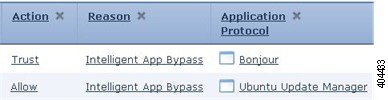
In the following truncated graphic, some fields are omitted. The graphic shows the Action, Reason, and Application Protocol fields for two connection events resulting from different IAB settings in two separate access control policies.
For the first event, the Trust action indicates that IAB was enabled in bypass mode and Bonjour protocol traffic was trusted to pass without further inspection.
For the second event, the Allow action indicates that IAB was enabled in test mode, so Ubuntu Update Manager traffic was subject to further inspection but would have been bypassed if IAB had been in bypass mode.
Example
In the following truncated graphic, some fields are omitted. The flow in the second event was both bypassed (Action: Trust; Reason: Intelligent App Bypass) and inspected by an intrusion rule (Reason: Intrusion Monitor). The Intrusion Monitor reason indicates that an intrusion rule set to Generate Events detected but did not block an exploit during the connection. In the example, this happened before the application was detected. After the application was detected, IAB recognized the application as bypassable and trusted the flow.

IAB Custom Dashboard Widgets
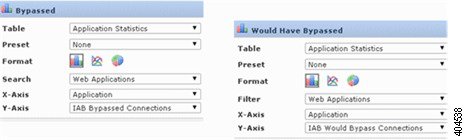
You can create a Custom Analysis dashboard widget to display long-term IAB statistics based on connection events. Specify the following when creating the widget:
Examples
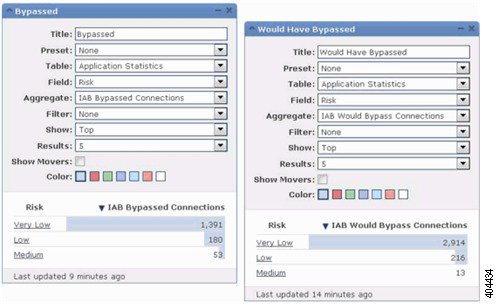
In the following Custom Analysis dashboard widget examples:
-
The Bypassed example shows statistics for application traffic bypassed because the applications were specified as bypassable and IAB was enabled in bypass mode in the deployed access control policy.
-
The Would Have Bypassed example shows statistics for application traffic that would have been bypassed because the applications were specified as bypassable and IAB was enabled in test mode in the deployed access control policy. .
IAB Custom Reports
You can create a custom report to display long-term IAB statistics based on connection events. Specify the following when creating the report:
Examples
In the following graphic shows two abbreviated report examples:
-
The Bypassed example shows statistics for application traffic bypassed because the applications were specified as bypassable and IAB was enabled in bypass mode in the deployed access control policy.
-
The Would Have Bypassed example shows statistics for application traffic thatwould have been bypassed because the applications were specified as bypassable and IAB was enabled in test mode in the deployed access control policy.
 Feedback