Table Of Contents
For Assistants—Using the Manager Assistant on Your Phone
Logging in to the Manager Assistant on Your Phone
Checking the Status of Your Managers
Handling Calls and Performing Other Actions
Answering a Call Using Manager Assistant on the Phone
Configuring Assistant Settings
Customizing the Distinctive Ringing Feature
For Assistants—Using the Manager Assistant on Your Phone
This topic describes how you can access Manager Assistant features directly on your Cisco Unified IP Phone (sometimes called the "Assistant Phone"). Within this topic, see these subtopics:
•
Logging in to the Manager Assistant on Your Phone
•
•
•
•
•
You can use the buttons and softkeys on your phone to perform most tasks that you can perform using the Assistant Console. You can also use your phone to perform some tasks while you use the Assistant Console at the same time to perform other tasks. Also, features available on your phone are also available on the Assistant Console, with the exception of Distinctive Ringing.
To use the Manager Assistant on your phone, we recommend strongly that assistants support no more than five managers.
Also, several tasks cannot be performed on the phone, such as assigning the preferred assistants. The manager assigns these using a website that your system administrator has set up, and you assign these using the Assistant Console.
The Manager Assistant feature on your phone is supported on these Cisco IP Phones:
–
–
–
Before you begin, you must identify which mode your system administrator chose: shared-line or proxy-line. For more information about the modes and for which mode you are using, see Overview of Shared-Line and Proxy-Line Modes, page 2.
Logging in to the Manager Assistant on Your Phone
Use these steps to log in to the Manager Assistant on your phone.
Procedure
Step 1
Step 2
Step 3
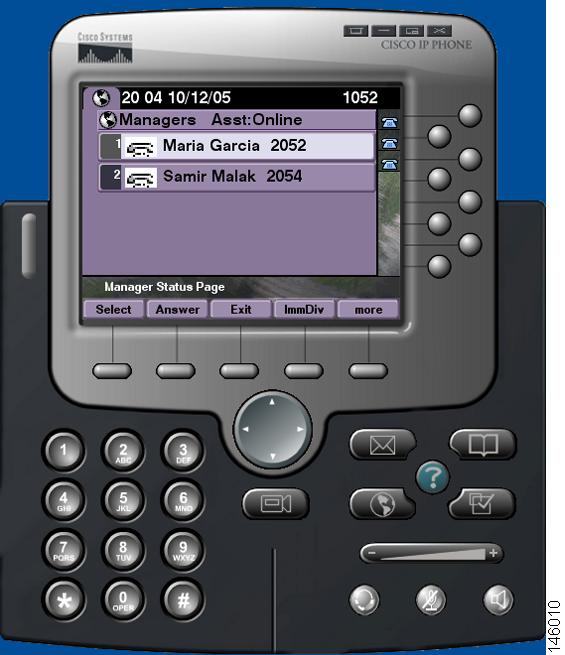
The Manager Status screen should appear (see Figure 3).
Figure 3 Manager Status Screen
If the Primary IPMA service goes down, your IP Phone screen will not get updated about this condition. However, you will receive a "Host not found Exception" message when you try to use a softkey. In this case, you must select Secondary IPMA Phone Service manually from the IP Services menu and log in again.
Checking the Status of Your Managers
You can see a list of managers that an assistant supports on the Manager Status screen (Figure 3). This topic describes the screen and the softkeys on it.
For each manager that an assistant supports, this information is displayed:
•
•
•
–
–
–
•
•
Handling Calls and Performing Other Actions
Table 4 describes the softkeys that appear on the Manager Status screen. The softkeys enable you to perform a different call-handling task.
Table 4 Softkeys on the Assistant's Phone
Select
Selects the highlighted manager from the list of managers and takes you to the Manager Settings screen (see Figure 4), where you can configure settings for the selected manager.
Answer
Answers an incoming call for the corresponding manager.
Exit
Exits the Manager Status screen and takes you to the Services menu page.
Redirect
Immediately diverts a ringing, connected or on-hold call to the corresponding manager (by default) or to another preset number.
To set the divert target to a directory number, press AsstSett, then press Set Divert Target, then enter the number.
More
Shows the remaining available softkeys for the Manager Status screen.
TrnsfVM
Sends a ringing, connected, or on-hold call to that manager's voice mailbox.
InterCom
Enables you to speak to a manager on an intercom line.
GoOffLine
Takes you offline. If there is another assistant configured for the manager and if that assistant is online, that assistant becomes the active assistant for the manager.
If no other assistants are available, calls for the manager are not filtered or diverted, and all ring at the manager's phone.
Note
AsstSett
Takes you to the Assistant Settings screen, where you configure various settings. See Table 6 for the fields you can configure.
Answering a Call Using Manager Assistant on the Phone
You can answer a call to a manager, which displays on the Manager Status page, in any of these ways:
•
•
•
After you answer the call, the Call Processing screen overwrites the Manager Assistant screen. (The Call Processing screen may be visible already.) Then use the softkeys on the Call Processing screen as you would normally. The Manager Assistant does not control these features.
Configuring Manager Settings
Figure 4 shows the Manager Settings screen, which appears when you select a manager from the list shown in the Manager Status screen (see Figure 3).
Table 5 describes how to set the fields in this screen.
Figure 4 Manager Settings Screen
Table 5 Manager Settings Fields
Filter
Toggles between On and Off. Change the setting of this field by highlighting the field and pressing Select. If this field is set to On, then the filter rules configured in the Filter Mode field apply.
Note
Filter Mode
Toggles between Exclusive and Inclusive. Change the setting of this field by highlighting the field and pressing Select.
•
•
Permitted wildcard characters are X for a single digit and * for a string of digits at the beginning or end of a number only.
Do Not Disturb
Turns off the ringer on the manager's phone. This can be performed on a per-manager basis.
Divert Calls
Toggles between On and Off. Change the setting of this field by highlighting the field and pressing Select. If this field is set to On, Cisco Unified Communications Manager Assistant User Guide sends a ringing, connected or held call to the manager or to another preset number (a number you specify by selecting the Set Divert Target field).
Set Divert Target
The number to which calls are diverted, if the Divert Calls field is On.
Default: Calls are diverted to the corresponding manager's phone unless another Directory Number is configured here.
Alert Tone
Toggles between On and Off. Change the setting of this field by highlighting the field and pressing Select. If this field is set to On in a proxy-line environment, calls to the manager generate an audio alert on the manager's phone.
Configuring Assistant Settings
Figure 5 shows the Assistant Settings screen, which displays when you press the AsstSett softkey on the Manager Status screen (see Figure 3). The Assistant Settings screen lets you configure such items as divert targets and sorting for the Manager Status screen.
Table 6 describes how to set the fields on the screen, and Table 7 describes how to use the softkeys on the screen.
Figure 5 Assistant Settings
Table 6 Assistant Settings Fields
CallPLaneOverWrite
Toggles between Enabled and Disabled. Change the setting of this field by highlighting the field and pressing Select. Enabling this flag sends real-time updates while you are on a call.
It is useful to check if a manager's status is busy or idle before diverting a call to that manager. With this flag enabled, a change in a manager's status displays while you are on a call.
SmartSorting
Toggles between Enabled and Disabled. Change the setting of this field by highlighting the field and pressing Select. When this flag is enabled, the Manager Status screen is sorted based on new call events.
For the hierarchy of how the managers list is sorted, see Checking the Status of Your Managers.
If this flag is not enabled, the Manager Status screen is static.
SetDivertTarget
When the Divert All field is set to On for a manager (see Figure 4), incoming calls to that manager get diverted to the divert target, which is either the currently selected manager (by default) or a Directory Number.
To divert calls to a Directory Number, enter the number in the SetDivertTarget field; to change a Directory number, edit the SetDivertTarget field.
Customizing the Distinctive Ringing Feature
Distinctive Ringing enables you to associate a unique audible ring type with each of your phone lines. You can associate a unique ring type with your manager's proxy line to distinguish quickly between your incoming calls and your manager's incoming calls.
Use this procedure to customize the Distinctive Ringing feature directly on your phone.
Procedure
Step 1
Step 2
Each of the lines on your phone, along with its selected ring type, is displayed on your phone's LCD screen. Initially, all of these lines use the default ring type.
Step 3
Note
Step 4
Step 5