Feedback
Contents
- Configuring Wireless QoS
- Finding Feature Information
- Prerequisites for Wireless QoS
- Restrictions for QoS on Wireless Targets
- Information about Wireless QoS
- Wireless QoS Overview
- Hierarchical Wireless QoS
- Wireless Packet Format
- Hierarchical AFD
- Wireless QoS Targets
- Port Policies
- Radio Policies
- SSID Policies
- Client Policies
- Supported QoS Features on Wireless Targets
- Port Policy Format
- Wireless QoS Rate Limiting
- Wireless QoS Multicast
- Queuing in Wireless
- Wireless QoS Mobility
- Inter-Switch Roaming
- Intra-Switch Roaming
- Precious Metal Policies for Wireless QoS
- How to Configure Wireless QoS
- Configuring Precious Metal Policies (CLI)
- Configuring Class Maps for Voice and Video (CLI)
- Configuring Client Policies (CLI)
- Configuring Table Maps
- Applying an SSID or Client Policy on a WLAN (CLI)
- Configuration Examples
- Examples: Wireless QoS Policy Classified by Voice, Video, and Multicast Traffic
- Examples: SSID Policy
- Examples: Configuring Downstream SSID Policy
- Examples: Client Policies
- Additional References
Configuring Wireless QoS
Finding Feature Information
Your software release may not support all the features documented in this module. For the latest feature information and caveats, see the release notes for your platform and software release.
Use Cisco Feature Navigator to find information about platform support and Cisco software image support. To access Cisco Feature Navigator, go to http://www.cisco.com/go/cfn. An account on Cisco.com is not required.
Prerequisites for Wireless QoS
Before configuring wireless QoS, you must have a thorough understanding of these items:
- QoS concepts.
- Wireless concepts and network topologies.
- Classic Cisco IOS QoS.
- Modular QoS CLI (MQC).
- Understanding of QoS implementation.
- The types of applications used and the traffic patterns on your network.
- Traffic characteristics and needs of your network. For example, is the traffic on your network bursty? Do you need to reserve bandwidth for voice and video streams?
- Bandwidth requirements and speed of the network.
- Location of congestion points in the network.
Restrictions for QoS on Wireless Targets
General Restrictions
A target is an entity where a policy is applied. You can apply a policy to either a wired or wireless target. A wired target can be either a port or VLAN. A wireless target can be either a port, radio, SSID, or client. Only port, SSID, and client policies are user configurable. Radio polices are not user configurable. Wireless QoS policies for port, radio, SSID, and client are applied in the downstream direction, and for upstream only SSID and client targets are supported. Downstream indicates that traffic is flowing from the switch to the wireless client. Upstream indicates that traffic is flowing from wireless client to the switch.
- Only port, SSID, and client (using AAA and Cisco IOS command-line interface) policies are user-configurable. Radio policies are set by the wireless control module and are not user-configurable.
- Port and radio policies are applicable only in the downstream direction.
- SSID and client support non-queuing policies in the upstream direction. SSID and client targets can be configured with marking and policing policies.
- One policy per target per direction is supported.
Wireless QoS Restrictions on Ports
The following are restrictions for applying QoS features on a wireless port target:
- All wireless ports have similar parent policy with one class-default and one action shape under class-default. Shape rates are dependent on the 802.11a/b/g/ac bands.
- You can create a maximum of four classes in a child policy by modifying the port_chlid_policy.
- If there are four classes in the port_child_policy at the port level, one must be a non-client-nrt class and one must be class-default.
- No two classes can have the same priority level. Only priority level 1 (for voice traffic and control traffic) and 2 (for video) are supported.
- Priority is not supported in the multicast NRT class (non-client-nrt class) and class-default.
- If four classes are configured, two of them have to be priority classes. If only three classes are configured, at least one of them should be a priority class. If three classes are configured and there is no non-client-nrt class, both priority levels must be present.
- Only match DSCP is supported.
- The port policy applied by the wireless control module cannot be removed using the CLI.
- Both priority rate and police CIR (using MQC) in the same class is unsupported.
- Queue limit (which is used to configure Weighted Tail Drop) is unsupported.
Wireless QoS Restrictions on SSID
The following are restrictions for applying QoS features on SSID:
- One table map is supported at the ingress policy.
- Table maps are supported for the parent class-default only. Up to two table maps are supported in the egress direction and three table-maps can be configured when a QoS group is involved.
Note
Table-maps are not supported at the client targets.
- If a wireless port has a default policy with only two queues (one for multicast-NRT, one for class-default), the policy at SSID level cannot have voice and video class in the egress direction.
- Policing without priority is not supported in the egress direction.
- Priority configuration at the SSID level is used only to configure the RT1 and RT2 policers (AFD for policer). Priority configuration does not include the shape rate. Therefore, priority is restricted for SSID policies without police.
- The mapping in the DSCP2DSCP and COS2COS table should be based on the classification function for the voice and video classes in the port level policy.
- No action is allowed under the class-default of a child policy.
- For a flat policy (non hierarchical), in the ingress direction, the policy configuration must be a set (table map) or policing or both.
Wireless QoS Restrictions on Clients
The following are restrictions for applying QoS policies on client targets:
- Queuing is not supported.
- Attaching, removing, or modifying client policies on a WLAN in the enabled state is not supported. You must shut down the WLAN to apply, remove, or modify a policy.
- Table-map configuration is not supported for client targets.
- Policing and set configured together in class-default is blocked in both the upstream and downstream direction:
policy-map foo class class-default police X set dscp Y- Child policy is not supported under class-default if the parent policy contains other user-defined class maps in it.
- Hierarchical client polies are only supported in the egress direction.
- For flat egress client policy, policing in class-default and marking action in other classes are not supported.
- Restrictions for ACLs:
- All the filters in classes in a policy map for client policy must have the same attributes. Filters matching on protocol-specific attributes such as IPv4 or IPv6 addresses are considered as different attribute sets.
- For filters matching on ACLs, all ACEs (Access Control Entry) in the access list should have the same type and number of attributes. For example, the following is an invalid access list as they match on different attributes:
policy map foo class acl-101 (match on 3 tuple) police X class acl-102 (match on 5 tuple) police Y- For filters matching on marking attributes, all filters in the policy-map must match on the same marking attribute. For example, If filter matches on DSCP, then all filters in the policy must match on DSCP.
- ACL matching on port ranges and subnet are only supported in ingress direction.
- If an ingress SSID policy is configured along with an ingress client policy matching ACLs with port ranges, the SSID policy takes precedence over the client policy. As a result, the client policy will not take effect.
Related Concepts
Related References
Information about Wireless QoS
Wireless QoS Overview
The flow of traffic from a wired source to a wireless target is known as downstream traffic. The flow of traffic from a wireless source to a wired target is known as upstream traffic.
Port, SSID, and client policies are user configurable. Radio policies are controlled by the wireless control module.
A target is the entity where the policy is applied. Wireless QoS policies for port, SSID, client, and radio are applied in the downstream direction. That is, when traffic is flowing from the switch to wireless client.
NoteOnly SSID and client policies are supported in both egress and ingress direction.
The following are some of the specific features provided by wireless QoS:
- Policies on wireless QoS targets:
- Queuing support
- Policing of wireless traffic
- Shaping of wireless traffic
- Rate limiting in both downstream and upstream direction
- Approximate Fair Drop (AFD). AFD is configured using shaping in SSID policies and policing in client policies. Queue limits are not defined on AFT policiers in clients.
- Mobility support for QoS
- Compatibility with precious metal QoS policies available on Cisco Unified Wireless Controllers.
Hierarchical Wireless QoS
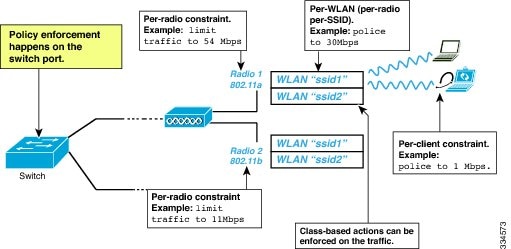
The switch supports hierarchical QoS for wireless targets. Hierarchical QoS policies are applicable on port, radio, SSID, and client. QoS policies configured on the device (including marking, shaping, policing) can be applied across the targets. If the network contains non-realtime traffic, the non-realtime traffic is subject to approximate fair drop. Hierarchy refers to the process of application of the various QoS policies on the packets arriving to the device.
Hierarchical AFD
Approximate Fair Dropping (AFD) is a feature provided by the QoS infrastructure in Cisco IOS. For wireless targets, AFD can be configured on SSID (via shaping) and clients (via policing). AFD shaping rate is only applicable for downstream direction. Unicast real-time traffic is not subjected to AFD drops.
Wireless QoS Targets
This section describes the various wireless QoS targets available on a switch.
Port Policies
The switch supports port-based policies. The port policies includes port shaper and a child policy (port_child_policy).
NotePort child policies only apply to wireless ports and not to wired ports on the switch. A wireless port is defined as a port to which APs join. A default port child policy is applied on the switch to the wireless ports at start up.The port shaper rate is limited to 1G
Port shaper specifies the traffic policy applicable between the device and the AP. This is the sum of the radio rates supported on the access point.
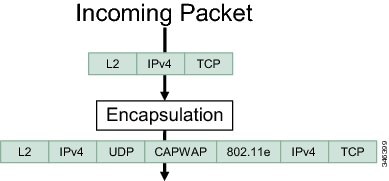
The child policy determines the mapping between packets and queues defined by the port-child policy. The child policy can be configured to include voice, video, class-default, and non-client-nrt classes where voice and video are based on DSCP value (which is the outer CAPWAP header DSCP value). The definition of class-default is known to the system as any value other than voice and video DSCP.
The DSCP value is assigned when the packet reaches the port. Before the packet arrives at the port, the SSID policies are applied on the packet. Port child policy also includes multicast percentage for a given port traffic. By default, the port child policy allocates up to 10 percent of the available rate.
Related Tasks
Radio Policies
The radio policies are system defined and are not user configurable. Radio wireless targets are only applicable in the downstream direction.
Radio policies are applicable on a per-radio, per-access point basis. The rate limit on the radios is the practical limit of the AP radio rate. This value is equivalent to the sum of the radios supported by the access point.
Related Concepts
Related References
SSID Policies
You can create QoS policies on SSID BSSID (Basic Service Set Identification) in both the upstream and downstream directions. By default, there is no SSID policy. You can configure an SSID policy based on the SSID name. The policy is applicable on a per BSSID.
The types of policies you can create on SSID include marking by using table maps (table-maps), shape rate, and RT1 (Real Time 1) and RT2 (Real Time 2) policiers. If traffic is upstream, you usually configure a marking policy on the SSID. If traffic is downstream, you can configure marking and queuing.
There should be a one-to-one mapping between the policies configured on a port and an SSID. For example, if you configure class voice and class video on the port, you can have a similar policy on the SSID.
SSID priorities can be specified by configuring bandwidth remaining ratio. Queuing SSID policies are applied in the downstream direction.
Related Concepts
Related Tasks
Client Policies
Client policies are applicable in the upstream and downstream direction. The wireless control module of the switch applies the default client policies when admission control is enabled for WMM clients. When admission control is disabled, there is no default client policy. You can configure policing and marking policies on clients.
NoteA client policy can have both IPv4 and IPv6 filters.
You can configure client policies in the following ways:
- Using AAA—You can use a combination of AAA and TCLAS, and AAA and SIP snooping when configuring with AAA.
- Using the Cisco IOS MQC CLI—You can use a combination of CLI and TCLAS and CLI and SIP snooping.
- Using the default configuration
Note
When applying client policies on a WLAN, you must disable the WLAN before modifying the client policy. SSID policies can be modified even if the WLAN is enabled.
NoteIf you configured AAA by configuring the unified wireless controller procedure, and using the MQC QoS commands, the policy configuration performed through the MQC QoS commands takes precedence.
For client policies, the following filters are supported:
Related Concepts
Related Tasks
Related References
Supported QoS Features on Wireless Targets
This table describes the various features available on wireless targets.
Table 1 QoS Features Available on Wireless TargetsTarget Features Traffic Direction Where Policies Are Applicable Comments Port Non-Real Time (NRT), Real Time (RT) Downstream Radio Non-Real Time Downstream Radio policies are not user configurable. SSID Non-Real Time, Real Time Upstream and downstream Queuing actions such as shaping and BRR are allowed only in the downstream direction. Client Non-Real Time, Real time Upstream and downstream
Port Policy Format
This section describes the behavior of the port policies on a switch. The ports on the switch do not distinguish between wired or wireless physical ports. Depending on the kind of device associated to the switch, the policies are applied. For example, when an access point is connected to a switch port, the switch detects it as a wireless device and applies the default hierarchical policy which is in the format of a parent-child policy. This policy is an hierarchical policy. The parent policy cannot be modified but the child policy (port-child policy) can be modified to suit the QoS configuration. The switch is pre configured with a default class map and a policy map.
Default class map:Class Map match-any non-client-nrt-class Match non-client-nrtThe above port policy processes all network traffic to the Q3 queue. You can view the class map by executing the show class-map command.
Default policy map:Policy Map port_child_policy Class non-client-nrt-class bandwidth remaining ratio 10
Note
The class map and policy map listed are system-defined policies and cannot be changed.
The following is the system-defined policy map available on the ports on which wireless devices are associated. The format consists of a parent policy and a service child policy (port_child_policy). To customize the policies to suite your network needs, you must configure the port child policy.Policy-map policy_map_name Class class-default Shape average average_rate Service-policy port_child_policy
Note
The parent policy is system generated and cannot be changed. You must configure the port_child_policy policy to suit the QoS requirements on your network.
Depending on the type of traffic in your network, you can configure the port child policy. For example, in a typical wireless network deployment, you can assign specific priorities to voice and video traffic. Here is an example:
Policy-map port_child_policy
     Class  voice-policy-name (match dscp ef)
          Priority level 1
         Police (multicast-policer-name-voice) Multicast Policer
    Class video-policy-name (match dscp af41)
        Priority level 2
        Police (multicast-policer-name-video) Multicast Policer
Class non-client-nrt-class traffic(match non-client-nrt)
        Bandwidth remaining ratio (brr-value-nrt-q2)
    Class class-default  (NRT Data)
        Bandwidth remaining ratio (brr-value-q3)
In the above port child policy:In the above sample configuration, all voice and video traffic is directed to the Q0 and Q1 queues, respectively. These queues maintain a strict priority. The packets in Q0 and Q1 are processed in that order. The bandwidth remaining ratios brr-value-nrt-q2 and brr-value-q3 are directed to the Q2 and Q3 respectively specified by the class maps and class-default and non-client-nrt. The processing of packets on Q2 and Q3 are based on a weighted round-robin approach. For example, if the brr-value-nrtq2 has a value of 90 and brr-value-nrtq3 is 10, the packets in queue 2 and queue 3 are processed in the ratio of 9:1.
- voice-policy-name— Refers to the name of the class that specifies rules for the traffic for voice packets. Here the DSCP value is mapped to a value of 46 (represented by the keyword ef). The voice traffic is assigned the highest priority of 1.
- video-policy-name— Refers to the name of the class that specifies rules for the traffic for video packets. The DSCP value is mapped to a value of 34 (represented by the keyword af41).
- multicast-policer-name-voice— If you need to configure multicast voice traffic, you can configure policing for the voice class map.
- multicast-policer-name-video— If you need to configure multicast video traffic, you can configure policing for the video class map.
Related Concepts
Related Tasks
Wireless QoS Rate Limiting
QoS per Client Rate Limit—Wireless
QoS policies can be configured to rate-limit client traffic using policiers. Ths includes both real-time and non real time traffic. The non real-time traffic is policed using AFD policiers. These policiers can only be one rate two color.
Note
For client policy, the voice and video rate limits are applied at the same time.QoS Downstream Rate Limit—Wireless
Downstream rate limiting is done using policing at the SSID level. AFD cannot drop real-time traffic, it can only be policed in the traffic queues. Real-time policing and AFD shaping is performed at the SSID level.
The radio has a default shaping policy. This shaping limit is the physical limit of the radio itself. You can check the policy maps on the radio by using the show policy-map interface wireless radio command.
Queuing in Wireless
Queuing in the wireless component is performed based on the port policy and is applicable only in the downstream direction. The wireless module supports the following four queues:
- Voice—This is a strict priority queue. Represented by Q0, this queue processes control traffic and multicast or unicast voice traffic. All control traffic (such as CAPWAP packets) is processed through the voice queue. The QoS module uses a different threshold within the voice queue to process control and voice packets to ensure that control packets get higher priority over other non-control packets.
- Video—This is a strict priority queue. Represented by Q1, this queue processes multicast or unicast video traffic.
- Data NRT—Represented by Q2, this queue processes all non-real-time unicast traffic.
- Multicast NRT—Represented by Q3, this queue processes Multicast NRT traffic. Any traffic that does not match the traffic in Q0, Q1, or Q2 is processed through Q3.
NoteBy default, the queues Q0 and Q1 are not enabled.
NoteA weighted round-robin policy is applied for traffic in the queues Q2 and Q3.
For upstream direction only one queue is available. Port and radio policies are applicable only in the downstream direction.
NoteThe wired ports support eight queues.
Wireless QoS Mobility
Wireless QoS mobility enables you to configure QoS policies so that the network provides the same service anywhere in the network. A wireless client can roam from one location to another and as a result the client can get associated to different access points associated with a different switch. Wireless client roaming can be classified into two types:
Note
The client policies must be available on all of the switches in the mobility group. The same SSID and port policy must be applied to all switches in the mobility group so that the clients get consistent treatment.Inter-Switch Roaming
When a client roams from one location to another, the client can get associated to access points either associated to the same switch (anchor switch) or a different switch (foreign switch). Inter-switch roaming refers to the scenario where the client gets associated to an access point that is not associated to the same device before the client roamed. The host device is now foreign to the device to which the client was initially anchored.
In the case of inter-switch roaming, the client QoS policy is always executed on the foreign controller. When a client roams from anchor switch to foreign switch, the QoS policy is uninstalled on the anchor switch and installed on the foreign switch. In the mobility handoff message, the anchor device passes the name of the policy to the foreign switch. The foreign switch should have a policy with the same name configured for the QoS policy to be applied correctly.
In the case of inter-switch roaming, all of the QoS policies are moved from the anchor device to the foreign device. While the QoS policies are in transition from the anchor device to the foreign device, the traffic on the foreign device is provided the default treatment. This is comparable to a new policy installation on the client target.
NoteIf the foreign device is not configured with the user-defined physical port policy, the default port policy is applicable to all traffic is routed through the NRT queue, except the control traffic which goes through RT1 queue. The network administrator must configure the same physical port policy on both the anchor and foreign devices symmetrically.
Intra-Switch Roaming
With intra-switch roaming, the client gets associated to an access point that is associated to the same switch before the client roamed, but this association to the device occurs through a different access point.
NoteQoS policies remain intact in the case of intra-switch roaming.
Precious Metal Policies for Wireless QoS
Wireless QoS is backward compatible with the precious metal policies offered by the unified wireless controller platforms. The precious metal policies are system-defined policies that are available on the controller.
The following policies are available:
These policies (also known as profiles) can be applied to a WLAN based on the traffic. We recommend the configuration using the Cisco IOS MQC configuration. The policies are available in the system based on the precious metal policy required.
Based on the policies applied, the 802.1p, 802.11e (WMM), and DSCP fields in the packets are affected. These values are preconfigured and installed when the switch is booted.
NoteUnlike the precious metal policies that were applicable in the Cisco Unified Wireless controllers, the attributes rt-average-rate, nrt-average-rate, and peak rates are not applicable for the precious metal policies configured on this switch platform.
Related Tasks
How to Configure Wireless QoS
Configuring Precious Metal Policies (CLI)
SUMMARY STEPS
1. configure terminal
2. wlan wlan-name
3. service-policy output policy-name
4. end
5. show wlan {wlan-id | wlan-name}
DETAILED STEPSRelated Concepts
Configuring Class Maps for Voice and Video (CLI)
SUMMARY STEPS
1. configure terminal
2. class-map class-map-name
3. match dscp dscp-value-for-voice
4. end
5. configure terminal
6. class-map class-map-name
7. match dscp dscp-value-for-video
8. end
DETAILED STEPS
Command or Action Purpose
Step 1 configure terminal
Example:Switch# configure terminalEnters global configuration mode.
Step 2 class-map class-map-name
Example:Switch(config)# class-map voiceCreates a class map.
Step 3 match dscp dscp-value-for-voice
Example:Switch(config-cmap)# match dscp 46Matches the DSCP value in the IPv4 and IPv6 packets. Set this value to 46.
Step 4 end
Example:Switch(config)# endReturns to privileged EXEC mode. Alternatively, you can also press Ctrl-Z to exit global configuration mode.
Step 5 configure terminal
Example:Switch# configure terminalEnters global configuration mode.
Step 6 class-map class-map-name
Example:Switch(config)# class-map videoConfigures a class map.
Step 7 match dscp dscp-value-for-video
Example:Switch(config-cmap)# match dscp 34Matches the DSCP value in the IPv4 and IPv6 packets. Set this value to 34.
Step 8 end
Example:Switch(config)# endReturns to privileged EXEC mode. Alternatively, you can also press Ctrl-Z to exit global configuration mode.
Configuring Client Policies (CLI)
Before You BeginSUMMARY STEPSYou must have the following features configured before configuring client policies:
1. configure terminal
2. ip access-list extended ext-name
3. permit ip host host-ip-address
4. end
5. configure terminal
6. class map acl-name
7. match access-group name access-list-name
8. end
DETAILED STEPS
Command or Action Purpose
Step 1 configure terminal
Example:Switch# configure terminalEnters global configuration mode.
Step 2 ip access-list extended ext-name
Example:Switch(config)# ip access-list extendedConfigures a named access list.
Step 3 permit ip host host-ip-address
Example:Switch(config-ext-nacl)# permit ip host 203.0.113.3 host 203.0.113.5Configures IP protocol traffic from a source address to a destination address.
Step 4 end
Example:Switch(config)# endReturns to privileged EXEC mode. Alternatively, you can also press Ctrl-Z to exit global configuration mode.
Step 5 configure terminal
Example:Switch# configure terminalEnters global configuration mode.
Step 6 class map acl-name
Example:Switch(config)# class-map acl-a1Configures the class map name.
Step 7 match access-group name access-list-name
Example:Switch(config-cmap)# match access-group name a1Assigns the class map to an access group name.
Step 8 end
Example:Switch(config)# endReturns to privileged EXEC mode. Alternatively, you can also press Ctrl-Z to exit global configuration mode.
Related References
Configuring Table Maps
SUMMARY STEPS
1. configure terminal
2. table-map table-map-name
3. map from from-value to to-value
4. end
DETAILED STEPS
Command or Action Purpose
Step 1 configure terminal
Example:Switch# configure terminalEnters global configuration mode.
Step 2 table-map table-map-name
Example:Switch(config)# table-map mutate-dscpCreate the table map.
Step 3 map from from-value to to-value
Example:Switch(config-tablemap)# map from 10 to 34 Switch(config-tablemap)# map from 34 to 40 Switch(config-tablemap)# map from 46 to 48Map a to value to a from value.
Step 4 end
Example:Switch(config)# endReturns to privileged EXEC mode. Alternatively, you can also press Ctrl-Z to exit global configuration mode.
Applying an SSID or Client Policy on a WLAN (CLI)
SUMMARY STEPS
1. configure terminal
2. wlan profile-name
3. service-policy [ input | output ] policy-name
4. service-policy client [ input | output ] policy-name
5. end
DETAILED STEPS
Command or Action Purpose
Step 1 configure terminal
Example:Switch# configure terminalEnters global configuration mode.
Step 2 wlan profile-name
Example:Switch# wlan test4Enters the WLAN configuration submode. The profile-name is the profile name of the configured WLAN.
Step 3 service-policy [ input | output ] policy-name
Example:Switch(config-wlan)# service-policy input policy-map-ssidStep 4 service-policy client [ input | output ] policy-name
Example:Switch(config-wlan)# service-policy client input policy-map-clientStep 5 end
Example:Switch(config)# endReturns to privileged EXEC mode. Alternatively, you can also press Ctrl-Z to exit global configuration mode.
Configuration Examples
Examples: Wireless QoS Policy Classified by Voice, Video, and Multicast Traffic
The following example provides a template for creating a port child policy for managing quality of service for voice and video traffic.
Policy-map port_child_policy
    Class voice (match dscp ef)
            Priority level 1
            Police  Multicast Policer
    Class video (match dscp af41)
            Priority level 2
            Police  Multicast Policer
    Class mcast-data  (match non-client-nrt)
            Bandwidth remaining ratio <>
    Class class-default  (NRT Data)
            Bandwidth remaining ratio <>
NoteMulticast Policer in the example above is not a keyword. It refers to the policing policy configured.
Two class maps with name voice and video are configured with DSCP assignments of 46 and 34. The voice traffic is assigned the priority of 1 and the video traffic is assigned the priority level 2 and is processed using Q0 and Q1. If your network receives multicast voice and video traffic, you can configure multicast policers. The non-client NRT data and NRT data are processed using the Q2 and Q3 queues.
Examples: SSID Policy
SSID Policy 1
The following is an example of an SSID policy for voice and video:
Policy-map enterprise-ssid-1
     Class  voice (match dscp ef)
          Priority level 1
         Police Unicast Policer
Class video (match dscp af41)
        Priority level 2
        Police Unicast Policer
Policy-map ssid-shaper
Class class-default  (NRT Data)
        queue-buffer ratio 0
        shape average 100000000
        set wlan-user-priority dscp table dscp2up
        set dscp dscp table dscp2dscp
        service-policy  enterprise-ssid-1
SSID Policy 2
The following is an example of SSID policy configured with an average SSID shaping rate:
Policy-map enterprise-ssid-2
     Class  voice (match dscp af11)
          Priority level 1
         Police Unicast Policer
Class video (match dscp  ef)
        Priority level 2
        Police Unicast Policer
Policy-map ssid-shaper
Class class-default  (NRT Data)
       shape average 1000000000
       service-policy enterprise-ssid-2
       set wlan-user-priority dscp table dscp2up
       set dscp dscp table dscp2dscp
Related Concepts
Examples: Configuring Downstream SSID Policy
Configuring a User-Defined Port Child Policy
To configure a downstream BSSID policy, you must first configure a port child policy with priority level queuing.
The following is an example of configuring a user-defined port child policy:
policy-map port_child_policy
   class voice
     priority level 1 20000

   class video
     priority level 2 10000

   class non-client-nrt-class
     bandwidth remaining ratio 10

   class class-default
     bandwidth remaining ratio 15
The following configuration example displays how to configure a downstream BSSID policy:
policy-map bssid-policer
   queue-buffer ratio 0
   class class-default
   shape average 30000000
set dscp dscp table dscp2dscp
set wlan user-priority dscp table dscp2up
service-policy ssid_child_qos
The SSID child QoS policy may be defined as below:
Policy Map ssid-child_qos
    Class voice
      priority level 1
      police cir 5m
      admit cac wmm-tspec
           UP 6,7  / tells WCM allow ‘voice’ TSPEC\SIP snoop for this ssid
            rate 4000 / must be police rate value is in kbps)
   Class video
      priority level 2
      police cir 60000
Related Concepts
Examples: Client Policies
The following example shows a default client policy in the downstream direction. Any incoming traffic contains the user-priority as 0:
NoteThe default client policy is enabled only on WMM clients that are ACM-enabled.
Policy-map client-def-down
  class class-default
      set wlan user-priority 0
The following example shows the default client policy in the upstream direction. Any traffic that is sent to the wired network from wireless network will result in the DSCP value being set to 0.
NoteThe default client policy is enabled only on WMM clients that are ACM-enabled.
Policy-map client-def-up
   class class-default
   	set dscp 0
The following examples shows client policies that are generated automatically and applied to the WMM client when the client authenticates to a profile in AAA with a QoS-level attribute configured.
Policy Map platinum-WMM
Class voice-plat
	 set wlan user-priority 6
 Class video-plat
	set wlan user-priority 4
Class class-default
	 set wlan user-priority 0
Policy Map gold-WMM Class voice-gold set wlan user-priority 4 Class video-gold set wlan user-priority 4 Class class-default set wlan user-priority 0The following is an example of non-WMM client precious metal policies:
Policy Map platinum
	 set wlan user-priority 6
Any traffic matching class voice1 the user priority is set to a pre-defined value. The class can be set to assign a DSCP or ACL.
Policy Map client1-down
Class voice1     //match dscp, cos
	 set wlan user-priority <>
Class voice2    //match acl
   set wlan user-priority <>
Class voice3
   set wlan user-priority <>
Class class-default
	 set wlan user-priority 0
The following is an example of a client policy based on AAA and TCLAS:
Policy Map client2-down[ AAA+ TCLAS pol example]
Class      voice\\match dscp
      police <>
      set <>
Class class-default
    set <>
Class voice1|| voice2 [match acls]
      police <>
      class voice1
        set <>
      class voice2
        set <>
The following is an example of a client policy for voice and video for traffic in the downstream direction:
Policy Map client3-down
    class voice \\match dscp, cos
          police X
     class video
         police Y
    class class-default
        police Z
The following is an example of a client policy for voice and video for traffic in the upstream direction using policing:
Policy Map client1-up
    class voice     \\match dscp, up, cos
      police X
    class video
     police Y
  class class-default
    police Z
The following is an example of a client policy for voice and video based on DSCP:
Policy Map client2-up
    class voice     \\match dscp, up, cos
set dscp <>
    class video
     set dscp <>
  class class-default
    set dscp <>
Related Concepts
Additional References
Related Documents
Related Topic Document Title QoS Command Reference QoS Command Reference (Catalyst 3850 Switches) Mobility Configuration Guide Mobility Configuration Guide, Cisco IOS XE Release 3SE (Catalyst 3850 Switches) Quality of Service Solutions Configuration Guide (Cisco IOS Software) Quality of Service Solutions Configuration Guide Library, Cisco IOS XE Release 3SE (Cisco WLC 5700 Series) MIBs
Technical Assistance
Description Link The Cisco Support website provides extensive online resources, including documentation and tools for troubleshooting and resolving technical issues with Cisco products and technologies.
To receive security and technical information about your products, you can subscribe to various services, such as the Product Alert Tool (accessed from Field Notices), the Cisco Technical Services Newsletter, and Really Simple Syndication (RSS) Feeds.
Access to most tools on the Cisco Support website requires a Cisco.com user ID and password.