Installing the Cisco IPICS Server Software

Table Of Contents

Installing the Cisco IPICS Server Software

Before You Begin

Obtaining the IP Addresses for Your Cisco IPICS System

Preinstallation Checklist

Installing the Cisco Linux Operating System

Installing Cisco IPICS Server Software

Installing the Cisco IPICS Server Software at the Server

Installing Cisco IPICS from a Remote Location

Manually Installing CSA

Preparing to Use Cisco IPICS

Checking the Installation

Managing Your Licenses

Obtaining Your License File

Purchasing Additional Licenses

Uploading the Cisco IPICS Licenses

Managing Licenses with the Ops Views Feature

Tracking Your License Consumption

Generating the Cisco IPICS PMC Application Installer


Installing the Cisco IPICS Server Software


This chapter describes the procedures you need to follow to install the Cisco Linux operating system and the Cisco IPICS server software. There are also tasks you must complete before you begin the installation. After you complete the installation procedures for Cisco Linux and Cisco IPICS, there are additional tasks you must accomplish before you can use the Cisco IPICS software.

This chapter includes the following sections:

Before You Begin

Installing the Cisco Linux Operating System

Installing Cisco IPICS Server Software

Preparing to Use Cisco IPICS

Before You Begin

This section describes the tasks that are necessary to prepare for the Cisco Linux operating system and Cisco IPICS installations. This section includes the following topics:

Obtaining the IP Addresses for Your Cisco IPICS System

Preinstallation Checklist

Obtaining the IP Addresses for Your Cisco IPICS System

To facilitate communications between your users, your Cisco IPICS system requires a supply of IP addresses that can be reached by all users in your network domain.

Cisco IPICS requires a multicast address for each of the following purposes:

When you create a PTT channel. You can use a channel to bring an LMR signal into Cisco IPICS or to provide a meeting place for a group of PMC or Cisco IP Phone users.

When you activate a VTG.

Consult your network administrator to obtain IP addresses for the following Cisco IPICS purposes:

Multicast addresses for your channels and VTGs.

For your routers, obtain a small subnet and then take addresses from it.

The address for the Cisco IPICS server must be a static, local IP address that is advertised on the network. Cisco IPICS clients such as PMCs and Cisco IP Phones must have the static address of the Cisco IPICS server to maintain communication.

For information on how to use the IP addresses to configure Cisco IPICS, refer to the Cisco IPICS Server Administration Guide.

Preinstallation Checklist

Before you begin the installation, ensure that you have performed the following tasks:

Preinstallation Tasks 
Checkoff

Check that the power cords on your server and monitor are securely attached and plugged in to a power source.

Attach an Ethernet network cable to the NIC1 port on your server.

Cisco strongly recommends that you attach an uninterruptible power supply (UPS) to your system and ensure that the UPS is operating correctly.

Check that your monitor cable connector is appropriate for the connector on the server. VGA analog and VGA digital are common connector types, but are not compatible with each other without the proper adapter.

Ensure that you have obtained the IP address, subnet mask, default gateway and DNS server (optional) information for the Cisco IPICS server from your network administrator.

Before you begin the installation process, check the power settings on your monitor to make sure that the display is not configured with any timeout values.

Note If your display times out while you are performing the installation and you can no longer see the progress on your monitor, move your mouse to restore the display. Make sure that you do not press any keys on the keyboard in an effort to restore your display; pressing keys without being able to view the information on the display can cause undesirable results.

Check that you have both CDs from the Cisco IPICS installation package.


Installing the Cisco Linux Operating System

Cisco IPICS runs on Cisco Linux, which is based on the Red Hat Enterprise Linux AS 3 operating system (OS). This section describes the steps to install the Cisco Linux operating system. You may install the Cisco IPICS server software any time after you finish the Cisco Linux installation.

To perform this installation, you must have the Cisco Linux installation CD that was included with your product package. The Cisco Linux installation should take approximately 15-20 minutes.


Note The Cisco Linux installation includes a procedure to disable the Intel SATA RAID controller option and the virtual install disk, which are default features of the Cisco MCS 7825 and Cisco MCS 7845. The Redundant Array of Disks (RAID) is a combination of multiple small, independent disk drives that create an array. This array of drives appears to the server as a single logical storage unit or drive.

The virtual install disk is a holding place within the system ROM that contains embedded boot drivers. These boot drivers assist in completing the operating system installation.

The Cisco Linux operating system that is provided with Cisco IPICS does not support RAID or the virtual install disk. Because RAID and virtual install disk are enabled by default as part of the factory settings, you must disable these features.


To install Cisco Linux, perform the following procedure:

Procedure

Step 1 Turn the server on by pushing the power button that is located on the front of the server.

Step 2 Insert the Cisco Linux installation CD into the Cisco MCS disk drive.

Step 3 If you are installing the Cisco Linux operating system on the Cisco MCS 7825-H1-S31, you must disable SATA software RAID and the Virtual Install Disk. If you have the Cisco MCS 7845, you do not have to disable these features and can proceed to Step k.

To enter the System Maintenance menu, follow these steps:

a. Listen closely to the sounds that you hear from the server and watch your monitor as the server boots.

b. When you hear the server beep and see the message, "Press F10 to enter System Maintenance Menu," press F10.

The System Maintenance menu displays with the following choices:

Setup Utility—This menu provides access to configuration utilities with which you can change settings for server components, such as the SATA Software RAID and the Virtual Install Disk.

Inspect Utility—This menu provides access to statistical information about the server and its components, such as PCI Device Info and a System Memory Map.

Diagnostic Utility—This menu includes utilities you can use to perform diagnostic tests on the server, such as a memory test or a CPU test.

c. To choose Setup Utility from the System Maintenance menu, press Enter.

The ROM-Based Setup Utility displays. The Utility provides information about the server in the right pane, such as the model number, serial number (S/N), and other product information.

The left pane displays a menu of settings, which you can access by pressing the Up Arrow and Down Arrow keys.

d. From the Setup Utility menu, press the Down Arrow key to highlight Advanced Options and then press Enter.

The Advanced Options menu displays.

e. Press the Down Arrow key to highlight Virtual Install Disk

When you highlight Virtual Install Disk, the current status displays below the menu.

f. If the status displays as Disabled, proceed to Step h.

If the Virtual Install Disk displays as Enabled, change the Configuration Selection. To change the selection, press Enter to open the menu and then press the Down Arrow key to highlight Disabled.

g. To confirm your choice, press Enter again.

The Virtual Install Disk setting displays as Disabled.

h. From the Advanced Options Menu, press the Down Arrow key to highlight SATA Software Raid.

The current status displays below the menu.

i. If the status displays as Disabled, proceed to Step k.

If the SATA Software Raid status displays as Enabled, press Enter to open the menu and press the Down Arrow key to highlight Disabled.

j. To confirm your choice, press Enter again.

k. To close the menus and exit the utility, press Esc twice.

l. To confirm the exit and save your changes, press F10.

If you press any other key, you will be returned to the Main Menu of the Setup Utility.

The server begins to boot from the CD. This time, when the system beeps, let it continue to boot from the CD.

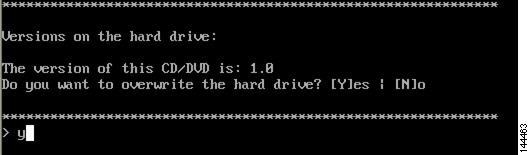
The Cisco Linux installation displays the CD version and the option to overwrite the hard drive. See Figure 2-1 for an example of this message.


Note The CD version that displays reflects the version of Cisco Linux, not the Cisco IPICS server software.


Figure 2-1 Overwrite Hard Drive Message

Step 4 To overwrite the hard drive and install Cisco Linux files, follow these steps:

a. When the system prompts you to overwrite the hard drive, enter Y and then press Enter.

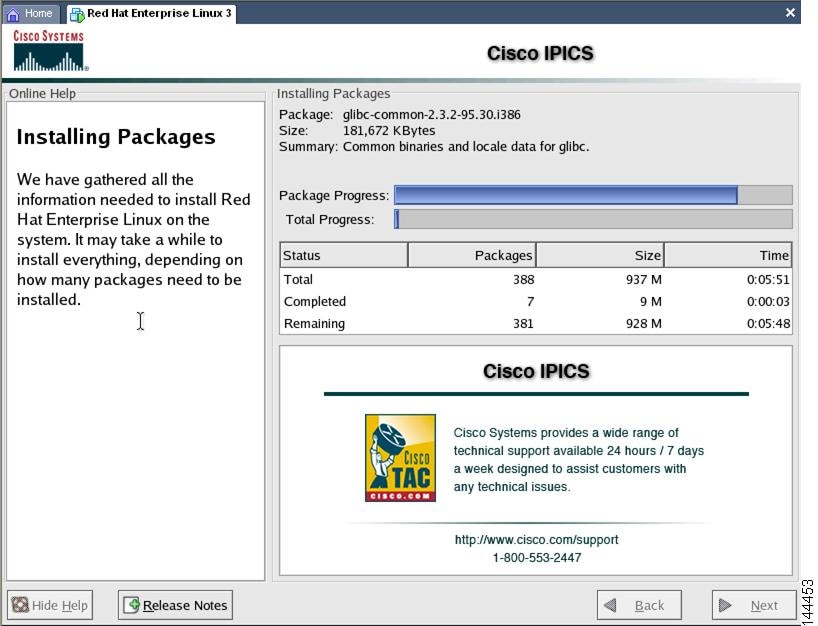
The Cisco Linux Installation Progress window displays information about the version of Cisco Linux that you are installing. A table displays the progress of the installation and the number of software packages that remain to be installed. See Figure 2-2 for an example of this window.

Figure 2-2 Cisco Linux Installing Packages Window

The Cisco Linux installer first formats the file system and then proceeds with installing the software packages.


Note The file system formatting and package installation takes approximately 12 minutes. However, the screen may be appear unresponsive for a few minutes after the package installation completes. This period of inactivity occurs because the system must complete background security processes.


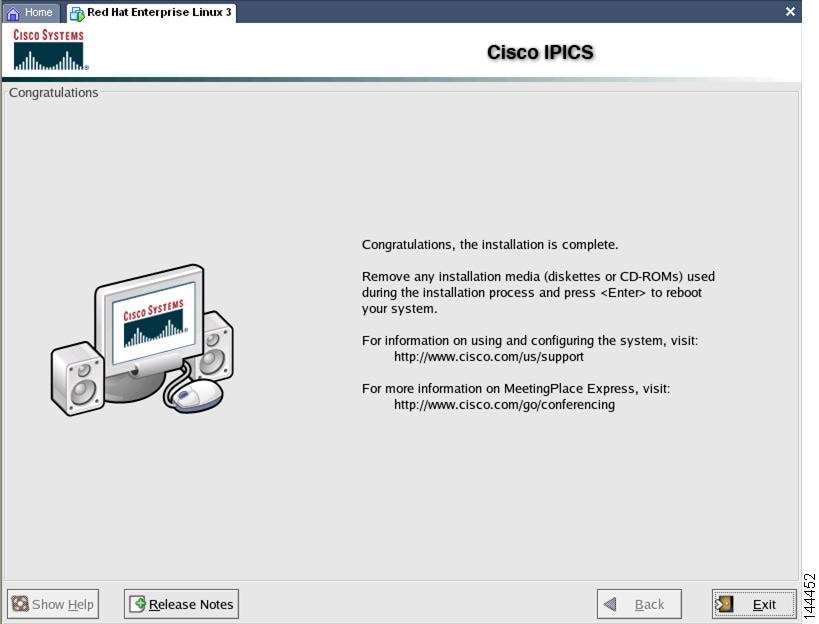
The MCS server ejects the installation CD and the Installation Complete window displays (see Figure 2-3 for an example of the Installation Complete window).

b. Remove the CD from the drive.


Note Keep your installation CD in a safe location, so that you can reinstall the operating system, if necessary.


Figure 2-3 Installation Complete Window

c. (Optional) Click Release Notes or press Alt-R to view the technical information related to this release of Cisco Linux.


Note Although the window indicates that the installation is complete (see Figure 2-3 for an example of this window), you still must complete several more tasks before you can proceed to the Cisco IPICS server software installation. The remaining steps in this section describe the process of configuring the Cisco Linux operating system.


d. To close the window and reboot the server, click Exit or press Alt-E.

The server reboots.


Note During the bootup process a GRUB version window displays. The window times out in a few seconds. Let the time expire and boot process continue.


The Linux hardware detection utility window displays with a message that it has detected the Intel SATA Controller in your server. The utility allows you to configure controller.

Step 5 Press any key to configure the controller before the window times out.

A Hardware Added window displays and states that the Intel SATA Controller was added to your system. The window displays the following options:

Configure the device—This option specifies the default.

Ignore the device—No configuration is added to the system, but you would not be prompted if the system detected the controller again when you restart the server in the future.

Do nothing—No configuration is added to the system and you would be notified again if the system detects the controller the next time you restart the server.

Step 6 To configure the hardware detection utility, press Enter to accept the default and configure the controller.

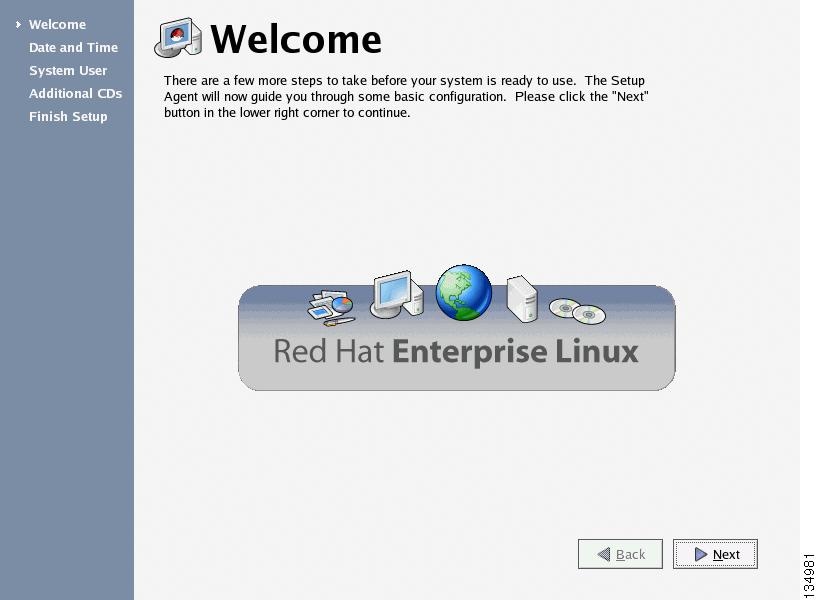
A Cisco Linux Welcome window displays. See Figure 2-4 for an example of this window.

Figure 2-4 Cisco Linux Welcome Window

Step 7 To proceed with the setup of Cisco Linux, follow these steps:

a. At the Welcome window, click Next.

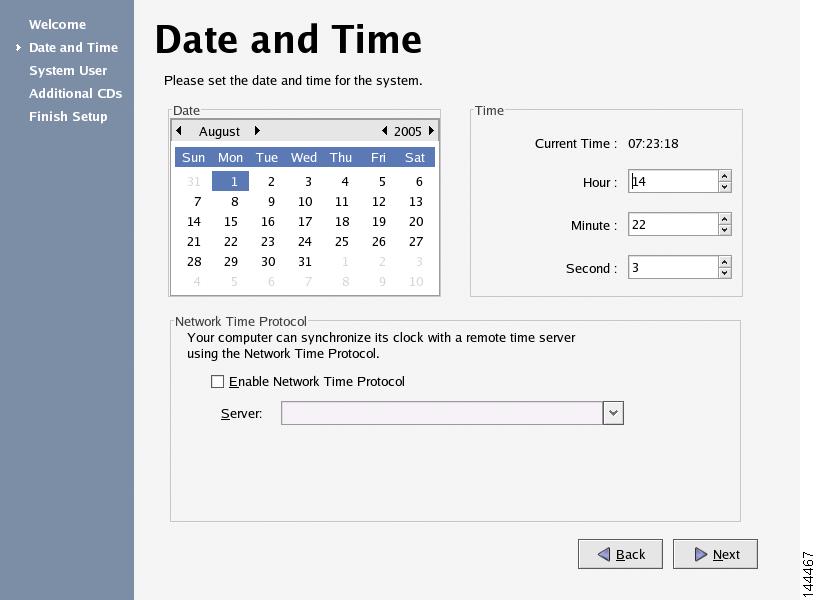
The Date and Time Window displays. See Figure 2-5 for an example of this window.

Figure 2-5 Date and Time Window

b. In the Date pane, use the arrows to navigate to the correct month and year and then click the current day of the month. Then, in the Time pane, use the arrows to set the Hour, Minute, and Second to the current time.


Caution Make sure that you only perform system date changes before you install the Cisco IPICS server software. Cisco IPICS does not support any modification of the system date in the operating system after the Cisco IPICS server software has been installed. Therefore, it is very important that you check your system date to ensure that it properly reflects your local date and time. If the system date is not properly set to your local date and time, you must adjust it before you install the Cisco IPICS server software. If you try to change the system date and time after you install the software, you will invalidate your license and cause the system to become inoperable.


Note Cisco IPICS does not support the Network Time Protocol (NTP) feature.


c. To continue with the installation, click Next.

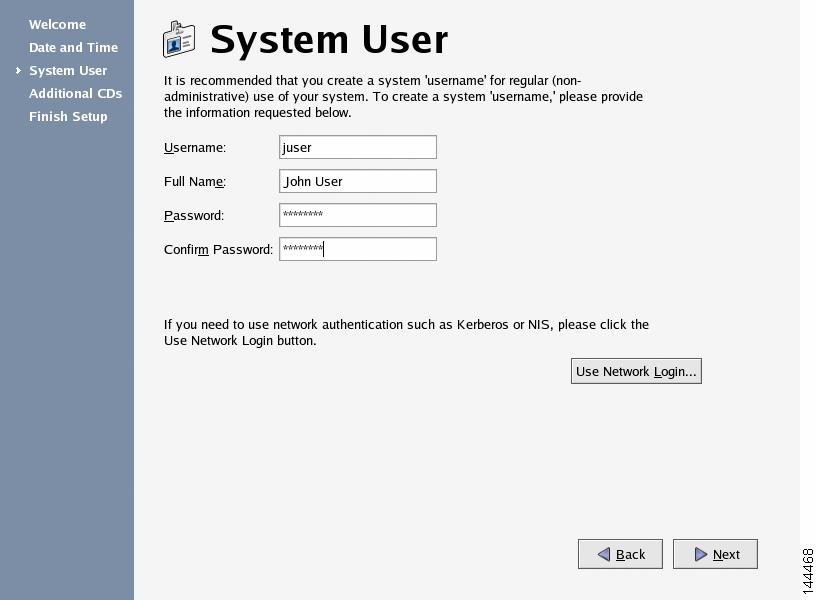
The System User window displays.


Note The system user you create in Step d is a non-administrative user that has limited capabilities in Cisco Linux. For example, this user can browse the directories on the server, including the Cisco IPICS directories, and open configuration files to view them. However, the system user, by default, cannot modify configuration files.


See Figure 2-6 for an example of the window.

Figure 2-6 System User Window

d. To create a non-administrator user for the Cisco Linux system, enter the name for the user into the Username field.

e. Press Tab to move to the other fields:

The Full Name field is optional.

The Password and Confirm Password fields are required. The password must contain at least six characters.


Note Be aware that Cisco IPICS does not support the use of network authentication functionality.


f. To continue with the setup, click Next.

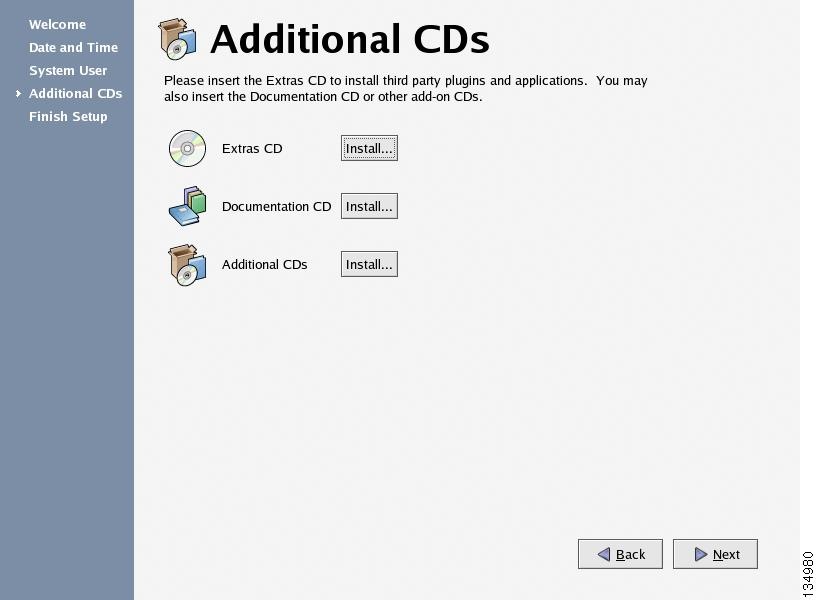
The Additional CDs window displays. See Figure 2-7 for an example.

Figure 2-7 Additional CDs Window

.


Note Because Cisco IPICS does not support the use of third-party plug-ins and applications, documentation CDs, or add-ons, do not click any of the Install buttons in the Additional CDs window.


g. To continue with the setup, click Next.

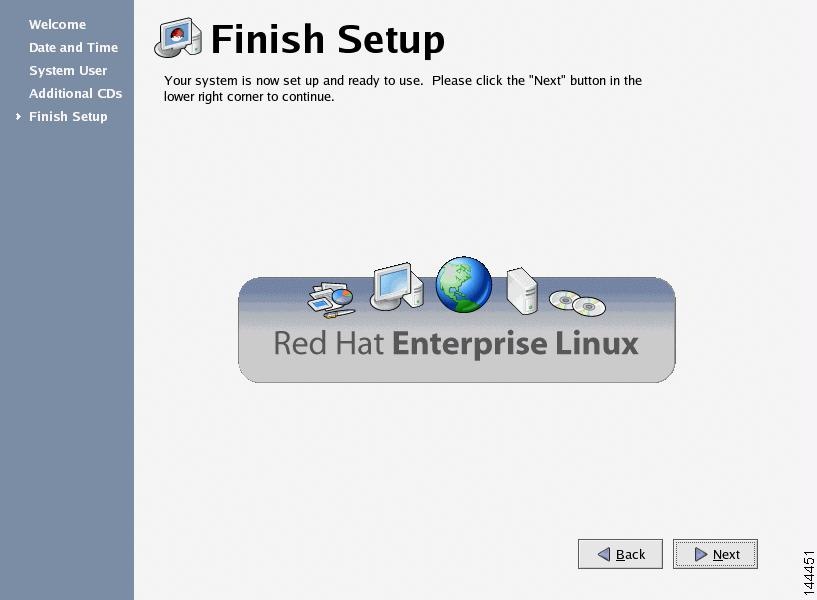
The Finish Setup window displays. See Figure 2-8 for an example of this window.

Figure 2-8 Finish Setup Window

h. To continue, click Next.

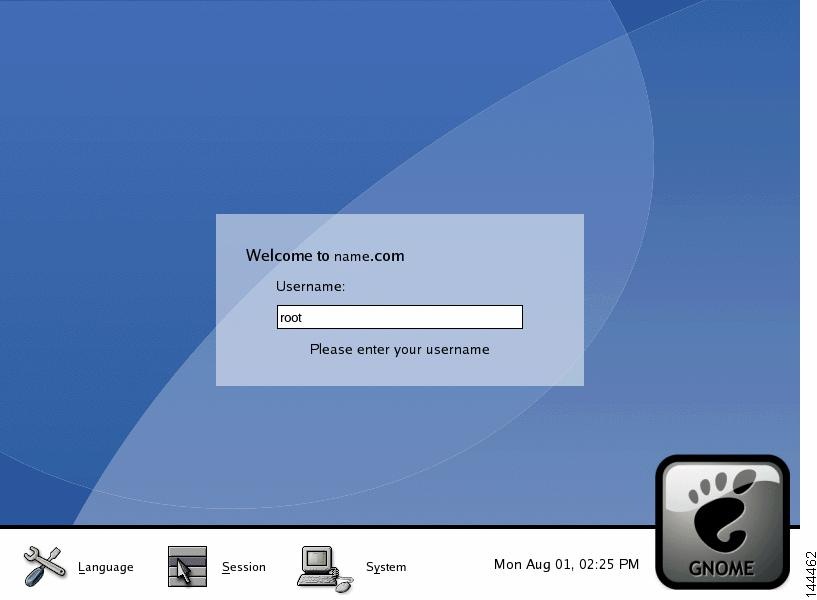
The GNOME login window displays with a Username field. See Figure 2-9 for an example.

Figure 2-9 GNOME Username Field


Note In Step 8, ensure that you log in as the root user and not the system user that you created earlier in the installation. If you do not log in as root, you cannot configure the Ethernet port.


Step 8 Enter root in the Username field and press Enter.

The GNOME login window displays with a password field.

Step 9 Enter cisco in the Password field and press Enter.

The Cisco Linux desktop displays.


Note While Cisco supplies the root password to use in this part of the installation, the Cisco IPICS installation provides an opportunity to change this password to ensure system security.


Step 10 You must now configure the Ethernet port in your server that you will use for Cisco IPICS. To configure the port, follow these steps:

a. Open a terminal window to enter commands. To do so, open the Red Hat menu on the Cisco Linux desktop by clicking the Red Hat icon.

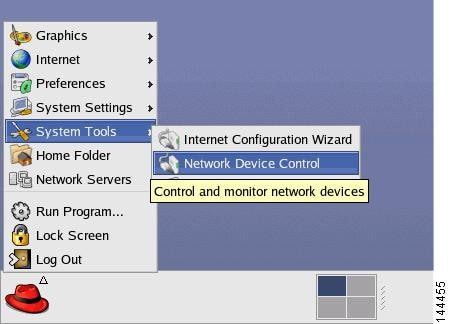
b. Choose System Tools > Network Device Control. See Figure 2-10 for an example of the menu.

Figure 2-10 Using the Red Hat Menu

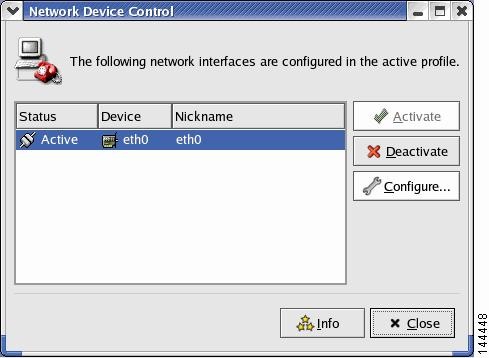
The Network Device Control window displays at least one active port. See Figure 2-11 for an example of the window.


Note Your server may have more than one Ethernet port. If so, choose eth0.

Also, ensure that your Ethernet cable is plugged into NIC1 and not NIC2.


Figure 2-11 Network Device Control Window

c. To configure the port, click the eth0 device from the list and then click Configure.

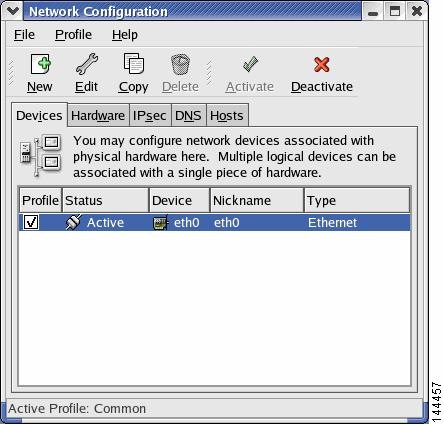
The Network Configuration window displays. See Figure 2-12 for an example of the window.

Figure 2-12 Network Configuration Window

d. To continue with the configuration, click eth0 again and then click Edit.

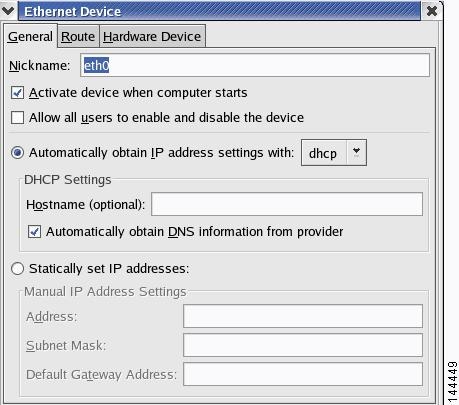
The Ethernet Device window displays. See Figure 2-13 for an example of the window.

Figure 2-13 Ethernet Device Window

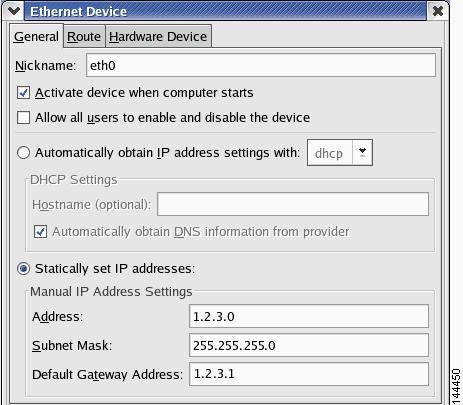
e. To enter a static IP address for eth0, click the Statically set IP addresses option.

The Statically set IP addresses fields become active.


Note For Cisco IPICS to function properly, the Cisco IPICS server must have a static IP address.


Figure 2-14 Entering the Static IP Address

f. In the Address field, enter the static IP address.

g. Press Tab to enter information into the Subnet Mask and Default Gateway Address fields. See Figure 2-14 for an example and the "Obtaining the IP Addresses for Your Cisco IPICS System" section for more information.

h. To continue with the configuration, click OK.


Note Creating a Domain Name Service (DNS) name for the server is optional. If you want to enter DNS information for eth0, continue to Step i.

If you do not want to enter DNS information, proceed to Step m.


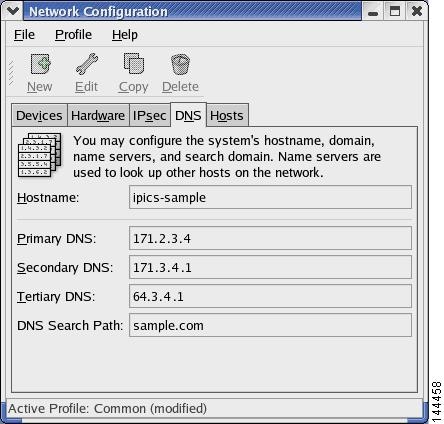
i. To enter DNS information for this port, click the DNS tab.

Figure 2-15 Entering DNS Information

j. In the Hostname field, enter a name for the system. Then, press Tab.

k. In the Primary DNS field, enter the IP addresses for primary DNS server for your network. Then press Tab.

l. If your network has secondary and tertiary DNS servers, enter those IP address, using the Tab key to move between fields. If you do not have secondary and tertiary DNS servers, continue to Step m.

m. To close the Ethernet Device window, click X.

A window displays and allows you to save your changes.

n. Click Yes to save your changes.

The system displays a message that indicates that you may want to restart network services or restart the system.

o. To close the message window, click OK.

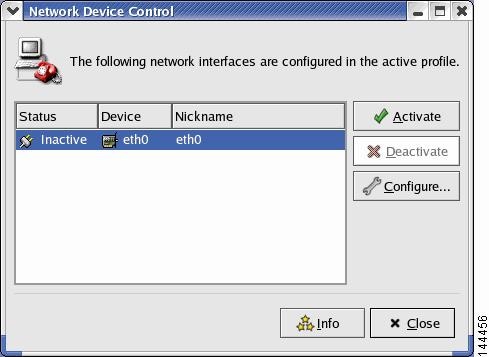
The Network Device Control window displays that eth0 is inactive (see Figure 2-15 for an example of the window).

Figure 2-16 Network Device Control Window

p. To activate eth0, click Activate.

The status for eth0 changes to active.


Note If this is not a fresh install of Cisco Linux, eth0 should already be active. If the port is active, proceed to Step q.


q. Click Close.

Cisco Linux activates eth0 and closes the window. The Cisco Linux desktop displays.

Step 11 To restart the server so that the installation completes successfully, follow these steps:

a. To open the Log Out window, click the Red Hat menu and choose Log Out.

The Log Out window displays.

b. Choose Restart the Computer. Then, click OK or press Enter.

The server reboots and returns you to GNOME Login window.

Step 12 To log in, enter the username as root and press Enter.

Step 13 Enter the password as cisco and press Enter.

The Cisco Linux desktop displays.

Step 14 To verify network connectivity, follow these steps:

a. To open a terminal window, click the Red Hat menu and choose System Tools > Terminal

b. To ping another server on the network, enter the following command:

ping <destination IP address>

where destination IP address represents the default gateway address, or an IP address of another server on the network.

If the ping is not successful, troubleshoot the network connectivity with your network administrator.

Step 15 To locate the hardware MAC address so that you can obtain your Cisco IPICS license, follow these steps:

a. To view the MAC address for your hardware, enter the following command:

[root] #ifconfig -a

Information displays about the network interface cards.

b. Locate the eth0 heading and note the HWaddr field. This is the MAC address for the server. Note this information so that you can use it to obtain your license for Cisco IPICS. For more information, see the "Obtaining Your License File" section.

c. To close the terminal window, click X.


The Cisco Linux operating system installation is now complete. You can continue with the installation of the Cisco IPICS server software. If you do not want to install Cisco IPICS immediately, you can resume the installation at a later time.

To install the Cisco IPICS server software, see the "Installing Cisco IPICS Server Software" section.

Installing Cisco IPICS Server Software

To install the Cisco IPICS server, you must have successfully completed the Cisco Linux operating system installation. For more information on installing Cisco Linux, see the "Installing the Cisco Linux Operating System" section.

You can install the Cisco IPICS server software by using the installation CD at the Cisco IPICS server or you may install it remotely by copying the installer file to the server.

This installation procedure includes a choice of the following install options:

Typical—This option installs the Cisco IPICS server software, including CSA

Custom—This option allows you to install the Cisco IPICS server software without CSA

Upgrade—For information on performing an upgrade of the Cisco IPICS server software, see "Upgrading Cisco IPICS"

If you choose not to install CSA during the Cisco IPICS server software installation, you can install CSA any time after the Cisco IPICS installation is complete.

This section includes the following topics:

Installing the Cisco IPICS Server Software at the Server

Installing Cisco IPICS from a Remote Location

Manually Installing CSA

Installing the Cisco IPICS Server Software at the Server

To perform the Cisco IPICS server software installation, you must have the Cisco IPICS installation CD that was included with your product package.


Caution Make sure that you only perform system date changes before you install the Cisco IPICS software. Cisco IPICS does not support any modification of the system date in the operating system after the Cisco IPICS software has been installed. Therefore, it is very important that you check your system date to ensure that it properly reflects your local date and time. If the system date is not properly set to your local date and time, you must adjust it before you install the Cisco IPICS software. If you try to change the system date and time after you install the software, you will invalidate your license and cause the system to become inoperable.

For information about setting the date and time as part of the operating system installation, see the "Installing Cisco IPICS Server Software" section.


Note You must log in with root privileges to perform the Cisco IPICS installation. If you attempt to run the installation from any other user ID, the installation returns an error and exits.


To install the Cisco IPICS server software, perform the following procedure:

Procedure


Step 1 To log in to the Cisco Linux operating system, enter root in the username field of the Login window and press Enter.

Cisco Linux displays a window with a password field.

Step 2 Enter your root password and press Enter. The default password is cisco.

The Cisco Linux desktop displays.

Step 3 Insert the Cisco IPICS installation CD into the Cisco MCS disk drive.

The Cisco IPICS CD icon displays on the desktop. See Figure 2-17 for an example.

Figure 2-17 Cisco IPICS CD Icon

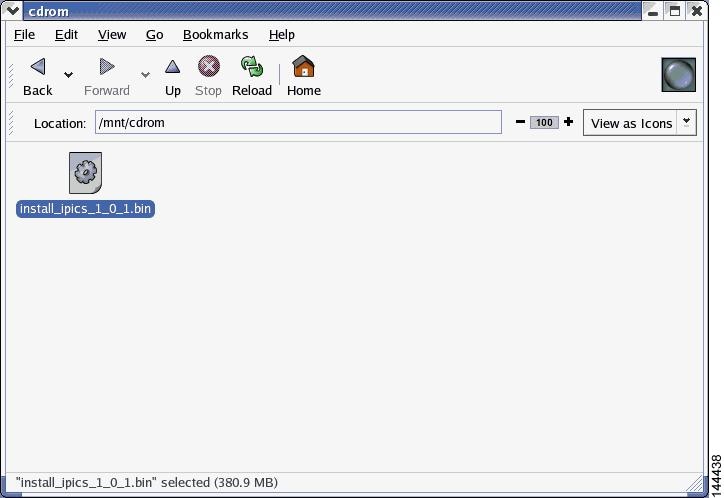
Step 4 To open the CD contents, double-click the CD icon.

Cisco Linux displays a window that shows the Cisco IPICS installer file. See Figure 2-18 for an example.

Figure 2-18 Installer File on the Cisco IPICS CD

Step 5 To start the installation, double-click the installer icon.

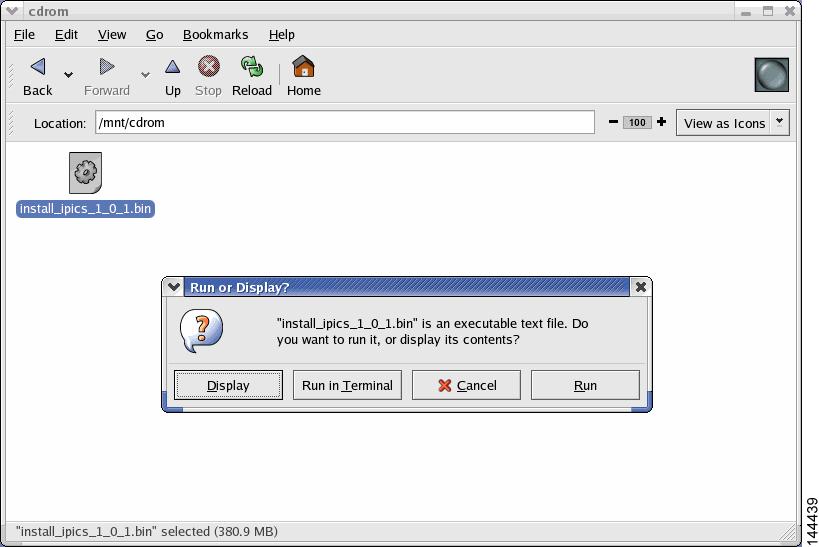
Cisco Linux displays a message window that offers options to display or run the installer file. See Figure 2-19 for an example of the window.

Figure 2-19 Run or Display Message Window

Step 6 When you are prompted to run or display the file contents, click Run in Terminal.

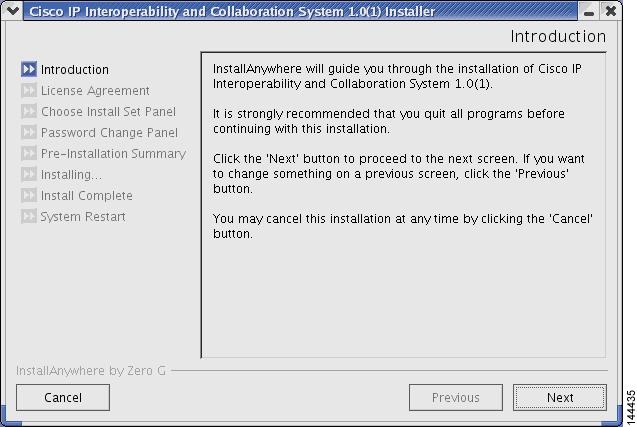
The Cisco IPICS installer window displays with an introduction to the process. See Figure 2-20 for an example of the window.


Note If you click Run, rather than Run in Terminal, there is a delay of approximately 3 minutes while the installer completes background security processes, such as extracting the necessary files for the installation. During this delay, the screen may be appear unresponsive. Do not click Run or Run in Terminal again or you will start an additional instance of the installer.


Figure 2-20 Introduction in the Installer Window

Step 7 To continue with the installation, click Next.

The Cisco IPICS installer displays the End User License Agreement.

Step 8 Use the scroll bar in the License Agreement pane to view the entire agreement. Read and review the license agreement; then, click the I accept the terms of the License Agreement radio button. Then, click Next.


Note You can only continue with the installation if you accept the End User License Agreement.


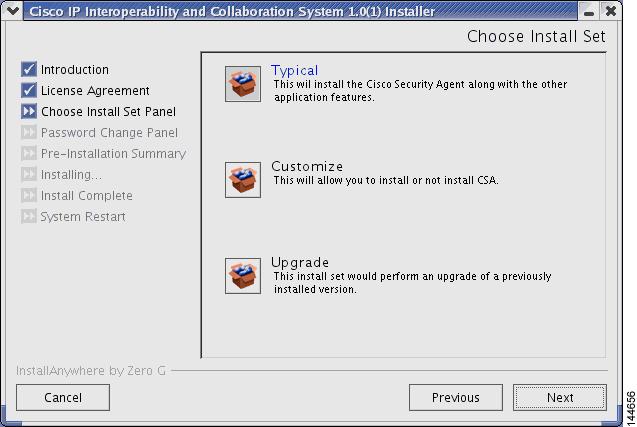
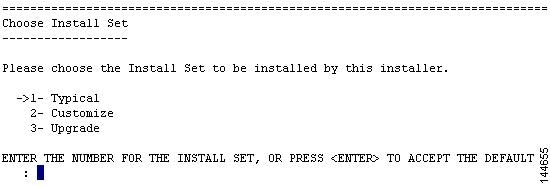
The Choose Install Set window displays with the following installation option (see Figure 2-21 for an example of the window):

Typical—This option installs Cisco IPICS server software with CSA

Customize—This option allows you to choose whether to install Cisco IPICS server software with or without CSA

Upgrade—This option installs an upgrade to a previously installed version of Cisco IPICS server software

Figure 2-21 Install Set Window

Step 9 To install Cisco IPICS with the CSA, choose Typical. Then, click Next.


Note If you decide not to install CSA with the installation of this server software, you can manually install CSA at a later time. For more information, see the "Manually Installing CSA" section. For information about manually uninstalling CSA, see the "Uninstalling CSA" section.


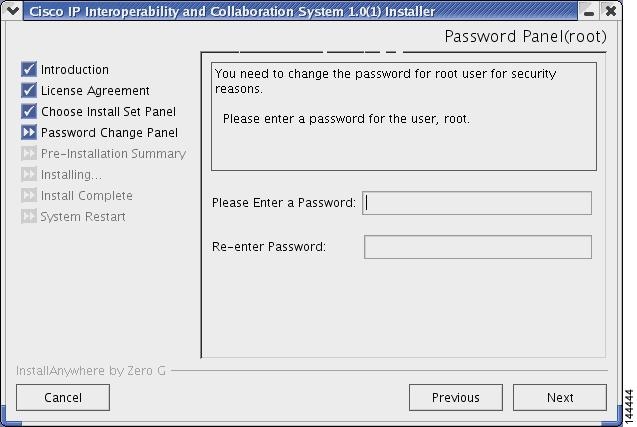
The Cisco IPICS installer displays the Password Change Panel for the root user. See Figure 2-22 for an example. The root user has complete privileges in the Cisco Linux environment.


Caution For security reasons, Cisco strongly recommends that you change the root password from the default password that was supplied in your product package.

Figure 2-22 Password Panel for root User

Step 10 To change the root user password, enter a new password in the first password field.


Caution When you enter your new root user password, make sure that you only use passwords that begin with a-z, A-Z or 0-9. Cisco IPICS does not support the use of special characters as the first character in the root password. If you enter a special character as the first character in the root password, your root login will become inoperable and you will need to boot the system in the single user mode to change the root password and reinstall Cisco IPICS to resolve the problem.

For information about single user mode and changing the root password, see "Changing the Cisco Linux Root Password."

Step 11 To confirm the new password, press Tab and type the password again. Then, click Next.

The Cisco IPICS installer displays the Password Change Panel for the ipicsadmin user.


Note After you complete the installation, you can change the password for the Cisco Linux root user at any time. For more information about changing the root user password, see "Changing the Cisco Linux Root Password.".


Step 12 Repeat Step 10 and Step 11 for the ipicsadmin user and then for the informix user. These users have the following capabilities:

The ipicsadmin user has limited capability in the Cisco Linux environment. This user can start, stop and restart the Tomcat service and browse the Cisco IPICS directories on the server machine.

The informix user can perform all database-related activities, such as backup and restore. The informix user cannot, however, cannot perform activities related to the Tomcat service, such as starting or stopping the Tomcat service.


Caution Never change the password for the informix user outside of the Cisco IPICS installer. If you need to change the informix password, you should only do so when performing a Cisco IPICS installation or upgrade. When you manually change the informix password, the Cisco IPICS Administration Console becomes unusable.

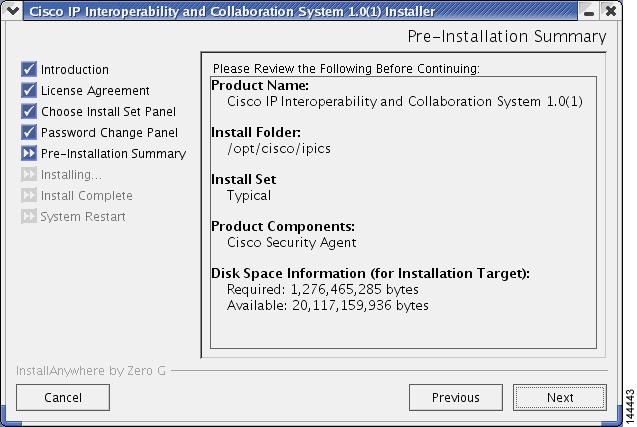
The Cisco IPICS installer displays the Preinstallation Summary. See Figure 2-23 for an example.

The Preinstallation Summary displays the following information:

The product name and version

The destination folder for the installation

Disk space information, including:

The amount of space required for the installation

The available space on the disk

Figure 2-23 Preinstallation Summery

Step 13 To begin installing Cisco IPICS files, click Next.

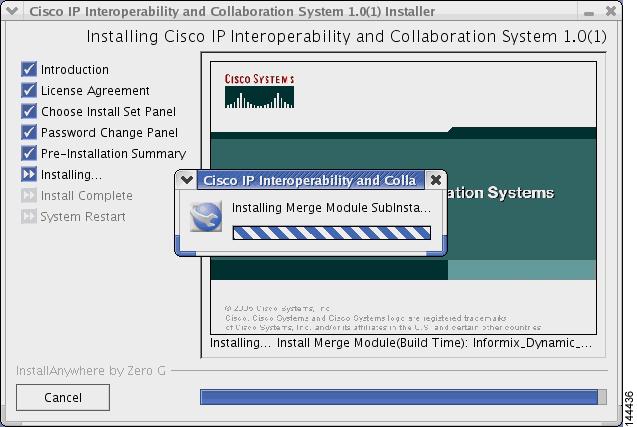
The Installation Progress window displays, showing the files and folders being written to the disk. See Figure 2-24 for an example.


Note The Cisco IPICS server software installation typically takes about 20 minutes to complete.


Figure 2-24 Cisco IPICS Installation Progress Window

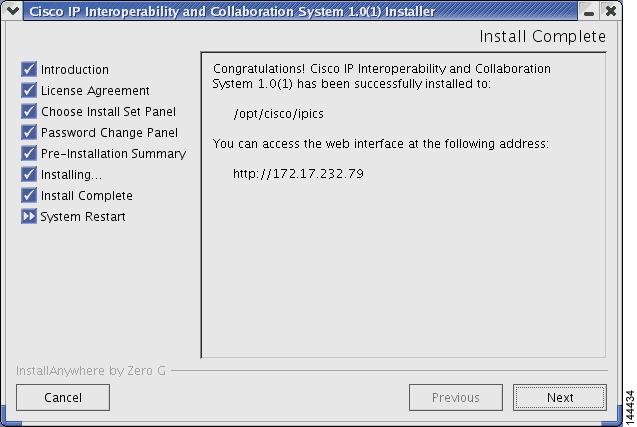
Step 14 When the file installation completes, the Cisco IPICS Install Complete window displays. See Figure 2-25 for an example of the window. This window lists the directory in which Cisco IPICS was installed, along with the URL where you may access the Cisco IPICS Administration Console.

Figure 2-25 Install Complete Window

Step 15 To continue, click Next.

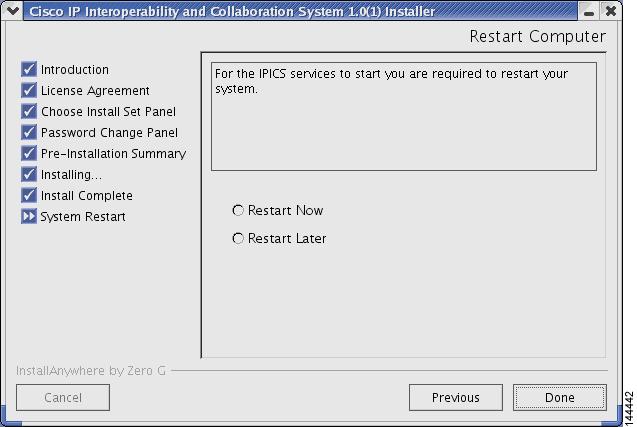
The Restart Computer window displays to provide you the option of restarting the computer now or at a later time. See Figure 2-26 for an example.

Figure 2-26 Restart Computer Window

Step 16 At the Restart Computer window, choose from the following options:

If you want to reboot the computer immediately, click the Restart Now radio button and then click Done. The computer reboots after you click Done.

If you want to reboot the computer later, click the Restart Later radio button and then click Done. The installer closes this window and returns you to the Cisco Linux desktop.


Note If you choose the Restart Later option, be sure to complete the restart before you attempt to log in to Cisco IPICS. Cisco IPICS processes, such as the Tomcat service and Informix database, will not start without rebooting the server.


Installing Cisco IPICS from a Remote Location

You may find it necessary or desirable to perform the Cisco IPICS server software installation from a remote location on your network. This section describes the method for installing Cisco IPICS from a PC that is connected to the network.

Before you start the remote installation, you must transfer the installer file from the Cisco IPICS installation CD to the Cisco IPICS server. You use the one of the following methods to transfer the file:

Place the CD (or have someone place it for you) in the Cisco IPICS server and copy the installer file to the server

Place the CD in a PC and transfer the installer file to the Cisco IPICS server by using an FTP client software program, such as SSH Tectia File Transfer Client

After you transfer the file to the Cisco IPICS server, you can execute the installer from an SSH Tectia Client window with the -i console option.

To install the Cisco IPICS server software from a remote location, perform the following procedure:

Procedure


Step 1 Perform one of the following procedures to transfer the Cisco IPICS installer file to the Cisco IPICS server:

Copying the File from the CD Drive in the Server

a. Place the Cisco IPICS installation CD in the disk drive of the Cisco IPICS server or have someone place the CD in the drive for you.

b. To connect remotely to the Cisco IPICS server from your PC, open the SSH Tectia Client by choosing Start > All Programs > SSH Tectia Client >
SSH Tectia Client
.

c. To open a window for entering the server IP address, click Quick Connect.

The Connect to Remote Host window displays.

d. In the Host field, enter the DNS name or the IP address for your Cisco IPICS server. Then, press Tab.

e. In the User Name field, enter root. Then, click Connect.

The Enter Password window displays.

f. Enter the root password and then click OK.

An SSH Tectia Client window displays.

g. To see the contents of the CD, enter the following commands:

[root] #cd /mnt/cdrom

[root] #ls -l

The name of the Cisco IPICS installer file displays with a .bin extension.

h. To copy the file to your root directory, enter the following command:

[root] #cp /mnt/cdrom/<name of Cisco IPICS installer file>.bin .

where name of Cisco IPICS installer file represents the name of the .bin file that was displayed in Step g.

The file copies from the CD to your root directory.

Transferring the File from the your PC to the Server

a. Place the Cisco IPICS installation CD in the CD drive of your PC.

b. Open the SSH Tectia File Transfer Client by choosing Start >
All Programs > SSH Tectia Client > SSH Tectia Client - File Transfer
.

The SSH Tectia File Transfer window displays. The desktop of your PC displays in the left pane.

c. To open a window for entering the server IP address, click Quick Connect.

The Connect to Remote Host window displays.

d. In the Host field, enter the DNS name or the IP address for your Cisco IPICS server. Then, press Tab.

e. In the User Name field, enter root. Then, click Connect.

The Enter Password window displays.

f. Enter the root password and then click OK.

The SSH Tectia File Transfer Client connects to the Cisco IPICS server and displays the contents of the root directory in the right pane of the window.

g. In the left pane of the window, navigate to the directory on your PC to which you saved the upgrade file.

h. To initiate the copy procedure, drag the upgrade file from the left pane of the window to the right pane.

A progress window displays while the file copies to the server. When the copy completes, the upgrade file displays in the right pane.

i. To close the SSH Tectia File Transfer Client, click X.

Step 2 To connect to the Cisco IPICS server, open an SSH Tectia Client window on your PC by performing the following procedure:

a. To open the SSH Tectia Client, click Start and choose All Programs >
SSH Tectia Client > SSH Tectia Client
.

The SSH Tectia Client displays.

b. To open a connection to the Cisco IPICS server, click Quick Connect.

The Connect to Remote Host window displays.

c. In the Host field, enter the DNS name or the IP address for your Cisco IPICS server. Then, press Tab.

d. In the User Name field, enter root. Then, click Connect.

The Enter Password window displays.

e. Enter the root password and then click OK.

After the login completes, the SSH Tectia Client displays a root prompt for the Cisco IPICS server.

Step 3 To view the files in the root directory, enter the following command and press Enter:

[root] #ls -l

Step 4 Locate the installer file, install_ipics_x_x.bin, where the x_x variable represents the version of Cisco IPICS you are installing.

Step 5 To begin the installation, type the following command and then press Enter:

[root] #./<name of installer file>.bin -i console

where name of upgrade file represents the name of the .bin file you transferred to the server.

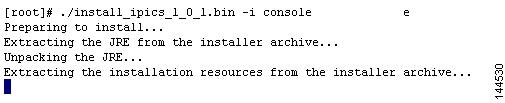
The window displays a message that informs you that the installer is extracting. See Figure 2-27 for an example of the message. Please wait while the server extracts the files.

Figure 2-27 Starting the Remote Installation

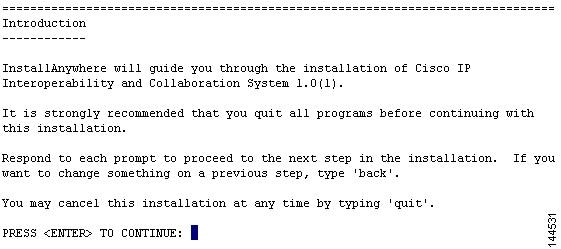
After the files are extracted, the installer displays an introduction. See Figure 2-28 for an example.

Figure 2-28 Introduction to the Remote Installation

Step 6 To continue, press Enter.

The first page of the End User License Agreement displays. There are approximately eight pages to the agreement.

Step 7 Read each page and press Enter when you finish.

At the end of the final page of the End User License Agreement, the installer prompts you to accept the terms of the license agreement.

Step 8 If you accept the terms, press Y and Enter.

The Choose Install Set menu displays. You can choose from the following options:

Typical—This option installs Cisco IPICS server software with CSA

Customize—This option allows you to choose whether to install Cisco IPICS server software with or without CSA

Upgrade—This option installs an upgrade to a previously installed version of Cisco IPICS server software

Figure 2-29 Install Set Options

Step 9 To choose the Typical option, press Enter.


Note If you decide not to install CSA with this installation of Cisco IPICS server software, you can manually install CSA at a later time. For more information, see the "Manually Installing CSA" section. For information about manually uninstalling CSA, "Uninstalling CSA" section.


The installer prompts you to enter a new password for the root user.

Step 10 Enter a root password that is at least six characters in length. Then, press Enter.


Caution When you enter your new root user password, make sure that you only use passwords that begin with a-z, A-Z or 0-9. Cisco IPICS does not support the use of special characters as the first character in the root password. If you enter a special character as the first character in the root password, your root login will become inoperable and you will need to boot the system in the single user mode to change the root password and reinstall Cisco IPICS to resolve the problem.

For information about single user mode and changing the root password, see "Changing the Cisco Linux Root Password."

The installer prompts you to re-enter the root password.

Step 11 Enter the root password again and press Enter.

The installer prompts you to enter a password for the ipicsadmin user.

Step 12 Repeat Step 10 and Step 11 for the ipicsadmin user and the informix user. These users have the following capabilities:

The ipicsadmin user has limited capability in the Cisco Linux environment. This user can start, stop and restart the Tomcat service and browse the Cisco IPICS directories on the server machine.

The informix user can perform all database-related activities, such as backup and restore. The informix user cannot, however, cannot perform activities related to the Tomcat service, such as starting or stopping the Tomcat service.


Caution Never change the password for the informix user outside of the Cisco IPICS installer. If you need to change the informix password, you should only do so when performing a Cisco IPICS installation or upgrade. When you manually change the informix password, the Cisco IPICS Administration Console becomes unusable.

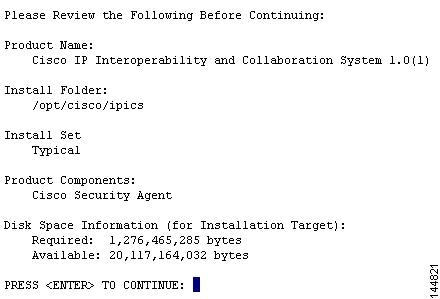
The Cisco IPICS installer displays the Preinstallation Summary. See Figure 2-30 for an example.

The Preinstallation Summary displays the following information:

The product name and version

The destination folder for the installation

Disk space information, including:

The amount of space required for the installation

The available space on the disk

Figure 2-30 Preinstallation Summary

Step 13 To continue, press Enter.

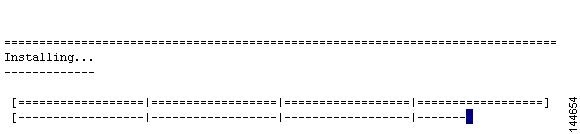
The installation process begins. Figure 2-31 shows an example of the installation progress indicator.

Figure 2-31 Installation Progress Indicator

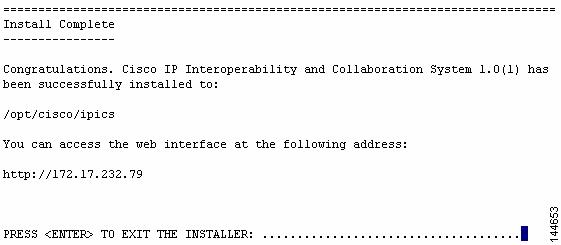
The Cisco IPICS Install Complete message displays. See Figure 2-32 for an example of the window. This window lists the directory in which Cisco IPICS was installed, along with the URL where you may access the Cisco IPICS Administration Console.

Figure 2-32 Install Complete Message

To continue, press Enter.

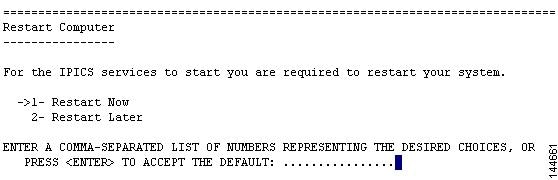
The Restart Computer page displays an option for you to restart the server now or later. See Figure 2-33 for an example.

Figure 2-33 Restart Computer Option

Step 14 To restart the computer now, press Enter.

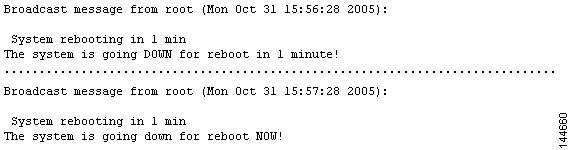
A broadcast message from root displays an announcement that the system will reboot in one minute. See Figure 2-34 for an example. After one minute, another broadcast message displays another announcement that the system is rebooting.

Figure 2-34 Cisco Linux Reboot Broadcast Messages

When the system reboots, the connection to the server is disrupted.

Step 15 To close the SSH Tectia Client window, click X.


Manually Installing CSA

If you did not install CSA at the time of the Cisco IPICS server software installation, you can perform the CSA installation manually at any time. To install CSA manually, perform the following procedure:

Procedure


Step 1 Log in to the Cisco IPICS server with root privileges.

The Cisco Linux desktop displays.

Step 2 To open a terminal window, click the Red Hat menu and choose System Tools > Terminal

A terminal window displays.

Step 3 Install the Linux kernel source package by entering the following command:

[root] #rpm -Uv kernel-source-2.4.21-32.0.1.EL.i386.rpm

Step 4 Change directory to the /tmp directory by entering the following command:

[root] #cd /tmp

Step 5 Enter the following command to untar the CSAStandAlone.tar file and place the extracted copy in the /tmp/CSCOcsa directory:

[root tmp] #tar xvf /root/CSAStandAlone.tar

Step 6 Navigate to the /CSCOcsa directory by entering the following command:

[root tmp] #cd CSCOcsa

Step 7 To install the CSA software, enter the following command:

[root CSCOcsa] #sh install_rpm.sh

Step 8 Enter the following command to restart the server and complete the installation:

[root] #reboot


For information about manually uninstalling CSA, see the "Uninstalling CSA" section.

Preparing to Use Cisco IPICS

Now that you have completed the Cisco IPICS installation, complete the following tasks, so that you can begin using the software:

Checking the Installation

Managing Your Licenses

Generating the Cisco IPICS PMC Application Installer

For information on other Cisco IPICS setup and configuration tasks, refer to the Cisco IPICS Server Administration Guide.

Checking the Installation

When you complete the Cisco IPICS server software installation, you should be able to access the Cisco IPICS Administration Console by using a browser. You can test the installation by opening a browser and logging in to the Administration Console.


Note There may be a delay of a few minutes before users can access the Administration Console after the Cisco IPICS server restarts.


To access the Cisco IPICS Administration Console from a browser and check the installation, perform the following procedure:

Procedure


Step 1 Open a browser window on your PC.

Step 2 In the Address field, enter either the static IP address or the DNS name that you established for your Cisco IPCIS server in the "Installing the Cisco Linux Operating System" section:

http://<static IP address or DNS name>

The Cisco IPICS Login window displays.

Step 3 Log in by using the Username, ipics, and the password, cisco123.


Note The ipics user has all privileges in Cisco IPICS and can perform any of the setup and configuration tasks.


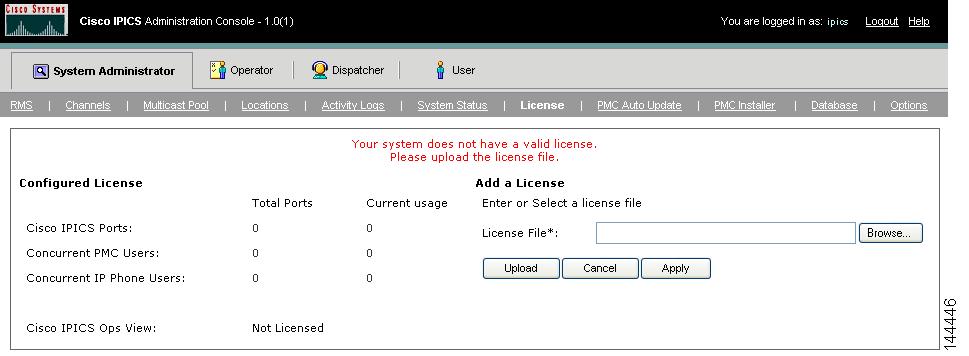
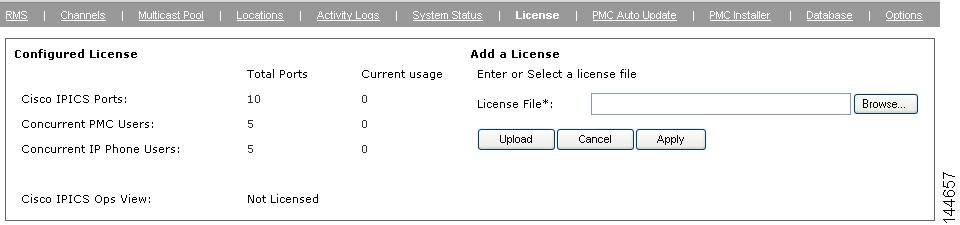
The Manage License window of the Cisco IPICS Administration Console displays with a message that you must upload a license file before you can use the software. See Figure 2-35 for an example.

Figure 2-35 Cisco IPICS Manage License Window


To obtain your license file, see the "Obtaining Your License File" section.

Managing Your Licenses

Cisco IPICS manages the number of concurrent PMC and Cisco IP Phone users and the number of active voice ports with the license manager. As you use Cisco IPICS, the license manager tracks the number of PMC users and Cisco IP Phone users who are logged in at one time and the number of voice ports that are currently active. The number of users or voice ports cannot exceed the number of licenses that you have.

When you finish the Cisco IPICS installation, you can use the Product Authorization Key that was included in your Cisco IPICS product package to obtain a license file. You can then upload the license file to the Cisco IPICS server and begin using the system.

After you begin using Cisco IPICS, you may find that you require more user or voice port licenses. You can increase the number of licenses by purchasing more from Cisco. Cisco IPICS does not support removal or reduction of the number of licenses.

This section includes the following topics:

Obtaining Your License File

Purchasing Additional Licenses

Uploading the Cisco IPICS Licenses

Managing Licenses with the Ops Views Feature

Tracking Your License Consumption

When you install Cisco IPICS, you may log in the Administration Console, but you cannot operate any features, such as configuring channels or creating VTGs, until you upload the licenses.

Obtaining Your License File

Your Cisco IPICS product package includes a Software License Claim Certificate that contains a Product Authorization Key (PAK), which is uniquely created from your sales order. You use this key to obtain licenses for your Cisco IPICS installation.

After you upload your licenses and begin using Cisco IPICS, the license manager component monitors the concurrent usage of PMC users, Cisco IP Phone users, and active ports. If you find that you need additional licenses, you can purchase them from Cisco. For information on purchasing additional licenses, see the "Purchasing Additional Licenses" section.

You can order your initial licenses any time after you begin the installation process.

To use your PAK to obtain your Cisco IPICS licenses, perform the following procedure:

Procedure


Step 1 Locate your Software License Claim Certificate that was included in your Cisco IPICS product package. Look for the Product Authorization Key at the bottom of this certificate.


Note If you ordered your Cisco IPICS server software directly from Cisco, your package may include only one Product Authorization Key. However, if you purchased Cisco IPICS through a distributor or reseller, you should have several individual packages, each with its own Product Authorization Key. In this case, you must process all of your Product Authorization Keys individually. Cisco sends you a license file for each one.


Step 2 Retrieve the MAC address that you noted during the Cisco Linux operating system installation. If you misplaced the information, you can use one of the following methods to obtain it:

Obtain the MAC address using the Network Device Control window

To gather the MAC address information from the Network Device Control window, follow these steps:

a. Log in to the Cisco IPICS server with root privileges.

b. Open Network Device Control window to view information about the server hardware. To do so, open the Red Hat menu on the Cisco Linux desktop and click the Red Hat icon.

c. Choose System Tools > Network Device Control. See Figure 2-10 for an example of the menu.

Figure 2-36 Using the Red Hat Menu

The Network Device Control window displays at least one active port. See Figure 2-11 for an example of the window.


Note Your server may have more than one Ethernet port. If so, choose eth0.


Figure 2-37 Network Device Control Window

d. To open the Network Configuration window, click the eth0 device from the list and then click Configure.

The Network Configuration window displays. See Figure 2-12 for an example of the window.

Figure 2-38 Network Configuration Window

e. To open the Ethernet Device Window, click eth0 again and then click Edit.

The Ethernet Device window displays.

f. To view the MAC address for eth0, click the Hardware Device tab.

The MAC displays in the Bind to MAC Address field.

g. Click X in each of the windows to close them.

Obtain the MAC address with a Cisco Linux command:

To gather the information using a Cisco Linux command, perform the following procedure:

a. Log in to the Cisco IPICS server with root privileges.

b. Open a terminal window to enter commands. To do so, open the Red Hat menu on the Cisco Linux desktop by clicking the Red Hat icon and choosing System Tools > Terminal.

A terminal window displays.

c. To view the MAC address for your hardware, enter the following command:

[root] #ifconfig -a

Information displays about the network interface cards.

d. Locate the eth0 heading and note the HWaddr field. This is the MAC address for the server.

e. To log out of the server, enter Exit at the command line and press Enter.

f. To close the terminal window, click X.

Step 3 Access Cisco.com using one of the following URLs:

If you are a registered user of Cisco.com, use this URL:

http://www.cisco.com/go/license


If you are not a registered user of Cisco.com, use this URL:

http://www.cisco.com/go/license/public

After you process your license order at Cisco.com, Cisco sends you an e-mail with the license file as an attachment.


Note Cisco IPICS does not support the edit or modification of the license file name or file contents in any capacity. If you change or overwrite the license file name, you may invalidate your license and cause the system to operate incorrectly.


Step 4 Use the attached license file to upload licenses to Cisco IPICS after you finish the installation.

If you processed several separate Product Authorization Keys, then you would receive several e-mail responses with a license file attached to each. When you upload these files, Cisco IPICS adds the licenses from each file and monitors your system activity according to the total number.

For information about uploading the license files, see the "Uploading the Cisco IPICS Licenses" section.


Purchasing Additional Licenses

After you begin using Cisco IPICS, you may find that you need additional licenses, so that you can provide access to more PMC or Cisco IP Phone users or accommodate more voice ports. You can purchase additional licenses from Cisco and then process them in the same way as the licenses that came with your original Cisco IPICS purchase.

When you need to purchase additional licenses, perform the following procedure:

Procedure


Step 1 Visit http://www.cisco.com or contact your reseller to purchase the additional licenses.

Cisco processes your order and mails you a package that contains a license certificate with a new Product Authorization Key.


Note This Product Authorization Key is different than the one that you used to process your original Cisco IPICS licenses.


Step 2 Locate the MAC address information for your hardware. If you have misplaced it or you have new hardware, follow the procedure in Step 2 of the "Obtaining Your License File" section to retrieve the MAC address.

Step 3 To process your license file, follow the procedure in Step 3 of the "Obtaining Your License File" section

Step 4 To upload the license file to Cisco IPICS, see the "Uploading the Cisco IPICS Licenses" section.


After you upload your license file, the license manager processes the new licenses and updates your total number of licences.

Uploading the Cisco IPICS Licenses

When you receive your license file(s), you can upload them by accessing the Manage License window of the Cisco IPICS Administration Console.


Note When you upload the license file, Cisco IPICS places the file in the following directory:

/opt/cisco/ipics/tomcat/current/webapps/ipics_server/license


To upload a license file, perform the following procedure:

Procedure


Step 1 Open a browser window on your PC.

Step 2 In the Address field, enter either the static IP address or the DNS name that you established for your Cisco IPCIS server in the "Installing the Cisco Linux Operating System" section:

http://<static IP address or DNS name>

The Cisco IPICS Login window displays.

Step 3 Log in by using the Username, ipics, and the password, cisco123.

The Manage License window displays.

Step 4 In the Add a License area, click Browse.

A navigation window displays files and folders on your PC.

Step 5 Navigate to the location where you saved the .LIC license file that you received as an attachment from Cisco. Then, select the file and click Open.

The file name displays in the License File field.

Step 6 Click Upload to upload the file into the Cisco IPICS database. If you choose not to upload this file, click Cancel.

A message displays with the status of the license file upload.

Step 7 To refresh the Cisco IPICS License Manager so that it recognizes the new licenses, click Apply.

Figure 2-39 Refreshing the License Window

The license manager processes the new licenses and updates your total number of licences in the Configured Licenses area of the Manage License window.

Step 8 If you uploaded a license for the ops views feature, you must restart the Tomcat service before you can use ops views. To restart the Tomcat service, follow these steps:

a. Log in to the Cisco IPICS server with root user privileges.

The Cisco Linux desktop displays.

b. To enter a CLI command, open a Cisco Linux terminal window by clicking the Red Hat menu and choosing System Tools > Terminal.

A terminal window displays.

c. Enter the following command at the prompt:

[root] #/etc/init.d/ipics_tomcat restart

After stopping, and then again after starting, the Tomcat service, Cisco Linux displays the message, [OK].


Note There may be a delay of a few minutes before users can access the Administration Console after the Tomcat service restarts.


For more information on Cisco IPICS licenses and the ops views feature, refer to the Cisco IPICS Server Administration Guide.


Managing Licenses with the Ops Views Feature

When the ops views feature is enabled on the server, the system displays a Cisco Ops View entry under the Configured License area in the Administration Console License window, along with the word "Licensed" to indicate that the ops views functionality has been enabled. (When ops views is not enabled, this entry displays "Not Licensed.")


Note When ops views is not enabled, Cisco IPICS displays the number of available licenses and concurrent usage information in the License browser window, which does not reflect real-time data. The data that displays in this window shows the usage at the time that the license window was last accessed. To view the most current license information, make sure that you refresh your browser window often.


Tracking Your License Consumption

Cisco IPICS uses the following criteria to determine license consumption for ports and PMC usage:

Cisco IPICS Ports Usage—A configured channel or activated VTG consumes a port license. After the channel is deleted or the VTG is deactivated, the server releases the license and makes it available for use.
Cisco IPICS bases license usage for ports on the unique combination of a multicast address and a location; that is, if a channel has two multicast addresses that are assigned to the channel, two licenses are used. If one of the multicast addresses is removed, the system releases one of the licenses so that the port now consumes one license.


Note Be aware that an inactive VTG (VTG template) consumes a license when a policy triggers (activates) that VTG. Therefore, if the number of licenses has been exceeded, the policy will not be able to activate the VTG. Make sure that the server has a sufficient number of licenses available for the configuration of policies.


Cisco IPICS PMC Usage—A PMC user consumes a license each time that the user logs in to a PMC session.

If the same PMC user logs in to multiple PMC sessions from different PMC client machines, that user will consume multiple licenses (one for each PMC session).


Note If all Cisco IPICS licenses have been used, PMC user access to the system will be interrupted. Make sure that you are aware of the current status of PMC licenses and that additional user licenses are purchased and installed immediately if this situation occurs.


Generating the Cisco IPICS PMC Application Installer

Cisco IPICS allows a user to download the PMC application installer from the Administration Console to a PMC client machine. After the user installs the PMC software, Cisco IPICS manages the automatic download of updates to the application. The Manage PMC window of the Administration Console allows a Cisco IPICS system administrator to upload version updates to the Cisco IPICS server and manage the distribution of the current and previous PMC versions to PMC users.

Before a user can access the installer from the Cisco IPICS server, you must first use the Administration Console to generate the installer. This procedure places the application onto the server, so that the PMC users can easily download the PMC application. When you generate the PMC installer, the Cisco IPICS server also writes the IP address of the server into the installer. Then, after the user downloads and installs the software, the PMC application can locate the server to log in.

To generate a new PMC installer for your system, perform the following procedure:

Procedure


Step 1 Open a browser window on your PC.

Step 2 In the Address field, enter either the static IP address or the DNS name that you established for your Cisco IPCIS server in the "Installing the Cisco Linux Operating System" section:

http://<static IP address or DNS name>

The Cisco IPICS Login window displays.

Step 3 Log in with system administrator privileges. You may also log in with the Username, ipics, and the password, cisco123.

The User tab displays of the Administration Console displays.

Step 4 From the System Administrator tab, click the PMC Installer link.

The Manage PMC Installer window displays with information about the last time and date that the installer was generated.

Figure 2-40 Manage PMC Installer Window

Step 5 Choose the server IP address from the drop-down list box.

Step 6 Click Generate PMC Installer.

A message displays to inform you whether the PMC installer was successfully generated.


For more information on managing PMCs, refer to the Cisco IPICS Server Administration Guide.