[an error occurred while processing this directive]

Support

Troubleshooting Security Implementations

 Feedback

Table Of Contents


Troubleshooting Security Implementations

Objectives

Troubleshooting CiscoSecure Scanner

Before Calling Cisco Systems' TAC Team

Troubleshooting CiscoSecure Intrusion Detection System (NetRanger)

Commands That Can Be Used to Troubleshoot the Application

Error Files Used for Debugging Application Errors

Before Calling Cisco Systems' TAC Team

Troubleshooting PIX Firewall

Finding the Real Problem

debug Commands

Additional Debug Command Notes

Troubleshooting Steps

External Users Cannot Access an Internal System (Web Server, Mail Server)

Troubleshooting Techniques

Before Calling Cisco Systems' TAC Team

Additional Sources

PIX Maintenance

Password Recovery

PIX 520 Password Recovery Procedure

Downloading a PIX 515 Image over TFTP

Software Upgrade Paths

Recovering a Lost Password

Password-Recovery Procedure: Platforms Running Current Cisco IOS Releases

Password-Recovery Procedure: Platforms Running Recent Software Releases

Password-Recovery Procedure: Platforms Running Earlier Software Releases

Password-Recovery Procedure: IGS Running Software Prior to Software Release 9.1

Password-Recovery Procedure: Cisco 500-CS Communication Server


Troubleshooting Security Implementations


This chapter covers several of the security products used to protect the network. It includes scanning software (CiscoSecure Scanner, formerly known as NetSonar), intrusion-detection software (CiscoSecure Intrusion Detection System, formerly known as NetRanger), firewall software (Cisco PIX Firewall), and router and switch password recovery.

As the Internet grows, so does the possibility of illegal activities. These activities can range from denial-of-service attacks to the compromising of propriety data. Many products have been developed to protect networks.

Firewalls were the first security products introduced to prevent unauthorized entry into the protected network. They allow network access only to specifically configured protocols and network objects. Next came intrusion-detection software products. These products track authorized traffic permitted by the firewall, while searching for unauthorized activity such as hacking attempts or denial-of-service attacks. Finally there was scanning software, which allowed administrators to detect security vulnerabilities in their network design.

This chapter assists a network administrator in debugging the security products mentioned here that have been installed in the network. This chapter assumes that the reader is familiar with the installation and operation of the software products to be debugged.

Only debugging commands are discussed in this chapter. For more information about the command syntax or explanation for each software product, refer to the user manual. You can also find the commands under "Service and Support" in the "Technical Documentation" section of Cisco Connection Online (CCO).

In the creation of this chapter, care was taken to use only the latest versions of software. If you have earlier versions of software than those discussed here, refer to the user's manual for your product for proper commands and syntax.

Objectives

The objective of this chapter is to help those already familiar with installed security software products to do some basic troubleshooting or debugging.

Troubleshooting CiscoSecure Scanner

The majority (75 percent) of the CiscoSecure Scanner (NetSonar) problems deal with licensing. The license issues are being addressed and will change with the next release.

Table 25-1 describes the other 25 percent of common problems.

Table 25-1 Common Problems with NetSonar 

Symptom
Possible Problem
Suggested Actions

The following NetSonar components are not showing up in the HTML browser: report, grid, chart, and NSDB.

NetSonar does not have the correct path to the browser.

Check the HTML Browser tab on the Preferences tab, and make sure that the path to your browser is correct.

You receive the following error message: "Not enough room for axis."

NetSonar license is invalid, or the user rules are not correct.

Make sure that you have a valid license file. Check the user.rules file, and make sure that the syntax is correct for any rules that you have added.

The server starts, but the client will not start.

NetRanger is running on the same machine as NetSonar.

Make sure that you stop NetRanger before executing any NetSonar scans or probes.

You are at your machine and cannot view the data that NetSonar obtained from a scheduled scan.

Your machine is not the machine on which NetSonar is installed and from which the scan was run.

You can view scan and probe only data from the machine on which NetSonar is installed and from which the scan or probe was run.

Suddenly you are allowed to scan only one host.

Your license is expired or invalid. NetSonar has reverted to the original demo license.

If you have an evaluation license, go to www.cisco.com/go/netsonar-eval to renew it, or contact your sales representative to purchase a license.

You have closed the NetSonar GUI. When you reopen it, NetSonar is not working correctly.

You have an open NetSonar browser.

Make sure that you close all NetSonar browsers when you exit NetSonar.


Before Calling Cisco Systems' TAC Team

Before calling Cisco Systems's Technical Assistance Center (TAC), make sure that you have read through this chapter and completed the actions suggested for your system's problem.

In addition, note and document the following information so that we may better assist you:

Operating system (Solaris or Windows NT) version

CiscoSecure Scanner version

Troubleshooting CiscoSecure Intrusion Detection System (NetRanger)

The main objective of this section is to help diagnose problems that may occur when running CiscoSecure Intrusion Detection System (IDS). There are three parts to the IDS: the Director, and the Sensor, and the Post Office. The Sensor discussed in this section is the appliance, not the feature that is now available in the IOS. The Post Office is the communication backbone that allows NetRanger services and hosts to communicate with each other. All communication is supported by a proprietary, connection-based protocol that can switch between alternate routes to maintain point-to-point connections.

Commands That Can Be Used to Troubleshoot the Application

CiscoSecure IDS comes with several commands and logs that are highly valuable when troubleshooting a problem with the software. This section gives a brief description of each command and each log file, followed by an example. Later sections discuss when to use each command.

The following commands are used when troubleshooting:

nrvers—Used to extract the version number of each of the processes running. This is especially helpful after upgrading the software.

netrangr@director>nrvers 
Application Versions for director.rtp
 postofficed v2.2.1       (release)       99/07/19-22:30
 loggerd v2.2.1             (release)       99/07/19-22:31
 packetd v2.2.1             (release)       99/07/19-22:44
 managed v2.2.1           (release)       99/07/19-22:29
 configd v2.2.1             (release)       99/07/19-22:29
 sapd v2.2.1                  (release)       99/07/19-22:31
 fileXfer v2.2.1             (release)       99/07/19-22:36

nrstatus—Used to find the current status of all daemons. The command displays all daemons that are currently running on the system.

netrangr@director>nrstatus 
netrangr 28906     1 99   Feb 05 ?       8295:01 /usr/nr/bin/nr.managed
netrangr 28921     1  0   Feb 05 ?        0:04 /usr/nr/bin/nr.configd
netrangr 28948     1  0   Feb 05 ?        0:09 /usr/nr/bin/nr.fileXferd
netrangr 28936     1  0   Feb 05 ?        0:04 /usr/nr/bin/nr.sapd
netrangr 28877     1  0   Feb 05 ?        0:29 /usr/nr/bin/nr.loggerd
netrangr 28891     1  0   Feb 05 ?        6:17 /usr/nr/bin/nr.packetd
netrangr 28217     1  0   Feb 05 ?        6:47 /usr/nr/bin/nr.postofficed

nrconns—Used to determine the currently configured connections and their status. Things to look for in the output include the IP address of the host and the information in brackets []. In the example that follows, [Established] means the communication is up and running. [SynSent] means that the Director sent a packet to sensor2 and never received a response.

netrangr@director>nrconns 
Connection Status for director.rtp
            sensor.rtp Connection 1: 171.68.120.214   45000 1 [Established] sto:0002 
with Version 1
            sensor2.rtp Connection 1: 171.68.120.213   45000 1 [SynSent] sto:0002 with 
Version 1

nrest—Is the same command as nrconns, but it shows only established connections. It will not display any other connections except for those already established.

netrangr@director>nrest 
Established Connections for director.rtp
            sensor.rtp Connection 1: 171.68.120.214   45000 1 [Established] sto:0002 
with Version 1

nrstop—Used to force all IDS daemons to gracefully shut down.

netrangr@director>nrstop 
done

nrstart—Used to start all IDS daemons. This command reads the file /usr/nr/etc/daemons and starts all the IDS daemons listed.

netrangr@director>nrstart 
starting netranger services:
netrangr  1671     1  0 09:28:49 pts/0    0:00 /usr/nr/bin/nr.postofficed
netrangr  1781     1  0 09:28:51 ?        0:00 /usr/nr/bin/nr.configd
netrangr  1741     1  0 09:28:50 ?        0:00 /usr/nr/bin/nr.loggerd
netrangr  1823     1  0 09:28:51 pts/0    0:00 /usr/nr/bin/nr.fileXferd
netrangr  1751     1  0 09:28:50 ?        0:00 /usr/nr/bin/nr.packetd
netrangr  1766     1  0 09:28:50 ?        0:00 /usr/nr/bin/nr.managed
netrangr  1796     1  0 09:28:51 ?        0:00 /usr/nr/bin/nr.sapd
netranger startup done.

Error Files Used for Debugging Application Errors

The following files are located in the /usr/nr/etc directory. Each is created when you run the application the first time. If you delete these files and stop and start the application, these files will be re-created. However, if you do not delete these files, information will be appended on to it. Each file contains the error associated with that daemon. For example, communication errors would be found in the errors.postoffice file.

On the Sensor or appliance:

errors.fileXferd—Errors with transferring files between the Sensor and the Director. This type of file transfers normally happen when configuring the Sensor.

errors.managed—Errors occurring while creating the access list on the router or when trying to communicate with the router.

errors.packetd—Errors occurring while capturing traffic of the network.

errors.postofficed—Errors occurring with the communication infrastructure.

errors.sapd—Errors occurring during file management.

On the Director:

errors.postofficed—Errors occurring with the communication infrastructure.

errors.sapd—Errors occurring during file management. This includes Oracle on the Director.

errors.configd—Errors occurring during the configuration process of Sensors.

errors.smid—Errors occurring with OpenView.

errors.eventd—Errors occurring when trying to run an event. This is normally the paging process but can be any script that you would like to run.

errors.fileXferd—Errors with transferring files between the Sensor and the Director. This type of file transfer normally happens when configuring the Sensor.

errors.loggerd—Errors occurring while trying to log data to the log files.

errors.nrConfigure—Errors occurring with the configuration graphical user interface (GUI).

Table 25-2 shows symptoms, possible problems, and suggested actions to be taken when troubleshooting CiscoSecure IDS.

Table 25-2 Troubleshooting NetRanger 

Symptom
Possible Problem
Suggested Actions

Director not running

You see the following error message: "Cannot write message to Director, errno =2."

This error occurs when smid tries to write to a socket that does not exist. This may occur because the Director's nrdirmap application has not created its communication socket in /usr/nr/tmp because the HP OpenView user interface (ovw) was not started.

First ensure that the underlying NetRanger services, such as postofficed and smid, are running by typing nrstatus at the command line. If the services are not running, type nrstart to manually start them. Then start HP OpenView by typing ovw & at the command line.

You see the following error message: "Cannot write message to Director, errno = 233."

This error message is generated when smid writes to a socket whose buffer is overflowing. This can occur when the Director's nrdirmap application is not running.

Ensure that the HP OpenView user interface (ovw) is running by executing ovw &. This will automatically start nrdirmap.

You see the following error message: "Cannot write message to Director, errno = 239."

This error message occurs when smid and nrdirmap do not have adequate permissions to communicate via sockets in /usr/nr/tmp.

Ensure that the smid process is owned by user netrangr and that nrdirmap runs as SUID netrangr.

You see the following error message: "nrdirmap: fatal: libovw.so.1: can't open file: errno=2."

The LD_LIBRARY_PATH environment variable is not set properly in your user environment. This may indicate that you are logged on to the Director platform as the wrong user.

Follow the instructions in "Installation and Configuration," for setting up an HP OpenView environment for user accounts other than netrangr. If the user account is based on either the Bourne or the Korn shell, the following lines should exist in the user's $HOME/.profile:

if [ -d /opt/OV ] ; 
then 
     . 
/opt/OV/bin/ov.envvars.
sh 
     PATH=$OV_BIN:$PATH 
     export PATH 
     
LD_LIBRARY_PATH=$OV_LIB
:$LD_LIBRARY_PATH 
     export 
LD_LIBRARY_PATH 

fi

If the user must use a shell other than ksh, then the preceding lines must be translated into the appropriate scripting language and placed in the appropriate startup file.

Director running

The Director's security map contains a Sensor icon but fails to show any events for that Sensor.

The Director's Severity Status attributes are set higher than the level of alarms being generated by the Sensor.

On the Director interface, highlight the icon for the Sensor system and then either press Ctrl-O or click Describe/Modify on the Edit menu. Then select NetRanger/Director and click View/Modify. Ensure that the Minimum Marginal and Minimum Critical status thresholds are low enough to register events from the Sensor in question.

The Director's security map contains a Sensor icon but fails to show any events for that Sensor.

The level of alarms generated by the Sensor system fall below the routing threshold set in the /usr/nr/etc/destinations file.

If the Director Severity Status thresholds are set properly, ensure that the routing threshold in the Sensor's /usr/nr/etc/destinations file is set low enough to route information to the Director.

You see the following error message: "Application AppId.HostId.OrgId has reached maximum number of alarms."

The application mentioned in the error message has 1000 alarm icons represented on its HP OpenView child submap. The Director will not create more than 1000 icons on a submap (window) because HP OpenView can behave unpredictably when this happens.

Delete the alarm icons on the crowded submap. The Director will resume creating alarm icons on the submap for any new events.

To view iconic representations of the events that nrdirmap diverted to /usr/nr/var, delete the icons on the map, and then shut down and restart the user interface.

Note: The Director saves any additional alarm data for that application to a file named nrdirmap.buffer.ovw_map_name in the /usr/nr/var directory, where ovw_map_name is the name of the ovw map.

A Sensor's alarms are properly displayed on the Director security map, but information on those alarms does not appear in the Show Current Events window, and the event log file in the Director's /usr/nr/var directory does not contain any records from that Sensor.

The Director loggerd service is not listed as a destination in either the Sensor or the Director's configuration files.

Use nrConfigure to create an entry in the Sensor's /usr/nr/etc/destinations file for the Director's loggerd service, or create a DupDestination entry in the Director's /usr/nr/etc/smid.conf file to redirect event data to loggerd from smid.

Information is properly displayed in the Director's Show Current Events window, but the cursor turns into an hourglass and never changes back.

The current events utility continues to pull information from the Director log files as long as the window is up.

Click Stop to terminate the filtering application. You can then use the scrollbars and menu options to look at the data. Click Close to exit this window.

Connectivity

A Sensor or any of the NetRanger services running on the system cannot be accessed.

The Sensor services are not running properly.

Telnet to the Sensor and run nrstop. Examine the error files in /usr/nr/var. Restart the Sensor by typing nrstart.

Sensor

The NetRanger daemon processes cannot be started or stopped when running nrstart or nrstop.

You are trying to run these utilities from an account that does not have access rights to the Sensor daemons.

Ensure that you are logged on to the Sensor or Director systems under the same user account that was used to start its daemon services. (The default is user netrangr.)

Oracle

Cannot determine if Oracle is installed.


Check local and mounted file systems using commands df, mount, and find. Look for oracle and product/.

Cannot determine if Oracle is running.


Run ps -ef | grep ora from the command line to check whether Oracle is running.

Oracle Installer (orainst) could not find any products to install.

start.sh was not run before starting orainst.

Run /cdrom/cdrom0/orainst/start.sh to prepare your environment for the orainst program.

One of the following messages is displayed:

"sqlplus: not found"

"sqlldr: not found"

The Oracle bin directory is not present or specified properly in your $PATH.

Set $PATH to include $ORACLE_HOME/bin.

The following error message is displayed when you try to run sqlplus: "~~~/oracle/product/7.3.2/bin/sqlplus: cannot open."

The shell finds sqlplus, but it cannot be executed. This can occur when your $PATH includes references to the wrong versions of the Oracle binaries. For example, you have mounted the wrong Oracle directories from a file server. Therefore, you are trying to execute HPUX binaries on a SPARC system.

Ensure that the $ORACLE_HOME directory contains the proper binaries for the platform you are running. Refer to "Installing an Oracle RDBMS" in RDBMS Reference.

sqlplus, sqlldr, or sapx fail with the following SID error message:

"ERROR: ORA-01034: ORACLE not available"

"ORA-07200: slsid: oracle_sid not set"

The ORACLE_SID environment variable, which identifies which database instance to use, was not set properly before starting sqlplus.

Set the ORACLE_SID environment variable to the name of your database instance. You can find out your database instance name by running ps -ef | grep ora. The string after the last underbar in the returned text is the database instance name.

sqlplus, sqlldr, or sapx fails with the following libc error message: "libc.so.xxx: can't do something"

$ORACLE_HOME/lib is not part of the LD_LIBRARY_PATH environment variable.

Add ORACLE_HOME/lib to the LD_LIBRARY_PATH environment variable. If you are running either the Bourne or the Korn shell, ensure that your $HOME/.profile contains the following entries:

LD_LIBRARY_PATH=$LD_LIB
RARY_PATH:$ORACLE_HOME/
lib
export LD_LIBRARAY_PATH

sqlplus, sqlldr, or sapx fail with the following TNS error message: "ERROR: ORA-12154: TNS: could not resolve service name"

Oracle cannot understand the name specified in your connect string.

Ensure that the Oracle file tnsnames.ora resides in its proper location (usually $ORACLE_HOME/admin/network) and that it is properly formatted. Then use the tnsping utility to test sqlnet connectivity to your remote database.

sqlplus, sqlldr, or sapx return a TNS or USER/PASSWORD error message.

Improper connect string.

Correct the syntax on the connect string. If specifying the password on the command line, type sqlplus user/password@host.

Otherwise, type sqlplus user@host, and sqlplus will prompt for a password.

Data management
package

Instrumentation shows proper configuration, but no actions are being performed.

If there are no FM_Action items in sapd.conf, then the install procedure did not properly copy files into sapd.conf because of an upgrade from NetRanger 1.2.x to 1.3.x or 2.x.

Manually copy the sapd.conf.nsx or sapd.conf.director from /usr/nr/etc/wgc/templates into /usr/nr/etc/, replacing the sapd.conf file.

Note: The file /usr/nr/etc/wgc/templates/sapd.conf contains descriptions of the tokens used by sapd. This file does not contain any real token values. It is intended as a reference for setting triggers in the sapd.conf file in the /usr/nr/etc directory.

There are extraneous files in the /usr/nr/var directory structure, and a /usr/nr/var/old directory exists.

You have upgraded from NetRanger 1.2.x to 1.3.x or 2.x, which does away with the /usr/nr/var/old directory. The upgrade has also left behind many files in /usr/nr/var.

Clean the extraneous files, delete the /usr/nr/var/old directory, and archive the /usr/nr/var/dump directory.

SQL queries do not display data.

You did not enter % as a wildcard.

Use % as a wildcard in your SQL queries.

From the SQLPLUS prompt, typing @event1, @space1, @time1, or @system1 does not return proper data.

You are using the wrong command-line parameter.

SAP 1.3.x requires that you type either @event, @space, @time, or @system. You will be prompted for the desired drill-down level (for example, 1, 2, 3).

Queries do not display new signatures.

You have upgraded from NetRanger 1.2.x to 1.3.x or 2.x without updating the nr_sigs and nr_orgs tables.

Update the nr_sigs table with /usr/nr/etc/signatures, and update the nr_orgs table with /usr/nr/etc/organizations. Use the code at the end of nrdb_master_create for this purpose.

Instrumentation shows a successful notify, but no mail notification has been sent.

The mailx feature cannot be invoked through the command-line interface.

To ensure that mail can be sent from a command line, from the command line, use mailx to send mail to yourself. If mail is not sent, set the domain name by typing domainname your_domain_name from the command line (on Solaris, you can add the name of your domain to the /etc/defaultdomain file). Then add your mail server information to /etc/hosts, with the following format: IP_address server_name mailhost, where IP_address is the IP address of your mail server and server_name is its DNS server name.

The sapx database loader fails with a JDBC-related error message (ora-1461).

You are using the NT Oracle 8 database server.

You have three options for bypassing this error:

1. Bypass the default sapx loader by using the alternate loading templates in /usr/nr/bin/sap/sql/skel.

2. Use a UNIX Ora7 or Ora8 server. Cisco has successfully tested the server software on Solaris Sparc, x86, HP-UX, and AIX.

3. Upgrade NT Ora 8.0.4.0.0 to 8.0.4.0.4. This upgrade should solve the JDBC problems, but it has not been tested.

nrConfigure

During initial startup, nrConfigure will cause a core dump.


Restart nrConfigure. nrConfigure will then restart without error.

HP-UX performance
problems

HP-UX versions of nrConfigure run slowly on some HP machines.

There is not a reliable JIT Java Compiler on HP-UX. This performance problem can sometimes lead to confusion when the user interface is sluggish and users initiate actions several times because of poor performance. For example, rapid successive mouse clicks can lead to unexpected behavior by nrConfigure. Another case involves Java errors scrolling on console and the Java application screens crashing.

Retry your previous steps. In most cases, a second or third attempt is successful.

File transfer problems

You receive the following error message during file transfer between Sensors and Directors: Error transferring file from source_file to destination_file.

Occasionally, errors occur in file transfer between Sensors and Directors. However, if too many of these errors occur, there is a problem with fileXferd.

To ensure that communication is occurring, run the nrstatus and nrvers commands on both the Sensors and the Directors. Both the nrvers and nrstatus command outputs should indicate that fileXferd is running. If either command indicates that fileXferd is not running (for example, fileXferd does not appear in the process list), perform an nrstop and nrstart on the Sensors and Directors.

If fileXferd is running, then another possibility is that the nrConfigure databases have incorrect file permissions.

You can confirm the ownership of the nrConfigure databases by running the following command on the Director:

ls -l 
/usr/nr/var/nrConfigure

If any subdirectories are owned by user root, then perform the following steps:

1. Use the su command to become user root.

2. Type this command:

rm -rf 
/usr/nr/var/nrConfigure

3. Use the su command to become user netrangr.

4. Start the Director interface with the ovw & command.

5. Click Advanced, nrConfigure DB, Create on the Security menu.

You receive the following error message during file transfer between Sensors and Directors: Error transferring file from source_file to destination_file (continued)


If none of the subdirectories are owned by user root, follow these steps:

1. Start the Director interface with the ovw & command.

Caution: Ensure that no Machine icons are selected before continuing with the next steps. If you select any Machine icons, then nrConfigure deletes and creates databases on the selected machines only.

2. Click Advanced, nrConfigure DB, Delete on the Security menu.

3. Click Advanced, nrConfigure DB, Create on the Security menu.

Another problem may occur if you answer no when nrConfigure prompts you to download the latest configuration files. The solution for the problem is to delete and re-create new nrConfigure databases, as outlined previously.

Launching the NSDB or online help launches a new copy of the HTML browser, instead of refreshing the existing HTML browser window.


If you use Netscape, you can configure NetRanger to load all HTML pages into a single browser window. To do this, follow these steps:

1. Open the /usr/nr/etc/nrConfigure.conf file in a text editor.

Launching the NSDB or online help launches a new copy of the HTML browser, instead of refreshing the existing HTML browser window. (continued)


2. Change the value of the Browser token to the following value:

Browser=/usr/nr/bin/dire ctor/nrSingleBrowser

3. Change the value of the NetscapeLocation token to the following value:

NetscapeLocation=/opt/n
etscape/netscape

4. Save your changes and close the editing session.


Before Calling Cisco Systems' TAC Team

Before calling Cisco Systems's Technical Assistance Center (TAC), make sure that you have read through this chapter and completed the actions suggested for your system's problem.

In addition, note and document the following information so that we can better assist you:

Versions of each daemon. Use the nrvers command.

Operating systems installed on the hardware. This is especially important on the Director.

Compress the /usr/nr/etc and the error files in the /usr/nr/var directory.

Troubleshooting PIX Firewall

To debug the PIX Firewall, you must first breakdown the task at hand. The following is a possible breakdown of a task, followed by solutions to possible problems, error codes, and debug commands. The symptoms and their likely solutions are included in Table 25-3. The error codes and their definitions should help in the interpretation of errors found in various logs. The debug commands are listed and accompanied by examples to assist in their use.

Finding the Real Problem

The PIX is the gateway to the Internet for the network and is normally blamed for problems that occur when a user cannot get out to the Internet. Although the PIX might be the problem, there are many other elements involved that might be causing the problem. Here you will find a list of other areas that could be causing the problem with a quick checklist.

User's host machine

Can the host machine ping to anything else on the inside network?

Is the proper default gateway assigned?

Can the host machine ping the inside interface of the PIX?

Protected inside router

Can the router ping the inside interface of the PIX?

Can the router ping the user's host?

Can the router get to anything on the external network?

PIX

Can the PIX ping the outside router?

Can the PIX get to an external site past the outside router?

IS the host's address defined in the nat command?

Are there enough addresses defined in the global pool for all the internal hosts?

Unprotected outside router

Can the outside router get to the Internet?

Does the outside router see packets coming from the PIX?

As you can see, many other factors are involved when troubleshooting the PIX Firewall.

debug Commands

The following commands are helpful when debugging the PIX Firewall.

show debug—Used to display what debugging is turned on.

show debug

debug icmp trace off

debug packet off

debug sqlnet off

debug icmp trace—When a host is pinged through the PIX Firewall from any interface, trace output displays on the console. The following example shows a successful ping from an external host (192.150.50.42) to the PIX Firewall's outside interface (200.200.200.1).

router#debug icmp trace
Inbound ICMP echo reply (len 32 id 1 seq 256) 192.150.50.1 > 192.150.50.42
Outbound ICMP echo request (len 32 id 1 seq 512) 192.150.50.42 > 192.150.50.1
Inbound ICMP echo reply (len 32 id 1 seq 512) 192.150.50.1 > 192.150.50.42
Outbound ICMP echo request (len 32 id 1 seq 768) 192.150.50.42 > 192.150.50.1
Inbound ICMP echo reply (len 32 id 1 seq 768) 192.150.50.1 > 192.150.50.42
Outbound ICMP echo request (len 32 id 1 seq 1024) 192.150.50.42 > 192.150.50.1
Inbound ICMP echo reply (len 32 id 1 seq 1024) 192.150.50.1 > 192.150.50.42

debug packet if_name—Used to debug a packet. The following example lists the information as it appears in a packet.

router#debug packet inside
--------PACKET ---------
-- IP --
4.3.2.1 ==>     255.3.2.1
        ver = 0x4       hlen = 0x5      tos = 0x0       tlen = 0x60
        id = 0x3902     flags = 0x0     frag off=0x0
        ttl = 0x20      proto=0x11      chksum = 0x5885
        -—UDP --
                source port = 0x89      dest port = 0x89
                len = 0x4c      checksum = 0xa6a0
        -—DATA --
                00000014:                                     00 01 00 00|
         ....
                00000024: 00 00 00 01 20 45 49 45 50 45 47 45 47 45 46 46| ..
.. EIEPEGEGEFF
                00000034: 43 43 4e 46 41 45 44 43 41 43 41 43 41 43 41 43| CC
NFAEDCACACACAC
                00000044: 41 43 41 41 41 00 00 20 00 01 c0 0c 00 20 00 01| AC
AAA.. ..... ..
                00000054: 00 04 93 e0 00 06 60 00 01 02 03 04 00| ..
....\Q......
--------END OF PACKET ---------

debug packet if_name [src source_ip [netmask mask]] [dst dest_ip [netmask mask]] [[proto icmp] | [proto tcp [sport src_port] [dport dest_port]] | [proto udp [sport src_port] [dport dest_port]] [rx|tx|both]—Used to see the contents of packets as it travels between two destinations.

Syntax description:

if_name—Interface name from which the packets are arriving; for example, to monitor packets coming into the PIX Firewall from the outside, set if_name to outside.

src source—Source IP address.

netmask mask—Network mask.

dst dest_ip—Destination IP address.

proto icmp—Display ICMP packets only.

proto tcp—Display TCP packets only.

sport src_  port—Source port. See the "Ports" section in "Introduction" for a list of valid port literal names.

dport dest_  port—Destination port.

proto udp—Display UDP packets only.

rx—Display only packets received at the PIX Firewall.

tx—Display only packets that were transmitted from the PIX Firewall.

both—Display both received and transmitted packets.

In the following example, the contents of the tcp packets on port 25 with the source address of 200.200.200.20 and the destination address of 100.100.100.10 are displayed.

debug packet outside src 200.200.200.20 dst 100.100.100.10 proto tcp dport 25 both


Note Use of the debug packet command on a PIX Firewall experiencing a heavy load may result in the output displaying so fast that it may be impossible to stop the output by entering the no debug packet command from the console. You can enter the no debug packet command from a Telnet session.


Additional Debug Command Notes

The debug icmp trace command now sends output to the Trace Channel. The location of the Trace Channel depends on whether you have a simultaneous Telnet console session running at the same time as the console session, or if you are using only the PIX Firewall serial console.

If you are using only the PIX Firewall serial console, all debug commands display on the serial console.

If you have both a serial console session and a Telnet console session accessing the console, then no matter where you enter the debug icmp trace or the debug sqlnet commands, the output displays on the Telnet console session.

If you have two or more Telnet console sessions, the first session is the Trace Channel. If that session closes, the serial console session becomes the Trace Channel. The next Telnet console session that accesses the console will then become the Trace Channel.

The debug packet command displays only on the serial console. However, you can enable or disable this command from either the serial console or a Telnet console sessions.

The debug commands are shared between all Telnet and serial console sessions.


Note The downside of the Trace Channel feature is that if one administrator is using the serial console and another administrator starts a Telnet console session, the serial console debug icmp trace and debug sqlnet output will suddenly stop without warning. In addition, the administrator on the Telnet console session will suddenly be viewing debug output, which may be unexpected. If you are using the serial console and debug output is not appearing, use the who command to see if a Telnet console session is running.


Note To let users ping through the PIX Firewall, add the conduit permit icmp any command to the configuration. This lets pings go outbound and inbound.


Troubleshooting Steps

The first example deals with an internal user who cannot access the Internet. These are recommended troubleshooting steps to follow, but note that these steps may not solve every instance of this problem.


Step 1 Go to the end user's machine and have the user ping the PIX's internal interface. If you get a response, go to the next step. If you do not get a response, check the following for possible solutions:

User cannot ping any internal address. Check interface card on the user's system.

User can ping other systems on the same network but cannot ping the PIX. This assumes that there is a router between the user's system and the PIX. Check the following:

a. The default route on the user's system.

b. The default route or static route on the inside router. Make sure that the inside router is configured to route the traffic both ways.

PIX cannot ping user's system. If not on the same network, check the internal router. If the PIX can ping the internal router but not beyond, make sure that the PIX knows how to get to that subnet.

a. Check the default inside route on the PIX. In the following example, the default route would be 100.100.100.2.

Route inside 0.0.0.0 0.0.0.0 100.100.100.2 1 
Route inside 0.0.0.0 0.0.0.0 100.100.100.2 1

b. Check the routing table on the inside router to make sure that the inside router knows how to properly route the packets.

Step 2 On the PIX, turn on debug icmp trace.

Allow ICMP traffic through the PIX. To do this enter the following command:

conduit permit icmp any any 


Note Use of the debug packet command on a PIX Firewall experiencing a heavy load may result in the output displaying so fast that it may be impossible to stop the output by entering the no debug packet command from the console. You can enter the no debug packet command from a Telnet session.


Next find out if the user's system has a translated address. To do this, use the following command:

show xlate local ip_address

If there is a translated address, you will need to clear the address. Use the following command:

clear xlate local ip_address

Step 3 Try to access a web site from the user's system.

Step 4 Check the translation table to make sure that a translation was built for the user's system. Refer to the command in Step 2.

Step 5 If there was no translation built, have the user's system try to ping an outside system, and then watch the output from the debug command. If you do not see any output, then the packet is not making it to the PIX. If the packet is making it to the PIX, then check the syslog output and check to make sure that there are enough addresses in the global command. Verify that the user's address is included in the nat command addresses. Check other items between the PIX and the user's system. Confirm that there is a valid default route.

Step 6 If there was a translation built, turn on debugging of the packet, and see if the packet is traveling through the PIX.

Step 7 If the packet goes out but you do not get a return, then the outside router does not know how to return the traffic. Check the routing table on the outside router.

External Users Cannot Access an Internal System (Web Server, Mail Server)

The following six steps provide a practical approach to troubleshooting common problems associated with external users having difficulty accessing a company's internet/mail servers.


Step 1 The first step in this type of debugging is to allow pings from the external source for testing purposes. Use this command:

conduit permit icmp any any

Step 2 Next turn on debug icmp trace.


Note Use of the debug packet command on a PIX Firewall experiencing a heavy load may result in the output displaying so fast that it may be impossible to stop the output by entering the no debug packet command from the console. You can enter the no debug packet command from a Telnet session.


Step 3 Have an external site try to ping the internal system via the translated address. For example, if your web server has an internal address of 10.10.10.1 and a translated address of 200.200.200.1, have the external site ping the 200.200.200.1 address.

Step 4 If you do not see the packets on the PIX, check the external router to ensure that they are making it to there. If they are, then check the routing table on the external router to make sure that the router knows how to route the packet. If the routing tables are correct, then check the ARP table on the router to make sure that it has the proper MAC address for the packet. It should be the same as the PIX's external MAC address.

Step 5 Check the static and conduit statements in the configuration on the PIX for the server in question, and ensure that they are correct. You can also check by the following two commands:

show static—This will show all the static addresses currently assigned.

show conduit—This will show all the conduits that are currently applied.

Step 6 If the packet goes through, then have the external site try to get to the server again. This time, use port 80 (web browsing). If the external user cannot get to the server, check the log for their address. Check to see if the address is getting denied.

Troubleshooting Techniques

Table 25-3 suggests what actions to take when presented with the two most common Pix firewall connectivity problems.

Table 25-3 Troubleshooting Techniques 

Symptom
Possible Problem
Suggested Actions

The internal host cannot access a host on the Internet.

The Network Translation Table does not include the network that the host is on.

Make sure that the NAT command includes the network the host is on. For example:

Host address 
171.68.101.1 nat 
(inside,outside) 1 
171.68.0.0 255.255.0.0
 

There are no more addresses in the global statement to handle the number of internal hosts.

Make sure that there are sufficient global addresses for all the internal hosts.

global (outside) 1 
200.200.200.2-200.200.2
00.250

Or, use port address translation (PAT):

global (outside) 1 
200.200.200.2-200.200.2
00.2
 

The host's default gateway is not set to the proper address.

If the host is on the same network as the PIX, it must have the PIX's inside interface for its default gateway.


The router on the outside of the PIX does not know how to route the addresses that you have defined in the global pool back to the PIX.

This is normally caused by using addresses in the global pool definition that are on a different network than the outside interface of the PIX.

Have a static route for those global addresses put on the outside router.


The PIX was recently changed or replaced, and the ARP table on the outside router has not cleared yet.

Use the clear arp command on the outside router.


The host's default gateway is not set to the proper address.

Check the default gateway on the user's host.

The external host cannot access a host on the local network (for example, a web server).

The outside address does not know how to route the packets.

Make sure that the router connected to the outside of the router knows how to route the static address of the server.


There is no static or conduit statement for the server.

Whether it is a WEB server or an e-mail server, it must have a static statement and a conduit statement on the PIX.

The static statement statically maps an internal addresses to an external address.

The conduit command opens a hole for traffic to come through the PIX and get to the server.

The following is an example for a WWW server with an internal address of 10.10.10.20 and an external (translated) address of 200.200.200.20:

static (inside,outside) 
200.200.200.20 
10.10.10.20 netmask 
255.255.255.255
conduit permit tcp host 
200.200.200.20 eq www 
any
 

The PIX does not know how to route the traffic to the server.

This will happen only if the server is on a different network than the PIX.

Check the inside route statement, and make sure that the PIX knows how to route the traffic. Use the show route command.


Before Calling Cisco Systems' TAC Team

Before calling Cisco Systems' Technical Assistance Center (TAC), make sure that you have read through this chapter and completed the actions suggested for your system's problem.

Additionally, do the following and document the results so that we can better assist you:

Obtain the version of the PIX IOS software

Obtain as much hardware information as possible

Additional Sources

Books:

Atkins, Derek. Internet Security Professional Reference, Second Edition. Indianapolis: New Riders Publishing, 1997.

Kaeo, Merike. Designing Network Security. Indianapolis: Cisco Press, 1999.

URLs:

Internet: www.securityfocus.com (SecurityFocus.com is a single place, or community, on the Internet where people and corporations can go to find security information and have security questions answered by leading authorities in the industry. This site provides access to security links and resources including news, books, mailing lists, tools and products, and security services.)

Internet: www.finjan.com (Finjan makes filters and other countermeasures to block the Java Scripts used to execute session hijacking, session replay attacks, and other "mobile code" attacks.)

Newsgroups: alt.2600 (This is a newsgroup of interest to hackers and security experts. It has a vast amount of information on network intrusion and protection techniques.)

PIX Maintenance

The PIX has two important maintenance features:

Password recovery

Software upgrades

These are discussed in the next sections.

Password Recovery

The password recovery for the PIX 515 requires a TFTP server to download the password data to it because that model does not have a floppy drive. For the other PIX models, use the following procedure.

A password recovery image will be available. This image will need to be copied using TFTP to the PIX just like any new upgrade image.

The TFTP capabilities directly take the place of the floppy loader, so, all previous functions that were handled with a floppy will be handled with TFTP.

Please note the following:

TFTP on the PIX requires that you reboot the PIX.

When you enter the ROM monitor, the PIX application will not be running, so no traffic will pass in your network while this operation is being performed.

The TFTP server should be on the most secure part of the network (preferably on the inside).

Using TFTP for a new image or password recovery will require your network to be offline until this activity is complete.

Once the system is rebooted, the addresses used during the TFTP process do not remain in the configuration or memory.

PIX 520 Password Recovery Procedure

The following is the recommended process for recovering lost passwords in PIX 520 firewalls.


Step 1 Download Nppix.bin and rawrite.exe from: www.cisco.com/warp/customer/110/34.shtml into the same directory on a PC. (You will need a CCO login to download.)

Step 2 When you have retrieved the two files, execute RAWRITE: C:\TEMP>RAWRITE.

RaWrite 1.2—Write the disk file to a raw floppy disk.

Step 3 Enter source filename: NPPIX.BIN.

Step 4 Enter destination drive A.

Step 5 Insert a formatted disk into drive A, and press Enter.

The Rawrite program then writes the password recovery image to disk.

Step 6 Boot your PIX with that disk, which will clear the old password.

Downloading a PIX 515 Image over TFTP

Because the PIX 515 does not have a floppy drive, the only method of password recovery available is by downloading a recovery program from a TFTP server. The TFTP capabilities directly take the place of the floppy loader, so all previous functions that were handled with a floppy will be handled with TFTP.

Please note the following:

TFTP on the PIX requires that you reboot the PIX.

When you enter the ROM monitor, the PIX application will not be running, so no traffic will pass in your network while this operation is being performed.

The TFTP server should be on the most secure part of the network (preferably on the inside).

Using TFTP to copy a new image or password recovery will require your network to be offline until this activity is complete.

Once the system is rebooted, the addresses used during the TFTP process do not remain in the configuration or memory.

The PIX 515 receives its boot image either from Flash memory or by downloading the image from a TFTP server.

This section describes the monitor command, which you will invoke while the PIX 515 is booting by sending a Break character or pressing the Escape key.

Because the PIX 515 does not have a disk drive, you need to send a binary image to the PIX 515 using TFTP.

The PIX 515 has a special mode called monitor mode that lets you retrieve the binary image over the network. When you power on or reboot the PIX 515, it waits 10 seconds, during which you can send a break character or press the Escape key to activate monitor mode.

If you do not want to enter the boot mode, press the Spacebar to start the normal boot immediately, or wait until the 10 seconds have finished, and the PIX 515 will boot normally.

While in monitor mode, you can enter commands that let you specify the location of the binary image, download it, and reboot the PIX 515 from the new image. If you do not activate monitor mode, the PIX 515 boots normally from Flash memory.

Monitor mode also lets you ping the TFTP server to see if it is online and to specify the IP address of the nearest router if the image is not on a subnet shared with a PIX 515 interface.

The monitor feature works only on the PIX 515 and not with earlier models of the PIX Firewall. TFTP does not perform authentication when transferring files, so a username and password on the TFTP server are not required.

If you are using Windows Hyperterminal, you can press the Esc (Escape) key or send a Break character by pressing the Ctrl and break keys.

From a Telnet session to a terminal server that has serial access to the PIX 515, use Ctrl-] to get the Telnet command prompt, and then enter the send break command.

If the TFTP service stops receiving data requests during a file transfer, it waits 4 seconds and then closes the connection.

To download an image over TFTP, use the following procedure:


Step 1 Immediately after you power on the PIX Firewall and the startup messages appears, send a Break character, or press the Esc (Escape) key.

The monitor prompt appears.

Step 2 If desired, enter a question mark (?) to list available commands.

Step 3 Use the interface command to specify which interface the ping traffic should use. If the PIX 515 has only two interfaces, the monitor command defaults to the inside interface.

Step 4 Use the address command to specify the IP address of the PIX Firewalls interface.

Step 5 Use the server command to specify the IP address of the remote server.

Step 6 Use the file command to specify the filename of the PIX Firewall image.

Step 7 If needed, enter the gateway command to specify the IP address of a router gateway through which the server is accessible.

Step 8 If needed, use the ping command to verify accessibility. If this command fails, configure access to the server before continuing.

Step 9 Use the TFTP command to start the download.

Step 10 After the download is complete, reboot the PIX and install a new password.

Software Upgrade Paths

The software upgrade procedure that you follow depends on whether you want to keep your configuration files intact. If you do, use the procedure outlined in Table 25-4.

Table 25-4 Software Upgrade 

If Your PIX Firewall Version Is:
Install This Version:

2.7x

3.0, and then upgrade to the next version

3.0

4.0.7, and then upgrade to the next version

4.0.7

4.1(7), and then upgrade to the next version

4.1(5) or later

4.2(x), and then upgrade to the next version

4.2(x)

4.4


If you don't care about retaining the configuration information, you can upgrade directly from the current version to the latest version.

Recovering a Lost Password

This section describes the procedures required to recover a lost login or enable password. The procedures differ, depending on the platform and the software used, but in all cases, password recovery requires that the router be taken out of operation and powered down.

If you need to perform one of the following procedures, make certain that secondary systems can temporarily serve the functions of the router undergoing the procedure. If this is not possible, advise all potential users and, if possible, perform the procedure during low-use hours.


Note Make a note of your password and store it in a secure place.


All the procedures for recovering lost passwords depend on changing the configuration register of the router. Depending on the platform and software you are using, this will be done by reconfiguring the router software or by physically moving a jumper or DIP switch on the router.

Table 25-5 shows which platforms have configuration registers in software and which require that you change the jumper or DIP switch position to change the configuration register.

Table 25-5 Configuration Registers for Specific Cisco Platforms and Software 

Platform (and Software,
If Applicable)
Software
Configuration
Register
Hardware
Configuration
Register
(Jumper)
Hardware
Configuration
Register
(DIP Switch)

Cisco 2000 series

Yes

Cisco 2500 series

Yes

Cisco 3000 series

Yes

Cisco 4000 series

Yes

Cisco 7000 series running Software Release 9.17(4) or later (Flash) or Cisco IOS Release 10.0 or later (ROM)

Yes

Cisco 7000 running Software Release 9.21 or earlier from ROM

Yes

Cisco 7200

Yes

Cisco 7500

Yes

Cisco IGS running Software Release 9.1 or later

Yes

Cisco IGS running software prior to Software Release 9.1

Yes

Cisco CGS

Yes

Cisco MGS

Yes

Cisco AGS

Yes

Cisco AGS+

Yes


Password-Recovery Procedure: Platforms Running Current Cisco IOS Releases

Recent Cisco platforms run from Flash memory or are booted from the network and can ignore the contents of nonvolatile RAM (NVRAM) upon booting. (Cisco 7000 series routers that boot from Flash memory or netboot have this capability as well; a Cisco 7000 that boots from ROM has this capability if it is running Cisco IOS Release 10.0 or later.) Ignoring the contents of NVRAM permits you to bypass the configuration file (which contains the passwords) and to gain complete access to the router. You can then recover the lost password or configure a new one.


Note If your password is encrypted, you cannot recover it. You must configure a new password.


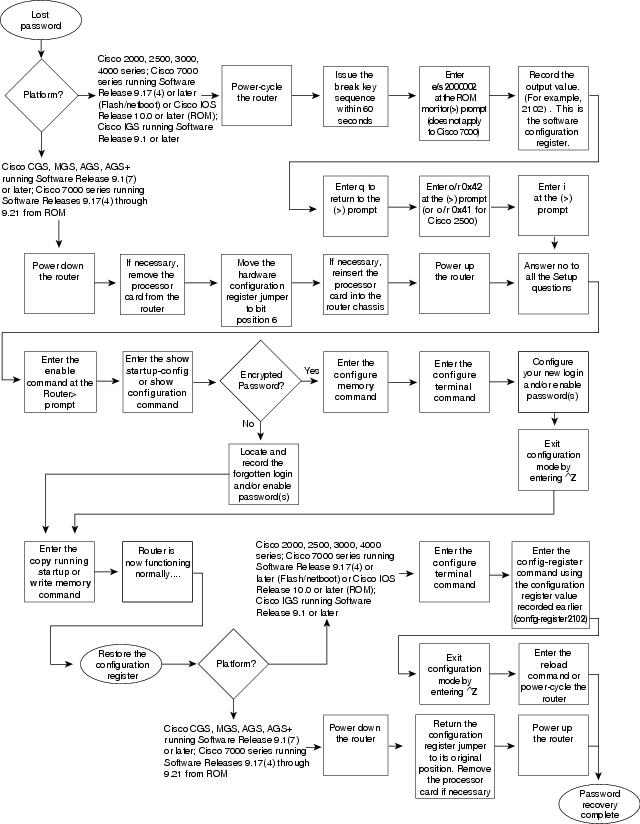
Figure 25-1 shows a flowchart describing the password-recovery procedure for the following platforms:

Cisco 2000, Cisco 2500, Cisco 3000, and Cisco 4000 series access servers and routers

Cisco 7000 series routers running Software Release 9.17(4) and later from Flash or Cisco IOS Release 10.0 or later from ROM

Cisco IGS routers running Software Release 9.1 or later

Cisco CGS, MGS, AGS, and AGS+ routers running Software Release 9.1(7) or later

Cisco 7000 series routers running Software Release 9.17(4) through 9.21 from ROM

Some of these platforms are configurable in software. Others require that you physically change the position of the configuration register jumper on the processor card. Figure 25-1 shows diverging paths, when necessary, to take you through the steps required for the platform and software with which you are working.

Refer to Table 25-5 to determine whether the platform with which you are working is configurable in software, or if it requires you to physically move the jumper.

Figure 25-1 Password Recovery: Platforms Running Current Cisco IOS Releases and Recent Software Releases

The next procedure describes the password-recovery process for the following platforms only:

Cisco 2000, Cisco 2500, Cisco 3000, and Cisco 4000 series routers

Cisco 7000 series routers running Software Release 9.17(4) or later (Flash memory or netboot) or Cisco IOS Release 10.0 or later from ROM

Cisco IGS Running Software Release 9.1 or later

For the platforms listed, be certain to follow the path labeled "Cisco 2000, 2500, 3000, 4000 series; Cisco 7000 series running Software Release 9.17(4) or later (Flash) or Cisco IOS Release 10.0 or later (ROM); IGS running Software Release 9.1 or later" in the flowchart (see Figure 25-1).

For the step-by-step password recovery sequence for other platforms, see one of the following sections:

Password-Recovery Procedure: Platforms Running Recent Software Releases

Password-Recovery Procedure: Platforms Running Earlier Software Releases

Password-Recovery Procedure: IGS Running Software Prior to Software Release 9.1

Password-Recovery Procedure: Cisco 500-CS Communication Server


Note To complete this procedure, you must have a terminal or a personal computer (running terminal-emulation software) connected to the console port of the router. In addition, make sure that you know the break command key sequence.


The following is the password-recovery procedure for Cisco platforms running current Cisco IOS software:


Step 1 Power-cycle the router.

Step 2 Use the break key sequence for your terminal or terminal emulation software within 60 seconds of turning on the power.

The ROM monitor (>) prompt will appear.

Step 3 Enter the command e/s 2000002. (For Cisco 7000 series routers, enter e/s XXXXXXXX.) This command examines the short (16-bit) memory location for the software configuration register.

Record the output resulting from this command. This is the software configuration register value.

Step 4 Enter q (quit) to return to the ROM monitor (>) prompt.

Step 5 Enter the o/r 0x42 command. The value 42 sets the software configuration register bit to position 6, which allows the router to ignore the contents of NVRAM when booting. (Be sure to enter 0x followed by the configuration register value.)

Step 6 Enter i (initialize) at the ROM monitor (>) prompt. The router will reboot.

Step 7 Answer no to all the setup questions.

Step 8 Enter the enable exec command at the Router prompt.

Step 9 Enter the show startup-config or show configuration privileged exec command to see whether your password is clear-text (is not encrypted) or encrypted.

Step 10 If your password is clear-text, proceed to Step 14.

If your password is encrypted, continue with Step 11.

Step 11 If your password is encrypted, enter the configure memory privileged exec command. This transfers the stored configuration into running memory.

Step 12 Enter the configure terminal privileged exec command to enter router configuration mode.

Step 13 If you lost the enable password, use the enable password global configuration command to configure a new password, and press ^Z to exit configuration mode. The following is the command syntax for the enable password command:

enable password [level level] {password | encryption-type encrypted-password}

Syntax description:

level level—(Optional) Level for which the password applies. You can specify up to 16 privilege levels, using numbers 0 through 15. Level 1 is normal exec-mode user privileges. If this argument is not specified in the command, or if the no form of the command is used, the privilege level defaults to 15 (traditional enable privileges).

password—The password that users type to enter enable mode.

encryption-type—(Optional) Cisco-proprietary algorithm used to encrypt the password. Currently, the only encryption type available is 7. If you specify an encryption type, the next that argument you supply must be an encrypted password (a password already encrypted by a Cisco router).

encrypted-password—The encrypted password that you enter, copied from another router configuration.

Example:

In the following example, the password pswd2 is enabled for privilege level 2:

enable password level 2 pswd2

If you lost the login password, configure the console line using the login and password line configuration commands. Enter CTRL Z to exit configuration mode, and proceed to Step 15.

Syntax:

To enable password checking at login, use the login line configuration command:

login [local | tacacs]

Syntax description:

local—(Optional) Selects local password checking. Authentication is based on the username specified with the username global configuration command.

tacacs—(Optional) Selects the TACACS-style user ID and password-checking mechanism.

Examples:

The following example sets the password letmein on virtual terminal line 4:

line vty 4
password letmein
login

Syntax:

To specify a password on a line, use the password line configuration command:

password password

Syntax description:

password—Character string that specifies the line password. The first character cannot be a number. The string can contain any alphanumeric characters, including spaces, up to 80 characters. You cannot specify the password in the format number-space-anything. The space after the number causes problems. For example, hello 21 is a legal password, but 21 hello is not. The password checking is case-sensitive. For example, the password Secret is different from the password secret.

When an exec process is started on a line with password protection, the exec prompts for the password. If the user enters the correct password, the exec prints its normal privileged prompt. The user can try three times to enter a password before the exec exits and returns the terminal to the idle state.

Example:

The following example removes the password from virtual terminal lines 1 to 4:

line vty 1 4
 no password

Step 14 If you lost the enable password, locate the enable-password global configuration command entry in the configuration, and record the password.

If you lost the login password, find the configuration entries for the console line, and record the password indicated by the password line configuration command.

Step 15 Use the copy running-config startup-config or write memory privileged exec command to write the configuration into NVRAM.


Note Issuing the copy running-config startup-config or write memory command at this point on a Cisco 2500, Cisco 3000, or Cisco 4000 will overwrite the configuration. Make certain that you have a backup of your configuration file.


The router is now fully functional, and you can use your recovered or reconfigured passwords as usual.


Note Restore the software configuration register to its original value as soon as possible. If it is not returned to the value that you noted in Step 3, the router will always ignore the contents of NVRAM and will enter the Setup routine upon booting. Continue with Step 17 to return the software configuration register to its original value.


Step 16 In privileged exec mode, enter router configuration mode using the configure terminal privileged exec command.

Step 17 Change the software configuration register to its original value by using the config-register global configuration command. You must enter 0x and then the software configuration register value that you recorded in Step 3. Using the sample value 2102, the command would be config-register 0x2102.

Syntax:

The following is the syntax for config-register command:

config-register value

Syntax description:

value—Hexadecimal or decimal value that represents the 16-bit configuration register value that you want to use the next time the router is restarted. The value range is from 0x0 to 0xFFFF (0 to 65535, in decimal).

Step 18 Exit router configuration mode by entering ^Z.

The next time the router is power-cycled or restarted with the reload privileged exec command, the bootup process will proceed as normal. Use your new or recovered password to gain access to the router after it reboots.

Password-Recovery Procedure: Platforms Running Recent Software Releases

The Cisco CGS, MGS, AGS, and AGS+ platforms, and the Cisco 7000 series routers running software prior to Cisco IOS Release 10.0 from ROM all have their configuration registers in hardware, so you must physically change the position of the configuration register jumper during the password-recovery process.

It might be necessary to remove the processor card from the router chassis to access the hardware configuration register jumper. Consult your hardware documentation for detailed instructions on removing and inserting the processor card from the router chassis, if necessary.

Moving the hardware configuration register jumper to bit position 6 allows the router to ignore the contents of NVRAM while booting. This permits you to bypass the configuration file (and, therefore, the passwords) and gain complete access to the router. You can then recover the lost password or configure a new one.


Note If your password is encrypted, you cannot recover it. You must configure a new password.


Figure 25-1 shows a flowchart describing the password-recovery procedure for the following platforms:

Cisco 2000, Cisco 2500, Cisco 3000, and Cisco 4000 series access servers and routers

Cisco 7000 series routers running Software Release 9.17(4) and later from Flash memory/netboot, or Cisco 7000 series routers running Cisco IOS Release 10.0 or later from ROM

Cisco IGS routers running Software Release 9.1 or later

Cisco CGS, MGS, AGS, and AGS+ routers running Software Release 9.1(7) or later

Cisco 7000 series routers running Software Release 9.17(4) through 9.21 from ROM

Some of these platforms are configurable in software and do not require a hardware change. Others require that you physically change the position of the configuration register jumper on the processor card.

Refer to Table 25-5 to determine whether the platform on which you are working is configurable in the software, or whether it requires you to physically move the jumper.

The following procedure describes the password-recovery process for the following platforms only:

Cisco CGS, MGS, AGS, and AGS+ routers running Software Release 9.1(7) and later

Cisco 7000 series routers running Software Release 9.17(4) through 9.21 from ROM

For these platforms, follow the path labeled "Cisco CGS, MGS, AGS, AGS+ running Software Release 9.1(7) or later; Cisco 7000 series running Software Release 9.17(4) through 9.21 from ROM" in the flowchart (see Figure 25-1).

For the step-by-step password recovery sequence for other platforms, see one of the following sections:

Password-Recovery Procedure: Platforms Running Current Cisco IOS Releases

Password-Recovery Procedure: Platforms Running Earlier Software Releases

Password-Recovery Procedure: IGS Running Software Prior to Software Release 9.1

Password-Recovery Procedure: Cisco 500-CS Communication Server


Note To complete this procedure, you must have a terminal or a personal computer (running terminal emulation software) connected to the console port of the router.


The following is the password-recovery procedure for Cisco platforms running recent software releases:


Step 1 Power down the router.

Step 2 Change the hardware configuration register by moving the jumper from bit position 0 or 1 to bit position 6. This will force the router to ignore the contents of NVRAM and, therefore, the configuration file after it loads the operating system. Note the original position of the jumper.


Note To move the hardware configuration register jumper, you might need to remove the processor card from the router chassis. This is the case with the Route Processor (RP) card in Cisco 7000 series routers. Refer to your hardware documentation for complete instructions on removing and inserting the processor card. If you had to remove the processor card, reinsert it before continuing.


Step 3 Power up the router.

The router will boot but will ignore the contents of NVRAM and enter the Setup routine.

Step 4 Answer no to all the setup questions.

The Router prompt appears.

Step 5 Enter the enable exec command.

Step 6 Enter the show configuration privileged exec command to see whether the password is in clear text (is not encrypted) or if it is encrypted.

If the password is in clear text, go to Step 10. If the password is encrypted, continue with Step 7.

Step 7 If the password is encrypted, enter the configure memory privileged exec command. This writes the stored configuration into running memory.

Step 8 Enter the configure terminal privileged exec command to enter router configuration mode.

Step 9 If you have lost the enable password, use the enable-password global configuration command to configure a new password.

If you have lost the login password, configure the console line with a new login password using the login and password line configuration commands. Press CTRL-Z to exit configuration mode. Proceed to Step 11.

Syntax:

To enable password checking at login, use the login line configuration command:

login [local | tacacs]

Syntax description:

local—(Optional) Selects local password checking. Authentication is based on the username specified with the username global configuration command.

tacacs—(Optional) Selects the TACACS-style user ID and password-checking mechanism.

Examples:

The following example sets the password letmein on virtual terminal line 4:

line vty 4
password letmein
login

Syntax:

To specify a password on a line, use the password line configuration command:

password password

Syntax description:

password—Character string that specifies the line password. The first character cannot be a number. The string can contain any alphanumeric characters, including spaces, up to 80 characters. You cannot specify the password in the format number-space-anything. The space after the number causes problems. For example, hello 21 is a legal password, but 21 hello is not. The password checking is case-sensitive. For example, the password Secret is different from the password secret.

When an exec process is started on a line with password protection, the exec prompts for the password. If the user enters the correct password, the exec prints its normal privileged prompt. The user can try three times to enter a password before the exec exits and returns the terminal to the idle state.

Example:

The following example removes the password from virtual terminal lines 1 to 4:

line vty 1 4
 no password

Step 10 If you have lost the enable password, locate the enable-password global configuration command entry, and record the password.

If you have lost the login password, find the configuration entries for the console line, and record the password indicated by the password line configuration command.

Step 11 Use the write memory privileged exec command to write the configuration into running memory.

Step 12 The router is now fully functional, and you can use your recovered or reconfigured passwords as usual.


Note Return the hardware configuration register jumper to its original position as soon as possible. If the jumper is not returned to the bit position that you noted in Step 2, the router will always ignore the contents of NVRAM and will enter the Setup routine upon booting. Continue with Step 13 to return the jumper to its original position.


Step 13 Power down the router.

Step 14 Move the hardware configuration register jumper from bit position 6 to its original position (the position that you noted in Step 2).

It might be necessary to remove the processor card to gain access to the jumper. Consult your hardware documentation for complete instructions on removing and inserting the processor card, if necessary. If you had to remove the processor card, reinsert it before continuing.

Step 15 Power up the router. Use your new or recovered password to gain access to the router.

Password-Recovery Procedure: Platforms Running Earlier Software Releases

Cisco CGS, MGS, AGS, and AGS+ platforms, and Cisco 7000 series routers running software prior to Cisco IOS Release 10.0 from ROM all have their configuration registers in the hardware, so you must physically change the position of the configuration register jumper during the password-recovery process.

It might be necessary to remove the processor card from the router chassis to access the hardware configuration register jumper. Consult your hardware documentation for detailed instructions on removing and inserting the processor card from the router chassis, if necessary.


Note If your password is encrypted, you cannot recover it. You must configure a new password.


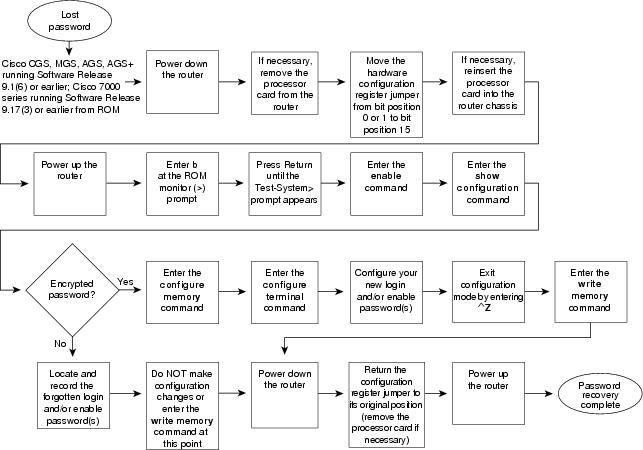
Figure 25-2 shows a flowchart that describes the password-recovery procedure for the following platforms:

CGS, MGS, AGS, and AGS+ routers running Software Release 9.1(6) and earlier

Cisco 7000 series routers running Software Release 9.17(3) and earlier from ROM

The step-by-step procedure that follows and the password recovery flowchart shown in Figure 25-2 apply only to the indicated platforms running the indicated software. There is another procedure for recovering a password on these platforms if they are running more recent software. See the previous section, "Password-Recovery Procedure: Platforms Running Recent Software Releases."

Figure 25-2 Password Recovery: Platforms Running Earlier Software Releases


Note To complete this procedure, you must have a terminal or a personal computer (running terminal emulation software) connected to the console port of the router.


The following is the password-recovery procedure for Cisco platforms running earlier software releases:


Step 1 Power down the router.

Step 2 Change the hardware configuration register by moving the jumper from bit position 0 or 1 to bit position 15.

Note the original position of the jumper.


Note To move the hardware configuration register jumper, you might need to remove the processor card from the router chassis. This is the case with the RP card in Cisco 7000 series routers. Consult your hardware documentation for complete instructions on removing and inserting the processor card. If you had to remove the processor card, reinsert it before continuing.


Step 3 Power up the router. The ROM monitor (>) prompt appears.

Step 4 Enter b (bootstrap) at the (>) prompt.

Step 5 Press the Return key until the Test-System prompt appears.

Step 6 Enter privileged mode by issuing the enable exec command.

Step 7 Enter the show configuration privileged exec command to see whether the password is clear-text (is not encrypted) or is encrypted.

If the password is clear-text, go to Step 12.

If the password is encrypted, continue with Step 8.

Step 8 If the password is encrypted, enter the configure memory privileged exec command.

This writes the stored configuration into running memory.

Step 9 Enter the configure terminal privileged exec command to enter router configuration mode.

Step 10 If you have lost the enable password, use the enable-password global configuration command to configure a new password, and press CTRL-Z to exit configuration mode.

If you have lost the login password, configure the console line with a new password using the login and password line configuration commands. Press CTRL-Z to exit configuration mode.

Syntax:

To enable password checking at login, use the login line configuration command:

login [local | tacacs]

Syntax description:

local—(Optional) Selects local password checking. Authentication is based on the username specified with the username global configuration command.

tacacs—(Optional) Selects the TACACS-style user ID and password-checking mechanism.

Examples:

The following example sets the password letmein on virtual terminal line 4:

Syntax:

To specify a password on a line, use the password line configuration command:

password password

Syntax description:

password—Character string that specifies the line password. The first character cannot be a number. The string can contain any alphanumeric characters, including spaces, up to 80 characters. You cannot specify the password in the format number-space-anything. The space after the number causes problems. For example, hello 21 is a legal password, but 21 hello is not. The password checking is case-sensitive. For example, the password Secret is different from the password secret.

When an exec process is started on a line with password protection, the exec prompts for the password. If the user enters the correct password, the exec prints its normal privileged prompt. The user can try three times to enter a password before the exec exits and returns the terminal to the idle state.

Example:

The following example removes the password from virtual terminal lines 1 to 4:

line vty 1 4
 no password

Step 11 Use the write memory privileged exec command to write the configuration into running memory. Proceed to Step 13.

Step 12 If you have lost the enable password, locate the enable-password global configuration command entry in the configuration, and record the password.

If you have lost the login password, find the configuration entries for the console line, and record the password indicated by the password line configuration command. Do not make configuration changes or use the write memory command at this time.

Step 13 Power down the router.

Step 14 Remove the processor card, and move the hardware configuration register jumper from bit position 15 to its original position (the position that you noted in Step 2).

Step 15 Power up the router. Use your new or recovered password to gain access to the router.

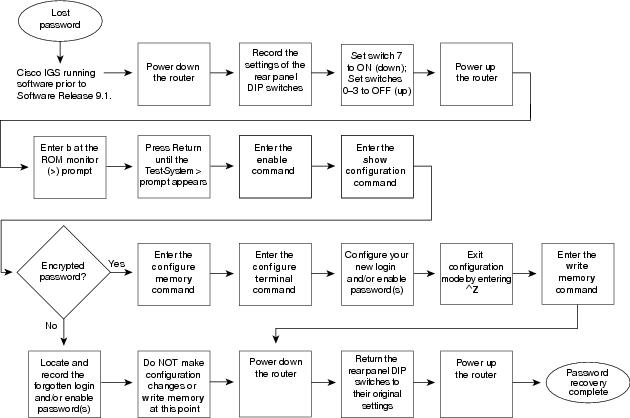
Password-Recovery Procedure: IGS Running Software Prior to Software Release 9.1

Cisco IGS routers have a bank of DIP switches located on the rear panel. These DIP switches are used to set the hardware configuration register and must be used in the password-recovery process if the router is running system software prior to Software Release 9.1.


Note If your password is encrypted, you cannot recover it. You must configure a new password.


Figure 25-3 shows the password-recovery procedure for the Cisco IGS running software prior to Software Release 9.1. There is another procedure for the IGS platform if it is running Software Release 9.1 or later. See the section "Password-Recovery Procedure: Platforms Running Current Cisco IOS Releases."


Note To complete this procedure, you must have a terminal or a personal computer (running terminal emulation software) connected to the console port of the router.


The following is the password-recovery procedure for IGS routers running software prior to Software Release 9.1:


Step 1 Power down the router.

Step 2 Record the settings of the DIP switches located on the rear panel of the router. You will need to return these switches to their original positions after you have recovered your password.

Figure 25-3 Password Recovery: IGS Running Software Release Prior to 9.1

Step 3 Set switch number 7 to the ON position (down).

Step 4 Set switches 0-3 to the OFF position (up).

Step 5 Power up the router.

The router will boot up, and the terminal will display the ROM monitor (>) prompt.

Step 6 Enter b (bootstrap) at the (>) prompt.

Step 7 Press the Return key until the Test-System prompt appears.

Step 8 Enter the enable privileged exec command at the Test-System prompt.

Step 9 If the password is clear-text (is not encrypted), go to Step 14.

If the password is encrypted, continue with Step 10.

Step 10 If the password is encrypted, enter the configure memory privileged exec command. This writes the stored configuration into running memory.

Step 11 Enter the configure terminal privileged exec command to enter router configuration mode.

Step 12 If you have lost the enable password, use the enable-password global configuration command to configure a new password, and press ^Z to exit configuration mode.

If you have lost the login password, configure a new password on the console line using the login and password line configuration commands. Press ^Z to exit configuration mode.

Syntax:

To enable password checking at login, use the login line configuration command:

login [local | tacacs]

Syntax description:

local—(Optional) Selects local password checking. Authentication is based on the username specified with the username global configuration command.

tacacs—(Optional) Selects the TACACS-style user ID and password-checking mechanism.

Examples:

The following example sets the password letmein on virtual terminal line 4:

line vty 4
password letmein
login

Syntax:

To specify a password on a line, use the password line configuration command:

password password

Syntax description:

password—Character string that specifies the line password. The first character cannot be a number. The string can contain any alphanumeric characters, including spaces, up to 80 characters. You cannot specify the password in the format number-space-anything. The space after the number causes problems. For example, hello 21 is a legal password, but 21 hello is not. The password checking is case-sensitive. For example, the password Secret is different from the password secret.

When an exec process is started on a line with password protection, the exec prompts for the password. If the user enters the correct password, the exec prints its normal privileged prompt. The user can try three times to enter a password before the exec exits and returns the terminal to the idle state.

Example:

The following example removes the password from virtual terminal lines 1 to 4:

line vty 1 4
 no password

Step 13 Enter the write memory privileged exec command to write the configuration changes into stored memory. Proceed to Step 16.

Step 14 If your password is clear-text (is not encrypted), enter the show configuration privileged exec command.

Step 15 If you have lost the enable password, locate the enable-password global configuration command entry in the configuration, and record the password.

If you have lost the login password, find the configuration entries for the console line and record the password indicated by the password line configuration command. Do not make configuration changes or use the write memory command at this time.

Step 16 Power down the router.

Step 17 Return the hardware configuration register DIP switches located on the back panel of the router to their original settings (the settings that you noted in Step 2).

Step 18 Power up the router. Use your new or recovered password to gain access to the router.

Password-Recovery Procedure: Cisco 500-CS Communication Server

Lost passwords cannot be recovered from Cisco 500-CS communication servers. The only way to recover from a lost password is to return the communication server to its factory default configuration using the Reset button located on the top of the case.

The following procedure describes how to restore the Cisco 500-CS to its default configuration.


Caution When you perform this procedure, your configuration will be lost.


Step 1 Power down the communication server.

Step 2 Press and hold down the Reset button on the top of the case while turning on the power to the communication server.

Step 3 The 500-CS is returned to its factory default configuration.

You must reconfigure the communication server.


[an error occurred while processing this directive]