簡介
本文檔介紹如何使用LDAP和Duo身份驗證代理在IMM裝置控制檯上配置多重身份驗證。
必要條件
需求
Intersight託管模式(IMM)下的UCS交換矩陣互聯。
註冊使用者的Duo訂閱。
設定
網路圖表
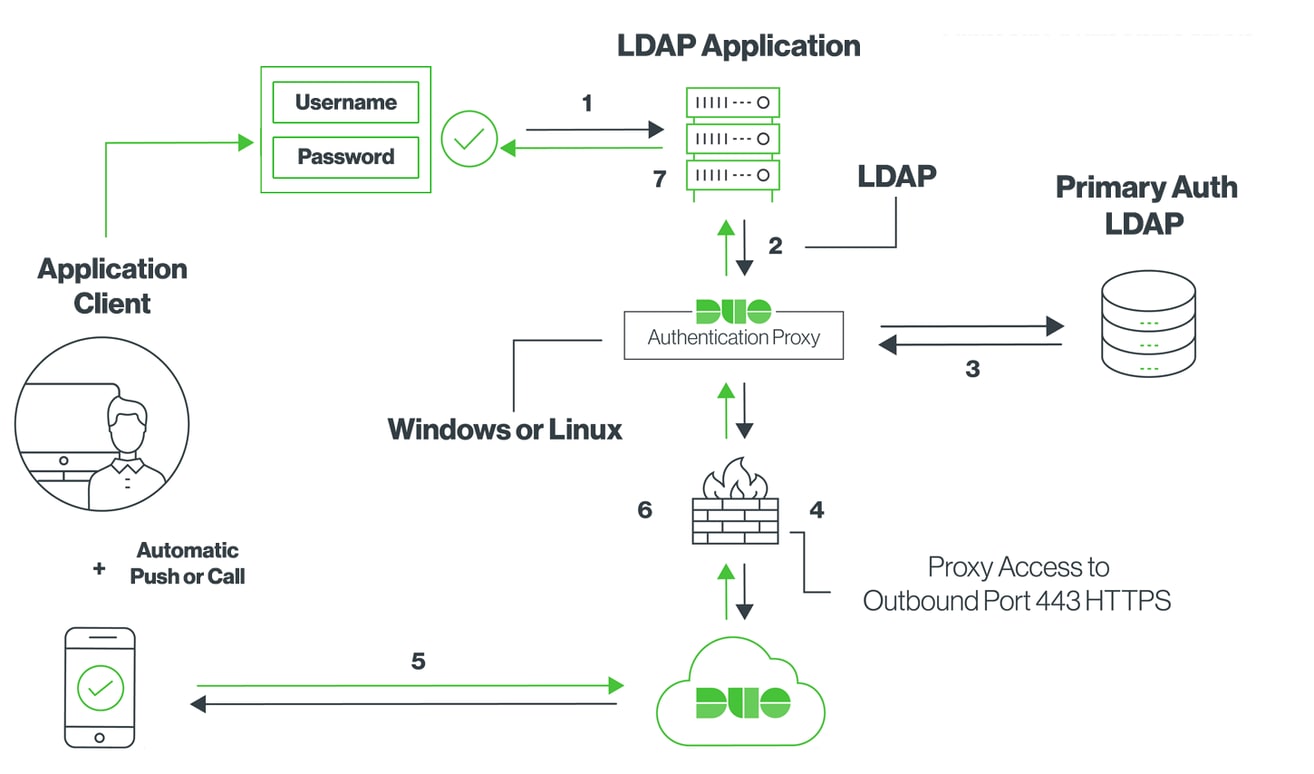
步驟 1.
在Active Directory和IMM裝置控制檯都可以訪問的Windows伺服器上安裝Duo Authentication Proxy。
此處可以找到Duo身份驗證代理。
步驟 2.
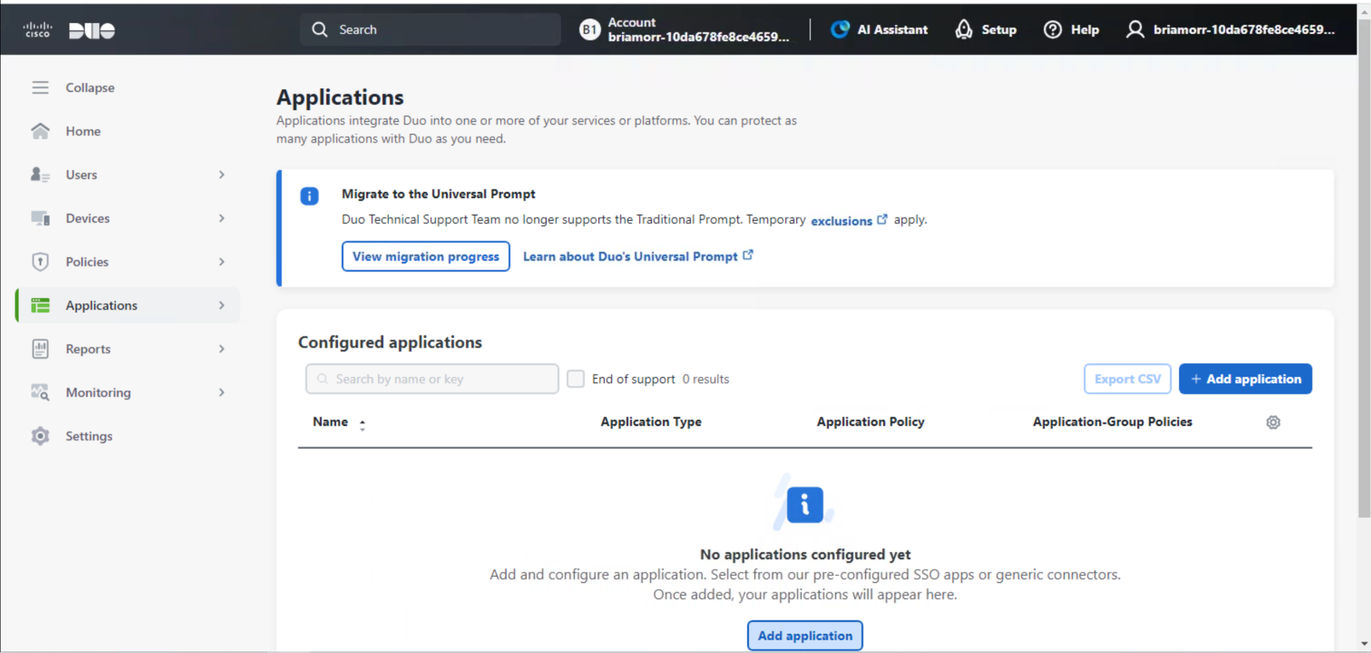
在我們的Duo例項中,可以新增新的應用程式。
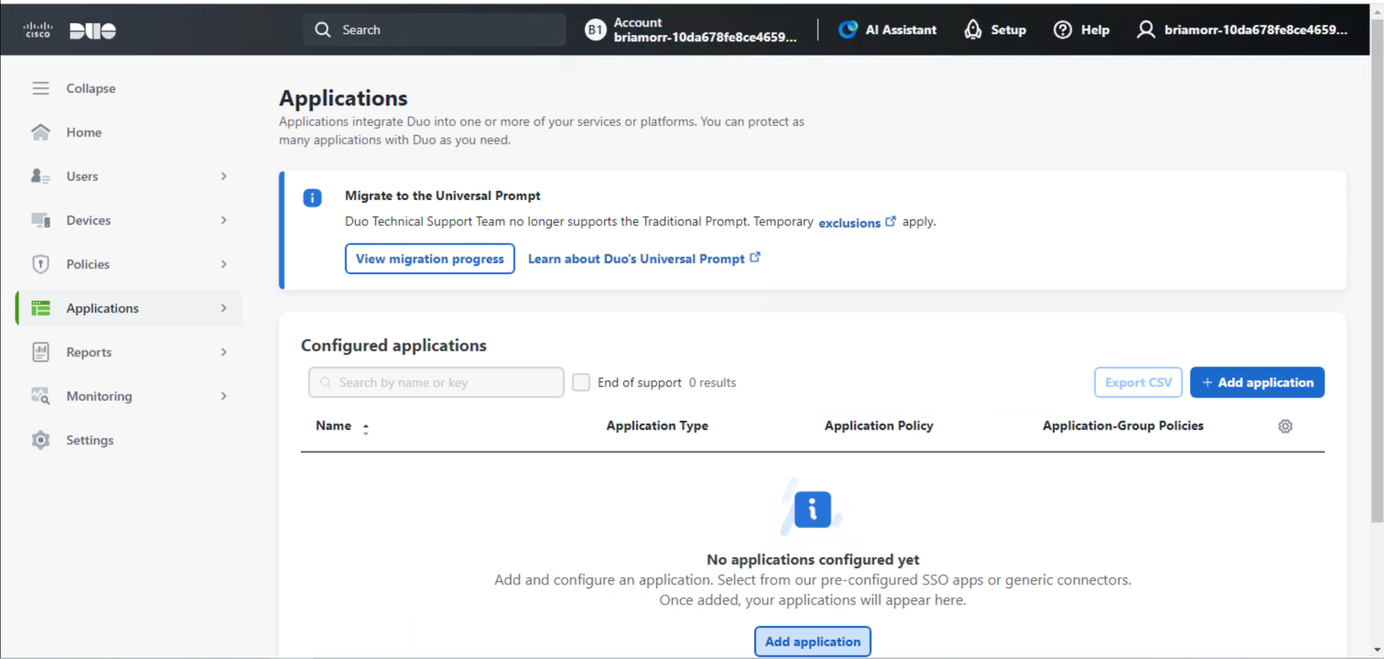
搜尋ldap並新增LDAP代理以繼續。
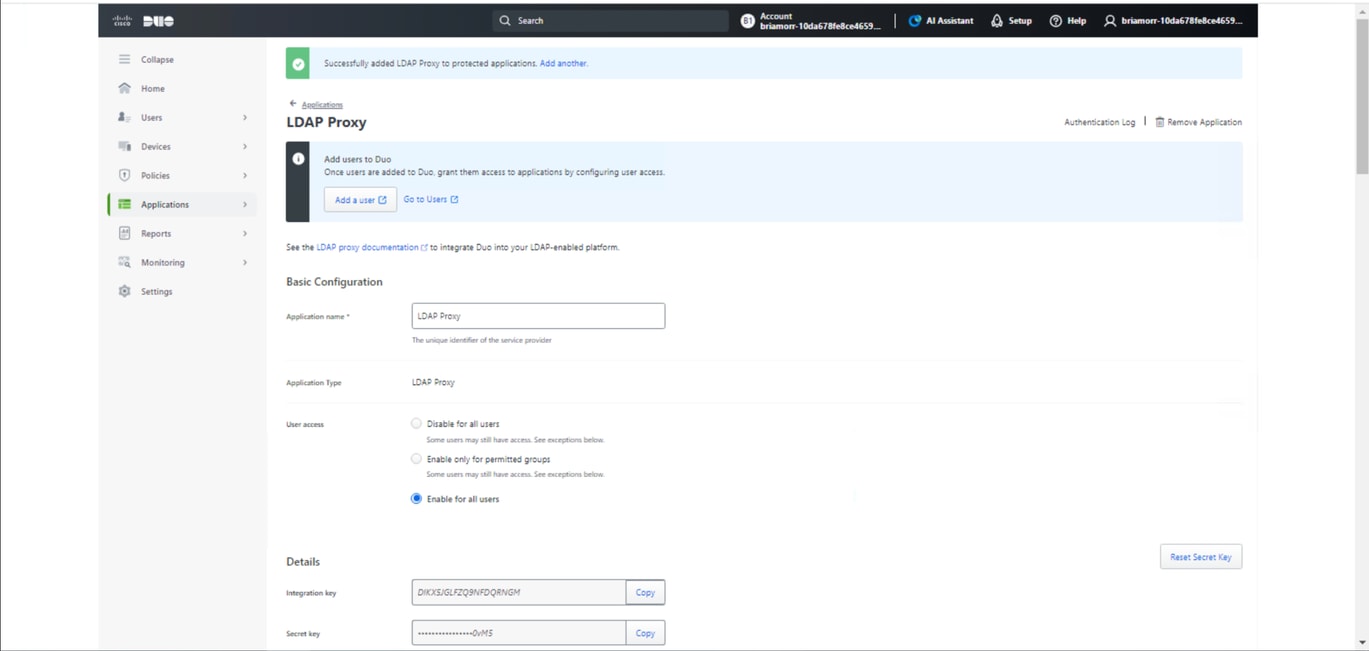
在LDAP代理應用程式下,您可以配置應用程式名稱,為所有使用者啟用,並複製整合金鑰、金鑰和API主機名供以後使用。
步驟 3.
在安裝了Duo Authentication Proxy的伺服器上,您可以配置Duo Authentication Proxy Manager。
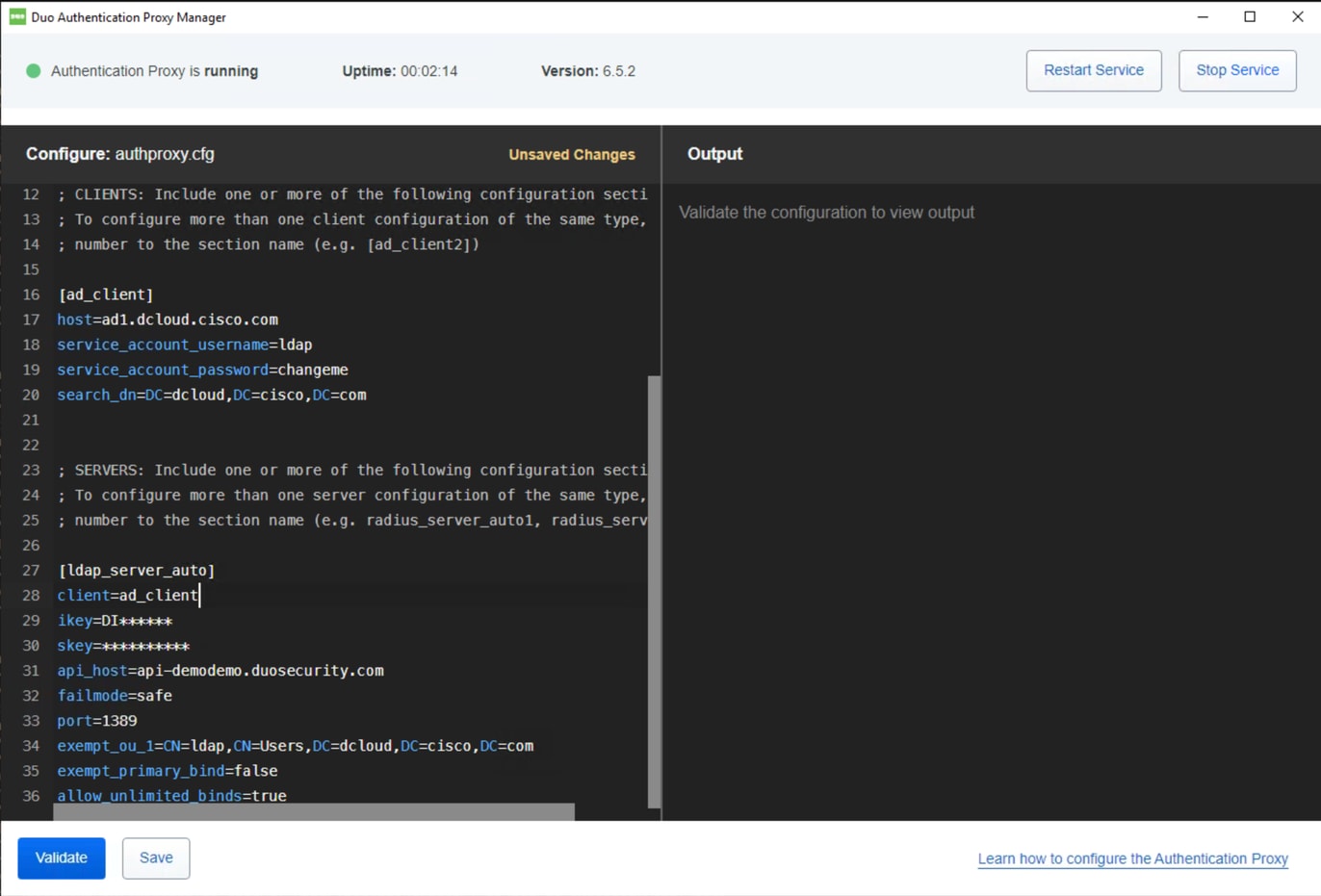
Duo Authentication Proxy示例配置:
[ad_client]
host=ad1.dcloud.cisco.com   # Our Domain Controller
service_account_username=ldap # Our BIND Service Account in AD
service_account_password=changeme  # Service Accounts BIND password
search_dn=DC=dcloud,DC=cisco,DC=com  # LDAP Search DN


[ldap_server_auto]
client=ad_client
ikey=DI******	  # Copy from Duo LDAP Proxy App Page
skey=**********  # Copy from Duo LDAP Proxy App Page
api_host=api-demodemo.duosecurity.com  # Copy from Duo LDAP Proxy App Page
failmode=safe  # If proxy cant communicate with Duo cloud, allow auth with credentials only
port=1389 # Port the LDAP Proxy listen on
exempt_ou_1=CN=ldap,CN=Users,DC=dcloud,DC=cisco,DC=com # Exempt the Service Account from MFA
exempt_primary_bind=false  #  Exempt the Service Account from MFA on initial bind
allow_unlimited_binds=true  # Allow multiple binds, needed to prevent “Attempt to bindRequest multiple times in the same LDAP connection.  Disconnecting.” In Duo logs
步驟 4.
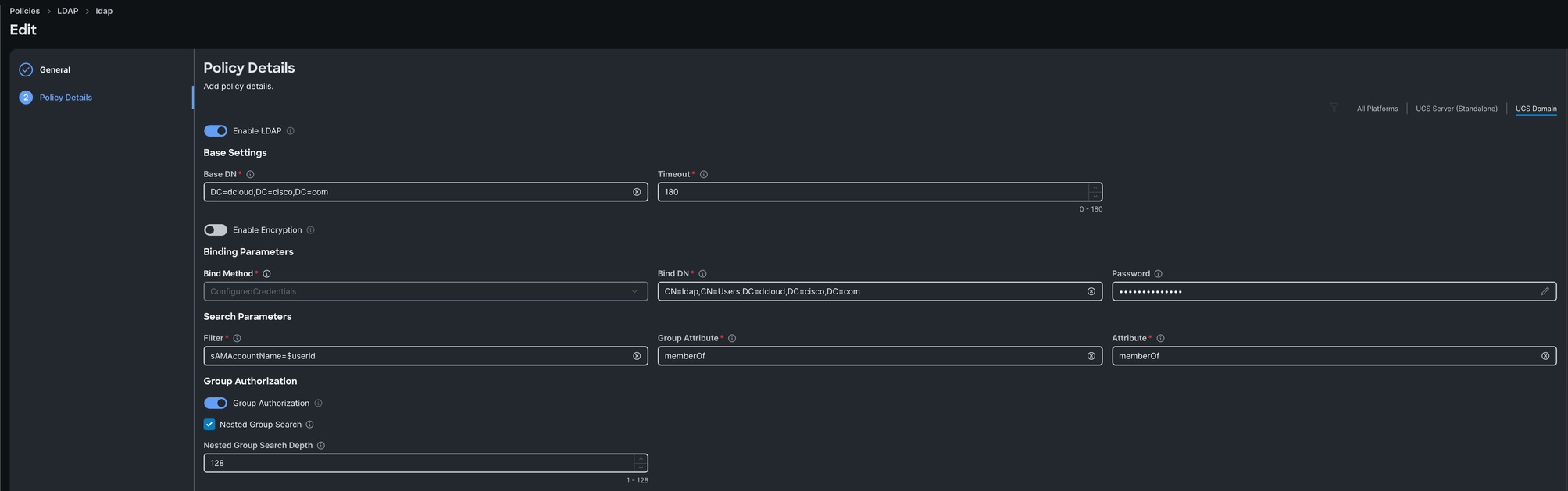
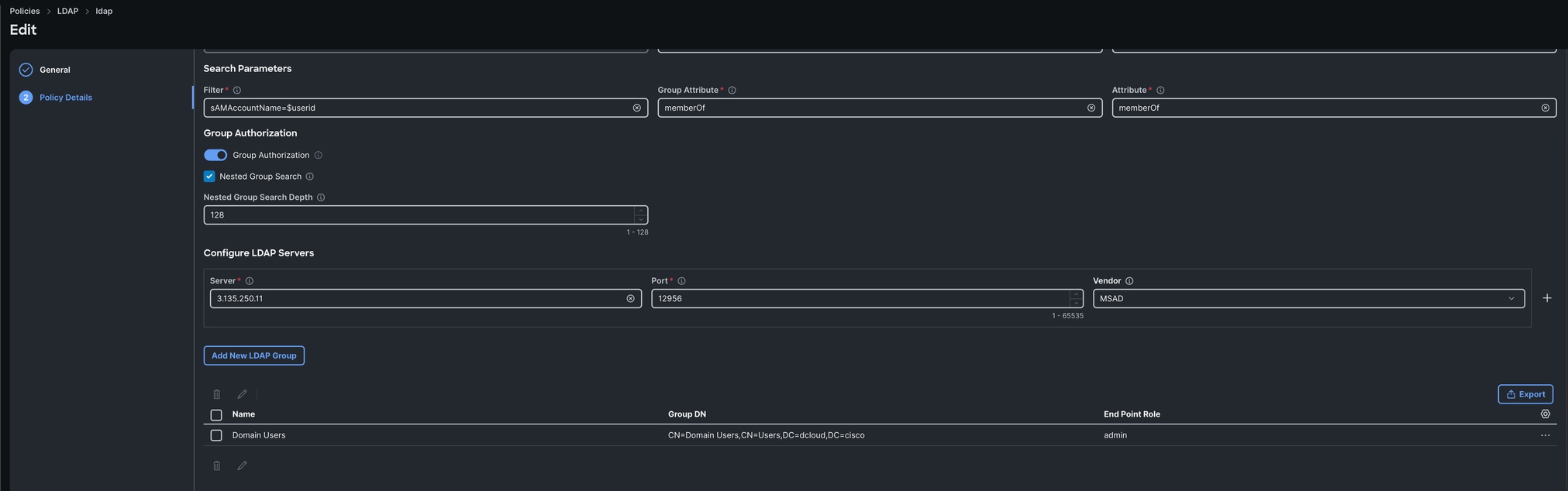
在Intersight中,然後可以建立一個LDAP策略,該策略使用必要的Active Directory設定(如基本dn、繫結dn、LDAP伺服器ip、密碼等)指向我們的Duo LDAP代理。 建議先直接指向Active Directory並確保其正常工作,然後再將LDAP伺服器更改為Duo LDAP代理,以簡化故障排除。
驗證
在裝置控制檯上,以以前在Duo中註冊的LDAP使用者身份登入。
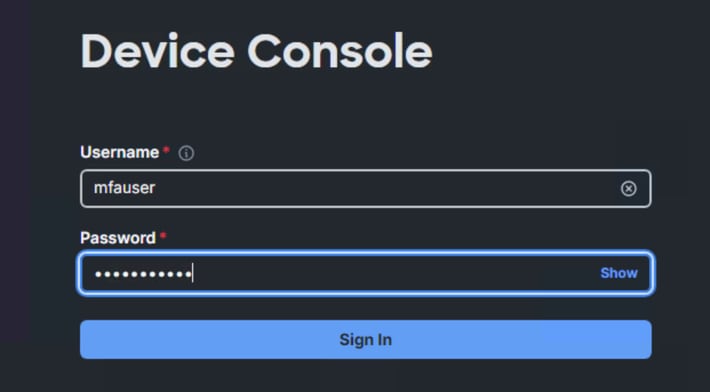
註冊使用者隨後可以在其裝置上獲得登入提示:
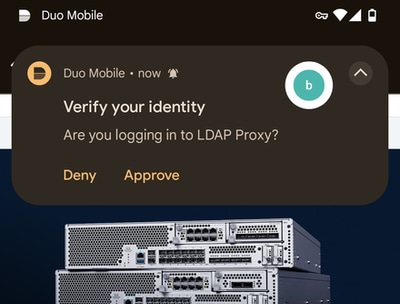
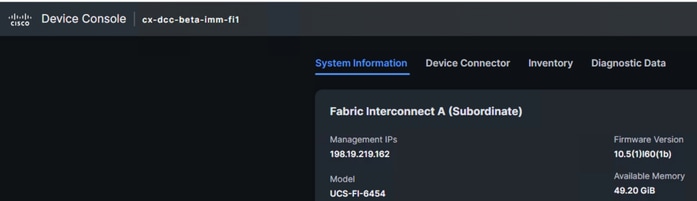
驗證請求後,即可使用2因素身份驗證和LDAP成功登入到裝置控制檯。
疑難排解
Duo LDAP代理日誌位於:
C:\Program Files\Duo Security Authentication Proxy\log\authproxy.log
在Intersight管理模式交換矩陣互聯上:
connect nxos

debug ldap
相關資訊


 意見
意見