簡介
本檔案介紹使用Google Drive從Webex Control Hub配置企業內容管理。
必要條件
需求
— 有效的Google Workspace業務訂閱。
— 活動的Cisco Webex訂用。
背景資訊
企業內容管理(ECM)是一種系統化的內容管理方法,它貫穿於內容的整個生命週期。它使非結構化資訊(如Word文檔、 PDF 、電子郵件和掃描的影象)能夠安全地儲存,並使授權使用者能夠訪問。
ECM的5大要素
- 以數字方式捕獲文檔
- 將文檔儲存在數字儲存庫中
- 檢索文檔,無論裝置或位置如何
- 自動化文檔驅動的流程
- 保護文檔安全並降低組織風險
在Cisco Webex Control Hub中配置企業內容管理設定
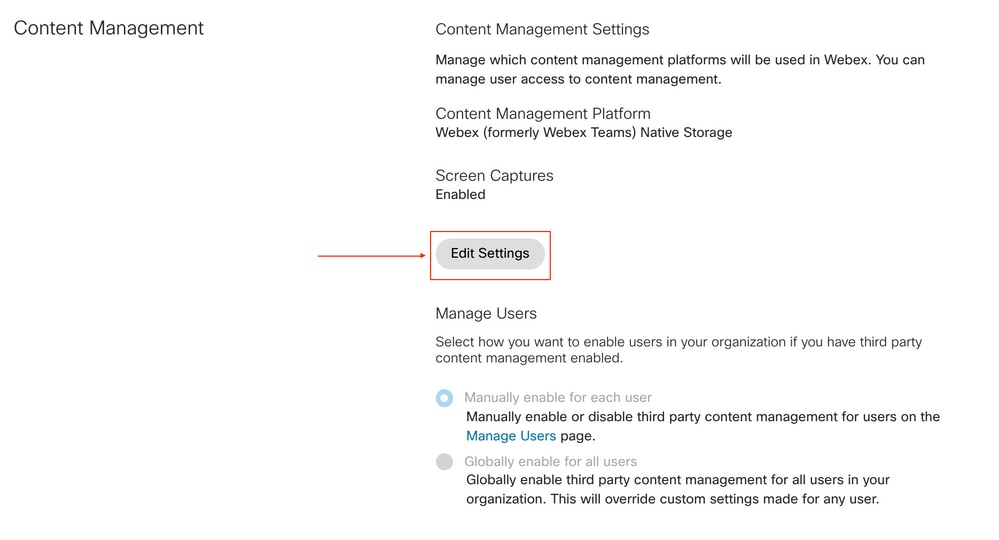
使用本地Admin帳戶導航到admin.webex.com > Services > Messaging > Content Management > Edit Settings。
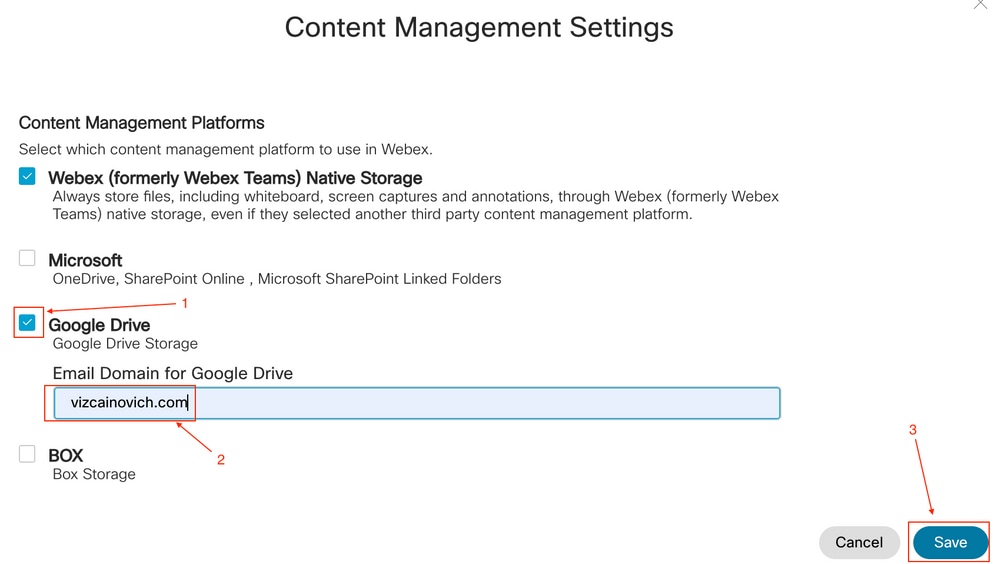
選擇Google Drive,從Google Admin門戶新增主域,然後按一下Save。
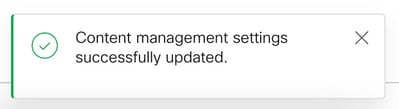
消息確認更改。
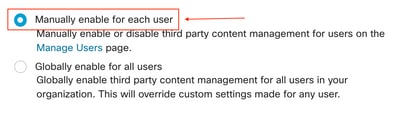
選擇以全域性方式為所有使用者或每個使用者啟用第三方內容管理。
出於測試目的,建議為每個使用者啟用第三方內容管理。
在Cisco Webex Control Hub中為第三方企業內容管理使用者提供支援
為每個使用者手動
導航到admin.webex.com > Management > Users > Select User > Services > Messaging > Edit Settings > Third Party Content Management,然後從下拉選單中按一下Third Party On。

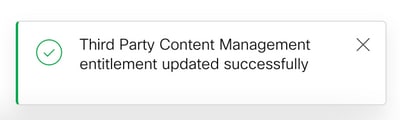
出現一條消息確認更改。
批次使用CSV檔案
若要啟用指定使用者,需要將單元格「企業內容管理」設定為TRUE的CSV檔案,請將CSV檔案單元格「企業內容管理」設定為TRUE。

在Control Hub中,導航到Management > Users > Manage Users > CSV Add or Modify Users > Import。
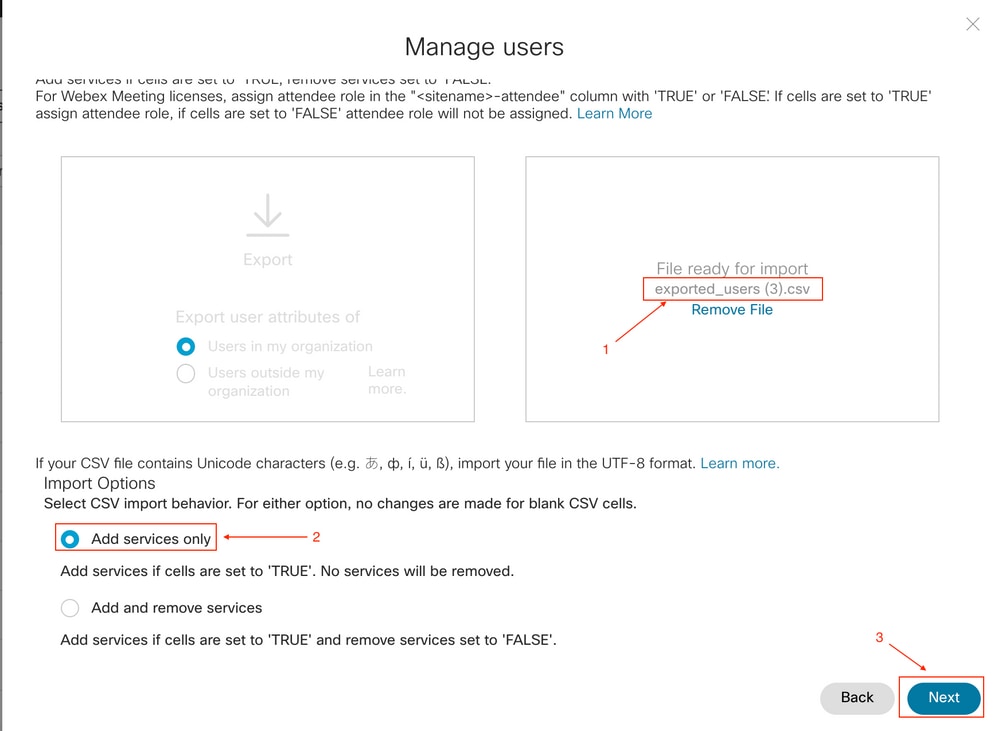
選擇CSV檔案,按一下Add services only,然後按一下Next。
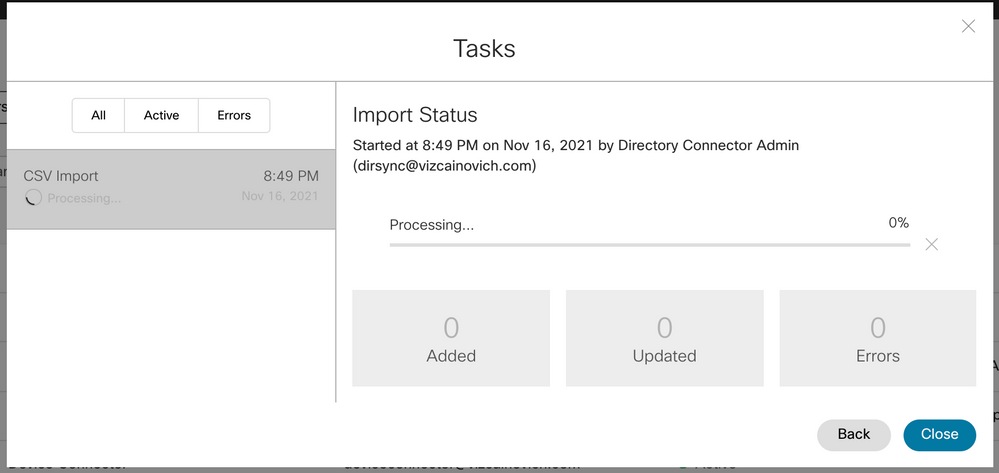
匯入任務開始。

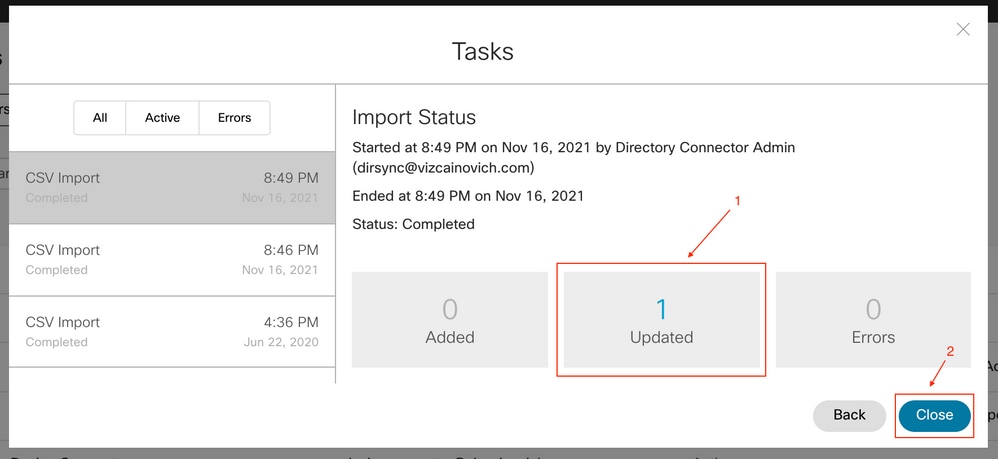
完成「匯入」任務後,驗證所有錯誤,然後按一下關閉。
將Google Drive帳戶整合到Webex應用中
啟用第三方企業內容管理之前,Webex使用者不會從Webex應用>設定中看到Integration頁籤。
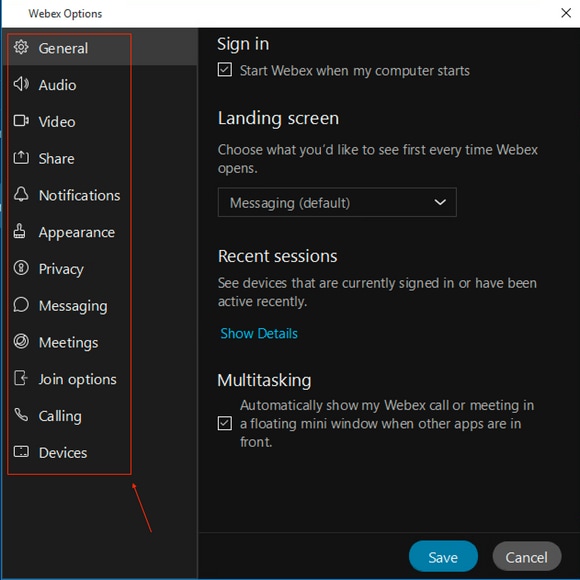
啟用第三方企業內容管理後,Webex應用使用者需要註銷並登入才能檢視整合頁籤。

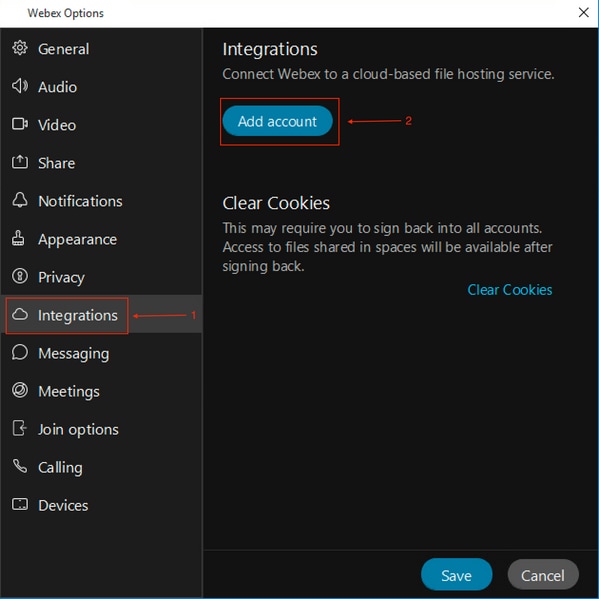
要啟用整合,請導航到Webex應用> 設定 > 整合 > 新增帳戶。
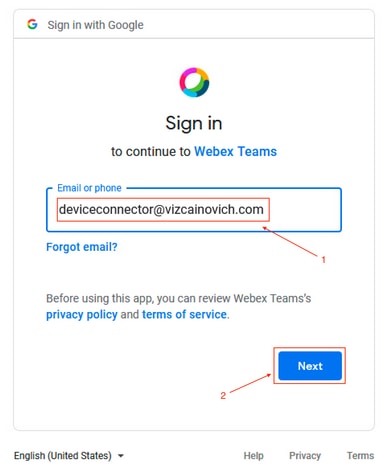
將顯示驗證Google帳戶的提示。
按一下Continue以允許訪問Google Drive。
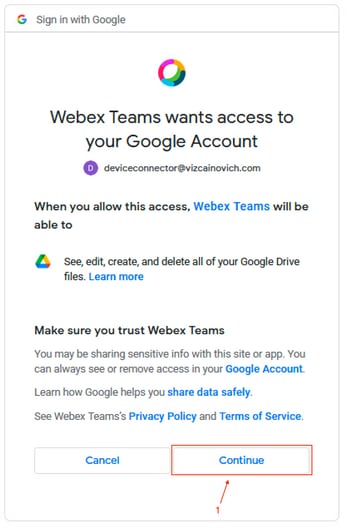
如果授予了訪問許可權,則已成功啟用整合。按一下「Open Webex」以返回Webex應用。
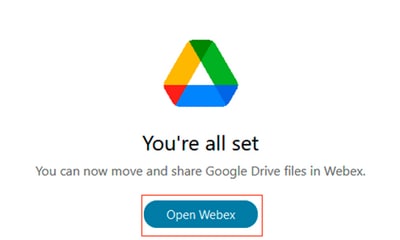
關閉「瀏覽器」頁籤。
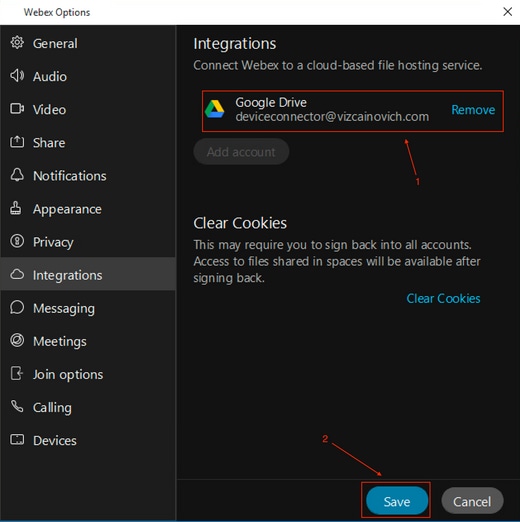
Webex應用可確認Google Drive帳戶已成功新增。按一下Save以完成該過程。
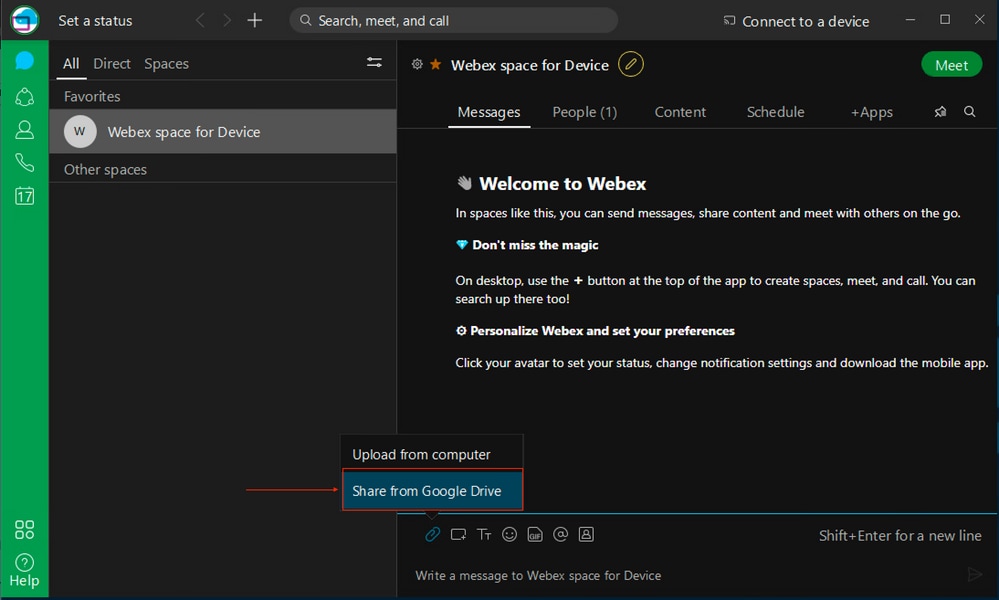
Google Drive儲存已準備好在Webex應用中使用。
已知的問題
授予訪問許可權後,驅動器帳戶不會顯示在Webex應用中。
a)未為Google帳戶啟用Google驅動器。

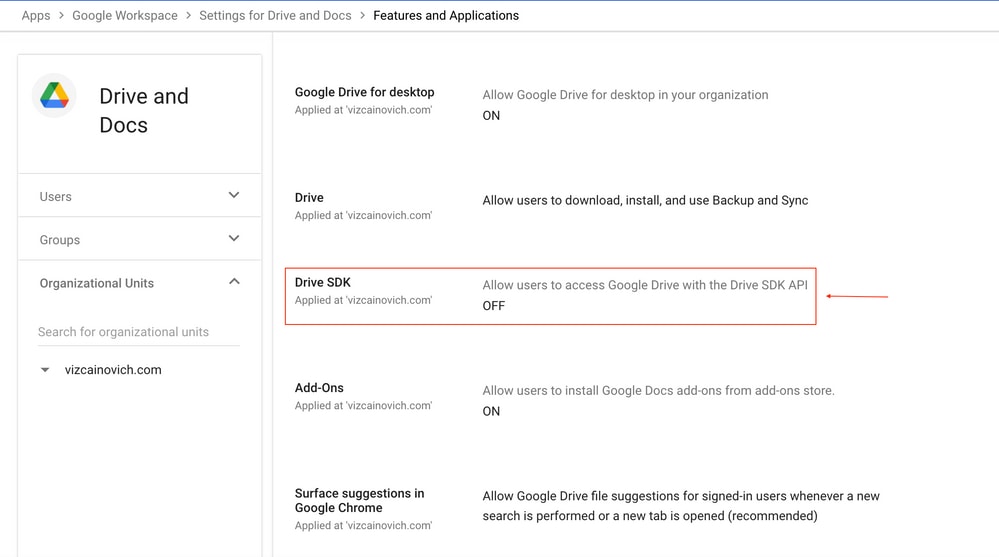
b)為受影響的Google帳戶啟用了Google驅動器,但在域級別禁用了驅動器SDK。
疑難排解
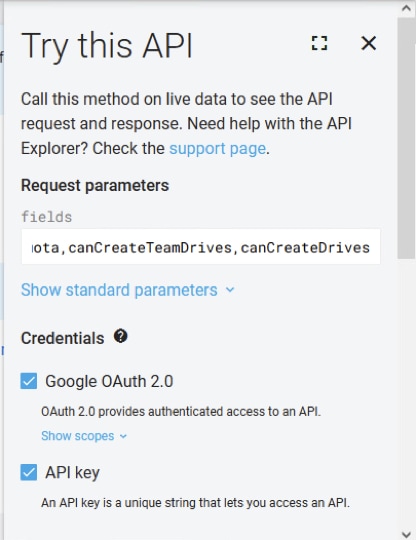
運行API https://developers.google.com/drive/api/v3/reference/about/get中,
在欄位部分輸入kind、user、storageQuota、canCreateTeamDrives、canCreateDrives,然後按一下Execute。
OK消息確認了Google帳戶的正確許可權。
{
"kind": "drive#about",
"user": {
  "kind": "drive#user",
  "displayName": "Device Connector",
  "photoLink": "https://lh3.googleusercontent.com/a/default-user=s64",
  "me": true,
  "permissionId": "04461708039191046460",
  "emailAddress": "deviceconnector@vizcainovich.com"
},
"storageQuota": {
  "limit": "32212254720",
  "usage": "0",
  "usageInDrive": "0",
  "usageInDriveTrash": "0"
},
"canCreateTeamDrives": false,
"canCreateDrives": false
}
參考資料
在Cisco Webex Control Hub中配置企業內容管理設定
https://help.webex.com/en-US/article/nfia8at/Configure-Enterprise-Content-Management-Settings-in-Cisco-Webex-Control-Hub
Cisco Webex Control Hub中的企業內容管理
https://help.webex.com/en-US/article/nuvy9lb/Enterprise-Content-Management-in-Cisco-Webex-Control-Hub
Webex中企業內容管理的限制
https://help.webex.com/en-US/article/7501oi/Limitations-for-Enterprise-Content-Management-in-Webex-
Webex | 整合你的Google Drive帳戶
https://help.webex.com/en-US/article/nqlpcy7/Webex-|-Integrate-Your-Google-Drive-Account#Webex-|-Add-Your-Google-Drive-Account

 意見
意見