配置IOx包签名验证

下载选项
非歧视性语言
此产品的文档集力求使用非歧视性语言。在本文档集中,非歧视性语言是指不隐含针对年龄、残障、性别、种族身份、族群身份、性取向、社会经济地位和交叉性的歧视的语言。由于产品软件的用户界面中使用的硬编码语言、基于 RFP 文档使用的语言或引用的第三方产品使用的语言,文档中可能无法确保完全使用非歧视性语言。 深入了解思科如何使用包容性语言。
关于此翻译
思科采用人工翻译与机器翻译相结合的方式将此文档翻译成不同语言,希望全球的用户都能通过各自的语言得到支持性的内容。 请注意:即使是最好的机器翻译,其准确度也不及专业翻译人员的水平。 Cisco Systems, Inc. 对于翻译的准确性不承担任何责任,并建议您总是参考英文原始文档(已提供链接)。
目录
简介
本文档详细介绍如何在IOx平台上创建和使用已签名的软件包。
先决条件
要求
Cisco 建议您了解以下主题:
- Linux基础知识
- 了解证书的工作方式
使用的组件
本文档中的信息基于以下软件和硬件版本:
- 为IOx配置的支持IOx的设备:
- 已配置IP地址
- 运行访客操作系统(GOS)和思科应用框架(CAF)
- 网络地址转换(NAT)配置为访问CAF(端口8443)
- 安装了开放式安全套接字层(SSL)的Linux主机
- 可从以下位置下载的IOx客户端安装文件:https://software.cisco.com/download/release.html?mdfid=286306005&softwareid=286306762
本文档中的信息都是基于特定实验室环境中的设备编写的。本文档中使用的所有设备最初均采用原始(默认)配置。如果您使用的是真实网络,请确保您已经了解所有命令的潜在影响。
背景信息
自IOx发布以来,支持AC5应用包签名。此功能可确保应用包有效,并且从受信任的来源获取设备上安装的应用包。如果在平台中开启了应用包签名验证,则只有这样才能部署已签名的应用。
配置
使用包签名验证需要执行以下步骤:
- 创建证书颁发机构(CA)密钥和证书。
- 生成用于IOx的信任锚。
- 在IOx设备上导入信任锚。
- 创建应用特定密钥和证书签名请求(CSR)。
- 使用CA对应用特定证书签名。
- 将IOx应用程序打包,使用特定于应用程序的证书进行签名。
- 将已签名的IOx软件包部署到支持签名的设备上。
注意:对于本文而言,自签名CA用于生产方案。最佳选择是使用官方CA或您公司的CA进行签名。
注意:选择CA、密钥和签名的选项仅用于实验目的,可能需要根据您的环境进行调整。
步骤1.创建CA密钥和证书
第一步是创建您自己的CA。只需为CA生成密钥并生成该密钥的证书即可完成此操作:
要生成CA密钥,请执行以下操作:
[jedepuyd@KJK-SRVIOT-10 signing]$ openssl genrsa -out rootca-key.pem 2048
Generating RSA private key, 2048 bit long modulus
.........................................................................................+++
.......+++
e is 65537 (0x10001)
要生成CA证书,请执行以下操作:
[jedepuyd@KJK-SRVIOT-10 signing]$ openssl req -x509 -new -nodes -key rootca-key.pem -sha256 -days 4096 -out rootca-cert.pem
You are about to be asked to enter information that is incorporated
into your certificate request.
What you are about to enter is what is called a Distinguished Name (DN).
There are quite a few fields but you can leave some blank
For some fields there can be a default value,
If you enter '.', the field can be left blank.
-----
Country Name (2 letter code) [XX]:BE
State or Province Name (full name) []:WVL
Locality Name (eg, city) [Default City]:Kortrijk
Organization Name (eg, company) [Default Company Ltd]:Cisco
Organizational Unit Name (eg, section) []:IOT
Common Name (eg, your name or your server's hostname) []:ioxrootca
Email Address []:
必须调整CA证书中的值以匹配您的使用案例。
步骤2.生成用于IOx的信任锚
现在,您已经拥有了CA所需的密钥和证书,可以创建一个信任锚点捆绑包,以在IOx设备上使用。信任锚捆绑包必须包含完整的CA签名链(如果中间证书用于签名)和用于提供(自由形式)元数据的info.txt文件。
首先,创建info.txt文件并在其中放置一些元数据:
[jedepuyd@KJK-SRVIOT-10 signing]$ echo "iox app root ca v1">info.txt
或者,如果您有多个CA证书,要形成CA证书链,您需要将它们组合在一个.pem中:
cat first_cert.pem second_cert.pem > combined_cert.pem注意:本文不需要此步骤,因为单个CA根证书用于直接签名,所以不建议将其用于生产,并且根CA密钥对必须始终脱机存储。
CA证书链需要命名为ca-chain.cert.pem,因此请准备以下文件:
[jedepuyd@KJK-SRVIOT-10 signing]$ cp rootca-cert.pem ca-chain.cert.pem
最后,您可以将ca-chain.cert.pem和info.txt组合到gzipped tar中:
[jedepuyd@KJK-SRVIOT-10 signing]$ tar -czf trustanchorv1.tar.gz ca-chain.cert.pem info.txt
步骤3.在IOx设备上导入信任锚
在上一步中创建的trustanchorv1.tar.gz需要导入到IOx设备中。捆绑包中的文件用于验证应用是否已在允许安装之前使用来自正确CA的CA签名证书进行签名。
信任锚点的导入可以通过ioxlclient完成:
[jedepuyd@KJK-SRVIOT-10 signing]$ ioxclient platform signedpackages trustanchor set trustanchorv1.tar.gz
Currently active profile :  default
Command Name:  plt-sign-pkg-ta-set
Response from the server:  Imported trust anchor file successfully
[jedepuyd@KJK-SRVIOT-10 signing]$ ioxclient platform signedpackages enable
Currently active profile :  default
Command Name:  plt-sign-pkg-enable
Successfully updated the signed package deployment capability on the device to true
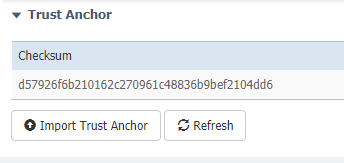
另一个选项是通过本地管理器导入信任锚点:
导航到系统设置>导入信任锚,如图所示。
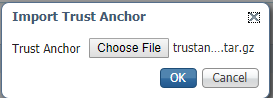
选择您在第2步中生成的文件,然后单击OK,如图所示。
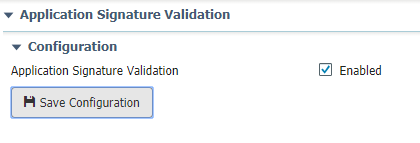
成功导入信任锚点后,选中Enabled for Application Signing Validation,然后单击Save Configuration,如图所示:
步骤4.创建应用特定密钥和CSR
接下来,您可以创建用于登录IOx应用的密钥和证书对。最佳实践是为计划部署的每个应用生成一个特定的密钥对。
只要每个证书使用同一CA签名,它们均被视为有效。
要生成应用程序特定密钥,请执行以下操作:
[jedepuyd@KJK-SRVIOT-10 signing]$ openssl genrsa -out app-key.pem 2048
Generating RSA private key, 2048 bit long modulus
.......+++
...+++
e is 65537 (0x10001)
要生成CSR,请执行以下操作:
[jedepuyd@KJK-SRVIOT-10 signing]$ openssl req -new -key app-key.pem -out app.csr
You are about to be asked to enter information that is incorporated
into your certificate request.
What you are about to enter is what is called a Distinguished Name (DN).
There are quite a few fields but you can leave some blank.
For some fields there can be a default value,
If you enter '.', the field can be left blank.
-----
Country Name (2 letter code) [XX]:BE
State or Province Name (full name) []:WVL
Locality Name (eg, city) [Default City]:Kortrijk
Organization Name (eg, company) [Default Company Ltd]:Cisco
Organizational Unit Name (eg, section) []:IOT
Common Name (eg, your name or your server's hostname) []:ioxapp
Email Address []:

Please enter the following 'extra' attributes
to be sent with your certificate request
A challenge password []:
An optional company name []:
与CA一样,必须调整应用证书中的值以匹配您的使用案例。
步骤5.使用CA签署应用特定证书
现在您已满足了CA和应用CSR的要求,您可以使用CA签署CSR。结果是签名的特定于应用的证书:
[jedepuyd@KJK-SRVIOT-10 signing]$ openssl x509 -req -in app.csr -CA rootca-cert.pem -CAkey rootca-key.pem -CAcreateserial -out app-cert.pem -days 4096 -sha256
Signature ok
subject=/C=BE/ST=WVL/L=Kortrijk/O=Cisco/OU=IOT/CN=ioxapp
Getting CA Private Key
步骤6.将IOx应用程序打包并使用特定于应用程序的证书进行签名
此时,您已准备好打包您的IOx应用程序,并使用第4步中生成的密钥对进行签名,并在第5步中由CA进行签名。
为应用程序创建source和package.yaml的其余过程保持不变。
使用密钥对封装IOx应用程序:
[jedepuyd@KJK-SRVIOT-10 iox_docker_pythonsleep]$ ioxclient package --rsa-key ../signing/app-key.pem --certificate ../signing/app-cert.pem .
Currently active profile :  default
Command Name:  package
Using rsa key and cert provided via command line to sign the package
Checking if package descriptor file is present..
Validating descriptor file /home/jedepuyd/iox/iox_docker_pythonsleep/package.yaml with package schema definitions
Parsing descriptor file..
Found schema version  2.2
Loading schema file for version  2.2
Validating package descriptor file..
File /home/jedepuyd/iox/iox_docker_pythonsleep/package.yaml is valid under schema version 2.2
Created Staging directory at :  /tmp/666018803
Copying contents to staging directory
Checking for application runtime type
Couldn't detect application runtime type
Creating an inner envelope for application artifacts
Excluding  .DS_Store
Generated  /tmp/666018803/artifacts.tar.gz
Calculating SHA1 checksum for package contents..
Package MetaData file was not found at  /tmp/666018803/.package.metadata
Wrote package metadata file :  /tmp/666018803/.package.metadata
Root Directory :  /tmp/666018803
Output file:  /tmp/096960694
Path:  .package.metadata
SHA1 : 2a64461a921c2d5e8f45e92fe203127cf8a06146
Path:  artifacts.tar.gz
SHA1 : 63da3eb3d81e13249b799bf57845f3fc9f6f2f94
Path:  package.yaml
SHA1 : 0e6259e49ff22d6d38e6d1913759c5674c5cec6d
Generated package manifest at  package.mf
Signed the package and the signature is available at package.cert
Generating IOx Package..
Package generated at /home/jedepuyd/iox/iox_docker_pythonsleep/package.tar
步骤7.将已签名的IOx软件包部署到启用签名的设备上
流程的最后一步是将应用部署到IOx设备。与未签名的应用部署相比,没有区别:
[jedepuyd@KJK-SRVIOT-10 iox_docker_pythonsleep]$ ioxclient app install test package.tar
Currently active profile :  default
Command Name:  application-install
Saving current configuration
Installation Successful. App is available at : https://10.50.215.248:8443/iox/api/v2/hosting/apps/test
Successfully deployed
验证
使用本部分可确认配置能否正常运行。
要验证应用密钥是否正确与CA签名,可以执行以下操作:
[jedepuyd@KJK-SRVIOT-10 signing]$ openssl verify -CAfile rootca-cert.pem app-cert.pem
app-cert.pem: OK
故障排除
本部分提供了可用于对配置进行故障排除的信息。
当遇到应用部署问题时,您可能会看到以下错误之一:
[jedepuyd@KJK-SRVIOT-10 iox_docker_pythonsleep]$ ioxclient app install test package.tar
Currently active profile :  default
Command Name:  application-install
Saving current configuration
Could not complete your command :  Error. Server returned 500
{
 "description": "Invalid Archive file: Certificate verification failed: [18, 0, 'self signed certificate']",
 "errorcode": -1,
 "message": "Invalid Archive file"
}
使用CA对应用证书进行签名时出现问题,或者与受信任锚点捆绑中的证书不匹配。
使用Verify部分中提到的说明,检查证书以及受信任锚点捆绑包。
这些错误指示程序包签名不正确,您可以再次查看步骤6。
[jedepuyd@KJK-SRVIOT-10 iox_docker_pythonsleep]$ ioxclient app install test2 package.tar
Currently active profile :  default
Command Name:  application-install
Saving current configuration
Could not complete your command :  Error. Server returned 500
{
 "description": "Package signature file package.cert or package.sign not found in package",
 "errorcode": -1009,
 "message": "Error during app installation"
}
 反馈
反馈