본 제품에 대한 문서 세트는 편견 없는 언어를 사용하기 위해 노력합니다. 본 설명서 세트의 목적상, 편견 없는 언어는 나이, 장애, 성별, 인종 정체성, 민족 정체성, 성적 지향성, 사회 경제적 지위 및 교차성에 기초한 차별을 의미하지 않는 언어로 정의됩니다. 제품 소프트웨어의 사용자 인터페이스에서 하드코딩된 언어, RFP 설명서에 기초한 언어 또는 참조된 서드파티 제품에서 사용하는 언어로 인해 설명서에 예외가 있을 수 있습니다. 시스코에서 어떤 방식으로 포용적인 언어를 사용하고 있는지 자세히 알아보세요.
이 번역에 관하여
Cisco는 전 세계 사용자에게 다양한 언어로 지원 콘텐츠를 제공하기 위해 기계 번역 기술과 수작업 번역을 병행하여 이 문서를 번역했습니다. 아무리 품질이 높은 기계 번역이라도 전문 번역가의 번역 결과물만큼 정확하지는 않습니다. Cisco Systems, Inc.는 이 같은 번역에 대해 어떠한 책임도 지지 않으며 항상 원본 영문 문서(링크 제공됨)를 참조할 것을 권장합니다.
이 문서에서는 Cisco Intersight를 통해 Cisco Nutanix HCI 클러스터의 펌웨어 업그레이드를 수행하는 프로세스에 대해 설명합니다.
배경 정보
ISM/IMM 클러스터용 펌웨어를 교정할 때는 LCM(Life Cycle Manager)을 사용하는 것이 좋지만, 버그 또는 FN(Field Notice)와 같은 특정 시나리오에서는 업그레이드 또는 다운그레이드할 특정 버전을 선택해야 할 수 있습니다. 이러한 경우 Intersight를 통해 펌웨어 변경을 적용할 수 있습니다.
LCM 프로세스와 달리 Intersight를 통한 펌웨어 업그레이드는 호스트별로 수동으로 펌웨어를 수정하고 패치해야 합니다. 이러한 작업을 실행하기 전에 클러스터의 워크로드와 용량을 이해하는 것이 좋습니다.
사용자는 수동으로 호스트를 유지 보수 모드로 전환하고 Intersight를 통해 펌웨어 변경 사항을 적용한 다음 유지 보수 모드를 종료합니다. 이는 클러스터의 각 노드에 대해 반복됩니다.
팁: 클러스터가 견딜 수 있는 동시 누락 노드 수에 대한 자세한 내용은 Nutanix 설명서 Cluster Fault Tolerance를 참조하십시오.
참고: LCM은 외부 저장소에 연결된 CO(컴퓨팅 전용) 노드에 대해 서버 펌웨어 업데이트를 수행하지 않습니다. 이러한 클러스터에 대해 Intersight를 통한 업그레이드를 적용할 수 있습니다.
Perform Cisco Nutanix HCI Cluster Offline Upgrade Through Intersight
## Introduction
This document describes the process to manually perform an offline firmware upgrade for Cisco Nutanix HCI clusters using Cisco Intersight when LCM is not used.
## Background Information
While it is recommended to use Life Cycle Manager (LCM) when remediating firmware for ISM/IMM Clusters, specific scenarios—such as hitting a bug or Field Notice (FN)—may require selecting a specific version for an upgrade or downgrade. In these cases, firmware changes can be applied through Intersight.
Unlike the LCM process, an offline upgrade requires editing and patching firmware on a per-host basis. It is mandatory to understand the workload and capacity of the cluster before performing these actions. During this process, the user manually places the host in Maintenance Mode, applies the firmware change via Intersight, and then exits Maintenance Mode. This is repeated for each node in the cluster.
## Manual Upgrade Steps at a Glance
1. Edit the Firmware Policy with the new firmware version.
2. Deploy all profiles without an immediate reboot to stage the firmware.
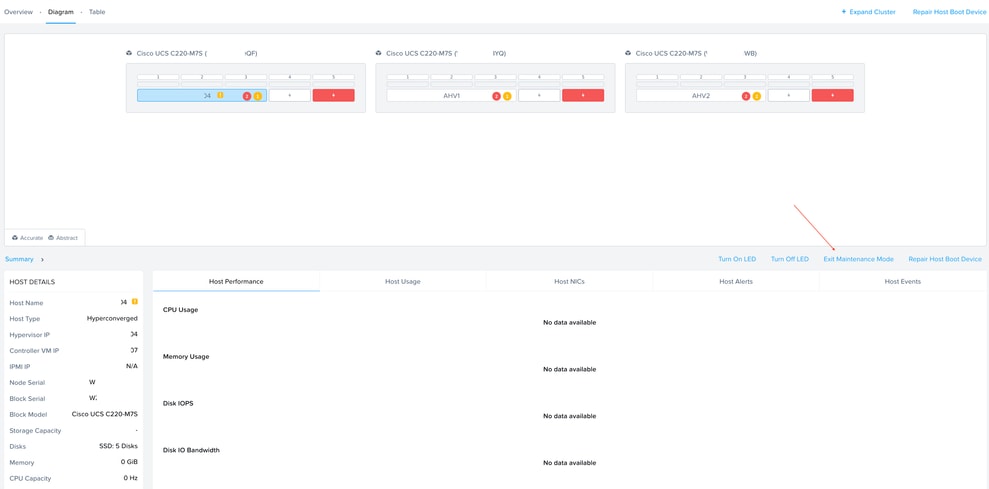
3. Place the node in Maintenance Mode via Prism Element or Prism Central.
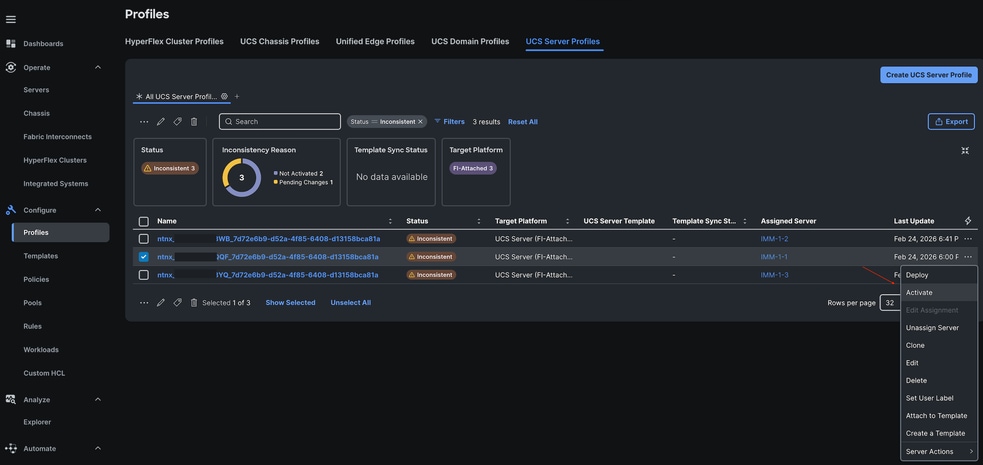
4. Activate the profile for the server in Maintenance Mode to power cycle the server and apply firmware.
5. Repeat steps 3 and 4 for all nodes in the cluster.
## Modify Firmware Policies
Intersight pushes firmware through a Firmware Policy. Each node has its own policy, and new versions are selected by editing these policies.
The syntax for the firmware policy name is: `ntnx_firmware__`
### Locate and Edit Policies
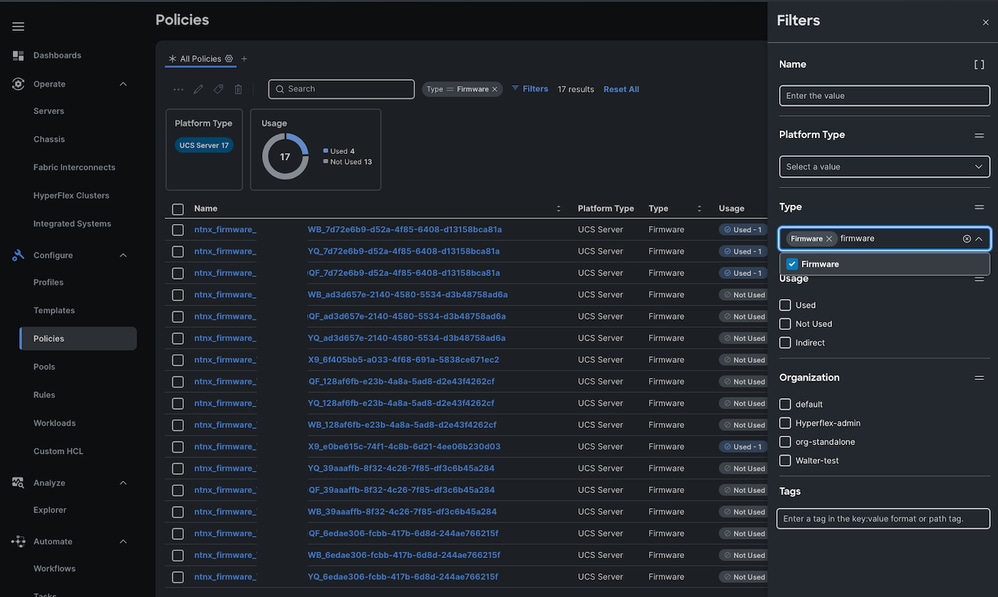
1. Navigate to **Policies** > Click **Filters** > **Type** > Check **Firmware**.

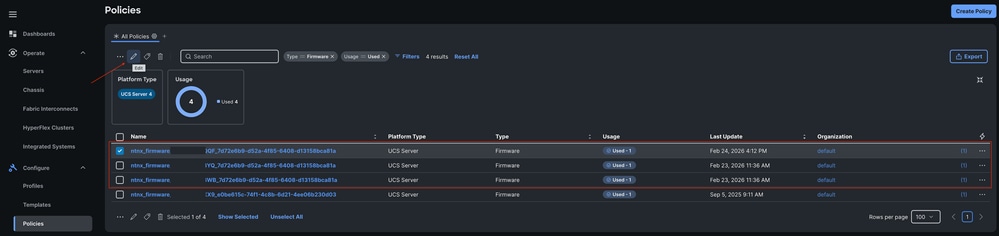
2. Select the Policy and click **Edit**.

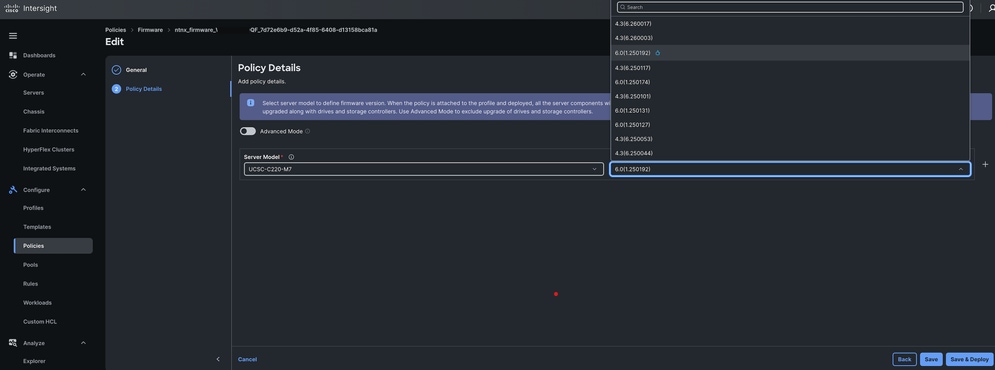
3. Select the desired firmware version from the drop-down list and click **Save & Deploy**.

### Stage the Firmware
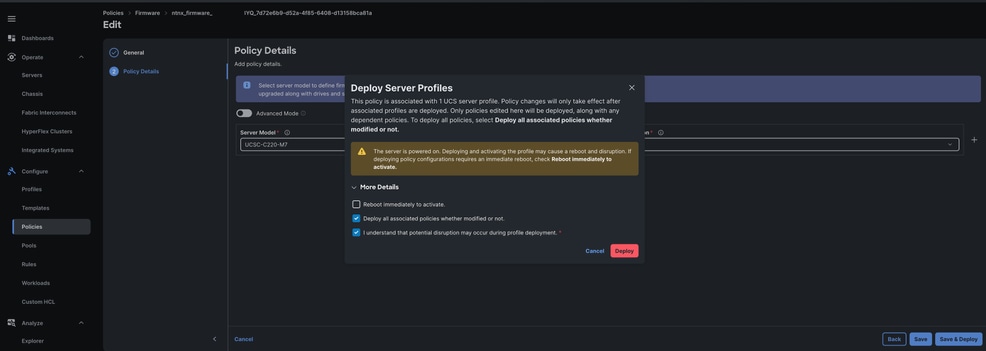
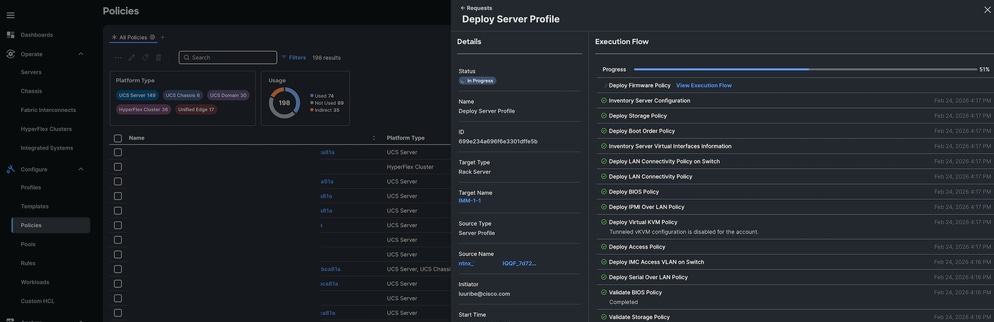
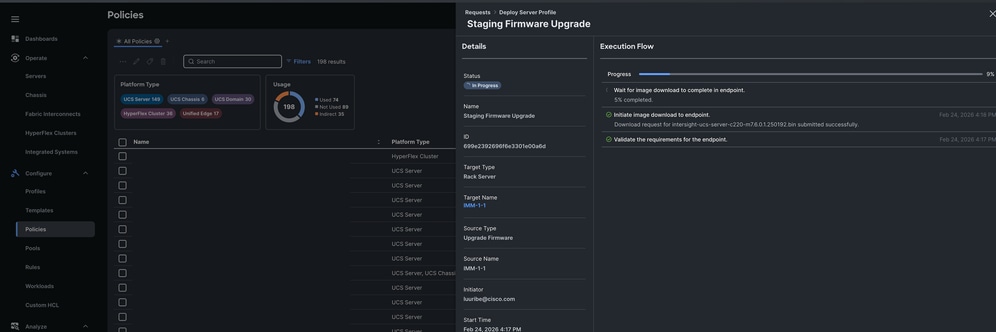
When redeploying the server profile, ensure the **Reboot Immediately** option is **unchecked**. This stages the new firmware on the blade; the change is only executed after the next power cycle. This method saves time by staging firmware across all nodes simultaneously.

Once deployment starts:
* A new workflow appears in the **Requests** tab.

* The firmware download is initiated.

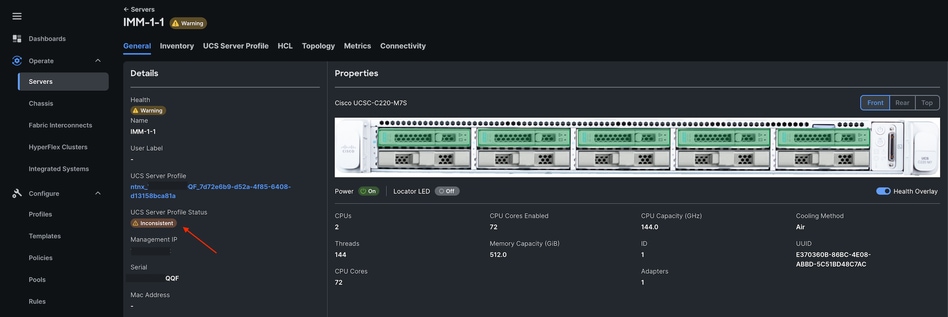
* After the server is deployed without an immediate reboot, the Server Profile will show an **Inconsistent** status. This is expected until the profile is activated.

## Place Servers in Maintenance Mode Through Prism Central or Prism Element
To avoid disruption, servers must be placed into Maintenance Mode to migrate workloads before the reboot.
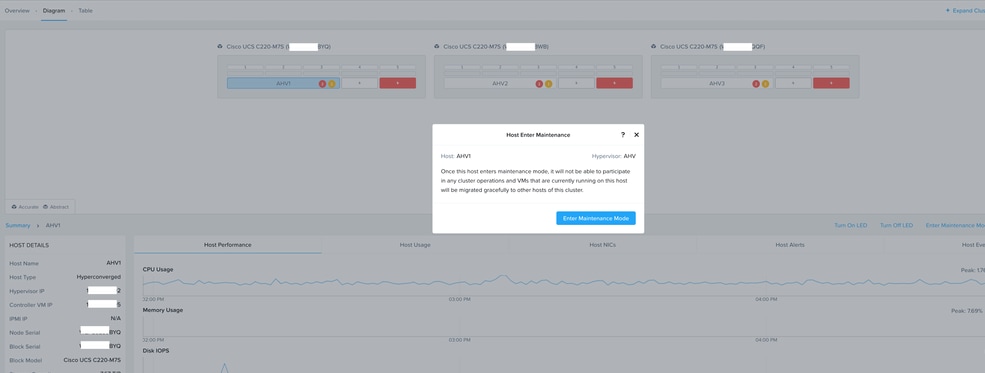
### Using Prism Element
1. Navigate to **Hardware** > **Diagram**.
2. Select the **AHV#**.
3. Select **Enter Maintenance Mode**.


### Using Prism Central
1. Navigate to **Infrastructure** > **Hardware** > **Clusters**.
2. Select the **Cluster**.
3. Select the specific **Node** to place it in Maintenance Mode.
## Activate Profiles and Push Firmware
Once the host is in Maintenance Mode, you can push the firmware.
1. Navigate to the **Profiles** tab.
2. Locate the profile of the server in Maintenance Mode using its Serial Number.
3. Select **Actions** > **Activate**.


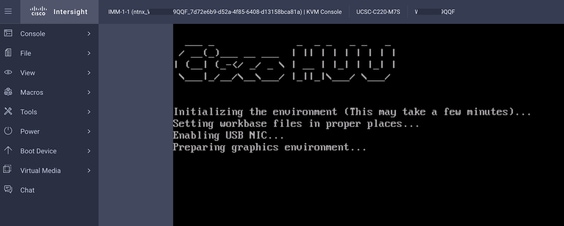
4. (Optional) Monitor the firmware upgrade progress through the KVM console.

## Verify Upgrade and Exit Maintenance Mode
Once the activation is complete:
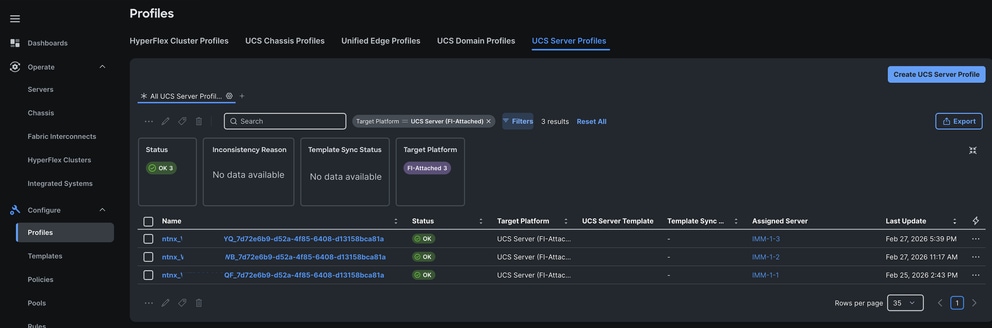
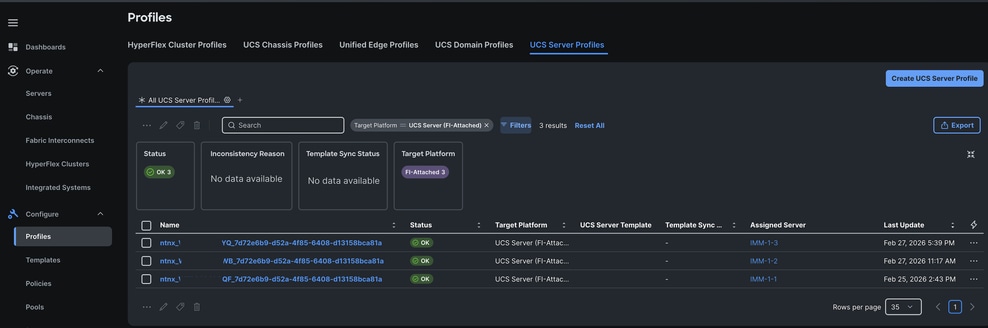
1. The Server Profile status transitions to **OK**.


2. The node can now be taken out of Maintenance Mode.

3. Repeat the process for the remaining nodes until all profiles show an **OK** status.


이 문서의 정보는 특정 랩 환경의 디바이스를 토대로 작성되었습니다. 이 문서에 사용된 모든 디바이스는 초기화된(기본) 컨피그레이션으로 시작되었습니다. 현재 네트워크가 작동 중인 경우 모든 명령의 잠재적인 영향을 미리 숙지하시기 바랍니다.

 피드백
피드백