Cisco Software Downloads FAQ |
|||
Registration and Service ContractWhy do I have to register for certain software? I am already registered as a Guest user and logged in. Why am I still unable to download software? Why can't I download the VPN client after creating an account? Cisco Small Business (formerly Linksys) productsHow do I
find firmware for Cisco Small Business (formerly Linksys) products? Free Software How can I
identify free software? Browser Support What browsers are supported and what browser settings are needed? Is Java required for software downloads? What Java
version is required for the Download Manager? Using the Software Download AreaHow do I
search for software in the Downloads area? How do I
navigate in the new tree structure? How can I
navigate within the downloads area without using the browsers Back or Forward
buttons? Can I
download multiple files at a time? What do
the Add to Cart and Download Now buttons do? How can I
see the details for the image that was added to the Download Cart? Troubleshooting in the Software Download AreaI am getting connection reset error while using non Java download in firefox. What should I do? Download Manager is not working with my proxy server. What should I do? I lost my
internet connection. How do I re-start the downloads in the Download Manager? My session
seems to have expired. What should I do? Cisco IOS SoftwareIs it
possible to view the features of the IOS? Q. Why do I have to register for certain software?A. Access to certain Cisco software requires registration due to export
regulations and contract access. To create a Cisco.com account you
can register here: http://tools.cisco.com/RPF/register/register.do The registration process
enables you to obtain a username and password that creates a guest
login to access any free, downloadable Software from Cisco.com. To
access contract-restricted software you must associate a valid service
contract to your profile in the additional access tab in the profile manager.
Registering and reporting software downloads for software
containing encryption is required by the
Return to Top
Q. How do I add a service contract to my profile?
A.
To associate a service contract to your profile follow
the instructions at
http://www.cisco.com/web/Downloads/SDS/unentitled_instructions.html
Return to Top
Q.
I am already registered as
a Guest user and logged in. Why am I still unable to download software?
A
: Certain software needs additional access and cannot be downloaded by
a Registered Guest user. To download this software you need to have a valid
Technical Support Services Agreement.
This can be obtained by: > Contact your Cisco Account team if you have a Direct Purchase Agreement. > Contact a Cisco Partner or Reseller to purchase a service agreement. -http://tools.cisco.com/WWChannels/LOCATR/jsp/partner_locator.jsp > Use the Profile Manager to update your Cisco.com profile and request association to service agreement - http://tools.cisco.com/RPF/profile/edit_entitlement.do?Tab=3 > Learn more about Technical Service Agreements and Software Downloads
Return to Top
Q. Why can't I download the VPN client after creating an account?A. If you just registered or added a SMARTnet support contract your account may not be updated yet. However, if you just created an account you will not be able to access VPN software until a valid SMARTnet support contract is associated to your profile. You can find the instructions at http://www.cisco.com/web/Downloads/SDS/unentitled_instructions.html
Return to Top
Q. How do I find firmware for Cisco Small Business (formerly Linksys) products?
A.
Downloads for select Cisco Small Business products are now available on Cisco.com without the need to register or login.
View Product List
Network Storage Firmware : Storage Networking --> Network Attached Storage Systems --> Cisco Small Business Network Storage Systems Firmware Router Firmware : Routers --> Cisco Small Business Routers Managed Switches Firmware : Switches --> LAN Switches --> Cisco Small Business Managed Switches
Smart
Switches Firmware :
Switches -->
LAN Switches --> Cisco Small Business Smart Switches Surveillance Firmware and Software : Physical Security and Building Systems --> Physical Security --> Video Surveillance IP Cameras --> Cisco Small Business Video Surveillance Cameras Small Business IP Phone Firmware : Voice and Unified Communications --> IP Telephony --> IP Phones --> Cisco Small Business IP Phones Small Business Voice Accessories Firmware : Voice and Unified Communications Software --> IP Telephony --> IP Phones --> Cisco Small Business Voice Accessories Small Business Voice Gateways and ATAs Firmware :Voice and Unified Communications --> Communications Infrastructure --> Voice Gateways --> Cisco Small Business Voice Gateways and ATAs Small Business Voice Systems Firmware : Voice and Unified Communications --> IP Telephony --> Call Control --> Cisco Small Business Voice Systems Firmware for Linksys by Cisco Consumer products is available at http://homesupport.cisco.com/en-us/home
Return to Top
Q. How can I identify free software?
A.
Free software can be
identified by the absence of a lock symbol (
Return to Top
Q. Is VPN Client software free?A. No, The Cisco VPN Client is included with all models of Cisco ASA 5500 Series Security Appliances(excluding ASA 5505). Customers with Cisco SMARTnet support contracts and encryption entitlement may download the Cisco VPN Client from the Cisco Software Center (requires Cisco.com login) at no additional cost. For customers without Cisco SMARTnet support contracts, a media CD containing the client software is available for purchase. This CD does not provide access to the most current patch releases.
Return to Top
Q.
What browsers are supported and
what browser settings are needed?
A:
The list of Cisco supported browsers is at:
http://www.cisco.com/web/help/browser.html.
The Download Manager
has
been successfully tested with the following browser/Operating System
combinations, though not all are officially supported -
Windows XP - IE8,
Opera, Seamonkey
1.
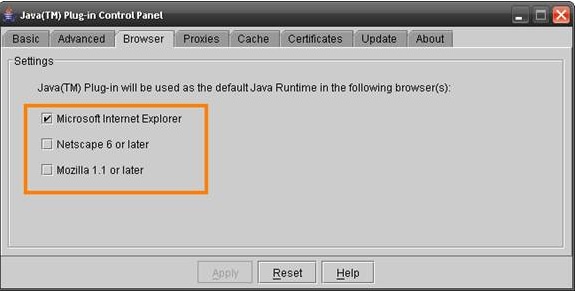
Double click on the icon to open 'Java Control Panel'.
Return to Top
Q.
Is Java required for software downloads?
A: No, there is a non Java option available for software downloads.
Return to Top
Q.
What Java version is required for
the Download Manager?
A: All operating systems that have Java version 1.4.2_xx or higher are supported on the Download Manager.
Return to Top
Q.
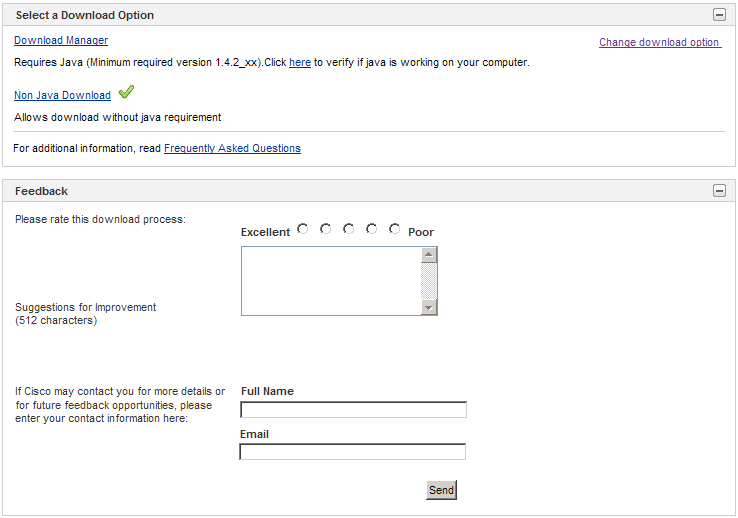
What is the difference between the ‘Download Manager Option’ and ‘Non Java Download Option’ for software downloads?
A: The Download Manager Option requires Java version 1.4.2_xx or higher. This download option allows you to monitor, pause/resume or cancel the software downloads. Once you provide a destination folder for all your images the downloads will start. You will be able to view the details of the image being downloaded in the Current Download section. The Download Status section shows the status for all the images being downloaded. Any images that are not downloaded continue to remain in the Download Cart. The Non Java Download Option allows you to download software without the java requirement. In this option, all the images placed in your Download Cart will be displayed and you can select each one for individual download after selecting a destination location. Once you select this option, all images are removed from the Download Cart.
Return to Top
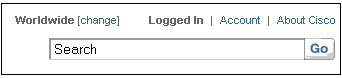
Q. How do I search for software in the Downloads area?A. Software can be searched using our global search function which can be found throughout Cisco.com in the upper right-hand corner.
Use the global search tool to find software by entering a
product name or a keyword.
Return to Top
Q. How do I navigate in the new tree structure?
A. Software can be navigated by products, technology,
releases, category, etc.
Navigation 1
Navigation 2
Navigation 3
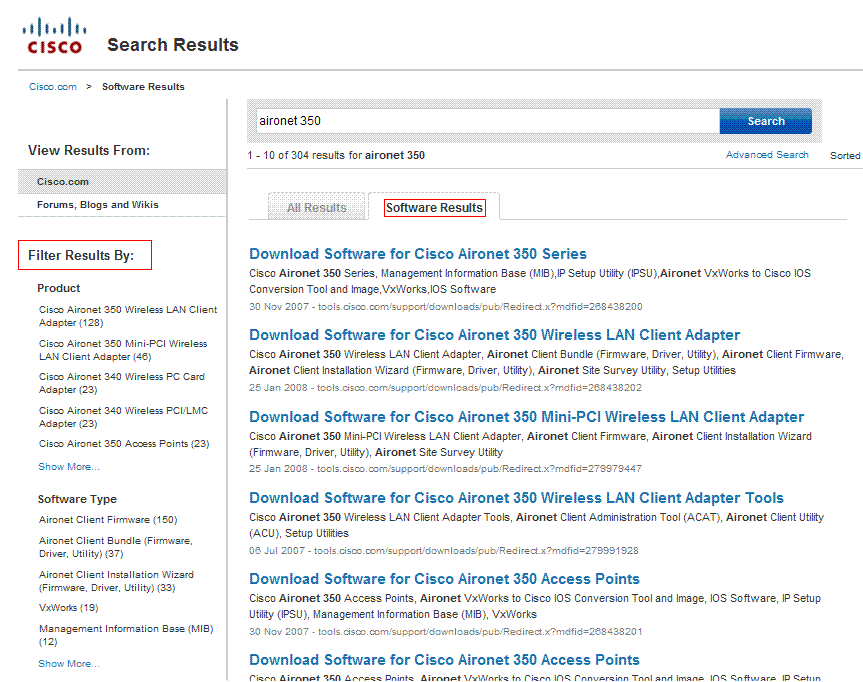
Return to TopQ. How can I navigate within the download area without using the browsers Back or Forward buttons?A. You can use the breadcrumb to navigate within the software downloads area.
For example, to select a different software type than Aironet Client Bundle, click on the link Aironet Client Bundle (Firmware, Driver, Utility) which will refresh the page with a list of all software type options available for the Aironet 350.
Return to Top
Q.
Can I download multiple files at a time?
A. Yes, you can download up to 25 files at a time using the the download cart when logged in with your Cisco account.
Return to Top
Q. What do the Add to Cart and Download Now
buttons do?
A.
The Add to Cart button adds
the software image to the Download Cart while keeping the user on the same
page. The Download Now button adds the software image to the Download Cart
and takes the user directly to the cart to proceed with the download.
Return to Top
Q. How can I see the details for the image that was added to the
Download Cart?
A. To see the image details in the
Download Cart, click on the image row or on the expand icon (plus sign) in
the cart. The image details section will show for the selected image. Click
on the row again or on the collapse icon (minus sign) to collapse the details
section.
Return to Top
Q.
After I click Agree to the Click Accept Agreement, the download doesn't start automatically. What should I do?
A. Please select either the ‘Download Manager Option’ or the ‘Non Java Download’ option to initiate the download process..
Return to Top
Q.
I don't have Java or am unable to install Java on my computer to use the Download Manager. What should I do?
A.
If you do not have Java installed on your computer, please select the 'Non Java download option' as in the screen below.
Return to Top
Q. I have Java installed on my computer but can not download software using the Download Manager. I see a blank screen/error messages on the pop-up window. What should I do?
A.
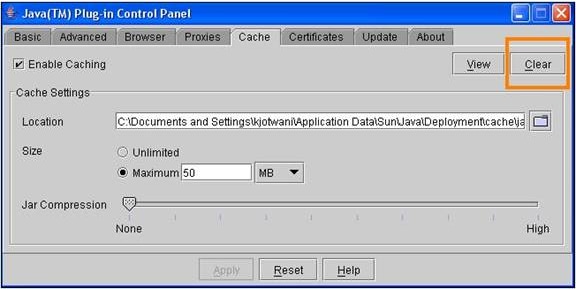
Please verify the settings on your computer using the following steps. Each browser works differently and all steps may not be necessary to resolve the issue
1. Clear your browser cache and close all the browser windows. Enable Java
Runtime Engine (JRE) Internet Explorer 4.x and Up Click
"Tools" --> "Internet Options" Select
the Advanced Tab, and scroll down to "Java (Sun)" Check
the box next to the Java version Next,
select the Security Tab, and select the "Custom Level" button Scroll
down to "Scripting of Java applets" Make
sure the "Enable" radio button is checked. Click
OK to save your preference. Mozilla 1.x From
the menu bar, choose Edit --> Preferences Select
the Advanced category Check
the box labeled "Enable Java" Click
OK to save your preference. Mozilla 3.0 or above From
the menu bar, choose Tools --> Options Select
Content tab Check
the box labeled "Enable Java" Click
OK to save your preference. Netscape 7.x From
the menu bar, choose Edit --> Preferences Select
the Advanced category Check
the box labeled "Enable Java" Click
OK to save your preference.
Return to Top
Q. I am getting connection reset error while using non Java download in firefox. What should I do?
A:
Please clear your browser cache and cookies and then try the download in a fresh window. If you still face any issue please let us know by filling out the Cisco.com Feedback Form
Return to Top
Q. Download Manager is not working with my proxy server. What should I do?
A:
Please enable http posts in the proxy server to download using the Download Manager.
Return to Top
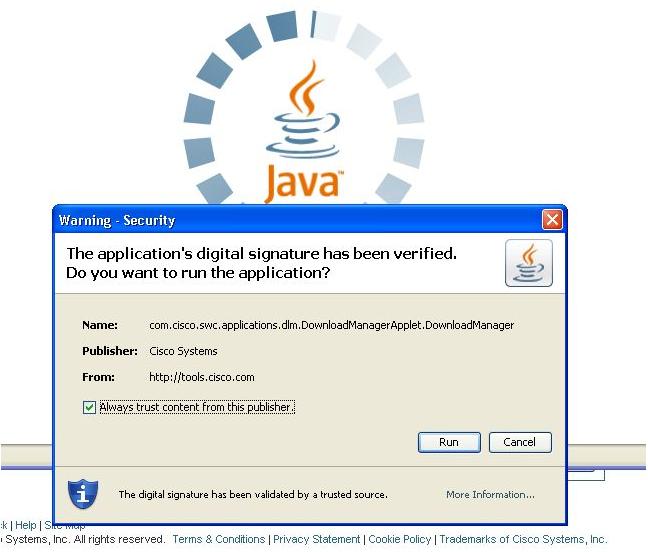
Q. On my MAC, I see a message that "The java applet requests unrestricted access to your computer” when using the Download Manager. What does this mean?
A.
The Java applet runs within a client browser and its only purpose is to save user selected software images to a user defined location on their file system. To do this requires security confirmation and acceptance of the certificate from the user prior to completion. The applet is coded to SUN specified coding standards and reviewed for Cisco application and information security compliance.
Return to Top
Q.
I lost my internet connection. How do I
re-start the download in the Download Manager?
A. If you
are able to re-connect to the internet within about 5 minutes, the Download
Manager will automatically re-start the download for the current image.
However, if the disconnect from the internet is for more than 5 minutes,
please navigate back to the Download Cart and re-start the download process.
Return to Top
Q. My session seems to have expired. What should I do?
A.
If your session has expired
on the download navigation pages, you will be asked to either login again, or
refresh the page. If your session has expired within the Download Manager,
please navigate back to the Download Cart and re-start the download process.
Return to Top
Q. Is it possible to view the features of the IOS?A. We have View Features in our software downloads area. You can select the check box next to the IOS image and view the features or you can compare the features of two images using this View Features option.
Return to Top
|
|||