Feedback Feedback
|

Table Of Contents
Related Cisco CallManager and Operating System Documentation
Server and Operating System Requirements
Preparation and Considerations
Configuring the Network Teaming Driver
Dissolving the Network Teaming Driver
Troubleshooting the Network Teaming Driver
Obtaining Technical Assistance
Obtaining Additional Publications and Information
Using the Cisco Media Convergence Server Network Teaming Driver with Operating System Version 2000.2.6
The Cisco Media Convergence Server (MCS) Network Teaming Driver enables the functionality for the failover fault-tolerant network adapters. This driver works with Cisco Media Convergence Servers that have dual network interface cards (NICs) installed. With this functionality, the standby NIC can handle all IP traffic in the event of a failure of the primary NIC.
Note
Operating system version 2000.2.6 automatically installs the Network Teaming Driver as part of the installation process. You must perform configuration tasks, as described in this document, to set up and use the Network Teaming Driver.
Note
Contents
This document contains the following topics:
•
•
•
•
•
•
•
Related Cisco CallManager and Operating System Documentation
Table 1 provides a list of Cisco CallManager and operating system documentation. You can navigate to the appropriate documentation by clicking on the URLs that are shown in this table.
Table 1 Quick Reference for Documentation and Software URLs
Operating system documentation and Virtual Network Computing (VNC) documentation
(not readme documentation)
http://www.cisco.com/univercd/cc/td/doc/product/voice/iptel_os/index.htm
Cisco MCS data sheets
http://www.cisco.com/en/US/products/hw/voiceapp/ps378/index.html
Software-only servers (IBM, HP, Compaq, Aquarius)
http://www.cisco.com/en/US/products/hw/voiceapp/ps378/prod_brochure_list.html
Cisco CallManager Compatibility Matrix
http://www.cisco.com/univercd/cc/td/doc/product/voice/c_callmg/index.htm
Cisco CallManager documentation, including installation and upgrade documentation
http://www.cisco.com/univercd/cc/td/doc/product/voice/c_callmg/index.htm
Cisco IP Telephony Applications Backup and Restore documentation
http://www.cisco.com/univercd/cc/td/doc/product/voice/backup/index.htm
Support patches and readme documentation
http://www.cisco.com/kobayashi/sw-center/sw-voice.shtml
Note
Server and Operating System Requirements
The following servers support the Network Teaming Driver:
•
•
•
•
•
•
•
Note
Preparation and Considerations
Review the following information before you configure the Network Teaming Driver:
•
•
•
•
Caution
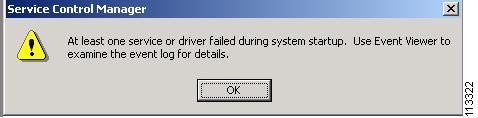
If you do not perform the tasks in the recommended order and decide to configure the driver after the application upgrade, you might encounter a Service Control Manager error message, as shown in Figure 9. To resolve this problem, follow the procedure in the "Troubleshooting the Network Teaming Driver" section.
Perform the following procedure before you configure the driver:
Procedure
Step 1
My Network Places.Step 2
Step 3
Step 4
Tip
Step 5
Step 6
Step 7
Step 8
These could be one or two different settings, depending on the server type.
Step 9
Step 10
Step 11
Note
Configuration Tasks
This section includes information about configuring the Network Teaming Driver.
Configuring the Network Teaming Driver
To configure the Network Teaming Driver, perform the following procedure:
Procedure
Step 1
The icon looks like the image shown in Figure 1.
Figure 1 HP Network Configuration Utility 7 Icon
Step 2
Figure 2 HP Network Configuration Utility Properties Page
Step 3
Figure 3 Selected HP NICs
Step 4
The Team Properties window displays. Verify that the following properties are chosen, as shown in Figure 4:
•
•
Note
Figure 4 Team Properties
Step 5
You have created the HP Network Team.
Step 6
Figure 5 HP Network Team #1
A confirmation window appears.
Tip
Step 7
Figure 6 Confirmation
Step 8
Figure 7 Completed Configuration
Step 9
Figure 8 Successful Configuration Changes
Step 10
Step 11
Step 12
Step 13
Step 14
Step 15
Step 16
Step 17
Step 18
An additional network card, Local Area Connection 3, displays in the window.
Step 19
Step 20
Step 21
Tip
Step 22
Step 23
Step 24
Note
Step 25
Step 26
Dissolving the Network Teaming Driver
When you dissolve the driver, you disassociate the two NICs and the virtual NIC that is used for the driver. The teaming drivers remain installed, but they no longer are configured or used.
Note
To dissolve the Network Teaming Driver, perform the following procedure:
Procedure
Step 1
Step 2
Step 3
Step 4
Step 5
Step 6
Step 7
Caution
Uninstallation Tasks
When you uninstall the driver, you delete the drivers from the server. The server will use NIC #1 only for IP telephony.
To uninstall the Network Teaming Driver, perform the following procedure:
Procedure
Step 1
Step 2
Step 3
Step 4
Step 5
Step 6
Note
Caution
Uninstallation Verification
To verify that you have uninstalled the driver, perform the following procedure:
Procedure
Step 1
In the list that displays, the network team should not appear.
Step 2
Step 3
Step 4
Troubleshooting the Network Teaming Driver
After you configure the Network Teaming Driver and install Cisco CallManager, you might encounter a Service Control Manager error message, such as the one shown in Figure 9.
Figure 9 Service Control Manager Error Message
To identify and resolve this problem, perform the following procedure:
Procedure
Step 1
Step 2
Step 3
•
•
Step 4
The following description appears:
"The HP Network Configuration Utility 7 service failed to start due to the following error:
The service cannot be started, either because it is disabled or because it has enabled devices associated with it."Step 5
The utility runs for a few seconds. The fix takes effect without rebooting the server.
Note
Obtaining Documentation
Cisco provides several ways to obtain documentation, technical assistance, and other technical resources. These sections explain how to obtain technical information from Cisco Systems.
Cisco.com
You can access the most current Cisco documentation on the World Wide Web at this URL:
http://www.cisco.com/univercd/home/home.htm
You can access the Cisco website at this URL:
International Cisco websites can be accessed from this URL:
http://www.cisco.com/public/countries_languages.shtml
Documentation CD-ROM
Cisco documentation and additional literature are available in a Cisco Documentation CD-ROM package, which may have shipped with your product. The Documentation CD-ROM is updated regularly and may be more current than printed documentation. The CD-ROM package is available as a single unit or through an annual or quarterly subscription.
Registered Cisco.com users can order a single Documentation CD-ROM (product number DOC-CONDOCCD=) through the Cisco Ordering tool:
http://www.cisco.com/en/US/partner/ordering/ordering_place_order_ordering_tool_launch.html
All users can order annual or quarterly subscriptions through the online Subscription Store:
http://www.cisco.com/go/subscription
Ordering Documentation
You can find instructions for ordering documentation at this URL:
http://www.cisco.com/univercd/cc/td/doc/es_inpck/pdi.htm
You can order Cisco documentation in these ways:
•
http://www.cisco.com/en/US/partner/ordering/index.shtml
•
Documentation Feedback
You can submit comments electronically on Cisco.com. On the Cisco Documentation home page, click Feedback at the top of the page.
You can send your comments in e-mail to bug-doc@cisco.com.
You can submit comments by using the response card (if present) behind the front cover of your document or by writing to the following address:
Cisco Systems
Attn: Customer Document Ordering
170 West Tasman Drive
San Jose, CA 95134-9883We appreciate your comments.
Obtaining Technical Assistance
For all customers, partners, resellers, and distributors who hold valid Cisco service contracts, the Cisco Technical Assistance Center (TAC) provides 24-hour, award-winning technical support services, online and over the phone. Cisco.com features the Cisco TAC website as an online starting point for technical assistance.
Cisco TAC Website
The Cisco TAC website (http://www.cisco.com/tac) provides online documents and tools for troubleshooting and resolving technical issues with Cisco products and technologies. The Cisco TAC website is available 24 hours a day, 365 days a year.
Accessing all the tools on the Cisco TAC website requires a Cisco.com user ID and password. If you have a valid service contract but do not have a login ID or password, register at this URL:
http://tools.cisco.com/RPF/register/register.do
Opening a TAC Case
The online TAC Case Open Tool (http://www.cisco.com/tac/caseopen) is the fastest way to open P3 and P4 cases. (Your network is minimally impaired or you require product information). After you describe your situation, the TAC Case Open Tool automatically recommends resources for an immediate solution. If your issue is not resolved using these recommendations, your case will be assigned to a Cisco TAC engineer.
For P1 or P2 cases (your production network is down or severely degraded) or if you do not have Internet access, contact Cisco TAC by telephone. Cisco TAC engineers are assigned immediately to P1 and P2 cases to help keep your business operations running smoothly.
To open a case by telephone, use one of the following numbers:
Asia-Pacific: +61 2 8446 7411 (Australia: 1 800 805 227)
EMEA: +32 2 704 55 55
USA: 1 800 553-2447For a complete listing of Cisco TAC contacts, go to this URL:
http://www.cisco.com/warp/public/687/Directory/DirTAC.shtml
TAC Case Priority Definitions
To ensure that all cases are reported in a standard format, Cisco has established case priority definitions.
Priority 1 (P1)—Your network is "down" or there is a critical impact to your business operations. You and Cisco will commit all necessary resources around the clock to resolve the situation.
Priority 2 (P2)—Operation of an existing network is severely degraded, or significant aspects of your business operation are negatively affected by inadequate performance of Cisco products. You and Cisco will commit full-time resources during normal business hours to resolve the situation.
Priority 3 (P3)—Operational performance of your network is impaired, but most business operations remain functional. You and Cisco will commit resources during normal business hours to restore service to satisfactory levels.
Priority 4 (P4)—You require information or assistance with Cisco product capabilities, installation, or configuration. There is little or no effect on your business operations.
Obtaining Additional Publications and Information
Information about Cisco products, technologies, and network solutions is available from various online and printed sources.
•
http://www.cisco.com/en/US/products/products_catalog_links_launch.html
•
•
http://www.cisco.com/go/packet
•
http://www.cisco.com/go/iqmagazine
•
http://www.cisco.com/en/US/about/ac123/ac147/about_cisco_the_internet_protocol_journal.html
•
http://www.cisco.com/en/US/learning/index.html
CCIP, CCSP, the Cisco Arrow logo, the Cisco Powered Network mark, Cisco Unity, Follow Me Browsing, FormShare, and StackWise are trademarks of Cisco Systems, Inc.; Changing the Way We Work, Live, Play, and Learn, and iQuick Study are service marks of Cisco Systems, Inc.; and Aironet, ASIST, BPX, Catalyst, CCDA, CCDP, CCIE, CCNA, CCNP, Cisco, the Cisco Certified Internetwork Expert logo, Cisco IOS, the Cisco IOS logo, Cisco Press, Cisco Systems, Cisco Systems Capital, the Cisco Systems logo, Empowering the Internet Generation, Enterprise/Solver, EtherChannel, EtherSwitch, Fast Step, GigaStack, Internet Quotient, IOS, IP/TV, iQ Expertise, the iQ logo, iQ Net Readiness Scorecard, LightStream, Linksys, MGX, MICA, the Networkers logo, Networking Academy, Network Registrar, Packet, PIX, Post-Routing, Pre-Routing, RateMUX, Registrar, ScriptShare, SlideCast, SMARTnet, StrataView Plus, Stratm, SwitchProbe, TeleRouter, The Fastest Way to Increase Your Internet Quotient, TransPath, and VCO are registered trademarks of Cisco Systems, Inc. and/or its affiliates in the United States and certain other countries.
All other trademarks mentioned in this document or Website are the property of their respective owners. The use of the word partner does not imply a partnership relationship between Cisco and any other company. (0402R)
Copyright © 2004 Cisco Systems, Inc. All rights reserved.