Table Of Contents
Siemens Hicom 300 E CS PIMG Integration Guide for Cisco Unity Connection 1.1
Task List to Create the Integration
Integrations with Multiple Phone Systems
Planning How the Voice Messaging Ports Will Be Used by Cisco Unity Connection
Clearing MWIs from a Legacy Voice Messaging System
Programming the Siemens Hicom 300 Phone System
Creating a New Integration with the Siemens Hicom 300 Phone System
(Multiple Integrations Only) Adding New User Templates
Appendix: Documentation and Technical AssistanceObtaining Documentation, Obtaining Support, and Security Guidelines
Siemens Hicom 300 E CS PIMG Integration Guide for Cisco Unity Connection 1.1
Revised October 12, 2007
This document provides instructions for integrating the Siemens Hicom 300-series E CS phone system with Cisco Unity Connection by using the Intel NetStructure PBX-IP Media Gateway (PIMG).
Integration Tasks
Before doing the following tasks to integrate Cisco Unity Connection with the Siemens Hicom 300 phone system, confirm that the Cisco Unity Connection server is ready for the integration by completing the applicable tasks in the Cisco Unity Connection Installation Guide.
The following task list describes the process for creating the integration.
Task List to Create the Integration
Use the following task list to set up a new integration with the Siemens Hicom 300 phone system. If you are installing a new Cisco Unity Connection server by using the Cisco Unity Connection Installation Guide, you may have already completed some of the following tasks.
1.
Review the system and equipment requirements to confirm that all phone system and Cisco Unity Connection server requirements have been met. See the "Requirements" section.
2.
Plan how the voice messaging ports will be used by Cisco Unity Connection. See the "Planning How the Voice Messaging Ports Will Be Used by Cisco Unity Connection" section.
3.
If you have a legacy voice messaging system, clear the MWIs for users who are migrating to Cisco Unity Connection. See the "Clearing MWIs from a Legacy Voice Messaging System" section.
4.
Program the Siemens Hicom 300 phone system and extensions. See the "Programming the Siemens Hicom 300 Phone System" section.
5.
Set up the PIMG units. See the "Setting Up the PIMG Units" section.
6.
Create the integration. See the "Creating a New Integration with the Siemens Hicom 300 Phone System" section.
7.
Test the integration. See the "Testing the Integration" section.
8.
If this integration is a second or subsequent integration, add the applicable new user templates for the new phone system. See the (Multiple Integrations Only) Adding New User Templates.
Requirements
The Siemens Hicom 300 integration supports configurations of the following components:
Phone System
•
Siemens Hicom 300-series E CS phone system.
•
Software version 9006.4 or later.
•
SLMO line cards installed for connecting to the PIMG units.
•
One or more of the applicable PIMG units. For details, refer to the "Supported Circuit-Switched Phone System Integrations" section of Cisco Unity Connection System Requirements, and Supported Hardware and Software at http://www.cisco.com/en/US/products/ps6509/prod_installation_guides_list.html.
•
The voice messaging ports in the phone system connected by digital lines to the ports on the PIMG units.
We recommend that you connect the voice messaging ports on the phone system to the ports on the PIMG units in a planned manner to simplify troubleshooting. For example, the first phone system voice messaging port connects to the first port on the first PIMG unit, the second phone system voice messaging port connects to the second port on the first PIMG unit, and so on.
•
The PIMG units connected to the same LAN or WAN that Cisco Unity Connection is connected to.
•
If the PIMG units connect to a WAN, the requirements for the WAN network connections are:
–
For G.729a codec formatting, a minimum of 32.76 Kbps guaranteed bandwidth for each voice messaging port.
–
For G.711 codec formatting, a minimum of 91.56 Kbps guaranteed bandwidth for each voice messaging port.
–
No network devices that implement network address translation (NAT).
–
A maximum 200 ms network latency.
•
The phone system ready for the integration, as described in the documentation for the phone system.
Cisco Unity Connection Server
•
Cisco Unity Connection installed and ready for the integration, as described in the Cisco Unity Connection Installation Guide at http://www.cisco.com/en/US/products/ps6509/prod_installation_guides_list.html.
•
A license that enables the applicable number of voice messaging ports.
Integration Description
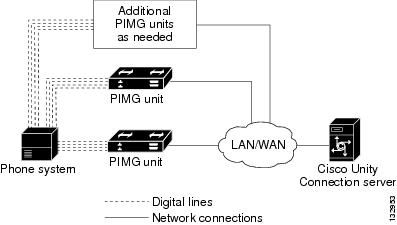
The Siemens Hicom 300 integration sends call information and voice connections through the digital lines, which connect the phone system to the PIMG units. The PIMG units communicate with the Cisco Unity Connection server through the LAN or WAN by using Session Initiation Protocol (SIP). Figure 1 shows the required connections.
Figure 1 Connections Between the Phone System and Cisco Unity Connection
Call Information
The phone system sends the following information with forwarded calls:
•
The extension of the called party
•
The extension of the calling party (for internal calls) or the phone number of the calling party (if it is an external call and the system uses caller ID)
•
The reason for the forward (the extension is busy, does not answer, or is set to forward all calls)
Cisco Unity Connection uses this information to answer the call appropriately. For example, a call forwarded to Cisco Unity Connection is answered with the personal greeting of the user. If the phone system routes the call to Cisco Unity Connection without this information, Cisco Unity Connection answers with the opening greeting.
Integration Functionality
The Siemens Hicom 300 integration with Cisco Unity Connection provides the following features:
•
Call forward to personal greeting
•
Call forward to busy greeting
•
Caller ID
•
Easy message access (a subscriber can retrieve messages without entering an ID because Cisco Unity Connection identifies the subscriber based on the extension from which the call originated; a password may be required)
•
Identified subscriber messaging (Cisco Unity Connection identifies the subscriber who leaves a message during a forwarded internal call, based on the extension from which the call originated)
•
Message waiting indication (MWI)
Integrations with Multiple Phone Systems
Cisco Unity Connection can be integrated with multiple phone systems at one time. For information on and instructions for integrating Cisco Unity Connection with multiple phone systems, refer to the Multiple Phone System Integration Guide at http://www.cisco.com/en/US/products/ps6509/products_installation_and_configuration_guides_list.html.
Planning How the Voice Messaging Ports Will Be Used by Cisco Unity Connection
Before programming the phone system, you need to plan how the voice messaging ports will be used by Cisco Unity Connection. The following considerations will affect the programming for the phone system (for example, setting up the hunt group or call forwarding for the voice messaging ports):
•
The number of voice messaging ports installed.
•
The number of voice messaging ports that will answer calls.
•
The number of voice messaging ports that will only dial out, for example, to send message notification, to set message waiting indicators (MWIs), and to make telephone record and playback (TRAP) connections.
The following table describes the voice messaging port settings in Cisco Unity Connection that can be set on Telephony Integrations > Port of Cisco Unity Connection Administration.
The Number of Voice Messaging Ports to Install
The number of voice messaging ports to install depends on numerous factors, including:
•
The number of calls Cisco Unity Connection will answer when call traffic is at its peak.
•
The expected length of each message that callers will record and that users will listen to.
•
The number of users.
•
The number of ports that will be set to dial out only.
•
The number of calls made for message notification.
•
The number of MWIs that will be activated when call traffic is at its peak.
•
The number of TRAP connections needed when call traffic is at its peak. (TRAP connections are used by Cisco Unity Connection web applications to play back and record over the phone.)
•
The number of calls that will use the automated attendant and call handlers when call traffic is at its peak.
It is best to install only the number of voice messaging ports that are needed so that system resources are not allocated to unused ports.
The Number of Voice Messaging Ports That Will Answer Calls
The calls that the voice messaging ports answer can be incoming calls from unidentified callers or from users. Typically, the voice messaging ports that answer calls are the busiest.
You can set voice messaging ports to both answer calls and to dial out (for example, to send message notifications). However, when the voice messaging ports perform more than one function and are very active (for example, answering many calls), the other functions may be delayed until the voice messaging port is free (for example, message notifications cannot be sent until there are fewer calls to answer). For best performance, dedicate certain voice messaging ports for only answering incoming calls, and dedicate other ports for only dialing out. Separating these port functions eliminates the possibility of a collision, in which an incoming call arrives on a port at the same time that Cisco Unity Connection takes the port off-hook to dial out.
The Number of Voice Messaging Ports That Will Only Dial Out, and Not Answer Calls
Ports that will only dial out and will not answer calls can do one or more of the following:
•
Notify users by phone, pager, or e-mail of messages that have arrived.
•
Turn MWIs on and off for user extensions.
•
Make a TRAP connection so that users can use the phone as a recording and playback device in Cisco Unity Connection web applications.
Typically, these voice messaging ports are the least busy ports.
CautionIn programming the phone system, do not send calls to voice messaging ports in Cisco Unity Connection that cannot answer calls (voice messaging ports that are not set to Answer Calls). For example, if a voice messaging port is set only to Send MWI Requests, do not send calls to it.
Preparing for Programming the Phone System
Record your decisions about the voice messaging ports to guide you in programming the phone system.
Clearing MWIs from a Legacy Voice Messaging System
If users do not have existing voice mail on a legacy voice messaging system, skip this section and continue with the next section.
If users have existing voice mail on a legacy voice messaging system, do the following procedure.
To Clear MWIs from a Legacy Voice Messaging System
Step 1
Have all users who are migrating to Cisco Unity Connection delete or listen to their voice messages on the legacy voice messaging system.
Step 2
Confirm that all MWIs for the users migrating to Cisco Unity Connection are turned off.
Programming the Siemens Hicom 300 Phone System
If you use programming options other than those supplied in the following procedure, the performance of the integration may be affected.
CautionIn programming the phone system, do not send calls to voice messaging ports in Cisco Unity Connection that cannot answer calls (voice messaging ports that are not set to Answer Calls). For example, if a voice messaging port is set only to Dialout MWI, do not send calls to it.
Do the following procedure.
To Program the Siemens Hicom 300 Phone System by Using the Command Line Interface
Step 1
Use the ADD-COS command to add INTDTMF to the class of service that you use. The class of service must have the following parameters while the remaining parameters keep their default values.
Table 2 ADD-COS Parameter Settings
Parameter Required SettingNEWCOS
<the class of service that you are using>
AVCE
indtmf;
Step 2
Use the ADD-DPLN command to create an extension for each voice messaging port on the PIMG units. Each extension must have the following parameters set while the remaining parameters keep their default values.
Table 3 ADD-DPLN Parameter Settings for Voice Messaging Ports on the PIMG Units
Parameter Required SettingDGTS
<first extension>&&<last extension>
DPLN
0
CPS
(leave field blank)
DAR
STN
CHECK
N
Step 3
Use the ADD-SCSU command to create the first voice messaging port on the first PIMG unit. The voice messaging port must have the following parameters while the remaining parameters keep their default values.
Step 4
Repeat Step 3 for each remaining voice messaging port on all PIMG units.
Step 5
Use the CHA-KEPRO command to program the first voice messaging port on the first PIMG unit. The voice messaging port must have the following parameters while the remaining parameters keep their default values.
Table 5 CHA-KEPRO Parameter Settings for Voice Messaging Ports on the PIMG Units
Parameter Required SettingSTNO
<the extension number of the voice messaging port>
STD
1
DIGTYPE
OPTIE12
Step 6
Confirm that the key assignments for the voice messaging port match the key assignments shown in Table 6.
Table 6 Required Key Assignments for Voice Messaging Ports on the PIMG Units
Key Required Assignment1
LINE
2
VACANT
3
VACANT
4
VACANT
5
CONF
6
XFER
7
CNCT
8
HOLDM
9
MB
10
SYSSP1
11
SYSSP2
12
VACANT
CautionThe key assignments must match the key assignments shown above. Otherwise, the integration will not function correctly.
Step 7
Repeat Step 5 and Step 6 for each remaining voice messaging port on all PIMG units.
Step 8
Use the ADD-KCSU command to set the primary line options for the first voice messaging port on the first PIMG unit. The voice messaging port must have the following parameters while the remaining parameters keep their default values.
Step 9
Repeat Step 8 for each remaining voice messaging port on all PIMG units.
Step 10
In the station configuration section, in the CUI (Common User Interface) field, enter Yes.
Step 11
Program each phone to forward calls to the pilot number assigned to the voice messaging ports, based on one of the Cisco Unity Connection call transfer types shown in Table 8.
Setting Up the PIMG Units
Do the following procedures to set up the PIMG units that are connected to the Siemens Hicom 300 phone system.
These procedures require that the following tasks have already been completed:
•
The phone system is connected to the PIMG units by using digital lines.
•
The PIMG units are ready to be connected to the LAN or WAN.
•
The PIMG units are connected to a power source.
Fields that are not mentioned in the following procedures must keep their default values. For the default values of all fields, see the documentation for the PIMG units.
To Download the PIMG Firmware Update Files for Digital PIMG Units
Step 1
On a Windows workstation that will have access to the PIMG units, open a web browser and go to the Cisco Unity PIMG Software Download page at http://www.cisco.com/pcgi-bin/tablebuild.pl/unity-PIMG.
Note
To access the software download page, you must be logged on to Cisco.com as a registered user.
Step 2
On the Cisco Unity PIMG Software Download page, click the most recent version of the firmware for digital (DNI) PIMG units.
Step 3
On the Details page, click Next.
Step 4
On the Document page, click Accept.
Step 5
In the Enter Network Password dialog box, enter your user name and password, then click OK.
Step 6
In the File Download dialog box, click Save.
Step 7
In the Save As dialog box, browse to the Windows workstation that will have access the PIMG units, browse to a directory where you want to save the file, and click Save.
Step 8
In the Download Complete dialog box, click Open. The window for extracting the PIMG firmware update files appears.
Step 9
Click Extract.
Step 10
In the Extract dialog box, browse to the directory where you want the extracted files, and click Extract.
Step 11
Close the window for the extracting application.
To Set Up the Digital PIMG Units
Step 1
On the Windows workstation, add a temporary route to enable access to the PIMG units.
a.
On the Windows Start menu, click Run.
b.
Enter cmd, and press Enter. The Command Prompt window appears.
c.
At the command prompt, enter route add 10.12.13.74 <IP Address of Workstation>, and press Enter.
For example, if the IP address of the workstation is 198.1.3.25, enter "route add 10.12.13.74<space>198.1.3.25" in the Command Prompt window.
d.
Close the Command Prompt window.
Step 2
Connect a PIMG unit to the network.
Step 3
In the web browser, go to http://10.12.13.74.
Step 4
On the System Login page, enter the following case-sensitive settings.
Step 5
Click Log On.
Step 6
On the Configure menu, click Upgrade.
Step 7
On the Upgrade page, click Browse.
Step 8
In the Choose File dialog box, browse to the directory on the Windows workstation that has the extracted PIMG firmware update files.
Step 9
Click Ami<xx>.app (where <xx> is multiple digits), and click Open.
Step 10
On the Upgrade page, click Install.
Step 11
After the file is installed, a message prompting you to restart the PIMG unit appears. Click Cancel.
CautionDo not restart the PIMG unit until you are instructed to do so later in this procedure, even if the file installation fails. Restarting the PIMG unit at this step may prevent the PIMG unit from functioning correctly.
Step 12
Repeat Step 6 through Step 11 for each of the following files:
•
Ami_<xx>.fsh
•
Run<xx>FskEcho.dsp
•
iNim<xx>.ibt
•
iNim<xx>.ilc
•
iNim<xx>.iap
Step 13
On the Configure menu, click Upgrade.
Step 14
On the Upgrade page, click Browse.
Step 15
In the Choose File dialog box, browse to the file DNI_Cfg_Generic.ini .
Step 16
Click DNI_Cfg_Generic.ini , and click Open.
Step 17
On the Upgrade page, click Install.
Step 18
After the file is installed, a message prompting you to restart the PIMG unit appears. Click OK.
Step 19
In the web browser, go to http://10.12.13.74.
Step 20
On the System Login page, enter the following case-sensitive settings.
Step 21
Click Log On.
Step 22
On the Configure menu, click Import/Export.
Step 23
On the Import/Export page, under Export Settings, click Export Settings.
Step 24
In the File Download dialog box, click Save.
Step 25
In the Save As dialog box, browse to the Windows workstation that will have access to the PIMG units, browse to a directory where you want to save the file, and click Save.
Step 26
In the Download Complete dialog box, click Open. Notepad opens the file Config.ini that you saved.
Step 27
Locate the line with the following parameter:
gwInformUpdatedCallingNumber = noStep 28
Change the value of the parameter to "yes" so that the line reads as follows:
gwInformUpdatedCallingNumber = yesStep 29
Save the file, and exit Notepad.
Step 30
On the Configure menu of the PIMG unit, click Import/Export.
Step 31
On the Import/Export page, under Import Settings, click Browse.
Step 32
In the Choose File dialog box, browse to the file Config.ini that you changed in Step 28.
Step 33
Click Config.ini, and click Open.
Step 34
On the Import/Export page, click Import Settings.
Step 35
When prompted to restart the PIMG unit, click OK.
Step 36
On the Configure menu, click Password.
Step 37
On the Password page, enter the following settings.
Step 38
Click Change.
Step 39
On the Configure menu, click System.
Step 40
On the System page, enter the following settings.
Table 12 System Page Settings
Field SettingOperating Mode
SIP
Telephony Switch Type
Optiset_300ECS
PCM Coding
uLaw
Step 41
Click Apply Changes.
Step 42
On the Configure menu, click Gateway.
Step 43
On the Gateway page, click the Gateway Routing tab.
Step 44
On the Gateway Routing tab, enter the following settings.
Step 45
Click Apply Changes.
Step 46
Click the Gateway Advanced tab.
Step 47
On the Gateway Advanced tab, enter the following settings.
Table 14 Gateway Advanced Tab Settings
Field SettingCall Connect Mode
OnAnswer
Destination for Unroutable PBX Calls
<the extension of an attendant who will receive calls to Cisco Unity Connection that are unanswered>
Turn MWI On FAC
#*1
Turn MWI Off FAC
#*8
Wait for Ringback/Connect on Blind Transfer
Yes
Hunt Group Extension
<the pilot number for the Cisco Unity Connection voice messaging ports>
Audio Compression
Click the preferred codec for audio compression:
•
G.711 Only
•
G.729 A Preferred
Signaling Digit Relay Mode
Off
Voice Activity Detection
Off
Frame Size
Click the applicable setting:
•
G.711—20
•
G.729a—10
CautionFailure to use the correct setting will result in recorded messages containing nothing but silence.
Frames Per Packet
Click the applicable setting:
•
G.711—1
•
G.729a—2
CautionFailure to use the correct setting will result in recorded messages containing nothing but silence.
Call Control QOS Byte
(PIMG units connect only to a LAN) 0
(PIMG units connect to a WAN) 104
Note
For details on the setting for a LAN, see the caveat CSCsb96387.
RTP QOS Byte
(PIMG units connect only to a LAN) 0
(PIMG units connect to a WAN) 184
Note
For details on the setting for a LAN, see the caveat CSCsb96387.
Step 48
Click Apply Changes.
Step 49
Click the Gateway Capabilities tab.
Step 50
Depending on how you have planned to use the voice messaging ports, click the applicable setting for each port in the Telephony Port Capability column.
CautionIn setting up the PIMG unit, do not send calls to ports in Cisco Unity that cannot answer calls (voice messaging ports that are not set to Answer Calls). For example, if a voice messaging port is set only to Dialout MWI, do not send calls to it. Otherwise the integration will not function correctly.
If a port in Cisco Unity Connection is disabled, click No in the Telephony Port Enabled column for the corresponding port on this tab. Note that changing a setting in the Telephony Port Enabled column requires restarting the PIMG unit.
Step 51
Click Apply Changes.
Step 52
On the Configure menu, click SIP.
Step 53
On the SIP page, enter the following settings.
Step 54
Click Apply Changes.
Step 55
On the Configure menu, click IP.
Step 56
On the IP page, enter the following settings.
Step 57
Click Apply Changes.
Step 58
On the Configure menu, click Tones.
Step 59
On the Tones page, click the Learn tab.
CautionDestination addresses cannot be duplicated in the same session. Otherwise, the process for learning tones will not succeed. If you do not have enough available phones to learn all the tones at one time, you can run multiple sessions to learn tones individually by checking or unchecking the applicable Acquire Tone check boxes.
Step 60
On the Tones page, for the Dialtone event, confirm that the Acquire Tone check box is checked and leave the Destination Address field blank.
Step 61
On the Tones page, for the Busy Tone event, confirm that the Acquire Tone check box is checked and do the following substeps to verify that the tone is correct.
a.
From a available phone, call a second phone.
b.
Answer the second phone when it rings, and leave both handsets off so that both phones are busy.
c.
From a third phone, dial one of the busy phones.
d.
Confirm that you hear a busy tone.
e.
Hang up the third phone but leave the handsets for the other two phones off.
Step 62
On the Tones page, in the Destination Address field for Busy Tone, enter the extension that you dialed in Step 61c. from the third phone.
Step 63
On the Tones page, for the Error/Reorder Tone event, confirm that the Acquire Tone check box is checked and do the following substeps to verify that the tone is correct.
a.
From an available phone, dial an extension that does not exist.
b.
Confirm that you hear the reorder or error tone.
c.
Hang up the phone.
Step 64
On the Tones page, in the Destination Address field for Error/Reorder Tone, enter the extension that you dialed in Step 63a.
Step 65
On the Tones page, for the Ringback Tone event, confirm that the Acquire Tone check box is checked and do the following substeps to verify that the tone is correct.
a.
From an available phone, dial an extension that does exist
b.
Confirm that you hear the ringback tone.
c.
Hang up the phone.
Step 66
On the Tones page, in the Destination Address field for Ringback Tone, enter the extension that you dialed in Step 65a.
Step 67
Click Learn.
Note
When running learn tones, the PIMG unit will restart after learning the first tone. For details, see the caveat CSCsh53791.
Step 68
When the process is complete, check the check box for each newly learned tone and click Apply.
Step 69
Hang up the phones that you used in Step 61.
Step 70
On the Configure menu, click Restart.
Step 71
On the Restart page, click Restart Unit Now.
Step 72
When the PIMG unit has restarted, in the View menu, click Refresh.
Step 73
Repeat Step 2 through Step 72 on all remaining PIMG units.
Creating a New Integration with the Siemens Hicom 300 Phone System
After ensuring that the Siemens Hicom 300 phone system and Cisco Unity Connection are ready for the integration, do the following procedures to set up the integration and to enter the port settings.
To Create an Integration
Step 1
Log on to Cisco Unity Connection Administration.
Step 2
In Cisco Unity Connection Administration, expand Telephony Integrations, then click Phone System.
Step 3
On the Search Phone Systems page, on the Phone System menu, click New Phone System. The Phone System Integration Wizard appears.
Step 4
On the Select Phone System Manufacturer page, in the Manufacturer field, click Siemens and click Next.
Step 5
On the Select Phone System Model page, in the Model field, click Siemens Hicom 300 and click Next.
Step 6
On the Set Up Phone System page, in the Phone System Name field, accept the default name or enter the descriptive name that you want, and click Next.
Step 7
On the Select Port Group Template page, in the Port Group Template field, click Siemens Hicom 300 ECS via PIMG and click Next.
Step 8
On the Set Up Port Group page, enter the following settings and click Next.
Step 9
On the Confirm Phone System Settings page, confirm the settings that you have entered and click Finish.
Step 10
On the Phone System Creation Summary page, click Close.
Step 11
On the Search Phone Systems page, click the display name of the phone system that you created for this phone system integration.
Step 12
On the Phone System Basics page, under Message Waiting Indicator Settings, click Use Port Memory and click Save.
Step 13
In Cisco Unity Connection Administration, expand Telephony Integrations, then click Port.
Step 14
On the Search Ports page, click the display name of the first voice messaging port that you created for this phone system integration.
Note
By default, the display names for the voice messaging ports are composed of the port group display name followed by incrementing numbers.
Step 15
On the Port Basics page, set the voice messaging port settings as applicable. The fields in the following table are the ones that you can change.
Step 16
Click Save.
Step 17
Click Next.
Step 18
Repeat Step 15 through Step 17 for all remaining voice messaging ports for the phone system.
Step 19
If another phone system integration exists, in Cisco Unity Connection Administration, expand Telephony Integrations, then click Trunk. Otherwise, skip to Step 23.
Step 20
On the Search Phone System Trunks page, on the Phone System Trunk menu, click New Phone System Trunk.
Step 21
On the New Phone System Trunk page, enter the following settings for the phone system trunk and click Save.
Step 22
Repeat Step 20 and Step 21 for all remaining phone system trunks that you want to create.
Step 23
If prompted to restart Cisco Unity Connection, in the Windows task bar, right-click the Cisco Unity Connection icon and click Restart > Voice Processing Server Role.
Step 24
When prompted to confirm stopping the Voice Processing server role, click Yes.
Step 25
In Cisco Unity Connection Administration, in the Related Links drop-down list, click Check Telephony Configuration and click Go to confirm the phone system integration settings.
If the test is not successful, the Task Execution Results displays one or more messages with troubleshooting steps. After correcting the problems, test the connection again.
Step 26
In the Task Execution Results window, click Close.
Step 27
Log off Cisco Unity Connection Administration.
Testing the Integration
To test whether Cisco Unity Connection and the phone system are integrated correctly, do the following procedures in the order listed.
If any of the steps indicate a failure, refer to the following documentation as applicable:
•
The installation guide for the phone system.
•
The setup information earlier in this guide.
To Set Up the Test Configuration
Step 1
Set up two test extensions (Phone 1 and Phone 2) on the same phone system that Cisco Unity Connection is connected to.
Step 2
Set Phone 1 to forward calls to the Cisco Unity Connection pilot number when calls are not answered.
CautionThe phone system must forward calls to the Cisco Unity Connection pilot number in no fewer than four rings. Otherwise, the test may fail.
Step 3
To create a test user for testing, in Cisco Unity Connection Administration, expand Users, then click Users.
Step 4
On the Search Users page, on the User menu, click New User.
Step 5
On the New User page, enter the following settings.
Step 6
Click Save.
Step 7
On the Edit User Basics page, in the Voice Name field, record a voice name for the test user.
Step 8
In the Phone System field, confirm that the phone system selected is the phone system that Phone 1 is connected to.
Step 9
Uncheck the Set for Self-enrollment at Next Login check box.
Step 10
Click Save.
Step 11
On the Edit menu, click Message Waiting Indicators.
Step 12
On the Message Waiting Indicators page, click the message waiting indicator. If no message waiting indication is in the table, click Add New.
Step 13
On the Edit Message Waiting Indicator page, enter the following settings.