Feedback Feedback
|

Table Of Contents
Nortel Meridian 1 PIMG Integration Guide for Cisco Unity Connection 1.1
Task List to Create the Integration
Integrations with Multiple Phone Systems
Planning How the Voice Messaging Ports Will Be Used by Cisco Unity Connection
Programming the Nortel Meridian 1 Phone System
Creating a New Integration with the Nortel Meridian 1 Phone System
(Multiple Integrations Only) Adding New User Templates
Appendix: Documentation and Technical AssistanceObtaining Documentation, Obtaining Support, and Security Guidelines
Nortel Meridian 1 PIMG Integration Guide for Cisco Unity Connection 1.1
Revised October 12, 2007
This document provides instructions for integrating the Nortel Meridian 1 phone system with Cisco Unity Connection by using the Intel NetStructure PBX-IP Media Gateway (PIMG).
Integration Tasks
Before doing the following tasks to integrate Cisco Unity Connection with the Nortel Meridian 1 phone system, confirm that the Cisco Unity Connection server is ready for the integration by completing the applicable tasks in the Cisco Unity Connection Installation Guide.
The following task list describes the process for creating an integration.
Task List to Create the Integration
Use the following task list to set up a new integration with the Nortel Meridian 1 phone system. If you are installing a new Cisco Unity Connection server by using the Cisco Unity Connection Installation Guide, you may have already completed some of the following tasks.
1.
Review the system and equipment requirements to confirm that all phone system and Cisco Unity Connection server requirements have been met. See the "Requirements" section.
2.
3.
4.
5.
6.
7.
Requirements
The Nortel Meridian 1 integration supports configurations of the following components:
Phone System
•
–
–
–
•
–
–
•
•
We recommend that you connect the voice messaging ports on the phone system to the ports on the PIMG units in a planned manner to simplify troubleshooting. For example, the first phone system voice messaging port connects to the first port on the first PIMG unit, the second phone system voice messaging port connects to the second port on the first PIMG unit, and so on.
•
•
–
–
–
–
•
Cisco Unity Connection Server
•
•
Integration Description
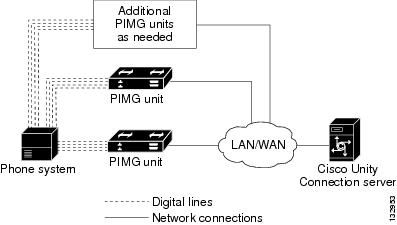
The Nortel Meridian 1 PIMG integration sends call information and voice connections through the digital lines, which connect the phone system to the PIMG units. The PIMG units communicate with the Cisco Unity Connection server through the LAN or WAN by using Session Initiation Protocol (SIP). Figure 1 shows the required connections.
Figure 1 Connections Between the Phone System and Cisco Unity Connection
Call Information
The phone system sends the following information with forwarded calls:
•
•
•
Cisco Unity Connection uses this information to answer the call appropriately. For example, a call forwarded to Cisco Unity Connection is answered with the personal greeting of the user. If the phone system routes the call to Cisco Unity Connection without this information, Cisco Unity Connection answers with the opening greeting.
Integration Functionality
The Nortel Meridian 1 integration with Cisco Unity Connection provides the following features:
•
•
•
•
•
•
Integrations with Multiple Phone Systems
Cisco Unity Connection can be integrated with multiple phone systems at one time. For information on and instructions for integrating Cisco Unity Connection with multiple phone systems, refer to the Multiple Phone System Integration Guide at http://www.cisco.com/en/US/products/ps6509/products_installation_and_configuration_guides_list.html.
Planning How the Voice Messaging Ports Will Be Used by Cisco Unity Connection
Before programming the phone system, you need to plan how the voice messaging ports will be used by Cisco Unity Connection. The following considerations will affect the programming for the phone system (for example, setting up the hunt group or call forwarding for the voice messaging ports):
•
•
•
The following table describes the voice messaging port settings in Cisco Unity Connection that can be set on Telephony Integrations > Port of Cisco Unity Connection Administration.
The Number of Voice Messaging Ports to Install
The number of voice messaging ports to install depends on numerous factors, including:
•
•
•
•
•
•
•
•
It is best to install only the number of voice messaging ports that are needed so that system resources are not allocated to unused ports.
The Number of Voice Messaging Ports That Will Answer Calls
The calls that the voice messaging ports answer can be incoming calls from unidentified callers or from users. Typically, the voice messaging ports that answer calls are the busiest.
You can set voice messaging ports to both answer calls and to dial out (for example, to send message notifications). However, when the voice messaging ports perform more than one function and are very active (for example, answering many calls), the other functions may be delayed until the voice messaging port is free (for example, message notifications cannot be sent until there are fewer calls to answer). For best performance, dedicate certain voice messaging ports for only answering incoming calls, and dedicate other ports for only dialing out. Separating these port functions eliminates the possibility of a collision, in which an incoming call arrives on a port at the same time that Cisco Unity Connection takes the port off-hook to dial out.
The Number of Voice Messaging Ports That Will Only Dial Out, and Not Answer Calls
Ports that will only dial out and will not answer calls can do one or more of the following:
•
•
•
Typically, these voice messaging ports are the least busy ports.
Caution
Preparing for Programming the Phone System
Record your decisions about the voice messaging ports to guide you in programming the phone system.
Programming the Nortel Meridian 1 Phone System
If you use programming options other than those supplied in the following procedure, the performance of the integration may be affected.
Caution
Do the following procedures as applicable.
To Program the Nortel Meridian 1 Phone System
Step 1
Step 2
•
•
If either of these options is missing, contact your sales representative.
Step 3
Step 4
Step 5
Step 6
Table 4 Calling Party Display Options
REQ
CHG
TYPE
CPND
CUST
<customer number>
RESN
YES
CFWD
CFWD
CFNA
CFNA
HUNT
HUNT
XFER
T
AAA
A
Step 7
Do one of the following procedures as applicable:
•
•
•
To Set Up a Hunt Group for Up to 30 Ports
Step 1
Step 2
Step 3
Step 4
Table 6 Example of a 30-Port Hunt Group
Port 1
HUNT
Port 2
Port 2
HUNT
Port 3
Port 3
HUNT
Port 4
.
.
.<additional ports>
Port 29
HUNT
Port 30
Port 30
HUNT
Port 1
To Set Up an ACD Hunt Group for More Than 30 Ports
Step 1
Step 2
Step 3
Step 4
Step 5
Step 6
Step 7
Step 8
To Set Up the Group Hunt Feature
The group hunt feature will route calls to the next idle PIMG port in the group when a call encounters a busy port. Unlike the hunt feature, the group hunt will continue to hunt after encountering a port that is disabled or that has lost its connection to the PIMG unit.
Step 1
Table 8 Entries for LD 22
REQ:
Enter PRT to start a print request.
TYPE:
Enter PKG to print the list of equipped packages.
Step 2
Step 3
Step 4
Step 5
Step 6
Step 7
Step 8
Step 9
Step 10
Step 11
Step 12
Step 13
Step 14
Table 21 Entries for LD 83
REQ:
Enter TNB to print the TN blocks in Designation order.
...
...
KEY xx GHD
The GHD key data appears each time it is configured on a set.
Setting Up the PIMG Units
Do the following procedures to set up the PIMG units that are connected to the Nortel Meridian 1 phone system.
These procedures require that the following tasks have already been completed:
•
•
•
Fields that are not mentioned in the following procedures must keep their default values. For the default values of all fields, see the documentation for the PIMG units.
To Download the PIMG Firmware Update Files for Digital PIMG Units
Step 1
Note
Step 2
Step 3
Step 4
Step 5
Step 6
Step 7
Step 8
Step 9
Step 10
Step 11
To Set Up the Digital PIMG Units
Step 1
a.
b.
c.
For example, if the IP address of the workstation is 198.1.3.25, enter "route add 10.12.13.74<space>198.1.3.25" in the Command Prompt window.
d.
Step 2
Step 3
Step 4
Step 5
Step 6
Step 7
Step 8
Step 9
Step 10
Step 11
Caution
Step 12
•
•
•
•
•
Step 13
Step 14
Step 15
Step 16
Step 17
Step 18
Step 19
Step 20
Step 21
Step 22
Step 23
Step 24
Step 25
Step 26
Table 25 System Page Settings
Operating Mode
SIP
Telephony Switch Type
M1
PCM Coding
uLaw
Step 27
Step 28
Step 29
Step 30
Step 31
Step 32
Step 33
Table 27 Gateway Advanced Tab Settings
Call Connect Mode
OnAnswer
Destination for Unroutable PBX Calls
<the extension of an attendant who will receive calls to Cisco Unity Connection that are unanswered>
Turn MWI On FAC
<blank>
Turn MWI Off FAC
<blank>
Wait for Ringback/Connect on Blind Transfer
Yes
Hunt Group Extension
<the pilot number for the Cisco Unity Connection voice messaging ports>
Audio Compression
Click the preferred codec for audio compression:
•
•
Signaling Digit Relay Mode
Off
Voice Activity Detection
Off
Frame Size
Click the applicable setting:
•
•
Caution
Frames Per Packet
Click the applicable setting:
•
•
Caution
Call Control QOS Byte
(PIMG units connect only to a LAN) 0
(PIMG units connect to a WAN) 104
Note
RTP QOS Byte
(PIMG units connect only to a LAN) 0
(PIMG units connect to a WAN) 184
Note
Step 34
Step 35
Step 36
Caution
If a port in Cisco Unity Connection is disabled, click No in the Telephony Port Enabled column for the corresponding port on this tab. Note that changing a setting in the Telephony Port Enabled column requires restarting the PIMG unit.
Step 37
Step 38
Step 39
Step 40
Step 41
Step 42
Step 43
Step 44
Step 45
Caution
Step 46
Step 47
a.
b.
c.
d.
e.
Step 48
Step 49
a.
b.
c.
Step 50
Step 51
a.
b.
c.
Step 52
Step 53
Note
Step 54
Step 55
Step 56
Step 57
Step 58
Step 59
Creating a New Integration with the Nortel Meridian 1 Phone System
After ensuring that the Nortel Meridian 1 phone system and Cisco Unity Connection are ready for the integration, do the following procedures to set up the integration and to enter the port settings.
To Create an Integration
Step 1
Step 2
Step 3
Step 4
Step 5
Step 6
Step 7
Step 8
Step 9
Step 10
Step 11
Step 12
Note
Step 13
Step 14
Step 15
Step 16
Step 17
Step 18
Step 19
Step 20
Step 21
Step 22
Step 23
If the test is not successful, the Task Execution Results displays one or more messages with troubleshooting steps. After correcting the problems, test the connection again.
Step 24
Step 25
Testing the Integration
To test whether Cisco Unity Connection and the phone system are integrated correctly, do the following procedures in the order listed.
If any of the steps indicate a failure, refer to the following documentation as applicable:
•
•
To Set Up the Test Configuration
Step 1
Step 2
Caution
Step 3
Step 4
Step 5
Step 6
Step 7
Step 8
Step 9
Step 10
Step 11
Step 12
Step 13
Step 14
Step 15
Step 16
Step 17
Step 18
Step 19
Step 20
Do not close the Cisco Unity Connection Administration window because you will use it again in a later procedure.
Step 21
Step 22
Step 23
To Test an External Call with Release Transfer
Step 1
Step 2
Step 3
Step 4
Step 5
Step 6
Step 7
Step 8
Step 9
Step 10
To Test Listening to Messages
Step 1
Step 2
Step 3
Step 4
Step 5
Step 6
Step 7
Step 8
To Set Up Supervised Transfer on Cisco Unity Connection
Step 1
Step 2
Step 3
Step 4
Do not close the Cisco Unity Connection Administration window because you will use it again in a later procedure.
To Test Supervised Transfer
Step 1
Step 2
Step 3
Step 4
Step 5
Step 6
Step 7
Step 8
Step 9
To Delete the Test User
Step 1
Step 2
Step 3
(Multiple Integrations Only) Adding New User Templates
When you create the first phone system integration, this phone system is automatically selected in the default user template. The users that you add after creating this phone system integration will be assigned to this phone system by default.
However, for each additional phone system integration that you create, you must add the applicable new user templates that will assign users to the new phone system. You must add the new templates before you add new users who will be assigned to the new phone system.
For details on adding new user templates, refer to the "Adding, Changing, or Deleting an Account Template" chapter in the Cisco Unity Connection User Moves, Adds, and Changes Guide at http://www.cisco.com/en/US/products/ps6509/prod_maintenance_guides_list.html.
For details on selecting a user template when adding a new user, refer to the applicable chapter for adding user accounts in the Cisco Unity Connection User Moves, Adds, and Changes Guide at http://www.cisco.com/en/US/products/ps6509/prod_maintenance_guides_list.html.
Appendix: Documentation and Technical Assistance
Conventions
The Nortel Meridian 1 PIMG Integration Guide for Cisco Unity Connection 1.1 uses the following conventions.
The Nortel Meridian 1 PIMG Integration Guide for Cisco Unity Connection 1.1 also uses the following conventions:
Note
Caution
For descriptions and URLs of Cisco Unity Connection documentation on Cisco.com, see the About Cisco Unity Connection Documentation. The document is shipped with Cisco Unity Connection and is available at http://www.cisco.com/en/US/products/ps6509/products_documentation_roadmaps_list.html.
Obtaining Documentation, Obtaining Support, and Security Guidelines
For information on obtaining documentation, obtaining support, providing documentation feedback, security guidelines, and also recommended aliases and general Cisco documents, see the monthly What's New in Cisco Product Documentation, which also lists all new and revised Cisco technical documentation, at:
http://www.cisco.com/en/US/docs/general/whatsnew/whatsnew.html
Any Internet Protocol (IP) addresses used in this document are not intended to be actual addresses. Any examples, command display output, and figures included in the document are shown for illustrative purposes only. Any use of actual IP addresses in illustrative content is unintentional and coincidental.
© 2007 Cisco Systems, Inc. All rights reserved.