Cisco Nexus 7000 Series NX-OS Software Upgrade and Downgrade Guide
This document describes how to upgrade or downgrade the Cisco NX-OS software.
About Software Images
Each device is shipped with the Cisco NX-OS software. The Cisco NX-OS software consists of two images—the kickstart image and the system image.
The software image install procedure is dependent on the following factors:
-
Software images—The kickstart and system image files reside in directories or folders that you can access from the Cisco NX-OS software prompt.
-
Image version—Each image file has a version.
-
Flash disks on the device—The bootflash: resides on the supervisor module and the CompactFlash disk is inserted into the slot0:, usb1, or usb2: device.
-
Supervisor modules—There are single or dual supervisor modules.
 Note |
On devices with dual supervisor modules, both supervisor modules must have connections on the console ports to maintain connectivity when switchovers occur during upgrades and downgrades. See the Cisco Nexus 7000 Series Hardware Installation and Reference Guide. |
About In-Service Software Upgrades on Devices with Dual Supervisor Modules
The Cisco NX-OS software supports in-service software upgrades (ISSUs) on devices with dual supervisor modules. An ISSU can update the software images on your device without disrupting data traffic. Only control traffic is disrupted. If an ISSU will cause a disruption of data traffic, the Cisco NX-OS software warns you before proceeding so that you can stop the upgrade and reschedule it to a time that minimizes the impact on your network.
An ISSU updates the following images:
-
Kickstart image
-
System image
-
Supervisor module BIOS
-
Data module image
-
Data module BIOS
-
Connectivity management processor (CMP) image
-
CMP BIOS
Note
CMP is a Supervisor 1 only feature.
Note |
CMP is a Supervisor 1 only feature. |
Virtualization Support
When you upgrade the Cisco NX-OS software, you upgrade the software for all virtual device contexts (VDCs) on the physical device. You cannot upgrade the Cisco NX-OS software for an individual VDC.
Parallel Upgrade
Parallel Upgrade with I/O Modules
Starting with Cisco NX-OS Release 5.2(1), multiple linecards can be simultaneously upgraded, and the infrastructure support is available. This decreases the ISSU time when compared with an ISSU upgrade that is done serially (one card at a time).
To start a parallel upgrade, use the following command: install all kickstart image system image parallel
Up to three linecards can be upgraded in parallel with this command. During the upgrade process, the upgrade of the linecards is displayed in the output as follows:
Non-disruptive upgrading.
[#                   ]   0%
Module 5 upgrade completed successfully.
.

Module 3 upgrade completed successfully.
.

Module 6 upgrade completed successfully.
.

Non-disruptive upgrading.
[####################] 100% -- SUCCESS

Non-disruptive upgrading.
[#                   ]   0%
Module 9 upgrade completed successfully.
.

Non-disruptive upgrading.
[####################] 100% -- SUCCESS
Note |
This command will be ignored for a downgrade to a release below Cisco NX-OS Release 5.2.(1). |
Parallel Upgrade with Fabric Extenders
Beginning with Cisco NX-OS Release 6.1(1), a parallel upgrade on the Fabric Extenders (FEX) is supported if the user types the parallel keyword in the command. You can perform a parallel upgrade of 10 FEXs at a time.
For releases prior to Cisco NX-OS Release 6.1(1), only a serial upgrade of FEXs is supported. The upgrade process switches to a serial upgrade even for the I/O modules present. Even if the user types the parallel keyword in the command, the upgrade will be a serial upgrade.
Prerequisites for Upgrading the Cisco NX-OS Software
Upgrading the Cisco NX-OS software has the following prerequisite:
Save, commit, or discard any active configuration sessions before upgrading or downgrading the Cisco NX-OS software image on your device. On a device with dual supervisors, the active supervisor module cannot switch over to the standby supervisor module during the Cisco NX-OS software upgrade if you have an active configuration session. On a device with a single supervisor module, the Cisco NX-OS software deletes the active configuration session without warning when you reload the device.
Use the show configuration session summary command to verify that you have no active configuration sessions.
For more information on configuration sessions, see the Cisco Nexus 7000 Series NX-OS System Management Configuration Guide.
Cisco NX-OS Software Upgrade Guidelines
Note |
Cisco Nexus 7000 Series NX-OS Release Notes contain specific upgrade guidelines for each release. See the Release Notes document for the target upgrade release before starting the upgrade. |
Before attempting to use ISSU to upgrade to any software image version, follow these guidelines:
-
Scheduling
Schedule the upgrade when your network is stable and steady. Ensure that everyone who has access to the device or the network is not configuring the device or the network during this time. You cannot configure a device during an upgrade.
-
Space
Verify that sufficient space is available in the location where you are copying the images. This location includes the active and standby supervisor module bootflash: (internal to the device). Internal bootflash: has approximately 250 MB of free space available.
-
Hardware
Avoid power interruption during any install procedure, which can corrupt the software image.
-
Connectivity to remote servers
-
Configure the IPv4 address or IPv6 address for the 10/100/1000 BASE-T Ethernet port connection (interface mgmt0).
-
Ensure that the device has a route to the remote server. The device and the remote server must be in the same subnetwork if you do not have a router to route traffic between subnets.
-
-
Software images
-
To perform a non-ISSU to a target release from any release earlier than Release 6.2(x)/7.2(x), follow these steps:
-
Change the boot variable.
-
Enter the copy running-config startup-config vdc-all command.
-
Enter the reload command to reload the switch.
Note
Allow time after the reload for the configuration to be applied.
-
-
-
Terminology
This table summarizes the terms used in the install all command output for checking compatibility.
Table 5. install all Command Output Terminology Term
Definition
bootable
The module's ability to boot or not boot based on image compatibility.
impact
The type of software upgrade mechanism—disruptive or nondisruptive.
install-type
reset
Resets the module.
sw-reset
Resets the module immediately after a switchover.
rolling
Upgrades each module in sequence.
copy-only
Updates the software for BIOS, loader, or bootrom.
-
Commands to use
-
Verify connectivity to the remote server using the ping command.
-
Ensure that the required space is available on both the active and standby supervisor modules for the image files to be copied using the dir command.
-
Use the one-step install all command to upgrade your software. This command upgrades all modules in any Cisco NX-OS device.
-
Run only one installation on a device at a time.
Note
During vPC setup, the configuration is locked on the peer switch while ISSU is in progress.
-
ISSU is not supported when the vPC peers are on a single physical device but are across VDCs.
-
Do not enter another command while running the installation.
-
Do the installation on the active supervisor module, not the standby supervisor module.
Note
If the I/O modules are not compatible with the software image you install on the supervisor module, some traffic disruption might occur in those modules, depending on your configuration. The install all command output identifies these commands. You can choose to proceed with the upgrade or end at this point.
-
-
The configuration is locked during the upgrade process.
-
You can have only one instance of the install all command running.
Cisco NX-OS Software Downgrade Guidelines
-
Any features introduced in a release must be disabled before downgrading to a release that does not support those features. See the release notes for information on the new features introduced in each release.
-
VPC peers can only operate dissimilar versions of the Cisco NX-OS software during the upgrade or downgrade process. Operating VPC peers with dissimilar versions, after the upgrade or downgrade process is complete, is not supported.
-
To determine incompatibility before you downgrade your software, use the following commands:
- For hardware
incompatibility—
sh install all impact system system_name
- For software
incompatibility—
show incompatibility-all system image_filename
- For hardware
incompatibility—
Upgrading a Device with Dual Supervisor Modules
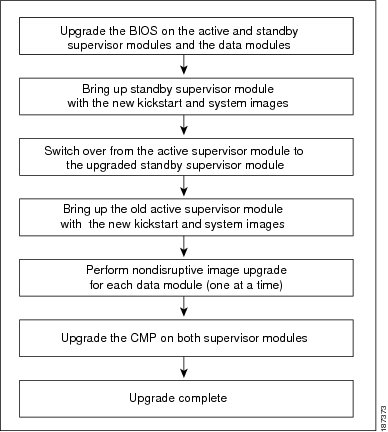
The install all command supports in-service software upgrades (ISSUs) on devices that have dual supervisor modules and performs the following actions:
-
Determines whether the upgrade will be disruptive and asks if you want to continue.
-
Ensure that you have enough space in the standby bootflash.
-
Copies the kickstart and system images to the standby supervisor module.
-
Sets the KICKSTART and SYSTEM boot variables.
-
Reloads the standby supervisor module with the new Cisco NX-OS software.
-
Reloads the active supervisor module with the new Cisco NX-OS software, which causes a switchover to the newly upgraded standby supervisor module.
-
Upgrades the line cards.
-
The Connectivity Management Processor (CMP) on both supervisors will get upgraded.
Benefits of Using the install all Command
The install all command provides the following benefits:
-
You can upgrade the entire device using just one command.
-
You can receive descriptive information on the intended changes to your system before you continue with the installation.
-
You have the option to cancel the command. You can continue or cancel when you see this question (the default is no ):
Do you want to continue (y/n) [n] : y
-
You can upgrade the entire device using the least disruptive procedure.
-
You can see the progress of this command on the console, Telnet, and SSH screens:
-
Before a switchover process, you can only see the progress from the active supervisor module.
-
After a switchover process, you can see the progress from both the supervisor modules.
-
-
The install all command automatically checks the image integrity, which includes the running kickstart and system images.
-
The install all command performs a platform validity check to verify that a wrong image is not used—for example, to check if a Nexus 7000 device image is used inadvertently to upgrade a Nexus 5000 device.
-
The Ctrl-c escape sequence gracefully ends the install all command. You are prompted to confirm your decision to abort the ISSU process. If you proceed, the command sequence completes the update step in progress and returns to the device prompt. (Other upgrade steps cannot be ended using Ctrl-c.)
-
After entering the install all command, if any step in the sequence fails, the command completes the step in progress and ends.
For example, if an I/O module fails to be updated for any reason (for example, due to an unstable network state), the command sequence disruptively updates that module and ends. In such cases, you can verify the problem on the affected switching module and upgrade the other I/O modules.
-
The
                                 				  show
                                    					 install all impact
                                 				  image-name
command runs pre-upgrade checks against a given image and informs the user if the images are compatible for an upgrade or a downgrade.
Note |
Refer to the "Supported Upgrade and Downgrade Paths" section of the Cisco Nexus 7000 Series NX-OS Release Notes to get details on the supported Cisco NX-OS release versions to which you can upgrade to or for the downgrade details. |
ISSU Failure Conditions
The following situations cause the installation to fail to complete:
-
If the standby supervisor module bootflash: file system does not have sufficient space to accept the updated image.
-
If the specified system and kickstart images are not compatible.
-
If the network or device is configured while the upgrade is in progress.
-
If a Spanning Tree Protocol (STP) topology change occurs while the upgrade is in progress.
-
If the install all command is entered on the standby supervisor module.
-
If the install all command does not reference the default bootflash: in a dual supervisor module configuration.
-
If a module is removed while the upgrade is in progress.
-
If the device has any power disruption while the upgrade is in progress.
-
If the entire path for the remote server location is not specified accurately.
-
If some FEX ports are operating in LACP fast rate mode.
-
If images are incompatible after an upgrade. For example, an I/O module image may be incompatible with the system image, or a kickstart image may be incompatible with a system image. This is also identified by the show install all impact command in the compatibility check section of the output (under the Bootable column).
-
If a linecard is in failure state, the ISSU will abort.
The Cisco NX-OS software prevents most configuration changes while the install all command is in progress. However, the Cisco NX-OS software allows configuration changes from Cisco Fabric Services (CFS) and those changes may affect the ISSU.
Upgrade Procedure Summary
The following summary procedure describes how to upgrade a device that has dual supervisor modules to the latest Cisco NX-OS software.
SUMMARY STEPS
- Log in to the console port on both of the active and standby supervisor modules.
- Log in to Cisco.com and download the latest Cisco NX-OS kickstart and system images to a server.
- Download the Cisco NX-OS kickstart and system images from the server to your device using the copy command.
- Save the device configuration using the copy running-config startup-config vdc-all command.
- Enter the install all command at the active supervisor command prompt to upgrade the Cisco NX-OS software on your device.
DETAILED STEPS
| Step 1 |
Log in to the console port on both of the active and standby supervisor modules. |
||
| Step 2 |
Log in to Cisco.com and download the latest Cisco NX-OS kickstart and system images to a server. |
||
| Step 3 |
Download the Cisco NX-OS kickstart and system images from the server to your device using the copy command. |
||
| Step 4 |
Save the device configuration using the copy running-config startup-config vdc-all command. |
||
| Step 5 |
Enter the install all command at the active supervisor command prompt to upgrade the Cisco NX-OS software on your device.
|
Detailed Upgrade Procedure
This section describes the detailed procedure to upgrade to the latest Cisco NX-OS software on a device with dual supervisor modules.
Procedure
| Step 1 |
Log in to the device on the console port connection on both of the active and standby supervisor modules. |
||
| Step 2 |
Log in to Cisco.com to access the links provided in this document. To log in to Cisco.com, go to the URL http://www.cisco.com/ and click Log In at the top of the page. Enter your Cisco username and password.
|
||
| Step 3 |
Access the Software Download Center using this URL: http://www.cisco.com/public/sw-center/index.shtml |
||
| Step 4 |
Navigate to the download site for your device. You see
links to the download images for your device.
|
||
| Step 5 |
Select and download the kickstart and system software files to a server. |
||
| Step 6 |
Ensure that the required space is available for the image file(s) to be copied.
|
||
| Step 7 |
If you need more space on the active supervisor module, delete unnecessary files to make space available. |
||
| Step 8 |
Verify that there is space available on the standby supervisor module. |
||
| Step 9 |
If you need more space on the standby supervisor module, delete any unnecessary files to make space available. |
||
| Step 10 |
Copy the NX-OS kickstart and system images to the active supervisor module using a transfer protocol. You can use ftp: ,tftp: , scp: , or sftp: . The examples in this procedure use scp: .
|
||
| Step 11 |
Read the release notes for the related image file. See the Cisco Nexus 7000 Series NX-OS Release Notes. |
||
| Step 12 |
Save the running configuration to the startup configuration. |
||
| Step 13 |
Perform the upgrade using the install all command at the command prompt on the active supervisor module.
|
||
| Step 14 |
After the installation operation completes, log in and verify that the device is running the required software version using the show version command. |
||
| Step 15 |
Reload both CMPs.
|
||
| Step 16 |
Type the show install all status command. The entire upgrade process is displayed.
|
||
| Step 17 |
(Optional) Install licenses (if necessary) to ensure that the required features are available on the device. See the Cisco NX-OS Licensing Guide. |
Upgrading a Device with a Single Supervisor Module
This section describes how to upgrade a Cisco NX-OS device with a single supervisor module.
Upgrade Procedure Summary
The following summary procedure describes how to upgrade a device that has a single supervisor module to the latest Cisco NX-OS software.
Procedure
| Step 1 |
Log in to the console port on the supervisor modules. |
| Step 2 |
Log in to Cisco.com and download the latest Cisco NX-OS kickstart and system images. |
| Step 3 |
Download the Cisco NX-OS kickstart and system images to your device using the copy command. |
| Step 4 |
Update the KICKSTART and SYSTEM boot variables and module images using the install all command. |
Detailed Upgrade Procedure
This section describes the detailed procedure to upgrade to the latest Cisco NX-OS software on a device with a single supervisor.
Procedure
| Step 1 |
Log in to the device on the console port connection. |
||
| Step 2 |
Log in to Cisco.com to access the links provided in this document. To log in to Cisco.com, go to the URL http://www.cisco.com/ and click Log In at the top of the page. Enter your Cisco username and password.
|
||
| Step 3 |
Access the Software Download Center using this URL: http://www.cisco.com/public/sw-center/index.shtml |
||
| Step 4 |
Navigate to the download site for your device. You see
links to the download images for your device.
|
||
| Step 5 |
Select and download the kickstart and system software files to a server. |
||
| Step 6 |
Ensure that the required space is available in the bootflash: directory for the image file(s) to be copied.
|
||
| Step 7 |
If you need more space on the supervisor module bootflash, delete unnecessary files to make space available. |
||
| Step 8 |
Copy the NX-OS kickstart and system images to the active supervisor module bootflash using a transfer protocol. You can use ftp:, tftp:, scp:, or sftp:. The examples in this procedure use scp:.
|
||
| Step 9 |
Read the release notes for the related image file. See the Cisco Nexus 7000 Series NX-OS Release Notes. |
||
| Step 10 |
Use the install all command to update the boot variables and module images on your device.
|
||
| Step 11 |
After the device completes the reload operation, log in and verify that the device is running the required software version. |
||
| Step 12 |
Type the show install all status command. The entire upgrade process is displayed.
|
||
| Step 13 |
Reload the CMP modules.
|
||
| Step 14 |
(Optional) Install licenses to ensure that the required features are available on the device. See the Cisco NX-OS Licensing Guide. |
Performing a Traditional Upgrade or Downgrade (Chassis Reload)
-
In lab environments where continuous uptime is not a requirement
-
In production environments in the unlikely event that an upgrade needs to be downgraded in a timely manner
-
In situations where ISSU or ISSD is not supported for the respective images
Before you begin
Save and back up all configurations before reloading the system to load the new software.
Power down unsupported line cards.
Procedure
| Step 1 |
Configure the boot variable for the Cisco NX-OS software kickstart image. |
| Step 2 |
Configure the boot variable for the Cisco NX-OS software system image. |
| Step 3 |
Save the running configuration to the startup configuration. |
| Step 4 |
Verify that the "Current Boot Variables" and the "Boot Variables on the next reload" match the expected image. |
| Step 5 |
Verify that the image location and the image name match the above boot statements. In redundant supervisor chassis, the images auto-synchronize from to standby once the boot statements are set. |
| Step 6 |
After you verify the image location and statements, reload the Cisco NX-OS device. |
Example Outputs from Cisco NX-OS Software Upgrades
This section includes example outputs from Cisco NX-OS software upgrades.
-
The output of the install all command depends on the software image, especially the upgrade required (Upg-Required) field information in the upgrade table.
-
Any time you perform a disruptive ISSU, the supervisor modules will be reloaded.
Example Nondisruptive Upgrade of a Device with Dual Supervisors
The following console session output shows a nondisruptive execution of the install all command on a device with dual supervisor modules:
switch# install all kickstart n7000-s1-kickstart.7.2.0.D1.1.bin system n7000-s1-dk9.7.2.0.D1.1.bin

Verifying image bootflash:/n7000-s1-kickstart.7.2.0.D1.1.bin for boot variable "kickstart".
[####################] 100% -- SUCCESS

Verifying image bootflash:/n7000-s1-dk9.7.2.0.D1.1.bin for boot variable "system".
[####################] 100% -- SUCCESS

Verifying image type.
[####################] 100% -- SUCCESS

Extracting "lc-m1-n7k" version from image bootflash:/n7000-s1-dk9.7.2.0.D1.1.bin.
[####################] 100% -- SUCCESS

Extracting "bios" version from image bootflash:/n7000-s1-dk9.7.2.0.D1.1.bin.
[####################] 100% -- SUCCESS

Extracting "lc-f1-n7k" version from image bootflash:/n7000-s1-dk9.7.2.0.D1.1.bin.
[####################] 100% -- SUCCESS

Extracting "lc-m1-n7k" version from image bootflash:/n7000-s1-dk9.7.2.0.D1.1.bin.
[####################] 100% -- SUCCESS

Extracting "lc-m1-n7k" version from image bootflash:/n7000-s1-dk9.7.2.0.D1.1.bin.
[####################] 100% -- SUCCESS

Extracting "system" version from image bootflash:/n7000-s1-dk9.7.2.0.D1.1.bin.
[####################] 100% -- SUCCESS

Extracting "kickstart" version from image bootflash:/n7000-s1-kickstart.7.2.0.D1.1.bin.
[####################] 100% -- SUCCESS

Extracting "lc-m1-n7k" version from image bootflash:/n7000-s1-dk9.7.2.0.D1.1.bin.
[####################] 100% -- SUCCESS

Extracting "lc-m1-n7k" version from image bootflash:/n7000-s1-dk9.7.2.0.D1.1.bin.
[####################] 100% -- SUCCESS

Extracting "lc-f1-n7k" version from image bootflash:/n7000-s1-dk9.7.2.0.D1.1.bin.
[####################] 100% -- SUCCESS

Extracting "lc-m1-n7k" version from image bootflash:/n7000-s1-dk9.7.2.0.D1.1.bin.
[####################] 100% -- SUCCESS

Extracting "fexth" version from image bootflash:/n7000-s1-dk9.7.2.0.D1.1.bin.
[####################] 100% -- SUCCESS

Extracting "fexth" version from image bootflash:/n7000-s1-dk9.7.2.0.D1.1.bin.
[####################] 100% -- SUCCESS

Extracting "fexth" version from image bootflash:/n7000-s1-dk9.7.2.0.D1.1.bin.
[####################] 100% -- SUCCESS

Extracting "cmp" version from image bootflash:/n7000-s1-dk9.7.2.0.D1.1.bin.
[####################] 100% -- SUCCESS

Extracting "cmp-bios" version from image bootflash:/n7000-s1-dk9.7.2.0.D1.1.bin.
[####################] 100% -- SUCCESS

Performing module support checks.
[####################] 100% -- SUCCESS

Notifying services about system upgrade.
[####################] 100% -- SUCCESS


Compatibility check is done:
Module  bootable          Impact  Install-type  Reason
------  --------  --------------  ------------  ------
     1       yes  non-disruptive       rolling
     2       yes  non-disruptive       rolling
     3       yes  non-disruptive       rolling
     8       yes  non-disruptive       rolling
     9       yes  non-disruptive         reset
    10       yes  non-disruptive         reset
    11       yes  non-disruptive       rolling
    14       yes  non-disruptive       rolling
    16       yes  non-disruptive       rolling
    18       yes  non-disruptive       rolling
   101       yes  non-disruptive       rolling
   102       yes  non-disruptive       rolling
   103       yes  non-disruptive       rolling


Images will be upgraded according to following table:
Module       Image                  Running-Version(pri:alt)           New-Version  Upg-Required
------  ----------  ----------------------------------------  --------------------  ------------
     1   lc-m1-n7k                                    6.2(12)           7.2(0)D1(1)           yes
     1        bios    v1.10.17(04/25/15):  v1.10.17(04/25/15)                                  no
     2   lc-f1-n7k                                    6.2(12)           7.2(0)D1(1)           yes
     2        bios    v1.10.17(04/25/15):  v1.10.17(04/25/15)                                  no
     3   lc-m1-n7k                                    6.2(12)           7.2(0)D1(1)           yes
     3        bios    v1.10.17(04/25/15):  v1.10.17(04/25/15)                                  no
     8   lc-m1-n7k                                    6.2(12)           7.2(0)D1(1)           yes
     -------
     -------
Do you want to continue with the installation (y/n)?  [n] y

Install is in progress, please wait.

Performing runtime checks.
[####################] 100% -- SUCCESS

Syncing image bootflash:/n7000-s1-kickstart.7.2.0.D1.1.bin to standby.
[####################] 100% -- SUCCESS

Syncing image bootflash:/n7000-s1-dk9.7.2.0.D1.1.bin to standby.
[####################] 100% -- SUCCESS

Setting boot variables.
[####################] 100% -- SUCCESS

Performing configuration copy.
[####################] 100% -- SUCCESS

Module 1: Refreshing compact flash and upgrading bios/loader/bootrom.
Warning: please do not remove or power off the module at this time.
[####################] 100% -- SUCCESS

Module 2: Refreshing compact flash and upgrading bios/loader/bootrom.
Warning: please do not remove or power off the module at this time.
[####################] 100% -- SUCCESS

Module 3: Refreshing compact flash and upgrading bios/loader/bootrom.
Warning: please do not remove or power off the module at this time.
[####################] 100% -- SUCCESS

Module 8: Refreshing compact flash and upgrading bios/loader/bootrom.
Warning: please do not remove or power off the module at this time.
[####################] 100% -- SUCCESS

Module 9: Refreshing compact flash and upgrading bios/loader/bootrom.
Warning: please do not remove or power off the module at this time.
[####################] 100% -- SUCCESS

Module 10: Refreshing compact flash and upgrading bios/loader/bootrom.
Warning: please do not remove or power off the module at this time.
[####################] 100% -- SUCCESS

Module 11: Refreshing compact flash and upgrading bios/loader/bootrom.
Warning: please do not remove or power off the module at this time.
[####################] 100% -- SUCCESS

Module 14: Refreshing compact flash and upgrading bios/loader/bootrom.
Warning: please do not remove or power off the module at this time.
[####################] 100% -- SUCCESS

Module 16: Refreshing compact flash and upgrading bios/loader/bootrom.
Warning: please do not remove or power off the module at this time.
[####################] 100% -- SUCCESS

Module 18: Refreshing compact flash and upgrading bios/loader/bootrom.
Warning: please do not remove or power off the module at this time.
[####################] 100% -- SUCCESS
2015 Oct 24 09:55:57 switch-B %$ VDC-1 %$ %PLATFORM-2-MOD_REMOVE: Module 10 removed (Serial number JAB1229002Q)
2015 Oct 24 10:01:00 switch-B %$ VDC-1 %$ %IDEHSD-STANDBY-2-MOUNT: slot0: online
2015 Oct 24 10:01:39 switch-B %$ VDC-1 %$ %IDEHSD-STANDBY-2-MOUNT: logflash: online
2015 Oct 24 10:01:41 switch-B %$ VDC-1 %$ %CMPPROXY-STANDBY-2-LOG_CMP_UP: Connectivity Management processor(on module 10) is now UP

Module 10: Waiting for module online.
 -- SUCCESS

Notifying services about the switchover.
[####################] 100% -- SUCCESS
As displayed, once the active supervisor module reloads, the output for the standby supervisor module is displayed.
writing reset reason 7, SAP(93): Swover due to install
2015 May ?
NX7 SUP Ver 3.22.0
Serial Port Parameters from CMOS


On Standby sup:
switch-B(standby)#
NX7 SUP Ver 3.22.0
Serial Port Parameters from CMOS
PMCON_1: 0x200
PMCON_2: 0x0
PMCON_3: 0x3a
PM1_STS: 0x101
Performing Memory Detection and Testing
Total mem found : 8192 MB
Performing memory test... Passed.
NumCpus = 2.
Status 61: PCI DEVICES Enumeration Started
Status 62: PCI DEVICES Enumeration Ended
Status 9F: Dispatching Drivers
Status 9E: IOFPGA Found
Status 9A: Booting From Primary ROM
Status 98: Found Cisco IDE
Status 98: Found Cisco IDE
Status 98: Found Cisco IDE
Y??2??0```````````````?0```````````````?
Reset Reason Registers: 0x0 0x8
 Filesystem type is ext2fs, partition type 0x83


              GNU GRUB  version 0.97

Autobooting bootflash:/n7000-s1-kickstart.7.2.0.D1.1.bin bootflash:/n7000-s1-dk9
.7.2.0.D1.1.bin...
 Filesystem type is ext2fs, partition type 0x83
Booting kickstart image: bootflash:/n7000-s1-kickstart.7.2.0.D1.1.bin....
...............................................................................
.................Image verification OK

INIT:
Checking all filesystems..r.r.r..r done.
Loading system software
/bootflash//n7000-s1-dk9.7.2.0.D1.1.bin read done
Uncompressing system image: bootflash:/n7000-s1-dk9.7.2.0.D1.1.bin Mon May 24 10:00:07 PST 2015
blogger: nothing to do.

..done Mon May 24 10:00:12 PST 2015
Load plugins that defined in image conf: /isan/plugin_img/img.conf
Loading plugin 0: core_plugin...
num srgs 1
0: swid-core-supdc3, swid-core-supdc3
num srgs 1
0: swid-supdc3-ks, swid-supdc3-ks
INIT: Entering runlevel: 3


Continuing with installation, please wait
2015 May 24 10:01:00 switch-B %$ VDC-1 %$ %IDEHSD-2-MOUNT: slot0: online
2015 May 24 10:01:39 switch-B %$ VDC-1 %$ %IDEHSD-2-MOUNT: logflash: online
2015 May 24 10:01:41 switch-B %$ VDC-1 %$ %CMPPROXY-2-LOG_CMP_UP: Connectivity Management processor(on module 10) is now UP

Module 10: Waiting for module online.
 -- SUCCESS
2015 May 24 10:04:53 switch-B %$ VDC-1 %$ Oct 24 10:04:53 %KERN-2-SYSTEM_MSG: [  480.115904] Switchover started by redundancy driver - kernel
2015 May 24 10:04:53 switch-B %$ VDC-1 %$ %SYSMGR-2-HASWITCHOVER_PRE_START: This supervisor is becoming active (pre-start phase).
2015 May 24 10:04:53 switch-B %$ VDC-1 %$ %SYSMGR-2-HASWITCHOVER_START: Supervisor 10 is becoming active.
2015 May 24 10:04:55 switch-B %$ VDC-1 %$ %SYSMGR-2-SWITCHOVER_OVER: Switchover completed.
2015 May 24 10:05:01 switch-B %$ VDC-1 %$ %CALLHOME-2-EVENT: HARDWARE_REMOVAL
2015 May 24 10:05:01 switch-B %$ VDC-1 %$ %PLATFORM-2-MOD_REMOVE: Module 6 removed (Serial number )
2015 May 24 10:11:03 switch-B %$ VDC-1 %$ %IDEHSD-STANDBY-2-MOUNT: slot0: online
2015 May 24 10:11:12 switch-B %$ VDC-1 %$ %CMPPROXY-STANDBY-2-LOG_CMP_UP: Connectivity Management processor(on module 9) is now UP
2015 May 24 10:11:15 switch-B %$ VDC-1 %$ %CALLHOME-2-EVENT: PERIODIC_CONFIGURATION
2015 May 24 10:12:02 switch-B %$ VDC-1 %$ %IDEHSD-STANDBY-2-MOUNT: logflash: online


Module 1: Non-disruptive upgrading.
[####################] 100% -- SUCCESS

Module 2: Non-disruptive upgrading.
[####################] 100% -- SUCCESS

Module 3: Non-disruptive upgrading.
[####################] 100% -- SUCCESS

Module 8: Non-disruptive upgrading.
[####################] 100% -- SUCCESS

Module 11: Non-disruptive upgrading.
[####################] 100% -- SUCCESS

Module 14: Non-disruptive upgrading.
[####################] 100% -- SUCCESS

Module 16: Non-disruptive upgrading.
[####################] 100% -- SUCCESS

Module 18: Non-disruptive upgrading.
[####################] 100% -- SUCCESS

Module 10: Upgrading CMP image.
Warning: please do not reload or power cycle CMP module at this time.
 [####################] 100% -- SUCCESS

Module 9: Upgrading CMP image.
Warning: please do not reload or power cycle CMP module at this time.
[####################] 100% -- SUCCESS

Recommended action::
"Please reload CMP(s) manually to have it run in the newer version.".

Install has been successful.

User Access Verification
switch-B login: 2015 May 24 10:54:44 switch-B %$ VDC-1 %$ %COPP-2-COPP_PROFILE_DIFF: CoPP Default Profile may have changed, please check the diffs using show copp diff profile <profile-type> prior-ver profile <profile-type>

User Access Verification
switch-B login: admin
Password:<password>
Cisco Nexus Operating System (NX-OS) Software
TAC support: http://www.cisco.com/tac
Copyright (c) 2002-2015, Cisco Systems, Inc. All rights reserved.
The copyrights to certain works contained in this software are
owned by other third parties and used and distributed under
license. Certain components of this software are licensed under
the GNU General Public License (GPL) version 2.0 or the GNU
Lesser General Public License (LGPL) Version 2.1. A copy of each
such license is available at
http://www.opensource.org/licenses/gpl-2.0.php and
http://www.opensource.org/licenses/lgpl-2.1.php
Note |
A supervisor module switchover has occurred, and the active supervisor module is now the standby supervisor module. |
Example Disruptive Upgrade of a Device with Dual Supervisors
The following example console session output shows a disruptive execution of the install all command on a device with dual supervisor modules:
switch# install all kickstart n7000-s1-kickstart.7.2.0.D1.1.bin system n7000-s1-dk9.7.2.0.D1.1.bin

Verifying image bootflash:/n7000-s1-kickstart.7.2.0.D1.1.bin for boot variable "kickstart".
[####################] 100% -- SUCCESS

Verifying image bootflash:/n7000-s1-dk9.7.2.0.D1.1.bin for boot variable "system".
[####################] 100% -- SUCCESS

Verifying image type.
[####################] 100% -- SUCCESS

Extracting "lc1n7k" version from image bootflash:/n7000-s1-dk9.7.2.0.D1.1.bin.
[####################] 100% -- SUCCESS

Extracting "bios" version from image bootflash:/n7000-s1-dk9.7.2.0.D1.1.bin.
[####################] 100% -- SUCCESS

Extracting "lc1n7k" version from image bootflash:/n7000-s1-dk9.7.2.0.D1.1.bin.
[####################] 100% -- SUCCESS

Extracting "lc1n7k" version from image bootflash:/n7000-s1-dk9.7.2.0.D1.1.bin.
[####################] 100% -- SUCCESS

Extracting "system" version from image bootflash:/n7000-s1-dk9.7.2.0.D1.1.bin.
[####################] 100% -- SUCCESS

Extracting "kickstart" version from image bootflash:/n7000-s1-kickstart.7.2.0.D1.1.bin.
[####################] 100% -- SUCCESS

Extracting "lc1n7k" version from image bootflash:/n7000-s1-dk9.7.2.0.D1.1.bin.
[####################] 100% -- SUCCESS

Extracting "cmp" version from image bootflash:/n7000-s1-dk9.7.2.0.D1.1.bin.
[####################] 100% -- SUCCESS

Extracting "cmp-bios" version from image bootflash:/n7000-s1-dk9.7.2.0.D1.1.bin.
[####################] 100% -- SUCCESS

Performing module support checks.
[####################] 100% -- SUCCESS

Notifying services about system upgrade.
[####################] 100% -- SUCCESS


Compatibility check is done:
Module  bootable          Impact  Install-type  Reason
------  --------  --------------  ------------  ------
     1       yes      disruptive         reset  Incompatible image
     3       yes      disruptive         reset  Incompatible image
     4       yes      disruptive         reset  Incompatible image
     5       yes      disruptive         reset  Incompatible image
     6       yes      disruptive         reset  Incompatible image
    10       yes      disruptive         reset  Incompatible image


Images will be upgraded according to following table:
Module       Image                  Running-Version(pri:alt)           New-Version  Upg-Required
------  ----------  ----------------------------------------  --------------------  ------------
     1      lc1n7k                                   6.2(12)           7.2(0)D1(1)           yes
     1        bios    v1.10.17(04/25/11):  v1.10.17(04/25/15)                                  no
     3      lc1n7k                                   6.2(12)           7.2(0)D1(1)           yes
     3        bios    v1.10.17(04/25/11):  v1.10.17(04/25/15)                                  no
     4      lc1n7k                                   6.2(12)           7.2(0)D1(1)           yes
     4        bios    v1.10.17(04/25/11):  v1.10.17(04/25/15)                                  no
     5      system                                   6.2(12)           7.2(0)D1(1)           yes
     5   kickstart                                   6.2(12)           7.2(0)D1(1)           yes
     ----
     ----

Switch will be reloaded for disruptive upgrade.
Do you want to continue with the installation (y/n)?  [n] y
Note |
A supervisor module switchover has occurred and the active supervisor module is now the standby supervisor module. |
The following example console session output from the standby supervisor module shows that the standby supervisor module switches over to become the active supervisor module:
switch(standby)#
NX7 SUP Ver 3.17.0
Serial Port Parameters from CMOS
PMCON_1: 0x20
PMCON_2: 0x0
PMCON_3: 0x3a
PM1_STS: 0x101
Performing Memory Detection and Testing
Testing 1 DRAM Patterns
Total mem found : 4096 MB
Memory test complete.
NumCpus = 2.
Status 61: PCI DEVICES Enumeration Started
Status 62: PCI DEVICES Enumeration Ended
Status 9F: Dispatching Drivers
Status 9E: IOFPGA Found
Status 9A: Booting From Primary ROM
Status 98: Found Cisco IDE
Status 98: Found Cisco IDE
Status 90: Loading Boot Loader

Reset Reason Registers: 0x10 0x0
 Filesystem type is ext2fs, partition type 0x83


              GNU GRUB  version 0.97

Autobooting bootflash:/n7000-s1-kickstart.4.0.1a.bin bootflash:/n7000-s1
-dk9.4.0.1a.bin...
 Filesystem type is ext2fs, partition type 0x83
Booting kickstart image: bootflash:/n7000-s1-kickstart.4.0.1a.bin....
........................................................................Image verification OK

Starting kernel...
INIT: version 2.85 booting
Checking all filesystems..r.r.r.. done.
/bootflash//n7000-s1-dk9.4.0.1a.bin read done
duplicate password entry

delete line `adminbackup:x:0:0::/var/home/adminbackup:/bin/bash'? No
duplicate password entry

delete line `adminbackup:x:2003:504::/var/home/adminbackup:/isan/bin/vsh_perm'? No
pwck: no changes

Setting kernel variables: sysctlnet.ipv4.ip_forward = 0
net.ipv4.ip_default_ttl = 64
net.ipv4.ip_no_pmtu_disc = 1
.
Setting the System Clock using the Hardware Clock as reference...System Clock set.
Local time: Fri Apr 18 02:33:42 UTC 2008
Loading system software
Uncompressing system image: bootflash:/n7000-s1-dk9.4.0.1a.bin

Load plugins that defined in image conf: /isan/plugin_img/img.conf
Loading plugin 0: core_plugin...
INIT: Entering runlevel: 3
Exporting directories for NFS kernel daemon...done.
Starting NFS kernel daemon:rpc.nfsd.
rpc.mountddone.

User Access Verification
switch login: admin
Password: <password>
Example Disruptive Upgrade of a Device with a Single Supervisor
The following example console session output shows a disruptive execution of the install all command on a device with a single supervisor module:
switch# install all kickstart n7000-s1-kickstart.7.2.0.D1.1.bin system n7000-s1-dk9.7.2.0.D1.1.bin

Verifying image bootflash:/n7000-s1-kickstart.7.2.0.D1.1.bin for boot variable "kickstart".
[####################] 100% -- SUCCESS

Verifying image bootflash:/n7000-s1-dk9.7.2.0.D1.1.bin for boot variable "system".
[####################] 100% -- SUCCESS

Verifying image type.
[####################] 100% -- SUCCESS

Extracting "lc1n7k" version from image bootflash:/n7000-s1-dk9.7.2.0.D1.1.bin.
[####################] 100% -- SUCCESS

Extracting "bios" version from image bootflash:/n7000-s1-dk9.7.2.0.D1.1.bin.
[####################] 100% -- SUCCESS

Extracting "lc1n7k" version from image bootflash:/n7000-s1-dk9.7.2.0.D1.1.bin.
[####################] 100% -- SUCCESS

Extracting "lc1n7k" version from image bootflash:/n7000-s1-dk9.7.2.0.D1.1.bin.
[####################] 100% -- SUCCESS

Extracting "system" version from image bootflash:/n7000-s1-dk9.7.2.0.D1.1.bin.
[####################] 100% -- SUCCESS

Extracting "kickstart" version from image bootflash:/n7000-s1-kickstart.7.2.0.D1.1.bin.
[####################] 100% -- SUCCESS

Extracting "lc1n7k" version from image bootflash:/n7000-s1-dk9.7.2.0.D1.1.bin.
[####################] 100% -- SUCCESS

Extracting "cmp" version from image bootflash:/n7000-s1-dk9.7.2.0.D1.1.bin.
[####################] 100% -- SUCCESS

Extracting "cmp-bios" version from image bootflash:/n7000-s1-dk9.7.2.0.D1.1.bin.
[####################] 100% -- SUCCESS

Performing module support checks.
[####################] 100% -- SUCCESS

Notifying services about system upgrade.
[####################] 100% -- SUCCESS


Compatibility check is done:
Module  bootable          Impact  Install-type  Reason
------  --------  --------------  ------------  ------
     1       yes      disruptive         reset  Incompatible image
     3       yes      disruptive         reset  Incompatible image
     4       yes      disruptive         reset  Incompatible image
     5       yes      disruptive         reset  Incompatible image
     6       yes      disruptive         reset  Incompatible image
    10       yes      disruptive         reset  Incompatible image


Images will be upgraded according to following table:
Module       Image                  Running-Version(pri:alt)           New-Version  Upg-Required
------  ----------  ----------------------------------------  --------------------  ------------
     1      lc1n7k                                   6.2(12)           7.2(0)D1(1)           yes
     1        bios    v1.10.17(04/25/15):  v1.10.17(04/25/15)                                  no
     3      lc1n7k                                   6.2(12)           7.2(0)D1(1)           yes
     3        bios    v1.10.17(04/25/15):  v1.10.17(04/25/15)                                  no
     4      lc1n7k                                   6.2(12)           7.2(0)D1(1)           yes
     4        bios    v1.10.17(04/25/15):  v1.10.17(04/25/15)                                  no
     5      system                                   6.2(12)           7.2(0)D1(1)           yes
     5   kickstart                                   6.2(12)           7.2(0)D1(1)           yes
     5        bios     v3.22.0(02/20/15):  v3.22.0(02/20/15)                                  no
     5         cmp                               7.2(0)D1(1)           7.2(0)D1(1)            no
     5    cmp-bios                                  02.01.05              02.01.05            no
     6      system                                   6.2(12)           7.2(0)D1(1)           yes
     6   kickstart                                   6.2(12)           7.2(0)D1(1)           yes
     6        bios     v3.22.0(02/20/15):  v3.22.0(02/20/15)                                  no
     6         cmp                               7.2(0)D1(1)           7.2(0)D1(1)            no
     6    cmp-bios                                  02.01.05              02.01.05            no
    10      lc1n7k                                   6.2(12)           7.2(0)D1(1)           yes
    10        bios    v1.10.17(04/25/15):  v1.10.17(04/25/15)                                  no


Switch will be reloaded for disruptive upgrade.
Do you want to continue with the installation (y/n)?  [n] y
Communications, Services, and Additional Information
-
To receive timely, relevant information from Cisco, sign up at Cisco Profile Manager.
-
To get the business impact you’re looking for with the technologies that matter, visit Cisco Services.
-
To submit a service request, visit Cisco Support.
-
To discover and browse secure, validated enterprise-class apps, products, solutions and services, visit Cisco Marketplace.
-
To obtain general networking, training, and certification titles, visit Cisco Press.
-
To find warranty information for a specific product or product family, access Cisco Warranty Finder.
Cisco Bug Search Tool
Cisco Bug Search Tool (BST) is a web-based tool that acts as a gateway to the Cisco bug tracking system that maintains a comprehensive list of defects and vulnerabilities in Cisco products and software. BST provides you with detailed defect information about your products and software.
Feature History for Software Upgrade and Downgrade
This table lists the release history for this document.
|
Feature Name |
Releases |
Feature Information |
|---|---|---|
|
Software upgrade |
6.2(22) |
Added guidelines for upgrading to Release 6.2(22). |
|
Software upgrade |
6.2(20) |
Added guidelines for upgrading to Release 6.2(20). |
|
Software upgrade |
6.2(18) |
Added guidelines for upgrading to Release 6.2(18). |
|
Software upgrade |
6.2(16) |
Added guidelines for upgrading to Release 6.2(16). |
|
Software upgrade |
6.2(14) |
Added guidelines for upgrading to Release 6.2(14). |
|
Software upgrade |
6.2(2) |
Added guidelines for upgrading to Release 6.2(2). |
|
Software upgrade |
6.1(1) |
Added support for parallel upgrade of Fabric Extenders. |
|
Software downgrade |
6.0(1) |
Added the ability to perform a non-disruptive in-service software downgrade (ISSD) to Release 5.2(1) |
 Feedback