Table Of Contents
FIPS 140-2 Non-Proprietary Security Policy for the Cisco PIX 525/535 Security Appliance
PIX Security Appliance Validation Level
Physical Characteristics and Module Interfaces
Crypto Officer Guidance - System Initialization
Crypto Officer Guidance - System Configuration
Approved Cryptographic Algorithms
Applying Tamper-Evident Labels
Cisco Product Security Overview
Reporting Security Problems in Cisco Products
Obtaining Technical Assistance
Cisco Technical Support & Documentation Website
Definitions of Service Request Severity
Obtaining Additional Publications and Information
FIPS 140-2 Non-Proprietary Security Policy for the Cisco PIX 525/535 Security Appliance
Introduction
This is a non-proprietary Cryptographic Module Security Policy for the Cisco PIX 525 and PIX 535 security appliances, referred to in this document as PIX security appliances, devices, modules, or appliances. This security policy describes how the PIX security appliances meet the security requirements of FIPS 140-2 and how to run the devices in a FIPS 140-2 mode of operation.
This policy was prepared as part of the Level 1 FIPS 140-2 validation of the Cisco PIX 525 and PIX 535 security appliances.
FIPS 140-2 (Federal Information Processing Standards Publication 140-2 — Security Requirements for Cryptographic Modules) details the U.S. Government requirements for cryptographic modules. More information about the FIPS 140-2 standard and validation program is available on the NIST website at http://csrc.nist.gov/cryptval/.
Note
This document may be copied in its entirety and without modification. All copies must include the copyright notice and statements on the last page.
This document includes the following sections:
•
PIX Security Appliance Validation Level
•
Physical Characteristics and Module Interfaces
•
Approved Cryptographic Algorithms
•
Applying Tamper-Evident Labels
•
Cisco Product Security Overview
•
Obtaining Technical Assistance
•
Obtaining Additional Publications and Information
Submission Package
This security policy document is part of a complete FIPS 140-2 Submission Package. In addition to this document, the complete FIPS 140-2 Submission Package contains:
•
Vendor Evidence
•
Finite State Machine
•
Other supporting documentation as additional references
With the exception of this Non-Proprietary Security Policy, the FIPS 140-2 Validation Documentation is proprietary to Cisco Systems, Inc. and is releasable only under appropriate non-disclosure agreements. For access to these documents, please contact Cisco Systems, Inc. See "Obtaining Technical Assistance" section for more information.
Overview
The Cisco PIX security appliances deliver robust user and application policy enforcement, multi-vector attack protection, and secure connectivity services in cost-effective, easy-to-deploy solutions. Cisco PIX security appliances provide comprehensive security, performance, and reliability for network environments of all sizes.
These PIX security appliances provide multiple integrated security and networking services, including:
•
Application-aware firewall services
•
Voice over IP (VoIP) and multimedia security
•
Robust site-to-site and remote-access IPSec VPN connectivity
•
Resiliency
•
Intelligent networking services
•
Flexible management solutions
The Cisco PIX 525 and PIX 535 security appliances are validated with the VPN Acceleration Card+ (VAC+), to provide hardware-accelerated IP Security (IPSec) VPN support for international cryptographic standards and scalable VPN tunnel aggregation in a solution that comes integrated with, or as an upgrade for, most Cisco PIX security appliances. Ranging from solutions for small to midsize businesses (SMBs) to large enterprises and service providers, the Cisco PIX security appliances offer integrated network security services and investment protection. The Cisco PIX VAC+ offloads VPN cryptographic functionality from the PIX device, enabling the Cisco PIX security appliances to deliver stateful inspection firewall services, advanced application and protocol inspection, inline intrusion protection, and robust multimedia and voice security services.
PIX Security Appliance Validation Level
Table 1 lists the level of validation for each area in the FIPS 140-2 security policy.
Physical Characteristics and Module Interfaces
The design of the Cisco PIX 525 and PIX 535 security appliances supports a combination of 10/100 Fast Ethernet interfaces and Gigabit Ethernet interfaces, with a redundant power supply on PIX 535.
Each PIX security appliance is a multi-chip standalone device. The cryptographic boundary is defined as encompassing the "top," "front," "left," "right," and "bottom" surfaces of the case, as well as the "backplane" of the case not supporting a removable interface or service card, and the inverse of the three-dimensional space within the case that would otherwise be occupied by an installed service card. The cryptographic boundary includes the connection apparatus between the service card and the motherboard/daughterboard that hosts the service card, but the boundary does not include the service card itself (except when a VAC+ is inserted into an available PIX Circuit Board Interface). In other words, the cryptographic boundary encompasses all hardware components within the case of the device except any installed modular service card (except when a VAC+ is inserted into an available PIX Circuit Board Interface).
Each PIX security appliance provides a number of physical and logical interfaces to the device, and the physical interfaces provided by the device are mapped to four FIPS 140-2 defined logical interfaces: data input, data output, control input, and status output.
The logical interfaces and their mapping are described in Table 2 and in Table 3:
Roles and Services
The device can be accessed in one of the following ways.
•
Console Port
•
Telnet over IPSec
•
SSH
•
ASDM via HTTPS/TLS
As required by FIPS 140-2, there are two main roles in the PIX security appliance that operators may assume: a crypto officer role and user role. The PIX security appliance supports role-based authentication, and the respective services for each role are described in the "Crypto Officer Services" section, and the "User Services" section.
Crypto Officer Services
The crypto officer role is responsible for the configuration and maintenance of the PIX security appliance and authenticates from the enable command (for local authentication) or the login command (for AAA authentication) from the user services. The crypto officer services consist of the following:
•
Configure the Device—Define network interfaces and settings; set the protocols the PIX security appliance will support; enable interfaces and network services; set system date and time; load authentication information; and configure authentication servers, filters and access lists for interfaces and users, and privileges
•
Define Rules and Filters—Create packet filters that are applied to user data streams on each interface. Each filter consists of a set of rules, which define a set of packets to permit or deny based on characteristics such as protocol ID, addresses, ports, TCP connection establishment, or packet direction.
•
View Status—View the configuration, routing tables, active sessions, use gets to view SNMP MIB statistics, health, temperature, memory status, packet statistics, review accounting logs, and view physical interface status.
•
Manage the Device—Log off users, shutdown or reload the PIX security appliance, view complete configurations, view full status, manage user rights, and restore configurations.
•
Set Encryption/Bypass—Set up the configuration tables for IP tunneling, set keys and algorithms to be used for each IP range or allow plaintext packets to be sent from specified IP address.
•
Install Service Card— Remove tamper-evident seals to install or replace service cards.
User Services
Basic encryption and decryption services are performed by the User role. A user enters the system by accessing the console port with a terminal program or via IPSec protected telnet or SSH session to a LAN port. The PIX security appliance will prompt the user for their password. If the password is correct, the user is allowed entry to the executive program. The services available to the user role consist of:
•
Status Functions—Image version currently running, installed hardware components, and version of hardware installed
•
Network Functions—Initiate diagnostic network services, such as ping
•
Directory Services—Display directory of files kept in Flash memory
Critical Security Parameters
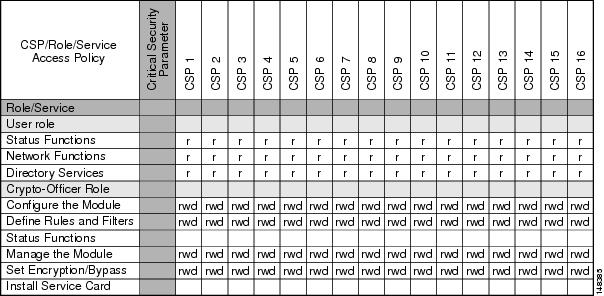
The services accessing the Critical Security Parameters (CSPs), the type of access and which role accesses the CSPs are listed in the Table 4.
Table 4 Role and Service Access to Security Relevant Data Items
r = read w = write d = delete
Authentication Mechanisms
The PIX security appliance supports either a password or digital certificates for authenticating IPSec users. To log on to the PIX security appliance for management purposes, an operator must connect to it through one of the management interfaces (Console Port, SSH, Telnet, or ASDM) and provide a password.
Table 5 describes the estimated strength of the authentication mechanism.
Table 5 Estimated Strength of Authentication Mechanism
Authentication Type StrengthUsername Password mechanism
Passwords must be a minimum of 6 characters (see the "Secure Operation" section). The probability of a false positive for a random password guess is less than 1 in 1,000,000. This is also valid for RADIUS or TACACS+ shared secret keys.
The password can consist of alphanumeric values, a-zA-Z0-9, yielding 62 choices per character. The probability of a successful random attempt is 1/62^6, which is less than 1/1,000,000.
Certificate based authentication
The PIX security appliance supports a public key based authentication with 1024 and 2048 (for RSA) bit keys, and thus the probability of a false positive from a random correct guess is less than 1 in 1,000,000.
A 1024-bit RSA key has at least 80-bits of equivalent strength. The probability of a successful random attempt is 1/2^80, is less than 1/1,000,000.
A 2048-bit RSA key has at least 112-bits of equivalent strength. The probability of a successful random attempt is 1/2^112, is less than 1/1,000,000.
Cryptographic Key Management
The PIX security appliances use a variety of critical security parameters during operation.
Table 6 lists the critical security parameters used by the PIX security appliance.
Self-Tests
The PIX security appliances include an array of self-tests that are run during startup and periodically during operations to prevent any secure data from being released and to ensure all components are functioning correctly.
Table 7 lists the PIX security appliance power-on self-tests.
The PIX security appliances perform all power-on self-tests automatically at boot-up when FIPS mode is enabled. All power-on self-tests must be passed before a user/crypto officer can perform services. The power-on self-tests are performed after the cryptographic systems are initialized but prior to the initialization of the LANs; this prevents the device from passing any data during a power-on self-test failure. In the unlikely event that a power-on self-test fails, an error message is displayed on the console followed by a system reboot.
Table 8 lists the conditional self-tests that the PIX security appliance performs.
Mitigation of Other Attacks
The PIX security appliances do not claim to mitigate any attacks in a FIPS-approved mode of operation above and beyond the protection inherently provided by the PIX security appliance.
Secure Operation
The Cisco PIX 525 and PIX 535 security appliances meet FIPS 140-2 Level 1 requirements.
This section describes how to place and keep the PIX security appliance in a FIPS-approved mode of operation. Operating the PIX security appliance without maintaining the settings described in the "Crypto Officer Guidance - System Initialization" section and "Crypto Officer Guidance - System Configuration" section will remove the PIX security appliance from the FIPS-approved mode of operation.
The Crypto Officer must ensure that the PC that is used for the console connection is a stand-alone or a non-networked PC.
Crypto Officer Guidance - System Initialization
The PIX security appliances were validated with software version 7.0.4. This is the only allowable image for FIPS-approved mode of operation.
Initialize the system using the procedure below:
Step 1
Ensure the security context mode is set to single mode.
(config)#mode singleStep 2
Ensure the firewall mode is set to routed.
(config)#no firewall transparentStep 3
Disable the console output of system crash information.
(config)#crashinfo console disableStep 4
Enable "FIPS Mode" to allow the device to internally enforce FIPS-compliant behavior, such as running power-on self tests and bypass test.
(config)#fips enableStep 5
Install Triple DES/AES licenses to require the device to use Triple DES and AES (for data traffic and SSH). (See http://www.cisco.com/en/US/products/hw/vpndevc/ps2030/products_data_sheet09186a00800b0d85.html for additional information on PIX licenses.)
Step 6
Disable password recovery.
(config)#no service password-recoveryStep 7
Set the configuration register to bypass ROMMON prompt at boot.
(config)#config-register 0x10011Step 8
If failover is to be enabled, define the failover key to ensure encryption of the link to redundant devices prior to enabling failover.
(config)#failover key hex <key>
Note
Failover is not required for FIPS mode of operation. Only LAN-based failover is allowed for FIPS mode of operation; serial link failover is not allowed in FIPS mode of operation. Failover must not be configured over the lowest-numbered interface, such as Ethernet 0; ports Ethernet 1 or above should be used. If the lowest-numbered interface is already implemented as the failover interface, the crypto officer should take the following action:
- Before upgrading to V7.0.4, copy the configuration to a location off the device
- Use a text editor to modify the interface configuration
- Change the failover cables to the specified failover interface
- Upgrade to V7.0.4 and reload the modified configurationStep 9
Enable AAA authorization for the console.
(config-terminal)#aaa authentication serial console LOCAL(config-terminal)#username <name> password <password>Step 10
Enable AAA authorization for SSH and Telnet.
(config-terminal)#aaa authentication ssh console LOCAL(config-terminal)#aaa authentication telnet console LOCALStep 11
Enable AAA authorization for Enable mode.
(config-terminal)#aaa authentication enable console LOCALStep 12
Specify Privilege Level 15 for crypto officer and Privilege Level 1 for user and set up username/password for each role.
(config-terminal)#username <name> password <password> privilege 15(config-terminal)#username <name> password <password> privilege 1Step 13
Ensure passwords are at least 6 characters long. Replace all default passwords, such as enable and telnet with new passwords.
Step 14
Install one VAC+ in any available Circuit Board Interface of the PIX security appliance, if one is not already installed.
Note
The crypto officer may install any service cards that only provide a physical interface, such as PIX-1FE, PIX-1GE-66, PIX-4FE-66.The PIX security appliances are validated only with the VPN Acceleration Card PLUS (VAC+) for cryptographic acceleration; the legacy VAC is not supported in FIPS approved mode of operation.
Step 15
Apply tamper-evident labels as described in the "Applying Tamper-Evident Labels" section.
Step 16
Reboot the PIX security appliance.
Crypto Officer Guidance - System Configuration
Configure the system using the following procedure:
Step 1
Assign users a Privilege Level of 1.
Step 2
Define RADIUS and TACACS+ shared secret keys that are at least 6 characters long and secure all traffic between the PIX security appliance and the RADIUS/TACACS+ server via IPSec tunnel.
Note
Use only if RADIUS/TACACS+ is configured.
Step 3
Configure the TLS protocol for key derivation using HTTPS to protect administrative functions. Due to known issues relating to the use of TLS with certain versions of the Java plugin, we recommend that the customer upgrade to JRE 1.5.0_05 or later. Use the following settings when launching ASDM in a TLS-only environment with JRE 1.5.0_05:
•
Configure the device to allow only TLSv1 packets.
(config)# ssl server-version tlsv1-only•
Uncheck SSL Version 2.0 in both the web browser and JRE security settings.
•
Check TLS V1.0 in both the web browser and JRE security settings.
Step 4
Configure the PIX security appliance to use SSHv2.
(config)# ssh version 2
Note
All operators must still authenticate after remote access is granted.
Step 5
Configure the PIX security appliance to assure that any remote connections via Telnet are secured through IPSec.
Step 6
Configure the PIX security appliance to assure that only FIPS-approved algorithms are used for IPSec tunnels.
Step 7
Configure the PIX security appliance to assure that error messages can only be viewed by an authenticated crypto officer.
Step 8
Configure SNMP to always use a secure IPSec tunnel.
Step 9
Disable the TFTP server and disable the HTTP server from performing system management.
Step 10
Assure that installed digital certificates are signed using FIPS approved algorithms.
Step 11
Assure that 512-bit and 768-bit RSA keys are not used.
Step 12
Assure that the DSA algorithm uses at least a 512-bit modulus.
Approved Cryptographic Algorithms
The PIX security appliances support many different cryptographic algorithms. However, only the following FIPS-approved algorithms may be used:
•
AES encryption/decryption
•
Triple DES encryption/decryption
•
SHA-1 hashing
•
SHA-1 HMAC for hashed message authentication
•
RSA signing and verifying
•
DSA signing and verifying
•
X9.31 for RNG
In addition, the following algorithms are FIPS-allowed:
•
RSA encryption/decryption (used only for key transport)
•
TLS for Layer 7 security
Note
Pursuant to the DES Transition Plan and the approval of the Withdrawal of Federal Information Processing Standard (FIPS) 46-3, Data Encryption Standard (DES); FIPS 74, Guidelines for Implementing and Using the NBS Data Encryption Standard; and FIPS 81, DES Modes of Operation, the DES algorithm must not be used in FIPS-approved mode of operation.
Each cryptographic implementation in the PIX security appliance software release with on-board acceleration has achieved the certifications listed in Table 9.
Non-FIPS Approved Algorithms
The PIX security appliances implement the following non-FIPS-approved cryptographic algorithms:
•
DES
•
SSL
•
RC4
•
MD5
•
MD5 HMAC
•
Diffie-Hellman (allowed for use in FIPS mode) (key agreement; key establishment methodology provides between 70 and 112 bits of encryption strength)
•
RSA (allowed in FIPS mode for key transport) (key wrapping; key establishment methodology provides 80 or 112 bits of encryption strength)
Applying Tamper-Evident Labels
All Critical Security Parameters (CSPs) are stored and protected within the PIX security appliance tamper-evident enclosure. The administrator is responsible for properly placing all tamper-evident labels to comply with the FIPS 140-2 security policy. The security labels mandatory for FIPS 140-2 compliance are provided in FIPS Kit (CVPNPIXASAFIPS/KIT). These security labels are very fragile and cannot be removed without clear signs of damage to the labels.
The crypto officer should inspect the tamper-evident labels periodically to verify they are intact and the serial numbers on the applied tamper-evident labels match the records in the security log.
Note
The tamper-evident seals are produced from a special thin gauge vinyl with self-adhesive backing. Any attempt to open the PIX security appliance will damage the tamper-evident seals or the material of the PIX security appliance cover. Because the tamper-evident seals have non-repeated serial numbers, they may be inspected for damage and compared against the applied serial numbers to verify that the device has not been tampered with. Tamper-evident seals can also be inspected for signs of tampering, which include the following: curled corners, rips, and slices. The word Open may appear if the label was peeled back. Extra tamper-evident seals have been included in your FIPS kit to accommodate maintenance of your chassis.
Apply the serialized tamper-evident labels by performing the steps in either the "PIX 525" section or the "PIX 535" section.
PIX 525
Step 1
Turn off and unplug the system before cleaning the chassis and applying labels.
Step 2
Clean the chassis of any grease, dirt, or oil before applying the labels. Alcohol-based cleaning pads are recommended for this purpose.
Step 3
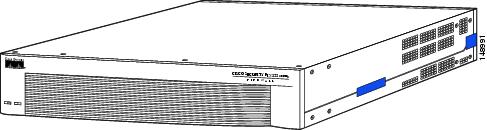
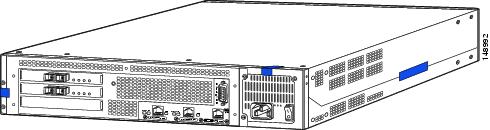
Apply one label on the side of the PIX security appliance as shown in Figure 1. Apply a second label towards the back of the device and wrap it toward the back plate as shown in Figure 1. See the same label from a different angle in Figure 2.
Figure 1 Cisco PIX 525 Front Tamper-Evident Label Placement
Step 4
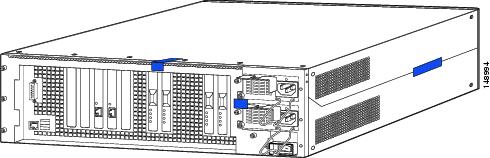
On the back of the device, apply a label to cover the power supply, as shown in Figure 2.
Step 5
Apply one label on the other side of the device as shown in Figure 2.
Figure 2 Cisco PIX 525 Back Tamper-Evident Label Placement
Step 6
Record the serial numbers of the labels applied to the system in a security log.
PIX 535
Step 1
Turn off and unplug the system before cleaning the chassis and applying labels.
Step 2
Clean the chassis of any grease, dirt, or oil before applying the labels. Alcohol-based cleaning pads are recommended for this purpose.
Step 3
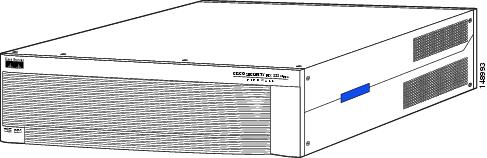
Apply one label on the side of the device as shown in Figure 3, and a second label on the other side of the device as shown in Figure 4.
Figure 3 Cisco PIX 535 Front Tamper-Evident Label Placement
Step 4
On the back of the device, apply labels to cover the power supplies and the removable component tray as shown in Figure 4.
Figure 4 Cisco PIX 535 Back Tamper-Evident Label Placement
Step 5
Record the serial numbers of the labels applied to the system in a security log.
Related Documentation
This document deals only with operations and capabilities of the PIX security appliance in the technical terms of a FIPS 140-2 cryptographic device security policy.
More information is available on the PIX security appliance from the following sources:
•
PIX security appliance (hardware): http://www.cisco.com/en/US/products/hw/vpndevc/ps2030/tsd_products_support_series_home.html
•
PIX security appliance software: http://www.cisco.com/en/US/products/sw/secursw/ps2120/tsd_products_support_series_home.html
•
PIX security appliance licenses: http://www.cisco.com/en/US/products/hw/vpndevc/ps2030/products_data_sheet09186a00800b0d85.html
•
NIST Cryptographic Module Validation Program website contains contact information for answers to technical or sales-related questions for the PIX security appliance. (See (http://csrc.ncsl.nist.gov/cryptval/.)
Obtaining Documentation
Cisco documentation and additional literature are available on Cisco.com. Cisco also provides several ways to obtain technical assistance and other technical resources. These sections explain how to obtain technical information from Cisco Systems.
Cisco.com
You can access the most current Cisco documentation at this URL:
http://www.cisco.com/techsupport
You can access the Cisco website at this URL:
You can access international Cisco websites at this URL:
http://www.cisco.com/public/countries_languages.shtml
Product Documentation DVD
The Product Documentation DVD is a comprehensive library of technical product documentation on a portable medium. The DVD enables you to access multiple versions of installation, configuration, and command guides for Cisco hardware and software products. With the DVD, you have access to the same HTML documentation that is found on the Cisco website without being connected to the Internet. Certain products also have .PDF versions of the documentation available.
The Product Documentation DVD is available as a single unit or as a subscription. Registered Cisco.com users (Cisco direct customers) can order a Product Documentation DVD (product number DOC-DOCDVD= or DOC-DOCDVD=SUB) from Cisco Marketplace at this URL:
http://www.cisco.com/go/marketplace/
Ordering Documentation
Registered Cisco.com users may order Cisco documentation at the Product Documentation Store in the Cisco Marketplace at this URL:
http://www.cisco.com/go/marketplace/
Nonregistered Cisco.com users can order technical documentation from 8:00 a.m. to 5:00 p.m. (0800 to 1700) PDT by calling 1 866 463-3487 in the United States and Canada, or elsewhere by calling 011 408 519-5055. You can also order documentation by e-mail at tech-doc-store-mkpl@external.cisco.com or by fax at 1 408 519-5001 in the United States and Canada, or elsewhere at 011 408 519-5001.
Documentation Feedback
You can rate and provide feedback about Cisco technical documents by completing the online feedback form that appears with the technical documents on Cisco.com.
You can submit comments about Cisco documentation by using the response card (if present) behind the front cover of your document or by writing to the following address:
Cisco Systems
Attn: Customer Document Ordering
170 West Tasman Drive
San Jose, CA 95134-9883We appreciate your comments.
Cisco Product Security Overview
Cisco provides a free online Security Vulnerability Policy portal at this URL:
http://www.cisco.com/en/US/products/products_security_vulnerability_policy.html
From this site, you will find information about how to:
•
Report security vulnerabilities in Cisco products.
•
Obtain assistance with security incidents that involve Cisco products.
•
Register to receive security information from Cisco.
A current list of security advisories, security notices, and security responses for Cisco products is available at this URL:
To see security advisories, security notices, and security responses as they are updated in real time, you can subscribe to the Product Security Incident Response Team Really Simple Syndication (PSIRT RSS) feed. Information about how to subscribe to the PSIRT RSS feed is found at this URL:
http://www.cisco.com/en/US/products/products_psirt_rss_feed.html
Reporting Security Problems in Cisco Products
Cisco is committed to delivering secure products. We test our products internally before we release them, and we strive to correct all vulnerabilities quickly. If you think that you have identified a vulnerability in a Cisco product, contact PSIRT:
•
For Emergencies only — security-alert@cisco.com
An emergency is either a condition in which a system is under active attack or a condition for which a severe and urgent security vulnerability should be reported. All other conditions are considered nonemergencies.
•
For Nonemergencies — psirt@cisco.com
In an emergency, you can also reach PSIRT by telephone:
•
1 877 228-7302
•
1 408 525-6532
Tip
We encourage you to use Pretty Good Privacy (PGP) or a compatible product (for example, GnuPG) to encrypt any sensitive information that you send to Cisco. PSIRT can work with information that has been encrypted with PGP versions 2.x through 9.x.
Never use a revoked or an expired encryption key. The correct public key to use in your correspondence with PSIRT is the one linked in the Contact Summary section of the Security Vulnerability Policy page at this URL:
http://www.cisco.com/en/US/products/products_security_vulnerability_policy.html
The link on this page has the current PGP key ID in use.
If you do not have or use PGP, contact PSIRT at the aforementioned e-mail addresses or phone numbers before sending any sensitive material to find other means of encrypting the data.
Obtaining Technical Assistance
Cisco Technical Support provides 24-hour-a-day award-winning technical assistance. The Cisco Technical Support & Documentation website on Cisco.com features extensive online support resources. In addition, if you have a valid Cisco service contract, Cisco Technical Assistance Center (TAC) engineers provide telephone support. If you do not have a valid Cisco service contract, contact your reseller.
Cisco Technical Support & Documentation Website
The Cisco Technical Support & Documentation website provides online documents and tools for troubleshooting and resolving technical issues with Cisco products and technologies. The website is available 24 hours a day, at this URL:
http://www.cisco.com/techsupport
Access to all tools on the Cisco Technical Support & Documentation website requires a Cisco.com user ID and password. If you have a valid service contract but do not have a user ID or password, you can register at this URL:
http://tools.cisco.com/RPF/register/register.do
Note
Use the Cisco Product Identification (CPI) tool to locate your product serial number before submitting a web or phone request for service. You can access the CPI tool from the Cisco Technical Support & Documentation website by clicking the Tools & Resources link under Documentation & Tools. Choose Cisco Product Identification Tool from the Alphabetical Index drop-down list, or click the Cisco Product Identification Tool link under Alerts & RMAs. The CPI tool offers three search options: by product ID or model name; by tree view; or for certain products, by copying and pasting show command output. Search results show an illustration of your product with the serial number label location highlighted. Locate the serial number label on your product and record the information before placing a service call.
Submitting a Service Request
Using the online TAC Service Request Tool is the fastest way to open S3 and S4 service requests. (S3 and S4 service requests are those in which your network is minimally impaired or for which you require product information.) After you describe your situation, the TAC Service Request Tool provides recommended solutions. If your issue is not resolved using the recommended resources, your service request is assigned to a Cisco engineer. The TAC Service Request Tool is located at this URL:
http://www.cisco.com/techsupport/servicerequest
For S1 or S2 service requests, or if you do not have Internet access, contact the Cisco TAC by telephone. (S1 or S2 service requests are those in which your production network is down or severely degraded.) Cisco engineers are assigned immediately to S1 and S2 service requests to help keep your business operations running smoothly.
To open a service request by telephone, use one of the following numbers:
Asia-Pacific: +61 2 8446 7411 (Australia: 1 800 805 227)
EMEA: +32 2 704 55 55
USA: 1 800 553-2447For a complete list of Cisco TAC contacts, go to this URL:
http://www.cisco.com/techsupport/contacts
Definitions of Service Request Severity
To ensure that all service requests are reported in a standard format, Cisco has established severity definitions.
Severity 1 (S1)—An existing network is down, or there is a critical impact to your business operations. You and Cisco will commit all necessary resources around the clock to resolve the situation.
Severity 2 (S2)—Operation of an existing network is severely degraded, or significant aspects of your business operations are negatively affected by inadequate performance of Cisco products. You and Cisco will commit full-time resources during normal business hours to resolve the situation.
Severity 3 (S3)—Operational performance of the network is impaired, while most business operations remain functional. You and Cisco will commit resources during normal business hours to restore service to satisfactory levels.
Severity 4 (S4)—You require information or assistance with Cisco product capabilities, installation, or configuration. There is little or no effect on your business operations.
Obtaining Additional Publications and Information
Information about Cisco products, technologies, and network solutions is available from various online and printed sources.
•
The Cisco Product Quick Reference Guide is a handy, compact reference tool that includes brief product overviews, key features, sample part numbers, and abbreviated technical specifications for many Cisco products that are sold through channel partners. It is updated twice a year and includes the latest Cisco offerings. To order and find out more about the Cisco Product Quick Reference Guide, go to this URL:
•
Cisco Marketplace provides a variety of Cisco books, reference guides, documentation, and logo merchandise. Visit Cisco Marketplace, the company store, at this URL:
http://www.cisco.com/go/marketplace/
•
Cisco Press publishes a wide range of general networking, training and certification titles. Both new and experienced users will benefit from these publications. For current Cisco Press titles and other information, go to Cisco Press at this URL:
•
Packet magazine is the Cisco Systems technical user magazine for maximizing Internet and networking investments. Each quarter, Packet delivers coverage of the latest industry trends, technology breakthroughs, and Cisco products and solutions, as well as network deployment and troubleshooting tips, configuration examples, customer case studies, certification and training information, and links to scores of in-depth online resources. You can access Packet magazine at this URL:
•
iQ Magazine is the quarterly publication from Cisco Systems designed to help growing companies learn how they can use technology to increase revenue, streamline their business, and expand services. The publication identifies the challenges facing these companies and the technologies to help solve them, using real-world case studies and business strategies to help readers make sound technology investment decisions. You can access iQ Magazine at this URL:
http://www.cisco.com/go/iqmagazine
or view the digital edition at this URL:
http://ciscoiq.texterity.com/ciscoiq/sample/
•
Internet Protocol Journal is a quarterly journal published by Cisco Systems for engineering professionals involved in designing, developing, and operating public and private internets and intranets. You can access the Internet Protocol Journal at this URL:
•
Networking products offered by Cisco Systems, as well as customer support services, can be obtained at this URL:
http://www.cisco.com/en/US/products/index.html
•
Networking Professionals Connection is an interactive website for networking professionals to share questions, suggestions, and information about networking products and technologies with Cisco experts and other networking professionals. Join a discussion at this URL:
http://www.cisco.com/discuss/networking
•
World-class networking training is available from Cisco. You can view current offerings at this URL:
http://www.cisco.com/en/US/learning/index.html
Definitions
AES—Advanced Encryption Standard
CMVP—Cryptographic Module Validation Program
CSP—Critical Security Parameter
DES—Data Encryption Standard
DSA—Digital Signature Algorithm
FIPS—Federal Information Processing Standard
HMAC—Hashed Message Authentication Code
HTTP—Hyper Text Transfer Protocol
IKE—Internet Key Exchange
KAT—Known Answer Test
LED—Light Emitting Diode
MAC—Message Authentication Code
NIST—National Institute of Standards and Technology
NVLAP—National Voluntary Laboratory Accreditation Program
NVRAM—Non-volatile Random Access Memory
PRNG—Pseudo-Random Number Generator
RAM—Random Access Memory
RSA—Rivest Shamir and Adleman method for asymmetric encryption
Service Card—A service card may provide additional interfaces, feature acceleration or additional services. Service cards may take a Circuit Board form factor for PIX security appliances
SHA—Secure Hash Algorithm
SSL—Secure Sockets Layer
TLS—Transport Layer Security
Trustpoint—A trustpoint represents a CA identity and possibly a device identity, based on a certificate issued by the CA. When certificates are exchanged, the PIX/ASA device follows the trustpoint path upwards until it reaches the root CA to validate the certificate. For more information: