Downloads |
 Feedback Feedback
|

Table Of Contents
Local SRB: Host Cannot Connect to Server
Local SRB: Routing Does Not Function
RSRB: Host Cannot Connect to Server (Peers Not Open)
RSRB: Host Cannot Connect to Server (Peers Open)
RSRB: Periodic Communication Failures
RSRB: NetBIOS Client Cannot Connect to Server
Translational Bridging: Client Cannot Connect to Server
SRT Bridging: Client Cannot Connect to Server
SDLC: Router Cannot Communicate with SDLC Device
SDLC: Intermittent Connectivity
SDLC: Client Cannot Connect to Host over Router Running SDLLC
Virtual Token Ring Addresses and SDLLC
SDLC: Sessions Fail over Router Running STUN
CIP: CLAW Connection Does Not Come Up
CIP: CIP Will Not Come Online to Host
CIP: Router Cannot ping Host, or Host Cannot ping Router
CIP: Host Cannot Reach Remote Networks
CIP: Host Running Routed Has No Routes
Troubleshooting IBM
This chapter focuses on connectivity and performance problems associated with bridging and routing in IBM-based networks. When troubleshooting IBM-based networks, it is important to have a knowledge of Synchronous Data Link Control (SDLC) and source-route bridging (SRB), as well as data-link switching (DLSw). The following sections provide an overview of DLSw, SDLC, and SRB.
DLSw
Data-link switching was developed to provide support for SNA and NetBIOS in multiprotocol routers. SNA and NetBIOS are basically connection-oriented protocols, so the data link control procedure that they use on the LAN is IEEE 802.2 Logical Link Control (LLC) Type 2. Data-link switching also accommodates SNA protocols over WAN links via the SDLC protocol. For more information about DLSw, refer to RFC 1795, which defines the protocol.
For more information about troubleshooting DLSw problems, refer to the online "DLSw Troubleshooting Guide" at www.cisco.com/warp/customer/697/dlswts1.html.
SDLC
IBM developed the SDLC protocol in the mid-1970s for use in Systems Network Architecture (SNA) environments. SDLC was the first of an important new breed of link-layer protocols based on synchronous, bit-oriented operation. Compared to synchronous character-oriented (for example, Bisync, from IBM) and synchronous byte count-oriented protocols (for example, Digital Data Communications Message Protocol [DDCMP], from Digital Equipment Corporation), bit-oriented synchronous protocols are more efficient, more flexible, and often faster.
After developing SDLC, IBM submitted it to various standards committees. The International Organization for Standardization (ISO) modified SDLC to create the High-Level Data Link Control (HDLC) protocol. The International Telecommunications Union-Telecommunications Standards Section (ITU-T, formerly CCITT) subsequently modified HDLC to create Link Access Procedure (LAP) and then Link Access Procedure, Balanced (LAPB). The Institute of Electrical and Electronic Engineers (IEEE) modified HDLC to create IEEE 802.2. Each of these protocols has become important in its own domain. SDLC remains the SNA primary link-layer protocol for wide-area network (WAN) links.
Technology Basics
SDLC supports a variety of link types and topologies. It can be used with point-to-point and multipoint links, bounded and unbounded media, half-duplex and full-duplex transmission facilities, and circuit-switched and packet-switched networks.
SDLC identifies two types of network nodes:
•
Primary—Controls the operation of other stations (called secondaries). The primary polls the secondaries in a predetermined order. Secondaries can then transmit if they have outgoing data. The primary also sets up and tears down links and manages the link while it is operational.
•
SDLC primaries and secondaries can be connected in four basic configurations:
•
•
•
•
Frame Format
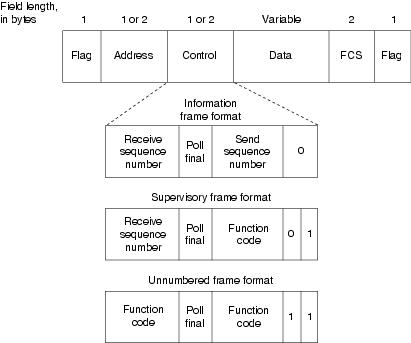
The SDLC frame format is shown in Figure 10-1.
Figure 10-1 The SDLC Frame Format
As Figure 10-1 shows, SDLC frames are bounded by a unique flag pattern. The Address field always contains the address of the secondary involved in the current communication. Because the primary is either the communication source or destination, there is no need to include the address of the primary—it is already known by all secondaries.
The Control field uses three different formats, depending on the type of SDLC frame used. The three SDLC frames are described as follows:
•
•
•
The frame check sequence (FCS) precedes the ending flag delimiter. The FCS is usually a cyclic redundancy check (CRC) calculation remainder. The CRC calculation is redone in the receiver. If the result differs from the value in the sender's frame, an error is assumed.
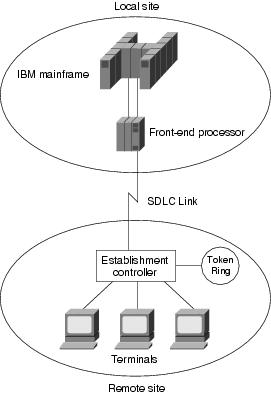
A typical SDLC-based network configuration appears in Figure 10-2. As illustrated, an IBM establishment controller (formerly called a cluster controller) in a remote site connects to dumb terminals and to a Token Ring network. In a local site, an IBM host connects (via channel-attached techniques) to an IBM front-end processor (FEP), which can also have links to local Token Ring local-area networks (LANs) and an SNA backbone. The two sites are connected through an SDLC-based 56-kbps leased line.
Figure 10-2 A Typical SDLC-Based Network Configuration
SRB
The SRB algorithm was developed by IBM and proposed to the IEEE 802.5 committee as the means to bridge among all LANs. The IEEE 802.5 committee subsequently adopted SRB into the IEEE 802.5 Token Ring LAN specification.
Since its initial proposal, IBM has offered a new bridging standard to the IEEE 802 committee: the source-route transparent (SRT) bridging solution. SRT bridging eliminates pure SRBs entirely, proposing that the two types of LAN bridges be transparent bridges and SRT bridges. Although SRT bridging has support, SRBs are still widely deployed.
SRB Algorithm
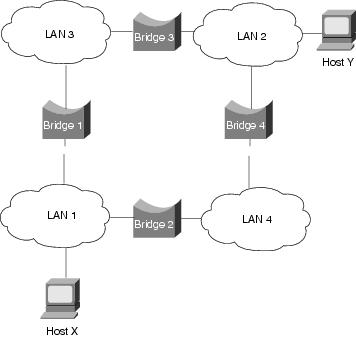
SRBs are so named because they assume that the complete source-to-destination route is placed in all inter-LAN frames sent by the source. SRBs store and forward the frames as indicated by the route appearing in the appropriate frame field. Figure 10-3 illustrates a sample SRB network.
Figure 10-3 A Sample SRB Network
Referring to Figure 10-3, assume that Host X wants to send a frame to Host Y. Initially, Host X does not know whether Host Y resides on the same LAN or a different LAN. To determine this, Host X sends out a test frame. If that frame returns to Host X without a positive indication that Host Y has seen it, Host X must assume that Host Y is on a remote segment.
To determine the exact remote location of Host Y, Host X sends an explorer frame. Each bridge receiving the explorer frame (Bridges 1 and 2, in this example) copies the frame onto all outbound ports. Route information is added to the explorer frames as they travel through the internetwork. When Host X's explorer frames reach Host Y, Host Y replies to each individually using the accumulated route information. Upon receipt of all response frames, Host X chooses a path based on some predetermined criteria.
In the example in Figure 10-3, this process will yield two routes:
•
•
Host X must select one of these two routes. The IEEE 802.5 specification does not mandate the criteria that Host X should use in choosing a route, but it does make several suggestions, including the following:
•
•
•
•
In most cases, the path contained in the first frame received will be used.
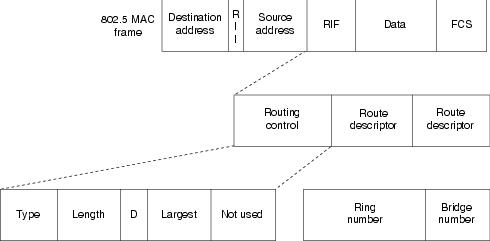
After a route is selected, it is inserted into frames destined for Host Y in the form of a routing information field (RIF). A RIF is included only in those frames destined for other LANs. The presence of routing information within the frame is indicated by the setting of the most significant bit within the Source Address field, called the routing information indicator (RII) bit.
Frame Format
The IEEE 802.5 RIF is structured as shown in Figure 10-4.
Figure 10-4 The IEEE 802.5 RIF
The fields of the RIF are as follows:
•
–
–
–
–
•
Troubleshooting IBM
This section focuses on connectivity and performance problems associated with bridging and routing in IBM-based networks. This section covers specific IBM-related symptoms, the problems that are likely to cause each symptom, and the solutions to those problems.
This section covers the most common network issues in IBM networks:
•
•
•
•
•
•
•
•
•
•
•
•
•
•
•
•
•
•
Local SRB: Host Cannot Connect to Server
Symptom: Connections fail over a router configured as an SRB connecting two or more Token Rings.
Table 10-1 outlines the problems that might cause this symptom and describes solutions to those problems.
Table 10-1 Local SRB: Host Cannot Connect to Server
Ring number mismatch
A router interface configured for bridging fails to insert into a ring when it detects a ring number mismatch, and it posts an error message to the console.
1.
2.
For example, the following configuration entry shows the entry for local ring 10, bridge number 500, and remote ring 20:
source-bridge 10 500 20
Note: Parallel bridges situated between the same two rings must have different bridge numbers.
3.
4.
source-bridge source-ring-number bridge-number target-ring-number [conserve-ring]
Syntax description:
•
•
•
Ring number mismatch (continued)
•
Example:
In the following example, Token Rings 129 and 130 are connected via a router:
interface tokenring 0source-bridge 129 1 130!interface tokenring 1source-bridge active 130 1 129End system that does not support RIF4
1.
2.
3.
If the protocol is routable, you can route the protocol or configure transparent bridging. If you use transparent bridging, be careful not to create loops between the SRB and the transparent bridging domains.
4.
Hop count exceeded
Use the show protocol route command to check the hop count values on routers and bridges in the path. Packets that exceed the hop count are dropped.
Alternatively, you can enable the debug source event privileged exec command to see whether packets are being dropped because the hop count has been exceeded.
Hop count exceeded (continued)
Caution: Because debugging output is assigned high priority in the CPU process, it can render the system unusable. For this reason, use debug commands only to troubleshoot specific problems or during troubleshooting sessions with Cisco technical support staff. Moreover, it is best to use debug commands during periods of lower network traffic and fewer users. Debugging during these periods decreases the likelihood that increased debug command processing overhead will affect system use. Remember to use the undebug all command to turn off debugging after troubleshooting.
Increase the hop count if it is less than the default value, 7. Otherwise, the network must be redesigned so that no destination is more than seven hops away.
Router that is not configured to forward spanning explorers
Spanning explorer packets are equivalent to a single-route broadcast. Routers must therefore be configured to route them.
1.
2.
3.
source-bridge spanning bridge-group [path-cost path-cost]
Syntax description:
•
•
•
Example:
The following example adds Token Ring 0 to bridge group 1 and assigns a path cost of 12 to Token Ring 0:
interface tokenring 0
source-bridge spanning 1 path-cost 12
4.
Router that is not configured to forward spanning explorers (continued)
5.
6.
1 Although you can enter the ring number in hexadecimal or decimal, it always appears in the configuration as a decimal number.
2 FDDI = Fiber Distributed Data Interface
3 PVC= permanent virtual circuit
4 RIF = routing information field
5 MAC = Media Access Control
Local SRB: Routing Does Not Function
Symptom: Routed protocols are not forwarded properly by routers in a local SRB environment. SRBs bridge traffic normally.
Table 10-2 outlines the problems that might cause this symptom and describes solutions to those problems.
Table 10-2 Local SRB: Routing Does Not Function
Routing problem
For detailed information on troubleshooting routing problems, refer to the chapters in this book that cover the routing protocols in question. For example, if you are running Novell IPX, see Chapter 8, "Troubleshooting Novell IPX."
Missing multiring command
1.
2.
C4000(config-if)#multiring all
Incomplete ARP1 table
1.
2.
3.
4.
1 ARP=Address Resolution Protocol
RSRB: Host Cannot Connect to Server (Peers Not Open)
Symptom: Hosts cannot make connections to servers across a router configured as a remote source-routing bridge (RSRB). The output of the show source-bridge privileged exec command shows that SRB peers are not open.
Note
Table 10-3 outlines the problems that might cause this symptom and describes solutions to those problems.
Table 10-3 RSRB: Host Cannot Connect to Server (Peers Not Open)
Missing or misconfigured source-bridge remote-peer command on the router
1.
If the output shows that peers are open, refer to the section "RSRB: Host Cannot Connect to Server (Peers Open)," later in this chapter.
Missing or misconfigured source-bridge remote-peer command on the router (continued)
2.
3.
For detailed information about configuring routers for RSRB, see the Cisco IOS Bridging and IBM Networking Configuration Guide and Bridging and IBM Networking Command Reference.
No route to the remote peer
If you are using TCP1 or FST2 encapsulation between the local and remote SRB, follow these steps:
1.
2.
3.
For information on troubleshooting IP routing, refer to Chapter 7, "Troubleshooting TCP/IP." For information about troubleshooting hardware problems, see Chapter 3, "Troubleshooting Hardware and Booting."
Serial link problem
If there is a direct connection between the local and remote SRB (that is, if you are not using FST or TCP encapsulation), follow these steps:
1.
2.
3.
End system that is not generating explorer traffic
1.
2.
3.
source-bridge spanning bridge-group [path-cost path-cost]
Syntax description:
•
•
•
Example:
The following example adds Token Ring 0 to bridge group 1 and assigns a path cost of 12 to Token Ring 0:
interface tokenring 0
source-bridge spanning 1 path-cost 12
Encapsulation mismatch
1.
2.
For example, if the serial interface is attached to a leased line but the configured encapsulation type is Frame Relay, there is an encapsulation mismatch.
3.
Hop count exceeded
1.
Alternatively, you can enable the debug source event privileged exec command to see whether packets are being dropped because the hop count has been exceeded.
Caution: Because debugging output is assigned high priority in the CPU process, it can render the system unusable. For this reason, use debug commands only to troubleshoot specific problems or during troubleshooting sessions with Cisco technical support staff. Moreover, it is best to use debug commands during periods of lower network traffic and fewer users. Debugging during these periods decreases the likelihood that increased debug command processing overhead will affect system use.
2.
1 TCP=Transmission Control Protocol
2 FST=Fast Sequenced Transport
RSRB: Host Cannot Connect to Server (Peers Open)
Symptom: Hosts cannot make connections to servers across a router configured as an RSRB. The output of the show source-bridge privileged exec command shows that SRB peers are open.
The following is an example of output from the show source-bridge command:
ionesco#show source-bridge[...]Peers: state lv pkts_rx pkts_tx expl_gn drops TCPTCP 150.136.92.92 - 2 0 0 0 0 0TCP 150.136.93.93 open 2* 18 18 3 0 0[...]Table 10-4 outlines the problems that might cause this symptom and describes solutions to those problems.
Table 10-4 RSRB: Host Cannot Connect to Server (Peers Open)
End system misconfiguration
1.
The following is an example of the show lnm station command:
show lnm station [address]
Syntax description:
•
Sample Display:
The following is sample output from the show lnm station command when a particular address (in this case, 1000.5abc15) has been specified:
Router# show lnm station 1000.5a6f.bc15isolating error countsstation int ring loc. weight line inter burst ac abort1000.5a6f.bc15 T1 0001 0000 00 - N 00000 00000 00000 00000 00000Unique ID: 0000.0000.0000 NAUN: 0000.3000.abc4Functional: C000.0000.0000 Group: C000.0000.0000Physical Location: 00000 Enabled Classes: 0000Allowed Priority: 00000 Address Modifier: 0000Product ID: 00000000.00000000.00000000.00000000.0000Ucode Level: 00000000.00000000.0000Station Status: 00000000.0000Last transmit status: 002.
3.
Caution: Using the debug token-ring and the debug source-bridge commands on a heavily loaded router is not advised. These commands can cause further network degradation or complete network failure if not used judiciously.
4.
End system that does not support RIF
1.
2.
3.
If the protocol is routable, you can route the protocol or configure transparent bridging. If you use transparent bridging, be careful not to create loops between the SRB and the transparent bridging domains.
4.
Explorer traffic that is not reaching remote ring
1.
2.
If traffic does not reach the remote ring, use the show source-bridge command to check ring lists. If information about the ring has not been learned, check router configurations.
3.
For detailed information about configuring routers for RSRB, refer to the Cisco IOS Bridging and IBM Networking Configuration Guide and Bridging and IBM Networking Command Reference.
1 LNM=LAN Network Manager
RSRB: Periodic Communication Failures
Symptom: Communication failures occur periodically over a router configured as an RSRB.
Table 10-5 outlines the problems that might cause this symptom and describes solutions to those problems.
RSRB: NetBIOS Client Cannot Connect to Server
Symptom: NetBIOS clients cannot connect to NetBIOS servers over a router configured as an RSRB.
Table 10-6 outlines the problems that might cause this symptom and describes solutions to those problems.
Translational Bridging: Client Cannot Connect to Server
Symptom: Clients cannot communicate over a router configured as a translational bridge.
Caution
Table 10-7 outlines the problems that might cause this symptom and describes solutions to those problems.
Table 10-6 Translational Bridging: Client Cannot Connect to Server
Media problem
Verify the line using the show interfaces exec command. If the interface or line protocol is down, troubleshoot the media. For LAN media, refer to the chapter that covers your media type.
Ethernet-to-Token Ring address mapping that is misconfigured
1.
Ethernet and Token Ring addresses use opposite bit ordering schemes. The Token Ring address 0110.2222.3333 is equivalent to the Ethernet address 8008.4444.cccc.
2.
Ethernet-to-Token Ring address mapping that is misconfigured (continued)
Example:
The following is sample output from the show span command:
RouterA> show spanBridge Group 1 is executing the IBM compatible spanning tree protocolBridge Identifier has priority 32768, address 0000.0c0c.f68bConfigured hello time 2, max age 6, forward delay 4Current root has priority 32768, address 0000.0c0c.f573Root port is 001A (TokenRing0/0), cost of root path is 16Topology change flag not set, detected flag not setTimes: hold 1, topology change 30, notification 30hello 2, max age 6, forward delay 4, aging 300Timers: hello 0, topology change 0, notification 0Port 001A (TokenRing0/0) of bridge group 1 is forwarding. Path cost 16Designated root has priority 32768, address 0000.0c0c.f573Designated bridge has priority 32768, address 0000.0c0c.f573Designated port is 001B, path cost 0, peer 0Timers: message age 1, forward delay 0, hold 0Port 002A (TokenRing0/1) of bridge group 1 is blocking. Path cost 16Designated root has priority 32768, address 0000.0c0c.f573Designated bridge has priority 32768, address 0000.0c0c.f573Designated port is 002B, path cost 0, peer 0Timers: message age 0, forward delay 0, hold 0Port 064A (spanRSRB) of bridge group 1 is disabled. Path cost 250Designated root has priority 32768, address 0000.0c0c.f573Designated bridge has priority 32768, address 0000.0c0c.f68bDesignated port is 064A, path cost 16, peer 0Timers: message age 0, forward delay 0, hold 0A port (spanRSRB) is created with each virtual ring group. The port is disabled until one or more peers go into open state in the ring group.
3.
When configured for translational bridging, the router extracts the RIF of a packet received from the Token Ring network and saves it in a table. The router then transmits the packet on the Ethernet network. Later, the router reinserts the RIF when it receives a packet destined for the originating node on the Token Ring side.
Ethernet-to-Token Ring address mapping that is misconfigured (continued)
Example:
The following is sample output from the show rif command:
Router# show rifCodes: * interface, - static, + remoteHardware Addr How Idle (min) Routing Information Field5C02.0001.4322 rg5 - 0630.0053.00B05A00.0000.2333 TR0 3 08B0.0101.2201.0FF05B01.0000.4444 - - -0000.1403.4800 TR1 0 -0000.2805.4C00 TR0 * -0000.2807.4C00 TR1 * -0000.28A8.4800 TR0 0 -0077.2201.0001 rg5 10 0830.0052.2201.0FF04.
One case in which static mapping is required is when bridging DEC LAT traffic over a translational bridge. LAT services on Ethernet are advertised on a multicast address that is mapped by some translational bridges to a broadcast address on the Token Ring side. Routers do not support this mapping.
Vendor code mismatch
Older Token Ring implementations require that the vendor code (OUT1 field) of the SNAP2 header be 000000. Cisco routers modify this field to be 0000F8 to specify that the frame was translated from Ethernet Version 2 to Token Ring. This can cause problems on older Token Ring networks.
Specify the ethernet-transit-oui interface configuration command to force the router to make the vendor code field 000000. This change is frequently required when there are IBM 8209s (IBM Token Ring-to-Ethernet translating bridges) in the network.
The following is an example of the ethernet-transit-oui command:
ethernet-transit-oui [90-compatible | standard | cisco]
Syntax description:
•
•
Vendor code mismatch (continued)
•
Example:
The following example specifies Cisco's OUI form:
interface tokenring 0ethernet-transit-oui ciscoCisco and non-Cisco translational bridges in parallel
1.
2.
Trying to bridge protocols that embed MAC addresses in the Information field of the MAC frame (such as IP ARP,3 Novell IPX, or AARP4 )
If MAC addresses are embedded in the Information field of the MAC frame, bridges will be incapable of reading the address. Bridges will therefore be incapable of forwarding the traffic.
1.
2.
1 OUI=organizationally unique identifier
2 SNAP=Subnetwork Access Protocol
3 ARP=Address Resolution Protocol
4 AARP=AppleTalk Address Resolution Protocol
SRT Bridging: Client Cannot Connect to Server
Symptom: Clients cannot communicate over a router configured to perform SRT bridging. Packets are not forwarded by the SRT bridge.
SRT bridging enables you to implement transparent bridging in Token Ring environments. It is not a means of translating between SRB on a Token Ring and transparent bridging on Ethernet (or other) media.
Table 10-8 outlines the problems that might cause this symptom and describes solutions to those problems.
Table 10-7 SRT Bridging: Client Cannot Connect to Server
Trying to bridge frames containing RIF from Token Ring network to Ethernet network over an SRT bridge
Use translational bridging instead of SRT bridging to allow SRB-to-transparent bridging translation.
Because SRT bridging works only between Ethernet and Token Ring, any packet containing a RIF is dropped when SRT bridging is used.
Attempting to transfer large frame sizes
Problems will occur if Token Ring devices transmit frames exceeding the Ethernet MTU1 of 1500 bytes. Configure hosts on the Token Ring to generate frame sizes less than or equal to the Ethernet MTU.
Trying to bridge protocols that embed the MAC address in the Information field of the MAC frame (such as IP ARP, Novell IPX, or AARP)
If MAC addresses are embedded in the Information field of the MAC frame, bridges will be incapable of reading the address. Bridges will therefore be incapable of forwarding the traffic.
1.
2.
Media problem
Verify the line using the show interfaces exec command. If the interface or line protocol is down, troubleshoot the media. For LAN media, refer to the chapter that covers your media type.
1 MTU=maximum transmission unit
SDLC: Router Cannot Communicate with SDLC Device
Symptom: Router cannot communicate with an IBM SDLC device.
Table 10-9 outlines the problems that might cause this symptom and describes solutions to those problems.
Table 10-8 SDLC: Router Cannot Communicate with SDLC Device
Physical layer problem
1.
2.
3.
Physical layer problem (continued)
4.
Note: On some Cisco platforms, such as the Cisco 7500 running a recent Cisco IOS release, the output of the show interfaces command will indicate the state of line signals.
If the router is full-duplex DCE,1 check for DTR2 and RTS.3 If these signals are not high, proceed to Step 5. If these signals are high, the interface should be up. If it is not, contact your technical support representative.
On a Cisco 7500, if the breakout box shows that the DTR and DTS signals are high, but the show interfaces command shows that they are not, check the router cabling. In particular, make sure that the 60-pin high-density cable is not plugged in to the router upside-down.
If the router is half-duplex DCE, check for DTR. If DTR is not high, proceed to Step 5. If DTR is high, the interface should be up. If it is not, contact your technical support representative.
Note: Half-duplex is not supported on Cisco 7000 series routers.
If the router is full- or half-duplex DTE, check for CD. If CD is not high, proceed to Step 5. If CD is high, the interface should be up. If it is not, contact your technical support representative.
5.
6.
Example:
The following example sets the clock rate on the first serial interface to 64000 bits per second:
interface serial 0clock rate 64000If the router is DTE, it should get clock from an external device. Make sure that a device is providing clock properly. Make sure that the clocking source is the same for all devices.
Link-layer problem (router is primary)
1.
Caution: Because debugging output is assigned high priority in the CPU process, it can render the system unusable. For this reason, use debug commands only to troubleshoot specific problems or during troubleshooting sessions with Cisco technical support staff. Moreover, it is best to use debug commands during periods of lower network traffic and fewer users. Debugging during these periods decreases the likelihood that increased debug command processing overhead will affect system use.
2.
3.
4.
The SCT/SCTE setting might be changed with a jumper or with the software configuration command dce-terminal-timing enable, depending on the platform. Some platforms do not allow you to change this setting.
Example:
The following example prevents phase shifting of the data with respect to the clock:
interface serial 0dce-terminal-timing enable5.
Example:
In the following example, serial interface 1 is configured for NRZI encoding:
interface serial 1nrzi-encodingLink-layer problem (router is primary) (continued)
6.
Syntax:
The following is the syntax of the clock rate command:
clock rate bps
Syntax description:
•
Example:
The following example sets the clock rate on the first serial interface to 64,000 bits per second:
interface serial 0clock rate 640007.
Link-layer problem (router is secondary)
1.
Caution: Because debugging output is assigned high priority in the CPU process, it can render the system unusable. For this reason, use debug commands only to troubleshoot specific problems or during troubleshooting sessions with Cisco technical support staff. Moreover, it is best to use debug commands during periods of lower network traffic and fewer users. Debugging during these periods decreases the likelihood that increased debug command processing overhead will affect system use.
2.
3.
4.
Link-layer problem (router is secondary) (continued)
The SCT/SCTE setting might be changed with a jumper or with the software configuration command dce-terminal-timing enable, depending on the platform. Some platforms do not allow you to change this setting.
Example:
The following example prevents phase shifting of the data with respect to the clock:
interface serial 0dce-terminal-timing enable5.
6.
Example:
In the following example, serial interface 1 is configured for NRZI encoding:
interface serial 1nrzi-encoding7.
Syntax:
The following is the syntax of the clock rate command:
clock rate bps
Syntax description:
•
Example:
The following example sets the clock rate on the first serial interface to 64000 bits per second:
interface serial 0clock rate 64000Link-layer problem (router is secondary) (continued)
8.
1 DCE=data communications equipment
2 DTR=data terminal ready
3 RTS=request to send
4 To reduce the amount of screen output produced by the debug sdlc command, configure the sdlc poll-pause-timer 1000 command to reduce the frequency at which the router sends poll frames. Remember to return this command to its original value (the default is 10 milliseconds).
5 SNRM=send normal response mode
6 UA=unnumbered acknowledgment
7 SCT/SCTE=serial clock transmit/serial clock transmit external
8 NRZ=nonreturn to zero
9 NRZI=nonreturn to zero inverted
10 NIM=network interface module
Figure 10-5 Strapping DTR to RT
SDLC: Intermittent Connectivity
Symptom: User connections to hosts time out over a router configured to perform SDLC transport.
Table 10-10 outlines the problem that might cause this symptom and describes solutions to that problem.
SDLC: Client Cannot Connect to Host over Router Running SDLLC
Symptom: Users cannot open connections to hosts on the other side of a router configured to support SDLC Logical Link Control (SDLLC).
Table 10-11 outlines the problems that might cause this symptom and describes solutions to those problems.
Table 10-10 SDLC: Client Cannot Connect to Host over Router Running SDLLC
SDLC physical or data link layer problem
1.
2.
3.
Router that is not sending test frames to FEP1
1.
Caution: Because debugging output is assigned high priority in the CPU process, it can render the system unusable. For this reason, use debug commands only to troubleshoot specific problems or during troubleshooting sessions with Cisco technical support staff. Moreover, it is best to use debug commands during periods of lower network traffic and fewer users. Debugging during these periods decreases the likelihood that increased debug command processing overhead will affect system use.
2.
3.
4.
sdlc partner mac-address sdlc-address
Syntax description:
•
•
FEP on Token Ring that is not replying to test frames
1.
Caution: Because debugging output is assigned high priority in the CPU process, it can render the system unusable. For this reason, use debug commands only to troubleshoot specific problems or during troubleshooting sessions with Cisco technical support staff. Moreover, it is best to use debug commands during periods of lower network traffic and fewer users. Debugging during these periods decreases the likelihood that increased debug command processing overhead will affect system use.
2.
3.
sdlc partner mac-address sdlc-address
Syntax description:
•
•
4.
5.
XID2 not sent by router
1.
Caution: Because debugging output is assigned high priority in the CPU process, it can render the system unusable. For this reason, use debug commands only to troubleshoot specific problems or during troubleshooting sessions with Cisco technical support staff. Moreover, it is best to use debug commands during periods of lower network traffic and fewer users. Debugging during these periods decreases the likelihood that increased debug command processing overhead will affect system use.
2.
3.
4.
sdlc xid address xid
Syntax description:
•
•
Example:
The following example specifies an XID value of 01720002 at address C2:
interface serial 0
sdlc xid c2 01720002
FEP not replying to XID
1.
2.
3.
sdlc xid address xid
Syntax description:
•
•
Example:
The following example specifies an XID value of 01720002 at address C2:
interface serial 0
sdlc xid c2 017200024.
Host problem
Check for activation, application problems, VTAM and NCP misconfigurations, configuration mismatches, and other problems on the IBM host.
1 FEP=front-end processor
2 XID=exchange of identification
Virtual Token Ring Addresses and SDLLC
The sdllc traddr command specifies a virtual Token Ring MAC address for an SDLC-attached device (the device that you are spoofing to look like a Token Ring device). The last two hexadecimal digits of the virtual MAC address must be 00. The router then reserves any virtual ring address that falls into the range xxxx.xxxx.xx00 to xxxx.xxxx.xxff for the SDLLC serial interface.
As a result, other IBM devices on an internetwork might have an LAA that falls in the same range. This can cause problems if you are using local acknowledgment because routers examine only the first 10 digits of the LAA address of a packet (not the last two, which are considered wildcards).
If the router sees an address that matches an assigned SDLLC LAA address, it automatically forwards that packet to the SDLLC process. This can result in packets being incorrectly forwarded to the SDLLC process and sessions never being established.
Note
SDLC: Sessions Fail over Router Running STUN
Symptom: SDLC sessions between two nodes fail when they are attempted over a router that is running serial tunnel (STUN).
Note
Table 10-12 outlines the problems that might cause this symptom and describes solutions to those problems.
CIP: CLAW Connection Does Not Come Up
Symptom: Common Link Access for Workstations (CLAW) connections do not come up properly over a Channel Interface Processor (CIP). The output of the show extended channel slot/port statistics exec command shows N for CLAW connections, indicating that they are down.
Table 10-13 outlines the problems that might cause this symptom and describes solutions to those problems.
CIP: No Enabled LED On
Symptom: The Enabled LED on the CIP card does not come on.
Table 10-14 outlines the problems that might cause this symptom and describes solutions to those problems.
CIP: CIP Will Not Come Online to Host
Symptom: The CIP card will not come online to the host.
Table 10-15 outlines the problem that might cause this symptom and describes solutions to that problem.
Table 10-6
CHPID1 not online to host
1.
2.
3.
Note: On a bus and tag channel, the SIGNAL flag is turned on by OP_OUT being high from the host. On an ESCON channel, the SIGNAL flag is turned on by the presence of light on the channel.
4.
5.
1 CHPID=channel path identifier
2 IOCP=input/output control program
CIP: Router Cannot ping Host, or Host Cannot ping Router
Symptom: Attempts to ping are unsuccessful, either from the CIP card in a router to a host or from a host to the CIP card in a router.
Table 10-16 outlines the problem that might cause this symptom and describes solutions to that problem.
CIP: Host Cannot Reach Remote Networks
Symptom: Mainframe host cannot access networks across a router.
Table 10-17 outlines the problem that might cause this symptom and describes solutions to that problem.
CIP: Host Running Routed Has No Routes
Symptom: A host running routed has no routes to remote networks.
Table 10-18 outlines the problems that might cause this symptom and describes solutions to those problems.