
Configuring Filters
This section describes how to configure and
manage MAC address, IP, and Ethertype filters on the access point
using the web-browser interface.
Protocol filters (IP protocol, IP port, and Ethertype) prevent
or allow the use of specific protocols through the access point’s
Ethernet and radio ports. You can set up individual protocol filters
or sets of filters. You can filter protocols for wireless client
devices, users on the wired LAN, or both. For example, an SNMP filter
on the access point’s radio port prevents wireless client devices
from using SNMP with the access point but does not block SNMP access
from the wired LAN.
IP address and MAC address filters allow or disallow the forwarding
of unicast and multicast packets addressed to specific IP or MAC
addresses. You can create a filter that passes traffic to all addresses
except those you specify, or you can create a filter that blocks
traffic to all addresses except those you specify.
You complete two steps to configure and enable a filter: 1) name
and configure the filter using the filter setup pages and 2) enable
the filter.
Configuring and Enabling MAC Address Filters
Configuring and Enabling IP Filters
Configuring and Enabling Ethertype Filters
MAC address filters allow or disallow the forwarding
of unicast and multicast packets addressed to specific MAC addresses.
You can create a filter that passes traffic to all MAC addresses
except those you specify, or you can create a filter that blocks
traffic to all MAC addresses except those you specify. You can apply
the filters you create to either or both the Ethernet and radio
ports and to either or both incoming and outgoing packets.
Follow these steps to create a MAC address filter.
The screens in this section appear in the Cisco IOS Release 12.2(4)JA.
The screens look slightly different in the Cisco IOS Release 12.2(8)JA
or greater.
- Click Services on the navigation
menu to move to the Services Summary window.
- On the expanded Services menu, click Filters
to move to the Services: Filters - Apply Filters page.
- On the Apply Filters page, click the MAC
Address Filters tab at the top of the page.
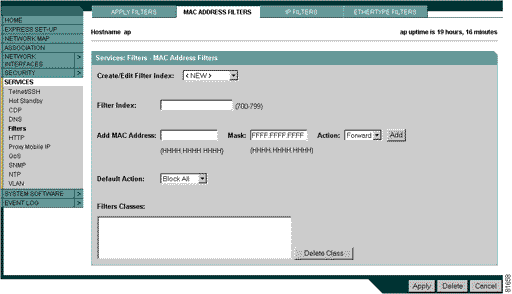
- If you are creating a new MAC address filter, make sure <NEW>
(the default) is selected in the Create/Edit Filter Index menu.
To edit a filter, select the filter number from the Create/Edit
Filter Index menu.
- In the Filter Index field, name the filter with a number from
700 to 799. The number you assign creates an access control list
(ACL) for the filter.
- Enter a MAC address in the Add MAC Address field. Enter the
address with periods separating the three groups of four characters
(0040.9612.3456, for example).
Note: If you plan to block traffic
to all MAC addresses except those you specify as allowed, put
your own MAC address in the list of allowed MAC addresses.
- Type the mask for the MAC address in the Mask field. Enter the
mask with periods separating the three groups of four characters
(1122.3344.5566, for example).
- Select Forward or Block
from the Action menu.
- Click Add. The MAC address appears
in the Filters Classes field. To remove the MAC address from the
Filters Classes list, select it and click Delete
Class.
- Repeat Steps 6 through 9 to add addresses to the filter.
- Select Forward All or Block
All from the Default Action menu. The filter’s default
action must be the opposite of the action for at least one of
the addresses in the filter. For example, if you enter several
addresses and you select Block as the action for all of them,
you must choose Forward All as the filter’s default action.
- Click Apply. The filter is saved
on the access point, but it is not enabled until you apply it
on the Apply Filters page.
- Click the Apply Filters tab to return
to the Apply Filters page.
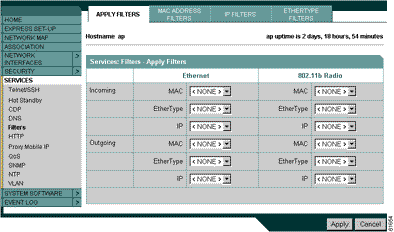
- Select the filter number from one of the MAC drop-down menus.
You can apply the filter to either or both the Ethernet and radio
ports, and to either or both incoming and outgoing packets.
- Click Apply. The filter is enabled
on the selected ports.
IP filters (IP address, IP protocol, and IP port) prevent or allow
the use of specific protocols through the access point’s Ethernet
and radio ports, and IP address filters allow or disallow the forwarding
of unicast and multicast packets addressed to specific IP addresses.
You can create a filter that passes traffic to all addresses except
those you specify, or you can create a filter that blocks traffic
to all addresses except those you specify. You can create filters
that contain elements of one, two, or all three IP filtering methods.
You can apply the filters you create to either or both the Ethernet
and radio ports and to either or both incoming and outgoing packets.
Follow these steps to create IP filters for the access points.
- Click Services in the navigation
menu to go to the Services Summary window.
- In the expanded Services navigation menu, click Filters
to go to the Services: Filters - Apply Filters window.
- On the Apply Filters page, click the IP
Filters tab at the top of the page.
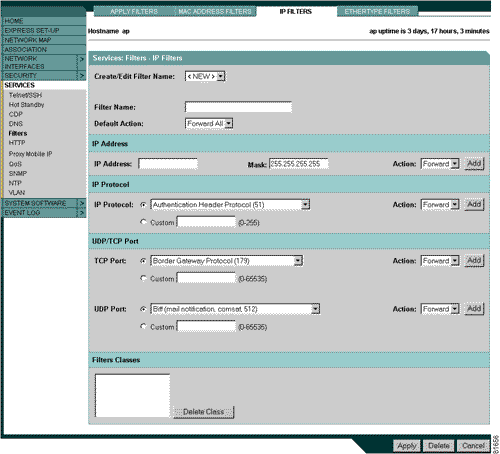
- If you are creating a new filter, make sure <NEW>
(the default) is selected in the Create/Edit Filter Index menu.
To edit an existing filter, select the name from the Create/Edit
Filter Index menu.
- Enter a descriptive name for the new filter in the Filter Name
field.
- Select Forward all or Block
all as the filter’s default action from the Default Action
menu. The filter’s default action must be the opposite of
the action for at least one of the addresses in the filter. For
example, if you create a filter containing an IP addresses, an
IP protocol, and an IP port and you select Block as the action
for all of them, you must choose Forward All as the filter’s
default action.
- To filter an IP address, enter an address in the IP Address
field.
Note: If you plan to block traffic
to all IP addresses except those you specify as allowed, put the
address of your own PC in the list of allowed addresses to avoid
losing connectivity to the access point.
- Type the mask for the address in the Mask field. Enter the mask
with periods separating the three groups of four characters (1122.3344.5566,
for example).
- Select Forward or Block
from the Action menu.
- Click Add. The address appears in
the Filters Classes field. To remove the address from the Filters
Classes list, select it and click Delete
Class. Repeat Step 7 through 10 to add addresses to
the filter. If you do not need to add IP protocol or IP port elements
to the filter, skip to Step 17 to save the filter on the access
point.
- To filter an IP protocol, select one of the common protocols
from the IP Protocol drop-down menu, or select the Custom
radio button and enter the number of an existing protocol in the
Custom field. Enter a protocol number from 0 to 255.
- Select Forward or Block
from the Action menu.
- Click Add. The protocol appears in
the Filters Classes field. To remove the protocol from the Filters
Classes list, select it and click Delete
Class. Repeat Step 11 to Step 13 to add protocols to the filter.
If you do not need to add IP port elements to the filter, skip
to Step 17 to save the filter on the access point.
- To filter a TCP or UDP port number, select one of the common
port protocols from the TCP Port or UDP Port drop-down menus,
or select the Custom radio button and enter the number of an existing
port in one of the Custom fields. Enter a port number from 0 to
65535.
- Select Forward or Block
from the Action menu.
- Click Add. The port appears in the
Filters Classes field. To remove the port from the Filters Classes
list, select it and click Delete Class. Repeat Step 14
to Step 16 to add ports to the filter.
- When the filter is complete, click Apply.
The filter is saved on the access point, but it is not enabled
until you apply it on the Apply Filters page.
- Click the Apply Filters tab to return
to the Apply Filters page.
- Select the filter name from one of the IP drop-down menus. You
can apply the filter to either or both the Ethernet and radio
ports, and to either or both incoming and outgoing packets.
- Click Apply. The filter is enabled
on the selected ports.
Ethertype filters prevent or allow the use of specific protocols
through the access point’s Ethernet and radio ports. You can
apply the filters you create to either or both the Ethernet and
radio ports and to either or both incoming and outgoing packets.
Follow these steps to create Ethertype filters for the access point.
- Click Services in the navigation
menu to go to the Services Summary window.
- In the expanded Services menu, click Filters
to go to the Services: Filters - Apply Filters window.
- On the Apply Filters page, click the Ethertype
Filters tab at the top of the page.
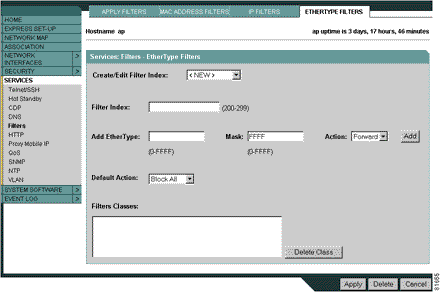
- If you are creating a new filter, make sure <NEW>
(the default) is selected in the Create/Edit Filter Index menu.
To edit an existing filter, select the filter number from the
Create/Edit Filter Index menu.
- In the Filter Index field, name the filter with a number from
200 to 299. The number you assign creates an access control list
(ACL) for the filter.
- Enter an Ethertype number in the Add Ethertype field.
- Enter the mask for the Ethertype in the Mask field.
- Select Forward or Block
from the Action menu.
- Click Add. The Ethertype appears
in the Filters Classes field. To remove the Ethertype from the
Filters Classes list, select it and click Delete
Class. Repeat Step 6 through Step 9 to add Ethertypes to the
filter.
- Select Forward All or Block
All from the Default Action menu. The filter’s default
action must be the opposite of the action for at least one of
the Ethertypes in the filter. For example, if you enter several
Ethertypes and you select Block as
the action for all of them, you must choose Forward
All as the filter’s default action.
- Click Apply. The filter is saved
on the access point, but it is not enabled until you apply it
on the Apply Filters page.
- Click the Apply Filters tab to return
to the Apply Filters page.
- Select the filter number from one of the Ethertype drop-down
menus. You can apply the filter to either or both the Ethernet
and radio ports, and to either or both incoming and outgoing packets.
- Click Apply. The filter is enabled
on the selected ports.
|
|


