Product Licensing Quickstart
The product licensing quickstart page provides options in 4 sections to get existing licenses or fulfill PAKs to get new licenses. Fulfilling a PAK is the same as registering a PAK. Your PAK can be found on a Cisco Claim Certificate or in the PAK email.
1: Use the License Wizard to guide you through selecting registration tasks for desired products.
2: Start the process to Fulfill a single PAK.
3: Start the process to Fulfill multiple PAKs.
4: View your existing licenses and resend or download them.
Use License Wizard
Product license registration just got easier, with the introduction of the License Wizard, a new interface that guides users through the registration process with an easy-to-understand, step-by-step flow. This experience starts when a you clicks on the License Wizard button in the first section of the Quickstart page.With License Wizard you can either start with a task or start with a product to perform any operation
If you start with a product, License Wizard will show you what licensing tasks you can perform. If you start with a task you want to perform, License Wizard will show you a list of product families to select. The task menu is customized based on the product selection.
NOTE
Access the wizard only from the Quickstart Page, and remember the back button does not open the wizard once it is closed.
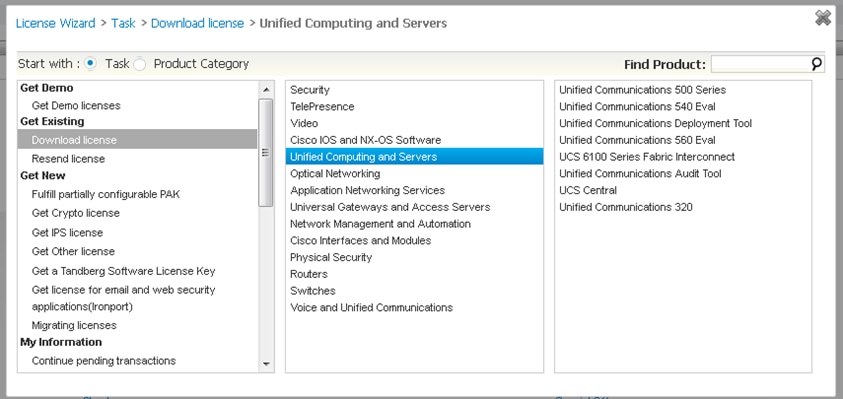
Start with a Task in License Wizard
All tasks are shown in the left pane.
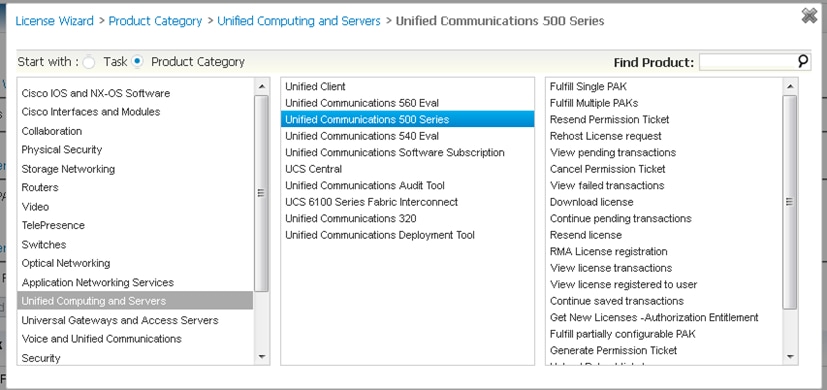
Start with a Product Category in License Wizard
All product categories are shown in the left pane.
Get New Licenses From PAKs or Tokens
In addition to being able to register single PAKs, you now have the capability to register multiple PAKs within a single registration.
·
Example 1: 1075JEF78FE
·
Example 2: UNTY-2X-SJ-XXXXXX
Your Token will be emailed as a result of a secure rehost transaction for DCM products.
Summary -
PAKs and Tokens are fulfilled in the 3 same steps.
Step 1: Specify the source, which is one or more PAKs or Tokens.
Step 2: Specify the Feature quantities and the target device for the license.
Step 3: Review assigned information, specify email, end user and Submit.
NOTE: You need a valid PAK or token to begin. PAKs shown in the table are valid. New PAK entries will be validated when proceeding to step two for a single entry and when adding them to the table.
To fulfill a single PAK, enter the PAK name in the PAK field. Click the button on the right side of the single PAK entry field -
“Fulfill
Single”
This continues to Step 2 to configure quantity(s) and target(s).
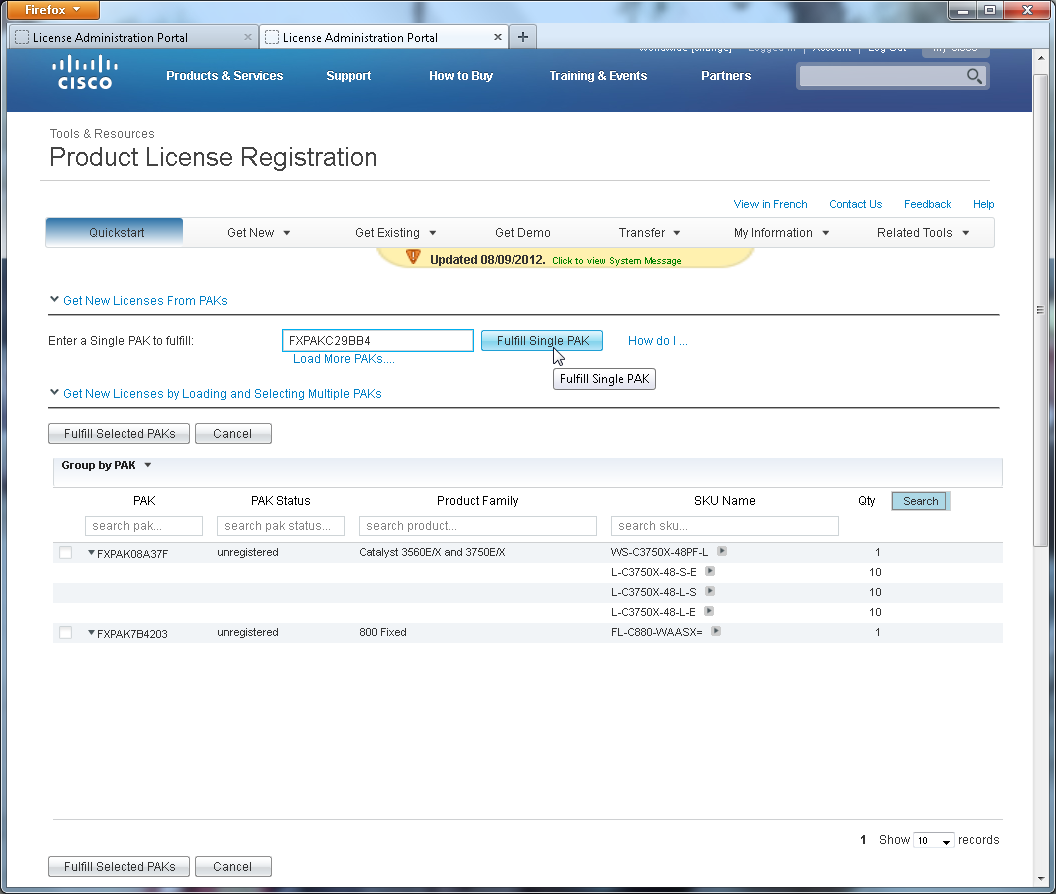
Get New Licenses by Loading and Selecting Multiple PAKs
Click “Load More PAKs”.
This button above the table opens a popup to enter the PAKs. Enter up to 10 PAKs at a time, one per line.
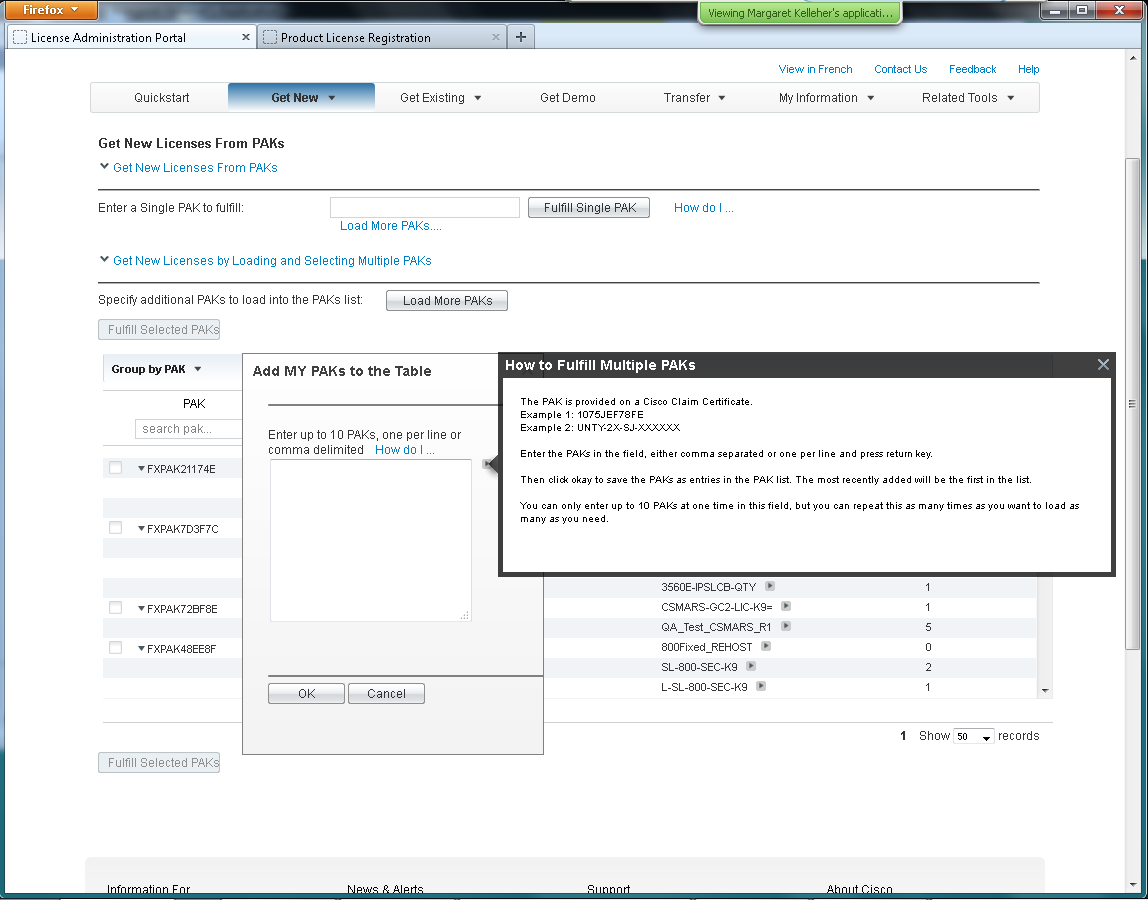
Note: this picture shows the “How Do I…” hint.
Click “OK” and the PAKs will be validated and added to the table.
Invalid PAKs will not be added. A red error message will display the invalid PAKs beneath the page title:
 “ PAK/s FXPAKA234DA
are either Invalid or Inactive”
“ PAK/s FXPAKA234DA
are either Invalid or Inactive”
Repeat this as many times as needed.
The new PAKs will be added to the list of PAKs in the PAK table located below the input fields, with the most recent added to the top of the list. Select PAKs by checking the appropriate check boxes.
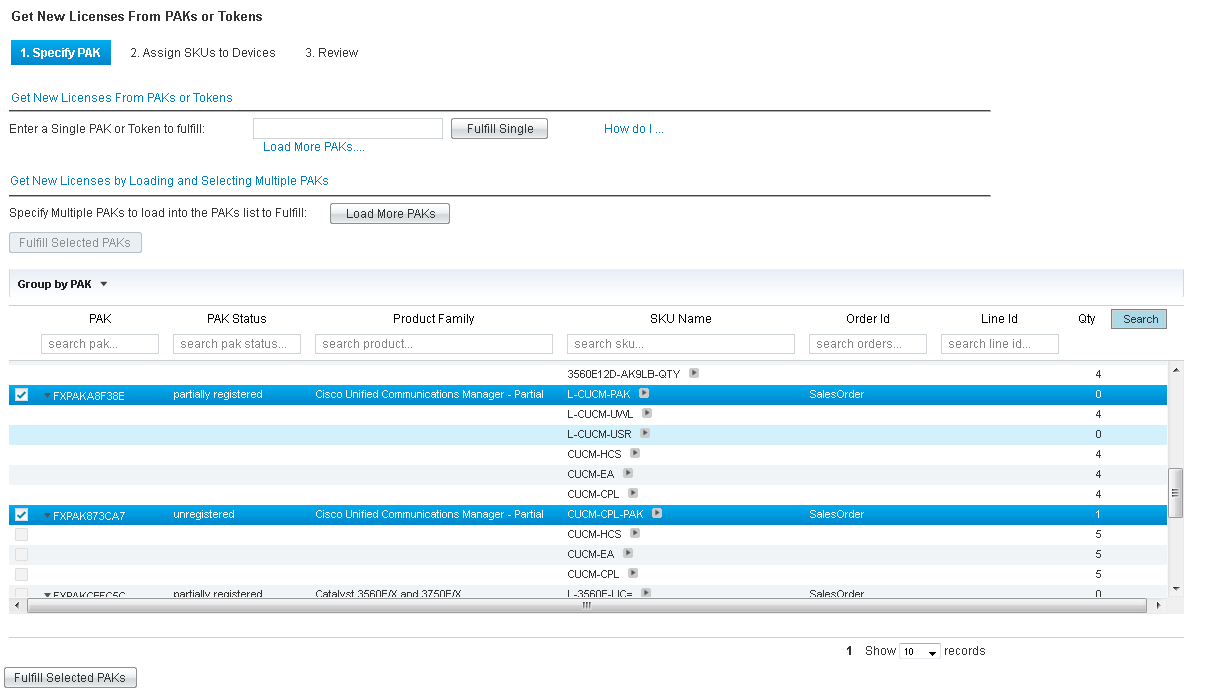
The PAKs table can contain as many PAK as you wish to enter, but only displays the amount selected in the dropdown selector beneath the table. The rest are accessed by paging through the table.
If the desired PAKs are not visible, you can browse (scrolling and paging) or search for the PAKs:
1. Scroll to see the full list. Select more to view using the drop down.
2. Select other pages and scroll to view these additional listings.
3. User the search fields at the top of each column to search for the contents it contains. This is a search, not a filter and will search the database for the entry. If no results are displayed, it doesn’t exist or the search criteria are incorrect. Clear or modify the search entry and try again.
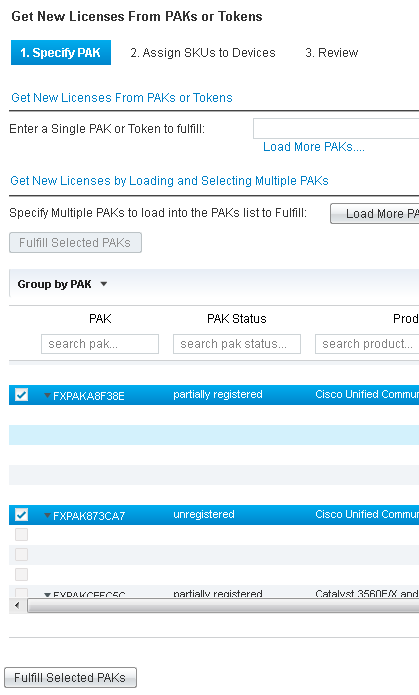
Click “Fulfill Selected PAKs”
This button (top left or bottom left of the table) continues to Step 2 - configure quantity(s) and target(s).
View Existing Licenses
This section contains your license table. Open this section by clicking on the name or the chevron. This table displays the list of licenses that are registered to your CCO ID plus those you might have added to this table using the Add license capability.
If you have hundreds of licenses, you can view them all in this table but will have to use the filters and paging functions to find and view them. There is a filter at the head of each column with paging and table length controls at the bottom right of the table.
1: Search the table to find the desired license or licenses.
2: Choose the licenses of interest by selecting the appropriate checkboxes
3: Specify email addresses to send the licenses and then select one of the three buttons:
Resend, Resend with Regeneration, or Download.
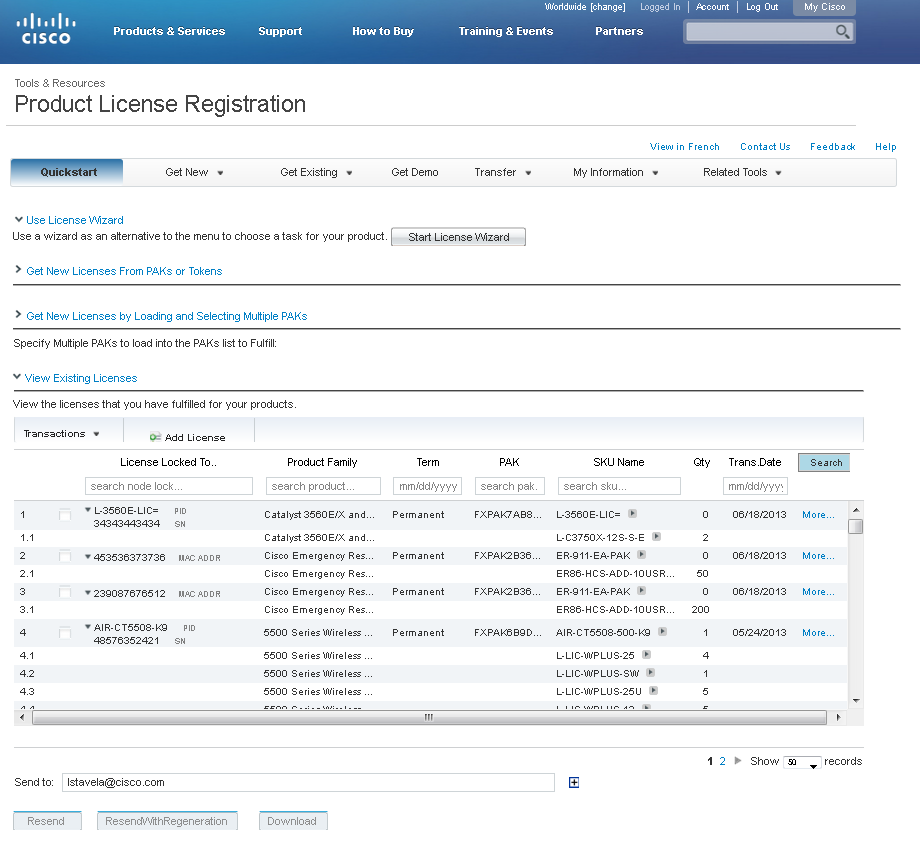
If the desired licenses are not visible, scroll to see the full list. Select more records to view using the dropdown at the bottom right of the table.
2. Select other pages by clicking the page numbe and/or the right and left arrows displayed to the left of the recrods dropdown.
3. Use the search fields at the top of each column to search for the contents it contains. This is a search, not a filter and will search the database for the entry. If no results are displayed, it doesn’t exist or the search criteria are incorrect. Clear or modify the search entry and try again.
|
|
Change, add, or edit the email address to send the license. Directly edit or enter addresses in the email field. Select addresses by Clicking the “+” icon on the right of the email field. This opens the list of users setup in the page accessed from the top menu “My Information > My Profile”. |
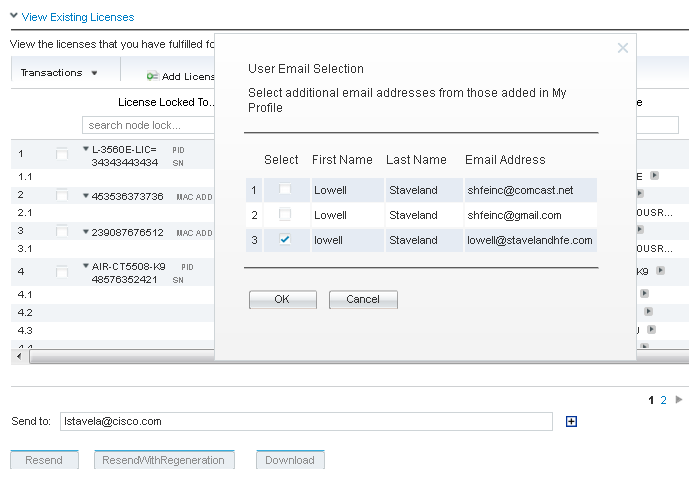
Click “ Resend ”. This sends the request for the license(s) to be resent to the email address specified
Click “ Resend with Regeneration >”. For some products this second resend option is available . This will only be enabled for the specific, relevant products. This also sends the request for the license(s) to be resent to the email address specified. However, it first sends a request to regenerate the license. Once the license is regenerated it is emailed.
Click “Download”. This button opens a window to specify a local or networked location to download the
zipped license file.
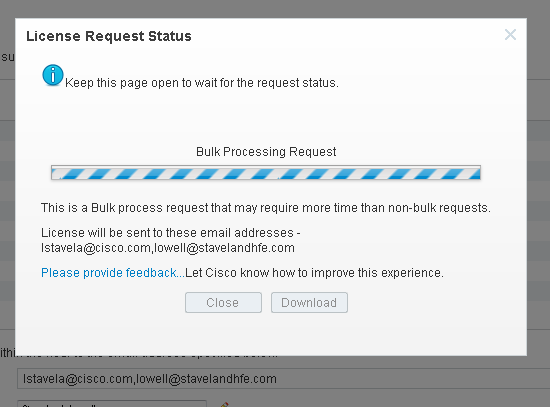
After clicking either resend option, the license request status box displays a progress bar during validation. Additional and final checks and validations are performed on the information specified in the page fields. The status box also lists the email addresses to whom the license(s) will be sent.
|
|
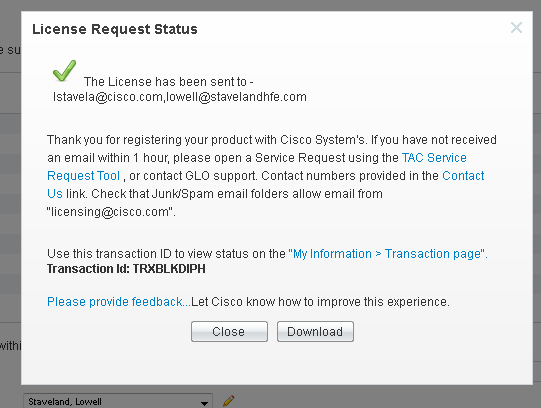
A green check indicates success. Click “Close” to close the dialog box. The message lists the email addresses of those who received the license. The “Transaction ID” is a
unique identifier assigned to this license transaction. Use it to locate the
license in the transaction history table accessed from the top menu “My
Information > My Transactions”. |
A red stop-sign is displayed with an error message if the request fails the submittal process. The message will indicate what to do if it is known. Options include retrying the transactions and/or opening a service request.
NOTE
All transactions are saved in the transaction history and include the transaction details and history for devices in the transactions. The history is accessible from the top menu bar “My Information > My transactions”. The table contains some basic identifying information about a transaction. A link with each transaction “More…” opens a pop-up that provides the details.