Feedback
Contents
- Configuring Call Home
- Call Home
- Call Home Considerations and Guidelines
- Cisco UCS Faults and Call Home Severity Levels
- Cisco Smart Call Home
- Configuring Call Home
- Disabling Call Home
- Enabling Call Home
- Configuring System Inventory Messages
- Configuring System Inventory Messages
- Sending a System Inventory Message
- Configuring Call Home Profiles
- Call Home Profiles
- Creating a Call Home Profile
- Deleting a Call Home Profile
- Configuring Call Home Policies
- Call Home Policies
- Configuring a Call Home Policy
- Disabling a Call Home Policy
- Enabling a Call Home Policy
- Deleting a Call Home Policy
- Example: Configuring Call Home for Smart Call Home
- Configuring Smart Call Home
- Configuring the Default Cisco TAC-1 Profile
- Configuring System Inventory Messages for Smart Call Home
- Registering Smart Call Home
Configuring Call Home
This chapter includes the following sections:
- Call Home
- Call Home Considerations and Guidelines
- Cisco UCS Faults and Call Home Severity Levels
- Cisco Smart Call Home
- Configuring Call Home
- Disabling Call Home
- Enabling Call Home
- Configuring System Inventory Messages
- Configuring Call Home Profiles
- Configuring Call Home Policies
- Example: Configuring Call Home for Smart Call Home
Call Home
Call Home provides an email-based notification for critical system policies. A range of message formats are available for compatibility with pager services or XML-based automated parsing applications. You can use this feature to page a network support engineer, email a Network Operations Center, or use Cisco Smart Call Home services to generate a case with the Technical Assistance Center.
The Call Home feature can deliver alert messages containing information about diagnostics and environmental faults and events.
The Call Home feature can deliver alerts to multiple recipients, referred to as Call Home destination profiles. Each profile includes configurable message formats and content categories. A predefined destination profile is provided for sending alerts to the Cisco TAC, but you also can define your own destination profiles.
When you configure Call Home to send messages, Cisco UCS Manager executes the appropriate CLI show command and attaches the command output to the message.
Cisco UCS delivers Call Home messages in the following formats:
Short text format which provides a one or two line description of the fault that is suitable for pagers or printed reports.
Full text format which provides fully formatted message with detailed information that is suitable for human reading.
XML machine readable format that uses Extensible Markup Language (XML) and Adaptive Messaging Language (AML) XML schema definition (XSD). The AML XSD is published on the Cisco.com website at http://www.cisco.com/. The XML format enables communication with the Cisco Systems Technical Assistance Center.
For information about the faults that can trigger Call Home email alerts, see the Cisco UCS Faults Reference.
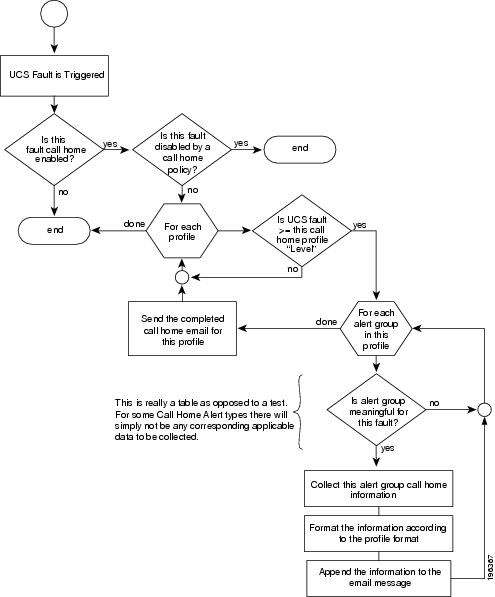
The following figure shows the flow of events after a Cisco UCS is triggered in a system with Call Home configured:
Call Home Considerations and Guidelines
How you configure Call Home depends on how you intend to use the feature. The information you need to consider before you configure Call Home includes the following:
Destination Profile
You must configure at least one destination profile. The destination profile or profiles that you use depend upon whether the receiving entity is a pager, email, or automated service such as Cisco Smart Call Home.
If the destination profile uses email message delivery, you must specify a Simple Mail Transfer Protocol (SMTP) server when you configure Call Home.
Contact Information
The contact email, phone, and street address information should be configured so that the receiver can determine the origin of messages received.
IP Connectivity to Email Server or HTTP Server
The fabric interconnect must have IP connectivity to an email server or the destination HTTP server. In a cluster configuration, both fabric interconnects must have IP connectivity. This connectivity ensures that the current, active fabric interconnect can send Call Home email messages. The source of these email messages is always the IP address of a fabric interconnect. The virtual IP address assigned Cisco UCS Manager in a cluster configuration is never the source of the email.
Cisco UCS Faults and Call Home Severity Levels
Because Call Home is present across several Cisco product lines, Call Home has developed its own standardized severity levels. The following table describes how the underlying Cisco UCS fault levels map to the Call Home severity levels. You need to understand this mapping when you configure the Level setting for Call Home profiles.
Table 1 Mapping of Faults and Call Home Severity Levels Call Home Severity
Cisco UCS Fault
Call Home Meaning
(9) Catastrophic
N/A
Network-wide catastrophic failure.
(8) Disaster
N/A
Significant network impact.
(7) Fatal
N/A
System is unusable.
(6) Critical
Critical
Critical conditions, immediate attention needed.
(5) Major
Major
Major conditions.
(4) Minor
Minor
Minor conditions.
(3) Warning
Warning
Warning conditions.
(2) Notification
Info
Basic notifications and informational messages. Possibly independently insignificant.
(1) Normal
Clear
Normal event, signifying a return to normal state.
(0) debug
N/A
Debugging messages.
Cisco Smart Call Home
Cisco Smart Call Home is a web application which leverages the Call Home feature of Cisco UCS. Smart Call Home offers proactive diagnostics and real-time email alerts of critical system events, which results in higher network availability and increased operational efficiency. Smart Call Home is a secure connected service offered by Cisco Unified Computing Support Service and Cisco Unified Computing Mission Critical Support Service for Cisco UCS.
You can configure and register Cisco UCS Manager to send Smart Call Home email alerts to either the Smart Call Home System or the secure Transport Gateway. Email alerts sent to the secure Transport Gateway are forwarded to the Smart Call Home System using HTTPS.
Note
For security reasons, we recommend using the Transport Gateway option. The Transport Gateway can be downloaded from Cisco.
To configure Smart Call Home, you must do the following:
Enable the Smart Call Home feature.
Configure the contact information.
Configure the email information.
Configure the SMTP server information.
Configure the default CiscoTAC-1 profile.
Send a Smart Call Home inventory message to start the registration process.
Ensure that the CCO ID you plan to use as the Call Home Customer ID for the Cisco UCS instance has the contract numbers from the registration added to its entitlements. You can update the ID in the account properties under Additional Access in the Profile Manager on CCO.
Configuring Call Home
Procedure
Disabling Call Home
Procedure
Step 1 In the Navigation pane, click the Admin tab. Step 2 In the Admin tab, expand . Step 3 Click Call Home. Step 4 In the Work pane, click the General tab. Step 5 In the Admin area, click off in the State field.
Note If this field is set to off, Cisco UCS Manager hides the rest of the fields on this tab.
Step 6 Click Save Changes.
Enabling Call Home
Procedure
Step 1 In the Navigation pane, click the Admin tab. Step 2 In the Admin tab, expand . Step 3 Click Call Home. Step 4 In the Work pane, click the General tab. Step 5 In the Admin area, click on in the State field.
Note If this field is set to on, Cisco UCS Manager GUI displays the rest of the fields on this tab.
Step 6 Click Save Changes.
What to Do Next
Ensure that Call Home is fully configured.
Configuring System Inventory Messages
Procedure
Step 1 In the Navigation pane, click the Admin tab. Step 2 In the Admin tab, expand . Step 3 Click Call Home. Step 4 In the Work pane, click the System Inventory tab. Step 5 In the Properties area, complete the following fields:
Name Description Send Periodically field
If this field is set to on, Cisco UCS sends the system inventory to the Call Home database. When the information is sent depends on the other fields in this area.
Send Interval field
The number of days that should pass between automatic system inventory data collection.
Hour of Day to Send field
The hour that the data should be sent using the 24-hour clock format.
Minute of Hour field
The number of minutes after the hour that the data should be sent.
Time Last Sent field
The date and time the information was last sent.
Note This field is displayed after the first inventory has been sent.
Next Scheduled field
The date and time for the upcoming data collection.
Note This field is displayed after the first inventory has been sent.
Step 6 Click Save Changes.
Sending a System Inventory Message
ProcedureUse this procedure if you need to manually send a system inventory message outside of the scheduled messages.
Note
The system inventory message is sent only to those recipients defined in CiscoTAC-1 profile.
Step 1 In the Navigation pane, click the Admin tab. Step 2 In the Admin tab, expand . Step 3 Click Call Home. Step 4 In the Work pane, click the System Inventory tab. Step 5 In the Actions area, click Send System Inventory Now. Cisco UCS Manager immediately sends a system inventory message to the recipient configured for Call Home.
Call Home Profiles
Call Home profiles determine which alert groups and recipients receive email alerts for events that occur at a specific severity. You can also use these profiles to specify the format of the alert for a specific set of recipients and alert groups.
By default, you must configure the Cisco TAC-1 profile. However, you can also create additional profiles to send email alerts to one or more specified groups when events occur at the level that you specify.
For example, you may want to configure two profiles for faults with a major severity:
A profile that sends an alert to the Supervisor alert group in the short text format. Members of this group receive a one- or two-line description of the fault that they can use to track the issue.
A profile that sends an alert to the CiscoTAC alert group in the XML format. Members of this group receive a detailed message in the machine readable format preferred by the Cisco Systems Technical Assistance Center.
Creating a Call Home Profile
ProcedureBy default, you must configure the Cisco TAC-1 profile. However, you can also create additional profiles to send email alerts to one or more specified groups when events occur at the level that you specify.
Step 1 In the Navigation pane, click the Admin tab. Step 2 In the Admin tab, expand . Step 3 Click Call Home. Step 4 In the Work pane, click the Profiles tab. Step 5 On the icon bar to the right of the table, click +. If the + icon is disabled, click an entry in the table to enable it.
Step 6 In the Create Call Home Profile dialog box, complete the following information fields:
Name Description Name field
A user-defined name for this profile.
This name can be between 1 and 16 alphanumeric characters. You cannot use spaces or any special characters, and you cannot change this name after the object has been saved.
Level field
Cisco UCS faults that are greater than or equal to this level trigger the profile. This can be:
Alert Groups field
The group or groups that are alerted based on this Call Home profile. This can be one or more of the following:
Step 7 In the Email Configuration area, complete the following fields to configure the email alerts:
Name Description
xml—A machine readable format that uses Extensible Markup Language (XML) and Adaptive Messaging Language (AML) XML schema definition (XSD). This format enables communication with the Cisco Systems Technical Assistance Center.
fullTxt—A fully formatted message with detailed information that is suitable for human reading.
shortTxt—A one or two line description of the fault that is suitable for pagers or printed reports.
The maximum message size that is sent to the designated Call Home recipients.
The default is 1000000. For full-txt and xml messages, the maximum recommended size is 5000000. For short-txt messages, the maximum recommended size is 100000. For the CiscoTAC-1, the maximum message size must be 5000000.
Step 8 In the Recipients area, do the following to add one or more email recipients for the email alerts:
Step 9 Click OK.
Call Home Policies
Call Home policies determine whether or not Call Home alerts are sent for a specific type of fault or system event. By default, Call Home is enabled to send alerts for certain types of faults and system events. However, you can configure Cisco UCS not to process certain types.
To disable alerts for a type of fault or events, you must create a Call Home policy for that type, and you must first create a policy for that type and then disable the policy.
By default, Cisco UCS sends Call Home alerts for each of the following types of faults and system events:
association-failed
configuration-failure
connectivity-problem
election-failure
equipment-inaccessible
equipment-inoperable
equipment-problem
fru-problem
identity-unestablishable
link-down
management-services-failure
management-services-unresponsive
power-problem
thermal-problem
unspecified
version-incompatible
voltage-problem
Configuring a Call Home Policy
Procedure
Tip
By default, all Call Home policies are enabled to ensure that email alerts are sent for all critical system events.
Step 1 In the Navigation pane, click the Admin tab. Step 2 In the Admin tab, expand . Step 3 Click Call Home. Step 4 In the Work pane, click the Policies tab. Step 5 On the icon bar to the right of the table, click +. If the + icon is disabled, click an entry in the table to enable it.
Step 6 In the Create Call Home Policy dialog box, complete the following fields:
Name Description State field
If this field is enabled, the system uses this policy when an error matching the associated cause is encountered. Otherwise, the system ignores this policy even if a matching error occurs. By default, all policies are enabled.
Cause field
The event that triggers the alert. Each policy defines whether an alert is sent for one type of event. This can be:
association-failed
configuration-failure
connectivity-problem
election-failure
equipment-inaccessible
equipment-inoperable
equipment-problem
fru-problem
identity-unestablishable
link-down
management-services-failure
management-services-unresponsive
power-problem
thermal-problem
unspecified
version-incompatible
voltage-problem
Step 7 Click OK. Step 8 Repeat Steps 6 and 7 if you want to configure a Call Home policy for a different type of fault or event.
Disabling a Call Home Policy
Procedure
Step 1 In the Navigation pane, click the Admin tab. Step 2 In the Admin tab, expand . Step 3 Click Call Home. Step 4 In the Work pane, click the Policies tab. Step 5 Click the policy that you want to disable and choose Show Navigator. Step 6 In the State field, click Disabled. Step 7 Click OK.
Enabling a Call Home Policy
Procedure
Step 1 In the Navigation pane, click the Admin tab. Step 2 In the Admin tab, expand . Step 3 Click Call Home. Step 4 In the Work pane, click the Policies tab. Step 5 Click the policy that you want to enable and choose Show Navigator. Step 6 In the State field, click Enabled. Step 7 Click OK.
Configuring Smart Call Home
Procedure
Step 1 In the Navigation pane, click the Admin tab. Step 2 In the Admin tab, expand . Step 3 Click Call Home. Step 4 In the Work pane, click the General tab. Step 5 In the Admin area, do the following to enable Call Home:
Step 6 In the Contact Information area, complete the following fields with the required contact information:
Name Description Contact field
The main Call Home contact person.
Phone field
The telephone number for the main contact.
Enter the number in international format, starting with a + (plus sign) and a country code.
Email field
The email address for the main contact.
Address field
The mailing address for the main contact.
Step 7 In the Ids area, complete the following fields with the Smart Call Home identification information: Step 8 In the Email Addresses area, complete the following fields with the email information for Smart Call Home alert messages: Step 9 In the SMTP Server area, complete the following fields with information about the SMTP server that Call Home should use to send email messages: Step 10 Click Save Changes.
Configuring the Default Cisco TAC-1 Profile
Procedure
Step 1 In the Navigation pane, click the Admin tab. Step 2 In the Admin tab, expand . Step 3 Click Call Home. Step 4 In the Work pane, click the Profiles tab. Step 5 Right-click the Cisco TAC-1 profile and choose Recipient. Step 6 In the Add Email Recipients dialog box, do the following:
Configuring System Inventory Messages for Smart Call Home
Procedure
Step 1 In the Navigation pane, click the Admin tab. Step 2 In the Admin tab, expand . Step 3 Click Call Home. Step 4 In the Work pane, click the System Inventory tab. Step 5 In the Properties area, complete the following fields to specify how system inventory messages will be sent to Smart Call Home:
Name Description Send Periodically field
If this field is set to on, Cisco UCS sends the system inventory to the Call Home database. When the information is sent depends on the other fields in this area.
Send Interval field
The number of days that should pass between automatic system inventory data collection.
Hour of Day to Send field
The hour that the data should be sent using the 24-hour clock format.
Minute of Hour field
The number of minutes after the hour that the data should be sent.
Time Last Sent field
The date and time the information was last sent.
Note This field is displayed after the first inventory has been sent.
Next Scheduled field
The date and time for the upcoming data collection.
Note This field is displayed after the first inventory has been sent.
Step 6 Click Save Changes.
Registering Smart Call Home
Procedure
Step 1 In the Navigation pane, click the Admin tab. Step 2 In the Admin tab, expand . Step 3 Click Call Home. Step 4 In the Work pane, click the System Inventory tab. Step 5 In the Actions area, click Send System Inventory Now to start the registration process. Step 6 When you receive the email response from Cisco, click the link in the email to complete registration for Smart Call Home.