Feedback
Table Of Contents
Cisco's Implementation of the X Window System
XRemote Configuration Task List
Access Nonresident Fonts Using TFTP
Increase the Internal Buffer Size
Set the Number of Font Loader Retries
XRemote Configuration File Example
Configuring XRemote
Information in this chapter will help you understand the X Windows system and how to configure your access server to support XRemote connections.
For a complete description of the commands referenced in this chapter, refer to the chapter "XRemote Configuration Commands" in the Access and Communication Servers Command Reference publication. For information about establishing XRemote connections at the user EXEC level, refer to the Cisco Access Connection Guide.
Cisco's Implementation of the X Window System
The X Window System, also called X, is a network-based graphics window system originally developed for workstations running UNIX. Cisco Systems has developed an XRemote application that allows the XRemote capabilities of X terminals to run on the access server.
Previous window systems for terminals were kernel-based and thereby closely linked to the operating system running on the workstation itself. They typically have run only on discrete systems, such as a single workstation. The X Window System is not part of any operating system, but instead, is composed of application programs. Thus, the X Window System enables flexible, graphics-based network computing across a wide range of operating systems and hardware platforms.
X and the Client-Server Model
The underlying architecture of the X Window System is based on a client-server model. The system is split into two parts: clients and display servers. Clients are application programs that perform specific tasks, and display servers provide specific display capabilities and track user input. These two parts can reside on the same computer, or can be separated over a network. In an X terminal environment, such as in NCD terminal implementations, the display server resides on the display station and the client resides on a host computer.
Because X employs this functional partitioning and is independent of both hardware and operating environment, X terminal users can access different types of computers to simultaneously access several applications and resources in a multivendor environment. A user at an X terminal can run and display a calendar program on a VAX, a spreadsheet program on a PC, and a compiler on a workstation concurrently.
How XRemote Works
XRemote is a protocol developed specifically to optimize support for X over a serial communications link. Its compression and decompression algorithms are designed to handle bit-mapped displays and windowing systems.
There are two basic parts to XRemote:
•
Server-side helper process
•
These two helper processes communicate with each other using the optimized XRemote protocol. The client-side helper communicates with X clients using the standard X protocol. The server-side helper communicates with the server using standard X. The server-side helper might operate as part of the X server or it might be external and accessed across the network; for example, the server-side helper can operate in an access server at your house or work site. If the server-side helper is in the X terminal, it must have XRemote PROMs installed.
XRemote enables a user of a display station to run the X Window System via 9600-baud (and faster) modem connections with performance that is superior to using conventional serial protocols, such as Serial Line Internet Protocol (SLIP). An X display station must either implement XRemote or be connected to a network configuration that includes an access server.
Connection Capability
Cisco's implementation of XRemote is fully compatible with the NCD XRemote protocol.
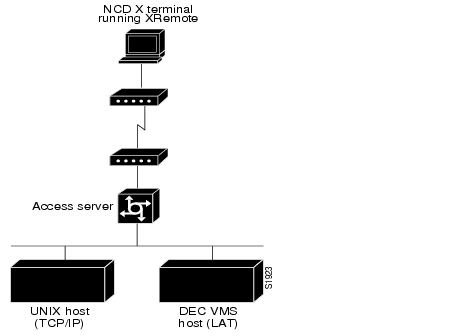
illustrates an XRemote connection between an X terminal and an access server. In , the server-side helper runs on the X terminal and the client-side helper runs on the access server.Figure 16-1 XRemote Session from an X Display Server Running XRemote
Remote Access to Fonts
Remote access to fonts is provided in these ways:
•
•
•
•
A single XRemote user can use any combination of TCP/IP and LAT client connections, and any combination of TFTP and LAT font access.
XRemote Configuration Task List
To make a host connection using NCD's XRemote feature and the access server, complete the tasks in the following sections, as needed:
•
•
The following sections describe these tasks. See the end of this chapter for a configuration example.
Attach a Modem
In general, you can use any modem that provides acceptable performance for your application. The following guidelines apply to an XRemote operation using a modem (refer to the user manual for your modem for specific connection procedures):
•
•
•
DTR/DSR) is recommended. Software flow control (such as XON/XOFF) is discouraged.•
•
Refer to the chapter "Configuring Terminal Lines and Modem Support" earlier in this publication for more information about configuring modems.
Set Up X Terminal Parameters
The X Server for the X terminal and the network and serial parameters for the X terminal must be configured as described in the publications for the specific X terminal you are using. In general, the X terminal configuration determines the mode of operation for the terminal, the source of font information, and the source of remote configuration information (when applicable).
Define a Font Server
To download fonts to the X terminal, perform the following task in global configuration mode:
Select the Fonts
The NCD terminal contains a small set of built-in fonts in local ROM. You should use these fonts because loading fonts over a serial line can increase application startup time. The default for an NCD terminal is to use built-in fonts, unless you log in using DECwindows over LAT. When using DECwindows over LAT, the standard DECwindows fonts are used automatically.
Perform the following two tasks to select fonts:
•
Access Nonresident Fonts Using TFTP
When an X terminal application requests a font that is not stored in the terminal's ROM, the X terminal makes a request for a font file from the access server. The access server uses the Trivial File Transfer Protocol (TFTP) to load the font from the font server, and then passes the font to the X terminal using the XRemote protocol. The process of loading fonts from the access server to the X terminal can take 30 to 45 seconds, depending on the size of the font file.
An X server can display only the fonts it finds in the directories in its font path. The X server's default font path includes only the built-in fonts. To access fonts stored on a host, you must add the host's font directories to the X server's font path. To do this, use the UNIX command xset with the fp+ argument to add fonts to the end of the server's font path.
For example, to allow your display station to access the 100 dots per inch (dpi) fonts found in the standard font directory, run the following command at the host system prompt:
host_prompt% xset fp+ /usr/lib/x11/ncd/fonts/100dpiFor more information, refer to the NCDware XRemote User's Manual.
Select DECwindows Fonts
Downloading of fonts occurs automatically when you initiate a remote DECwindows login session using the EXEC xremote lat command. Instead of relying on TFTP to download the fonts, the fonts are read in via the LAT protocol.
If you want to use DECwindows fonts while running standard X applications on a UNIX host, you need to use the UNIX xset command or an application that issues an XSetFontPath request to set a font path. You might want to do this if you are primarily a TCP/IP user, but also run some DECwindows applications.
Execute xset, or the application to issue an XSetFontPath request, to set the following path:
/LAT/SERVICE
In this path, SERVICE is a LAT service name with DECwindows support; case is not significant.
When the access server sees a request for font files in that directory, it uses LAT instead of TFTP to access the specified service.
Increase the Internal Buffer Size
When the X terminal requests that a font file be loaded, the access server must first load the font file into an internal buffer before passing it to the X terminal. The default value for this buffer is 70000 bytes, which is adequate for most font files, but the size can be increased as necessary for nonstandard font files.
To change the buffer size, perform the following global configuration task:
This task can be performed for both TFTP and LAT font access.
Set the Number of Font Loader Retries
You might need to increase the number of times that the font loader tries to load the fonts. This is particularly important when the font servers are known to be heavily loaded.
To set the TFTP font loader, perform the following global configuration task:
Monitor XRemote Activity
To check the status of XRemote connections, perform one or more of the following tasks at the EXEC prompt:
Display current connections and monitor traffic.
show xremote
Display traffic and line statistics.
show xremote line number
XRemote Configuration File Example
The following example illustrates how to specify IBM-1 as the host name of the TFTP font server, specify 7 retry attempts at accessing the server, and reduce the buffer size to 20,000 bytes.
xremote tftp host IBM-1xremote tftp retries 7xremote tftp buffersize 20000