



 Feedback
Contents
- MPLS Traffic Engineering (TE)--Automatic Bandwidth Adjustment for TE Tunnels
- Finding Feature Information
- Prerequisites for MPLS TE--Automatic Bandwidth Adjustment for TE Tunnels
- Restrictions for MPLS TE--Automatic Bandwidth Adjustment for TE Tunnels
- Information About MPLS TE--Automatic Bandwidth Adjustment for TE Tunnels
- MPLS TE--Automatic Bandwidth Adjustment for TE Tunnels Overview
- MPLS TE--Automatic Bandwidth Adjustment for TE Tunnels Benefits
- How to Configure MPLS TE--Automatic Bandwidth Adjustment for TE Tunnels
- Configuring a Device to Support Traffic Engineering Tunnels
- Configuring IS-IS or OSPF for MPLS Traffic Engineering
- Configuring IS-IS for MPLS Traffic Engineering
- Configuring OSPF for MPLS Traffic Engineering
- Configuring Bandwidth on Each Link That a Tunnel Crosses
- Configuring an MPLS Traffic Engineering Tunnel
- Troubleshooting Tips
- Enabling Automatic Bandwidth Adjustment on a Platform
- Enabling Automatic Bandwidth Adjustment for a Tunnel
- Configuring the Interval for Computing the Tunnel Average Output Rate
- Verifying Automatic Bandwidth Configuration
- Configuration Examples for MPLS TE--Automatic Bandwidth Adjustments for TE Tunnels
- Configuring MPLS Traffic Engineering Automatic Bandwidth Example
- Tunnel Configuration for Automatic Bandwidth Example
- Additional References
- Feature Information for MPLS TE--Automatic Bandwidth Adjustment for TE Tunnels
MPLS Traffic Engineering (TE)--Automatic Bandwidth Adjustment for TE Tunnels
The MPLS Traffic Engineering (TE)--Automatic Bandwidth Adjustment for TE Tunnels feature provides the means to automatically adjust the bandwidth allocation for traffic engineering tunnels based on their measured traffic load. The configured bandwidth in the running configuration is changed due to the automatic bandwidth behavior.
- Finding Feature Information
- Prerequisites for MPLS TE--Automatic Bandwidth Adjustment for TE Tunnels
- Restrictions for MPLS TE--Automatic Bandwidth Adjustment for TE Tunnels
- Information About MPLS TE--Automatic Bandwidth Adjustment for TE Tunnels
- How to Configure MPLS TE--Automatic Bandwidth Adjustment for TE Tunnels
- Configuration Examples for MPLS TE--Automatic Bandwidth Adjustments for TE Tunnels
- Additional References
- Feature Information for MPLS TE--Automatic Bandwidth Adjustment for TE Tunnels
Finding Feature Information
Your software release may not support all the features documented in this module. For the latest feature information and caveats, see the release notes for your platform and software release. To find information about the features documented in this module, and to see a list of the releases in which each feature is supported, see the Feature Information Table at the end of this document.
Use Cisco Feature Navigator to find information about platform support and Cisco software image support. To access Cisco Feature Navigator, go to www.cisco.com/go/cfn. An account on Cisco.com is not required.
Prerequisites for MPLS TE--Automatic Bandwidth Adjustment for TE Tunnels
Your network must support the following:
- Multiprotocol Label Switching (MPLS) traffic engineering (TE) tunnels
- Cisco Express Forwarding
- Intermediate System-to-Intermediate System (IS-IS) or Open Shortest Path First (OSPF)
MPLS TE must be configured on the interface and on the tunnels.
Restrictions for MPLS TE--Automatic Bandwidth Adjustment for TE Tunnels
- The automatic bandwidth adjustment feature treats each tunnel for which it has been enabled independently. That is, it adjusts the bandwidth for each such tunnel according to the adjustment frequency configured for the tunnel and the sampled output rate for the tunnel since the last adjustment without regard for any adjustments previously made or pending for other tunnels.
- If a tunnel is brought down to calculate a new label switched path (LSP) because the LSP is not operational, the configured bandwidth is not saved. If the router is reloaded, the last saved automatic bandwidth value is used.
- You cannot configure MPLS TE over the logical generic routing encapsulation (GRE) tunnel interface.
- MPLS traffic engineering supports only a single IGP process/instance. Multiple IGP processes/instances are not supported and MPLS traffic engineering should not be configured in more than one IGP process/instance.
Information About MPLS TE--Automatic Bandwidth Adjustment for TE Tunnels
- MPLS TE--Automatic Bandwidth Adjustment for TE Tunnels Overview
- MPLS TE--Automatic Bandwidth Adjustment for TE Tunnels Benefits
MPLS TE--Automatic Bandwidth Adjustment for TE Tunnels Overview
Traffic engineering autobandwidth samples the average output rate for each tunnel marked for automatic bandwidth adjustment. For each marked tunnel, the feature periodically (for example, once per day) adjusts the tunnel's allocated bandwidth to be the largest sample for the tunnel since the last adjustment.
The frequency with which tunnel bandwidth is adjusted and the allowable range of adjustments is configurable on a per-tunnel basis. In addition, the sampling interval and the interval over which to average tunnel traffic to obtain the average output rate is user-configurable on a per-tunnel basis.
How to Configure MPLS TE--Automatic Bandwidth Adjustment for TE Tunnels
- Configuring a Device to Support Traffic Engineering Tunnels
- Configuring IS-IS or OSPF for MPLS Traffic Engineering
- Configuring Bandwidth on Each Link That a Tunnel Crosses
- Configuring an MPLS Traffic Engineering Tunnel
- Enabling Automatic Bandwidth Adjustment on a Platform
- Enabling Automatic Bandwidth Adjustment for a Tunnel
- Configuring the Interval for Computing the Tunnel Average Output Rate
- Verifying Automatic Bandwidth Configuration
Configuring a Device to Support Traffic Engineering Tunnels
DETAILED STEPS
Configuring IS-IS or OSPF for MPLS Traffic Engineering
Perform one of the follow tasks to configure IS-IS or OSPF for MPLS TE:
Configuring IS-IS for MPLS Traffic Engineering
DETAILED STEPS
Configuring OSPF for MPLS Traffic Engineering
DETAILED STEPS
Configuring Bandwidth on Each Link That a Tunnel Crosses
DETAILED STEPS
Configuring an MPLS Traffic Engineering Tunnel
To configure an MPLS TE tunnel, perform the following task. The MPLS TE tunnel has two path setup options: a preferred explicit path and a backup dynamic path.
 Note | The configuration applies only to the TE head-end node. The configuration applies to all nodes and interfaces in the network. |
DETAILED STEPS
Enabling Automatic Bandwidth Adjustment on a Platform
To enable automatic bandwidth adjustment on a platform and initiate sampling the output rate for tunnels configured for bandwidth adjustment, perform the following task.
Note | This task is applicable only to the TE head-end router. The configuration applies to all locally-configured TE head-end interfaces. |
DETAILED STEPS
| Command or Action | Purpose | |
|---|---|---|
Step 1 |
enable
Example: Router> enable |
Enables privileged EXEC mode.
|
Step 2 |
configure
terminal
Example: Router# configure terminal |
Enters global configuration mode. |
Step 3 |
mpls
traffic-eng
auto-bw
timers
[frequency seconds] Example: Router(config)# mpls traffic-eng auto-bw timers frequency 300 |
Enables automatic bandwidth adjustment on a platform and begins sampling the output rate for tunnels that have been configured for automatic bandwidth adjustment.
|
Step 4 |
no
mpls
traffic-eng
auto-bw
timers
Example: Router(config)# no mpls traffic-eng auto-bw timers |
(Optional) Disables automatic bandwidth adjustment on a platform.
|
Step 5 |
exit
Example: Router(config)# exit |
Exits to privileged EXEC mode. |
Enabling Automatic Bandwidth Adjustment for a Tunnel
DETAILED STEPS
| Command or Action | Purpose | |
|---|---|---|
Step 1 |
enable
Example: Router> enable |
Enables privileged EXEC mode.
|
Step 2 |
configure
terminal
Example: Router# configure terminal |
Enters global configuration mode. |
Step 3 |
interface
tunnel
number
Example: Router(config)# interface tunnel 1 |
Configures a tunnel interface and enters interface configuration mode. |
Step 4 |
tunnel
mpls
traffic-eng
auto-bw
[collect-bw]
[frequency
seconds
] [adjustment-threshold percent] [overflow-limit number overflow-threshold percent] [max-bw kbps] [min-bw kbps] Example: Router(config-if)# tunnel mpls traffic-eng auto-bw max-bw 2000 min-bw 1000 |
Enables automatic bandwidth adjustment for the tunnel and controls the manner in which the bandwidth for a tunnel is adjusted. |
Step 5 |
exit
Example: Router(config-if)# exit |
Exits to global configuration mode. |
Step 6 |
exit
Example: Router(config)# exit |
Exits to privileged EXEC mode. |
Configuring the Interval for Computing the Tunnel Average Output Rate
DETAILED STEPS
| Command or Action | Purpose | |
|---|---|---|
Step 1 |
enable
Example: Router> enable |
Enables privileged EXEC mode.
|
Step 2 |
configure
terminal
Example: Router# configure terminal |
Enters global configuration mode. |
Step 3 |
interface
tunnel
number
Example: Router(config)# interface tunnel 1 |
Configures a tunnel interface and enters interface configuration mode. |
Step 4 |
load-interval
seconds
Example: Router(config-if)# load-interval 90 |
Configures the interval over which the input and output rates for the interface are averaged.
|
Step 5 |
exit
Example: Router(config-if)# exit |
Exits to global configuration mode. |
Step 6 |
exit
Example: Router(config)# exit |
Exits to privileged EXEC mode. |
Verifying Automatic Bandwidth Configuration
DETAILED STEPS
| Step 1 |
show
mpls
traffic-eng
tunnels
Use this command to display information about tunnels, including automatic bandwidth information for tunnels that have the feature enabled. For example: Example:
Router# show mpls traffic-eng tunnels
Name:tagsw4500-9_t1 (Tunnel1) Destination:10.0.0.4
Status:
Admin:up Oper:up Path:valid Signalling:connected
path option 1, type explicit pbr_south (Basis for Setup, path weight 30)
path option 2, type dynamic
Config Parameters:
Bandwidth:13 kbps (Global) Priority:7 7 Affinity:0x0/0xFFFF
AutoRoute: disabled LockDown:disabled Loadshare:13 bw-based
auto-bw:(300/265) 53 Bandwidth Requested: 13
   Adjustment threshold: 5%
   Overflow Limit: 4  Overflow Threshold: 25%
  Overflow Threshold Crossed: 1
  Sample Missed: 1 Samples Collected: 1
Active Path Option Parameters:
  State: dynamic path option 1 is active
  BandwidthOverride: disabled  LockDown: disabled  Verbatim: disabled
 InLabel  :  -
 OutLabel : Serial3/0, 18
 RSVP Signalling Info:
   Src 10.0.0.1, Dst 10.0.0.4, Tun_Id 2, Tun_Instance 2
  RSVP Path Info:
   My Address: 10.105.0.1
   Explicit Route: 10.105.0.2 104.105.0.1 10.0.0.4
   Record   Route:   NONE
   Tspec: ave rate=13 kbits, burst=1000 bytes, peak rate=13 kbits
 Record   Route:   NONE
   Tspec: ave rate=13 kbits, burst=1000 bytes, peak rate=13 kbits
  RSVP Resv Info:
   Record   Route:   NONE
   Fspec: ave rate=13 kbits, burst=1000 bytes, peak rate=13 kbits
  Shortest Unconstrained Path Info:
   Path Weight: 128 (TE)
   Explicit Route: 10.105.0.2 104.105.0.1 10.0.0.4
  History:
   Tunnel:
    Time since created: 7 minutes, 56 seconds
     Time since path change: 7 minutes, 18 seconds
     Number of LSP IDs (Tun_Instances) used: 2
     Number of Auto-bw Adjustment resize requests: 1
     Time since last Auto-bw Adjustment resize request: 1 minutes, 7 seconds
     Number of Auto-bw Overflow resize requests: 1
     Time since last Auto-bw Overflow resize request: 52 seconds
     Current LSP:
      Uptime: 52 seconds
      Selection: reoptimization
    Prior LSP:
ID: path option 1 [1]
  Removal Trigger: configuration changed
In the command output:
Example: |
| Step 2 |
show
running-config
Use this command to verify that the tunnel mpls traffic-eng auto bw command is as you expected. For example: Example:
Router# show running-config
.
.
.
interface tunnel1
  ip unnumbered loopback 0
  tunnel destination 192.168.17.17 255.255.255.0
  tunnel mode mpls traffic-eng
  tunnel mpls traffic-eng bandwidth 1500
  tunnel mpls traffic-eng priority 1 1
  tunnel mpls traffic-eng path-option 1 dynamic
tunnel mpls traffic-eng auto bw max-bw 2000 min-bw 1000 !Enable automatic bandwidth Example: . . . The sample output from the show running-config command shows that the value 1500, in the tunnel mpls traffic-eng bandwidth 1500 command, changes after an adjustment is made. Example: |
Configuration Examples for MPLS TE--Automatic Bandwidth Adjustments for TE Tunnels
The figure below illustrates a sample MPLS topology. The following sections contain sample configuration examples to configure automatic bandwidth adjustment for MPLS TE tunnels originating on Router 1 and to enable automatic bandwidth adjustment for Tunnel 1.
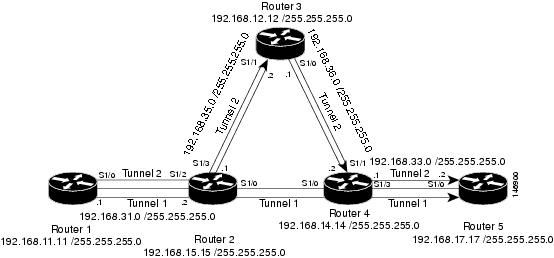
The examples omit some configuration required for MPLS TE, such as the required RSVP and Interior Gateway Protocol (IGP) (IS-IS or OSPF) configuration, because the purpose of these examples is to illustrate the configuration for automatic bandwidth adjustment.
- Configuring MPLS Traffic Engineering Automatic Bandwidth Example
- Tunnel Configuration for Automatic Bandwidth Example
Configuring MPLS Traffic Engineering Automatic Bandwidth Example
The following example shows how to use the mpls traffic-eng auto-bw timers command to enable automatic bandwidth adjustment for Router 1. The command specifies that the output rate is to be sampled every 10 minutes for tunnels configured for automatic bandwidth adjustment.
configure terminal
!
ip cef distributed
mpls traffic-eng tunnels
mpls traffic-eng auto-bw timers frequency 600  !Enable automatic bandwidth adjustment
interface loopback 0
ip address 192.168.11.11 255.255.255.0
Tunnel Configuration for Automatic Bandwidth Example
The following example shows how to use the tunnel mpls traffic-eng auto-bw command to enable automatic bandwidth adjustment for Tunnel 1. The command specifies a maximum allowable bandwidth of 2000 kbps, a minimum allowable bandwidth of 1000 kbps, and that the default automatic bandwidth adjustment frequency of once a day be used.
interface tunnel1
  ip unnumbered loopback 0
  tunnel destination 192.168.17.17
  tunnel mode mpls traffic-eng
  tunnel mpls traffic-eng bandwidth 1500
  tunnel mpls traffic-eng priority 1 1
  tunnel mpls traffic-eng path-option 1 dynamic
  tunnel mpls traffic-eng auto-bw max-bw 2000 min-bw 1000   !Enable automatic bandwidth
                                                            !adjustment for Tunnel1
Additional References
Related Documents
|
Related Topic |
Document Title |
|---|---|
|
IS-IS and OSPF commands |
Cisco IOS IP Routing Protocols Command Reference |
|
MPLS commands |
Cisco IOS Multiprotocol Label Switching Command Reference |
|
Quality of service solutions commands |
Cisco IOS Quality of Service Solutions Command Reference |
|
Quality of service solutions configuration |
Quality of Service Overview |
MIBs
Technical Assistance
|
Description |
Link |
|---|---|
|
The Cisco Support website provides extensive online resources, including documentation and tools for troubleshooting and resolving technical issues with Cisco products and technologies. To receive security and technical information about your products, you can subscribe to various services, such as the Product Alert Tool (accessed from Field Notices), the Cisco Technical Services Newsletter, and Really Simple Syndication (RSS) Feeds. Access to most tools on the Cisco Support website requires a Cisco.com user ID and password. |
Feature Information for MPLS TE--Automatic Bandwidth Adjustment for TE Tunnels
The following table provides release information about the feature or features described in this module. This table lists only the software release that introduced support for a given feature in a given software release train. Unless noted otherwise, subsequent releases of that software release train also support that feature.
Use Cisco Feature Navigator to find information about platform support and Cisco software image support. To access Cisco Feature Navigator, go to www.cisco.com/go/cfn. An account on Cisco.com is not required.
| Table 1 | Feature Information for MPLS TE--Automatic Bandwidth Adjustment for TE Tunnels |
|
Feature Name |
Releases |
Feature Information |
|---|---|---|
|
MPLS Traffic Engineering (TE)--Automatic Bandwidth Adjustment for TE Tunnels |
Release 12.2(33)SRE |
The MPLS Traffic Engineering (TE)--Automatic Bandwidth Adjustment for TE Tunnels feature provides the means to automatically adjust the bandwidth allocation for traffic engineering tunnels based on their measured traffic load. The configured bandwidth in the running configuration is changed due to the automatic bandwidth behavior. The following commands were introduced or modified to support automatic bandwidth adjustment threshold and overflow threshold: mpls traffic-eng lsp attributes, show mpls traffic-eng tunnels,and tunnel mpls traffic-eng auto-bw. |
Cisco and the Cisco logo are trademarks or registered trademarks of Cisco and/or its affiliates in the U.S. and other countries. To view a list of Cisco trademarks, go to this URL: www.cisco.com/go/trademarks. Third-party trademarks mentioned are the property of their respective owners. The use of the word partner does not imply a partnership relationship between Cisco and any other company. (1110R)
Any Internet Protocol (IP) addresses and phone numbers used in this document are not intended to be actual addresses and phone numbers. Any examples, command display output, network topology diagrams, and other figures included in the document are shown for illustrative purposes only. Any use of actual IP addresses or phone numbers in illustrative content is unintentional and coincidental.