Feedback
Table Of Contents
Uninstalling Cisco IPICS from the Cisco IPICS Server
Uninstalling Cisco IPICS from a Remote Location
Uninstalling Cisco IPICS
This chapter provides information about the procedures that you need to follow to the Cisco IPICS server software. You can perform the uninstallation procedure in one of the following ways:
•
From the Cisco IPICS server by using a Cisco Linux terminal window
•
This chapter includes the following sections:
•
•
The Cisco IPICS uninstallation procedure removes all of the components and directories that were created during the Cisco IPICS installation. If you intend to reinstall Cisco IPICS at a later time, you should back up your database and log files before you begin the uninstall process.
For information on backing up files, refer to the Cisco IPICS Backup and Restore Guide.
Note
Uninstalling Cisco IPICS from the Cisco IPICS Server
To uninstall Cisco IPICS directly from the Cisco IPICS server, perform the following procedure:
Procedure
Step 1
The Cisco Linux desktop displays.
Step 2
a.
The contents of the /root directory display.
b.
The contents of the /opt/cisco/ipics/ipics_db directory display.
c.
The contents of the /opt/cisco/ipics directory display.
d.
The contents of the /opt/cisco/ipics/uninstaller directory display.
e.
Step 3
Cisco Linux displays a message window that offers options to display or run the installer file.
Step 4
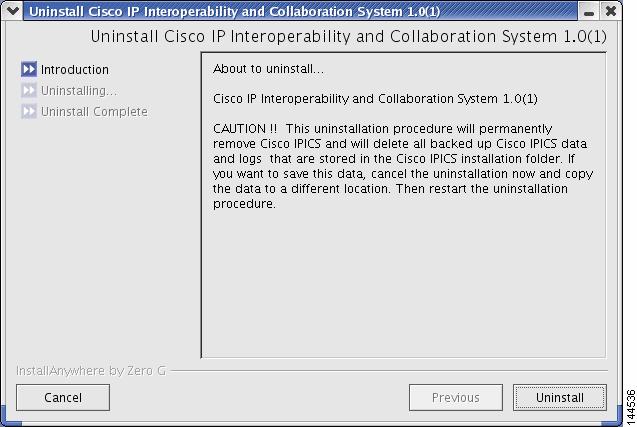
The installer displays a message about the information that will be overwritten during the uninstall process. See Figure 4-1 for an example of the window.
Figure 4-1 Introduction Window of the Uninstaller
Step 5
Caution
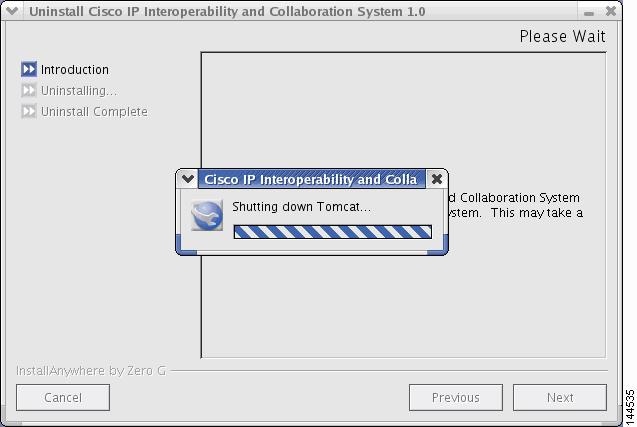
The uninstaller begins and uninstalls the Cisco IPICS components, such as the Informix database and the Tomcat service. See Figure 4-2 for an example of the window.
Figure 4-2 Uninstallation Progress
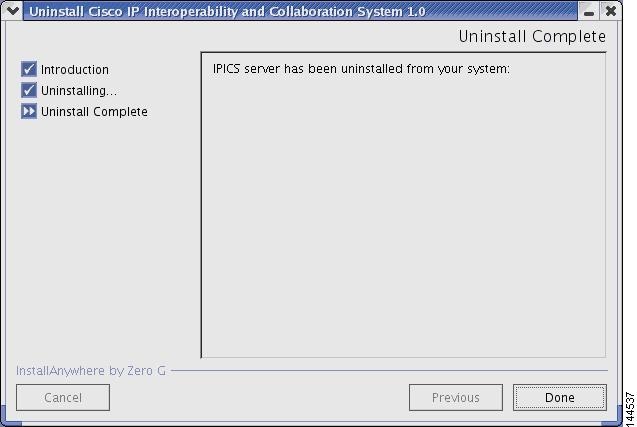
When the uninstaller finishes removing files, the Uninstall Complete window displays.
Figure 4-3 Uninstall Complete Window
Step 6
The window closes and you are returned to the Cisco Linux desktop.
Step 7
Uninstalling Cisco IPICS from a Remote Location
It may be necessary or desirable for you to perform the Cisco IPICS server software uninstallation from a remote location on your network. This section describes the method for uninstalling Cisco IPICS from a PC that is connected to the network.
To uninstall the Cisco IPICS server software from a PC on the network, perform the following procedure:
Procedure
Step 1
The SSH Tectia Client displays. The desktop of your PC displays in the left pane.
Step 2
The Connect to Remote Host window displays.
Step 3
Step 4
The Enter Password window displays.
Step 5
The SSH Tectia Client connects to the Cisco IPICS server and displays a command prompt for the root user.
Step 6
[root] #cd /opt/cisco/ipics/uninstaller
Step 7
[root] #ls -l
Step 8
Step 9
[root] #./uninstall_ipics_x_x -i console
The uninstaller displays a caution that states that the uninstall procedure will permanently remove Cisco IPICS and will delete all backed up Cisco IPICS data and logs that are stored in the Cisco IPICS installation folder.
Step 10
•
•
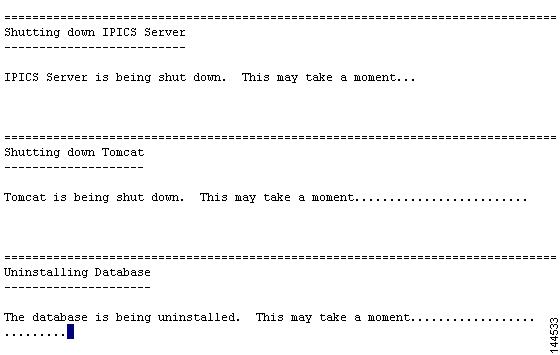
If you press Enter, the uninstallation proceeds and the uninstaller displays information about the processes that it is shutting down and removing. See Figure 4-4 for an example of the uninstallation information.
Figure 4-4 Uninstallation Progress
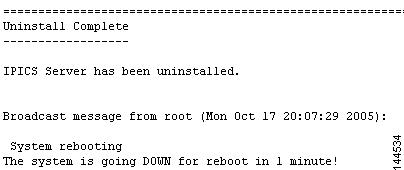
When the uninstaller finishes removing the Cisco IPICS files and folders, an Uninstall Complete message displays and informs you that the server is about to restart. See Figure 4-5 for an example of the message.
Figure 4-5 Uninstall Complete Message
Step 11