Configurar SCEP para Provisionamento de Certificado Localmente Significativo no 9800 WLC

Introdução
Este documento descreve como configurar a controladora Wireless LAN (WLC) 9800 para o registro de LSC (Locally Significant Certificate) para fins de ingresso de Ponto de Acesso (AP) por meio dos recursos NDES (Network Device Enrollment Service) e SCEP (Simple Certificate Enrollment Protocol) do Microsoft Windows Server 2012 R2 Standard.
Pré-requisitos
Para executar com êxito o SCEP com o Windows Server, a WLC 9800 deve atender aos seguintes requisitos:
- Deve haver acessibilidade entre o controlador e o servidor.
- A controladora e o servidor são sincronizados com o mesmo servidor NTP ou compartilham a mesma data e fuso horário (se a hora for diferente entre o servidor CA e a hora do AP, o AP tem problemas com a validação e instalação do certificado).
O Windows Server deve ter os Serviços de Informações da Internet (IIS) habilitados anteriormente.
Requisitos
A Cisco recomenda que você tenha conhecimento dessas tecnologias:
- Controladora de LAN sem fio 9800 versão 16.10.1 ou superior.
- Microsoft Windows Server 2012 Standard
- Infraestrutura de Chave Privada (PKI) e certificados.
Componentes Utilizados
As informações neste documento são baseadas nestas versões de software e hardware:
- Software 9800-L WLC versão 17.2.1.
- Windows Server 2012 Standard R2
- Access Points 3802.
As informações neste documento foram criadas a partir de dispositivos em um ambiente de laboratório específico. Todos os dispositivos utilizados neste documento foram iniciados com uma configuração (padrão) inicial. Se a rede estiver ativa, certifique-se de que você entenda o impacto potencial de qualquer comando.
Informações de Apoio
Os novos certificados LSC, tanto o certificado raiz da autoridade de certificação (CA) quanto o certificado do dispositivo, devem ser instalados no controlador para eventualmente baixá-los nos APs. Com o SCEP, os certificados da CA e do dispositivo são recebidos do servidor da CA e, posteriormente, instalados automaticamente no controlador.
O mesmo processo de certificação ocorre quando os AP são provisionados com LSCs; para fazer isso, o controlador atua como um proxy de CA e ajuda a obter a solicitação de certificado (autogerada) assinada pela CA para o AP.
Configurar
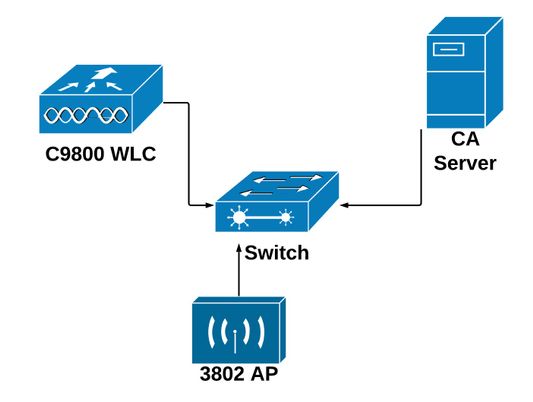
Diagrama de Rede
Habilitar Serviços SCEP no Windows Server
Etapa 1. No aplicativo Server Manager, selecione o menu Manage e, em seguida, selecione a opção Add Roles and Features para abrir a função Add Roles and Features Configuration Wizard. A partir daí, selecione a instância do servidor usada para registro do servidor SCEP.
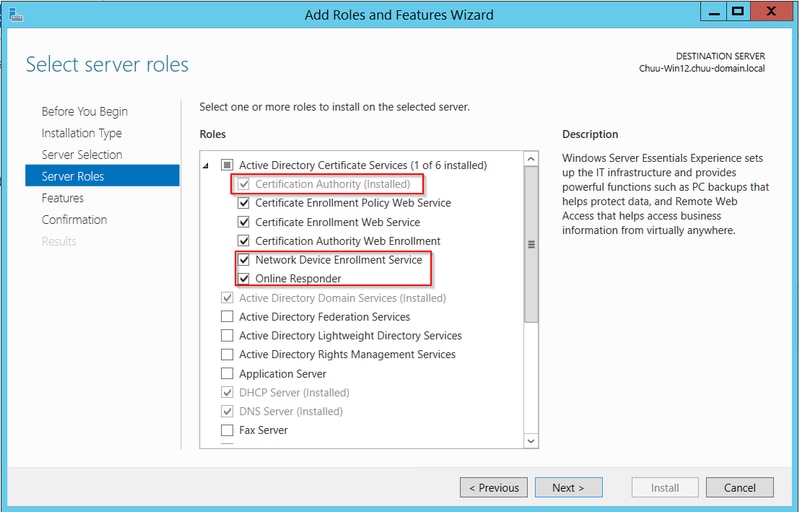
Etapa 2. Verifique se os recursos Autoridade de Certificação, Serviço de Registro de Dispositivo de Rede e Respondente Online estão selecionados e selecione Avançar:
Etapa 3. Selecione Next duas vezes e, em seguida, Finish para finalizar o Assistente de configuração. Aguarde até que o servidor conclua o processo de instalação do recurso e selecione Fechar para fechar o Assistente.
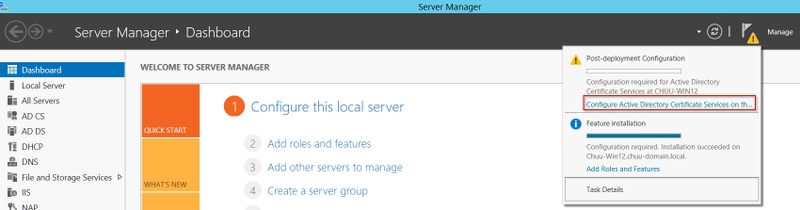
Etapa 4. Depois que a instalação for concluída, um ícone de aviso será exibido no ícone Server Manager Notification (Notificação do Gerenciador do Servidor). Selecione-o e selecione o link da opção Configurar Serviços do Ative Diretory no servidor de destino para iniciar o menu do assistente Configuração do AD CS.
Etapa 5. Selecione os serviços de função Network Device Enrollment Service e Online Responder a serem configurados no menu e, em seguida, selecione Avançar.
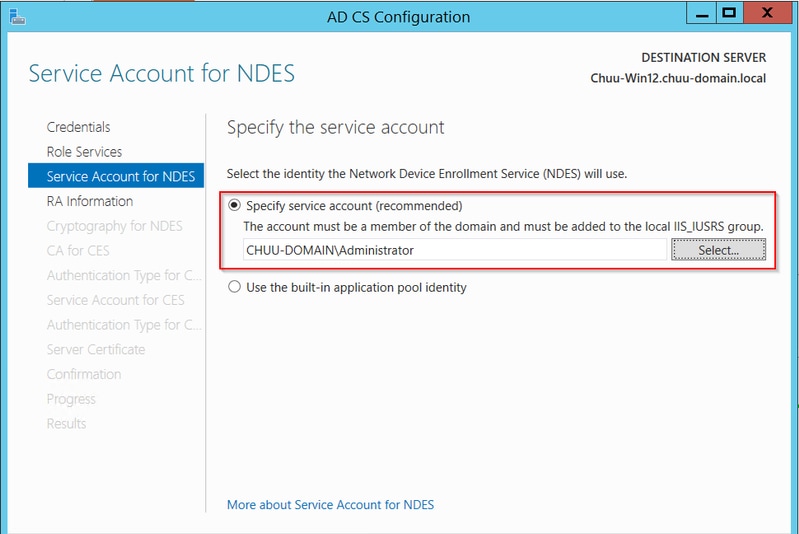
Etapa 6. Na Conta de Serviço para NDES, selecione uma das opções entre o pool de aplicativos interno ou a conta de serviço e, em seguida, selecione Próximo.
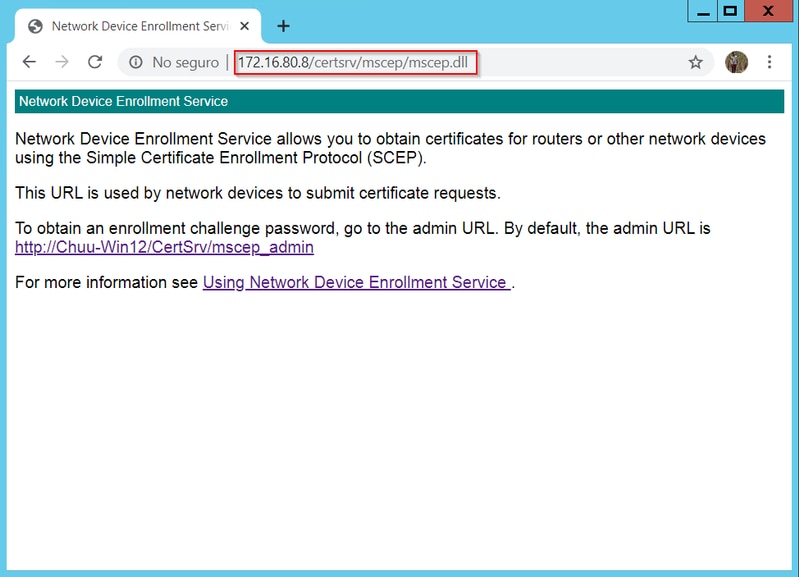
Etapa 7. Selecione Next para as próximas telas e deixe o processo de instalação terminar. Após a instalação, a URL do SCEP estará disponível com qualquer navegador da Web. Navegue até a URL http://<server ip>/certsrv/mscep/mscep.dll para verificar se o serviço está disponível.
Desabilitar Requisito de Senha de Desafio de Inscrição SCEP
Por padrão, o Windows Server usava uma senha de desafio dinâmico para autenticar solicitações de cliente e de endpoint antes da inscrição no Microsoft SCEP (MSCEP). Isso exige que uma conta de administrador navegue até a GUI da Web para gerar uma senha sob demanda para cada solicitação (a senha deve ser incluída na solicitação).O controlador não é capaz de incluir essa senha nas solicitações que ele envia ao servidor. Para remover este recurso, a chave do Registro no servidor NDES precisa ser modificada:
Etapa 1. Abra o Editor do Registro, procure Regedit no menu Iniciar.
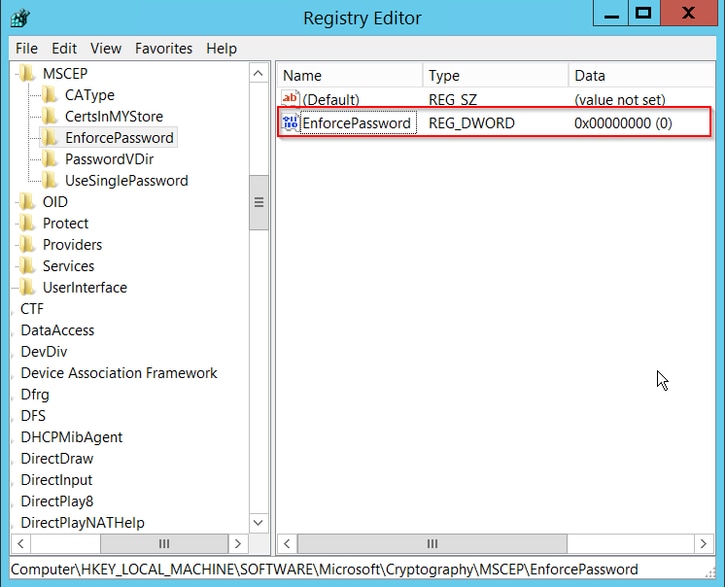
Etapa 2. Navegue até Computador > HKEY_LOCAL_MACHINE > SOFTWARE > Microsoft > Criptografia > MSCEP > Aplicar Senha
Etapa 3. Altere o valor de EnforcePassword para 0. Se ele já for 0, deixe-o como está.
Configurar o Modelo de Certificado e o Registro
Os certificados e suas chaves associadas podem ser usados em vários cenários para diferentes finalidades definidas pelas políticas de aplicativo no servidor CA. A política de aplicativo é armazenada no campo Uso Estendido de Chave (EKU) do certificado. Esse campo é analisado pelo autenticador para verificar se é usado pelo cliente para a finalidade pretendida. Para certificar-se de que a política de aplicativo apropriada esteja integrada aos certificados WLC e AP, crie o modelo de certificado apropriado e mapeie-o para o registro NDES:
Etapa 1. Navegue até Start > Administrative Tools > Certification Authority.
Etapa 2. Expanda a árvore de pastas do servidor CA, clique com o botão direito do mouse nas pastas Modelos de certificado e selecione Gerenciar.
Etapa 3. Clique com o botão direito do mouse no modelo de certificado Users e selecione Duplicate Template no menu de contexto.
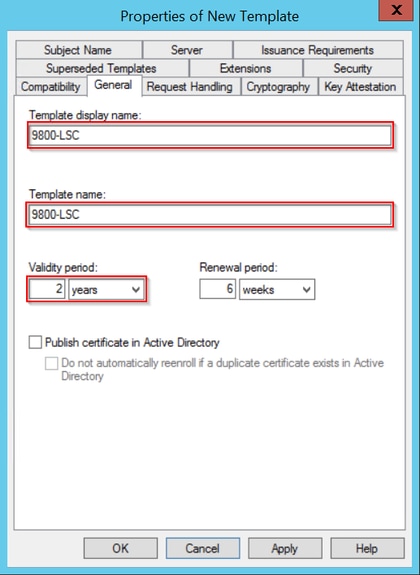
Etapa 4. Navegue até a guia Geral, altere o nome do modelo e o período de validade conforme desejado e deixe todas as outras opções desmarcadas.
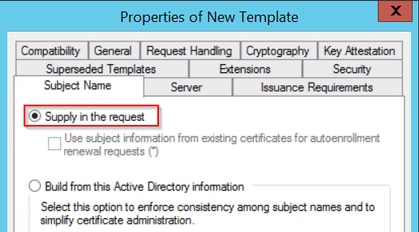
Etapa 5. Navegue até a guia Nome do assunto, certifique-se de que Suprimento na solicitação esteja selecionado. Um pop-up aparece para indicar que os usuários não precisam de aprovação do administrador para obter seu certificado assinado. Selecione OK.
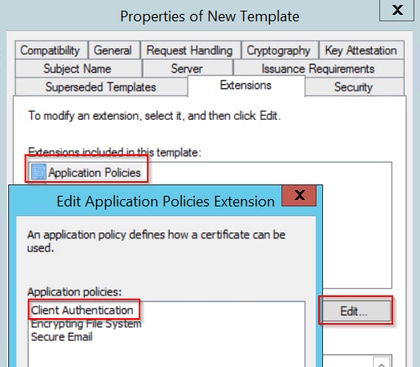
Etapa 6. Navegue até a guia Extensões e selecione a opção Políticas de aplicativos e selecione o botão Editar.... Certifique-se de que Client Authentication esteja na janela Application Policies; caso contrário, selecione Add e adicione-o.
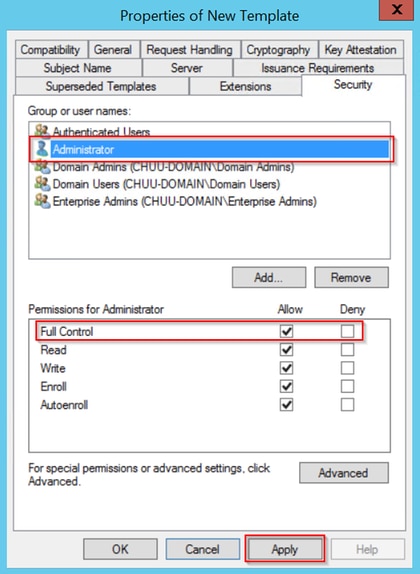
Etapa 7. Navegue até a guia Segurança, certifique-se de que a conta de serviço definida na Etapa 6 de Ativar serviços SCEP no Windows Server tenha permissões de Controle Total do modelo e selecione Aplicar e OK.
Etapa 8. Retorne à janela Autoridade de certificação, clique com o botão direito do mouse na pasta Modelos de certificado e selecione Novo > Modelo de certificado a ser emitido.
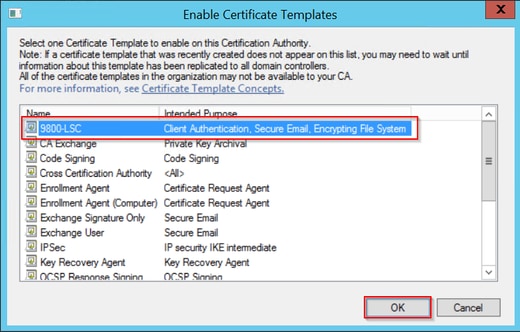
Etapa 9. Selecione o modelo de certificado criado anteriormente, neste exemplo é 9800-LSC, e selecione OK.
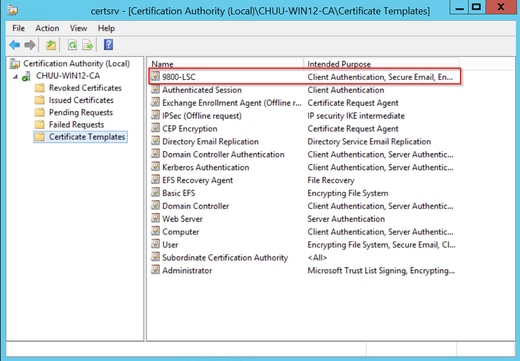
O novo modelo de certificado está listado agora no conteúdo da pasta Modelos de certificado.
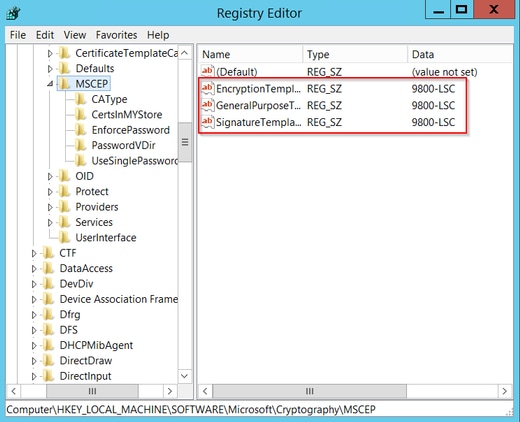
Etapa 10. Retorne à janela Editor do Registro e navegue até Computador > HKEY_LOCAL_MACHINE > SOFTWARE > Microsoft > Criptografia > MSCEP.
Etapa 11. Edite os registros EncryptionTemplate, GeneralPurposeTemplate e SignatureTemplate para que eles apontem para o modelo de certificado recém-criado.
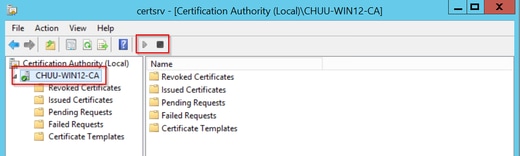
Etapa 12. Reinicialize o servidor NDES, então retorne à janela Certification Authority , selecione o nome do servidor e selecione o botão Stop e Play sucessivamente.
Configurar o ponto de confiança do dispositivo 9800
O controlador precisa ter um ponto de confiança definido para autenticar APs depois que eles forem provisionados. O ponto confiável inclui o certificado do dispositivo 9800, junto com o certificado raiz da CA obtido do mesmo servidor de CA (Microsoft CA neste exemplo). Para que um certificado seja instalado no ponto confiável, ele deve conter os atributos do assunto junto com um par de chaves RSA associadas a ele. A configuração é realizada através da interface da Web ou da linha de comando.
Etapa 1. Navegue até Configuration > Security > PKI Management e selecione a guia RSA Keypair Generation. Selecione o botão + Adicionar.
Etapa 2. Defina um rótulo associado ao par de chaves e certifique-se de que a caixa de seleção Exportável esteja marcada.
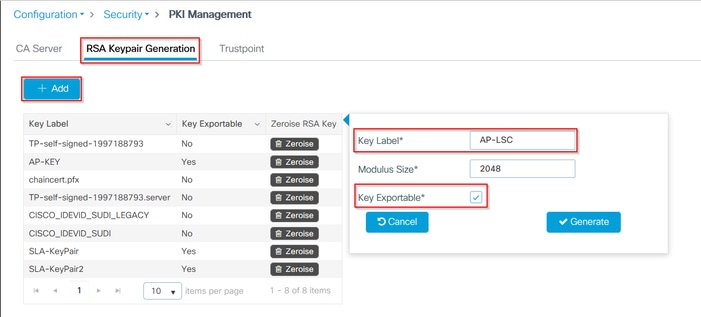
Configuração da CLI para as etapas um e dois, neste exemplo de configuração, o par de chaves é gerado com o rótulo AP-LSC e o tamanho do módulo de 2048 bits:
9800-L(config)#crypto key generate rsa exportable general-keys moduluslabel The name for the keys will be: AP-LSC % The key modulus size is 2048 bits % Generating 2048 bit RSA keys, keys will be exportable... [OK] (elapsed time was 1 seconds)
Etapa 3. Na mesma seção, selecione a guia Trustpoint e selecione o botão + Add.
Etapa 4. Preencha os detalhes do ponto confiável com as informações do dispositivo e selecione Aplicar ao dispositivo:
- O campo Rótulo é o nome associado ao ponto confiável
- Para a URL de inscrição use a definida na Etapa 7 da seção Habilitar serviços SCEP no Windows Server
- Marque a caixa de seleção Autenticar para que o certificado CA seja baixado
- O campo Domain Name é colocado como o atributo de nome comum da solicitação de certificado
- Marque a caixa de seleção Key Generated, um menu suspenso será exibido, selecione o par de chaves gerado na Etapa 2
- Marque a caixa de seleção Enroll Trustpoint, dois campos de senha são exibidos; digite uma senha. Isso é usado para encadear as chaves de certificado com o certificado do dispositivo e o certificado da CA
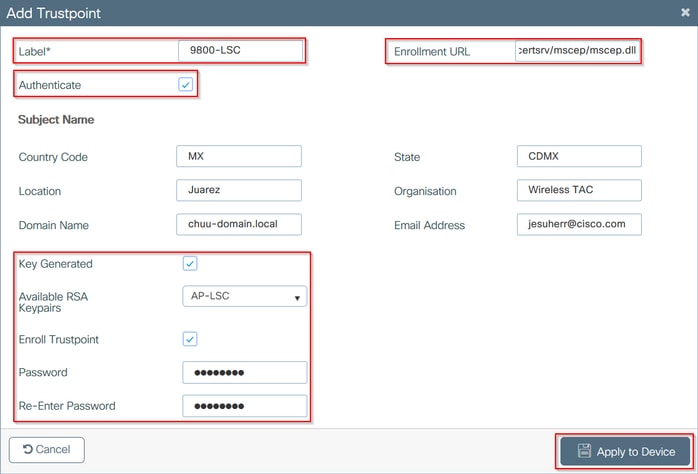
Configuração da CLI para as etapas três e quatro:
9800-L(config)#crypto pki trustpoint9800-L(ca-trustpoint)#enrollment url http:// /certsrv/mscep/mscep.dll 9800-L(ca-trustpoint)#subject-name C=, ST= 9800-L(ca-trustpoint)#rsakeypair, L= , O= , CN= /emailAddress= 9800-L(ca-trustpoint)#revocation-check none 9800-L(ca-trustpoint)#exit 9800-L(config)#crypto pki authenticate Certificate has the following attributes: Fingerprint MD5: E630EAE6 FB824658 690EB0F5 638D7224 Fingerprint SHA1: 97070ACD CAD03D5D 0C1A6085 19992E0D 6B8C4D8B % Do you accept this certificate? [yes/no]: yes Trustpoint CA certificate accepted. 9800-L(config)#crypto pki enroll <trustpoint name> % % Start certificate enrollment .. % Create a challenge password. You will need to verbally provide this password to the CA Administrator in order to revoke your certificate. For security reasons your password will not be saved in the configuration. Please make a note of it. Password: Re-enter password: % The subject name in the certificate will include: C=MX, ST=CDMX, L=Juarez, O=Wireless TAC, CN=9800-L.chuu-domain.local/emailAddress=jesuherr@cisco.com % The subject name in the certificate will include: 9800-L.alzavala.local % Include the router serial number in the subject name? [yes/no]: no % Include an IP address in the subject name? [no]: no Request certificate from CA? [yes/no]: yes % Certificate request sent to Certificate Authority % The 'show crypto pki certificate verbose AP-LSC' commandwill show the fingerprint.
Definir Parâmetros de Inscrição do AP e Atualizar Ponto Confiável de Gerenciamento
A inscrição de AP usa os detalhes do ponto de confiança definidos anteriormente para determinar os detalhes do servidor para o qual o controlador encaminha a solicitação de certificado. Como o controlador é usado como um proxy para registro de certificado, ele precisa estar ciente dos parâmetros do assunto incluídos na solicitação de certificado. A configuração é realizada através da interface da Web ou da linha de comando.
Etapa 1. Navegue até Configuration > Wireless > Access Points e expanda o menu LSC Provision.
Etapa 2. Preencha os parâmetros do nome do assunto com os atributos que são preenchidos nas solicitações de certificado AP e selecione Apply.

Configuração da CLI para as etapas um e dois:
9800-L(config)#ap lsc-provision subject-name-parameter countrycity domain org email-address

Etapa 3. No mesmo menu, selecione o ponto de confiança definido anteriormente na lista suspensa, especifique um número de tentativas de junção de AP (isso define o número de tentativas de junção antes de usar o MIC novamente) e defina o tamanho da chave do certificado. Em seguida, clique em Apply.
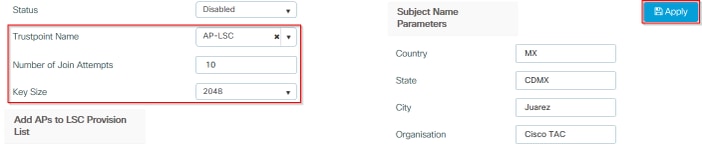
Configuração da CLI para a etapa três:
9800-L(config)#ap lsc-provision join-attempt9800-L(config)#ap lsc-provision trustpoint 9800-L(config)#ap lsc-provision key-size
Etapa 4. (Opcional) O provisionamento LSC do AP pode ser acionado para todos os APs unidos à controladora ou para APs específicos definidos em uma lista de endereços MAC. No mesmo menu, insira o endereço MAC da Ethernet do AP no formato xxxx.xxxx.xxxx no campo de texto e clique no sinal de +. Como alternativa, carregue um arquivo csv que contenha os endereços MAC do AP, selecione o arquivo e Carregar arquivo.
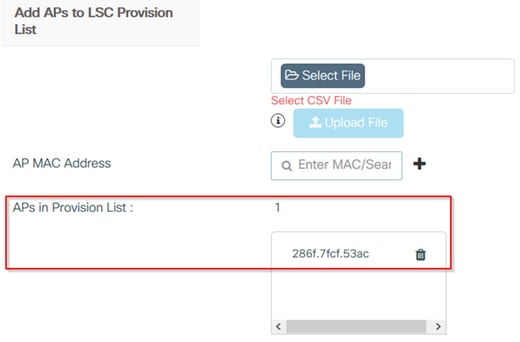
Configuração da CLI para a etapa quatro:
9800-L(config)#ap lsc-provision mac-address
Etapa 5. Selecione Enabled ou Provision List no menu suspenso ao lado do rótulo Status e clique em Apply para acionar a inscrição no LSC do AP.

Configuração da CLI para a etapa cinco:
9800-L(config)#ap lsc-provision
In Non-WLANCC mode APs will be provisioning with RSA certificates with specified key-size configuration. In WLANCC mode APs will be provisioning with EC certificates with a 384 bit key by-default or 256 bit key if configured.
Are you sure you want to continue? (y/n): y
If specific AP list provisioning is preferred then use:
9800-L(config)#ap lsc-provision provision-list
Etapa 6. Navegue até Configuration > Interface > Wireless e selecione a interface de gerenciamento. No campo Trustpoint, selecione o novo ponto confiável no menu suspenso e clique em Update & Apply to Device.
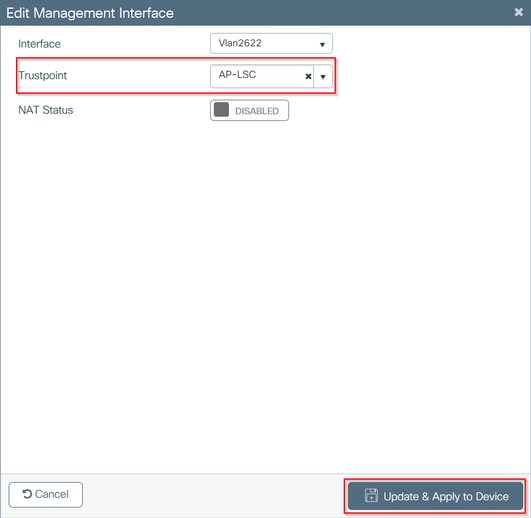
Configuração da CLI para a etapa seis:
9800-L(config)#wireless management trustpoint
Verificar
Verifique a instalação do certificado do controlador
Para verificar se as informações de LSC estão presentes no ponto de confiança da WLC 9800, emita o comando show crypto pki certificates verbose <nome do ponto de confiança>, dois certificados são associados ao ponto de confiança criado para o provisionamento e a inscrição do LSC. Neste exemplo, o nome do ponto confiável é "microsoft-ca" (somente a saída relevante é exibida):
9800-L#show crypto pki certificates verbose microsoft-ca
Certificate
  Status: Available
  Version: 3
  Certificate Usage: General Purpose
  Issuer:
    cn=CHUU-WIN12-CA
    dc=chuu-domain
    dc=local
  Subject:
    Name: 9800-L.alzavala.local
    cn=9800-L.chuu-domain.local/emailAddress=jesuherr@cisco.com
    o=Wireless TAC
    l=Juarez
    st=CDMX
    c=MX
    hostname=9800-L.alzavala.local
  CRL Distribution Points:
    ldap:///CN=CHUU-WIN12-CA,CN=Chuu-Win12,CN=CDP,CN=Public%20Key%20Services,CN=Services,CN=Coint
  Validity Date:
    start date: 04:25:59 Central May 11 2020
    end date: 04:25:59 Central May 11 2022
  Subject Key Info:
    Public Key Algorithm: rsaEncryption
    RSA Public Key: (2048 bit)
  Signature Algorithm: SHA256 with RSA Encryption
  [...]
    Authority Info Access:
        CA ISSUERS: ldap:///CN=CHUU-WIN12-CA,CN=AIA,CN=Public%20Key%20Services,CN=Services,CN=Configuration,DC=chuu-domain,DC=local?cACertificate?base?objectClass=certificationAuthority
  [...]
CA Certificate
  Status: Available
  Version: 3
  Certificate Serial Number (hex): 37268ED56080CB974EF3806CCACC77EC
  Certificate Usage: Signature
  Issuer:
    cn=CHUU-WIN12-CA
    dc=chuu-domain
    dc=local
  Subject:
    cn=CHUU-WIN12-CA
    dc=chuu-domain
    dc=local
 Validity Date:
    start date: 05:58:01 Central May 10 2019
    end date: 06:08:01 Central May 10 2024
  Subject Key Info:
    Public Key Algorithm: rsaEncryption
    RSA Public Key: (2048 bit)
  Signature Algorithm: SHA256 with RSA Encryption
Verificar a configuração do LSC da WLC 9800
Para verificar os detalhes sobre o ponto confiável de gerenciamento sem fio, execute o comando show wireless management trustpoint, certifique-se de que o ponto confiável correto (aquele que contém os detalhes de LSC, AP-LSC neste exemplo) esteja em uso e seja marcado como Disponível:
9800-L#show wireless management trustpoint

Trustpoint  Name : AP-LSC
Certificate Info : Available
Certificate Type : LSC
Certificate Hash : 9e5623adba5307facf778e6ea2f5082877ea4beb
Private key Info : Available
Para verificar os detalhes sobre a configuração de provisionamento LSC do AP, juntamente com a lista de APs adicionados à lista de provisionamento, execute o comando show ap lsc-provision summary. Verifique se o estado de provisionamento correto é mostrado:
9800-L#show ap lsc-provision summary
AP LSC-provisioning : Enabled for all APs
Trustpoint used for LSC-provisioning : AP-LSC
LSC Revert Count in AP reboots : 10

AP LSC Parameters :
Country : MX
State : CDMX
City : Juarez
Orgn : Cisco TAC
Dept : Wireless TAC
Email : josuvill@cisco.com
Key Size : 2048
EC Key Size : 384 bit

AP LSC-provision List :

Total number of APs in provision list: 2

Mac Addresses :
--------------
xxxx.xxxx.xxxx
xxxx.xxxx.xxxx
Verificar a instalação do certificado do ponto de acesso
Para verificar se os certificados instalados no AP executam o comando show crypto da CLI do AP, certifique-se de que o certificado raiz da CA e o certificado do dispositivo estejam presentes (a saída mostra apenas dados relevantes):
AP3802#show crypto

[...]

------------------------------------------------------------------------------
LSC: Enabled
----------------------------- Device Certificate -----------------------------
Certificate:
    Data:
        Version: 3 (0x2)
        Serial Number:
            73:00:00:00:0b:9e:c4:2e:6c:e1:54:84:96:00:00:00:00:00:0b
    Signature Algorithm: sha256WithRSAEncryption
        Issuer: DC=local, DC=chuu-domain, CN=CHUU-WIN12-CA
        Validity
            Not Before: May 13 01:22:13 2020 GMT
            Not After : May 13 01:22:13 2022 GMT
        Subject: C=MX, ST=CDMX, L=Juarez, O=Cisco TAC, CN=ap3g3-286F7FCF53AC/emailAddress=josuvill@cisco.com
        Subject Public Key Info:
            Public Key Algorithm: rsaEncryption
                Public-Key: (2048 bit)

----------------------------- Root Certificate -------------------------------
Certificate:
    Data:
        Version: 3 (0x2)
        Serial Number:
            32:61:fb:93:a8:0a:4a:97:42:5b:5e:32:28:29:0d:32
    Signature Algorithm: sha256WithRSAEncryption
        Issuer: DC=local, DC=chuu-domain, CN=CHUU-WIN12-CA
        Validity
            Not Before: May 10 05:58:01 2019 GMT
            Not After : May 10 05:58:01 2024 GMT
        Subject: DC=local, DC=chuu-domain, CN=CHUU-WIN12-CA
        Subject Public Key Info:
            Public Key Algorithm: rsaEncryption
                Public-Key: (2048 bit)
Se o LSC para a autenticação dot1x da porta do switch for usado, no AP você pode verificar se a autenticação de porta está habilitada.
AP3802#show ap authentication status
AP dot1x feature is disabled.
Troubleshooting
Problemas comuns
- Se os modelos não forem mapeados corretamente no registro do servidor ou se o servidor exigir o desafio de senha, a solicitação de certificado para a WLC 9800 ou os APs será rejeitada.
- Se os sites padrão do IIS estiverem desabilitados, o serviço SCEP também estará desabilitado, portanto, a URL definida no ponto de confiança não estará acessível e a WLC 9800 não enviará nenhuma solicitação de certificado.
- Se o horário não estiver sincronizado entre o servidor e a WLC 9800, os certificados não serão instalados, pois a verificação de validade de horário falha.
Comandos debug e log
Use estes comandos para solucionar problemas de registro de certificado de controlador 9800:
9800-L#debug crypto pki transactions
9800-L#debug crypto pki validation
9800-L#debug crypto pki scep
Para solucionar problemas e monitorar o registro de AP, use estes comandos:
AP3802#debug capwap client payload
AP3802#debug capwap client events
Na linha de comando do AP, show logging mostra se o AP teve problemas com a instalação do certificado e fornece detalhes sobre o motivo pelo qual o certificado não foi instalado:
[...]
Mar 19 19:39:13 kernel: *03/19/2020 19:39:13.3429] AP has joined controller 9800-L
Mar 19 19:39:13 kernel: 03/19/2020 19:39:13.3500] SELinux: initialized (dev mtd_inodefs, type mtd_inodefs), not configured for labeling
Mar 19 19:39:13 kernel: *03/19/2020 19:39:13.5982] Generating a RSA private key
Mar 19 19:39:14 kernel: *03/19/2020 19:39:13.5989] .......................
Mar 19 19:39:15 kernel: *03/19/2020 19:39:14.4179] ..
Mar 19 19:39:15 kernel: *03/19/2020 19:39:15.2952] writing new private key to '/tmp/lsc/priv_key'
Mar 19 19:39:15 kernel: *03/19/2020 19:39:15.2955] -----
Mar 19 19:39:15 kernel: *03/19/2020 19:39:15.5421] cen_validate_lsc: Verification failed for certificate:
Mar 19 19:39:15 kernel: *03/19/2020 19:39:15.5421] countryName               = MX
Mar 19 19:39:15 kernel: *03/19/2020 19:39:15.5421] stateOrProvinceName       = CDMX
Mar 19 19:39:15 kernel: *03/19/2020 19:39:15.5421] localityName              = Juarez
Mar 19 19:39:15 kernel: *03/19/2020 19:39:15.5421] organizationName          = cisco-tac
Mar 19 19:39:15 kernel: *03/19/2020 19:39:15.5421] commonName                = ap3g3-
Mar 19 19:39:15 kernel: *03/19/2020 19:39:15.5421] emailAddress              = jesuherr@cisco.com
Mar 19 19:39:15 kernel: *03/19/2020 19:39:15.5427] LSC certificates/key failed validation!
Mar 19 19:39:15 kernel: *03/19/2020 19:39:15.5427]
Exemplo de uma tentativa de inscrição bem-sucedida
Esta é a saída das depurações mencionadas anteriormente para uma inscrição bem-sucedida para a controladora e seus APs associados.
Importação do certificado raiz da CA para a WLC 9800:
[...]
Certificate has the following attributes:
       Fingerprint MD5: E630EAE6 FB824658 690EB0F5 638D7224
      Fingerprint SHA1: 97070ACD CAD03D5D 0C1A6085 19992E0D 6B8C4D8B

% Do you accept this certificate? [yes/no]: yes
CRYPTO_PKI_SCEP: Client sending GetCACert request
CRYPTO_PKI: Sending CA Certificate Request:
GET /certsrv/mscep/mscep.dll/pkiclient.exe?operation=GetCACert&message=AP-LSC HTTP/1.0
User-Agent: Mozilla/4.0 (compatible; MSIE 5.0; Cisco PKI)
Host: 172.16.80.8

CRYPTO_PKI: locked trustpoint AP-LSC, refcount is 1
CRYPTO_PKI: http connection opened
CRYPTO_PKI: Sending HTTP message

CRYPTO_PKI: Reply HTTP header:
HTTP/1.0
User-Agent: Mozilla/4.0 (compatible; MSIE 5.0; Cisco PKI)
Host: 172.16.80.8

CRYPTO_PKI: unlocked trustpoint AP-LSC, refcount is 0
CRYPTO_PKI: locked trustpoint AP-LSC, refcount is 1
CRYPTO_PKI: Header length received: 192
CRYPTO_PKI: parse content-length header. return code: (0) and content-length : (3638)
CRYPTO_PKI: Complete data arrived
CRYPTO_PKI: unlocked trustpoint AP-LSC, refcount is 0
CRYPTO_PKI: Reply HTTP header:
HTTP/1.1 200 OK
Content-Type: application/x-x509-ca-ra-cert
Server: Microsoft-IIS/8.5
X-Powered-By: ASP.NET
Date: Tue, 19 May 2020 21:47:34 GMT
Connection: close
Content-Length: 3638
Content-Type indicates we have received CA and RA certificates.

CRYPTO_PKI_SCEP: Client received CA and RA certificate
CRYPTO_PKI:crypto_process_ca_ra_cert(trustpoint=AP-LSC)

The PKCS #7 message contains 3 certificates.
CRYPTO_PKI:crypto_pkcs7_extract_ca_cert found cert
CRYPTO_PKI: Bypassing SCEP capabilities request 0
CRYPTO_PKI: transaction CRYPTO_REQ_CA_CERT completed
CRYPTO_PKI: CA certificate received.
CRYPTO_PKI: CA certificate received.
CRYPTO_PKI: crypto_pki_get_cert_record_by_cert()
CRYPTO_PKI: crypto_pki_authenticate_tp_cert()
CRYPTO_PKI: trustpoint AP-LSC authentication status = 0
Trustpoint CA certificate accepted.
9800 Registro de dispositivo WLC:
[...]
CRYPTO_PKI: using private key AP-LSC for enrollment
CRYPTO_PKI_SCEP: Client sending GetCACert request
CRYPTO_PKI: Sending CA Certificate Request:
GET /certsrv/mscep/mscep.dll/pkiclient.exe?operation=GetCACert&message=AP-LSC HTTP/1.0
User-Agent: Mozilla/4.0 (compatible; MSIE 5.0; Cisco PKI)
Host: 172.16.80.8

CRYPTO_PKI: locked trustpoint AP-LSC, refcount is 1
CRYPTO_PKI: http connection opened
CRYPTO_PKI: Sending HTTP message
CRYPTO_PKI: Reply HTTP header:
HTTP/1.0
User-Agent: Mozilla/4.0 (compatible; MSIE 5.0; Cisco PKI)
Host: 172.16.80.8

CRYPTO_PKI: unlocked trustpoint AP-LSC, refcount is 0
CRYPTO_PKI: locked trustpoint AP-LSC, refcount is 1
CRYPTO_PKI: Header length received: 192
CRYPTO_PKI: parse content-length header. return code: (0) and content-length : (3638)
CRYPTO_PKI: Complete data arrived
CRYPTO_PKI: unlocked trustpoint AP-LSC, refcount is 0
CRYPTO_PKI: Reply HTTP header:
HTTP/1.1 200 OK
Content-Type: application/x-x509-ca-ra-cert
Server: Microsoft-IIS/8.5
X-Powered-By: ASP.NET
Date: Tue, 19 May 2020 21:48:33 GMT
Connection: close
Content-Length: 3638
Content-Type indicates we have received CA and RA certificates.

CRYPTO_PKI_SCEP: Client received CA and RA certificate
CRYPTO_PKI:crypto_process_ca_ra_cert(trustpoint=AP-LSC)
The PKCS #7 message contains 3 certificates.
CRYPTO_PKI:crypto_pkcs7_insert_ra_certs found RA certs
CRYPTO_PKI:crypto_pkcs7_insert_ra_certs found RA certs

CRYPTO_PKI_SCEP: Client Sending GetCACaps request with msg = GET /certsrv/mscep/mscep.dll/pkiclient.exe?operation=GetCACaps&message=AP-LSC HTTP/1.0
User-Agent: Mozilla/4.0 (compatible; MSIE 5.0; Cisco PKI)
Host: 172.16.80.8

CRYPTO_PKI: locked trustpoint AP-LSC, refcount is 1
CRYPTO_PKI: http connection opened
CRYPTO_PKI: Sending HTTP message
CRYPTO_PKI: Reply HTTP header:
HTTP/1.0
User-Agent: Mozilla/4.0 (compatible; MSIE 5.0; Cisco PKI)
Host: 172.16.80.8

CRYPTO_PKI: unlocked trustpoint AP-LSC, refcount is 0
CRYPTO_PKI: locked trustpoint AP-LSC, refcount is 1
CRYPTO_PKI: Header length received: 171
CRYPTO_PKI: parse content-length header. return code: (0) and content-length : (34)
CRYPTO_PKI: Complete data arrived
CRYPTO_PKI: unlocked trustpoint AP-LSC, refcount is 0
CRYPTO_PKI: Reply HTTP header:
HTTP/1.1 200 OK
Content-Type: text/plain
Server: Microsoft-IIS/8.5
X-Powered-By: ASP.NET
Date: Tue, 19 May 2020 21:48:33 GMT
Connection: close
Content-Length: 34

CRYPTO_PKI: HTTP header content length is 34 bytes
CRYPTO_PKI_SCEP: Server returned capabilities: 92
CA_CAP_RENEWAL CA_CAP_S
alz_9800(config)#HA_1 CA_CAP_SHA_256  CA_CAP_SHA_512
CRYPTO_PKI: transaction CRYPTO_REQ_CERT completed
CRYPTO_PKI: status:
%PKI-6-CSR_FINGERPRINT:
                      CSR Fingerprint MD5 : 9BFBA438303487562E888087168F05D4
                      CSR Fingerprint SHA1: 58DC7DB84C632A7307631A97A6ABCF65A3DEFEEF
CRYPTO_PKI:  Certificate Request Fingerprint MD5: 9BFBA438 30348756 2E888087 168F05D4
CRYPTO_PKI:  Certificate Request Fingerprint SHA1: 58DC7DB8 4C632A73 07631A97 A6ABCF65 A3DEFEEF
PKI:PKCS7 to issuer cn=CHUU-WIN12-CA,dc=chuu-domain,dc=local serial
     18 00 00 00 38 DB 68 64 C0 52 C0 0F 0E 00 00 00
     00 00 38

CRYPTO_PKI: Deleting cached key having key id 65
CRYPTO_PKI: Attempting to insert the peer's public key into cache
CRYPTO_PKI:Peer's public inserted successfully with key id 66
CRYPTO_PKI: Expiring peer's cached key with key id 66
PKI: Trustpoint AP-LSC has no router cert
PKI: Signing pkcs7 with AP-LSC trustpoint temp self-signed cert
CRYPTO_PKI_SCEP: Client sending PKCSReq
CRYPTO_PKI: locked trustpoint AP-LSC, refcount is 1
CRYPTO_PKI: http connection opened
CRYPTO_PKI: Sending HTTP message
CRYPTO_PKI: Reply HTTP header:
HTTP/1.0
Host: 172.16.80.8

CRYPTO_PKI: unlocked trustpoint AP-LSC, refcount is 0
CRYPTO_PKI: locked trustpoint AP-LSC, refcount is 1
CRYPTO_PKI: locked trustpoint AP-LSC, refcount is 2
CRYPTO_PKI: Header length received: 188
CRYPTO_PKI: parse content-length header. return code: (0) and content-length : (2807)
CRYPTO_PKI: Complete data arrived
CRYPTO_PKI: unlocked trustpoint AP-LSC, refcount is 1
CRYPTO_PKI:  received msg of 2995 bytes
CRYPTO_PKI: Reply HTTP header:
HTTP/1.1 200 OK
Content-Type: application/x-pki-message
Server: Microsoft-IIS/8.5
X-Powered-By: ASP.NET
Date: Tue, 19 May 2020 21:48:33 GMT
Connection: close
Content-Length: 2807

CRYPTO_PKI: Prepare global revocation service providers
CRYPTO_PKI: Deleting cached key having key id 66
CRYPTO_PKI: Attempting to insert the peer's public key into cache
CRYPTO_PKI:Peer's public inserted successfully with key id 67
CRYPTO_PKI: Expiring peer's cached key with key id 67
CRYPTO_PKI: Remove global revocation service providers
The PKCS #7 message has 1 verified signers.
signing cert: issuer cn=CHUU-WIN12-CA,dc=chuu-domain,dc=local serial 1800037A239DF5180C0672C0000037
Signed Attributes:

CRYPTO_PKI_SCEP: Client received CertRep - GRANTED (AF58BA9313638026C5DC151AF474723F)
CRYPTO_PKI: status = 100: certificate is granted
The PKCS #7 message contains 1 certs and 0 crls.
Newly-issued Router Cert: issuer=cn=CHUU-WIN12-CA,dc=chuu-domain,dc=local serial=1800043245DC93E1D943CA70000043
start  date: 21:38:34 Central May 19 2020
end    date: 21:38:34 Central May 19 2022
Router date: 21:48:35 Central May 19 2020
%PKI-6-CERT_INSTALL: An ID certificate has been installed under
                      Trustpoint   : AP-LSC
                      Issuer-name  : cn=CHUU-WIN12-CA,dc=chuu-domain,dc=local
                      Subject-name : cn=9800-L.chuu-domain.local/emailAddress=jesuherr@cisco.com,o=Wireless TAC,l=Juarez,st=CDMX,c=MX,hostname=alz_9800.alzavala.local
                      Serial-number: 1800000043245DC93E1D943CA7000000000043
                      End-date     : 2022-05-19T21:38:34Z
Received router cert from CA
CRYPTO_PKI: Not adding alz_9800.alzavala.local to subject-alt-name field because : Character allowed in the domain name.

 Calling pkiSendCertInstallTrap to send alert
CRYPTO_PKI: All enrollment requests completed for trustpoint AP-LSC
Saída de depuração de inscrição de AP do lado do controlador; essa saída é repetida várias vezes para cada AP que ingressou na WLC 9800:
[...]
CRYPTO_PKI: (A6964) Session started - identity selected (AP-LSC)
CRYPTO_PKI: Doing re-auth to fetch RA certificate.
CRYPTO_PKI_SCEP: Client sending GetCACert request
CRYPTO_PKI: Sending CA Certificate Request:
GET /certsrv/mscep/mscep.dll/pkiclient.exe?operation=GetCACert&message=AP-LSC HTTP/1.0
User-Agent: Mozilla/4.0 (compatible; MSIE 5.0; Cisco PKI)
Host: 172.16.80.8

CRYPTO_PKI: locked trustpoint AP-LSC, refcount is 2
CRYPTO_PKI: http connection opened
CRYPTO_PKI: Sending HTTP message
CRYPTO_PKI: Reply HTTP header:
HTTP/1.0
User-Agent: Mozilla/4.0 (compatible; MSIE 5.0; Cisco PKI)
Host: 172.16.80.8

CRYPTO_PKI: unlocked trustpoint AP-LSC, refcount is 1
CRYPTO_PKI: locked trustpoint AP-LSC, refcount is 2
CRYPTO_PKI: Header length received: 192
CRYPTO_PKI: parse content-length header. return code: (0) and content-length : (3638)
CRYPTO_PKI: Complete data arrived
CRYPTO_PKI: unlocked trustpoint AP-LSC, refcount is 1
CRYPTO_PKI: Reply HTTP header:
HTTP/1.1 200 OK

Content-Type: application/x-x509-ca-ra-cert
Server: Microsoft-IIS/8.5
X-Powered-By: ASP.NET
Date: Tue, 19 May 2020 21:51:03 GMT
Connection: close
Content-Length: 3638
Content-Type indicates we have received CA and RA certificates.

CRYPTO_PKI_SCEP: Client received CA and RA certificate
CRYPTO_PKI:crypto_process_ca_ra_cert(trustpoint=AP-LSC)
The PKCS #7 message contains 3 certificates.
CRYPTO_PKI:crypto_pkcs7_insert_ra_certs found RA certs
CRYPTO_PKI:crypto_pkcs7_insert_ra_certs found RA certs
CRYPTO_PKI: Capabilites already obtained CA_CAP_RENEWAL CA_CAP_SHA_1 CA_CAP_SHA_256  CA_CAP_SHA_512
 PKCS10 request is compulsory
CRYPTO_PKI: byte 2 in key usage in PKCS#10 is 0x5
May 19 21:
alz_9800(config)#51:04.985: CRYPTO_PKI: all usage
CRYPTO_PKI: key_usage is 4
CRYPTO_PKI: creating trustpoint clone Proxy-AP-LSC8
CRYPTO_PKI: Creating proxy trustpoint Proxy-AP-LSC8
CRYPTO_PKI: Proxy enrollment request trans id = 7CBB299A2D9BC77DBB1A8716E6474C0C
CRYPTO_PKI: Proxy forwading an enrollment request
CRYPTO_PKI: using private key AP-LSC for enrollment
CRYPTO_PKI: Proxy send CA enrollment request with trans id: 7CBB299A2D9BC77DBB1A8716E6474C0C
CRYPTO_PKI: No need to re-auth as we have RA in place
CRYPTO_PKI: Capabilites already obtained CA_CAP_RENEWAL CA_CAP_SHA_1 CA_CAP_SHA_256  CA_CAP_SHA_512
CRYPTO_PKI: transaction CRYPTO_REQ_CERT completed
CRYPTO_PKI: status:
PKI:PKCS7 to issuer cn=CHUU-WIN12-CA,dc=chuu-domain,dc=local serial
     18 00 00 00 38 DB 68 64 C0 52 C0 0F 0E 00 00 00
     00 00 38

CRYPTO_PKI: Deleting cached key having key id 67
CRYPTO_PKI: Attempting to insert the peer's public key into cache
CRYPTO_PKI:Peer's public inserted successfully with key id 68
CRYPTO_PKI: Expiring peer's cached key with key id 68
PKI: Trustpoint Proxy-AP-LSC8 has no router cert and loaded
PKI: Signing pkcs7 with Proxy-AP-LSC8 trustpoint temp self-signed cert
CRYPTO_PKI_SCEP: Client sending PKCSReq
CRYPTO_PKI: locked trustpoint Proxy-AP-LSC8, refcount is 2
CRYPTO_PKI: http connection opened
CRYPTO_PKI: Sending HTTP message
CRYPTO_PKI: Reply HTTP header:
HTTP/1.0
Host: 172.16.80.8

CRYPTO_PKI: unlocked trustpoint Proxy-AP-LSC8, refcount is 1
CRYPTO_PKI: locked trustpoint Proxy-AP-LSC8, refcount is 2
CRYPTO_PKI: locked trustpoint Proxy-AP-LSC8, refcount is 3
CRYPTO_PKI: Header length received: 188
CRYPTO_PKI: parse content-length header. return code: (0) and content-length : (2727)
CRYPTO_PKI: Complete data arrived
CRYPTO_PKI: unlocked trustpoint Proxy-AP-LSC8, refcount is 2
CRYPTO_PKI:  received msg of 2915 bytes
CRYPTO_PKI: Reply HTTP header:
HTTP/1.1 200 OK
Content-Type: application/x-pki-message
Server: Microsoft-IIS/8.5
X-Powered-By: ASP.NET
Date: Tue, 19 May 2020 21:51:03 GMT
Connection: close
Content-Length: 2727

CRYPTO_PKI: Prepare global revocation service providers
CRYPTO_PKI: Deleting cached key having key id 68
CRYPTO_PKI: Attempting to insert the peer's public key into cache
CRYPTO_PKI:Peer's public inserted successfully with key id 69
CRYPTO_PKI: Expiring peer's cached key with key id 69
CRYPTO_PKI: Remove global revocation service providers
The PKCS #7 message has 1
alz_9800(config)# verified signers.
signing cert: issuer cn=CHUU-WIN12-CA,dc=chuu-domain,dc=local serial 1800037A239DF5180C0672C0000037
Signed Attributes:
CRYPTO_PKI_SCEP: Client received CertRep - GRANTED (7CBB299A2D9BC77DBB1A8716E6474C0C)
CRYPTO_PKI: status = 100: certificate is granted
The PKCS #7 message contains 1 certs and 0 crls.
Received router cert from CA
CRYPTO_PKI: Enrollment poroxy callback status: CERT_REQ_GRANTED
CRYPTO_PKI: Proxy received router cert from CA
CRYPTO_PKI: Rcvd request to end PKI session A6964.
CRYPTO_PKI: PKI session A6964 has ended. Freeing all resources.
CRYPTO_PKI: unlocked trustpoint AP-LSC, refcount is 0
CRYPTO_PKI: Cleaning RA certificate for TP : AP-LSC
CRYPTO_PKI: All enrollment requests completed for trustpoint Proxy-AP-LSC8.
CRYPTO_PKI: All enrollment requests completed for trustpoint Proxy-AP-LSC8.
CRYPTO_PKI: unlocked trustpoint Proxy-AP-LSC8, refcount is 1
CRYPTO_PKI: All enrollment requests completed for trustpoint Proxy-AP-LSC8.
CRYPTO_CS: removing trustpoint clone Proxy-AP-LSC8
Saída de depuração de registro AP do lado AP:
[DEC] CAPWAP_CONFIGURATION_UPDATE_REQUEST(7) seq 40 len 407
..Vendor Type: SPAM_VENDOR_ID_PAYLOAD(104) vendId 409600
...Vendor SubType: CERTIFICATE_PARAMETER_PAYLOAD(63) vendId 409600
LSC set retry number from WLC: 1

Generating a RSA private key
...
..............................
writing new private key to '/tmp/lsc/priv_key'
-----
[ENC] CAPWAP_WTP_EVENT_REQUEST(9)
...Vendor SubType: LSC_CERTIFICATE_PAYLOAD(64) Len 1135 Total 1135
[ENC] CAPWAP_CONFIGURATION_UPDATE_RESPONSE(8)
.Msg Elem Type: CAPWAP_MSGELE_RESULT_CODE(33) Len 8 Total 8
[DEC] CAPWAP_CONFIGURATION_UPDATE_REQUEST(7) seq 41 len 20
..Vendor Type: SPAM_VENDOR_ID_PAYLOAD(104) vendId 409600
...Vendor SubType: LSC_CERTIFICATE_PAYLOAD(64) vendId 409600
LSC_CERT_ENROLL_PENDING from WLC

[ENC] CAPWAP_CONFIGURATION_UPDATE_RESPONSE(8)
.Msg Elem Type: CAPWAP_MSGELE_RESULT_CODE(33) Len 8 Total 8
Received Capwap watchdog update msg.
[DEC] CAPWAP_CONFIGURATION_UPDATE_REQUEST(7) seq 42 len 1277
..Vendor Type: SPAM_VENDOR_ID_PAYLOAD(104) vendId 409600
...Vendor SubType: LSC_CERTIFICATE_PAYLOAD(64) vendId 409600
LSC_ENABLE: saving ROOT_CERT

[ENC] CAPWAP_CONFIGURATION_UPDATE_RESPONSE(8)
.Msg Elem Type: CAPWAP_MSGELE_RESULT_CODE(33) Len 8 Total 8
[DEC] CAPWAP_CONFIGURATION_UPDATE_REQUEST(7) seq 43 len 2233
..Vendor Type: SPAM_VENDOR_ID_PAYLOAD(104) vendId 409600
...Vendor SubType: LSC_CERTIFICATE_PAYLOAD(64) vendId 409600
LSC_ENABLE: saving DEVICE_CERT

SC private key written to hardware TAM

root: 2:  LSC enabled
AP Rebooting: Reset Reason - LSC enabled
Isso conclui o exemplo de configuração para inscrição LSC através do SCEP.
Histórico de revisões
| Revisão | Data de publicação | Comentários |
|---|---|---|
1.0 |
28-May-2020
|
Versão inicial |
 Feedback