Configuración de SCEP para el aprovisionamiento de certificados de importancia local en el WLC 9800

Introducción
Este documento describe cómo configurar el controlador LAN inalámbrico (WLC) 9800 para la inscripción de certificados de importancia local (LSC) para la unión de puntos de acceso (AP) a través de las características Microsoft Network Device Enrollment Service (NDES) y Simple Certificate Enrollment Protocol (SCEP) en Windows Server 2012 R2 Standard.
Prerequisites
Para realizar con éxito SCEP con Windows Server, el WLC 9800 debe cumplir con estos requisitos:
- Debe haber disponibilidad entre el controlador y el servidor.
- El controlador y el servidor se sincronizan con el mismo servidor NTP, o comparten la misma fecha y zona horaria (si la hora es diferente entre el servidor CA y la hora desde el AP, el AP tiene problemas con la validación e instalación del certificado).
El servidor de Windows debe tener habilitados previamente los Servicios de Internet Information Server (IIS).
Requirements
Cisco recomienda que conozca estas tecnologías:
- Controlador de LAN inalámbrica 9800, versión 16.10.1 o superior.
- Microsoft Windows Server 2012 Standard.
- Infraestructura de clave privada (PKI) y certificados.
Componentes Utilizados
La información que contiene este documento se basa en las siguientes versiones de software y hardware.
- Software WLC 9800-L versión 17.2.1.
- Windows Server 2012 Standard R2.
- Puntos de acceso 3802.
La información que contiene este documento se creó a partir de los dispositivos en un ambiente de laboratorio específico. Todos los dispositivos que se utilizan en este documento se pusieron en funcionamiento con una configuración verificada (predeterminada). Si tiene una red en vivo, asegúrese de entender el posible impacto de cualquier comando.
Antecedentes
Los nuevos certificados LSC, tanto el certificado raíz de la autoridad certificadora (CA) como el certificado del dispositivo, deben estar instalados en el controlador para descargarlos finalmente en los AP. Con SCEP, la CA y los certificados de dispositivo se reciben del servidor de la CA y, posteriormente, se instalan automáticamente en el controlador.
El mismo proceso de certificación tiene lugar cuando los AP se aprovisionan con LSC; para ello, el controlador actúa como un proxy CA y ayuda a obtener la solicitud de certificado (autogenerada) firmada por la CA para el AP.
Configurar
Diagrama de la red
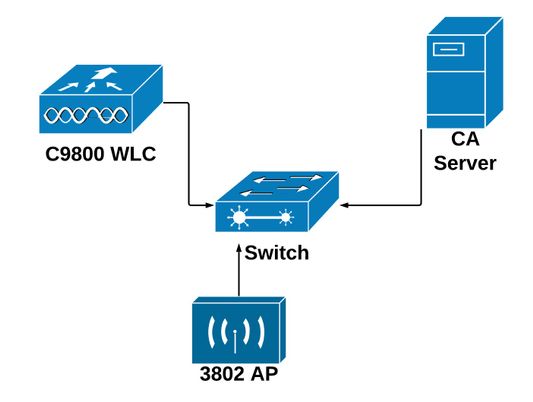
Habilitar los servicios SCEP en Windows Server
Paso 1. En la aplicación Administrador del servidor, seleccione el menú Administrar y, a continuación, seleccione la opción Agregar roles y características para abrir el Asistente para la configuración de funciones y agregar roles. Desde allí, seleccione la instancia del servidor que se utiliza para la inscripción del servidor SCEP.
Paso 2. Compruebe que las características Certification Authority, Network Device Enrollment Service y Online Responder estén seleccionadas y, a continuación, seleccione Next:
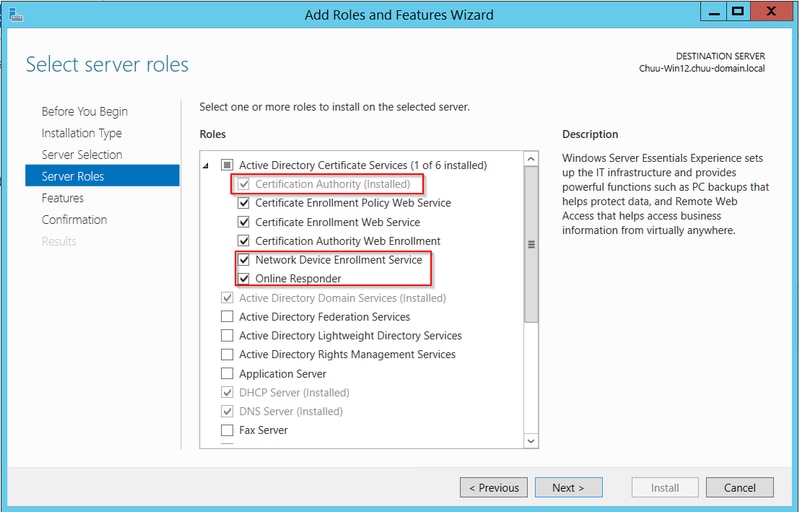
Paso 3. Seleccione Next dos veces y, a continuación, Finish para finalizar el asistente de configuración. Espere a que el servidor complete el proceso de instalación de la función y, a continuación, seleccione Cerrar para cerrar el asistente.
Paso 4. Una vez finalizada la instalación, aparece un icono de advertencia en el icono Notificación del Administrador del servidor. Selecciónelo y seleccione el vínculo Configurar servicios de Active Directory en el servidor de destino para iniciar el menú del asistente para configuración de AD CS.
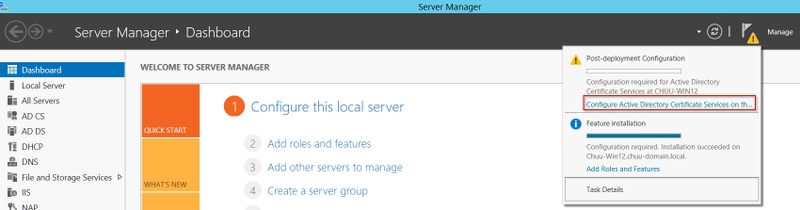
Paso 5. Seleccione los servicios de rol Servicio de inscripción de dispositivos de red y Respondedor en línea que se configurarán en el menú y, a continuación, seleccione Siguiente.
Paso 6. En la Cuenta de servicio para NDES seleccione cualquiera de las opciones entre el grupo de aplicaciones integrado o la cuenta de servicio y, a continuación, seleccione Siguiente.
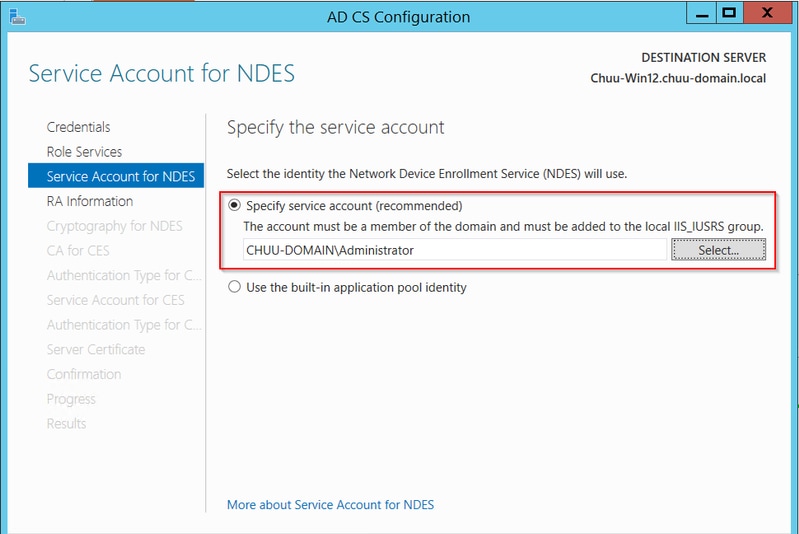
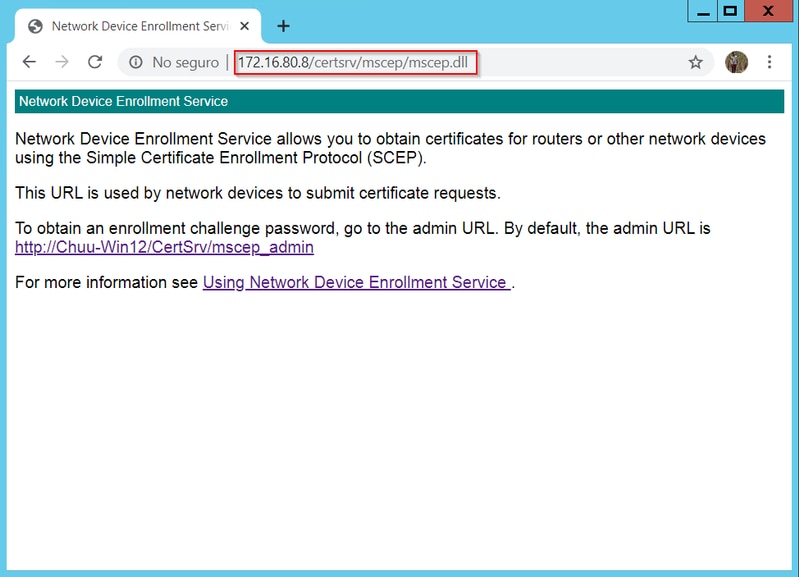
Paso 7. Seleccione Siguiente para las pantallas siguientes y deje que el proceso de instalación termine. Después de la instalación, la URL de SCEP está disponible con cualquier navegador web. Navegue hasta la URL http://<server ip>/certsrv/mscep/mscep.dll para verificar que el servicio está disponible.
Deshabilitar requisito de contraseña de desafío de inscripción SCEP
De forma predeterminada, Windows Server utilizó una contraseña de desafío dinámico para autenticar las solicitudes de cliente y de extremo antes de la inscripción en Microsoft SCEP (MSCEP). Esto requiere una cuenta de administrador para navegar a la GUI web y generar una contraseña a pedido para cada solicitud (la contraseña debe incluirse en la solicitud). El controlador no puede incluir esta contraseña en las solicitudes que envía al servidor. Para quitar esta característica, es necesario modificar la clave del Registro en el servidor NDES:
Paso 1. Abra el Editor del Registro y busque Regedit en el menú Inicio.
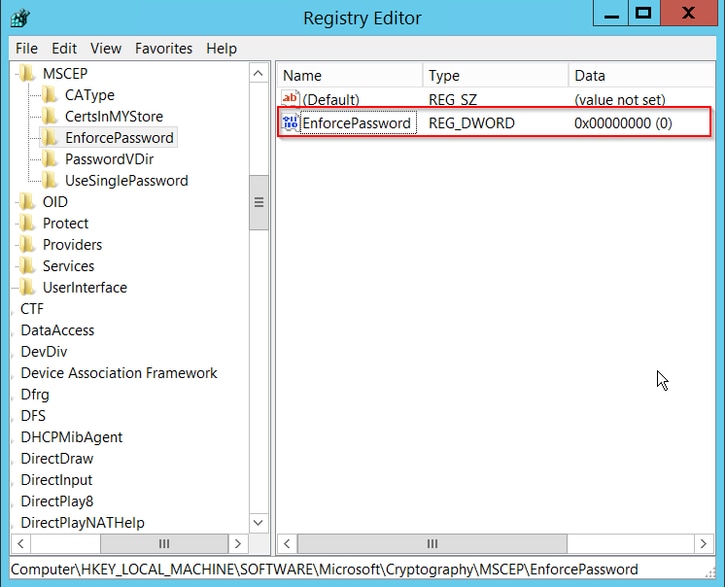
Paso 2. Vaya a Equipo > HKEY_LOCAL_MACHINE > SOFTWARE > Microsoft > Criptografía > MSCEP > Aplicar contraseña
Paso 3. Cambie el valor de EnforcePassword a 0. Si ya es 0, déjelo tal cual.
Configuración de la plantilla y el registro de certificados
Los certificados y sus claves asociadas se pueden utilizar en varios escenarios para diferentes propósitos definidos por las directivas de la aplicación dentro del servidor de la CA. La directiva de aplicación se almacena en el campo Uso extendido de claves (EKU) del certificado. El autenticador analiza este campo para comprobar que el cliente lo utiliza para el fin previsto. Para asegurarse de que la política de aplicación adecuada esté integrada en los certificados WLC y AP, cree la plantilla de certificado adecuada y asígnela al registro NDES:
Paso 1. Vaya a Inicio > Herramientas administrativas > Entidad emisora de certificados.
Paso 2. Expanda el árbol de carpetas Servidor de la CA, haga clic con el botón derecho en las carpetas Plantillas de certificado y seleccione Administrar.
Paso 3. Haga clic con el botón derecho en la plantilla de certificado Usuarios, luego seleccione Duplicar plantilla en el menú contextual.
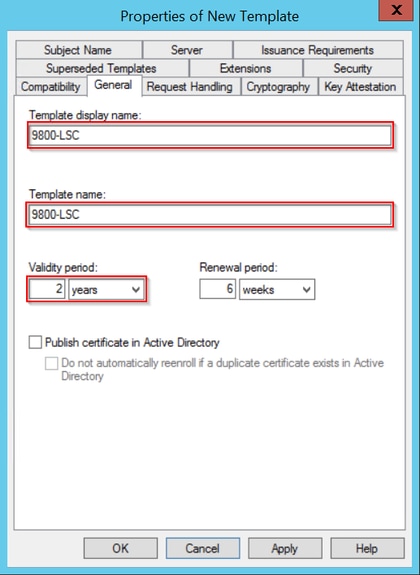
Paso 4. Acceda a la pestaña General, cambie el nombre de la plantilla y el período de validez como desee y deje todas las demás opciones sin marcar.
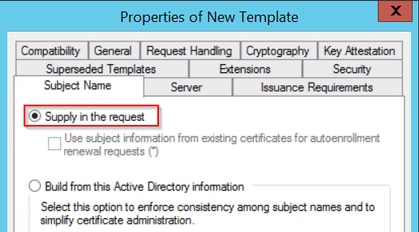
Paso 5. Acceda a la pestaña Nombre del Asunto y asegúrese de que la opción Aprovisionar de la solicitud está seleccionada. Aparecerá una ventana emergente para indicar que los usuarios no necesitan la aprobación del administrador para firmar su certificado. Seleccione Aceptar.
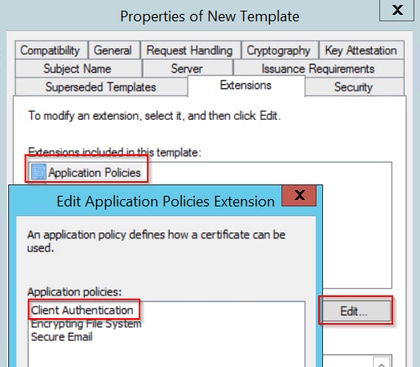
Paso 6. Navegue hasta la pestaña Extensions, luego seleccione la opción Application Policies y seleccione el botón Edit.... Asegúrese de que Autenticación del Cliente esté en la ventana Políticas de la Aplicación; de lo contrario, seleccione Agregar y agréguelo.
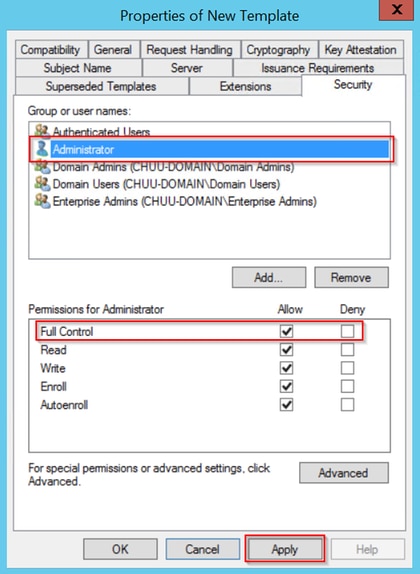
Paso 7. Navegue hasta la pestaña Seguridad, asegúrese de que la cuenta de servicio definida en el Paso 6 de Habilitar servicios SCEP en Windows Server tenga los permisos de Control total de la plantilla, luego seleccione Aplicar y Aceptar.
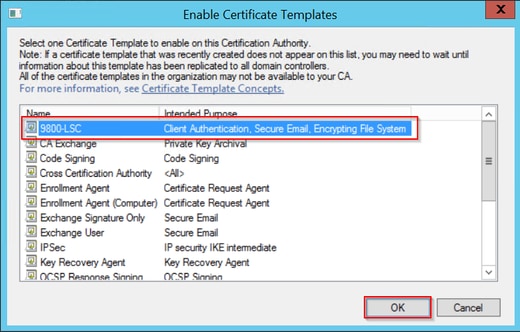
Paso 8. Vuelva a la ventana Entidad de certificación, haga clic con el botón derecho en la carpeta Plantillas de certificado y seleccione Nuevo > Plantilla de certificado para emitir.
Paso 9. Seleccione la plantilla de certificado creada anteriormente, en este ejemplo es 9800-LSC, y seleccione Aceptar.
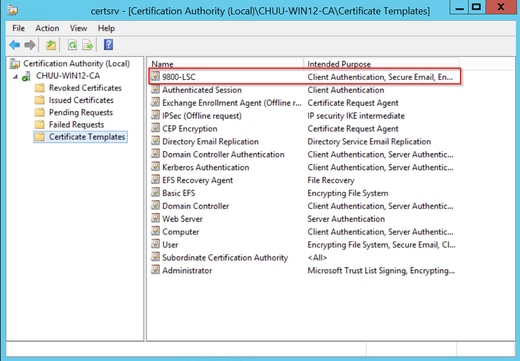
La nueva plantilla de certificado aparece ahora en el contenido de la carpeta Plantillas de certificado.
Paso 10. Vuelva a la ventana Editor del Registro y navegue hasta Computer > HKEY_LOCAL_MACHINE > SOFTWARE > Microsoft > Cryptography > MSCEP.
Paso 11. Edite los registros EncryptionTemplate, GeneralPurposeTemplate y SignatureTemplate de modo que señalen a la plantilla de certificado recién creada.
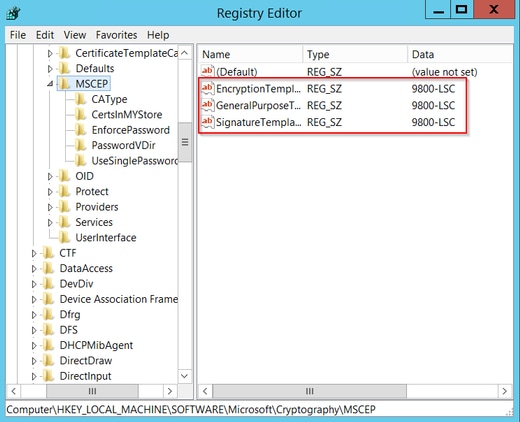
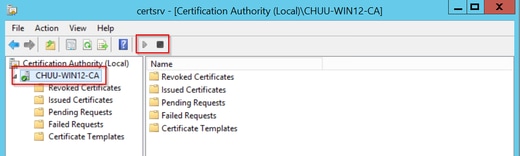
Paso 12. Reinicie el servidor NDES, de modo que vuelva a la ventana Certification Authority, seleccione el nombre del servidor y, a continuación, seleccione el botón Stop y Play .
Configuración del punto de confianza del dispositivo 9800
El controlador necesita tener un punto de confianza definido para autenticar los AP una vez que se han aprovisionado. El punto de confianza incluye el certificado del dispositivo 9800, junto con el certificado raíz de la CA obtenido del mismo servidor de la CA (Microsoft CA en este ejemplo). Para que un certificado se instale en el punto de confianza, debe contener los atributos subject junto con un par de claves RSA asociadas a él. La configuración se realiza a través de la interfaz web o de la línea de comandos.
Paso 1. Navegue hasta Configuration > Security > PKI Management y seleccione la pestaña RSA Keypair Generation. Seleccione el botón + Agregar.
Paso 2. Defina una etiqueta asociada al par de claves y asegúrese de que la casilla de verificación Exportable esté seleccionada.
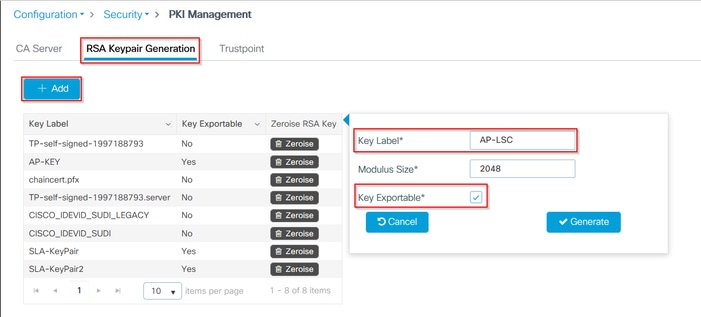
Configuración CLI para los pasos uno y dos, en este ejemplo de configuración el par de claves se genera con etiqueta AP-LSC y tamaño de módulo de 2048 bits:
9800-L(config)#crypto key generate rsa exportable general-keys moduluslabel The name for the keys will be: AP-LSC % The key modulus size is 2048 bits % Generating 2048 bit RSA keys, keys will be exportable... [OK] (elapsed time was 1 seconds)
Paso 3. En la misma sección, seleccione la pestaña Trustpoint y el botón + Add.
Paso 4. Rellene los detalles del punto de confianza con la información del dispositivo y, a continuación, seleccione Aplicar al dispositivo:
- El campo Etiqueta es el nombre asociado al punto de confianza
- Para la URL de inscripción utilice la definida en el Paso 7 de la sección Habilitar servicios SCEP en Windows Server
- Marque la casilla de verificación Authenticate para descargar el certificado de la CA
- El campo Nombre de dominio se coloca como el atributo de nombre común de la solicitud de certificado
- Marque la casilla de verificación Key Generated, aparecerá un menú desplegable, seleccione el par de claves generado en el paso 2
- Marque la casilla de verificación Enroll Trustpoint, se mostrarán dos campos de contraseña; escriba una contraseña. Se utiliza para encadenar las claves de certificado con el certificado del dispositivo y el certificado de la CA
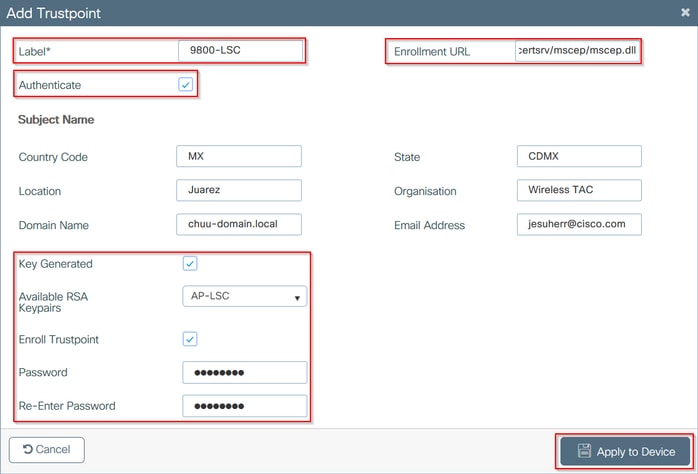
Configuración CLI para los pasos tres y cuatro:
9800-L(config)#crypto pki trustpoint9800-L(ca-trustpoint)#enrollment url http:// /certsrv/mscep/mscep.dll 9800-L(ca-trustpoint)#subject-name C=, ST= 9800-L(ca-trustpoint)#rsakeypair, L= , O= , CN= /emailAddress= 9800-L(ca-trustpoint)#revocation-check none 9800-L(ca-trustpoint)#exit 9800-L(config)#crypto pki authenticate Certificate has the following attributes: Fingerprint MD5: E630EAE6 FB824658 690EB0F5 638D7224 Fingerprint SHA1: 97070ACD CAD03D5D 0C1A6085 19992E0D 6B8C4D8B % Do you accept this certificate? [yes/no]: yes Trustpoint CA certificate accepted. 9800-L(config)#crypto pki enroll <trustpoint name> % % Start certificate enrollment .. % Create a challenge password. You will need to verbally provide this password to the CA Administrator in order to revoke your certificate. For security reasons your password will not be saved in the configuration. Please make a note of it. Password: Re-enter password: % The subject name in the certificate will include: C=MX, ST=CDMX, L=Juarez, O=Wireless TAC, CN=9800-L.chuu-domain.local/emailAddress=jesuherr@cisco.com % The subject name in the certificate will include: 9800-L.alzavala.local % Include the router serial number in the subject name? [yes/no]: no % Include an IP address in the subject name? [no]: no Request certificate from CA? [yes/no]: yes % Certificate request sent to Certificate Authority % The 'show crypto pki certificate verbose AP-LSC' commandwill show the fingerprint.
Definición de Parámetros de Inscripción de AP y Update Management Trustpoint
La inscripción de AP utiliza los detalles de trustpoint previamente definidos para determinar los detalles del servidor al cual el controlador reenvía la solicitud de certificado. Dado que el controlador se utiliza como proxy para la inscripción de certificados, debe conocer los parámetros del sujeto incluidos en la solicitud de certificado. La configuración se realiza a través de la interfaz web o de la línea de comandos.
Paso 1. Navegue hasta Configuración > Inalámbrico > Puntos de acceso y expanda el menú Provisión LSC.
Paso 2. Llene los Parámetros de Nombre del Sujeto con los atributos que se rellenan en las solicitudes de certificado AP y, a continuación, seleccione Aplicar.

Configuración CLI para los pasos uno y dos:
9800-L(config)#ap lsc-provision subject-name-parameter countrycity domain org email-address

Paso 3. En el mismo menú, seleccione el punto de confianza definido previamente de la lista desplegable, especifique un número de intentos de unión de AP (esto define el número de intentos de unión antes de que utilice el MIC de nuevo) y establezca el tamaño de clave de certificado. A continuación, haga clic en Aplicar.
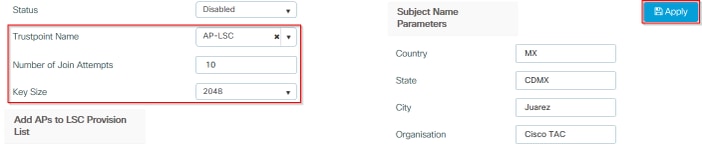
Configuración CLI para el paso tres:
9800-L(config)#ap lsc-provision join-attempt9800-L(config)#ap lsc-provision trustpoint 9800-L(config)#ap lsc-provision key-size
Paso 4. (Opcional) El aprovisionamiento de LSC de AP se puede activar para todos los AP unidos al controlador o a AP específicos definidos en una lista de direcciones MAC. Dentro del mismo menú, ingrese la dirección MAC de Ethernet AP en el formato xxxx.xxxx.xxxx en el campo de texto y haga clic en el signo + . Como alternativa, cargue un archivo csv que contenga las direcciones MAC de AP, seleccione el archivo y luego seleccione Cargar archivo.
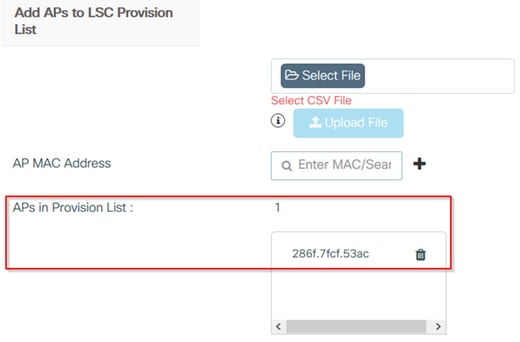
Configuración de CLI para el paso cuatro:
9800-L(config)#ap lsc-provision mac-address
Paso 5. Seleccione Habilitado o Lista de aprovisionamiento del menú desplegable junto a la etiqueta Estado y luego haga clic en Aplicar para desencadenar la inscripción de LSC de AP.

Configuración CLI para el paso cinco:
9800-L(config)#ap lsc-provision
In Non-WLANCC mode APs will be provisioning with RSA certificates with specified key-size configuration. In WLANCC mode APs will be provisioning with EC certificates with a 384 bit key by-default or 256 bit key if configured.
Are you sure you want to continue? (y/n): y
If specific AP list provisioning is preferred then use:
9800-L(config)#ap lsc-provision provision-list
Paso 6. Navegue hasta Configuration > Interface > Wireless y seleccione la interfaz de administración. En el campo Trustpoint, seleccione el nuevo punto de confianza en el menú desplegable y haga clic en Update & Apply to Device.
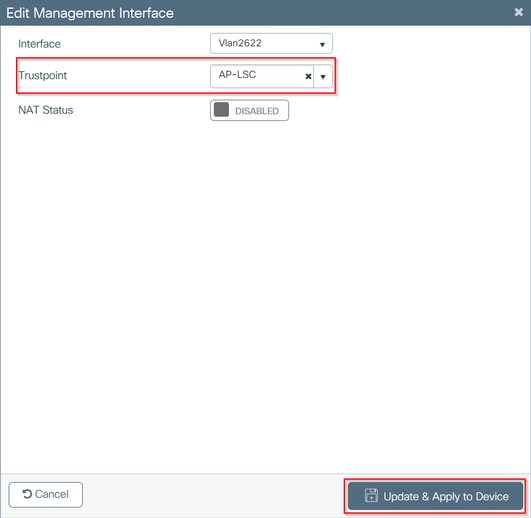
Configuración CLI para el paso seis:
9800-L(config)#wireless management trustpoint
Verificación
Verificar instalación del certificado del controlador
Para verificar que la información de LSC está presente en el punto de confianza de 9800 WLC, ejecute el comando show crypto pki certificates verbose <trustpoint name>, se asocian dos certificados al punto de confianza creado para el aprovisionamiento y la inscripción de LSC. En este ejemplo, el nombre del punto de confianza es "microsoft-ca" (sólo se muestra el resultado relevante):
9800-L#show crypto pki certificates verbose microsoft-ca
Certificate
  Status: Available
  Version: 3
  Certificate Usage: General Purpose
  Issuer:
    cn=CHUU-WIN12-CA
    dc=chuu-domain
    dc=local
  Subject:
    Name: 9800-L.alzavala.local
    cn=9800-L.chuu-domain.local/emailAddress=jesuherr@cisco.com
    o=Wireless TAC
    l=Juarez
    st=CDMX
    c=MX
    hostname=9800-L.alzavala.local
  CRL Distribution Points:
    ldap:///CN=CHUU-WIN12-CA,CN=Chuu-Win12,CN=CDP,CN=Public%20Key%20Services,CN=Services,CN=Coint
  Validity Date:
    start date: 04:25:59 Central May 11 2020
    end date: 04:25:59 Central May 11 2022
  Subject Key Info:
    Public Key Algorithm: rsaEncryption
    RSA Public Key: (2048 bit)
  Signature Algorithm: SHA256 with RSA Encryption
  [...]
    Authority Info Access:
        CA ISSUERS: ldap:///CN=CHUU-WIN12-CA,CN=AIA,CN=Public%20Key%20Services,CN=Services,CN=Configuration,DC=chuu-domain,DC=local?cACertificate?base?objectClass=certificationAuthority
  [...]
CA Certificate
  Status: Available
  Version: 3
  Certificate Serial Number (hex): 37268ED56080CB974EF3806CCACC77EC
  Certificate Usage: Signature
  Issuer:
    cn=CHUU-WIN12-CA
    dc=chuu-domain
    dc=local
  Subject:
    cn=CHUU-WIN12-CA
    dc=chuu-domain
    dc=local
 Validity Date:
    start date: 05:58:01 Central May 10 2019
    end date: 06:08:01 Central May 10 2024
  Subject Key Info:
    Public Key Algorithm: rsaEncryption
    RSA Public Key: (2048 bit)
  Signature Algorithm: SHA256 with RSA Encryption
Verificar la Configuración de 9800 WLC LSC
Para verificar los detalles sobre el punto de confianza de administración inalámbrica ejecute el comando show wireless management trustpoint, asegúrese de que el punto de confianza correcto (el que contiene los detalles de LSC, AP-LSC en este ejemplo) esté en uso y esté marcado como Disponible:
9800-L#show wireless management trustpoint

Trustpoint  Name : AP-LSC
Certificate Info : Available
Certificate Type : LSC
Certificate Hash : 9e5623adba5307facf778e6ea2f5082877ea4beb
Private key Info : Available
Para verificar los detalles sobre la configuración de aprovisionamiento de LSC de AP, junto con la lista de AP agregados a la lista de aprovisionamiento, ejecute el comando show ap lsc-provision summary. Asegúrese de que se muestra el estado de aprovisionamiento correcto:
9800-L#show ap lsc-provision summary
AP LSC-provisioning : Enabled for all APs
Trustpoint used for LSC-provisioning : AP-LSC
LSC Revert Count in AP reboots : 10

AP LSC Parameters :
Country : MX
State : CDMX
City : Juarez
Orgn : Cisco TAC
Dept : Wireless TAC
Email : josuvill@cisco.com
Key Size : 2048
EC Key Size : 384 bit

AP LSC-provision List :

Total number of APs in provision list: 2

Mac Addresses :
--------------
xxxx.xxxx.xxxx
xxxx.xxxx.xxxx
Verificación de la instalación del certificado del punto de acceso
Para verificar los certificados instalados en el AP ejecute el comando show crypto desde la CLI del AP, asegúrese de que el certificado raíz de CA y el certificado del dispositivo estén presentes (el resultado muestra solamente los datos relevantes):
AP3802#show crypto

[...]

------------------------------------------------------------------------------
LSC: Enabled
----------------------------- Device Certificate -----------------------------
Certificate:
    Data:
        Version: 3 (0x2)
        Serial Number:
            73:00:00:00:0b:9e:c4:2e:6c:e1:54:84:96:00:00:00:00:00:0b
    Signature Algorithm: sha256WithRSAEncryption
        Issuer: DC=local, DC=chuu-domain, CN=CHUU-WIN12-CA
        Validity
            Not Before: May 13 01:22:13 2020 GMT
            Not After : May 13 01:22:13 2022 GMT
        Subject: C=MX, ST=CDMX, L=Juarez, O=Cisco TAC, CN=ap3g3-286F7FCF53AC/emailAddress=josuvill@cisco.com
        Subject Public Key Info:
            Public Key Algorithm: rsaEncryption
                Public-Key: (2048 bit)

----------------------------- Root Certificate -------------------------------
Certificate:
    Data:
        Version: 3 (0x2)
        Serial Number:
            32:61:fb:93:a8:0a:4a:97:42:5b:5e:32:28:29:0d:32
    Signature Algorithm: sha256WithRSAEncryption
        Issuer: DC=local, DC=chuu-domain, CN=CHUU-WIN12-CA
        Validity
            Not Before: May 10 05:58:01 2019 GMT
            Not After : May 10 05:58:01 2024 GMT
        Subject: DC=local, DC=chuu-domain, CN=CHUU-WIN12-CA
        Subject Public Key Info:
            Public Key Algorithm: rsaEncryption
                Public-Key: (2048 bit)
Si se utiliza LSC para la autenticación dot1x del puerto del switch, desde el AP puede verificar si la autenticación del puerto está habilitada.
AP3802#show ap authentication status
AP dot1x feature is disabled.
Troubleshoot
Problemas comunes
- Si las plantillas no están asignadas correctamente en el registro del servidor o si el servidor requiere desafío de contraseña, se rechaza la solicitud de certificado para el WLC 9800 o los AP.
- Si los sitios predeterminados de IIS están inhabilitados, el servicio SCEP también está inhabilitado, por lo tanto, la URL definida en el punto de confianza no es accesible y el WLC 9800 no envía ninguna solicitud de certificado.
- Si la hora no se sincroniza entre el servidor y el WLC 9800, los certificados no se instalan ya que la comprobación de validez de la hora falla.
Comandos Debug y Log
Utilice estos comandos para resolver problemas de inscripción de certificados del controlador 9800:
9800-L#debug crypto pki transactions
9800-L#debug crypto pki validation
9800-L#debug crypto pki scep
Para resolver problemas y monitorear la inscripción de AP utilice estos comandos:
AP3802#debug capwap client payload
AP3802#debug capwap client events
Desde la línea de comandos de AP, show logging muestra si el AP tuvo problemas con la instalación del certificado y proporciona detalles sobre la razón por la que el certificado no se instaló:
[...]
Mar 19 19:39:13 kernel: *03/19/2020 19:39:13.3429] AP has joined controller 9800-L
Mar 19 19:39:13 kernel: 03/19/2020 19:39:13.3500] SELinux: initialized (dev mtd_inodefs, type mtd_inodefs), not configured for labeling
Mar 19 19:39:13 kernel: *03/19/2020 19:39:13.5982] Generating a RSA private key
Mar 19 19:39:14 kernel: *03/19/2020 19:39:13.5989] .......................
Mar 19 19:39:15 kernel: *03/19/2020 19:39:14.4179] ..
Mar 19 19:39:15 kernel: *03/19/2020 19:39:15.2952] writing new private key to '/tmp/lsc/priv_key'
Mar 19 19:39:15 kernel: *03/19/2020 19:39:15.2955] -----
Mar 19 19:39:15 kernel: *03/19/2020 19:39:15.5421] cen_validate_lsc: Verification failed for certificate:
Mar 19 19:39:15 kernel: *03/19/2020 19:39:15.5421] countryName               = MX
Mar 19 19:39:15 kernel: *03/19/2020 19:39:15.5421] stateOrProvinceName       = CDMX
Mar 19 19:39:15 kernel: *03/19/2020 19:39:15.5421] localityName              = Juarez
Mar 19 19:39:15 kernel: *03/19/2020 19:39:15.5421] organizationName          = cisco-tac
Mar 19 19:39:15 kernel: *03/19/2020 19:39:15.5421] commonName                = ap3g3-
Mar 19 19:39:15 kernel: *03/19/2020 19:39:15.5421] emailAddress              = jesuherr@cisco.com
Mar 19 19:39:15 kernel: *03/19/2020 19:39:15.5427] LSC certificates/key failed validation!
Mar 19 19:39:15 kernel: *03/19/2020 19:39:15.5427]
Ejemplo de intento de inscripción exitoso
Este es el resultado de los debugs antes mencionados para una inscripción exitosa tanto para el controlador como para sus AP asociados.
Importación del certificado raíz de CA al WLC 9800:
[...]
Certificate has the following attributes:
       Fingerprint MD5: E630EAE6 FB824658 690EB0F5 638D7224
      Fingerprint SHA1: 97070ACD CAD03D5D 0C1A6085 19992E0D 6B8C4D8B

% Do you accept this certificate? [yes/no]: yes
CRYPTO_PKI_SCEP: Client sending GetCACert request
CRYPTO_PKI: Sending CA Certificate Request:
GET /certsrv/mscep/mscep.dll/pkiclient.exe?operation=GetCACert&message=AP-LSC HTTP/1.0
User-Agent: Mozilla/4.0 (compatible; MSIE 5.0; Cisco PKI)
Host: 172.16.80.8

CRYPTO_PKI: locked trustpoint AP-LSC, refcount is 1
CRYPTO_PKI: http connection opened
CRYPTO_PKI: Sending HTTP message

CRYPTO_PKI: Reply HTTP header:
HTTP/1.0
User-Agent: Mozilla/4.0 (compatible; MSIE 5.0; Cisco PKI)
Host: 172.16.80.8

CRYPTO_PKI: unlocked trustpoint AP-LSC, refcount is 0
CRYPTO_PKI: locked trustpoint AP-LSC, refcount is 1
CRYPTO_PKI: Header length received: 192
CRYPTO_PKI: parse content-length header. return code: (0) and content-length : (3638)
CRYPTO_PKI: Complete data arrived
CRYPTO_PKI: unlocked trustpoint AP-LSC, refcount is 0
CRYPTO_PKI: Reply HTTP header:
HTTP/1.1 200 OK
Content-Type: application/x-x509-ca-ra-cert
Server: Microsoft-IIS/8.5
X-Powered-By: ASP.NET
Date: Tue, 19 May 2020 21:47:34 GMT
Connection: close
Content-Length: 3638
Content-Type indicates we have received CA and RA certificates.

CRYPTO_PKI_SCEP: Client received CA and RA certificate
CRYPTO_PKI:crypto_process_ca_ra_cert(trustpoint=AP-LSC)

The PKCS #7 message contains 3 certificates.
CRYPTO_PKI:crypto_pkcs7_extract_ca_cert found cert
CRYPTO_PKI: Bypassing SCEP capabilities request 0
CRYPTO_PKI: transaction CRYPTO_REQ_CA_CERT completed
CRYPTO_PKI: CA certificate received.
CRYPTO_PKI: CA certificate received.
CRYPTO_PKI: crypto_pki_get_cert_record_by_cert()
CRYPTO_PKI: crypto_pki_authenticate_tp_cert()
CRYPTO_PKI: trustpoint AP-LSC authentication status = 0
Trustpoint CA certificate accepted.
Inscripción de dispositivos WLC 9800:
[...]
CRYPTO_PKI: using private key AP-LSC for enrollment
CRYPTO_PKI_SCEP: Client sending GetCACert request
CRYPTO_PKI: Sending CA Certificate Request:
GET /certsrv/mscep/mscep.dll/pkiclient.exe?operation=GetCACert&message=AP-LSC HTTP/1.0
User-Agent: Mozilla/4.0 (compatible; MSIE 5.0; Cisco PKI)
Host: 172.16.80.8

CRYPTO_PKI: locked trustpoint AP-LSC, refcount is 1
CRYPTO_PKI: http connection opened
CRYPTO_PKI: Sending HTTP message
CRYPTO_PKI: Reply HTTP header:
HTTP/1.0
User-Agent: Mozilla/4.0 (compatible; MSIE 5.0; Cisco PKI)
Host: 172.16.80.8

CRYPTO_PKI: unlocked trustpoint AP-LSC, refcount is 0
CRYPTO_PKI: locked trustpoint AP-LSC, refcount is 1
CRYPTO_PKI: Header length received: 192
CRYPTO_PKI: parse content-length header. return code: (0) and content-length : (3638)
CRYPTO_PKI: Complete data arrived
CRYPTO_PKI: unlocked trustpoint AP-LSC, refcount is 0
CRYPTO_PKI: Reply HTTP header:
HTTP/1.1 200 OK
Content-Type: application/x-x509-ca-ra-cert
Server: Microsoft-IIS/8.5
X-Powered-By: ASP.NET
Date: Tue, 19 May 2020 21:48:33 GMT
Connection: close
Content-Length: 3638
Content-Type indicates we have received CA and RA certificates.

CRYPTO_PKI_SCEP: Client received CA and RA certificate
CRYPTO_PKI:crypto_process_ca_ra_cert(trustpoint=AP-LSC)
The PKCS #7 message contains 3 certificates.
CRYPTO_PKI:crypto_pkcs7_insert_ra_certs found RA certs
CRYPTO_PKI:crypto_pkcs7_insert_ra_certs found RA certs

CRYPTO_PKI_SCEP: Client Sending GetCACaps request with msg = GET /certsrv/mscep/mscep.dll/pkiclient.exe?operation=GetCACaps&message=AP-LSC HTTP/1.0
User-Agent: Mozilla/4.0 (compatible; MSIE 5.0; Cisco PKI)
Host: 172.16.80.8

CRYPTO_PKI: locked trustpoint AP-LSC, refcount is 1
CRYPTO_PKI: http connection opened
CRYPTO_PKI: Sending HTTP message
CRYPTO_PKI: Reply HTTP header:
HTTP/1.0
User-Agent: Mozilla/4.0 (compatible; MSIE 5.0; Cisco PKI)
Host: 172.16.80.8

CRYPTO_PKI: unlocked trustpoint AP-LSC, refcount is 0
CRYPTO_PKI: locked trustpoint AP-LSC, refcount is 1
CRYPTO_PKI: Header length received: 171
CRYPTO_PKI: parse content-length header. return code: (0) and content-length : (34)
CRYPTO_PKI: Complete data arrived
CRYPTO_PKI: unlocked trustpoint AP-LSC, refcount is 0
CRYPTO_PKI: Reply HTTP header:
HTTP/1.1 200 OK
Content-Type: text/plain
Server: Microsoft-IIS/8.5
X-Powered-By: ASP.NET
Date: Tue, 19 May 2020 21:48:33 GMT
Connection: close
Content-Length: 34

CRYPTO_PKI: HTTP header content length is 34 bytes
CRYPTO_PKI_SCEP: Server returned capabilities: 92
CA_CAP_RENEWAL CA_CAP_S
alz_9800(config)#HA_1 CA_CAP_SHA_256  CA_CAP_SHA_512
CRYPTO_PKI: transaction CRYPTO_REQ_CERT completed
CRYPTO_PKI: status:
%PKI-6-CSR_FINGERPRINT:
                      CSR Fingerprint MD5 : 9BFBA438303487562E888087168F05D4
                      CSR Fingerprint SHA1: 58DC7DB84C632A7307631A97A6ABCF65A3DEFEEF
CRYPTO_PKI:  Certificate Request Fingerprint MD5: 9BFBA438 30348756 2E888087 168F05D4
CRYPTO_PKI:  Certificate Request Fingerprint SHA1: 58DC7DB8 4C632A73 07631A97 A6ABCF65 A3DEFEEF
PKI:PKCS7 to issuer cn=CHUU-WIN12-CA,dc=chuu-domain,dc=local serial
     18 00 00 00 38 DB 68 64 C0 52 C0 0F 0E 00 00 00
     00 00 38

CRYPTO_PKI: Deleting cached key having key id 65
CRYPTO_PKI: Attempting to insert the peer's public key into cache
CRYPTO_PKI:Peer's public inserted successfully with key id 66
CRYPTO_PKI: Expiring peer's cached key with key id 66
PKI: Trustpoint AP-LSC has no router cert
PKI: Signing pkcs7 with AP-LSC trustpoint temp self-signed cert
CRYPTO_PKI_SCEP: Client sending PKCSReq
CRYPTO_PKI: locked trustpoint AP-LSC, refcount is 1
CRYPTO_PKI: http connection opened
CRYPTO_PKI: Sending HTTP message
CRYPTO_PKI: Reply HTTP header:
HTTP/1.0
Host: 172.16.80.8

CRYPTO_PKI: unlocked trustpoint AP-LSC, refcount is 0
CRYPTO_PKI: locked trustpoint AP-LSC, refcount is 1
CRYPTO_PKI: locked trustpoint AP-LSC, refcount is 2
CRYPTO_PKI: Header length received: 188
CRYPTO_PKI: parse content-length header. return code: (0) and content-length : (2807)
CRYPTO_PKI: Complete data arrived
CRYPTO_PKI: unlocked trustpoint AP-LSC, refcount is 1
CRYPTO_PKI:  received msg of 2995 bytes
CRYPTO_PKI: Reply HTTP header:
HTTP/1.1 200 OK
Content-Type: application/x-pki-message
Server: Microsoft-IIS/8.5
X-Powered-By: ASP.NET
Date: Tue, 19 May 2020 21:48:33 GMT
Connection: close
Content-Length: 2807

CRYPTO_PKI: Prepare global revocation service providers
CRYPTO_PKI: Deleting cached key having key id 66
CRYPTO_PKI: Attempting to insert the peer's public key into cache
CRYPTO_PKI:Peer's public inserted successfully with key id 67
CRYPTO_PKI: Expiring peer's cached key with key id 67
CRYPTO_PKI: Remove global revocation service providers
The PKCS #7 message has 1 verified signers.
signing cert: issuer cn=CHUU-WIN12-CA,dc=chuu-domain,dc=local serial 1800037A239DF5180C0672C0000037
Signed Attributes:

CRYPTO_PKI_SCEP: Client received CertRep - GRANTED (AF58BA9313638026C5DC151AF474723F)
CRYPTO_PKI: status = 100: certificate is granted
The PKCS #7 message contains 1 certs and 0 crls.
Newly-issued Router Cert: issuer=cn=CHUU-WIN12-CA,dc=chuu-domain,dc=local serial=1800043245DC93E1D943CA70000043
start  date: 21:38:34 Central May 19 2020
end    date: 21:38:34 Central May 19 2022
Router date: 21:48:35 Central May 19 2020
%PKI-6-CERT_INSTALL: An ID certificate has been installed under
                      Trustpoint   : AP-LSC
                      Issuer-name  : cn=CHUU-WIN12-CA,dc=chuu-domain,dc=local
                      Subject-name : cn=9800-L.chuu-domain.local/emailAddress=jesuherr@cisco.com,o=Wireless TAC,l=Juarez,st=CDMX,c=MX,hostname=alz_9800.alzavala.local
                      Serial-number: 1800000043245DC93E1D943CA7000000000043
                      End-date     : 2022-05-19T21:38:34Z
Received router cert from CA
CRYPTO_PKI: Not adding alz_9800.alzavala.local to subject-alt-name field because : Character allowed in the domain name.

 Calling pkiSendCertInstallTrap to send alert
CRYPTO_PKI: All enrollment requests completed for trustpoint AP-LSC
Salida de depuración de inscripción de AP del lado del controlador, esta salida se repite varias veces para cada AP que se une al WLC 9800:
[...]
CRYPTO_PKI: (A6964) Session started - identity selected (AP-LSC)
CRYPTO_PKI: Doing re-auth to fetch RA certificate.
CRYPTO_PKI_SCEP: Client sending GetCACert request
CRYPTO_PKI: Sending CA Certificate Request:
GET /certsrv/mscep/mscep.dll/pkiclient.exe?operation=GetCACert&message=AP-LSC HTTP/1.0
User-Agent: Mozilla/4.0 (compatible; MSIE 5.0; Cisco PKI)
Host: 172.16.80.8

CRYPTO_PKI: locked trustpoint AP-LSC, refcount is 2
CRYPTO_PKI: http connection opened
CRYPTO_PKI: Sending HTTP message
CRYPTO_PKI: Reply HTTP header:
HTTP/1.0
User-Agent: Mozilla/4.0 (compatible; MSIE 5.0; Cisco PKI)
Host: 172.16.80.8

CRYPTO_PKI: unlocked trustpoint AP-LSC, refcount is 1
CRYPTO_PKI: locked trustpoint AP-LSC, refcount is 2
CRYPTO_PKI: Header length received: 192
CRYPTO_PKI: parse content-length header. return code: (0) and content-length : (3638)
CRYPTO_PKI: Complete data arrived
CRYPTO_PKI: unlocked trustpoint AP-LSC, refcount is 1
CRYPTO_PKI: Reply HTTP header:
HTTP/1.1 200 OK

Content-Type: application/x-x509-ca-ra-cert
Server: Microsoft-IIS/8.5
X-Powered-By: ASP.NET
Date: Tue, 19 May 2020 21:51:03 GMT
Connection: close
Content-Length: 3638
Content-Type indicates we have received CA and RA certificates.

CRYPTO_PKI_SCEP: Client received CA and RA certificate
CRYPTO_PKI:crypto_process_ca_ra_cert(trustpoint=AP-LSC)
The PKCS #7 message contains 3 certificates.
CRYPTO_PKI:crypto_pkcs7_insert_ra_certs found RA certs
CRYPTO_PKI:crypto_pkcs7_insert_ra_certs found RA certs
CRYPTO_PKI: Capabilites already obtained CA_CAP_RENEWAL CA_CAP_SHA_1 CA_CAP_SHA_256  CA_CAP_SHA_512
 PKCS10 request is compulsory
CRYPTO_PKI: byte 2 in key usage in PKCS#10 is 0x5
May 19 21:
alz_9800(config)#51:04.985: CRYPTO_PKI: all usage
CRYPTO_PKI: key_usage is 4
CRYPTO_PKI: creating trustpoint clone Proxy-AP-LSC8
CRYPTO_PKI: Creating proxy trustpoint Proxy-AP-LSC8
CRYPTO_PKI: Proxy enrollment request trans id = 7CBB299A2D9BC77DBB1A8716E6474C0C
CRYPTO_PKI: Proxy forwading an enrollment request
CRYPTO_PKI: using private key AP-LSC for enrollment
CRYPTO_PKI: Proxy send CA enrollment request with trans id: 7CBB299A2D9BC77DBB1A8716E6474C0C
CRYPTO_PKI: No need to re-auth as we have RA in place
CRYPTO_PKI: Capabilites already obtained CA_CAP_RENEWAL CA_CAP_SHA_1 CA_CAP_SHA_256  CA_CAP_SHA_512
CRYPTO_PKI: transaction CRYPTO_REQ_CERT completed
CRYPTO_PKI: status:
PKI:PKCS7 to issuer cn=CHUU-WIN12-CA,dc=chuu-domain,dc=local serial
     18 00 00 00 38 DB 68 64 C0 52 C0 0F 0E 00 00 00
     00 00 38

CRYPTO_PKI: Deleting cached key having key id 67
CRYPTO_PKI: Attempting to insert the peer's public key into cache
CRYPTO_PKI:Peer's public inserted successfully with key id 68
CRYPTO_PKI: Expiring peer's cached key with key id 68
PKI: Trustpoint Proxy-AP-LSC8 has no router cert and loaded
PKI: Signing pkcs7 with Proxy-AP-LSC8 trustpoint temp self-signed cert
CRYPTO_PKI_SCEP: Client sending PKCSReq
CRYPTO_PKI: locked trustpoint Proxy-AP-LSC8, refcount is 2
CRYPTO_PKI: http connection opened
CRYPTO_PKI: Sending HTTP message
CRYPTO_PKI: Reply HTTP header:
HTTP/1.0
Host: 172.16.80.8

CRYPTO_PKI: unlocked trustpoint Proxy-AP-LSC8, refcount is 1
CRYPTO_PKI: locked trustpoint Proxy-AP-LSC8, refcount is 2
CRYPTO_PKI: locked trustpoint Proxy-AP-LSC8, refcount is 3
CRYPTO_PKI: Header length received: 188
CRYPTO_PKI: parse content-length header. return code: (0) and content-length : (2727)
CRYPTO_PKI: Complete data arrived
CRYPTO_PKI: unlocked trustpoint Proxy-AP-LSC8, refcount is 2
CRYPTO_PKI:  received msg of 2915 bytes
CRYPTO_PKI: Reply HTTP header:
HTTP/1.1 200 OK
Content-Type: application/x-pki-message
Server: Microsoft-IIS/8.5
X-Powered-By: ASP.NET
Date: Tue, 19 May 2020 21:51:03 GMT
Connection: close
Content-Length: 2727

CRYPTO_PKI: Prepare global revocation service providers
CRYPTO_PKI: Deleting cached key having key id 68
CRYPTO_PKI: Attempting to insert the peer's public key into cache
CRYPTO_PKI:Peer's public inserted successfully with key id 69
CRYPTO_PKI: Expiring peer's cached key with key id 69
CRYPTO_PKI: Remove global revocation service providers
The PKCS #7 message has 1
alz_9800(config)# verified signers.
signing cert: issuer cn=CHUU-WIN12-CA,dc=chuu-domain,dc=local serial 1800037A239DF5180C0672C0000037
Signed Attributes:
CRYPTO_PKI_SCEP: Client received CertRep - GRANTED (7CBB299A2D9BC77DBB1A8716E6474C0C)
CRYPTO_PKI: status = 100: certificate is granted
The PKCS #7 message contains 1 certs and 0 crls.
Received router cert from CA
CRYPTO_PKI: Enrollment poroxy callback status: CERT_REQ_GRANTED
CRYPTO_PKI: Proxy received router cert from CA
CRYPTO_PKI: Rcvd request to end PKI session A6964.
CRYPTO_PKI: PKI session A6964 has ended. Freeing all resources.
CRYPTO_PKI: unlocked trustpoint AP-LSC, refcount is 0
CRYPTO_PKI: Cleaning RA certificate for TP : AP-LSC
CRYPTO_PKI: All enrollment requests completed for trustpoint Proxy-AP-LSC8.
CRYPTO_PKI: All enrollment requests completed for trustpoint Proxy-AP-LSC8.
CRYPTO_PKI: unlocked trustpoint Proxy-AP-LSC8, refcount is 1
CRYPTO_PKI: All enrollment requests completed for trustpoint Proxy-AP-LSC8.
CRYPTO_CS: removing trustpoint clone Proxy-AP-LSC8
Resultado de depuración de inscripción de AP del lado AP:
[DEC] CAPWAP_CONFIGURATION_UPDATE_REQUEST(7) seq 40 len 407
..Vendor Type: SPAM_VENDOR_ID_PAYLOAD(104) vendId 409600
...Vendor SubType: CERTIFICATE_PARAMETER_PAYLOAD(63) vendId 409600
LSC set retry number from WLC: 1

Generating a RSA private key
...
..............................
writing new private key to '/tmp/lsc/priv_key'
-----
[ENC] CAPWAP_WTP_EVENT_REQUEST(9)
...Vendor SubType: LSC_CERTIFICATE_PAYLOAD(64) Len 1135 Total 1135
[ENC] CAPWAP_CONFIGURATION_UPDATE_RESPONSE(8)
.Msg Elem Type: CAPWAP_MSGELE_RESULT_CODE(33) Len 8 Total 8
[DEC] CAPWAP_CONFIGURATION_UPDATE_REQUEST(7) seq 41 len 20
..Vendor Type: SPAM_VENDOR_ID_PAYLOAD(104) vendId 409600
...Vendor SubType: LSC_CERTIFICATE_PAYLOAD(64) vendId 409600
LSC_CERT_ENROLL_PENDING from WLC

[ENC] CAPWAP_CONFIGURATION_UPDATE_RESPONSE(8)
.Msg Elem Type: CAPWAP_MSGELE_RESULT_CODE(33) Len 8 Total 8
Received Capwap watchdog update msg.
[DEC] CAPWAP_CONFIGURATION_UPDATE_REQUEST(7) seq 42 len 1277
..Vendor Type: SPAM_VENDOR_ID_PAYLOAD(104) vendId 409600
...Vendor SubType: LSC_CERTIFICATE_PAYLOAD(64) vendId 409600
LSC_ENABLE: saving ROOT_CERT

[ENC] CAPWAP_CONFIGURATION_UPDATE_RESPONSE(8)
.Msg Elem Type: CAPWAP_MSGELE_RESULT_CODE(33) Len 8 Total 8
[DEC] CAPWAP_CONFIGURATION_UPDATE_REQUEST(7) seq 43 len 2233
..Vendor Type: SPAM_VENDOR_ID_PAYLOAD(104) vendId 409600
...Vendor SubType: LSC_CERTIFICATE_PAYLOAD(64) vendId 409600
LSC_ENABLE: saving DEVICE_CERT

SC private key written to hardware TAM

root: 2:  LSC enabled
AP Rebooting: Reset Reason - LSC enabled
Esto concluye el ejemplo de configuración para la inscripción LSC a través de SCEP.
Historial de revisiones
| Revisión | Fecha de publicación | Comentarios |
|---|---|---|
1.0 |
28-May-2020
|
Versión inicial |
 Comentarios