Configuring the Hypervisors
These instructions describe how to set the root and admin password over SSH if you entered an RSA SSH public key in the VM Properties page – used primarily for automated deployments - or using the Install Wizard.
 Note |
You can ignore any floppy read errors that appear, as they are not relevant to this deployment mode. |
Set the Root and Admin Password Using the Install Wizard
Procedure
|
Step 1 |
Select the VM guest and then select the Console tab. |
||
|
Step 2 |
Enter and confirm your root and admin passwords. You will also be prompted to set any property you did not set in VMware.

|
||
|
Step 3 |
Press Enter to apply the configuration. |
||
|
Step 4 |
The Expressway will apply the configuration and reboot. 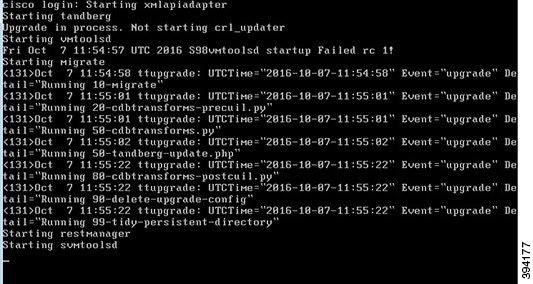 |
You should now be able to access the Expressway using a web browser.
You can now order your option keys; see Expressway Service Selection, Licenses, and Basic Configuration.
Set the Root and Admin Password Using SSH
The vSphere client or OVF Tool (for install Expressway) provides an interface to set the root and admin password.
You can set the root and admin password using Secure Shell Protocol (SSH) on any one of the following ports.
Port 5022
-
The Install Wizard starts an SSH daemon, listening on port 5022, to set the root and admin password.
-
Connect as user "wizard" using an SSH client on port 5022 (for example, ssh wizard@192.168.0.100 -p 5022).
-
Follow the prompt to set admin.password and root.password.
Figure 3. Set Admin and Root Password 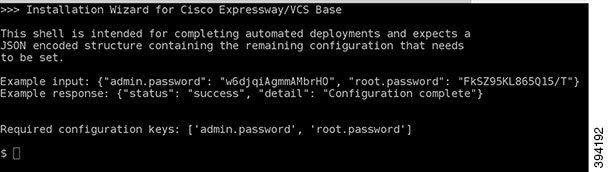
-
The Expressway will apply the configuration and reboot.
You should now be able to access the Expressway using a web browser.
You can now order your option keys; see Expressway Service Selection, Licenses, and Basic Configuration.
Port 22
-
The Install Wizard starts an SSH daemon, listening on port 22 (Standard SSH port), to set the root and admin password.
-
Connect as user "wizard" using an SSH client on port 22 (for example, ssh wizard@192.168.0.100).
-
Follow the prompt to set admin.password and root.password.
-
The Expressway will apply the configuration and reboot.
You should now be able to access the Expressway using a web browser.
You can now order your option keys; see Expressway Service Selection, Licenses, and Basic Configuration.
 Feedback
