Cisco Unified Wireless IP Phone Guide 7920 for Cisco CallManger Express 3.2 and Later
Bias-Free Language
The documentation set for this product strives to use bias-free language. For the purposes of this documentation set, bias-free is defined as language that does not imply discrimination based on age, disability, gender, racial identity, ethnic identity, sexual orientation, socioeconomic status, and intersectionality. Exceptions may be present in the documentation due to language that is hardcoded in the user interfaces of the product software, language used based on RFP documentation, or language that is used by a referenced third-party product. Learn more about how Cisco is using Inclusive Language.
- Updated:
- January 20, 2005
Chapter: Basic Call Handling
Basic Call Handling
Basic call-handling tasks such as placing, answering, transferring, and conferencing calls are available to most phone users.
Placing Calls
|
|
|
|---|---|
|
|
Enter the phone number using the numerical keys. |
|
|
Press Clear to delete the last dialed digit. To delete the entire dialed number, press and hold Clear. |
|
|
After dialing, press |
|
|
Before or after dialing the number, press |
|
|
Press |
|
|
Press The previously placed calls list contains 10 records. |
|
|
Press PhBook and scroll to the desired entry. Press See the Using the Phone Book, page 30 for more information. |
|
|
Press and hold |
|
|
Choose Menu > Directory > Corporate Directory (exact name can vary). Search for a listing by using your keypad to enter letters and press Search. Scroll to the desired entry and choose Dial or |
|
|
Press Hold to hold the active call, then press |
|
|
Choose Menu > Services > PAB service or Fast Dial service (exact names might vary). Search for a listing by using your keypad to enter letters and press Submit. To dial from a listing, scroll to it and press For help with subscribing to the PAB or Fast Dial service, see the Subscribing to IP Phone Services, page 41. |
 to change to another line and press
  to switch to Redial, then press Redial to make the call.
  (2-9) for the Speed Dial number that you want to use. The phone displays and dials the number stored for that hot key.
  or
or

Tip •If you make a mistake while entering a phone number, press Clear to erase one or more digits.
•To redial the last number, you can also press  two times.
Answering and Ending Calls
 (red key) to silence the ringing. The call continues silently, then forwards to the no answer target, such as voice messaging or another phone.
Muting Calls
To turn off the microphone on your phone, you can use the Mute feature.
|
|
|
|---|---|
|
|
During a call, press MuteOn. The label changes to MuteOff. |
|
|
Press MuteOff. The label changes to MuteOn. |
Adjusting the Speaker Volume
|
|
|
|---|---|
|
|
Press |
|
|
Press |
|
|
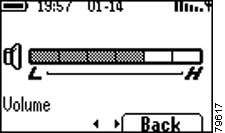
Increase the volume by pressing |
 to adjust the speaker volume for a call on line 1. Press
Tip To maintain the speaker volume adjustment after powering off the phone, see the "Adjusting the Speaker Volume" section.
Figure 0-1 Adjusting the Speaker Volume
Placing Calls on Hold
You can have only one active call at a time, so you must place calls on hold while you answer another call.
|
|
|
|---|---|
|
|
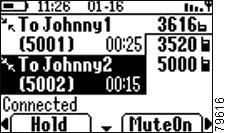
During a connected call, press Hold. The label changes to Resume. |
|
|
Press Resume to reconnect to a holding call. |
|
|
Scroll between different calls that are displayed on the screen. See Figure 0-1. |
Tip Avoid putting a conference call on Hold because activating Hold usually generates music.
Transferring Calls
You can transfer a connected caller to another party by using the Transfer feature. The target is the number that receives the transferred call.
Making Conference Calls
Conference calling allows from three to sixteen parties to participate simultaneously in a call. Your Cisco Unified IP Phone supports several types of conference calls depending on your configuration. The softkeys identify which methods are available on your phone:
•Confrn—To establish standard conferences by calling each participant. Standard conference calling is available on most phones.
Tip The number of parties that you can add to a conference call is set by your system administrator.
Forwarding Your Calls to Another Number
You can use the Call Forward All feature to redirect your calls to any phone number, although your system administrator might restrict call forwarding to phone numbers within your company.
Tip•Enter the Call Forward All target number exactly as you would dial it, including any access codes or area codes.
•You must configure call forwarding for each line on your phone.
 Feedback