Cisco UCS Management Pack User Guide, Release 2.6 for Microsoft System Center 2012, 2012 SP1 and 2012 R2 Operations Manager
Bias-Free Language
The documentation set for this product strives to use bias-free language. For the purposes of this documentation set, bias-free is defined as language that does not imply discrimination based on age, disability, gender, racial identity, ethnic identity, sexual orientation, socioeconomic status, and intersectionality. Exceptions may be present in the documentation due to language that is hardcoded in the user interfaces of the product software, language used based on RFP documentation, or language that is used by a referenced third-party product. Learn more about how Cisco is using Inclusive Language.
- Updated:
- May 14, 2013
Chapter: Configuring Cisco UCS Management Service
- About the Cisco UCS Management Service
- Severity Mapping
- Severity Remapping
- Fault Filters
- Creating a Fault Filter Expression
- Creating Filters with XML
- Examples of Fault Filters
- Example: Filtering Faults by Severity
- Example: Filtering Faults by OR Group Expression
- Filtering Faults by AND Group Expression
- Example: Filtering Faults by Fault Code
- Example: Filtering Faults by Cause
- Example: Filtering Acknowledged Faults
- Example: Filtering Faults by Specific DN
- Example: Filtering Faults that Contain a Specific DN
- Example: Filtering Faults by Severity or Fault Code
- Example: Filtering Faults by Severity and Fault Code
- Example: Filtering Acknowledged Faults with a Specific Severity
- Example: Filtering Faults with Severity and are Acknowledged or have Specified Fault Code
- Example: Filtering Faults with Severity or are Acknowledged and have Specified Fault Code
- Filtering Faults Using Complex Filter
Configuring Cisco UCS Management Service
About the Cisco UCS Management Service
The Cisco UCS Management Service is installed as a windows service on one or more of the management servers in the SCOM resource pool. For more information on how to install the Cisco UCS Management Service, see Installing the Cisco UCS Management Pack.
The Cisco UCS Management Service works as a channel between the Cisco UCS Management Pack and the Cisco UCS domain. It manages the connections to the Cisco UCS domains and provides information, such as discovery data, faults collection, and component health to the management pack and SCOM.
Figure 7-1 Deployment of the Cisco UCS Management Service
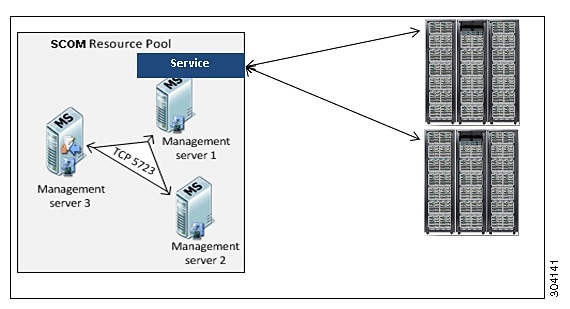
The Cisco UCS Management Service also includes the following features:
- Global severity mapping of Cisco UCS faults to SCOM alerts.
- Severity re-mapping of Cisco UCS faults based on one or more specific filters.
- Automatic resolution of faults which are cleared from the UCS domain.
- Automatic clearing of faults after the fault properties has been updated in the Cisco UCS domain. For example, after the fault severity has been changed or the fault has been acknowledged.
- Application of filters to Cisco UCS faults. For example, filtering the faults to only display faults with a severity of critical, or to hide faults that have a specific fault code.
- Restriction of the number of faults in a single polling cycle.
- Incremental polling of faults to the Cisco UCS Management Pack.
Severity Mapping
Cisco UCS has seven levels of severity for faults, while SCOM has three levels of severity. The Cisco UCS Management Service maps these different levels of severity. You can choose to accept the default severity mapping or modify the defaults.
Table 7-1 shows the default severity mapping between SCOM and Cisco UCS.
|
|
|
|
|---|---|---|
Modifying the Default Severity Mapping
 In the SCOM application, click the
Go tab in the menu bar.
In the SCOM application, click the
Go tab in the menu bar.
Step 2 Choose Monitoring from the drop-down menu.
Step 3 Under the Cisco Unified Computing System folder, click State Summary .
Step 4 Under Cisco UCS Instance Tasks in the Tasks panel, click Launch Configuration .
Step 5 In the Configuration dialog box, click the Severity Mapping tab.
Step 6 To change the severity mapping for a Cisco UCS fault severity, click the appropriate row in the Scom Alert Severity column and select the desired severity level from the drop-down list.
Restoring the Default Severity Mapping
In the SCOM application, click the
Go tab in the menu bar.
Step 2 Choose Monitoring from the drop-down menu.
Step 3 Under the Cisco Unified Computing System folder, click State Summary .
Step 4 Under Cisco UCS Instance Tasks in the Tasks panel, click Launch Configuration .
Step 5 In the Configuration dialog box, click the Severity Mapping tab.
Step 6 Click Restore Defaults .
Severity Remapping
Severity Remapping allows you to override the default or user-defined severity mapping between Cisco UCS and SCOM based on defined criteria. For example, you can remap a minor Cisco UCS fault with a specific fault code to the critical severity level in SCOM.
With severity remapping, you can do the following:
- Remap a Cisco UCS fault with a specified fault code to a different SCOM severity level.
- Remap a Cisco UCS fault with a specific severity to different SCOM severity level.
- Remap a Cisco UCS fault with specific cause to a different SCOM severity level.
Remapping Severity Levels for Faults with a Specific Fault Code
In the SCOM application, click the
Go tab in the menu bar.
Step 2 Choose Monitoring from the drop-down menu.
Step 3 Under the Cisco Unified Computing System folder, click State Summary .
Step 4 Under Cisco UCS Instance Tasks in the Tasks panel, click Launch Configuration .
Step 5 In the Configuration dialog box, click the Severity Re-Mapping tab.
Step 6 In the left pane, click a Cisco UCS domain.
Step 8 From the Faults drop-down list, choose Faults .
Step 9 From the second drop-down list, choose Code .
Step 10 From the third drop-down list, choose Equals To .
Step 11 In the fourth field, enter the fault code for which you want to remap the severity level.
Step 12 From the fifth drop-down list, choose the SCOM severity level to which you want to map faults with that fault code.
Remapping Severity Levels for Faults with a Specific Cause
In the SCOM application, click the
Go tab in the menu bar.
Step 2 Choose Monitoring from the drop-down menu.
Step 3 Under the Cisco Unified Computing System folder, click State Summary .
Step 4 Under Cisco UCS Instance Tasks in the Tasks panel, click Launch Configuration .
Step 5 In the Configuration dialog box, click the Severity Re-Mapping tab.
Step 7 From the Faults drop-down list, choose Faults .
Step 8 From the second drop-down list, choose Cause .
Step 9 From the third drop-down list, choose Equals To .
Step 10 In the fourth field, enter the cause for which you want to remap the severity level.
Step 11 From the fifth drop-down list, choose the SCOM severity level to which you want to map faults with that cause.
Fault Filters
You can filter Cisco UCS faults based on defined criteria so that SCOM only displays faults that meet those criteria. For example, you can use fault filters to ensure that SCOM only displays critical Cisco UCS faults, or acknowledged critical UCS faults. No other Cisco UCS faults are displayed in SCOM.
With fault filters, you can create complex filtering conditions that include AND / OR groups that let you group multiple filter expressions for a single fault filter. Fault filters also enable you to create hierarchical AND / OR groups.

NoteYou must group multiple filters in an AND / OR group. You must group multiple filters in an AND / OR group.
Creating a Fault Filter Expression
In the SCOM application, click the
Go tab in the menu bar.
Step 2 Choose Monitoring from the drop-down menu.
Step 3 Under the Cisco Unified Computing System folder, click State Summary .
Step 4 Under Cisco UCS Instance Tasks in the Tasks panel, click Launch Configuration .
Step 5 In the Configuration dialog box, click the Fault Filter tab.
Step 6 In the left pane, click a Cisco UCS domain.
Step 7 Click the Insert drop-down menu button and choose Expression .
Step 8 From the drop-down list in the Property column, choose a property.
The properties in this drop-down list are the properties that you can view in Cisco UCS Manager for all Cisco UCS faults. For more information, see Properties of Faults in the Cisco UCS Faults and Error Messages Reference .
Step 9 From the drop-down list in the Operator column, choose an operator for the expression.
Step 10 In the Value column, choose or enter a logical value on which you want to filter the faults.
Creating Filters with XML
You can create filters to use with SCOM with XML. These XML-based filters use the Cisco UCS syntax. For more information, see section 2-9 of the Cisco UCS Manager XML API Programmer’s Guide .
For examples of XML filters, see Examples of Fault Filters.
Options for Creating Filters with XML
You can use the following options when you create filters with XML:
- Import XML—Imports a pre-defined filter expression from an XML file. If the XML in the file follows the correct syntax, filter expressions are created with them. You can use Import XML to create complex filters from the XML file.
- Export XML—Exports and saves user-defined filter expressions to a file. You can use this XML file for Import XML or to understand how filters are applied.
- Paste (Ctrl + V)—Creates filters from text that you have copied onto the clipboard of your computer. If you copy a valid XML filter and paste it into the application, the filter expression is created.
Rules for Creating Filters with XML
NoteFor Import XML and Paste, the XML filter that you input must be a valid filter. For Import XML and Paste, the XML filter that you input must be a valid filter.
For Import XML and Paste, the following rules determine whether a filter expression is created:
Valid Examples for Import XML
Examples of Fault Filters
This section includes the following examples of fault filters:
- Example: Filtering Faults by Severity
- Example: Filtering Faults by OR Group Expression
- Filtering Faults by AND Group Expression
- Example: Filtering Faults by Fault Code
- Example: Filtering Faults by Cause
- Example: Filtering Acknowledged Faults
- Example: Filtering Faults by Specific DN
- Example: Filtering Faults that Contain a Specific DN
- Example: Filtering Faults by Severity or Fault Code
- Example: Filtering Faults by Severity and Fault Code
- Example: Filtering Acknowledged Faults with a Specific Severity
- Example: Filtering Faults with Severity and are Acknowledged or have Specified Fault Code
- Example: Filtering Faults with Severity or are Acknowledged and have Specified Fault Code
- Filtering Faults Using Complex Filter
Example: Filtering Faults by Severity
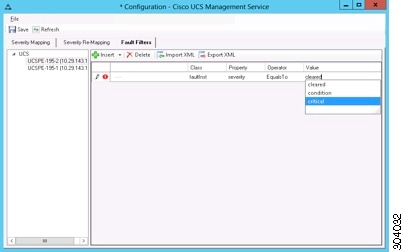
Figure 7-2 shows an example of how to create a fault filter that extracts only those faults with the selected severity and displays them in SCOM.
Figure 7-2 Fault Filter by Severity
Example: Filtering Faults by OR Group Expression
Figure 7-3 and Figure 7-4 show how to use OR Group condition to create a fault filter that extracts only those filters that contain OR group condition. For example, Fault severity EqualsTo critical OR Faults severity EqualsTo minor.
Figure 7-3 Using OR Group Condition - Example 1
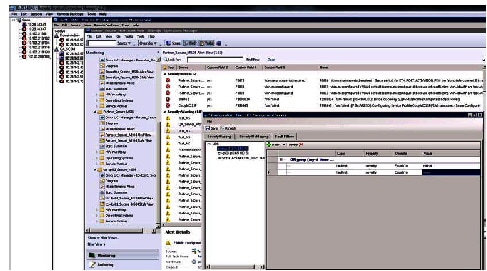
Figure 7-4 Using OR Group Condition - Example 2
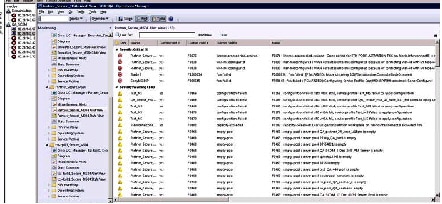
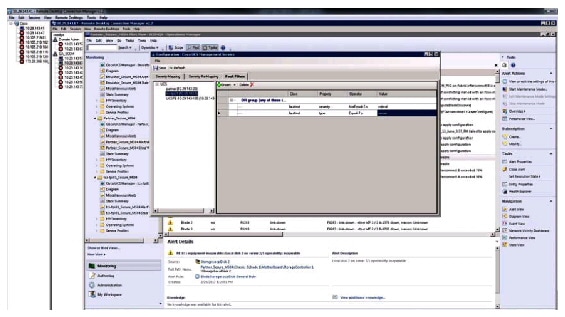
Figure 7-5 shows how to use OR Group Condition with operator "EqualsTo". Avoid using "NotEqualsTo" operator with OR group for proper results.
Figure 7-5 Using OR Group Condition with operator ‘EqualsTo’
Filtering Faults by AND Group Expression
Figure 7-6 and Figure 7-7 show how to use AND Group condition to create a fault filter that extracts only those filters that contain AND group condition.
Figure 7-6 Using AND Group Condition - Example 1
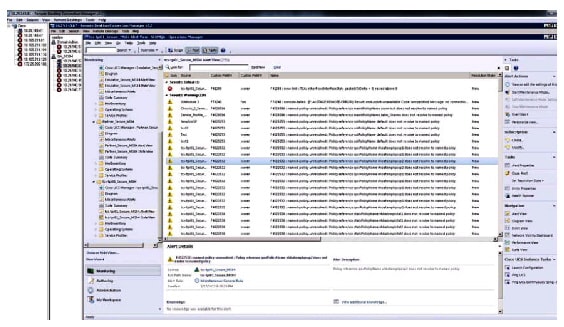
Figure 7-7 Using AND Group Condition - Example 2
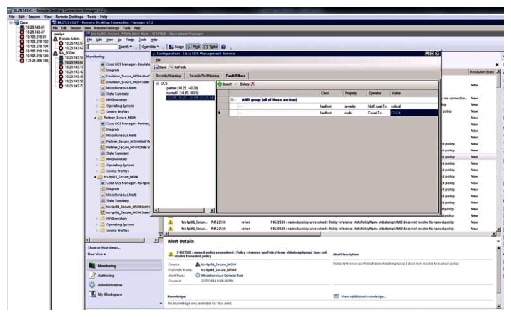
Need faults of severity level Major that do not contain faults of Fault Code F0283. Also, they should not contain faults whose description contains "N20-A" (or does not contain) and whose DN contains "psu".
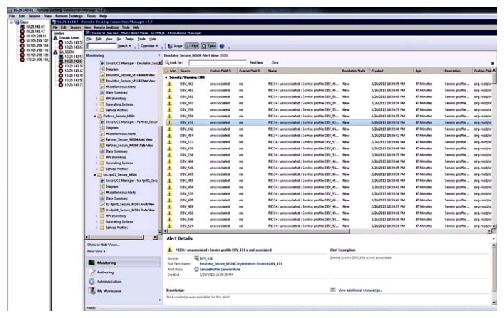
Figure 7-8 shows a possibility of adding the same scenario that will not work.
Figure 7-8 Adding the same scenario that will not work
Example: Filtering Faults by Fault Code
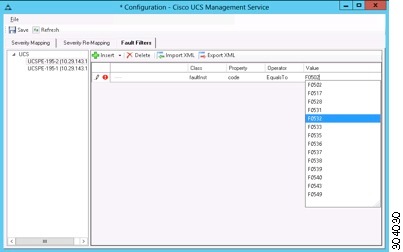
Figure 7-9 shows an example of how to create a fault filter that extracts only those faults with the selected fault code and displays them in SCOM.
Figure 7-9 Fault Filter by Fault Code
Example: Filtering Faults by Cause
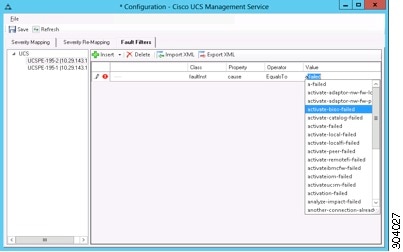
Figure 7-10 shows an example of how to create a fault filter that extracts only those faults with the selected cause and displays them in SCOM.
Figure 7-10 Fault Filter by Cause
Example: Filtering Acknowledged Faults
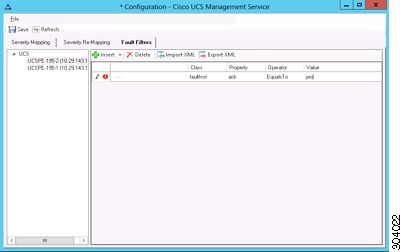
Figure 7-11 shows an example of how to create a fault filter that extracts only those faults that have been acknowledged and displays them in SCOM.
Figure 7-11 Fault Filter for Acknowledged Faults
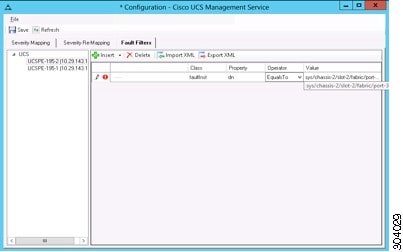
Example: Filtering Faults by Specific DN
Figure 7-12 shows an example of how to use the Equals To operator to create a fault filter that extracts only those faults with the specified DN and displays them in SCOM.
Figure 7-12 Fault Filter by Specific DN
Example: Filtering Faults that Contain a Specific DN
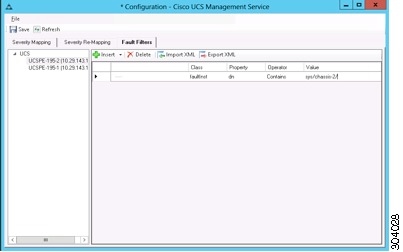
Figure 7-13 shows an example of how to use the Contains operator to create a fault filter that extracts only those faults that contain the specified DN and displays them in SCOM.
Figure 7-13 Fault Filter that Contains a Specified DN
Example: Filtering Faults by Severity or Fault Code
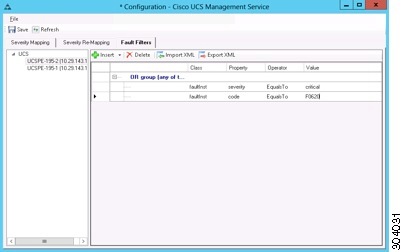
Figure 7-14 shows an example of how to create an OR group for a fault filter that extracts only those faults with either the specified severity or the specified fault code and displays them in SCOM.
Figure 7-14 Fault Filter with an OR group that includes Severity or Fault Code
Example: Filtering Faults by Severity and Fault Code
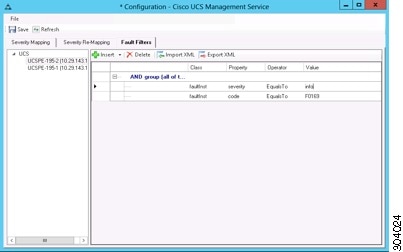
Figure 7-15 shows an example of how to create an AND group for a fault filter that extracts only those faults with the specified severity and the specified fault code and displays them in SCOM.
Figure 7-15 Fault Filter with an AND group that includes Severity and Fault Code
Example: Filtering Acknowledged Faults with a Specific Severity
Figure 7-16 shows an example of how to create an AND group for a fault filter that extracts only those acknowledged faults with the specified severity and displays them in SCOM.
Figure 7-16 Fault Filter with an AND group for Acknowledged Faults with Specified Severity
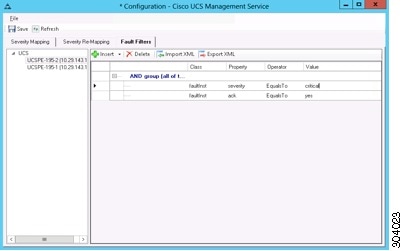
Example: Filtering Faults with Severity and are Acknowledged or have Specified Fault Code
Figure 7-17 shows an example of how to create an AND/OR group for a fault filter that extracts only those faults with the specified severity and that are either acknowledged or have the specified fault code and displays them in SCOM.
Figure 7-17 Fault Filter with an AND/OR group for Faults with Specified Severity and Acknowledgement or Fault Code
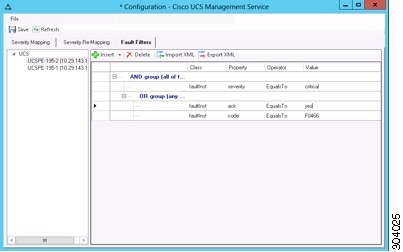
Example: Filtering Faults with Severity or are Acknowledged and have Specified Fault Code
Figure 7-18 shows an example of how to create an AND/OR group for a fault filter that extracts only those faults that either have the specified severity or are acknowledged and have the specified fault code and displays them in SCOM.
Figure 7-18 Fault Filter with an AND/OR group for Faults with Specified Severity or Acknowledgement and Fault Code
Filtering Faults Using Complex Filter
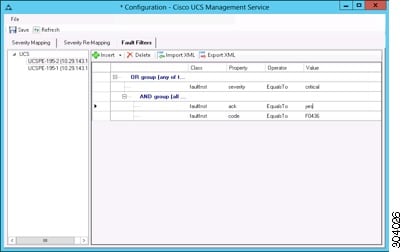
Figure 7-19 and Figure 7-20 show how to use complex filter to create a fault filter that extracts only those filters that use complex filter. For examples: AND within an OR and OR within an AND. (Insert Example 5 and 6 Screenshots)
Figure 7-19 Using a Complex Filter - Example 1
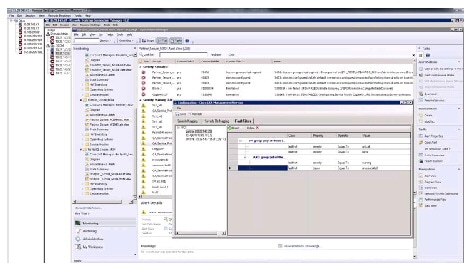
Figure 7-20 Using a Complex Filter - Example 2
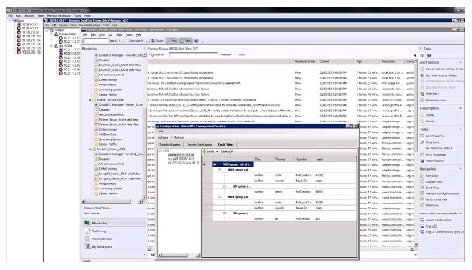
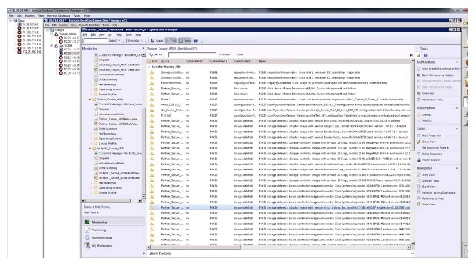
NoteThe topmost node in a Complex Filter cannot be an Expression. It has to be either And Group or an OR Group. The topmost node in a Complex Filter cannot be an Expression. It has to be either And Group or an OR Group.
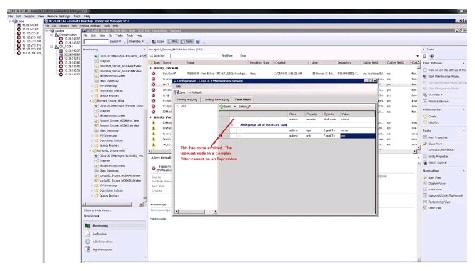
While using OR Group, be aware that if either expression in an OR Group holds true, the condition will be evaluated. If both the Expressions are true, then both the results will be displayed.
For example, if the Expressions in an OR Group are as follows:
1. faultInst cause EqualsTo "named-policy-unresolved"
2. faultInst severity EqualsTo "critical"
The results of both the expressions will be independent of each other. Expression 1 yields faults of severity warning (faults with cause named-policy-unresolved are of severity warning), say 26 number of faults and Expression 2 yields faults of severity Critical, say 8 faults.
Since these two expressions are in an OR Group, the result will contain both the faults - 26+8=34 Faults.
If the same two Expressions are used in an AND Group, the result will contain zero faults as both the properties do not satisfy a single fault at the same time.
 Feedback