- New and Changed Information
- Preface
- Overview
- Installing and Launching the DCNM Server
- Installing and Launching the DCNM Client
- Using the DCNM Client
- Administering DCNM Authentication Settings
- Administering Device Discovery
- Administering Devices and Credentials
- Administering DCNM Licensed Devices
- Working with Topology
- Managing Events
- Working with Inventory
- Configuring SPAN
- Managing Device Operating Systems
- Working with Configuration Change Management
- Administering Auto-Synchronization with Devices
- Administering Statistical Data Collection
- Administering DCNM Server Log Settings
- Maintaining the DCNM Database
- Troubleshooting DCNM
Cisco DCNM Fundamentals Configuration Guide, Release 4.2
Bias-Free Language
The documentation set for this product strives to use bias-free language. For the purposes of this documentation set, bias-free is defined as language that does not imply discrimination based on age, disability, gender, racial identity, ethnic identity, sexual orientation, socioeconomic status, and intersectionality. Exceptions may be present in the documentation due to language that is hardcoded in the user interfaces of the product software, language used based on RFP documentation, or language that is used by a referenced third-party product. Learn more about how Cisco is using Inclusive Language.
- Updated:
- November 12, 2008
Chapter: Administering Devices and Credentials
- Information About Devices and Credentials
- Licensing Requirements for Devices and Credentials
- Prerequisites for Administering Devices and Credentials
- Guidelines and Limitations for Devices and Credentials
- Configuring Devices and Credentials
- Viewing Device Credentials and Status
- Field Descriptions for Devices and Credentials
- Additional References for Devices and Credentials
- Feature History for Devices and Credentials
Administering Devices and Credentials
This chapter describes how to administer Cisco NX-OS devices and the credentials that are used by the Cisco Data Center Network Manager (DCNM) server to authenticate itself to the devices.
This chapter includes the following sections:
- Information About Devices and Credentials
- Licensing Requirements for Devices and Credentials
- Prerequisites for Administering Devices and Credentials
- Guidelines and Limitations for Devices and Credentials
- Configuring Devices and Credentials
- Viewing Device Credentials and Status
- Field Descriptions for Devices and Credentials
- Additional References for Devices and Credentials
- Feature History for Devices and Credentials
Information About Devices and Credentials
This section includes the following topics:
Devices
The Devices and Credentials feature allows you to administer the management state of devices. If the managed physical device supports virtual device contexts (VDCs), Cisco DCNM represents each VDC as a device. If you need to retrieve the running configuration and status information of a single VDC on a physical device with multiple VDCs, rather than performing device discovery for all the VDCs on the physical device, you can use the Devices and Credentials feature to rediscover the single device that represents the changed VDC.
Credentials
Devices and Credentials supports the ability to secure each managed device with different credentials. Cisco DCNM allows you to configure unique credentials for each discovered device or the use of default credentials when you do not configure unique credentials for a device. If some managed devices share the same credentials but others do not, you can configure unique credentials for some devices and configure the default credentials with the credentials that are shared by some of the managed devices.
Devices and Credentials associates a unique set of device credentials with each Cisco DCNM server user. This means that the accounting logs on managed devices reflect the actions of each Cisco DCNM server user. If you log into the Cisco DCNM client as a user who does not have device credentials configured, the Cisco DCNM client prompts you to configure device credentials for the user account.
If support for accounting is not important to your organization, you must still configure each Cisco DCNM server user with device credentials, even if the credentials specified for each user are the same.
Device Status
The Devices and Credentials feature shows the status each device. The possible status are as follows:
- Managed—Cisco DCNM can connect to the device using SSH, configure the running configuration of the device, and retrieve logs and other data from it. This status is possible only for devices that run a supported release of Cisco NX-OS and that are configured properly to support discovery by Cisco DCNM. For more information, see the “Cisco NX-OS Device Preparation” section.
- Unmanaged—Cisco DCNM does not manage the device or monitor the status of the device.
- Unreachable—Cisco DCNM cannot connect to the device, which was a managed device prior to becoming unreachable. Common causes for this status are as follows:
– A network issue is preventing the Cisco DCNM server from contacting the device.
Licensing Requirements for Devices and Credentials
The following table shows the licensing requirements for this feature:
Device and Credentials requires no license. Any feature not included in a license package is bundled with the Cisco DCNM and is provided at no charge to you. For information about obtaining and installing a Cisco DCNM LAN Enterprise license, see the “Installing Licenses” section. |
Prerequisites for Administering Devices and Credentials
Performing device discovery with the Devices and Credentials feature has the following prerequisites:
- The Cisco DCNM server must be able to connect to a device that you want to discover.
- Cisco NX-OS devices must be running a supported release of Cisco NX-OS. For information about supported releases of Cisco NX-OS, see the Cisco DCNM Release Notes, Release 4.x .
- The Cisco NX-OS device must have the minimal configuration that is required to enable device discovery to succeed. For more information, see the “Cisco NX-OS Device Preparation” section.
Guidelines and Limitations for Devices and Credentials
The Devices and Credentials feature has the following configuration guidelines and limitations:
- Discovering a device by using the Devices and Credentials feature does not support CDP-based discovery of neighboring devices. To use CDP-based discovery, see the “Administering Device Discovery” section.
- Be careful when you change the default credentials or device-specific credentials. Incorrect credentials prevent Cisco DCNM from managing devices.
Configuring Devices and Credentials
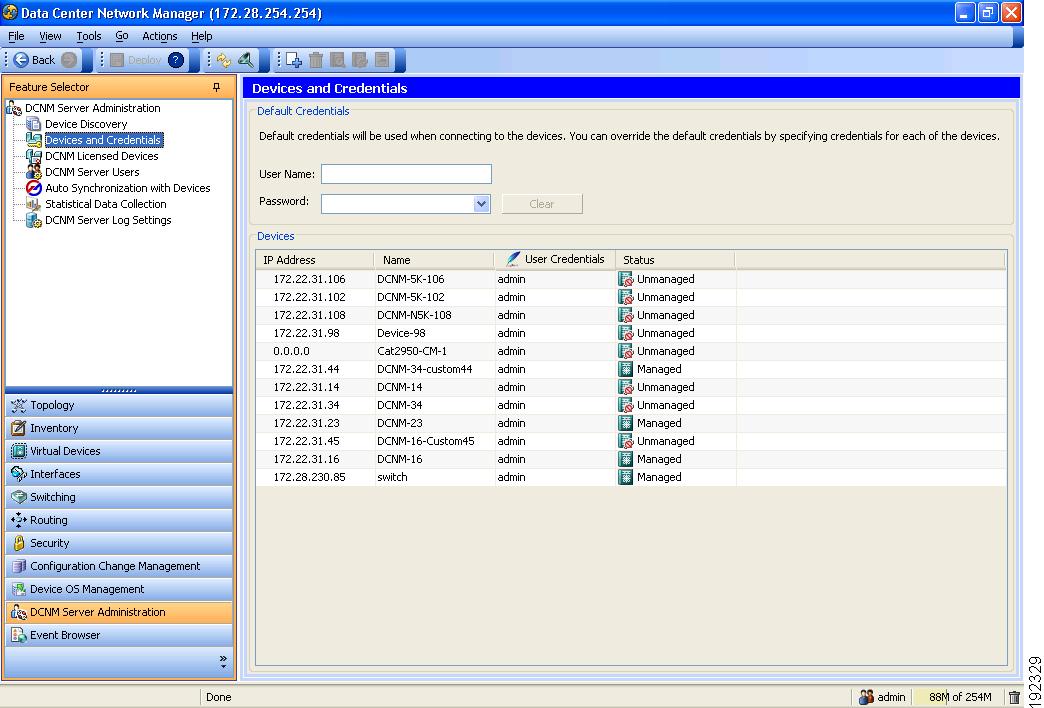
Figure 7-1 shows the Devices and Credentials content pane.
Figure 7-1 Devices and Credentials Content Pane
This section includes the following topics:
- Adding a Device
- Discovering a Device
- Unmanaging a Device
- Deleting a Device
- Configuring Default Device Credentials
- Clearing Default Device Credentials
- Configuring Unique Credentials for a Device
- Clearing Unique Credentials for a Device
Adding a Device
You can add a device. After you add a device, you can discover it. For more information, see the “Discovering a Device” section.
BEFORE YOU BEGIN
Determine the IPv4 address for the device.
Determine whether Cisco DCNM can communicate with the device using the default device credentials or whether you need to add unique device credentials when you add the device to Cisco DCNM.
DETAILED STEPS
To add a device, follow these steps:
Step 1 From the Feature Selector pane, choose DCNM Server Administration > Devices and Credentials .
The discovered devices appear in the Devices area of the Contents pane.
Step 2 From the menu bar, choose Actions > New Device .
A blank row appears in the Devices area on the Contents pane.
Step 3 In the IP Address column for the new device, enter the IPv4 address that Cisco DCNM must use to connect to the device.
Step 5 (Optional) If you need to add unique device credentials, in the User Credentials column, double-click the entry for the device that you added, click the down-arrow button, and configure the unique device credentials.
Step 6 From the menu bar, choose File > Deploy to apply your changes to the Cisco DCNM server.
The status of the new device is Unmanaged.
Discovering a Device
Discovering an unmanaged device changes its status to Managed. During the discovery, Cisco DCNM retrieves the running configuration of the device.
If you are rediscovering a device, the configuration data that Cisco DCNM retrieves replaces any existing configuration data for the device. Whenever the configuration data that Cisco DCNM has for the device is not accurate, such as when a device administrator has used the command-line interface to change the running configuration, you can use this procedure to update the configuration data that Cisco DCNM has for the device.

Note Discovering a device does not affect the running configuration of the device.
BEFORE YOU BEGIN
Ensure that you have either configured the device entry with unique device credentials or that Cisco DCNM can use the default device credentials to connect to the device. For more information, see the “Configuring Default Device Credentials” section.
DETAILED STEPS
To discover a device, follow these steps:
Step 1 From the Feature Selector pane, choose DCNM Server Administration > Devices and Credentials .
The discovered devices appear in the Devices area of the Contents pane.
Step 2 Click the device that you want to discover.
Step 3 From the menu bar, choose Actions > Discover .
The device discovery begins. The status of the device changes to Discovering.
Step 4 Wait for the status to change to Managed.
Typically, the device discovery occurs in less than 5 minutes. After the status changes to Managed, you can use Cisco DCNM to configure the device.
You do not need to save your changes.
BEFORE YOU BEGIN
Ensure that you are changing the status of the correct device. Cisco DCNM cannot control the running configuration of an unmanaged device.
DETAILED STEPS
To change the status of a device to unmanaged, follow these steps:
Step 1 From the Feature Selector pane, choose DCNM Server Administration > Devices and Credentials .
The discovered devices appear in the Devices area of the Contents pane.
Step 2 Click the device whose status you want to change to unmanaged.
Step 3 From the menu bar, choose Actions > Unmanage .
After a short delay, the status of the device changes to Unmanaged.
You do not need to save your changes.
Deleting a Device
You can delete a device. When you delete a device, you delete all configuration data about the device from Cisco DCNM.
You should consider deleting devices that you do not intend to manage with Cisco DCNM. Additionally, if a network administrator of a device that supports VDCs uses the command-line interface of the device to delete a VDC, you should delete from Cisco DCNM the device that represented the VDC.
Note Deleting a device does not affect the running configuration of the device.
DETAILED STEPS
To delete a device, follow these steps:
Step 1 From the Feature Selector pane, choose DCNM Server Administration > Devices and Credentials .
The discovered devices appear in the Devices area of the Contents pane.
Step 2 Click the device that you want to delete.
Step 3 From the menu bar, choose Actions > Delete .
The device disappears from the Devices area.
You do not need to save your changes.
Configuring Default Device Credentials
You can configure the default credentials, which Cisco DCNM uses to authenticate itself when it connects to discovered Cisco NX-OS devices. Cisco DCNM uses the default device credentials to communicate with each discovered device that you have not configured with unique device credentials.
Note Device credentials are unique for each Cisco DCNM server user.
BEFORE YOU BEGIN
Determine what the default device credentials should be. All Cisco NX-OS devices that Cisco DCNM uses the default credentials to communicate with must have a network administrator account configured with a username and password that are identical to the default credentials that you configure in Cisco DCNM.
Note We recommend that you use a strong password. Common guidelines for strong passwords include a minimum password length of eight characters and at least one letter, one number, and one symbol. For example, the password Re1Ax@h0m3 has ten characters and contains uppercase and lowercase letters in addition to one symbol and three numbers.
DETAILED STEPS
To configure default device credentials, follow these steps:
Step 1 From the Feature Selector pane, choose DCNM Server Administration > Devices and Credentials .
The Default Credentials area appears in the Contents pane, above the Devices area, which lists the discovered devices.
Step 2 In the User Name field, enter the username for the default credentials. A valid username can be 1 to 32 characters. Valid characters are numbers, symbols, and case-sensitive letters.
Note Cisco NX-OS supports usernames that are a maximum of 28 characters.
Step 3 To the right of the Password field, click the down-arrow button.
Step 4 In the Password field and the Confirm Password field, enter the password for the default credentials. Valid passwords are numbers, symbols, and case-sensitive letters.
Note Cisco NX-OS supports passwords that are a maximum of 64 characters.
Step 6 From the menu bar, choose File > Deploy to apply your changes to the Cisco DCNM server.
Clearing Default Device Credentials
You can clear the default device credentials.
Note If you clear the default device credentials, Cisco DCNM can connect to discovered devices only if you have configured unique credentials for each managed device.
BEFORE YOU BEGIN
If you intend to use Cisco DCNM without default device credentials, you should ensure that Cisco DCNM is configured with unique device credentials for each discovered device before you perform this procedure. For more information, see the “Configuring Unique Credentials for a Device” section.
DETAILED STEPS
To configure default device credentials, follow these steps:
Step 1 From the Feature Selector pane, choose DCNM Server Administration > Devices and Credentials .
The Default Credentials area appears in the Contents pane, above the Devices area, which lists the discovered devices.
Step 2 In the Default Credentials area, click Clear .
The User Name field and the Password field clear.
Step 3 From the menu bar, choose File > Deploy to apply your changes to the Cisco DCNM server.
Configuring Unique Credentials for a Device
You can configure credentials that are unique to a discovered device. When unique credentials exist for a discovered device, Cisco DCNM uses them when it connects to the device rather than using the default device credentials.
Note Device credentials are unique for each Cisco DCNM server user.
BEFORE YOU BEGIN
Determine the username and password for a network administrator user account on the discovered device.
Note We recommend that you use a strong password. Common guidelines for strong passwords include a minimum password length of eight characters and at least one letter, one number, and one symbol. For example, the password Re1Ax@h0m3 has ten characters and contains uppercase and lowercase letters in addition to one symbol and three numbers.
DETAILED STEPS
To configure unique credentials for a discovered device, follow these steps:
Step 1 From the Feature Selector pane, choose DCNM Server Administration > Devices and Credentials .
The discovered devices appear in the Devices area of the Contents pane.
Step 2 In the User Credentials column for the device, double-click the entry and then click the down-arrow button.
Step 3 In the User Name field, enter the username. Valid usernames are between 1 and 32 characters. Valid characters are numbers, symbols, and case-sensitive letters.
Note Cisco NX-OS supports usernames that are a maximum of 28 characters.
Step 4 In the Password field and the Confirm Password field, enter the password. Valid passwords are numbers, symbols, and case-sensitive letters.
Note Cisco NX-OS supports passwords that are a maximum of 64 characters.
Step 6 From the menu bar, choose File > Deploy to apply your changes to the Cisco DCNM server.
Clearing Unique Credentials for a Device
You can clear unique credentials for a discovered device.
Note If you clear the unique credentials for a discovered device, Cisco DCNM uses the default credentials to connect to the device.
BEFORE YOU BEGIN
If you intend to operate Cisco DCNM without unique credentials for the device, you should ensure that Cisco DCNM is configured with default device credentials before you perform this procedure. For more information, see the “Configuring Default Device Credentials” section.
DETAILED STEPS
To clear unique credentials from a discovered device, follow these steps:
Step 1 From the Feature Selector pane, choose DCNM Server Administration > Devices and Credentials .
Discovered devices appear in the Devices area of the Contents pane.
Step 2 In the User Credentials column for the device, double-click the entry and then click the down-arrow button.
Step 3 In the User Name field, delete all text.
Step 4 In the Password field, delete all text.
Step 5 In the Confirm Password field, delete all text.
Step 7 From the menu bar, choose File > Deploy to apply your changes to the Cisco DCNM server.
Viewing Device Credentials and Status
To view the status for devices and whether credentials are configured for the device, from the Feature Selector pane, choose DCNM Server Administration > Devices and Credentials .
The default credentials appears in the Default Credentials area in the Contents pane. Information about devices, including credentials and status, appear in the Devices area in the Contents pane. For information about the fields that appear, see the “Field Descriptions for Devices and Credentials” section.
Field Descriptions for Devices and Credentials
This section includes the following field descriptions for Devices and Credentials:
Device and Credentials Content Pane
Additional References for Devices and Credentials
For additional information related to the Devices and Credentials feature, see the following sections:
 Feedback